Using Class Engagement to Identify Students who Need Additional Support
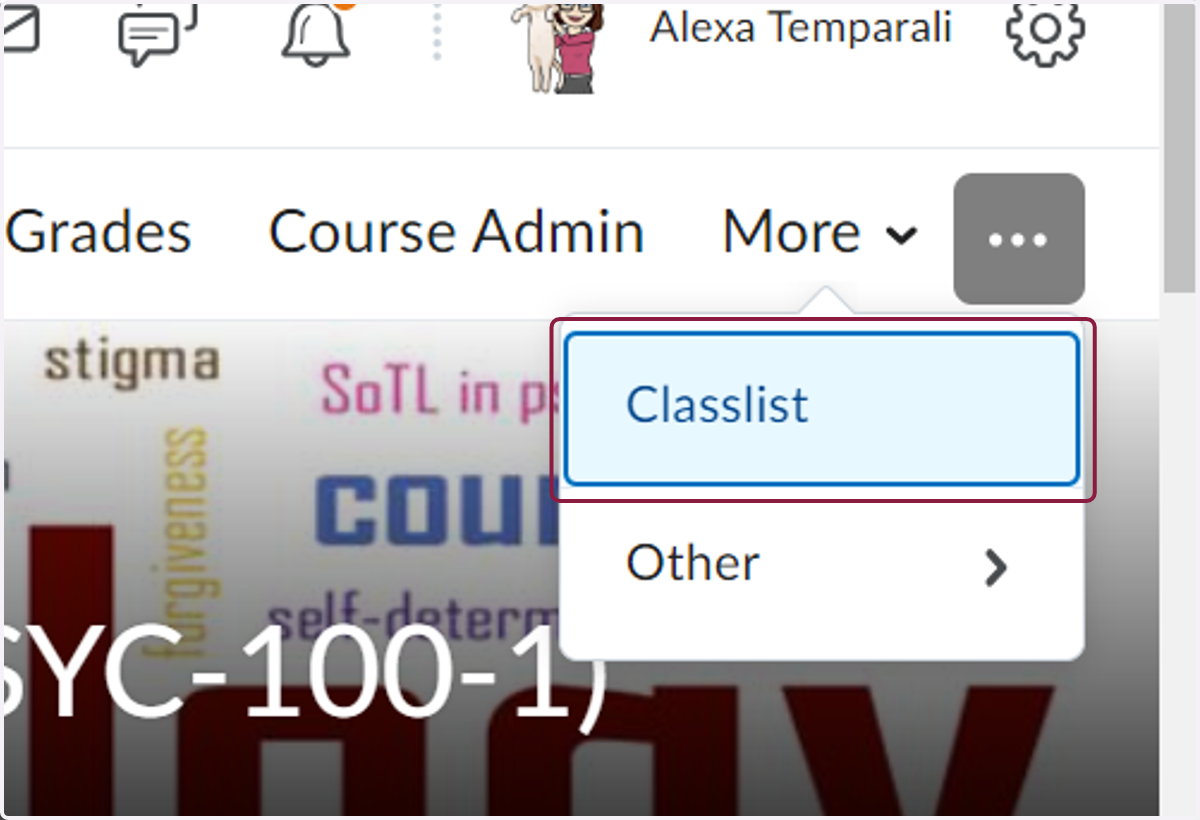
1. Click on Classlist
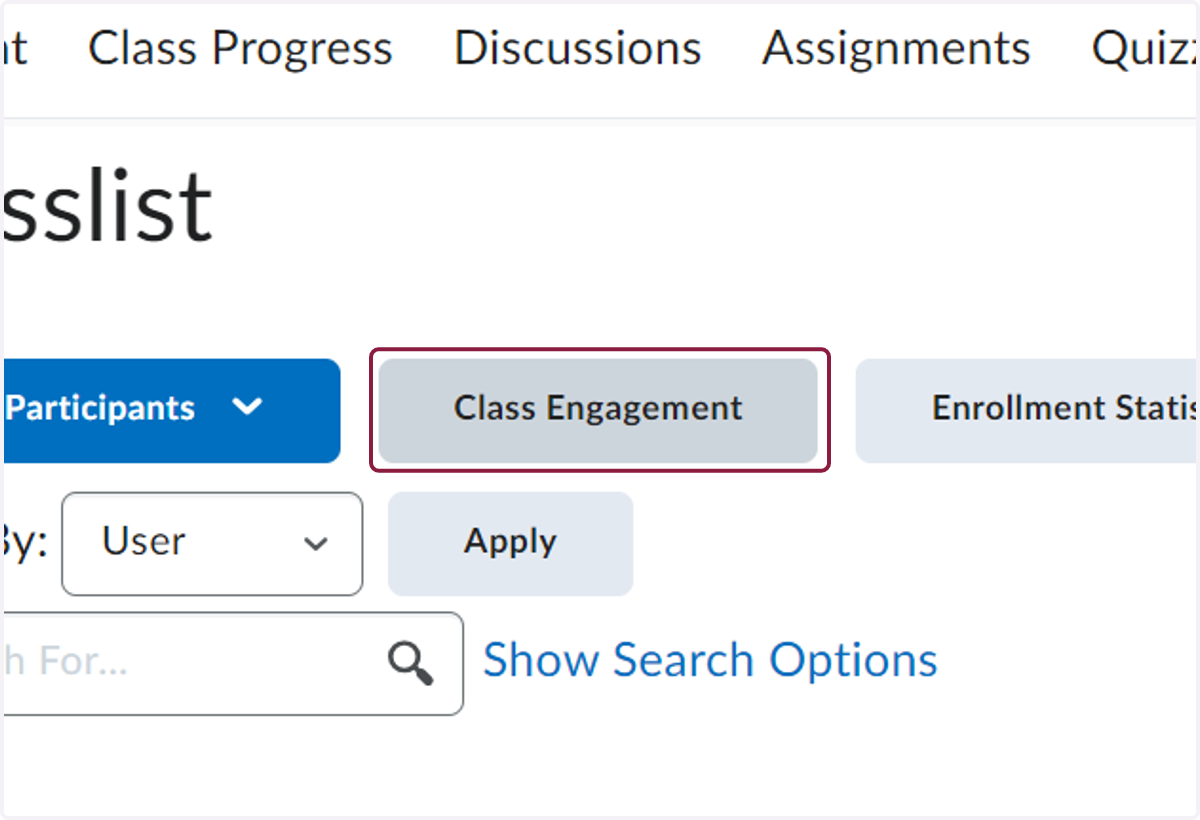
2. Click on Class Engagement
Filtering results to show students who need support
3. Click on Inactive students filter to limit your list to only students who have not logged on in the past 7 days
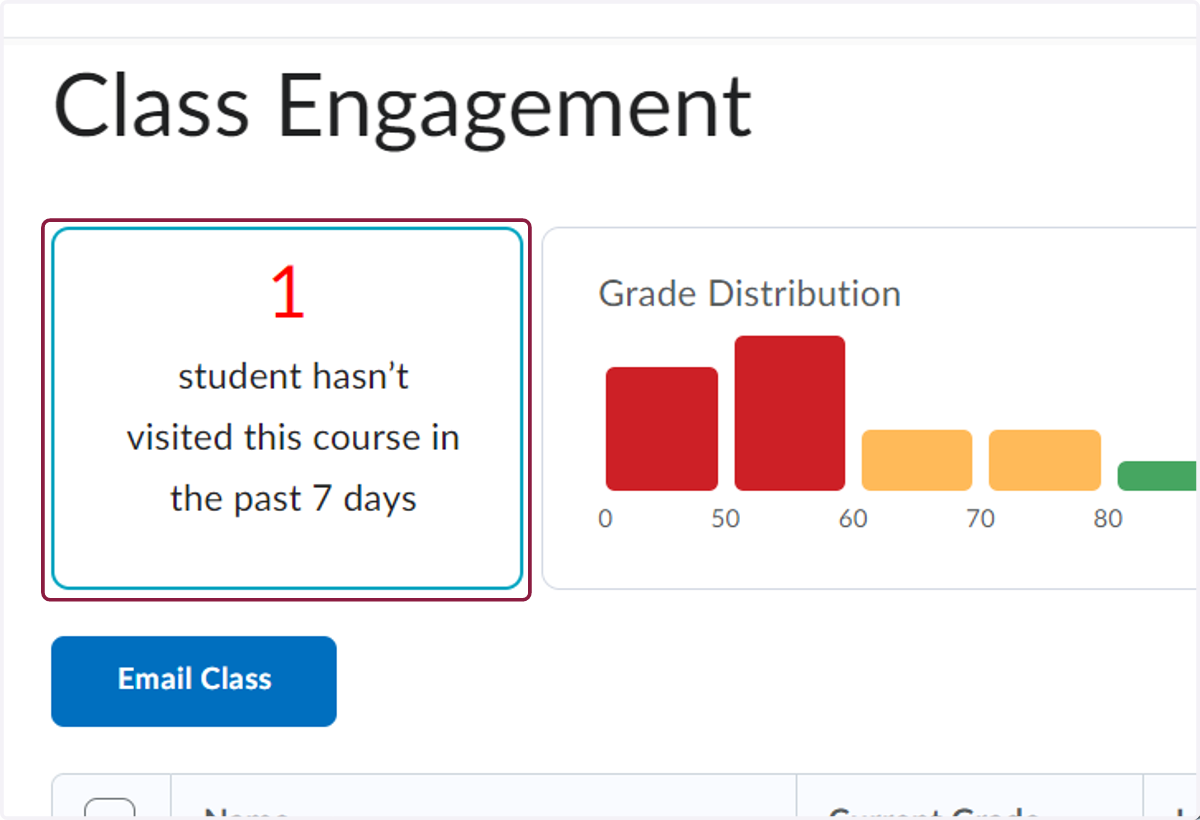
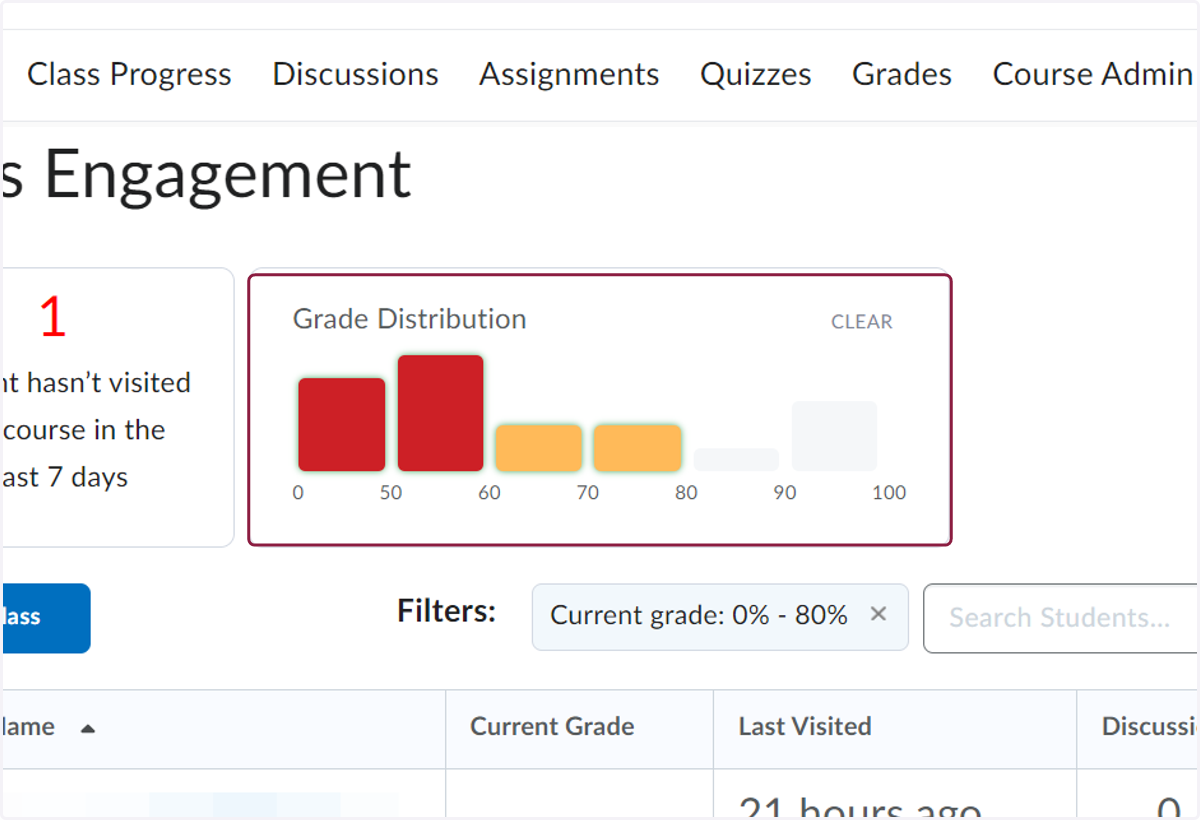
4. Or select grade distributions from the bar graph to show students whose current grade is falling in a certain grade range.
Reach out to students who need additional support
5. Once you have filtered your students, you can select students to email directly from the engagement page.
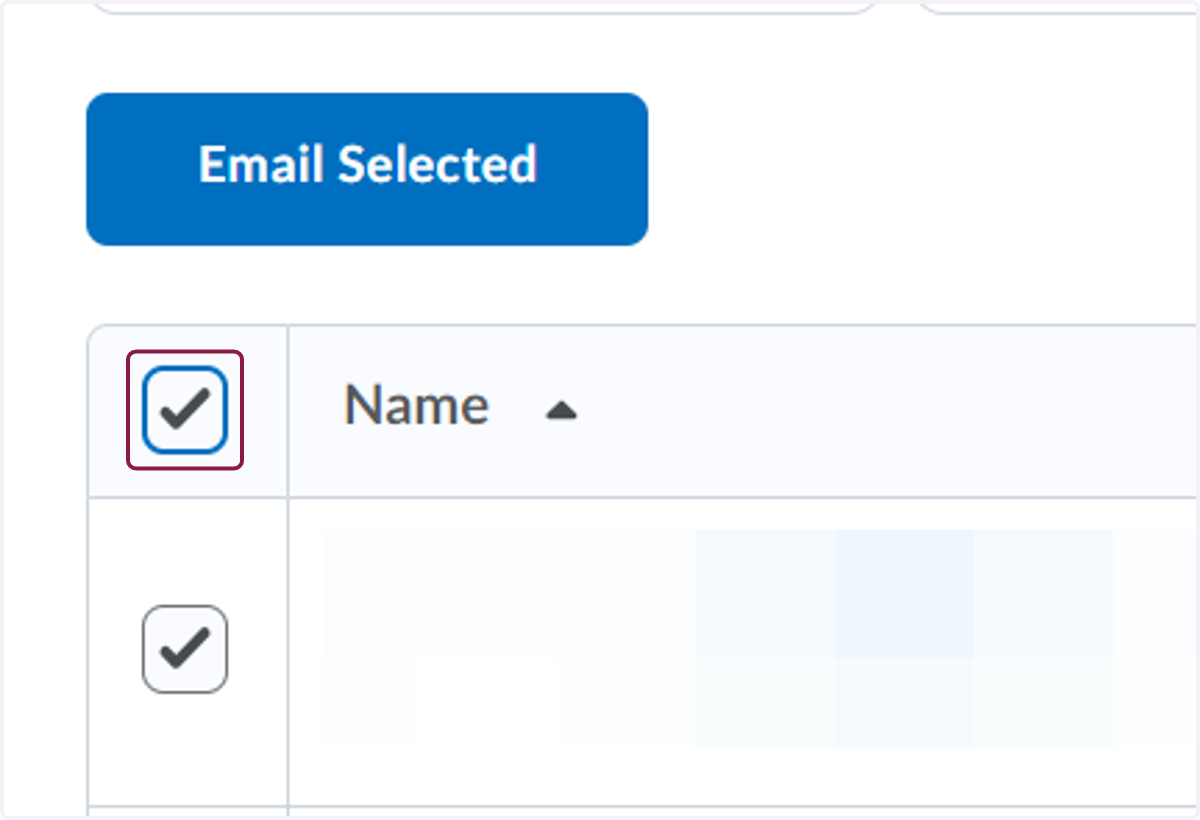
6. Click on highlight
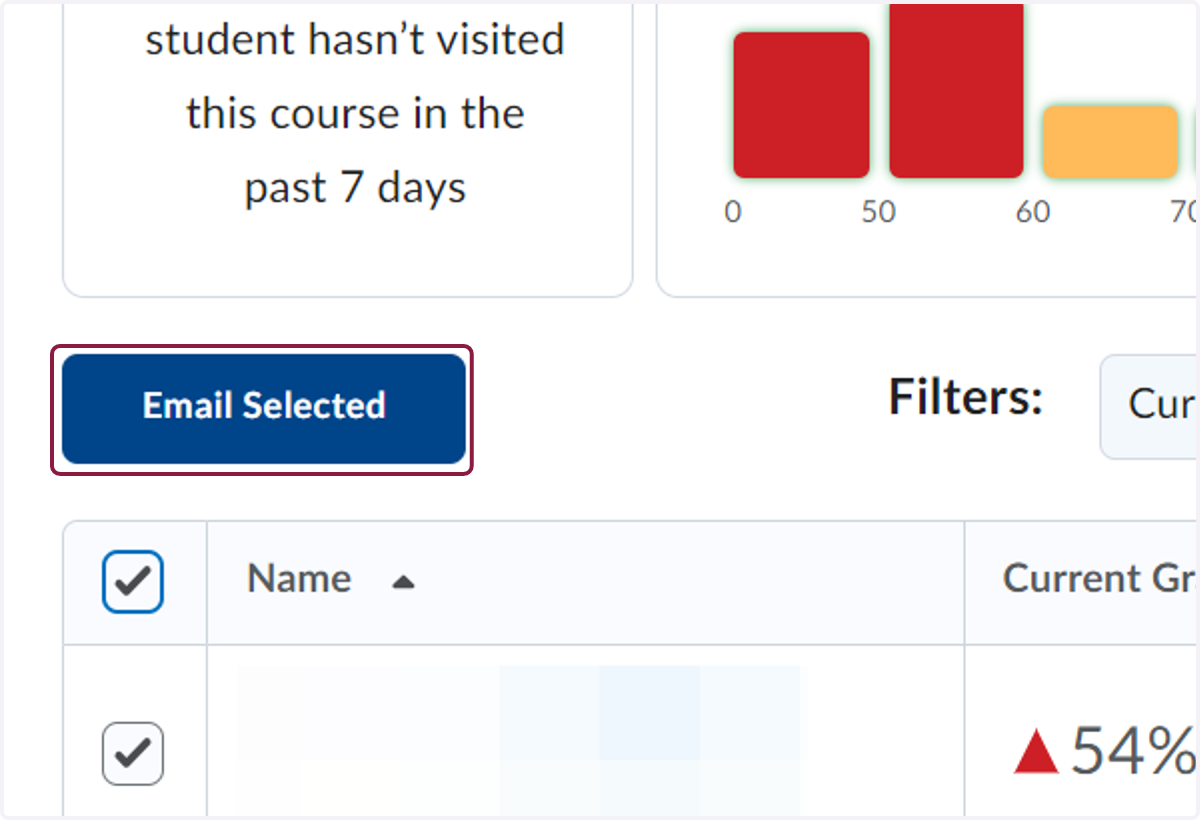
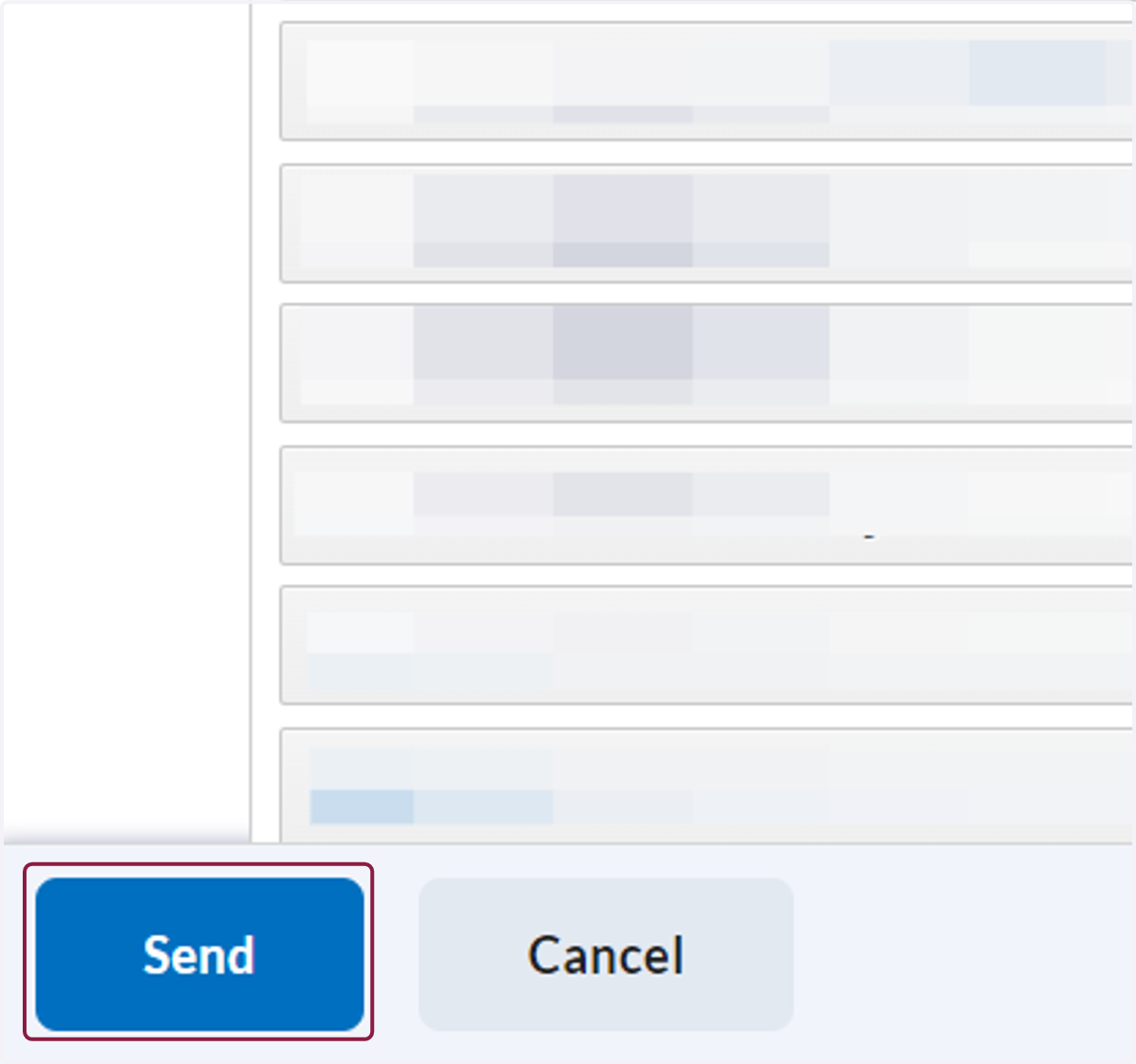
7. Compose a message to support students. You may encourage them to log on and engage with course content, direct them to support services in the ARC or offer you office hour time as a chance for them to stop in and get support. When you are ready, click Send.
Conversely, you may also choose to email students who are doing well, encouraging them to keep up the good work.