Using Arbiter Sports
Arbiter Sports - Login
1. Enter Personal Email for account made with ArbiterSports
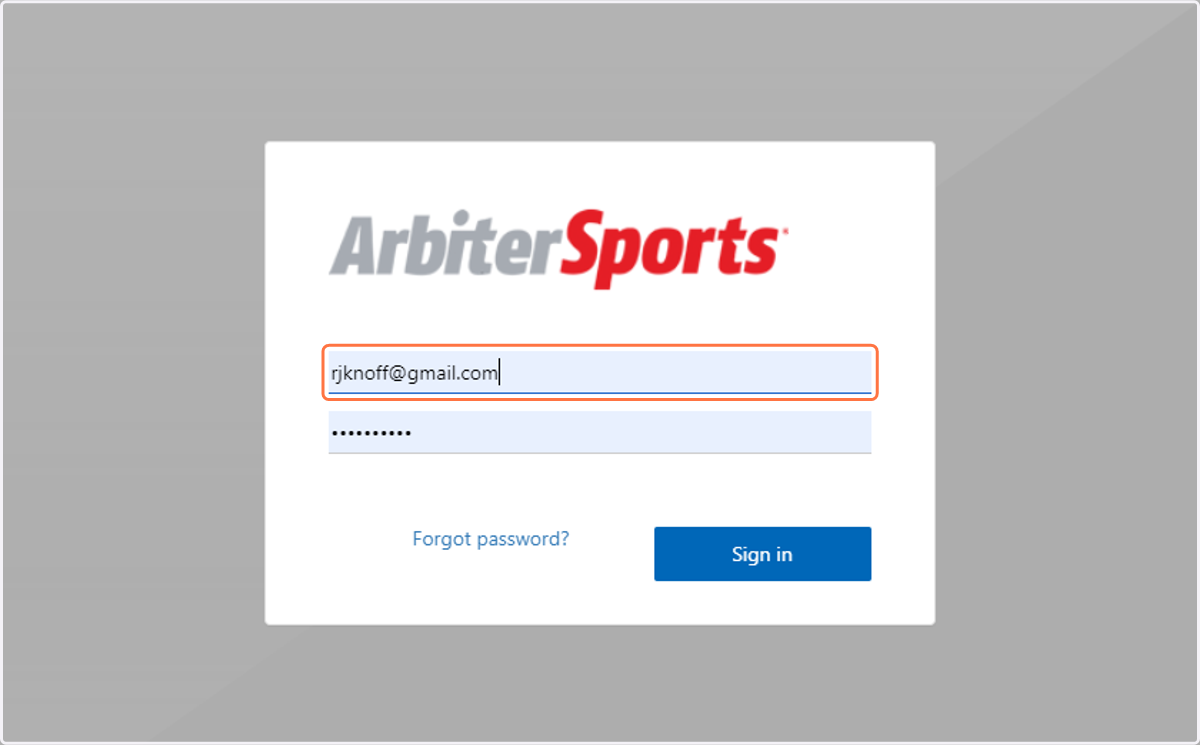
2. Type password
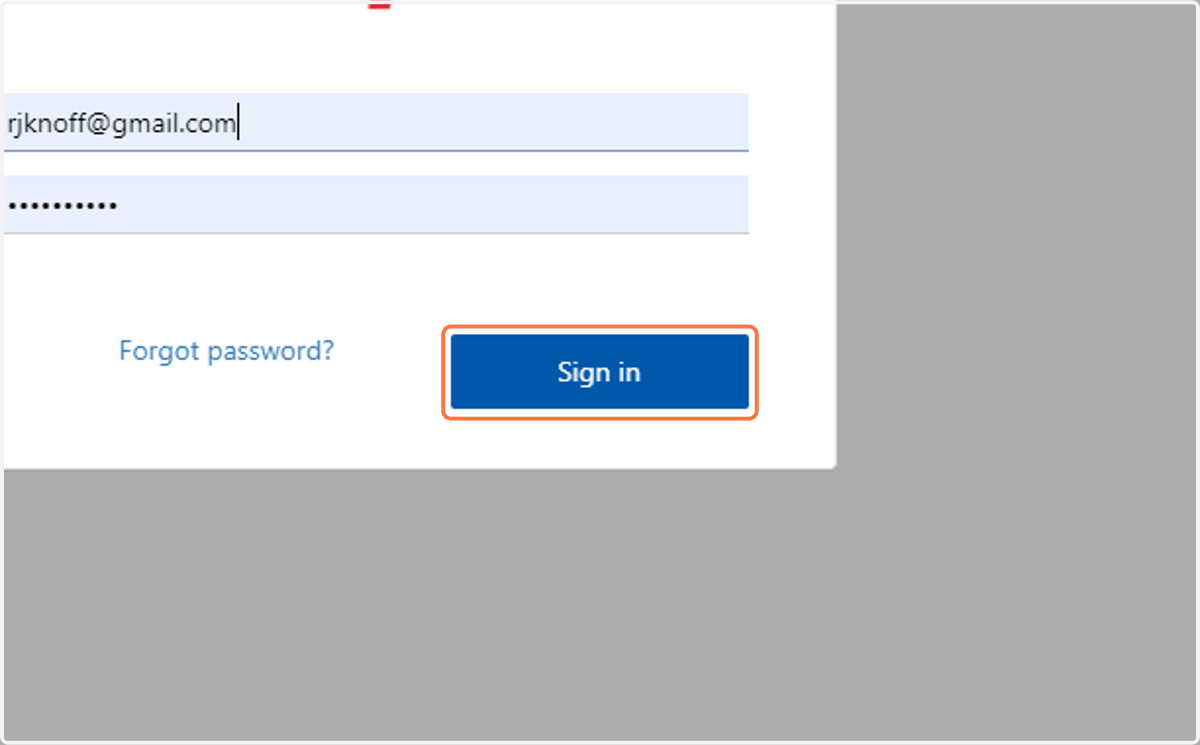
3. Click on Sign in
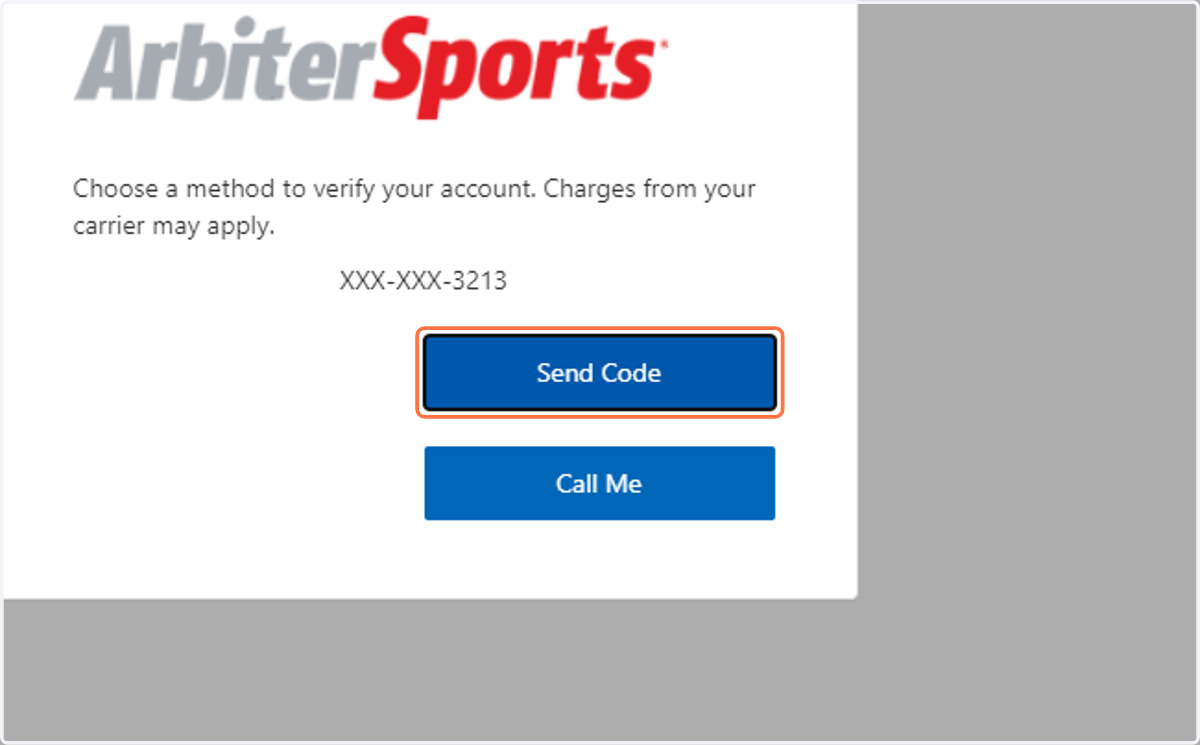
4. Click on Send Code or Call Me
To Change Profile Picture
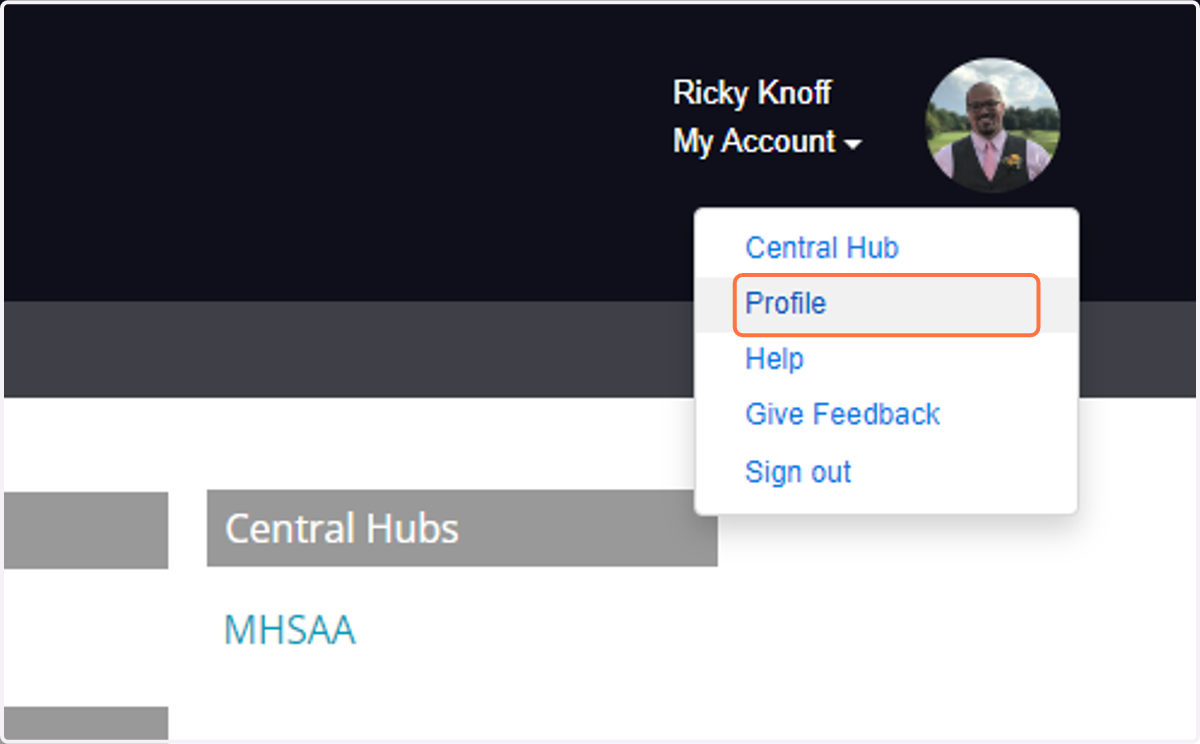
5. Click on top right image
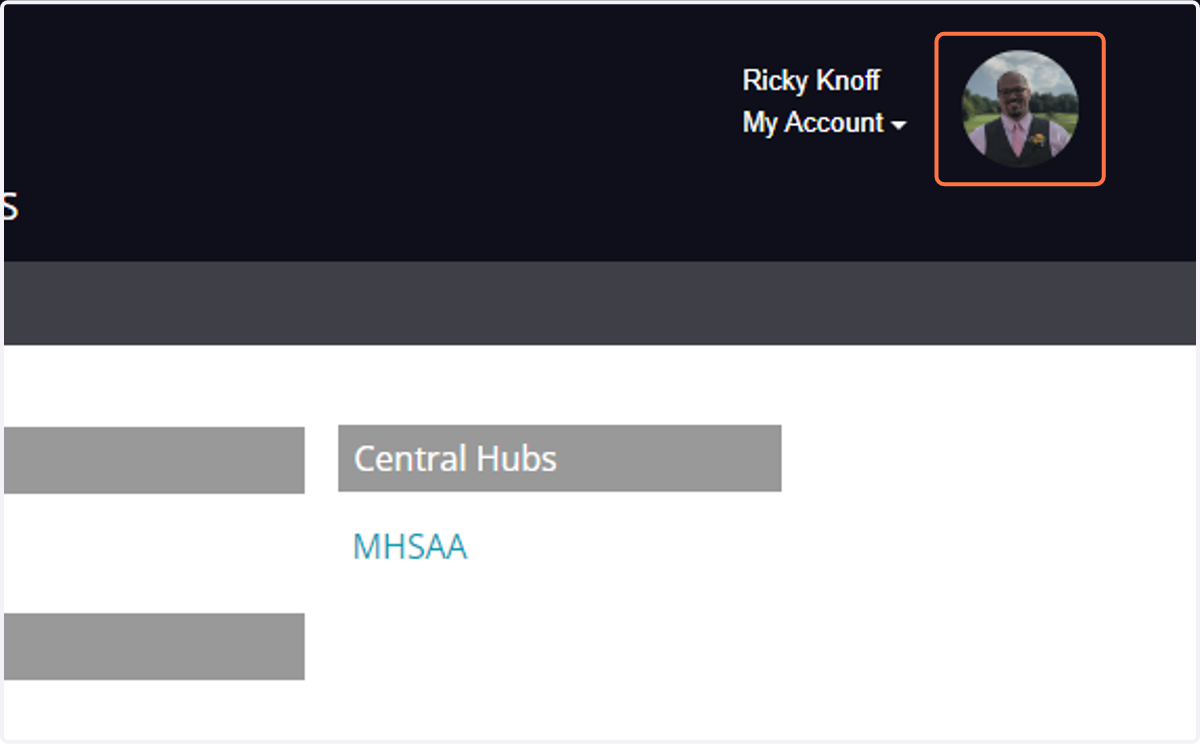
6. Click on Profile
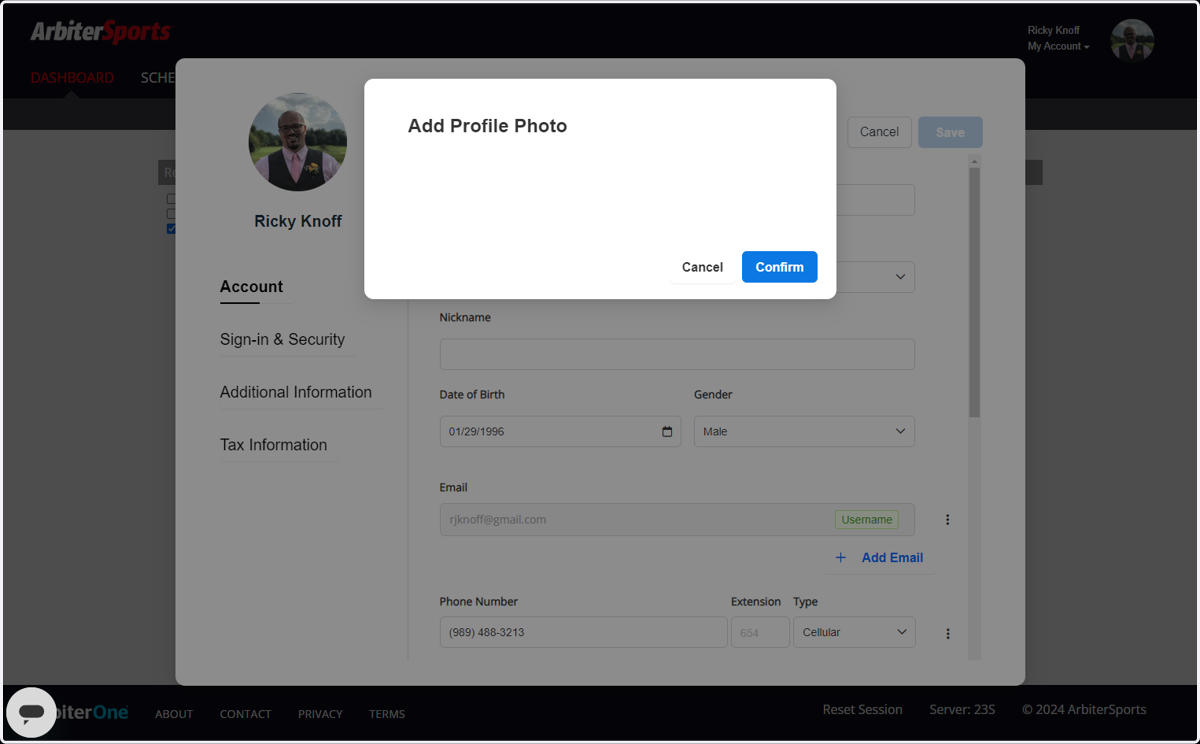
7. Click on the photo to the left
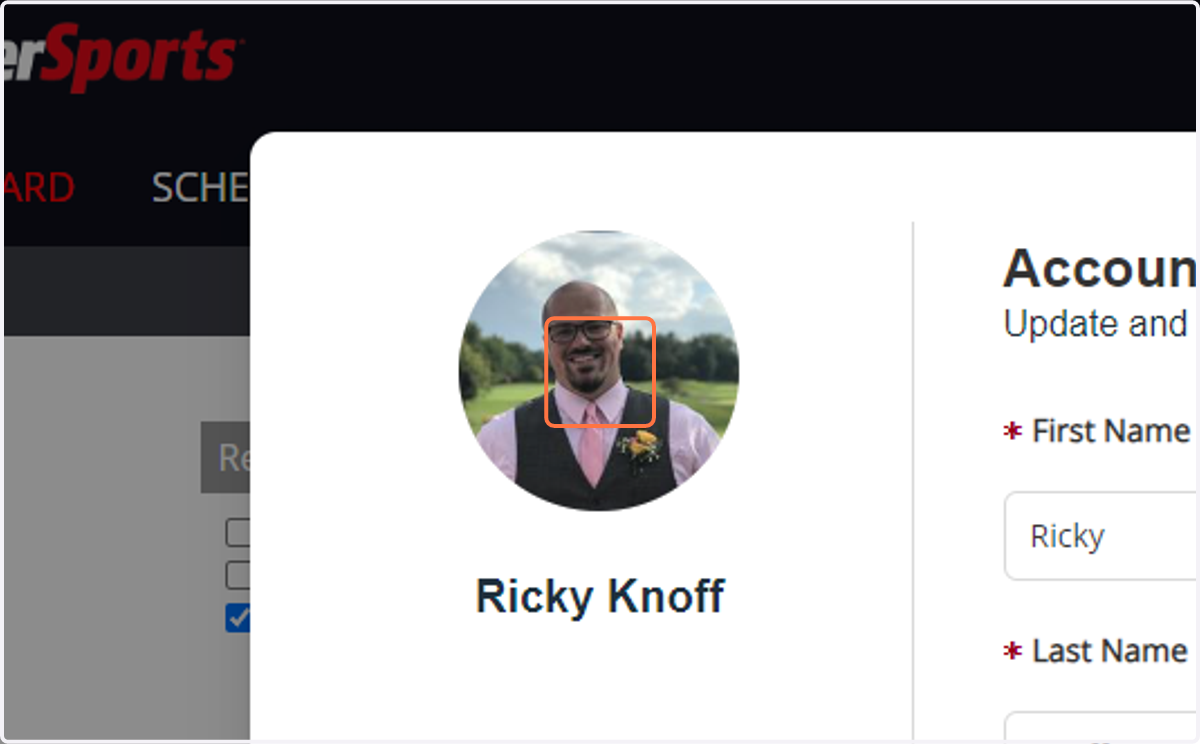
8. Click on image
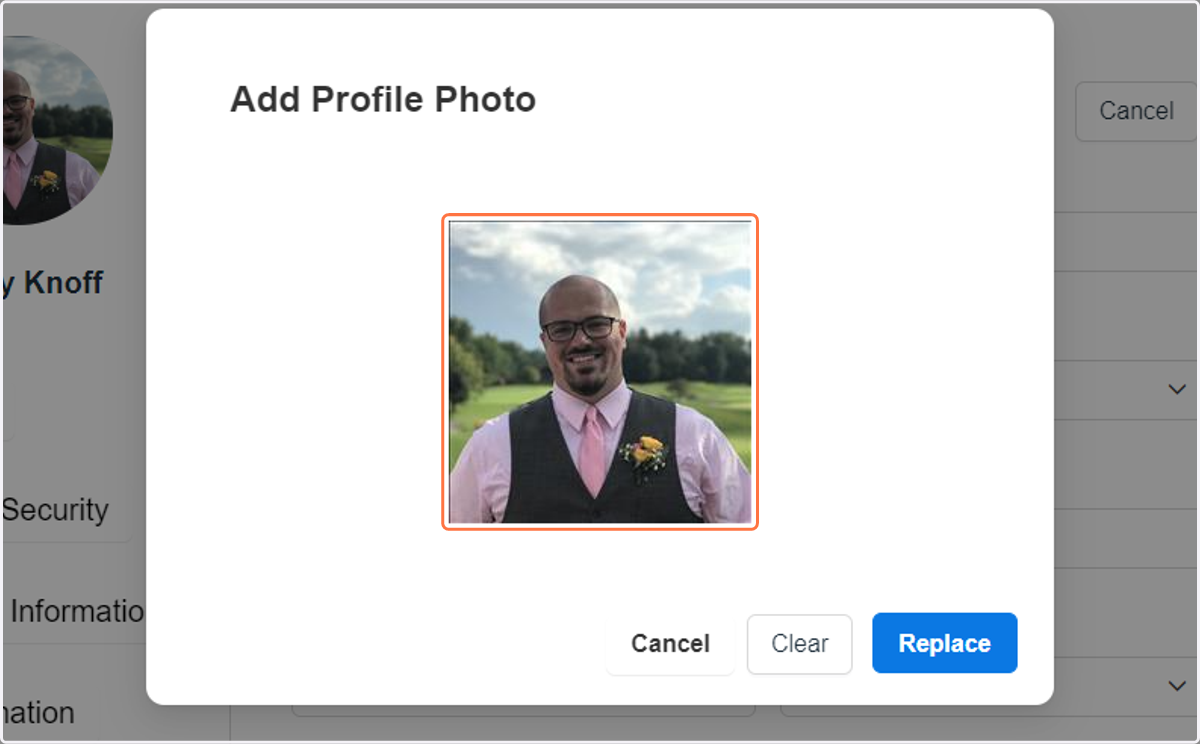
9. Click on Replace
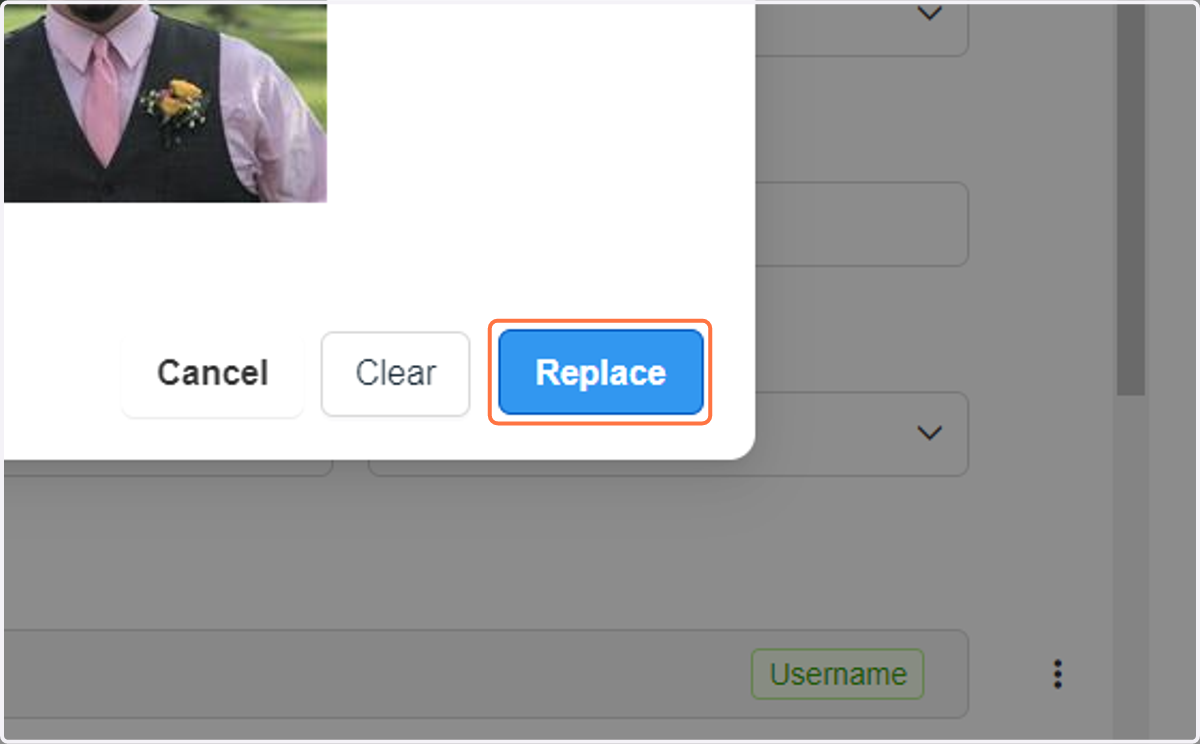
10. Confirm the image you wanted to add
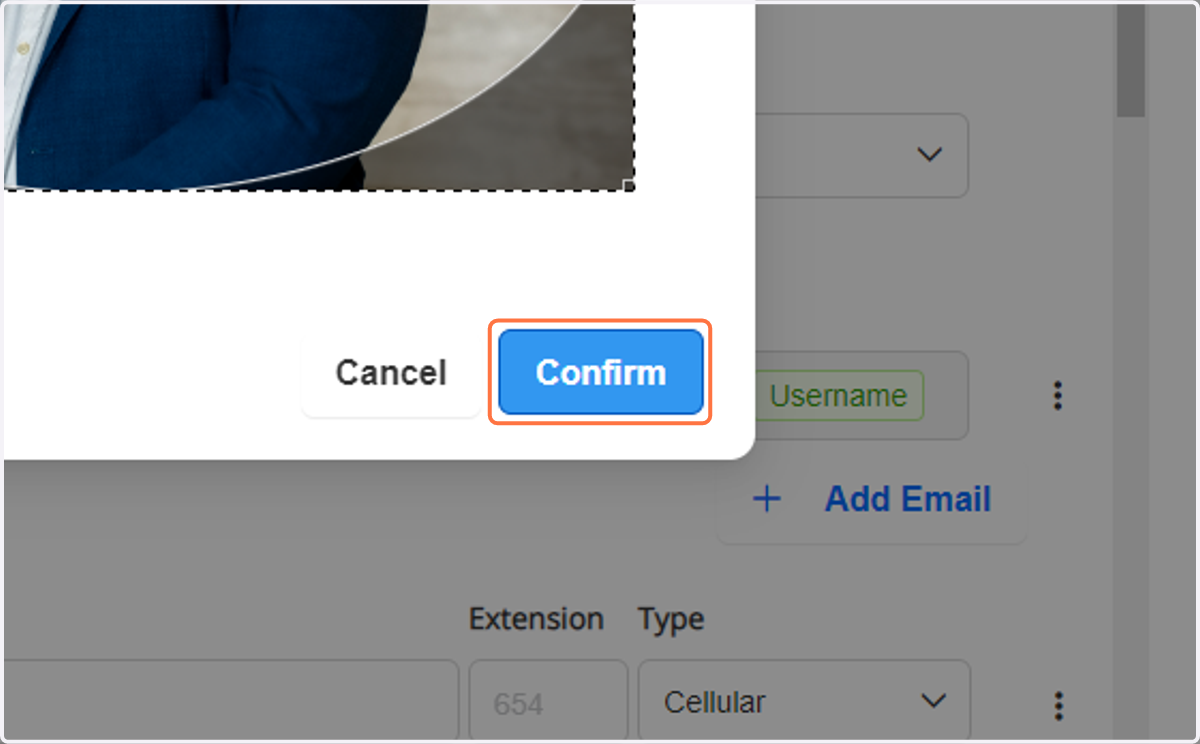
11. Click on Confirm
To Update Personal Preferences
To set things like your travel distances, teams you need to block due to conflict, or even other officials if needed.
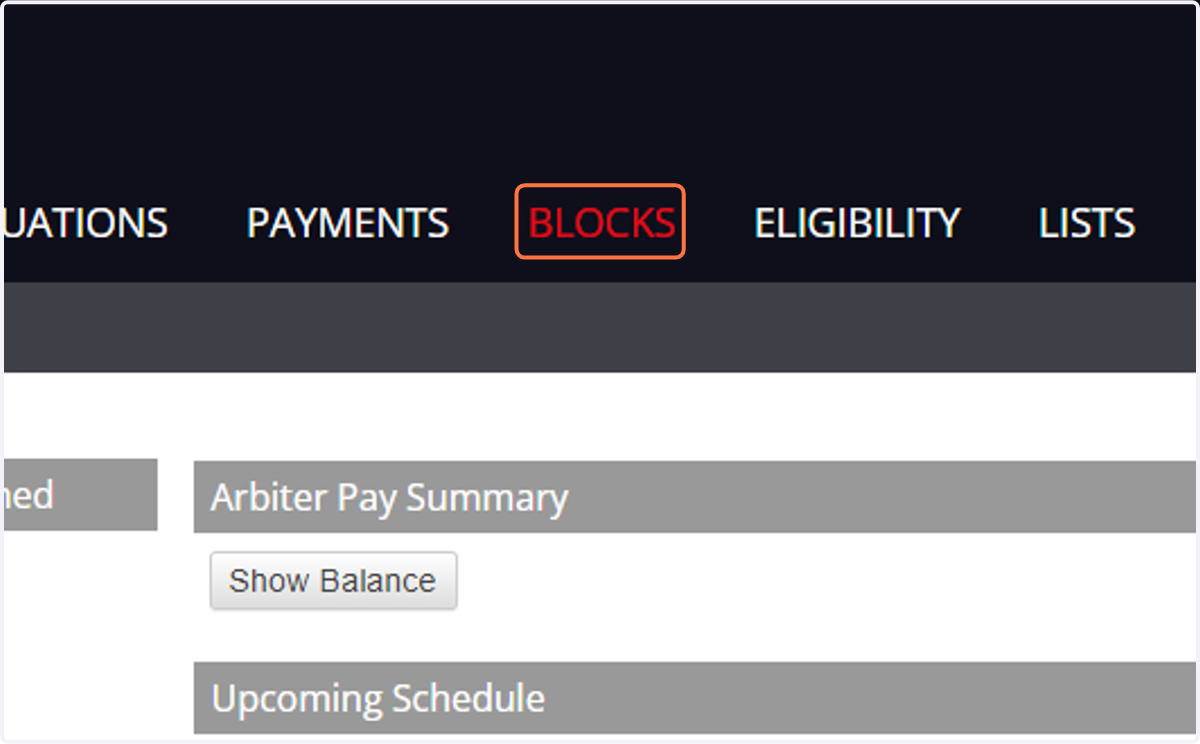
12. Click on BLOCKS
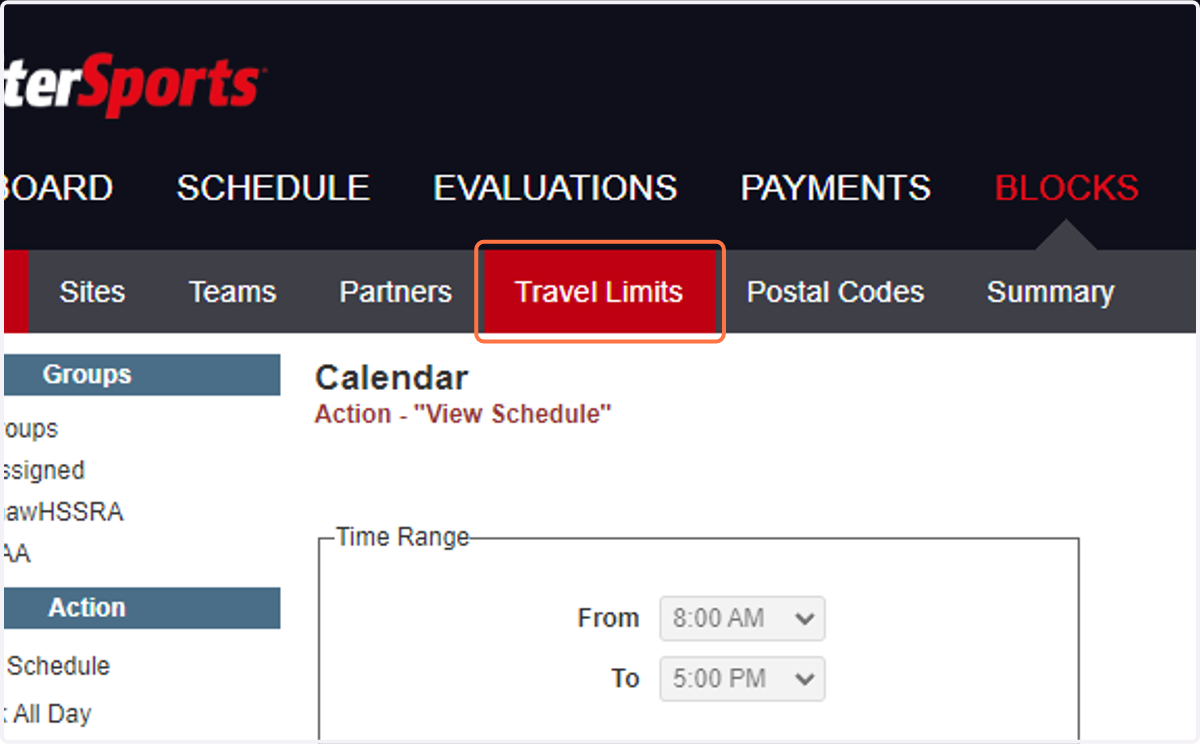
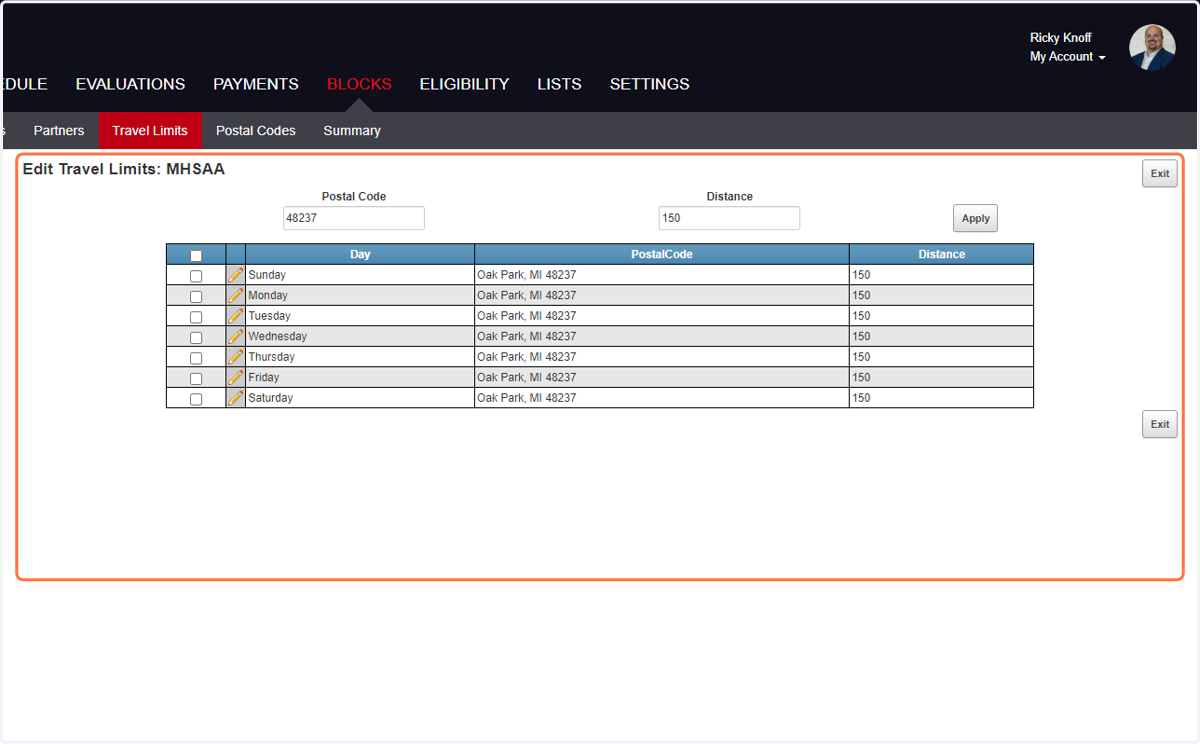
13. Click on Travel Limits
14. Type your personal Zip Code
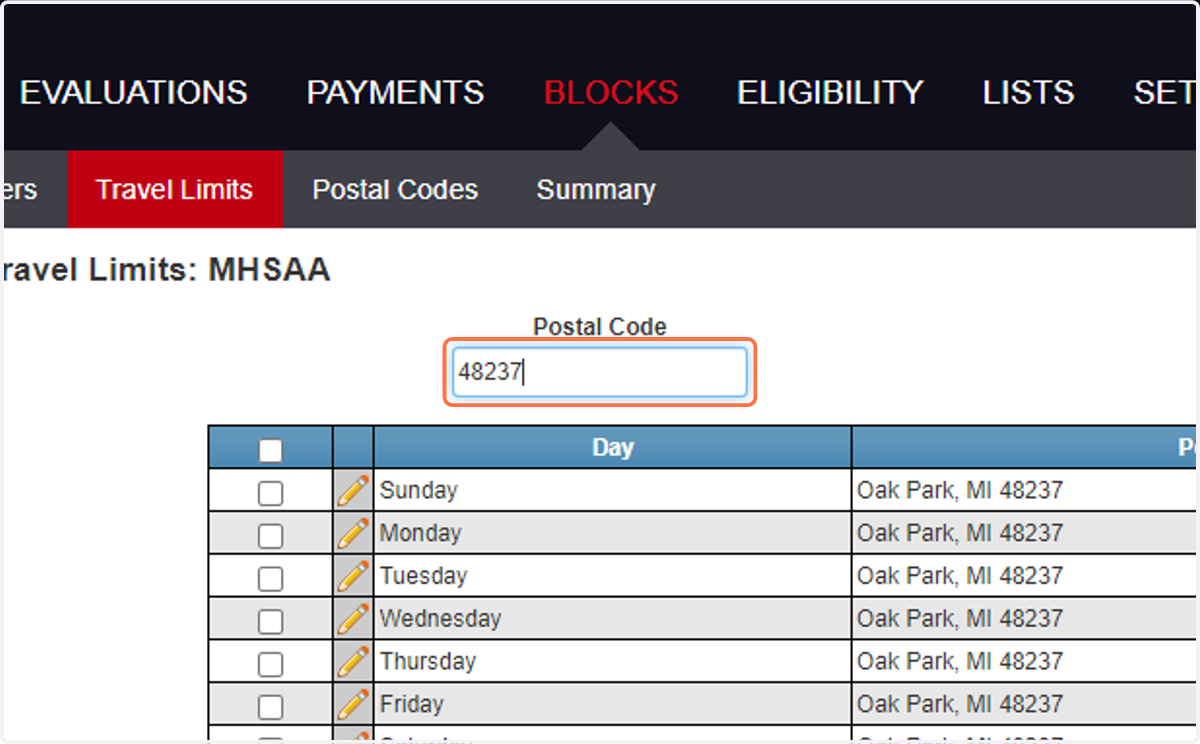
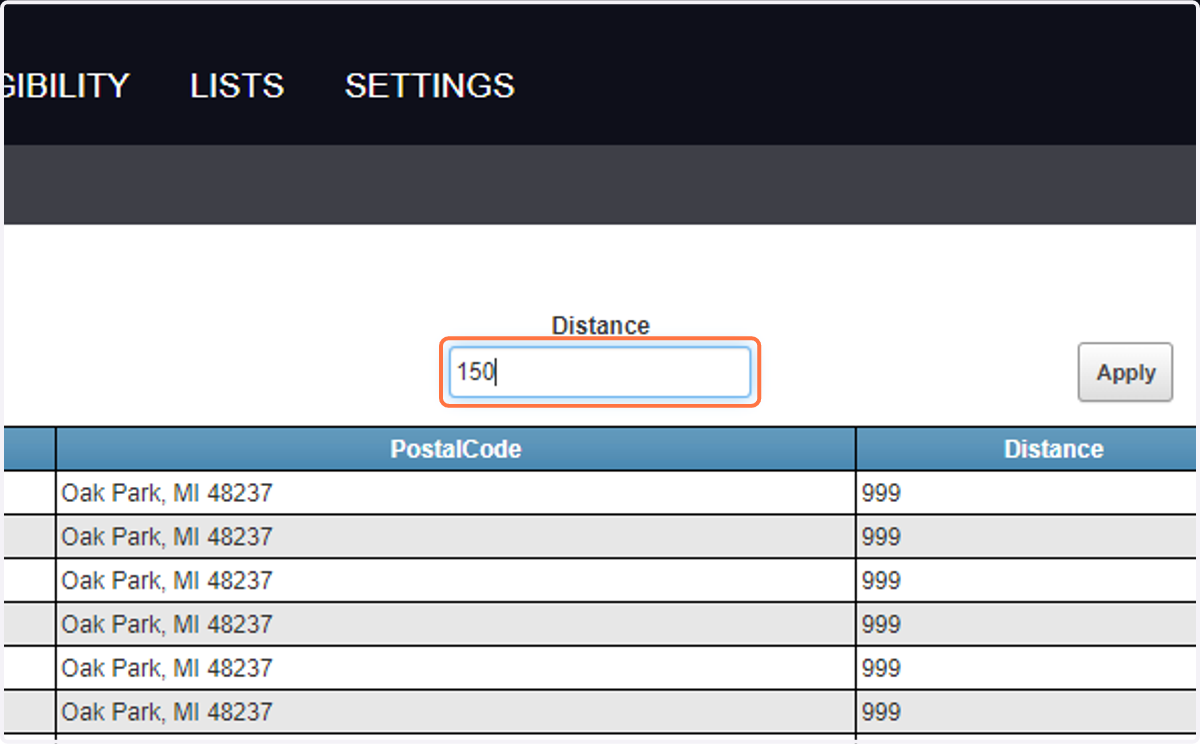
15. Type the distance from your home zipcode you are willing to travel
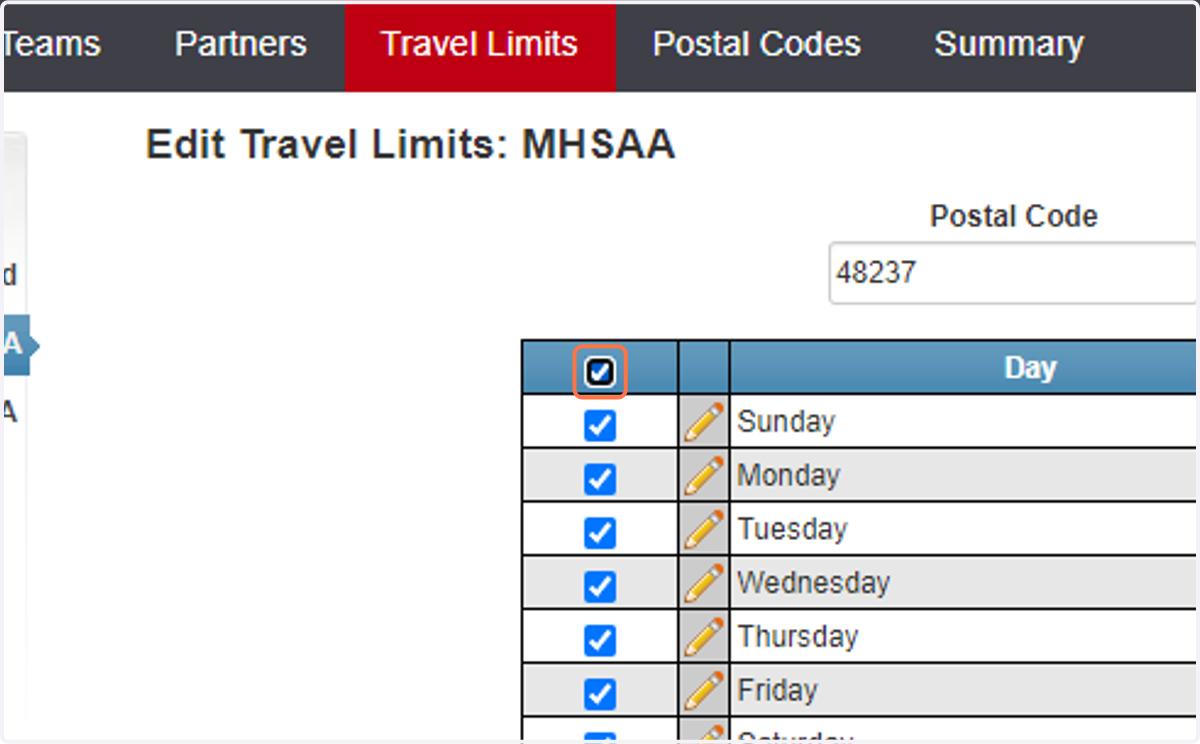
16. Check all or the certain days you want the distance to apply
Each day can have a different distance
17. Click on Apply
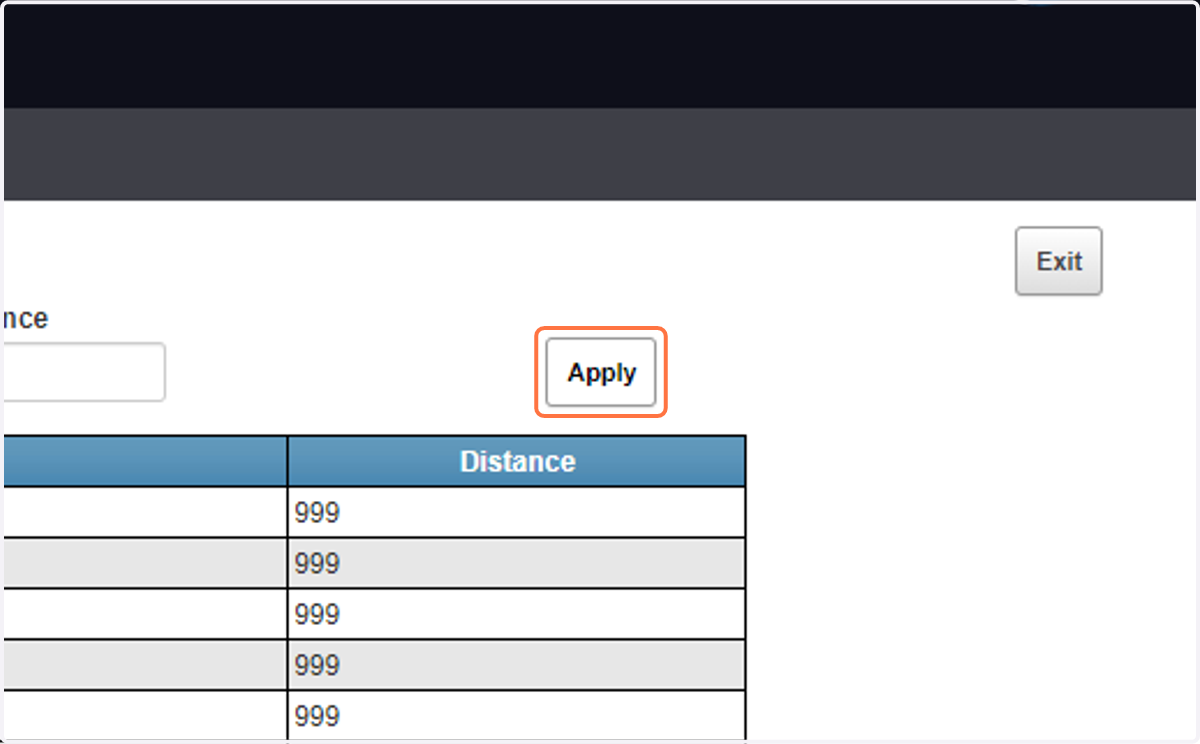
18. Your travel limits should be updated!
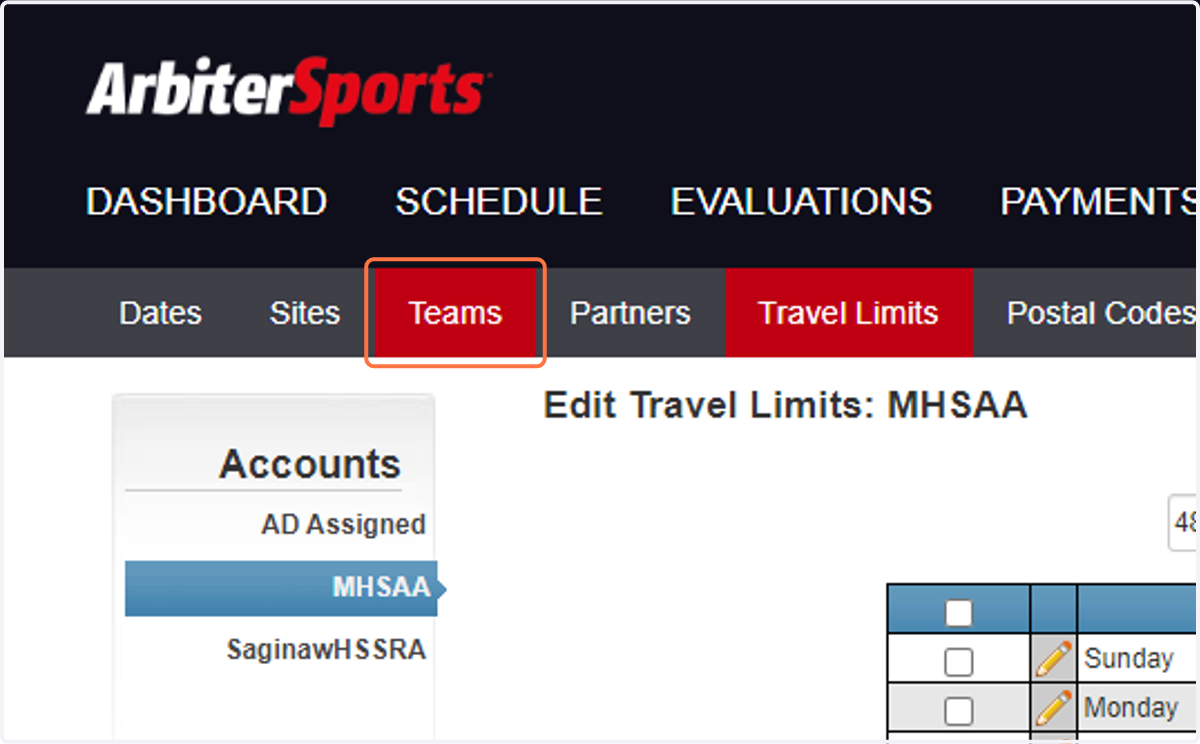
19. To block a team due to conflict, click on Teams
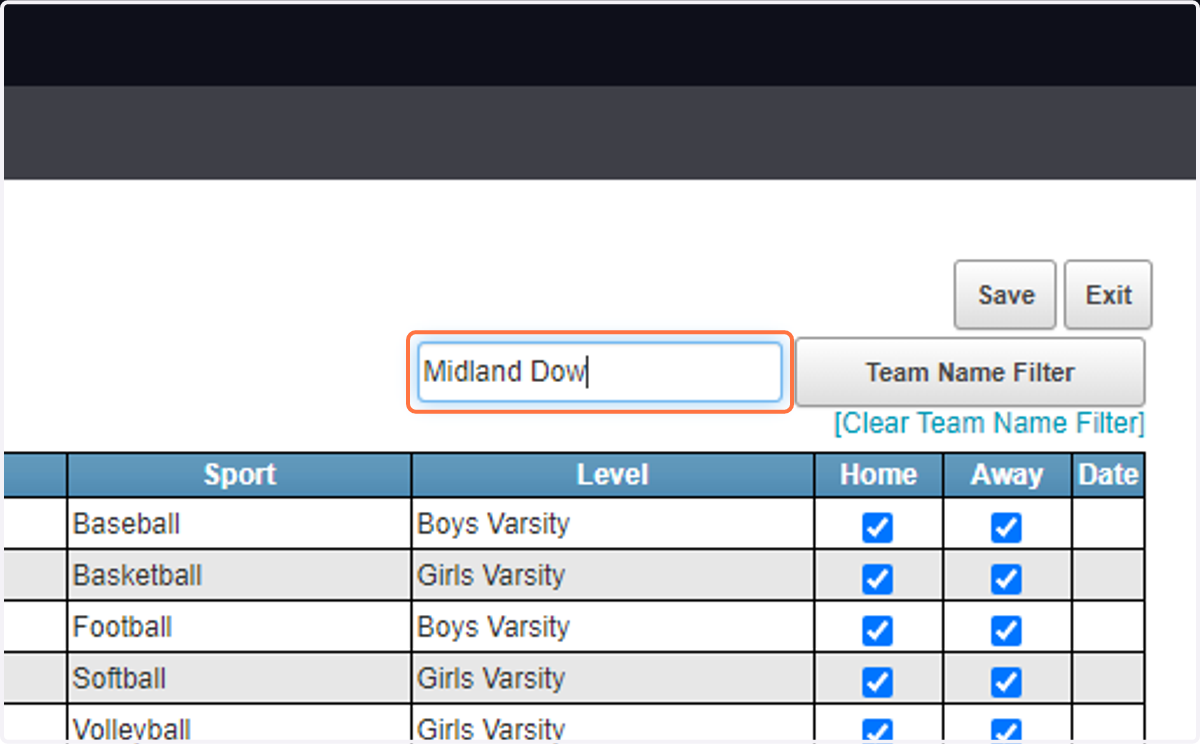
20. Search the school name
21. Click on Team Name Filter
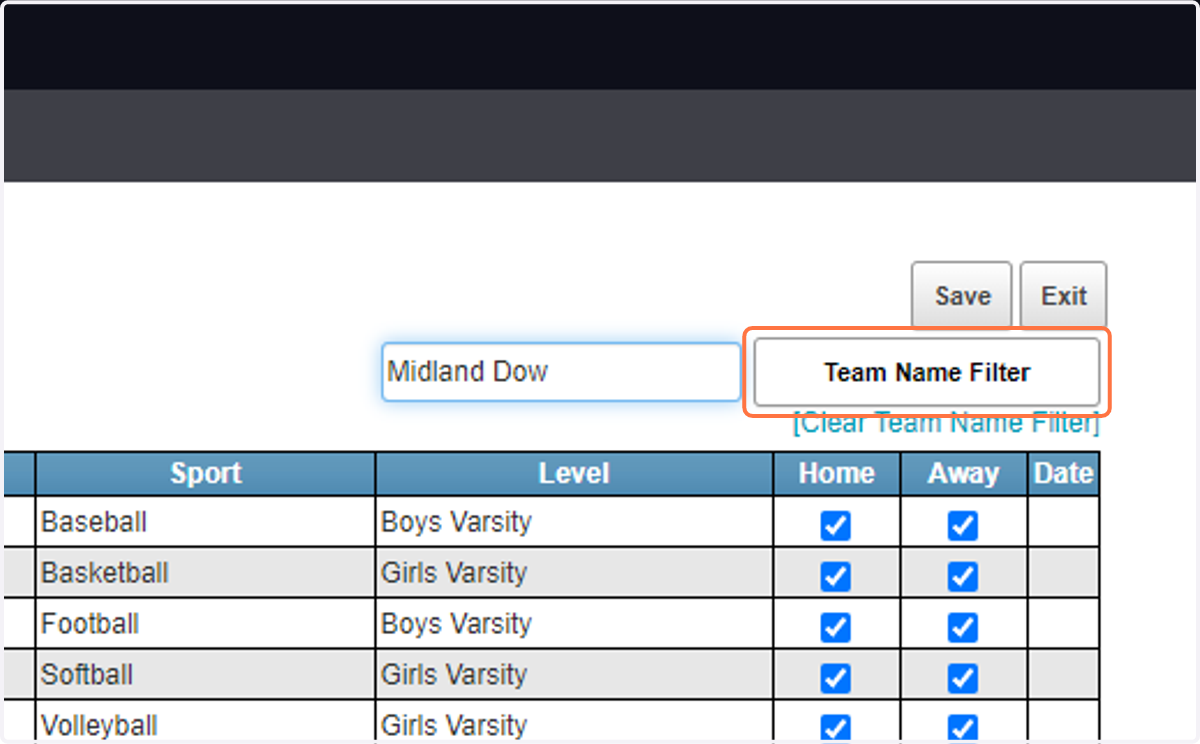
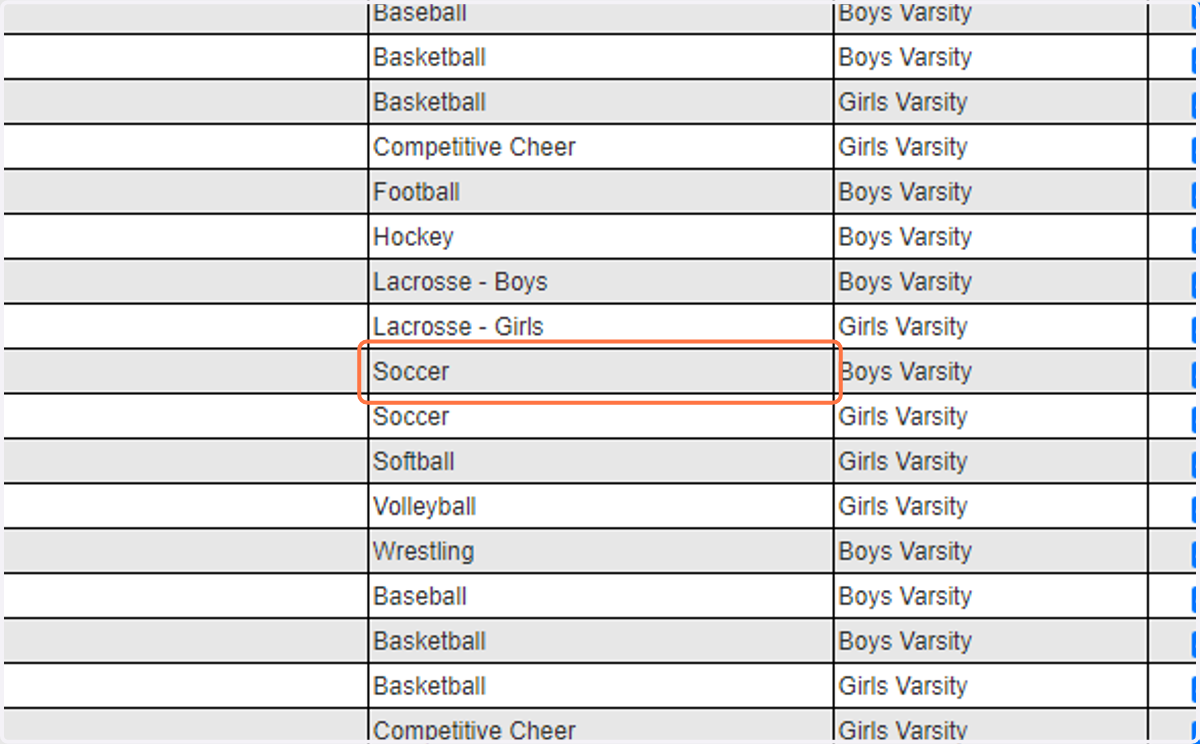
22. Find the 'Soccer' for the particular school - and boys or girls
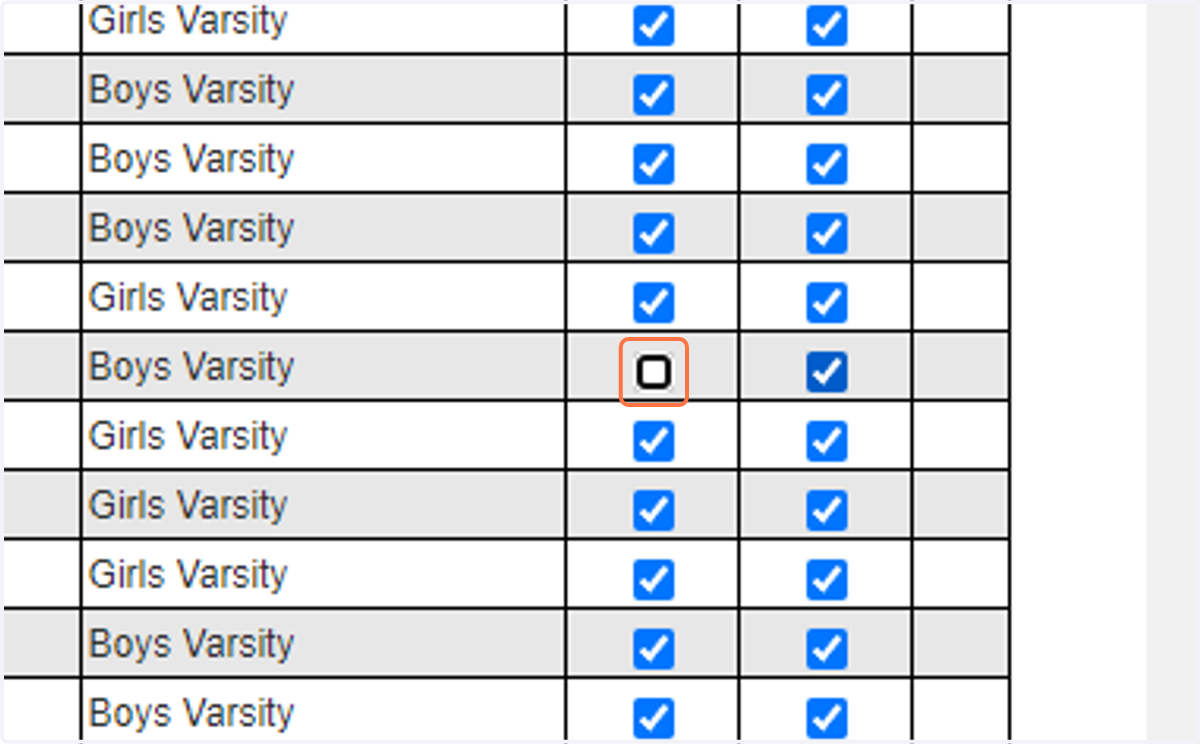
23. Uncheck Home and Away
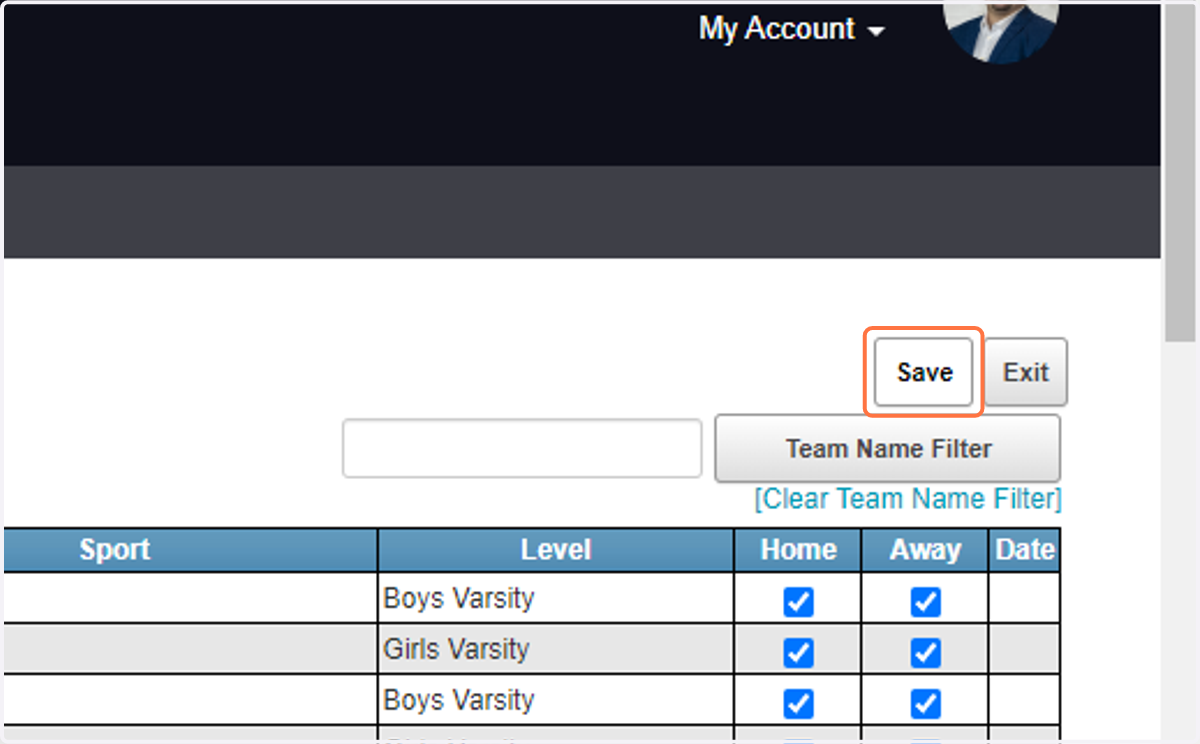
24. Click on Save
How to set your Schedule Availability
25. Click on Dates
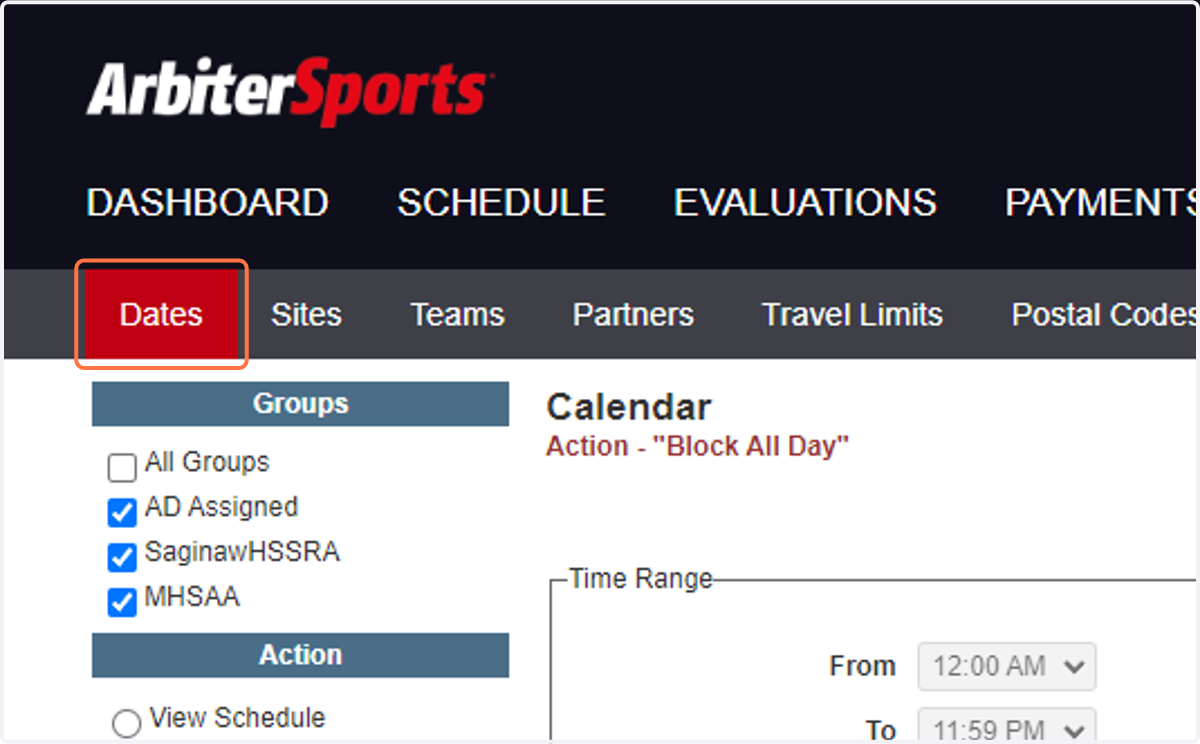
26. Select the groups you want the blocks to apply to - we are 'SaginawHSSRA'
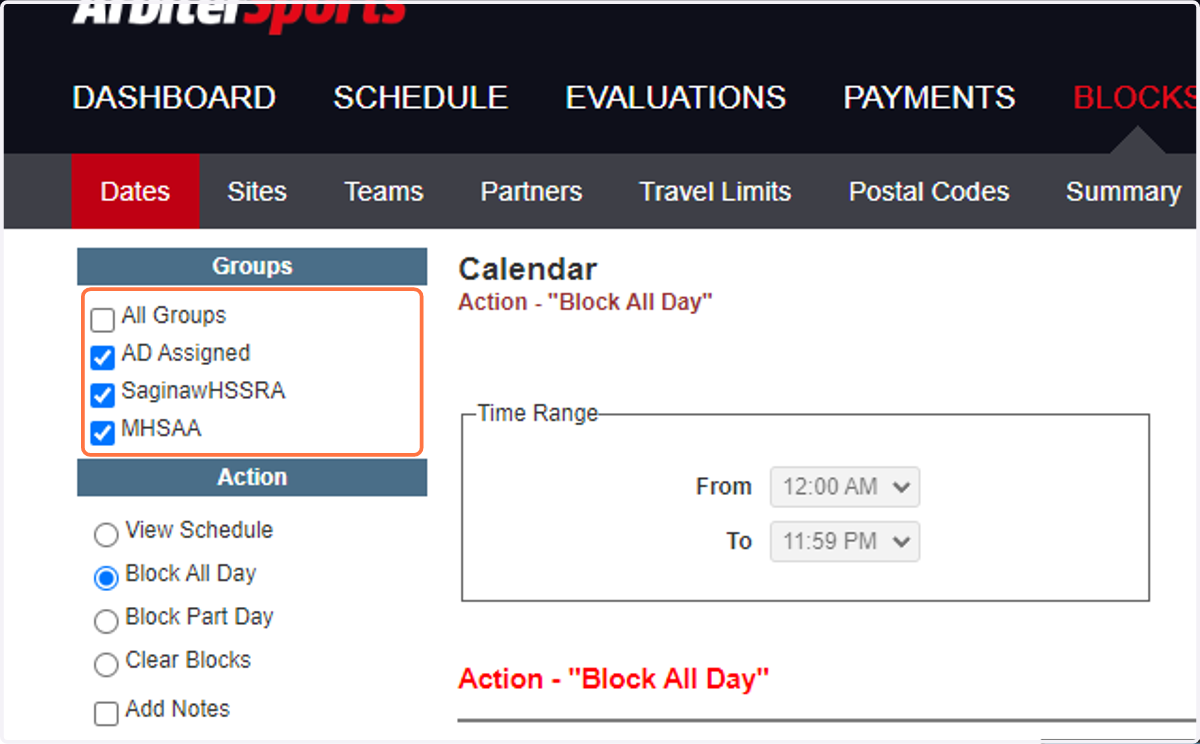
27. Select the Action you are trying to do
Block All Day - this allows you to block off a whole day (meaning you are already busy)
Black Part Day - this allows you to block off time for work or other commitments
Clear Blocks - this allows you to remove a block you input and no longer want
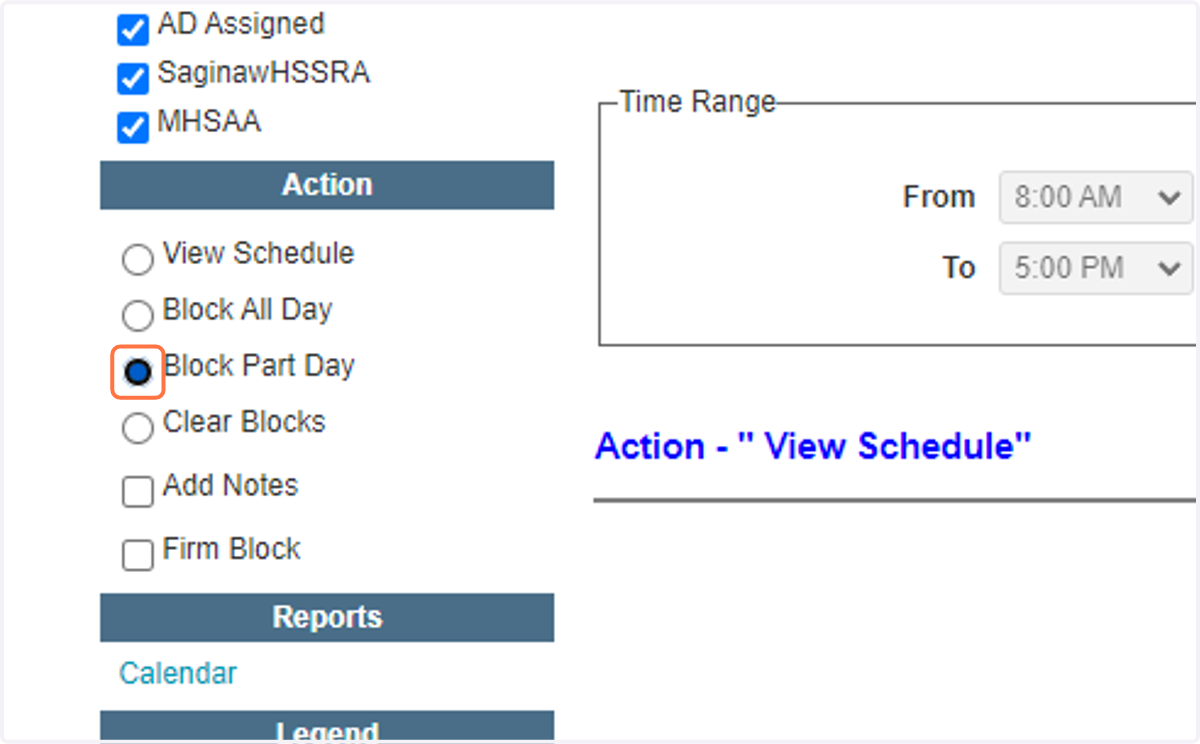
28. For doing more than one day at once -
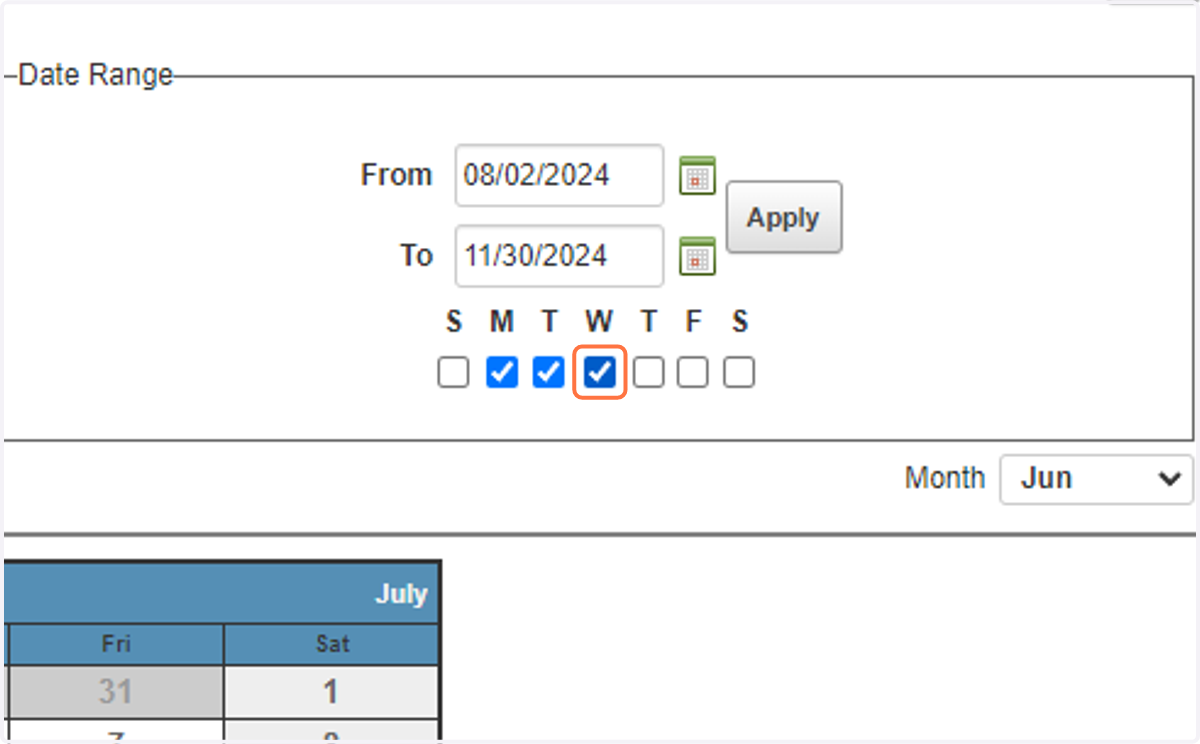
Either type in the date in MM/DD/YYYY fashion, or select the little calendar
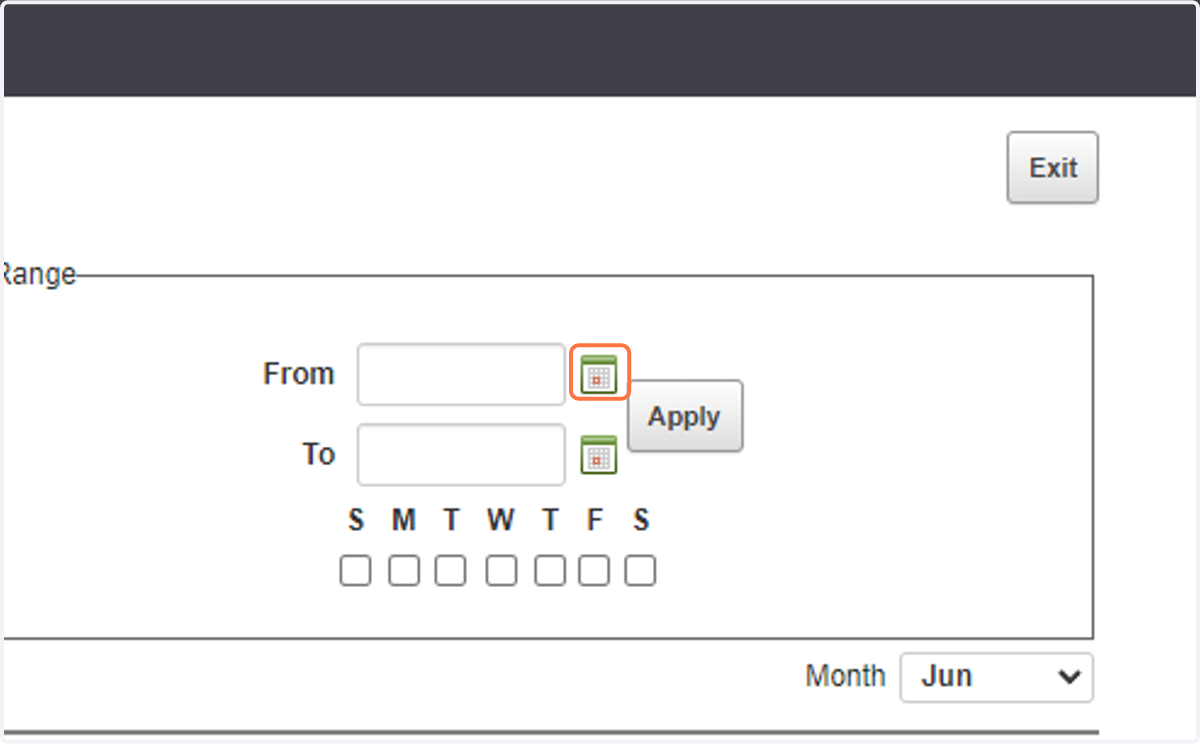
29. Click on the day to start your block
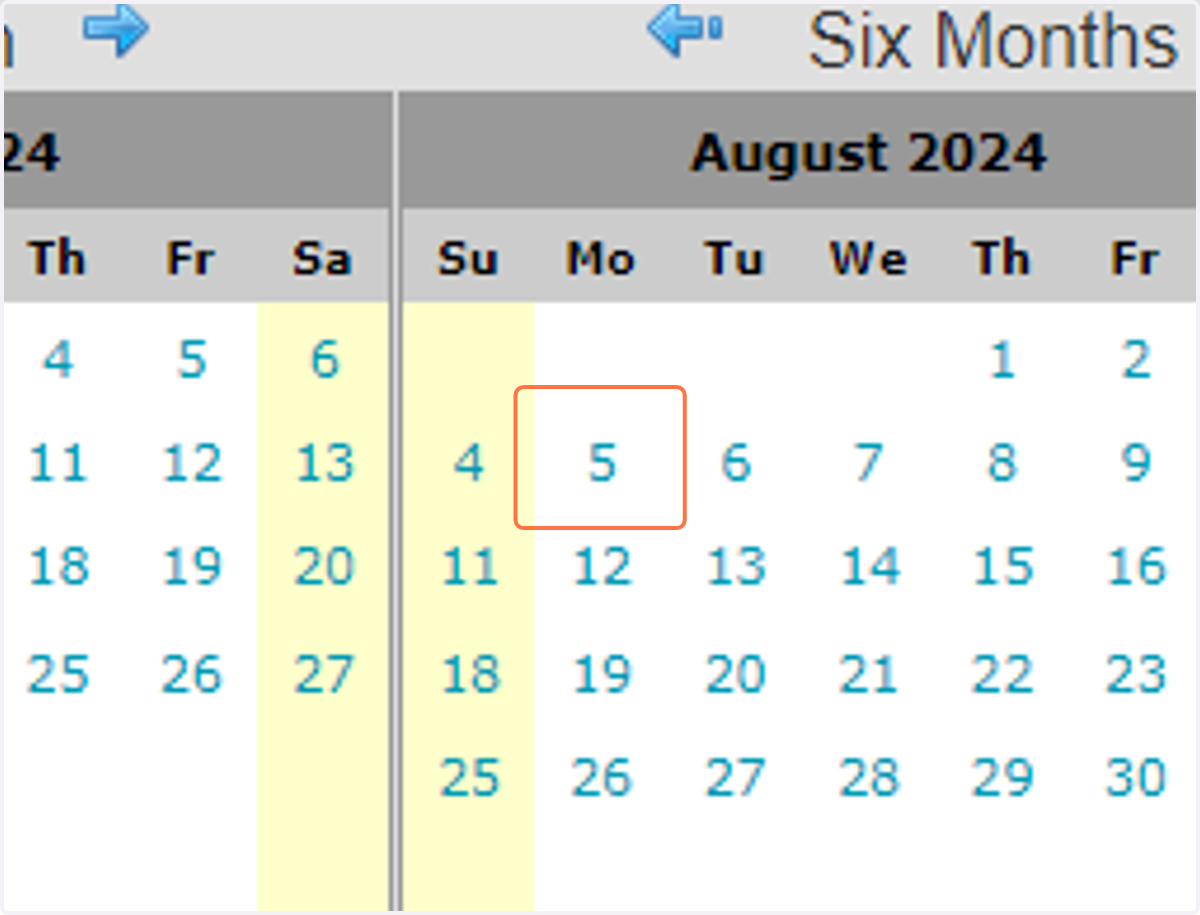
30. Click on the day to end your blocks
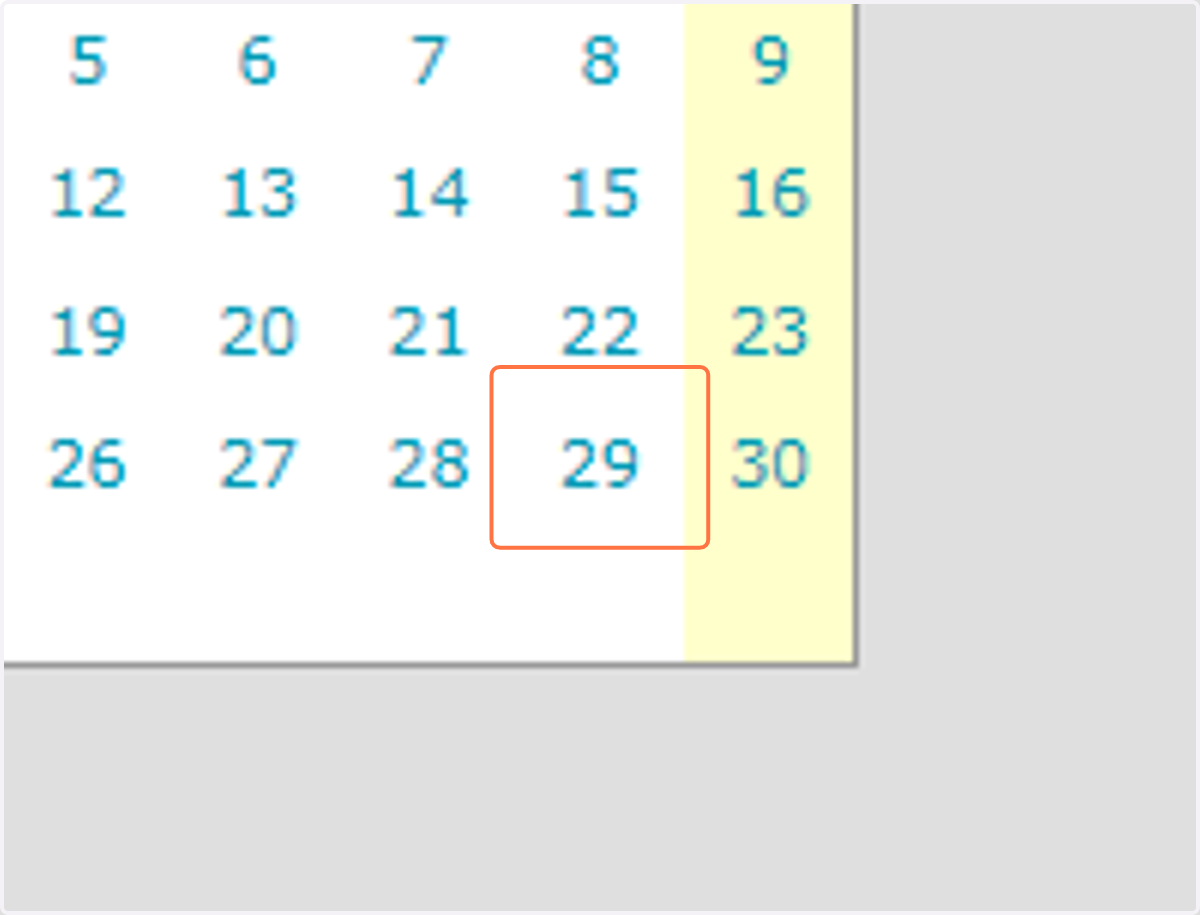
31. Check the days of the week you want this to apply to
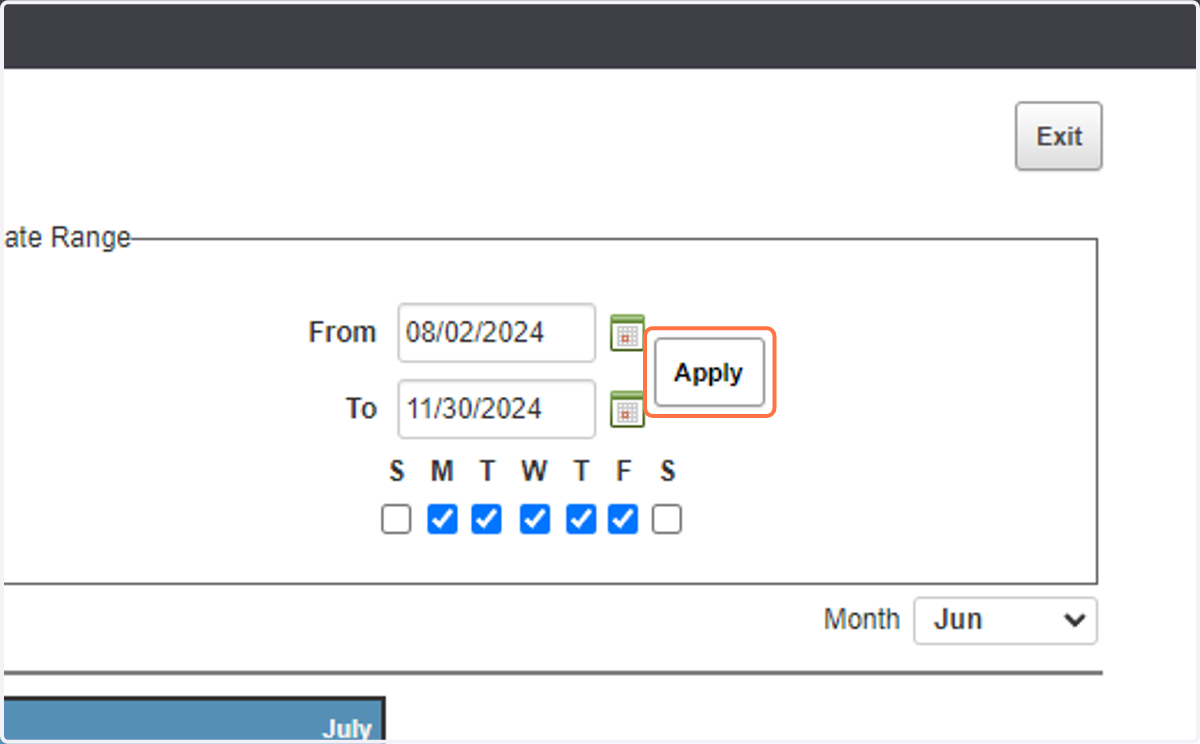
32. Click on Apply
33. If you want to make a one off block
Select the block type like before, and just select the date on the large calendar.
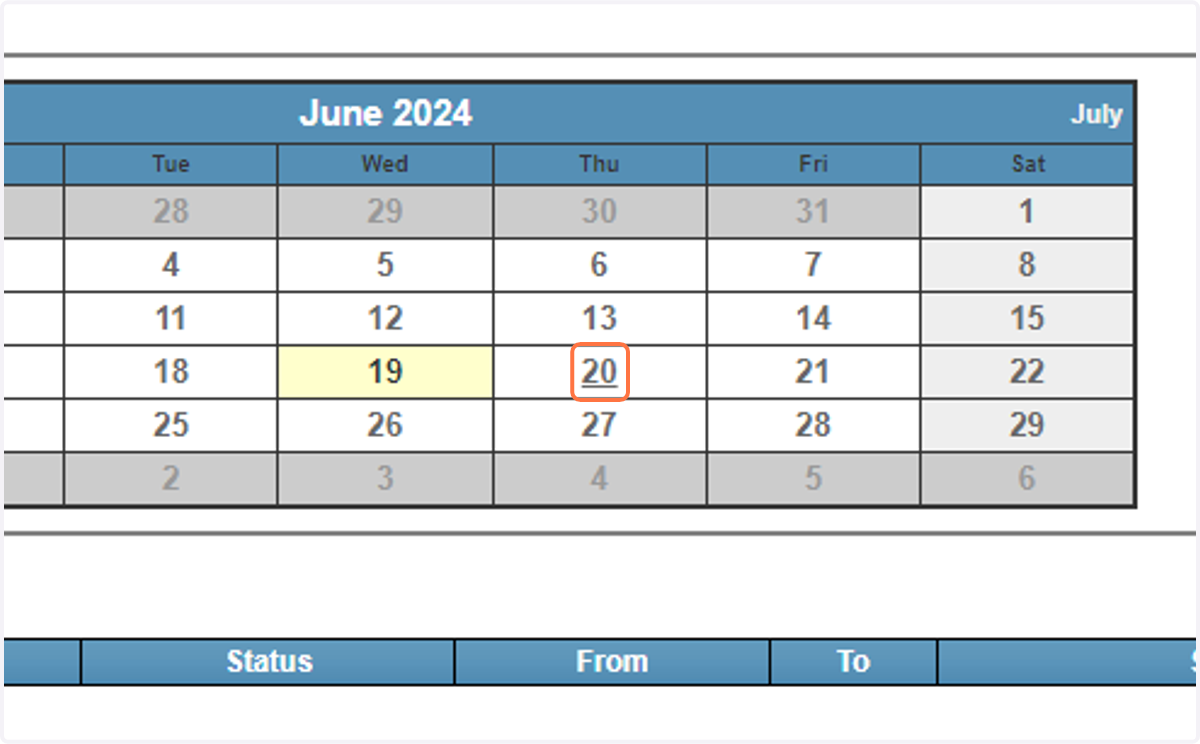
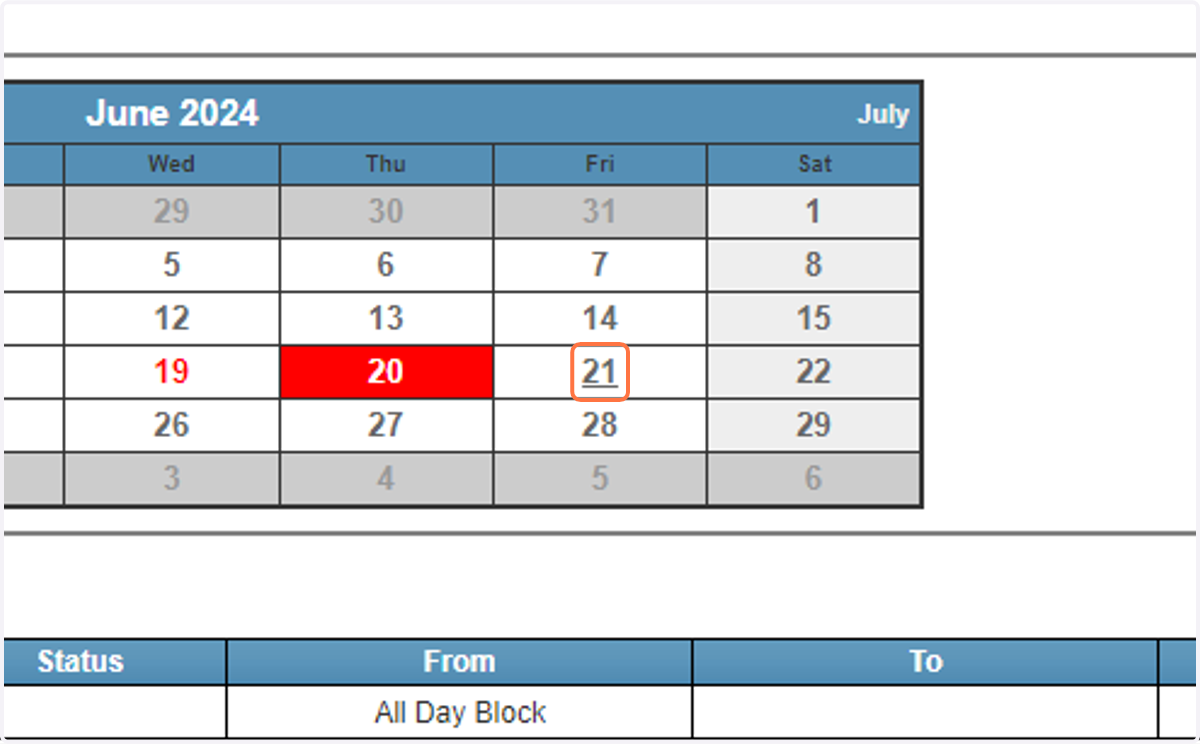
34. The day you want blocked will show up in dark red for full day, or light red for partial day
General Navigation of ArbiterSports
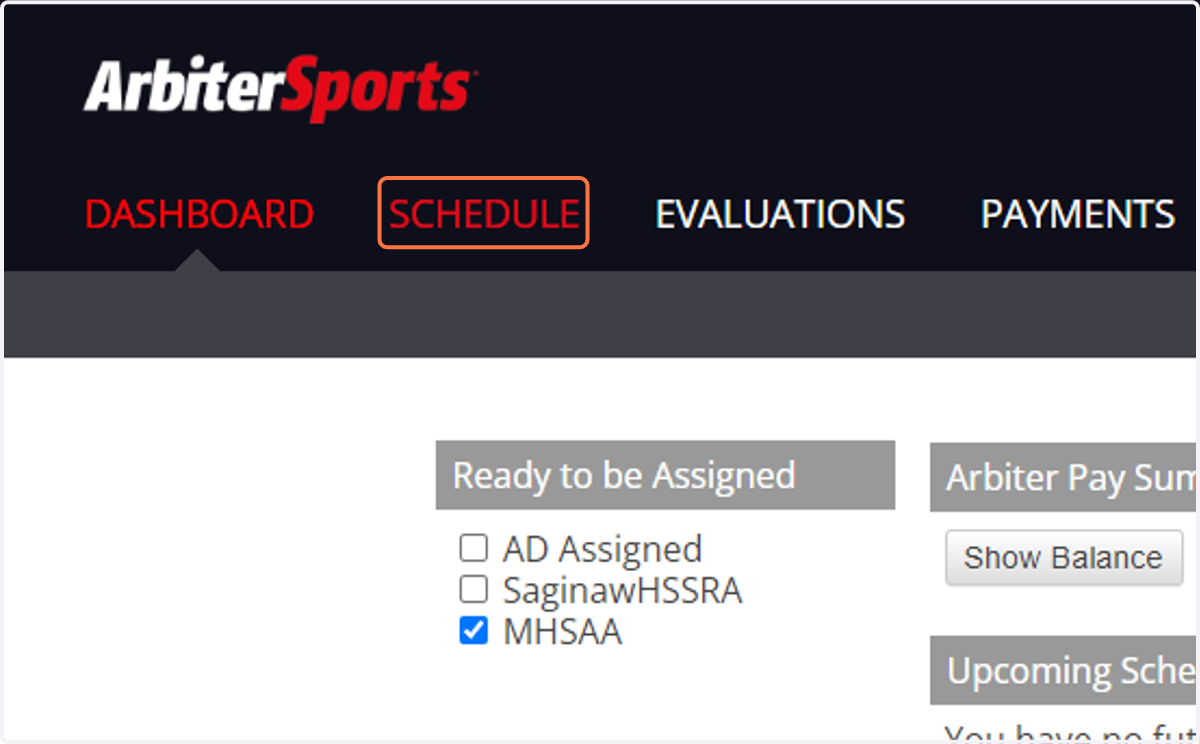
35. SCHEDULE
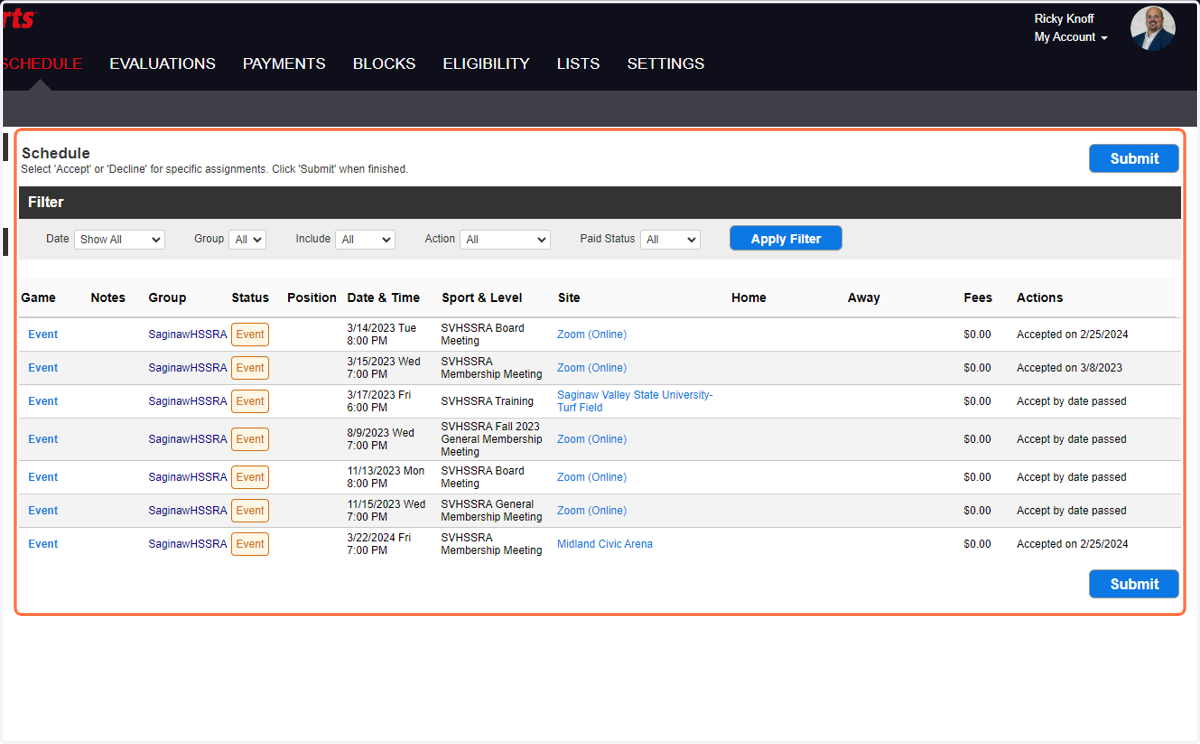
36. This will show all accepted and pending events needing your acceptance
You only have a couple of days from receipt to accept or decline a game - be sure to go in as soon as possible!!
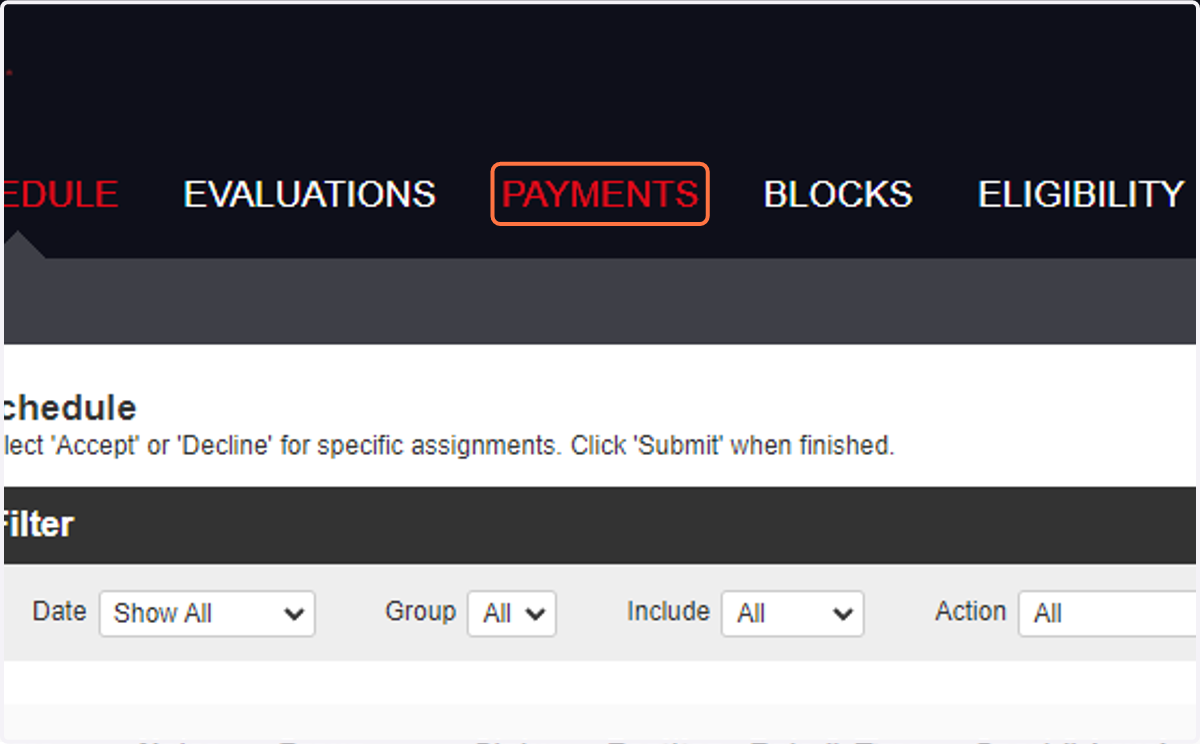
37. PAYMENTS
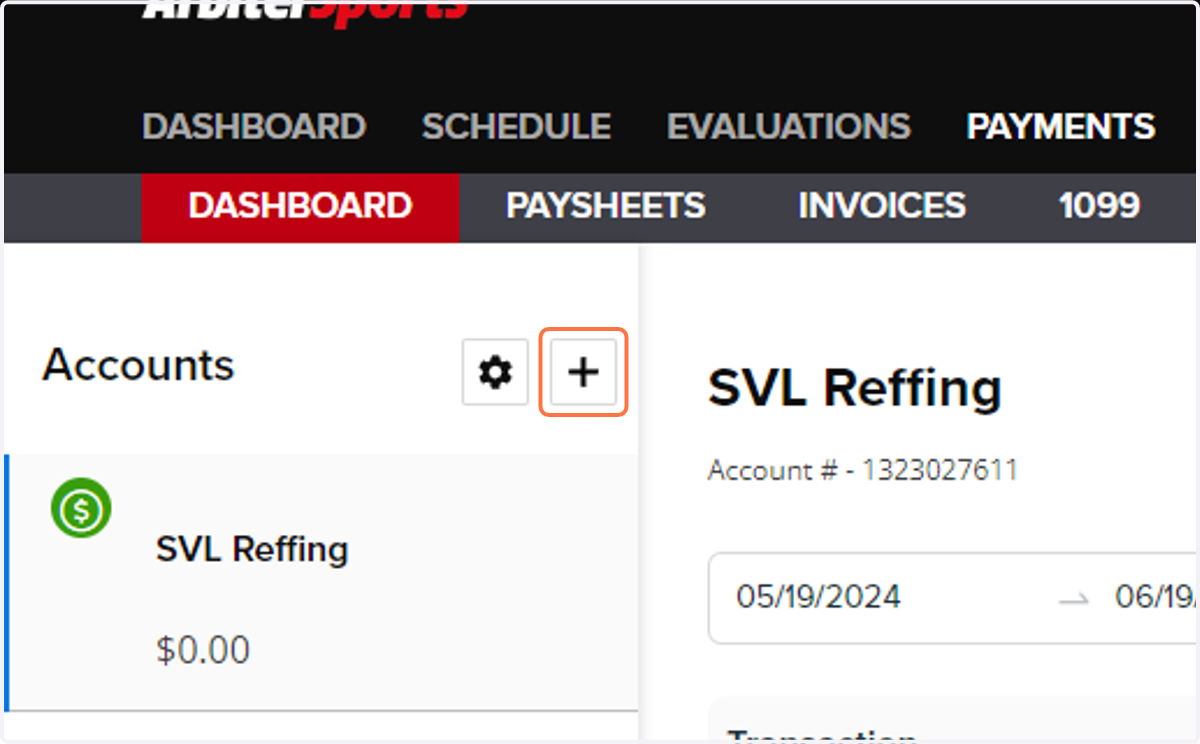
38. Click the '+' to start adding your banking information
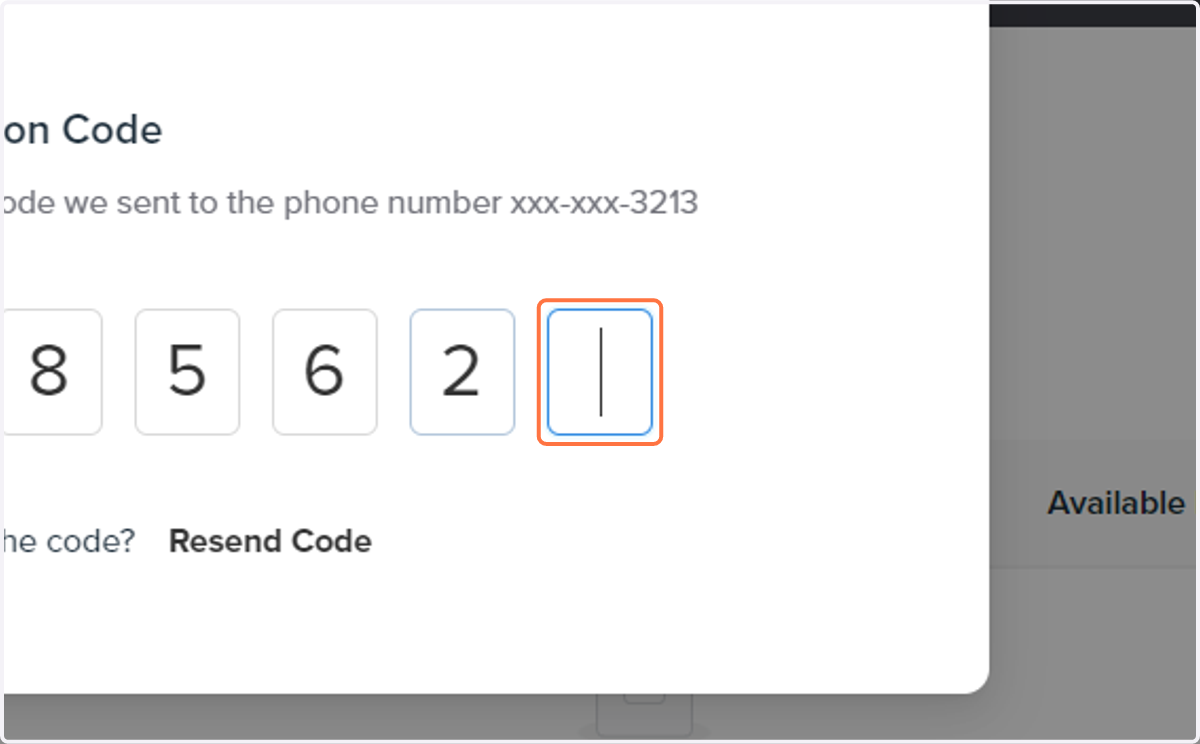
39. Type the code sent to your phone number
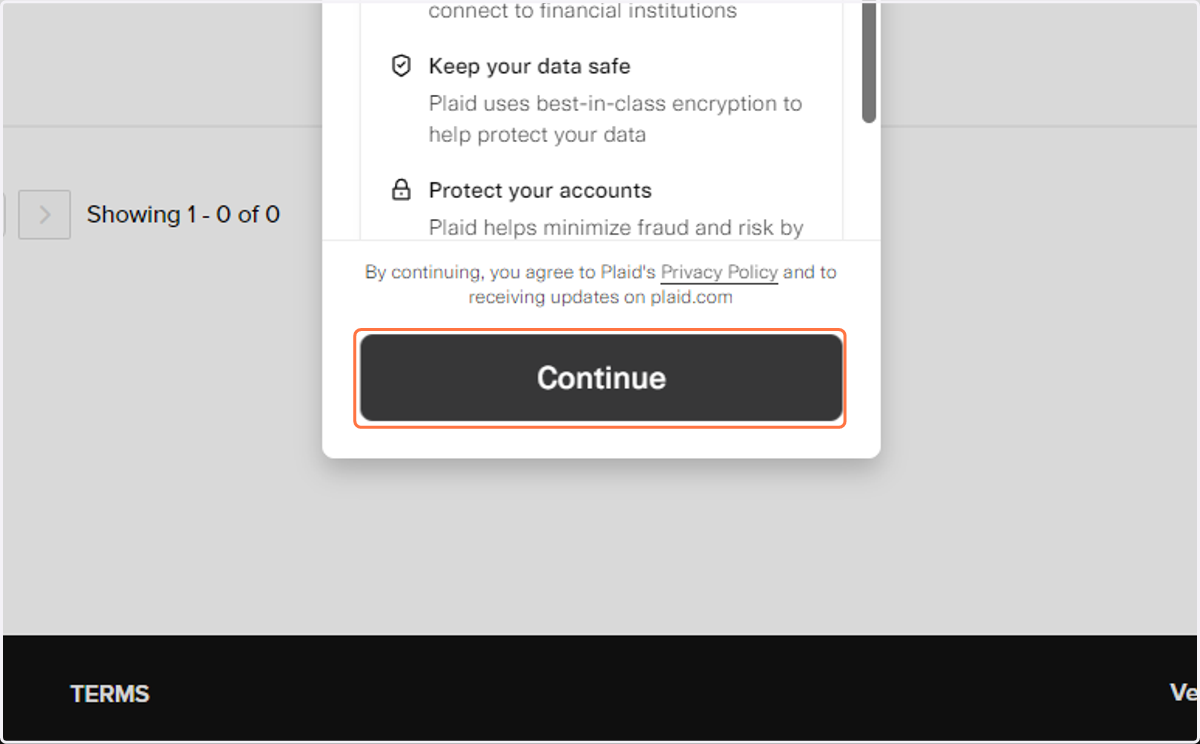
40. Click on Continue to use Stripe to connect your bank account
41. Type your phone number
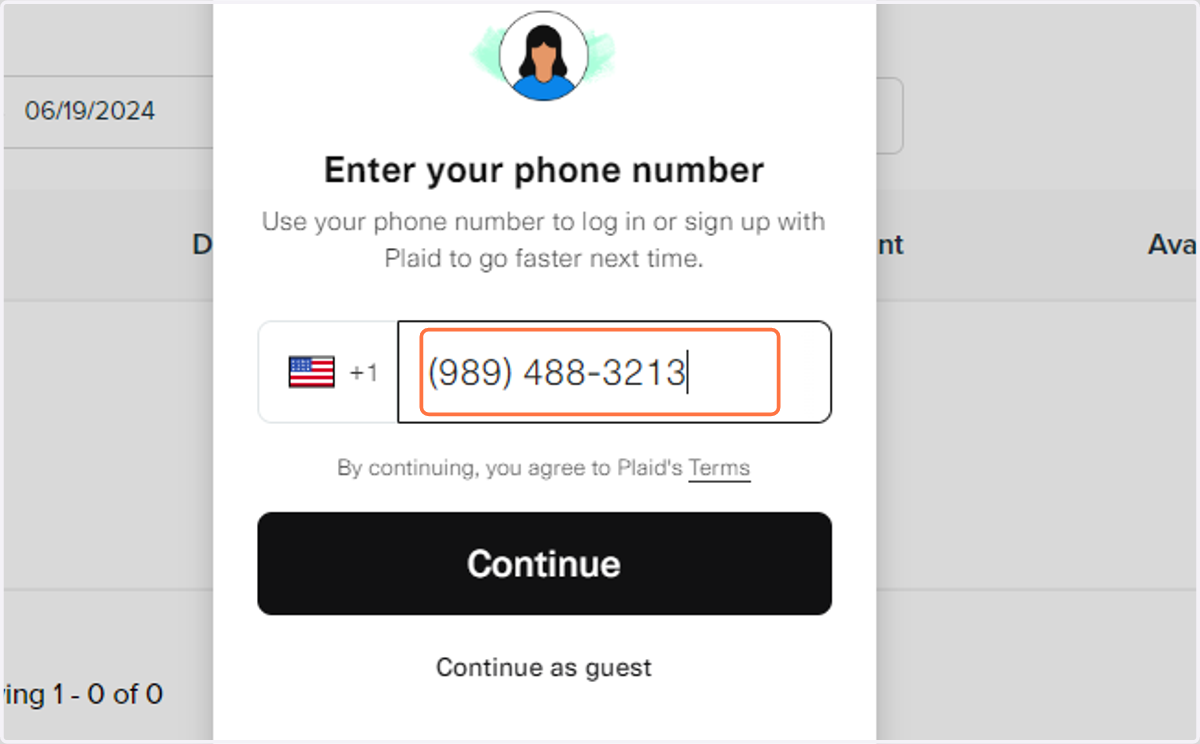
42. Click on Continue
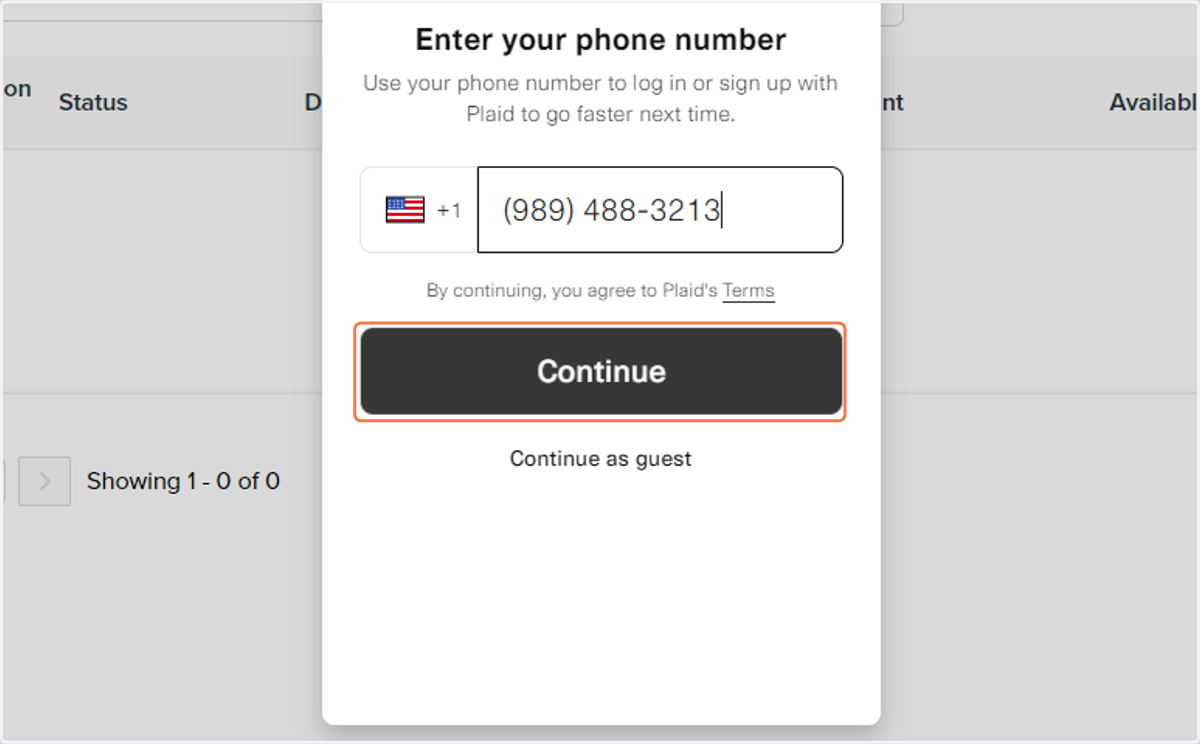
43. Type the code sent to your phone number
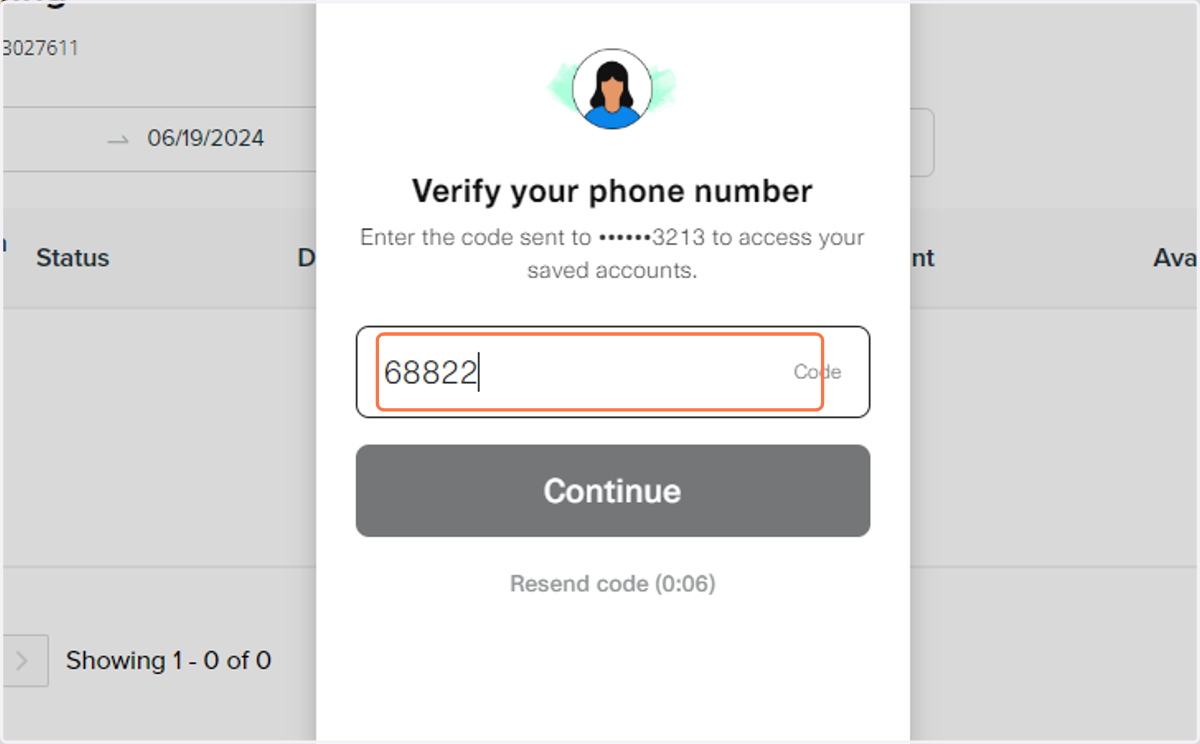
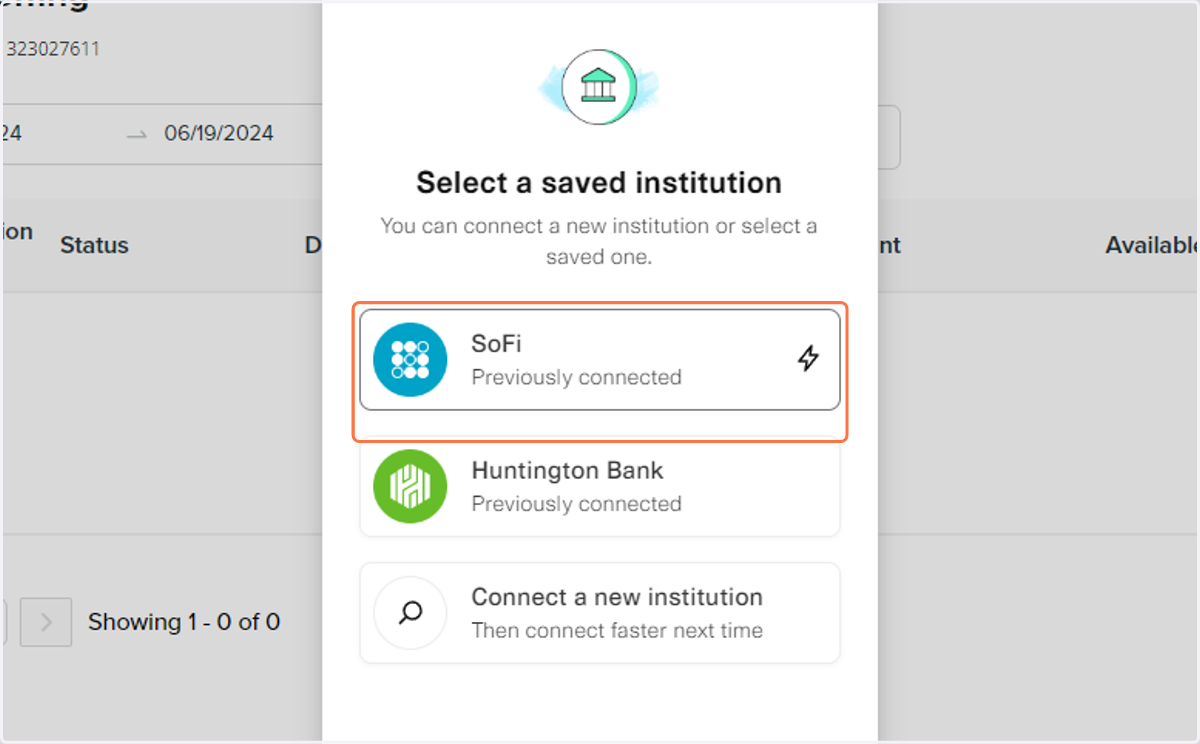
44. Click on your bank or connect a new institution
45. After finishing your bank will be connected - any amount you have been paid will show in the SVL Reffing account
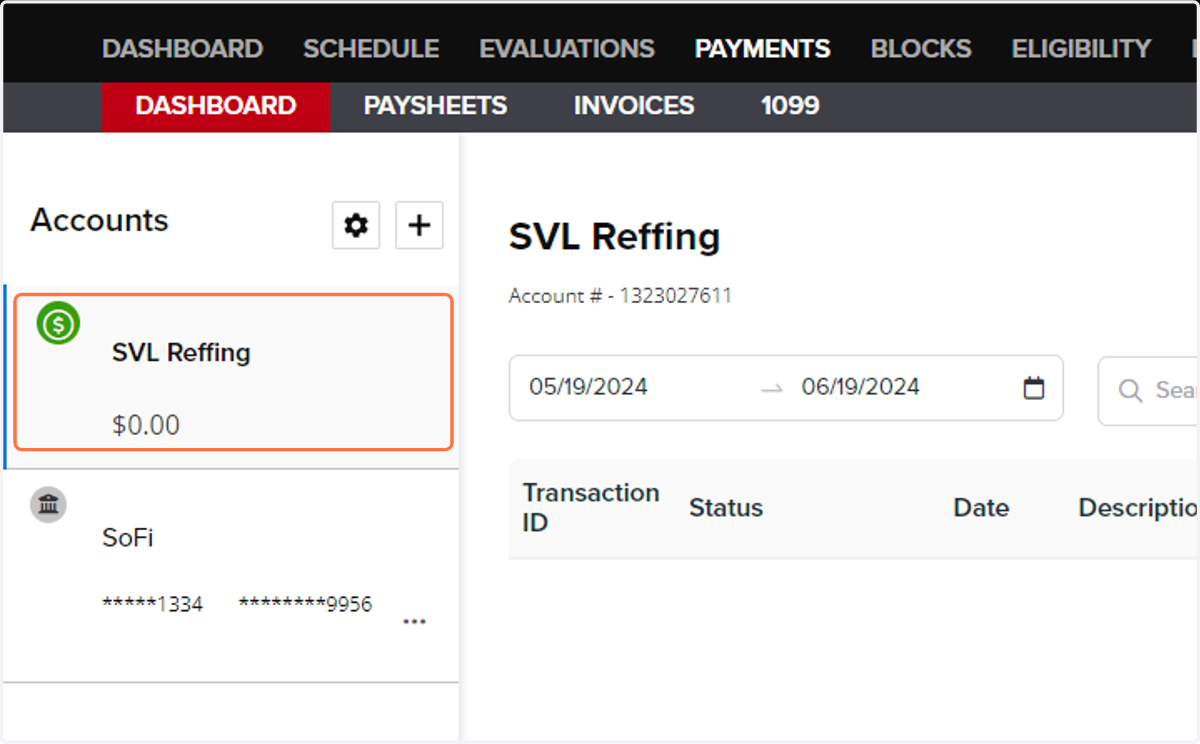
46. To Ready yourself to start getting assigned games - Click on DASHBOARD
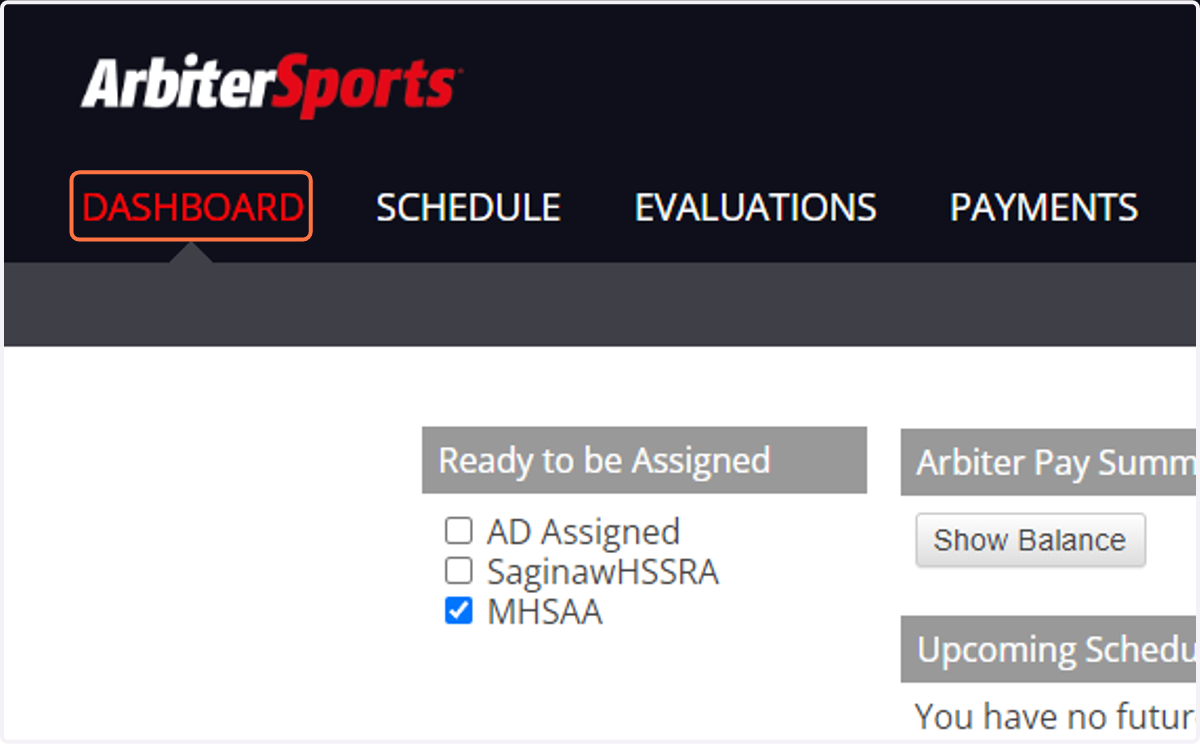
47. Find 'Ready to be Assigned' in the top left
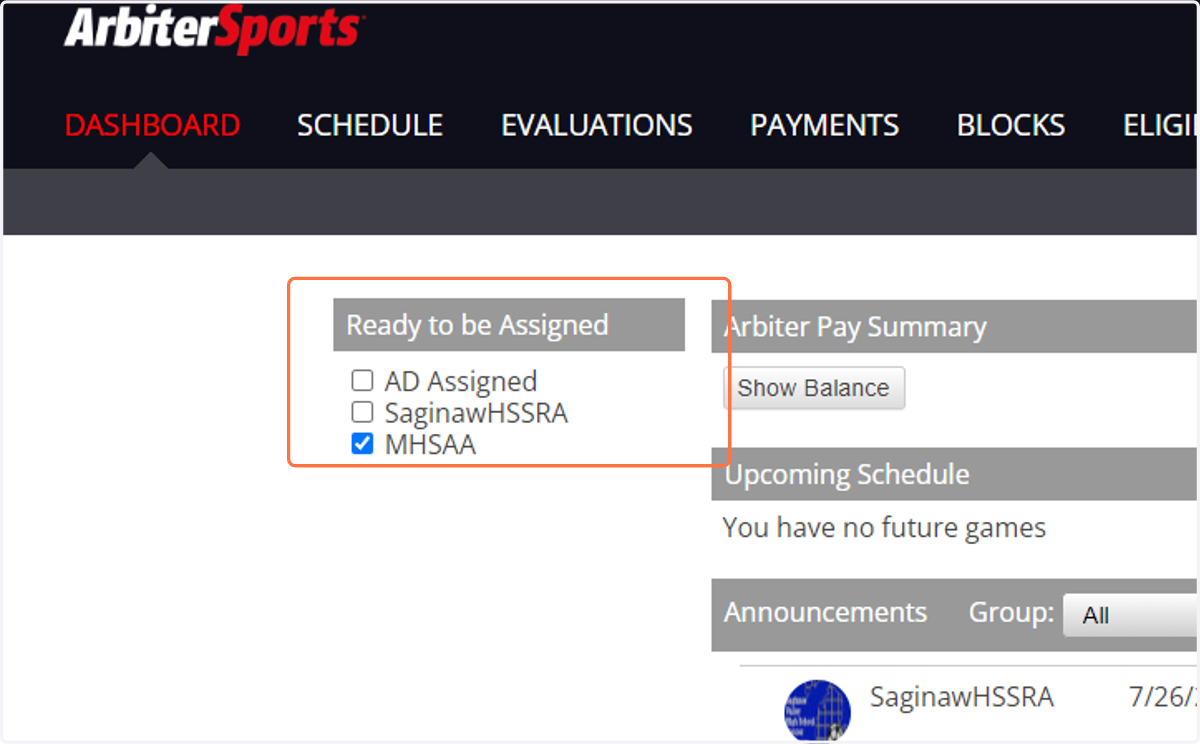
48. Check SaginawHSSRA
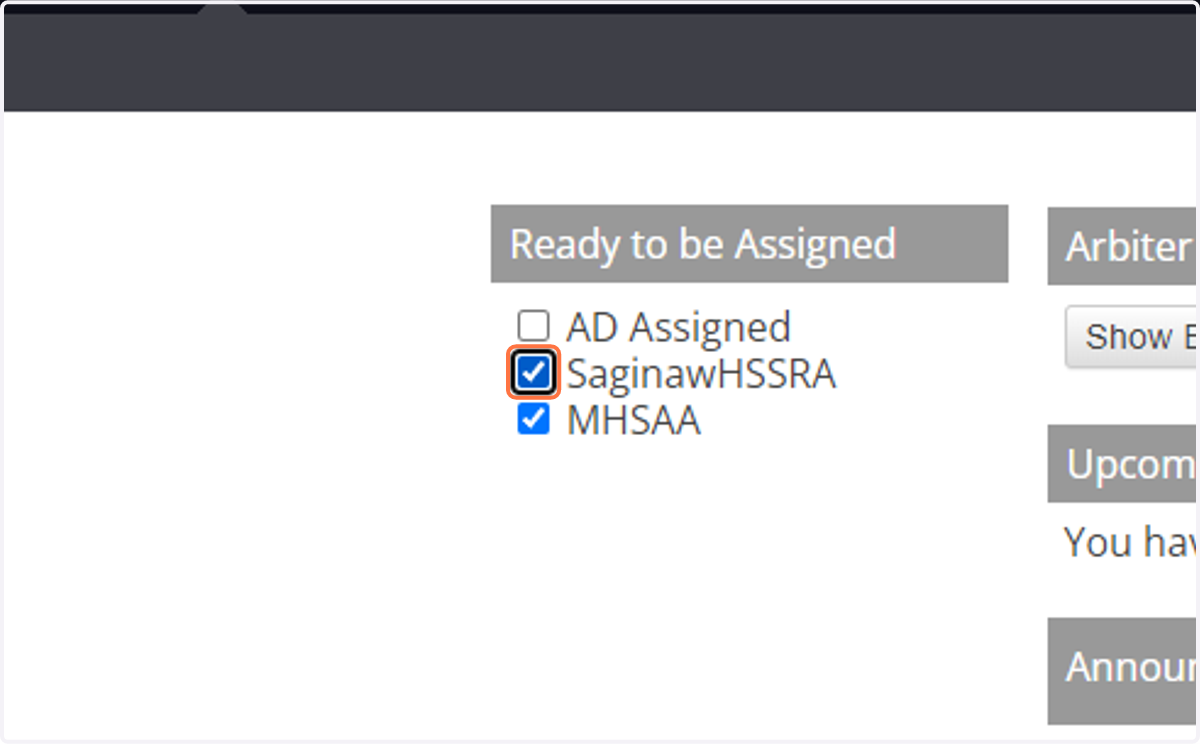
49. Congratulations! You are ready to use AribterSports and start working as a referee in the SVHSSRA