User Onboarding & Dashboards
Go through the user onboarding process step-by-step and get acquainted with your User Dashboard.
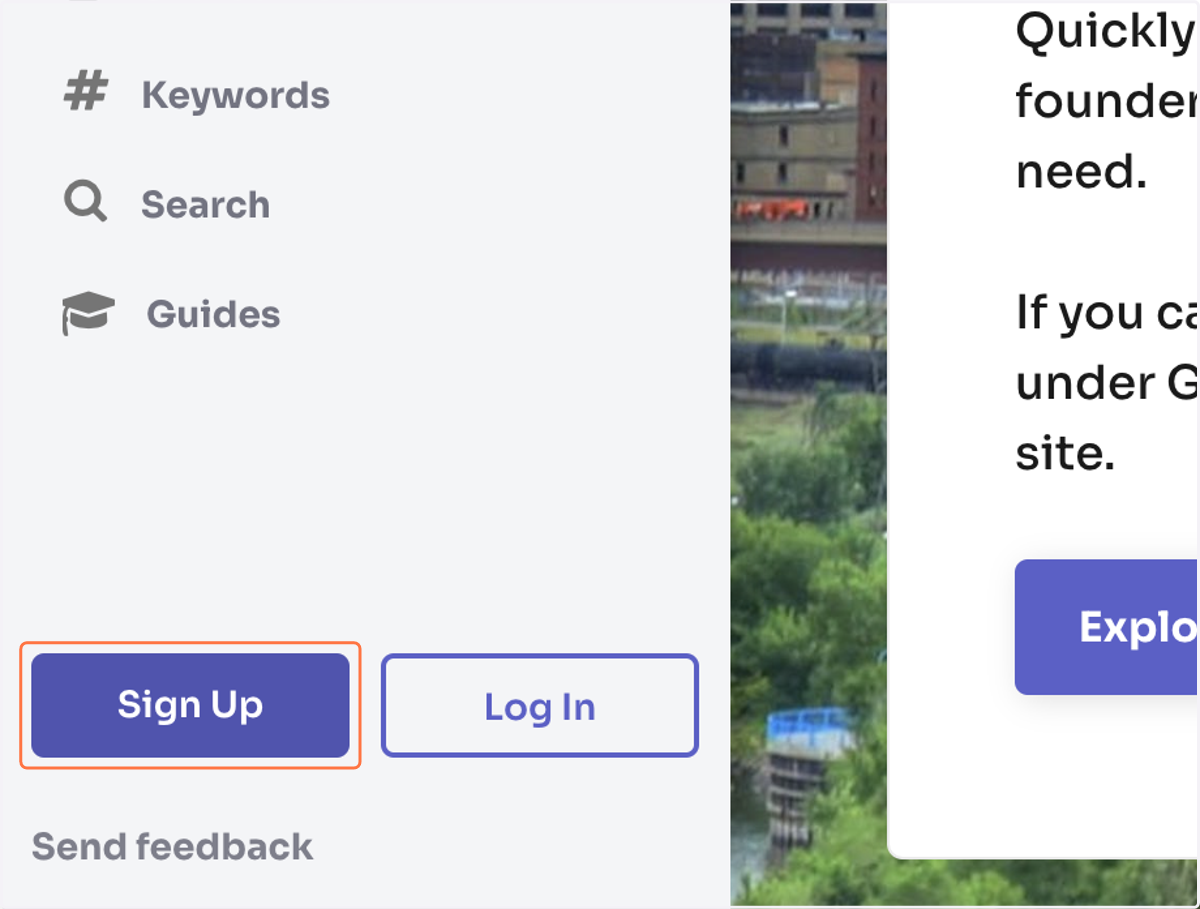
1. Click the "Sign Up" button.
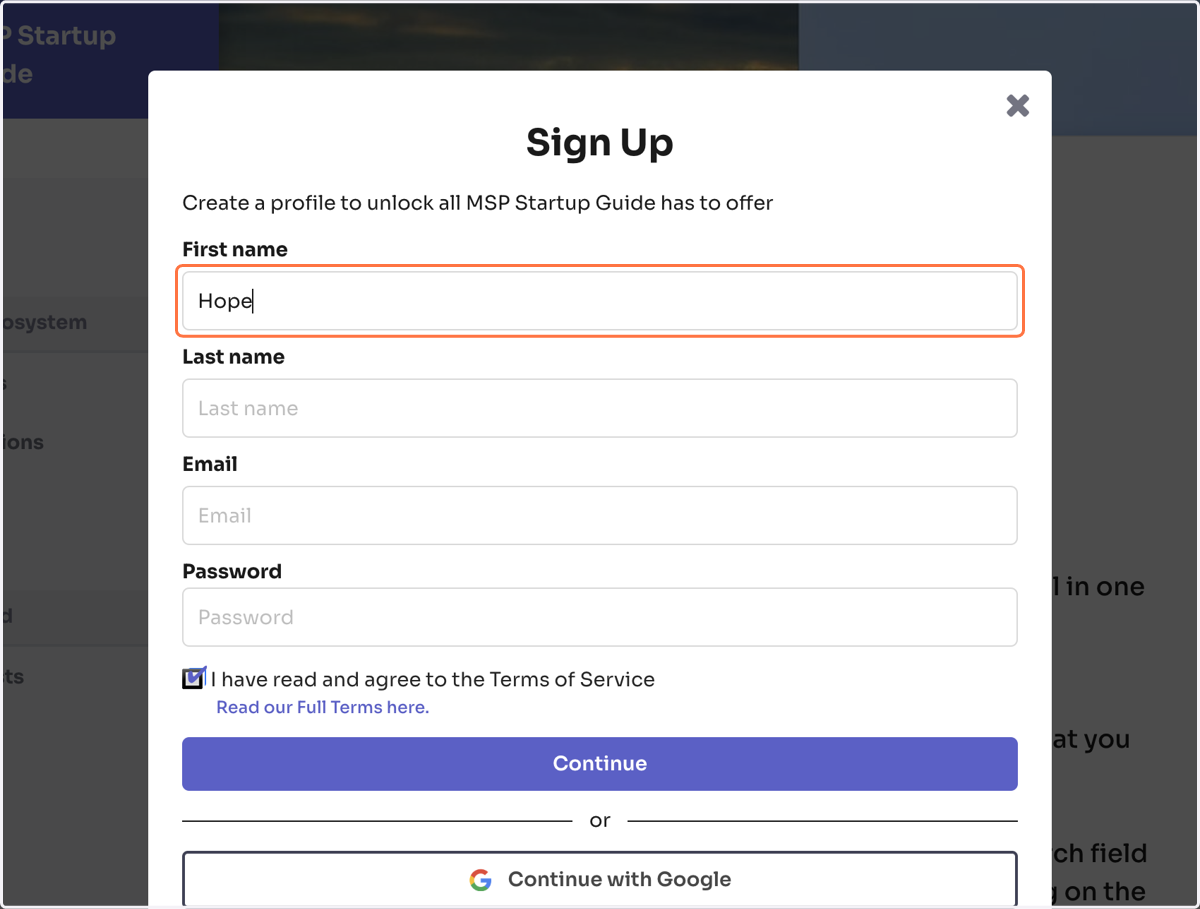
2. Complete all the forms on the pop up.
Fill in your name, email address, and password.
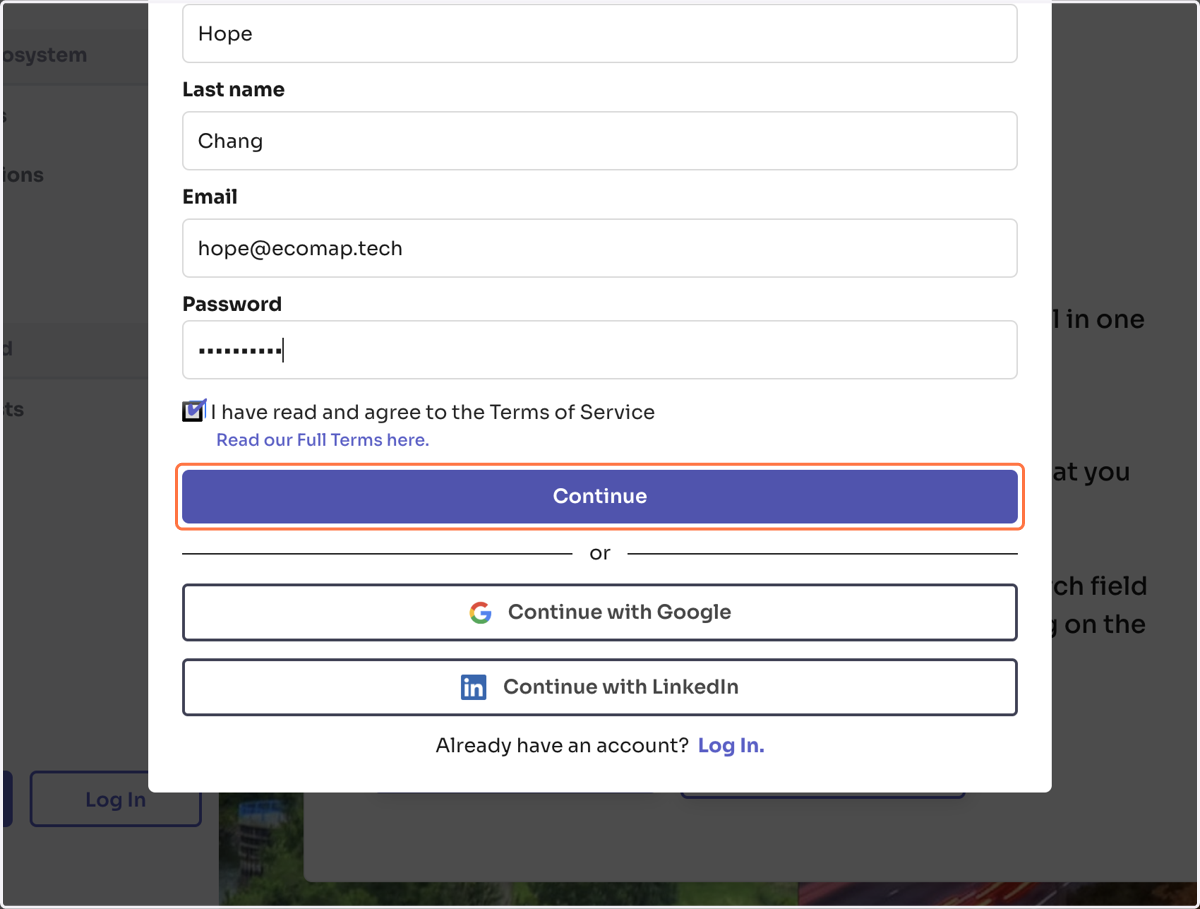
3. Click on "Continue" when you're finished
4. Click on "Networking"
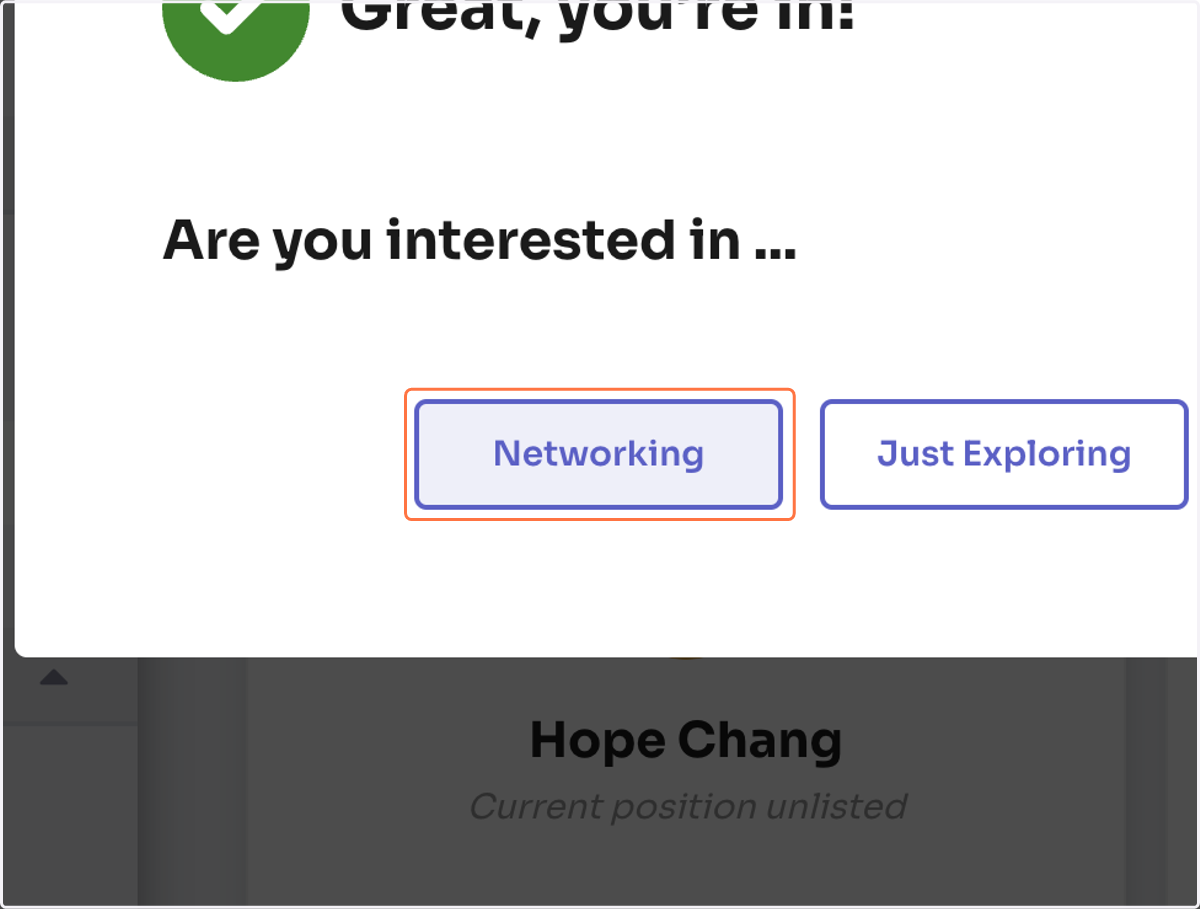
5. Click on "Create Profile" to begin your onboarding.
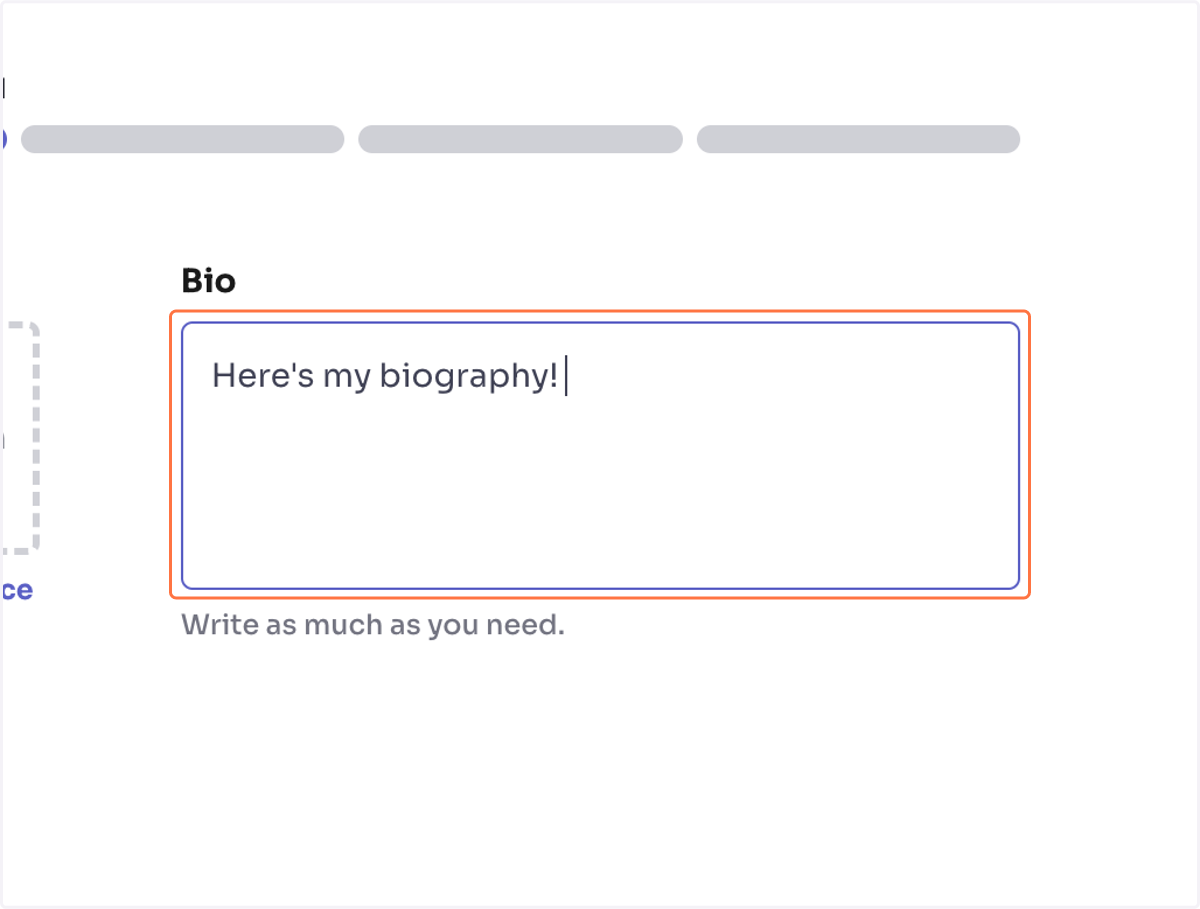
6. Fill in your biography and upload a profile photo. Click Next when you're done.
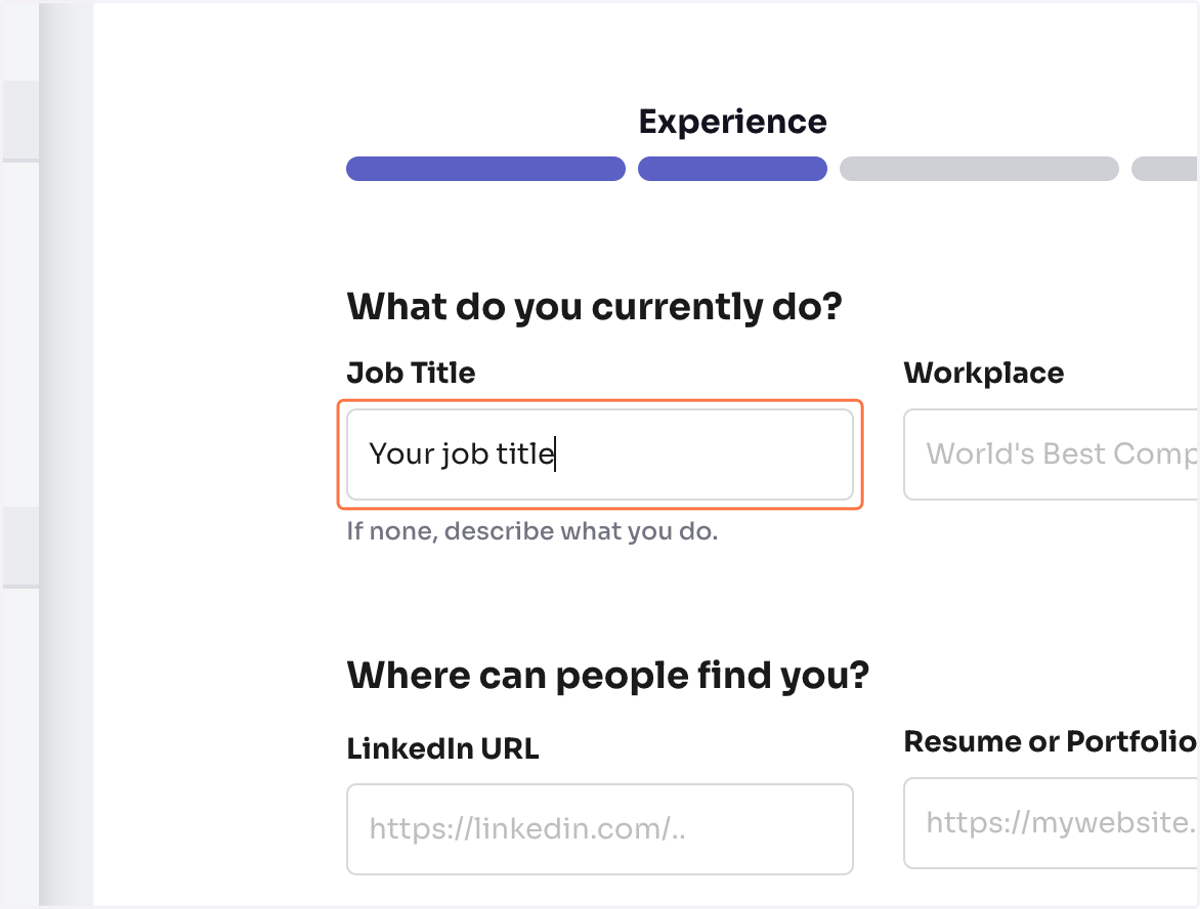
7. Fill in your current professional experience. Then, click Next.
Optionally, you can also copy and paste the URL of your LinkedIn or portfolio/resume.
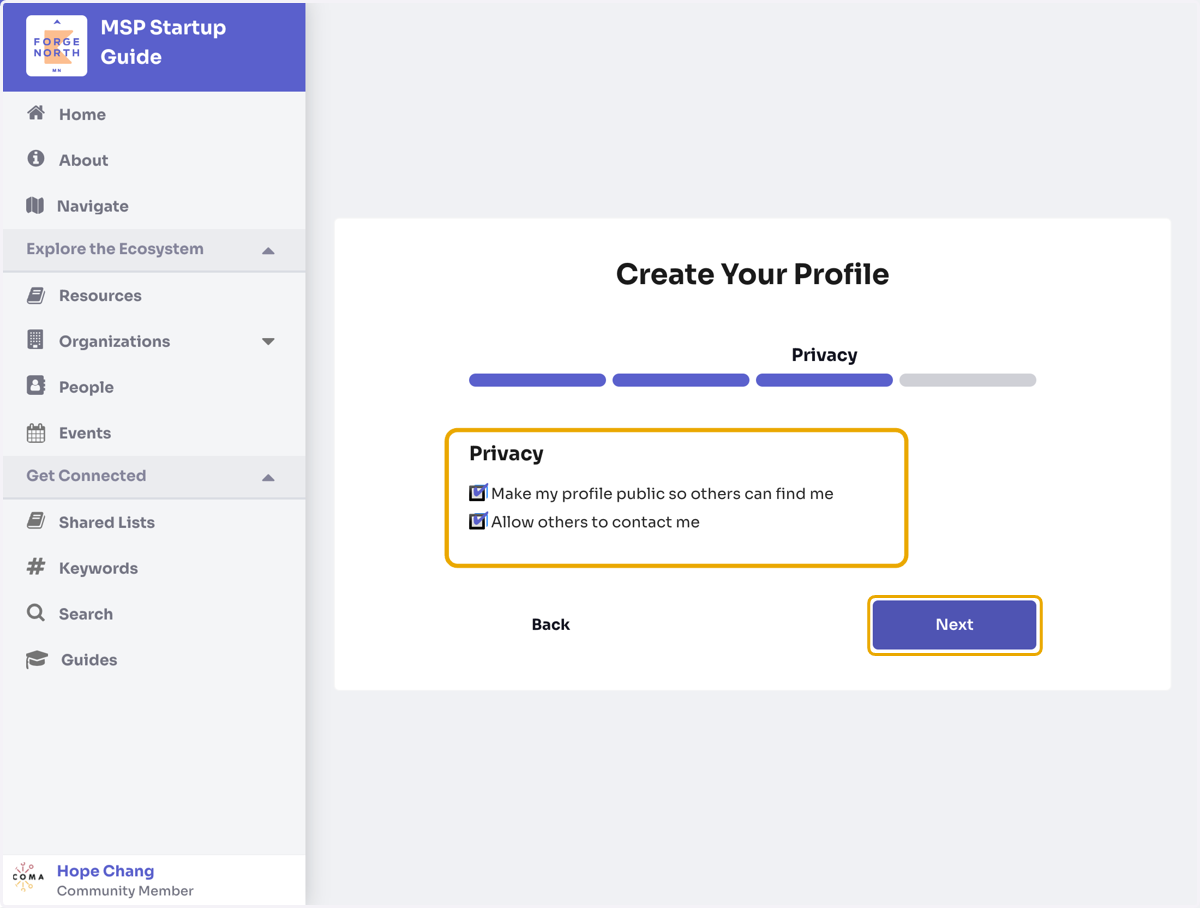
8. Keep the check boxes marked if you want to keep your profile public or allow others to contact you on the platform. Click next when you're finished.
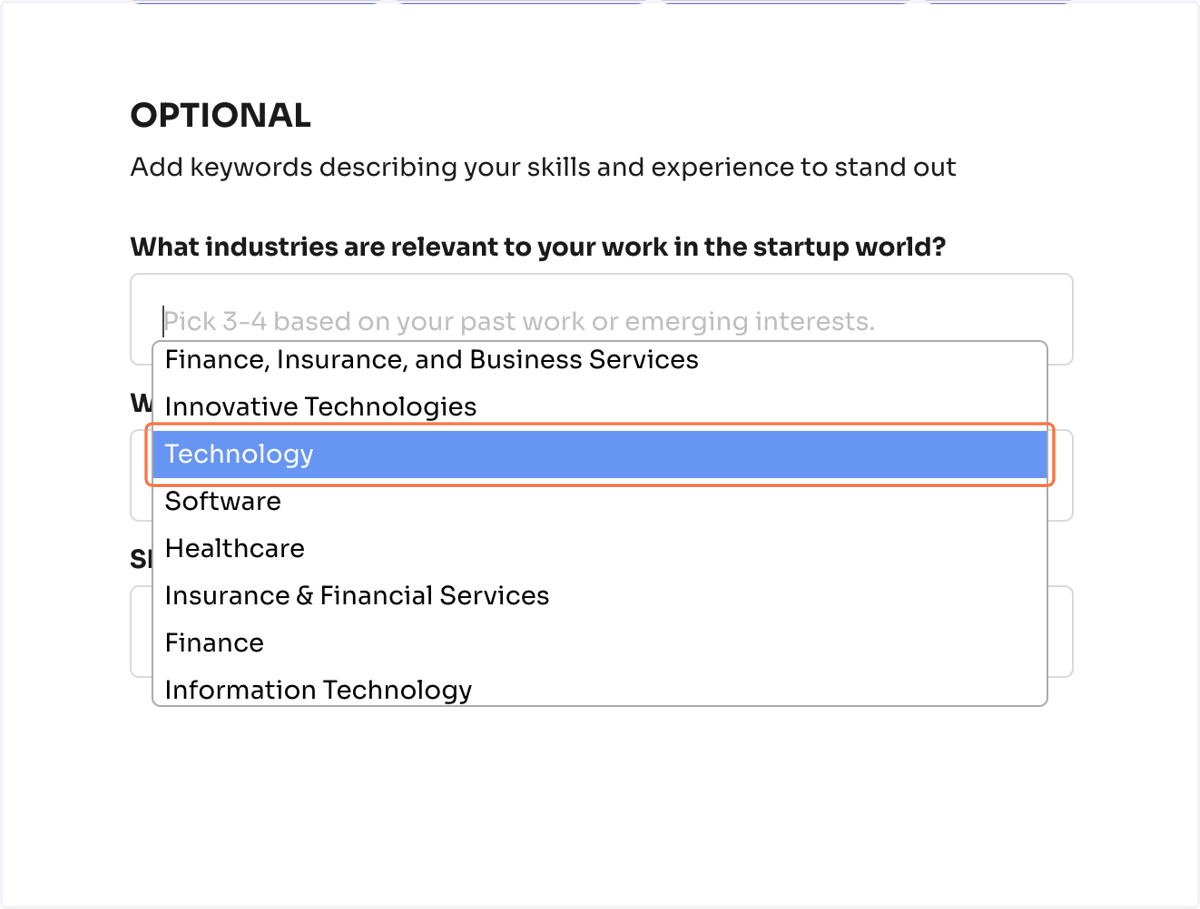
9. Click on the form underneath the question to see a dropdown of keywords that may describe the industries associated with your line of work, types of businesses that you have worked with, and your identity.
Select any that are relevant to you.
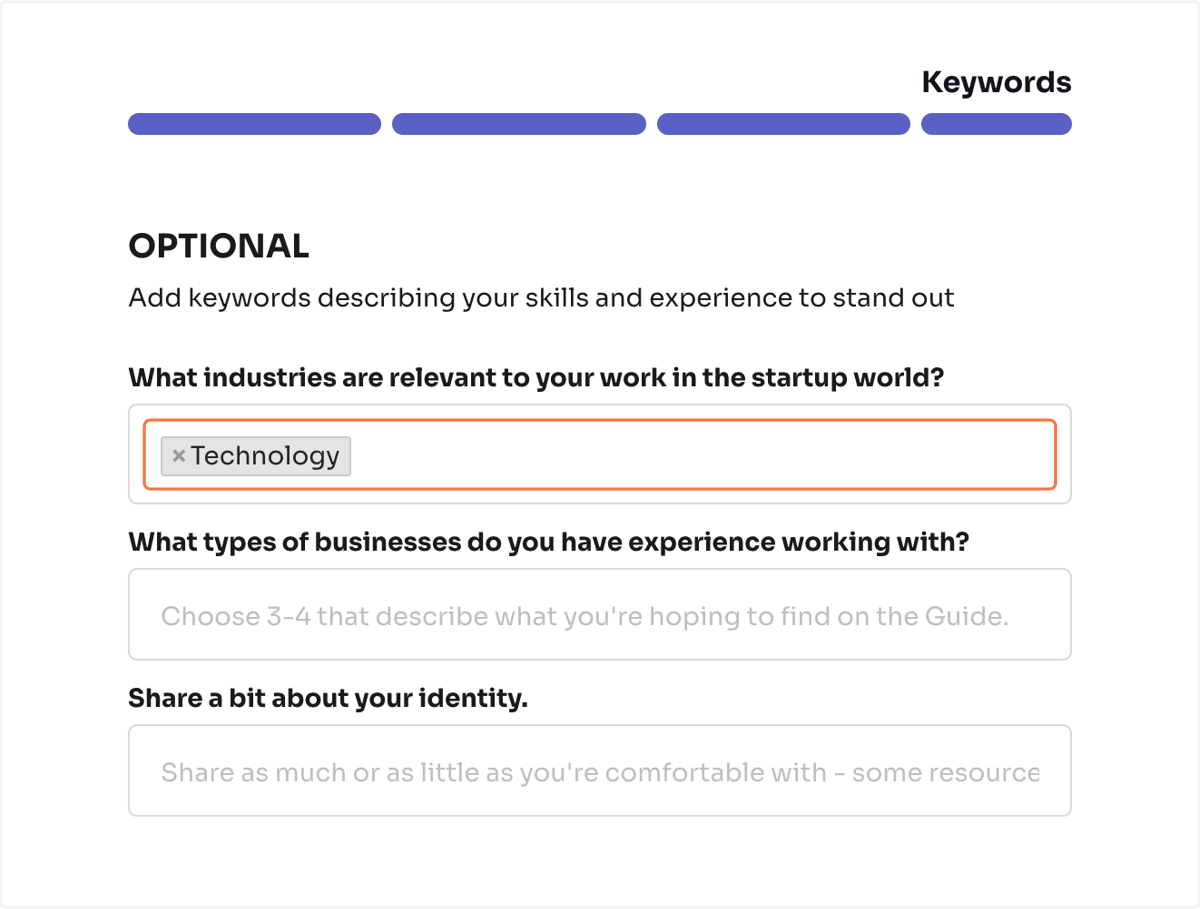
10. After selecting a keyword, it should populate the form like this. Click the "x" if you want to remove the keyword, or click the form again to select and add more.
11. Click on Finished when you're done.
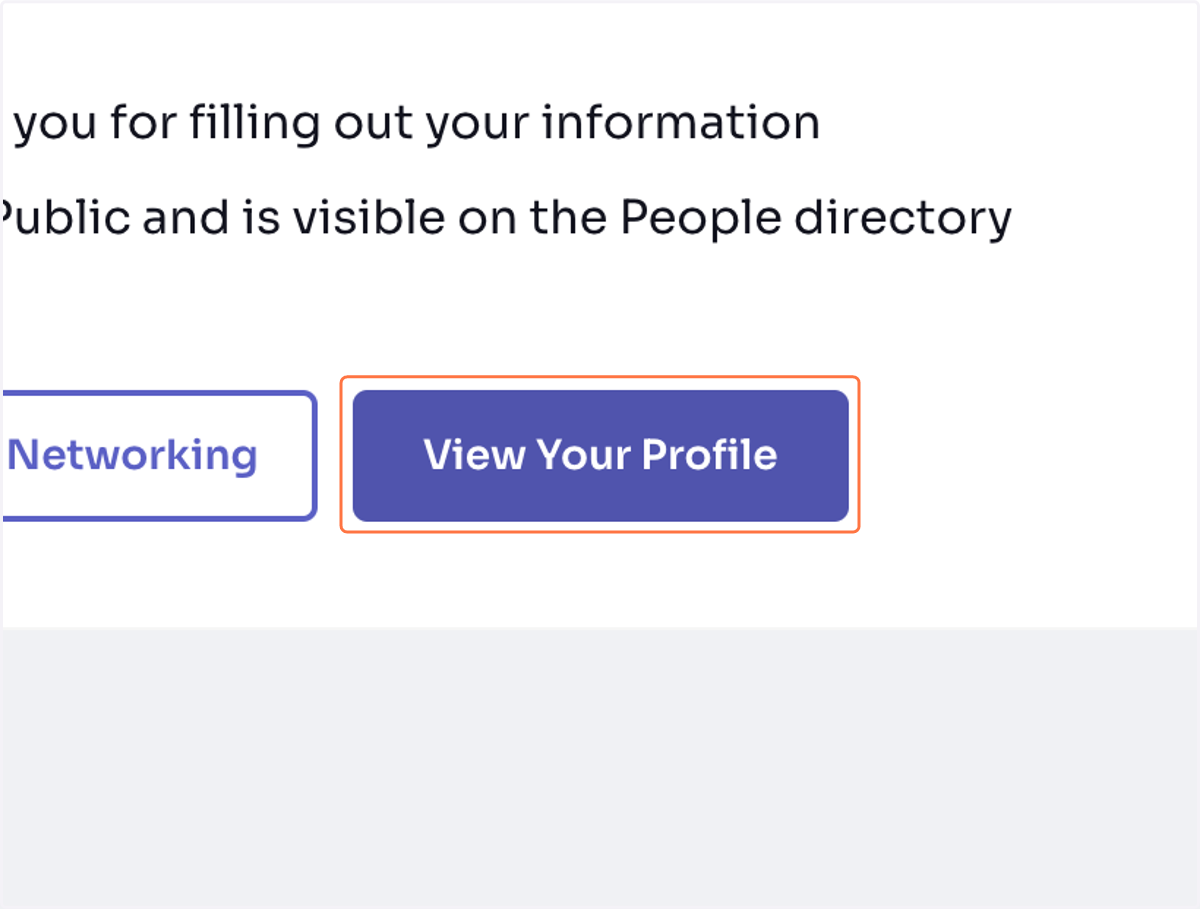
12. Click on View Your Profile
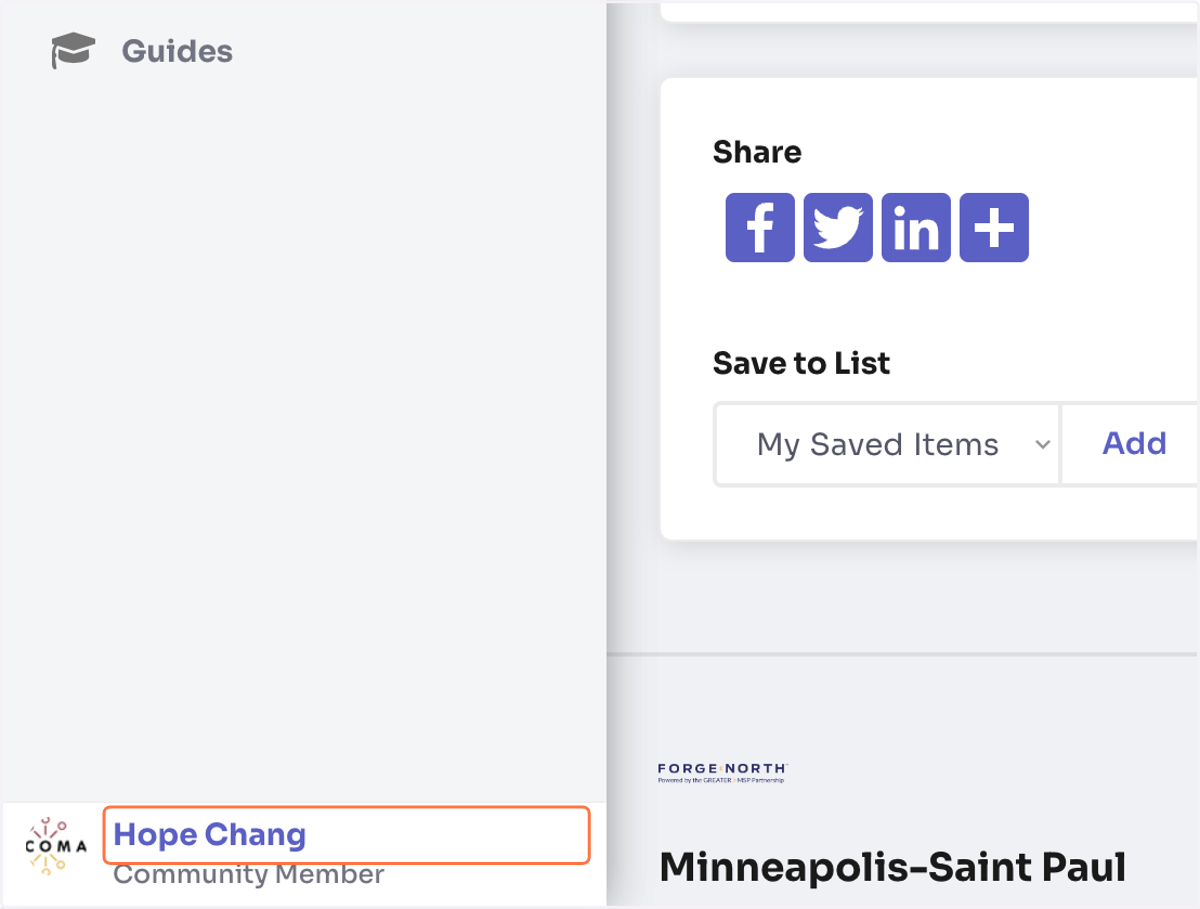
13. Click on your name in the lower left-hand corner.
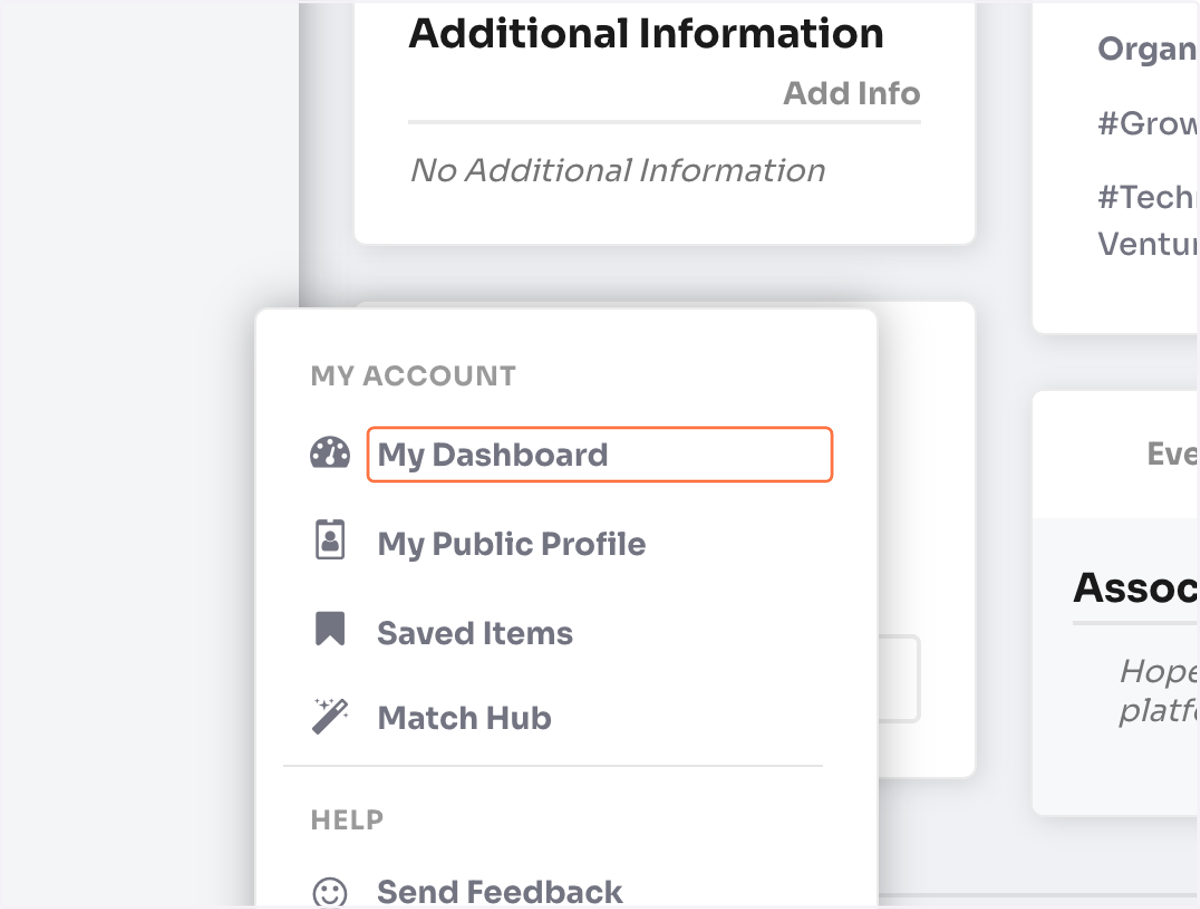
14. Click on My Dashboard
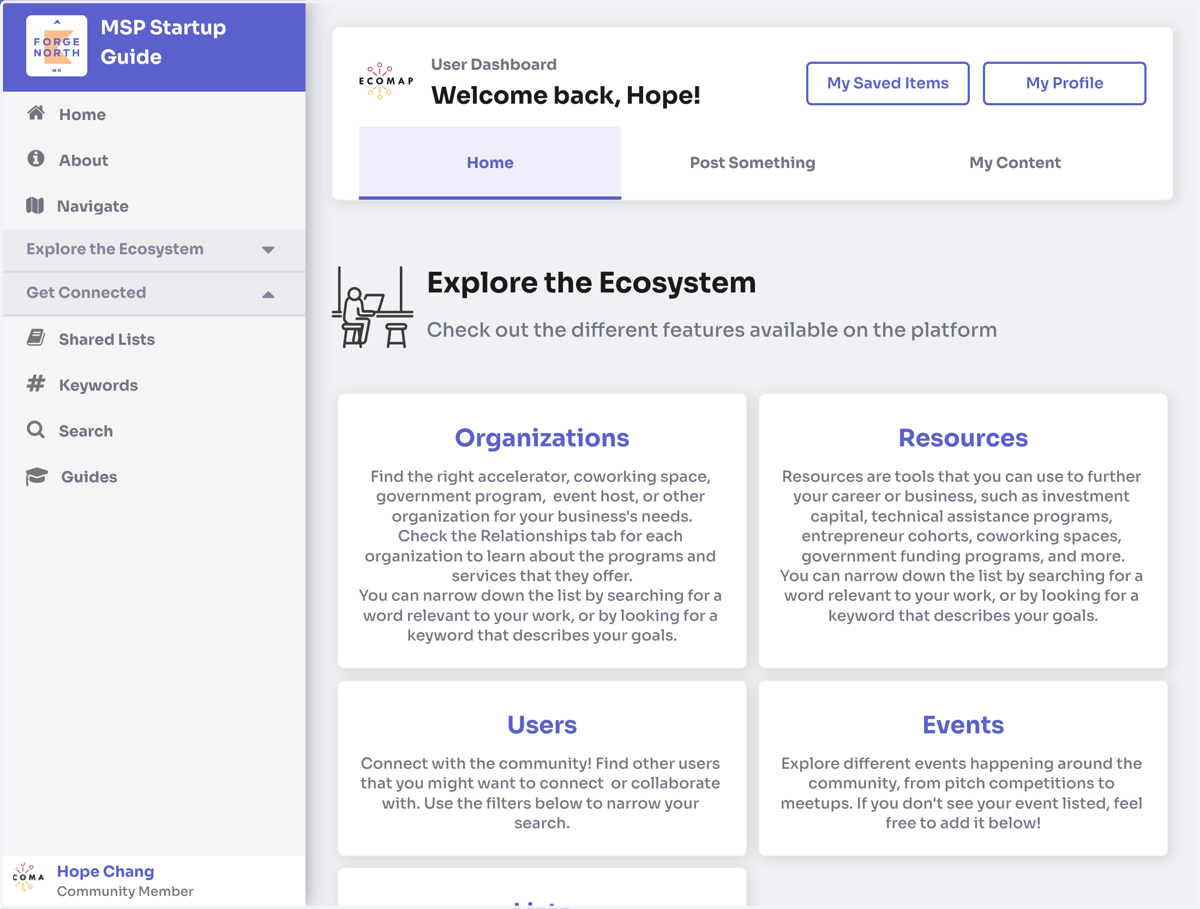
15. Welcome to the Home page of your User Dashboard! Here you can explore the different features available on the platform.
You can also navigate to these directories using the side bar.
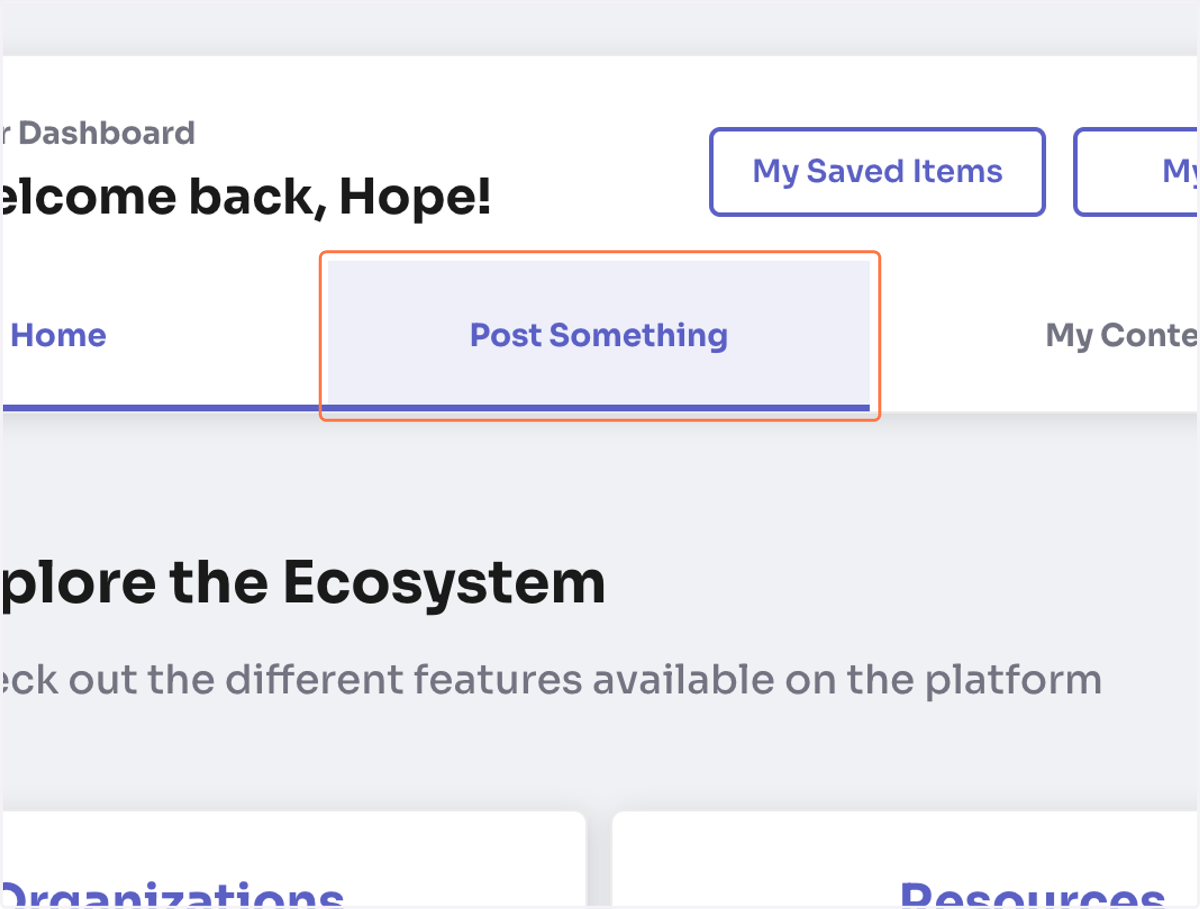
16. Click on Post Something…
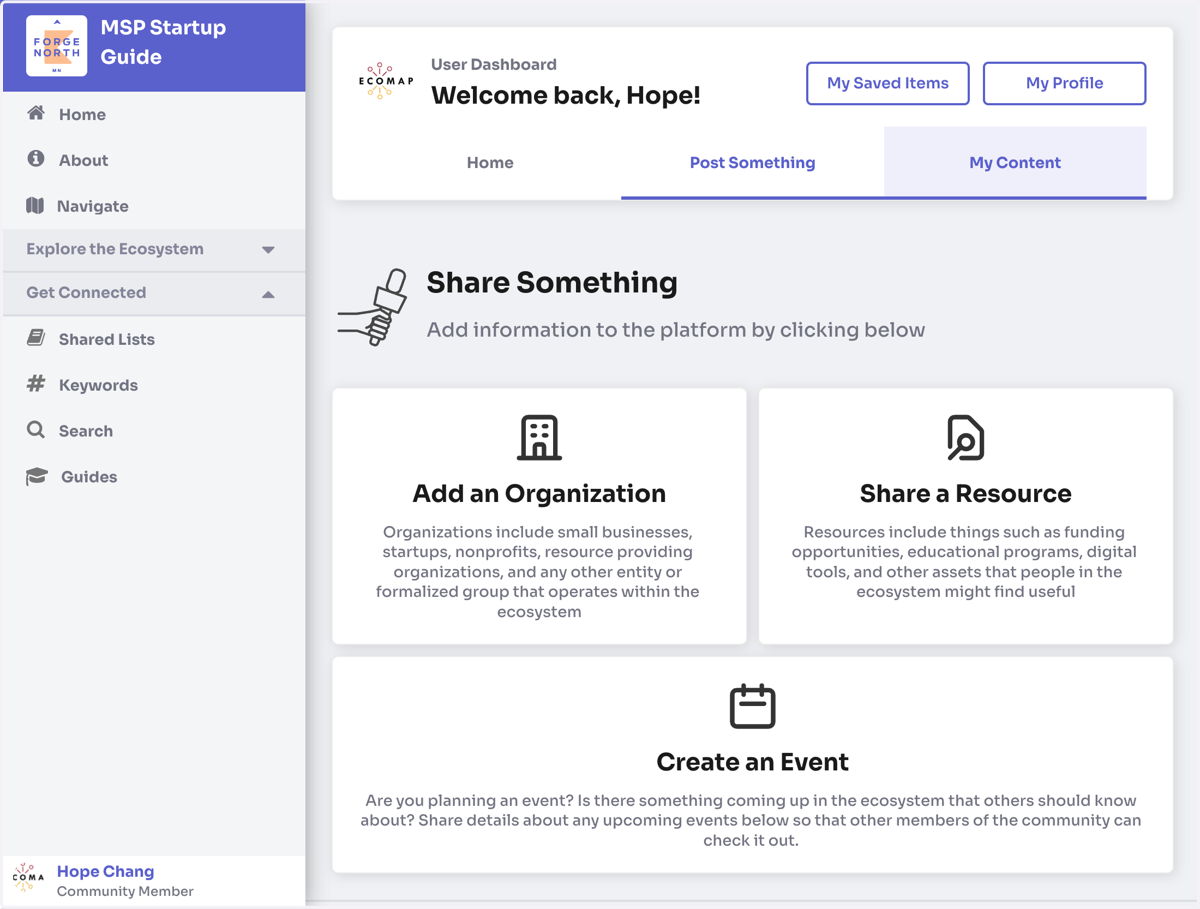
17. On this tab, you can add your own contributions to the platform.
Use the buttons to add a Resource, an Organization, or an Event for other users to see.
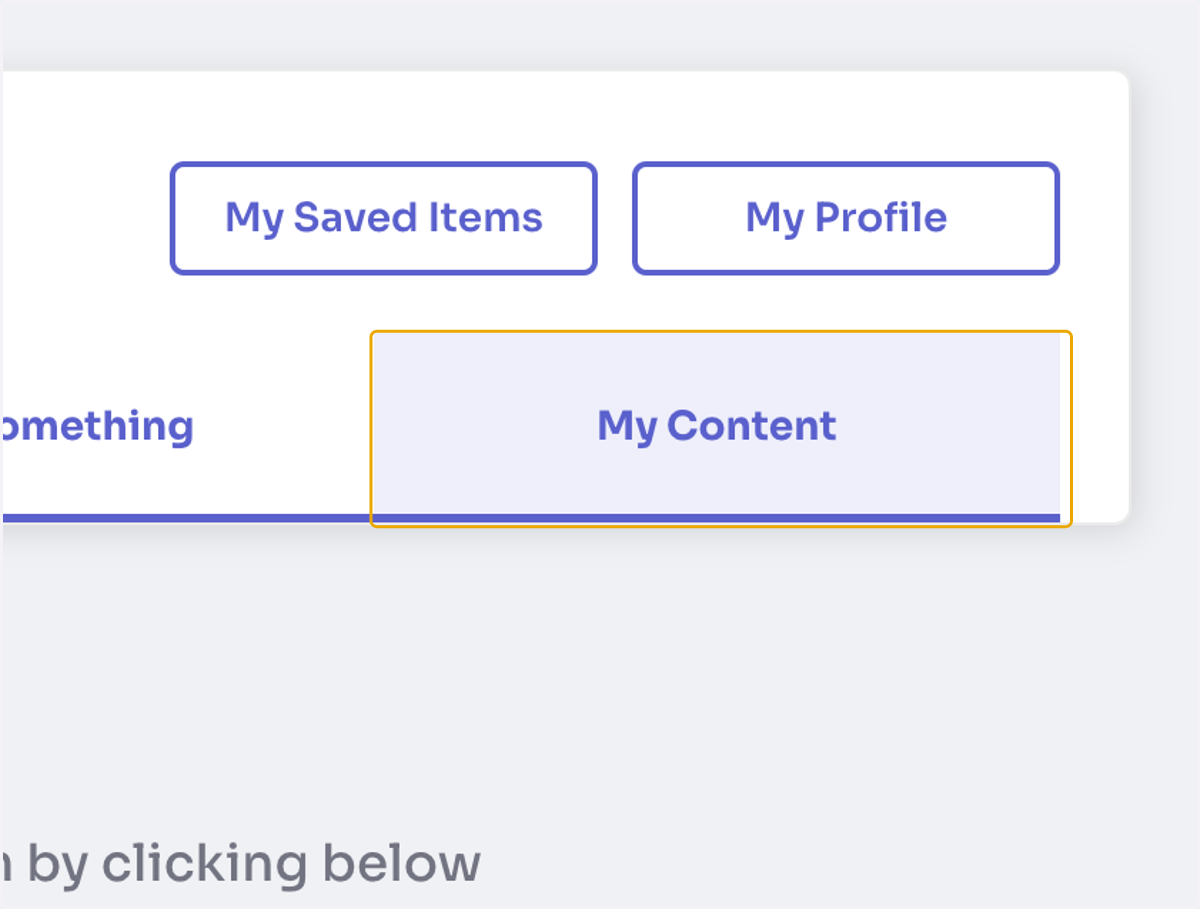
18. Click on My Content…
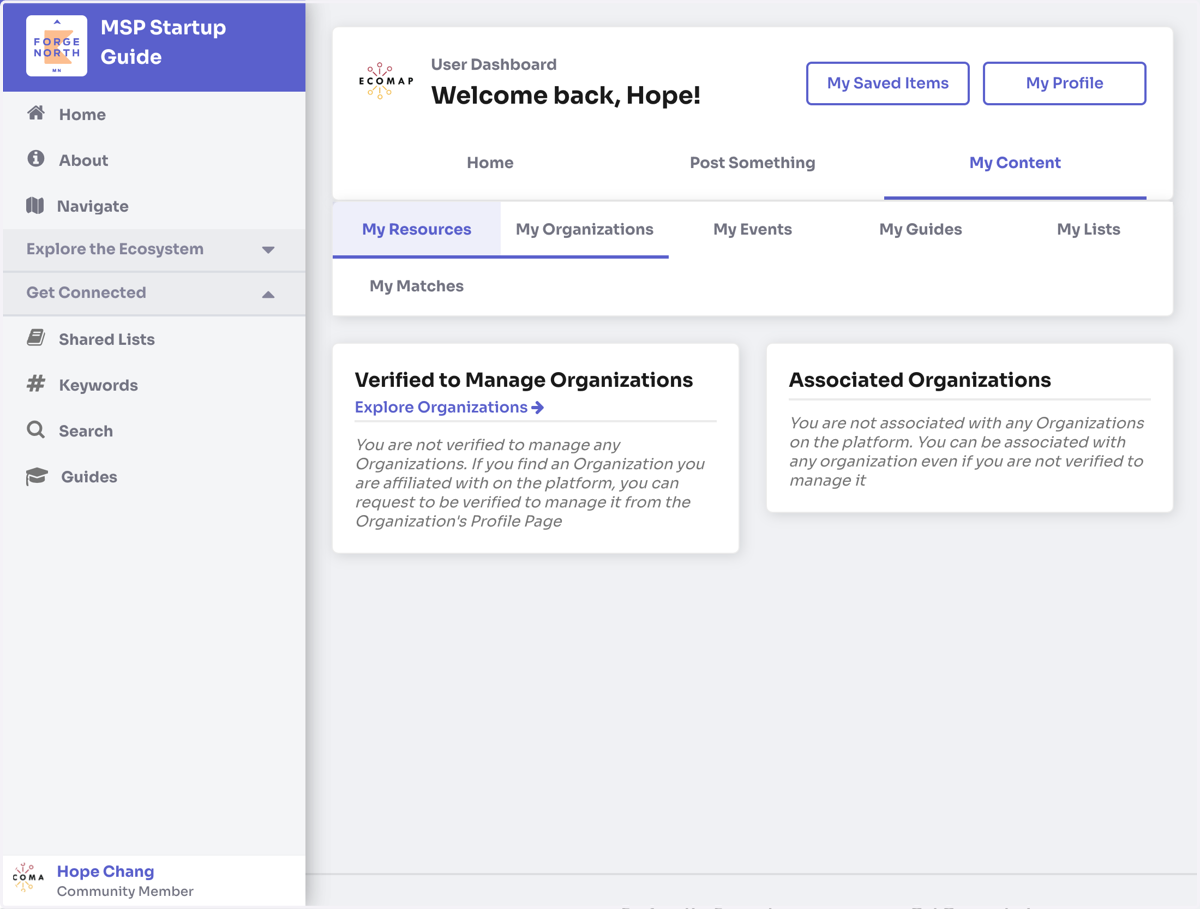
19. On this page, you can access any Resources or Organizations that you are verified to manage, Events that you've added, Guides or Lists you've created, and your Matches.
Click on each corresponding tab to access any of the content that you have added or are associated with.
If you are affiliated with any resources or organizations and aren't yet verified to manage them, you can request access on that resource or organization's profile.
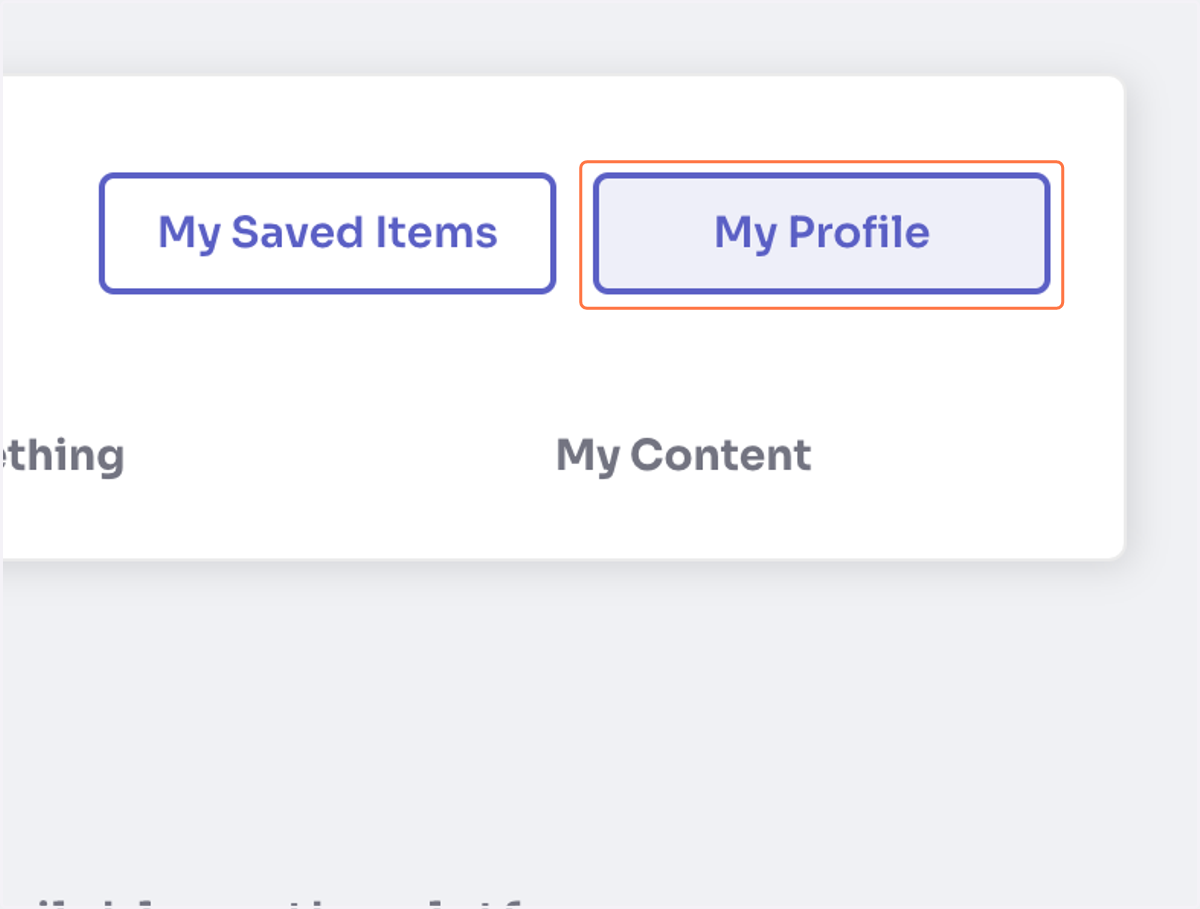
20. Click on My Saved Items in the upper right-hand corner to see any items you've saved.
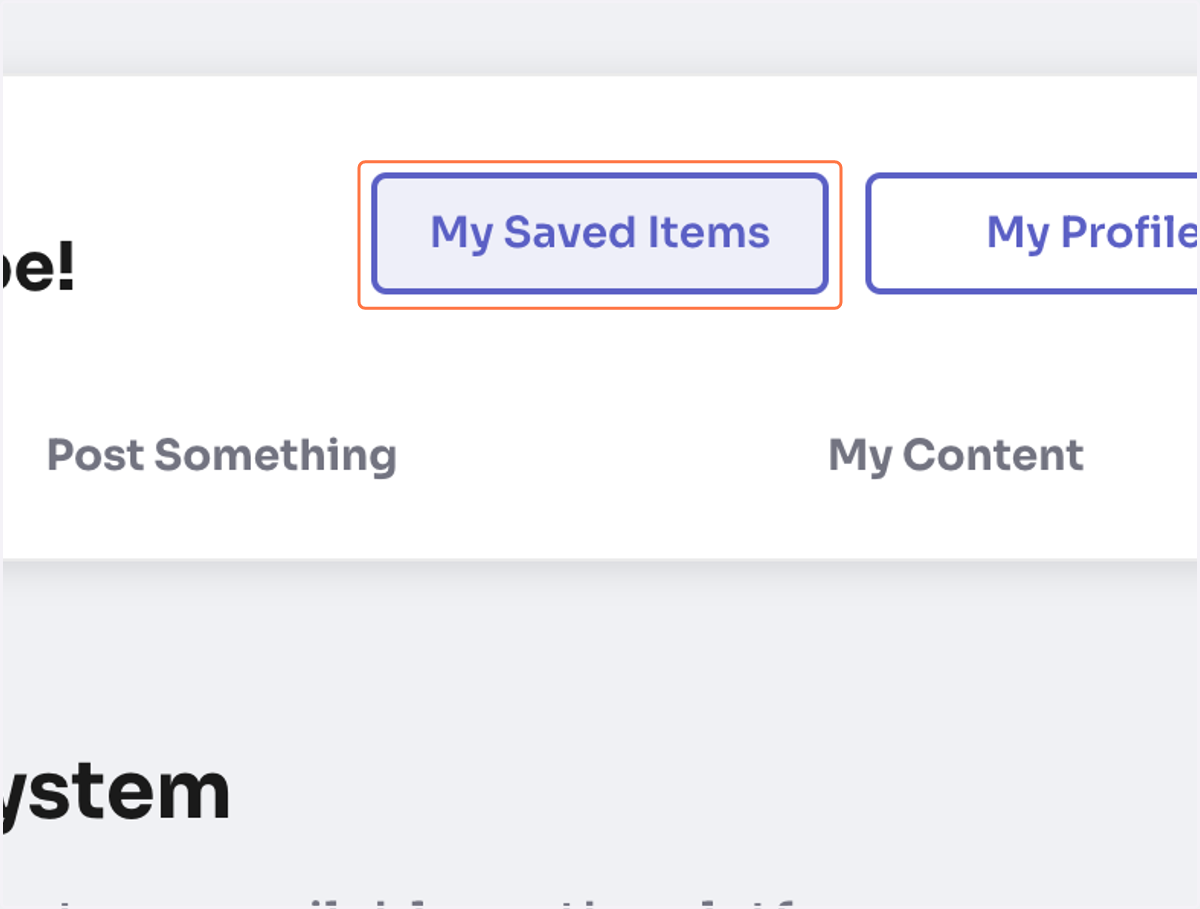
21. Click on My Profile to go to your public profile.
You can also go here to edit any of your profile information.