Uploading Required Admission Documents to Polischool
Note, to be admitted you MUST submit ALL required documents. Acceptance letters are based on those who finish uploading all of their documents FIRST
Visit https://mchd.polischool.net/login.php
What do I need to upload to receive an approval letter?
Baseline Physical Exam (must be evaluated by a MD, DO, PA, or NP)
Must be cleared for full duty without restrictions
Proof of Health Insurance
Must indicate the student’s name on the card OR student must provide additional documents with proof the STUDENT is covered.
Vaccines:
TB Test: PPD or TB Gold. Those who are known to test positive are required to receive a chest x-ray with a report from a radiologist
Hepatitis B Vaccine: Begin series or ALL dates of vaccination OR proof of positive titer
MMR: 2 vaccines OR proof of positive titer
Varicella: 2 vaccines OR proof of positive titer
TDaP: Proof of vaccine within past 10 years
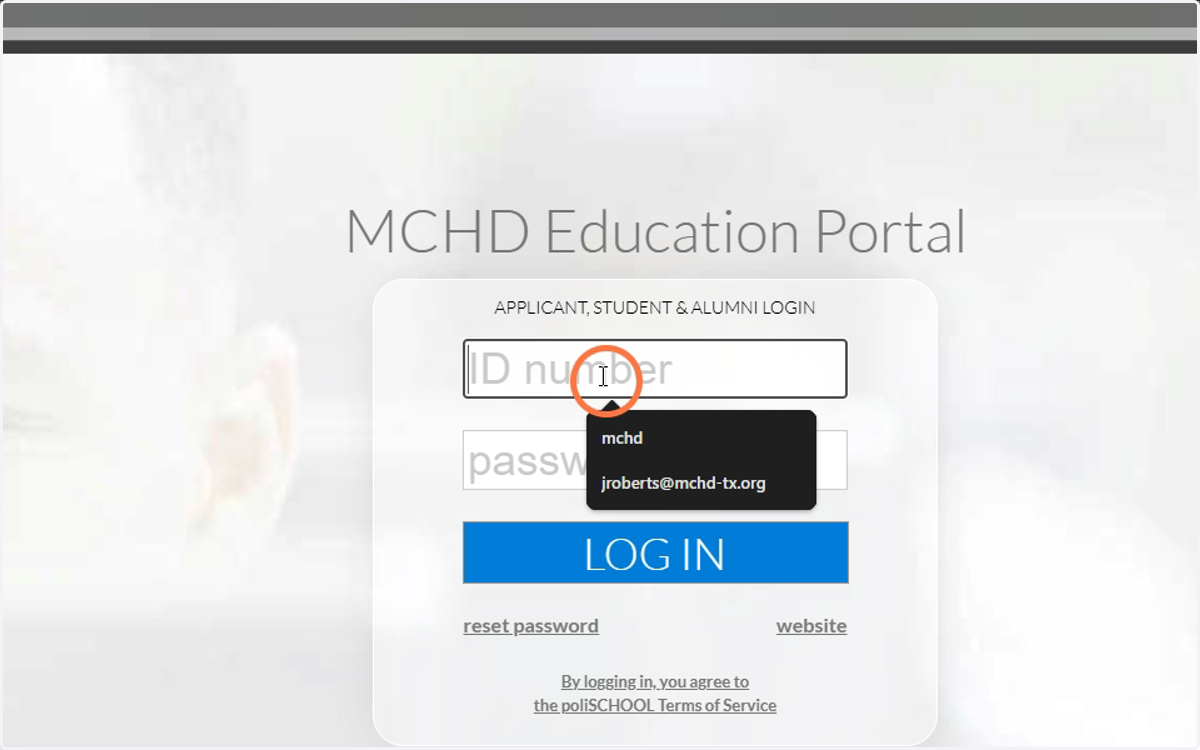
1. Enter your student ID Number
You can find this on the email from Polischool
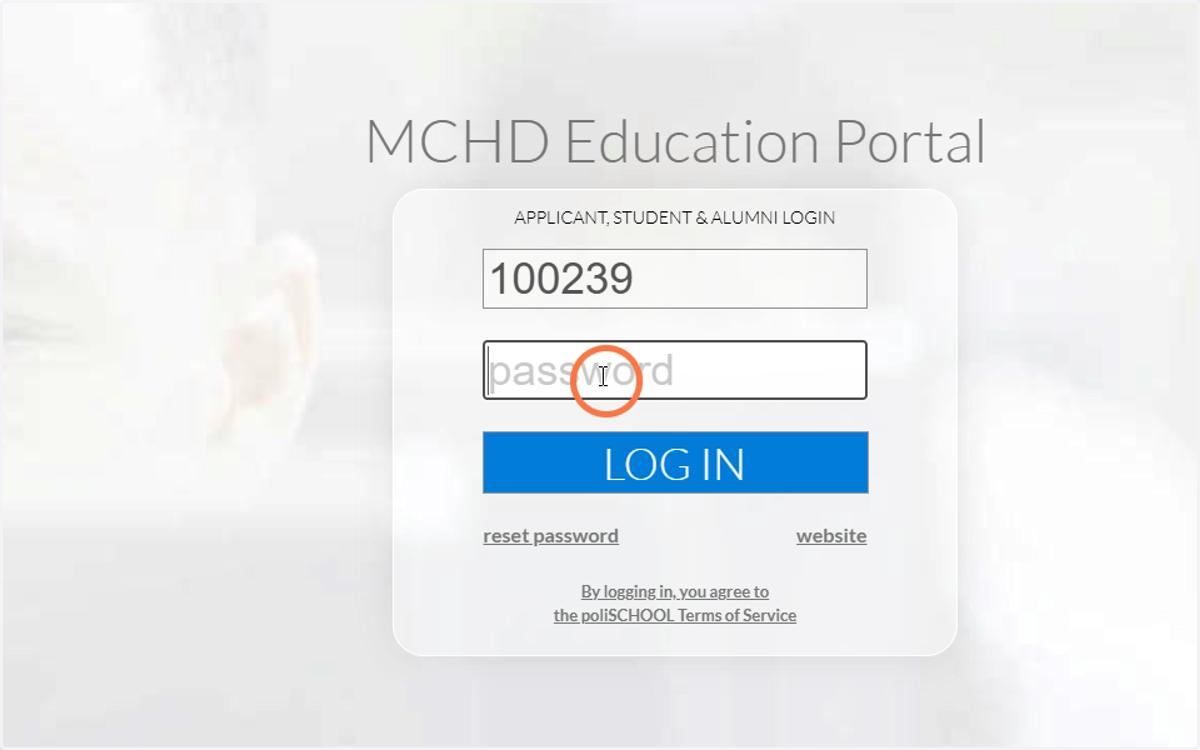
2. Enter your password
You will receive a SECONDARY automated password after you submit your application. This is different from your first password. After logging in the first time you will be prompted to change your password.
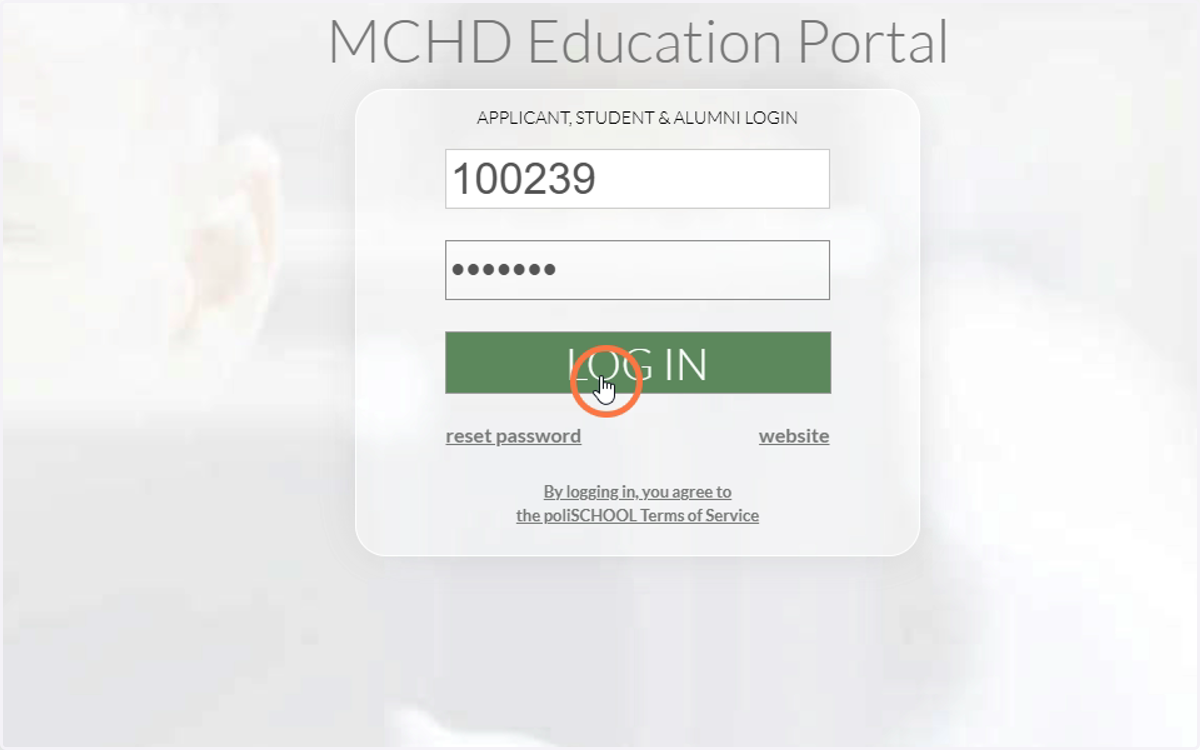
3. Click Log-in
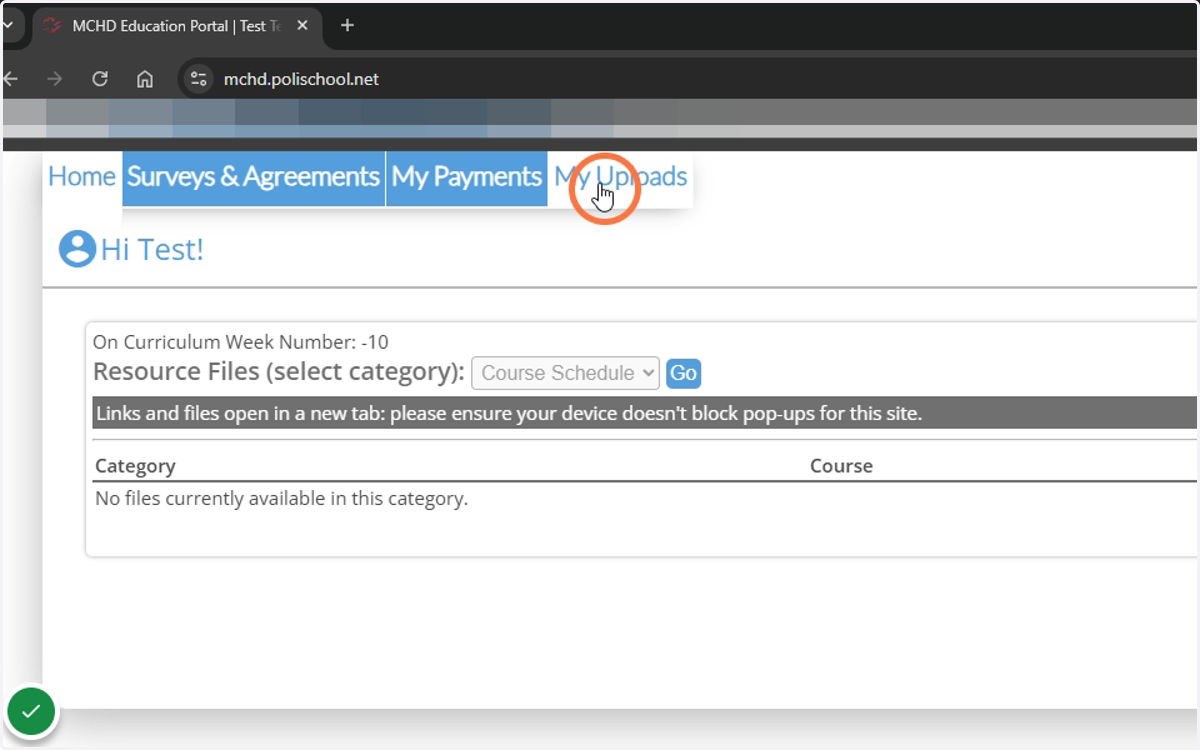
4. Navigate to the "My Uploads" tab to submit your vaccines
5. Select "Upload Document for Administration/Enrollment/Employment
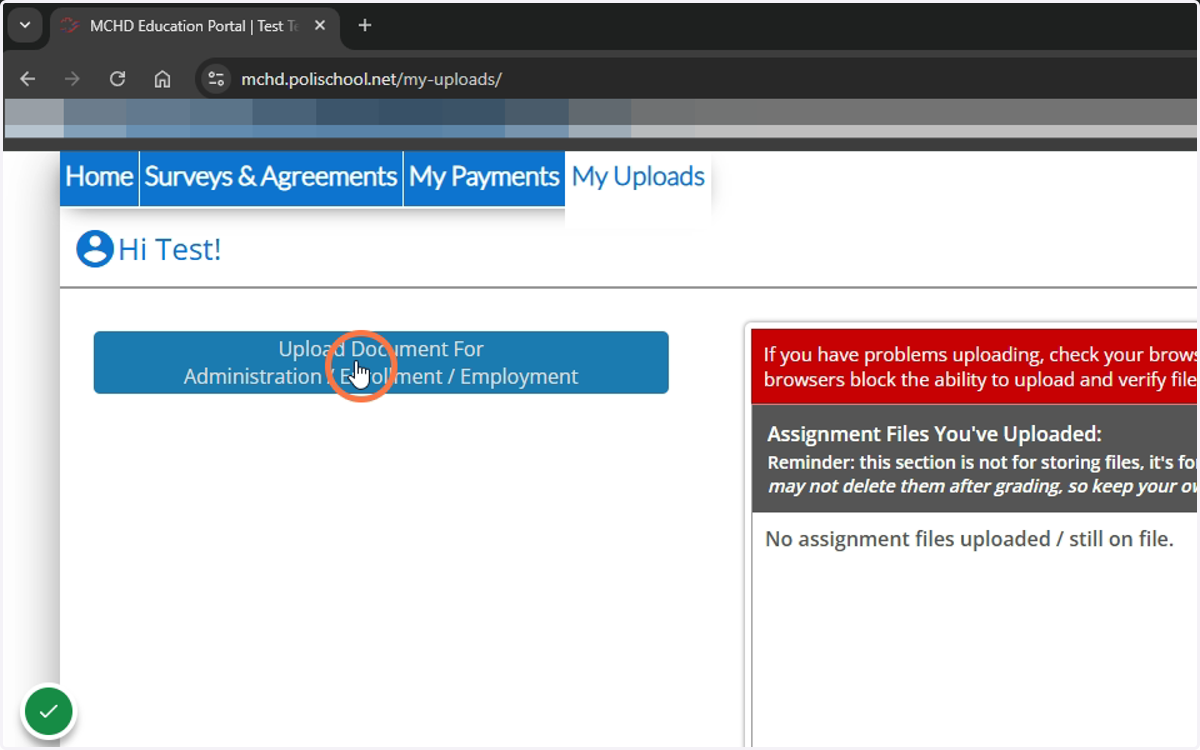
6. Select "Enrollment Requirement/Application Doc"
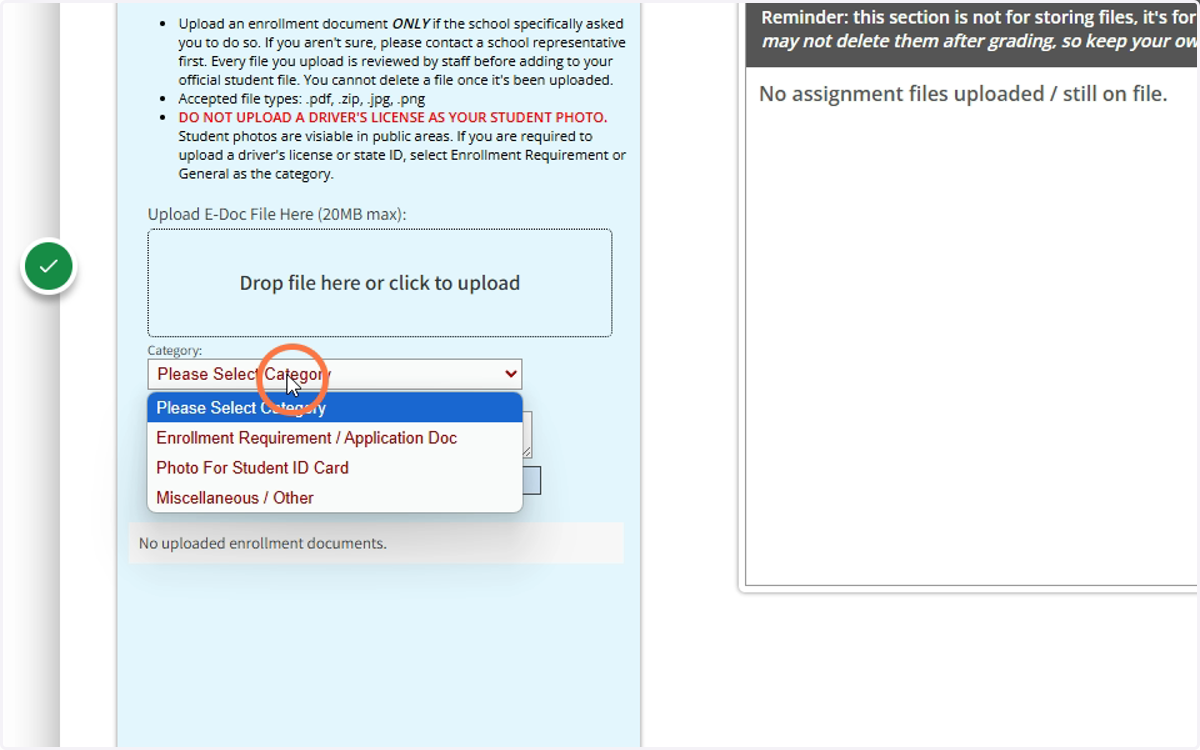
7. Enter information regarding the file
Enter a description of the document AND the date it was administered or the test was performed
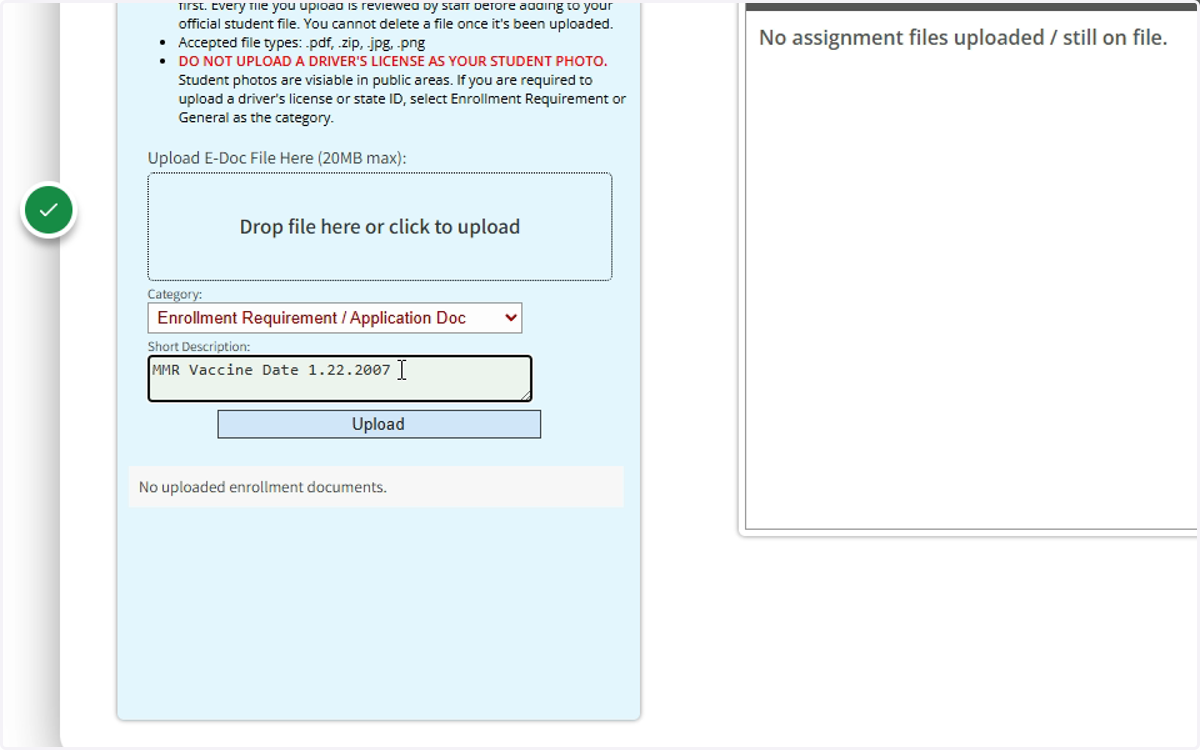
Windows Explorer
8. Locate the file with your vaccine or required test in it
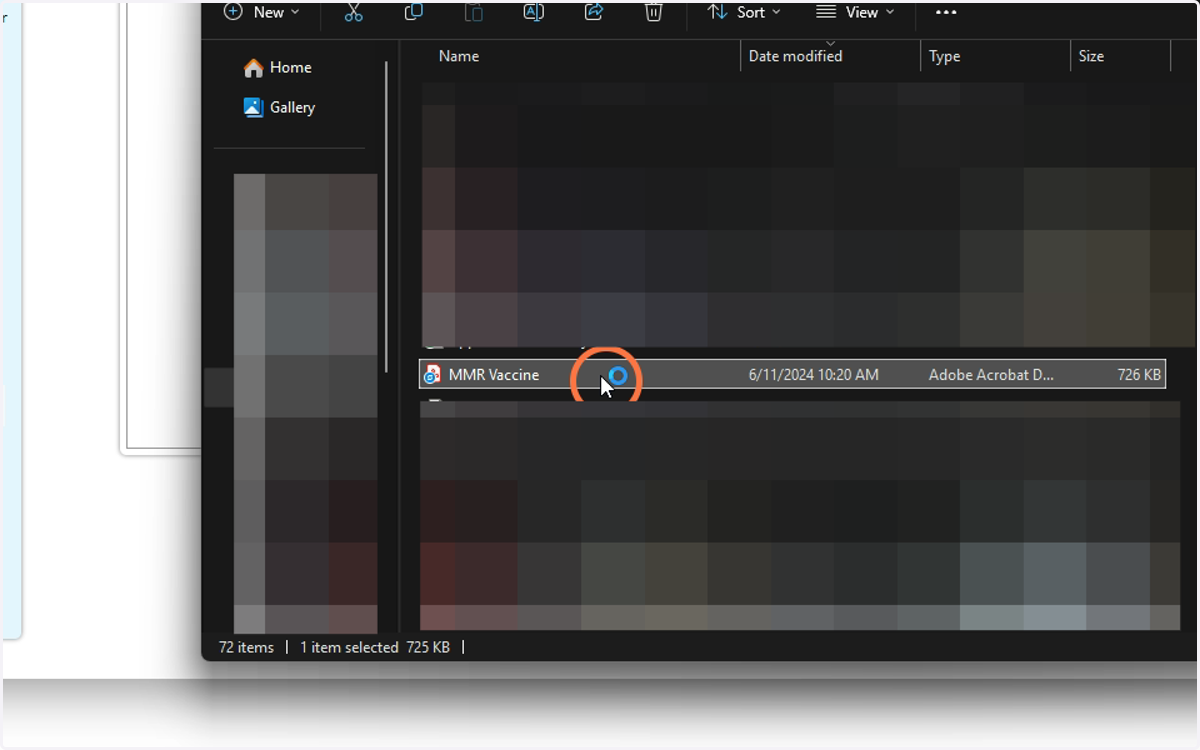
9. Drag the file to the "Drop file here"

10. Select Upload
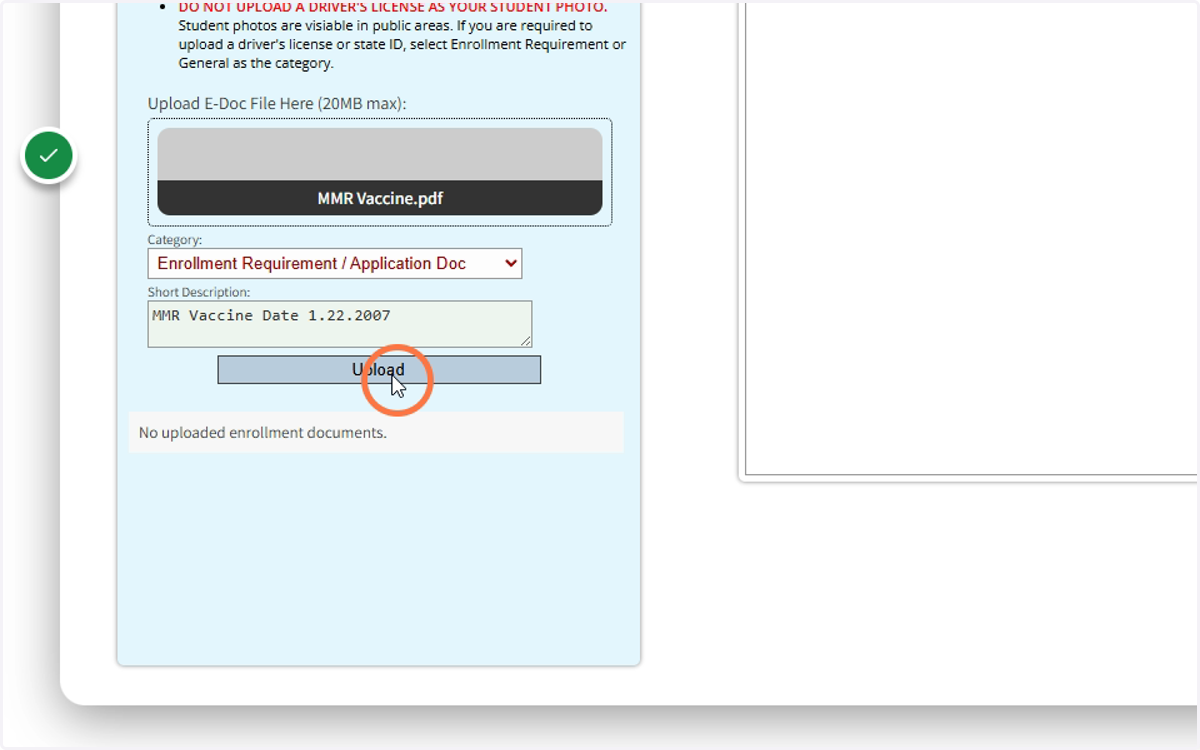
11. Verify that your document was successfully uploaded
"Pending" means it is waiting on staff to review
"Verified" means that staff have verified the document meets all requirements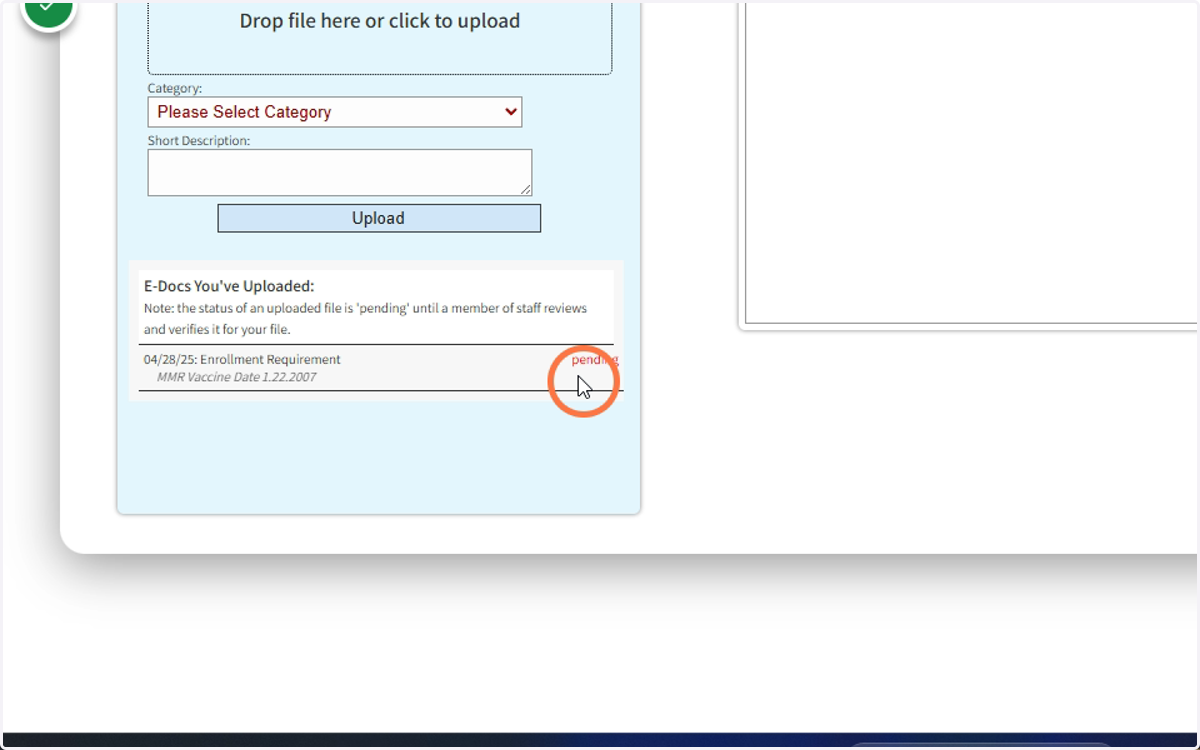
Finding the Physical Form
How to find the Physical Form in Polischool
12. Start from the Home Screen
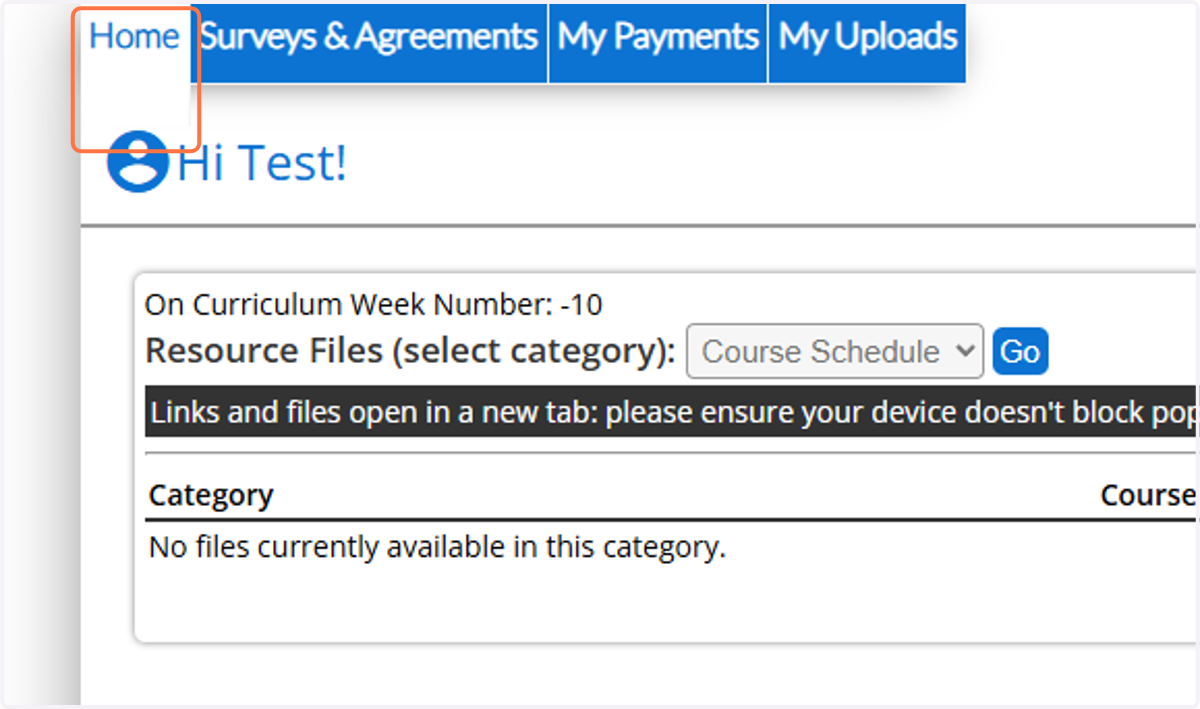
13. Change from "Course Schedule" to "Course Syllabus"
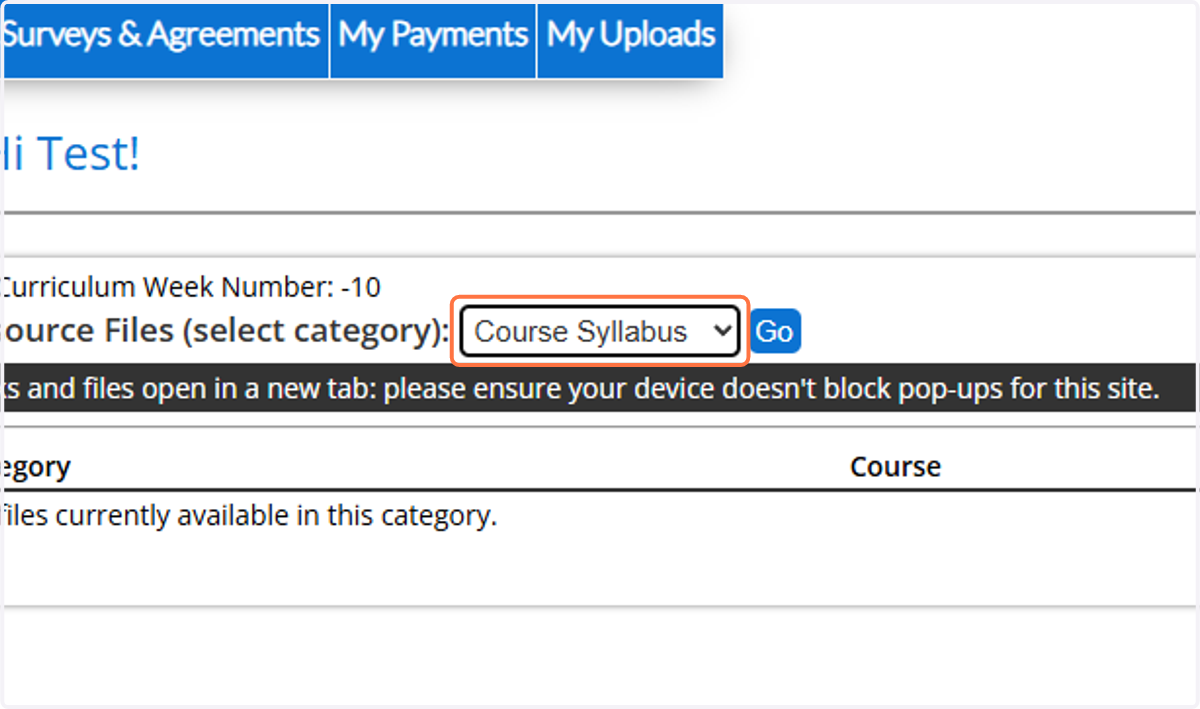
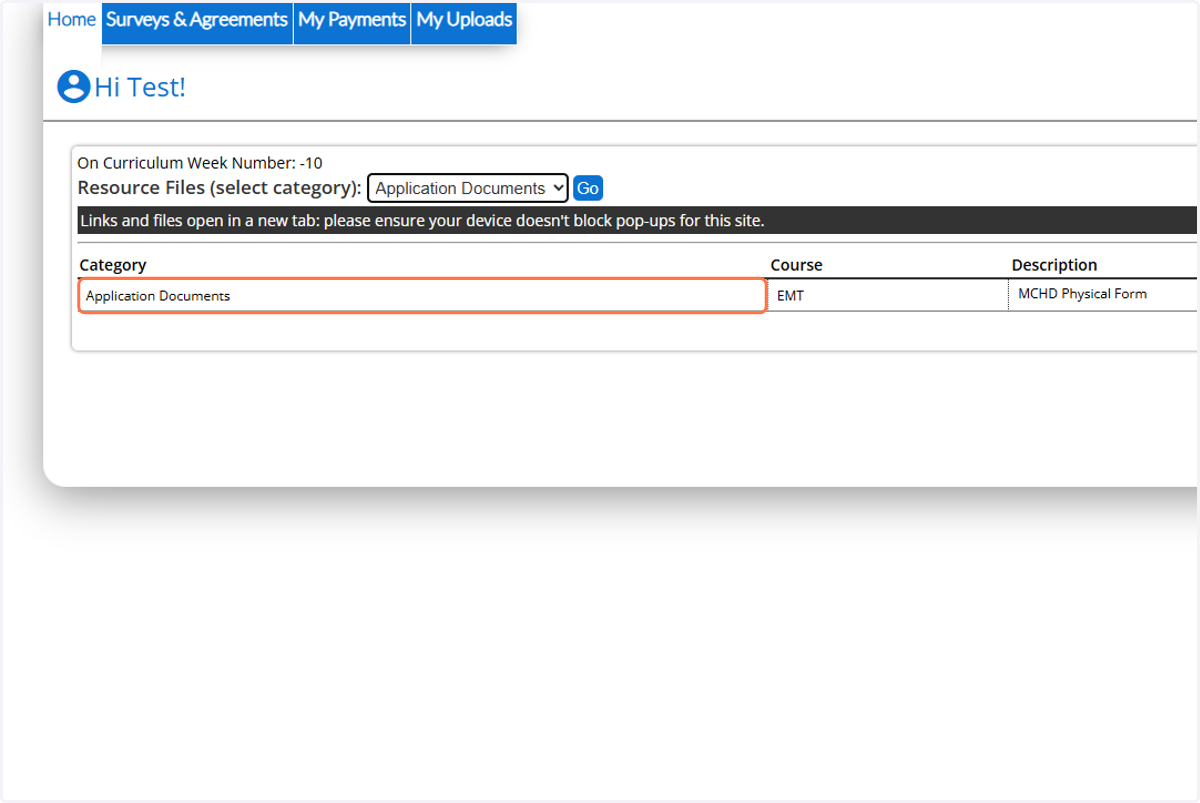
14. Click on Application Documents
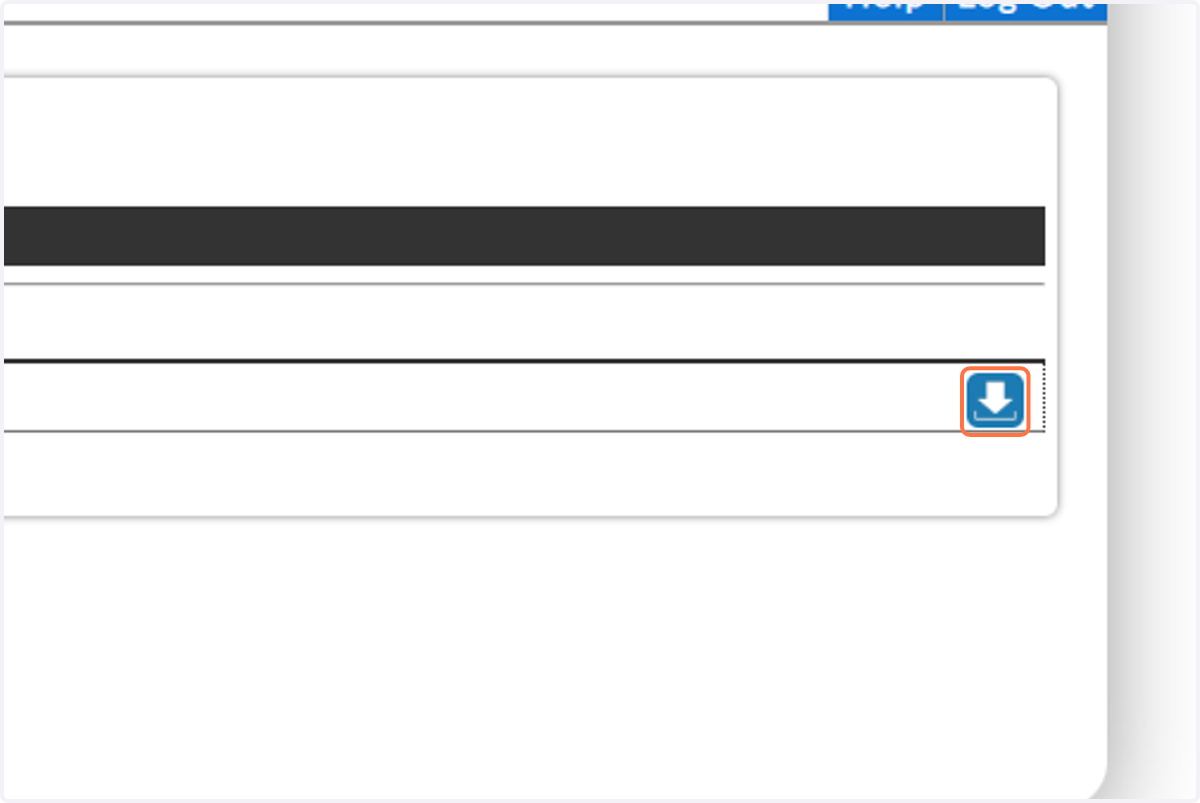
15. Click on the download icon on the right
16. Once completed upload this back to your portal as described above and label it "Physical XX.XX"
Replace the "XX.XX" with the date your physical was done - Example Physical 12.24