Updating Existing Brightspace Content or Files
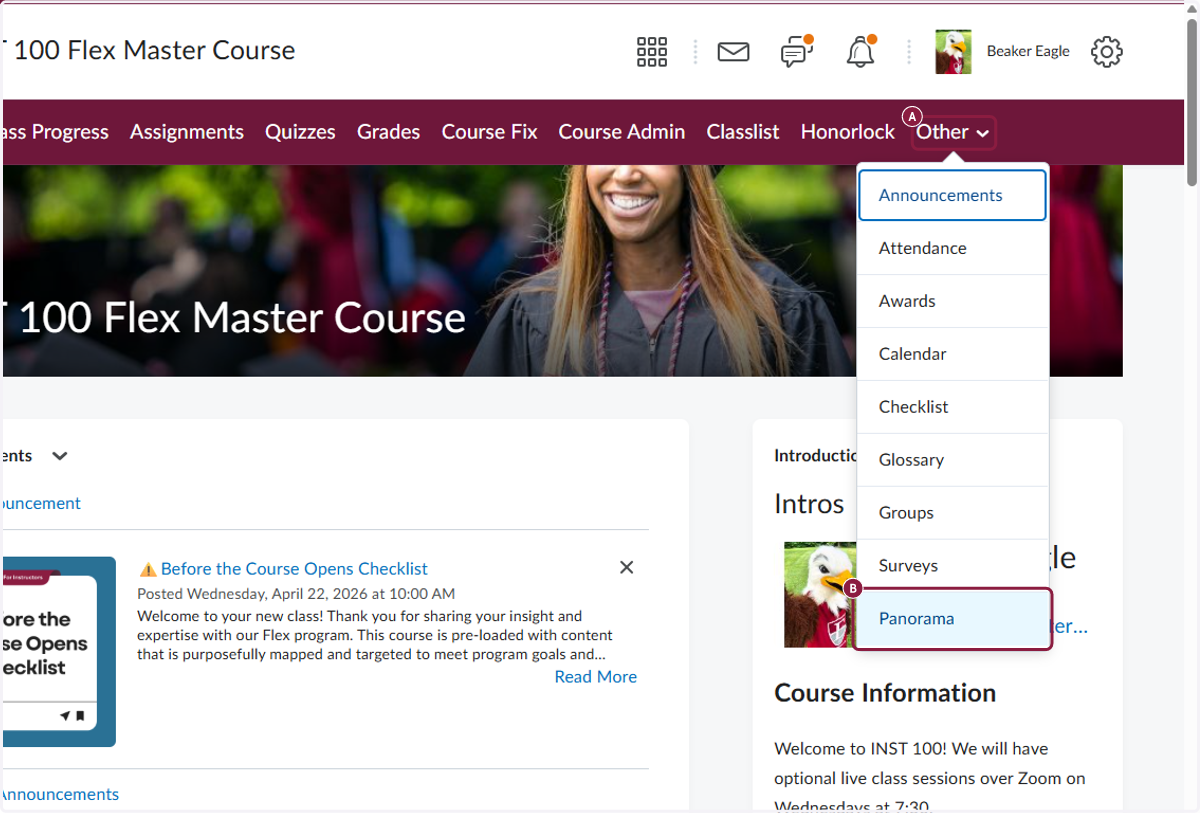
1. A. Visit your course homepage, then click Other in the navbar.
1. B. Click on Panorama
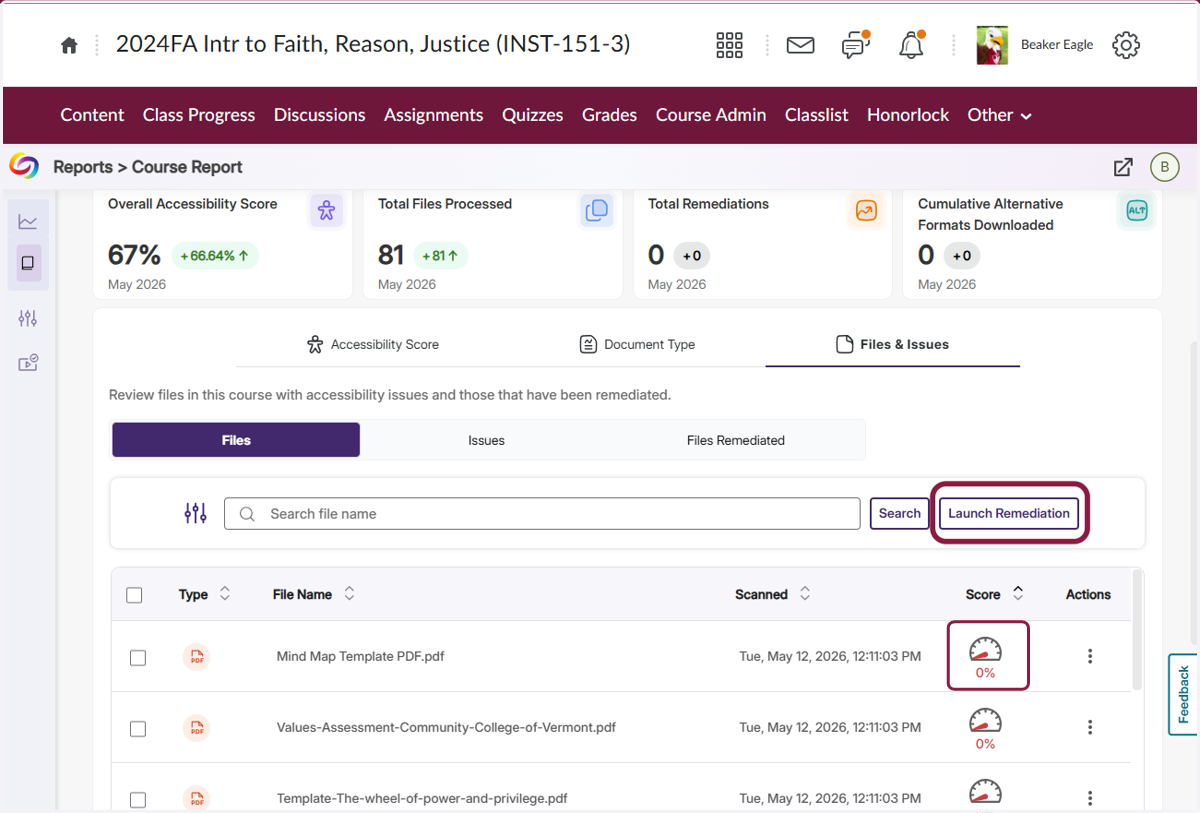
2. This is the Panorama Course Report. Click the gauge icon next to an individual file to make accessibility fixes, or click the launch remediation button to go through all files with issues.
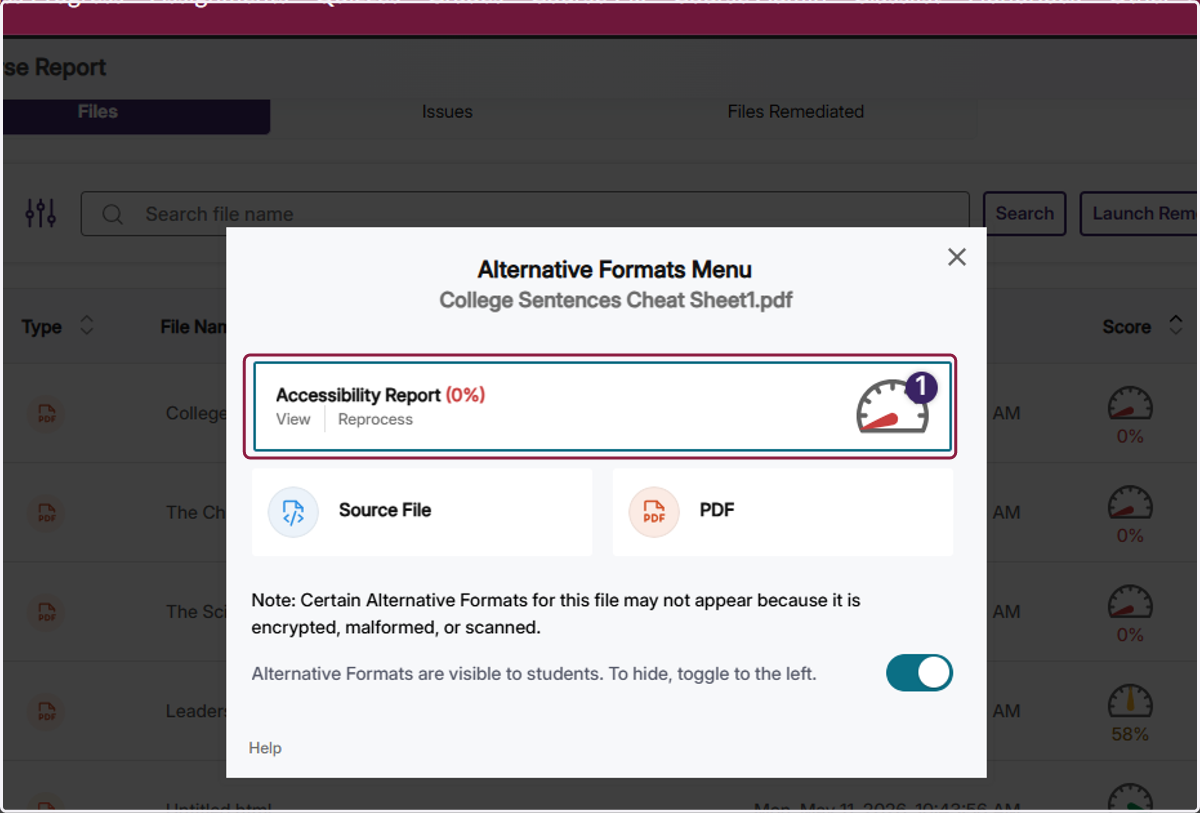
3. If you clicked on a gauge icon, click on Accessibility Report
4. There is a list of issues that will need to be fixed.
For information on how to fix various issues, please visit our Brightspace Accessibility Checklist.
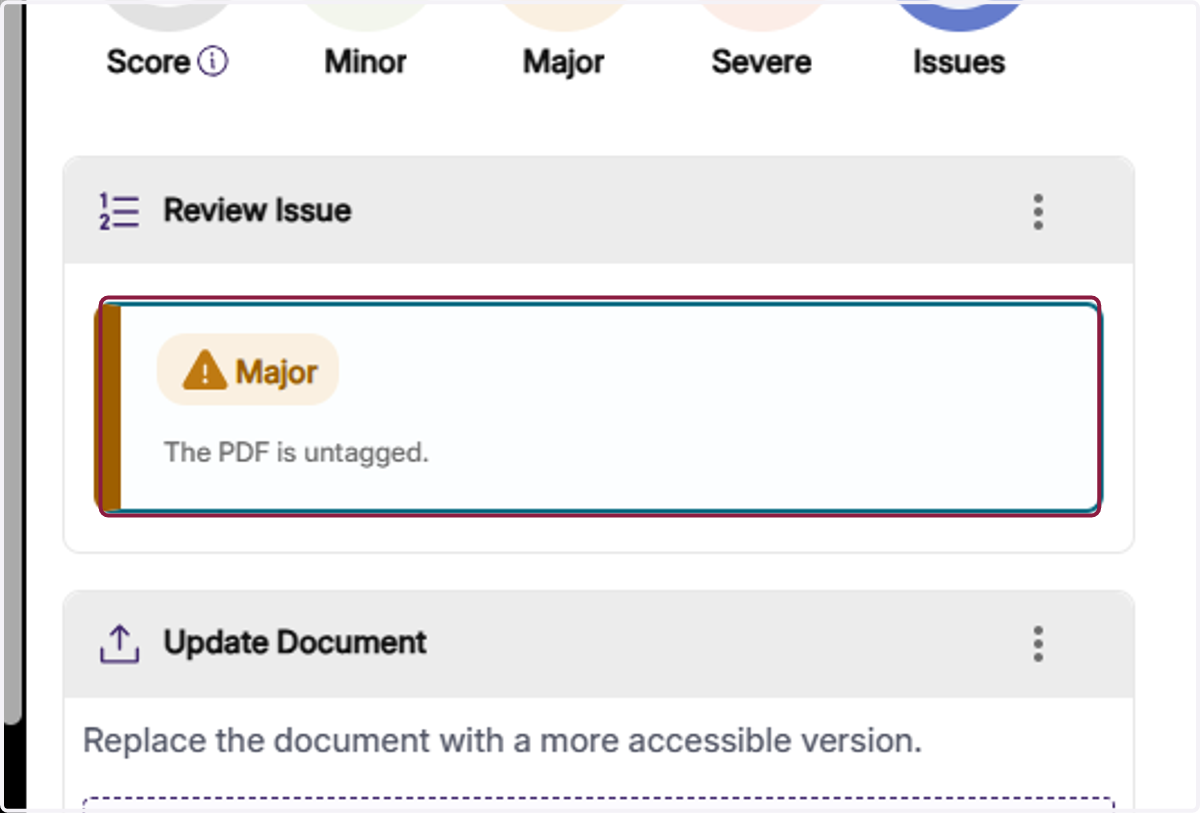
5. In order to make the changes, More actions, next to the number of issues.
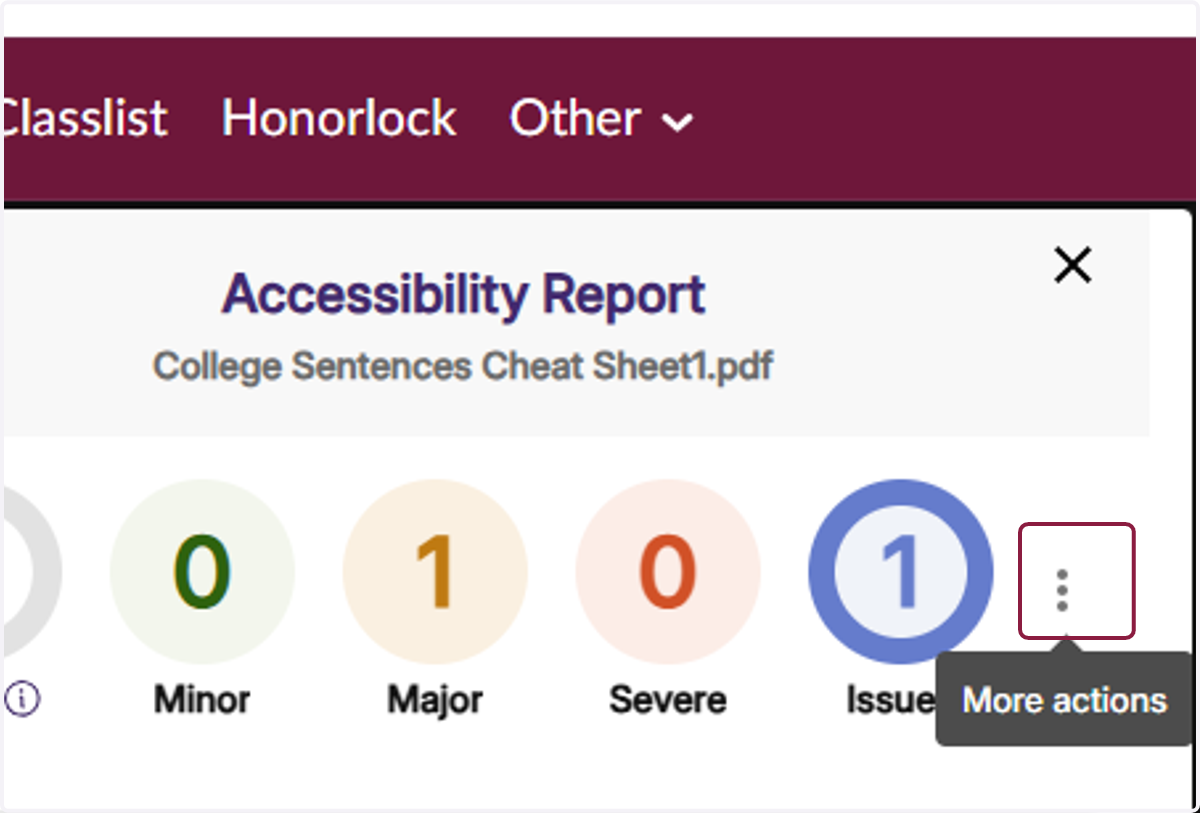
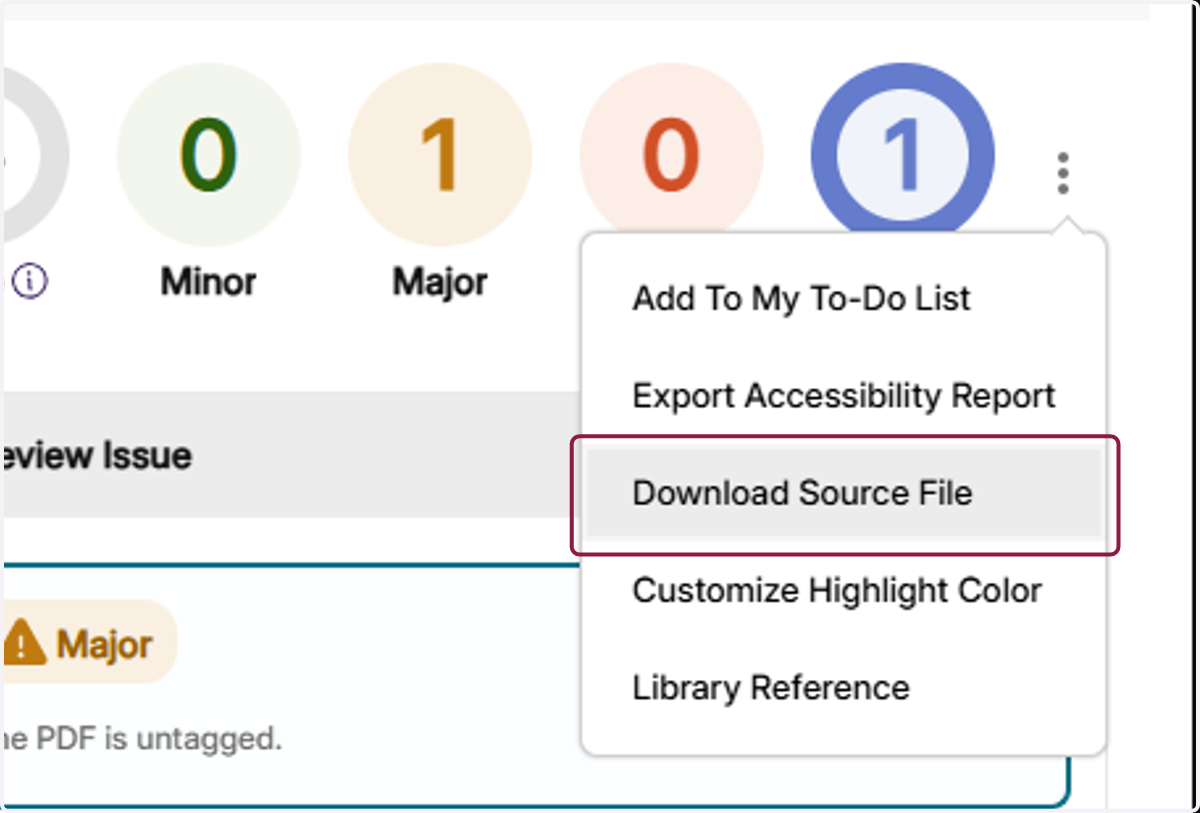
6. Click on Download Source File
7. Open the file and make any needed accessibility updates.
For information on how to fix various issues, please visit our Brightspace Accessibility Checklist.
8. Once you have updated your document and saved it with the accessibility fixes, return to Panorama, and click on Choose from Device
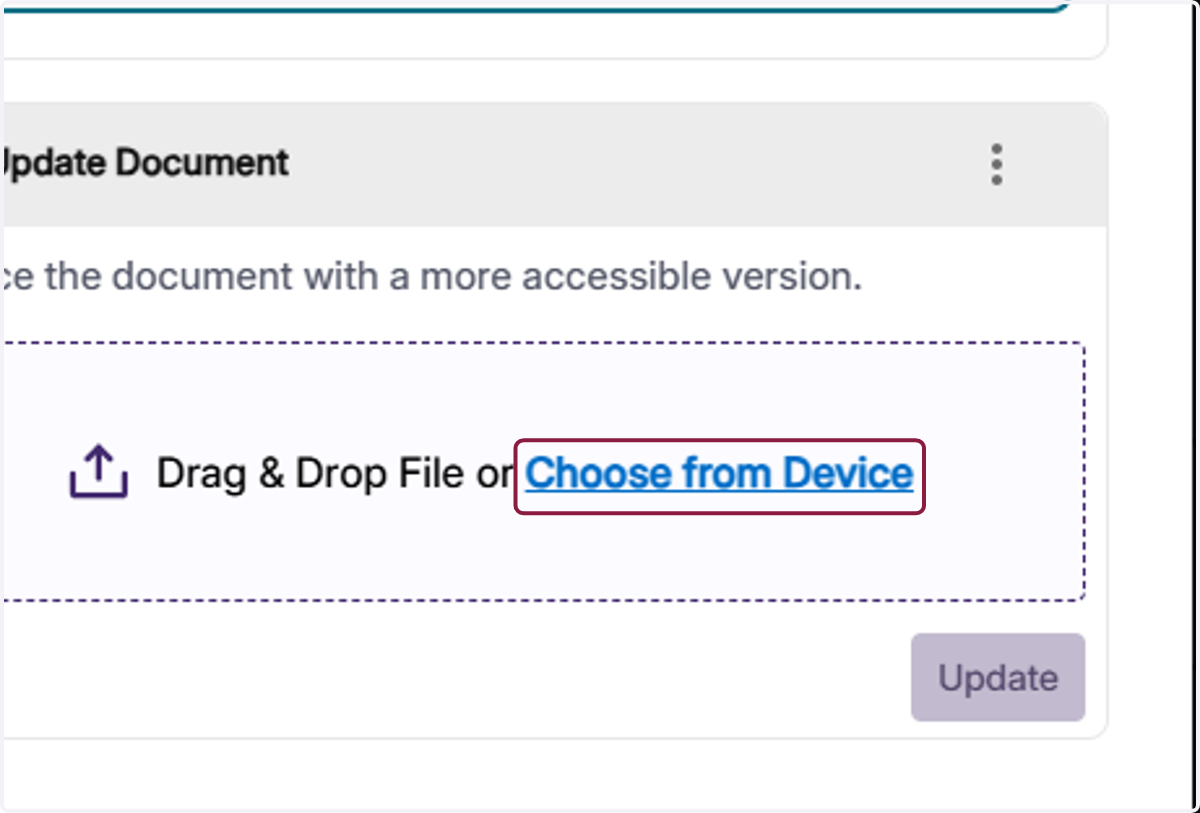
9. Choose the file you just fixed
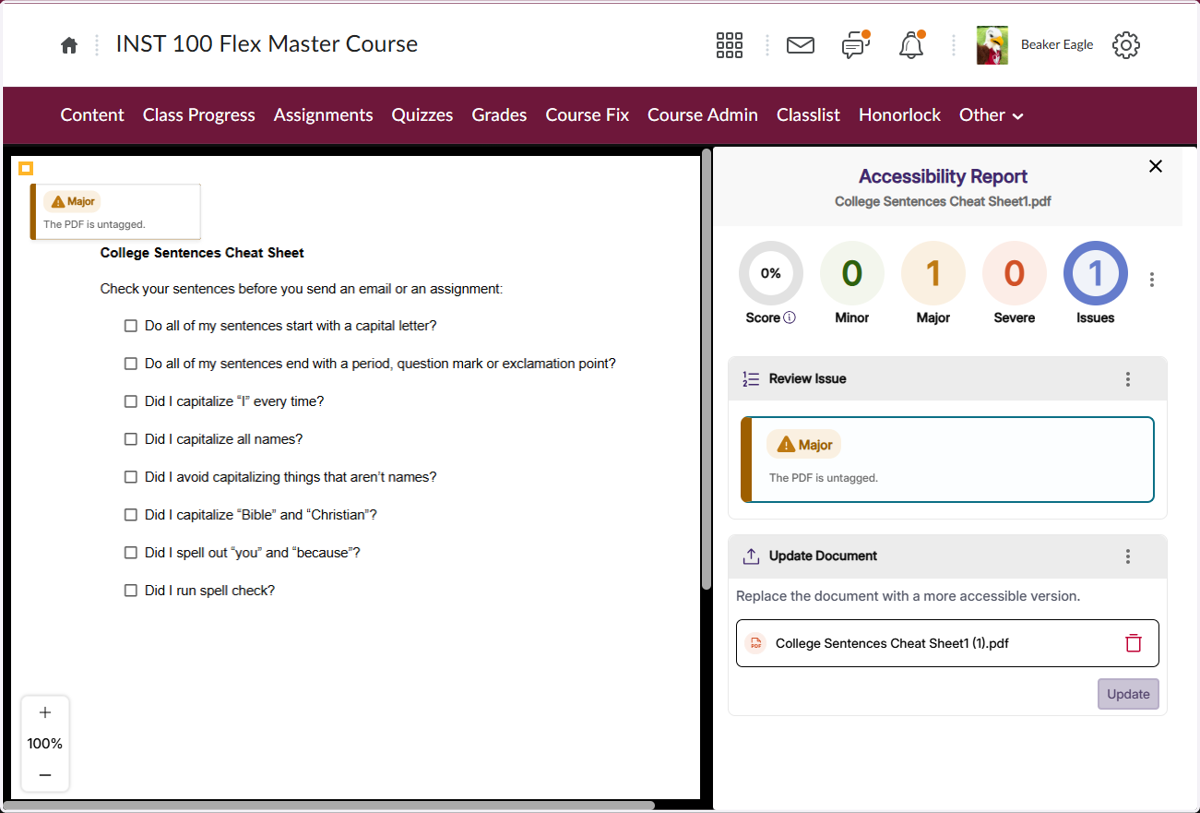
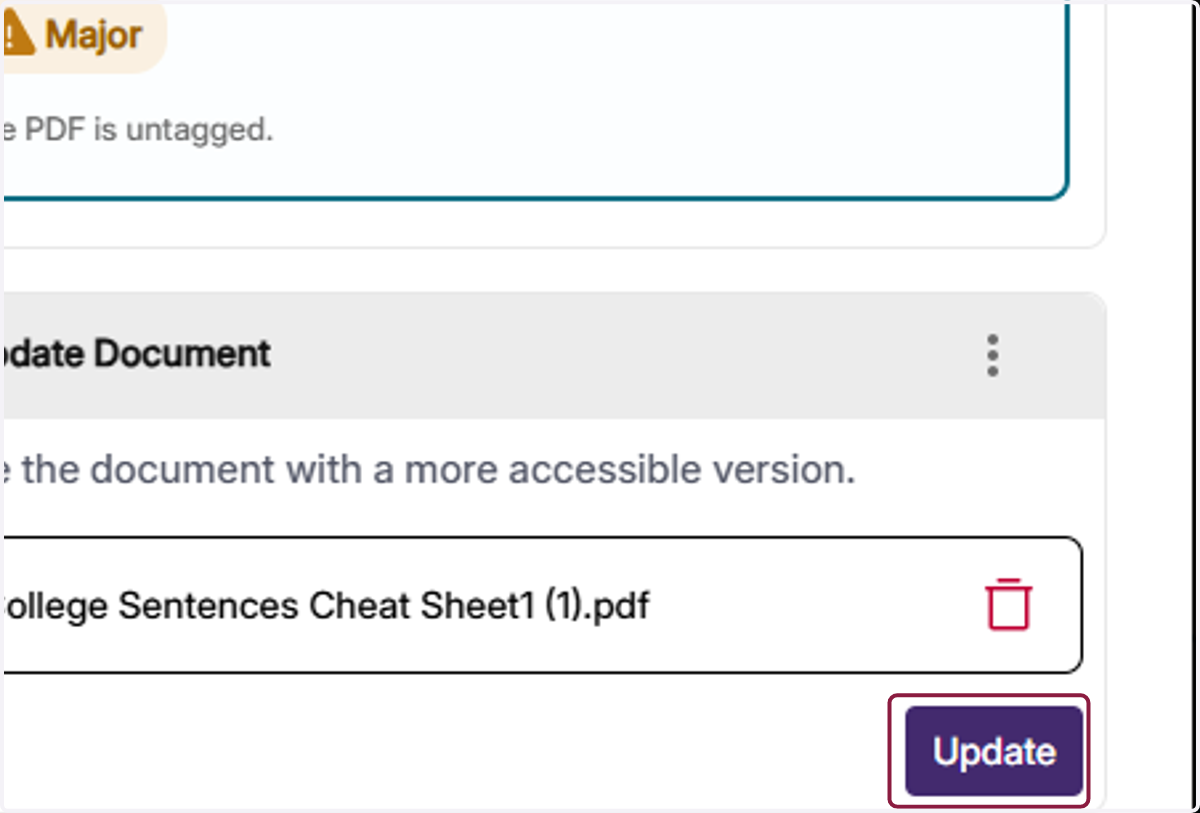
10. Click on Update
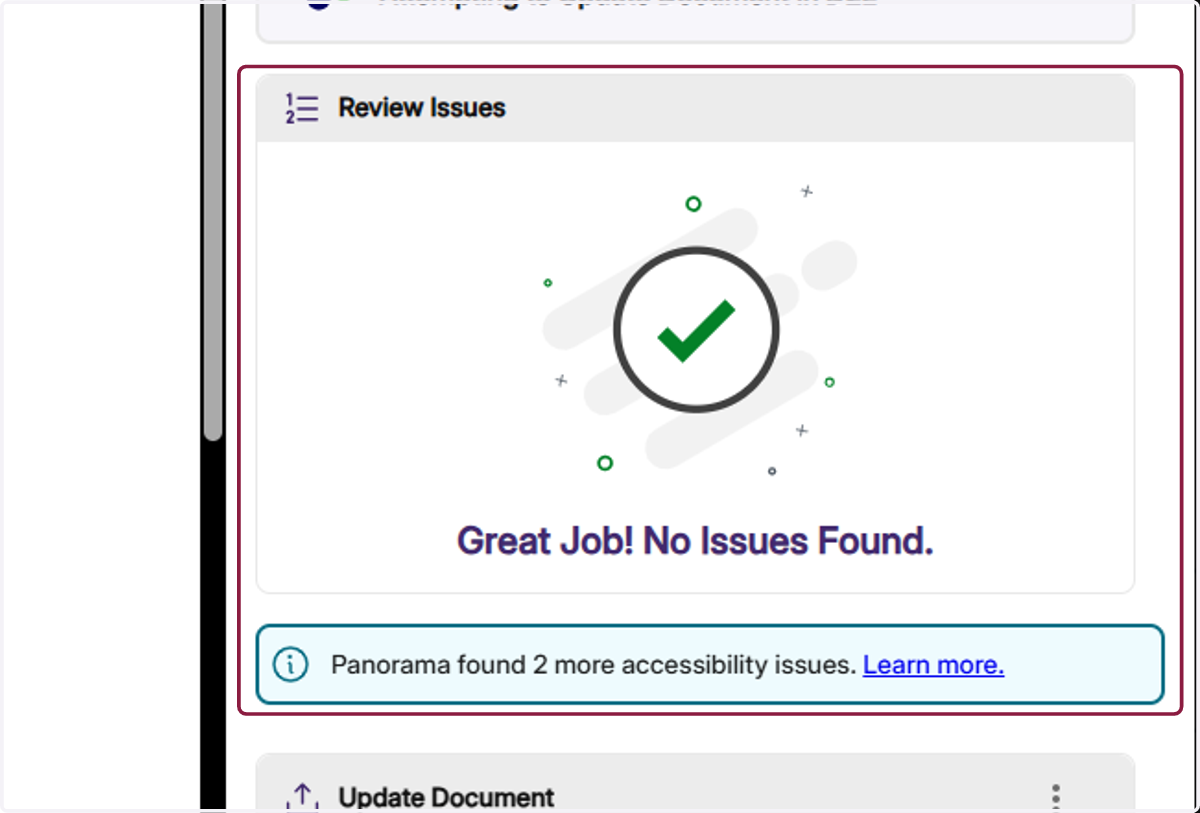
11. If Panorama displays "No Issues Found" while still showing an information box stating there are issues, you can safely disregard them.
Your updates have addressed the most critical barriers. The remaining suggestions are advanced accessibility checks that apply only to very specific use cases.