Understanding what the Booking sheet looks like to an end user
Let's look at what it looks like when a casual / member user books a court on your website. Having a booking sheet allows everyone to know of any open days, court availability, etc
Demo Tennis Clūb 04
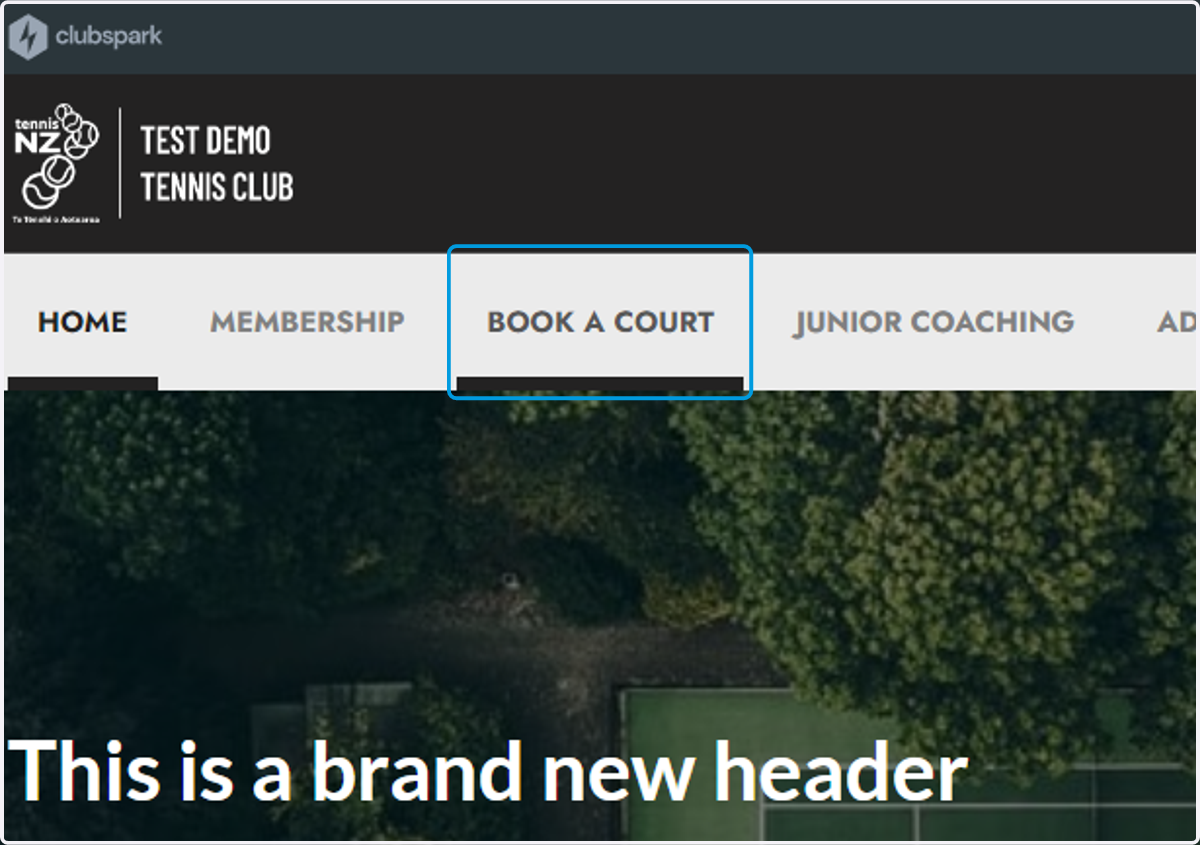
1. The user click on BOOK A COURT
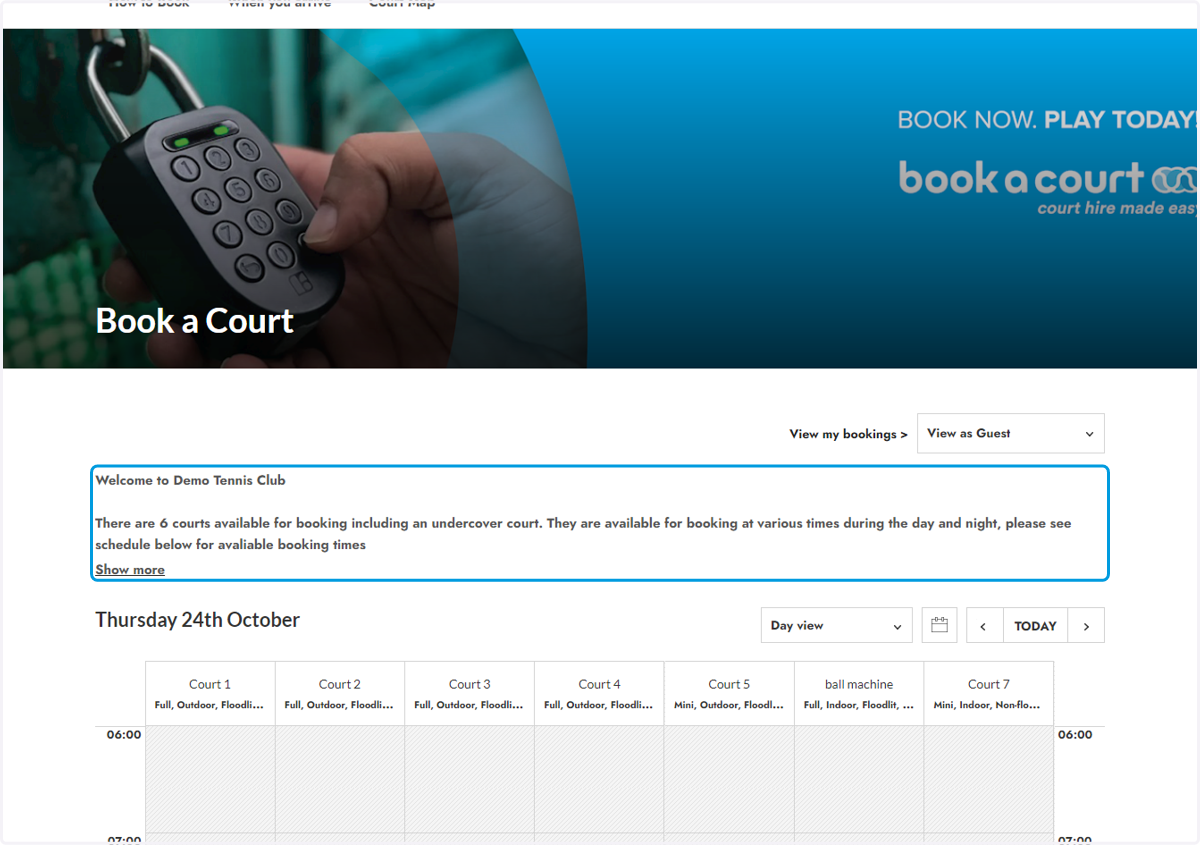
2. On the page, you can see the club has added some info about booking a court
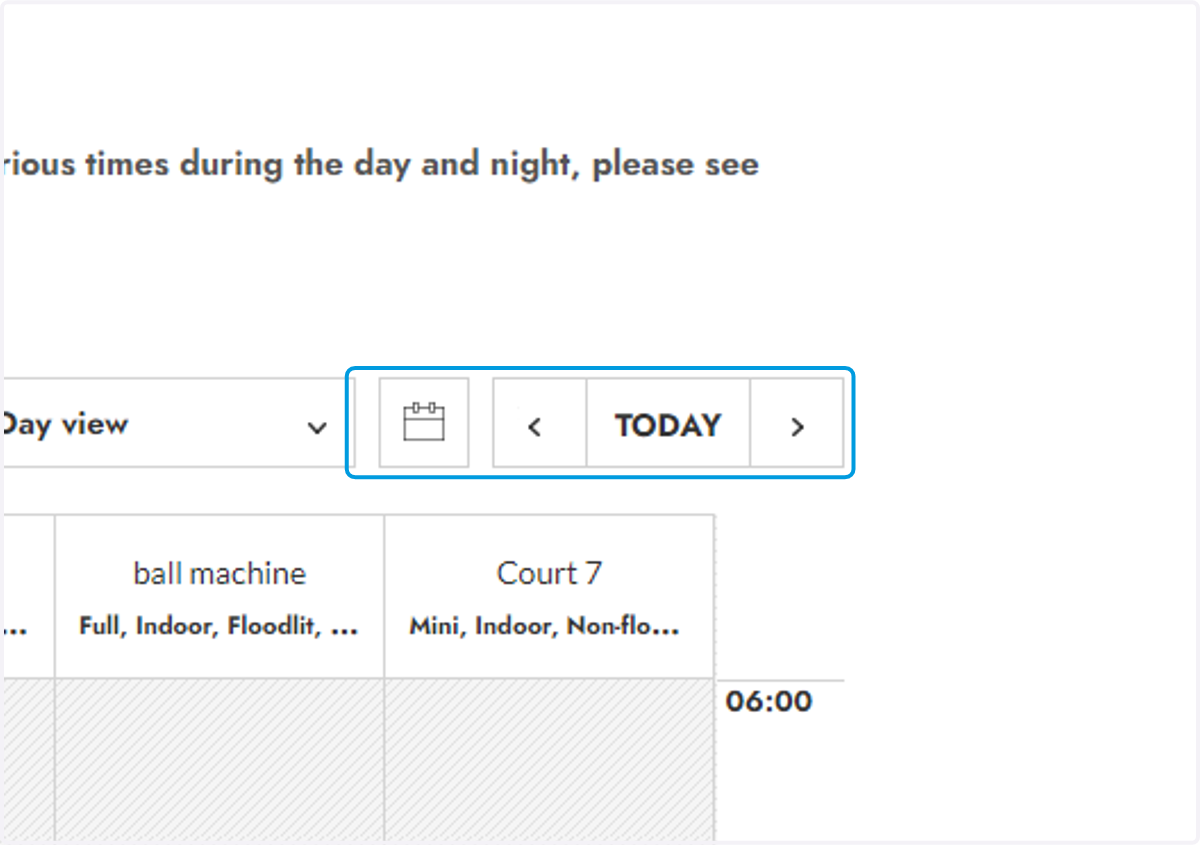
3. A user can specify / book in advanced or to check availability of the courts.
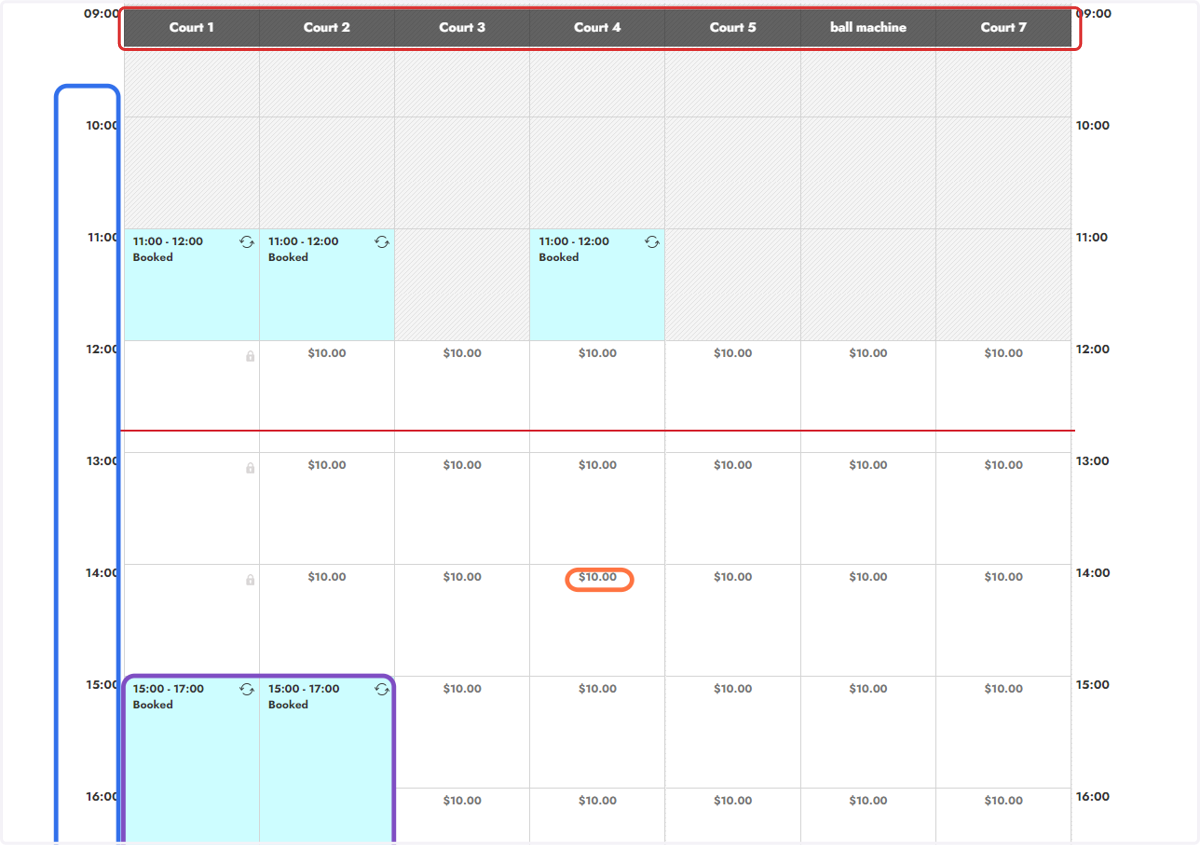
4. The Booking Sheet
Red Box: Your courts and numbers
Blue Box: Time of the day (The red horizontal indicates the current timestamp)
Purple Box: Existing Bookings / Events
Orange Box: Cost of the court. (Please Note: some venues have courts for free for active members whilst others charge a small fee for members - this will depend on how you operate)
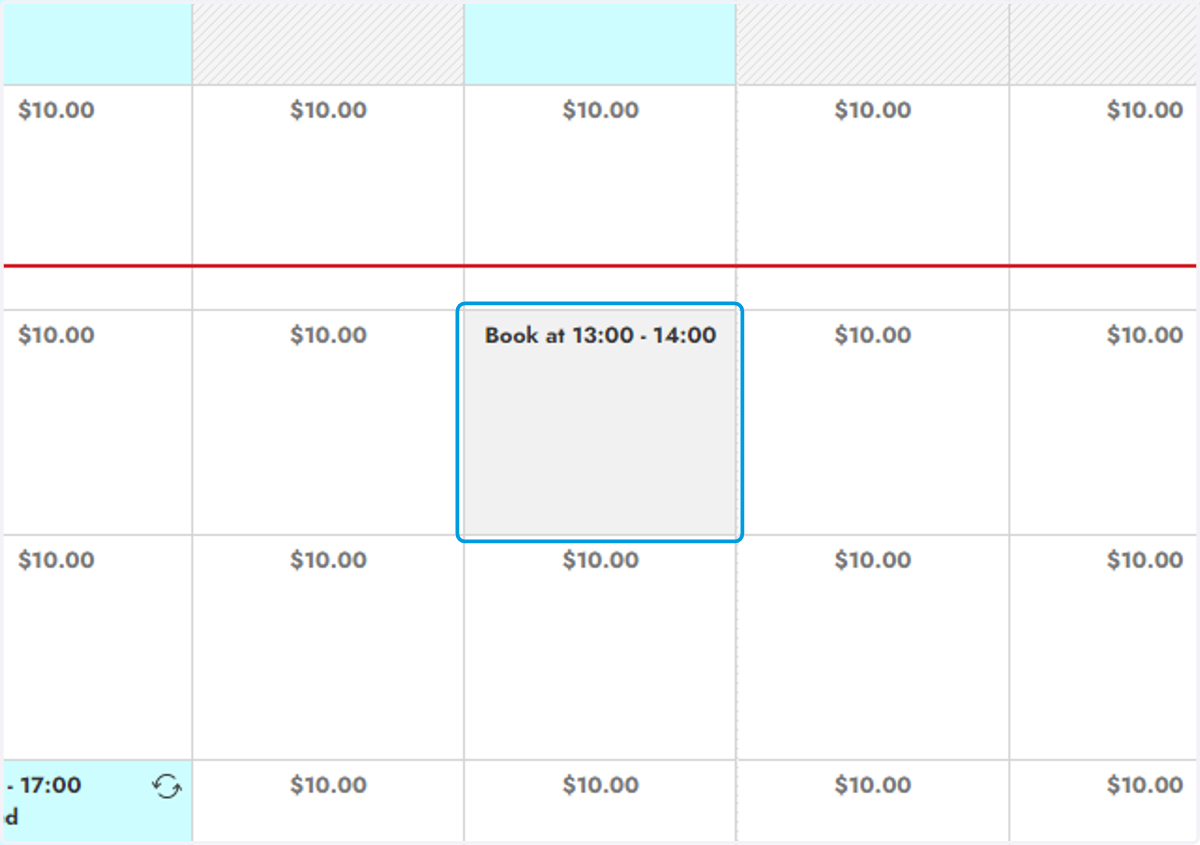
5. User selects a slot
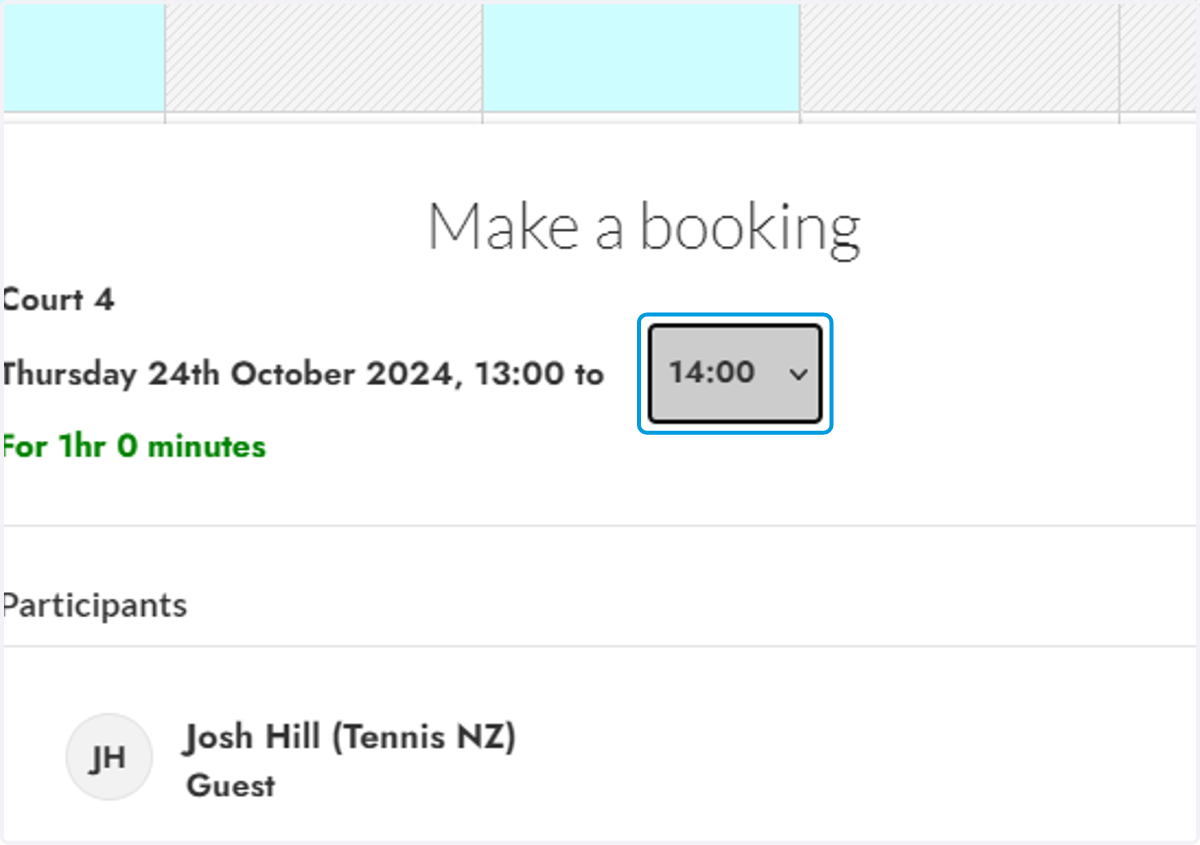
6. Their details appear here

7. They will have the ability to extend their slot depending on the maximum court time you provide
e.g. This club has a minimum of 1 Hour to a max of 3 Hours.
8. Click on 16:00

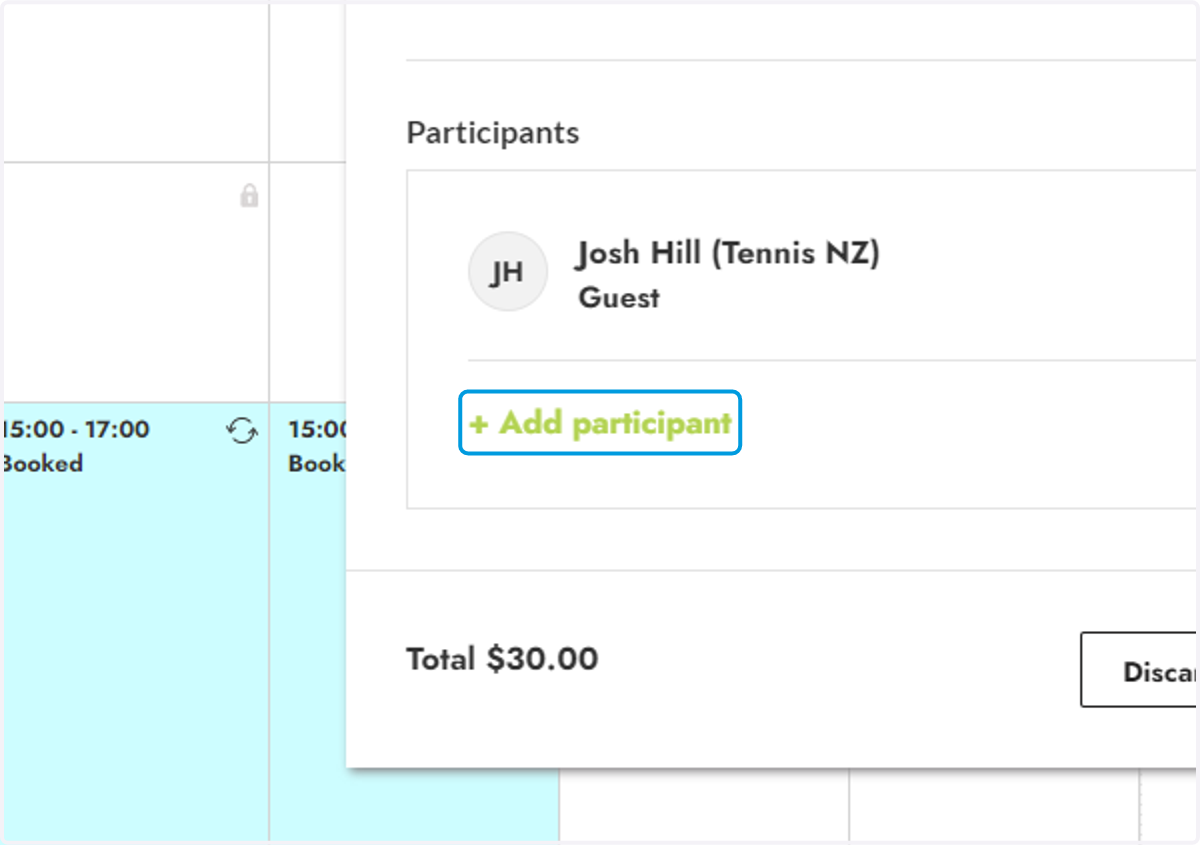
9. Some venues have the ability to allow additional guests to be on the same booking, if this is the case the main user can add additional names.
Some club policy's charge a small fee for guests or some are free (This will depend on the club and the policy's)
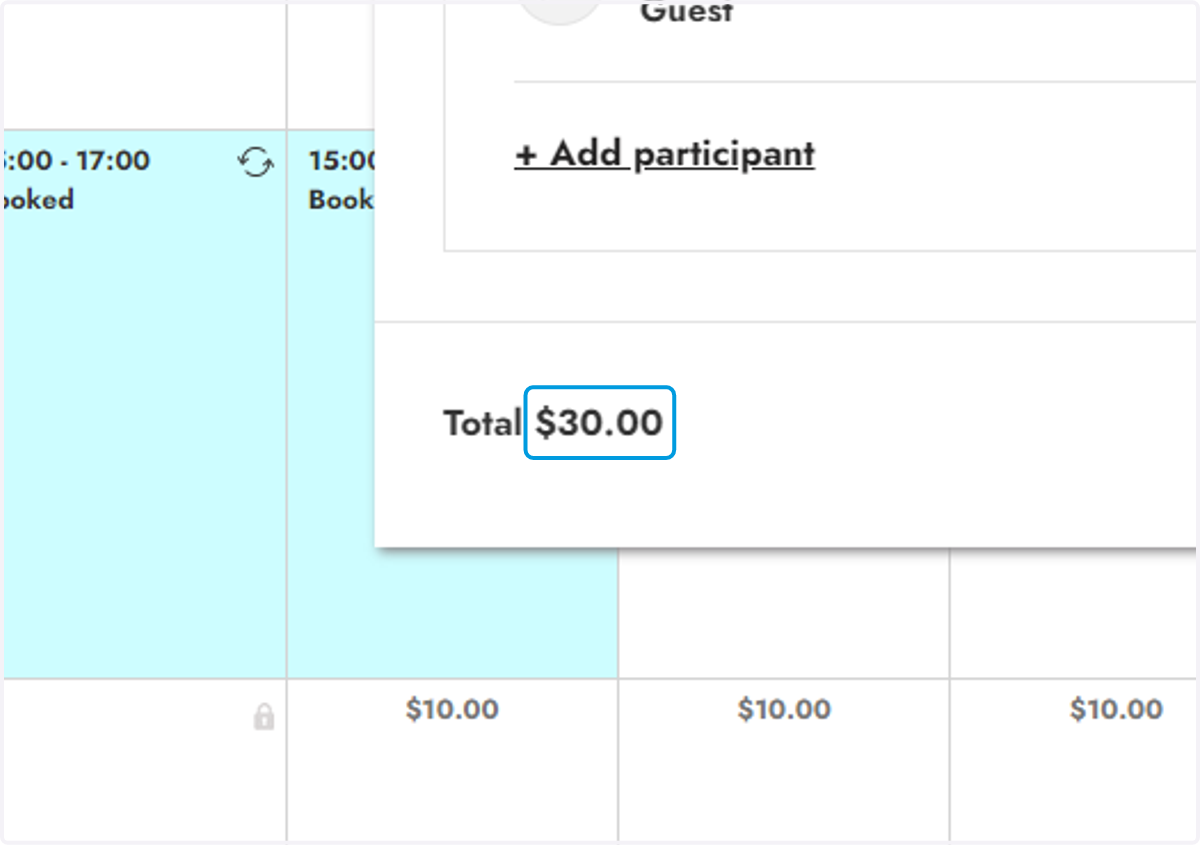
10. The total for court hire will appear here (Including any guest fees)
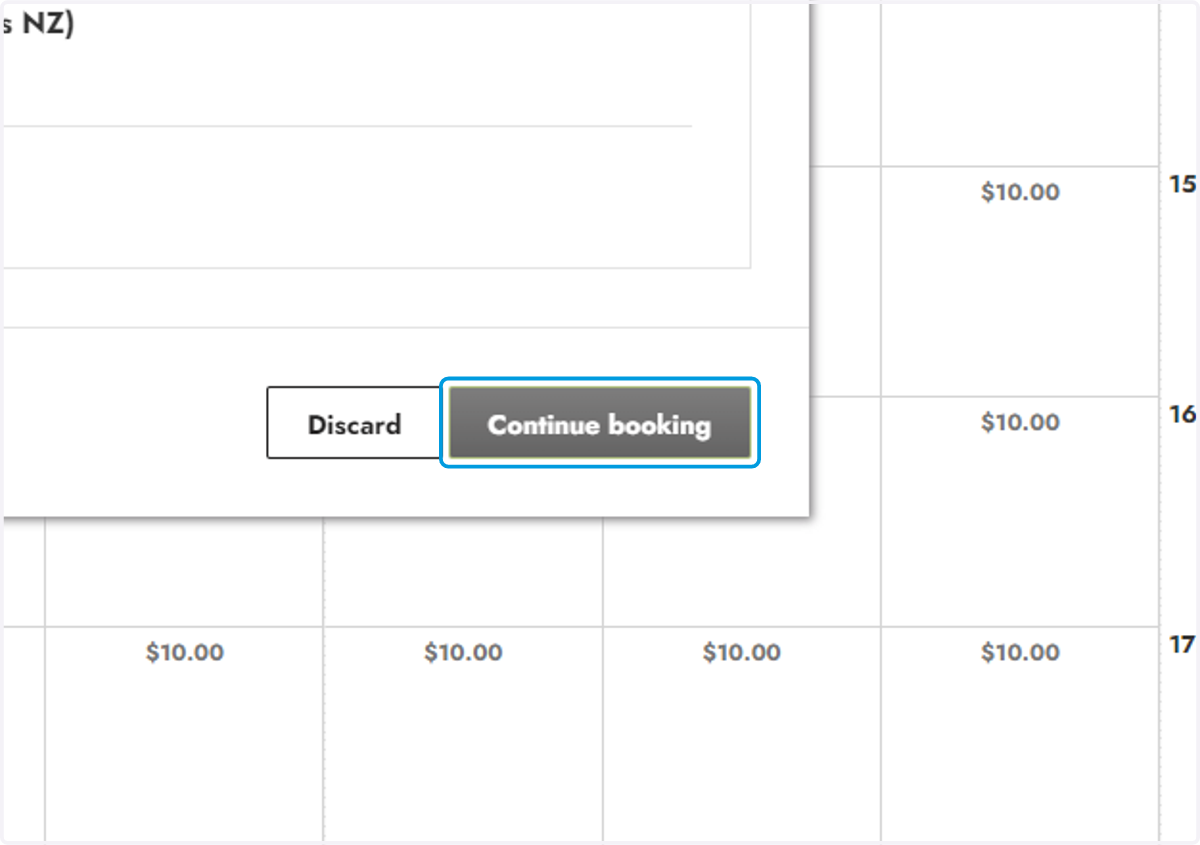
11. Click on Continue booking
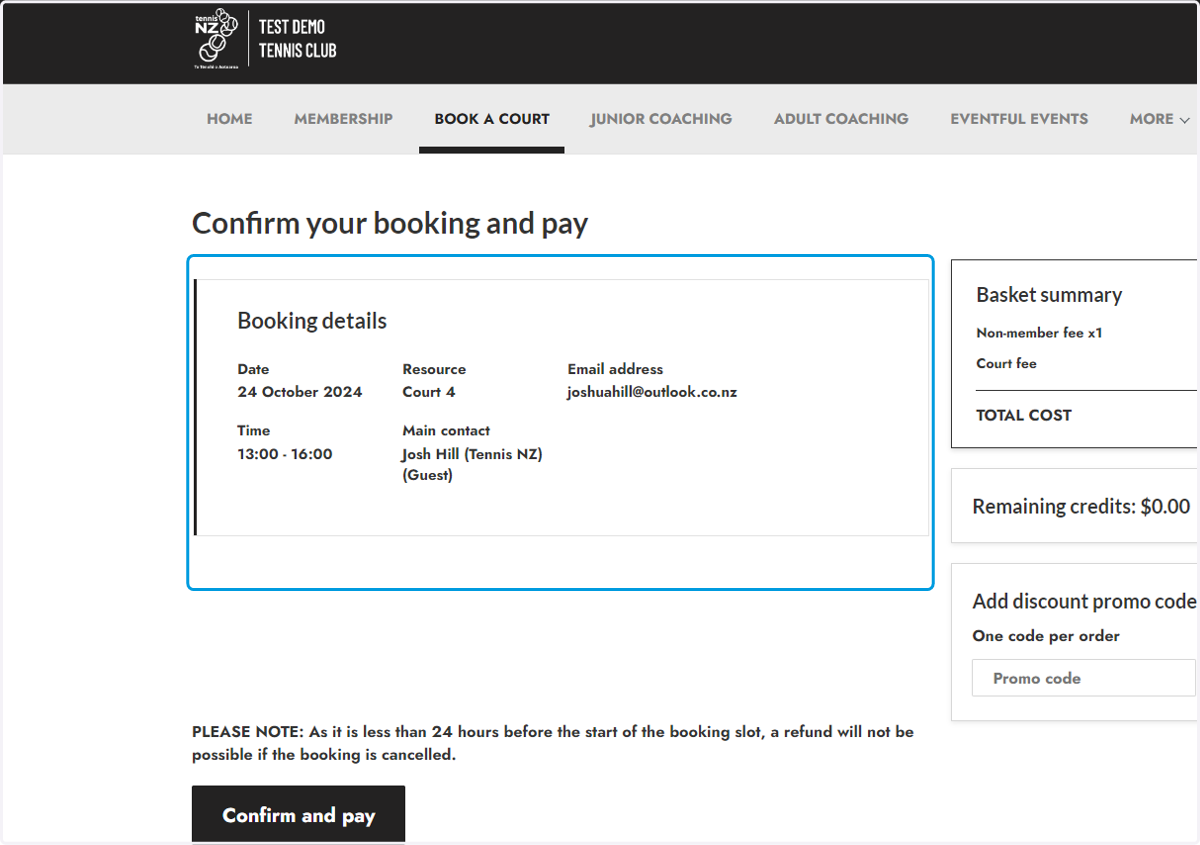
12. The user can check to see if the Court, Date and Time are correct.
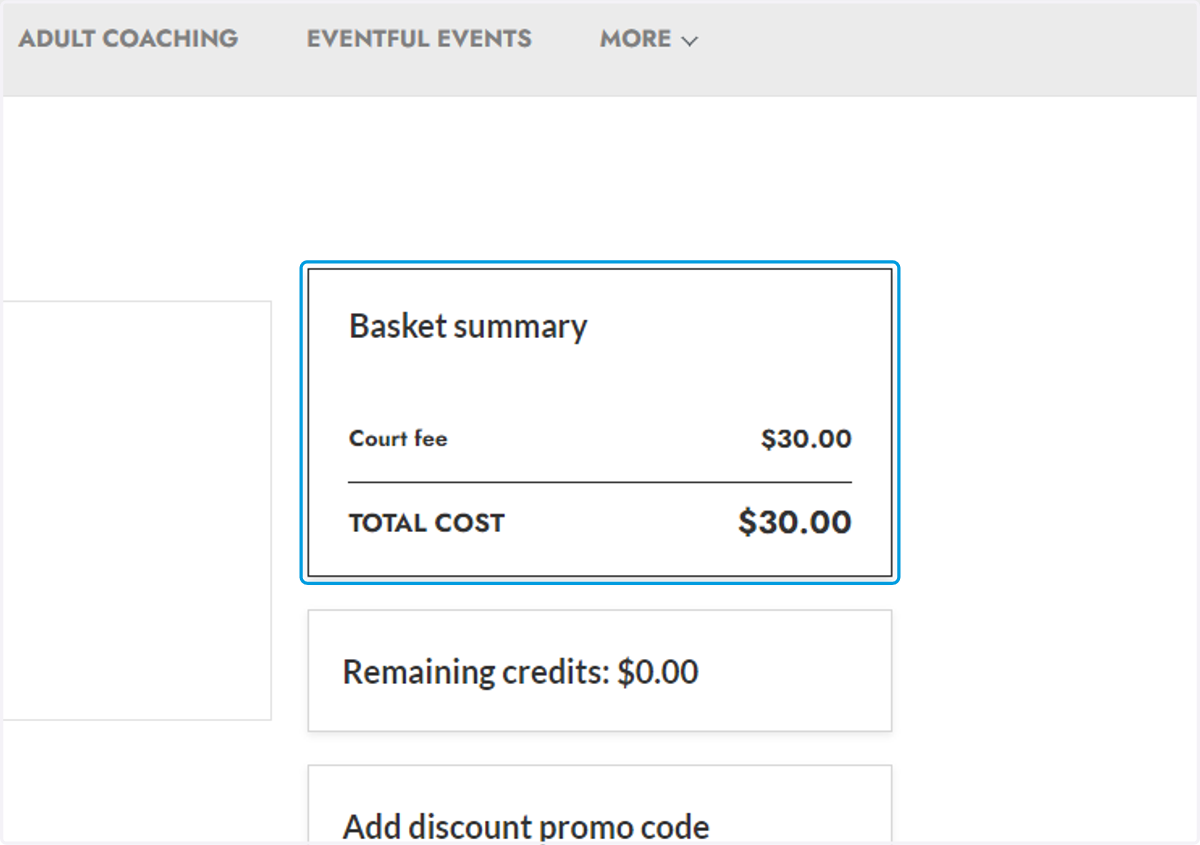
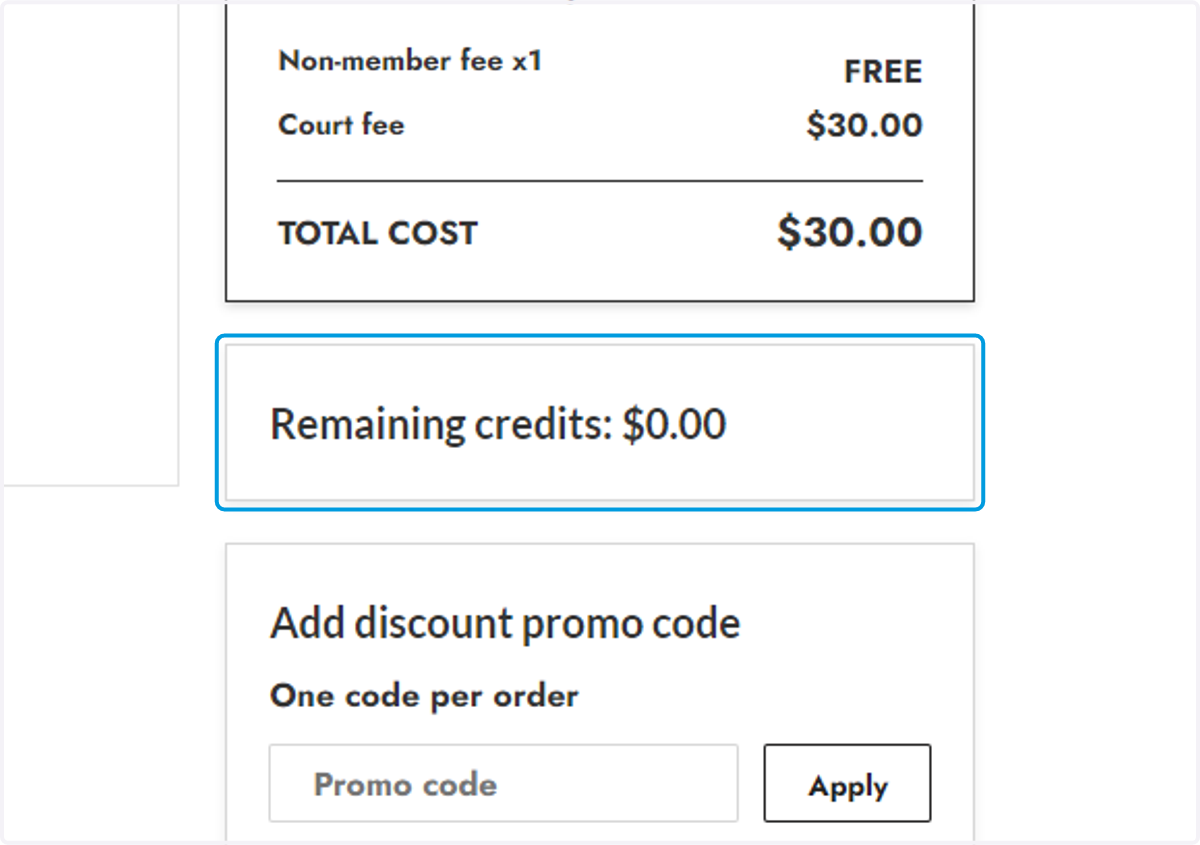
13. The user can check the costs here
14. If the club has provided a discount code the user can put in the code here

15. If the user has any credits, they can see the value here and apply if applicable
16. The club's booking policy is here so the user agrees to the conditions
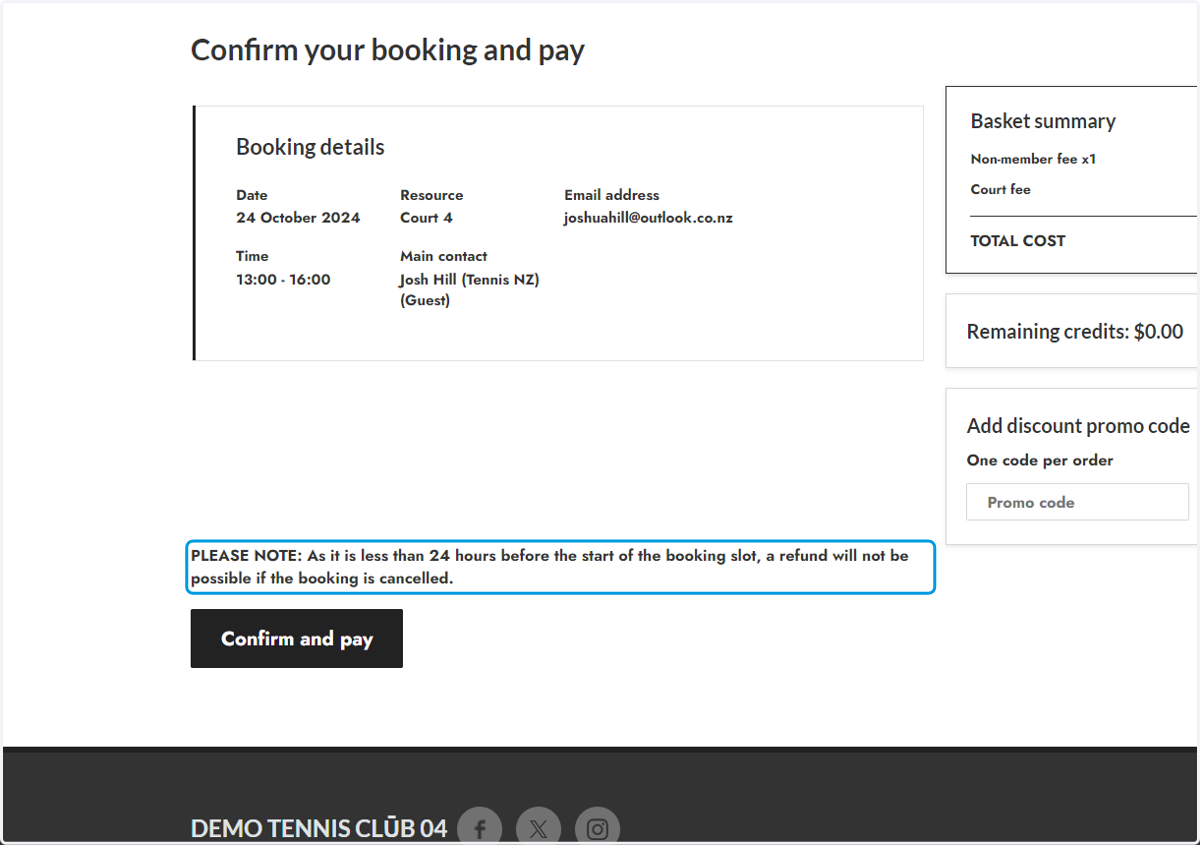
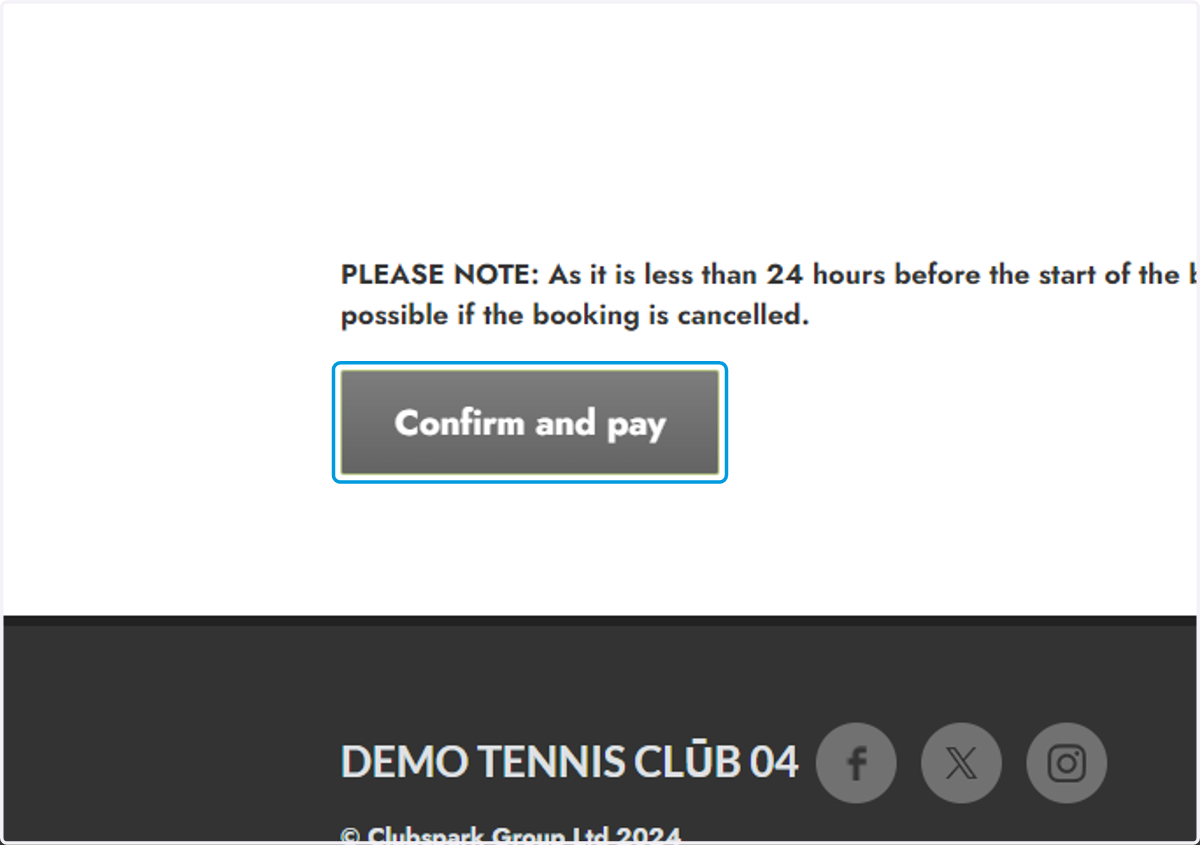
17. Click on Confirm and pay
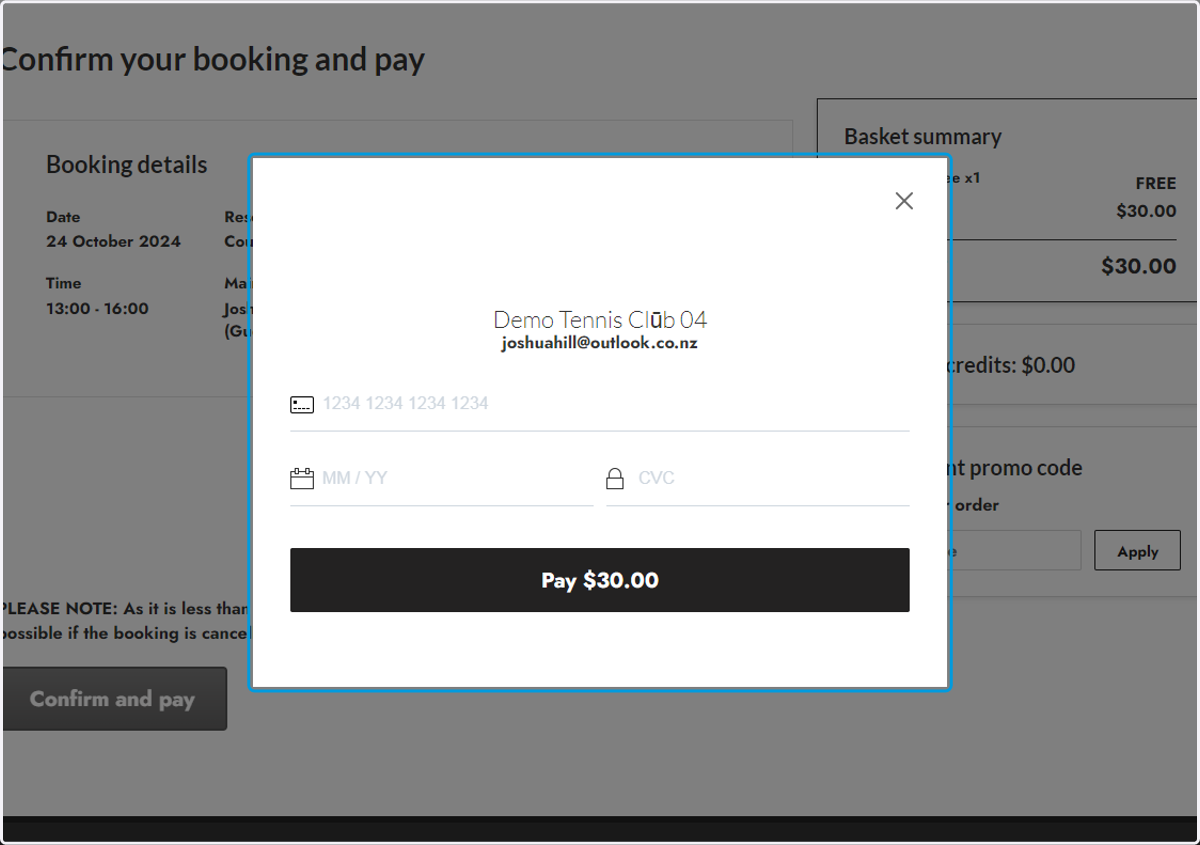
18. The user pays via credit card, if the user is a member and court bookings are free then they will not see this step
19. The user will get a booking confirmation message
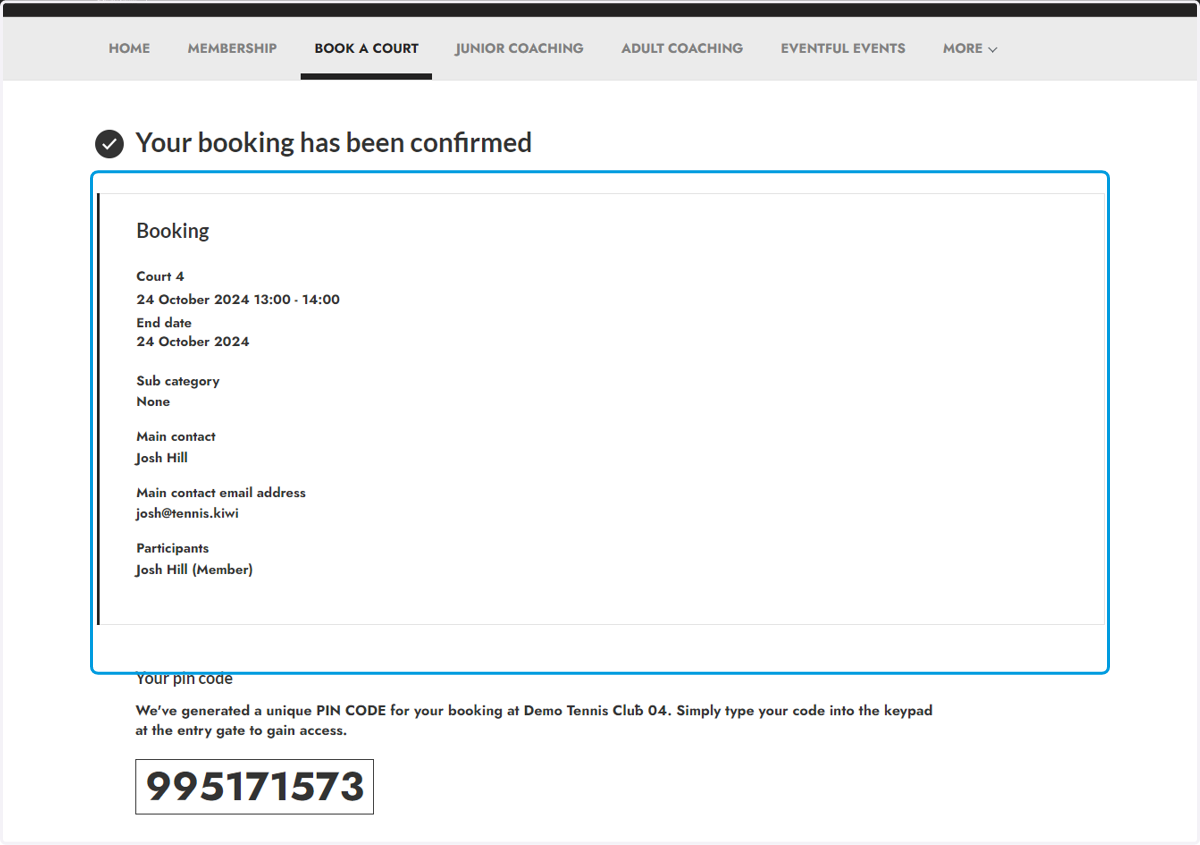
20. If the club has Book a Court hardware intergraded then the PIN code to access the facility will be provided here
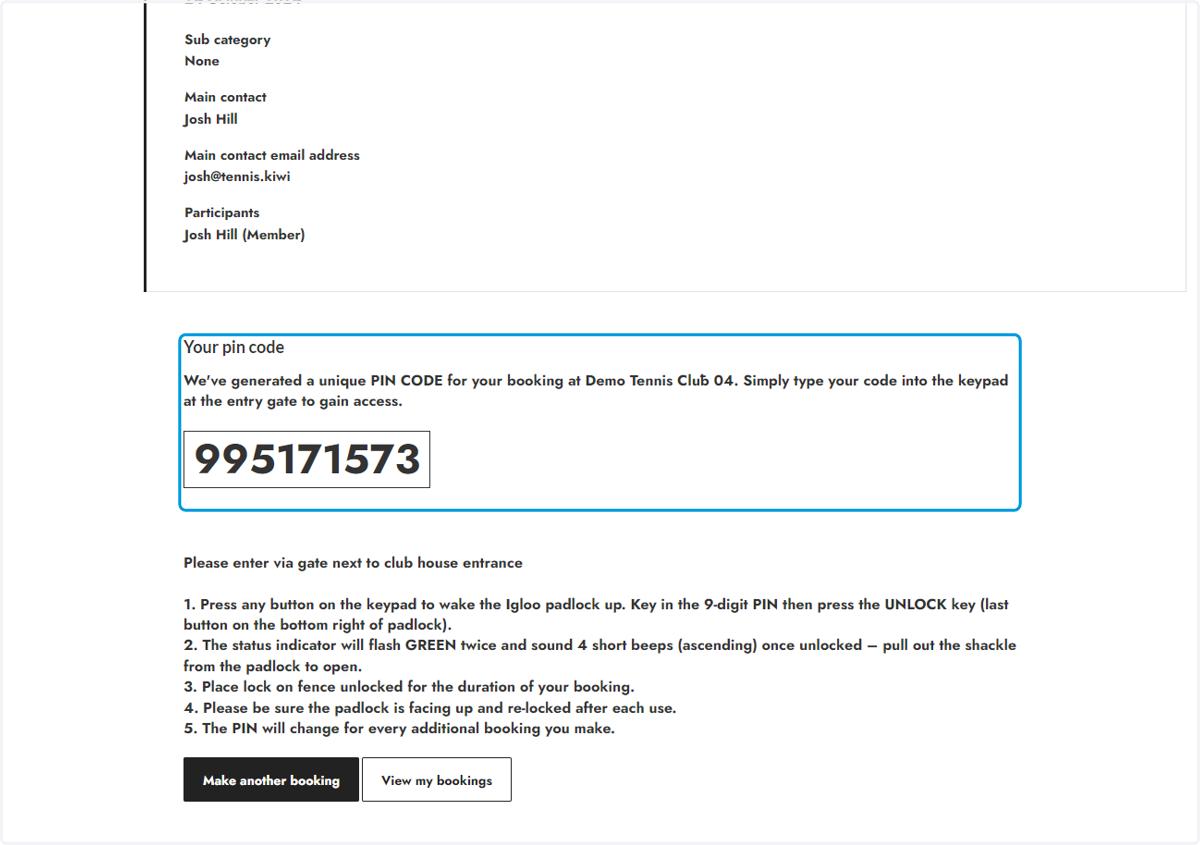
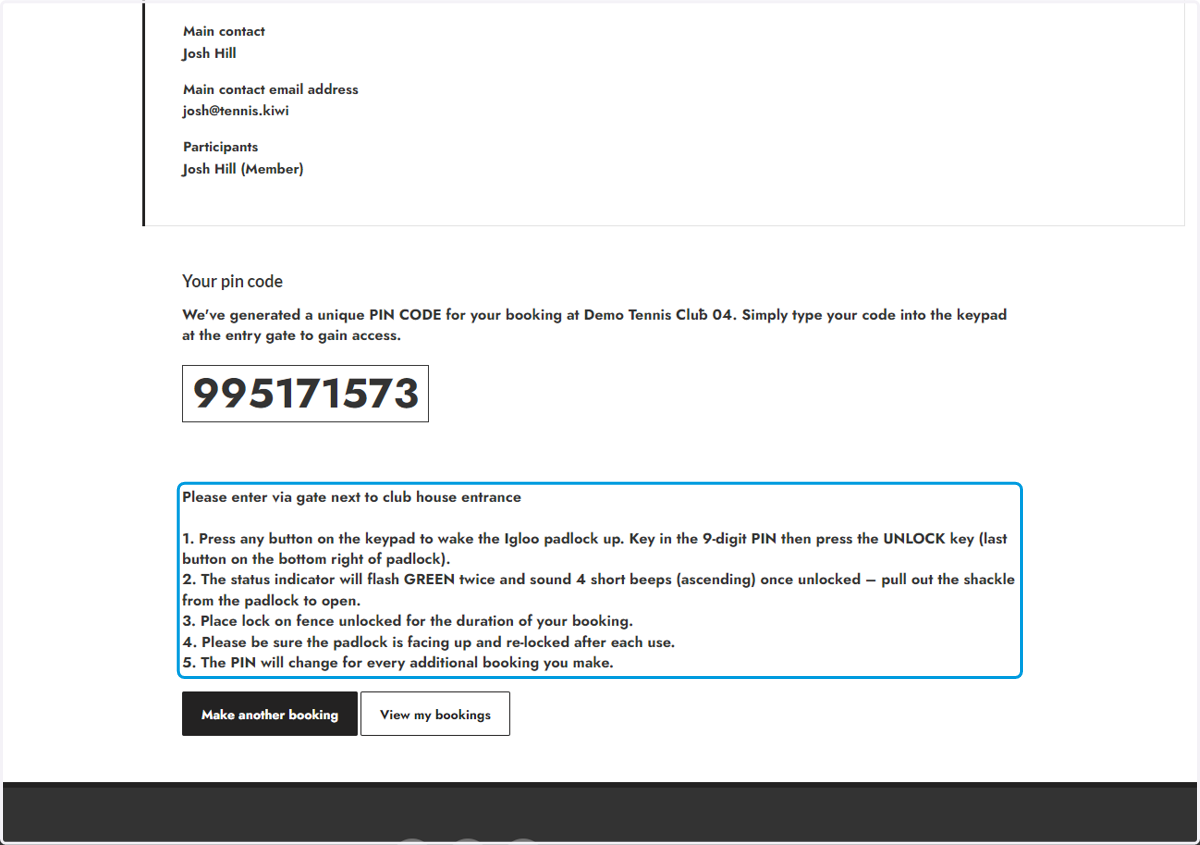
21. If the club does not have integration, then the club would write some details here plus any additional instructions to help with the booking
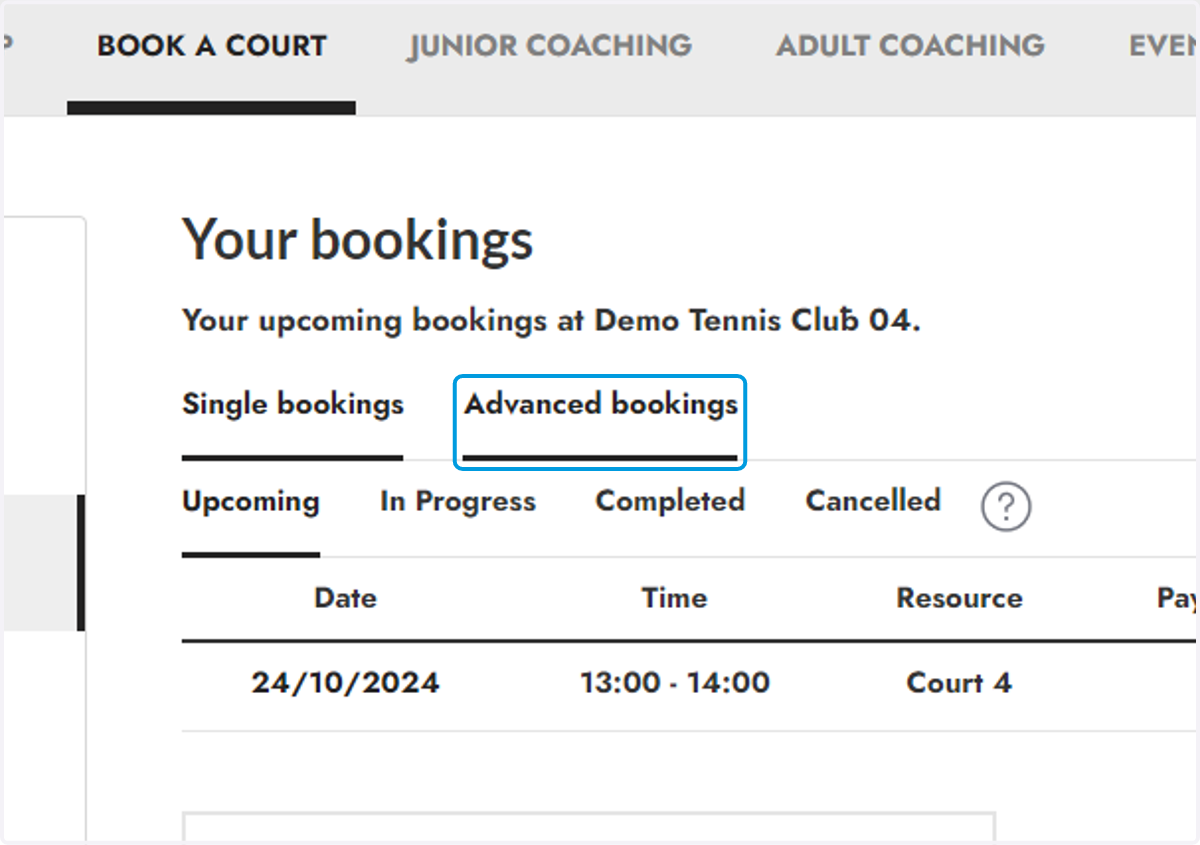
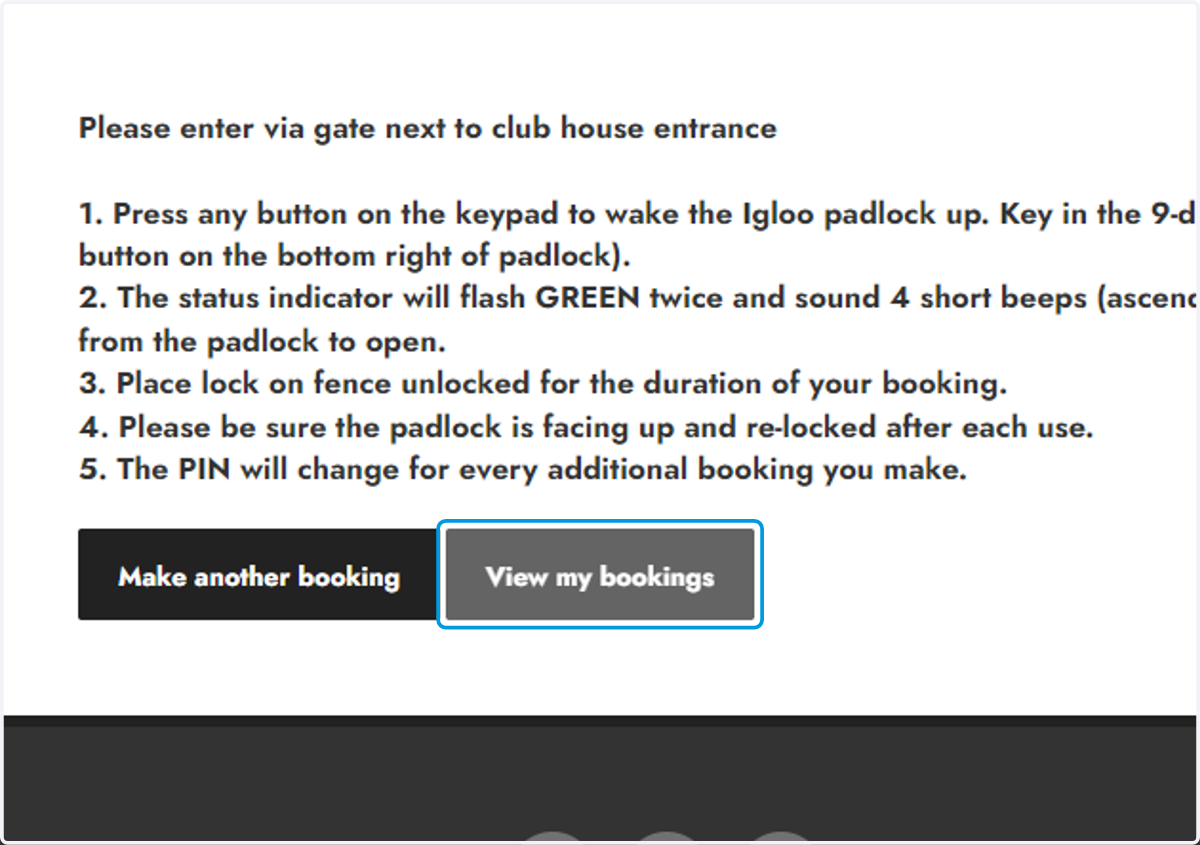
22. The user can see their bookings by clicking "View my bookings"
23. The list of bookings are here
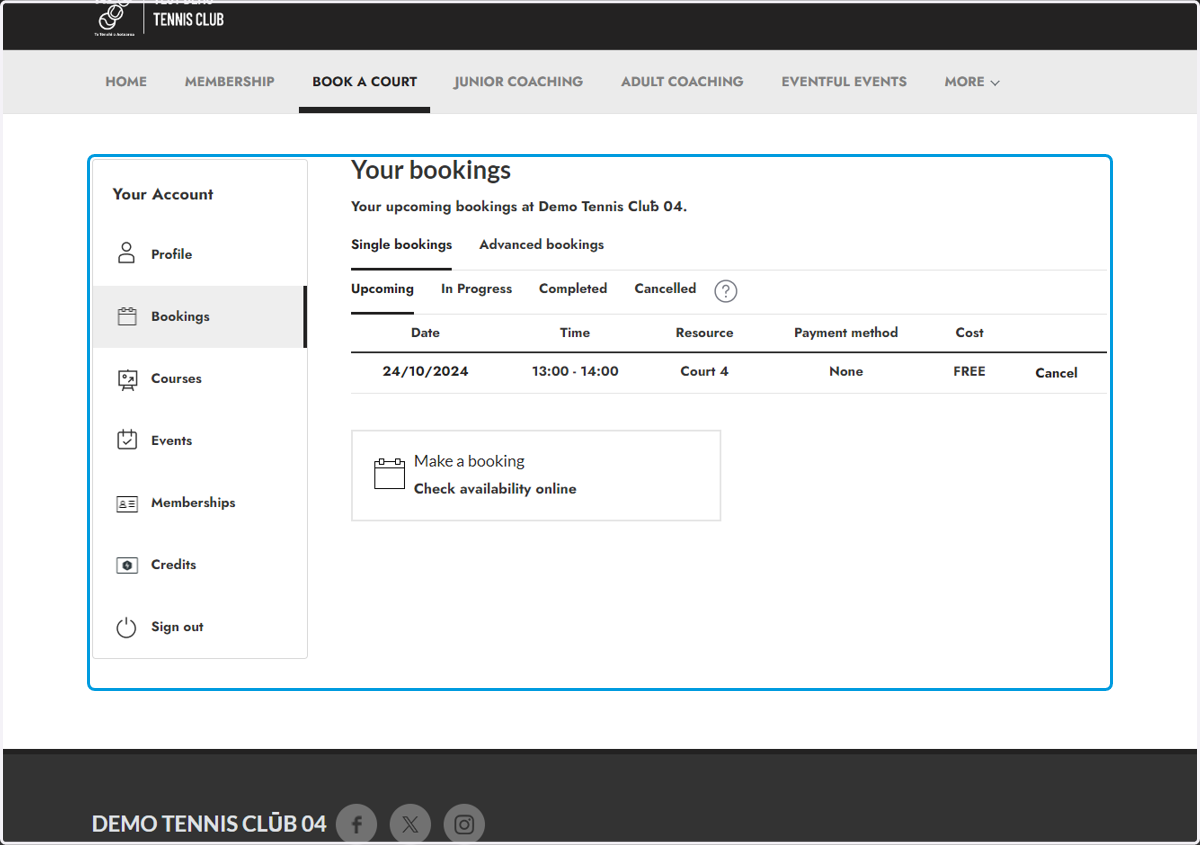
24. Advanced bookings will be located here