USD Career Fair - Public Profiles and Uploading Resumes

Log into Coyote Careers

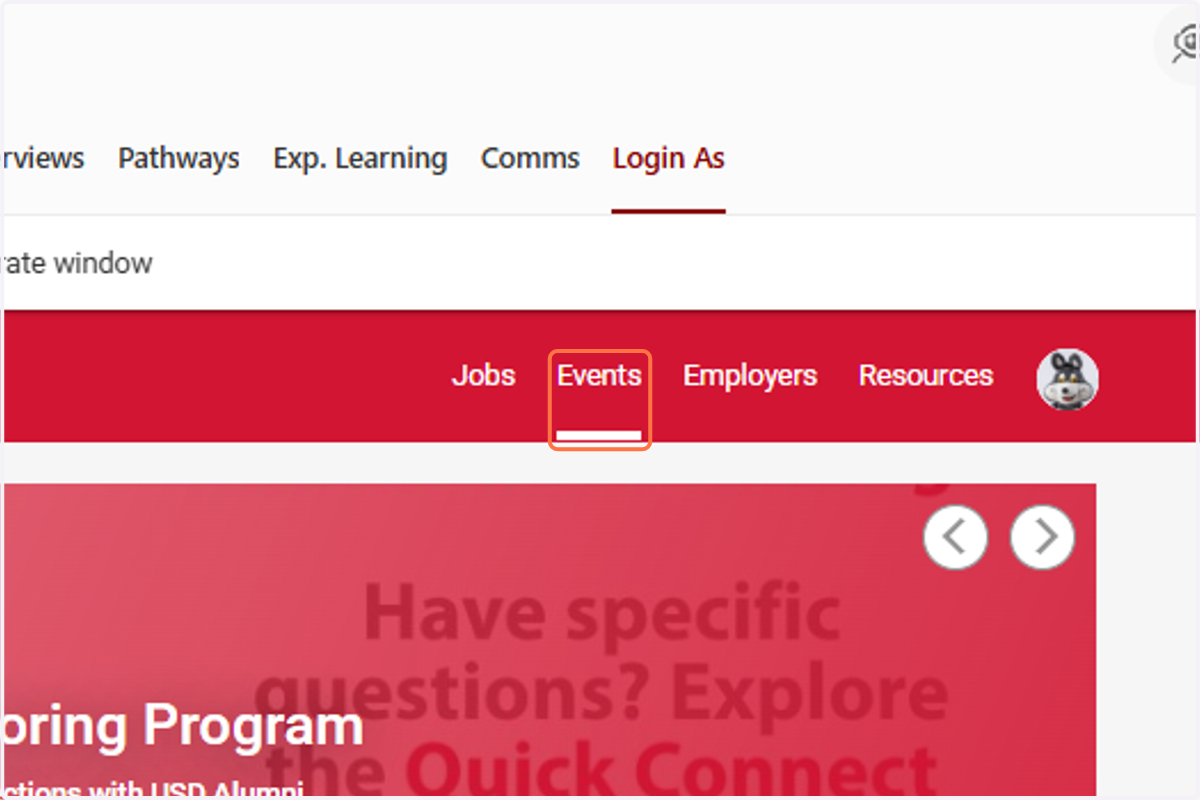
  1. 1. Click on Events

    Click on Events
  2. 2. Scroll down and click on USD Career Fair
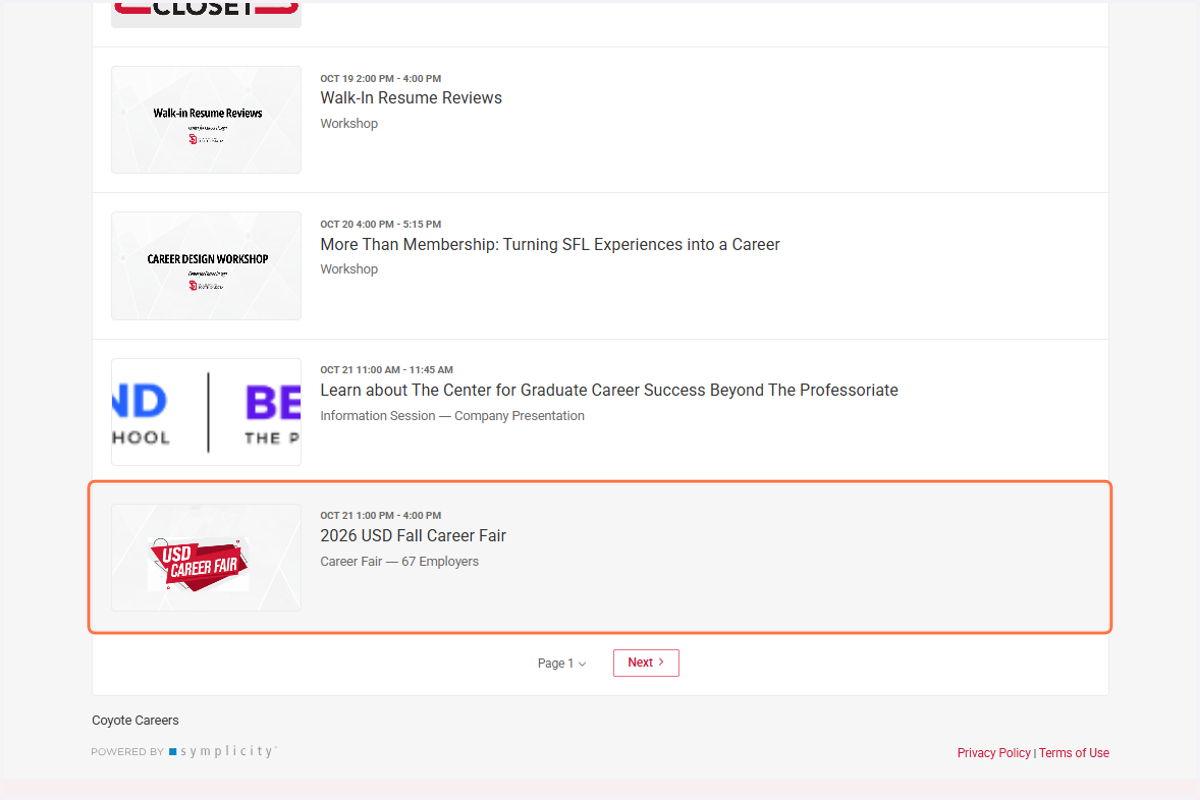
    Scroll down and click on USD Career Fair
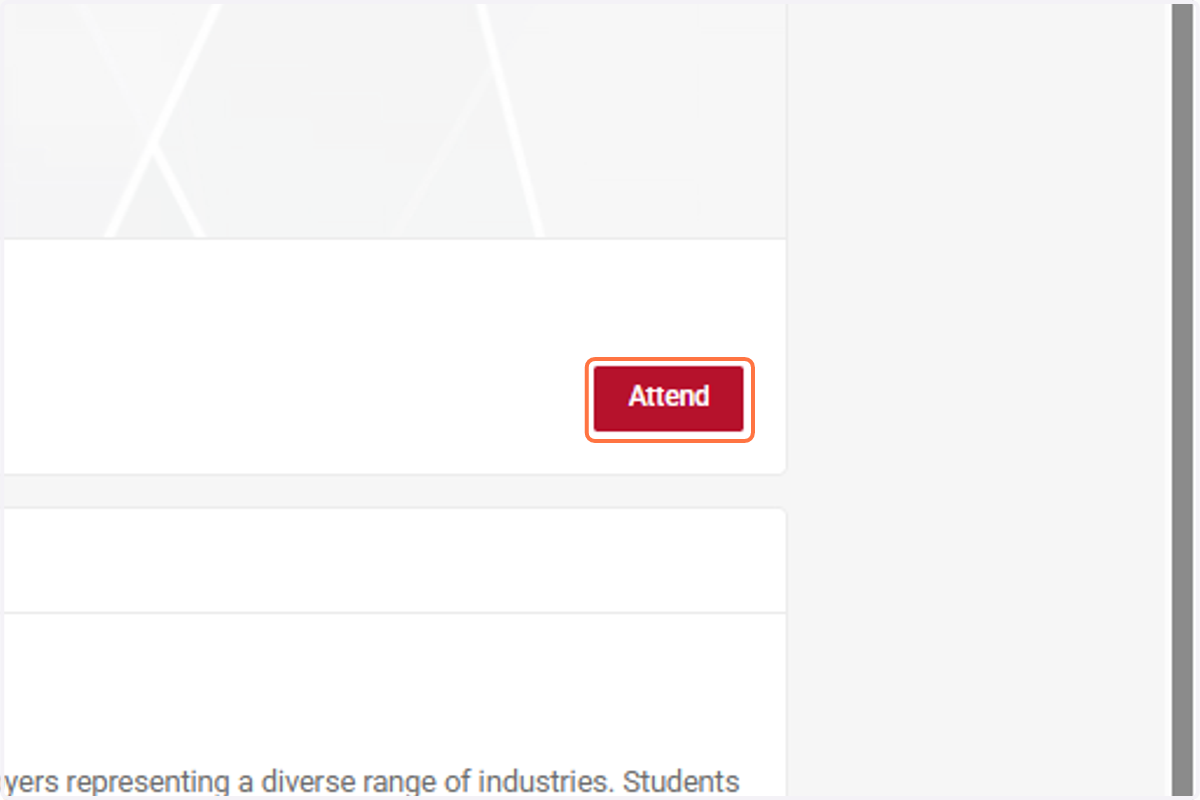
  3. 3. Click on Attend

    Click on Attend
  4. 4. Add your most recent/updated Resume and Click on Share (This will be added to your Public Profile - Recommended if you are seriously job searching, but not required).
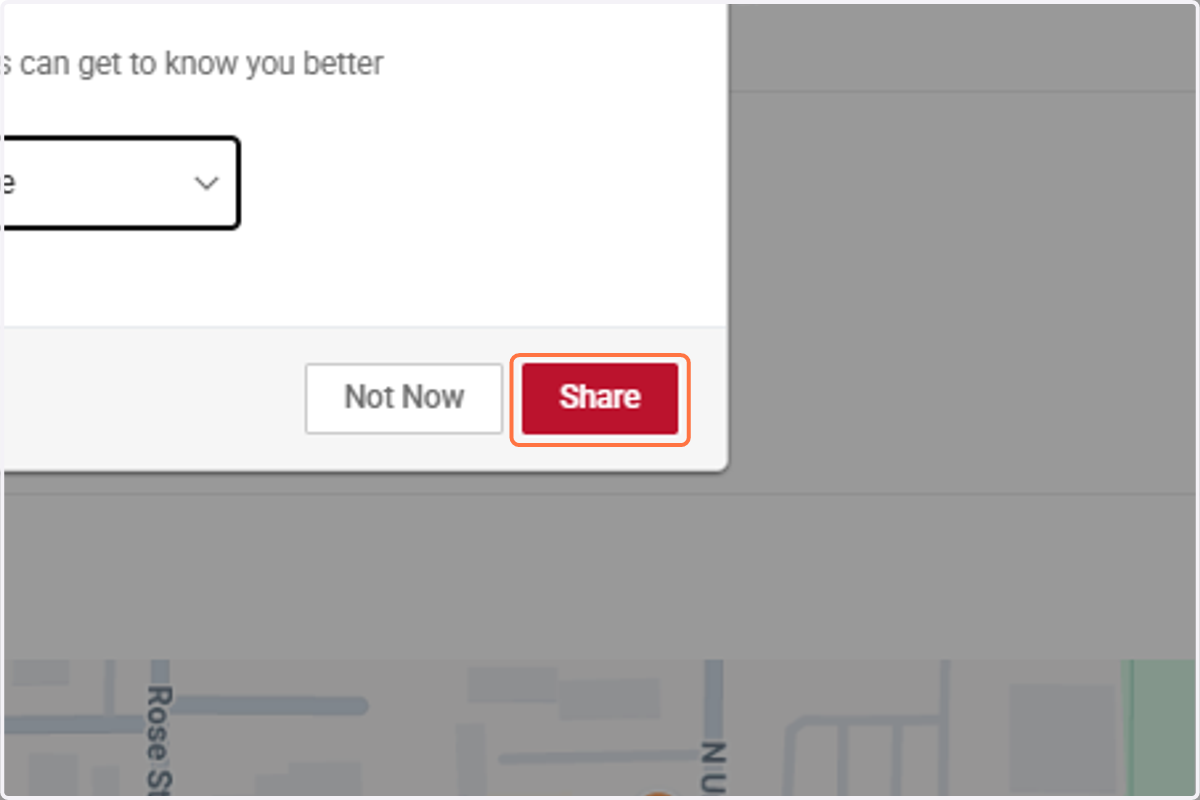
    Add your most recent/updated Resume and Click on Share (This will be added to your Public Profile - Recommended if you are seriously job searching, but not required).
  5. 5. Click on Home to get to your Public Profile
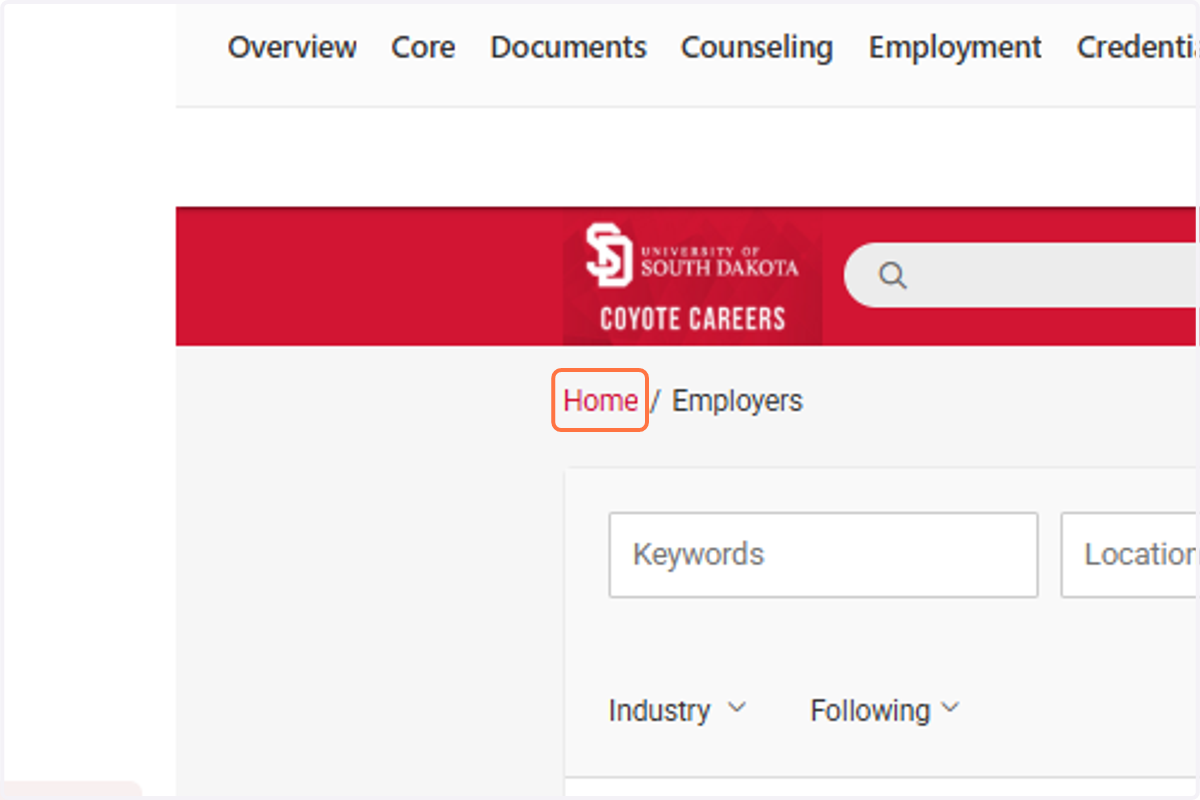
    Click on Home to get to your Public Profile
  6. 6. Click on Public Profile and manage your profile. (Update any key items you want Employers to know about you)
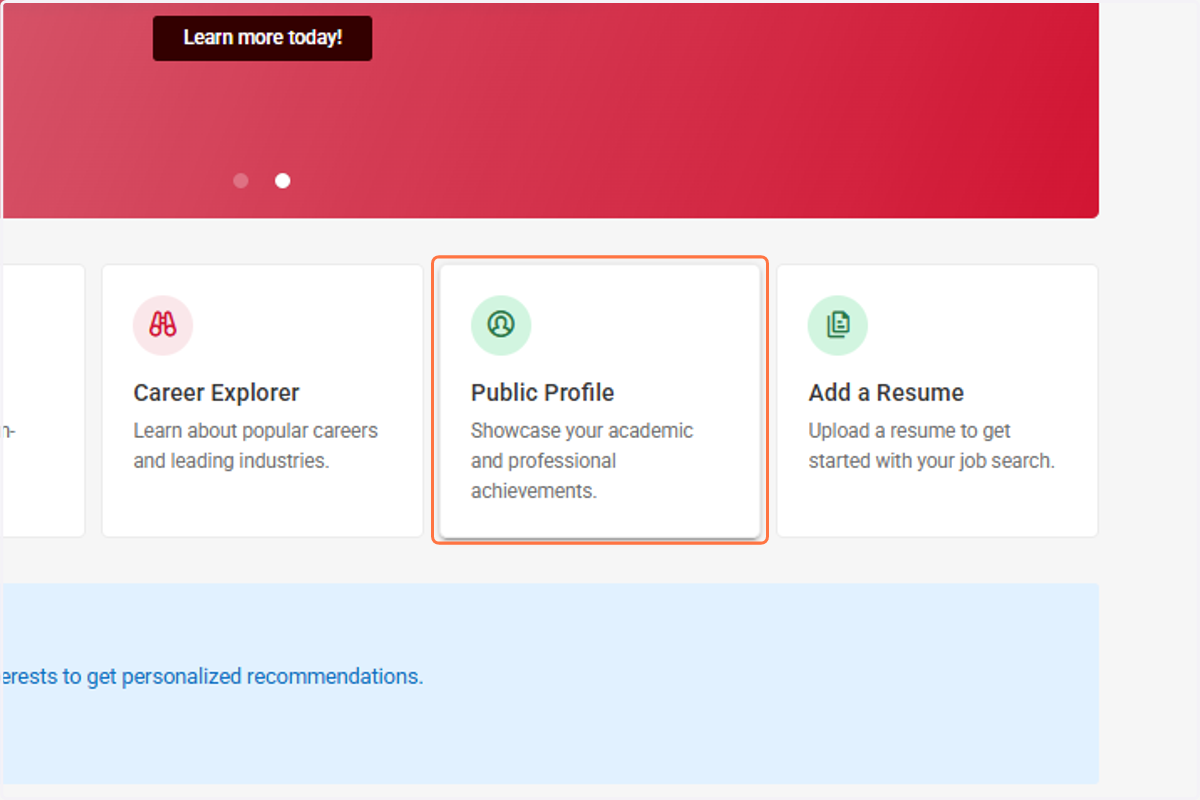
    Click on Public Profile and manage your profile. (Update any key items you want Employers to know about you)
  7. 7. Select if you want to Publish or Unpublish your Profile
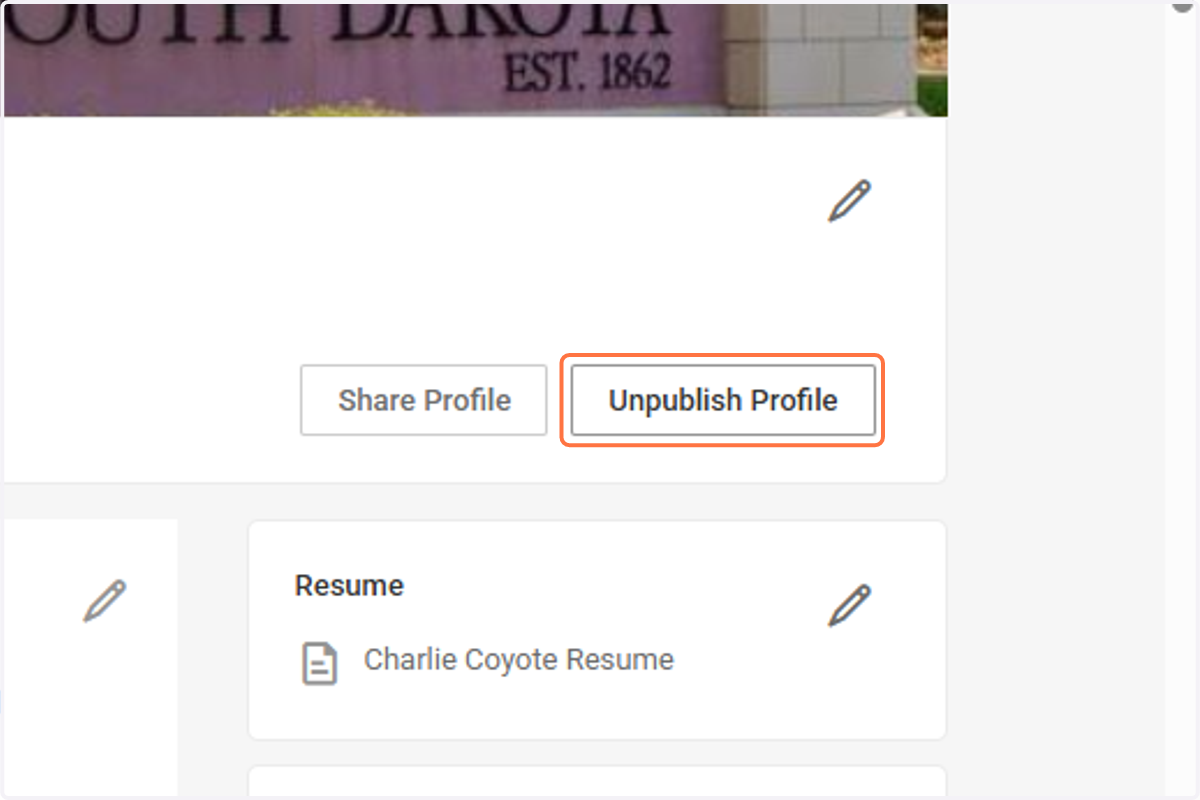
    Select if you want to Publish or Unpublish your Profile
  8. 8. Click on Resume to confirm it is the correct version
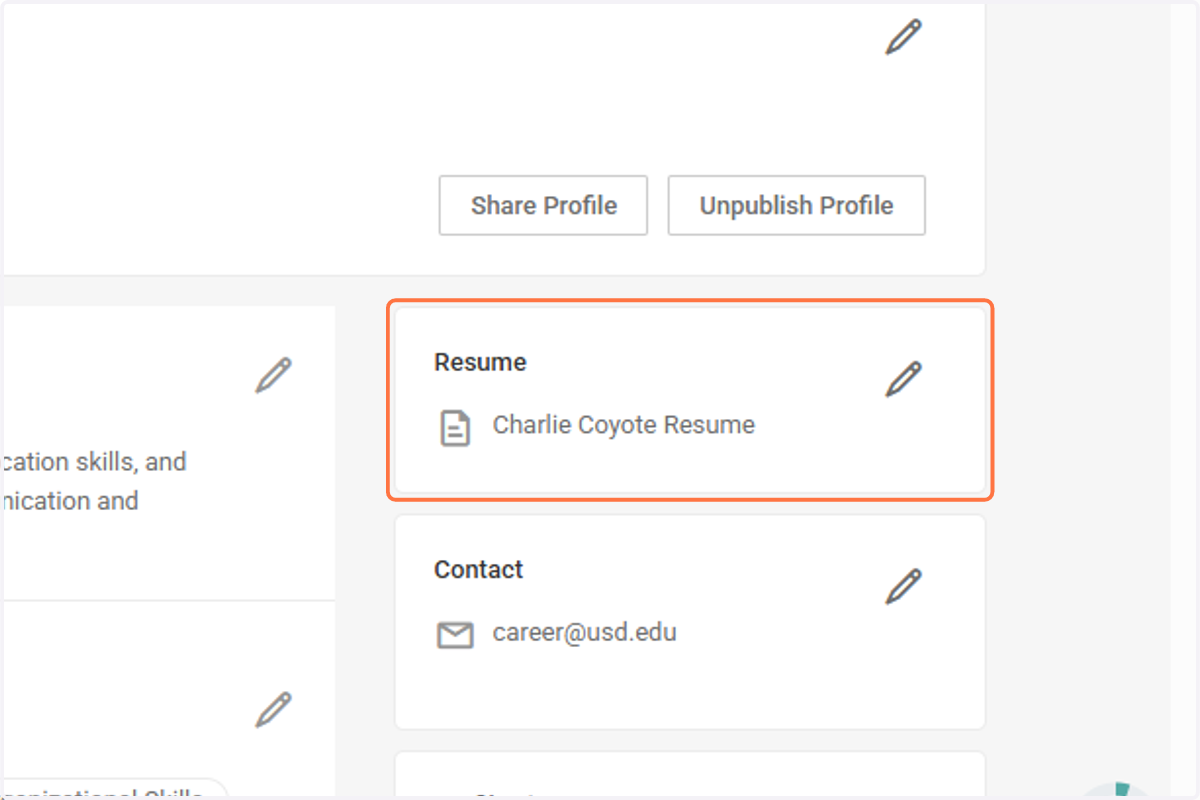
    Click on Resume to confirm it is the correct version
  9. 9. Click on Contact to update your contact information
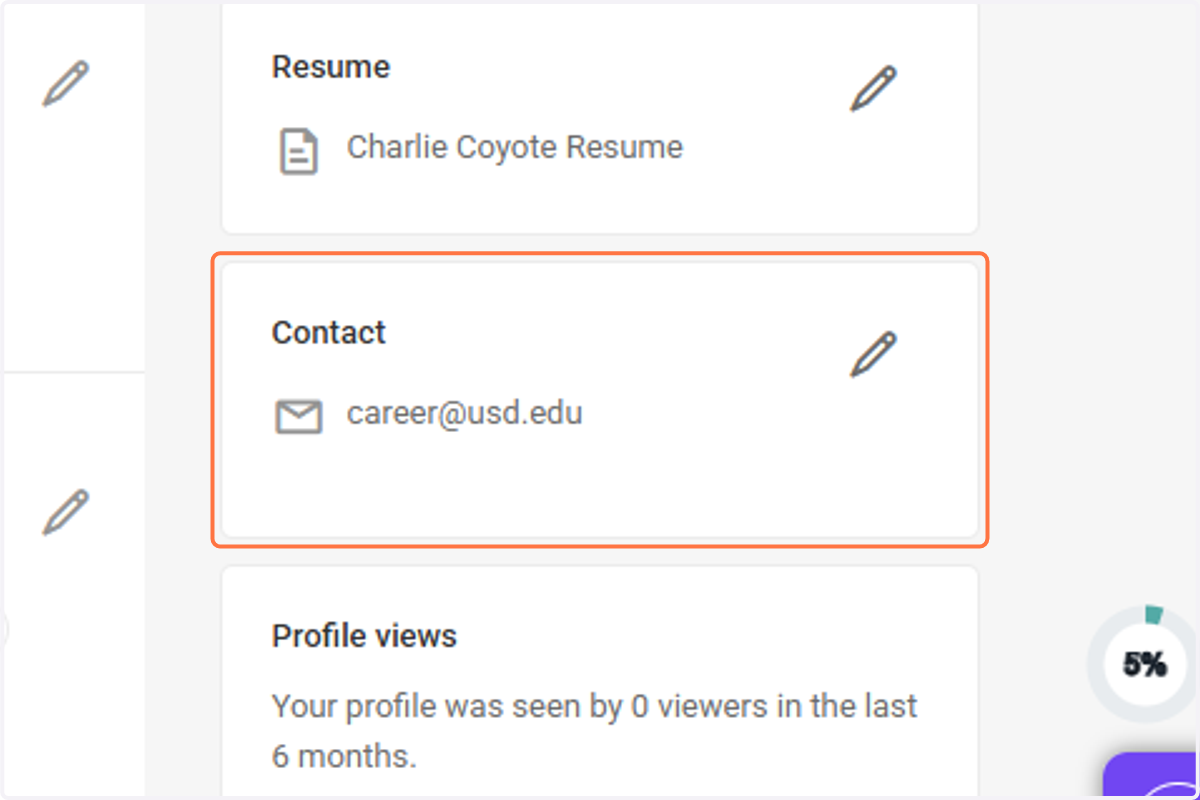
    Click on Contact to update your contact information
  10. 10. Click on Personal Statement to add/edit
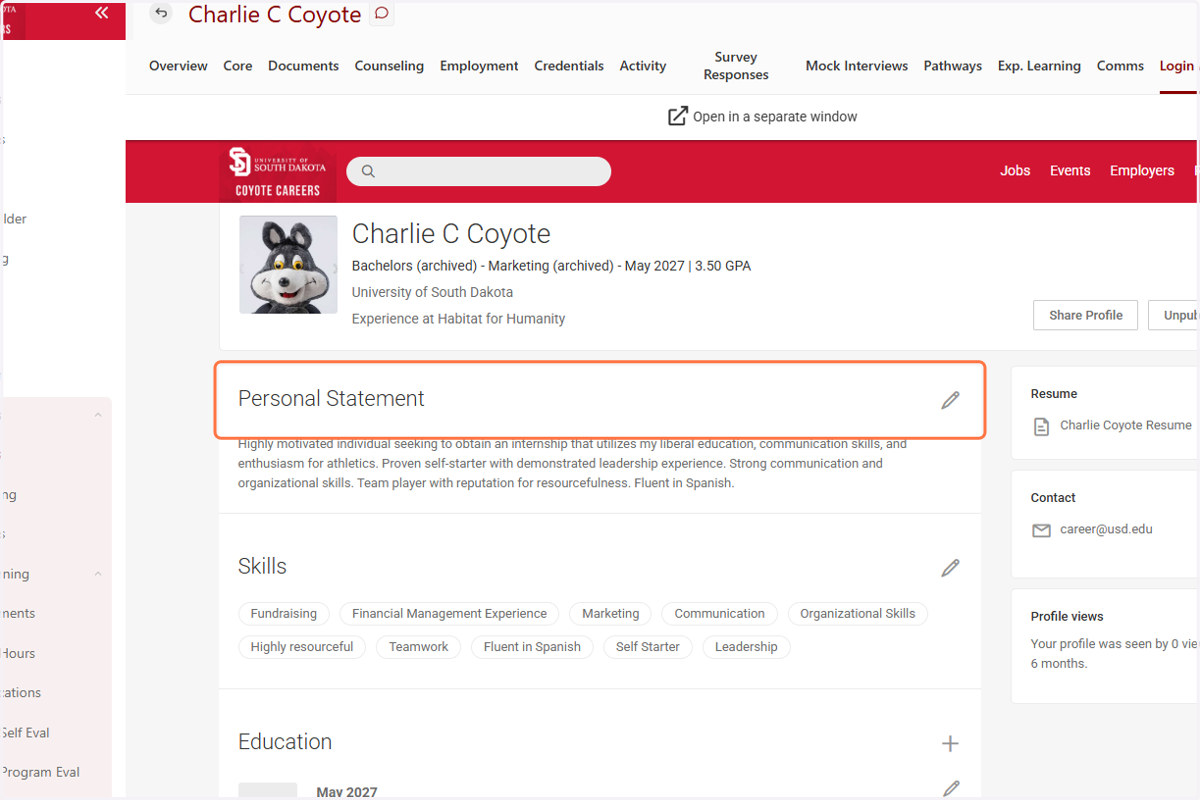
    Click on Personal Statement to add/edit
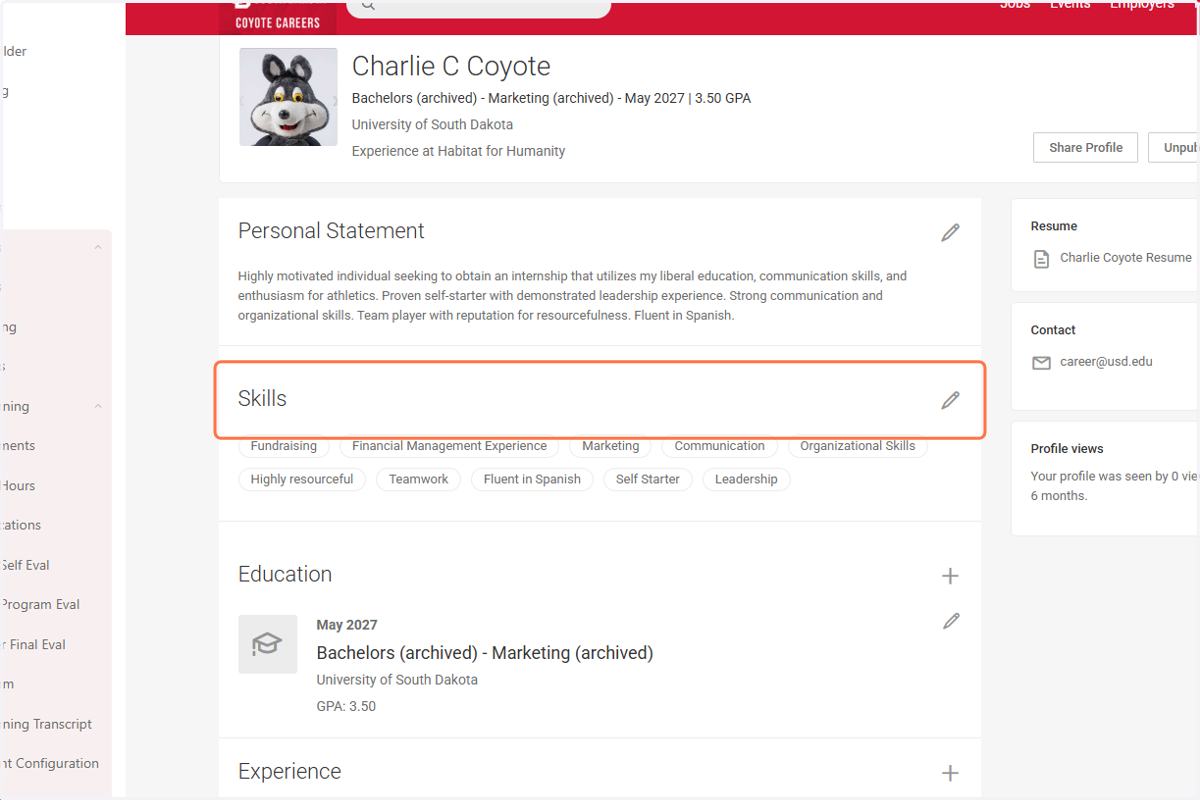
  11. 11. Click on Skills to add/edit

    Click on Skills to add/edit
  12. 12. Click on Education to verify it is correct
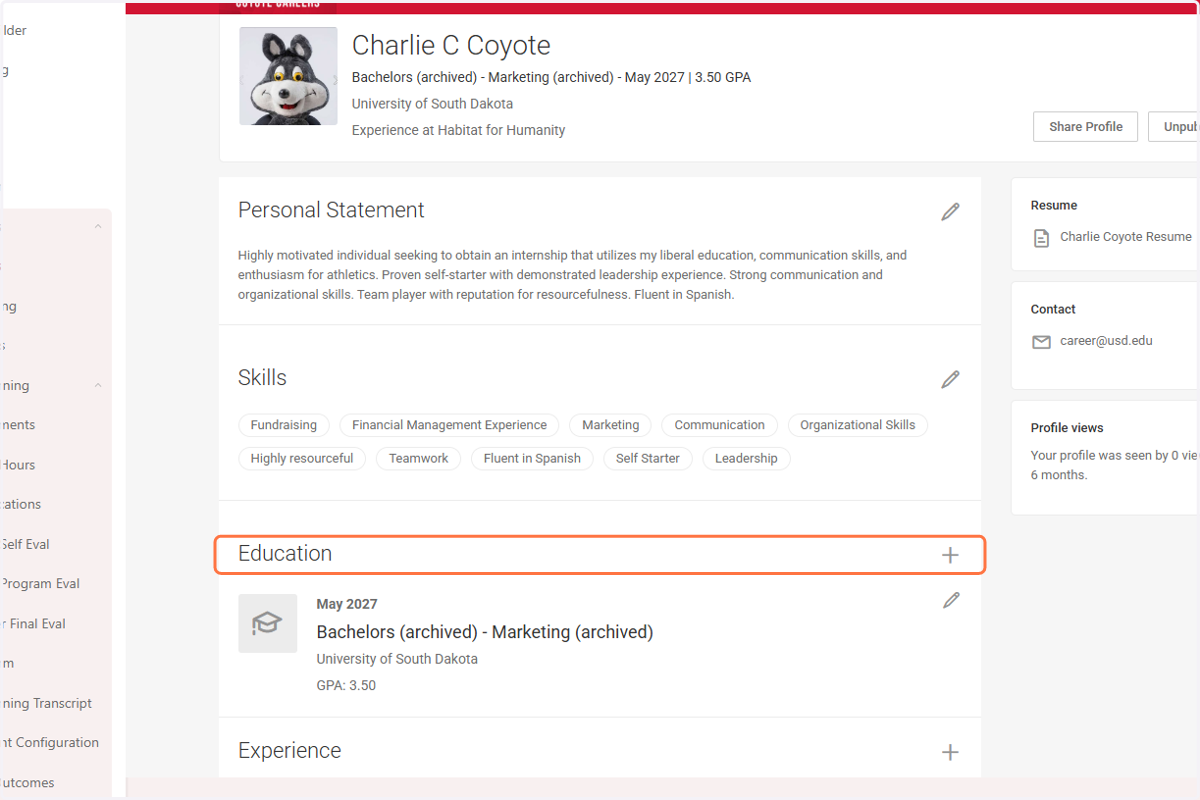
    Click on Education to verify it is correct
  13. 13. Click on Experience to add any additional experiences
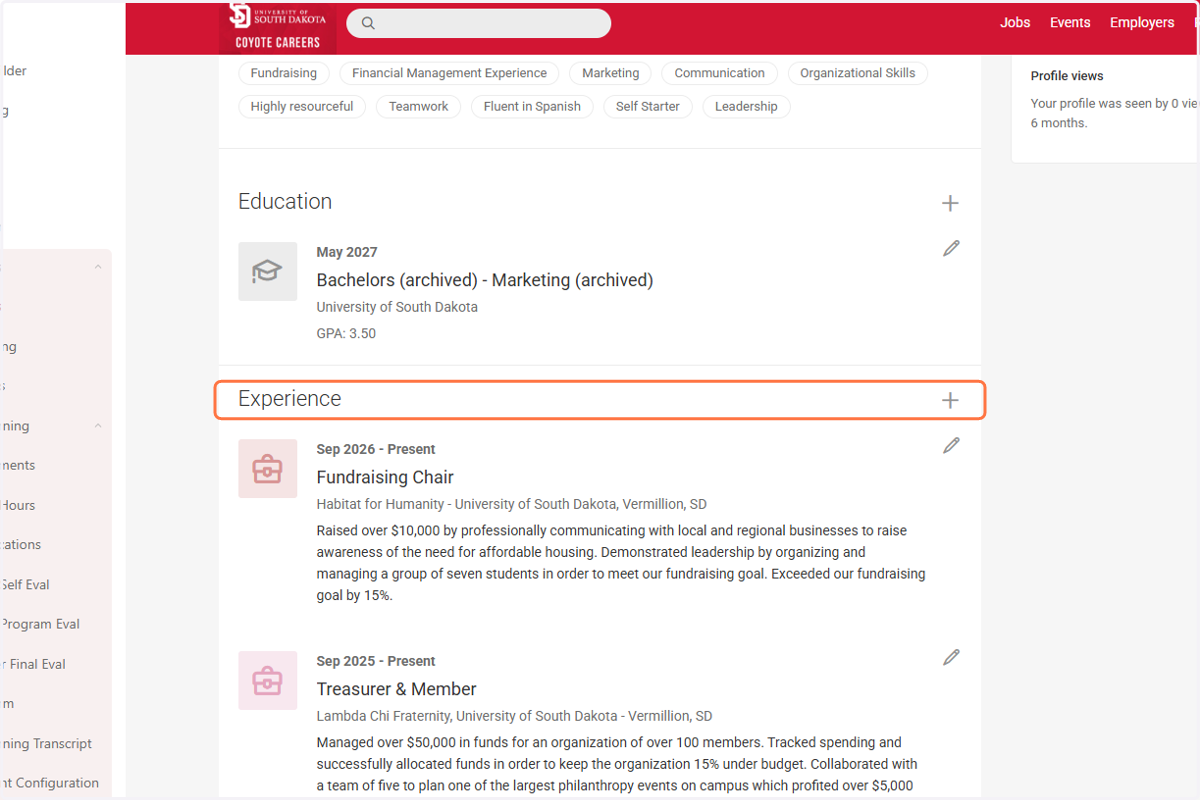
    Click on Experience to add any additional experiences
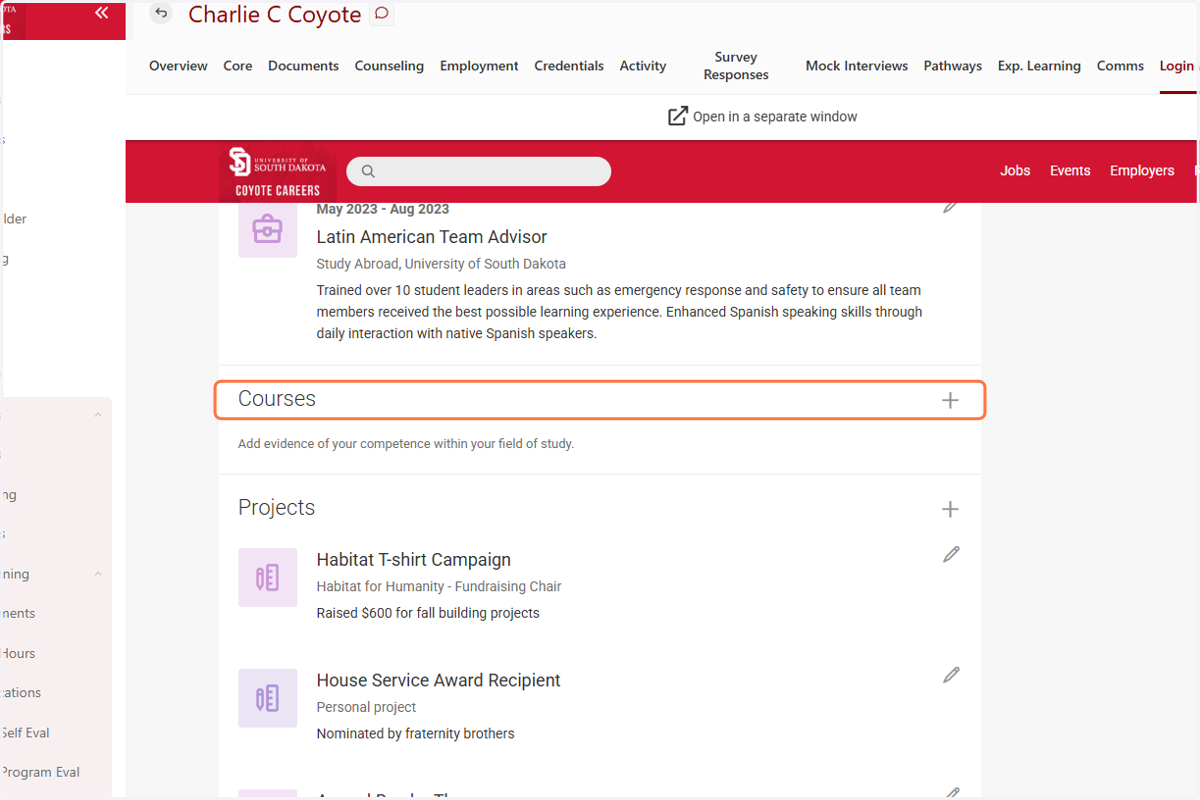
  14. 14. Click on Courses to add/edit

    Click on Courses to add/edit
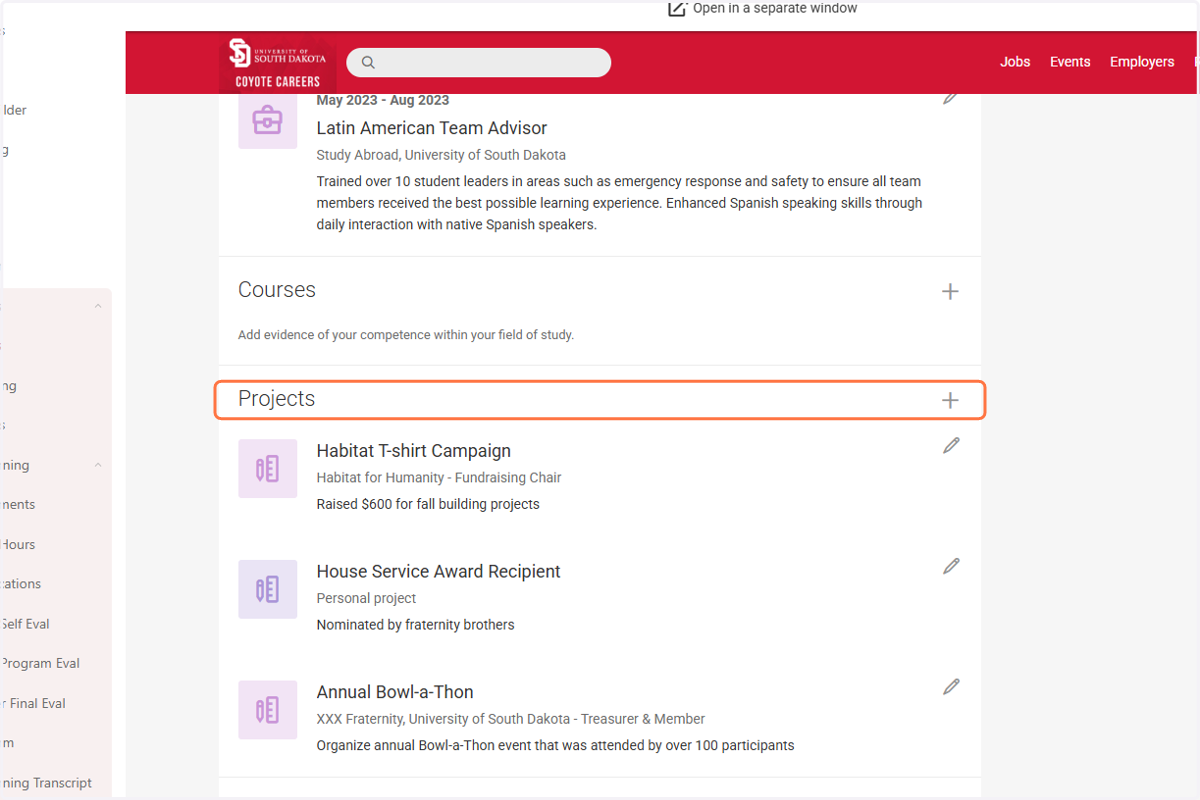
  15. 15. Click on Projects to add/edit

    Click on Projects to add/edit
  16. 16. Click on Organizations and Activities to add/edit
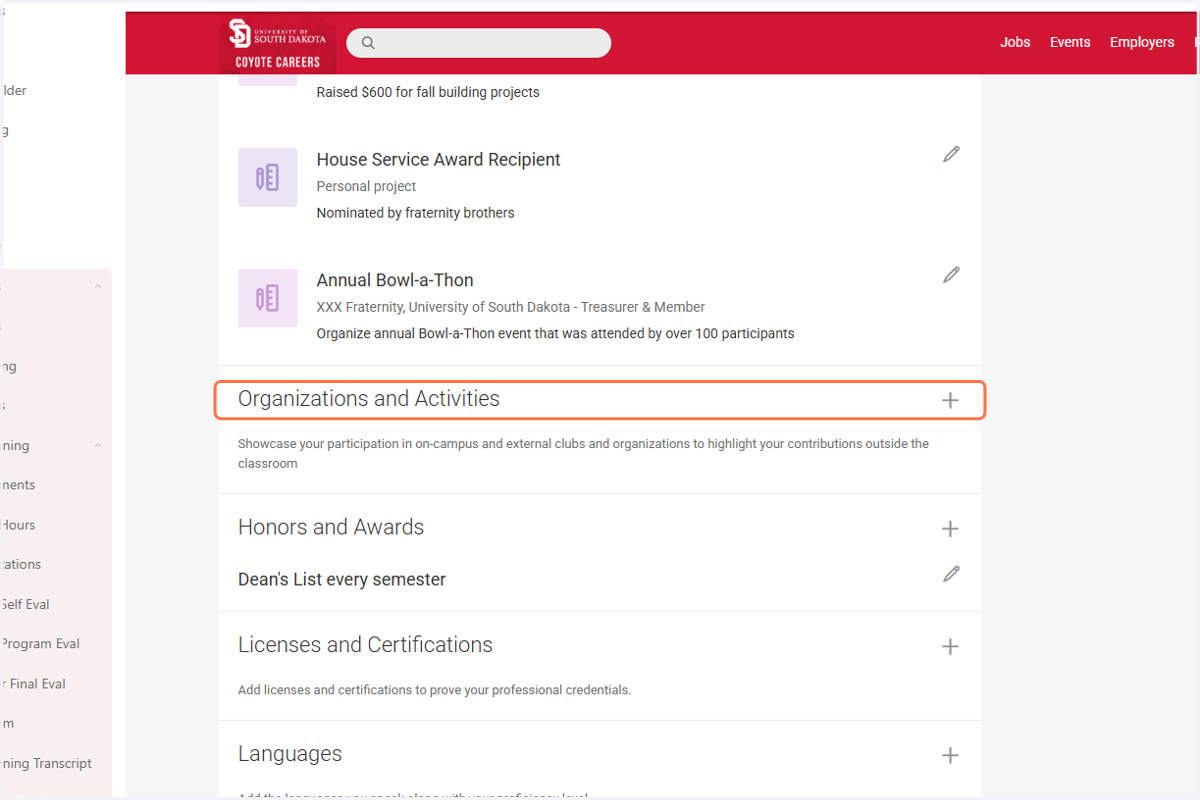
    Click on Organizations and Activities to add/edit
  17. 17. Click on Honors and Awards to add/edit
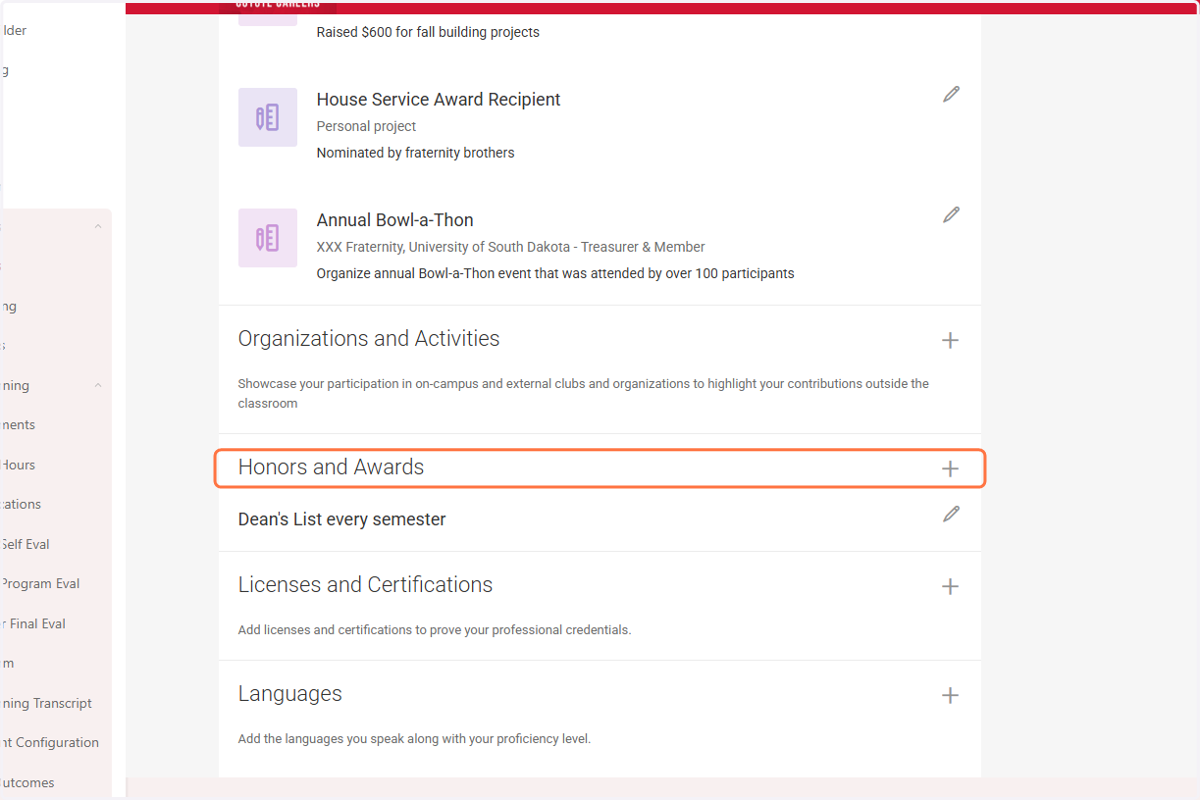
    Click on Honors and Awards to add/edit
  18. 18. Click on Licenses and Certifications to add/edit
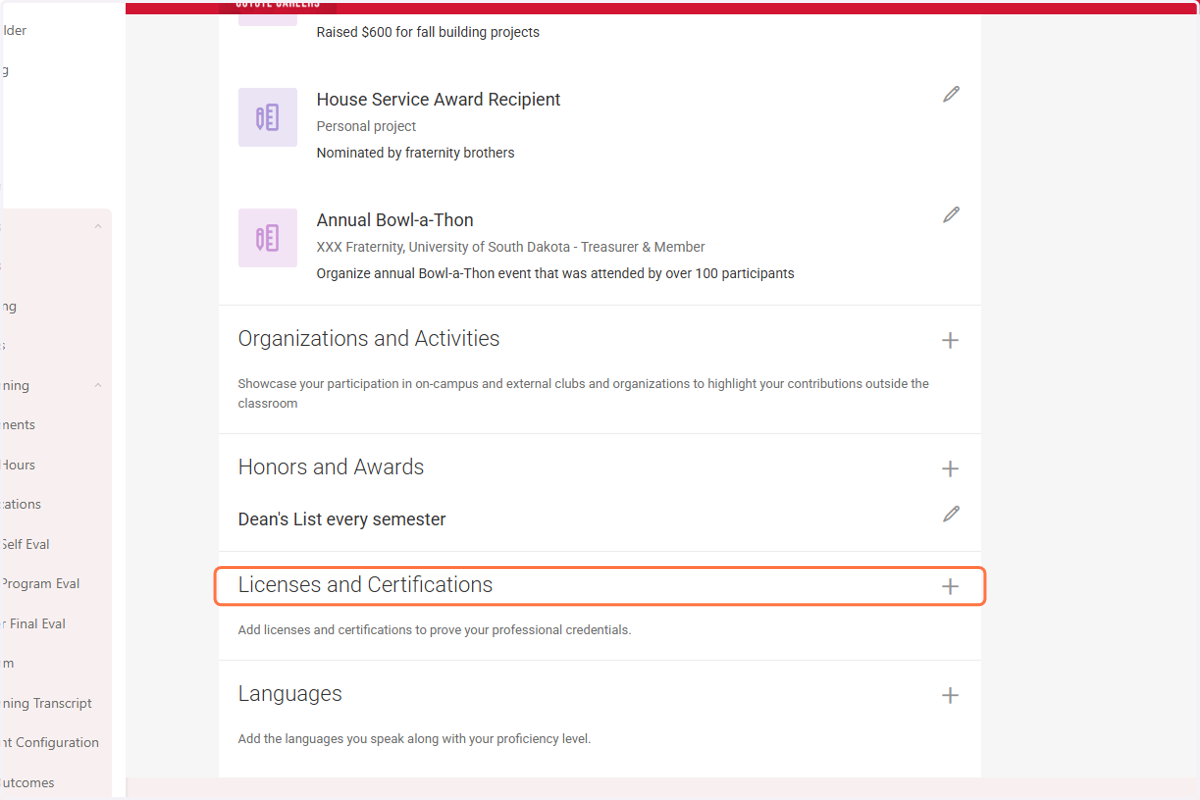
    Click on Licenses and Certifications to add/edit
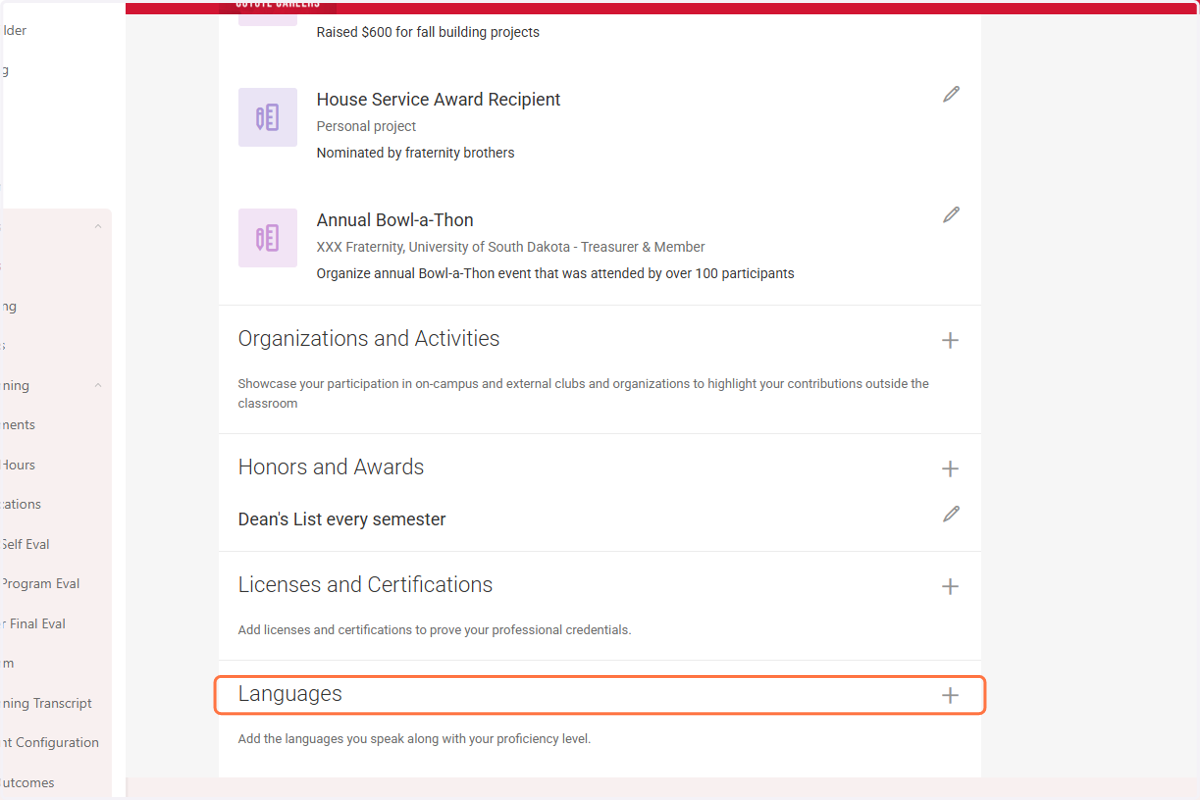
  19. 19. Click on Languages to add/edit

    Click on Languages to add/edit