Transfer Courses Using Transferology
Transferology
1. Navigate to https://www.transferology.com/
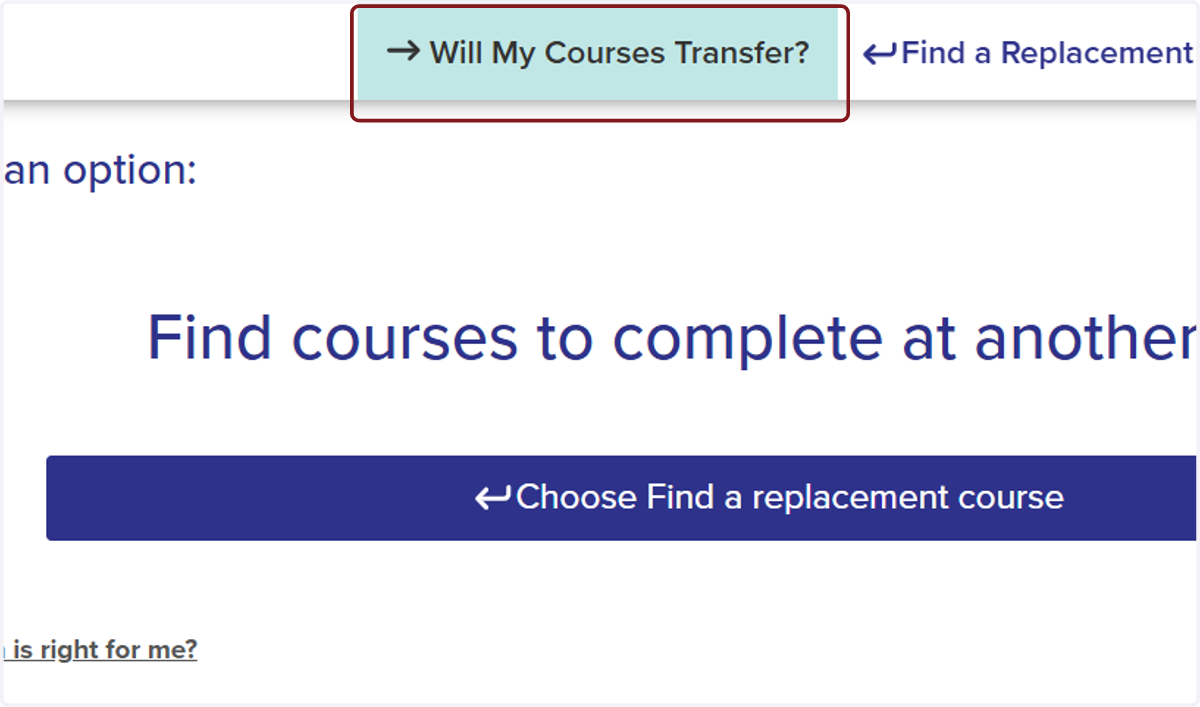
2. Click on Will My Courses Transfer?
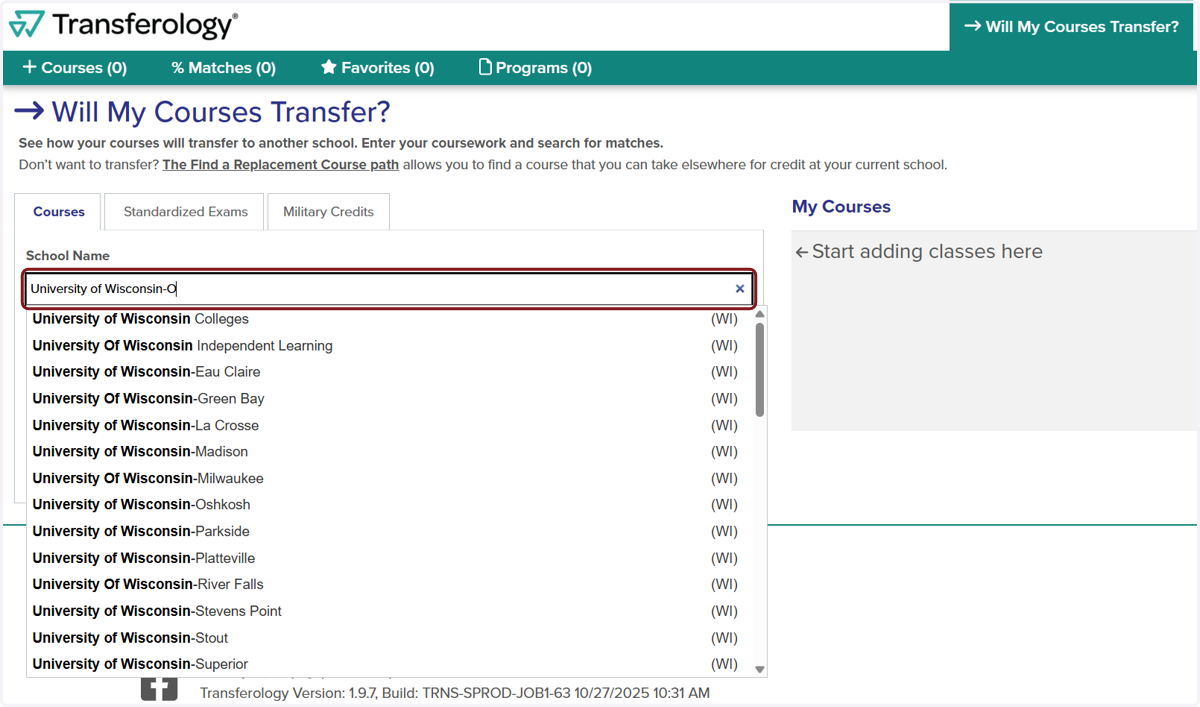
3. Under School Name, type the school you attended/are attending.
4. Under Taken, choose the term and year in the drop down of when you took the course.
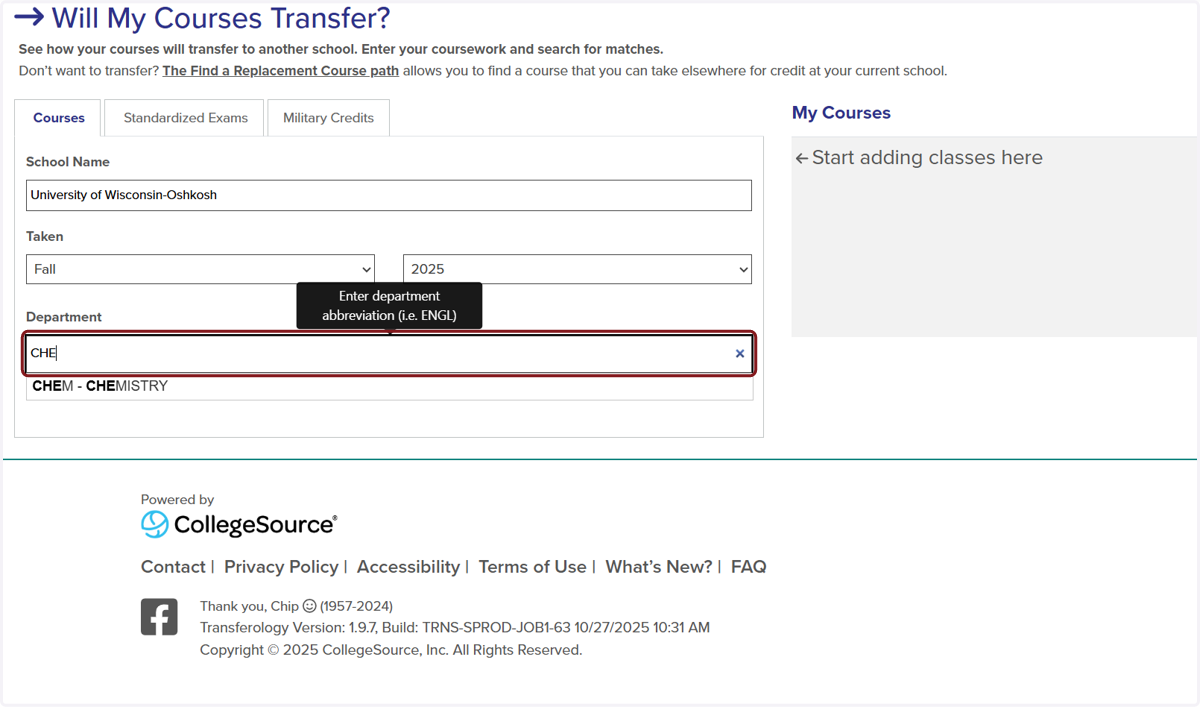
5. Under Department, type and select the prefix of the course(s) taken.
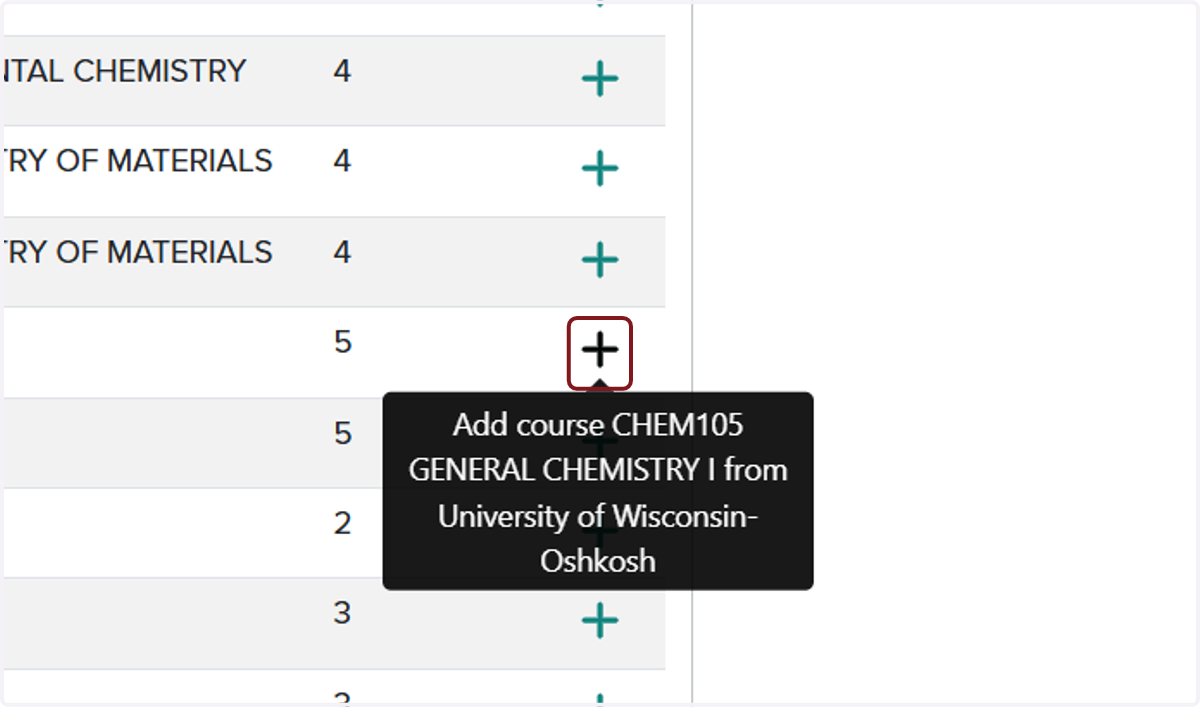
6. Choose the courses that you have completed, are in the process of completing, or planning to complete. You can add multiple courses and multiple schools.
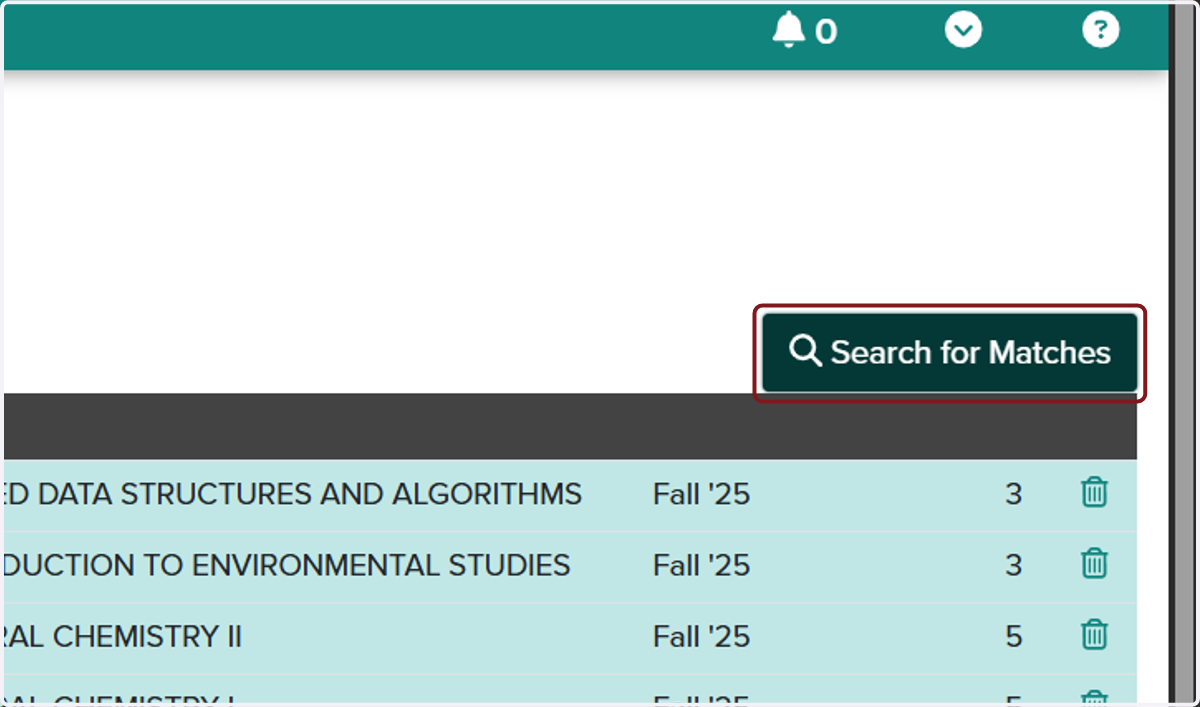
7. Once your list is complete, click Search for Matches.
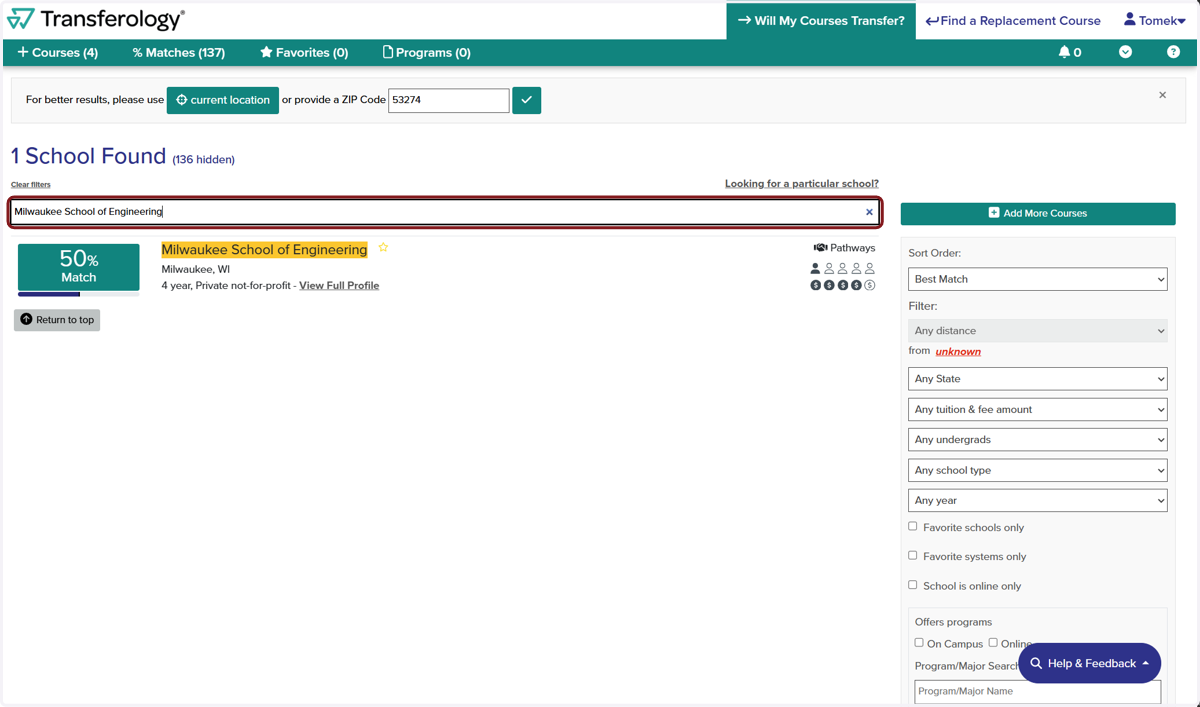
8. Type "Milwaukee School of Engineering"
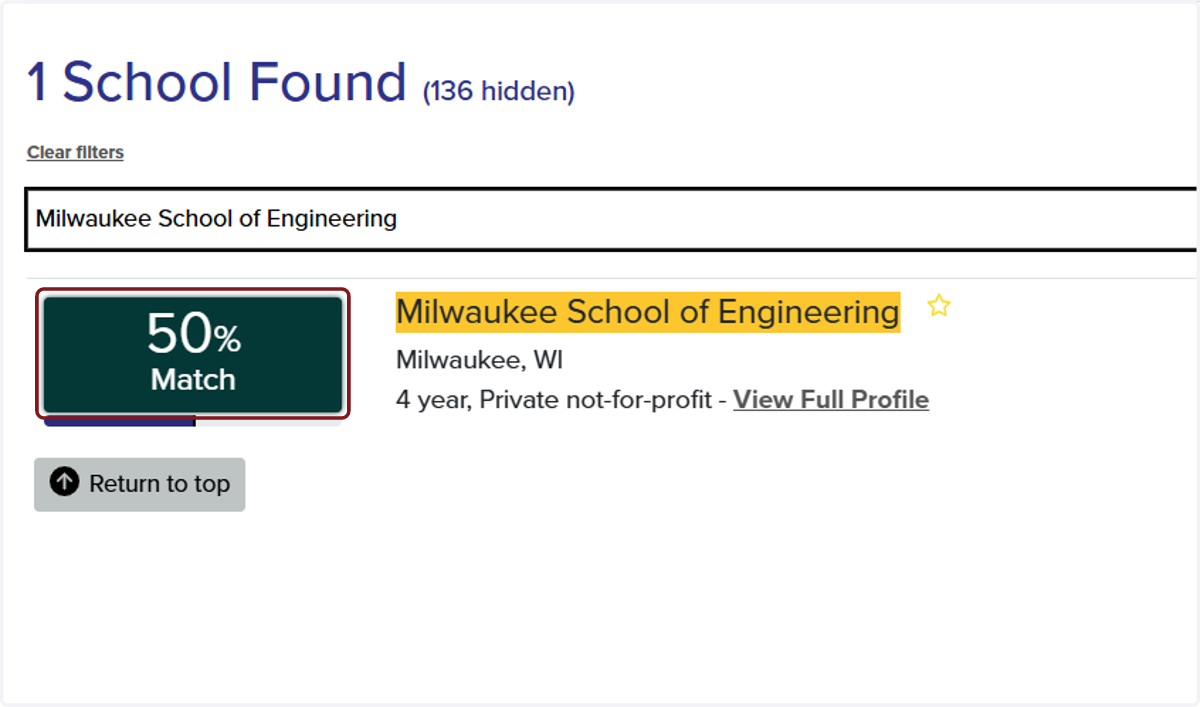
9. Select the "XX%" match link.
Note - the 50% match indicates that 50% of the courses evaluated have an exact match (transfer equivalent). We will the equivalency statuses next.
10. Match Tab - indicates the course(s) that have a transfer equivalent.

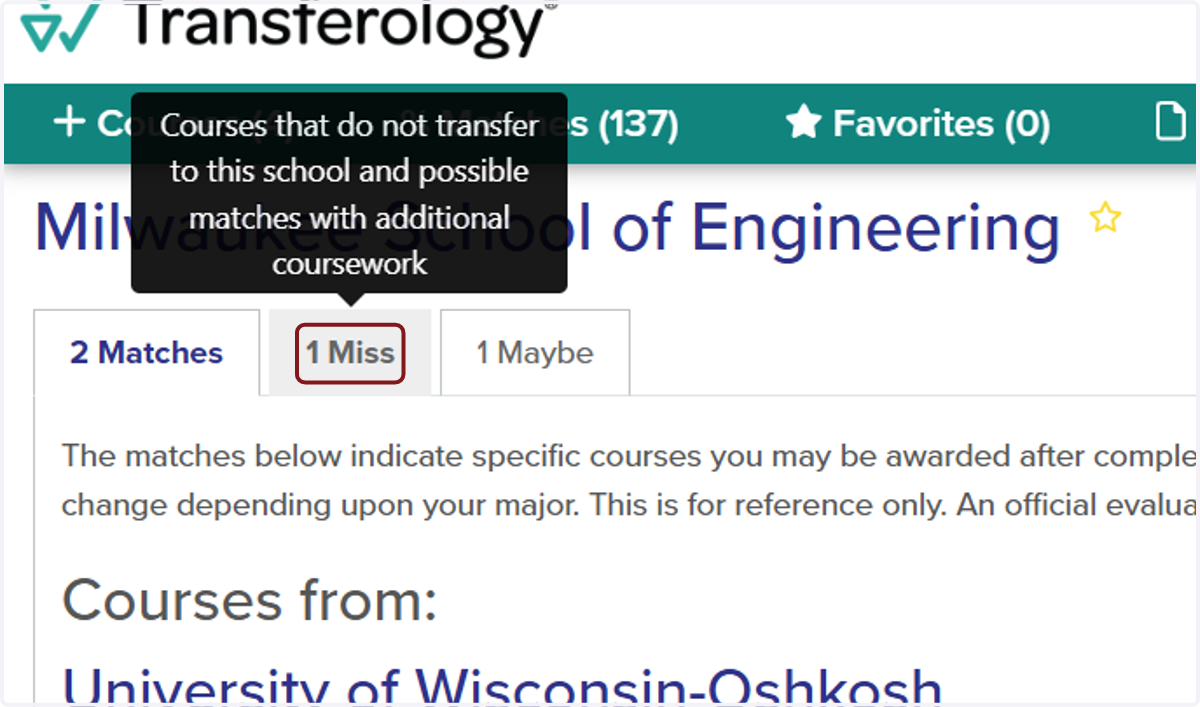
11. Miss Tab - indicates the course(s) that do not have a transfer equivalent
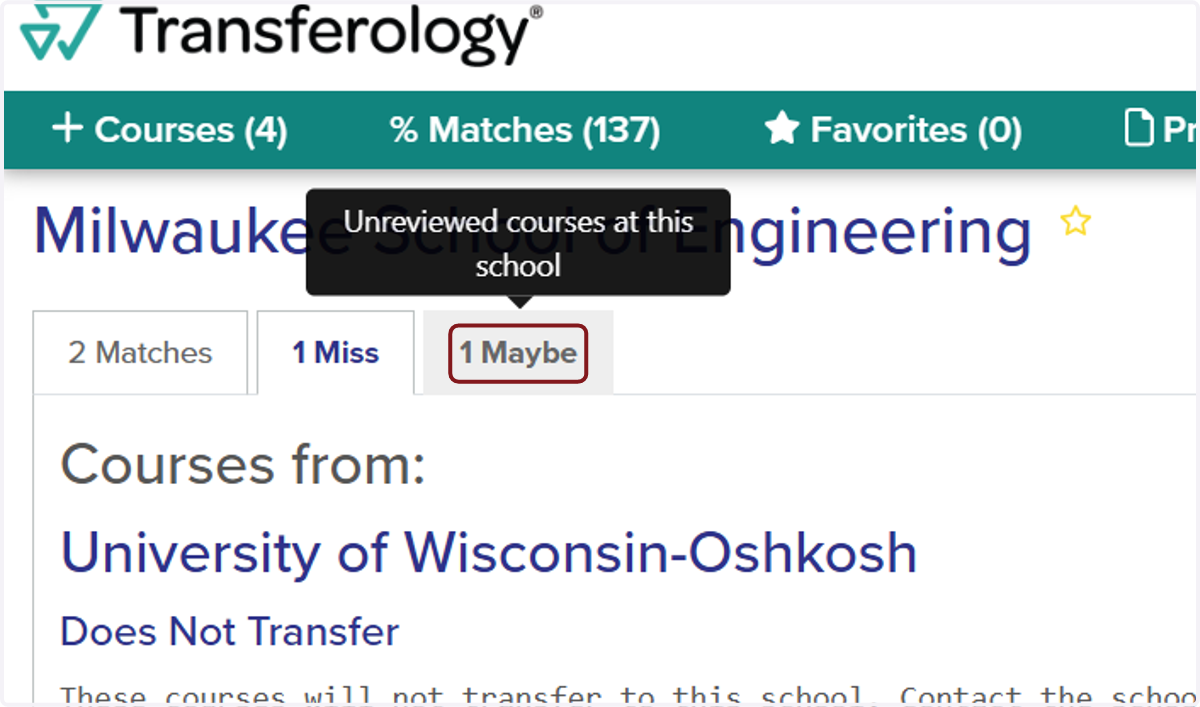
12. Maybe Tab - indicates the course(s) that have not been evaluated by MSOE.
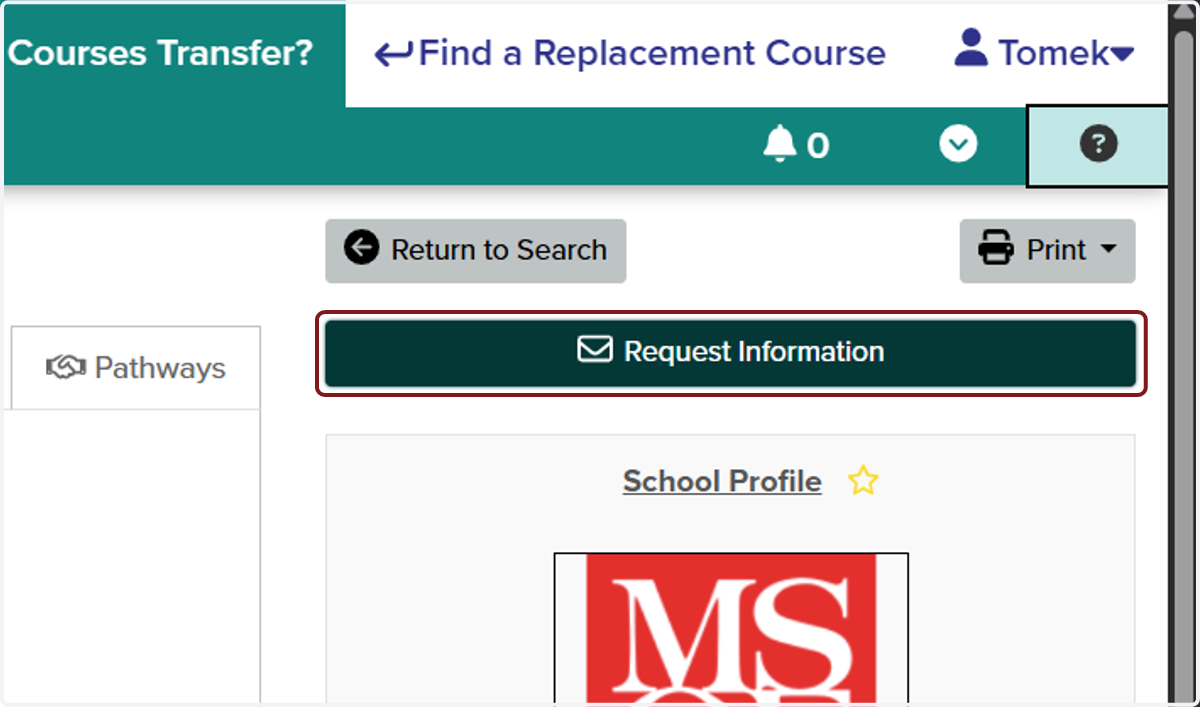
13. Click on Request Information
This step notifies the Registrar's Office of your equivalency search. This step is important, as it informs the office of your potential interest, as well as prompts the office to evaluate courses that fall in the "Maybe" tab.
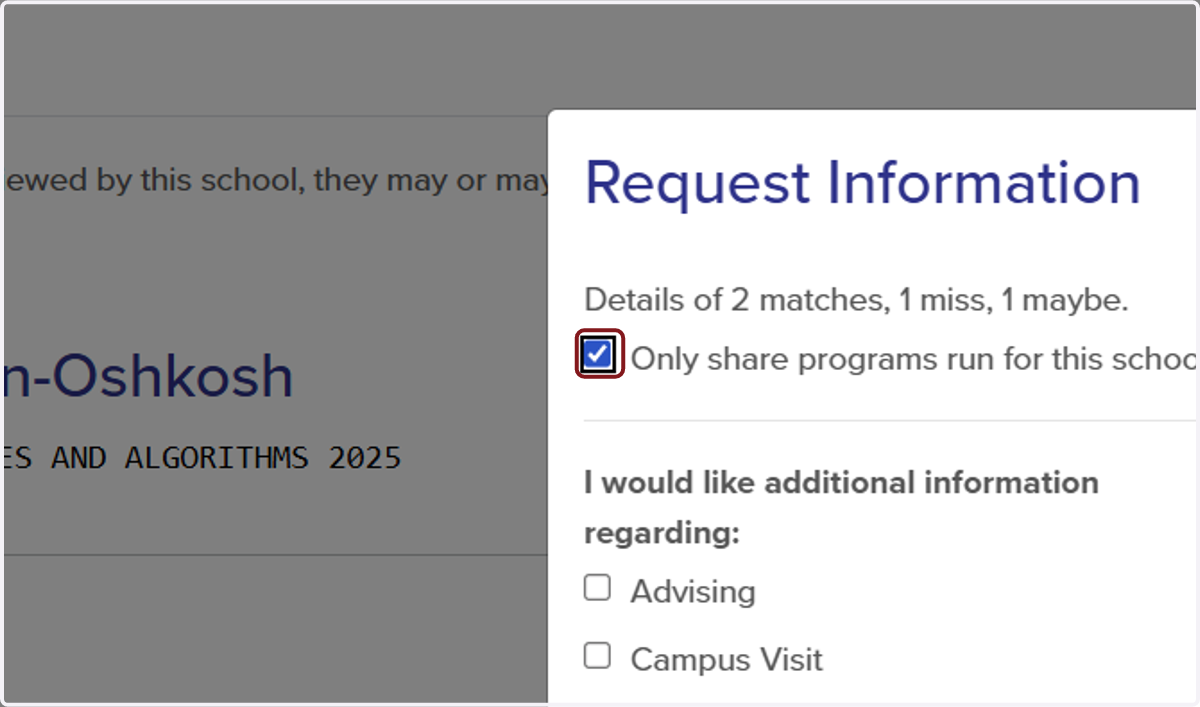
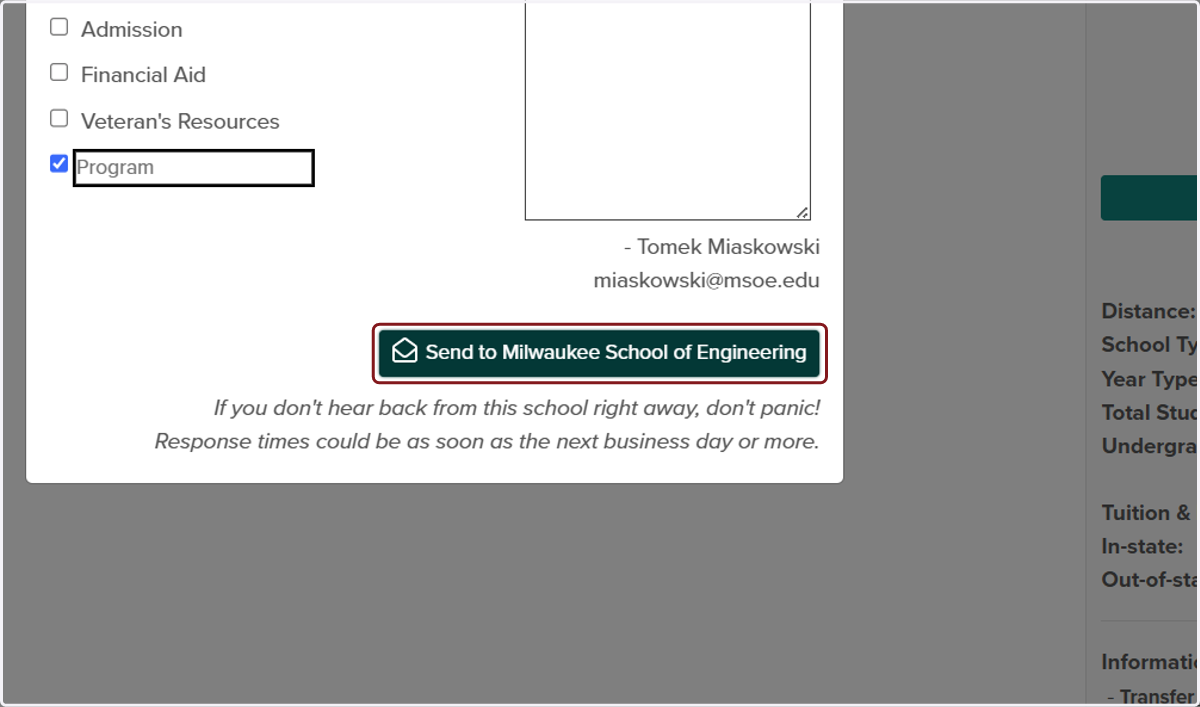
14. Check Only share programs run for this school and "Program".
15. Click on Send to Milwaukee School of Engineering
After you hit the Send to Milwaukee School of Engineering button, you will get a pop up in the upper right corner confirming your request for information was successfully sent. The email tied to your Transferology account will also receive an email that you requested information. Note - the average evaluation time is 7-10 business days.
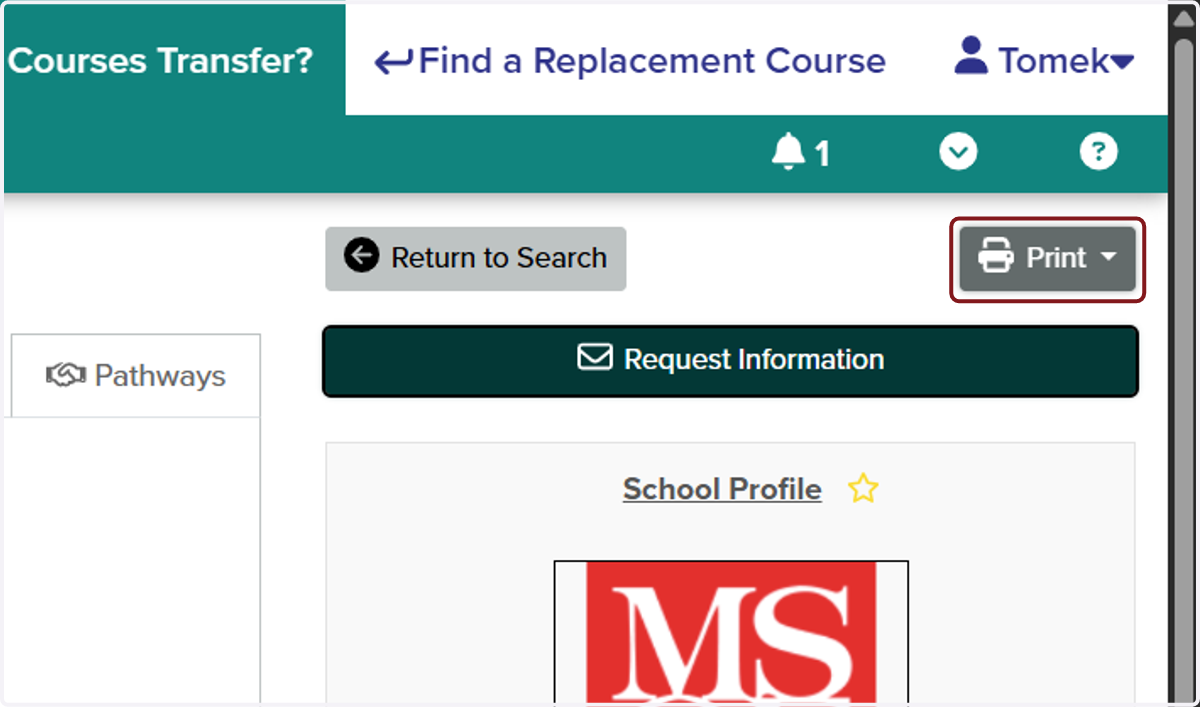
16. Click on Print
Once you have put through all of you courses you can also hit print in the upper right corner. You can print or PDF this for your records.
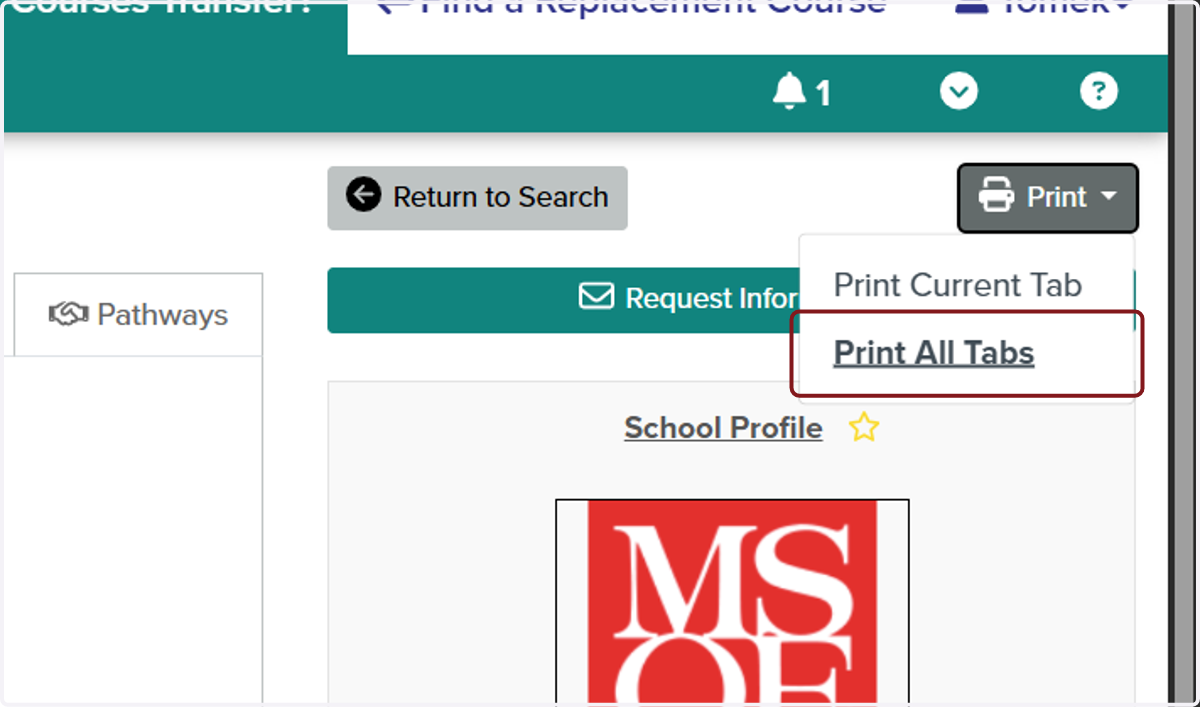
17. Click on Print All Tabs
Choose all tabs if you would like to see course(s) that transfer, course(s) that do not transfer, and course(s) that need evaluation.