Tracking courses you've assigned in LinkedIn Learning
Learning Management - Homepage
Go to the LinkedIn Learning Management homepage
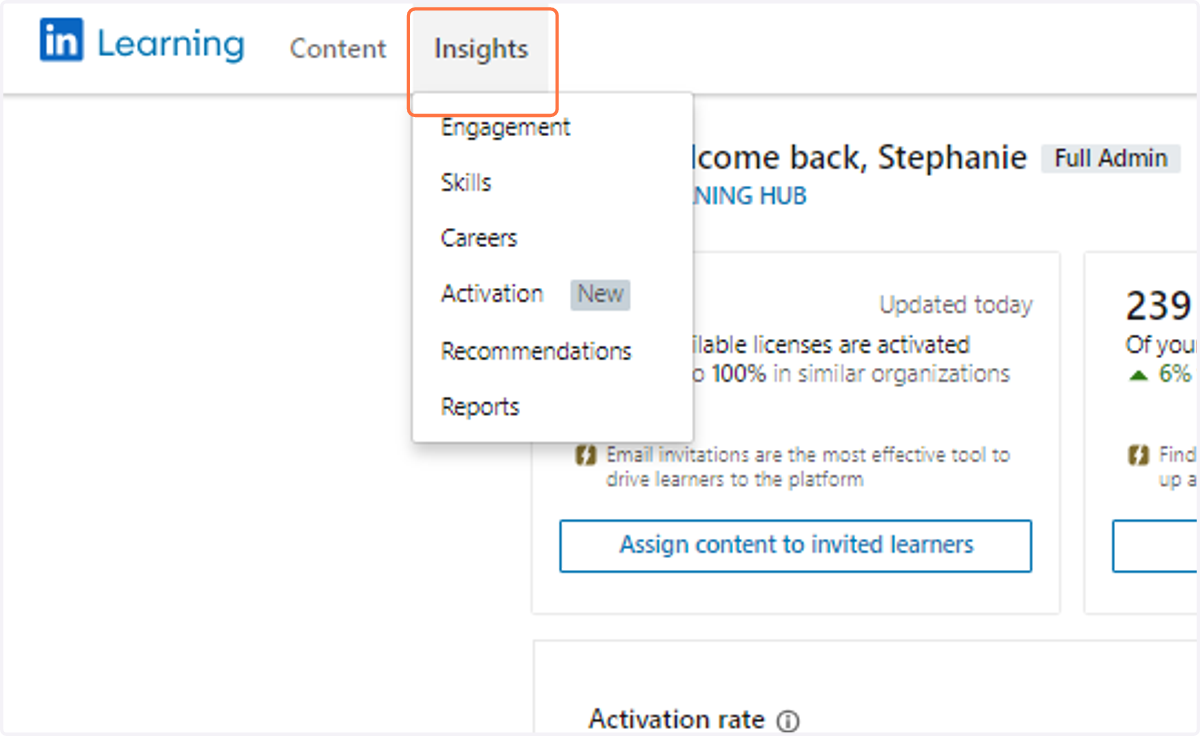
1. Hover over Insights
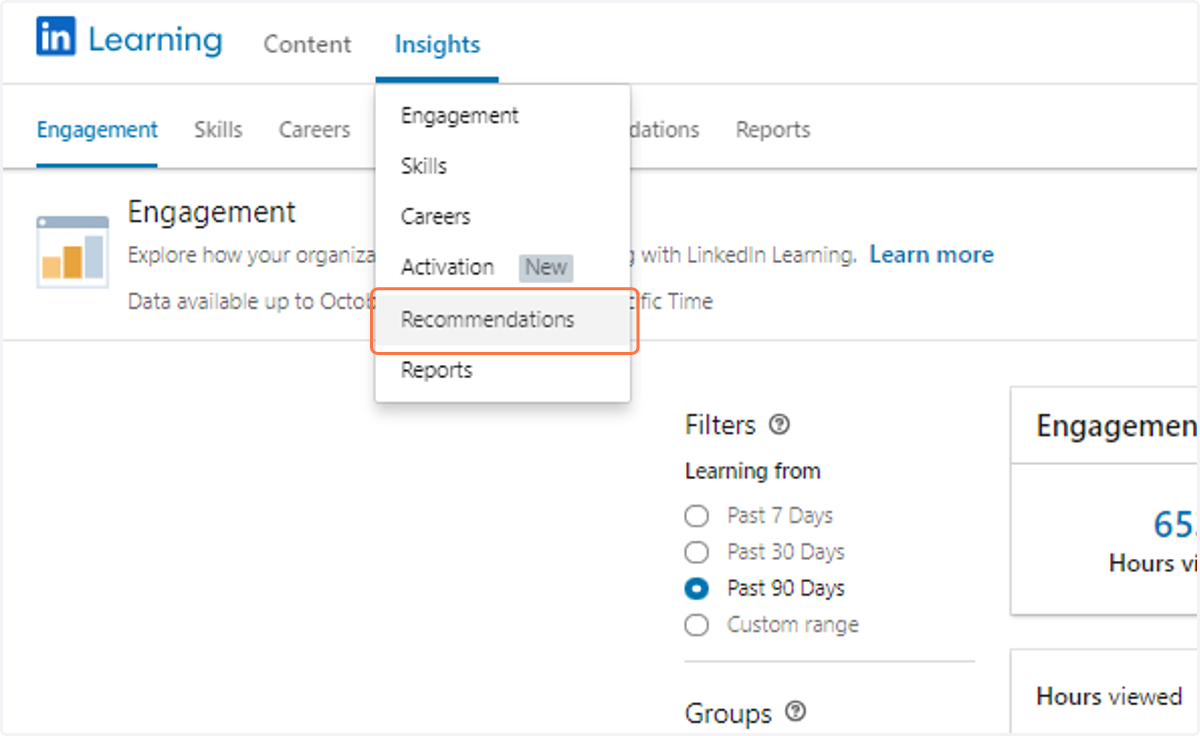
2. Click on Recommendations
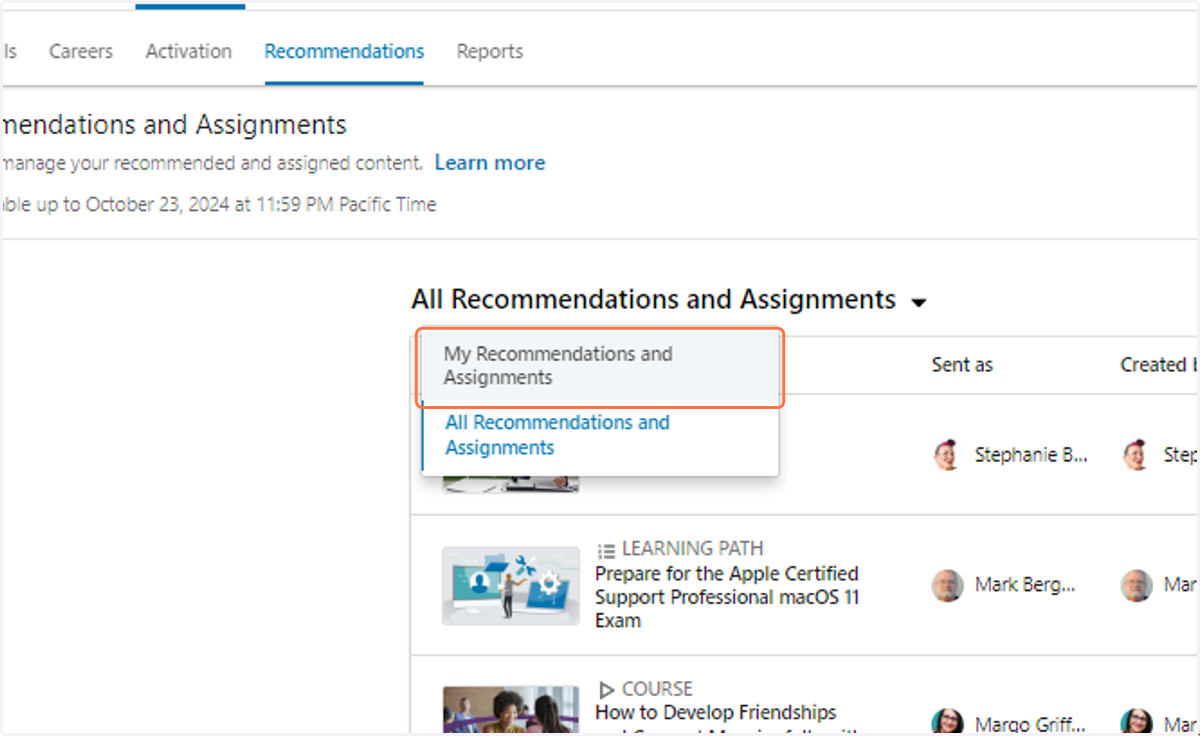
3. Click on My Recommendations and Assignments
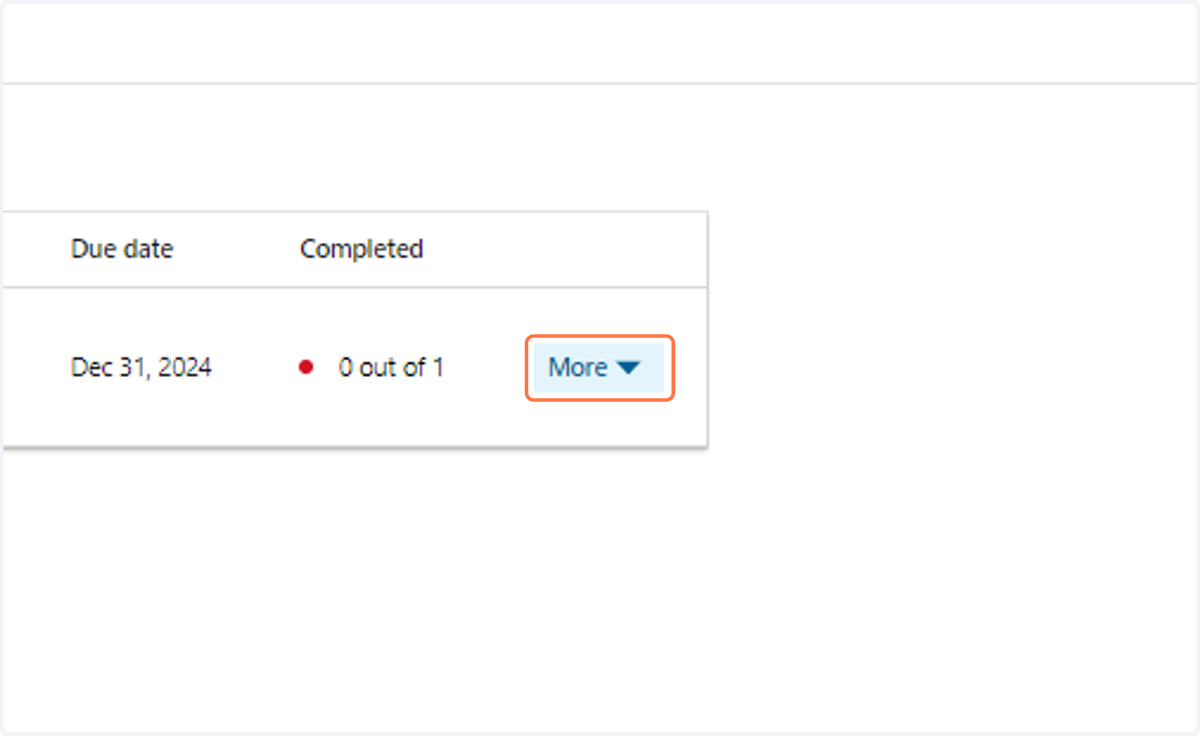
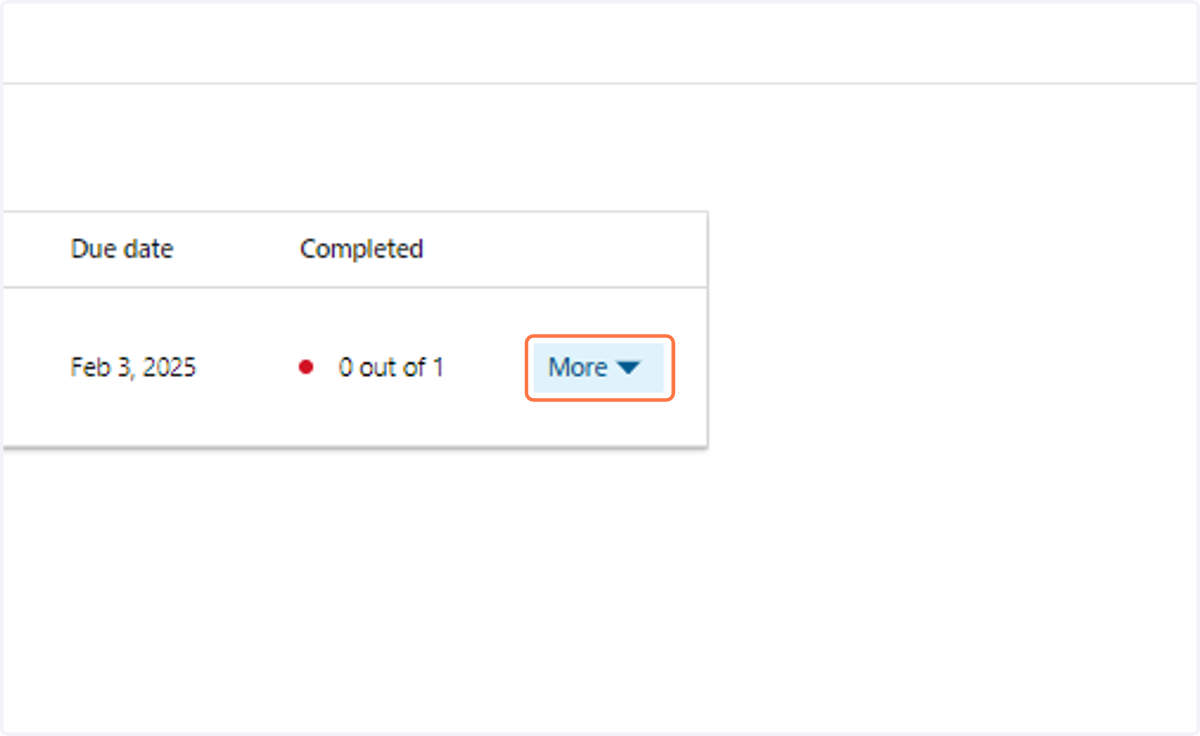
4. Click on More
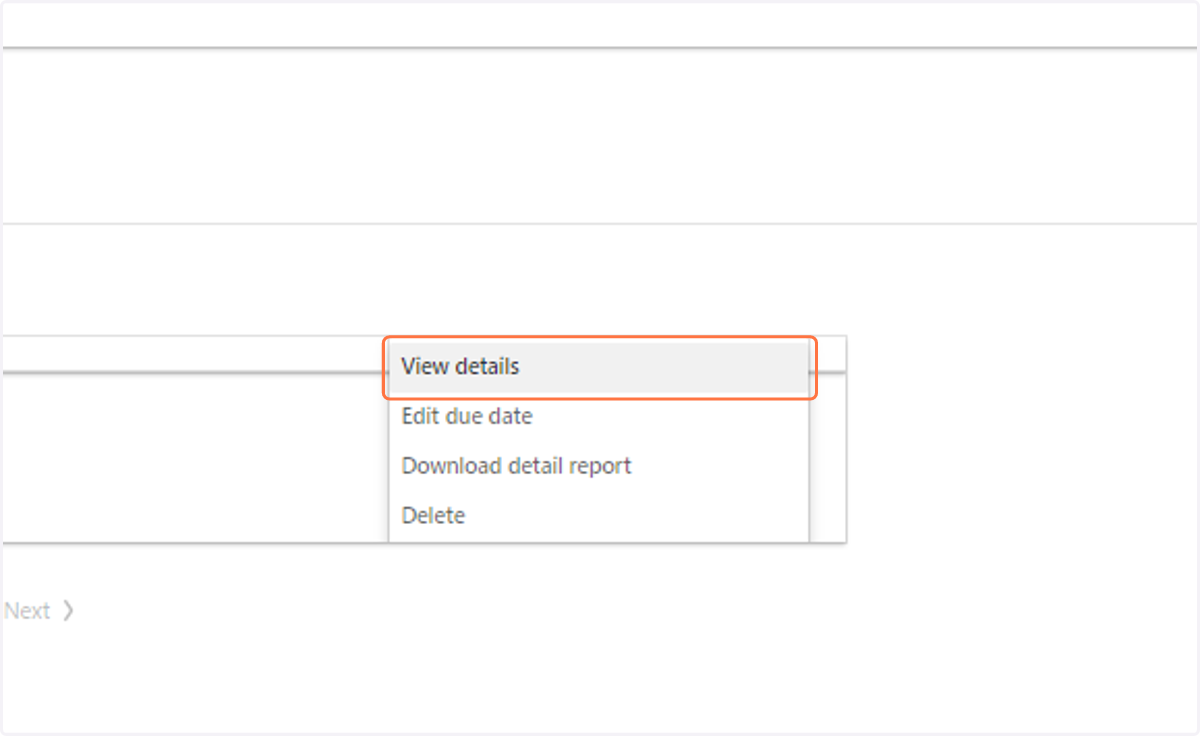
5. Click on View details to view learners and their progress
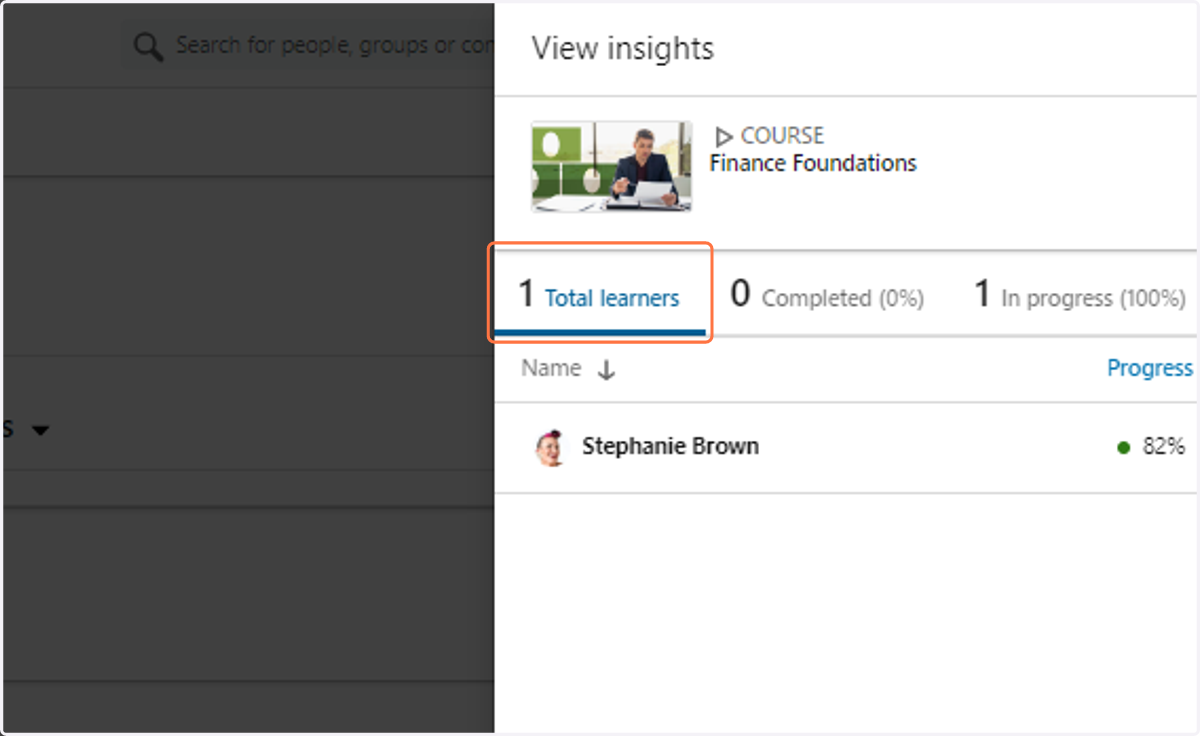
6. Click on Total learners to view who it has been assigned to
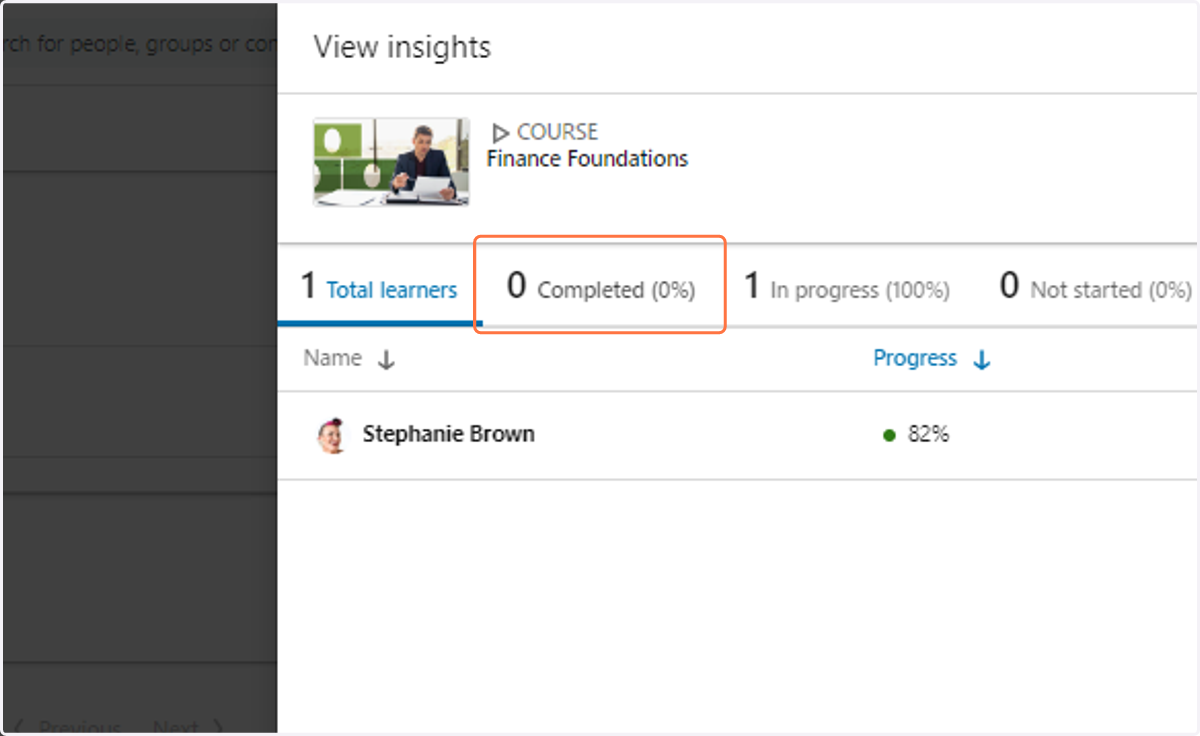
7. Click on Completed to view completions and individual progress
8. Click on In progress to view how many have started, but not finished the course
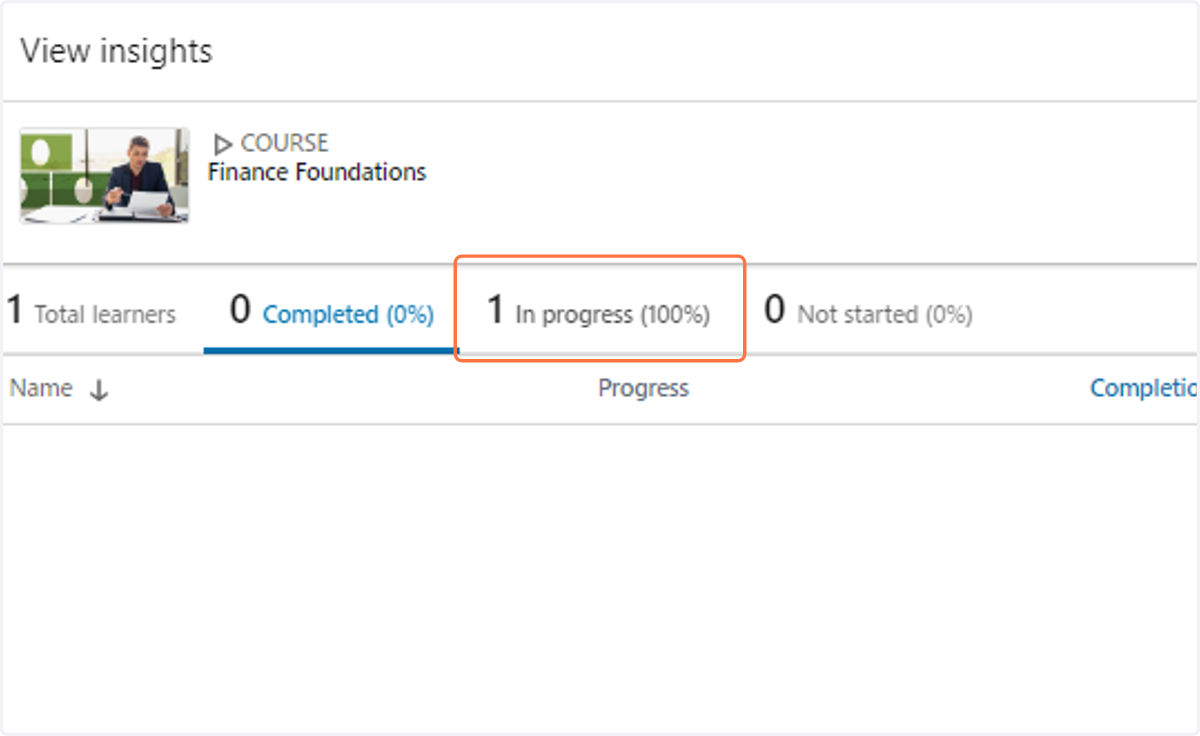
9. Click on Not started to view those who have not started viewing the course
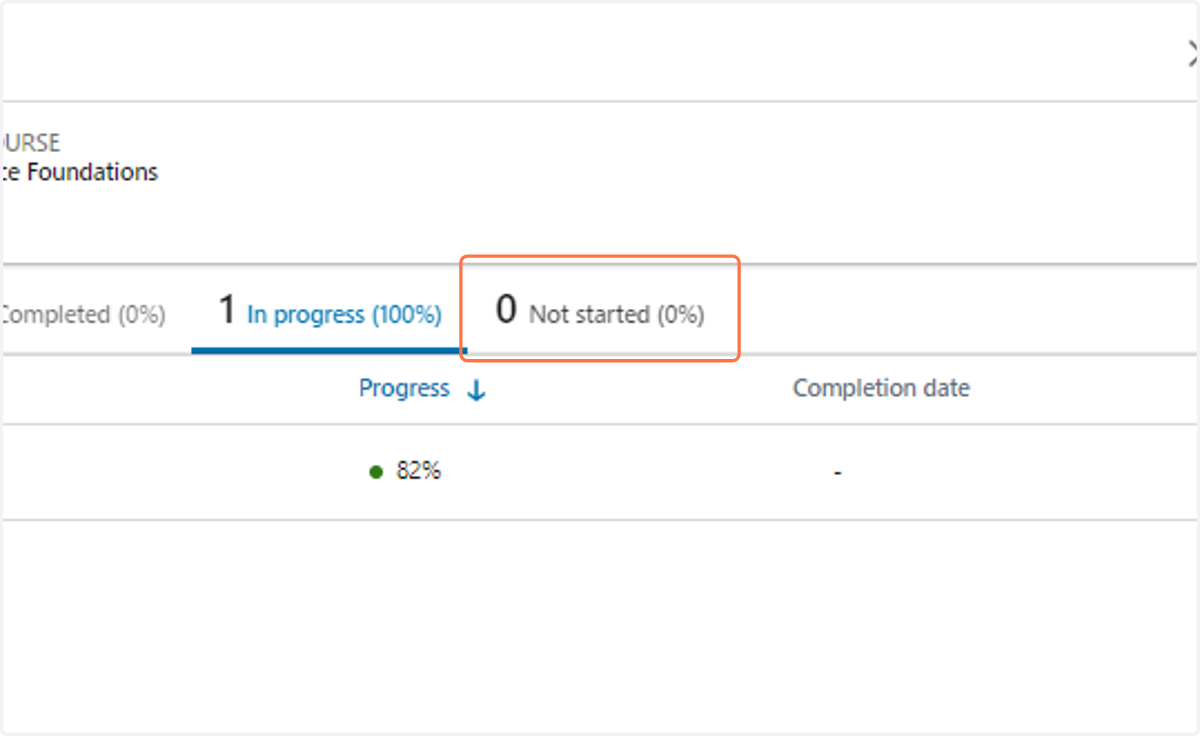
10. Click on the X to exit the "View Details" area
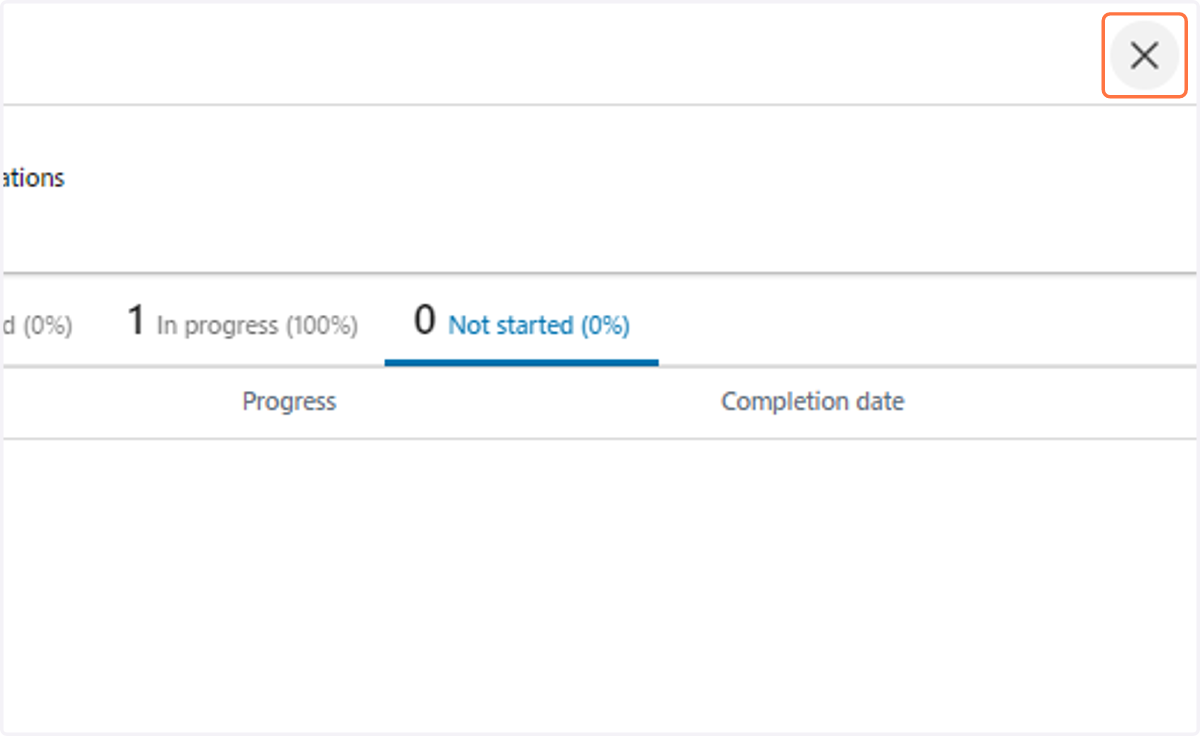
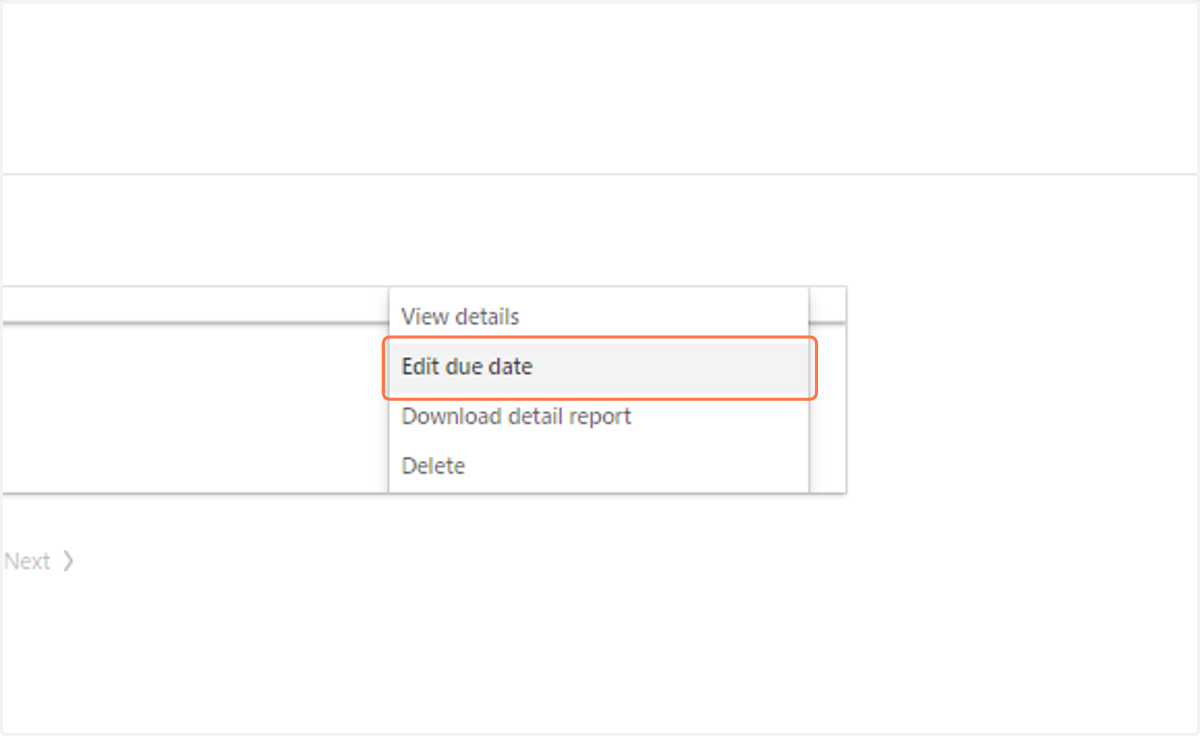
11. Click on More
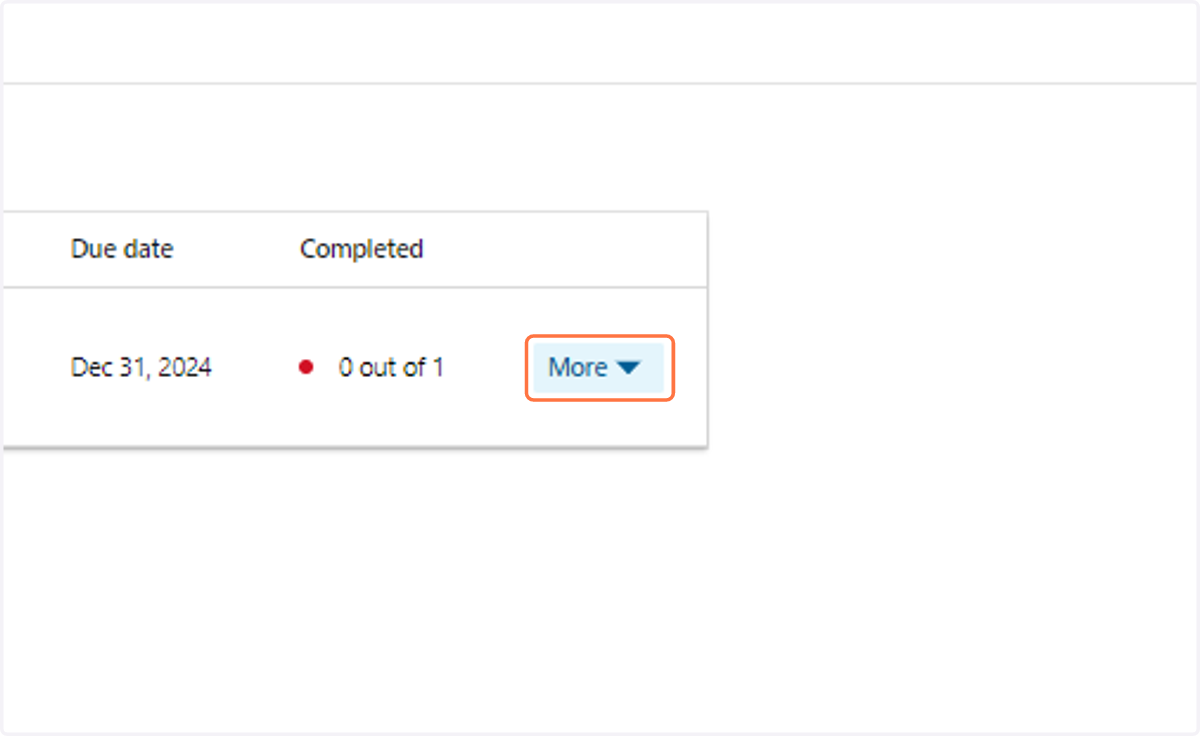
12. To edit due date, click on Edit due date
13. Click in the date field to open calendar flyout
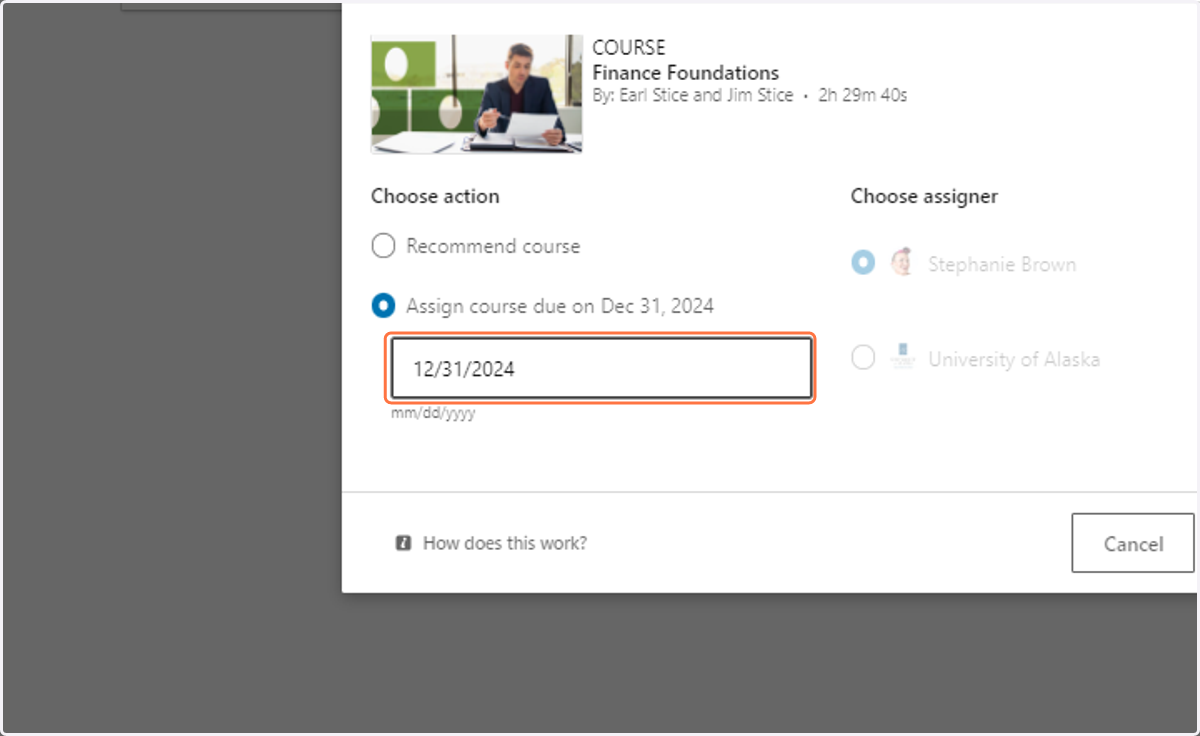
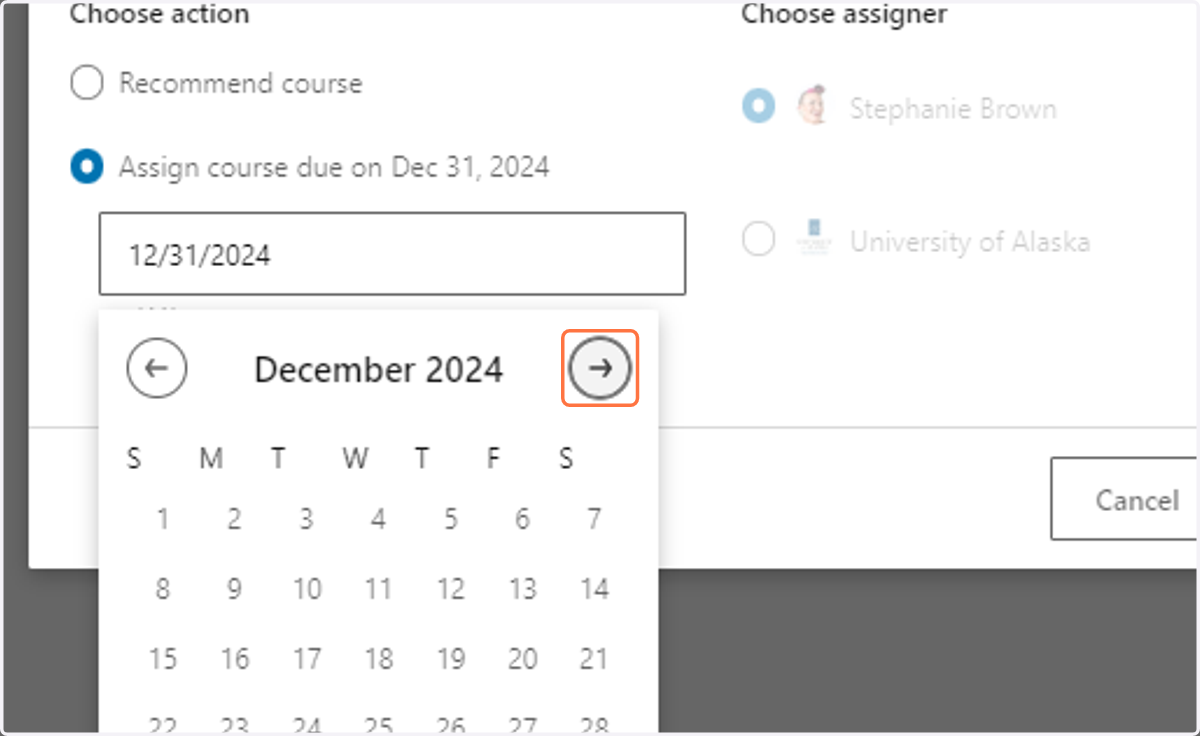
14. Choose the new due date on the calendar flyout (or enter manually in date field)
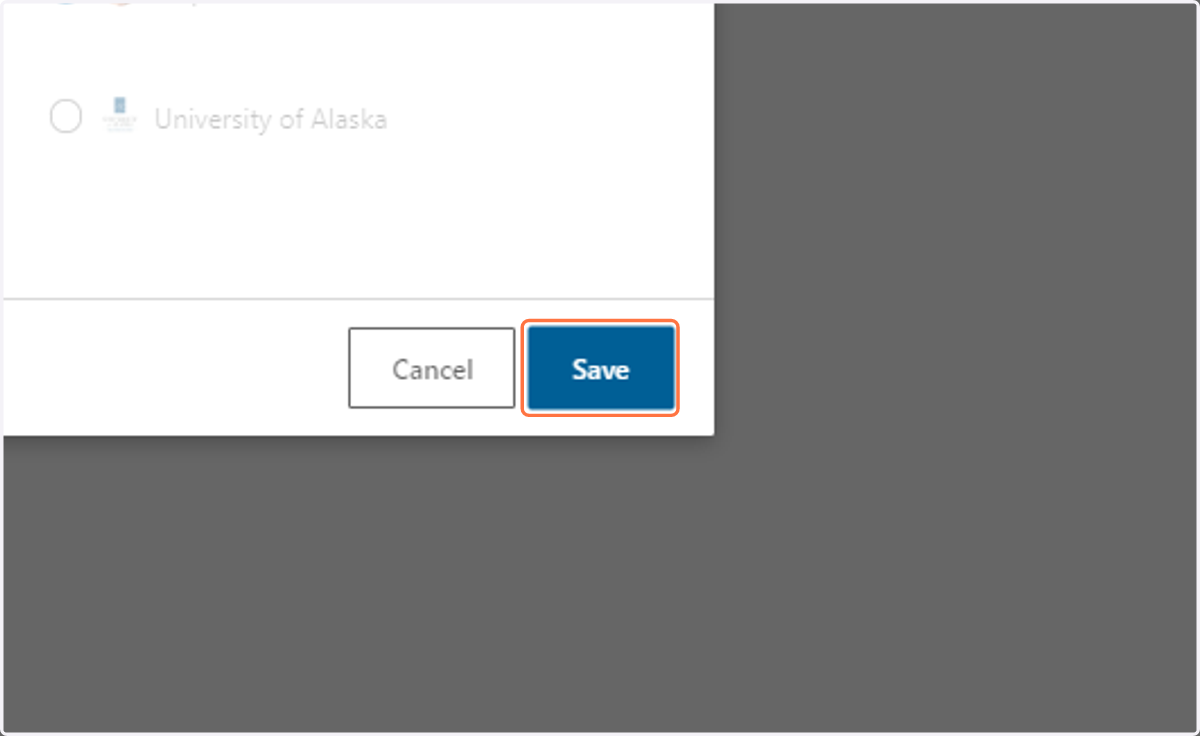
15. Click on Save
16. Click on More
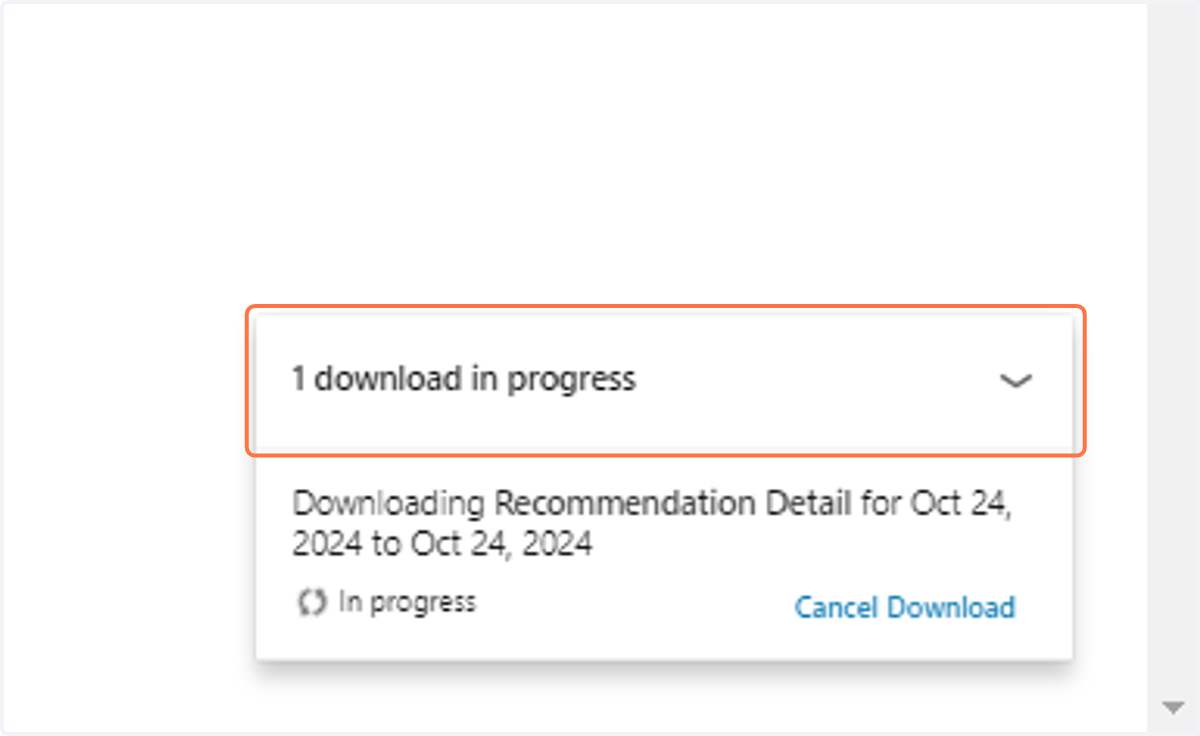
17. Click on Download detail report
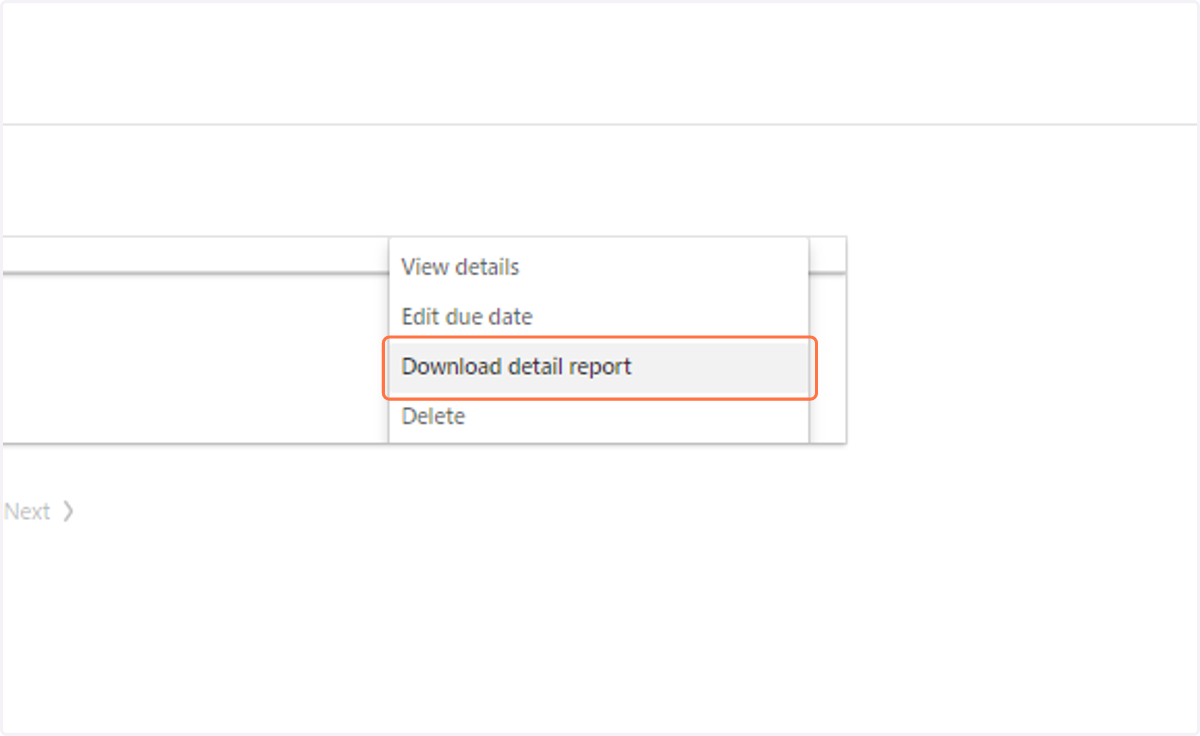
18. Check your downloads for detailed learner report