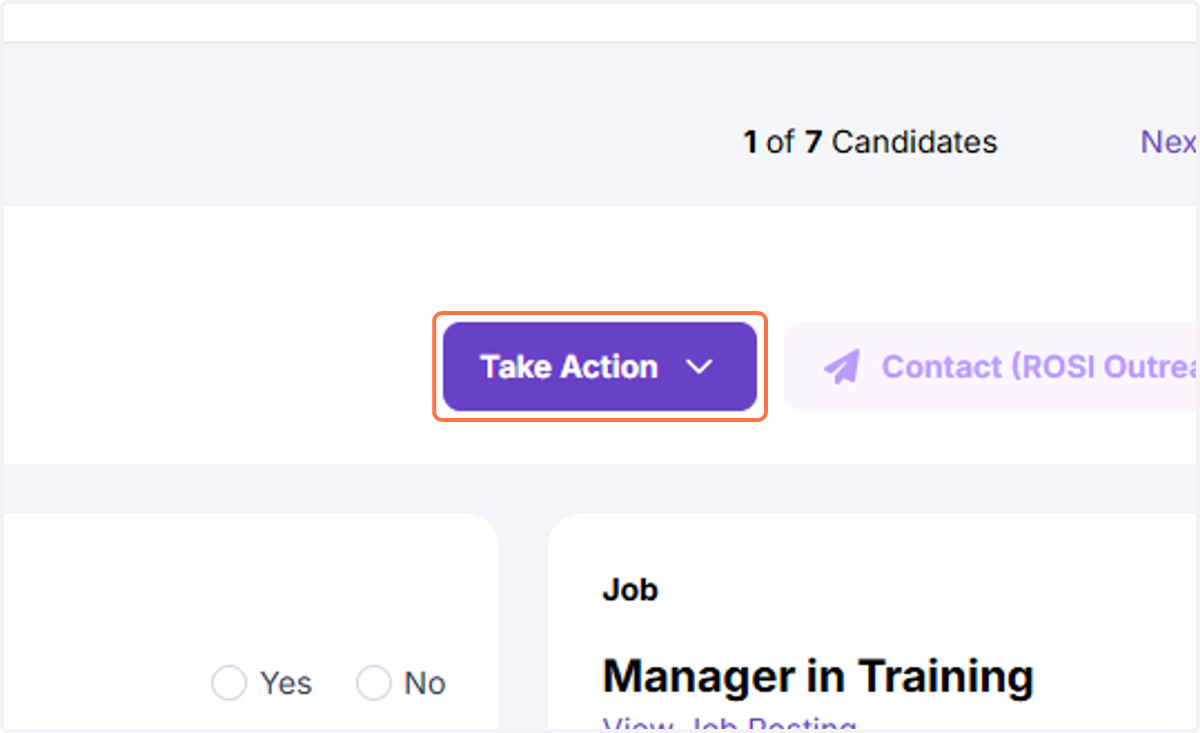
Take Action Button in Rival Recruit
DKPM | Rival Recruit
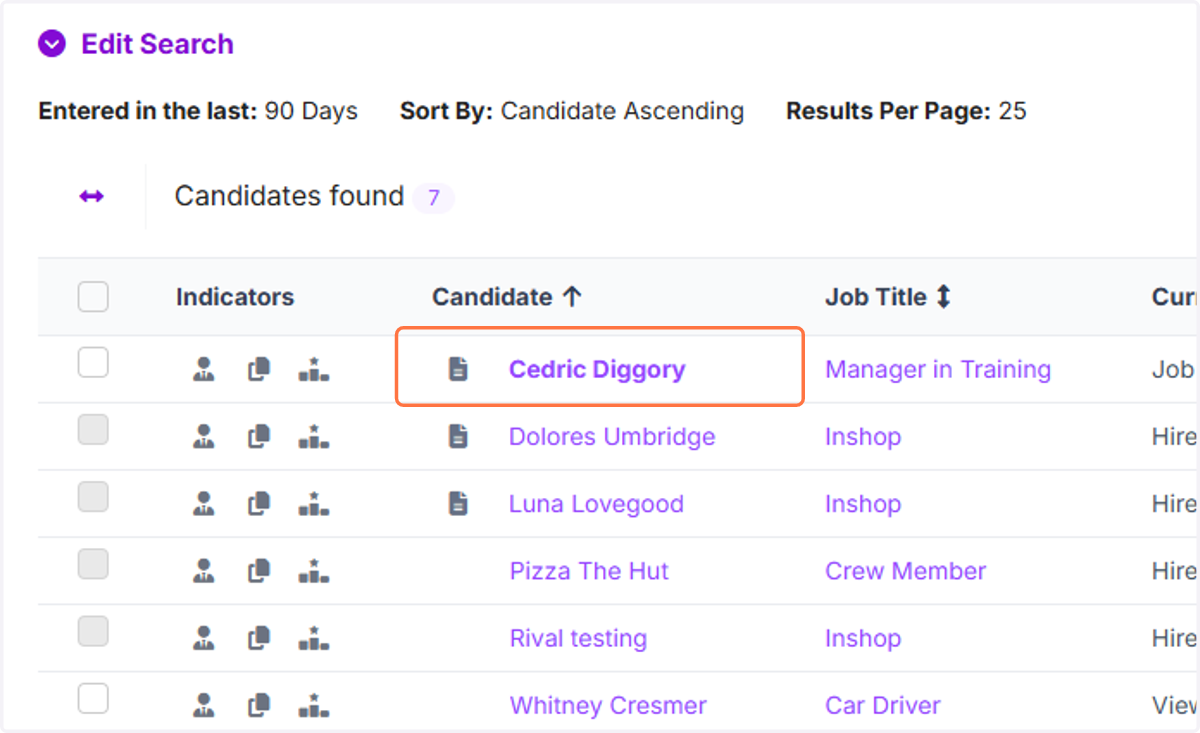
1. Click on Candidate
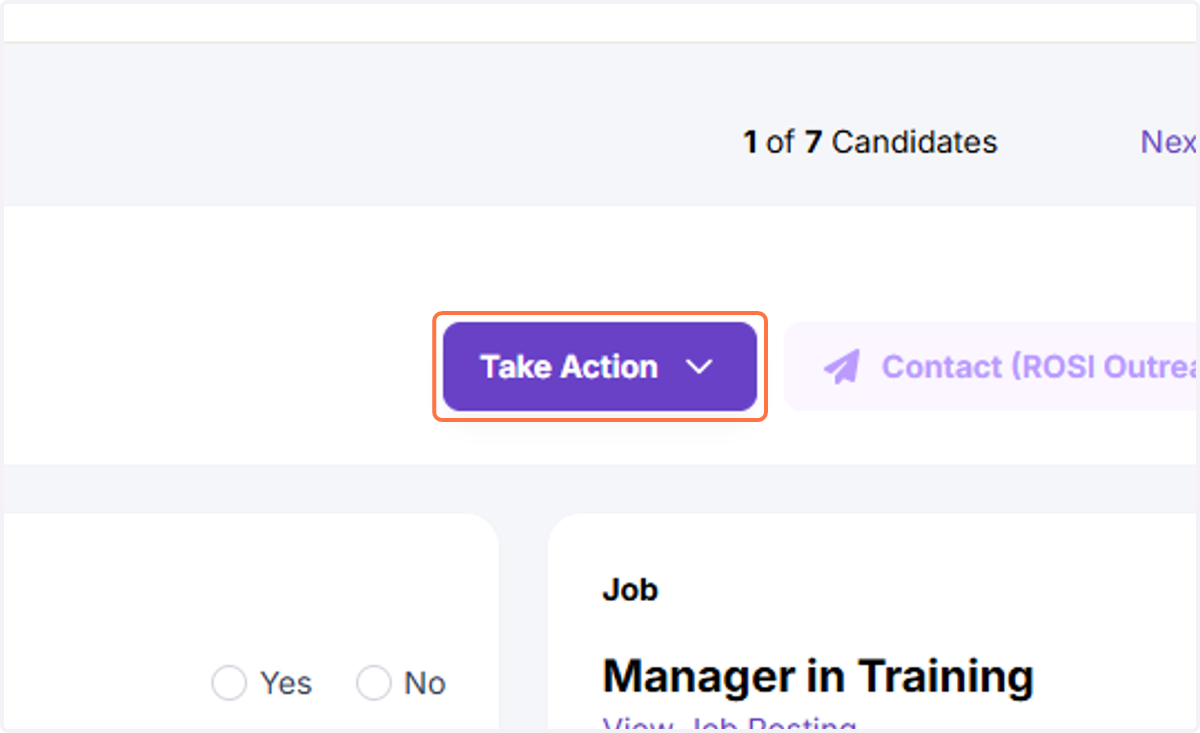
2. Click on Take Action
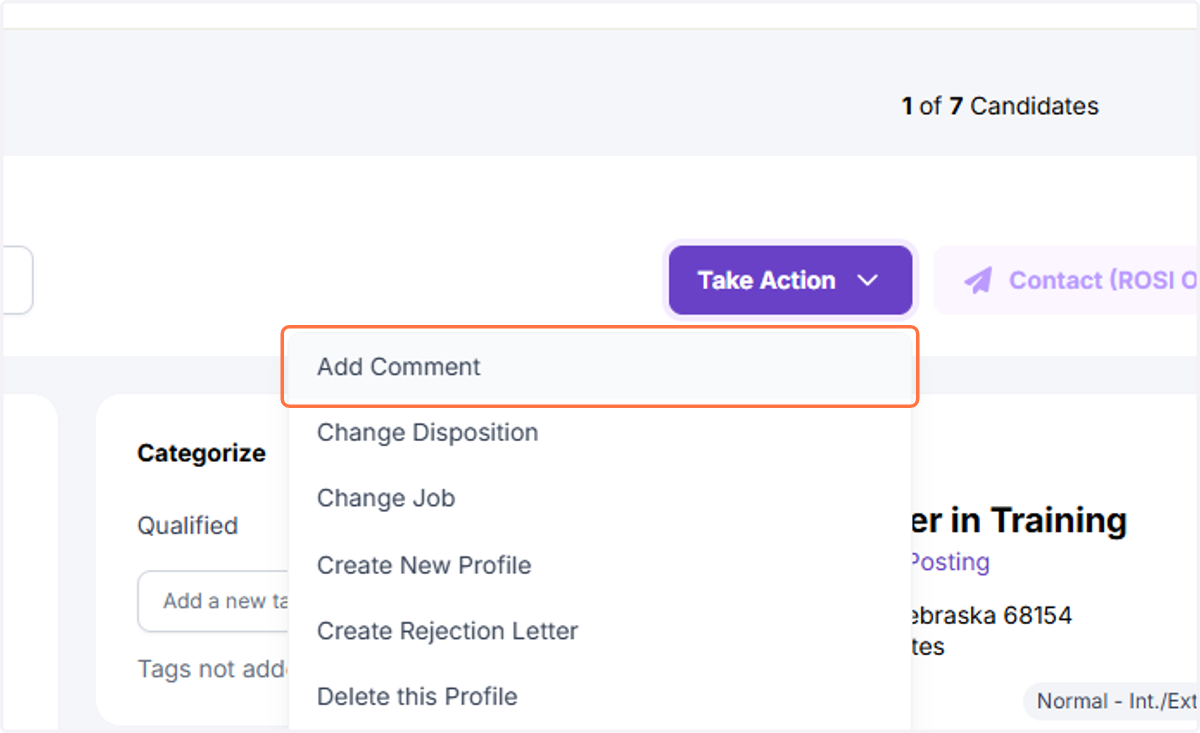
There are many options available in the take action menu.
Add Comment
3. Click on Add Comment
4. Type your comment in text field
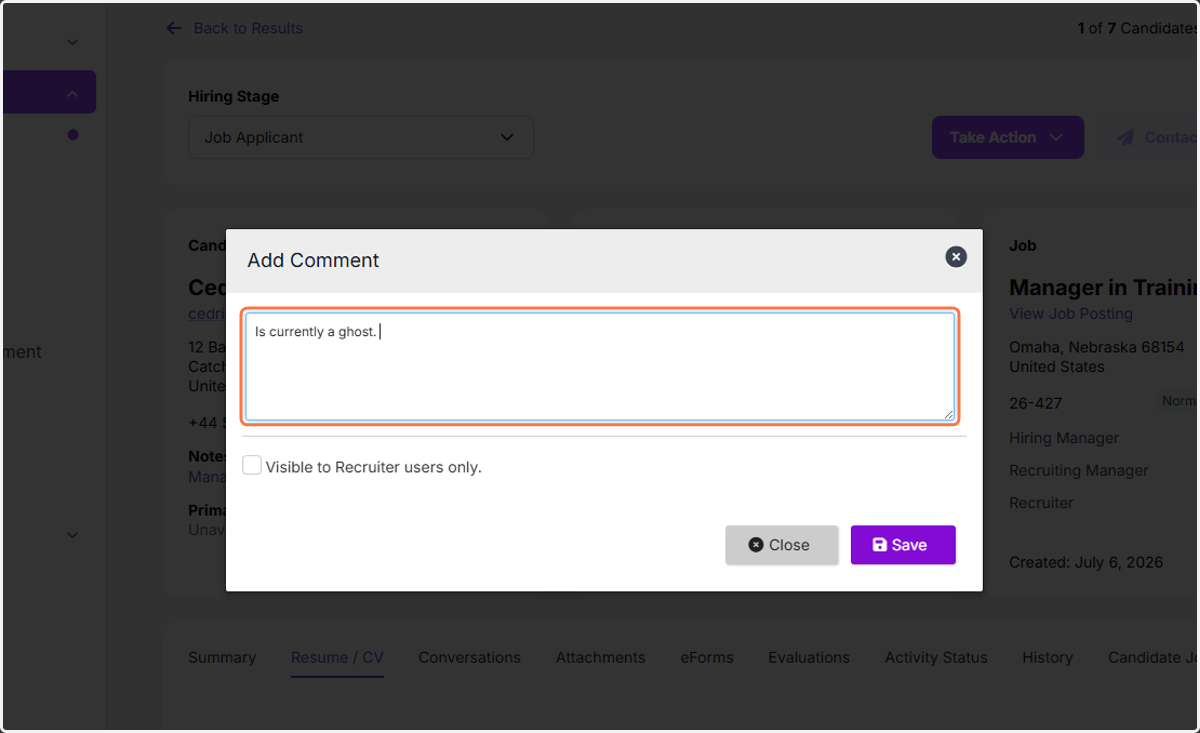
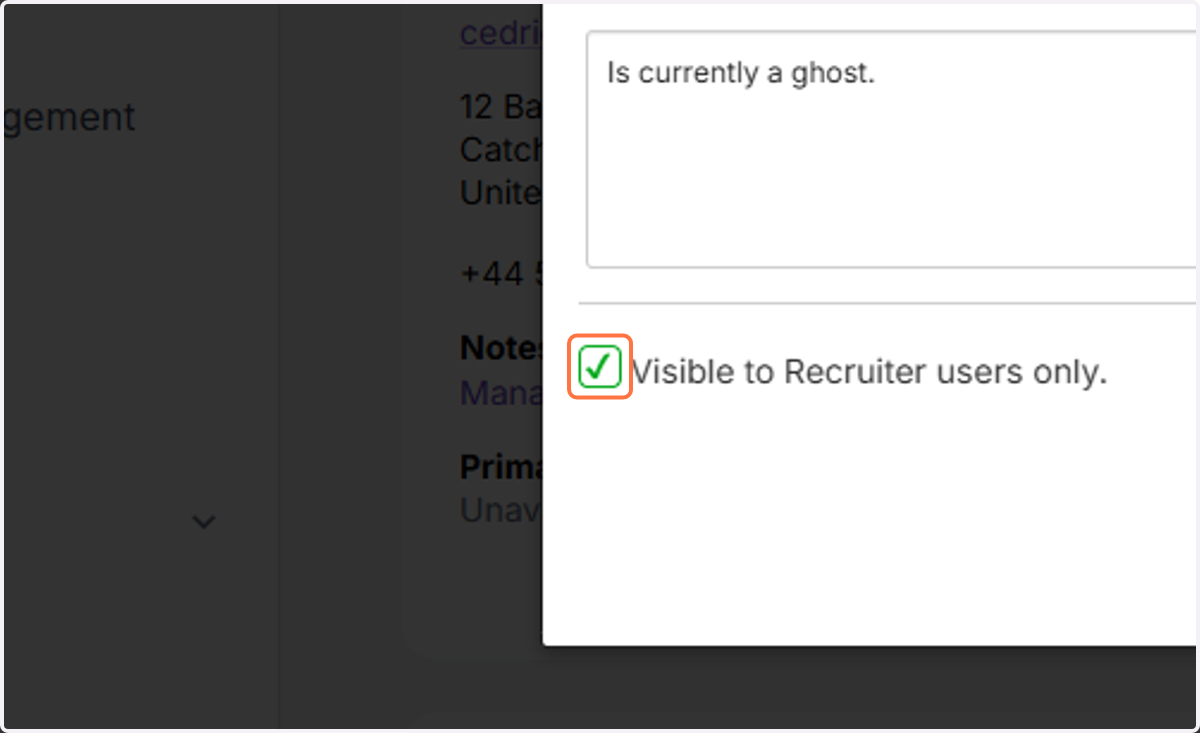
5. Select Visible to Recruiter users only.
This is optional but will keep comments hidden from the candidates or hiring manager
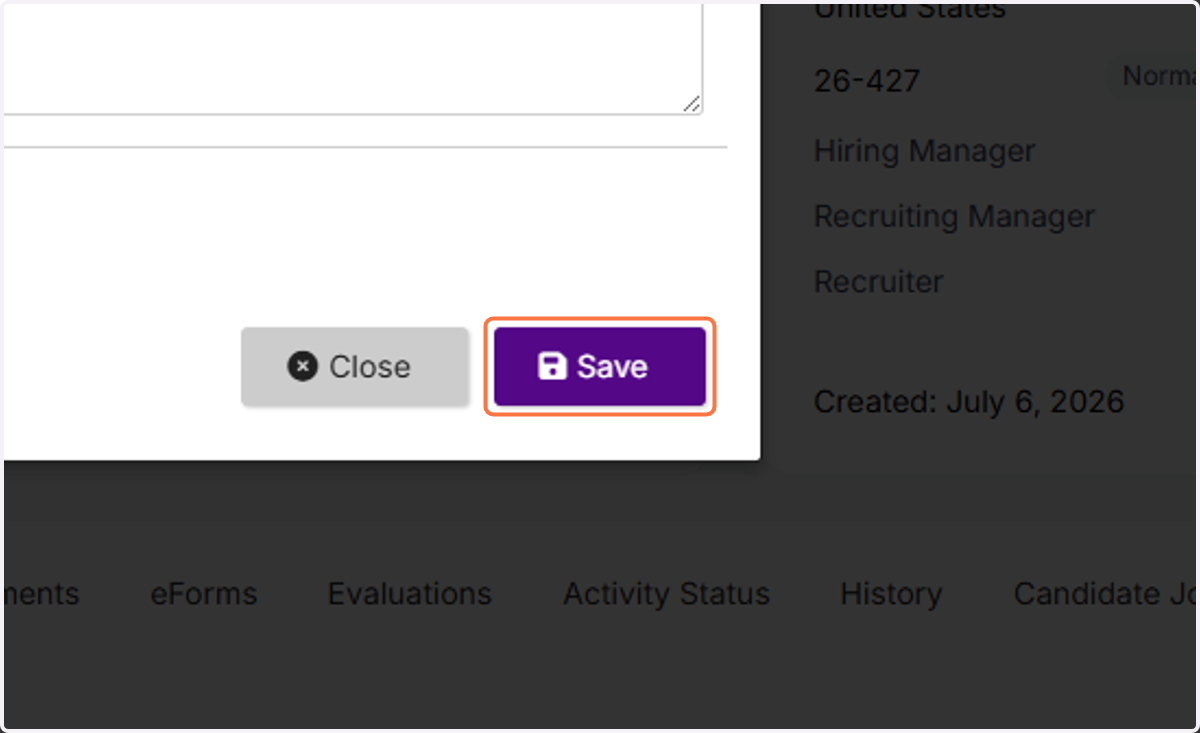
6. Click on Save
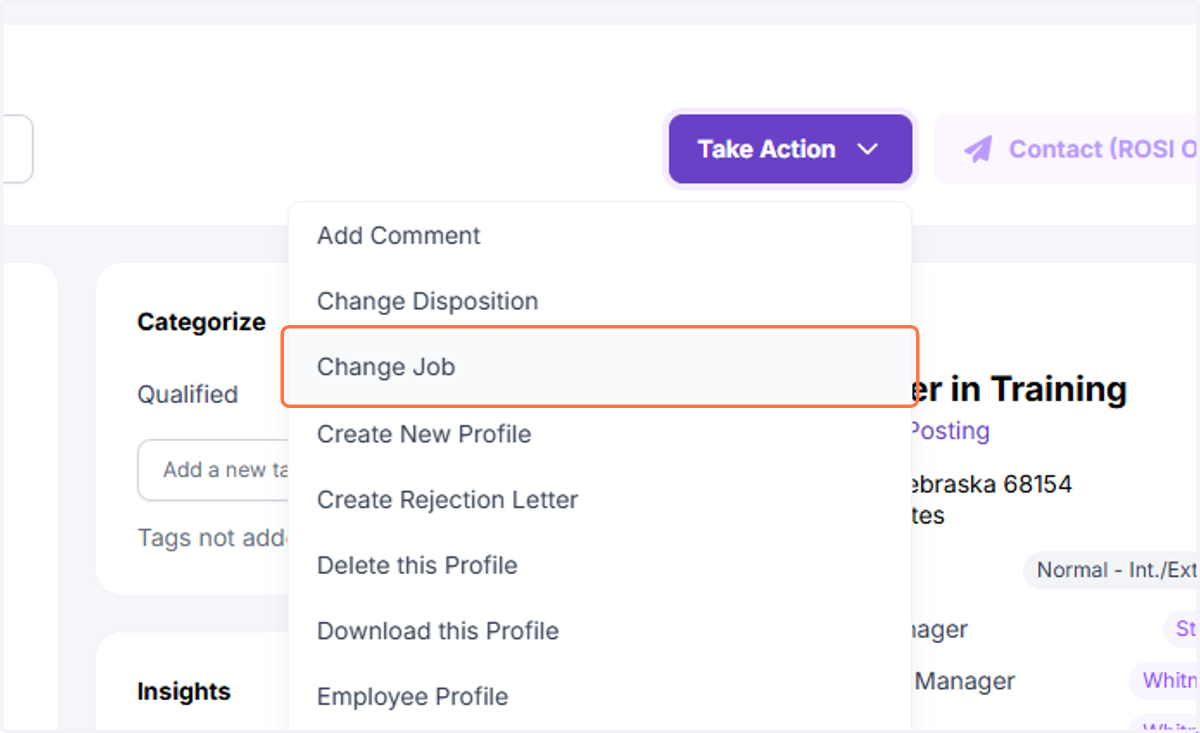
Change Job
This will move your candidate to another open job in the system
7. Click on Change Job
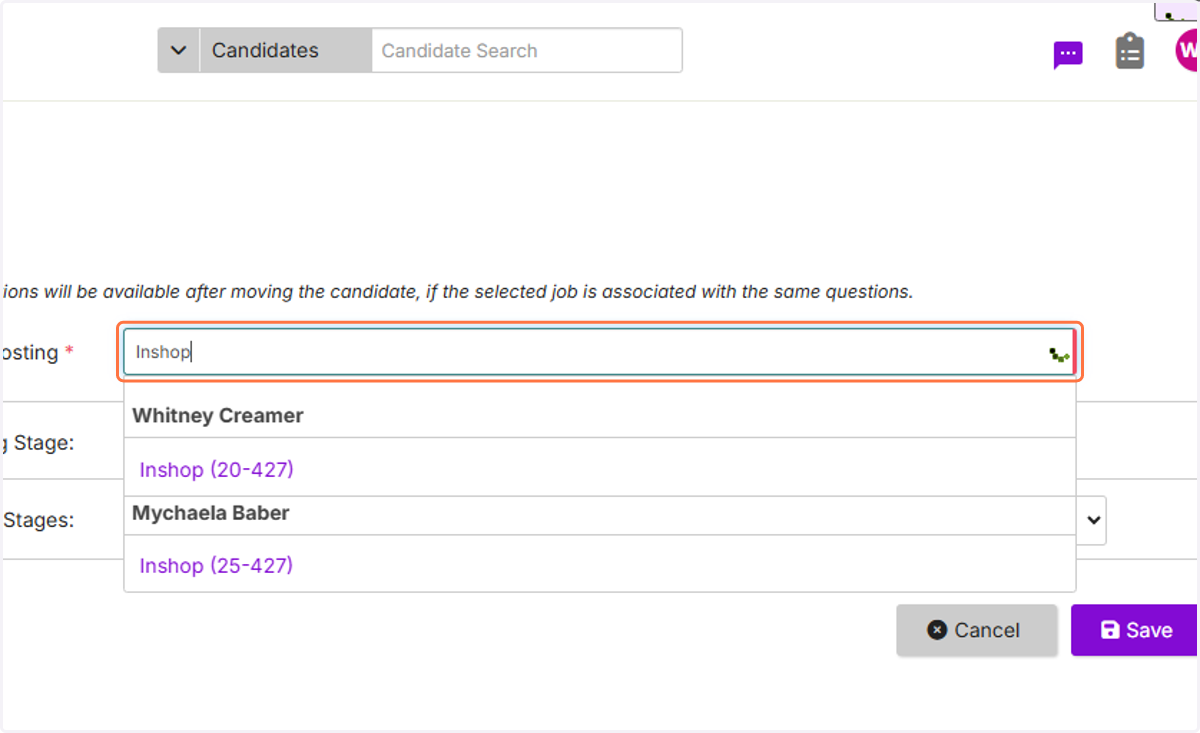
8. Type the job title in the Associate With Job Posting page
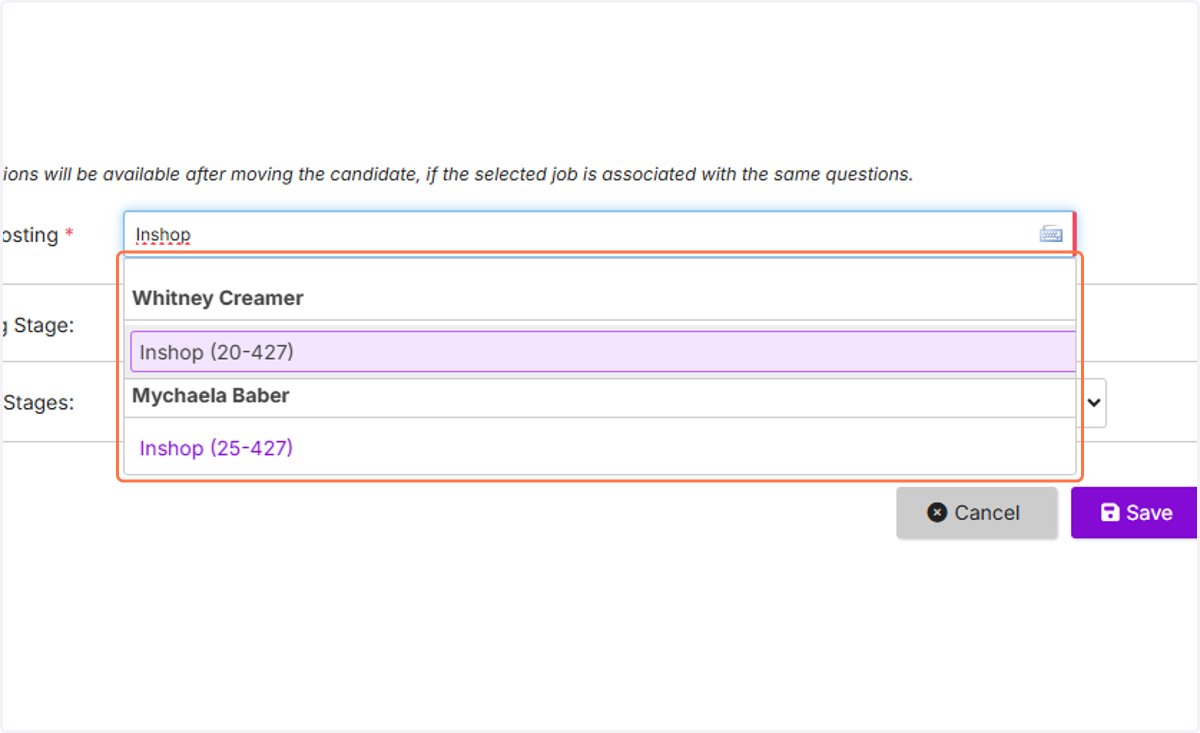
9. Click on an option
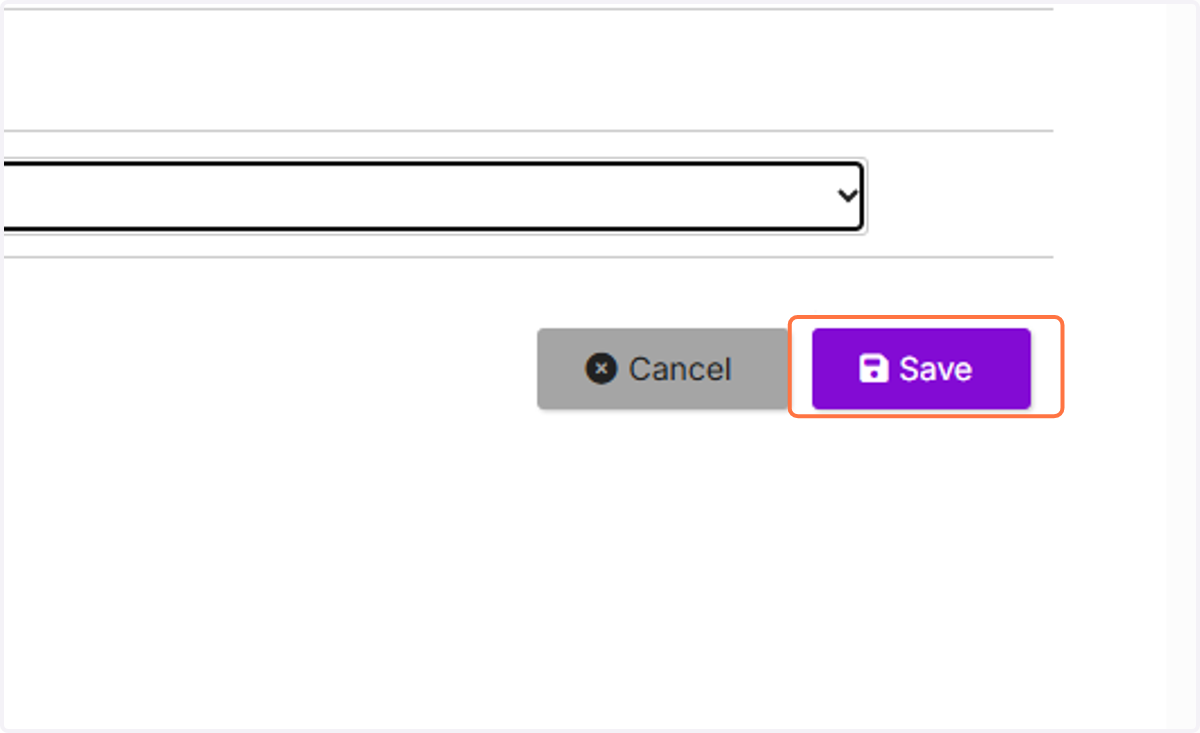
10. Click on Save
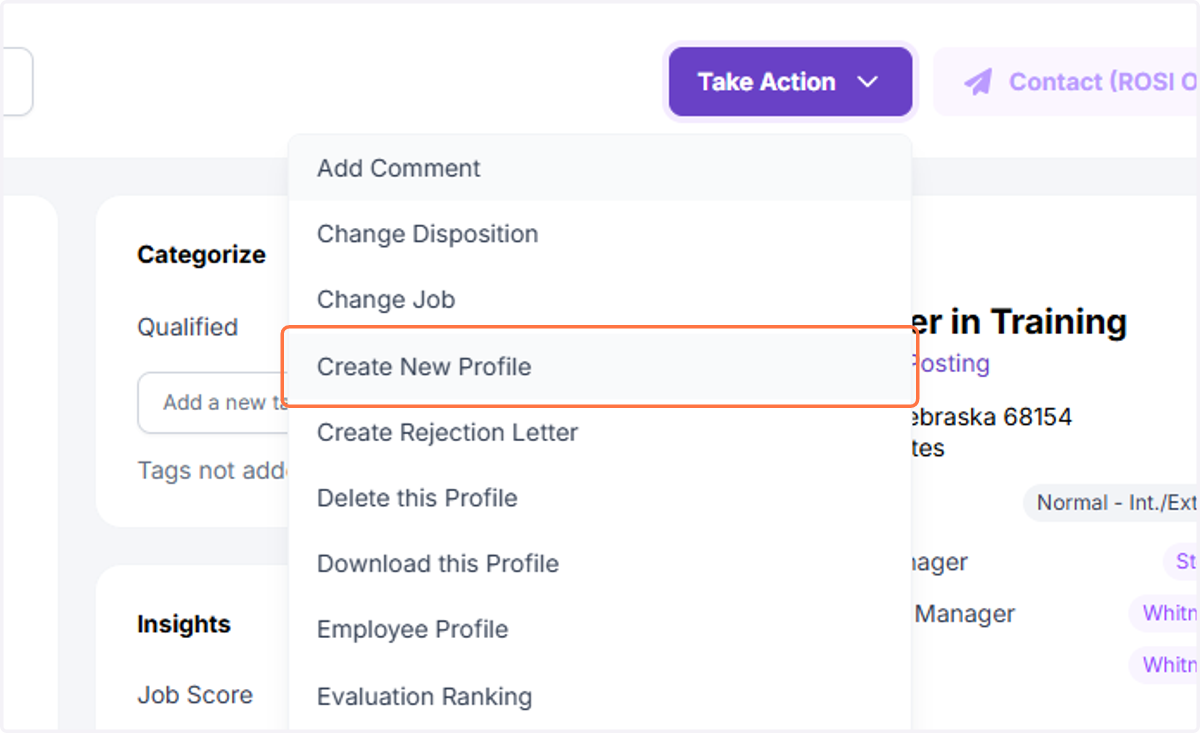
Create New Profile
This is similar to change job, but will create a duplicate profile, creating the ability to track in two job openings at once
11. Click on Create New Profile
12. Type the job's title in Associate With Job Posting
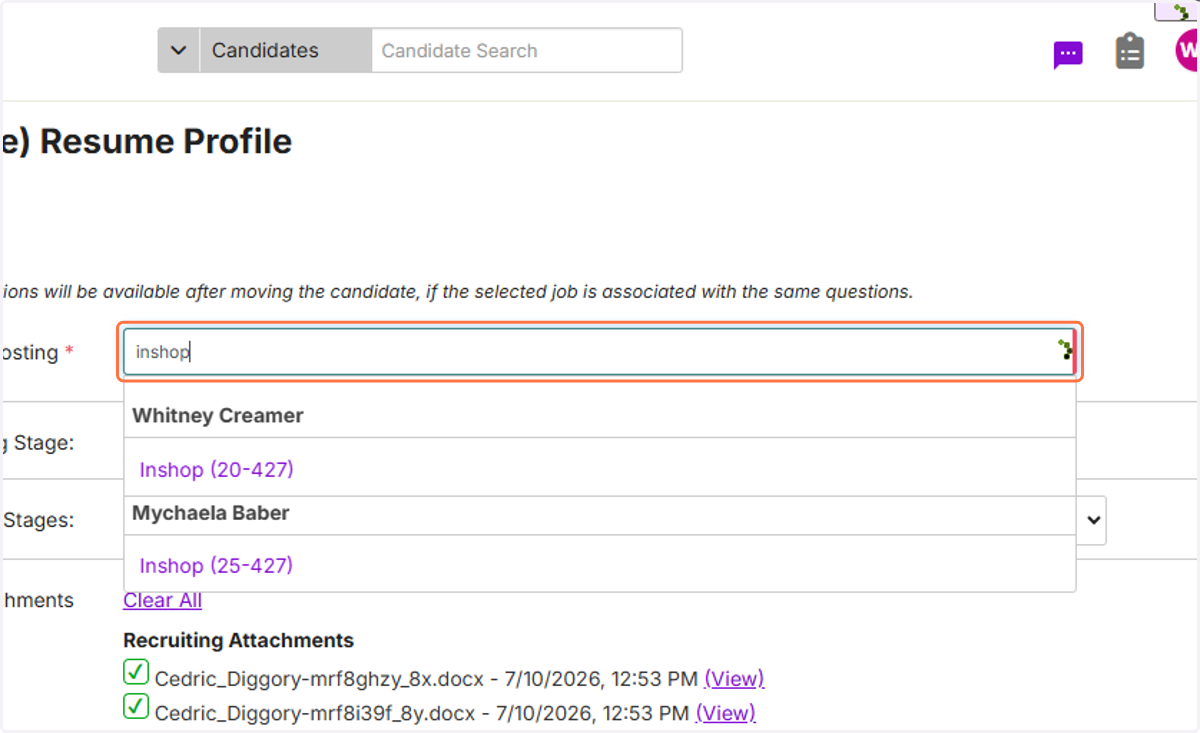
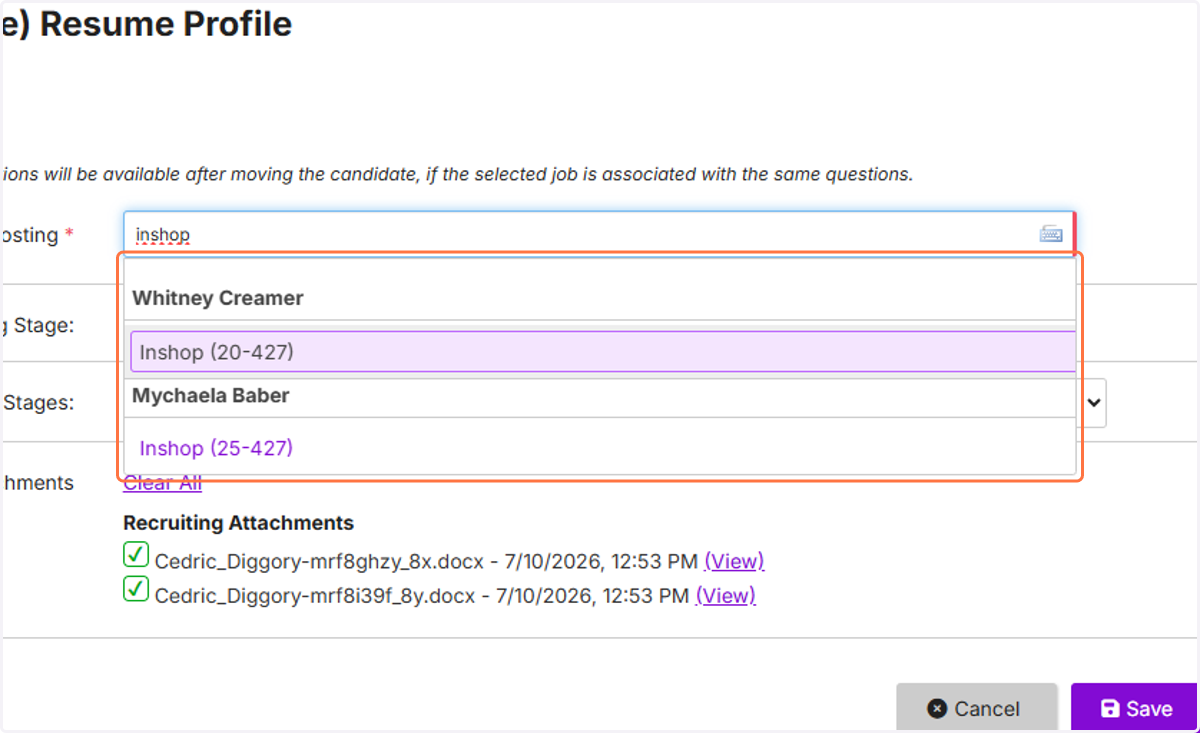
13. Click on an option
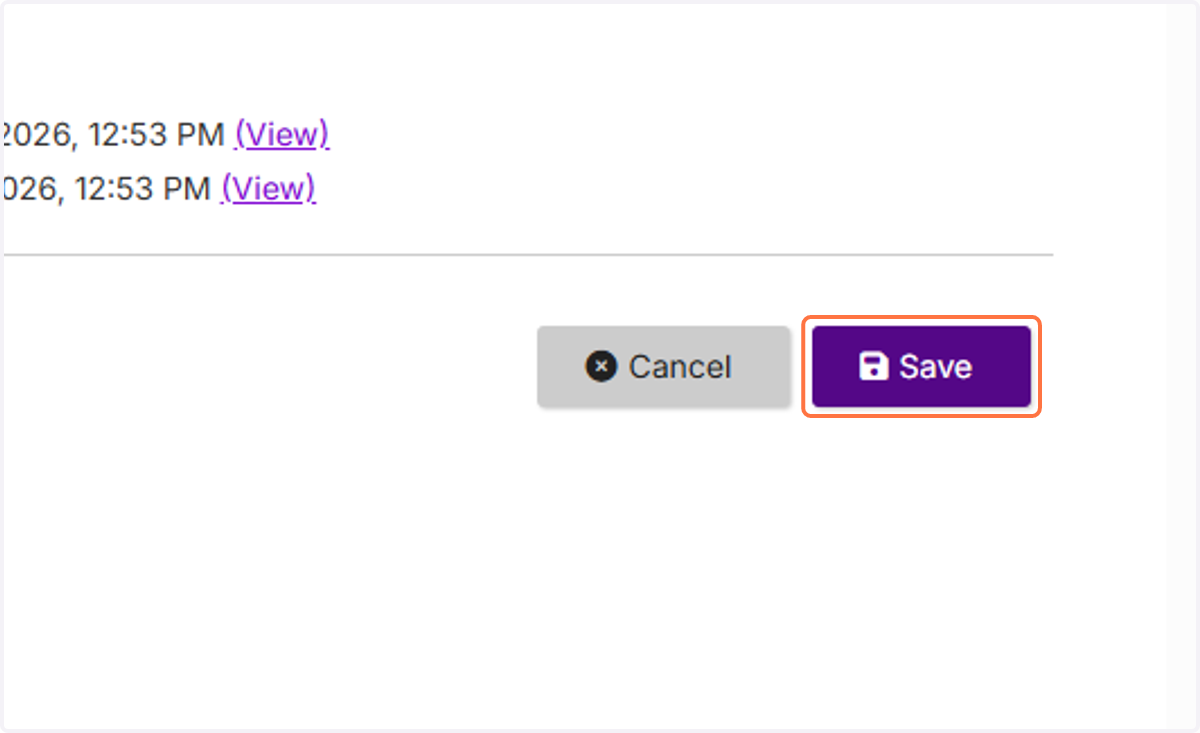
14. Click on Save
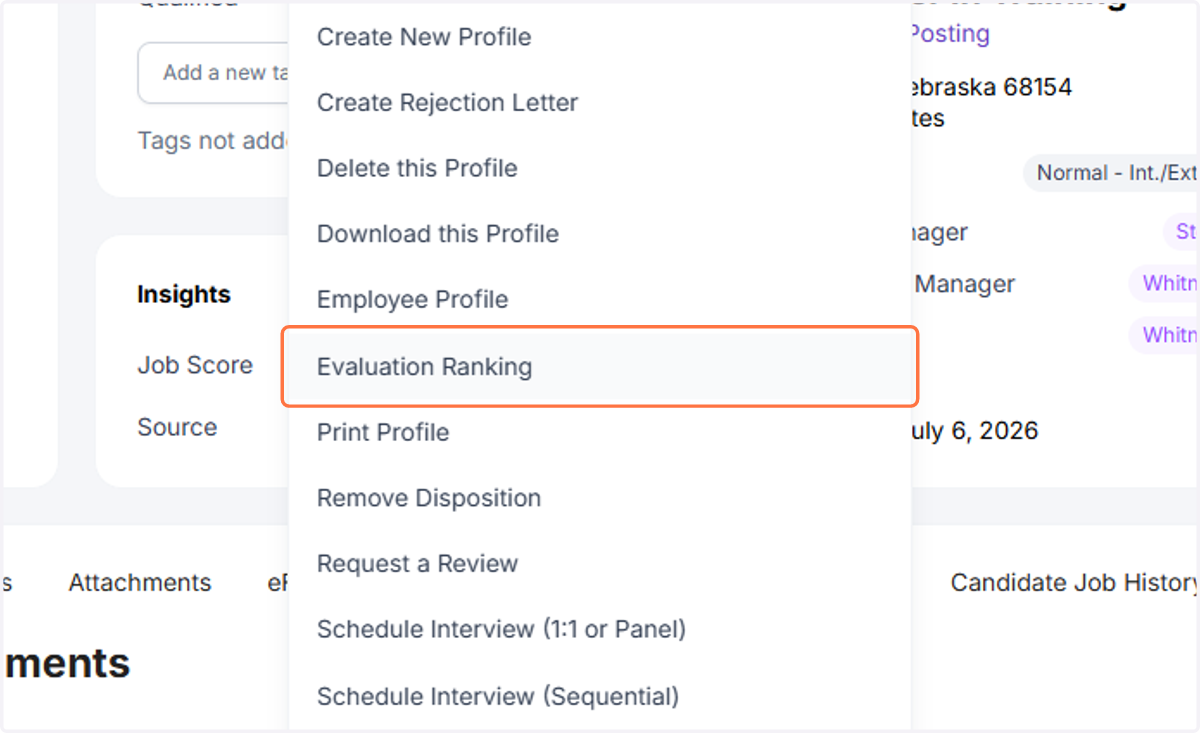
Evaluation Ranking
This is optional. The evaluation ranking will allow you to score the employee on whether they are a good fit.
15. Click on Evaluation Ranking
16. Select an option for each of the questions
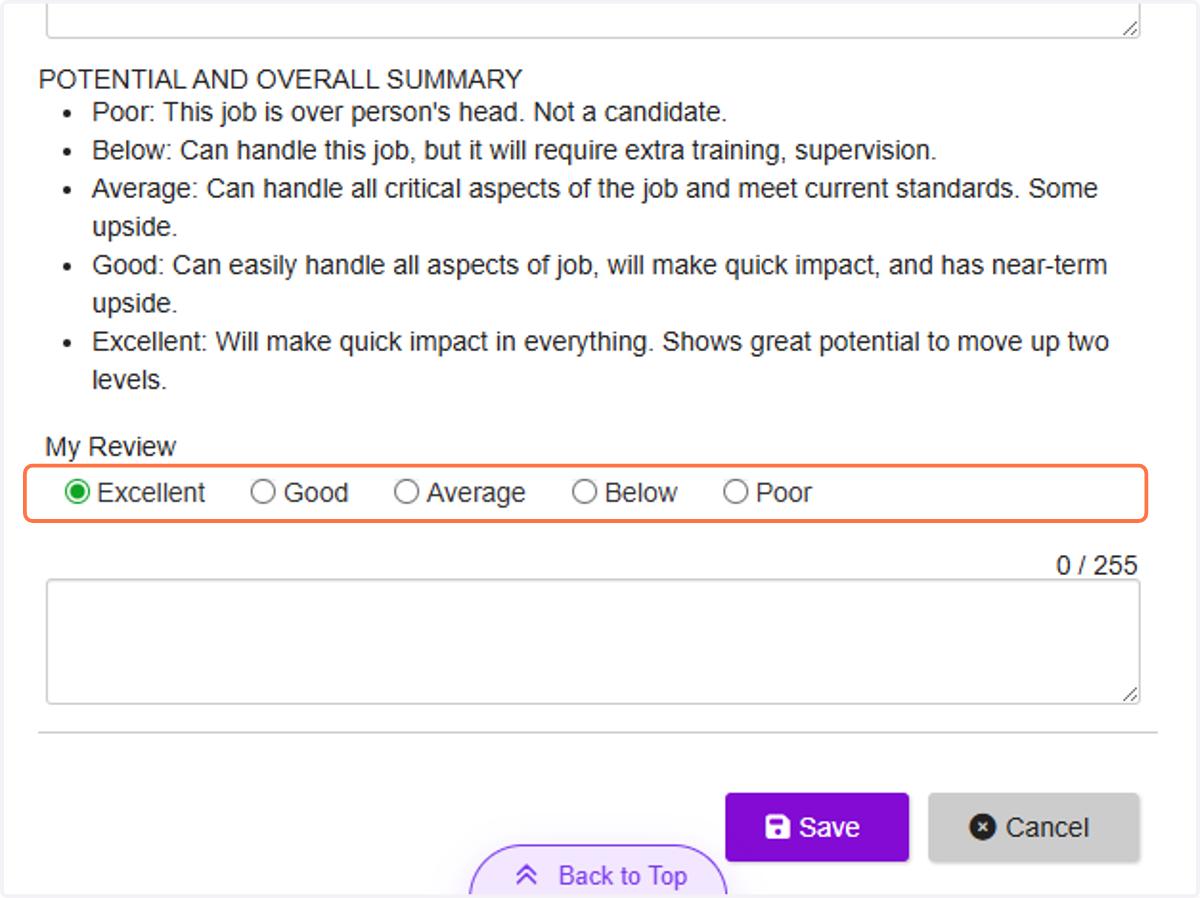
17. Click on Save
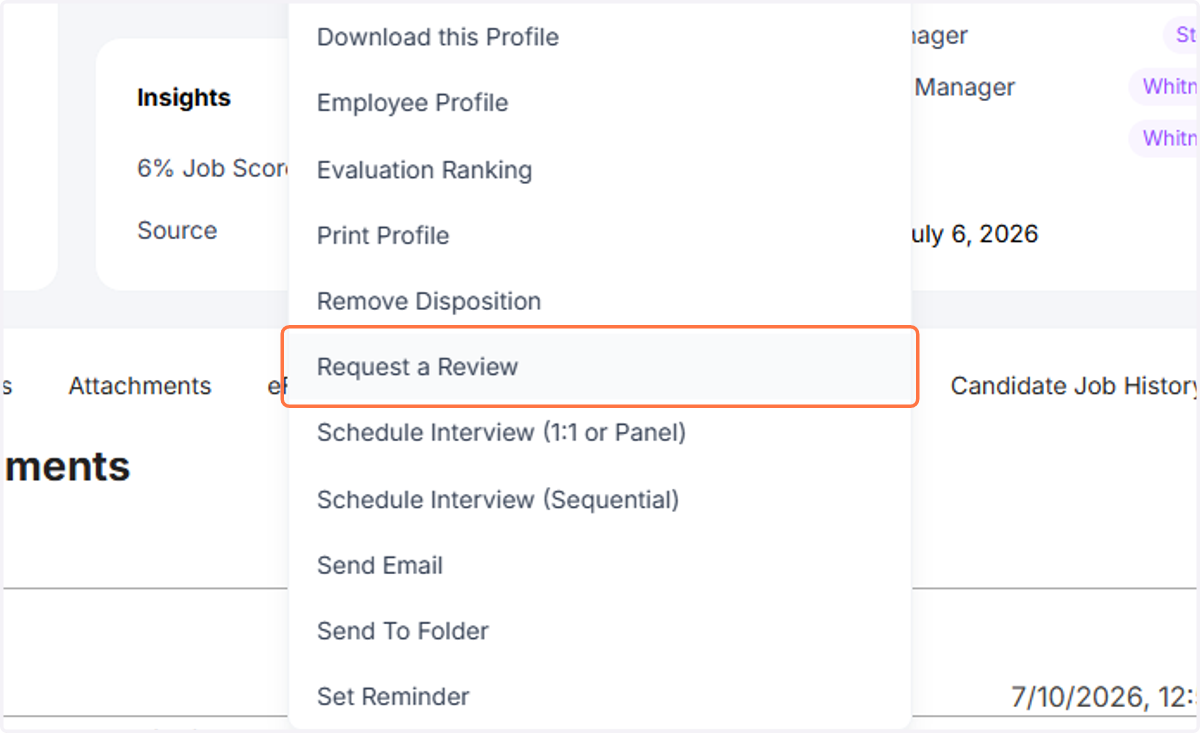
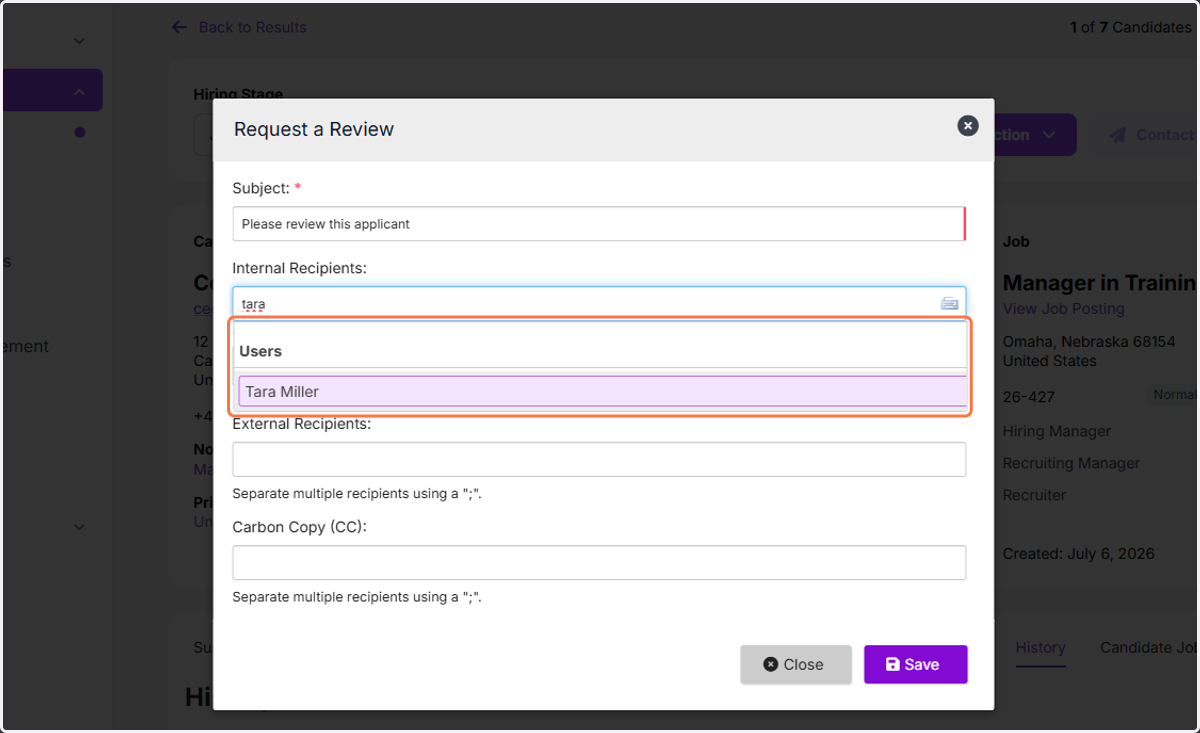
Request a Review
You can send the applicant's profile to a peer or a District Manage for them to review.
18. Click on Request a Review
19. A. Type Subject
19. B. Type in text field
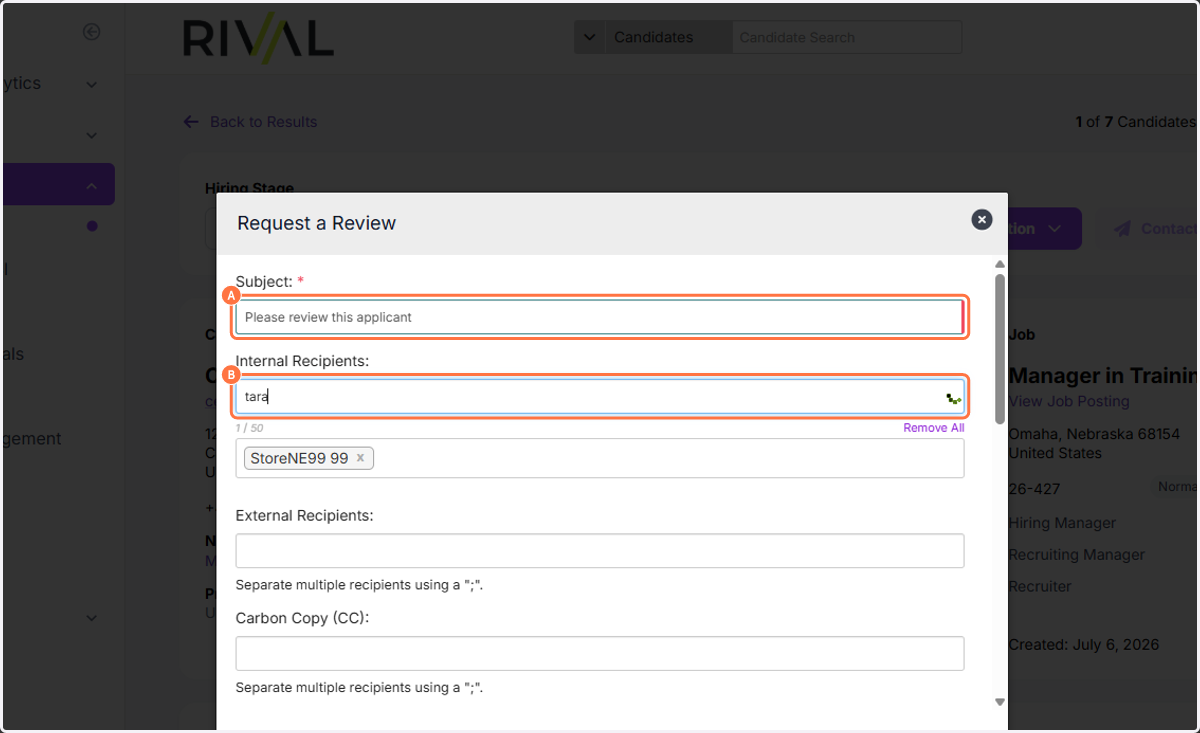
20. Click on the user you want to review your candidate
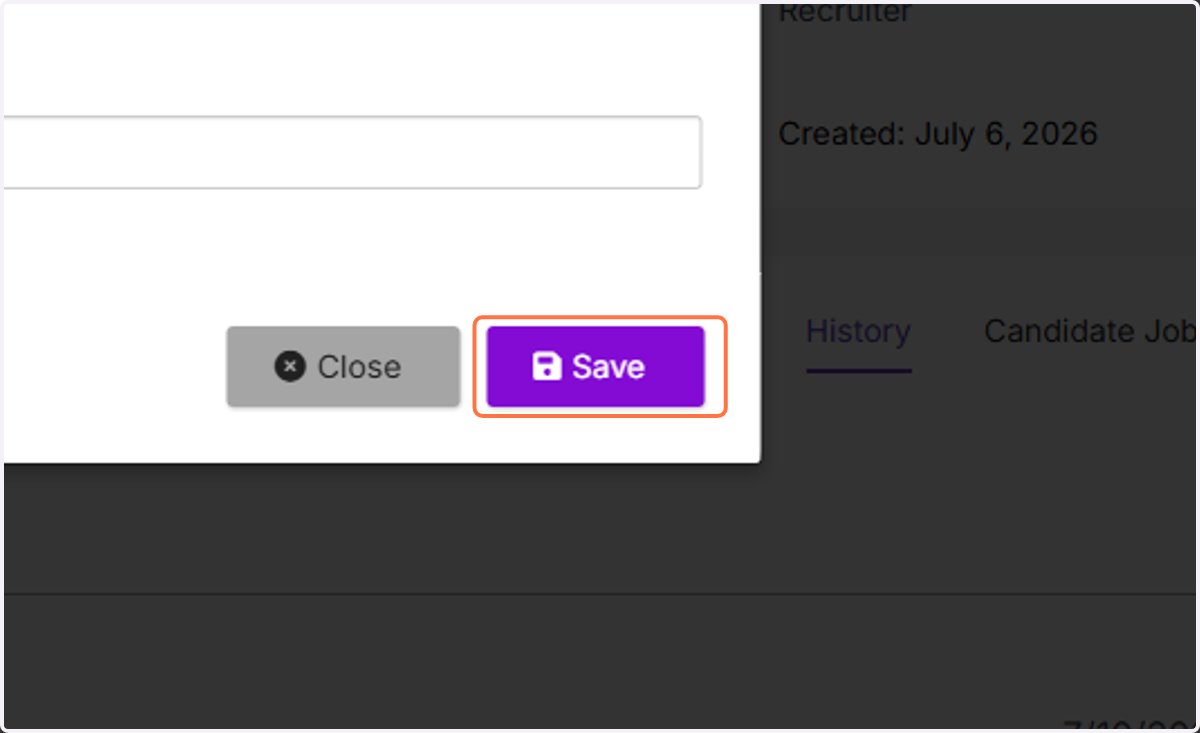
21. Click on Save
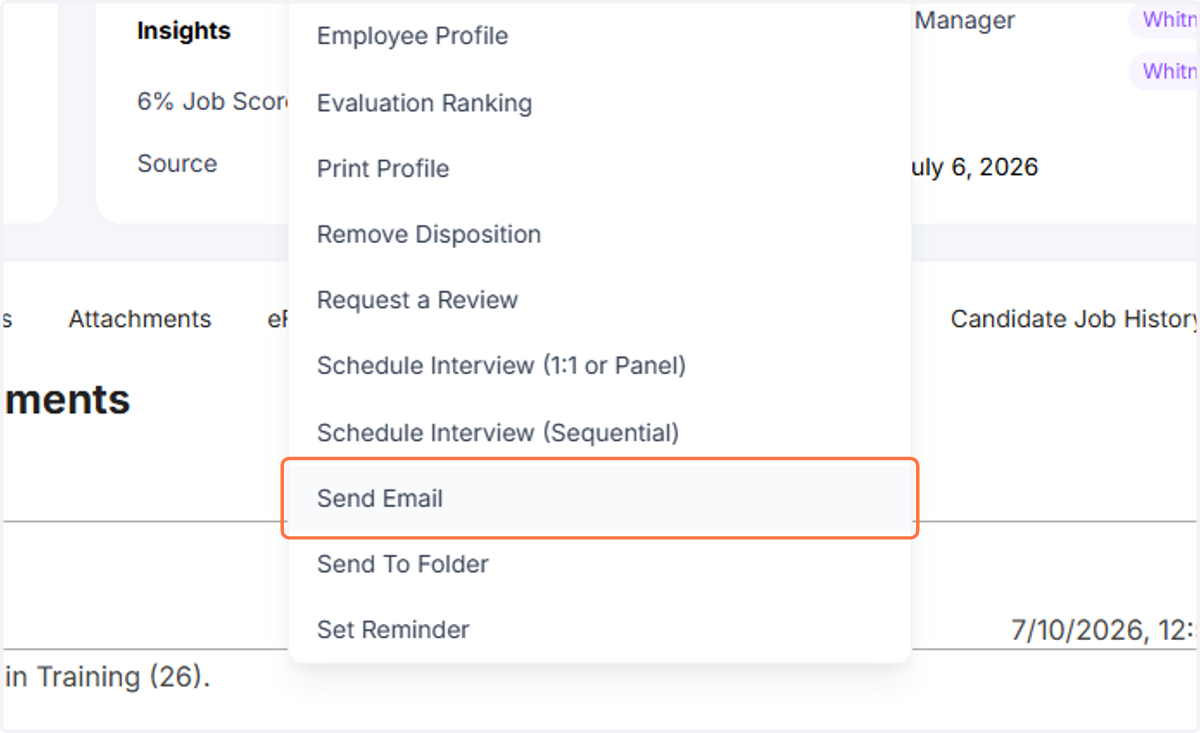
Send Email
Send the applicant an email from one of our templates
22. Click on Send Email
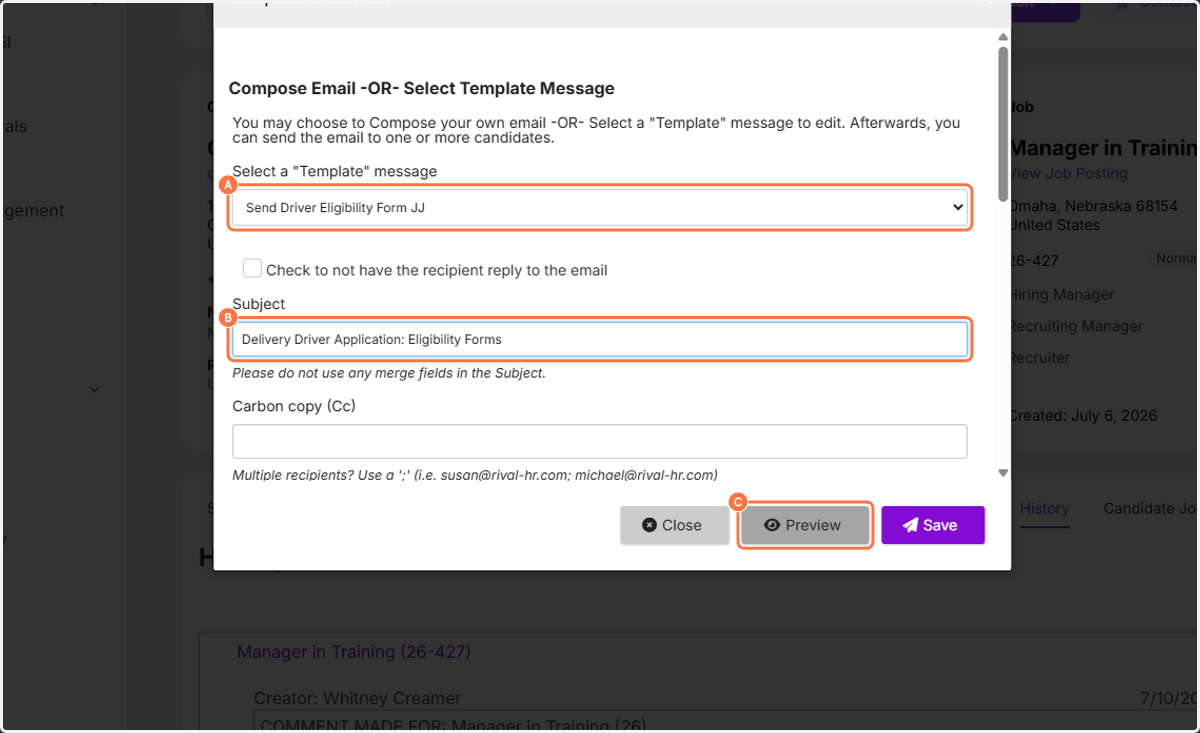
23. A. Select Select a "Template" message
23. B. Type Subject
23. C. Click on Preview
Preview is optional but will let you see what the email says
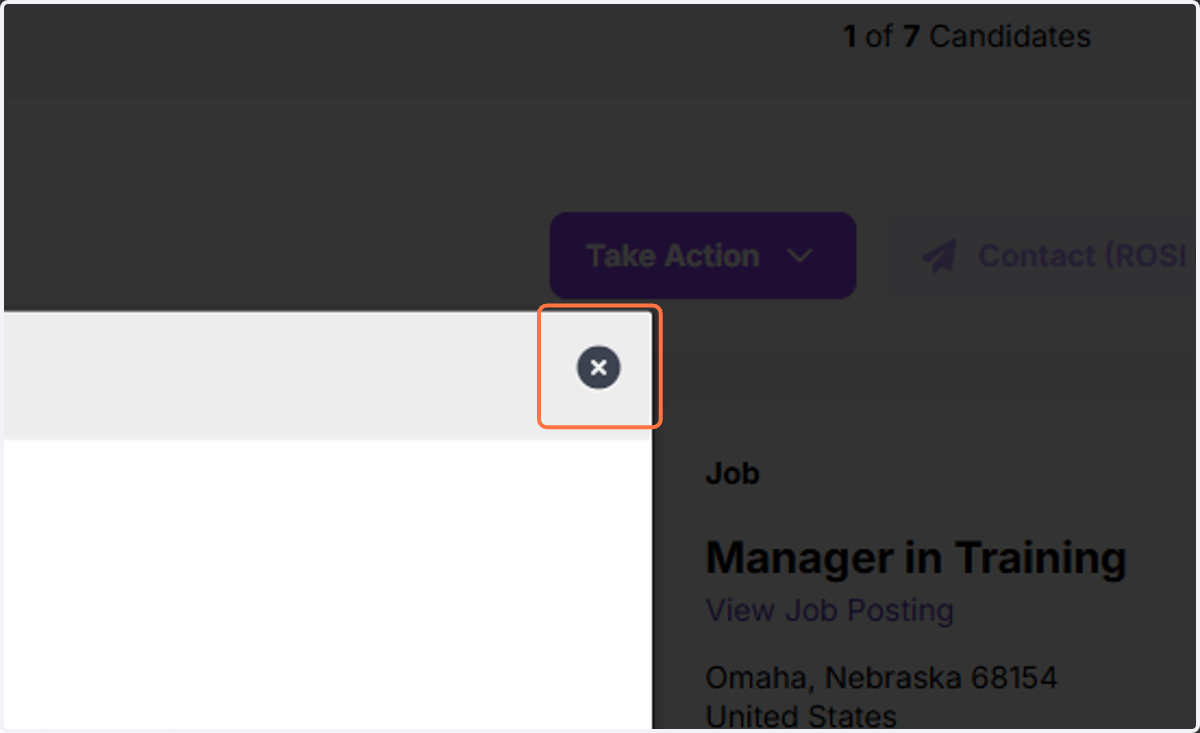
24. Click on the X to close the preview
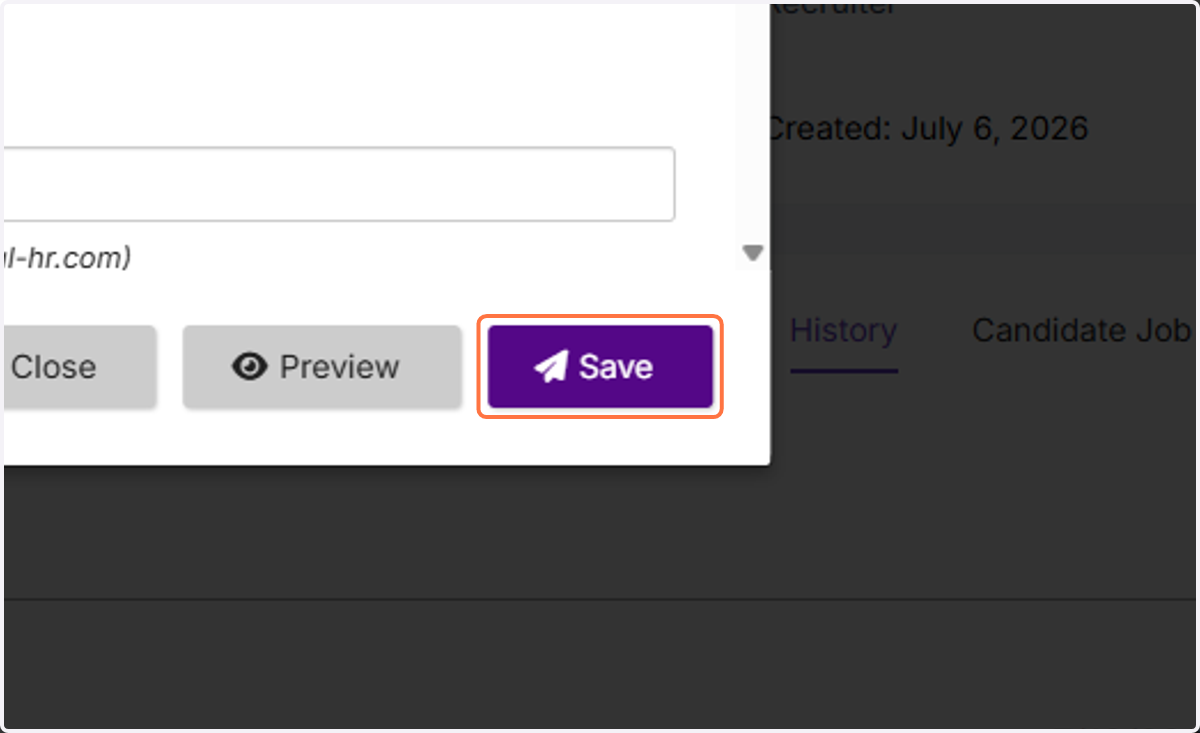
25. Click on Save
26. Click on Take Action