TOR Troubleshooting Guide: Student not progressing
How to find unresolved Teacher action requirements
Ignitia
Login to your TOR account
In this and all our Ignitia tutorials, Teacher Of Record will be abbreviated to TOR.
1. Enter your username
2. Enter your password
3. Click on READY, SET, LEARN!

4. Navigate to the student's Gradebook
There are many ways to get to a student's Gradebook depending on where you are in your account, but below I will show you my favorite.
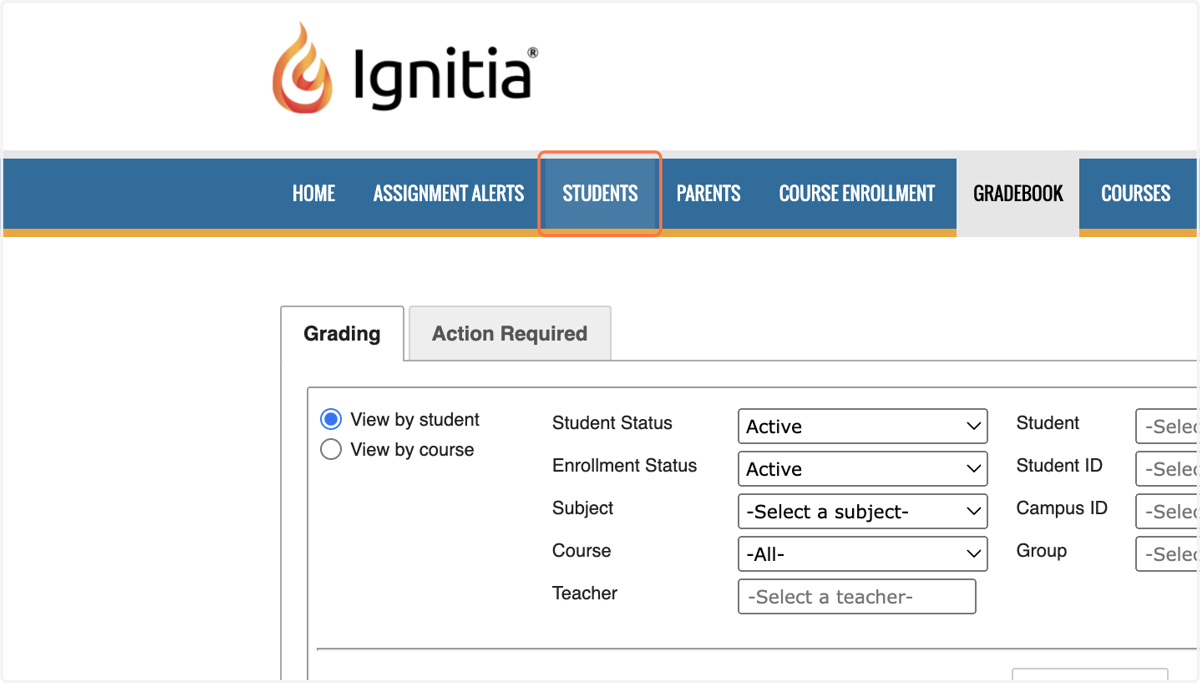
5. From any tab, click on STUDENTS
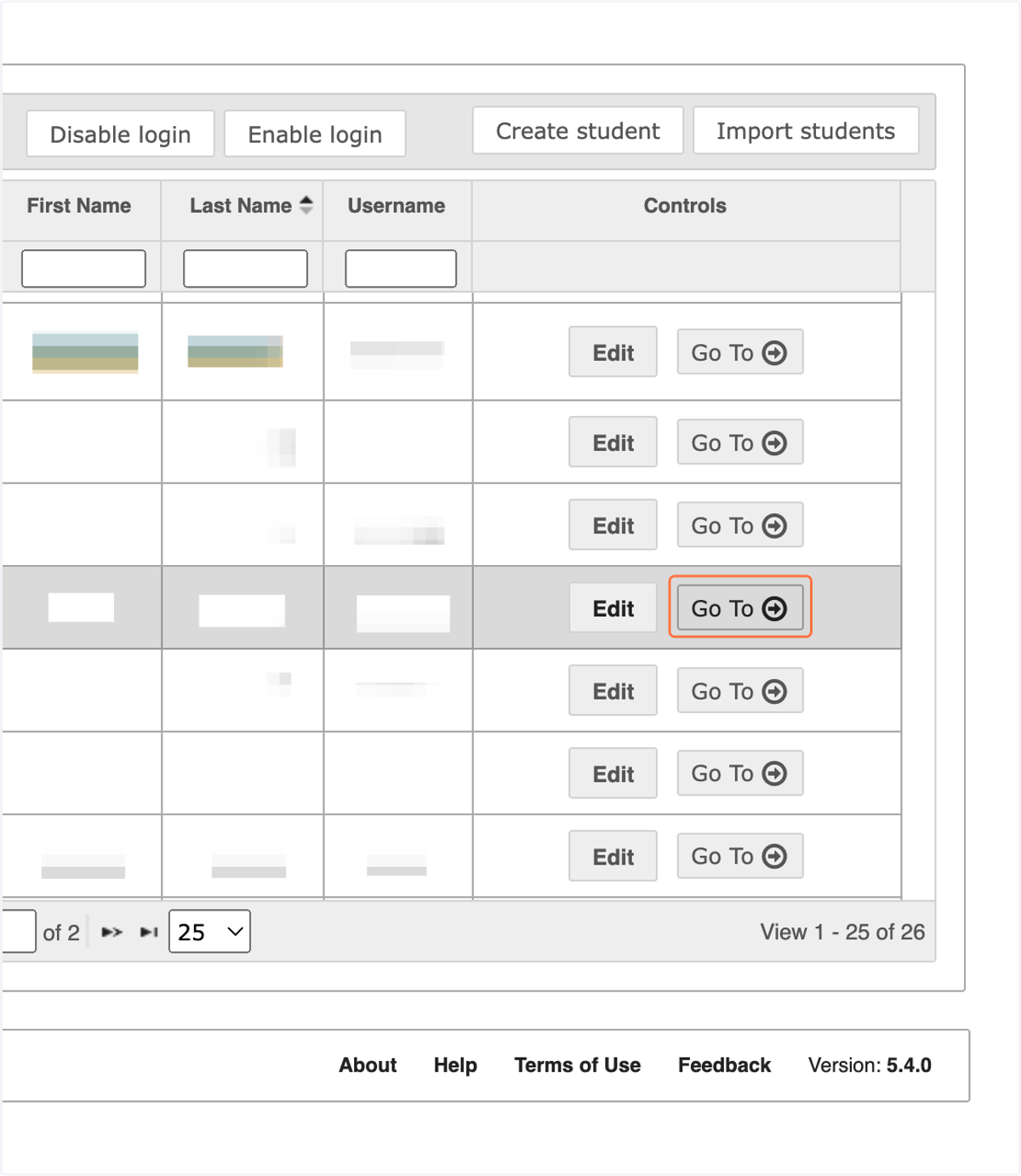
6. Find your student, and click on Go To
If needed you may filter for your student by entering their name in the search box.
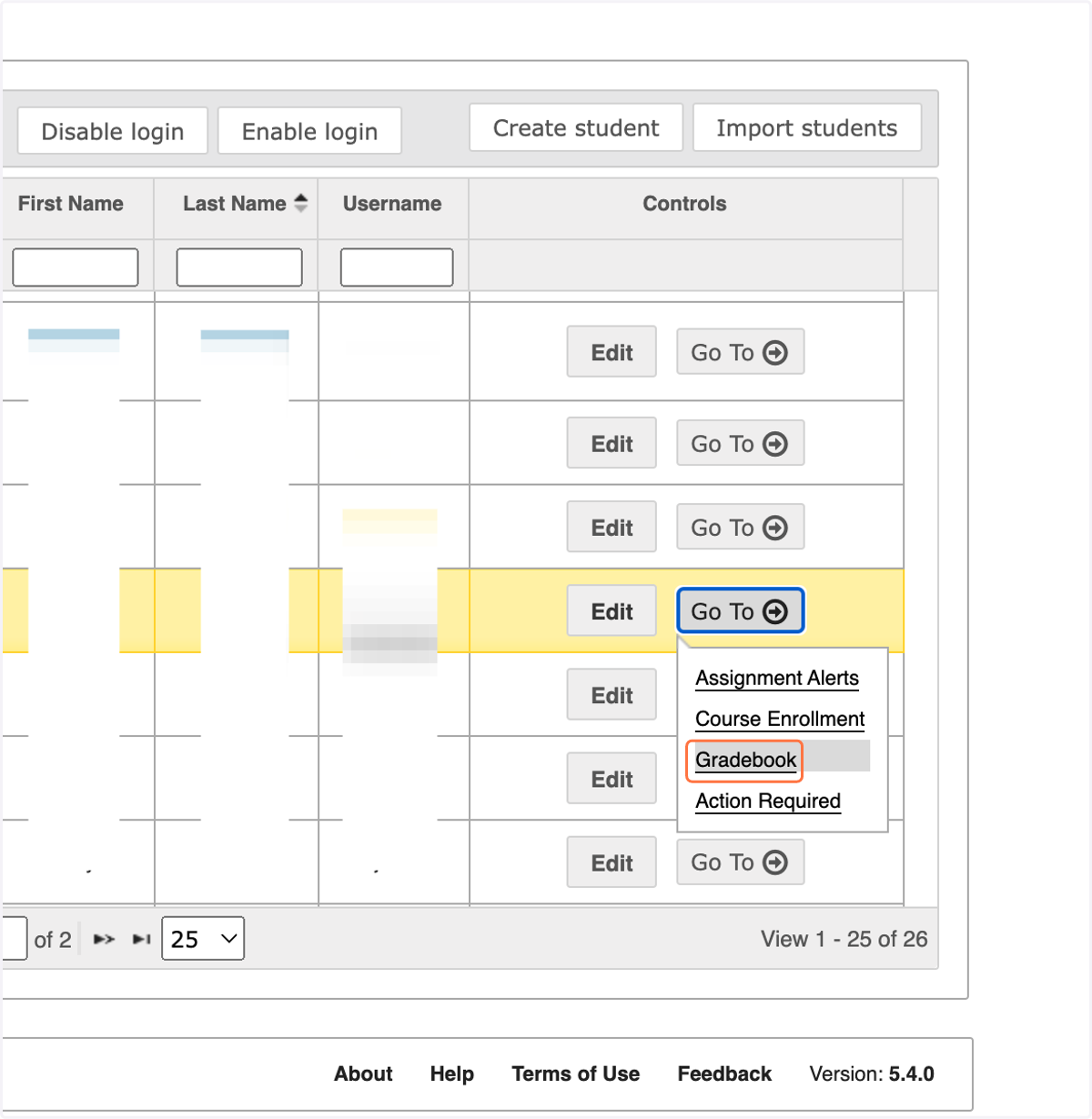
7. Select Gradebook from the dropdown menu
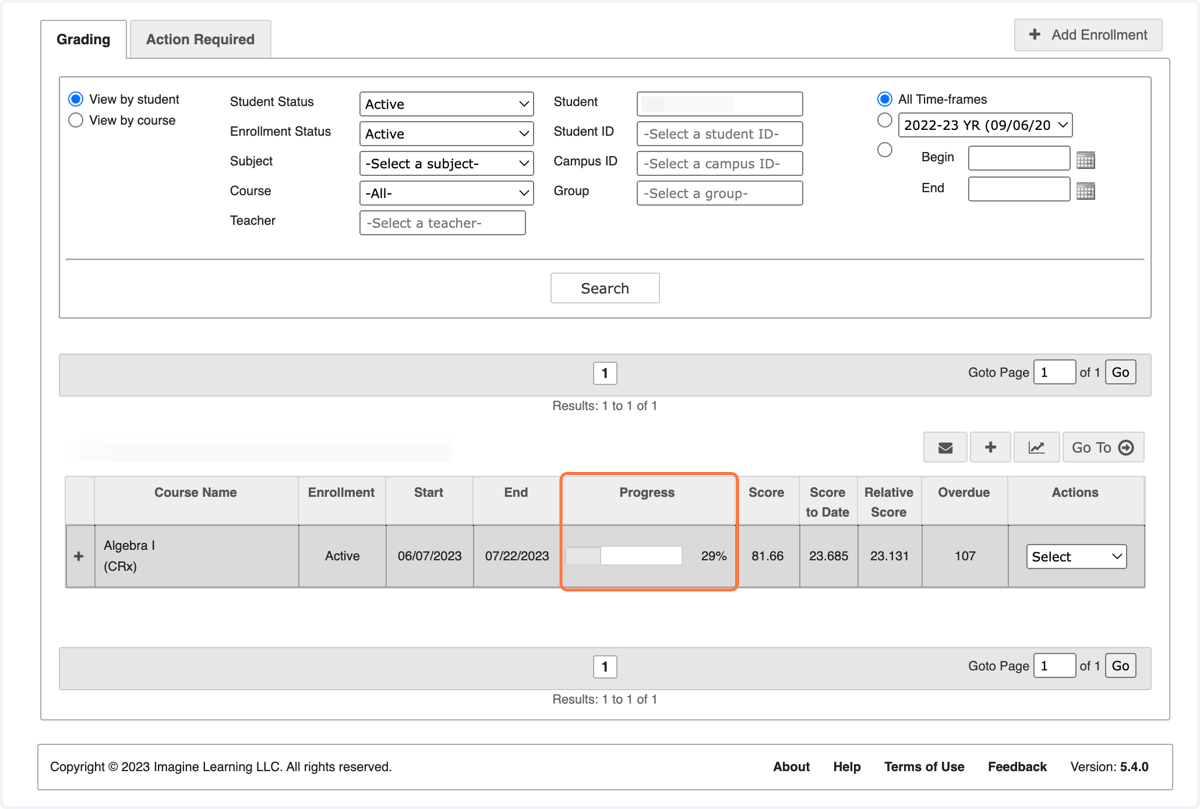
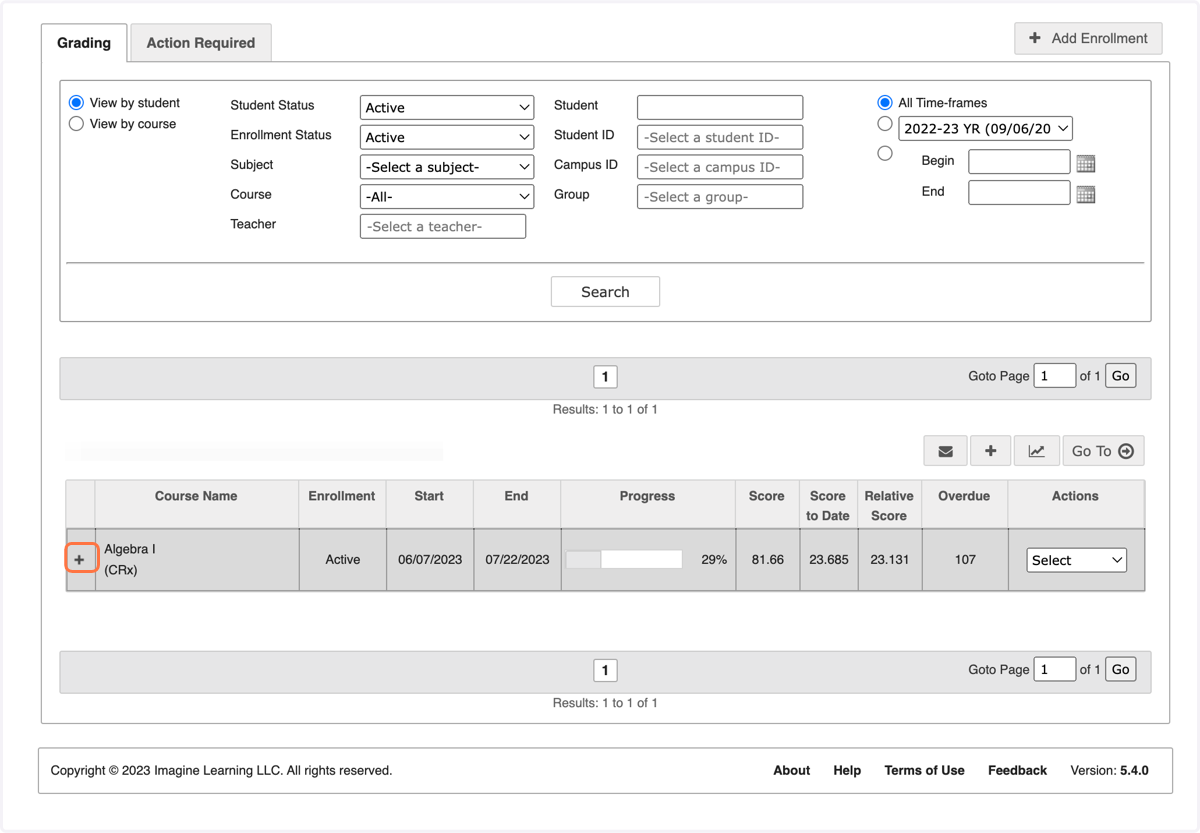
8. Once in the Gradebook, look over their courses to see which ones they appear to be behind in.
Ignitia calculates the percentage of the course that is completed and displays it under the "Progress" column for each course.
9. Click the little '+' icon to expand the course you wish to work on to see each unit
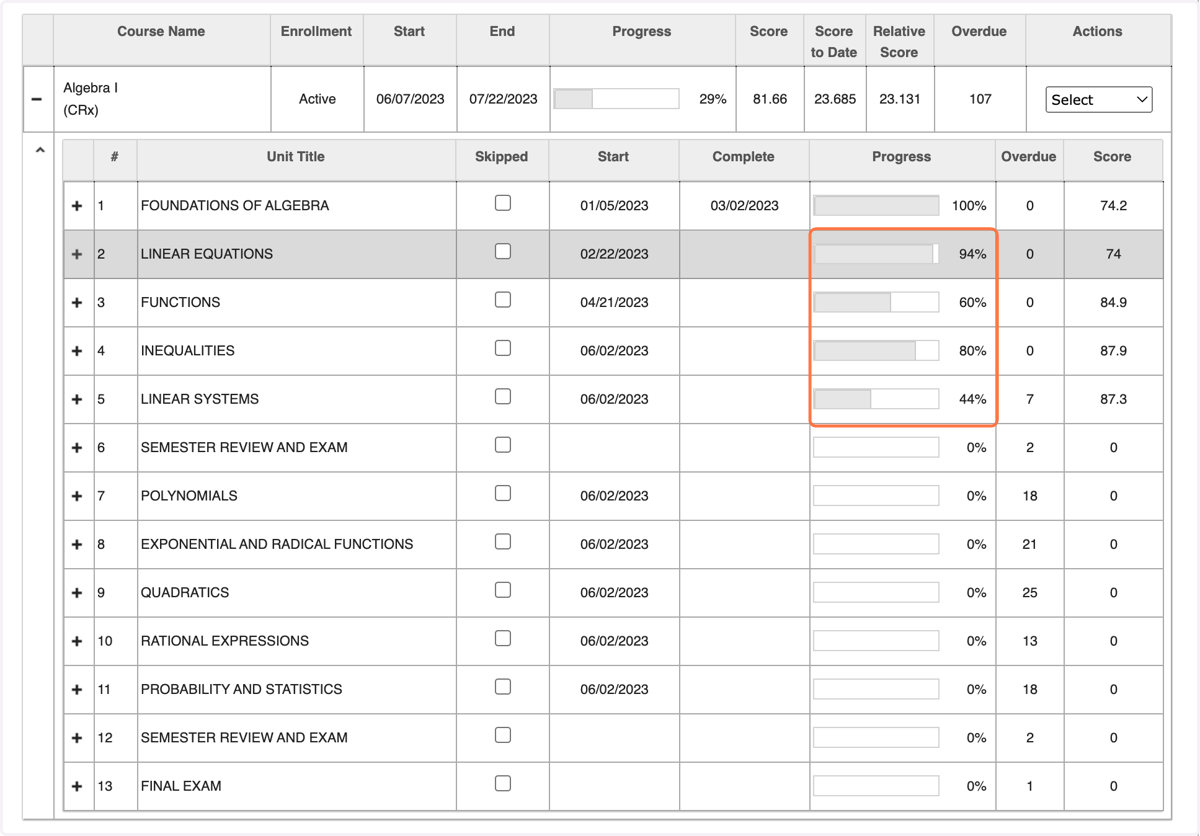
10. Look for units that the student has finished that aren't showing up as 100% complete
When trouble shooting why your student isn't progressing as they should in Ignitia, one of the most common causes is that you (the TOR) need to grade something. The easiest way to find where you need to grade an assignment is to look for units like these that show as incomplete even after the student completed all their work.
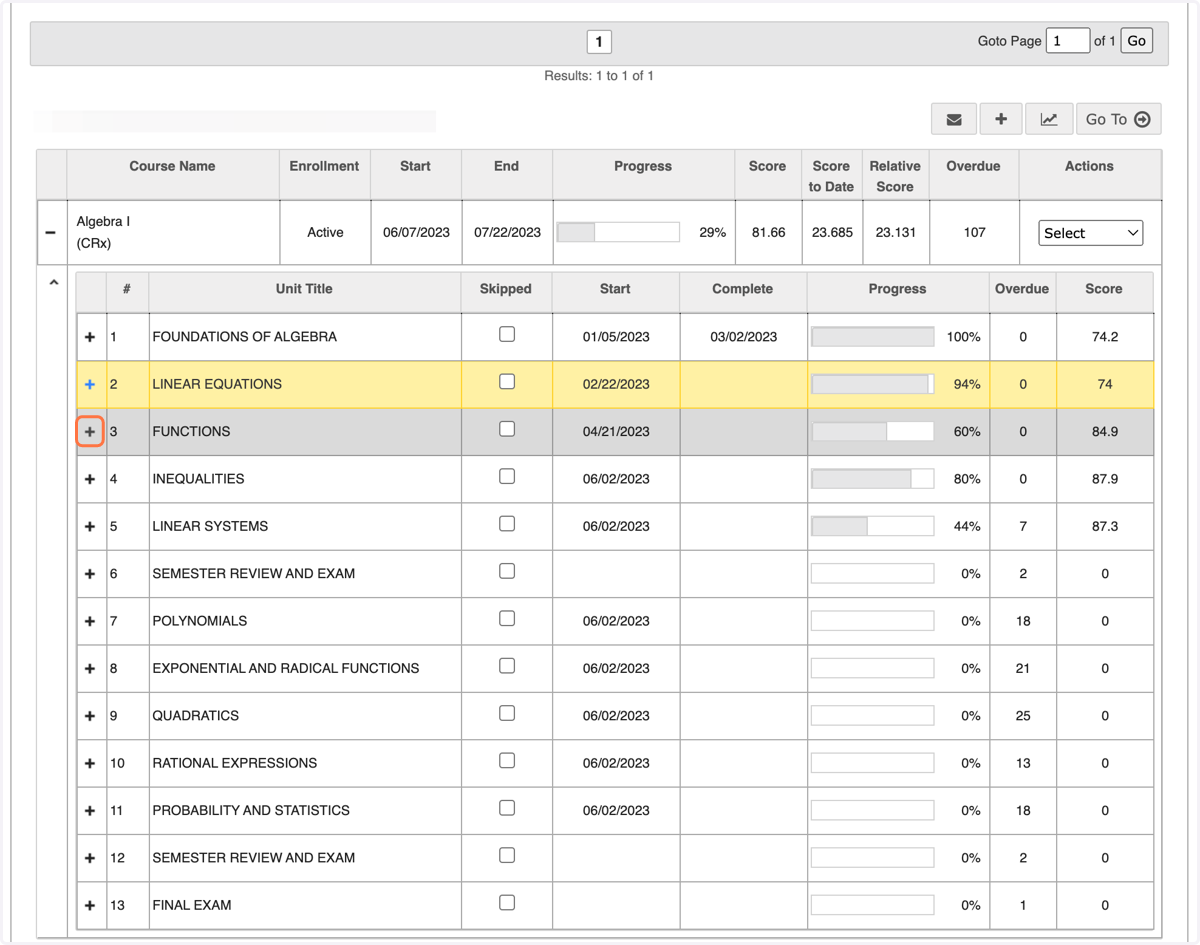
11. Click the little '+' symbol to expand a unit and view individual assignments.
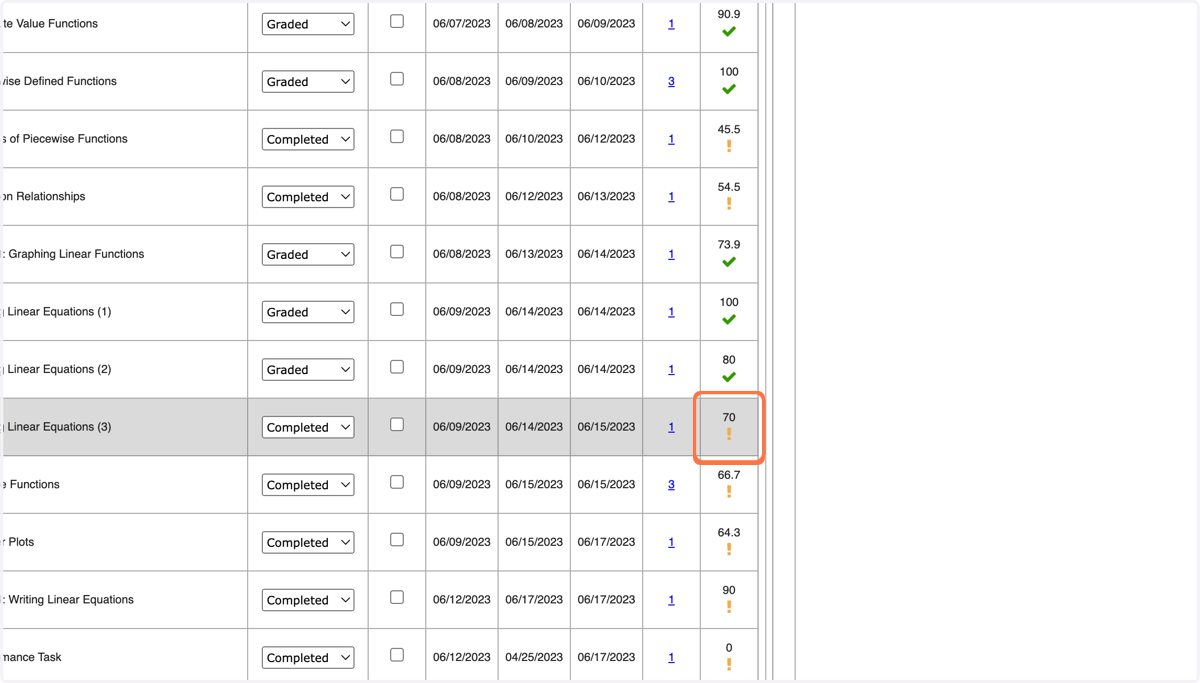
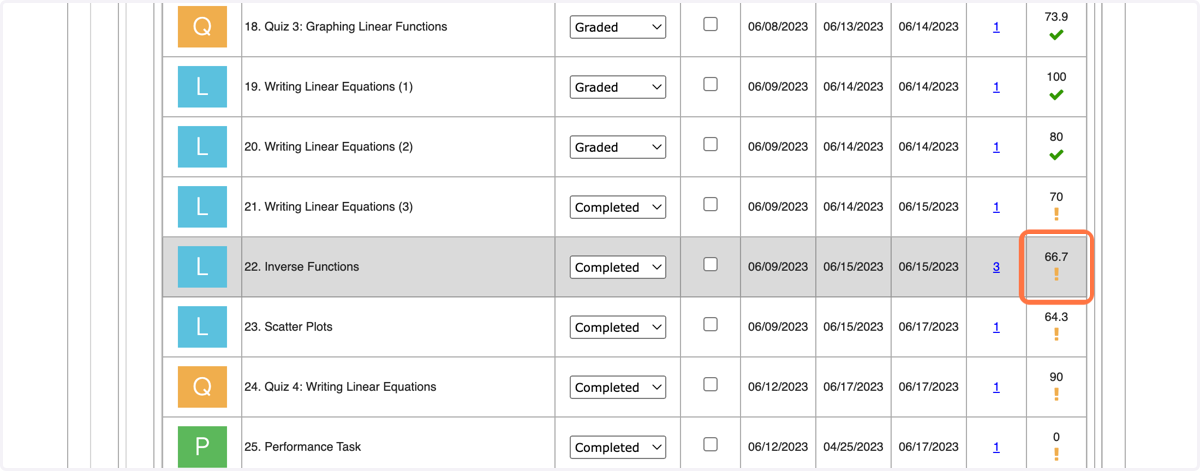
12. Click on an assignment with a yellow exclamation point
Every assignment with one of these yellow exclamation points need's your action in order to list as complete within the Ignitia system. You will return to this step as many times as necessary in order to resolve each of them.
13. Within the assignment, look for questions with an '*' by the number. These are the ones that you have to grade manually.
In Ignitia, questions are color coded to indicate the amount of credit the student received for each one. Questions they received full credit (all possible points) for will be green, ones they received partial credit (more than 0, but not full points) for are yellow, and questions where they received no credit (0 points) are red. There is one exception: all questions requiring teacher action are initially red. This does not mean the student got the answer wrong. They are red simply because Ignitia does not yet know how much credit the student got, so it assumes 0 until told otherwise. Once you input the points and update their score, Iginitia will update the question color accordingly.
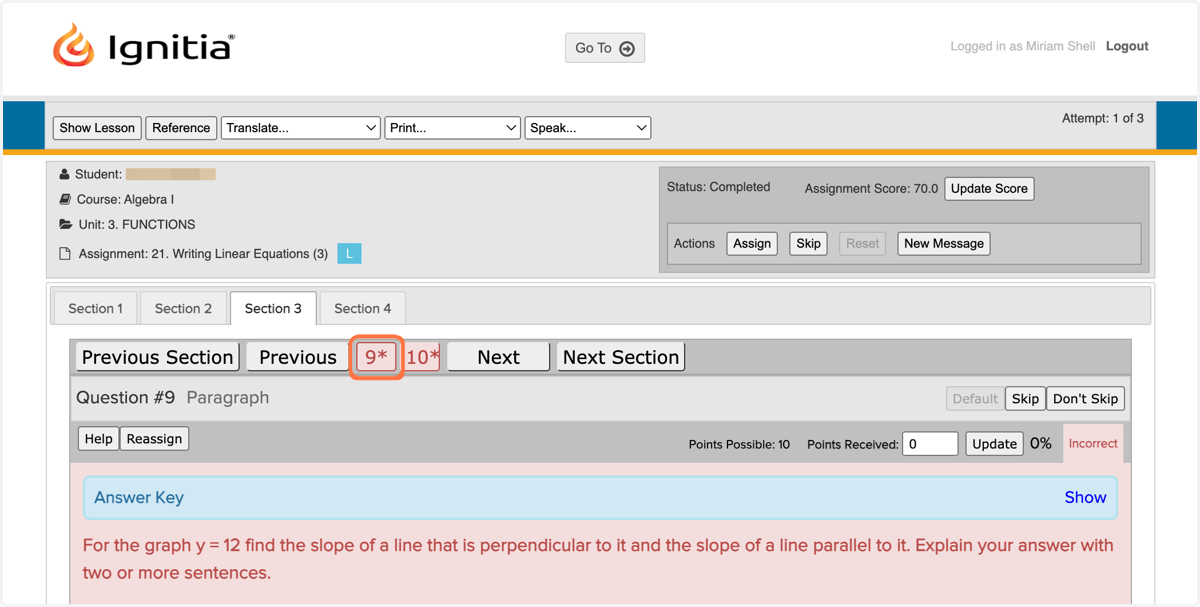
14. Review your students answer, and then enter the desired value in the 'Points Received' box
You can include decimal places in your points received. So for example, you could give this student 9.25 points for this question.

15. When determining how many points to award for a student's answer, take advantage of the answer key!

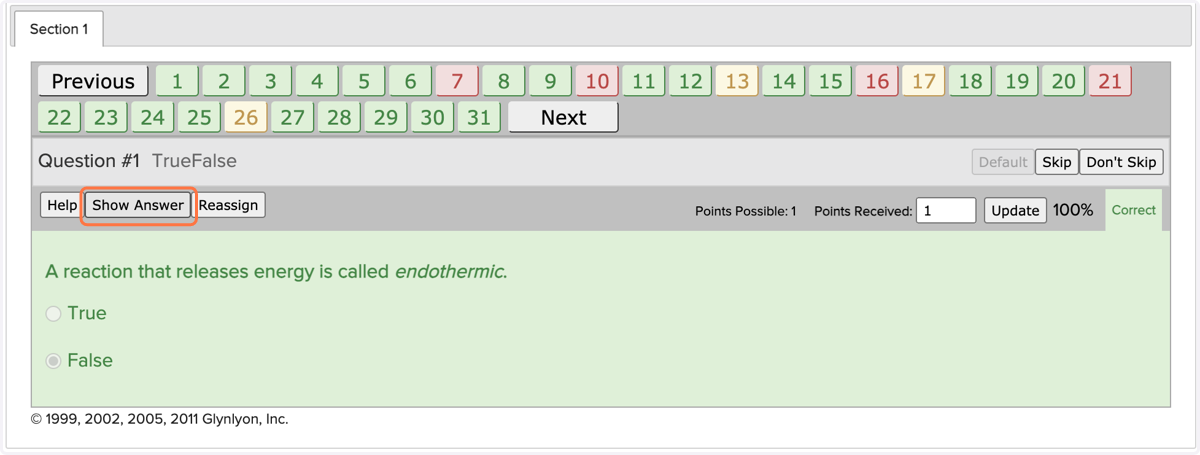
16. On questions that do not require teacher action you can use this button to view the answer.
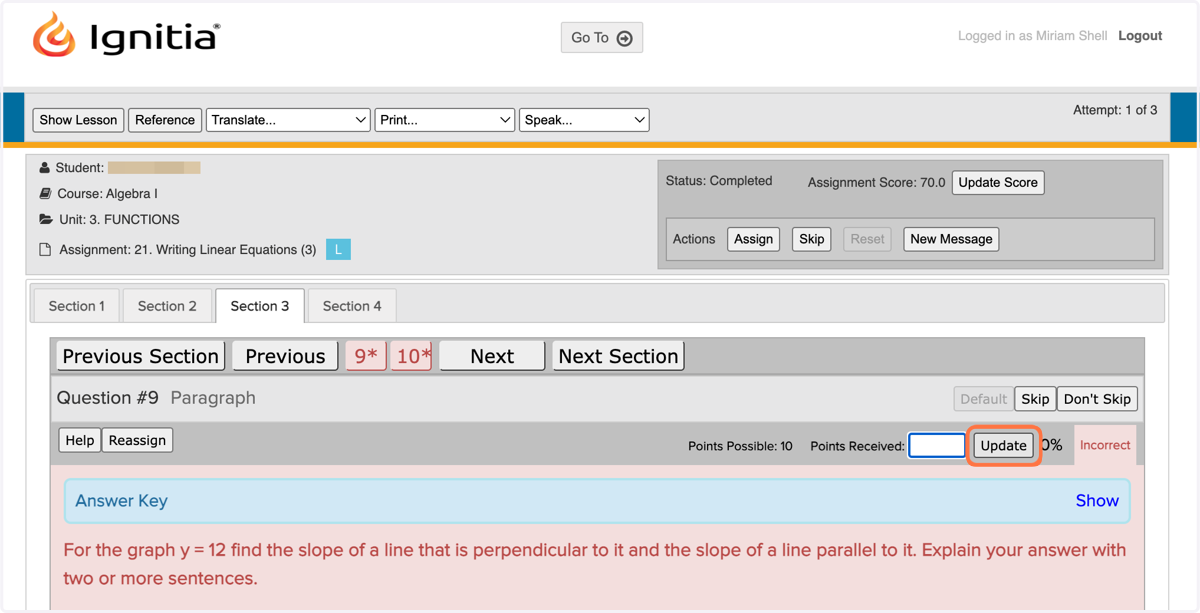
17. Once you have inputed the points the student has earned for the question, be sure to click 'Update' to apply the grade!
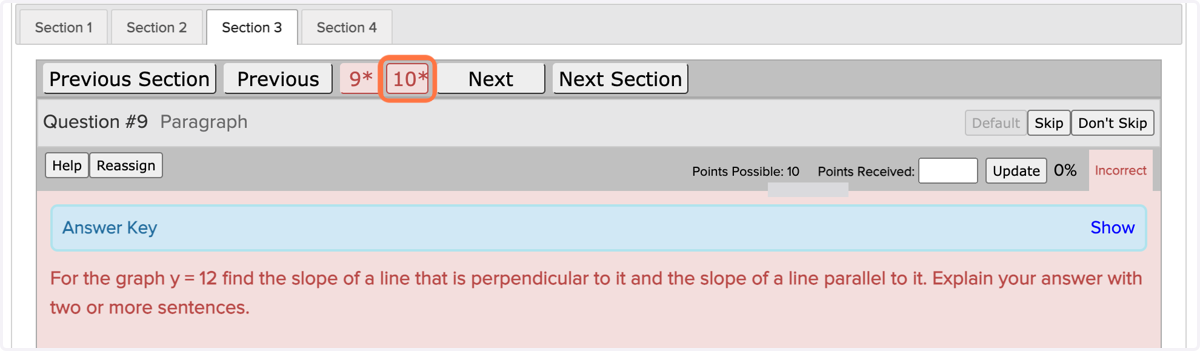
18. Click to the next question with an '*' by the number until you have graded all the questions in that assignment.
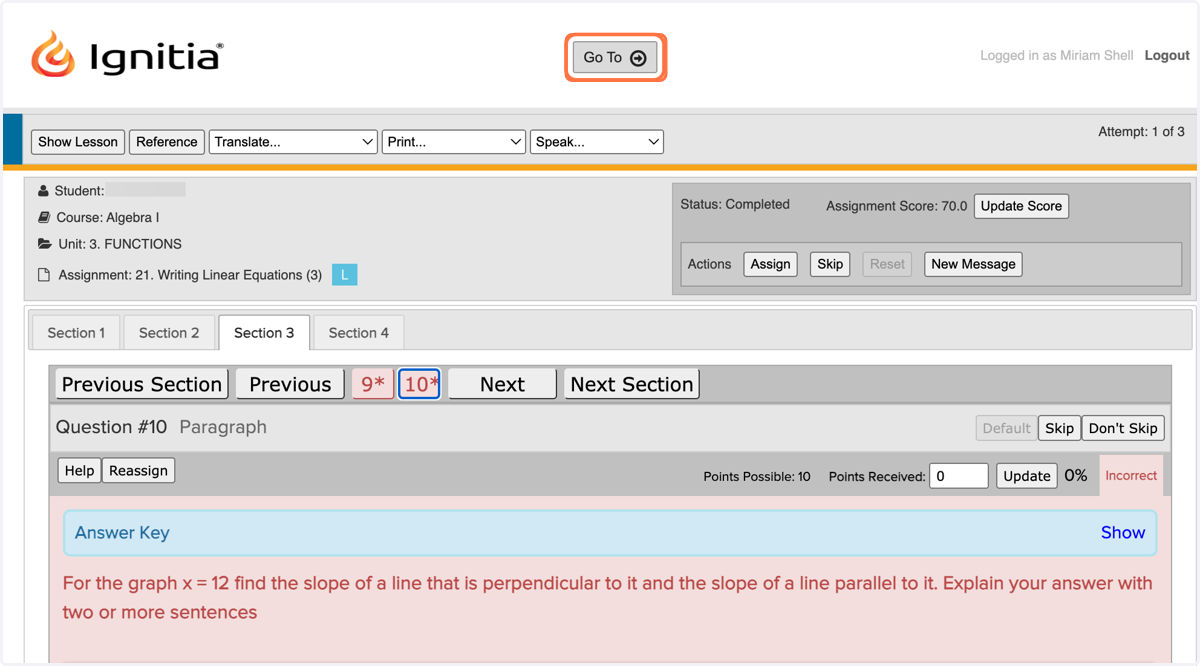
19. Once you're done in that assignment and are ready to return to the Gradebook, click on the 'Go To' button at the top of the page.
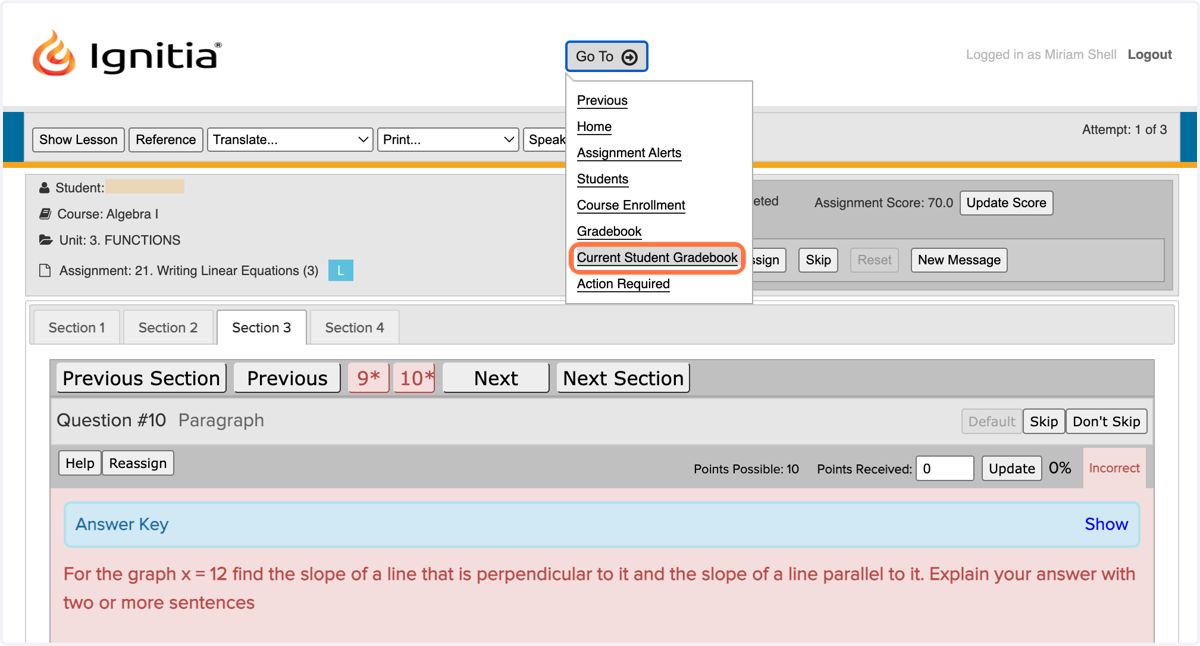
20. Select 'Current Student Gradebook'
21. Find the next assignment with the yellow exclamation point and repeat from step 12 until all outstanding grading has been resolved!
Done!
For additional assistance regarding our Ignitia program, please visit our website at wcfs.edu/ignitia-tutorials, email us at ignitia@wcfs.edu, or call our office at (301) 241-2072