Syncing of SRT and Audio Duration with AI Voice
Murf
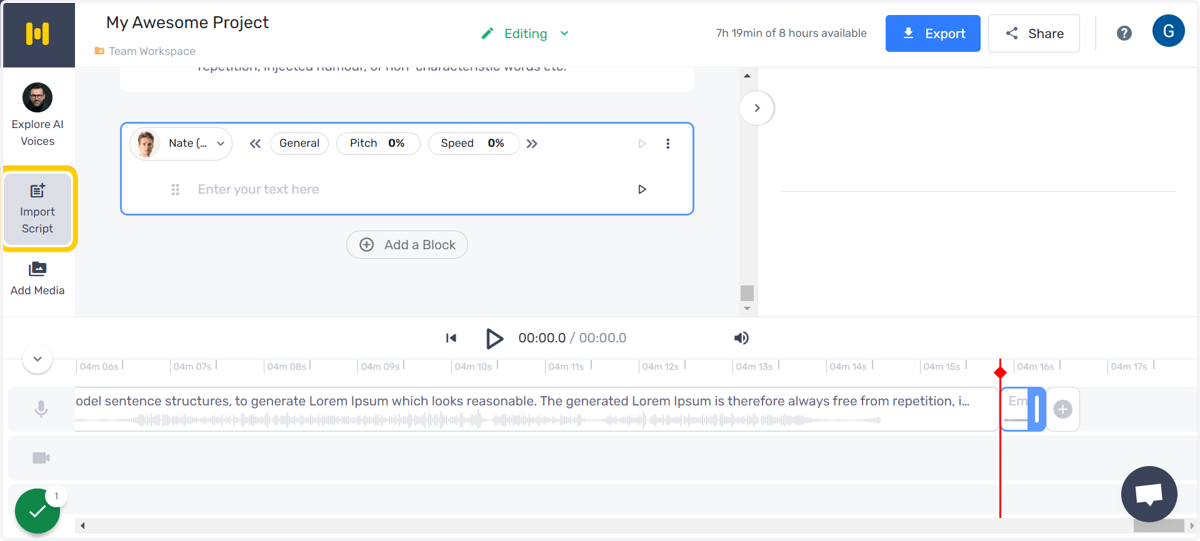
1. Import script
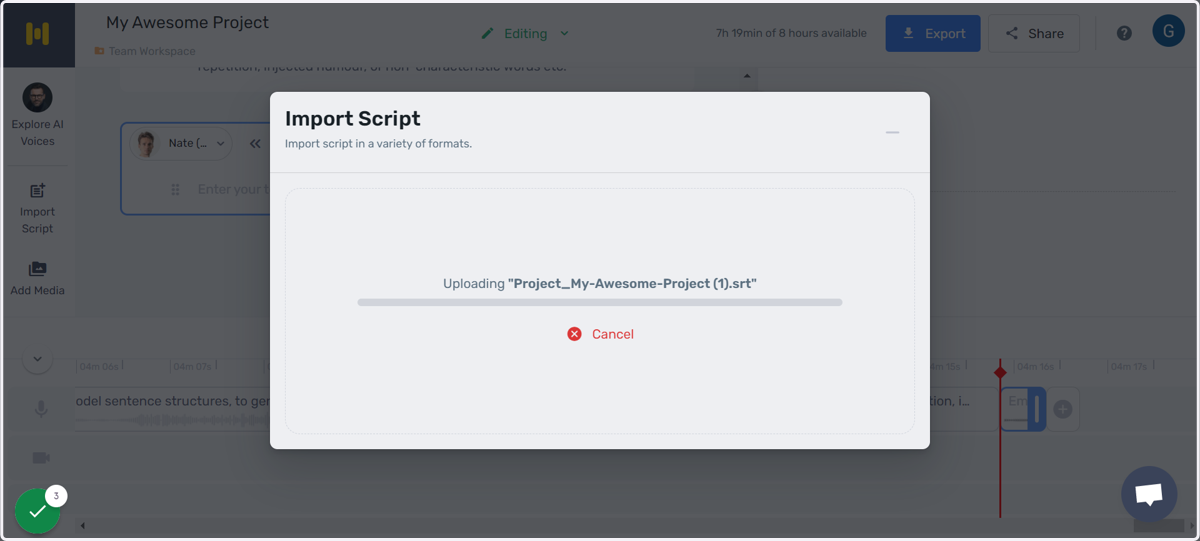
2. Select and upload SRT
Studio support script uploads in TXT, SRT, and DOCX formats.
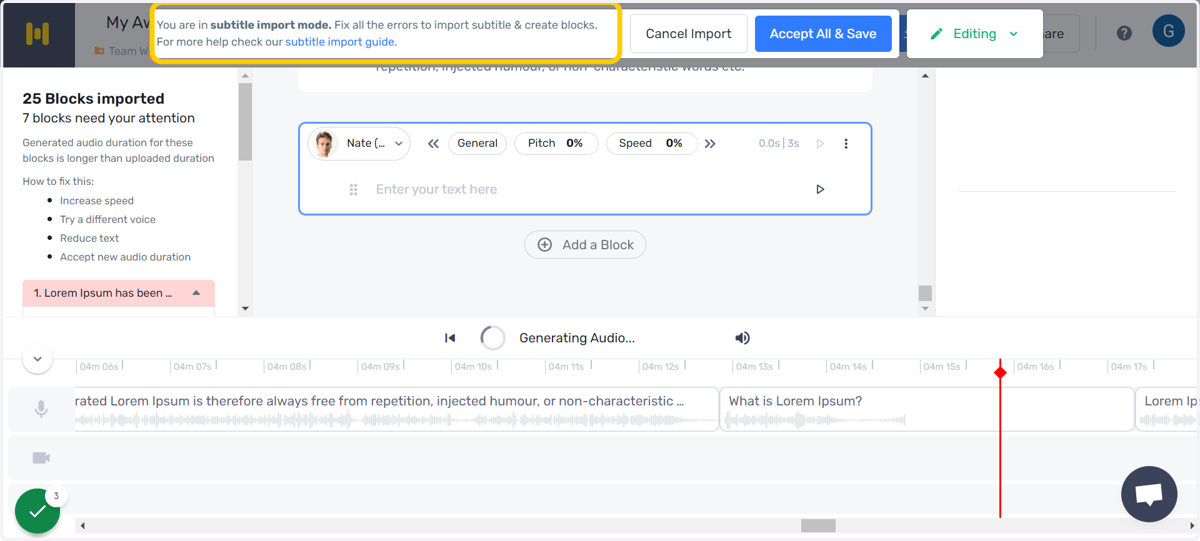
3. Subtitle import mode
The import errors can be previewed and fixed before saving it to the project. The voices generated in this step and the edits made to the script do not consume VGT
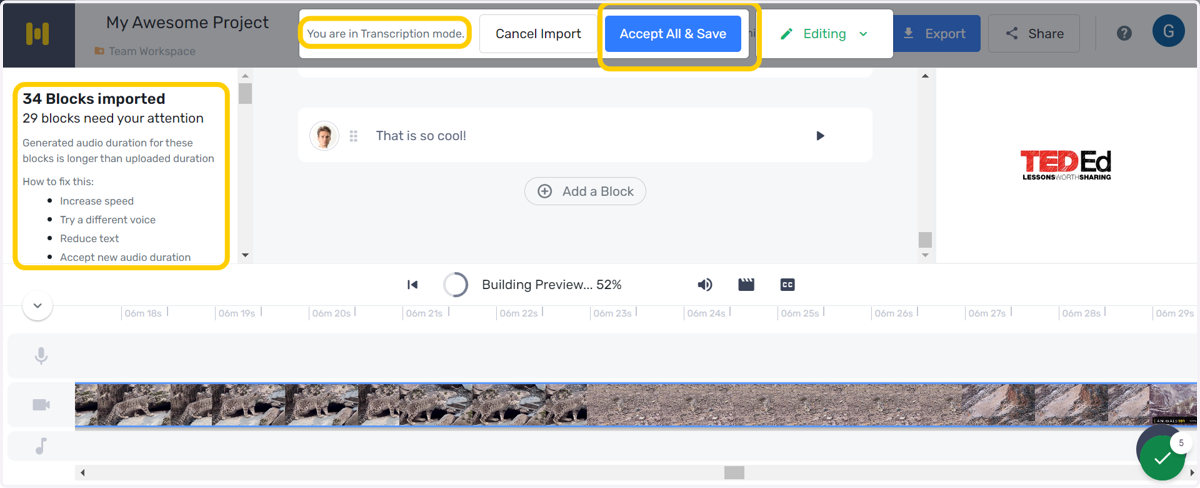
The window shows the number of imported blocks and the number of blocks with discrepancies between the generated voice and the SRT timestamps.
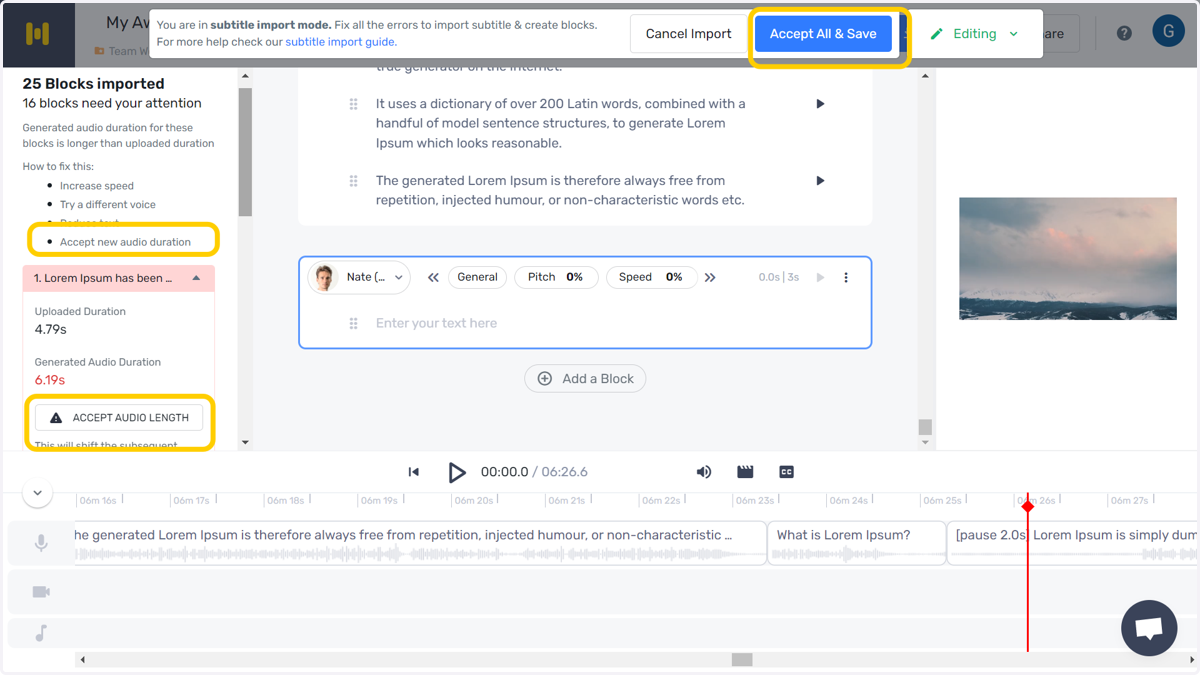
You can either accept the new duration or make a few changes to the script to make the two durations match
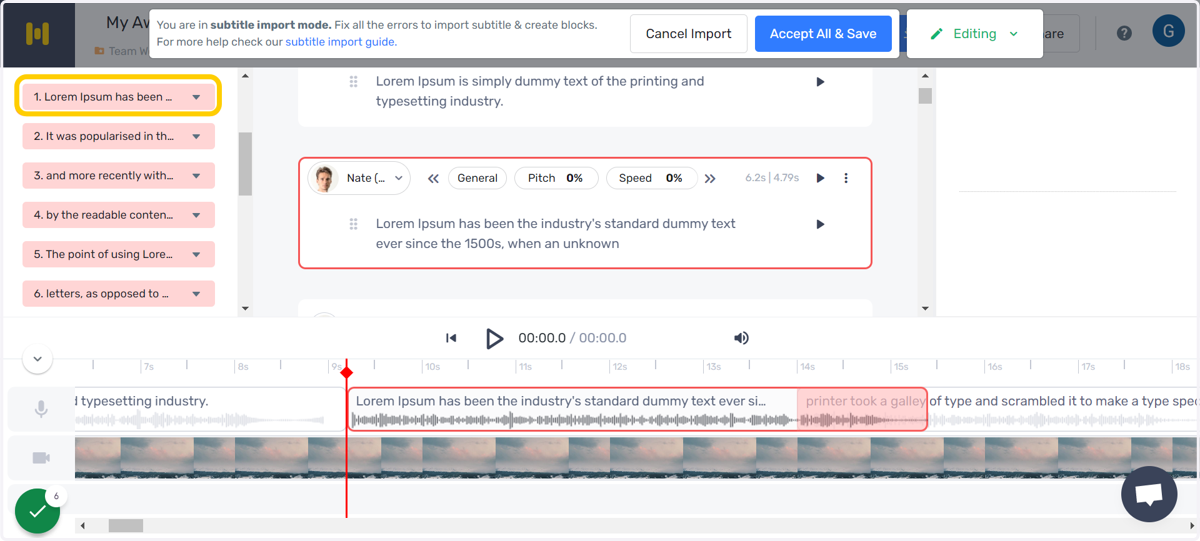
The menu on the left has all the blocks with the error, and they redirect you to their respective blocks in the script editor. The selected blocks are highlighted in red, both in the script editor and the timeline. Fixing the error removes it.
4. Audio duration mismatch
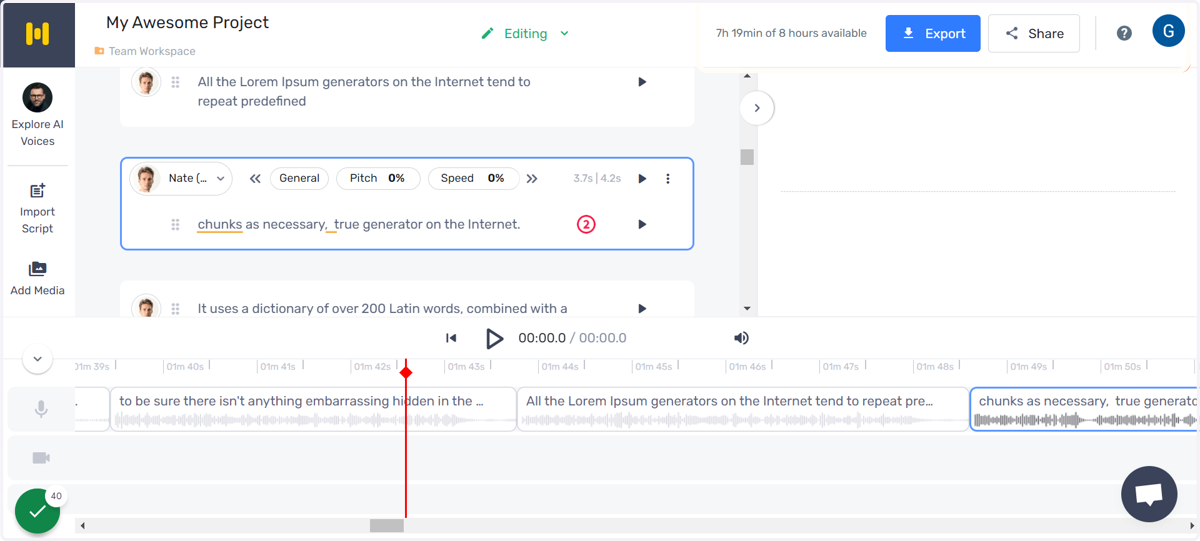
The timestamps of scripts uploaded using an SRT file may differ from the durations of the generated audio.
This is due to the fact each voice is trained on a professional voice actor and has its unique style and pace of delivery, as no two people speak the exact same way.
For example, some voice artists may read the script slower, while others may read it faster, which results in the said difference.
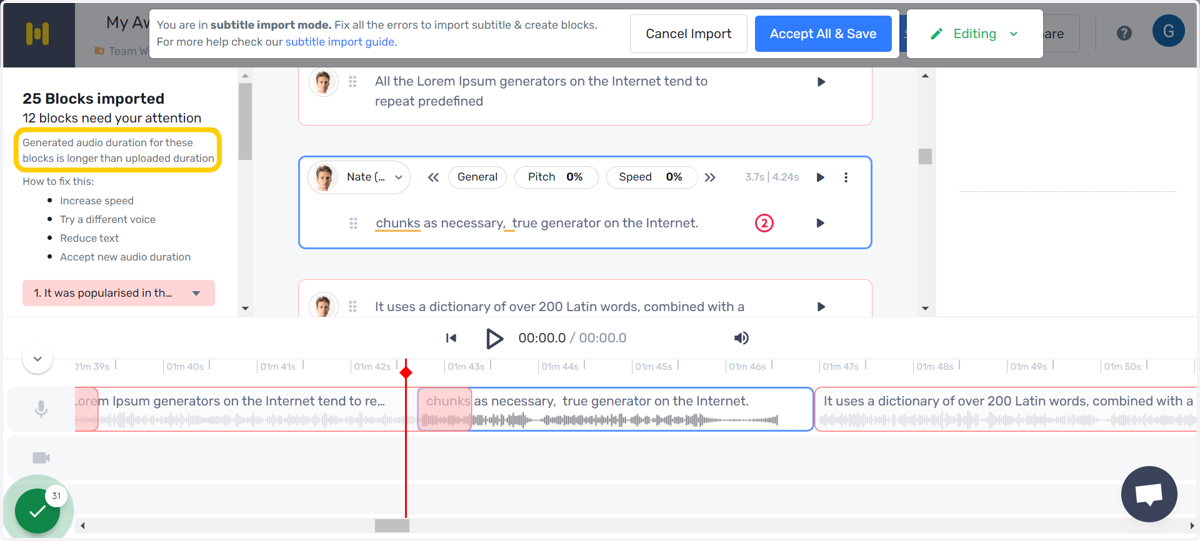
This can be fixed in 4 ways:
Increasing the speed
Trying a different voice
Reducing the text
Accepting the audio duration
Murf
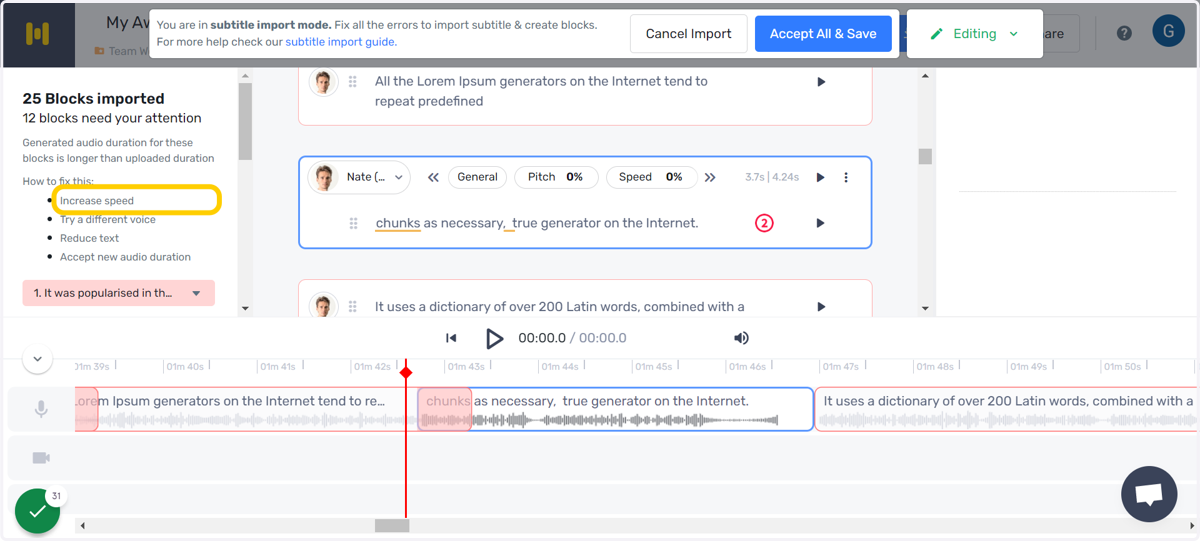
5. Increase speed
You can increase the speed of the block to match the two durations.
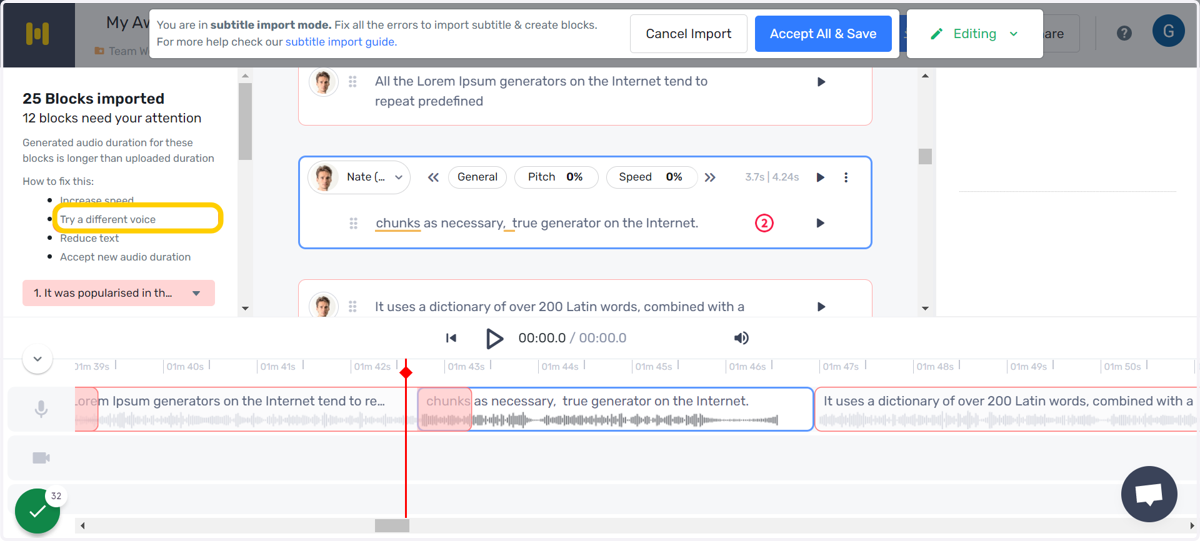
6. Try a different voice
You can also try changing the voice and find one that matches the pace of the SRT
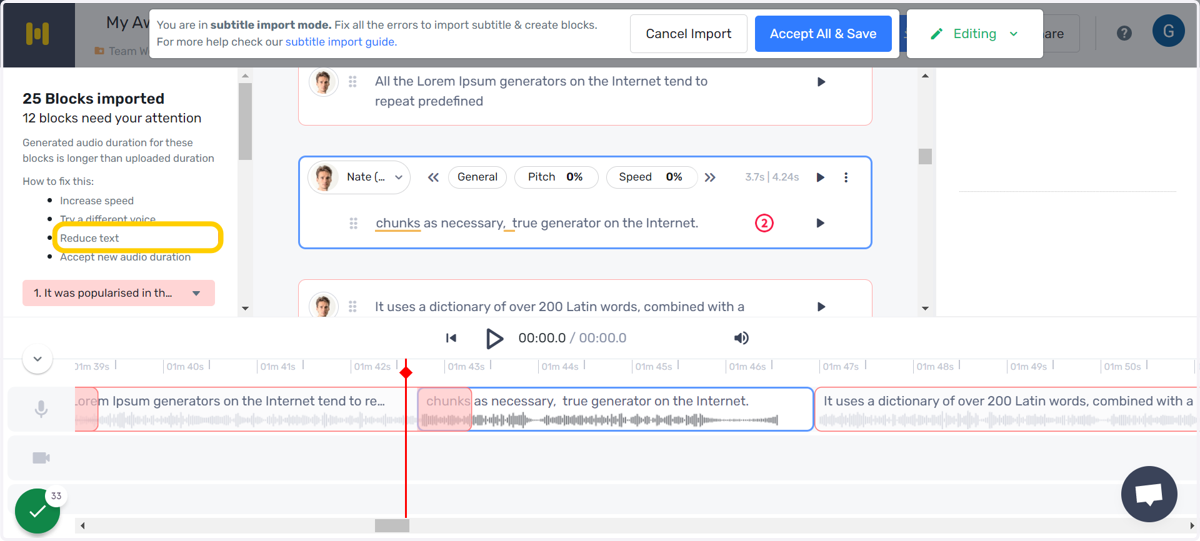
7. Reduce text
Removing redundant text also helps in reducing the duration of the generated audio.
8. Accept new audio duration
You can also accept the duration of the audio generated. This can be done for individual blocks or the entire project. To do so for the entire project, select "Accept All & Save" on the top of the Subtitle Import menu.
Murf
9. Select the blocks
Clicking on the blocks on the left would direct you to the blocks with the issue in the script editor and show you the duration of the generated text in comparison to the position of the original text.
10. Accept Audio Length
The change in audio duration can be accepted. This will result in the subsequent blocks getting pushed further to the right.
This can also be done for the entire script by clicking on "Accept All & Save".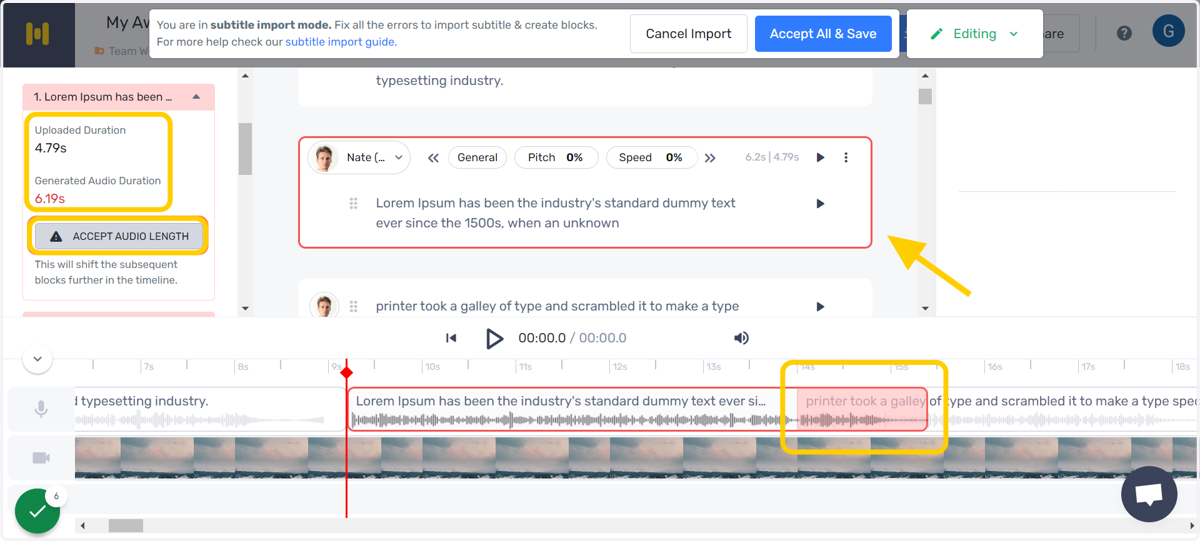
11. Accept minutes - fixed
Murf
12. Change speed
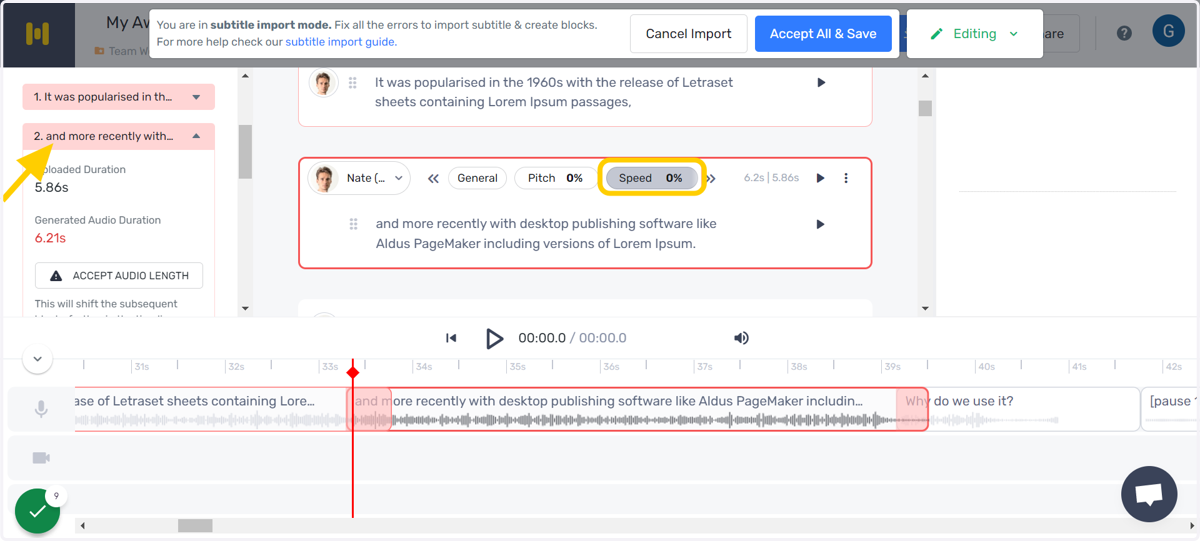
13. Increase speed
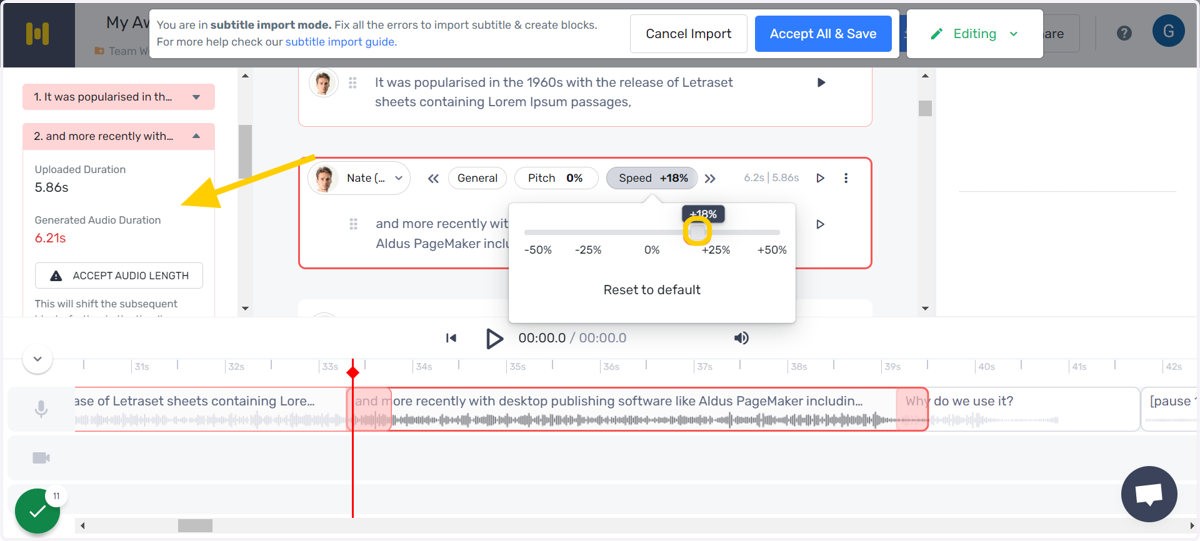
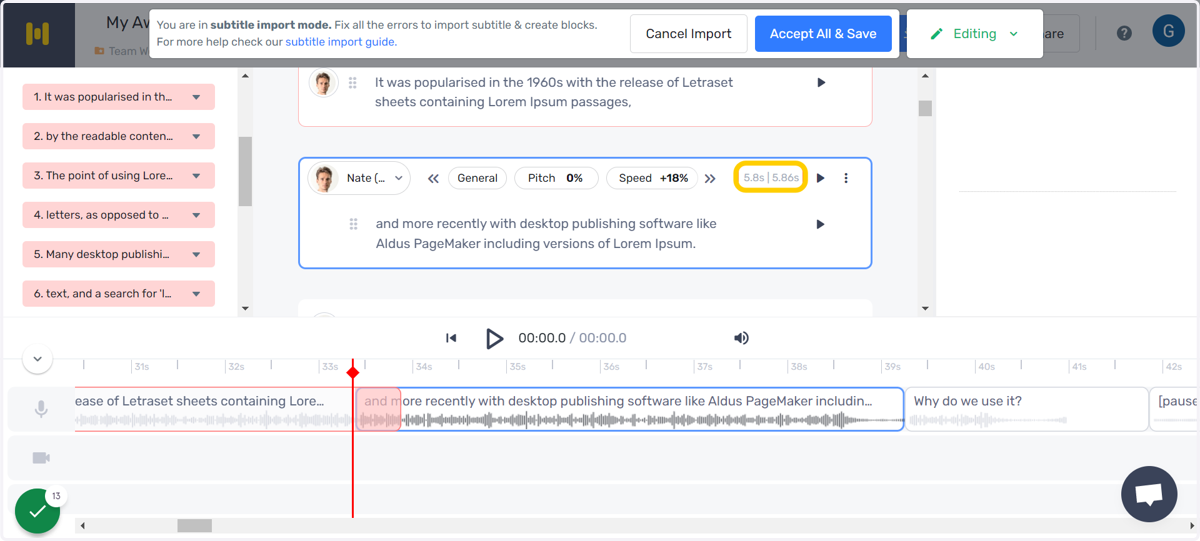
14. Changing speed - fixes error
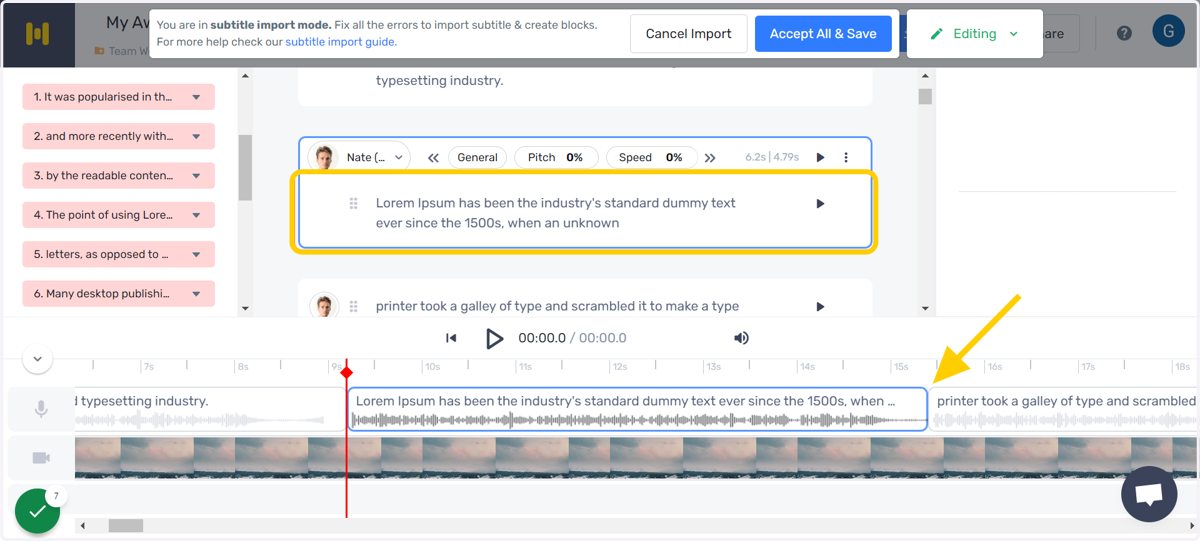
The block disappears from the list of blocks that require to be fixed, the block appears in blue in the text editor, ad the durations match.
Murf
15. Change voice
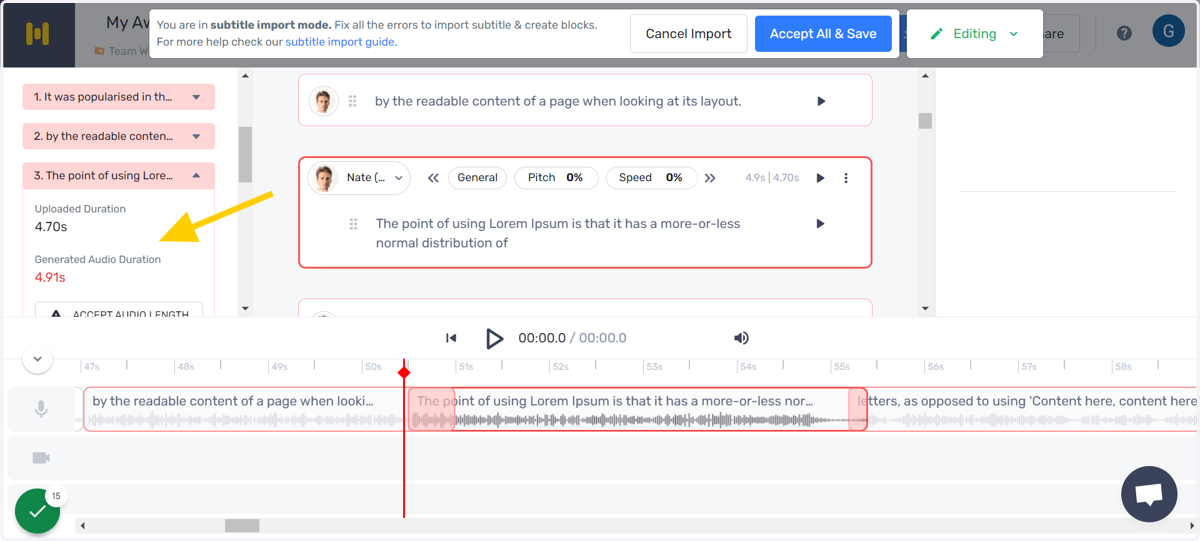
16. Voice Actor menu
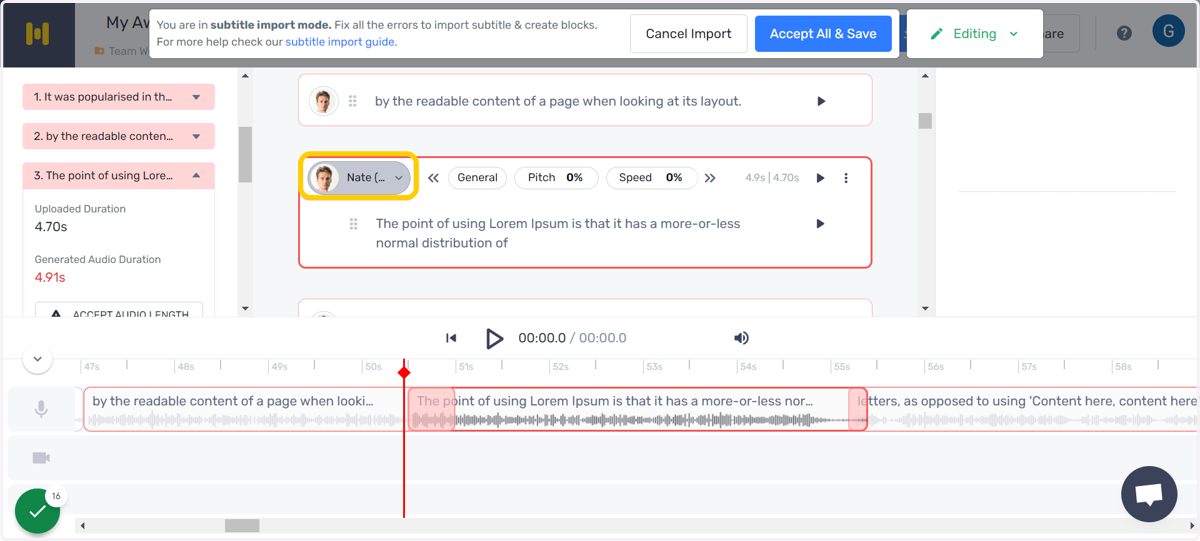
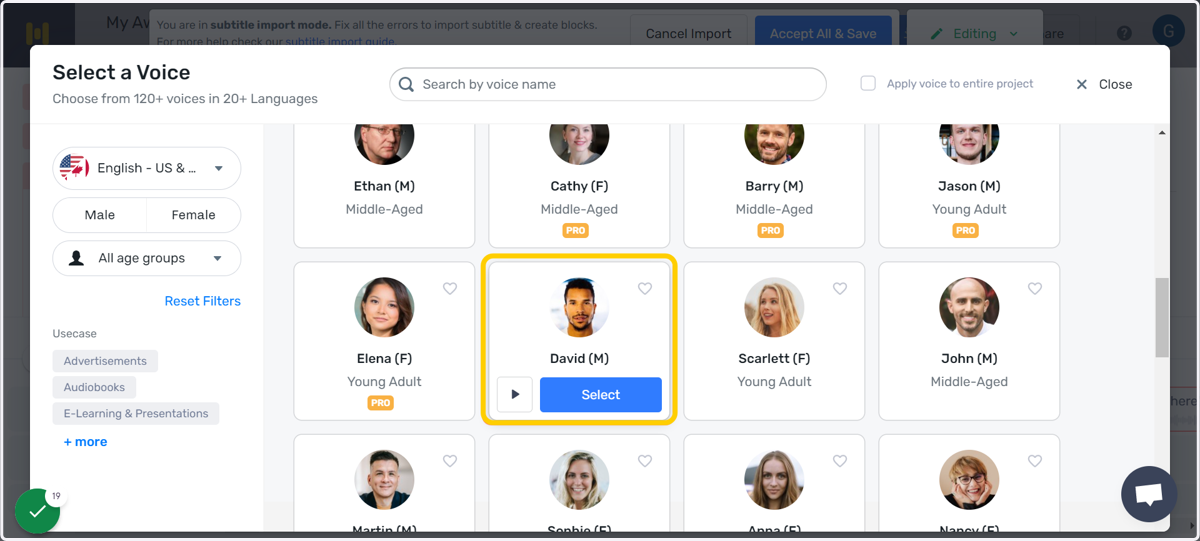
17. Increase Speed - Young Adult Voice
When the difference in durations is minimum, you can change the voice actor to change the speed of narration. Young adult voices tend to be faster in pace, so they can be used to increase the pace of the narration.
Murf
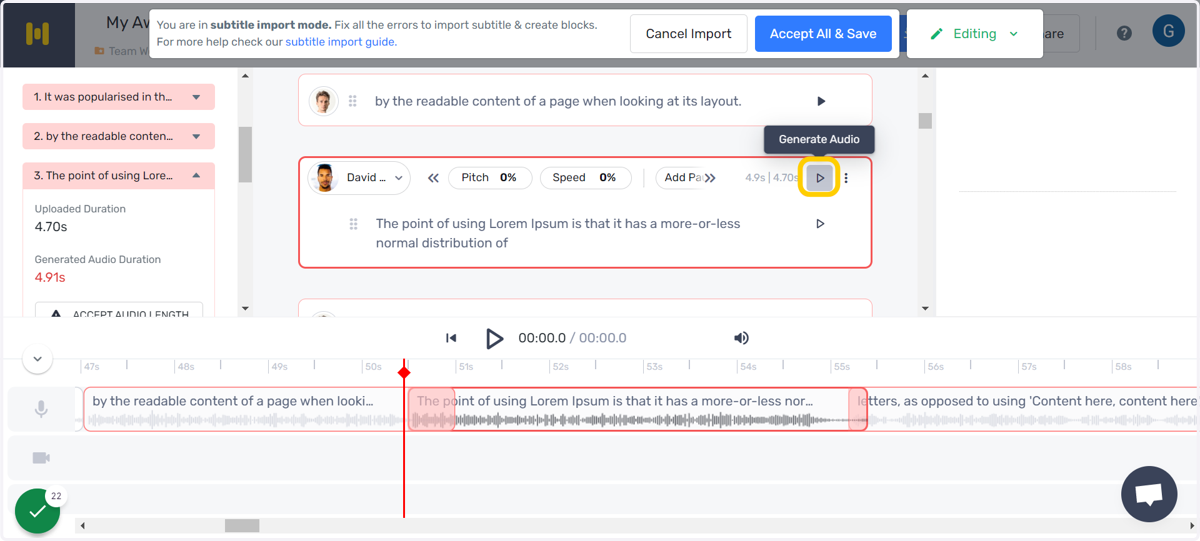
18. Generate the audio to decrease the audio duration
Audio needs to be generated for the changes to reflect and the duration to change.
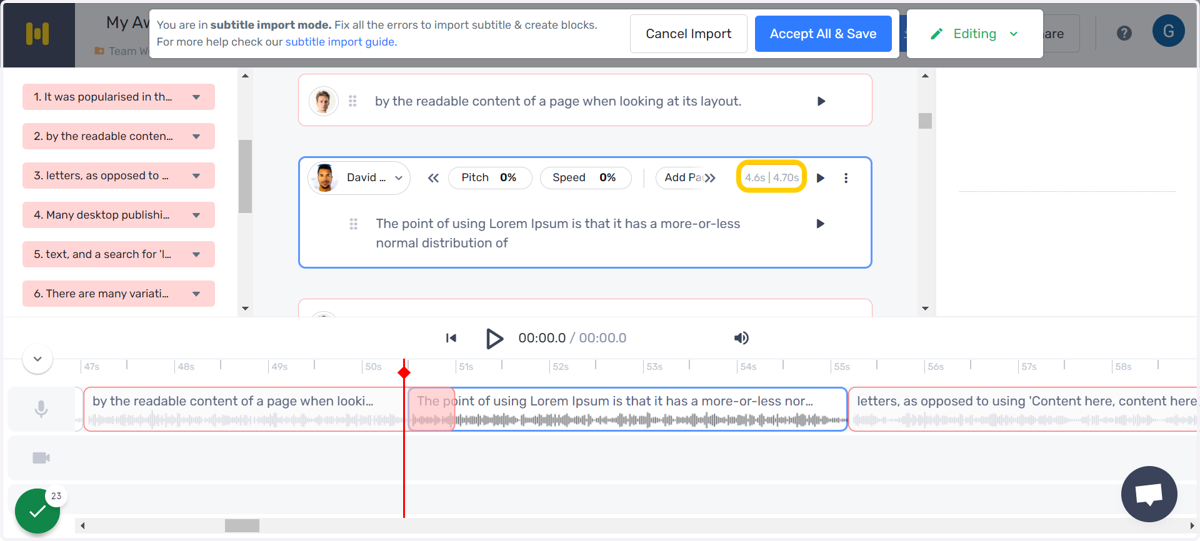
19. Audio durations match
The block disappears from the list of blocks that require to be fixed, the block appears in blue in the script editor, and the durations match.
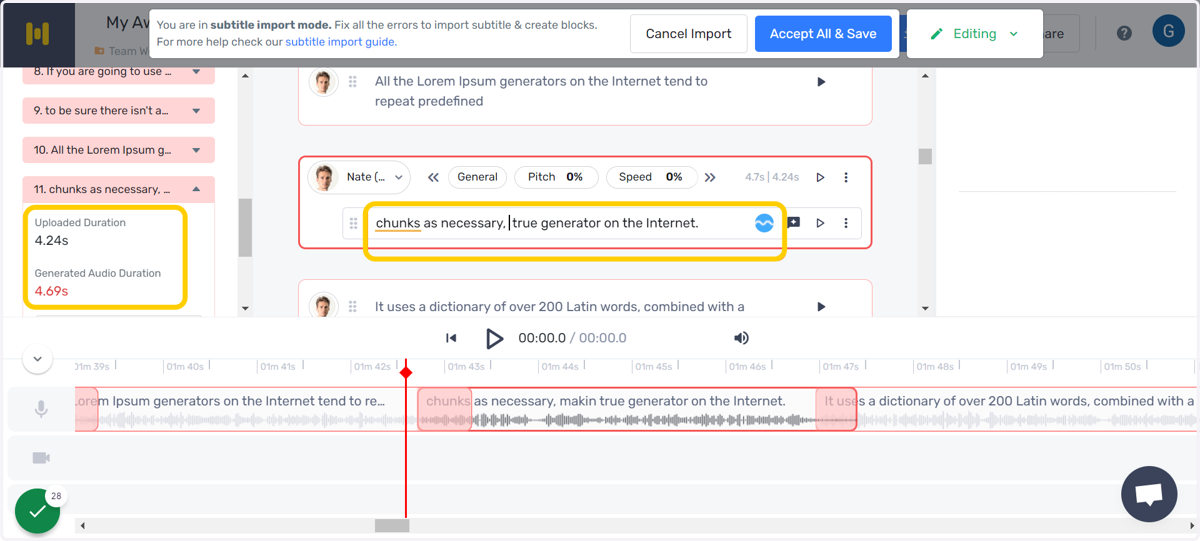
20. Reduce the text
Redundant text can be removed from the script to reduce the audio length and match that of the original SRT.
Murf
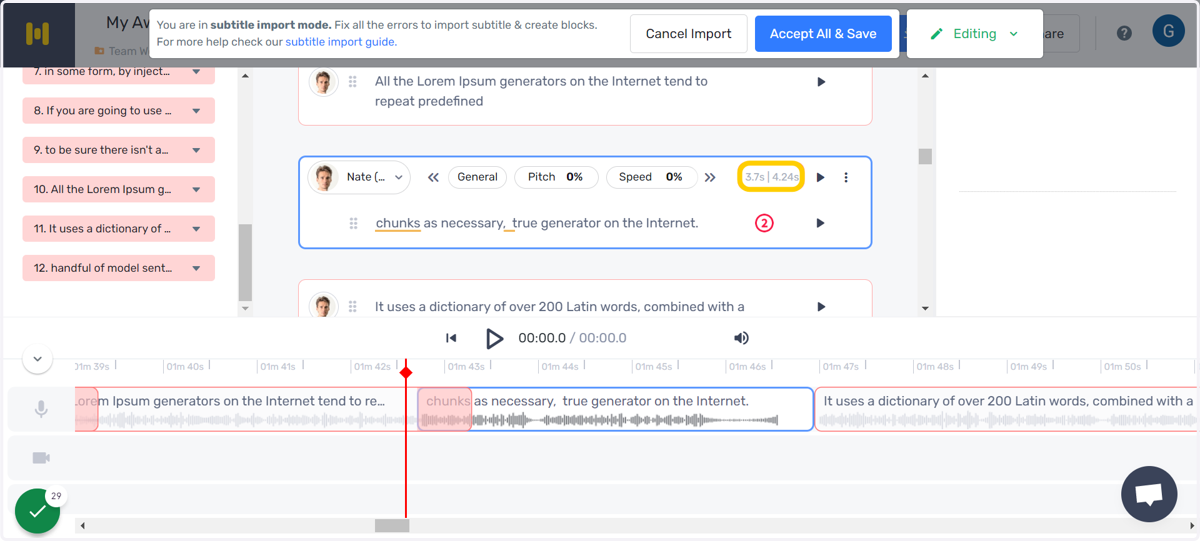
21. Audio durations match
The block disappears from the list of blocks that require to be fixed, the block appears in blue in the text editor, ad the durations match.
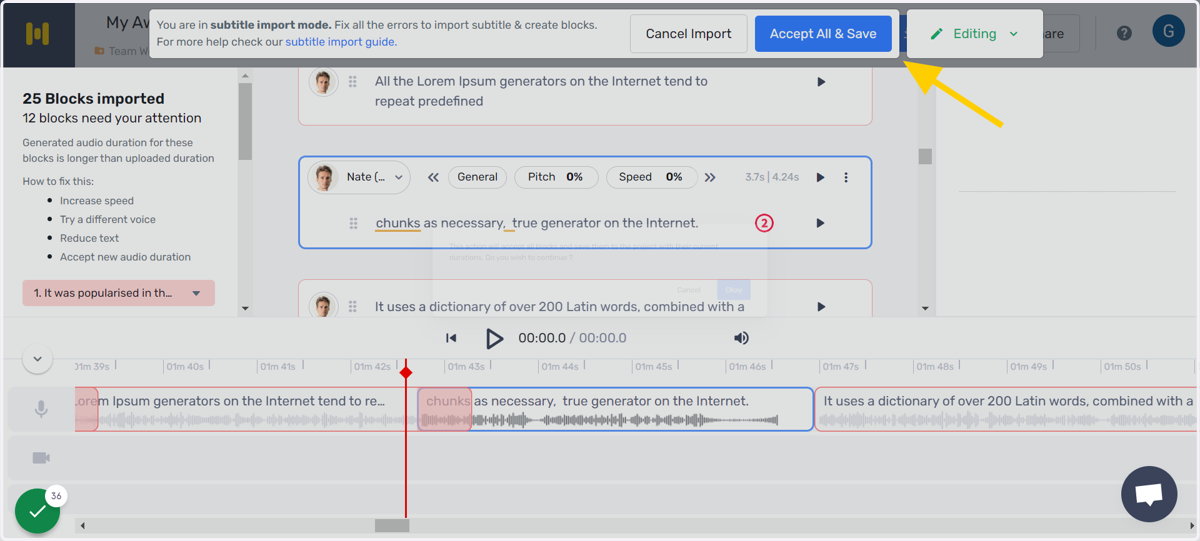
22. Accept All & Save
Accept All & Save would accept the new duration for all the blocks. This will result in the blocks getting moved further to the right.
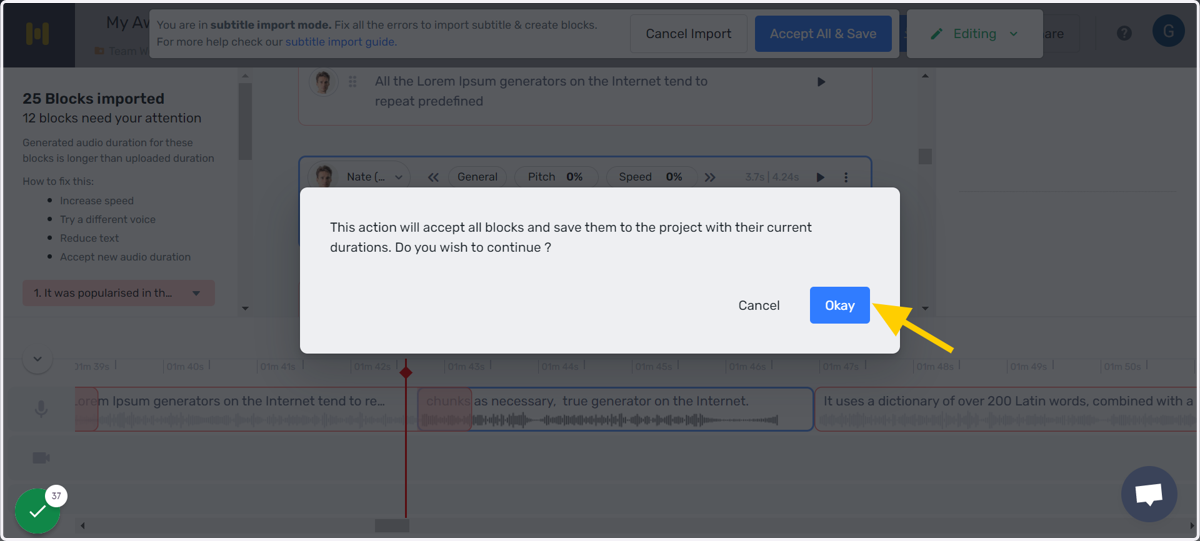
23. Accept all durations - Prompt
You will be prompted to accept the new durations (different from the original).
24. Subtitles imported
Murf
25. Video Transcription
If the video has audio, it can be transcribed into text blocks to generate AI voiceover for the video.
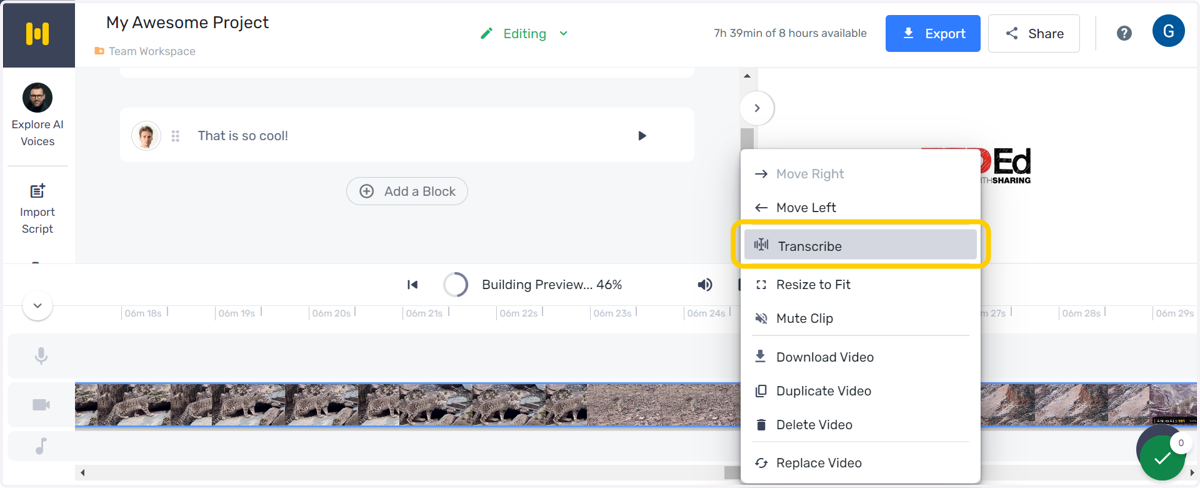
26. Transcription Preview
Works exactly like syncing SRT timestamps and generated audio
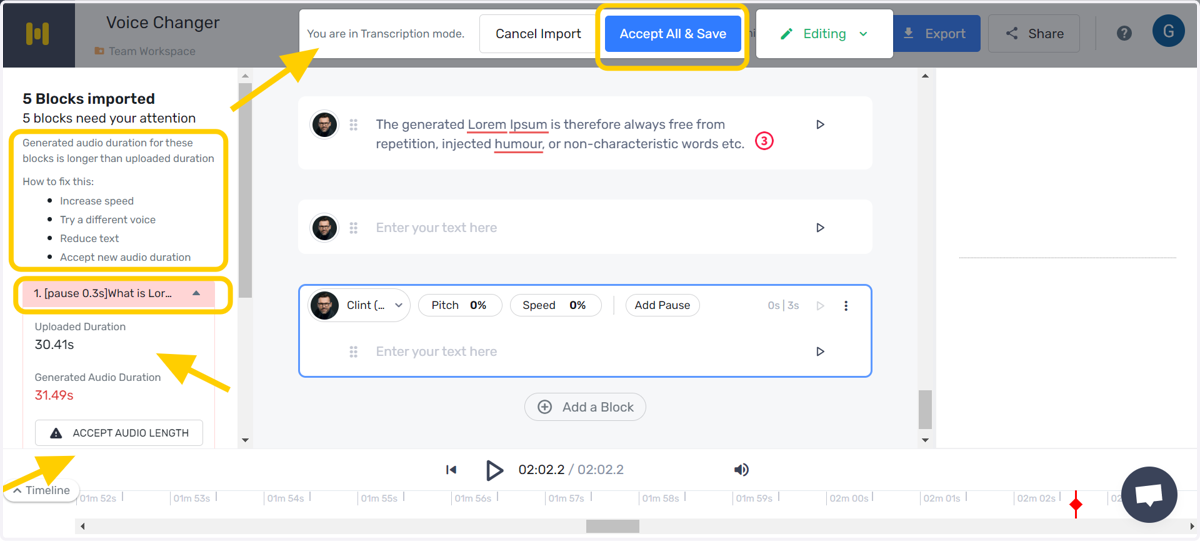
The difference in timings of the original audio and generated audio can be fixed in 4 ways:
Increasing the speed
Trying a different voice
Reducing the text
Accepting the audio duration (can be done for all the blocks using "Accept All & Save"
27. Voice Changer - sync durations
The durations of uploaded audio may differ from the durations of the generated audio due to the fact each voice is trained on a professional voice actor and has its unique style and pace of delivery, as no two people speak the exact same way.
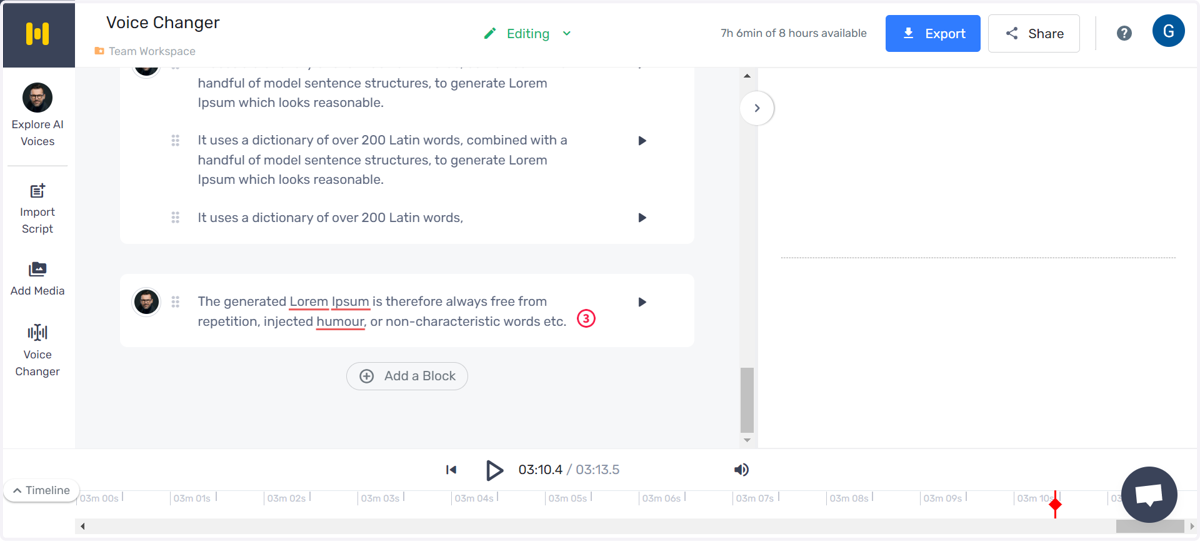
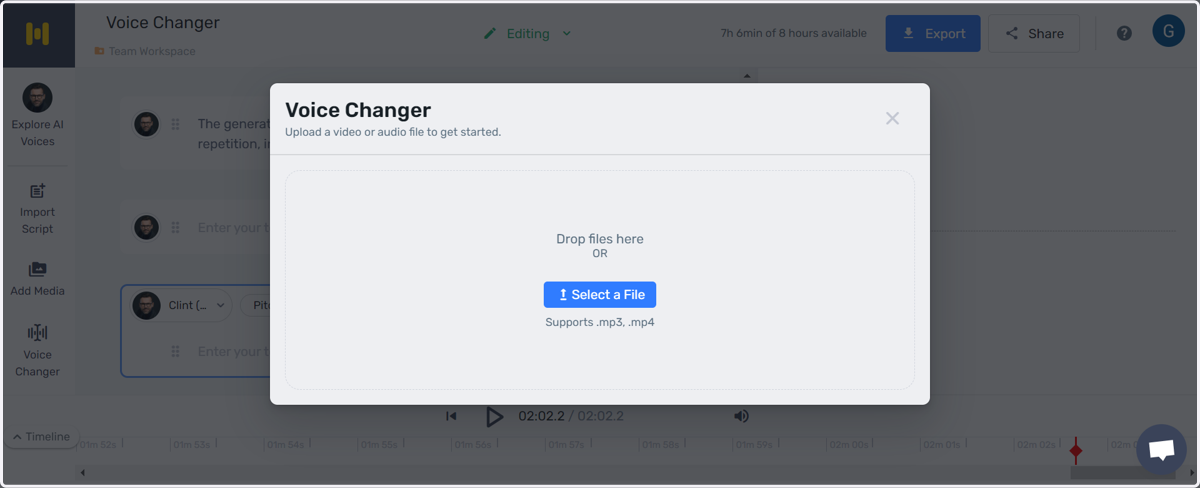
28. Voice Changer - upload .mp3 or .mp4 files
Both video and audio files can be transcribed into textblocks in the Voice Changer menu.
Murf
29. Voice Changer Preview
Works exactly like syncing SRT timestamps and generated audio
The difference in timings of the original audio and generated audio can be fixed in 4 ways:
Increasing the speed
Trying a different voice
Reducing the text
Accepting the audio duration (can be done for all the blocks using "Accept All & Save"