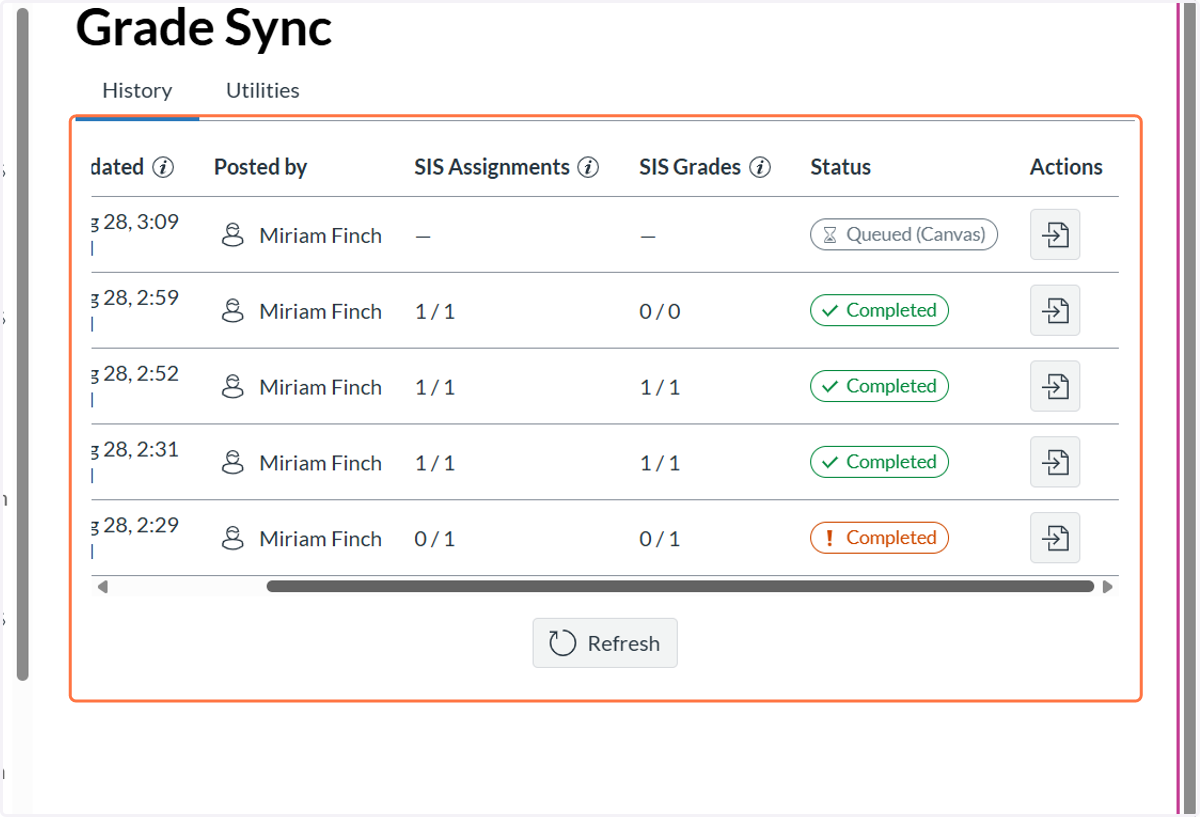
Sync Canvas Grades to Skyward
These directions allow you to Sync your Canvas Grades to your Skyward Section. These directions will only work for SIS generated courses - not manually created courses. There is no need to put the assignment in your Skyward Gradesheet -- Canvas will place the assignment automatically if it is listed in your Canvas Grade section.
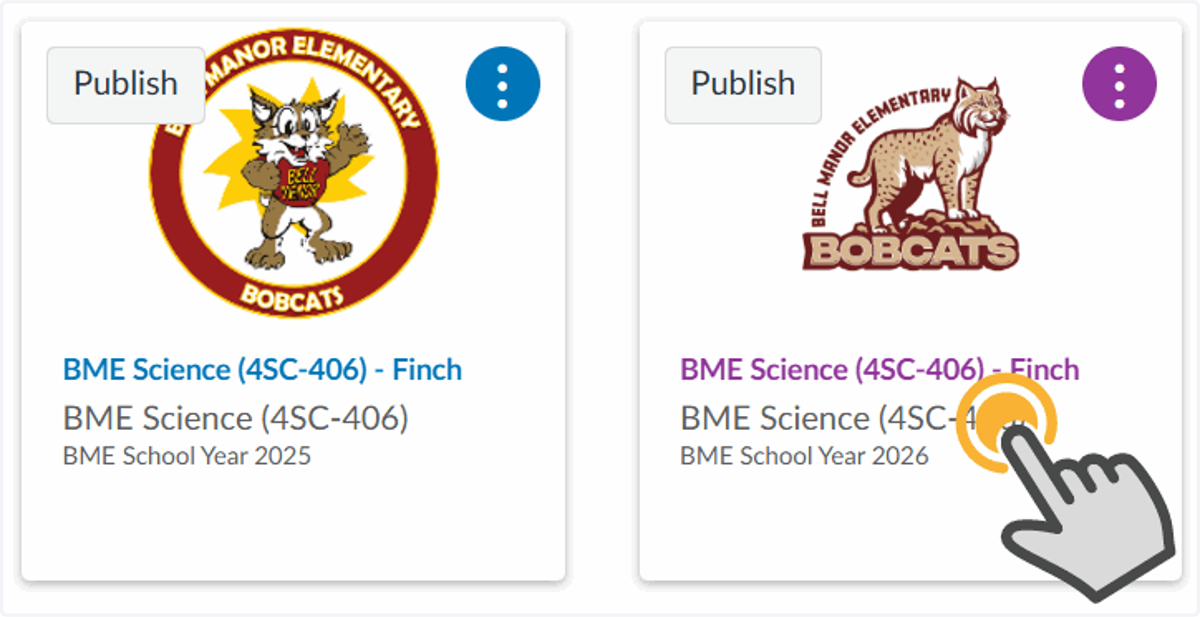
1. Open your Canvas Course
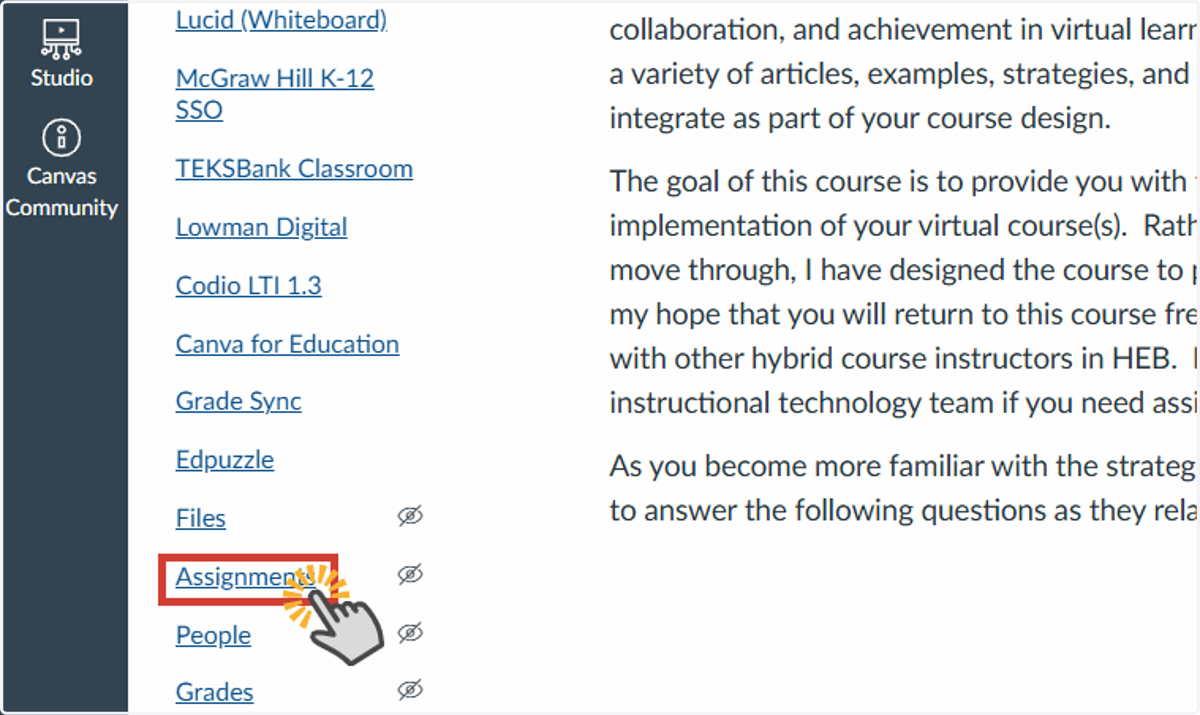
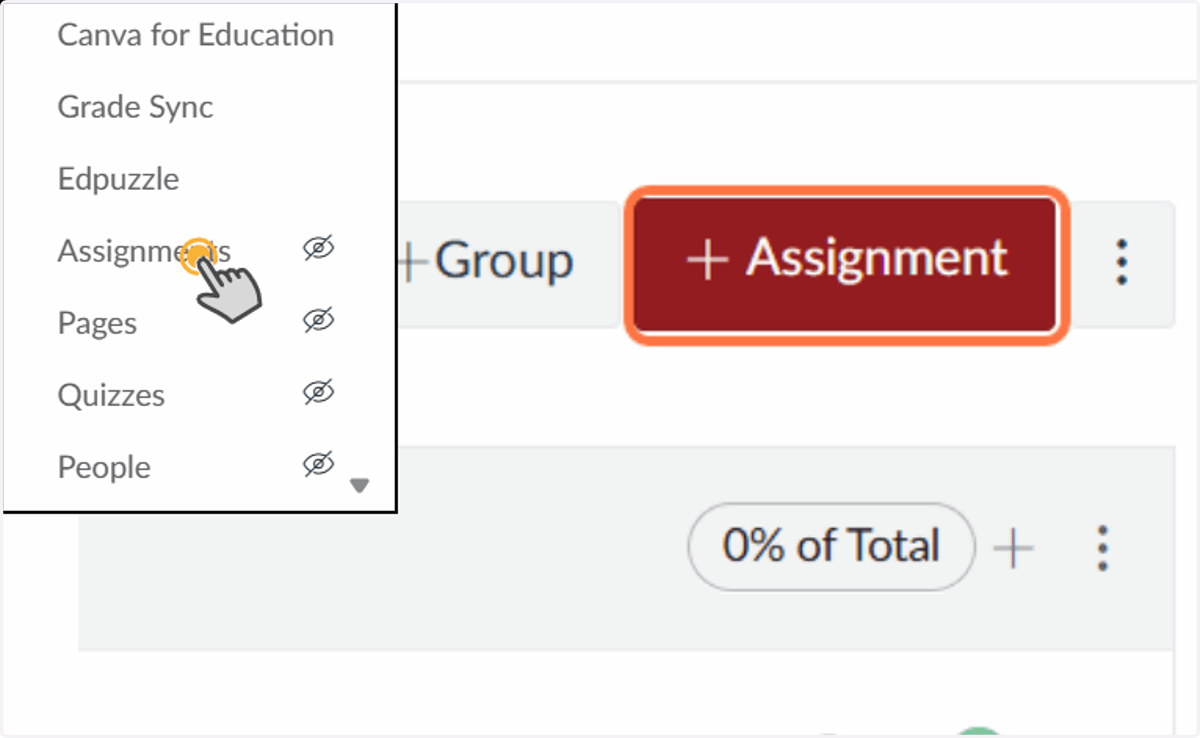
2. Select Assignments in your course menu
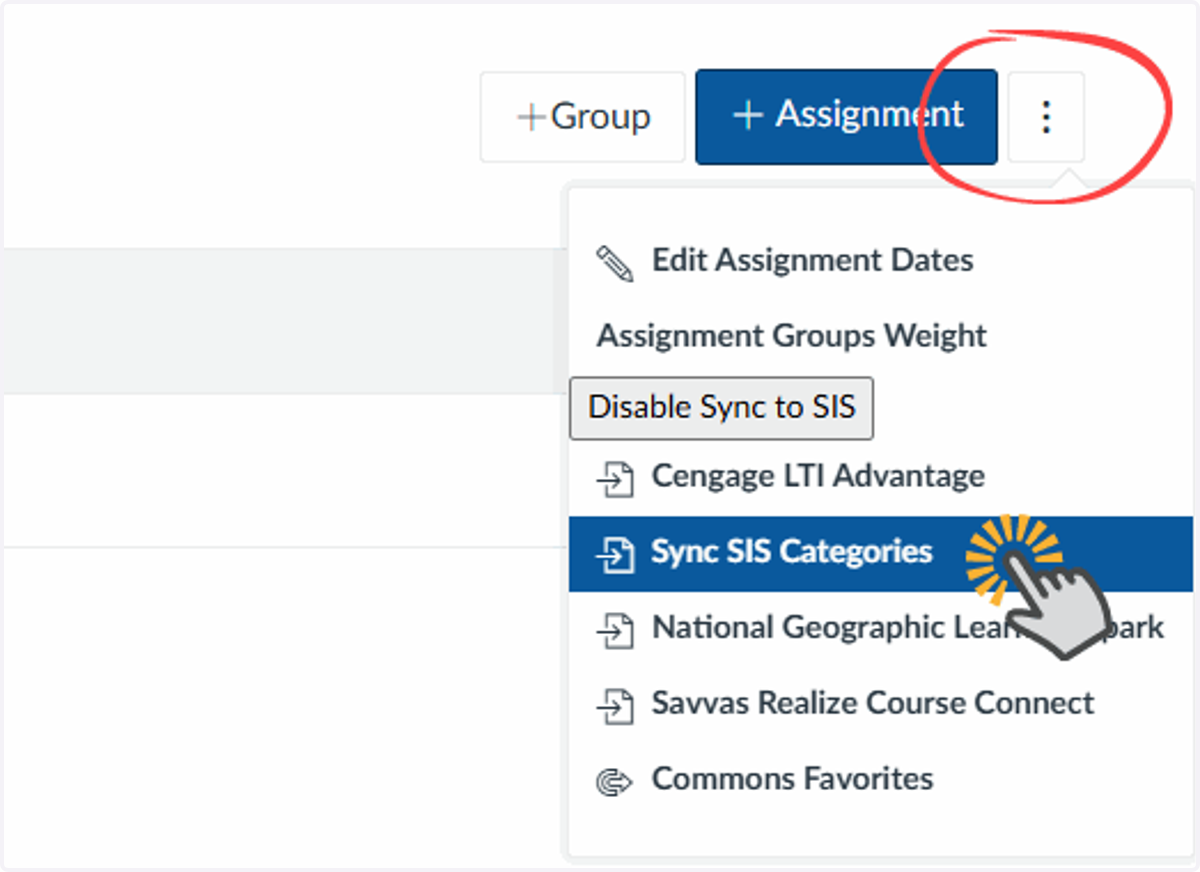
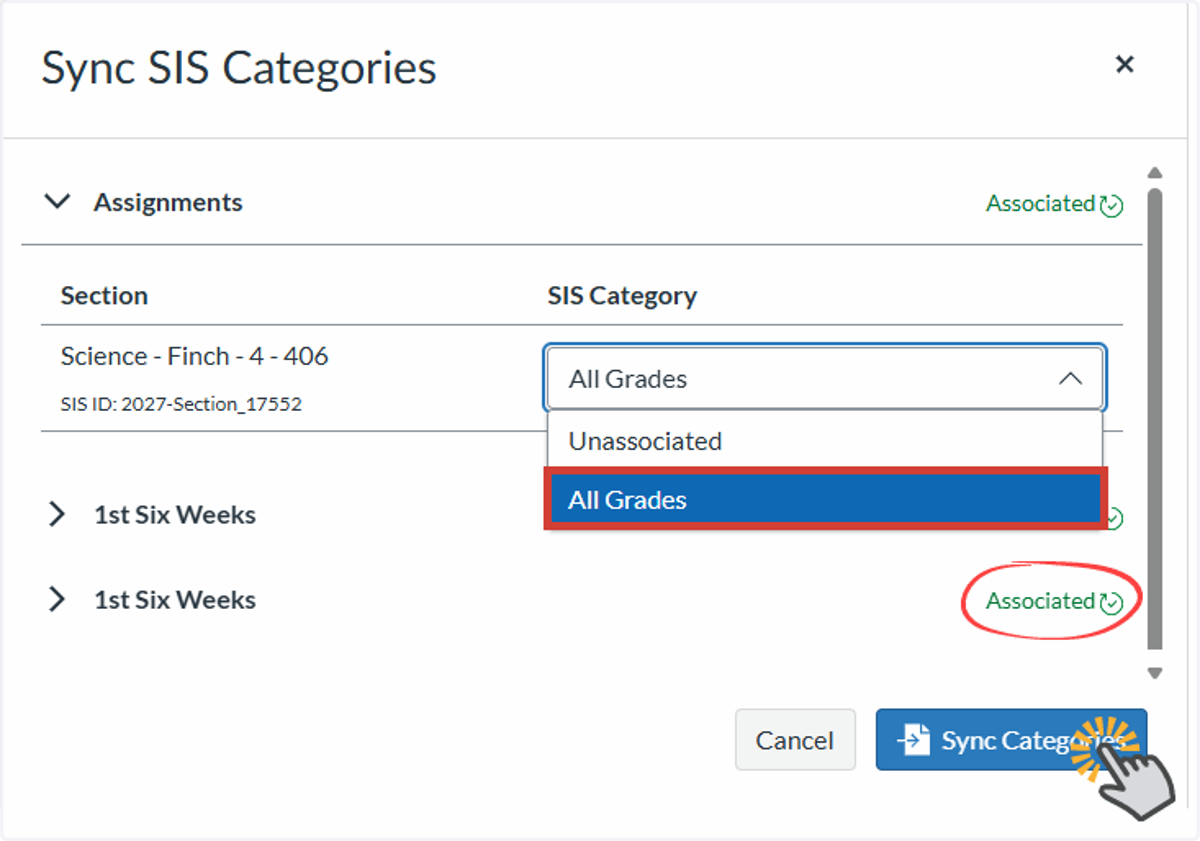
3. Choose the assignment settings option (⋮) and select Sync SIS categories
4. Use the drop down menu to select All Grades for each section of your course
Do this for assignments and each of the six weeks (if you have them)
5. Create an assignment
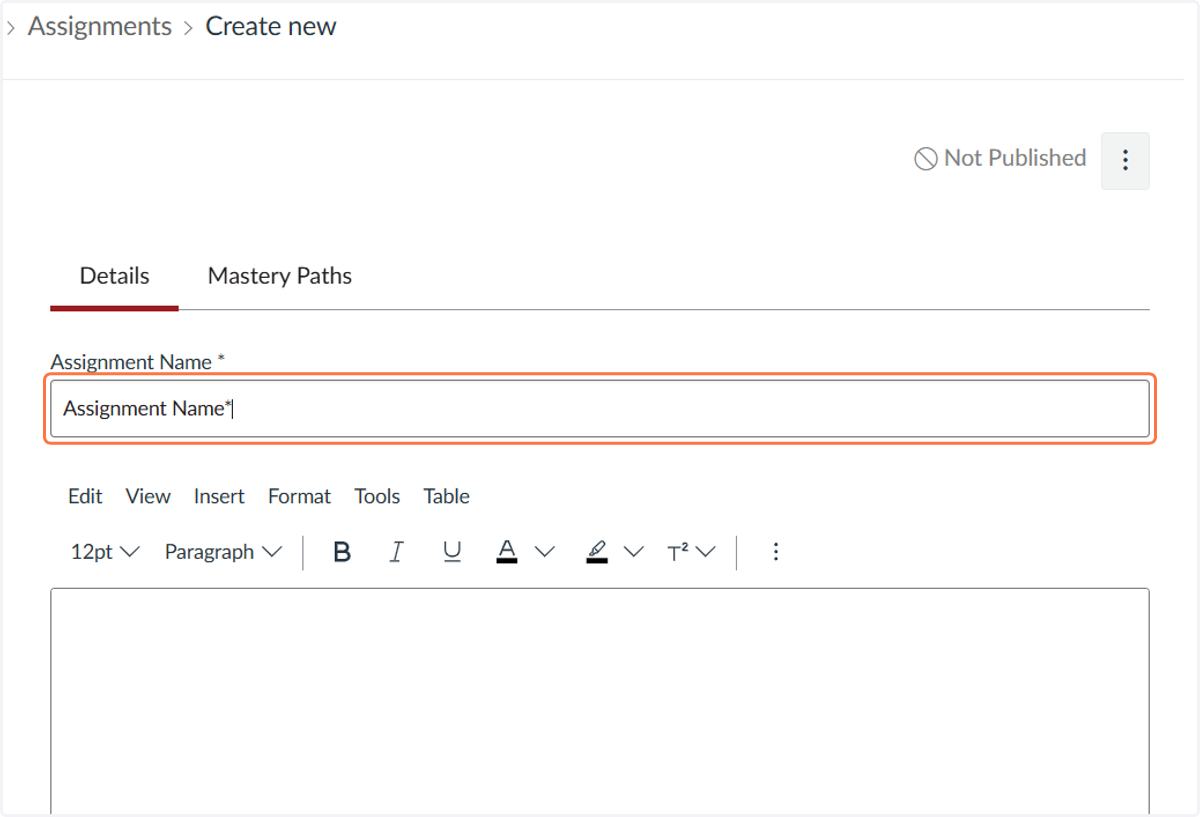
6. Edit the assignment name
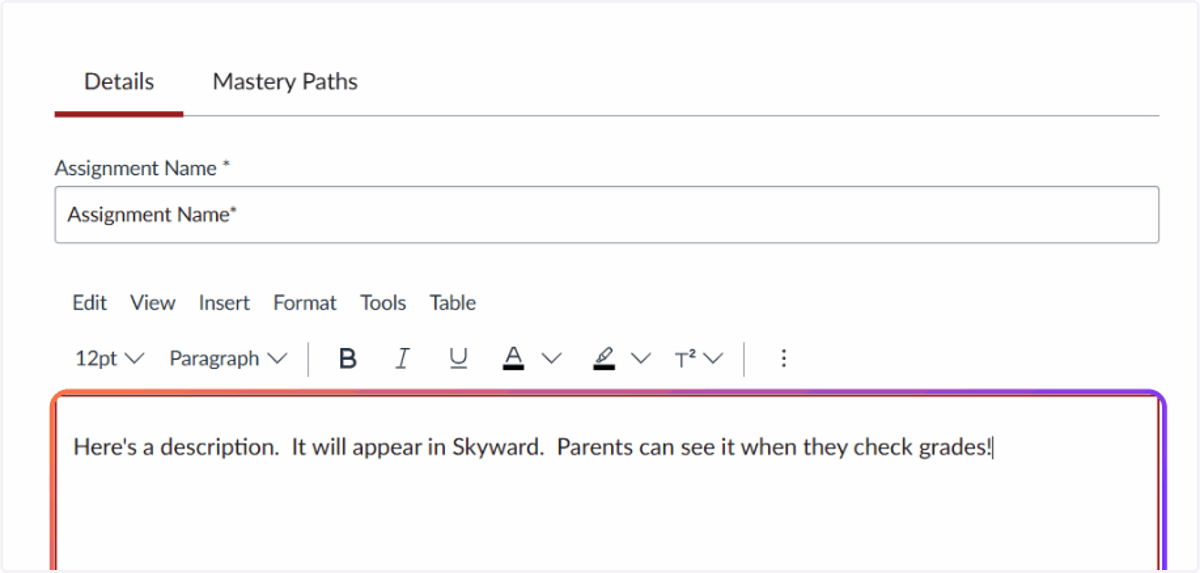
7. Enter a description (optional)
This description will appear in Skyward for parents to view under assignments.
8. Set points to 100
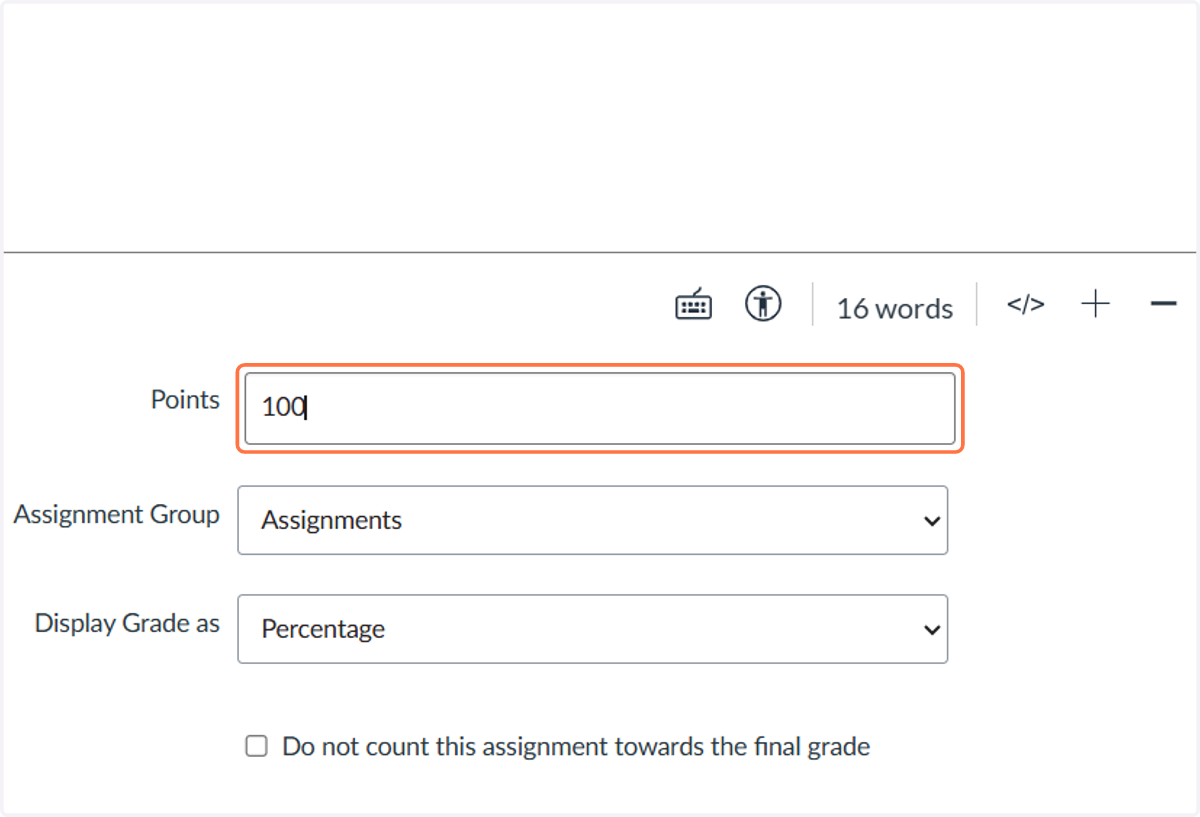
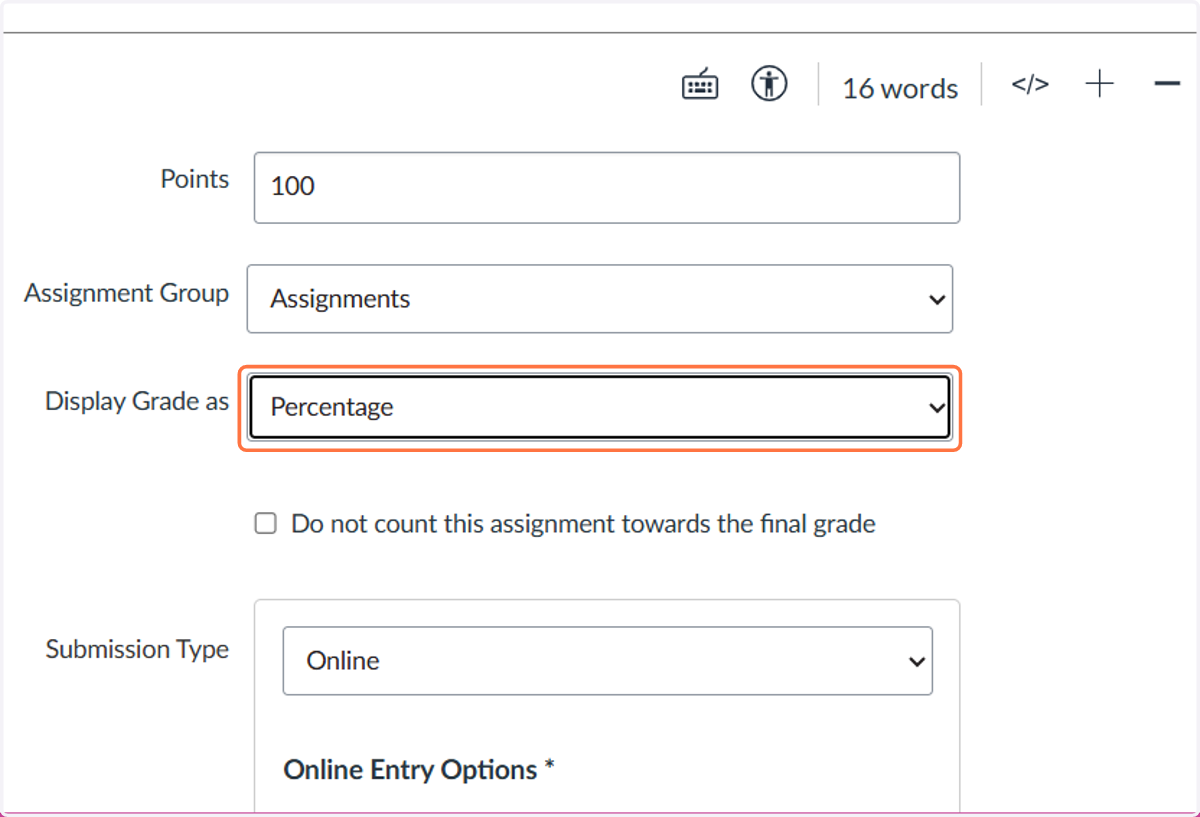
9. You must set the Display Grade as Percentage (Required)
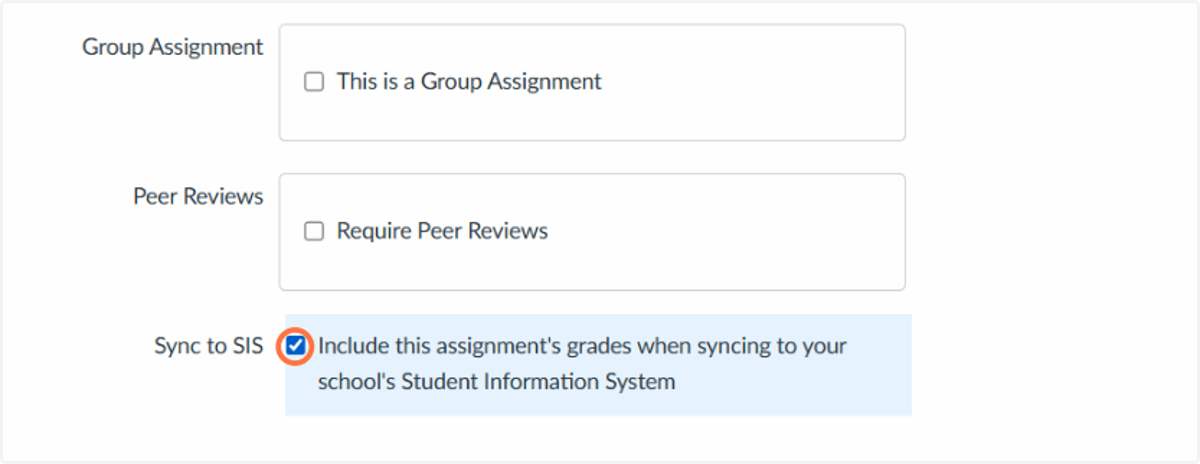
10. Check Include this assignment's grades when syncing to your school's Student Information System (Required)
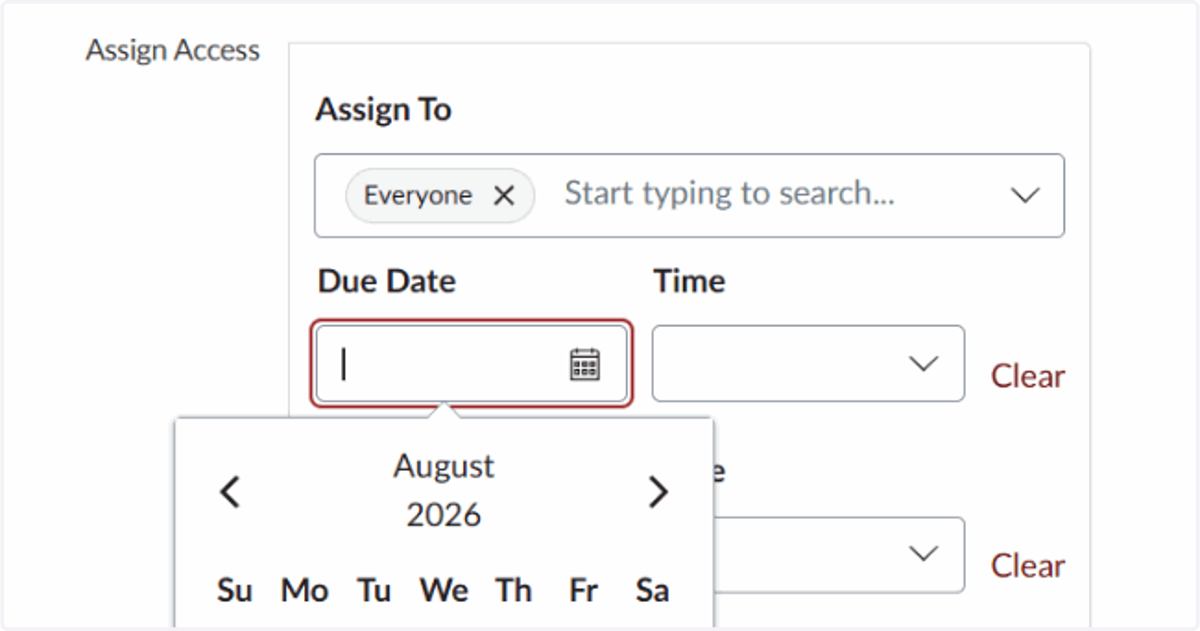
11. Select a Due Date (Required)
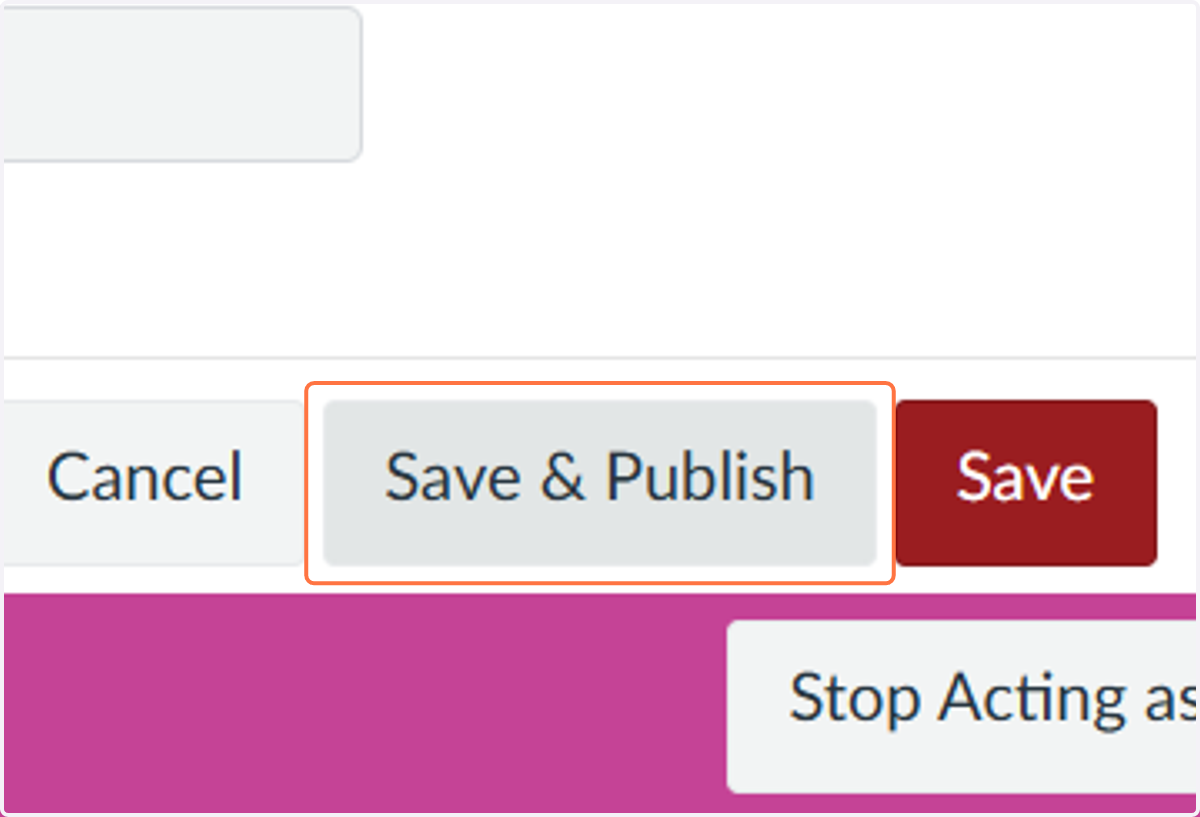
12. Click on Save & Publish
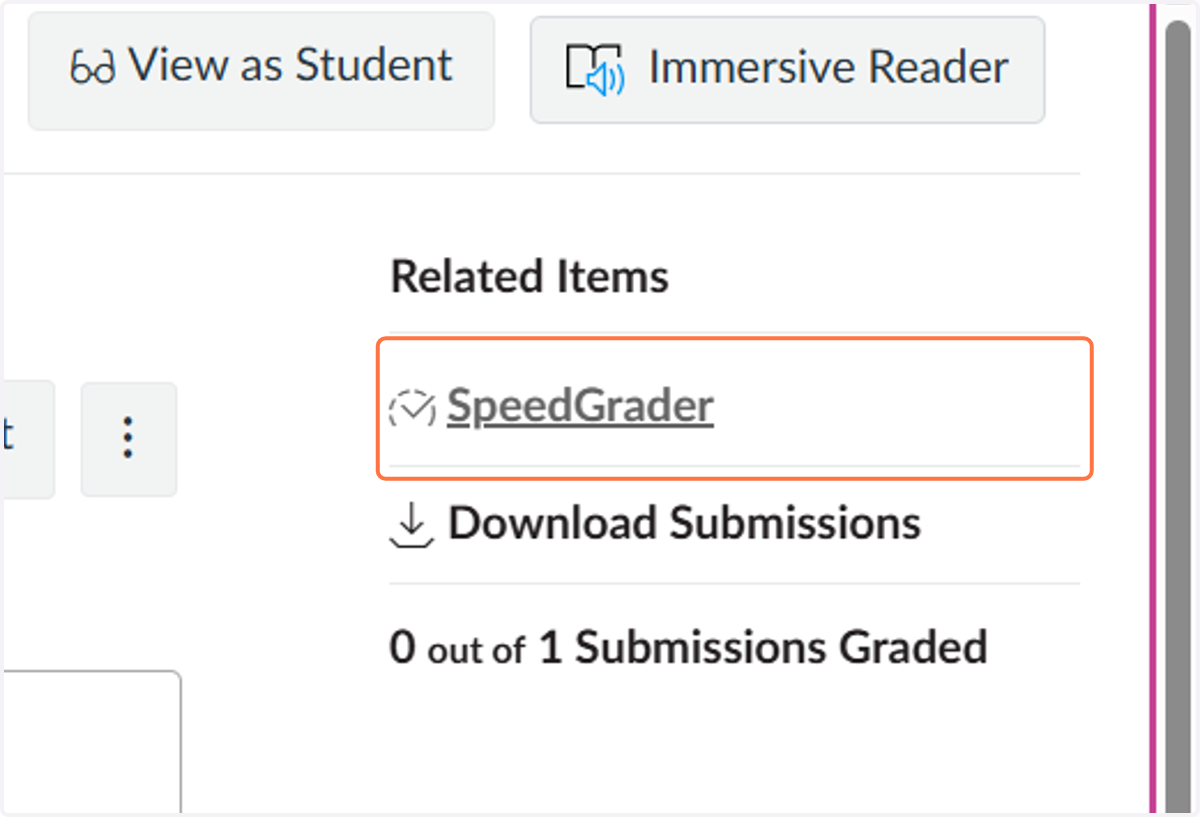
13. Grade student assignments
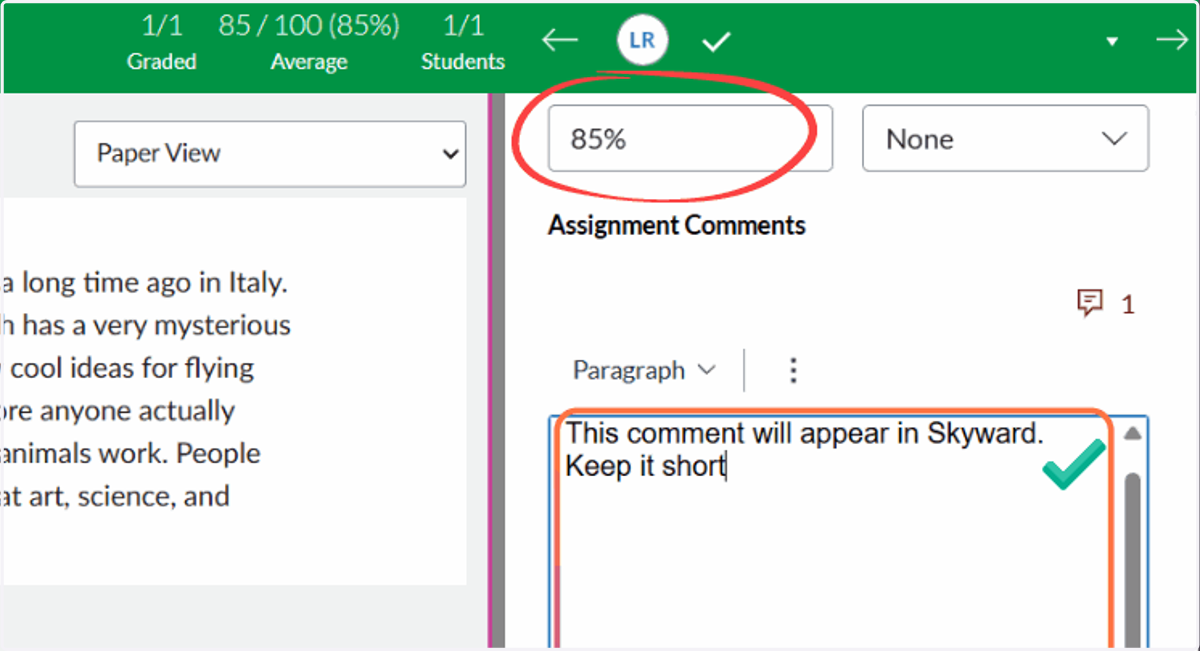
14. Enter grades (required) and comments (optional)
Comments in this section will appear as assignment comments in Skyward. Keep it short!
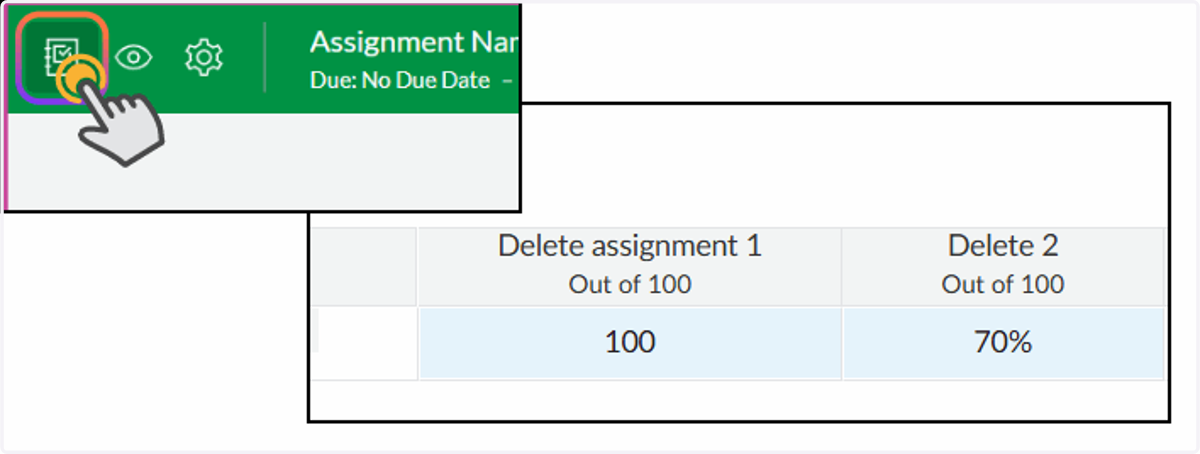
15. Submit all assignment grades within the Canvas system.
16. Return to your Grade view (Canvas Gradebook)
17. Click on Sync
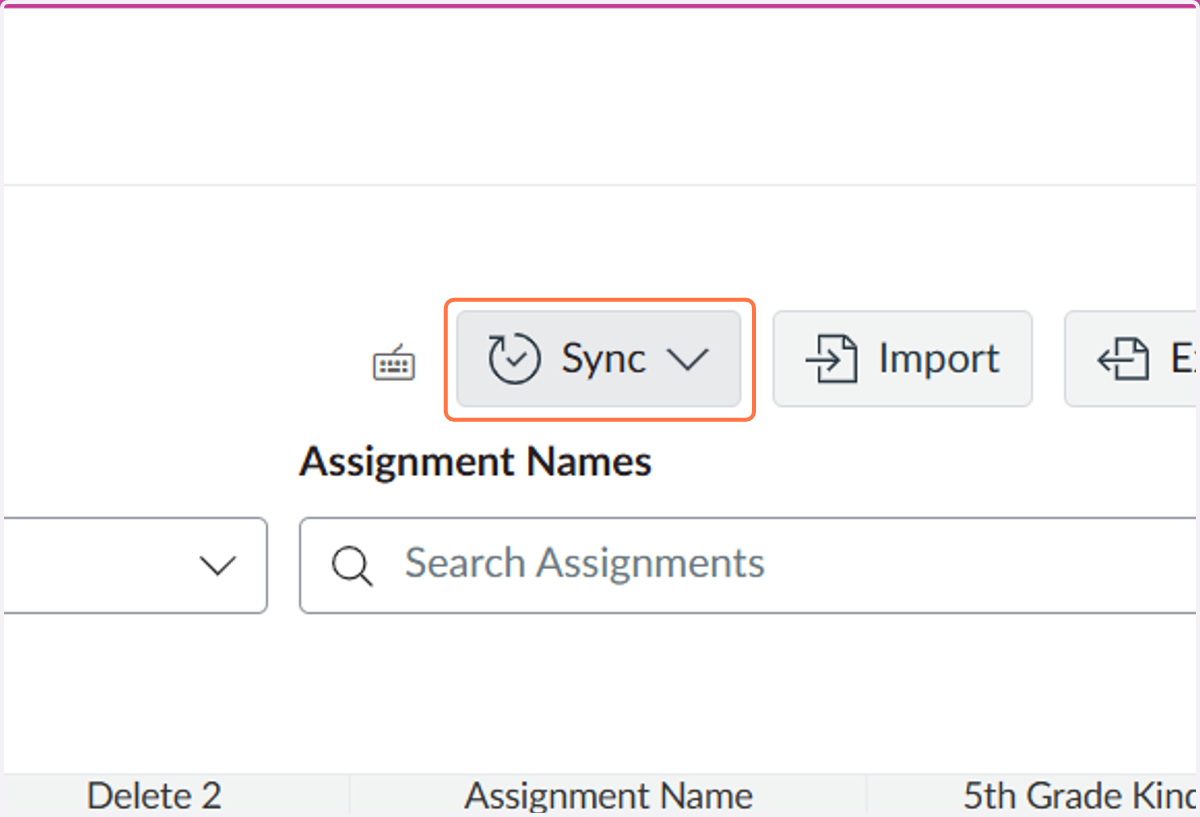
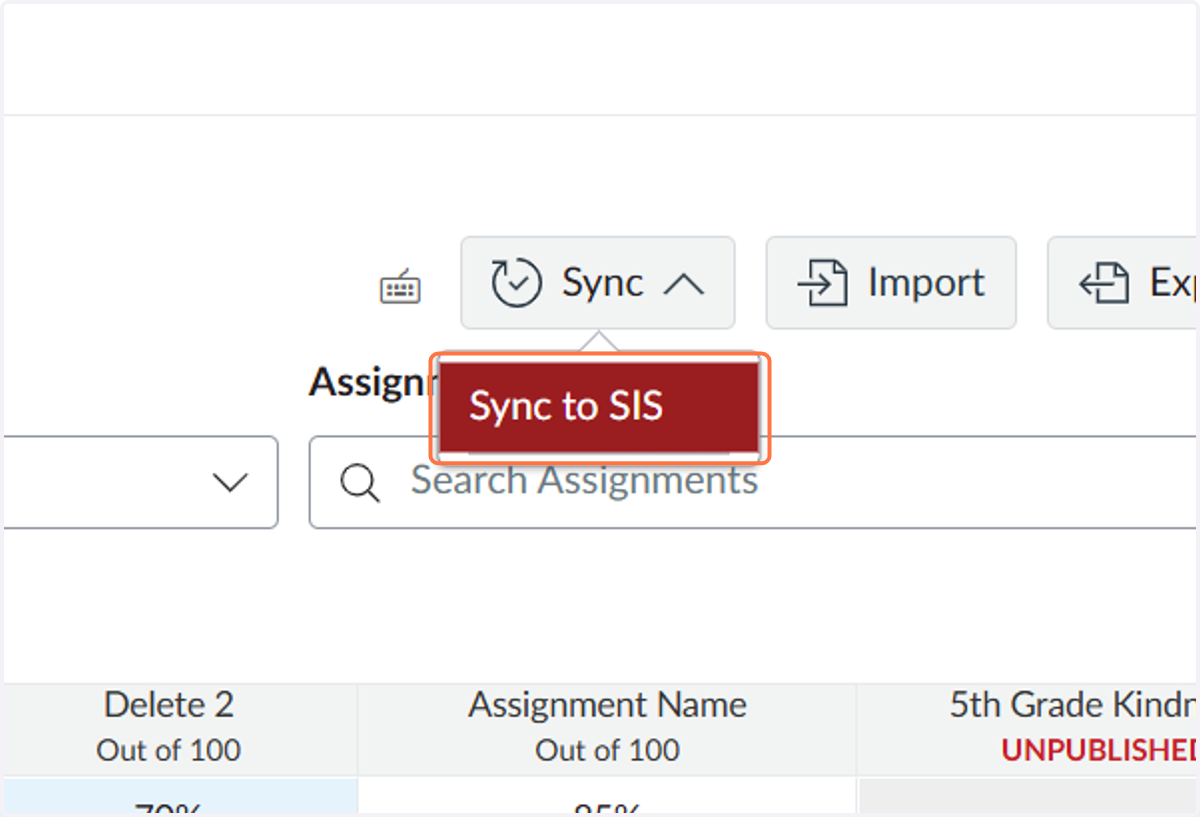
18. Select Sync to SIS
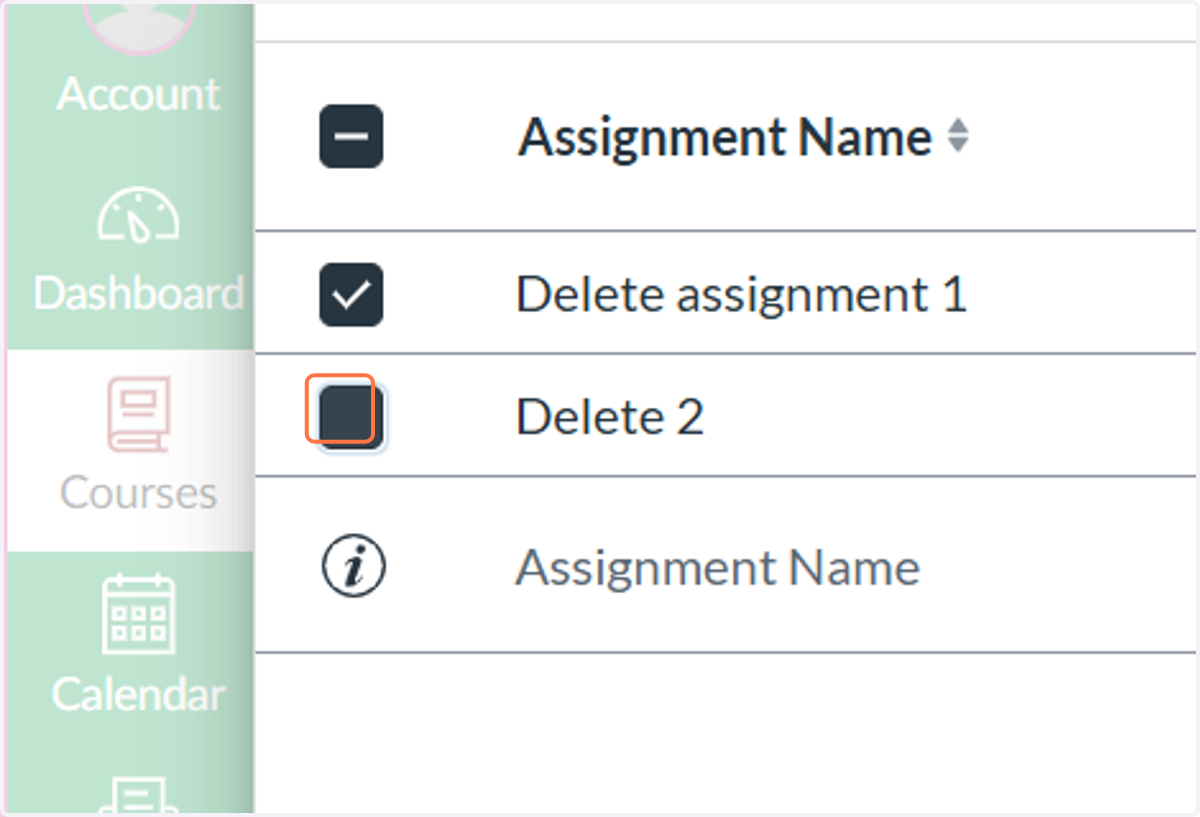
19. Choose assignments for Sync
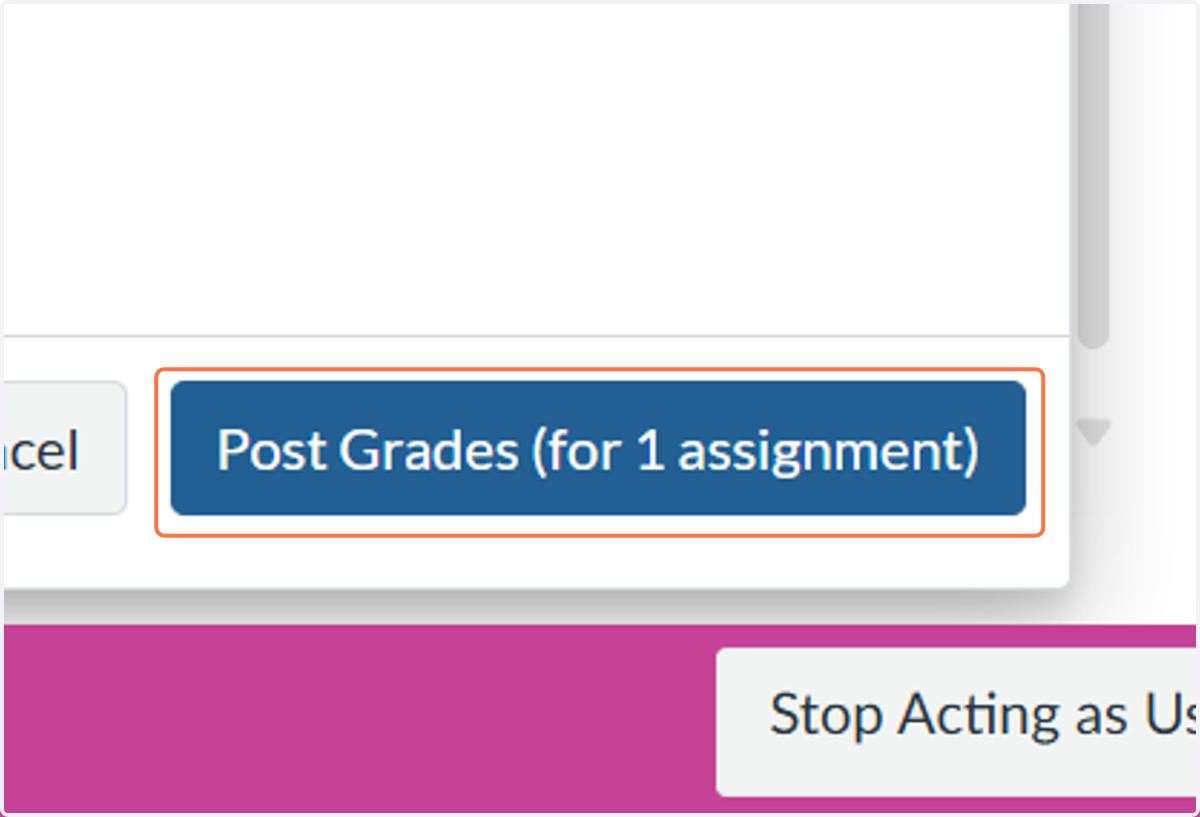
20. Click on Post Grades
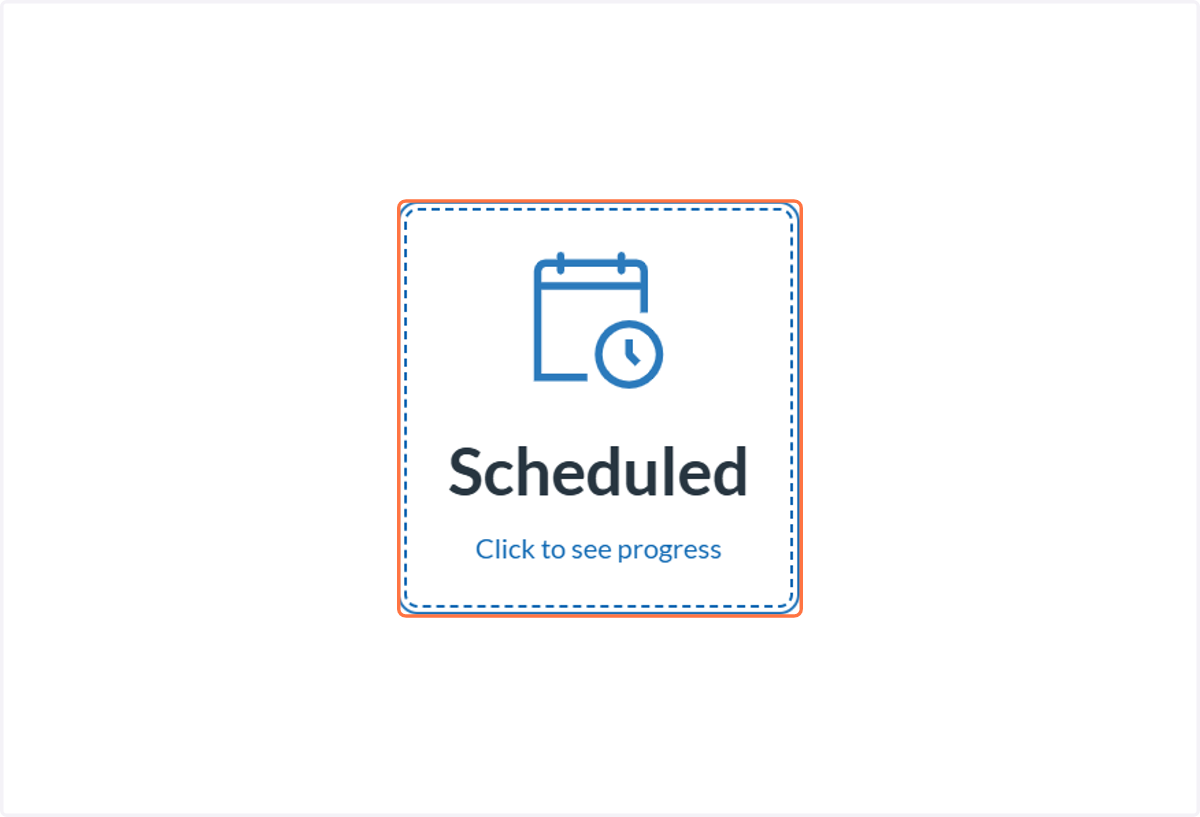
21. Select Scheduled to see progress (optional)
22. See status for assignments
Use refresh to update list as needed