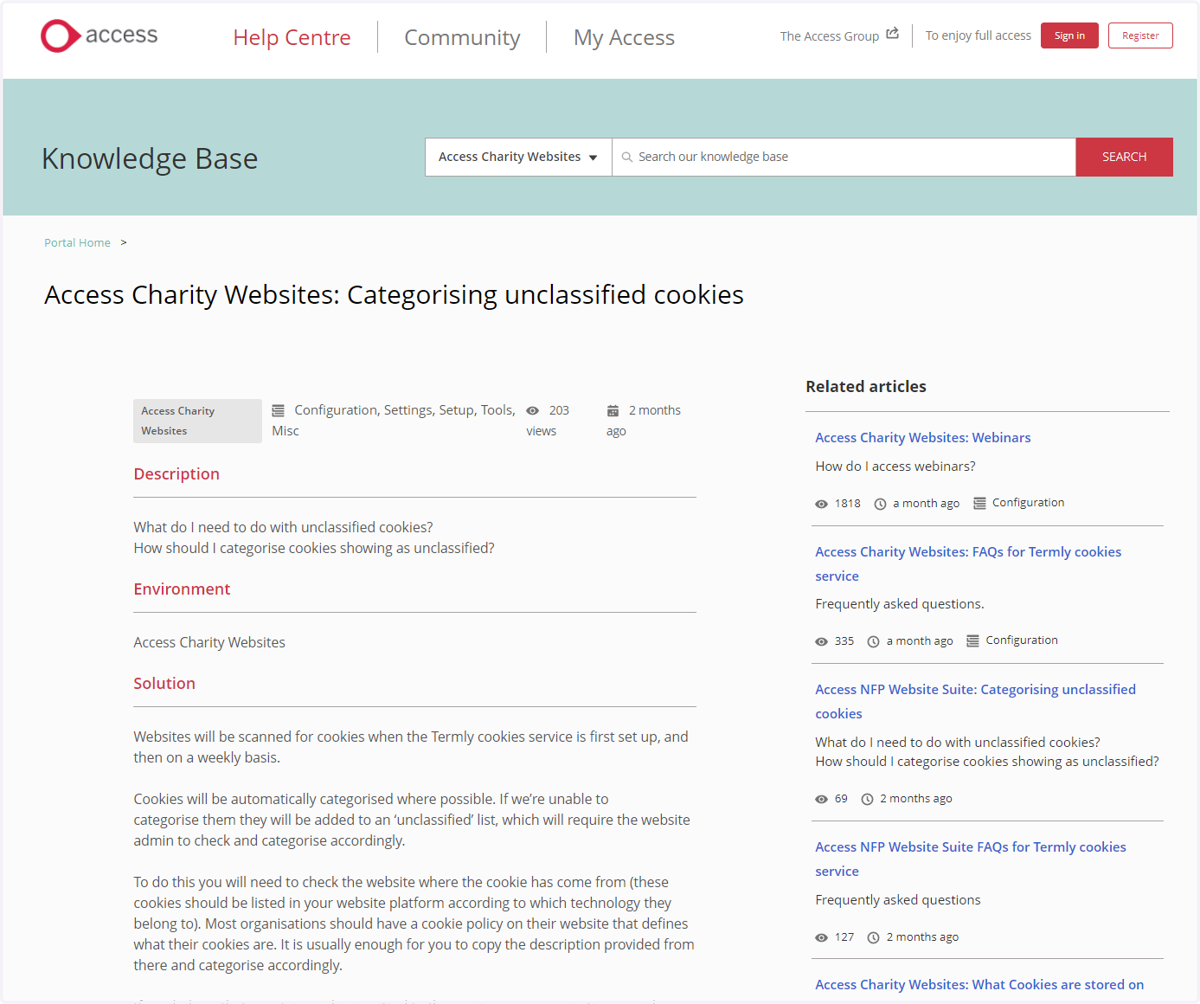
Switching on your new cookie banner
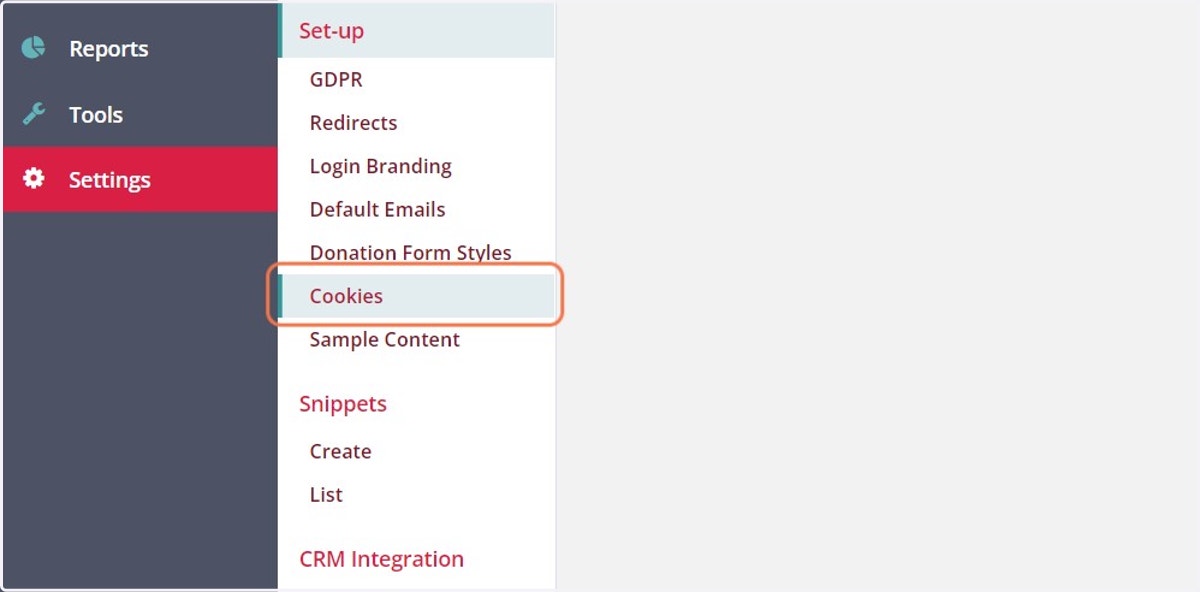
Navigate back to your cookies in the website manager.
1. Navigate to cookies within your website manager
Find your cookies under Settings > Set-up > Cookies
Force
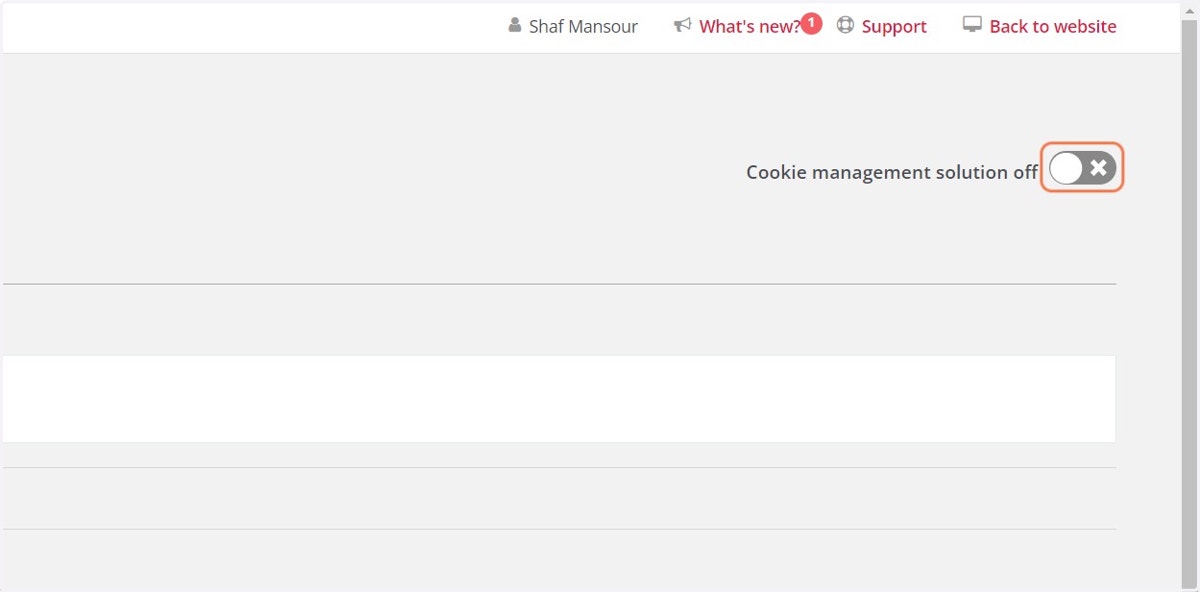
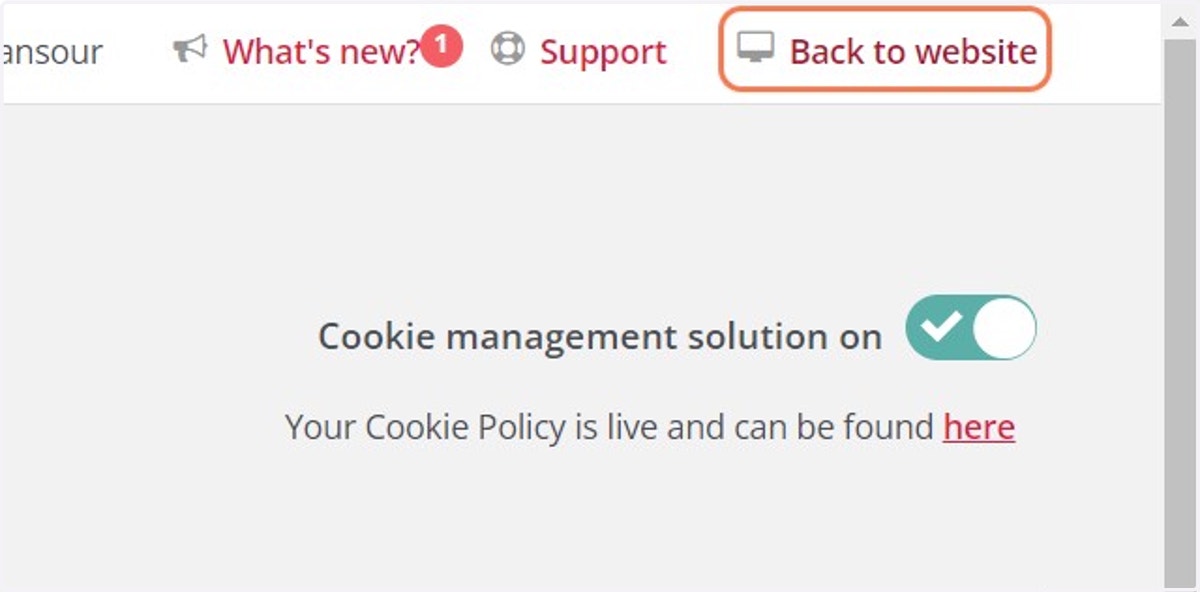
2. You'll find the switch in the top right of the page
Click the switch to turn in on.
3. Your new banner is LIVE!
This will automatically replace your old banner if you were using our previous version.
You can now view your new Cookie Policy via the link provided. Make sure you replace any links to your Cookie Policy with this new URL.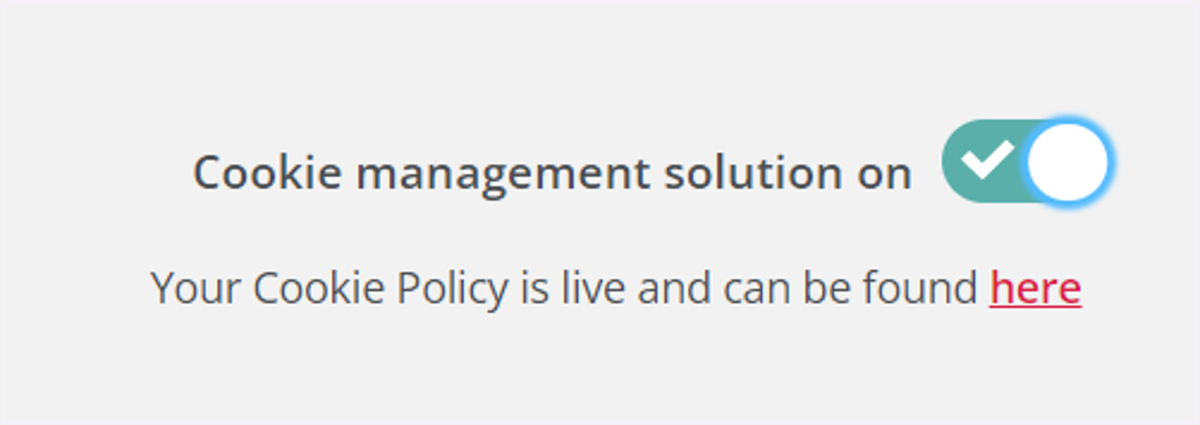
4. Viewing your new banner
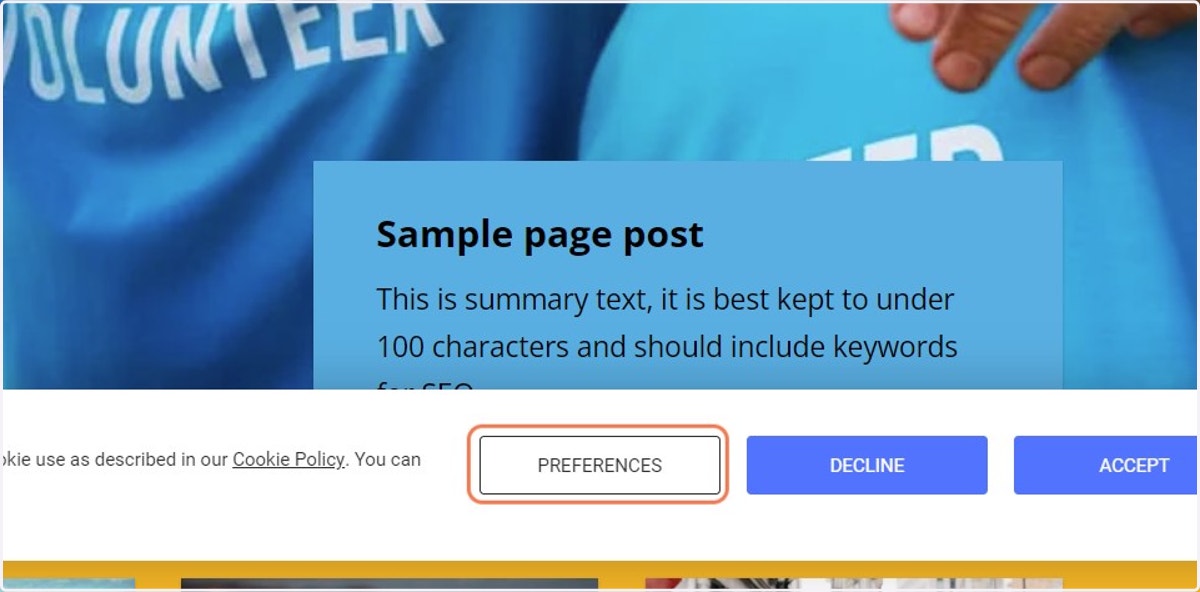
Head to the front end of your website to view your new banner.
5. Select preferences to see what your end users will see
For those of you on our Enterprise tier, we're able to match the branding of your website. Please raise a support ticket and we'll get that actioned for you.
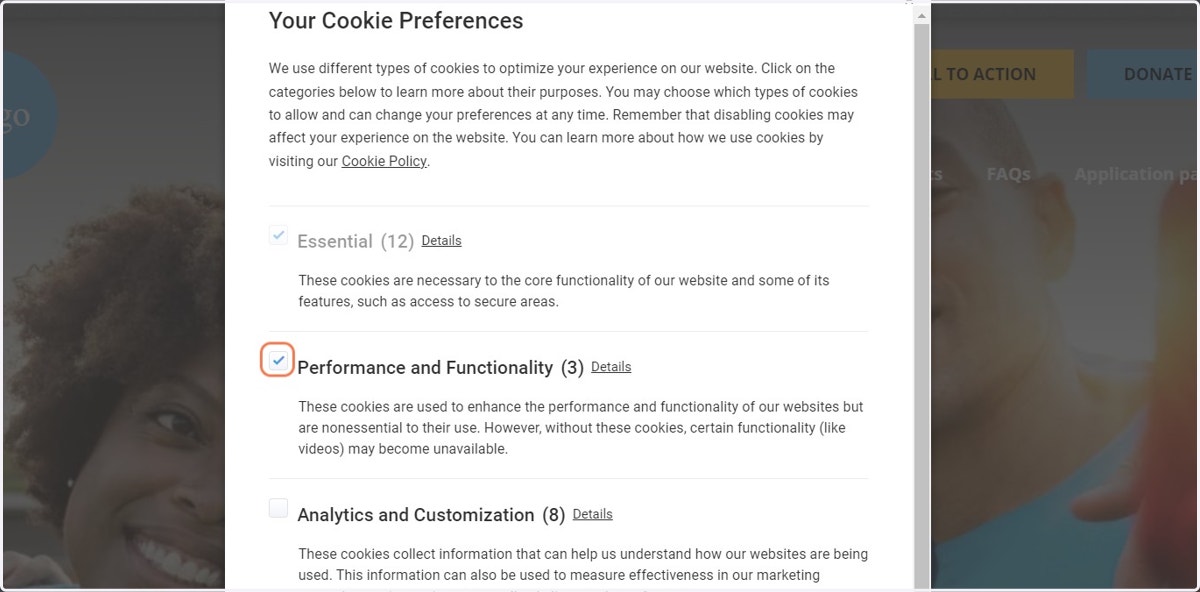
6. Preferences can be configured
Your website users can choose to opt in or out of categories as they wish. Only those that have been classified as 'Essential' are not configurable by the end user.
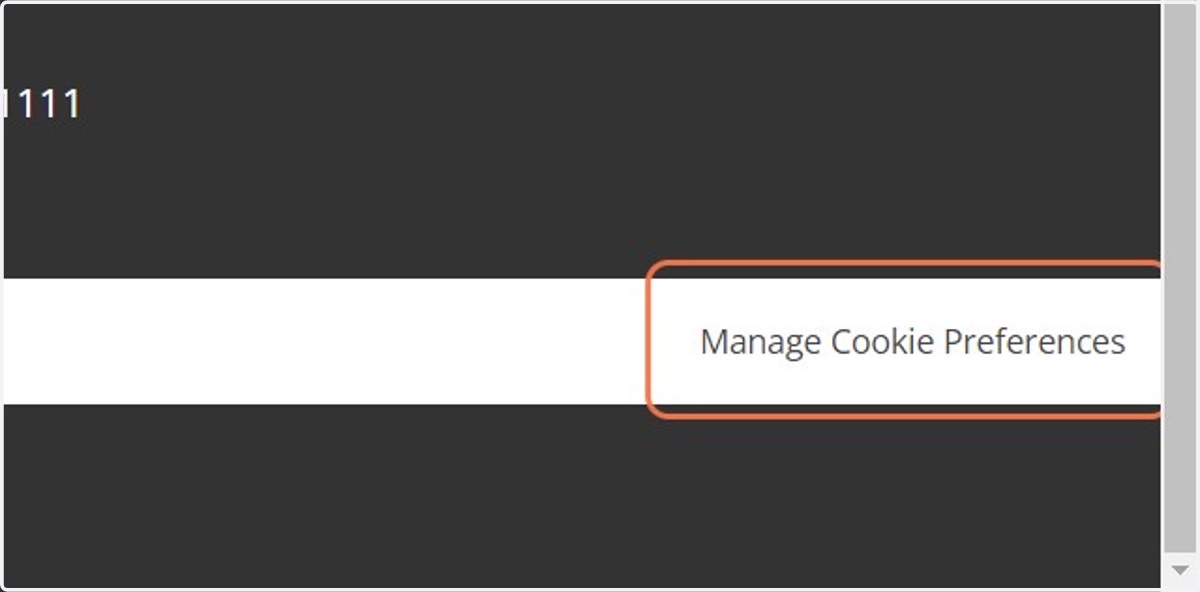
7. How to manage cookie preferences
Website users can manage their preferences at any time via a link that will appear at the bottom of the footer.
8. More help in our Knowledge Base
You can find links to explainer videos and more detailed articles in our Knowledge Base:
- Access Charity Websites: Categorising unclassified cookies (force.com)
Please do reach out to support if you get stuck.