Supervisor's Guide: How to Submit a Remote Work Arrangement Request
This guide provides instructions to NC State supervisors on submitting a remote work request via the Manager Self Service homepage in MyPack portal.
NAVIGATE TO MANAGER SELF SERVICE
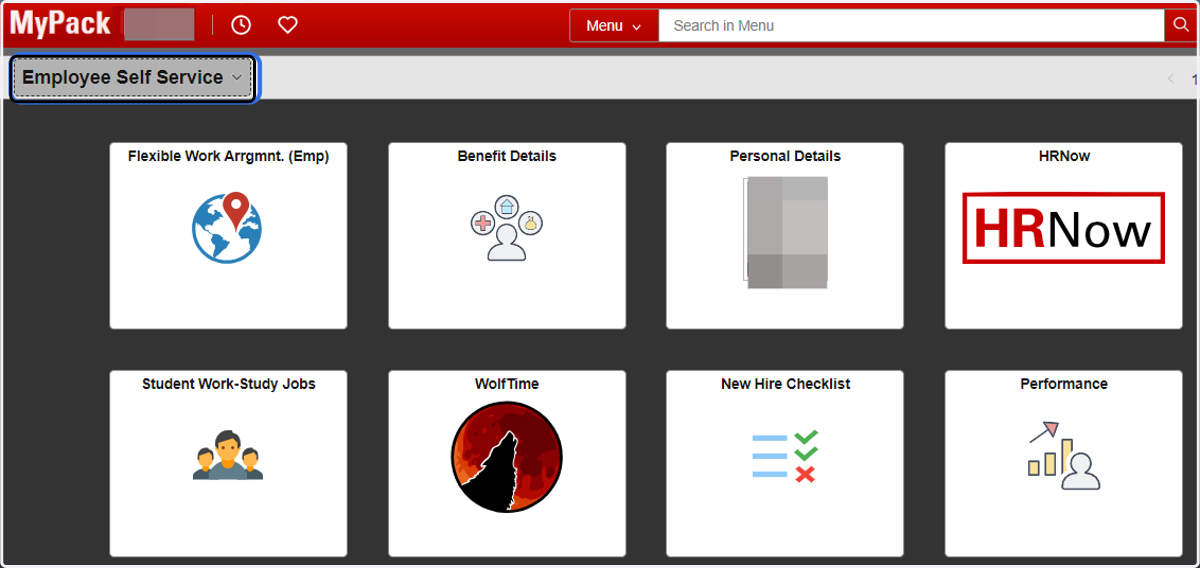
1. Upon login to MyPack Portal, users will land on their homepage - which is Employee Self Service by default.
Users must change the homepage to Manager Self Service to locate the Remote work Arrangement (Mgr) tile.
ADD A NEW REMOTE WORK REQUEST
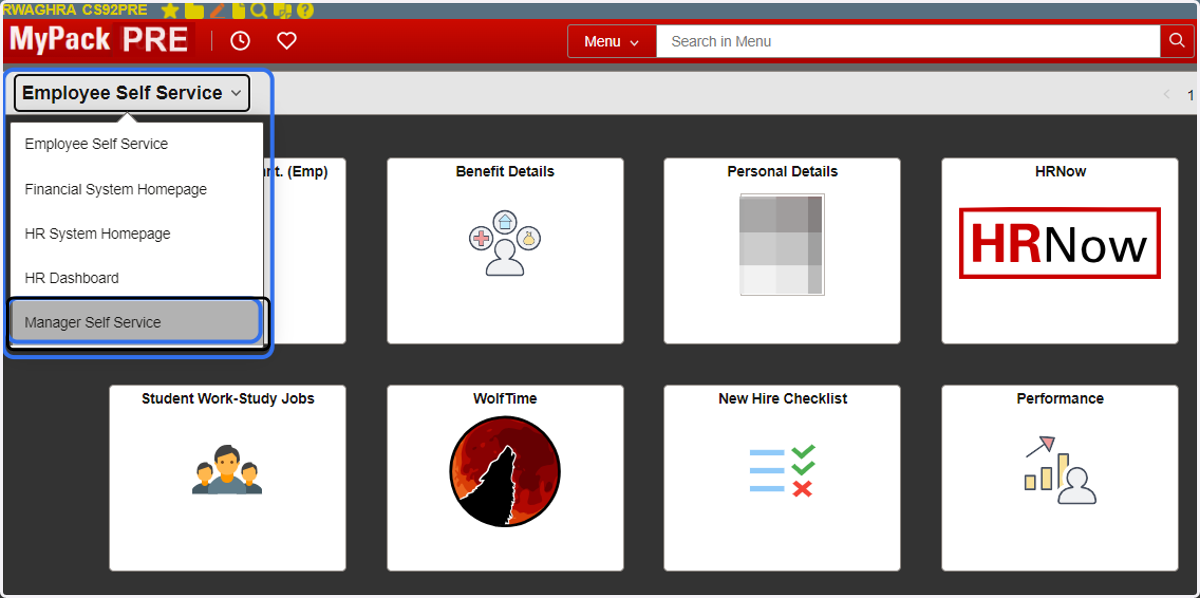
2. Select the Manager Self Service homepage
From the list of homepages, select the Manager Self Service homepage.
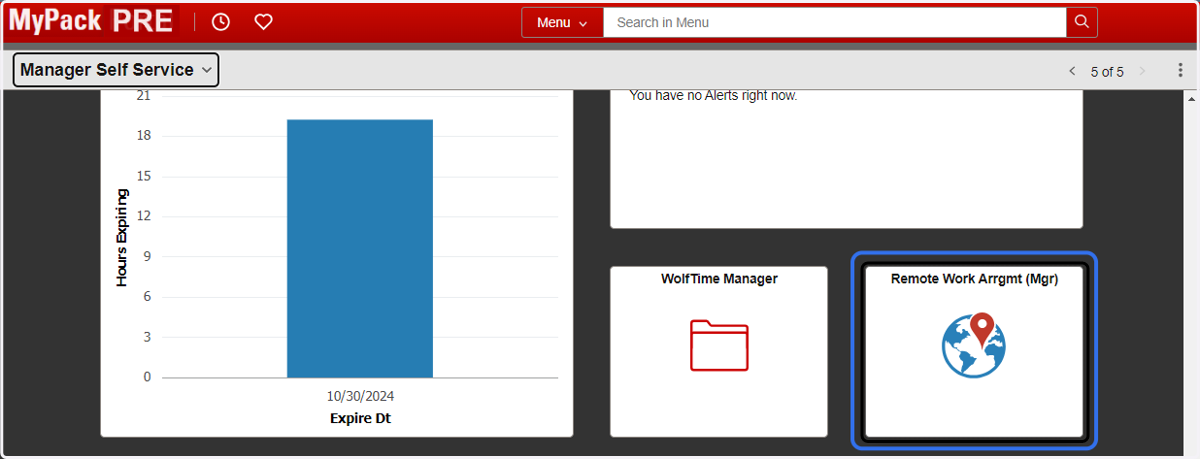
3. Locate and click on tile labeled "Remote Work Arrgmt (Mgr)"
From the next page, users can initiate a new remote work request.
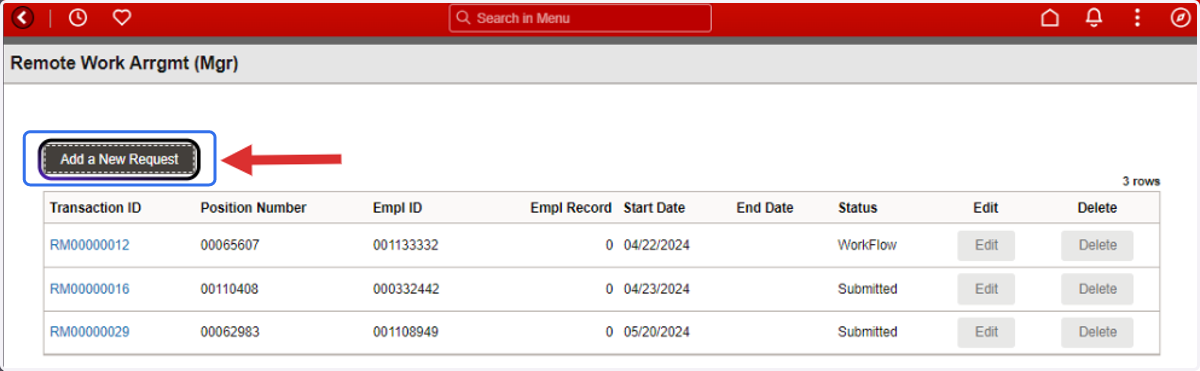
4. To initiate a new remote work request click on "Add a New Request"
SELECT REMOTE WORK OPTION
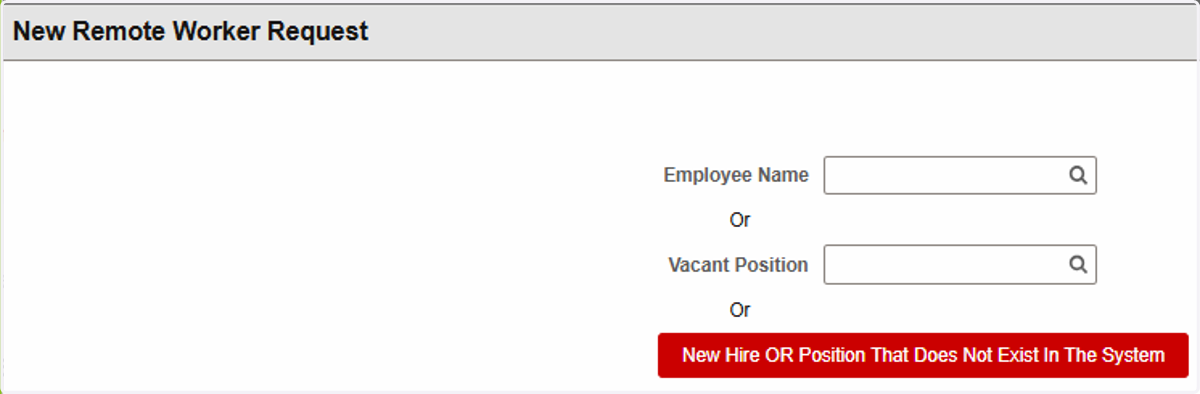
5. Select an option to search for the Employee or Vacant position if available.
Remote work requests can be submitted for one of the following situations:
1) Remote work request is for an existing employee - Select the Employee Name dropdown to search and select the employee
2) Remote work request for a vacant position - Select the Vacant Position dropdown to search and select the position based on the position ID
3) Remote work request being submitted if the person or position doesn't exist - Select the button labeled "New Hire OR Position That does Not Exist In The System"
If the Person or Position Does Not Exist
Only use this option if you have discussed it with your HR Business Office Dept.
6. Non-Existing Person or Position Option
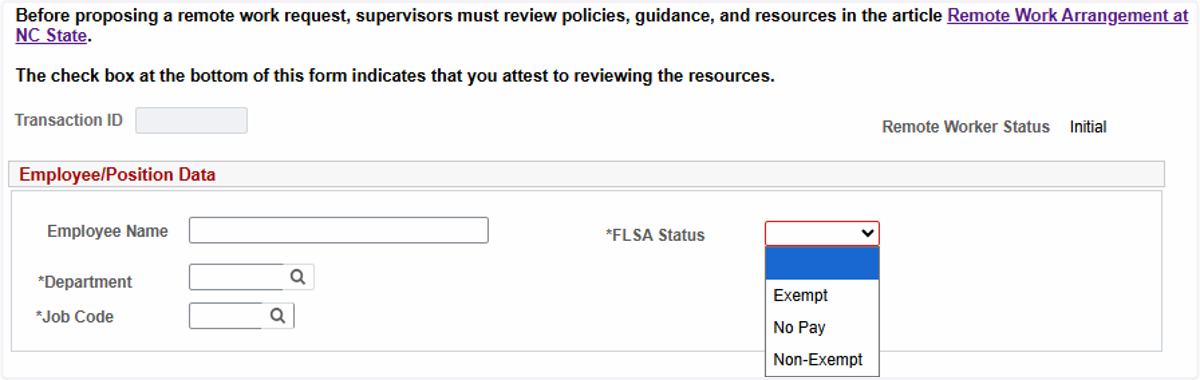
Be sure to enter the prospective employee's full name. Include the anticipated FLSA Status for the position - Exempt or Non-Exempt. No pay should not be used for a remote work request.
Remote Work Arrangement Request (Steps)
The following steps reflect a remote request for a current Direct Report
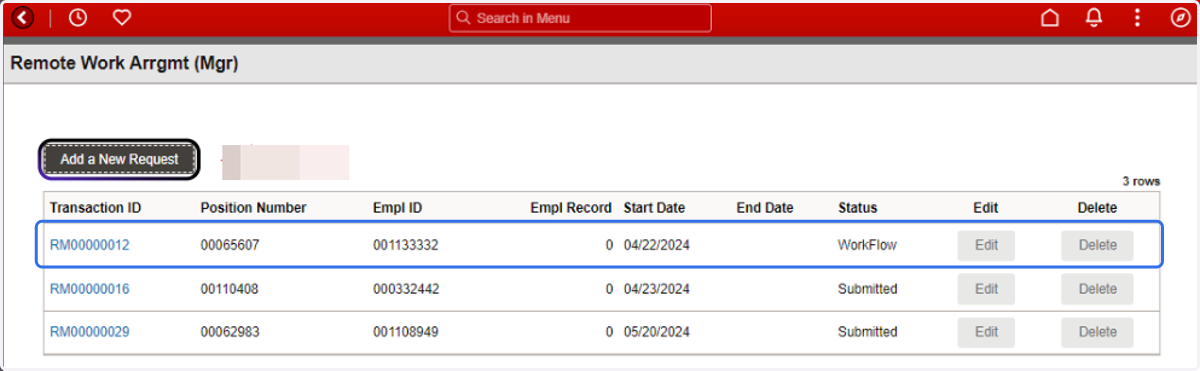
7. This page also displays a list remote work requests initiated by the supervisor.
The status and available action items are provided for each request.
Employee/Position Data
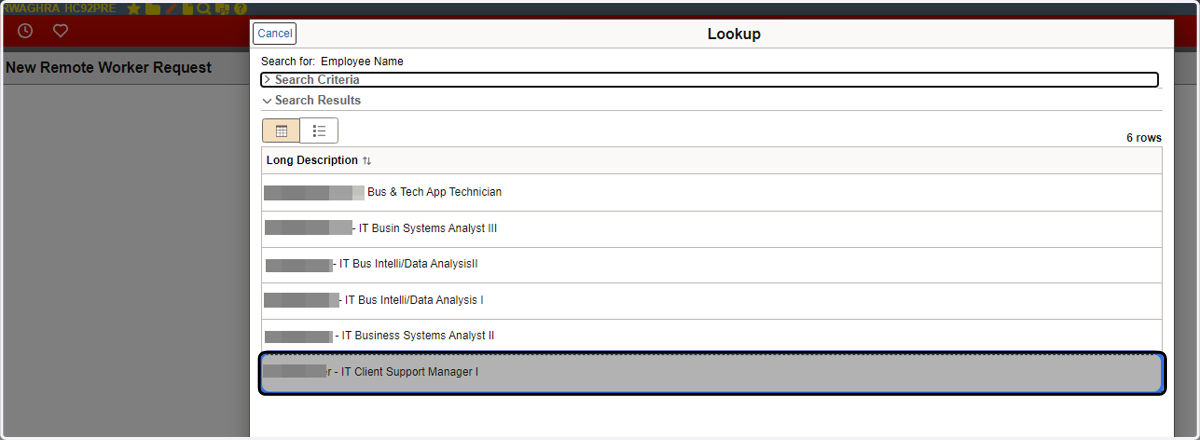
8. Search for an existing employee from the list of direct reports
In this example, the remote work request is being submitted for an existing employee. From the list of direct reports, select the employee who is going to work remotely.
9. Employee/Position Data will auto-populate at the top of the form
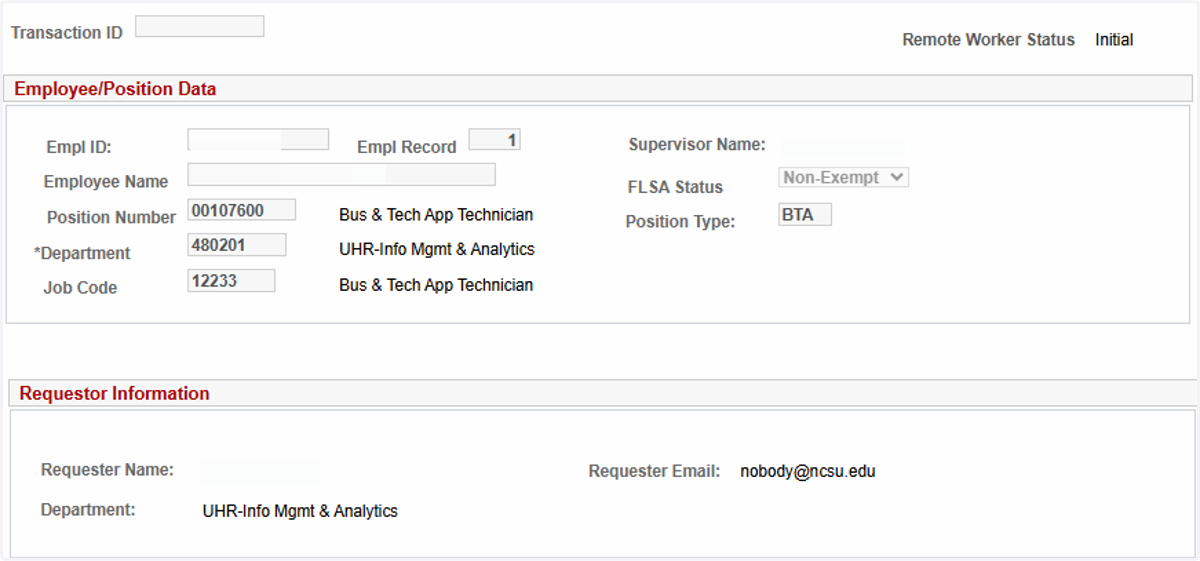
Request Information
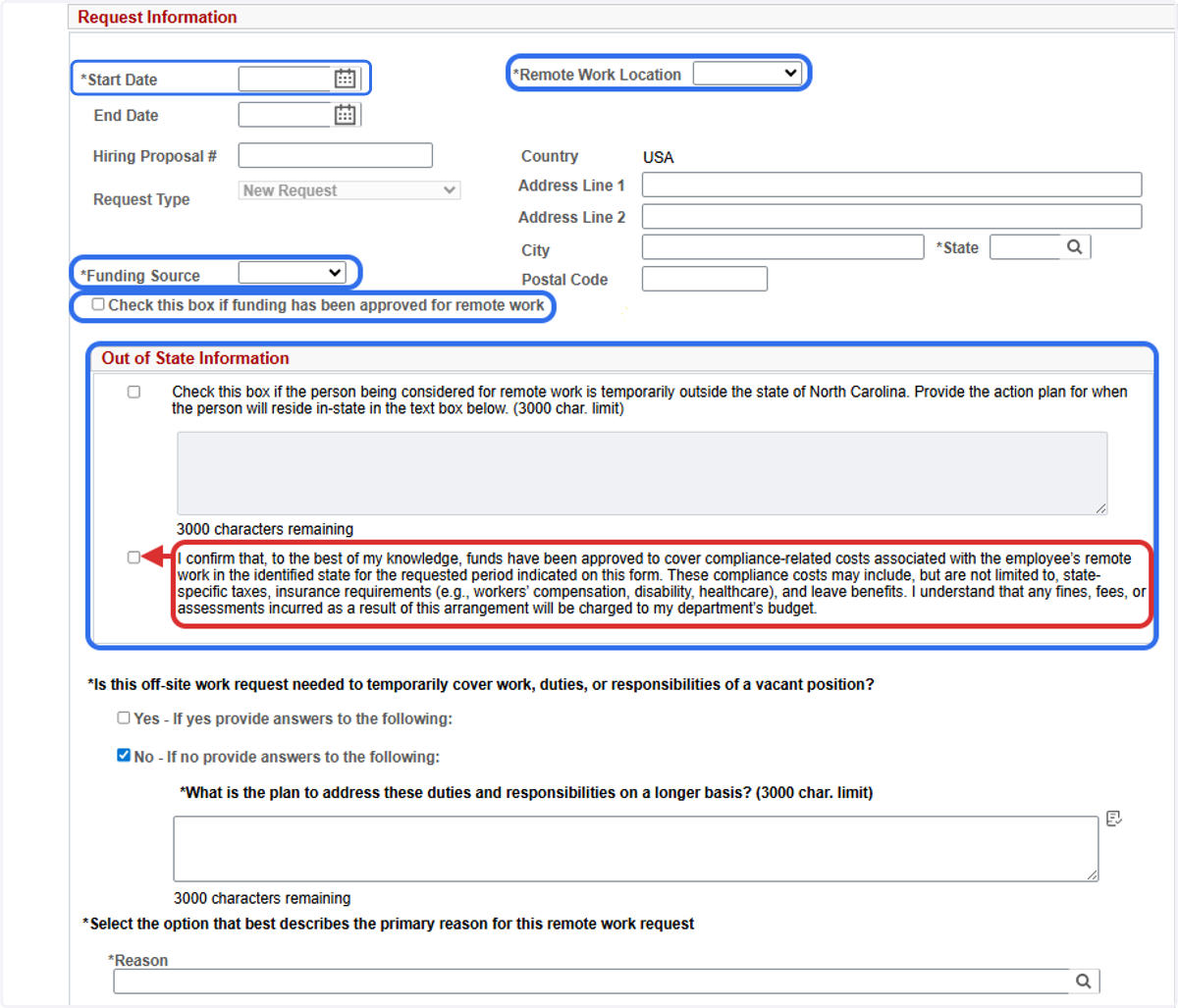
10. Complete the form - mandatory fields are identified with an (*) asterisk.
Upon selecting a direct report, the information from the HR system is automatically loaded from job and/or position data at the top of the form.
Enter a Start date - when you would like the employee to begin remote work
Enter an End date - when you expect the remote work to end. For out-of-state remote work requests, the maximum duration should not exceed 12 months from the start date.
Identify Remote Work Location (drop down list)
Home - retrieves home address captured in the HR system. Select this option if the employee will be working remotely from this address.
NC State - select different NC State building locations on campus. Select a specific location if the employee will be working from this address.
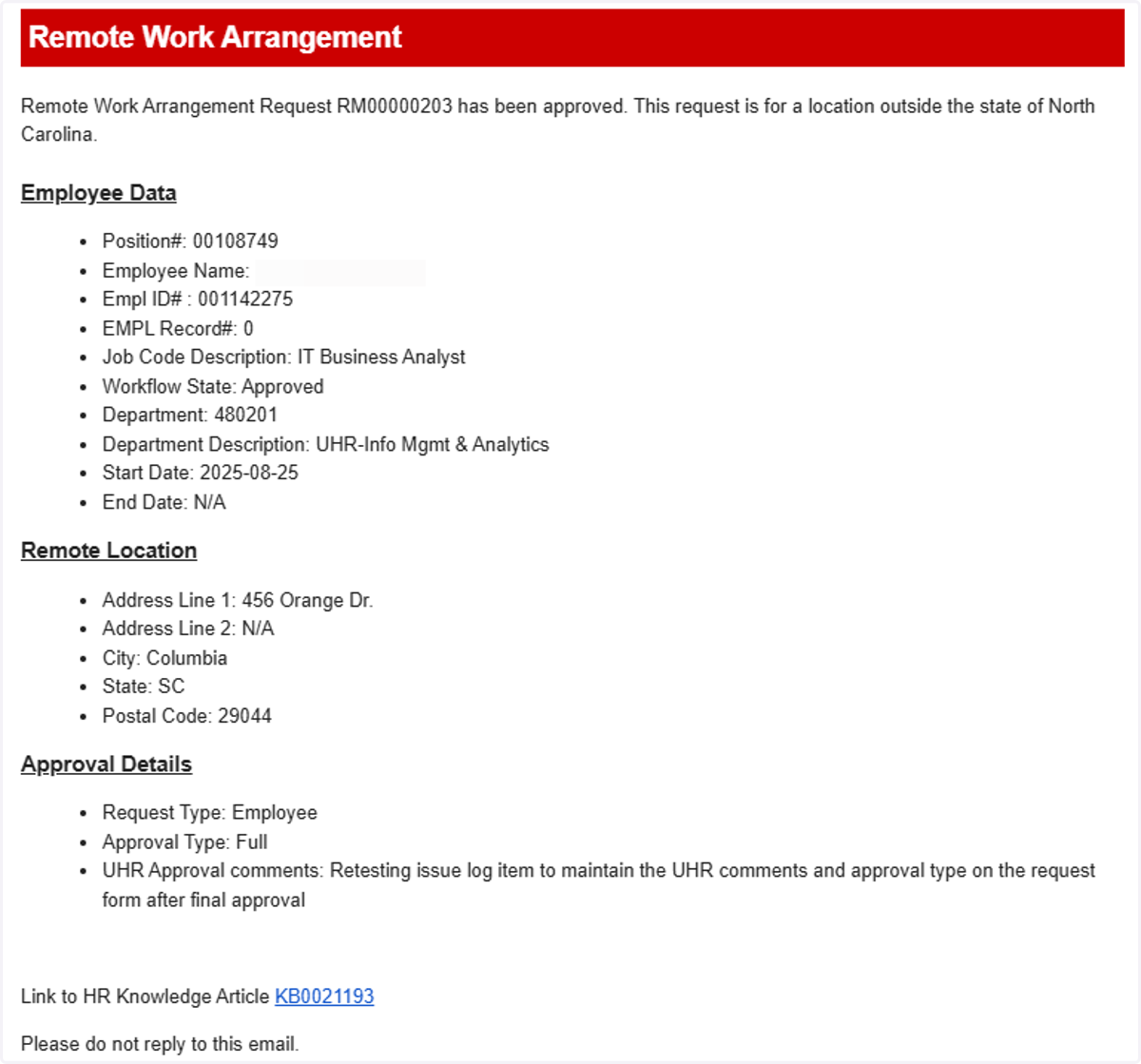
Other - used when the work location is outside of NC or the NC state building is not listed. Use this option to enter a specific address. It's important that the address is accurate as a notification will be sent to Payroll and Insurance Risk Management when an out-of-state remote work request is approved.
Identify Funding Source and check the box if funding has been approved for remote work
Out of State Information - a new compliance cost check box is added when the work location is outside of NC. If you are unsure about the information contained in the checkbox, then reach out to you HR Business Office to discuss.
Reference the informational Remote Work Heat Map Dashboard (coming soon) and Out of State Remote Work Arrangements knowledge article before submitting an out of state remote work request.
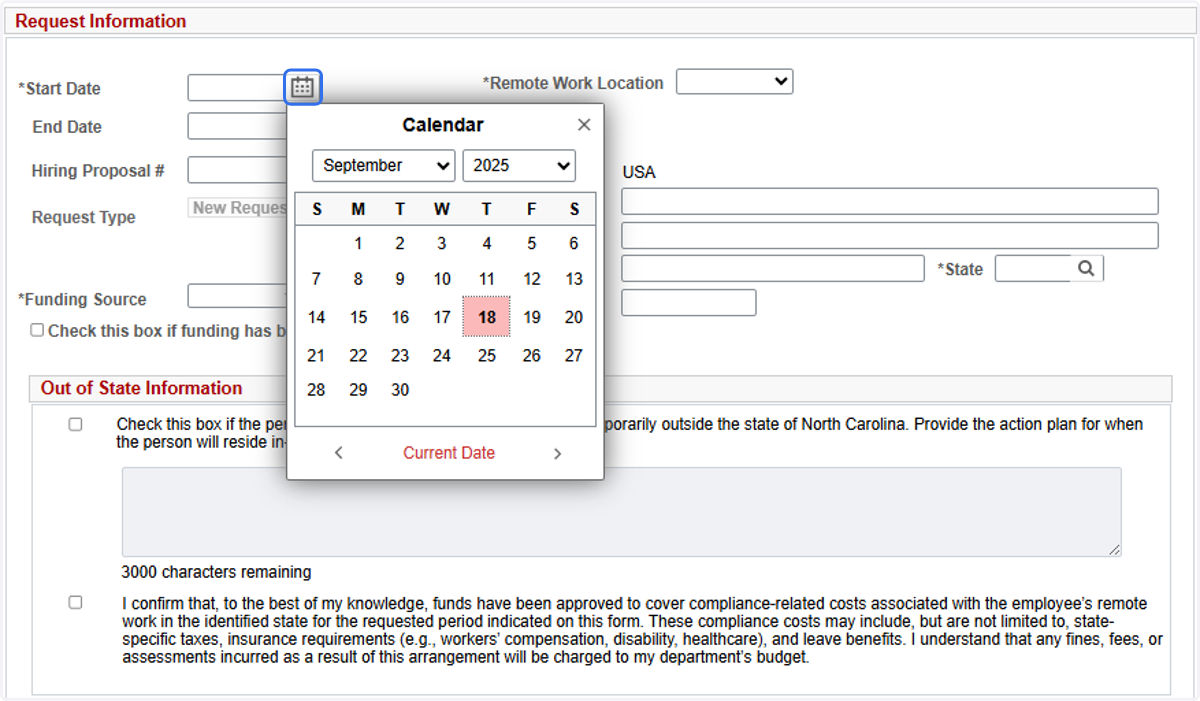
11. Enter Start Date: Select the date the employee will begin working 100% at the remote location.
12. Select a Remote Work Location
In this example, Other is selected because the employee is working remotely outside of NC.
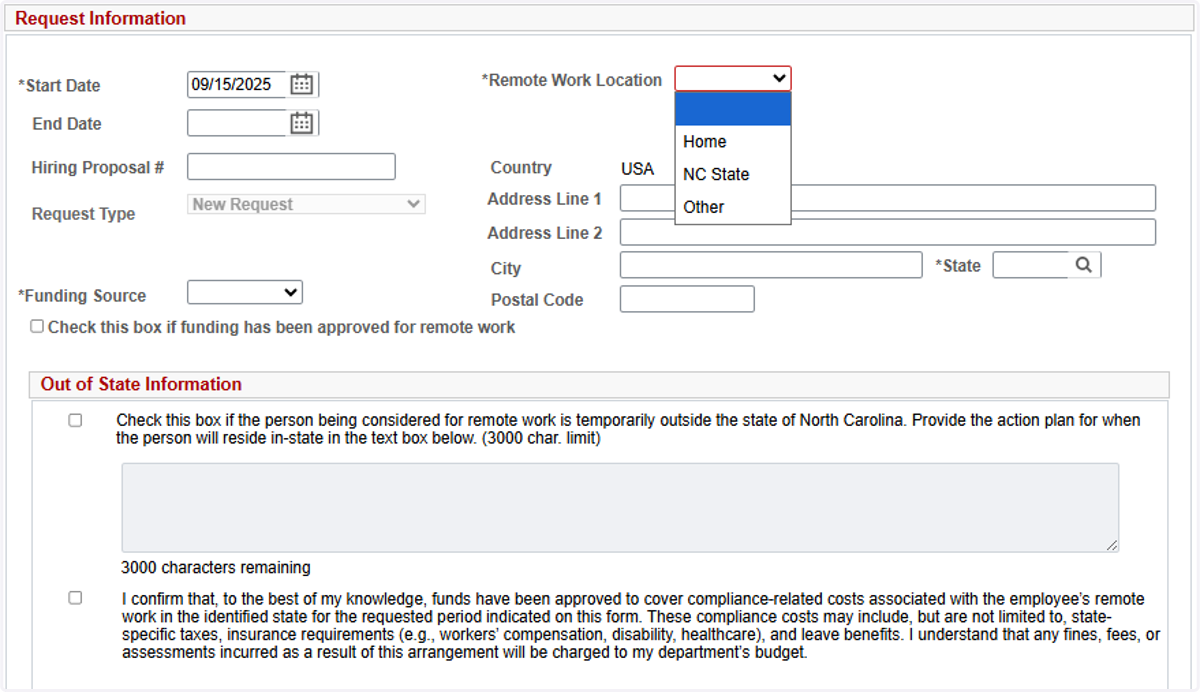
13. Select a Remote Work Location
In this example, select "Other" from the drop down list and enter the work location address.
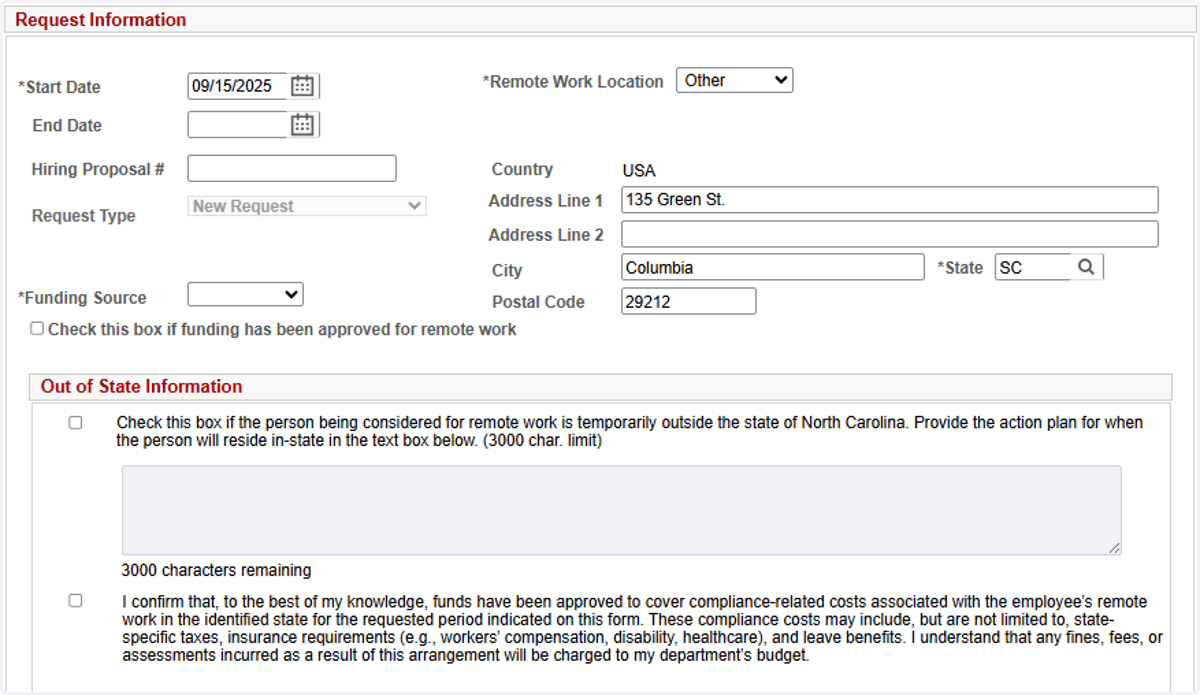
14. End Date
The End Date is not a mandatory field. However, 100% remote work out-of-state will be reviewed by UHR for final approval and will require a specific end date. UHR will not approve out-of-state remote work arrangements for greater than a 12-month period.
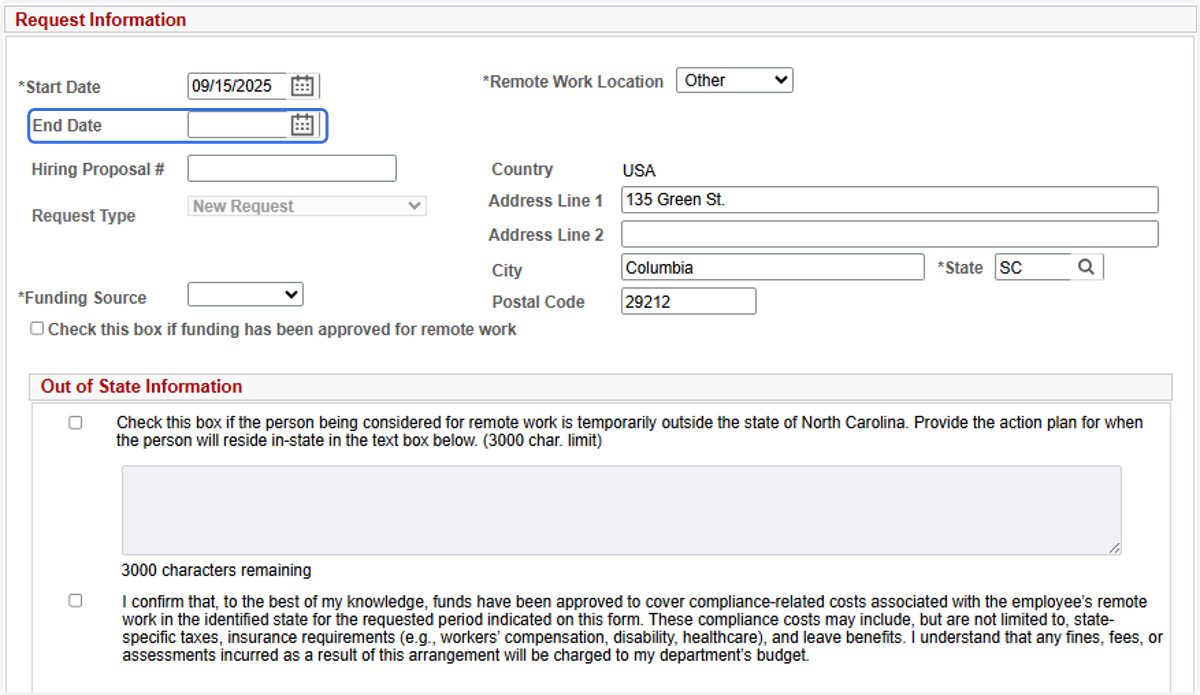
15. Select a Funding Source
Select a Funding Source from the drop down listing. If you are unsure of the funding source, then you should contact your HR Business Office to discuss.
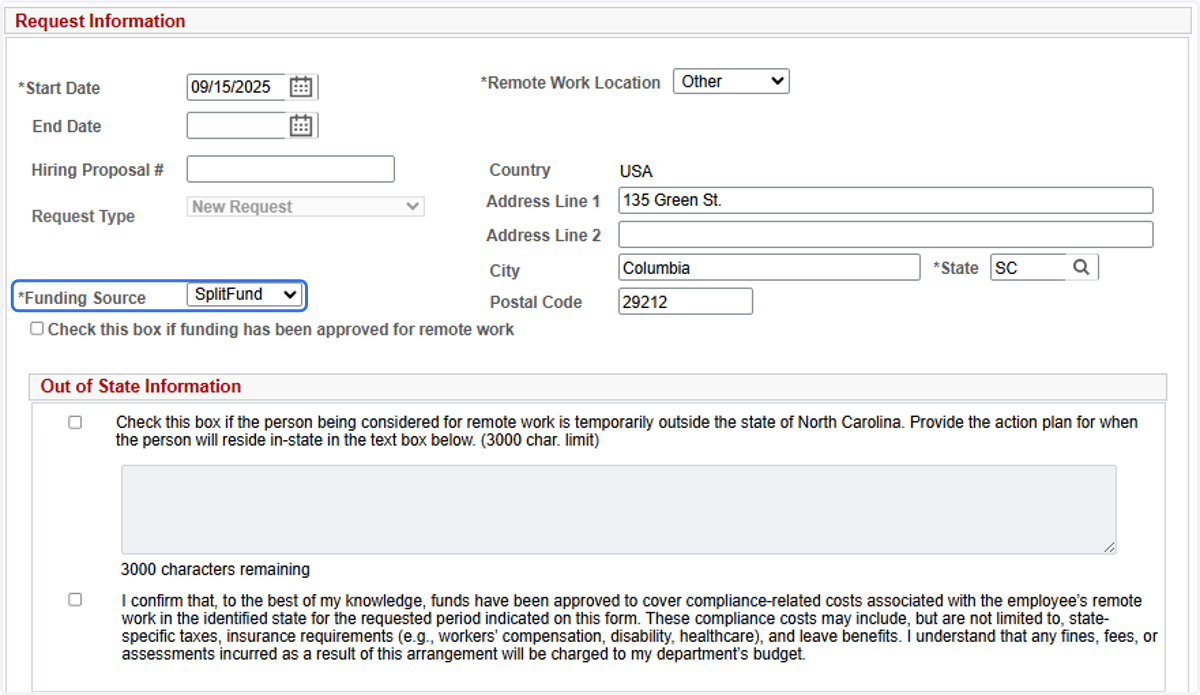
16. Supervisor acknowledgement check boxes.
Supervisors will need to acknowledge that any compliance cost associated with remote work outside of NC by checking the specific boxes.
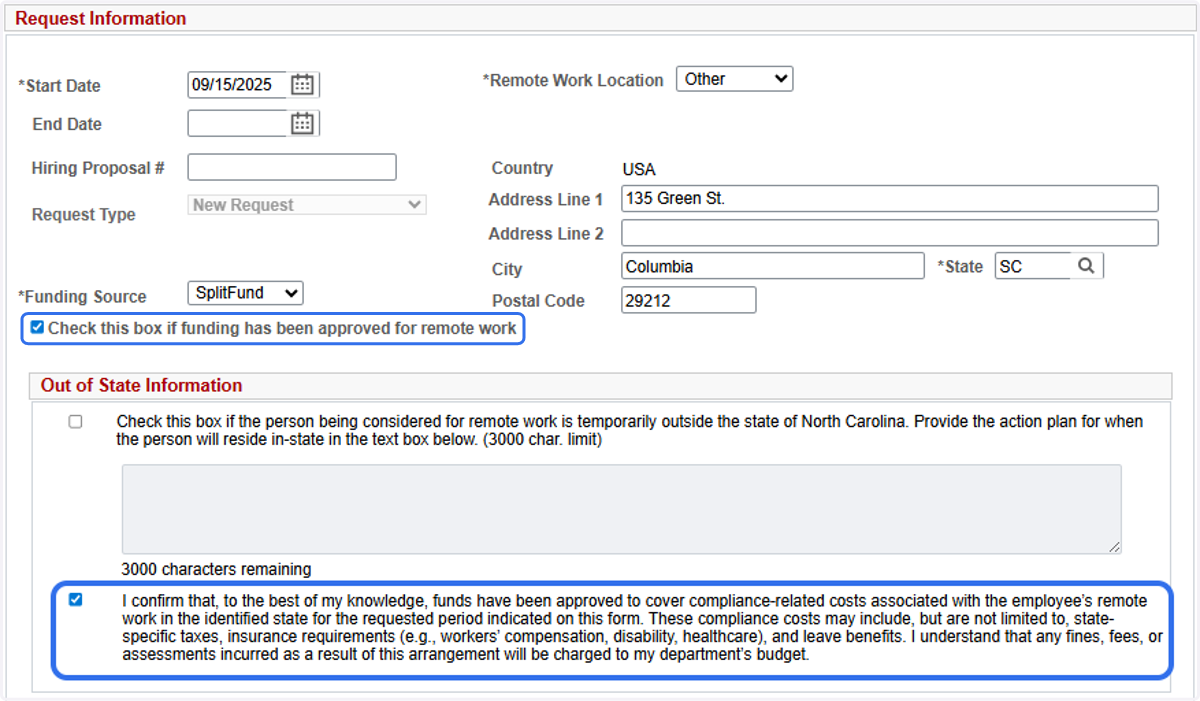
17. Comment Boxes
Comment boxes allow the supervisor to explain any specific details about the remote request
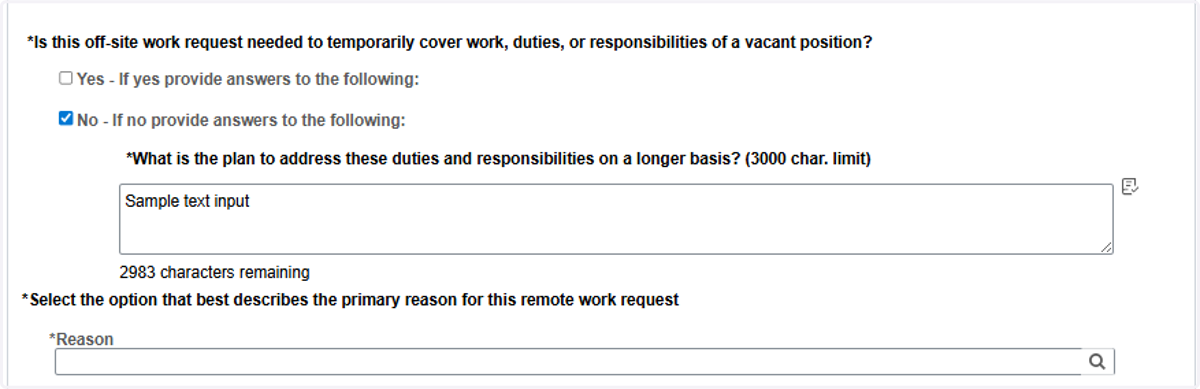
18. Select the option that best describes the primary reason for this remote work request.
Click the magnifying glass icon to select the best reason for the remote work.
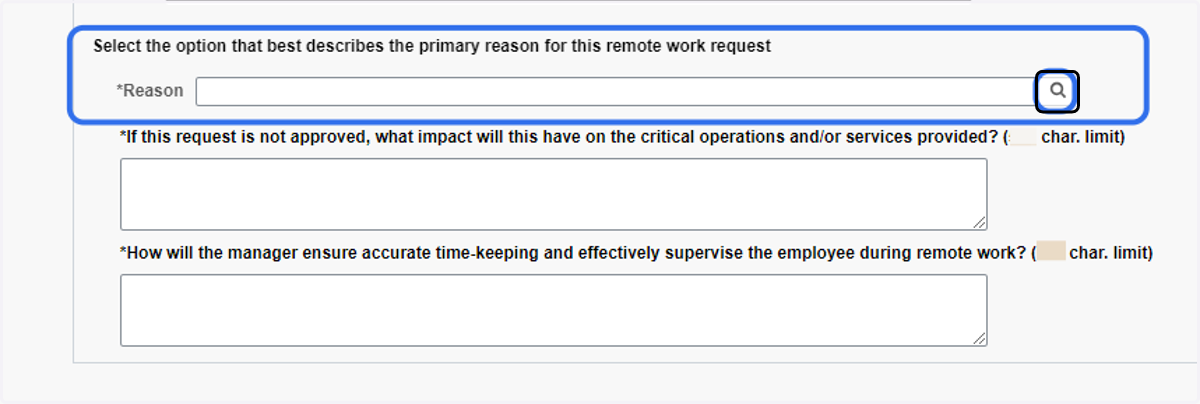
19. Select a primary reason for remote work from the list.
In this example the "Site specific research or university business" was selected.
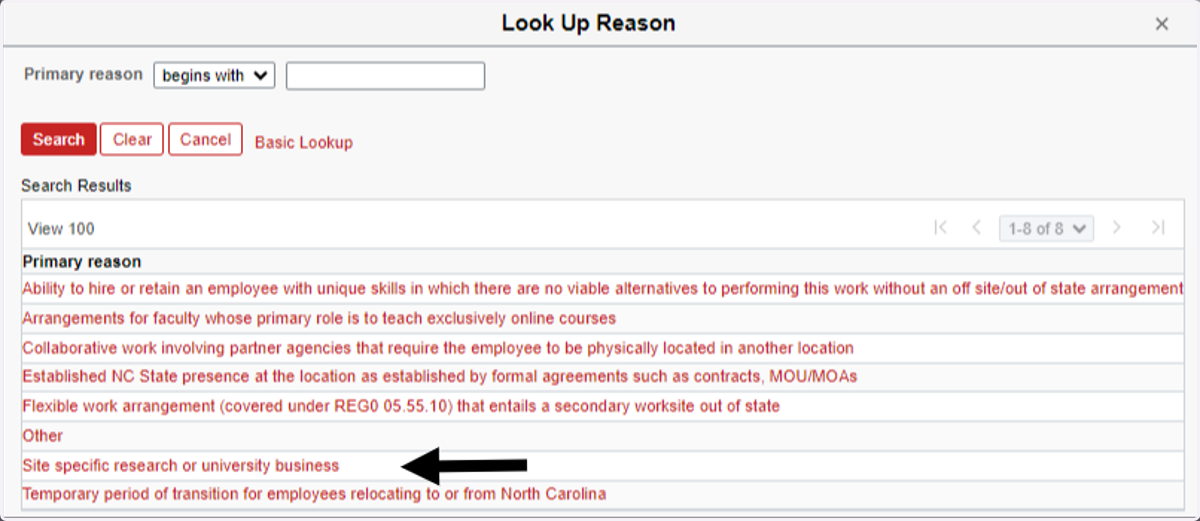
EXPLAIN IMPACT IF NOT APPROVED
20. Supervisor Comments
Comment boxes allow the supervisor to explain any specific details about the remote request or the impact on critical operations and services if the request is not approved.
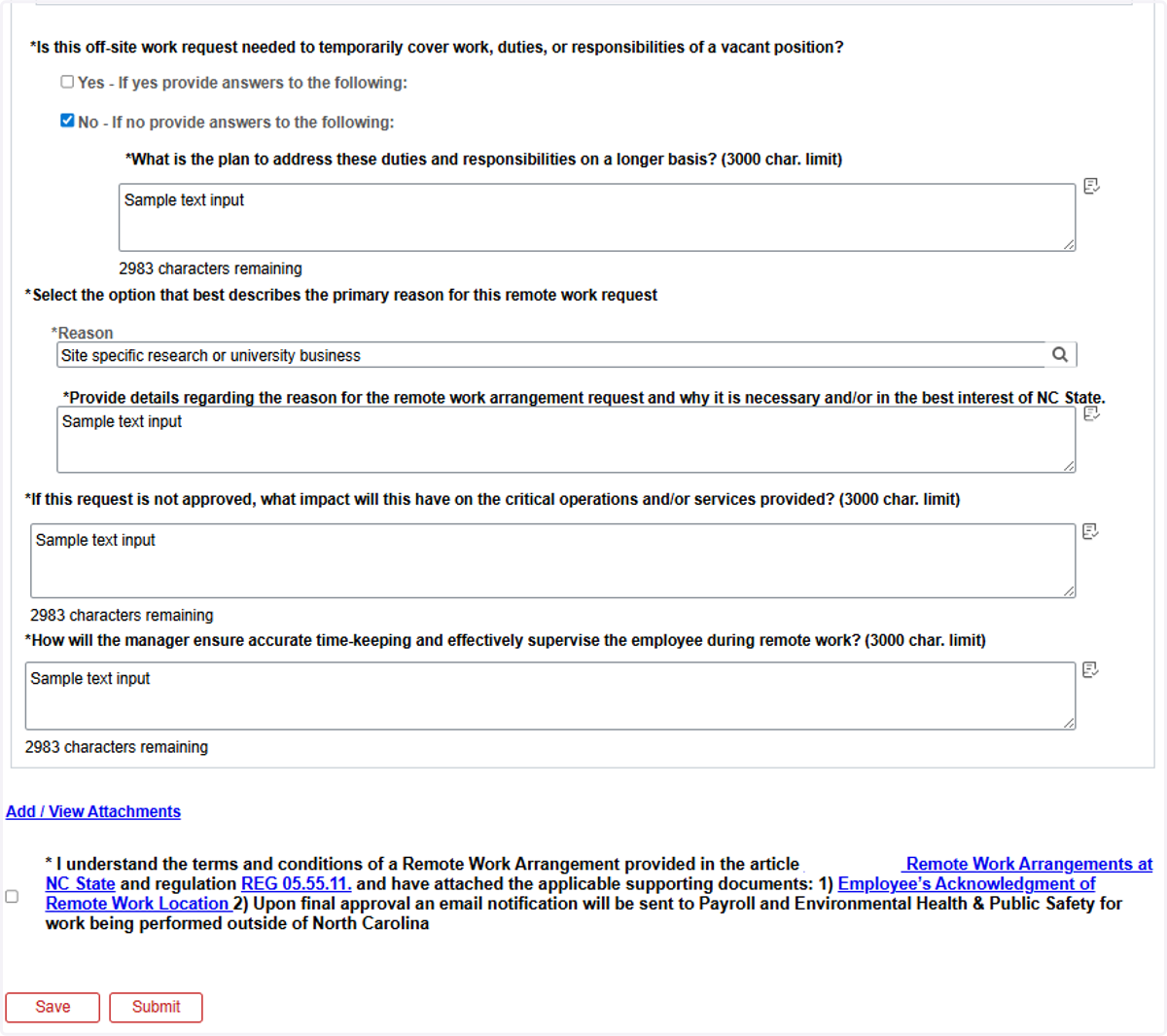
ADD ATTACHMENTS & SUBMIT
21. Add Attachments
Before a supervisor can add an attachment the request must be saved.
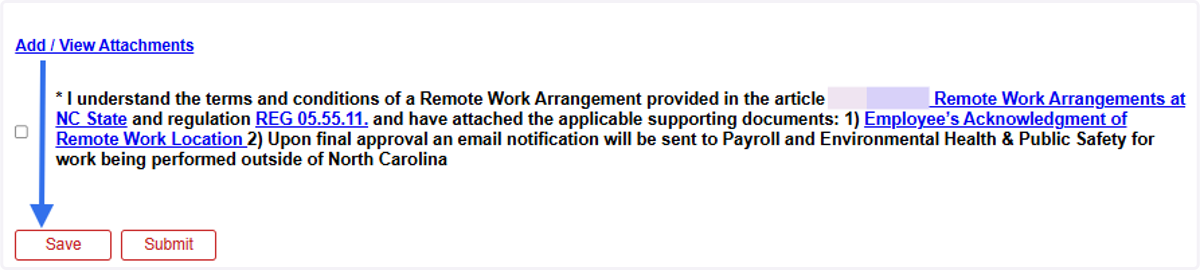
22. Click on Add / View Attachments
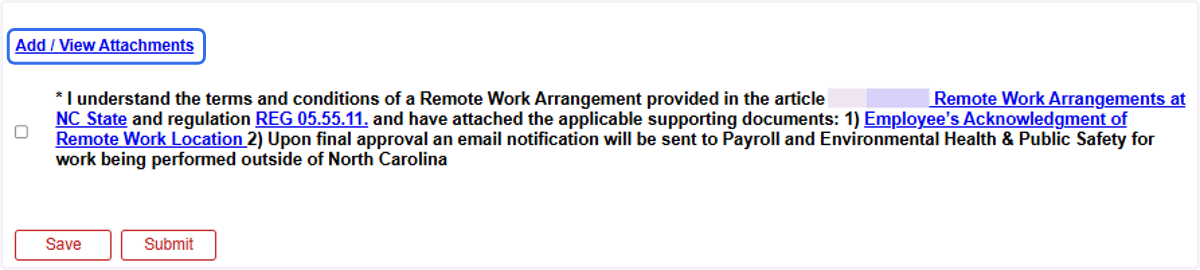
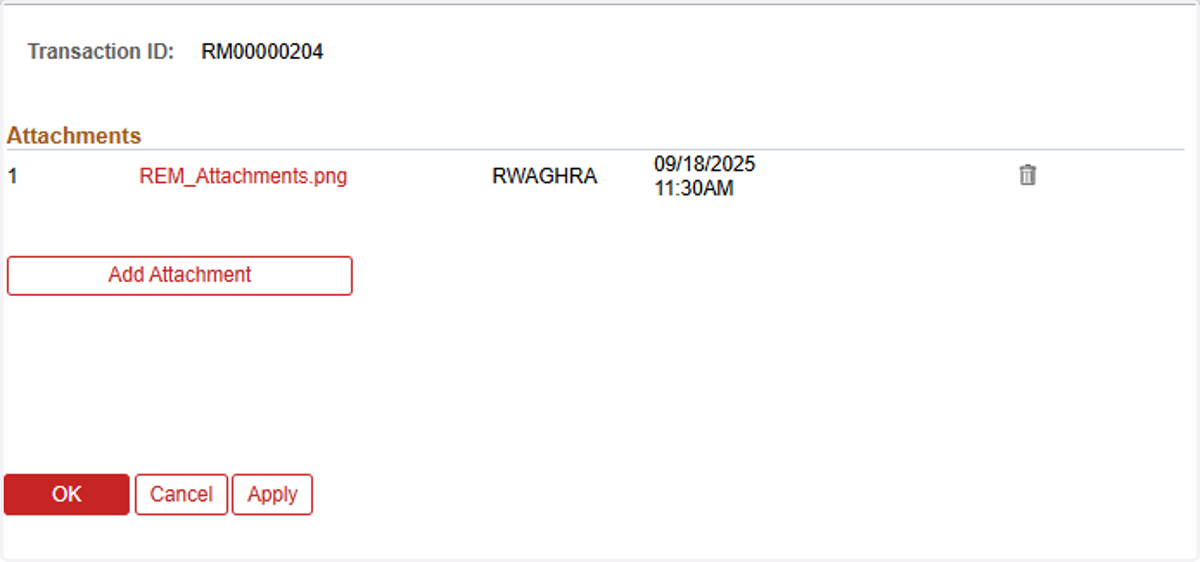
23. Click on Add Attachment
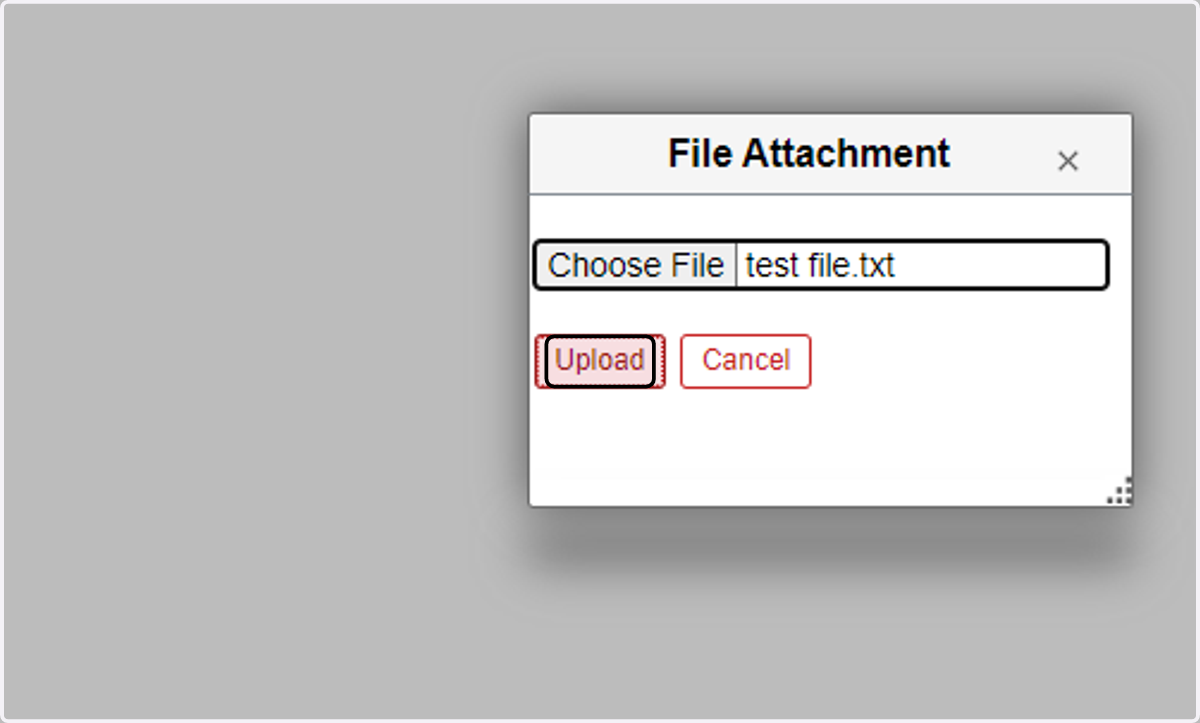
24. Select "test file.txt" from file upload menu
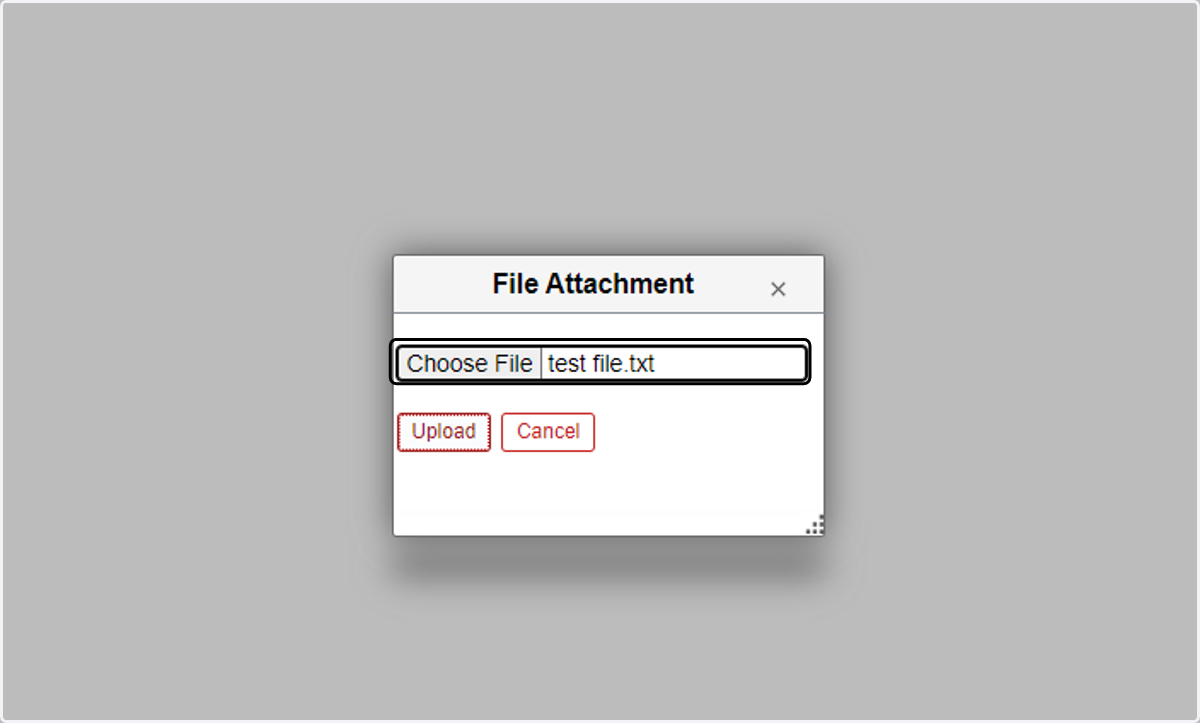
25. Click on Upload
26. Click on OK to return to the request
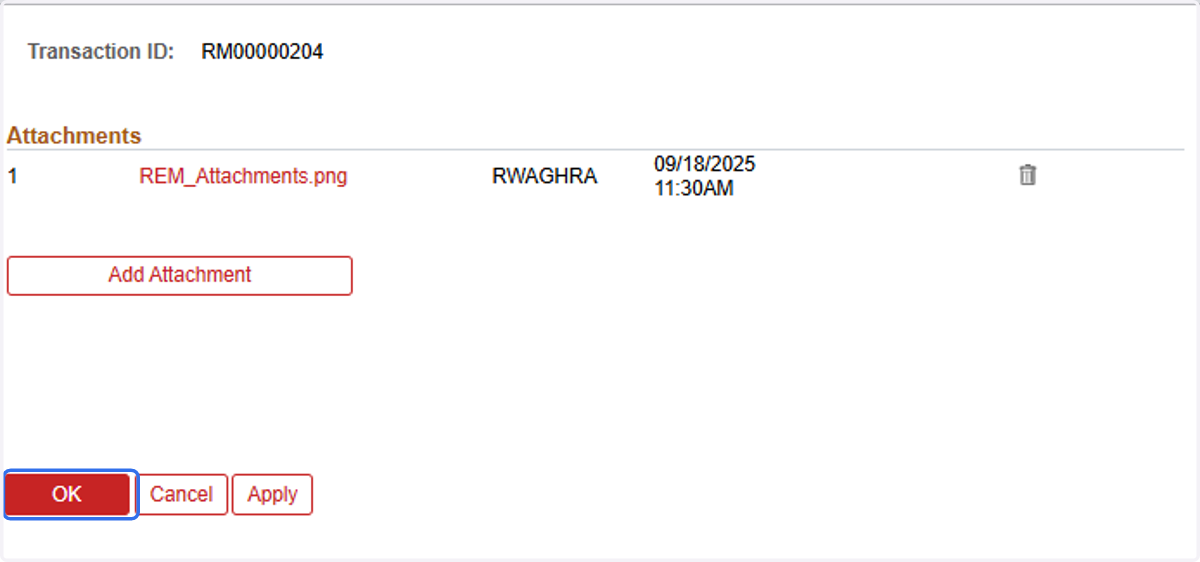
27. Click on Submit

WHAT HAPPENS NEXT - APPROVAL WORKFLOW
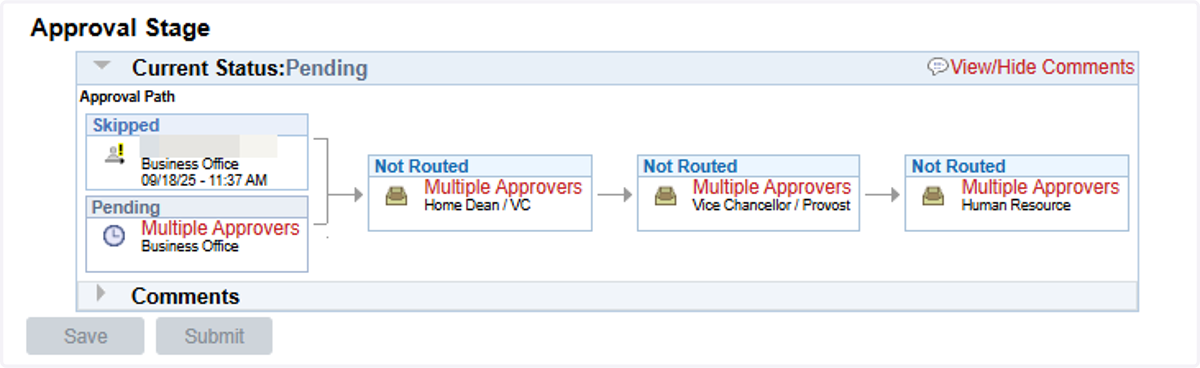
28. Review the Approval Workflow
Once the request is submitted, the Approval workflow will display at the bottom of the screen. This displays the list of approvers required to review and approve the request.
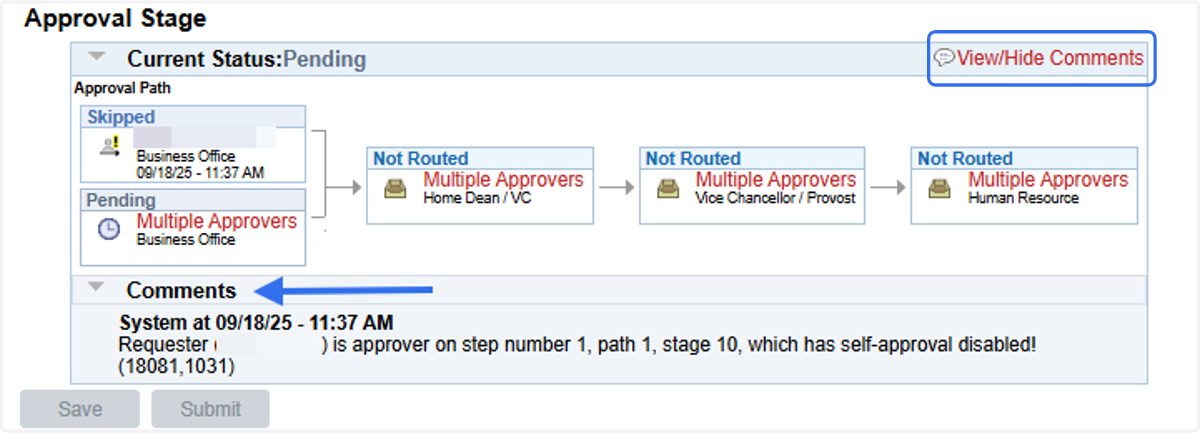
29. Viewing Comments
As approvers comment on the request, the comments will be displayed in the Comments section within the remote request.
30. Email Notifications
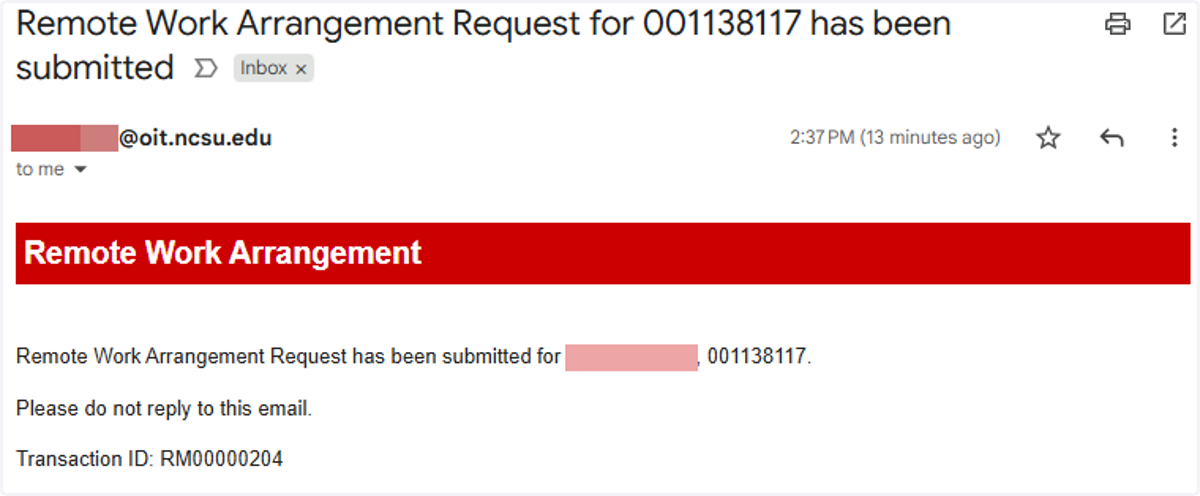
Supervisors will receive an email after submitting the remote request successfully.
Once a remote request is approved at the final workflow stage, the supervisor will also receive a final approval email notification.
31. Out of State Email Notification
If the request is outside of NC the supervisor will receive an additional final approval email notification similar to the following.
DELETING A REQUEST
Please note that a request must be pushed back or denied before it can be deleted.
32. Navigate to Manager Self Service (step 1 above)
33. Locate the pushed back or denied remote work request from the list.
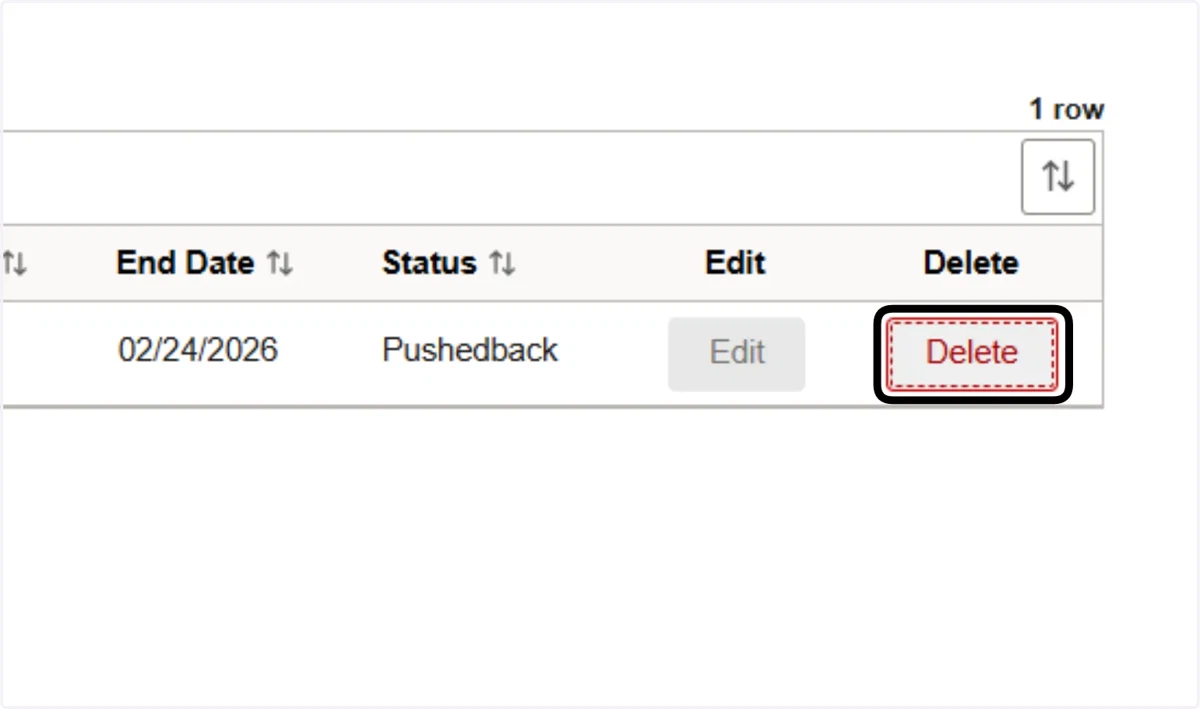
34. Click on Delete
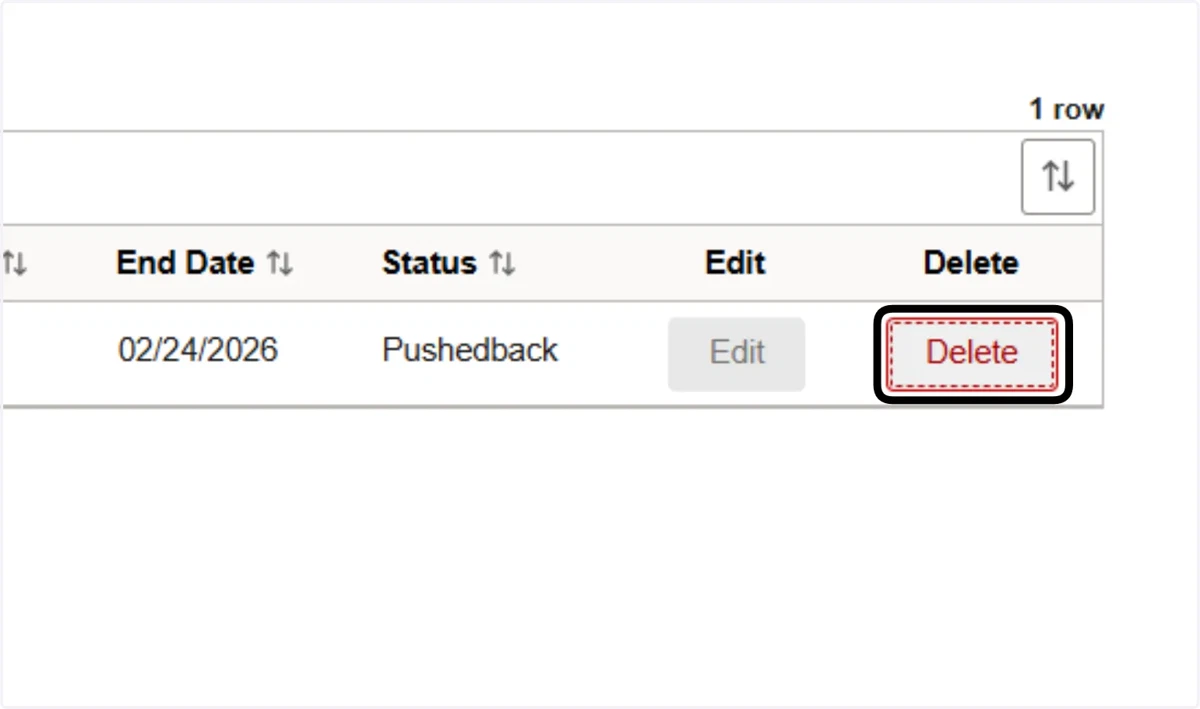
35. The status will change to deleted. The request will disappear from the list upon refresh or next time you access the Remote Work Arrgmt (Mgr).
36. ****** END OF THE DOCUMENT *********