Supervisor's Guide: How to Review Manage Employee Timesheets
This job aid provides NC State supervisors instructions on managing employee timesheets via Manager Self Service homepage in MyPack Portal (http://mypack.ncsu.edu).
It provides step-by-step instructions on the following:
How Supervisors can navigating to an employee's timesheet
How Supervisors can review and approve an employee timesheet
1. SUPERVISOR RESPONSIBILITIES
Reviewing, updating, and approving your direct reports timesheets is a weekly task the supervisor is responsible for completing in order to process payable hours for each of their direct reports.
NAVIGATE TO EMPLOYEE TIMESHEET
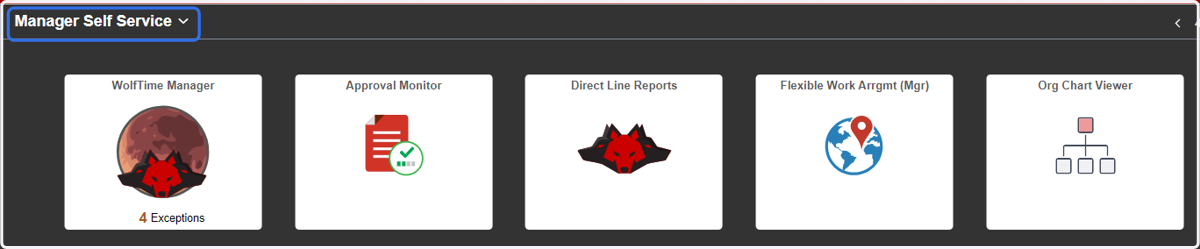
2. Click on Manager Self Service Homepage…
Select the Manager Self Service option from the landing page.
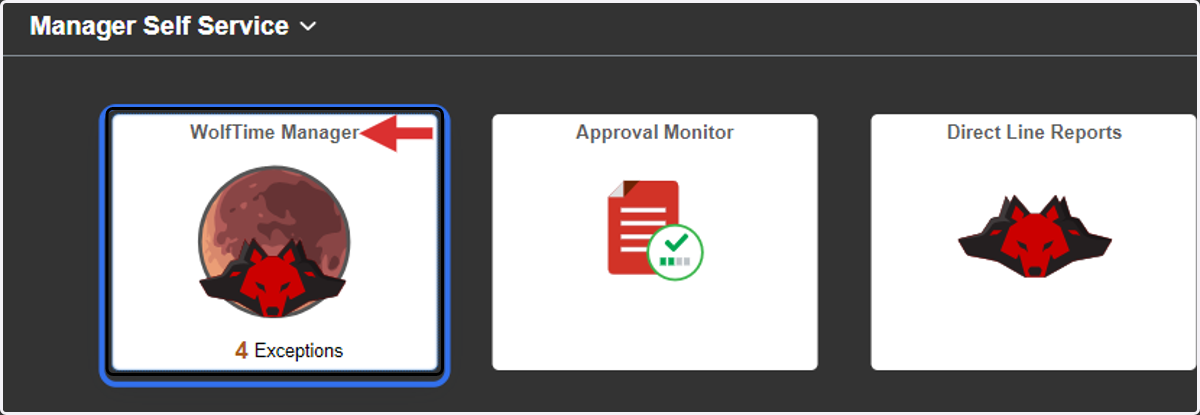
3. Click on WolfTime Manager
The WolfTime Manager tile allows supervisors to review and manage WolfTime submission by your direct reports.
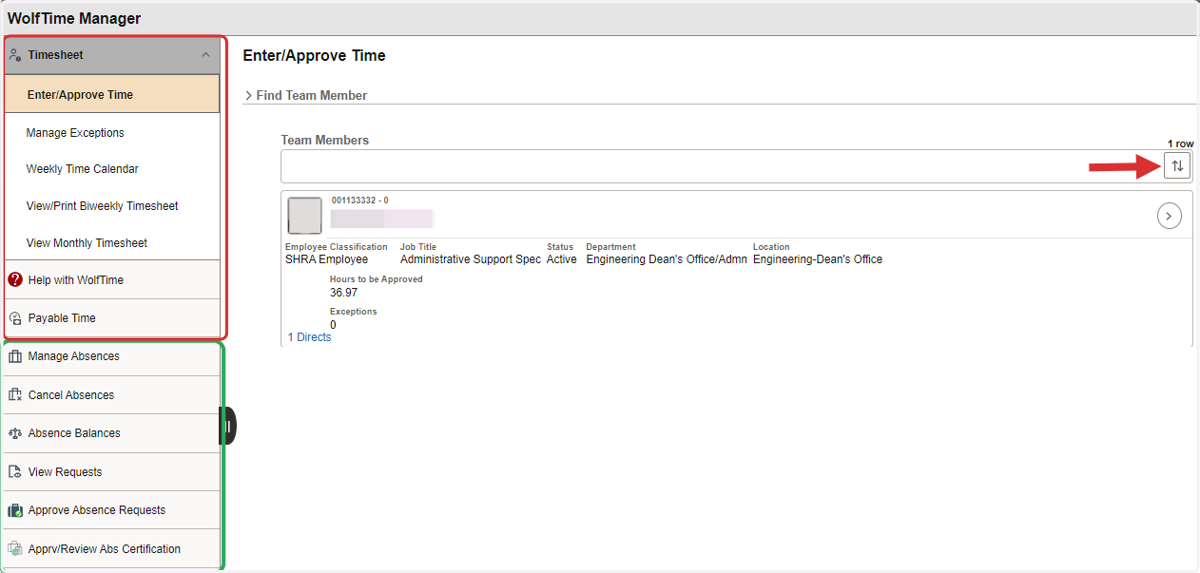
4. WolfTime Manager Page Activity Menu
The top section (red) is used to manage employee timesheets. The bottom section (green) is used to manage emplyee absence request. The arrows on the top right is a sort order option.
REVIEW, EDIT & APPROVE TIMESHEET
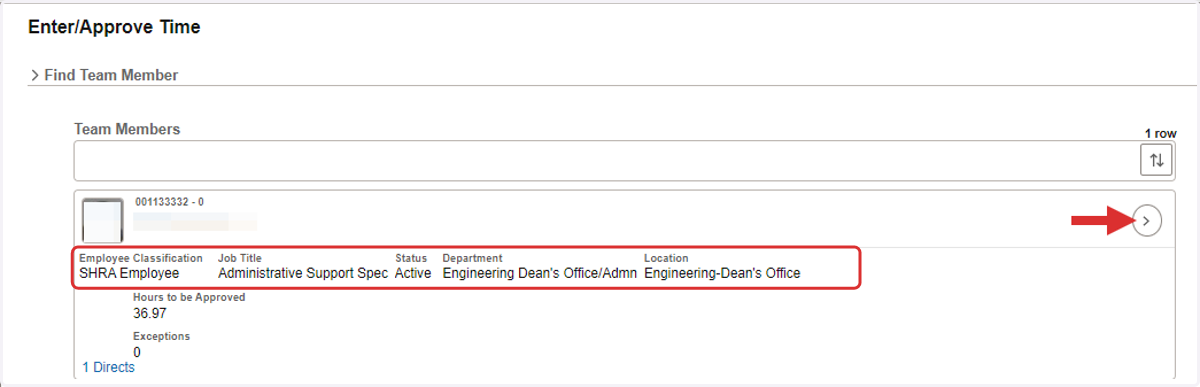
5. Enter/Approve Time
The Enter/Approve Time columns indicate the following:
Column Name Description:
Employee Name/ID#/Record# - employee job data information
Employee Classification/Job Title/Status/Dept/Location
Scheduled Hours - employee scheduled hours during the week
Hours to be Approved - reported punch hours awaiting approval for the week
Exceptions - an alarm indicates an issue with the punch data
DIrects - provides access to the persons direct reports if they are identified as a supervisor
To open an employee timesheet click the arrow on the right next to the name of the employee.
6. Timesheet Review and Approval
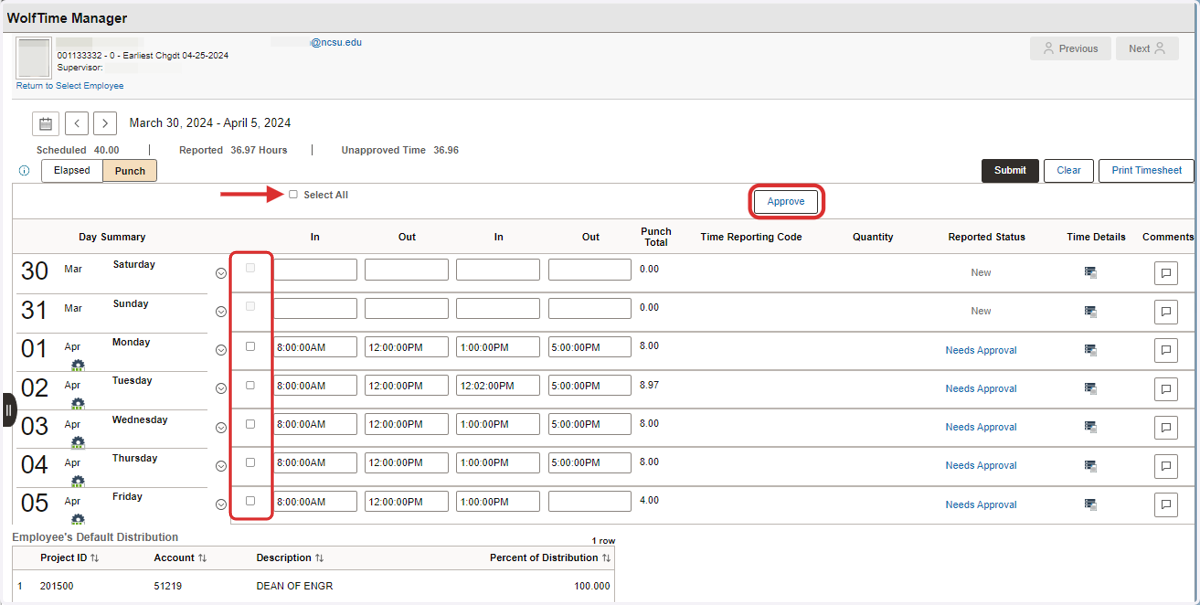
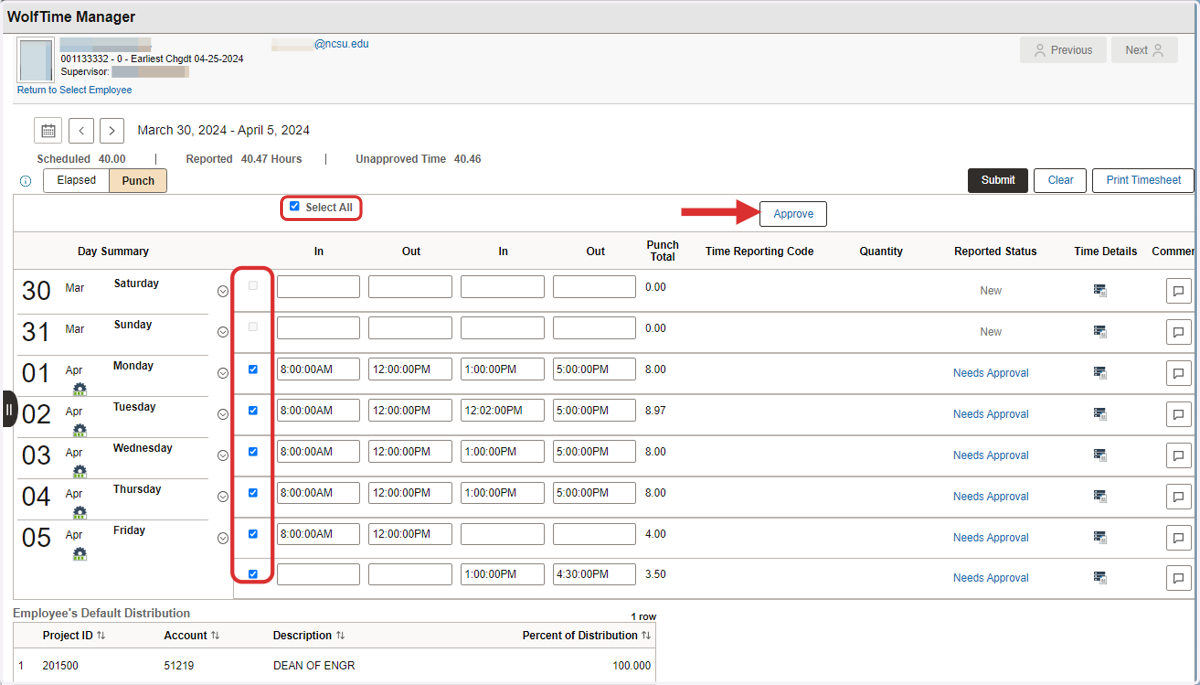
If all the punches on the timesheet is correct check the boxes on each row of punch data or click the "Select All" box to include all punch data. Once the boxes are checked click the "Approve" button.
7. Resolving / Editing Employee punch data
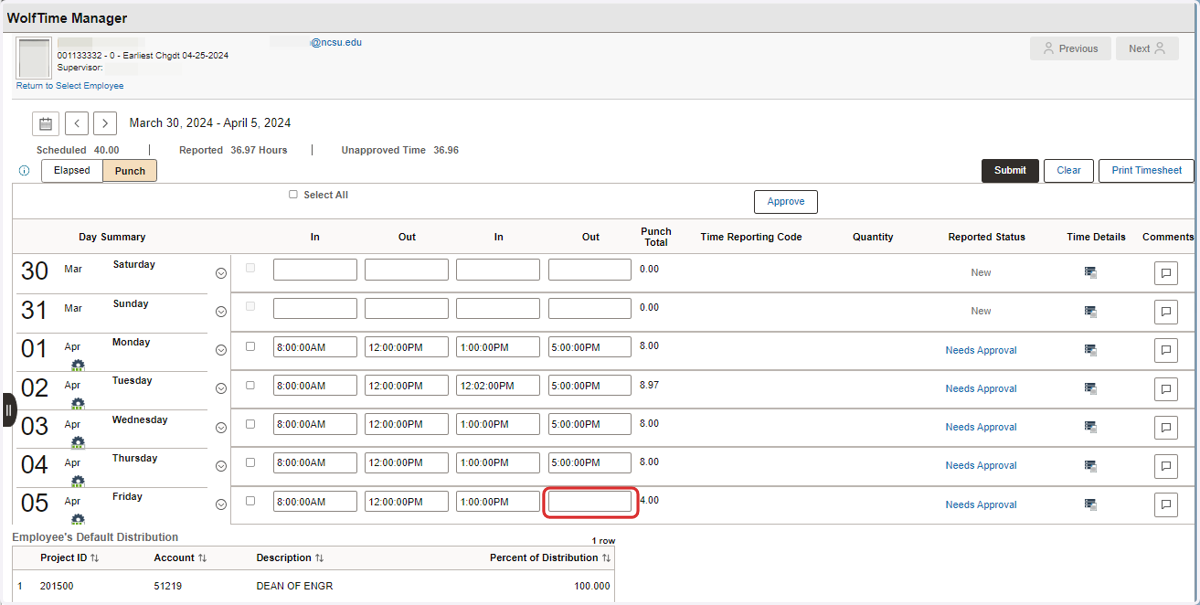
If the you discover a direct report failed to submit their daily punch data correctly you are responsible for updating the employee timesheet.
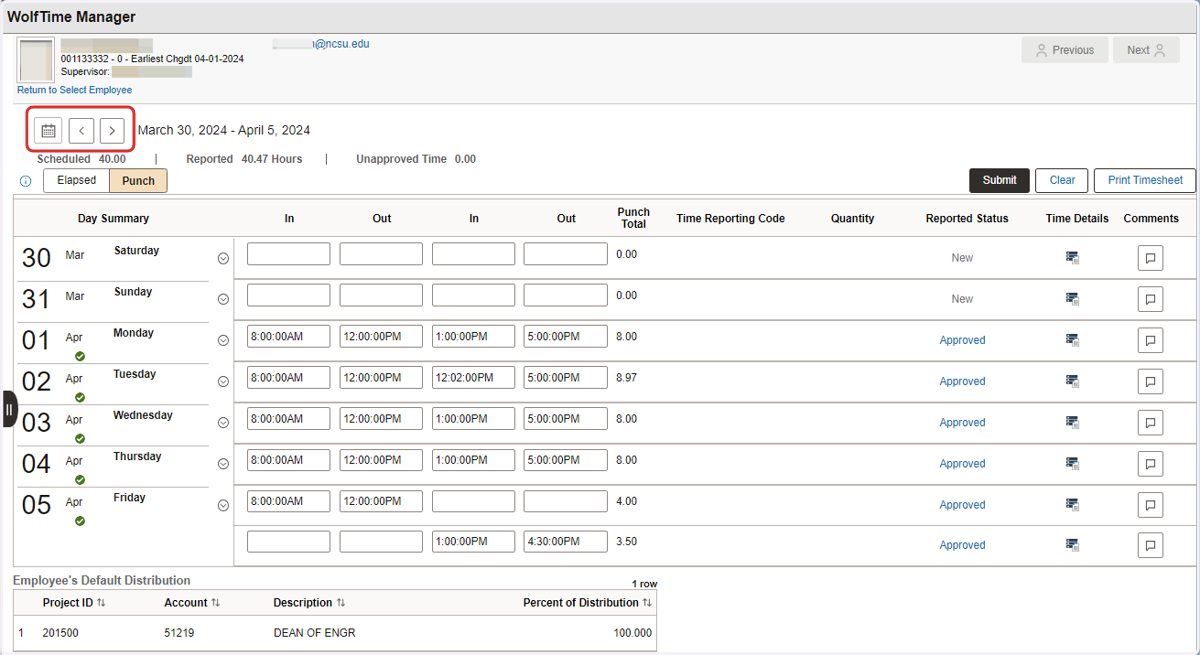
In this example the employee failed to submit an out punch on Friday. You will have to click in the (In/Out) field missing a punch and enter the missing timestamp for the employee.
NOTE: If necessary the supervisor can also edit an existing punch entry by highlighting the In/Out punch entry, make the edit to the punch entry, and click the submit button to save.
8. RESOLVING TIMESHEET EXCEPTION ALARMS
Exception alarms on the employee timesheet are easily identified by the following exception alarm icons. Refer to this document to troubleshoot Timesheet Exception alarms.
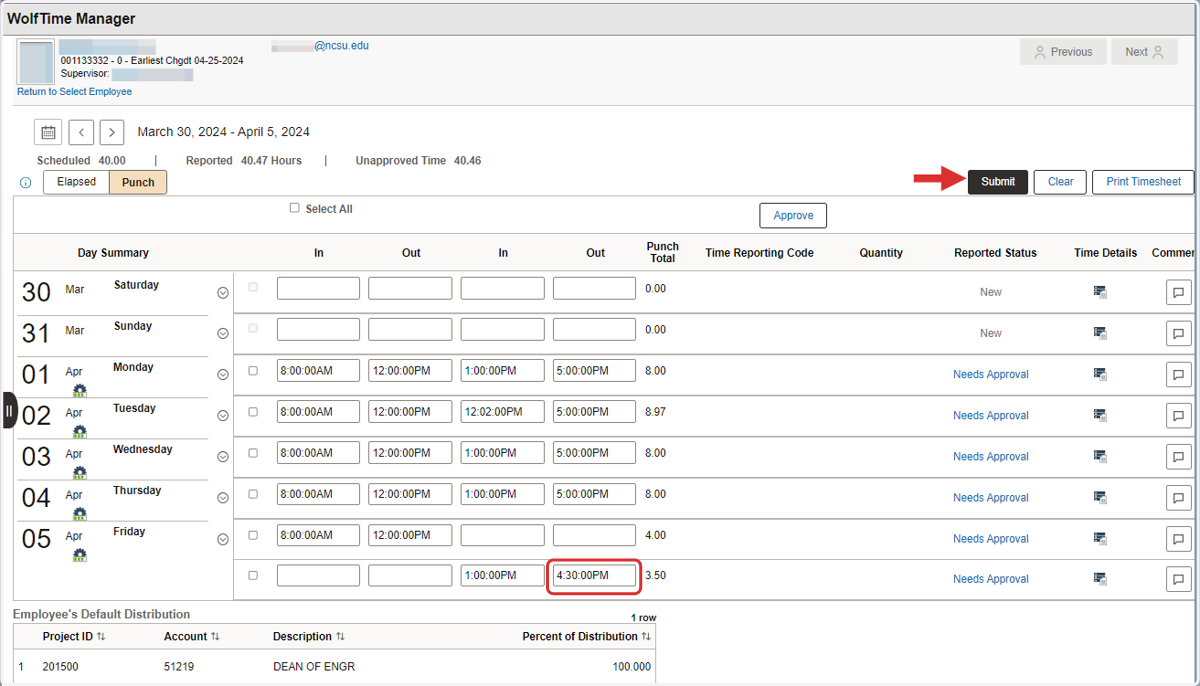
9. Click Submit to update a timesheet
In this example the employee provided the missing punch data for Friday through an email communication to their supervisor. The supervisor then updated the employee timesheet with the missing punch. After the missing punch data is entered click the "Submit" button at the top to record the updates.
10. Holiday Acknowledgement
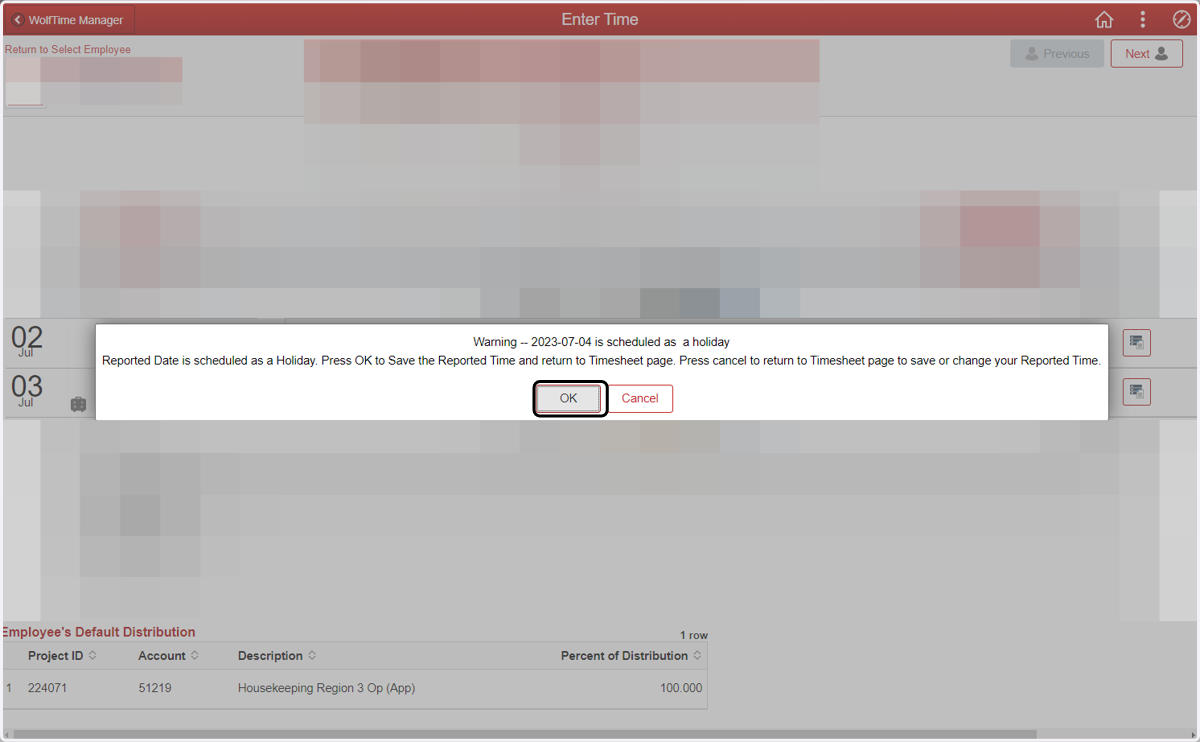
If the punch data submitted by the supervisor coincides with a university holiday a warning screen will display and require a second confirmation.
11. Click the Approve button
After updating punch data on the timesheet check the "Select All"option or check the individual boxes that "Needs Approval". Click the "Approve" button at the top to process the punch data.
12. Adding Comments
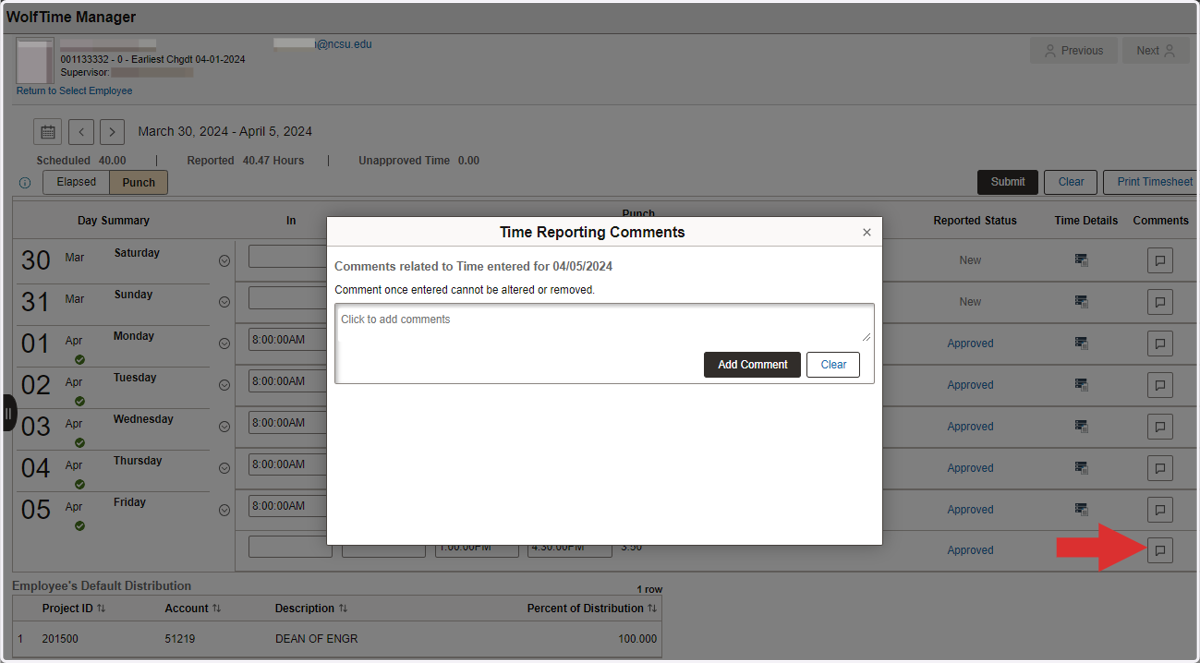
If you are required to update or edit employee punch data on their timesheet, remember to add a comment reflecting the reason for the update. The comment icon resides on the right side of the timesheet for each date of the week. Type in a brief statement reflecting the reason for the update for audit purposes and click "Add Comment" to permanently save the entry.
13. Selecting the next Employee Timesheet
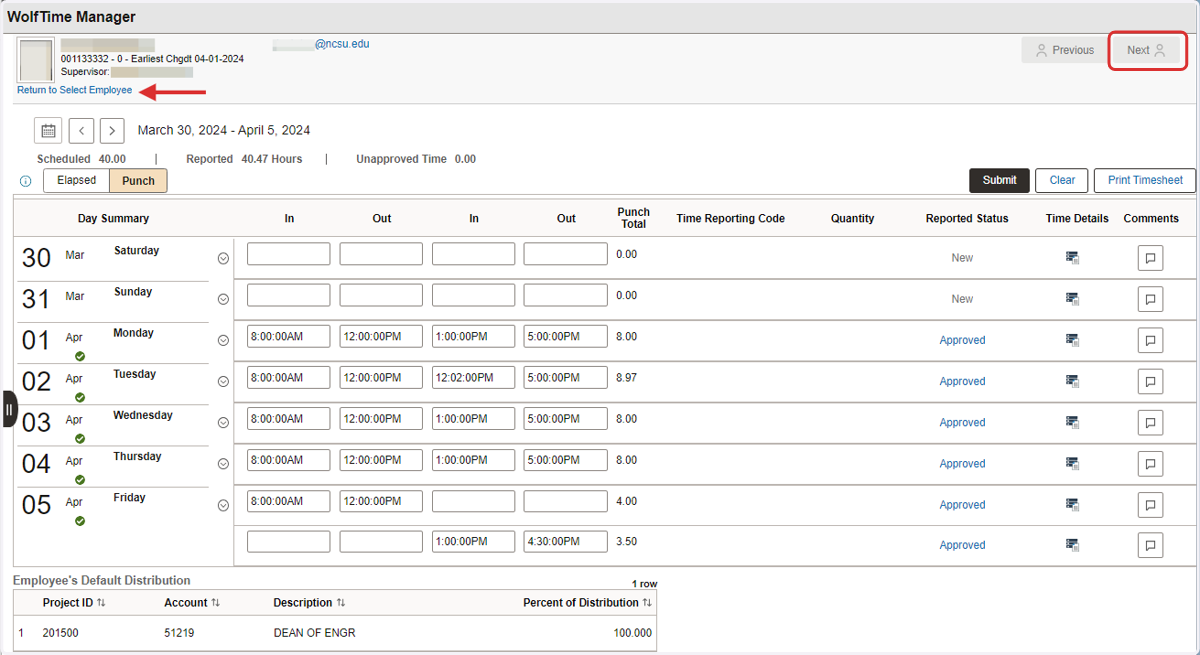
If you have multiple employees there are two way to move to the next employee timesheet. The easiest way is by clicking the "Next" button in the top right or click the "Return to Select Employees" under the employee information.
14. Navigating to different weeks
To navigate to different weeks you can click on the left arrow to move back or the right arrows to move forward. The other option is click on the calendar icon and select the specific date and year to review.