Supervisor Guide: How to attach documentation to a bereavement leave request
NOTE: Attachments are not required for Bereavement Leave requests. Attachments can be added to an absence request in a submitted or approved status.
1. Login to MyPack Portal.
2. Navigate to the Manager Self Service.
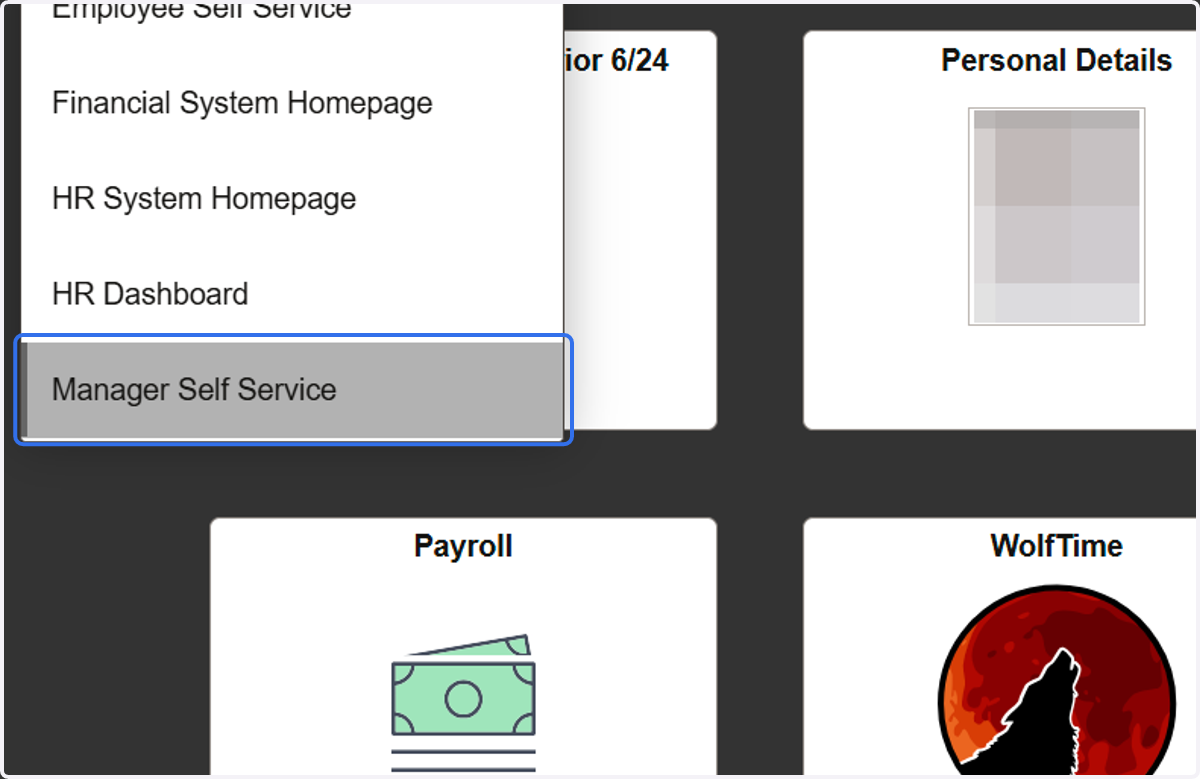
3. Click on the WolfTime Manager tile.

4. Click on "View Requests".
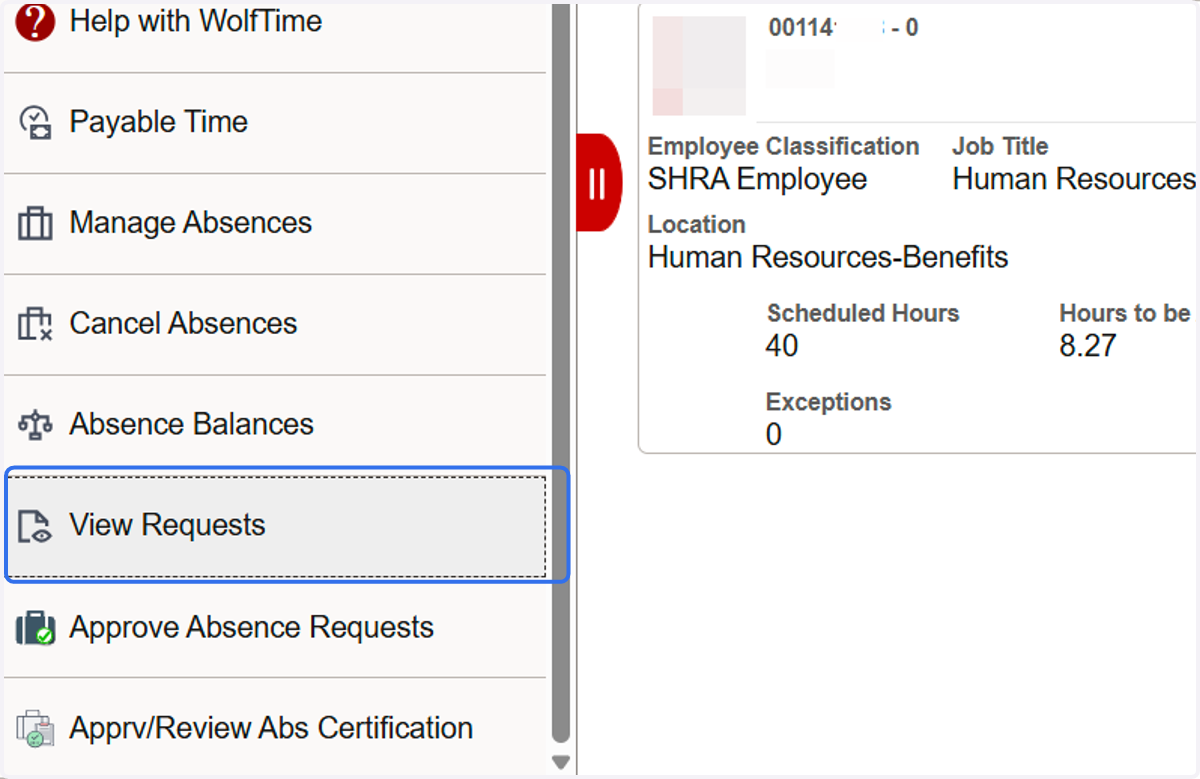
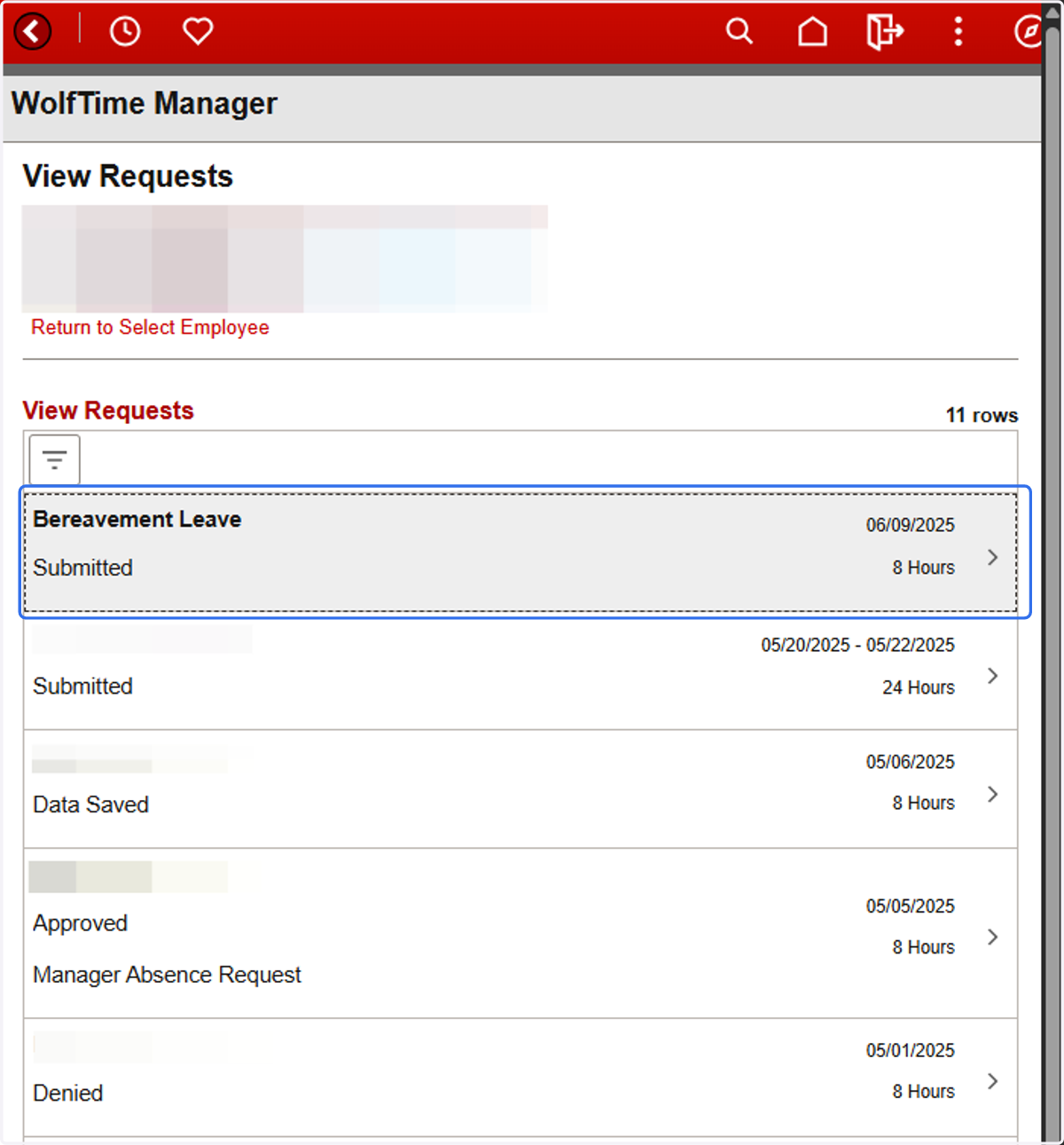
5. Click on the arrow next to the employee's name to review the absence details.

6. Click on the absence request that you are adding an attachment to.
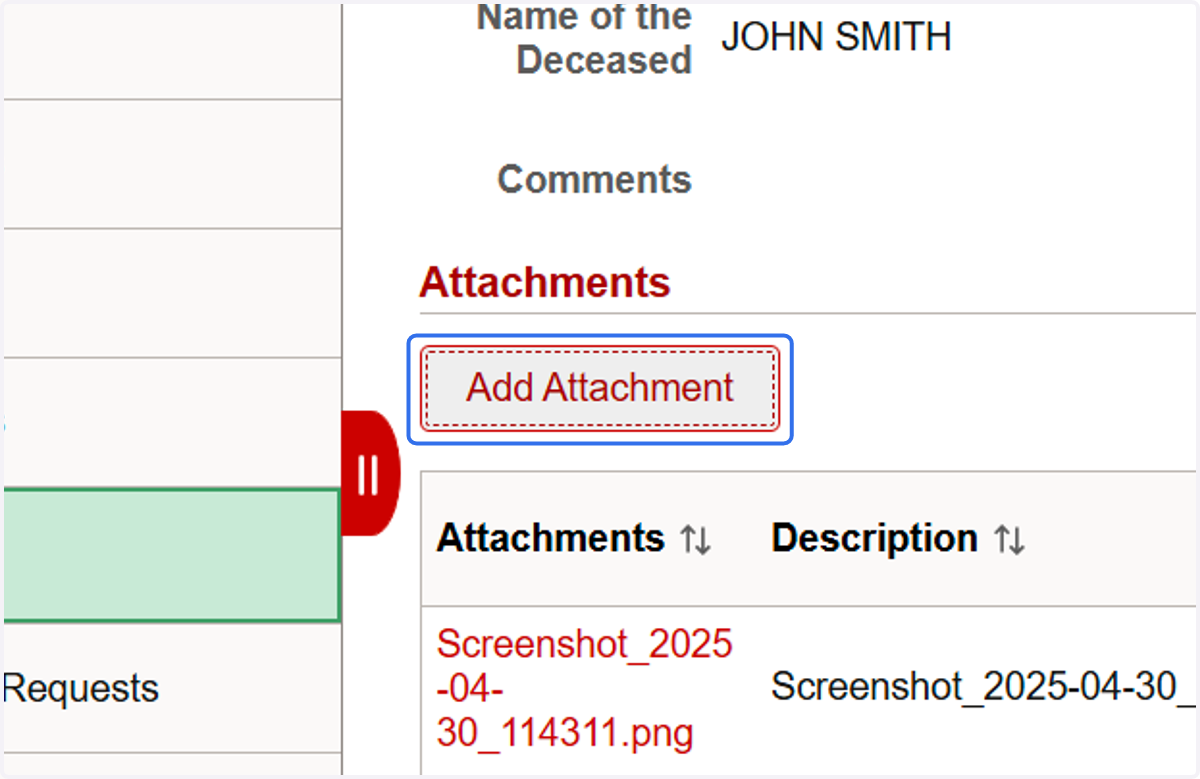
7. Click on "Add Attachment".
8. Click on "My Device".
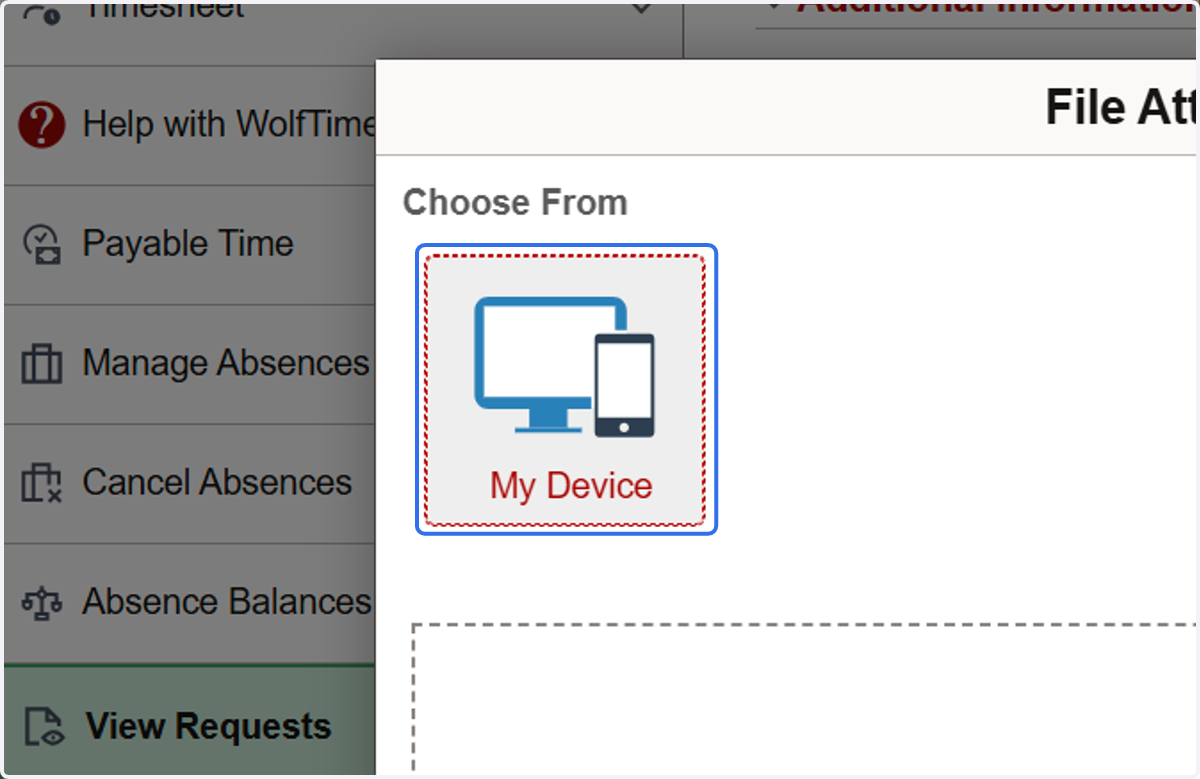
9. Select the file from your file finder and click "Upload".
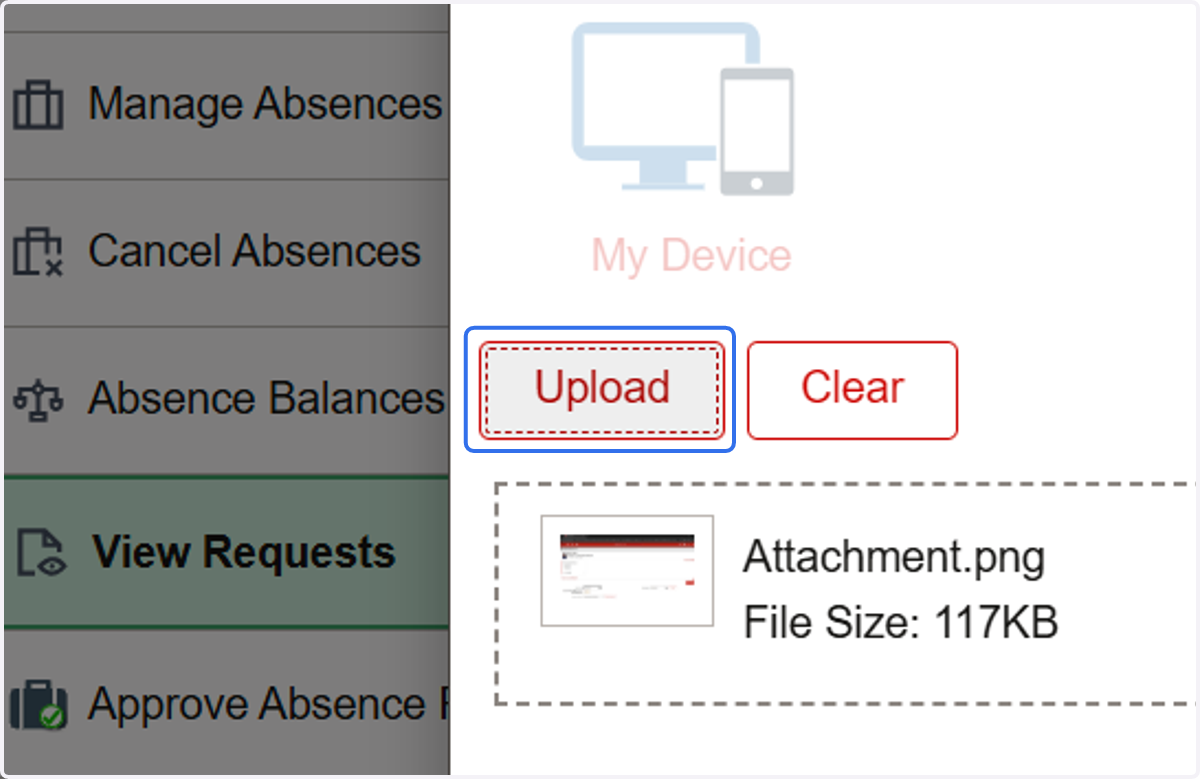
10. Wait for "Upload Complete" and click "Done".

11. The attachment should now be attached to the absence request.
NOTE: You can upload more than one attachment. To upload another attachment, click "Add Attachment" here and proceed through steps 7 and 8 again.
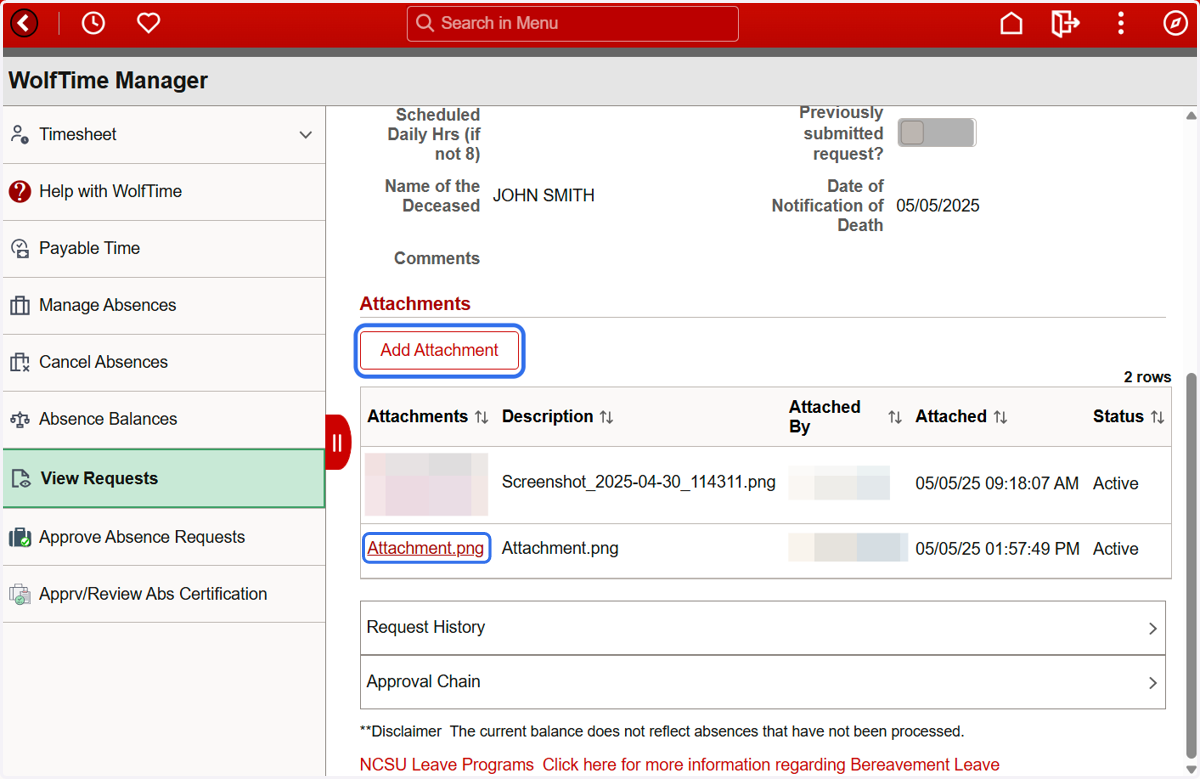
12. Click "Save" to ensure your changes are saved.
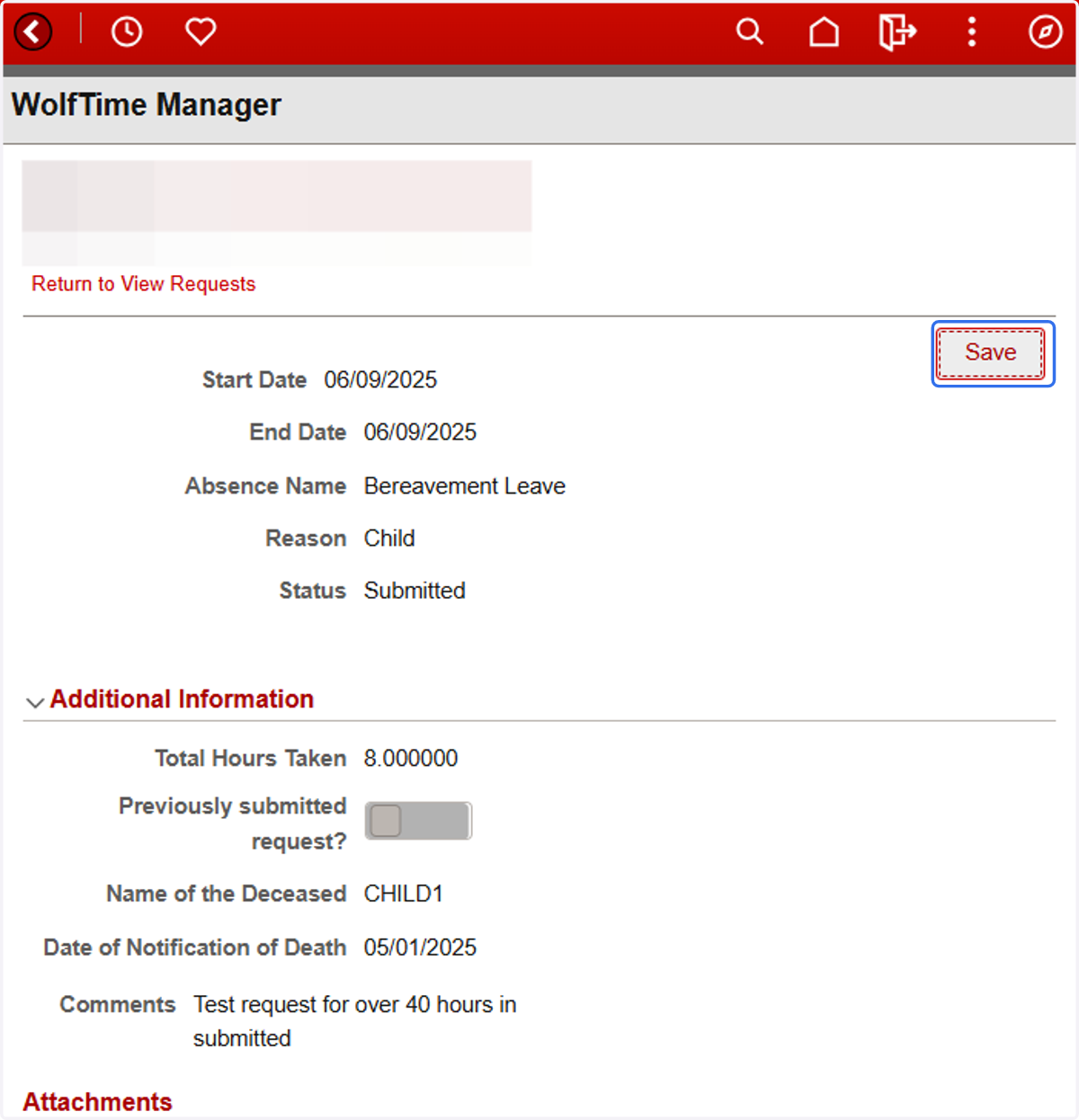
13. You have uploaded an attachment to an employee's Bereavement Leave Request.