Summer School Registration via Infinite Campus School Store
Student Profile | Home | Infinite Campus
1. You will be on the home page of your parent portal
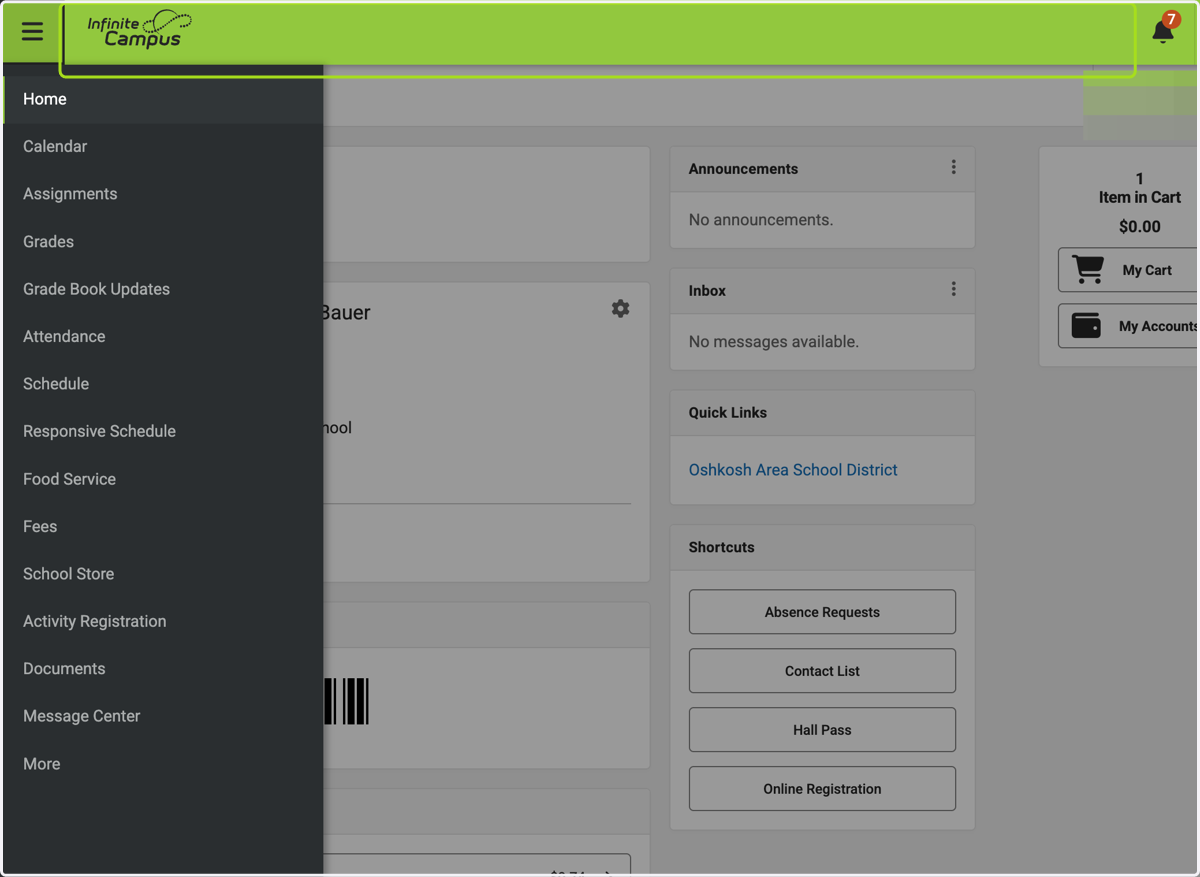
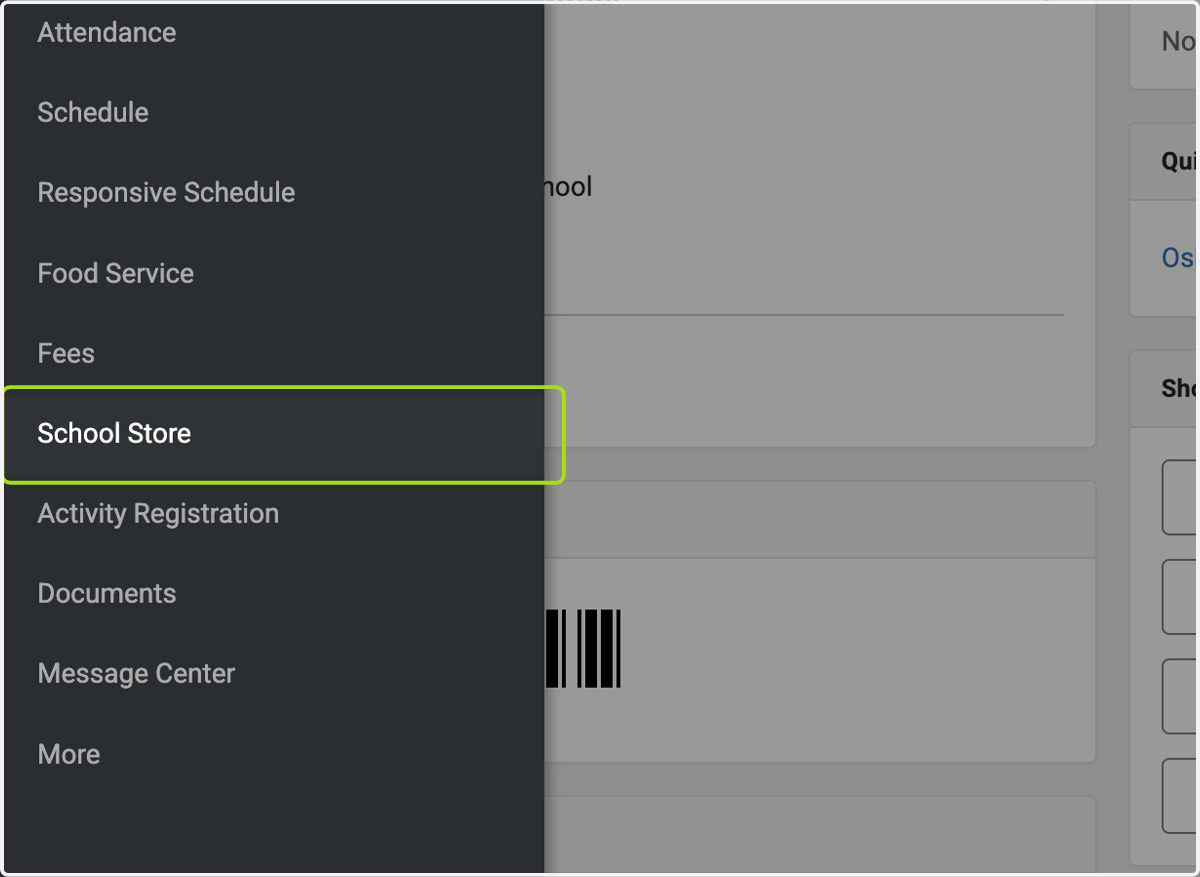
2. Click on School Store
3. Click on Summer School…
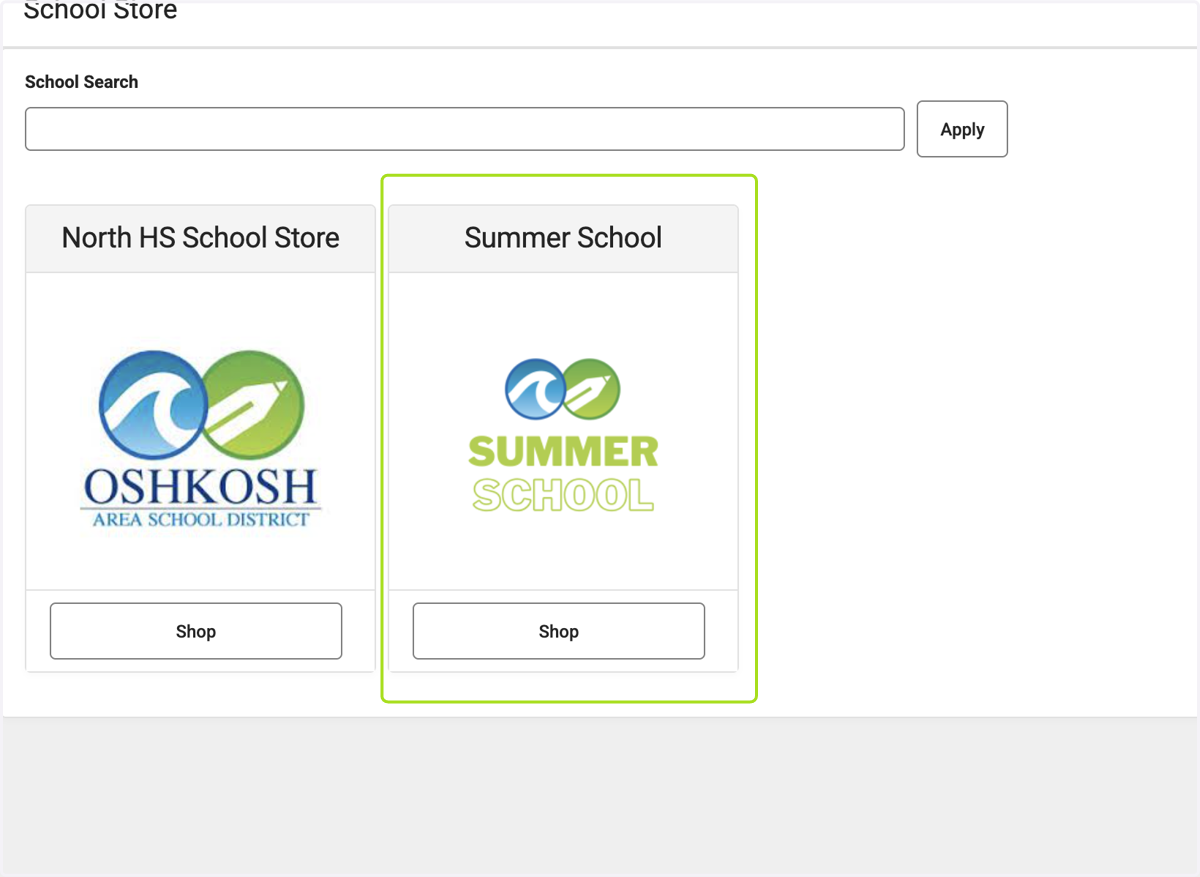
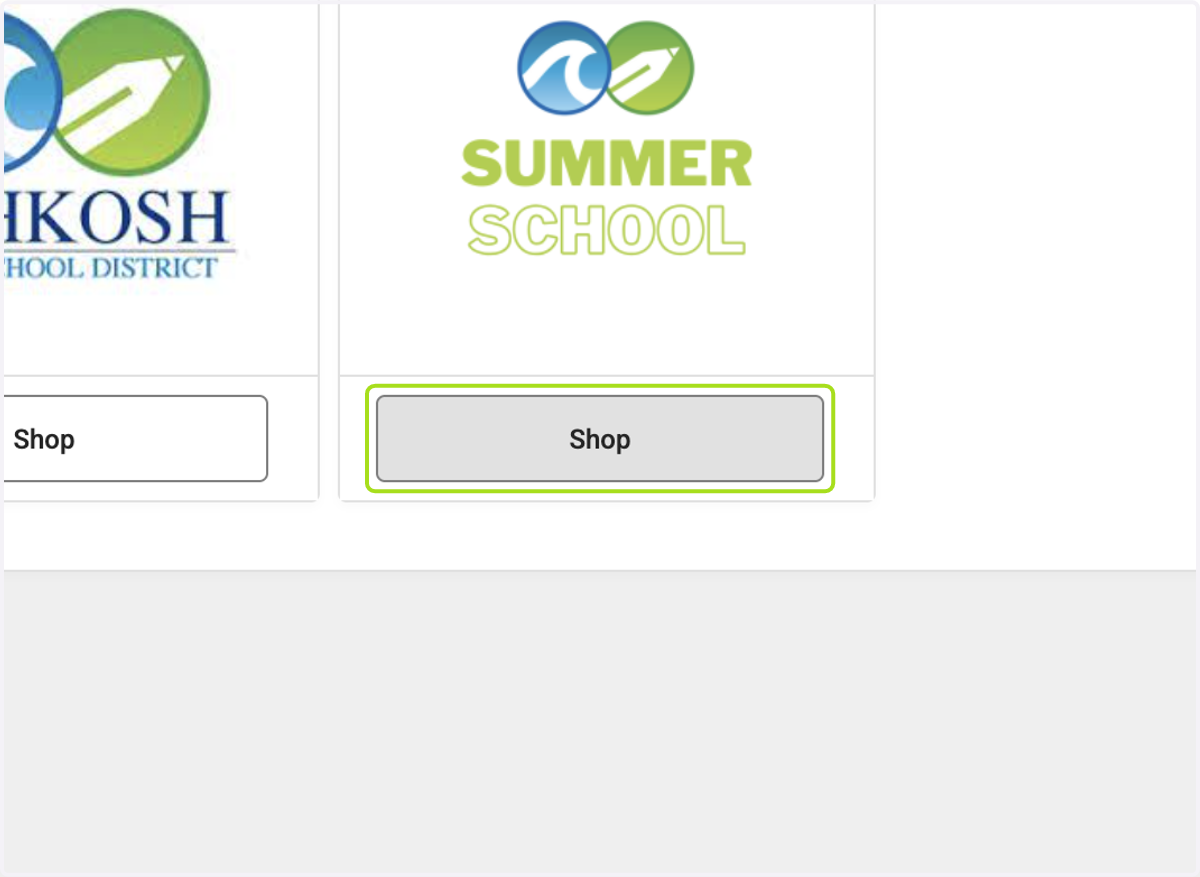
4. Click on Shop
5. Click on the site you would like your child to attend - this example uses Jefferson Elementary
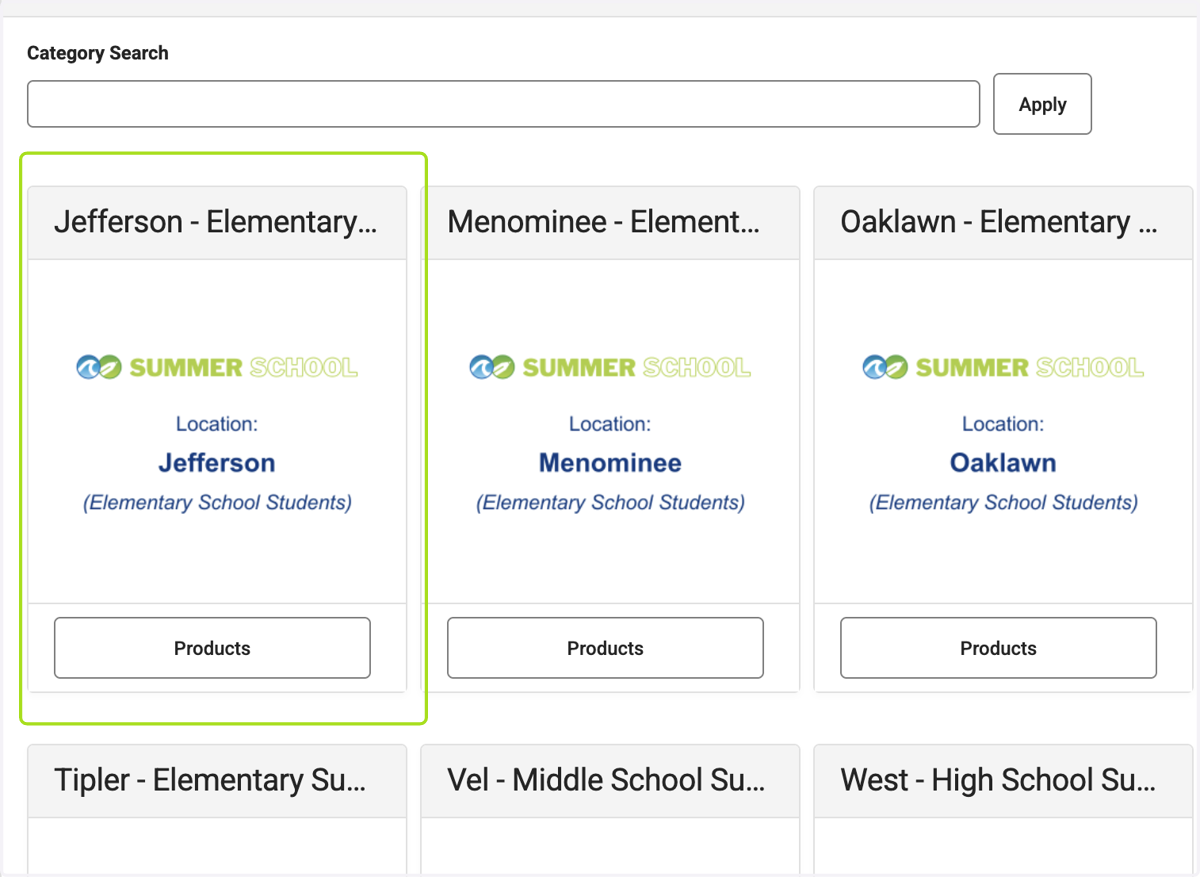
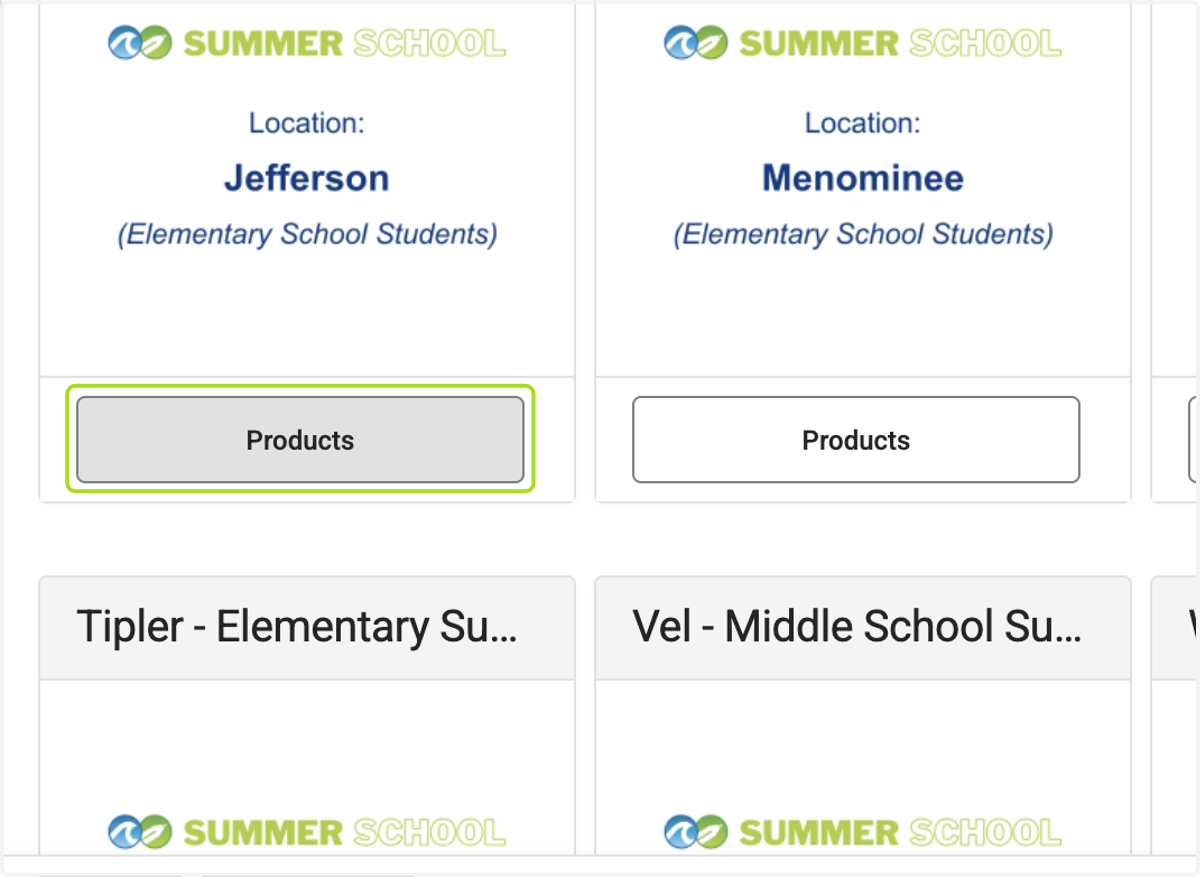
6. Click on "Products" of the site you wish your child to attend
7. Click on the course you would like your child to participate in - this example is selecting Concept Quests, Math 1st grade
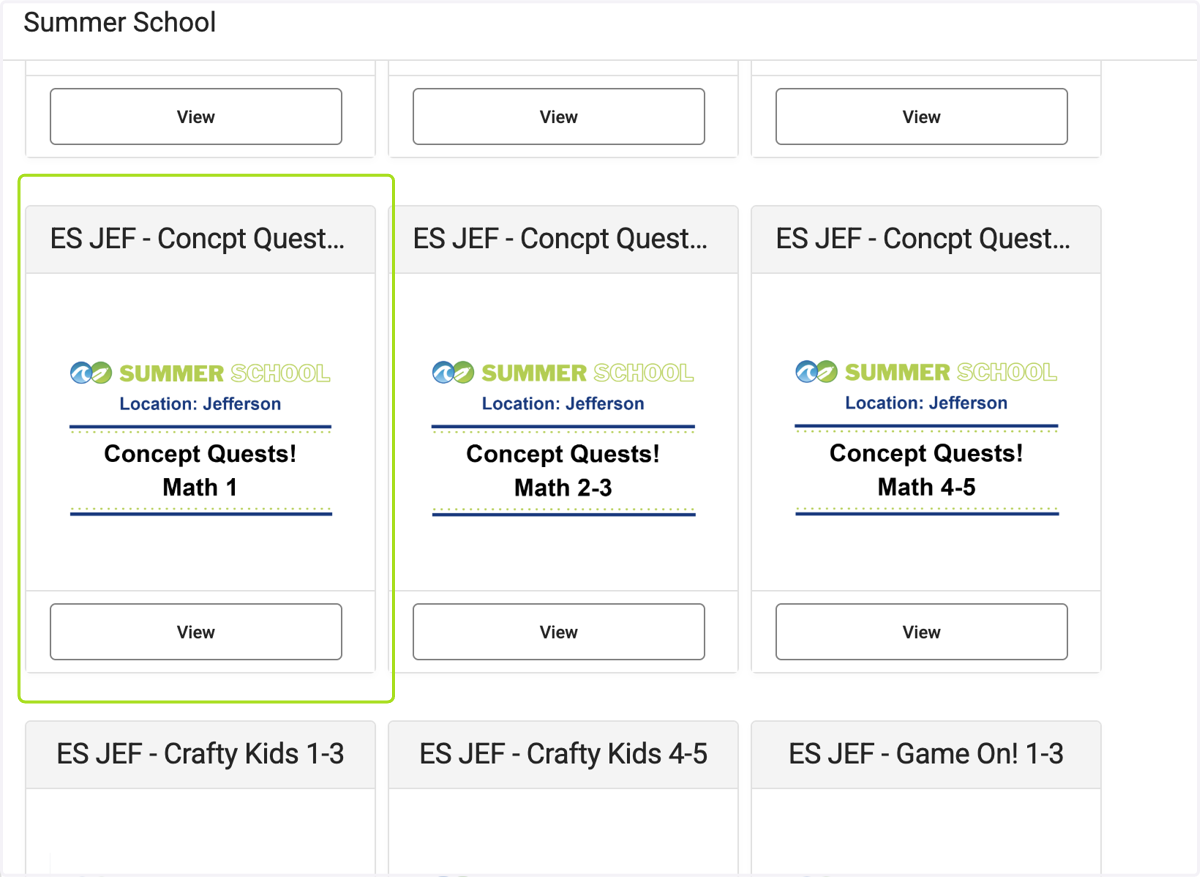
8. Click on View of the course you are signing up for
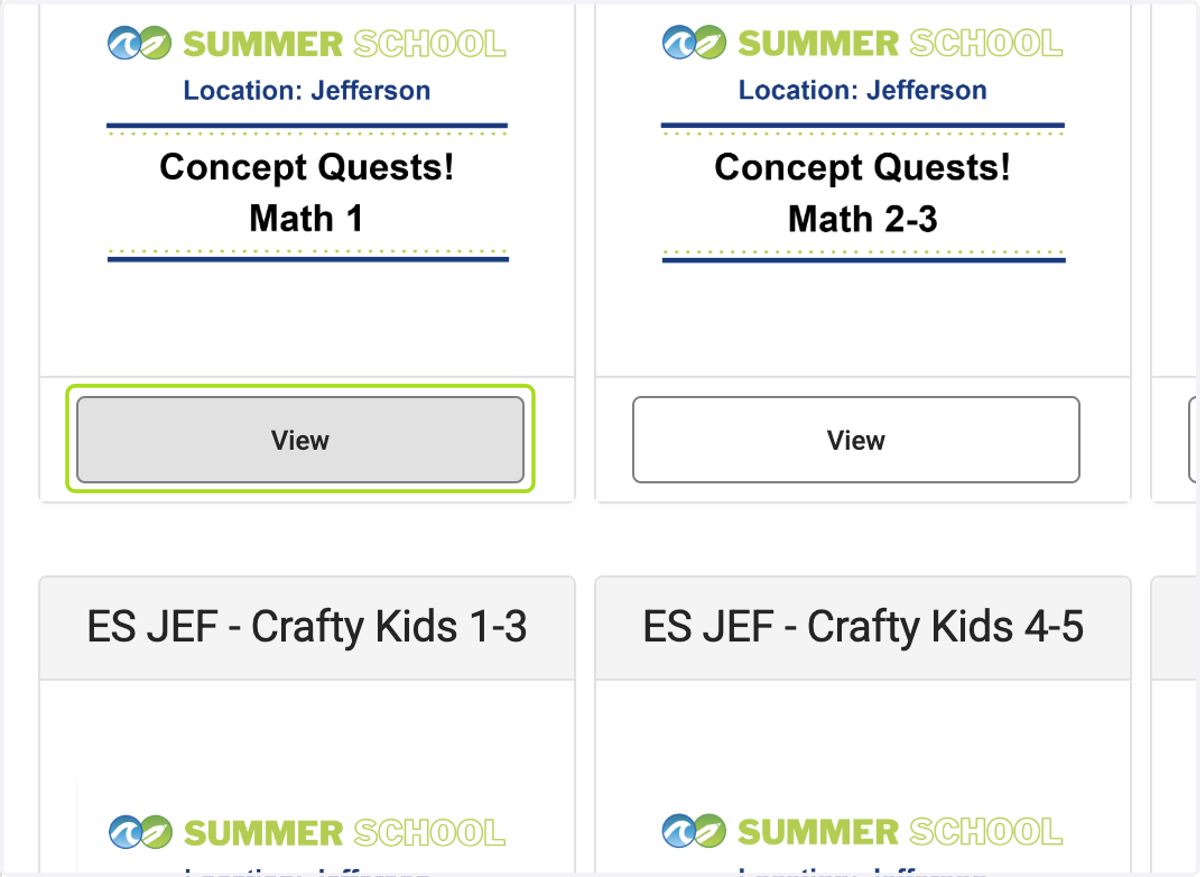
9. Click on Recipient: (Required) - Note: only recipients (students) who are eligible for the class will be displayed
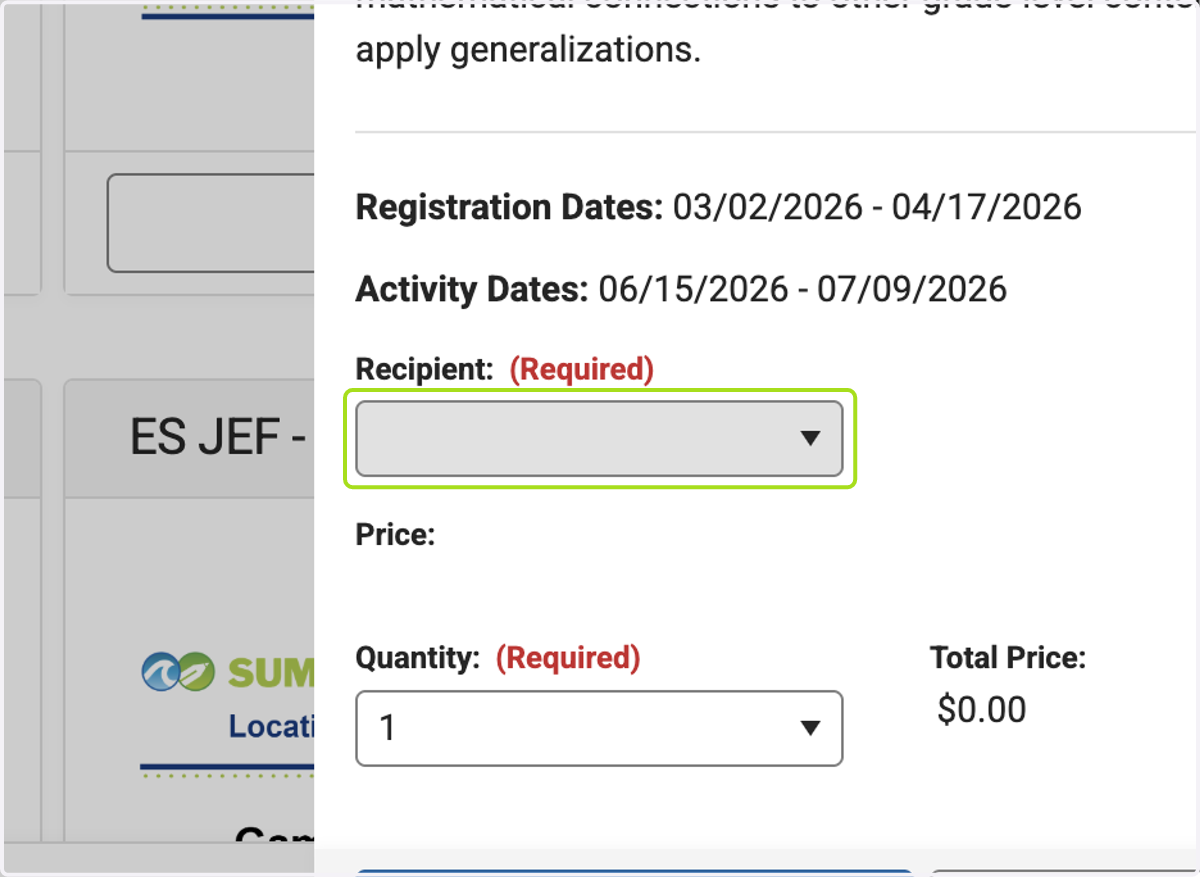
10. Click on your child's name
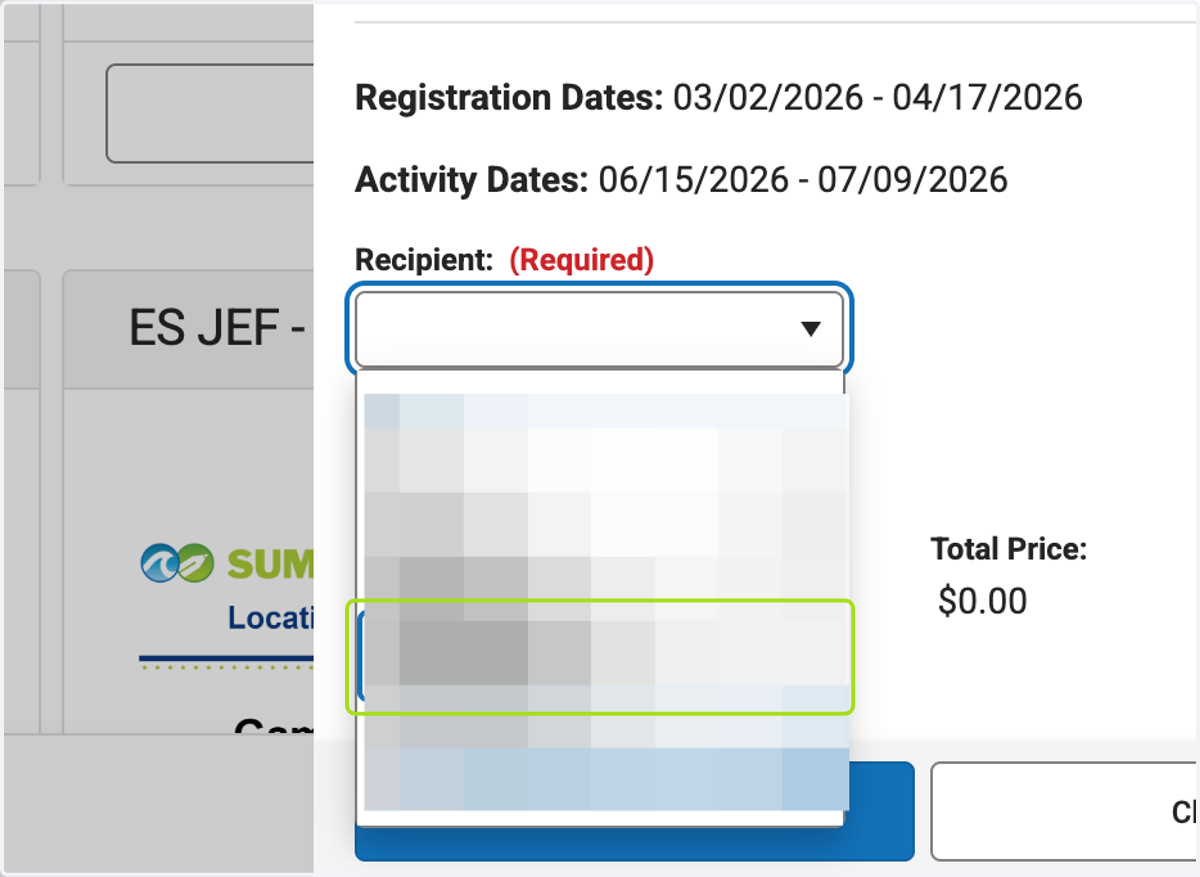
11. Click on Add to Cart
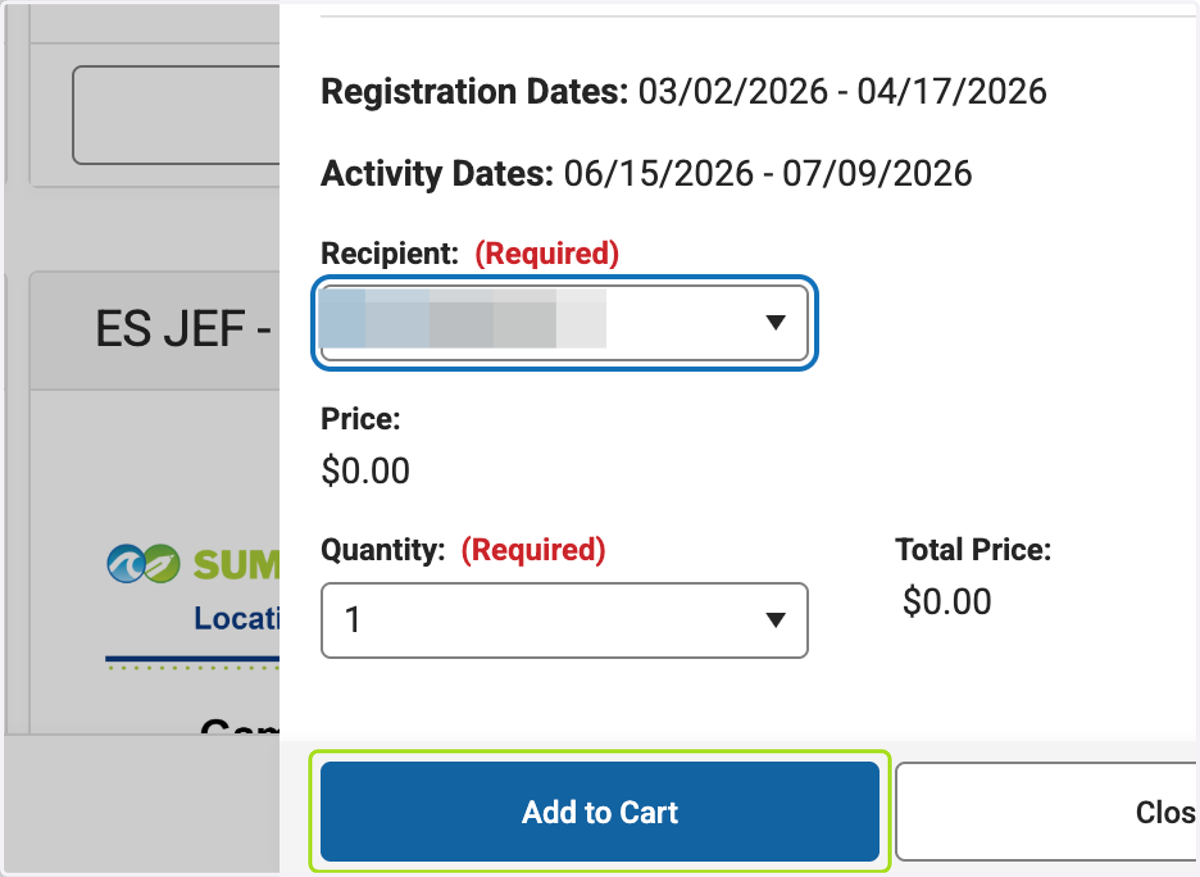
12. Select another course or transportation To add more items to your cart, replicate the previous steps.
Same Level/Site: If you are registering another child for a course at the same level (Elementary, Middle, or High) and same site, simply click on the next class or bus option you wish to select from the current screen.
Different Level/Site: If you need to register another child for a different level or site you will need to click on the "Categories" button to navigate back to the School Store site listing (Step 5) to select the appropriate level/site for that child.
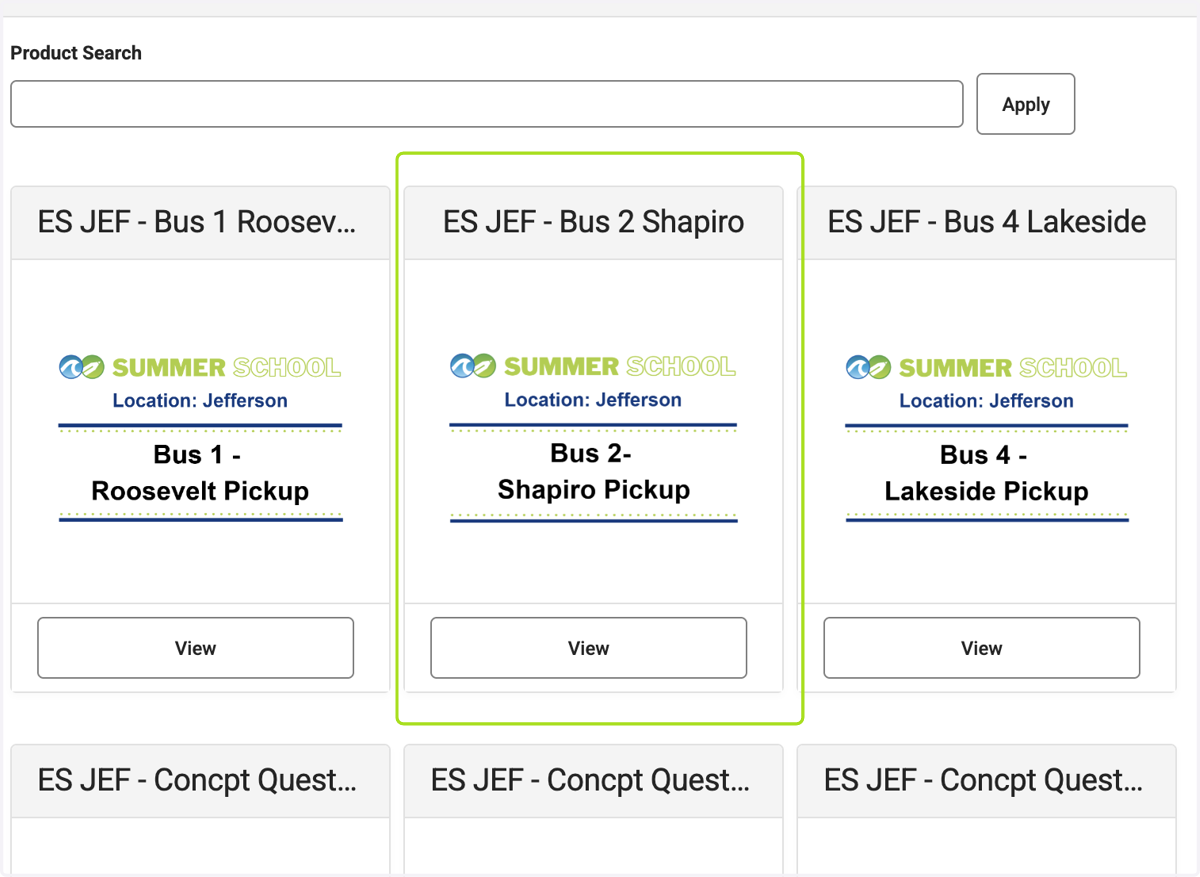
13. Click on My Cart
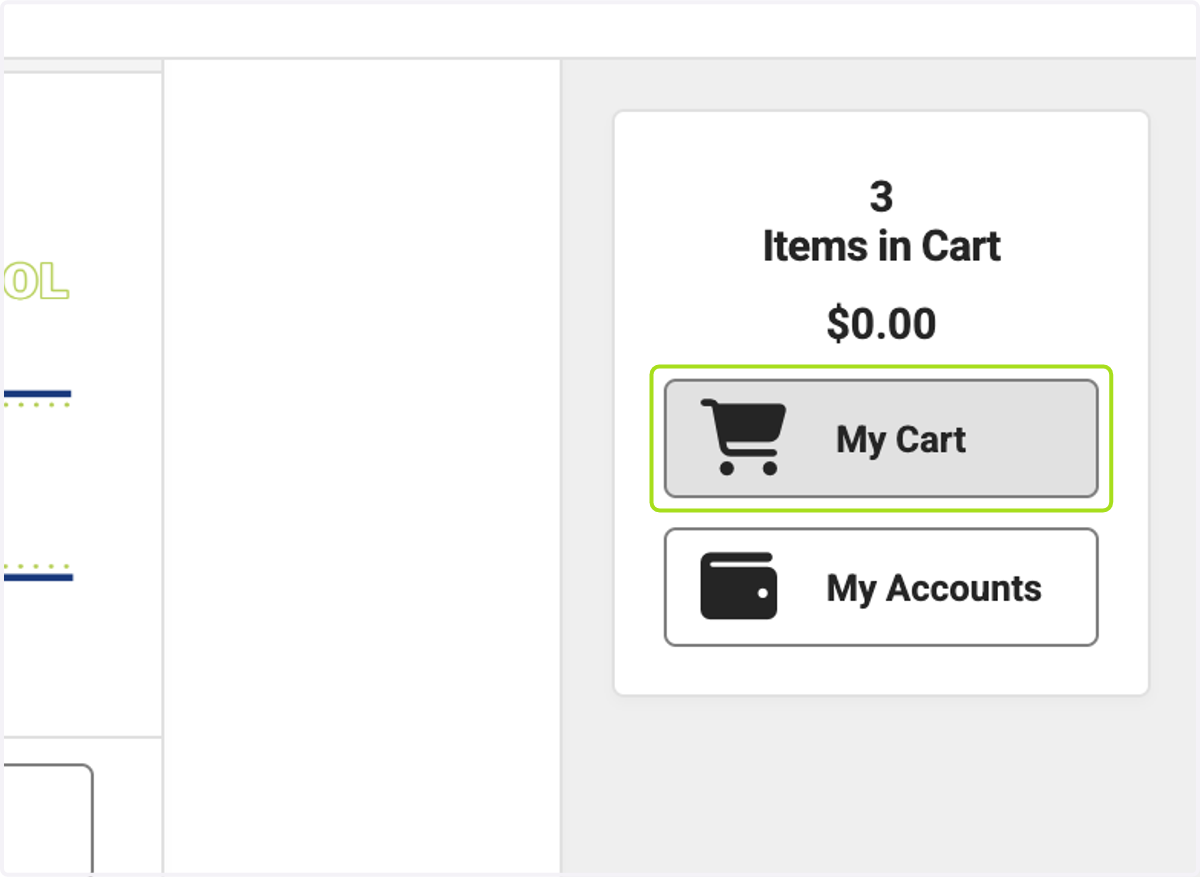
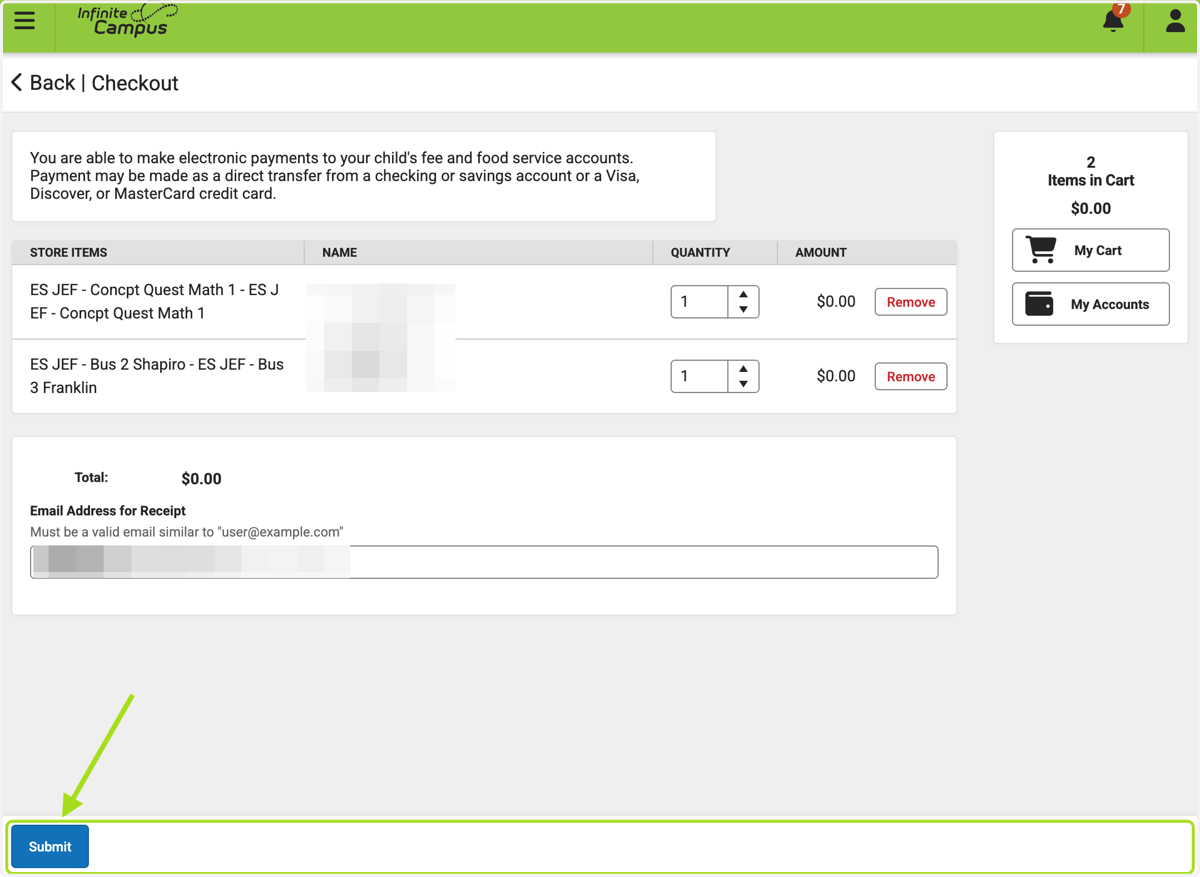
14. You will see the classes you have added to the cart, once all classes are added, Click on Submit
(Check your Inbox: You will receive a confirmation email listing all the specific classes/camps and bus routes you have signed up for.)