Submitting a payment via Alliance Association Bank
Setting up an account
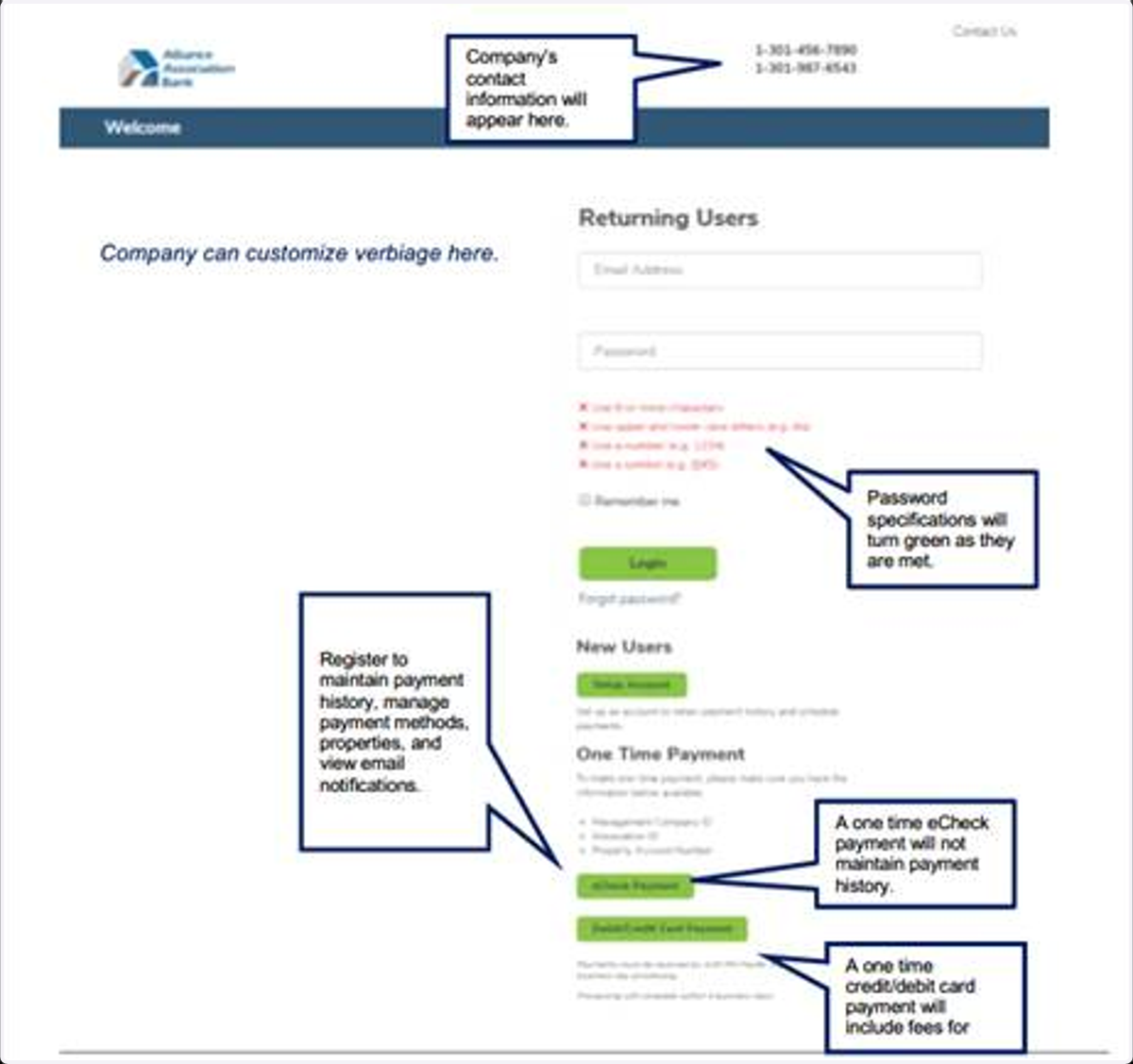
1. Go to https://pay.allianceassociationbank.com/Home?cmcid=47D4A5F8
2. Select Setup Account listed under New Owners
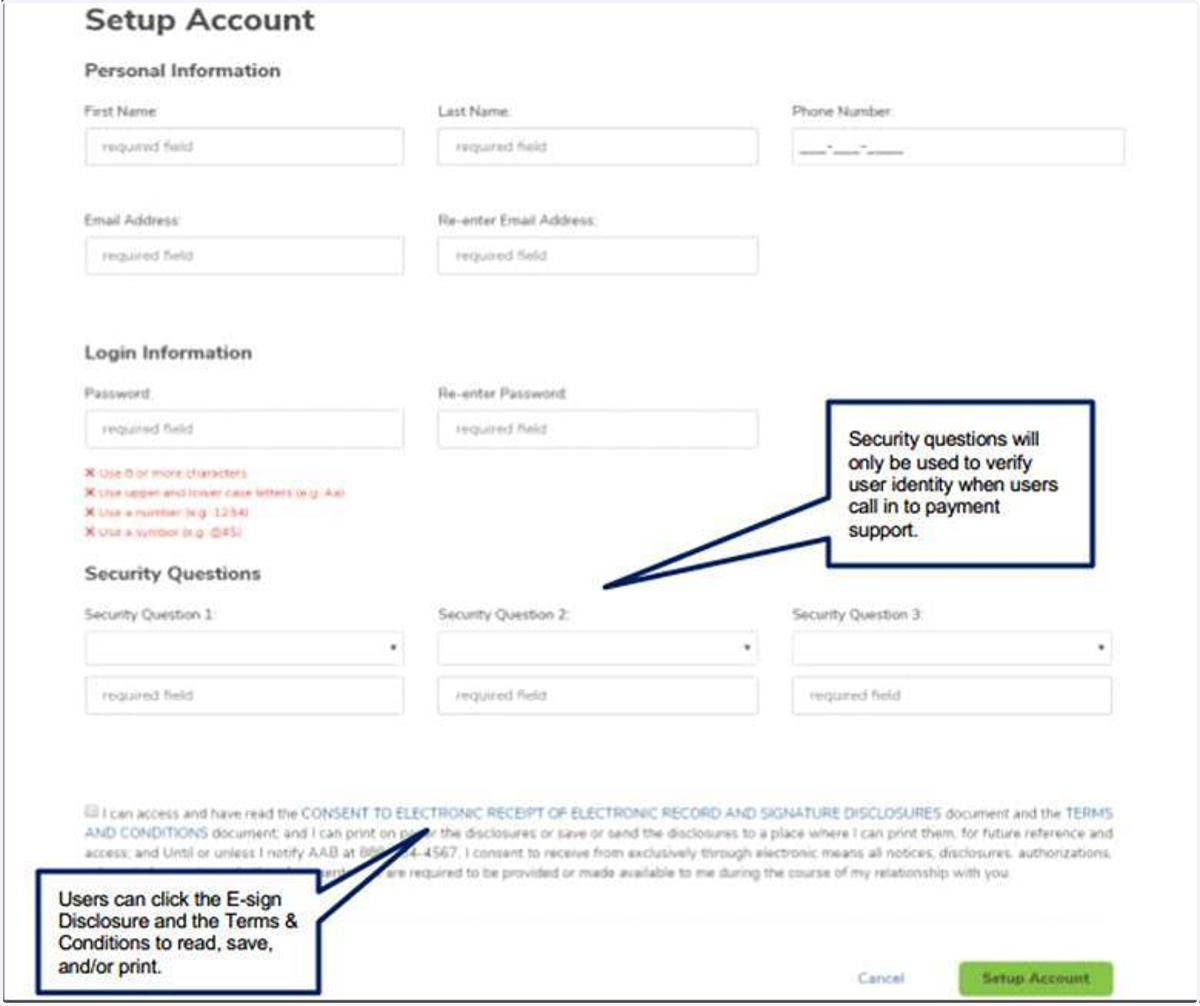
3. Complete all fields on the Setup Account.
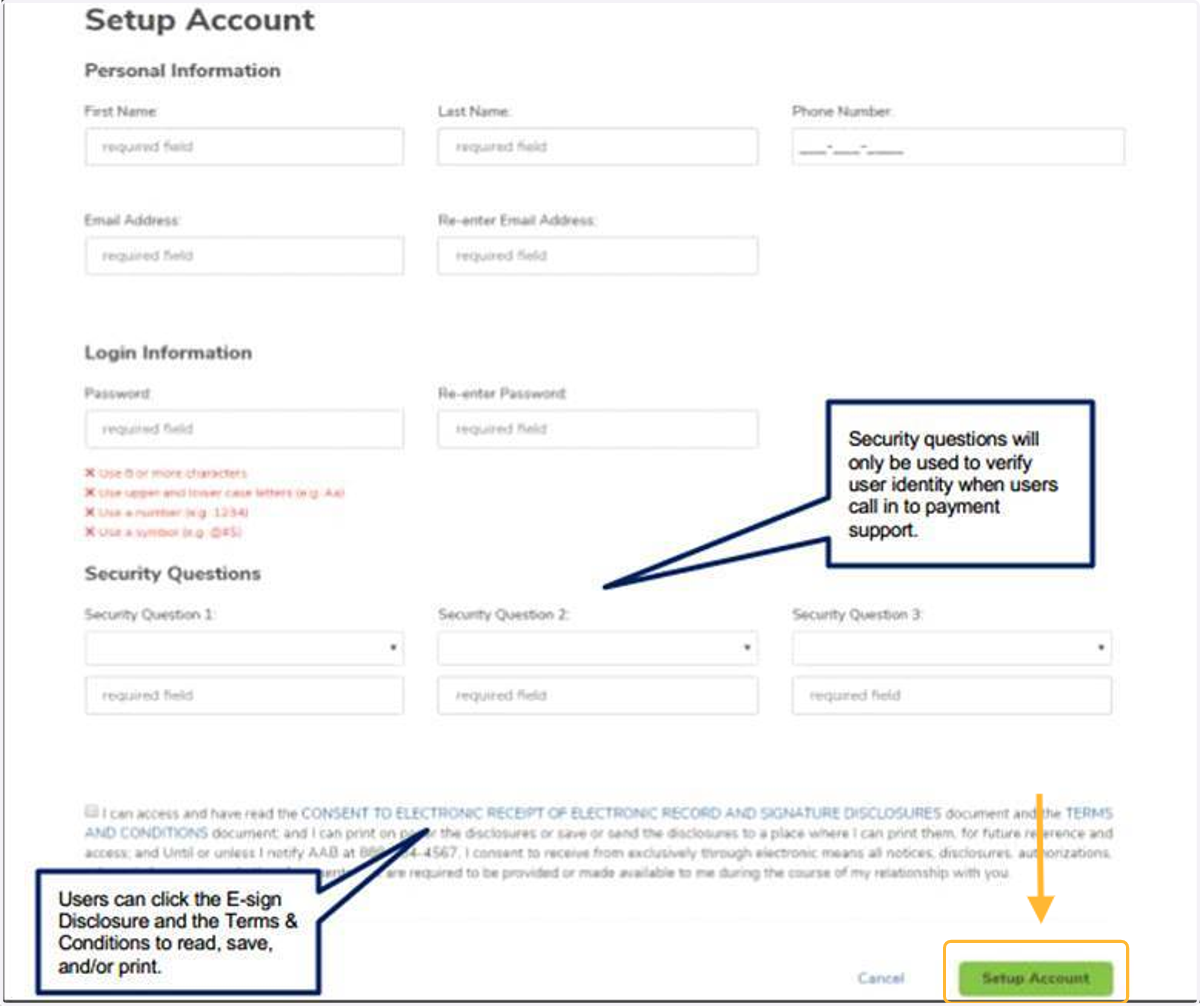
4. Click Setup Account to finish creating the account.
Setting up payments
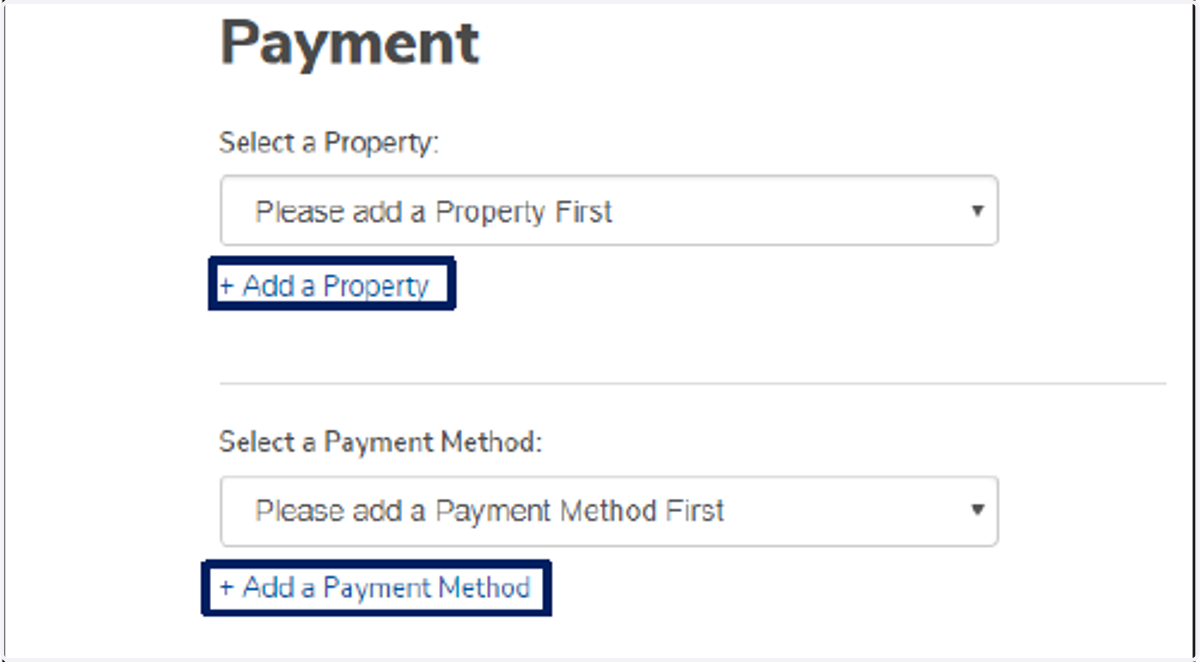
5. If there are no properties or payment methods established for the profile, users can add them by clicking the links shown below:
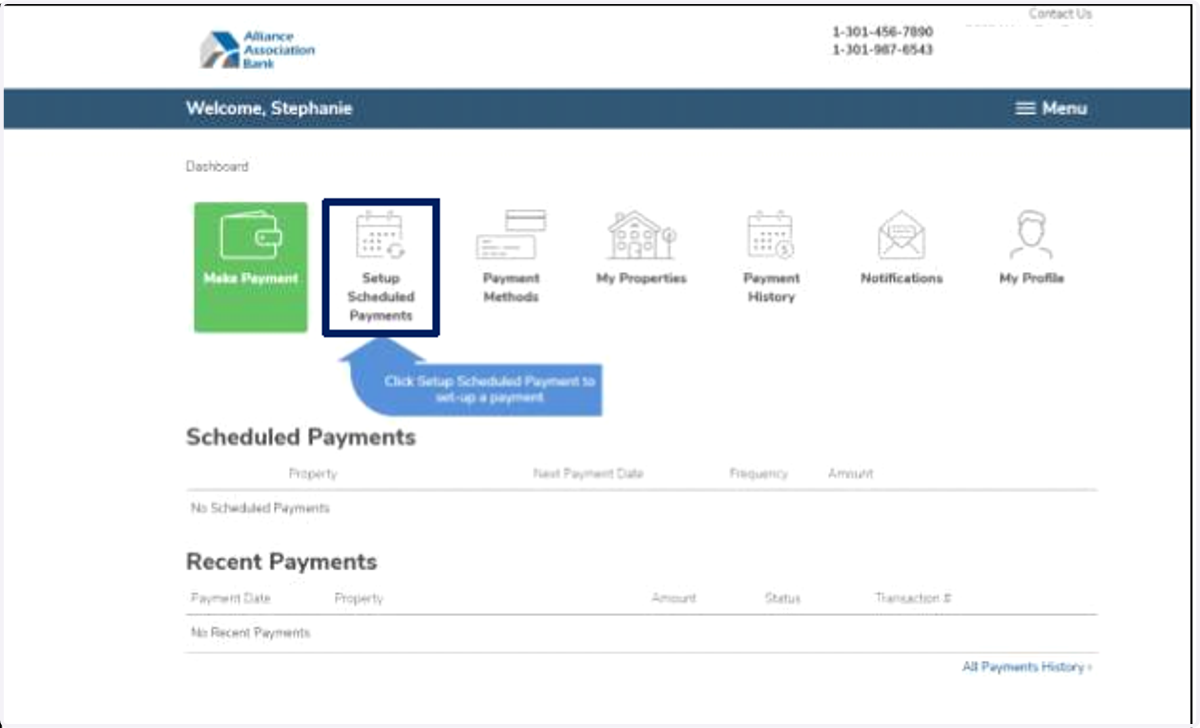
6. Setup Schedule Payments
Setup Scheduled Payments will walk users through setting up a scheduled payment based on a frequency of choice.
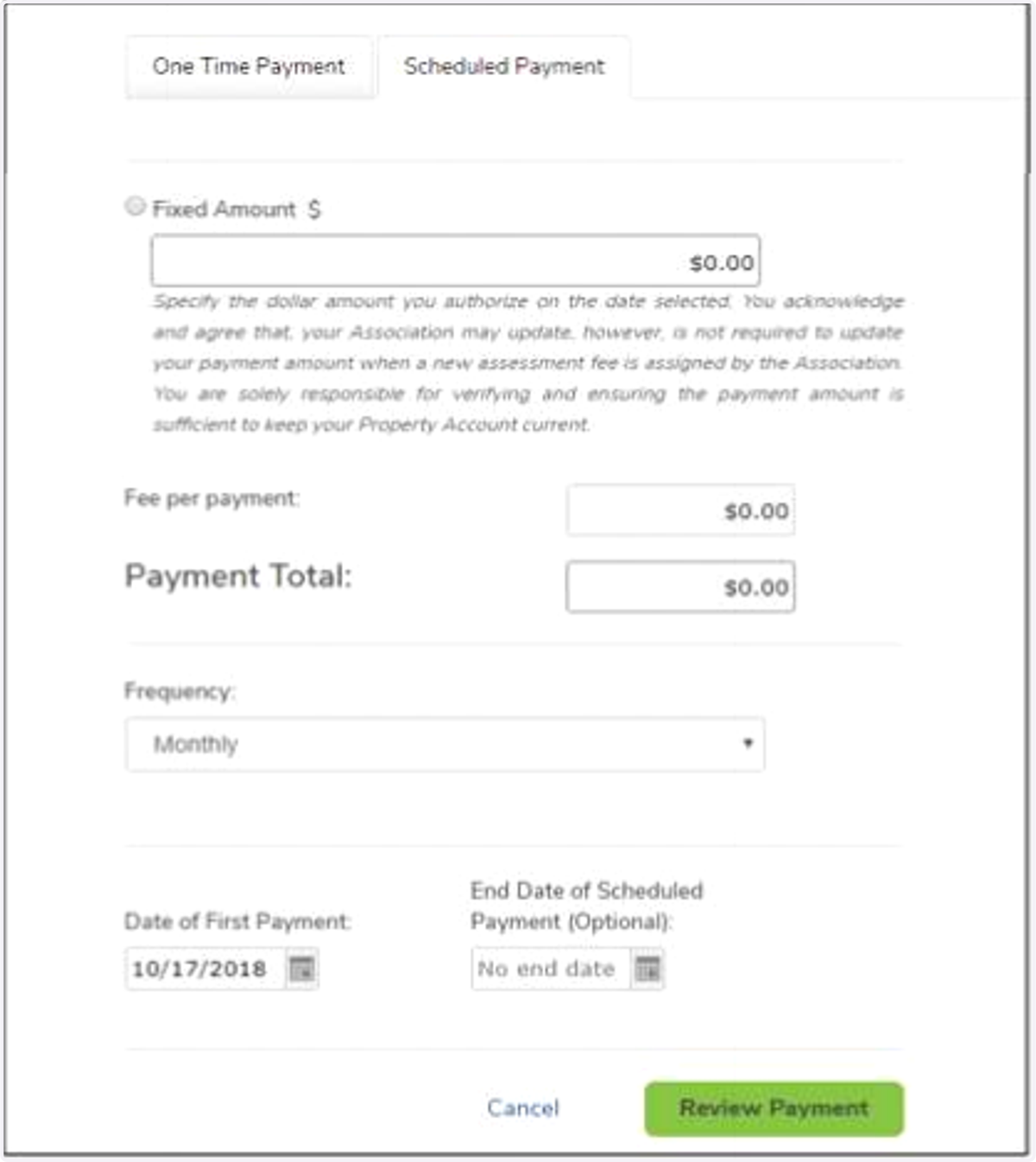
7. Complete all fields on the Schedule Payment page including Amount, Frequency, Start Date and End Date (optional). After all information has been filled out, select Review Payment.
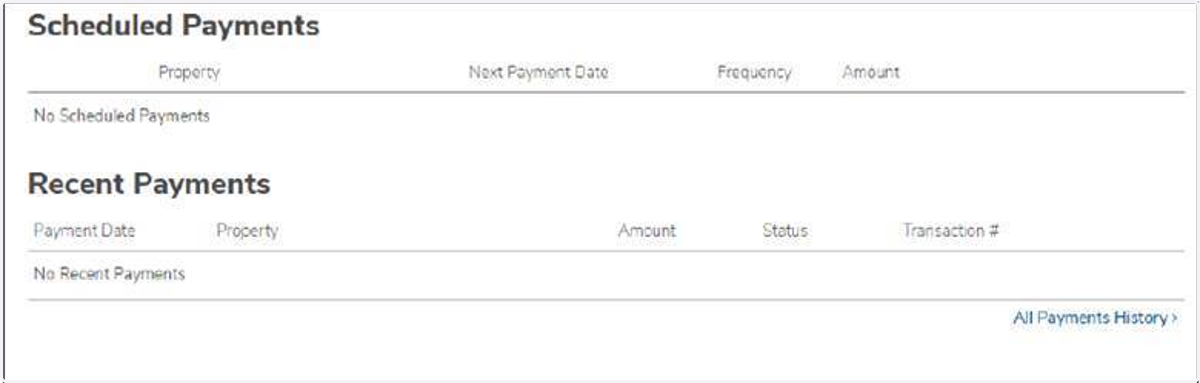
8. Once the payment is reviewed and confirmed, it will be presented under Schedule Payments on the User Dashboard.
Add/Edit/Delete Payment Methods
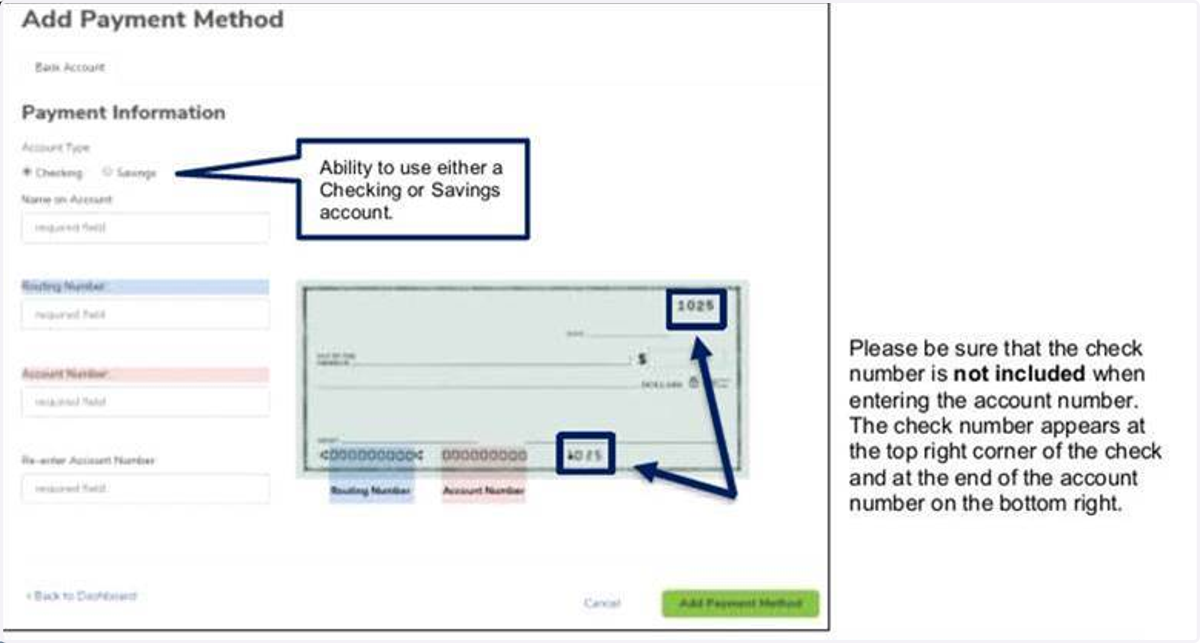
9. To add or delete a payment method, click Payment Methods located on the User Dashboard.
Select Add Payment Method to add a checking account. routing and account information is required
If you have established a recurring payment, you will receive a payment reminder five days before your next payment. A confirmation email will also be sent the day your payment is processed.