Submitting Academic Program Reviews

Planning & Self-Study Software Support | University of North Dakota

  1. 1. Visit the OIEA website (https://und.edu/academics/provost/assessment-accreditation/planning-self-study.html) and click on "Log In to Watermark".

    Visit the OIEA website (https://und.edu/academics/provost/assessment-accreditation/planning-self-study.html) and click on "Log In to Watermark".

Watermark EIS

  1. 2. Click on "Planning and Self-Study".

    Click on "Planning and Self-Study".
  2. 3. Click on "Program Review".

    Click on "Program Review".
  3. 4. Click on the program review you want to update.

    Click on the program review you want to update.
  4. 5. Click on the name of the program where you want to add/update information.

    Click on the name of the program where you want to add/update information.
  5. 6. Click on the section of the program where you want to add/update information. For example, the first section is the "Overview". Click on it.

    Click on the section of the program where you want to add/update information. For example, the first section is the "Overview". Click on it.
  6. 7. Click on "Introduction and Trends".

    Click on "Introduction and Trends".
  7. 8. Click on WRITE NARRATIVE to add/update information.

    Click on WRITE NARRATIVE to add/update information.
  8. 9. Compose this narrative and include evidence. You can type directly into the textbox or copy and paste from a word document. Screen reader users may use ALT+F10 to access formatting toolbar.

    Compose this narrative and include evidence. You can type directly into the textbox or copy and paste from a word document. Screen reader users may use ALT+F10 to access formatting toolbar.
  9. 10. Click on the paper clip icon to manage evidence/upload files to your narrative.

    Click on the paper clip icon to manage evidence/upload files to your narrative.
  10. 11. Click on ADD EVIDENCE to select the type of evidence you would like to attach to your narrative.

    Click on ADD EVIDENCE to select the type of evidence you would like to attach to your narrative.
  11. 12. You can evidence either in the form of a file from your computer or a link.

    You can evidence either in the form of a file from your computer or a link.
  12. 13. If you choose a link, include the URL.

    If you choose a link, include the URL.
  13. 14. Don't forget to add the title of the link.

    Don't forget to add the title of the link.
  14. 15. When you are finished adding the URL and title for your link, click ADD.

    When you are finished adding the URL and title for your link, click ADD.
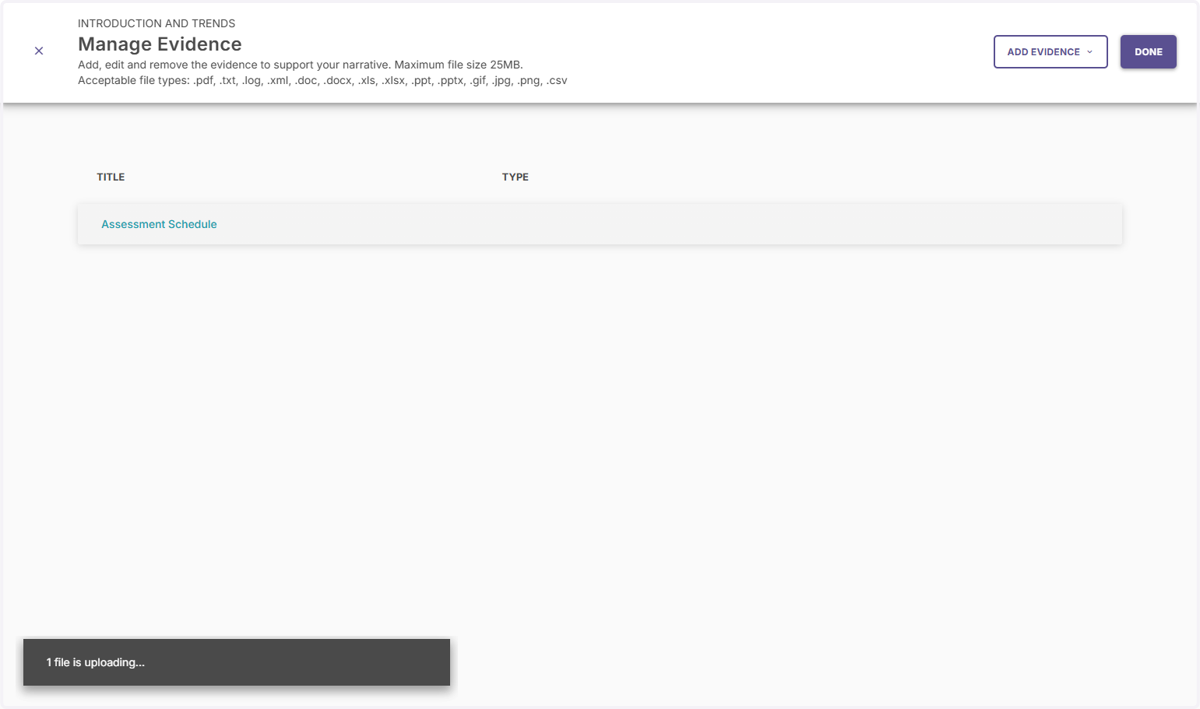
  15. 16. This screen shows all the evidence that has been attached to this section of the program review.

    This screen shows all the evidence that has been attached to this section of the program review.
  16. 17. When you are done adding/managing evidence, click DONE.

    When you are done adding/managing evidence, click DONE.
  17. 18. Update your progress by clicking on the backwards circular arrow.

    Update your progress by clicking on the backwards circular arrow.
  18. 19. Choose the status of the report so others know how much progress has been made.

    Choose the status of the report so others know how much progress has been made.
  19. 20. When you have updated the status of your program review, click SAVE & EXIT.

    When you have updated the status of your program review, click SAVE & EXIT.
  20. 21. Repeat this process for each of the other sections of the program review, beginning with the "Student Learning Outcomes Assessment".

    Repeat this process for each of the other sections of the program review, beginning with the "Student Learning Outcomes Assessment".
  21. 22. Also repeat this process for the program's Analysis section, then stop. DO NOT enter any data for the Reviewer section - that is for external reviewers.

    Also repeat this process for the program's Analysis section, then stop. DO NOT enter any data for the Reviewer section - that is for external reviewers.
  22. 23. After the Overview, Students Learnings Outcomes Assessment, and program Analysis sections are complete, click REVIEW AND SUBMIT to complete your program review.

    After the Overview, Students Learnings Outcomes Assessment, and program Analysis sections are complete, click REVIEW AND SUBMIT to complete your program review.