Submit New Hire Form in Droplet
Go to app.droplet.io
1. Type your SCS email
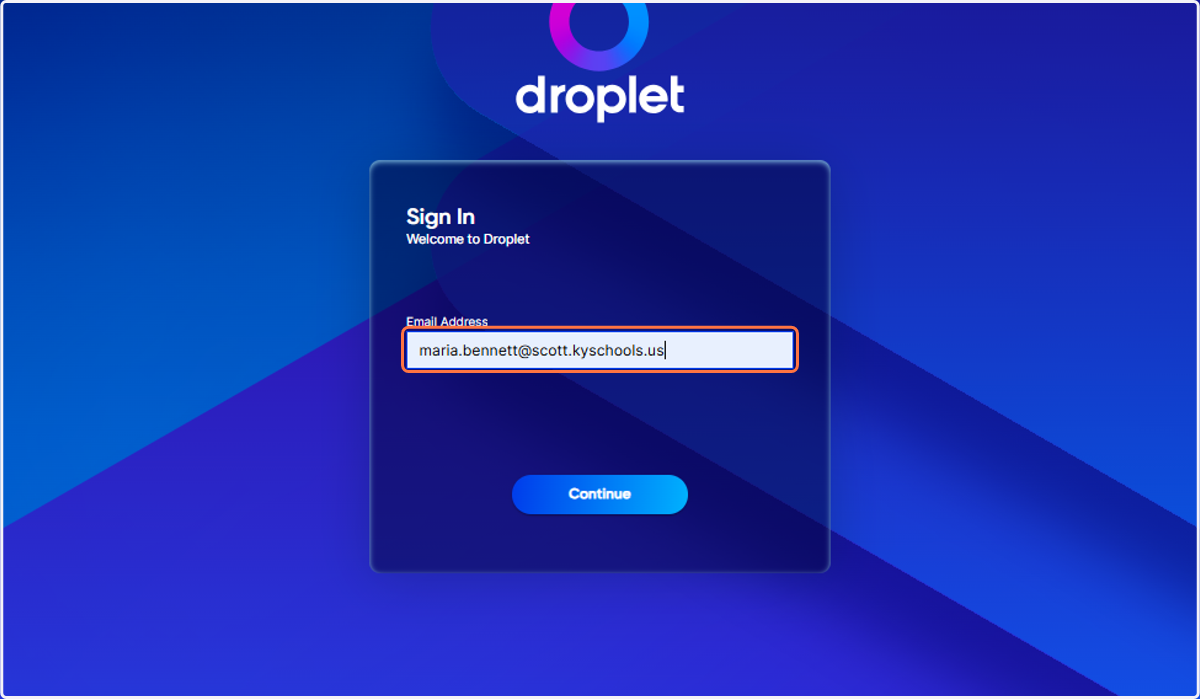
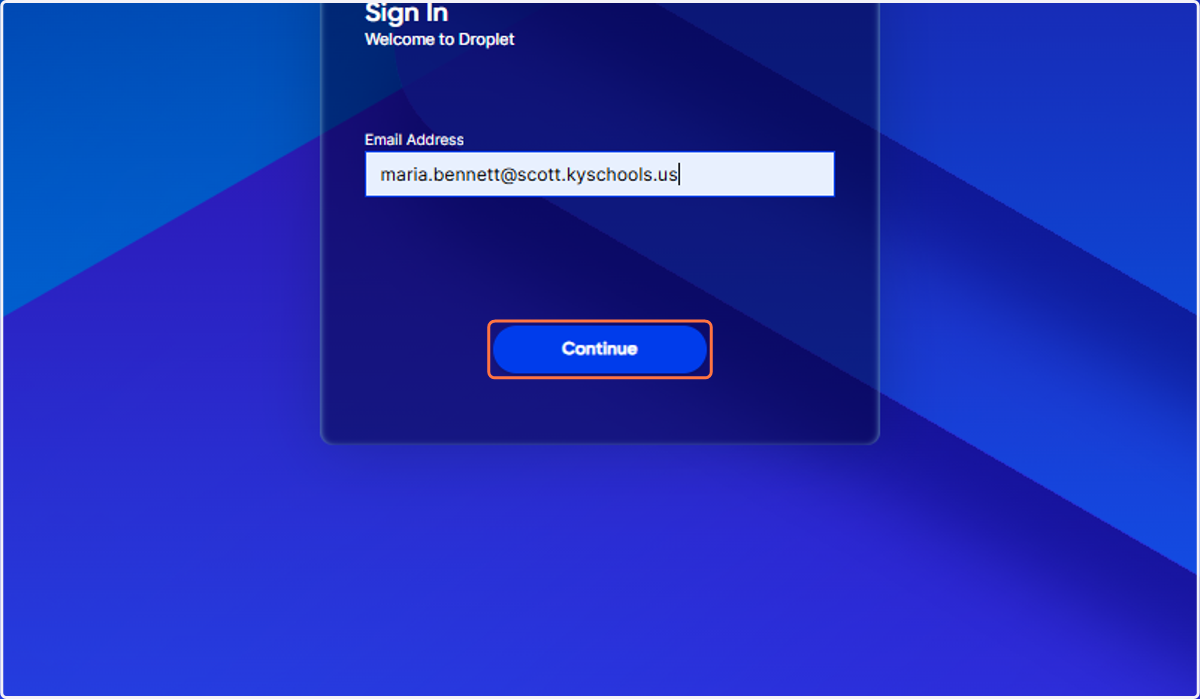
2. Click on Continue
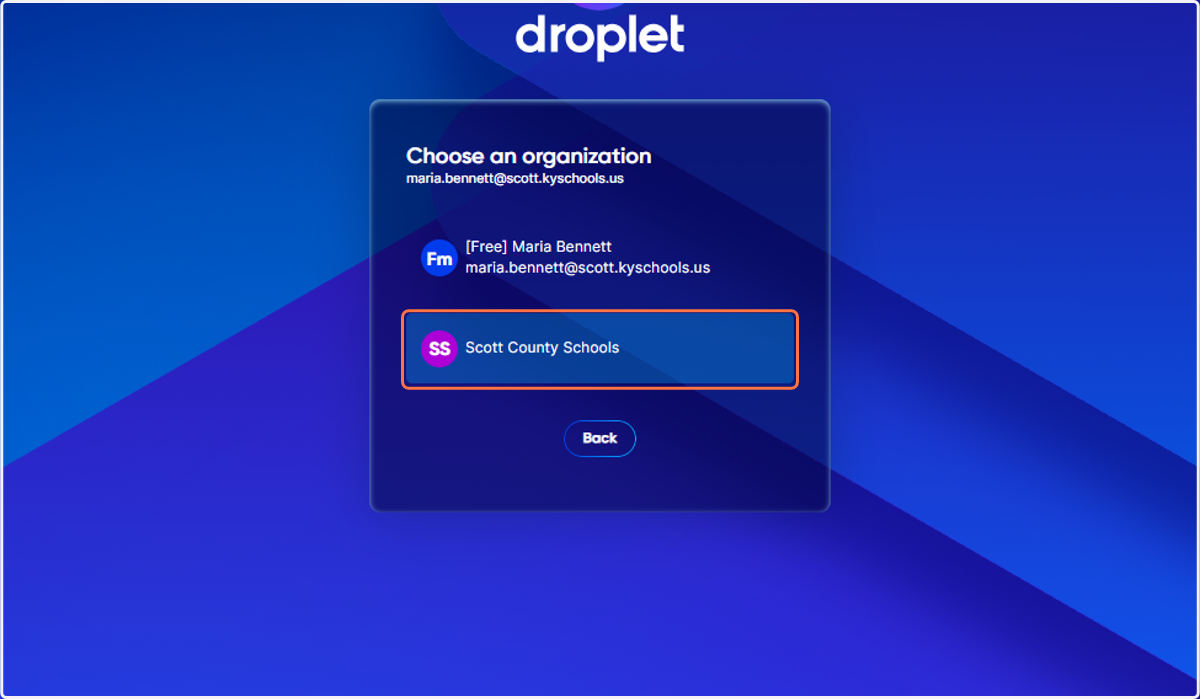
3. Click on Scott County Schools
4. Click on Forms
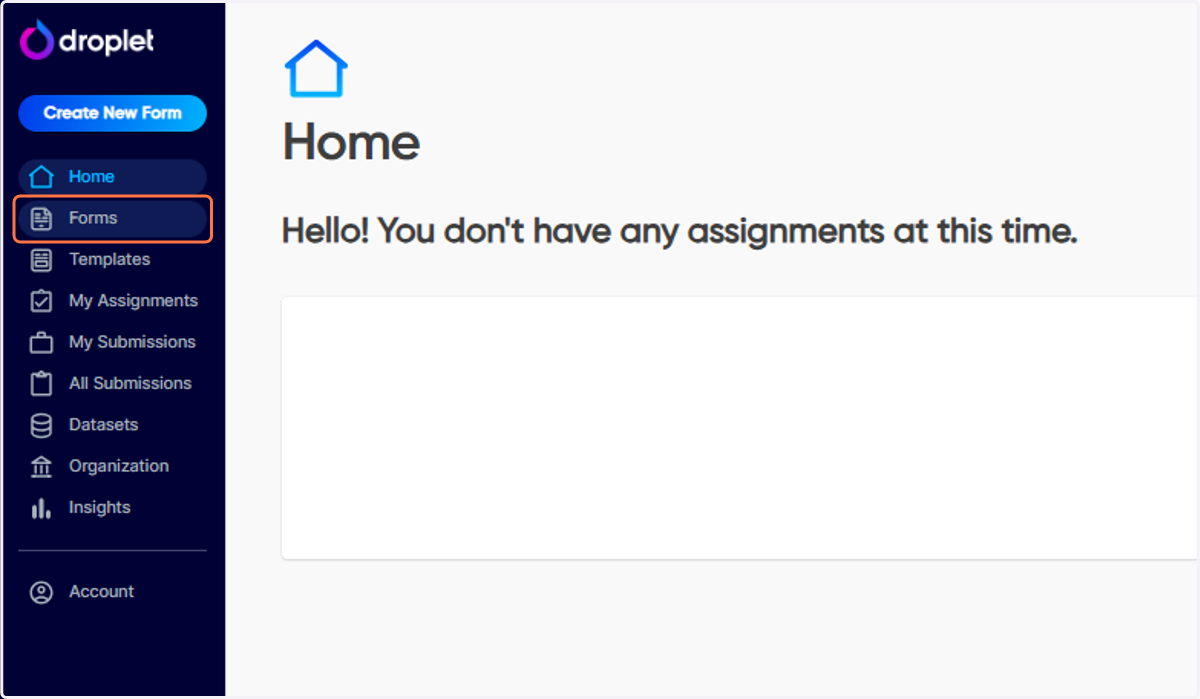
5. Click on Start
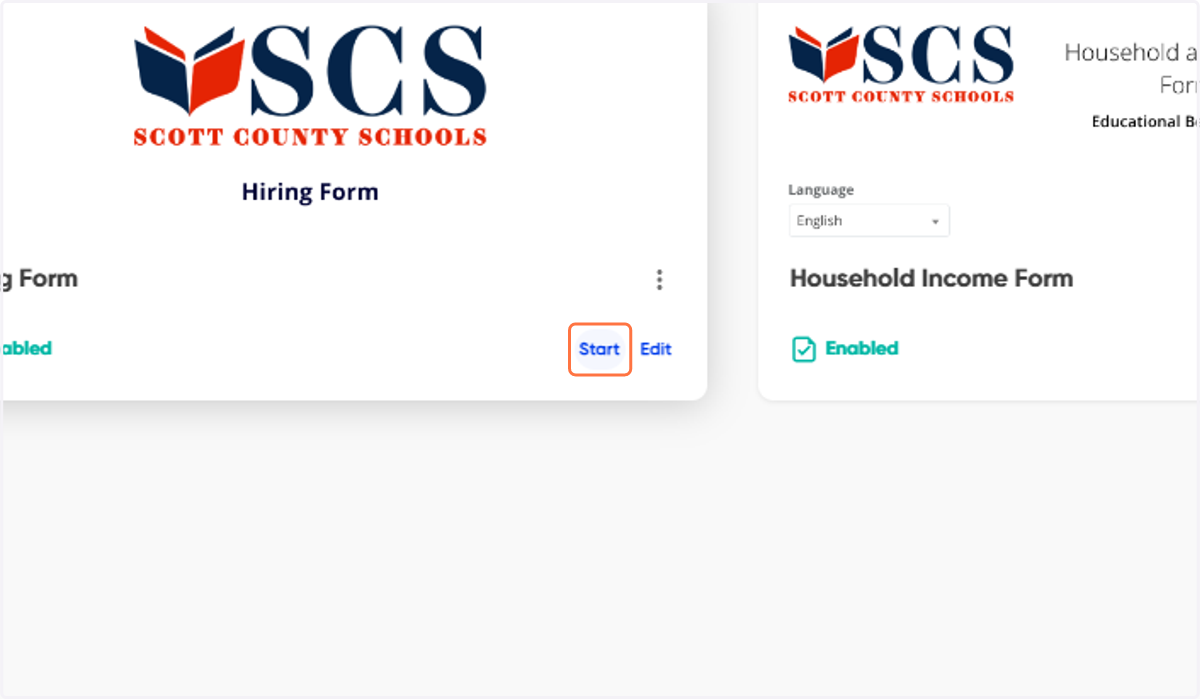
6. Select Type of Hire
New Hire: Select this for a brand-new position or a completely new hire.
Change of Pay, Position, or Location: Use this for existing employees who are undergoing changes to their pay, role, or school location. This single form handles all these scenarios, eliminating the need to choose between multiple forms.
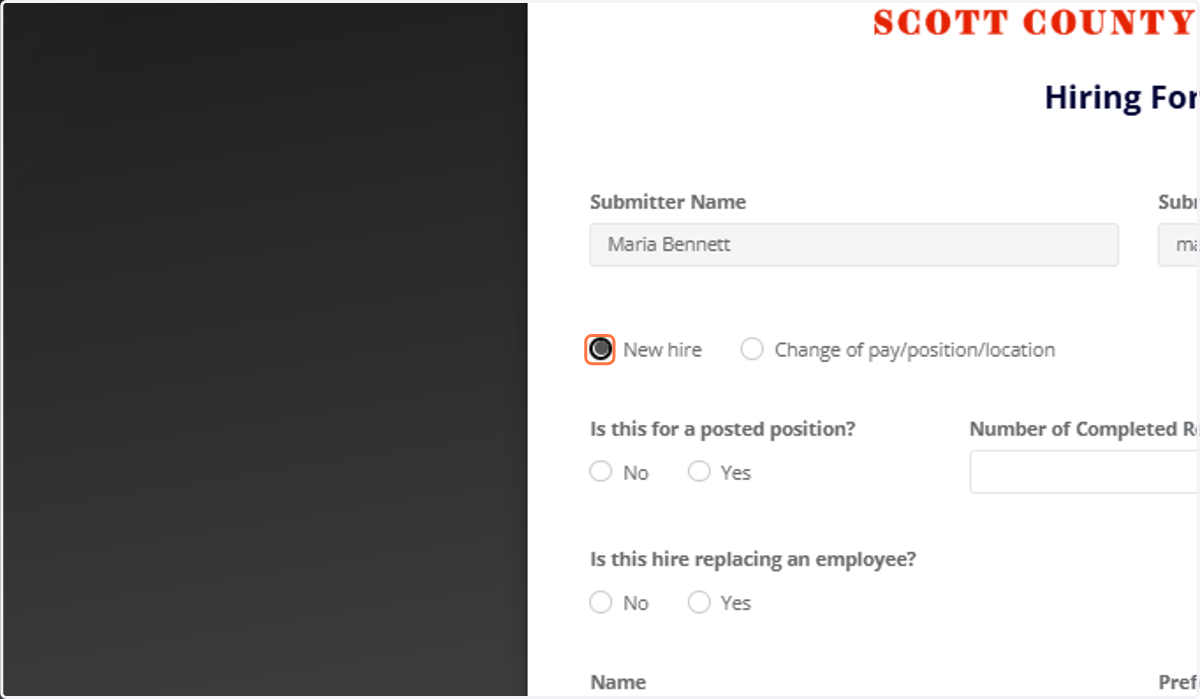
7. Posted Position
If the position is posted on TalentEd, select "Yes."
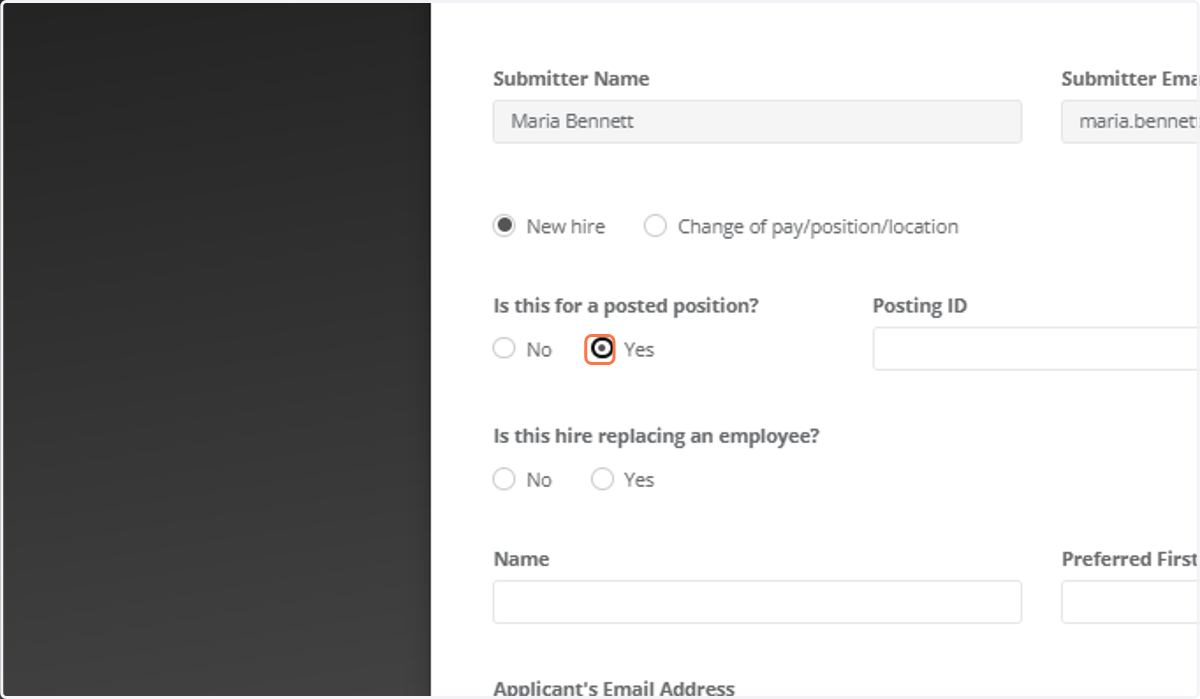
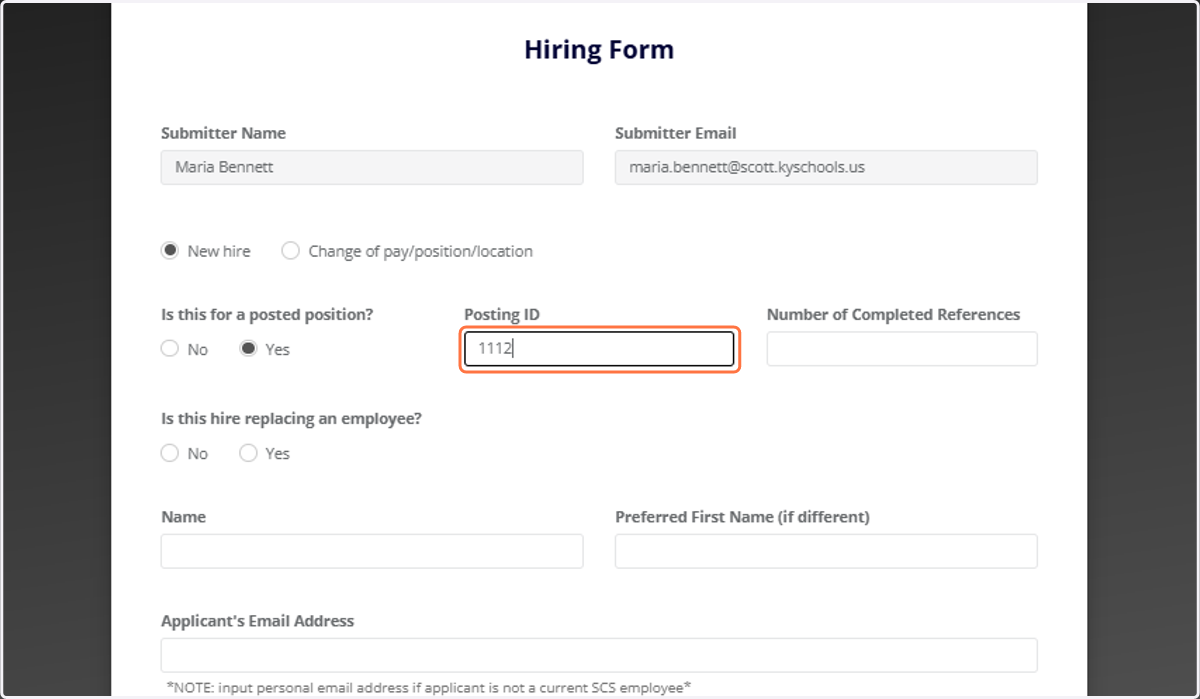
8. Posted ID
A new box will appear for the "Posting ID." This is the job number that helps HR locate the candidate's application and background information.
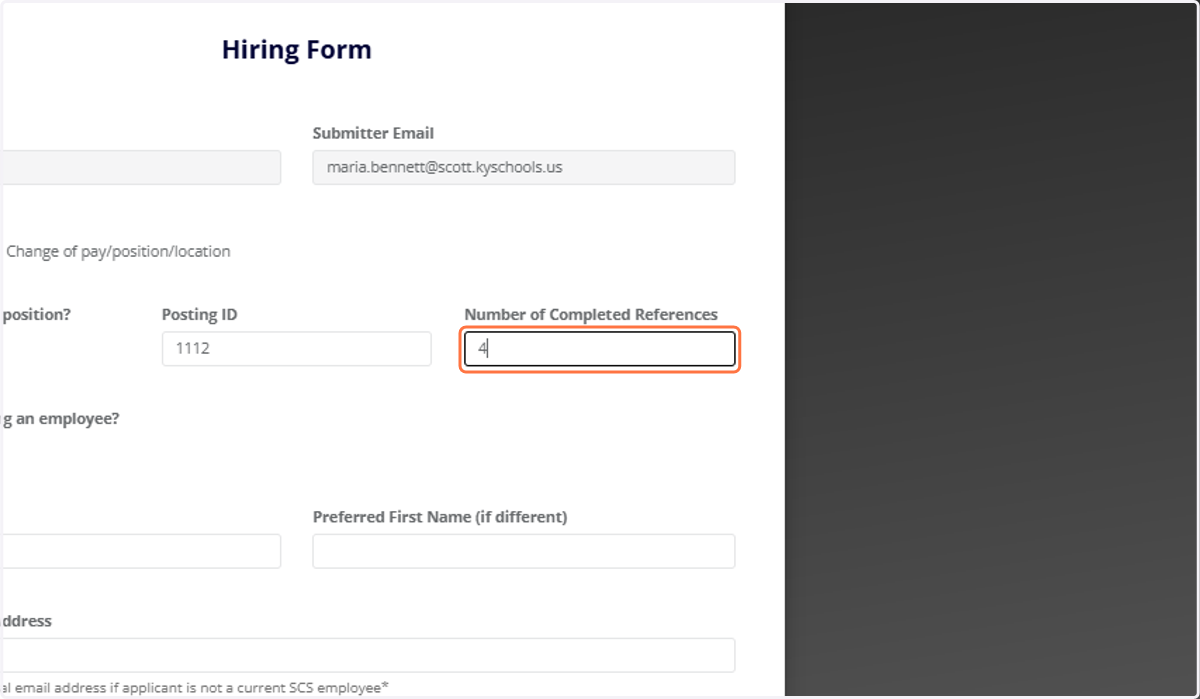
9. References Completed
This is a crucial section where you, as the principal or director, verify the number of references you've personally checked. A minimum of three references is required. Be sure to accurately report the number of references you've completed for this specific position.
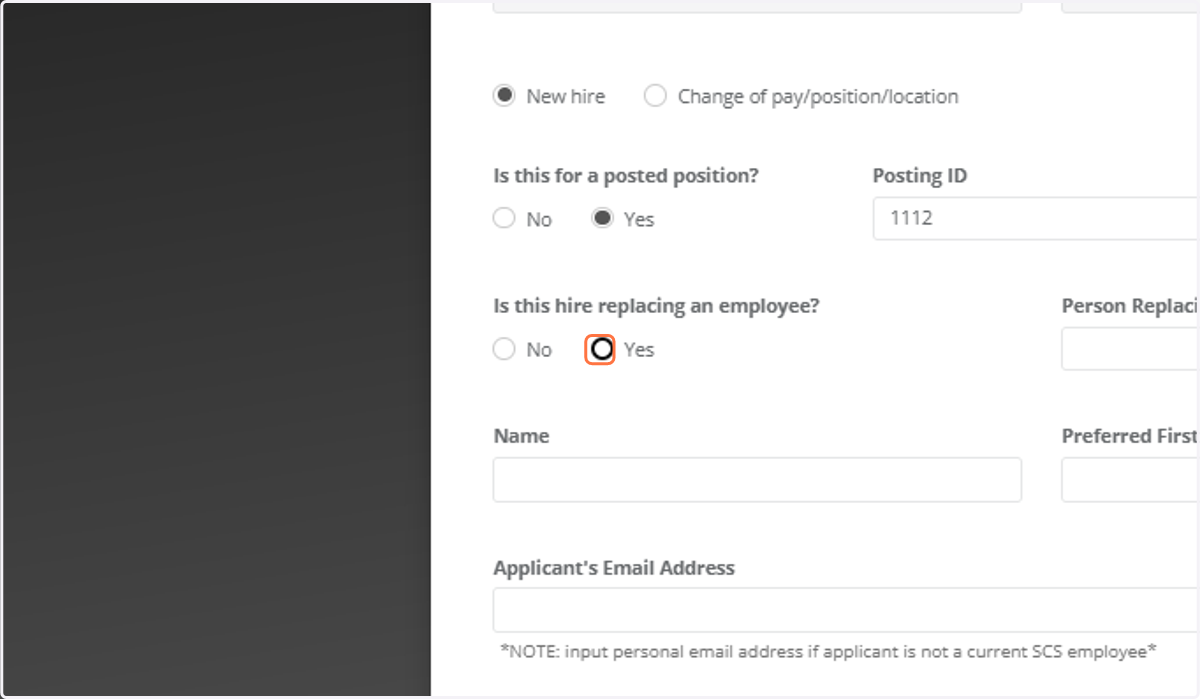
10. Replacing an Employee
If this is a brand new position not replacing anyone, select "No."
If you're replacing a current or former employee, select "Yes" and provide their information.
This is essential for HR to know who needs to be removed from that position at your school. For example, if you're hiring a new counselor, you'd indicate who they are replacing.
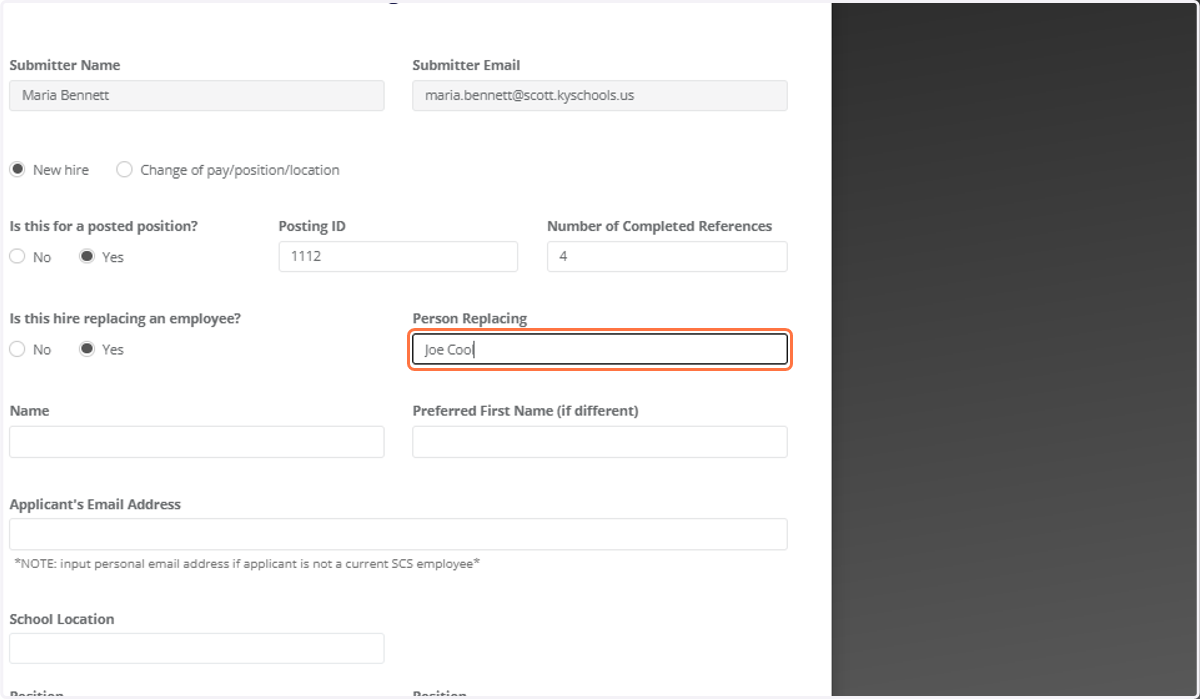
11. Person Replacing
Type in the name of the employee that was in the position previously
12. Name
Enter the new employee's full name as it appears on their application and driver's license.
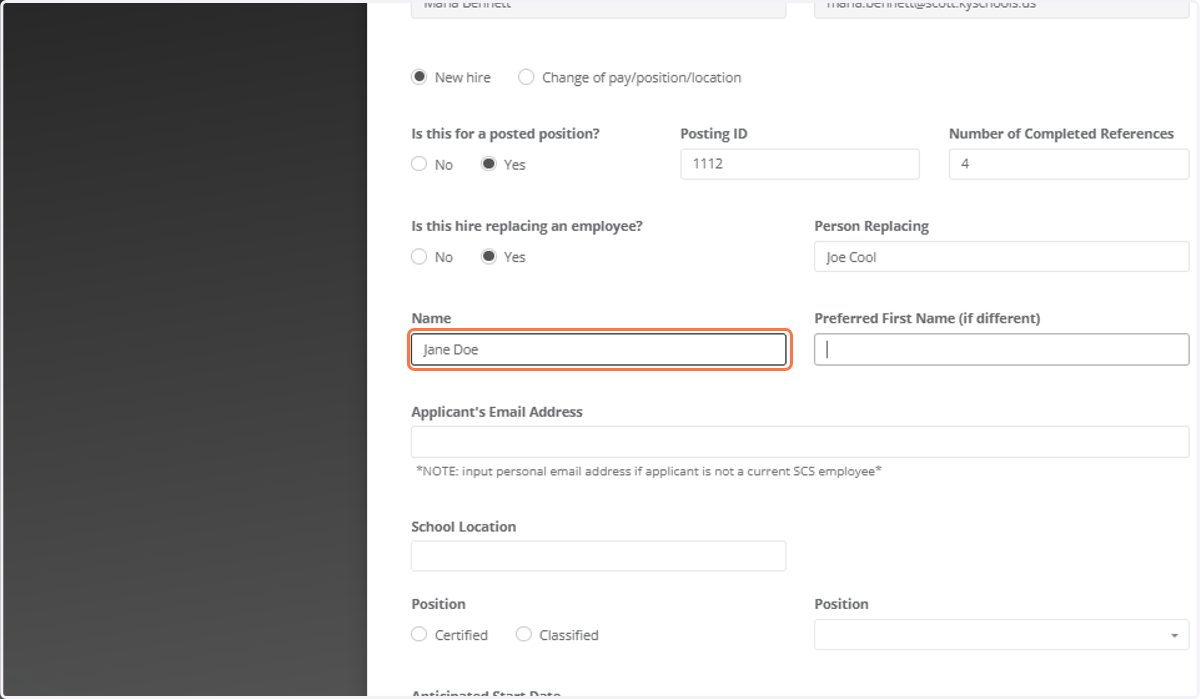
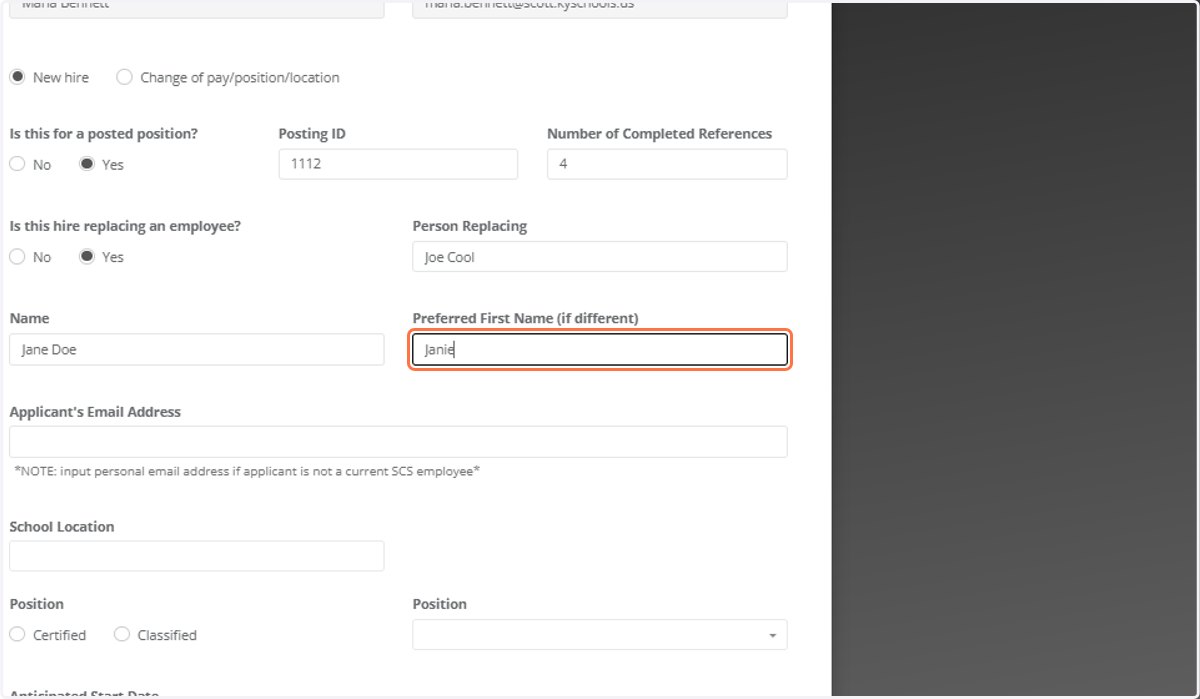
13. Preferred Name (Optional)
If they have a preferred name different from their first name, enter it here.
If their name is the same as their government name, you can leave this line blank.
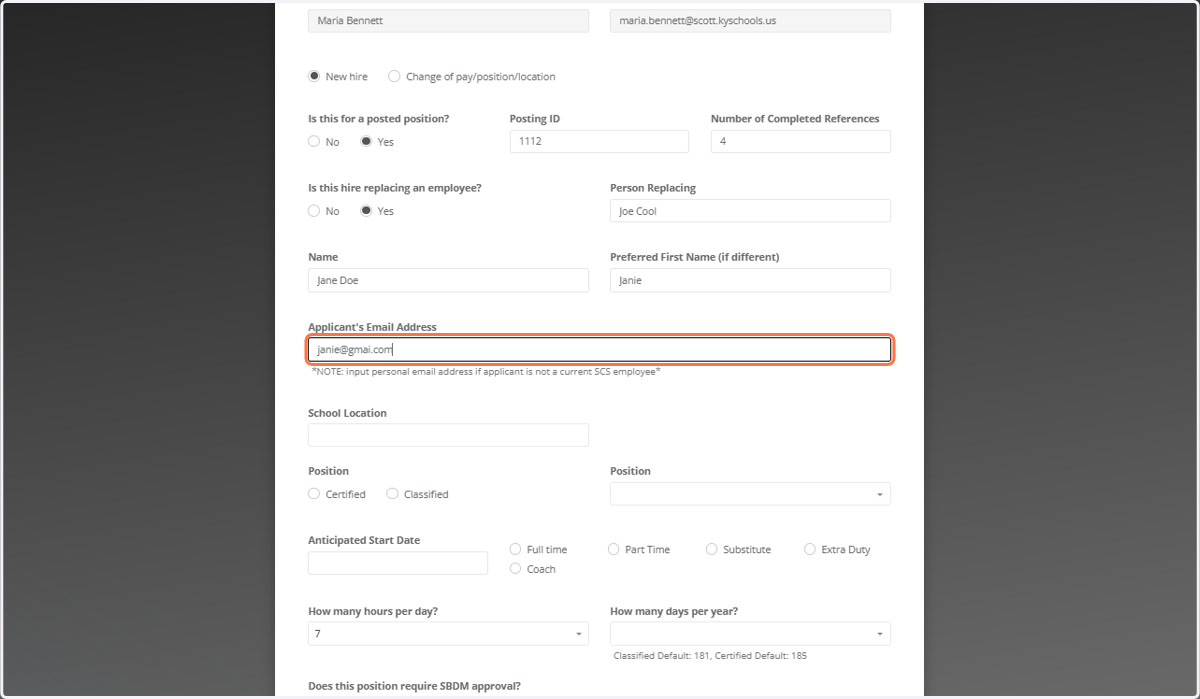
14. Email Address
For current Scott County Schools employees (change of pay/position/location), use their Scott County Schools email address.
For brand new hires, use their personal email address. This is where they'll receive initial communications, including information about their new Scott County Schools email address.
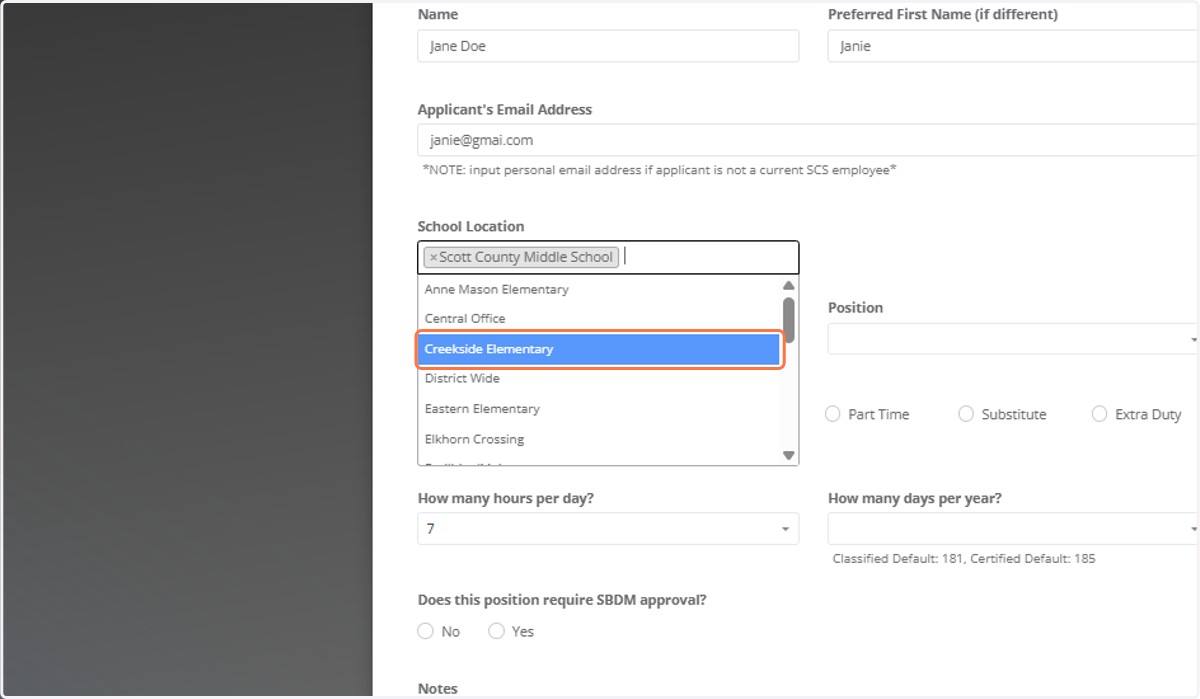
15. School Location
Use the dropdown box to select the school location.
"Central Office" is for those working specifically at the central office.
"District-wide" is for employees who work across the entire district.
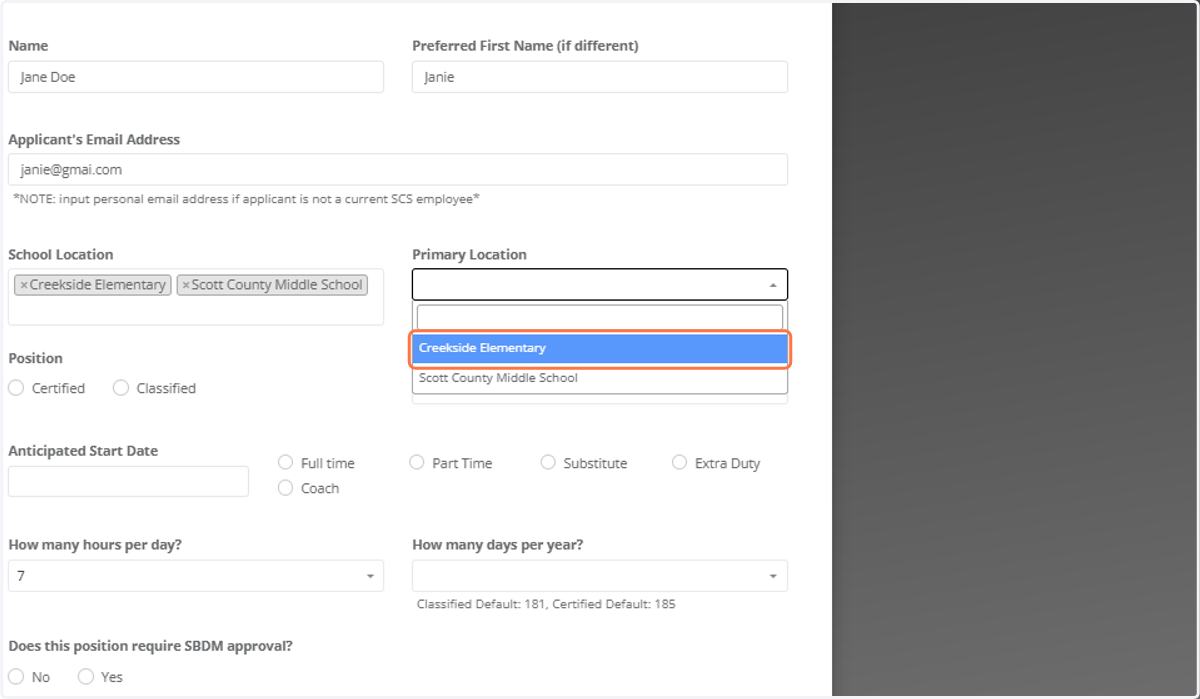
If an employee, like a school psychologist, will be at multiple schools, select all relevant schools. You must also designate a "Primary Location" for HR purposes (e.g., Creekside if they'll be there most of the time). HR requires at least one primary location if multiple are selected.
16. Primary Location
This only becomes available when multiple locations are selected as the School Location
If an employee will be at multiple schools, select all relevant schools. You must also designate a "Primary Location" for HR purposes (e.g., Creekside if they'll be there most of the time). HR requires at least one primary location if multiple are selected.
17. Position Types
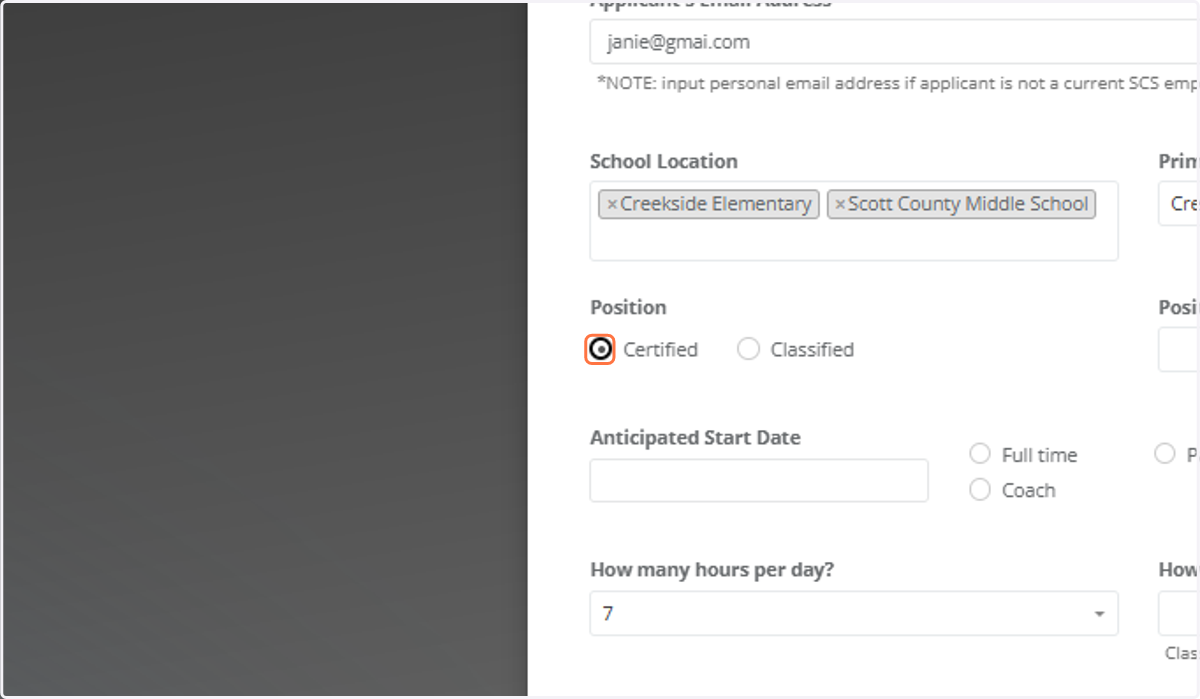
Select "Certified" or "Classified."
For this demonstration, we'll choose "Certified" as it opens additional fields.
18. Position to Fill
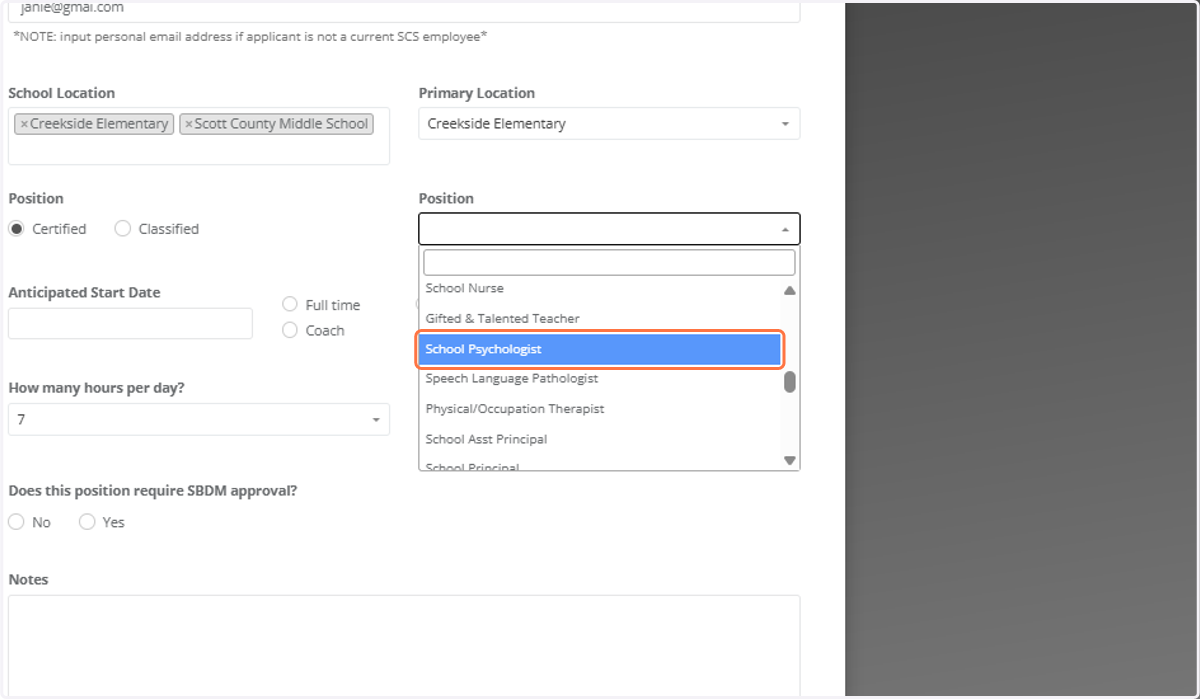
Most common positions are listed.
If the position isn't listed, select "Other" and provide details in the notes section to inform HR. The notes section is vital for any unique aspects of your new hire.
19. Anticipated Start Date
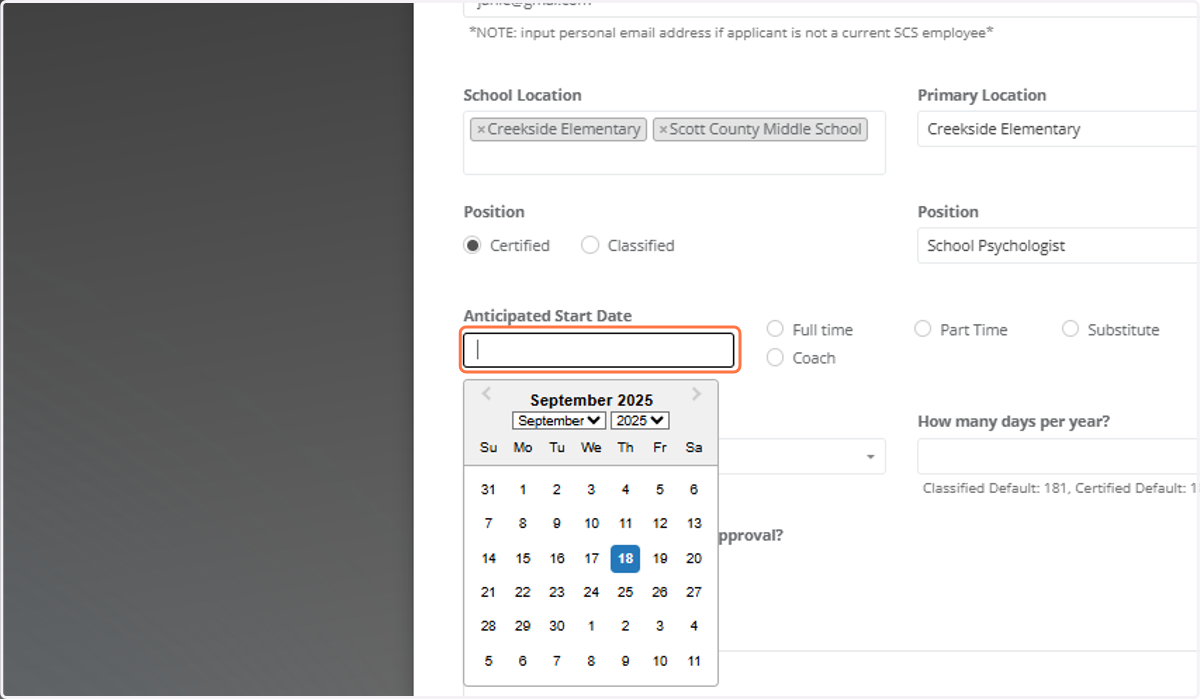
This is your desired start date, not the official HR start date. Aim for about a two-week lead time.
20. Employee Status
Full Time / Part Time: These are standard options.
Substitute: Selecting this will remove the "hours per day" and "days per year" fields.
Extra Duty Position: For any roles above and beyond the employees main employment.
Coach: Similar to substitute, this will remove the "hours per day" and "days per year" fields. You'll need to specify the activity or sport.
Extra Days: For site-based approved additional days.
If you select "Other" for hours per day or days per year, remember to provide detailed notes.
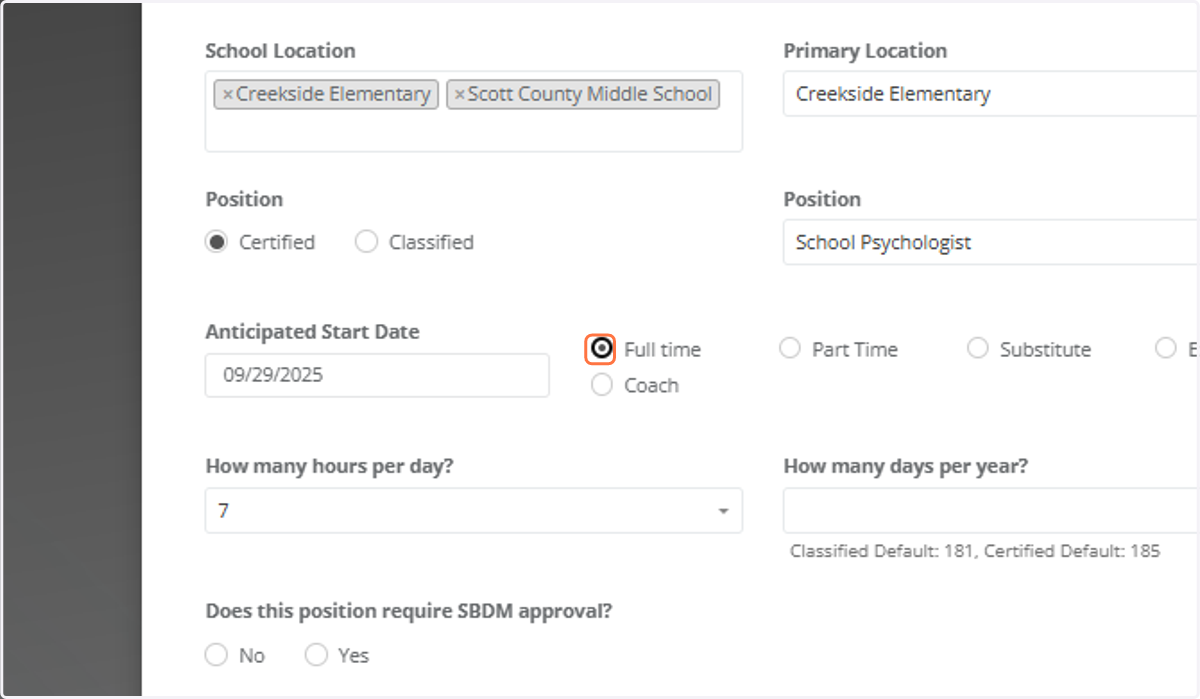
21. Hours Per Day
The default is 7 hours but there are additional options.
If different from what's provided, select "Other" and provide notes.
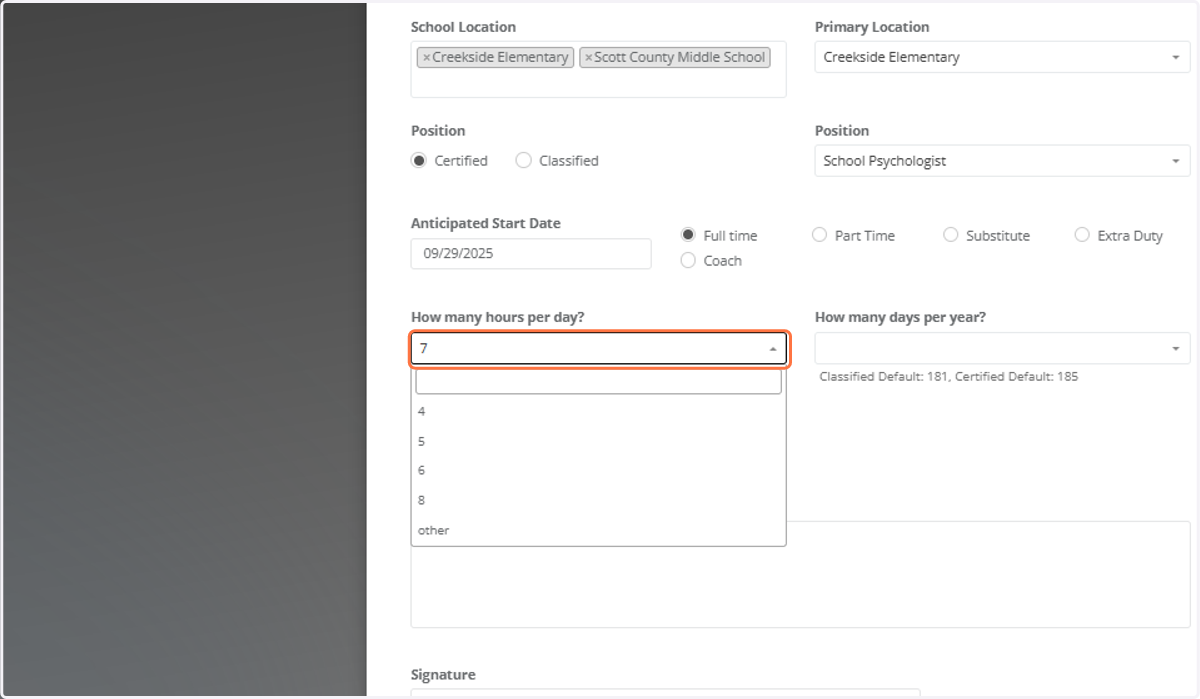
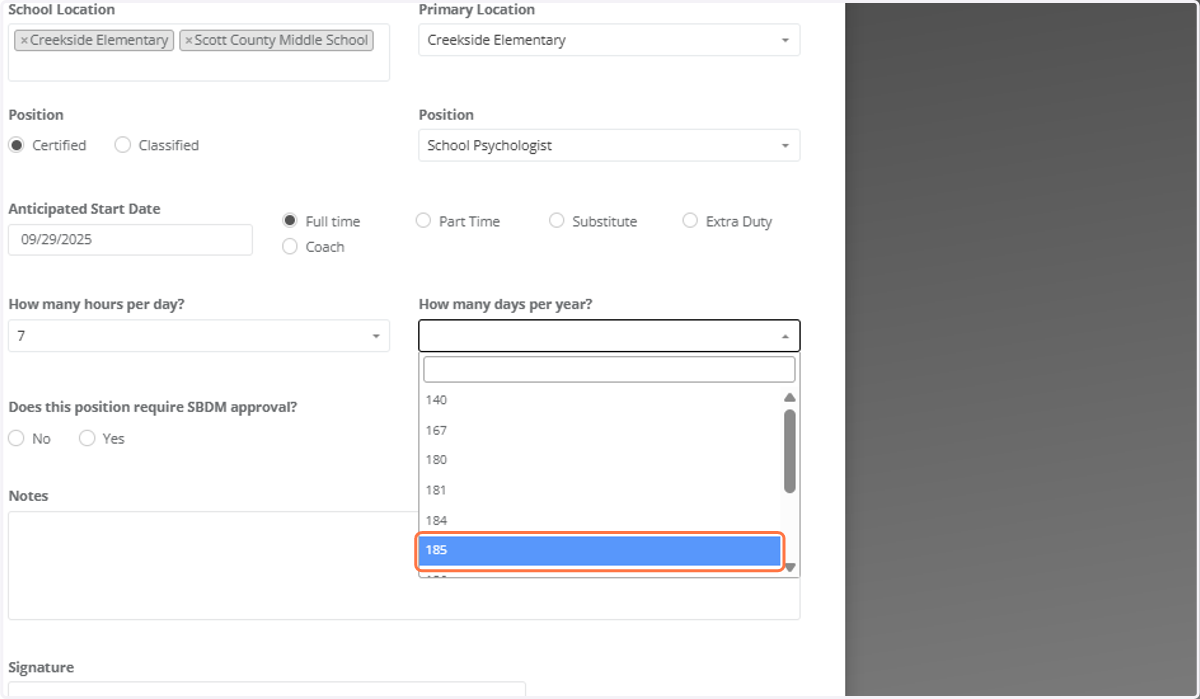
22. Days Per Year
23. Site-Based Approval
Select whether or not the position required site-based council approval
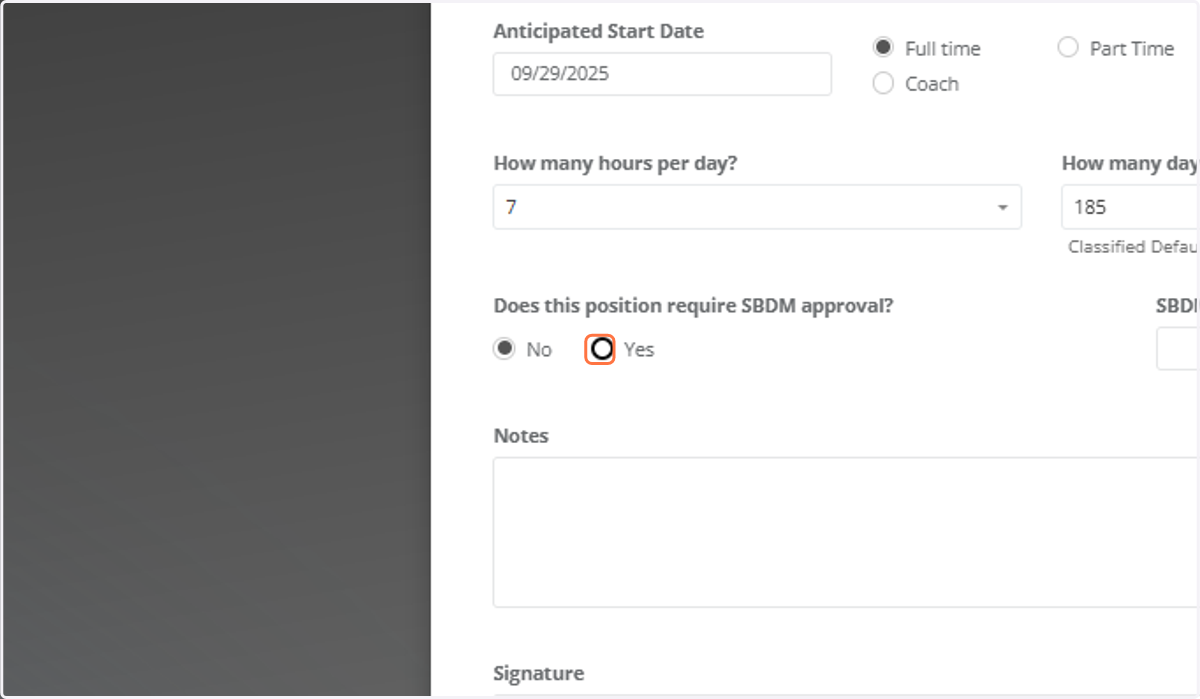
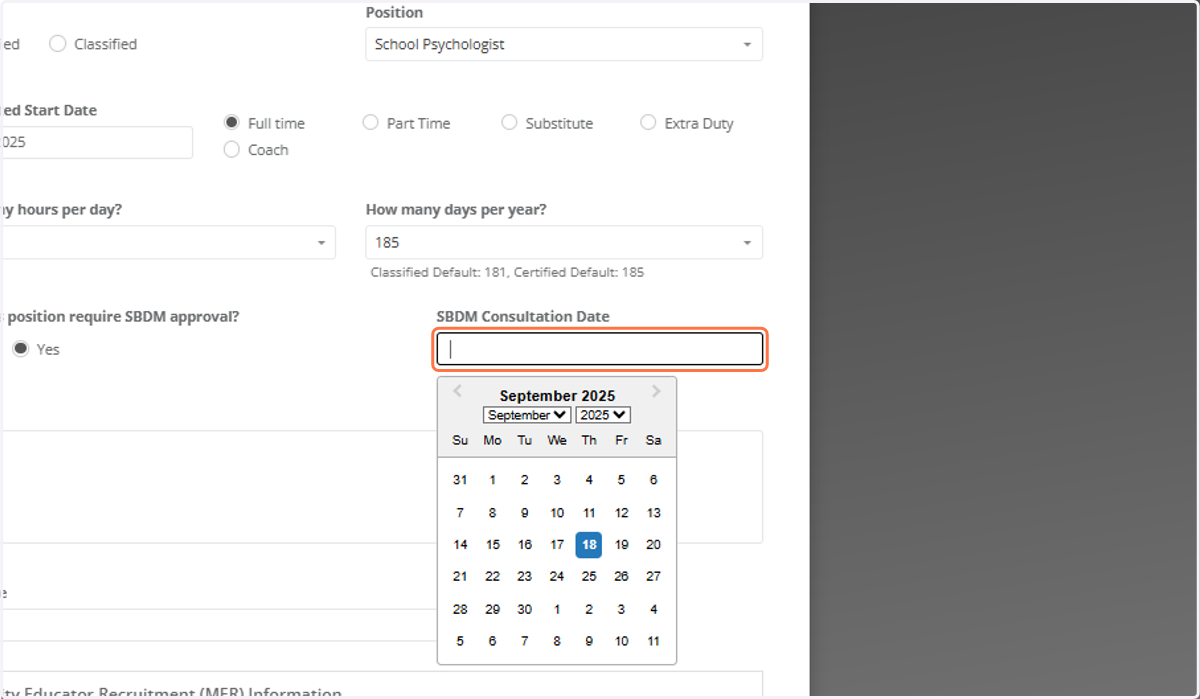
24. SBDM Consultation Date
If "Yes" was selected in previous step, a new field will appear for the date the site-based council approved the hire.
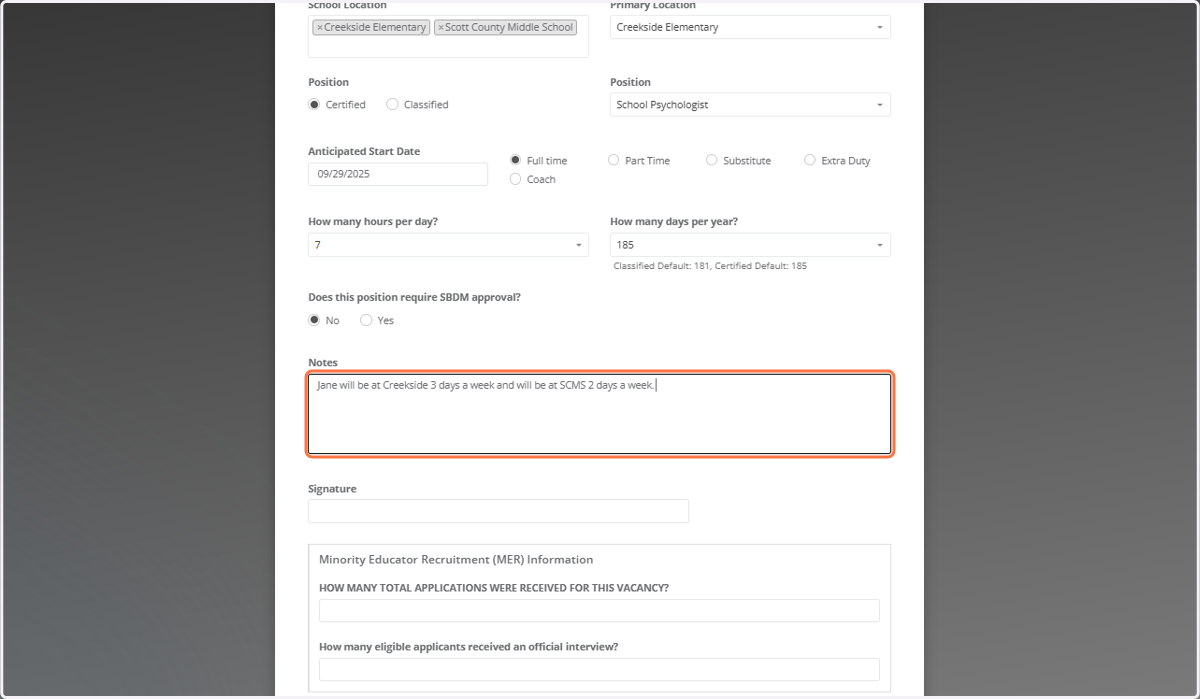
25. Notes Section
Use the notes section for any other specific information HR needs to know. The more information you provide initially, the less time it will take to process the new hire.
If sufficient information is not provided, the application form may be sent back to you as principal/director and this will start the process over again.
26. Minority Educator Recruitment Information
This section only opens up for certified positions.
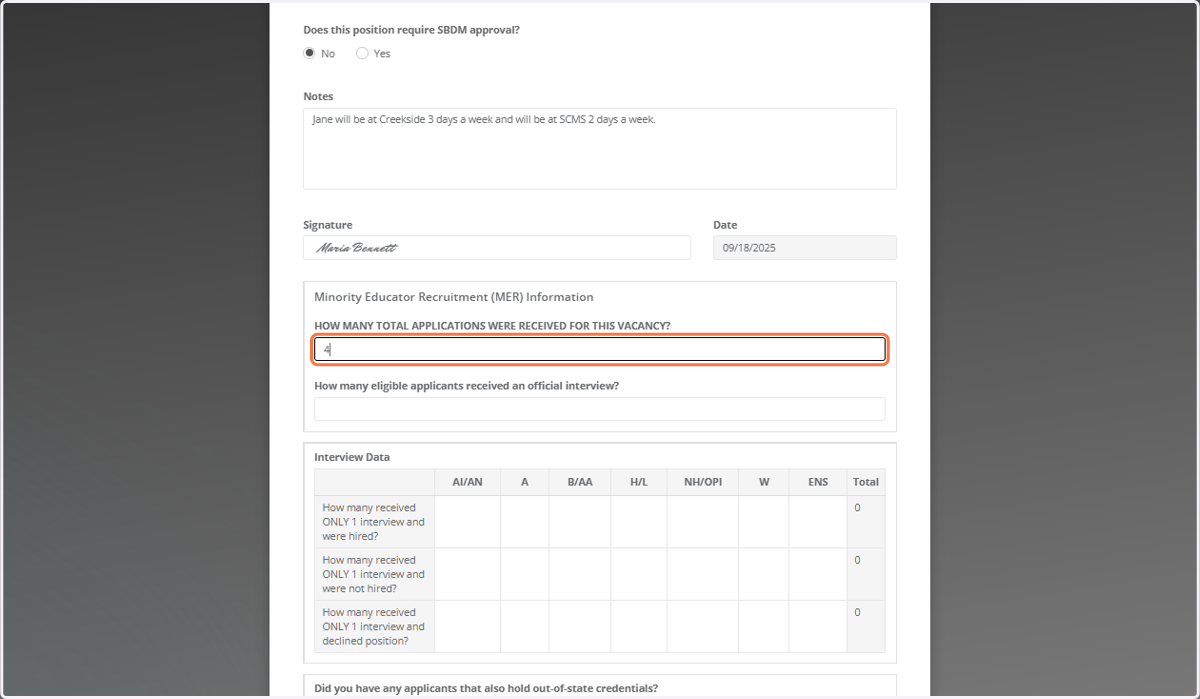
27. Total Applications
Enter the total number of applications received for the position.
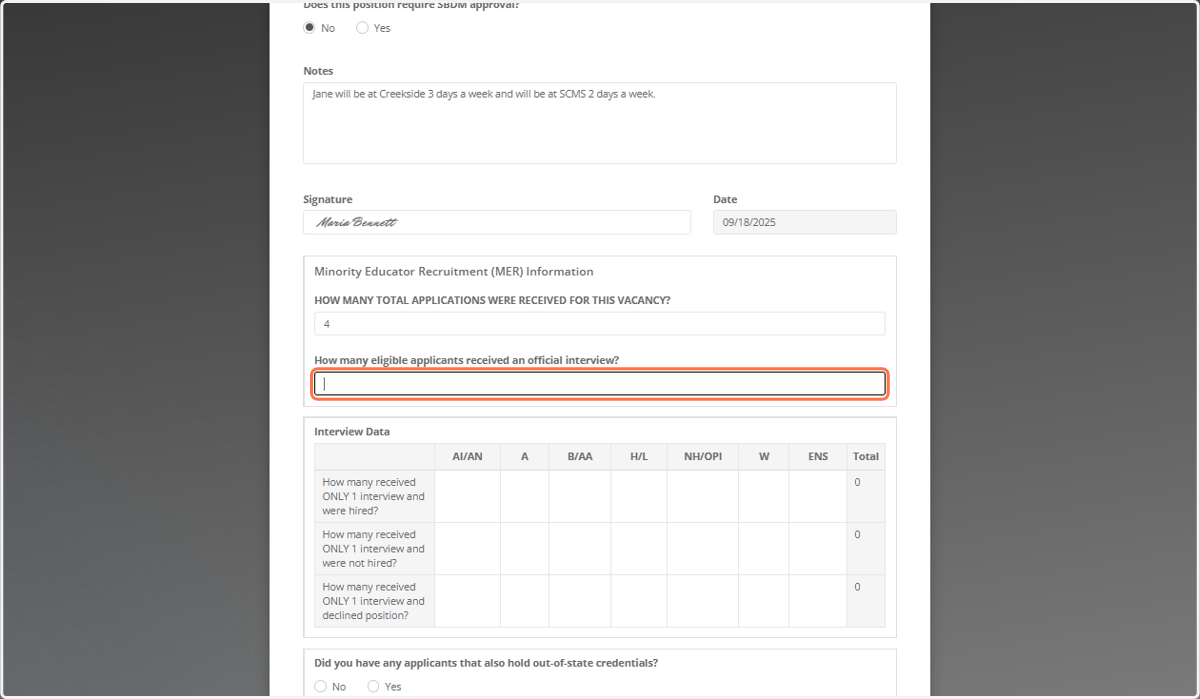
28. Number Interviewed
Enter the total number of applicants that received an interview.
29. Interview Data
Answer each question, using the provided legend for clarification. The form will automatically tally the numbers for you.
You don't need to enter "0" for fields where there are no relevant numbers.
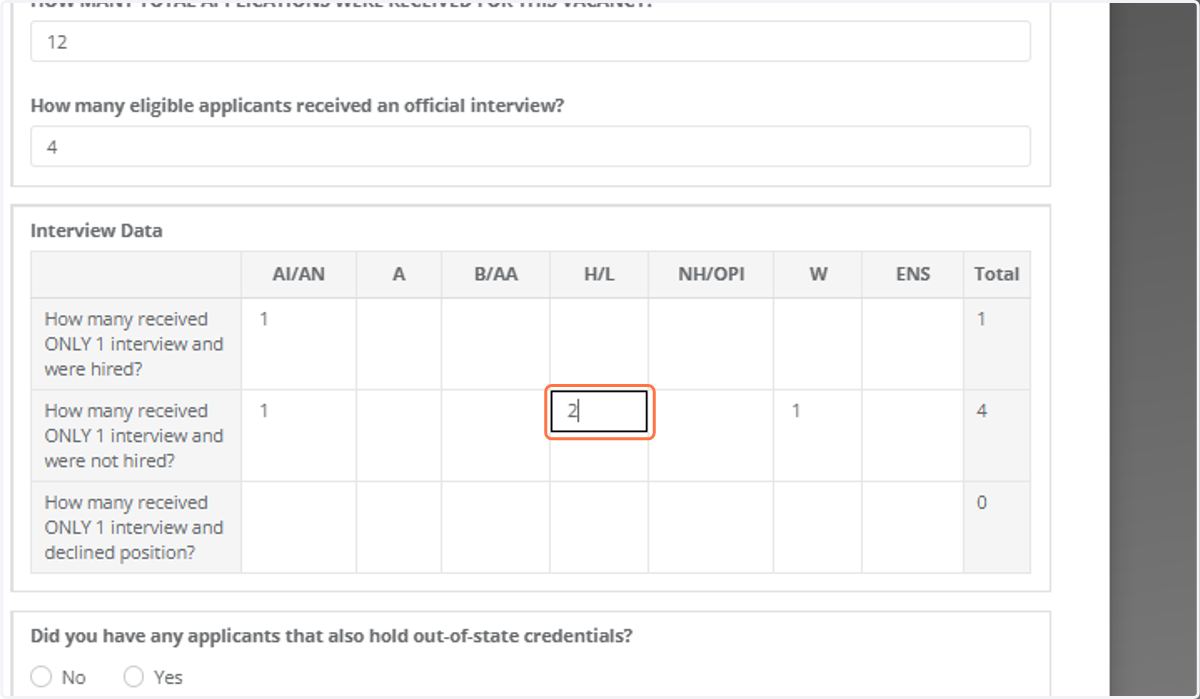
30. Applicants with Out-of-State Credentials
If "Yes," a box will appear.
If "No," you can skip to the next question.
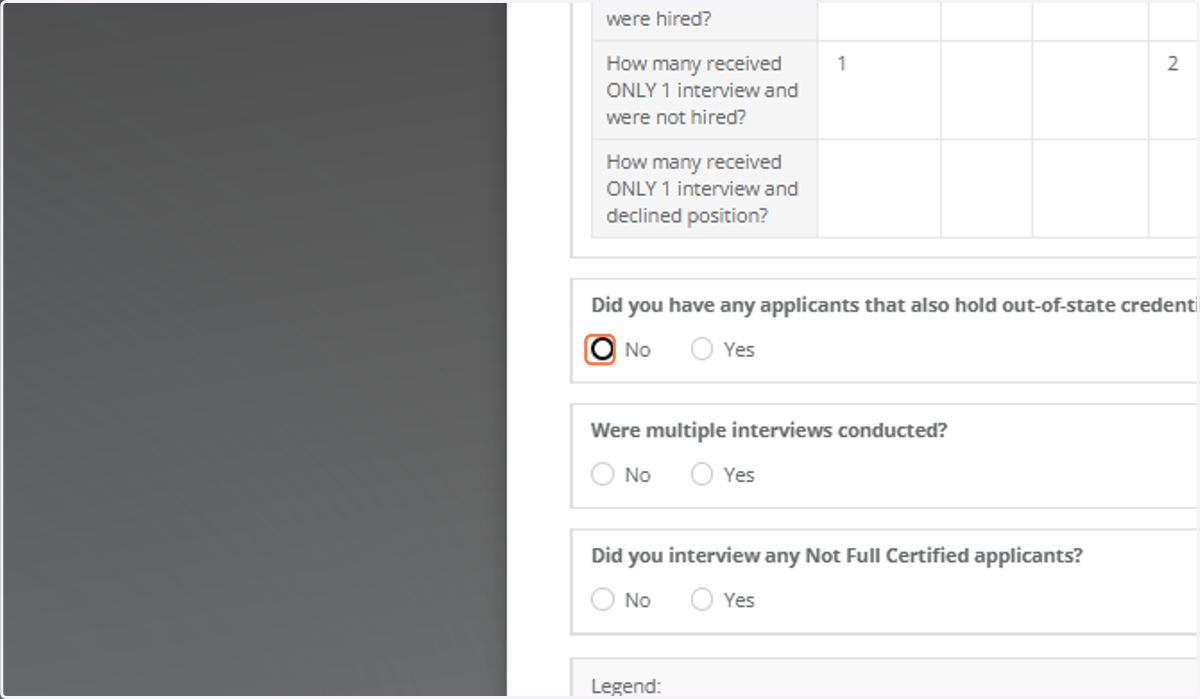
31. Multiple Interviews
If an applicant received multiple interviews (two or three) and was hired or not hired, select "Yes" and provide details. Otherwise, select "No."
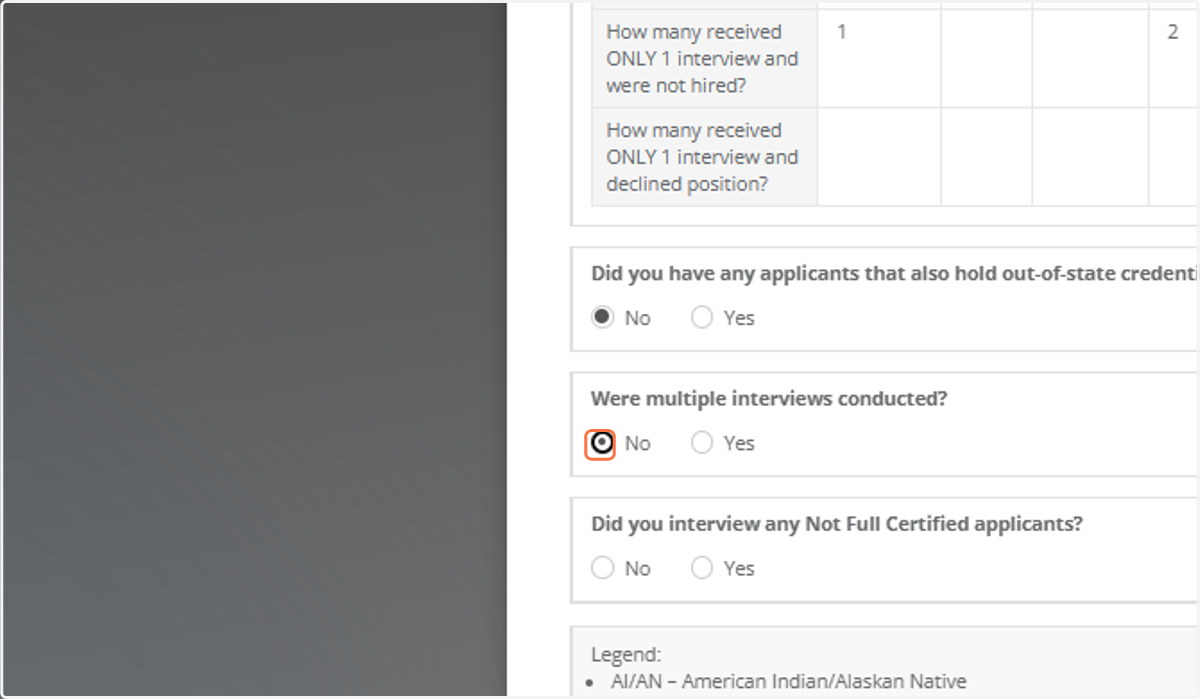
32. Interviewed Not Fully Certified
If "Yes," a box will open. Otherwise, select "No."
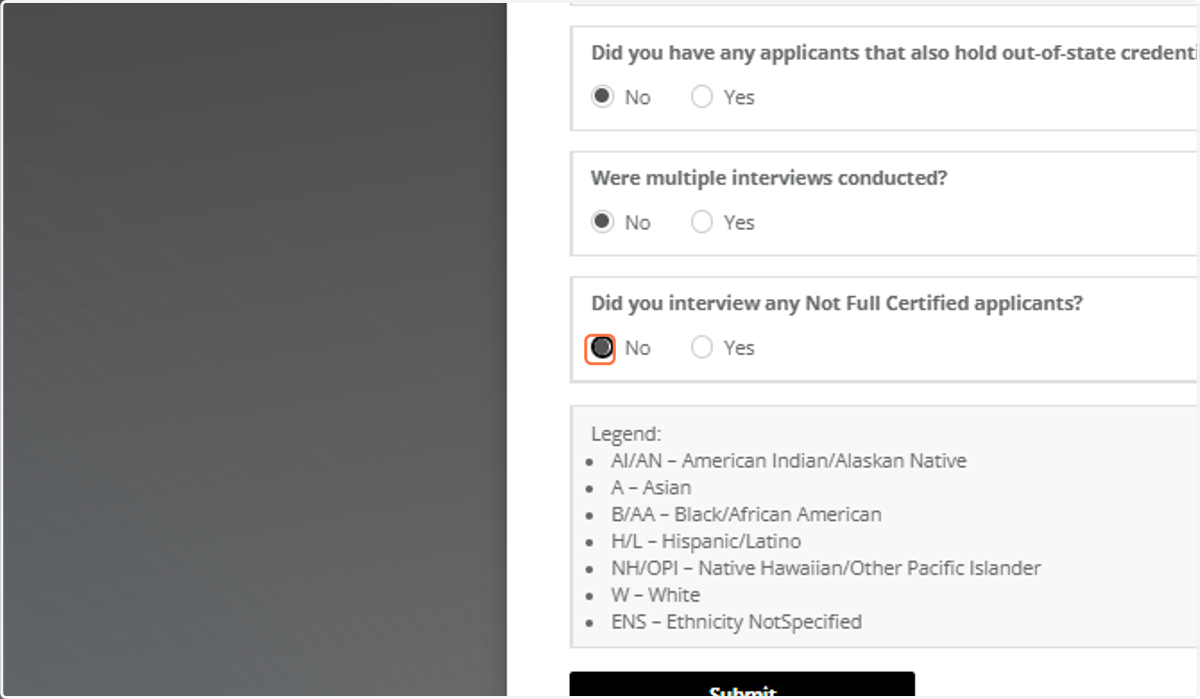
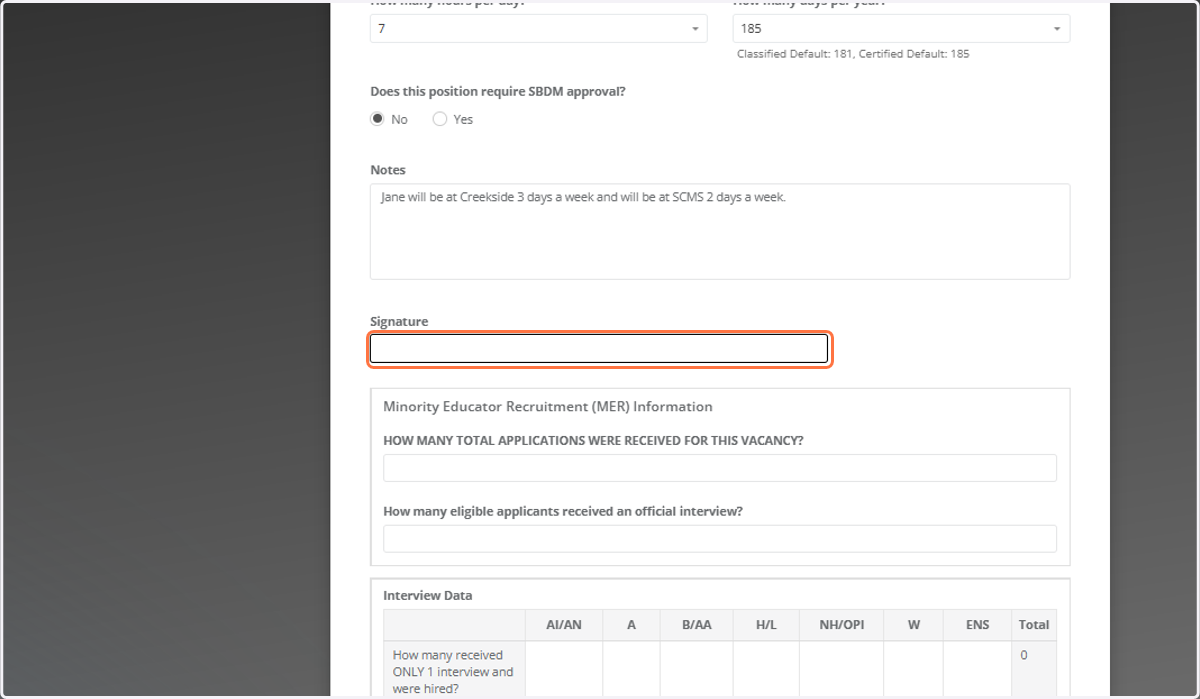
33. Signature
Type your signature here. The current date will auto-populate.
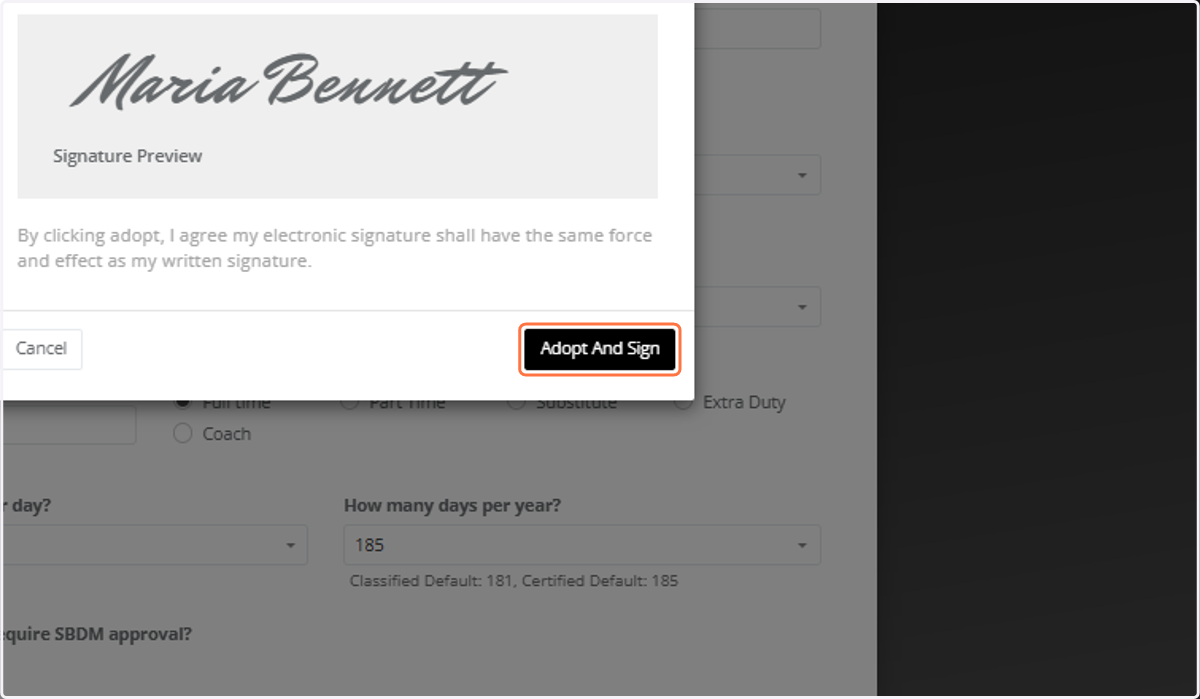
34. Click on Adopt And Sign
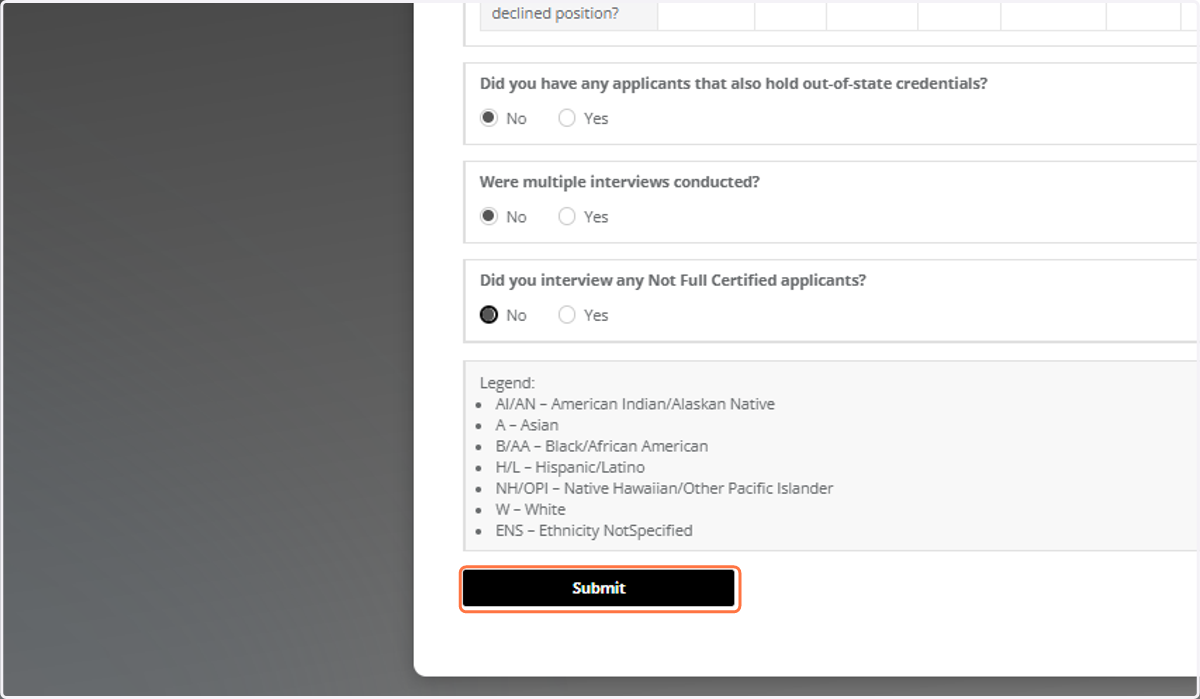
35. Submit
Once all required fields are complete, you can submit the form.
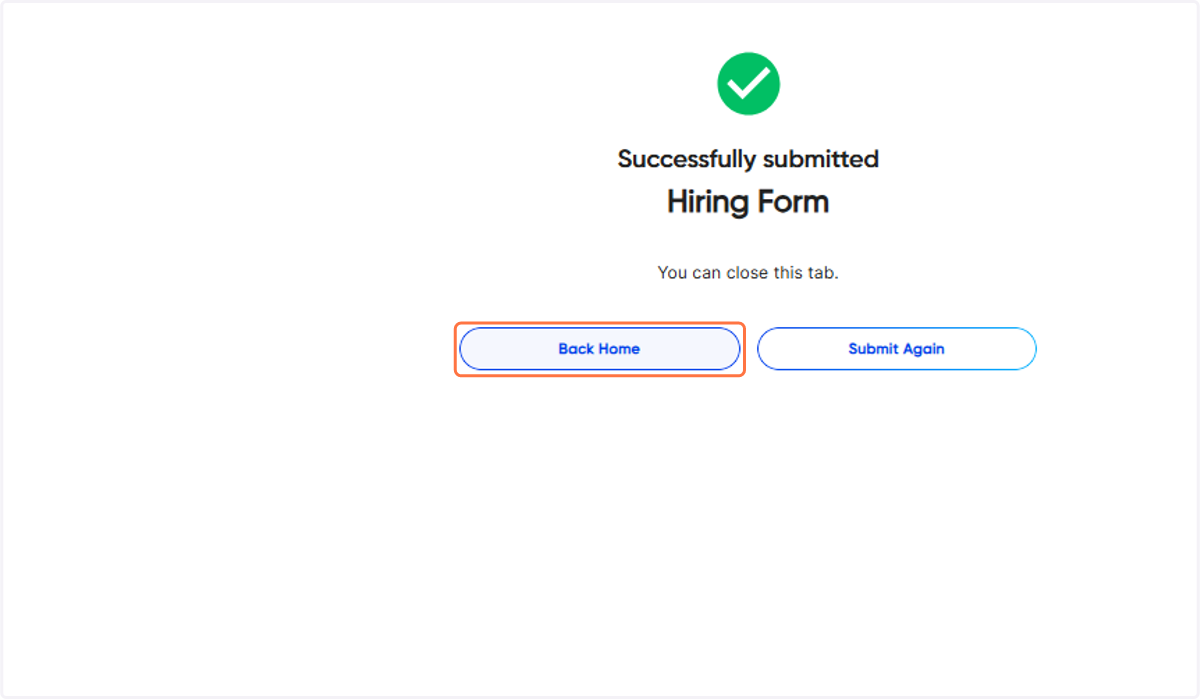
36. Click on Back Home
You'll be directed back to your home page.
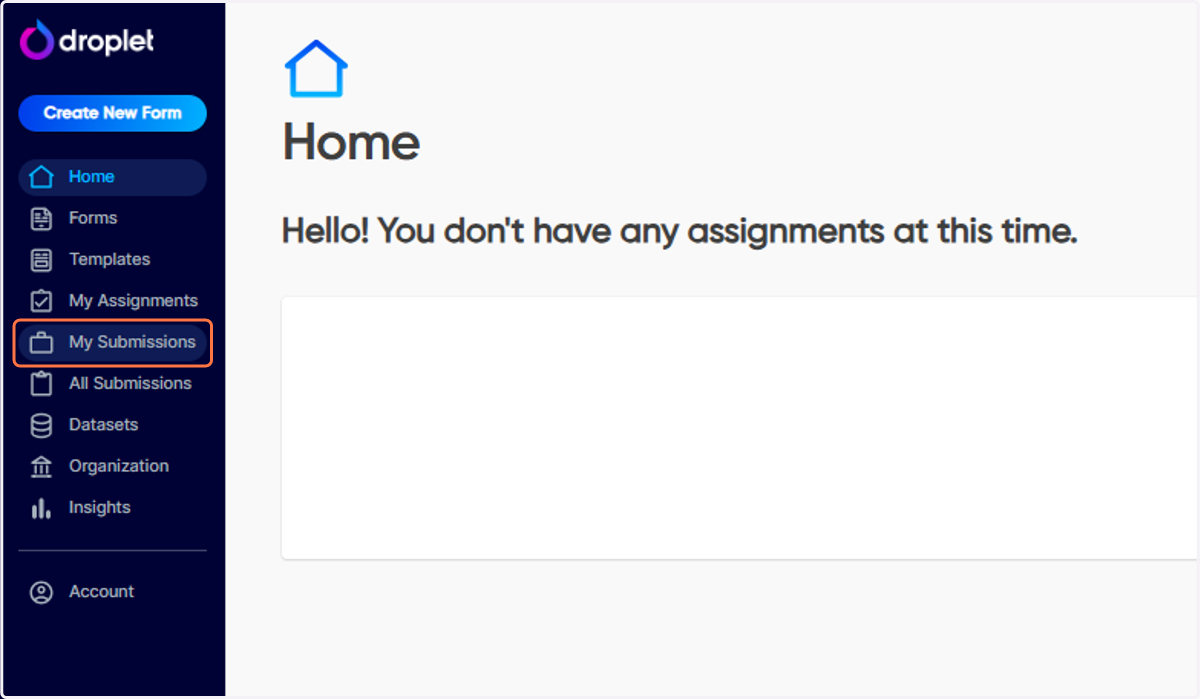
37. Click on My Submissions
This section provides valuable transparency. You can see all your submitted forms, regardless of whether you submitted them from the Scott County Schools operations page or Droplet.
38. Tracking Progress
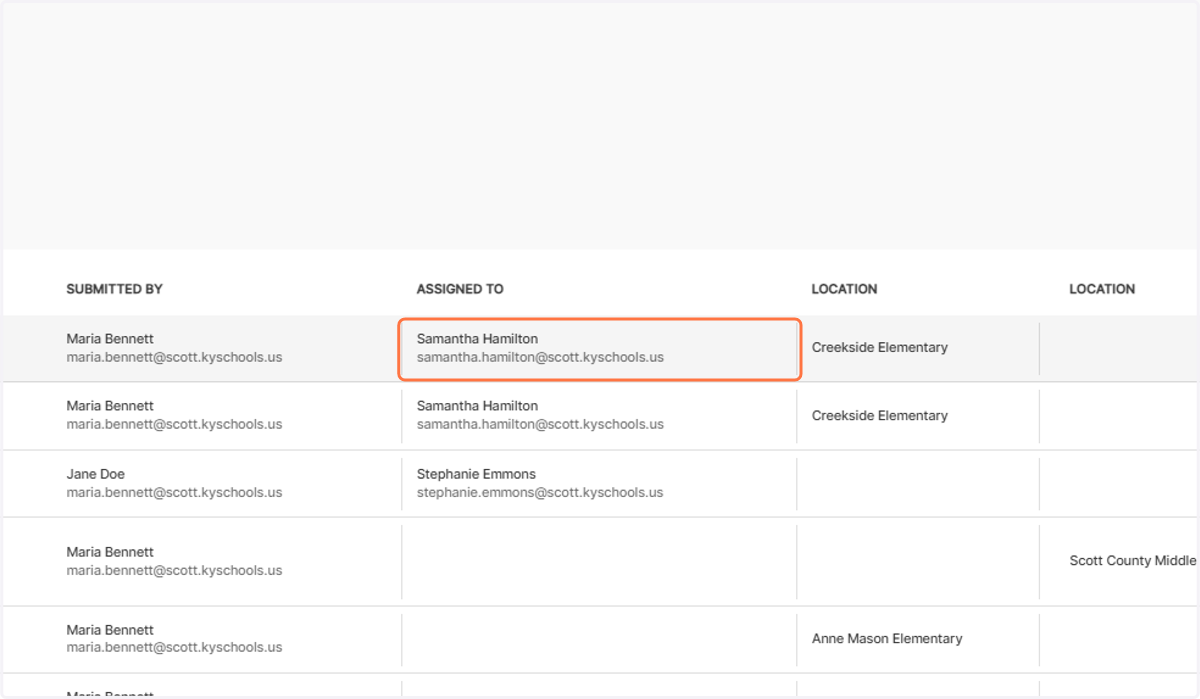
You'll see who the form is currently assigned to (e.g., Samantha Hamilton). As it moves through the hiring process, you'll see updates on who is working on it.
Reaching Out: If you need to know the status or are waiting on something, you can directly reach out to the person currently assigned to the form.
Viewing Form Details: You can click on the form at any point to see what information has been filled out up to that stage, including job codes or notes added by others in the process. This helps you track the progress and understand where things stand.