Submitting Recordings on Essential Elements Interactive
1. Click on the assignment link in Google Classroom.
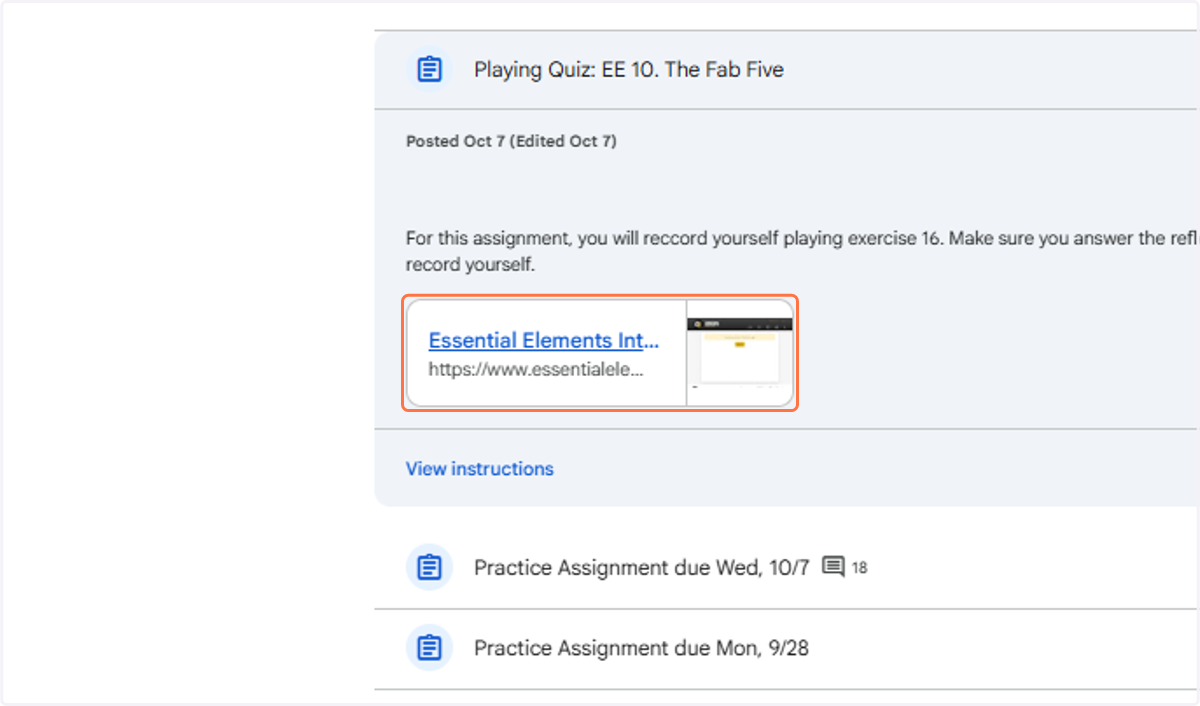
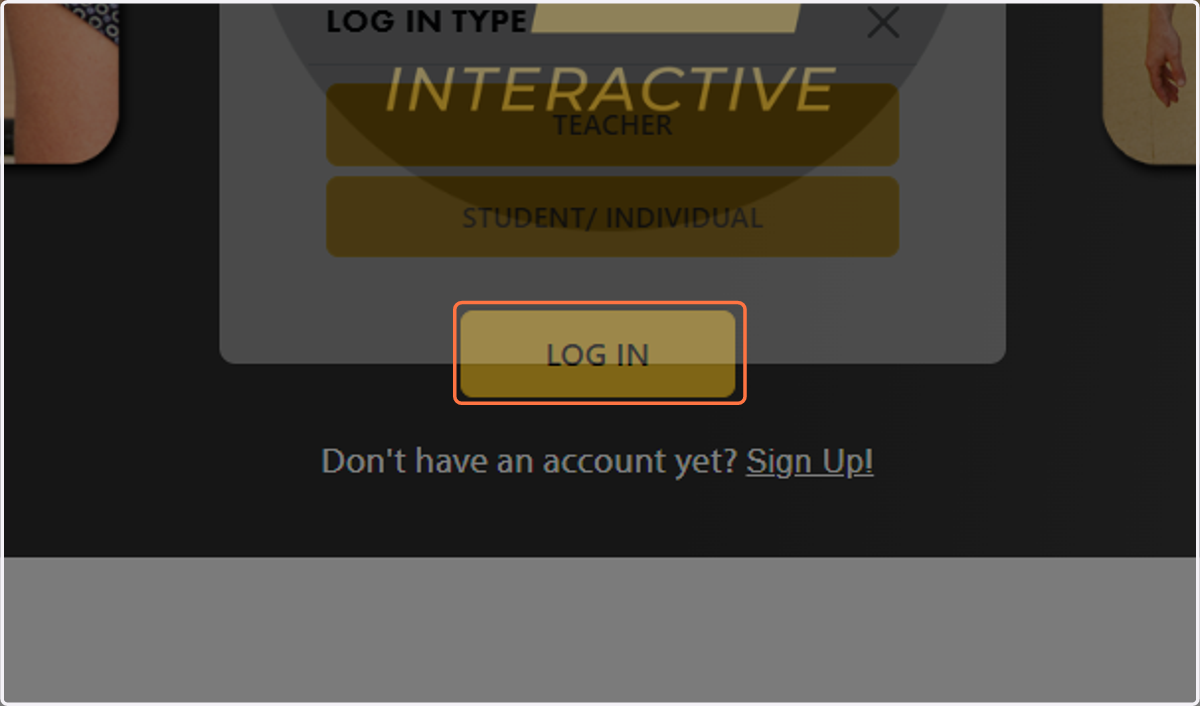
2. Click on LOG IN
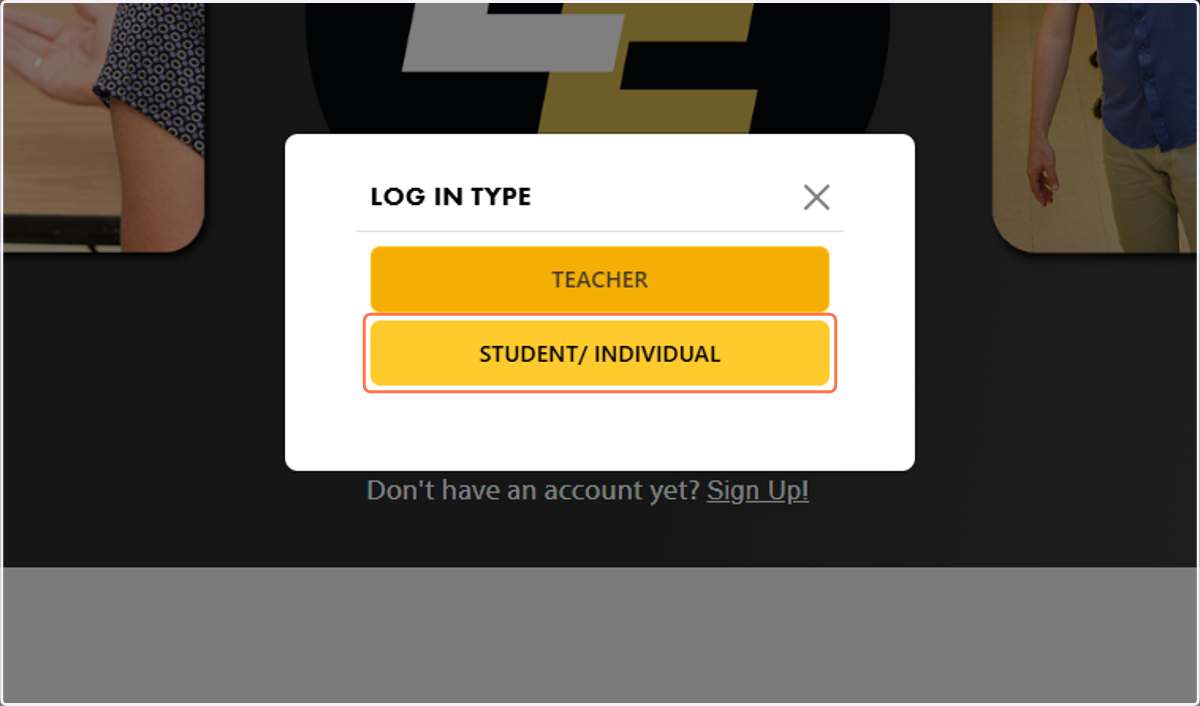
3. Click on STUDENT/ INDIVIDUAL
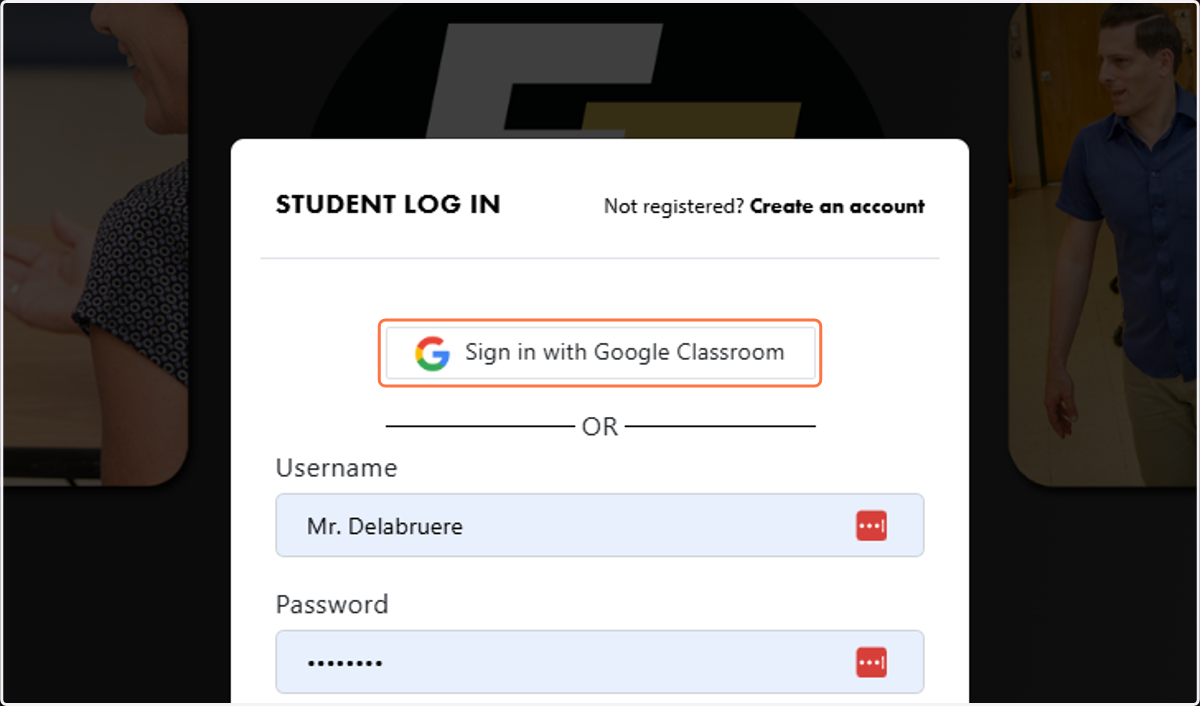
4. Click on Sign in with Google Classroom
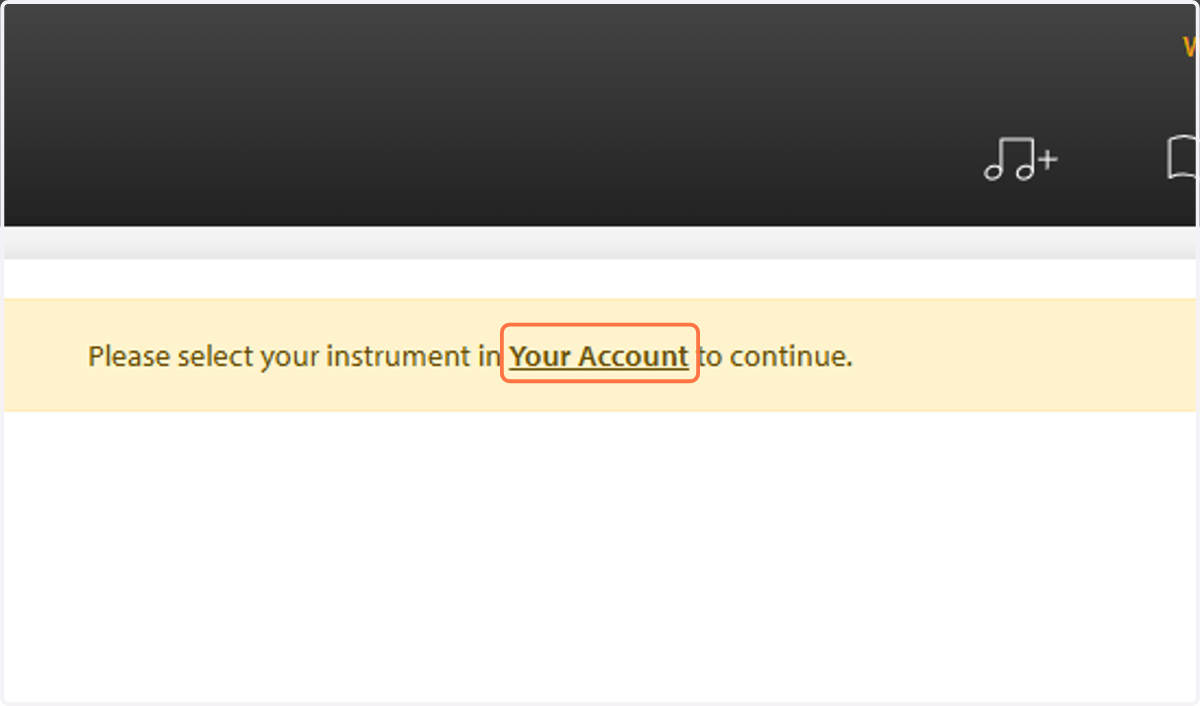
5. Click on Your Account
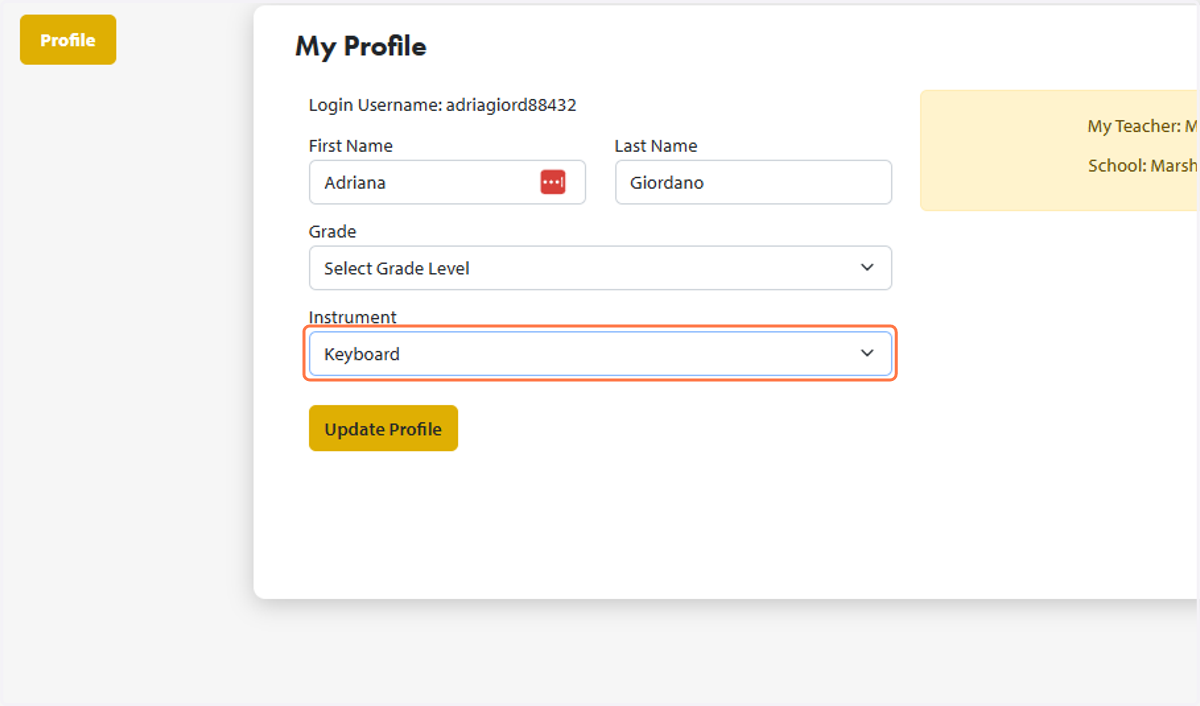
6. Choose your instrument from the list.
For percussionists: you will need to choose Keyboard for the bells. Later, you will need to switch between Keyboard and Percussion.
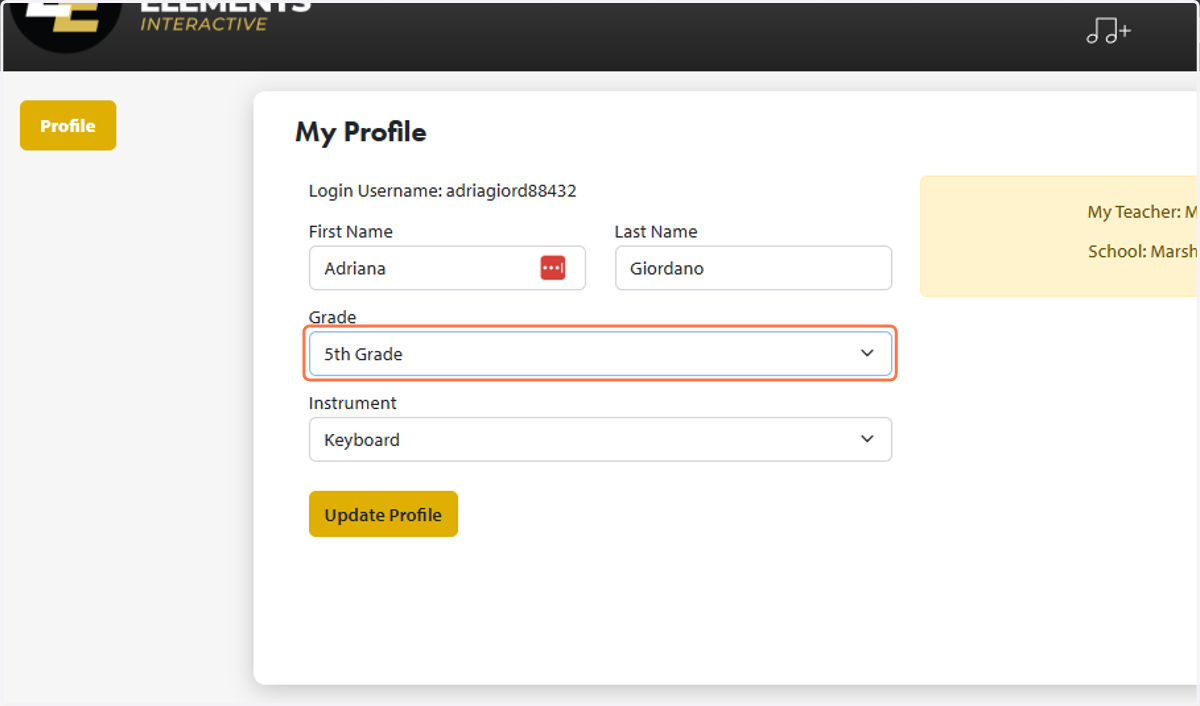
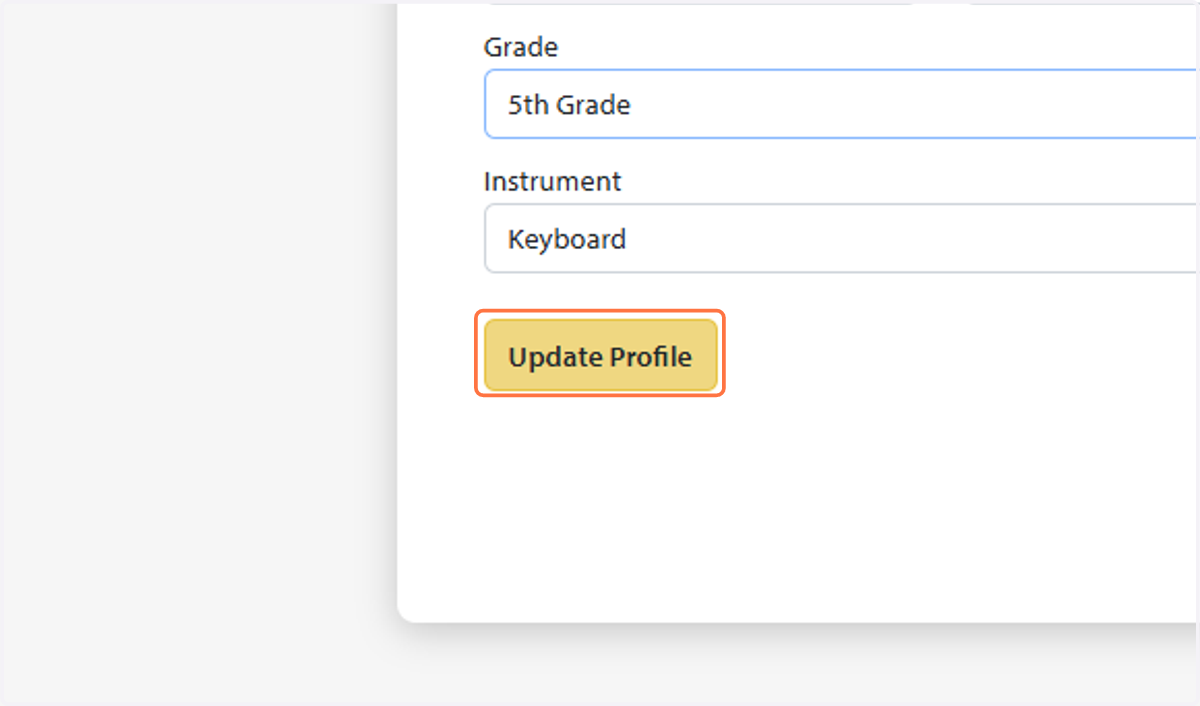
7. Select 5th Grade from Grade
8. Click on Update Profile
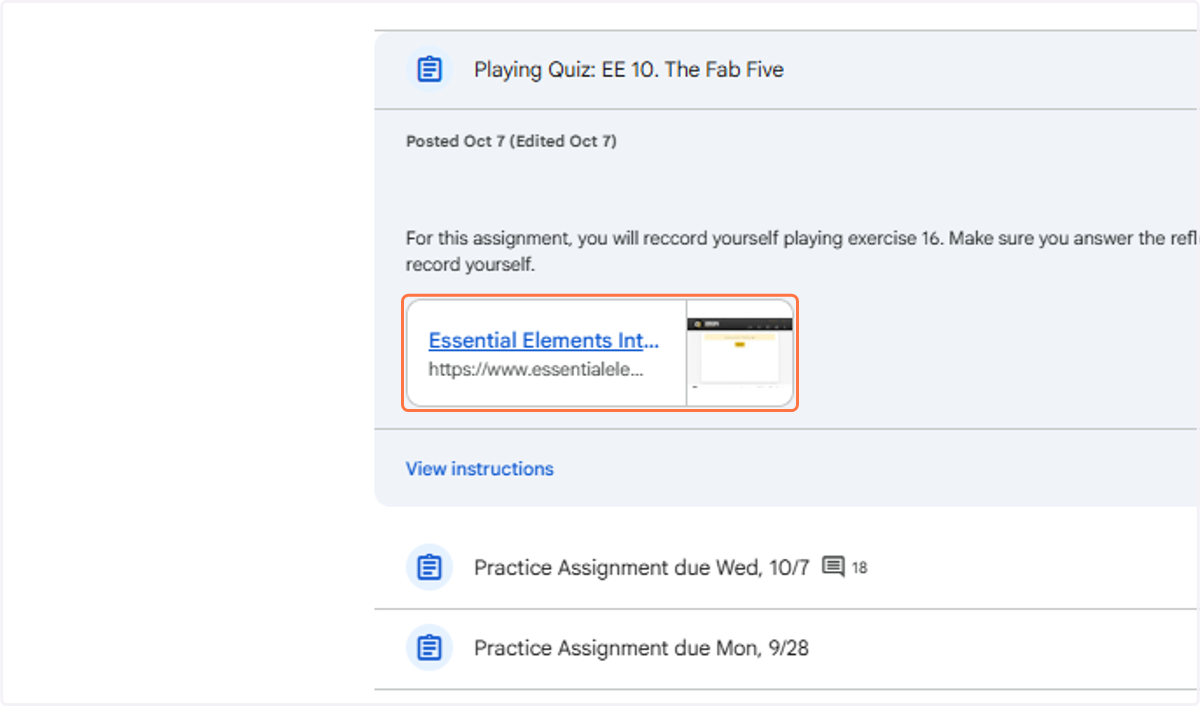
9. Click on the assignment link in Google Classroom a second time.
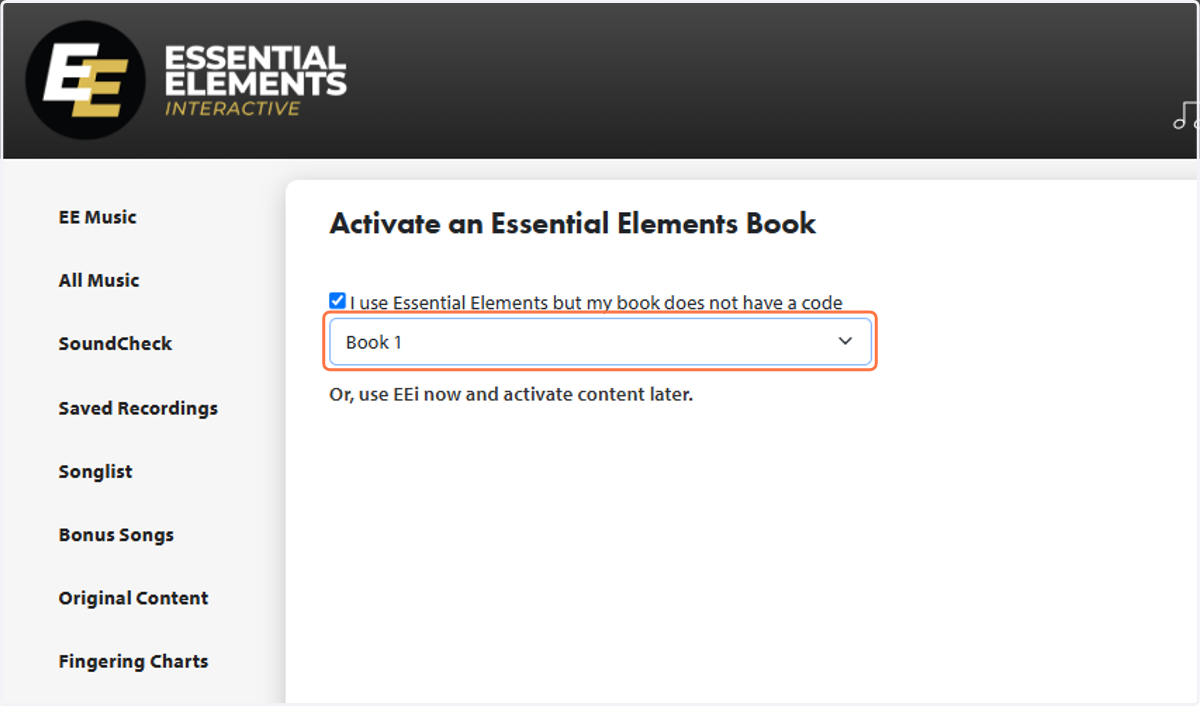
10. Click on Activate Book 1
This allows you to view and record the assignments. You will need to do it if the music is hidden or blurry.
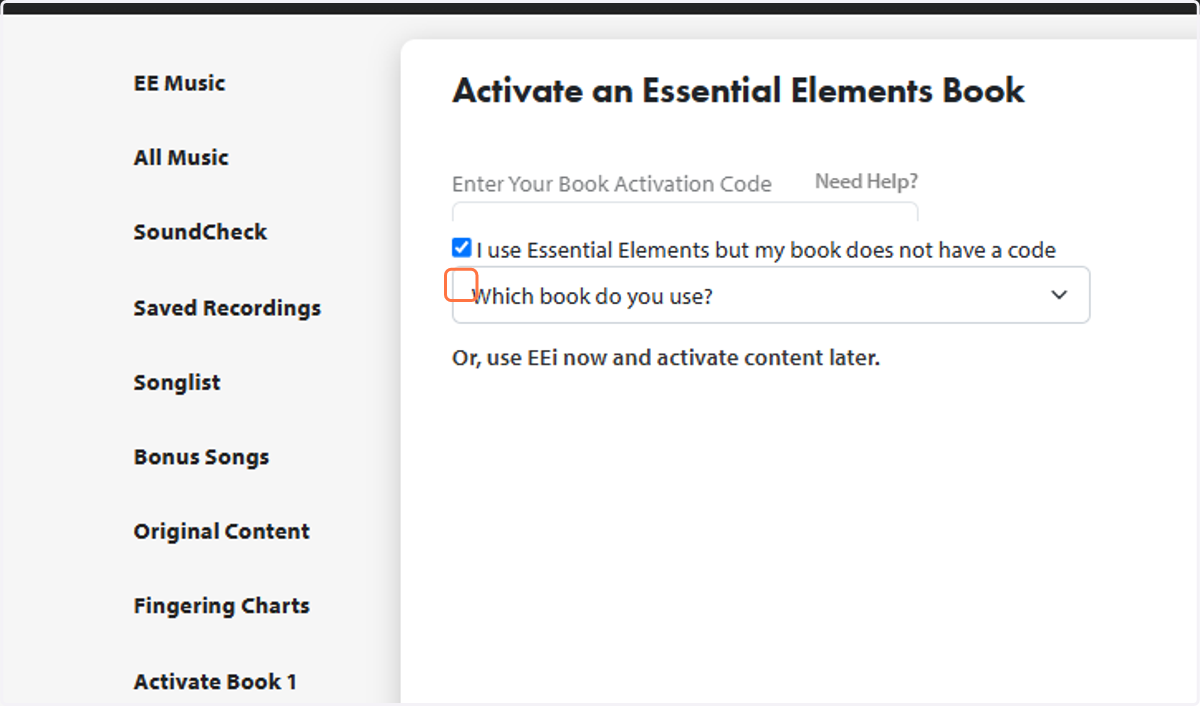
11. Check "I use Essential Elements but my book does not have a code."
12. Select Book 1
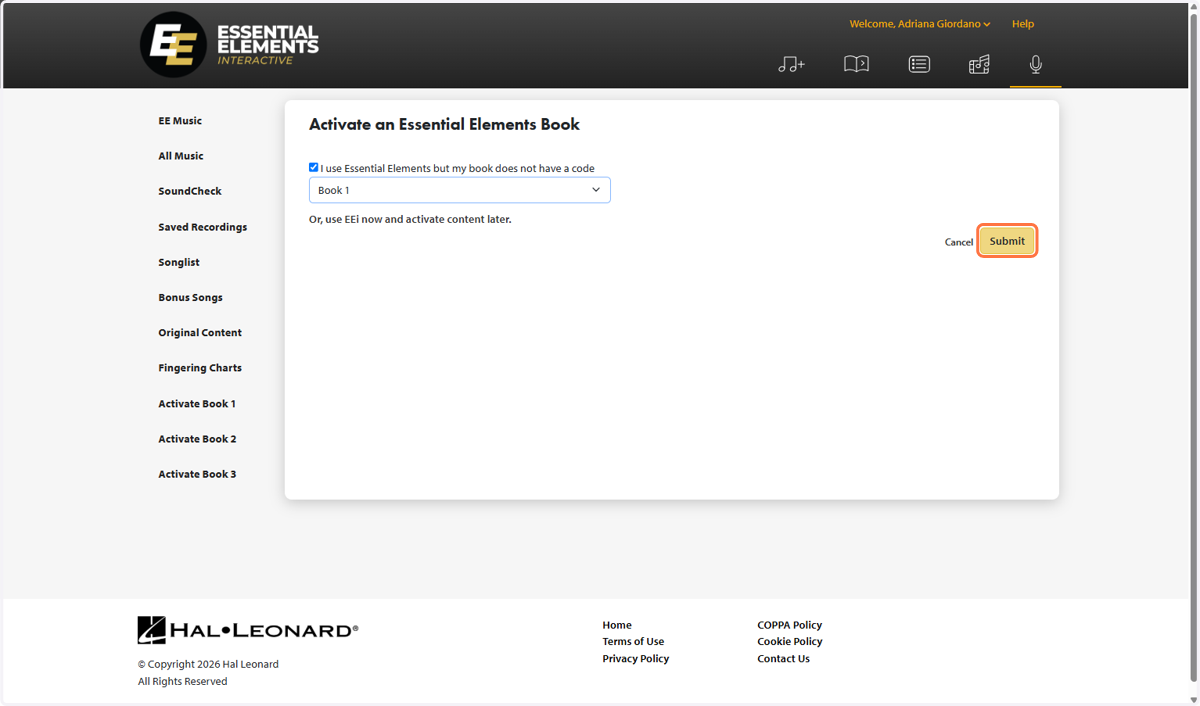
13. Click on Submit
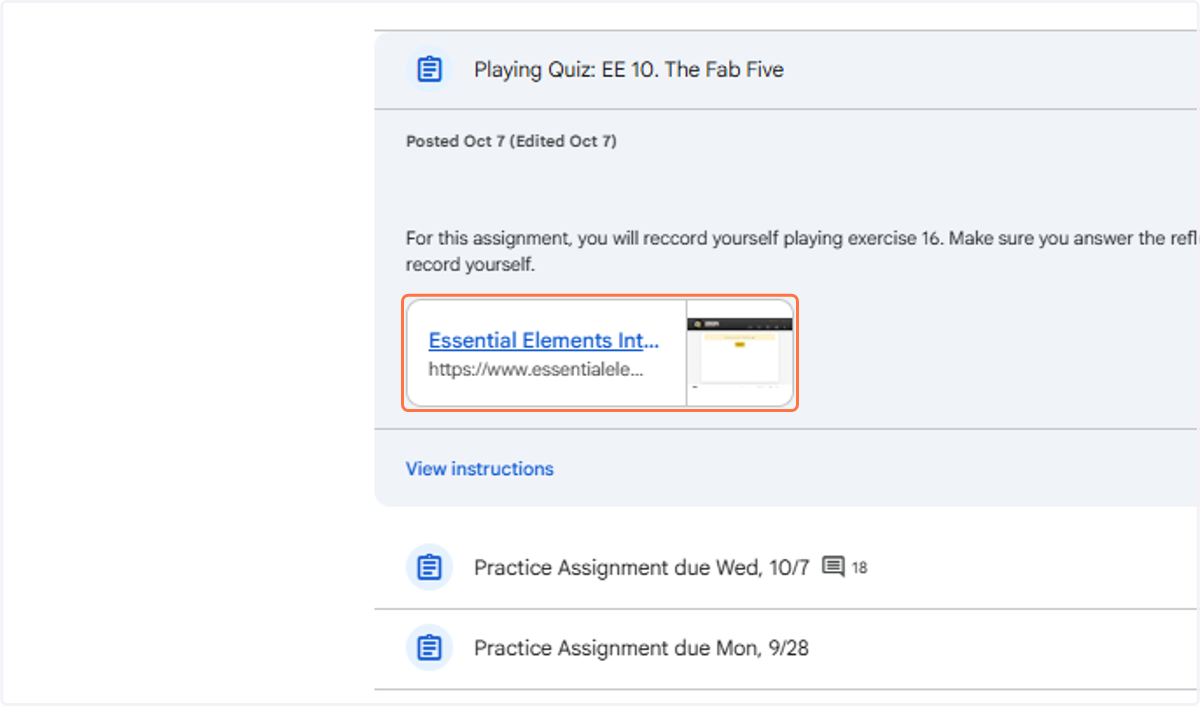
14. Click on the assignment link in Google Classroom a third time.
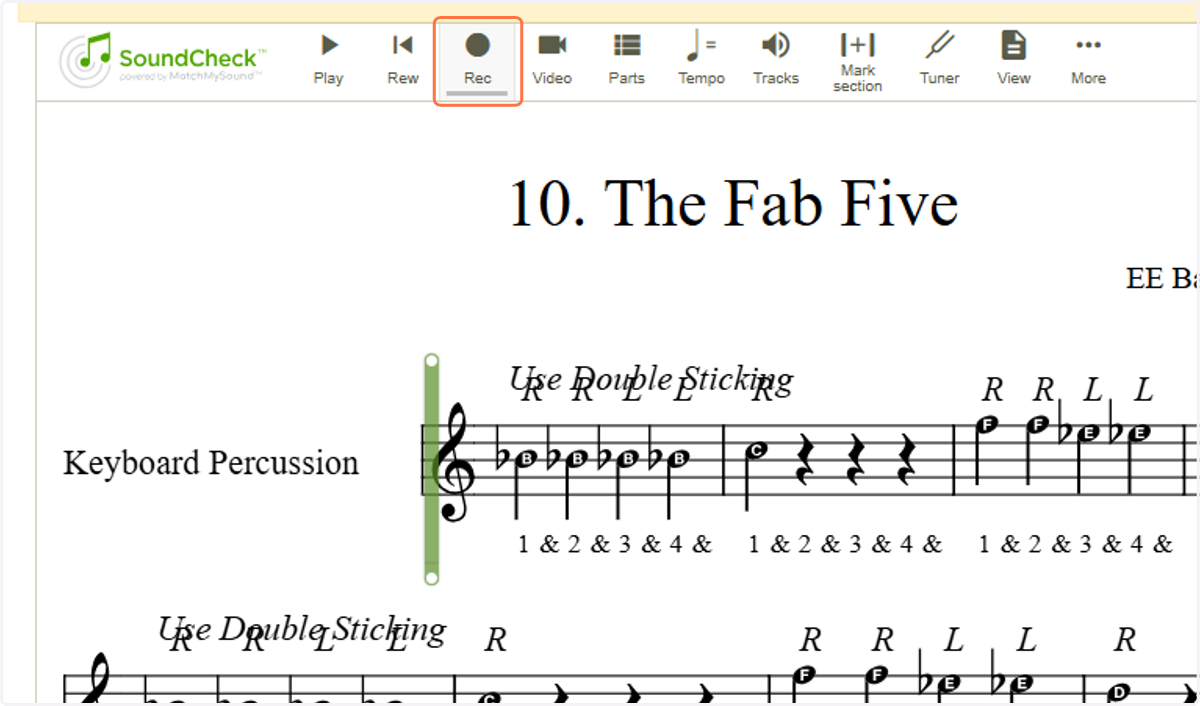
15. When you're ready to record, click the circular record button.
It will click to count you in and then automatically record you and end the recording at the end. Make sure you play the whole exercise to the end.
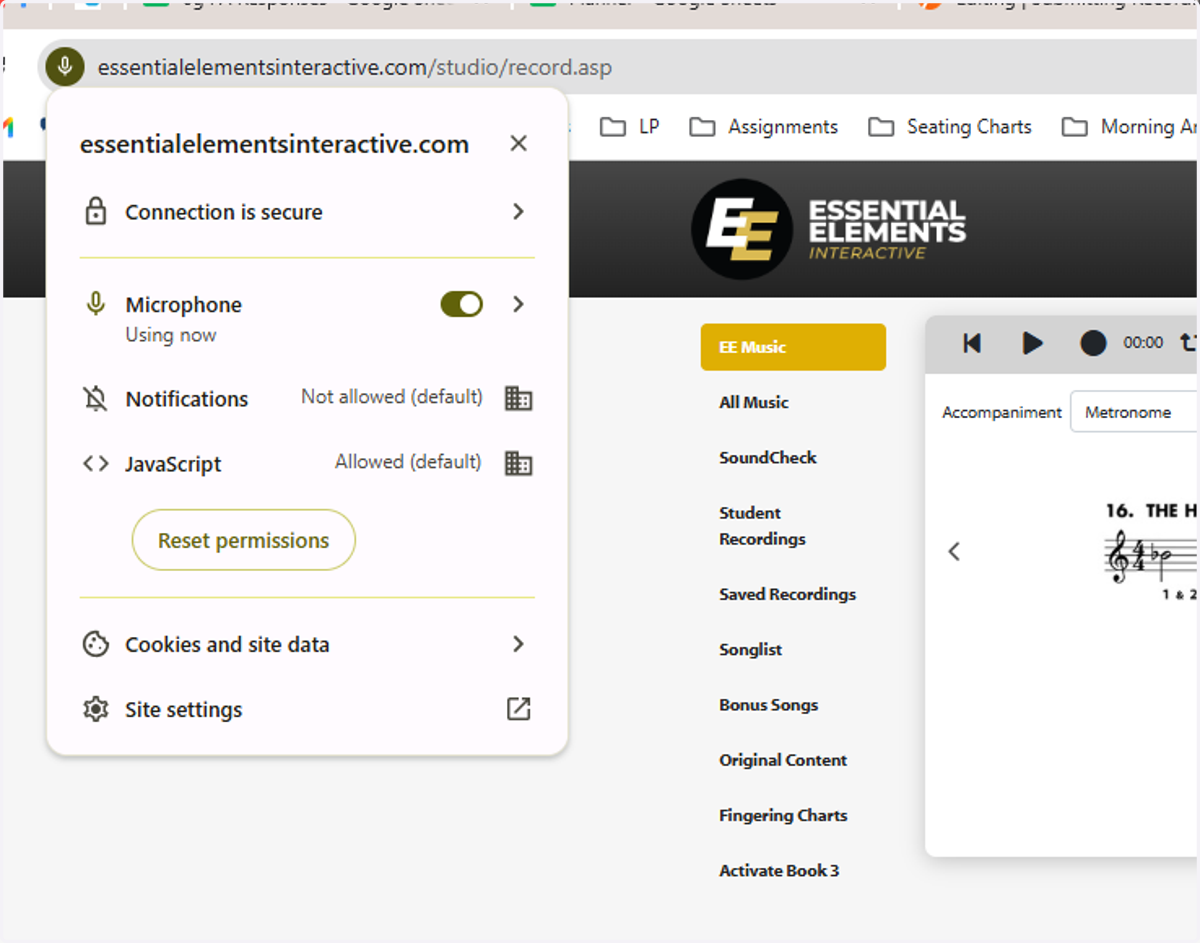
16. Allow the site to access your microphone.
You might need to give the website permission to use the microphone. This setting button is on the left end of the address bar.
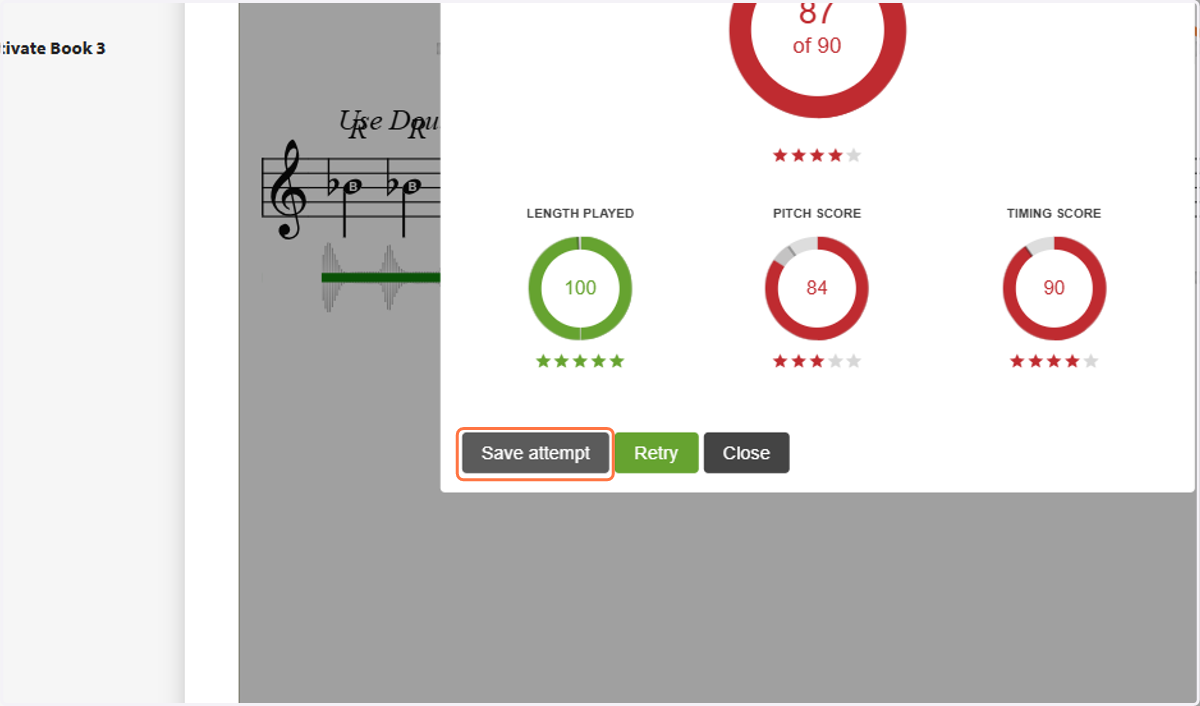
17. Click on Save attempt
Or you can try again by clicking Retry to start a new recording.
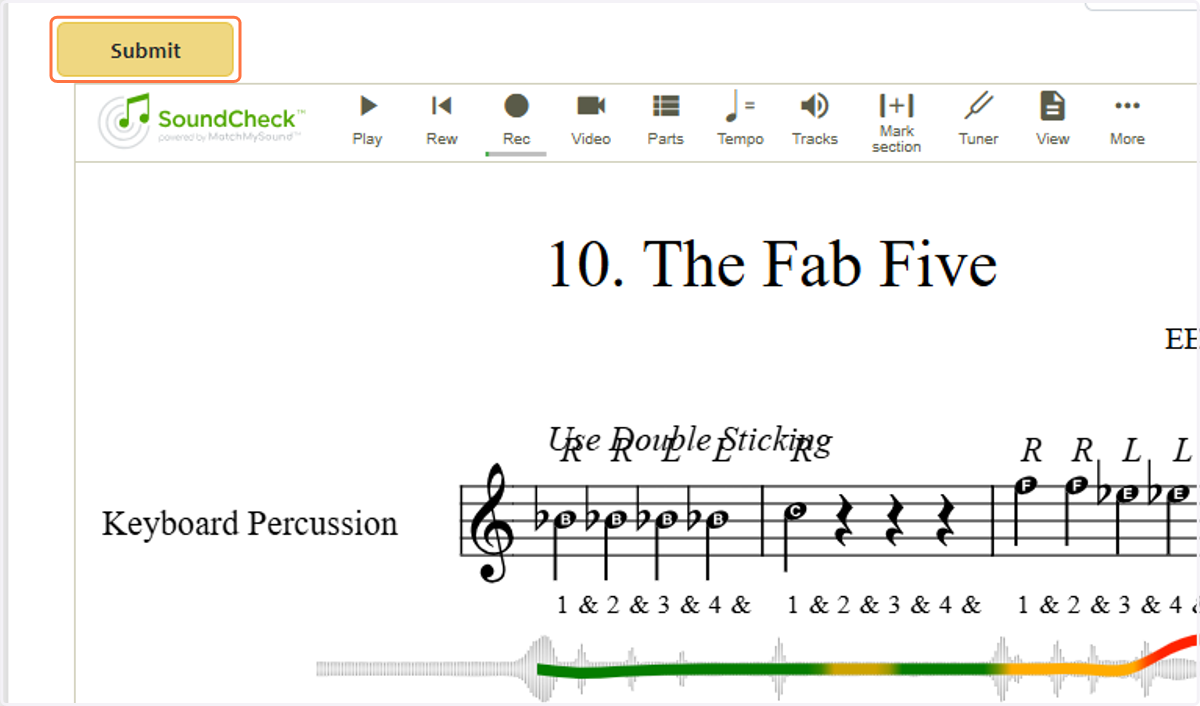
18. Click on Submit
You can also hover over the color-coded bars to see what the computer thinks you played right or wrong.
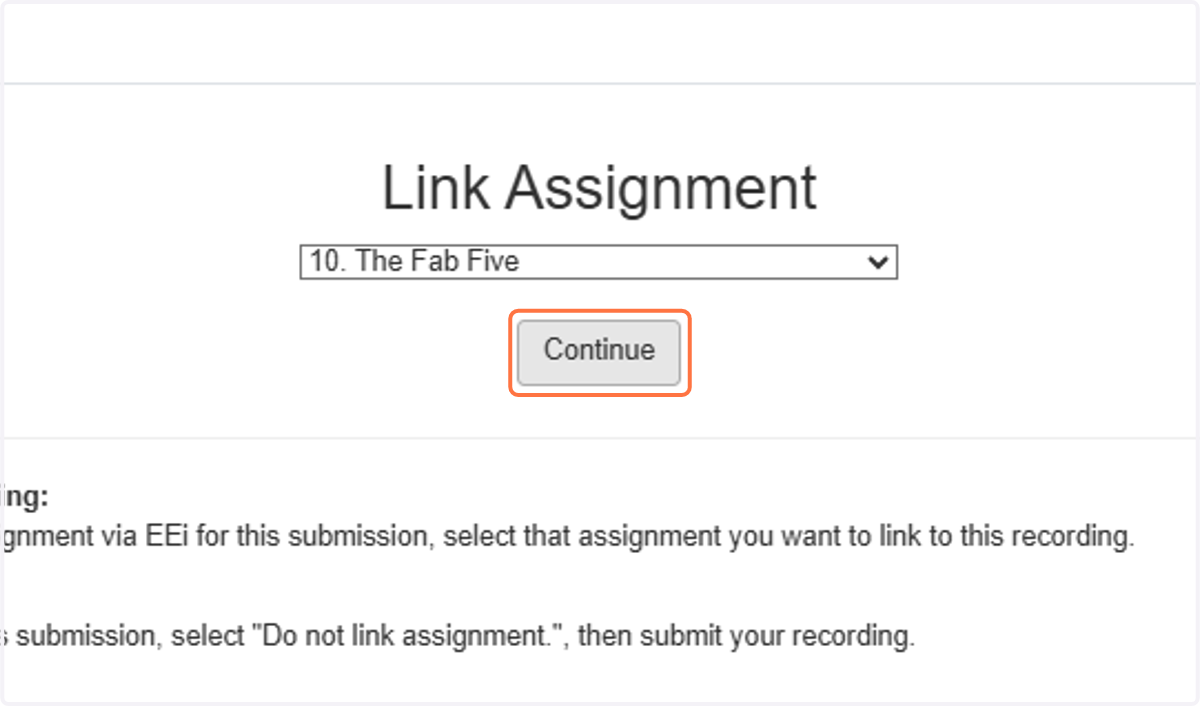
19. Choose the correct assigment from the menue, and click Continue.
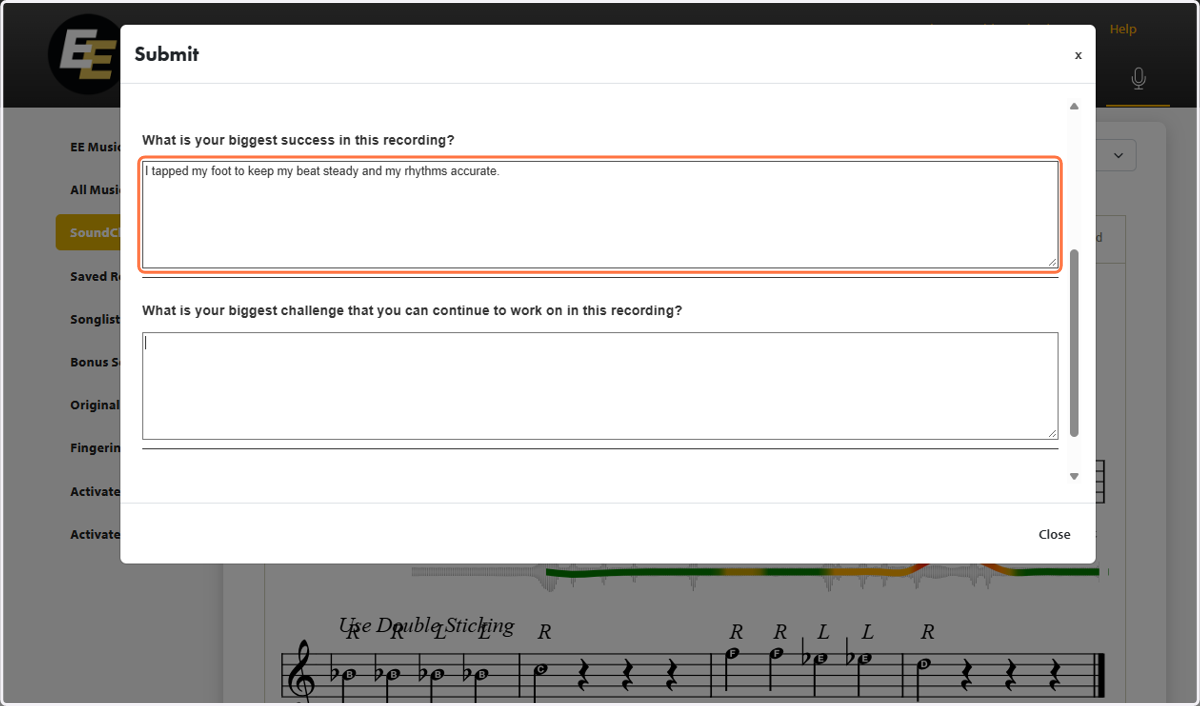
20. Scroll down and type at least one sentence to answer the question about your biggest success.
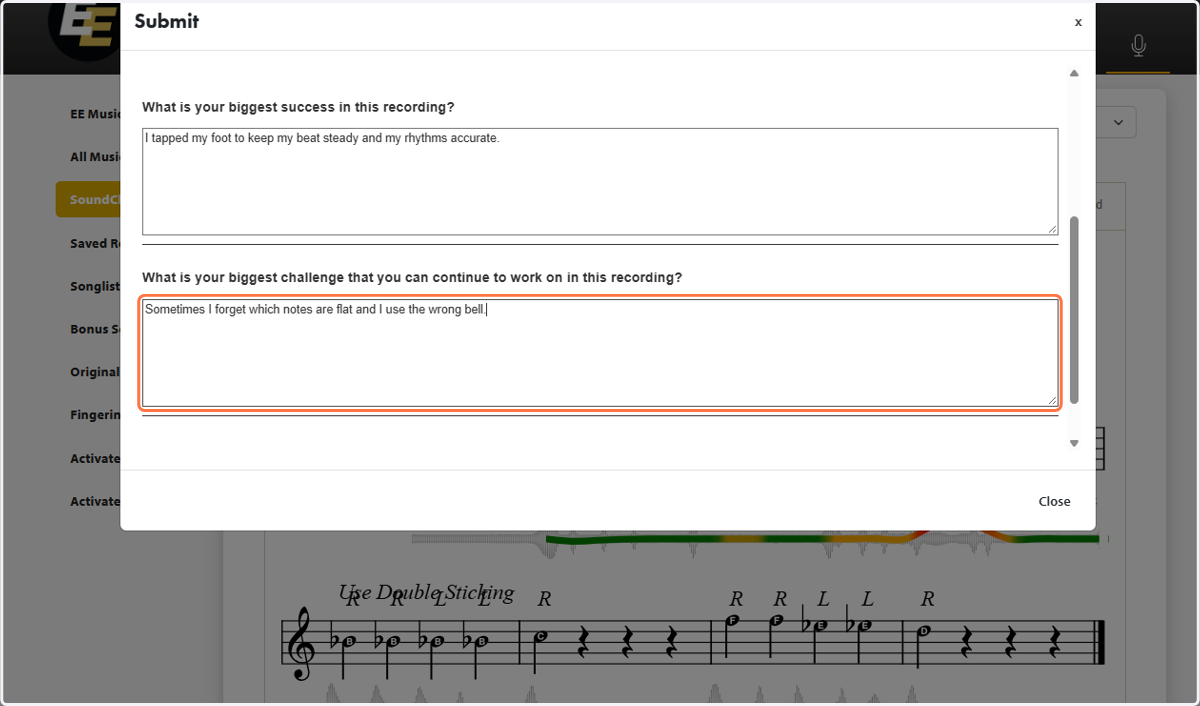
21. Scroll down and type at least one sentence to answer the question about your biggest challenge.
22. Scroll all the way down, and click Submit.
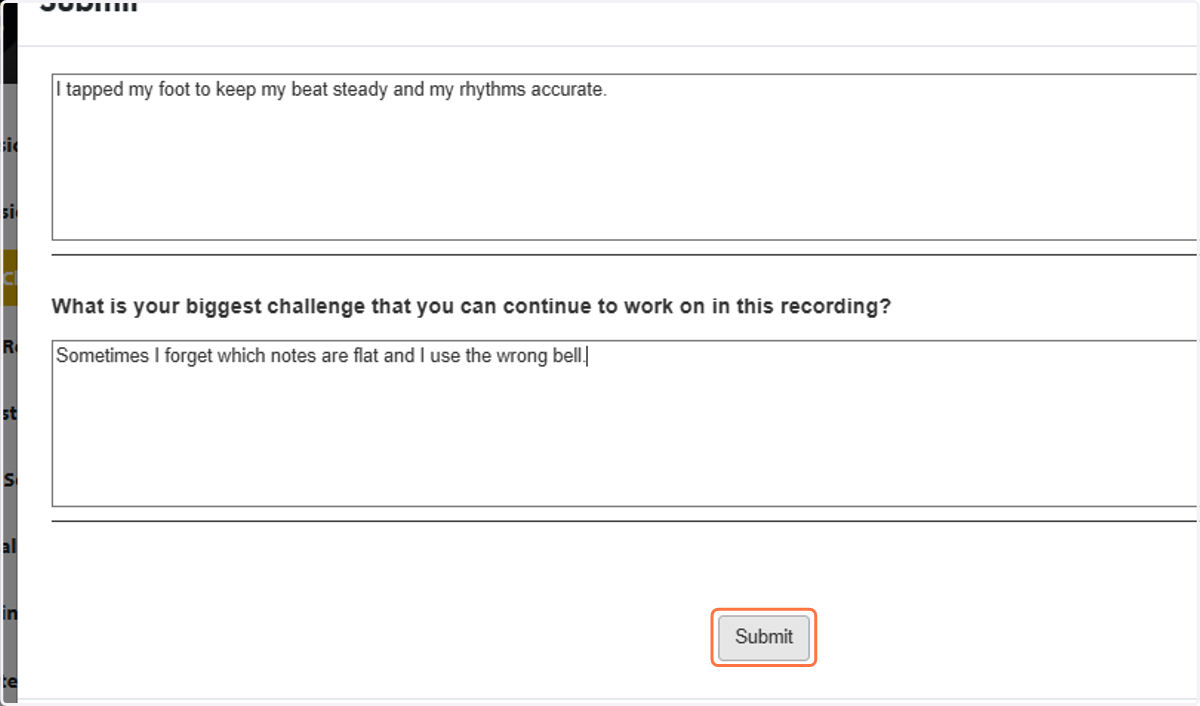
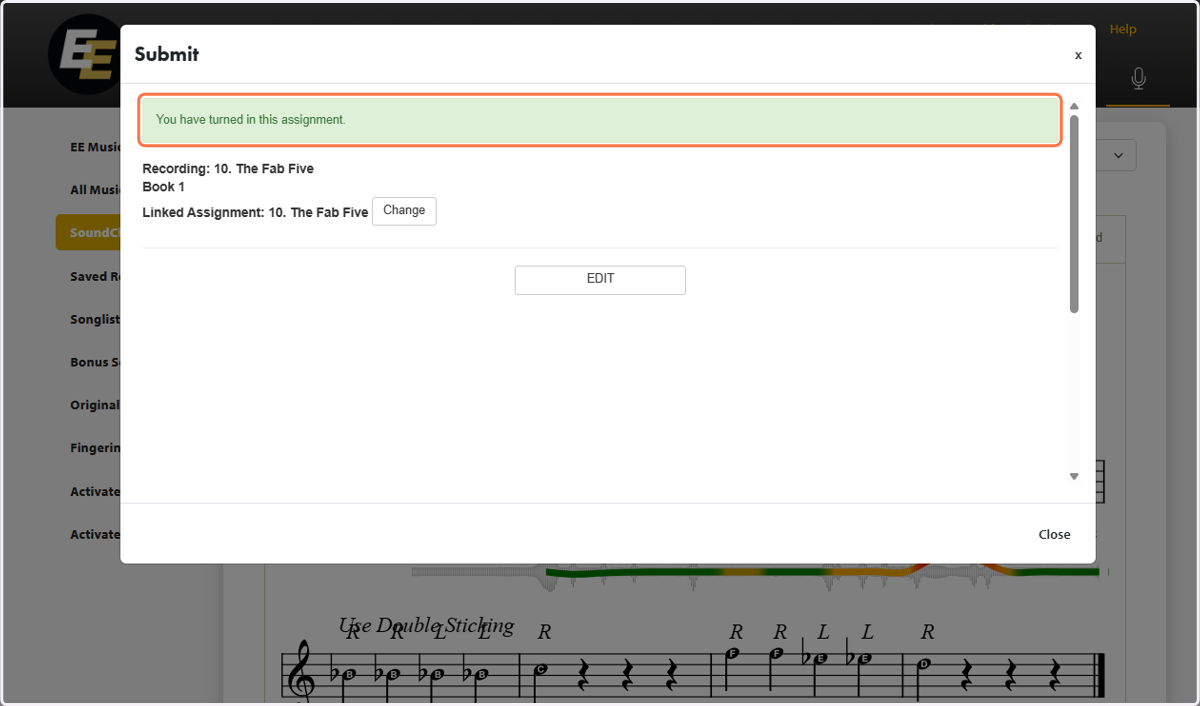
23. You're not finished until you see "You have turned in this assignment."