Supervisor Guide: How do I submit bereavement leave for employees?
Ensure you have reviewed the policy for understanding before submitting Bereavement Leave Requests. Supporting information:
Supervisors will need the following information to submit this leave type on behalf of the employee:
Relationship to the Deceased
Date of Notification of Death - If unknown, choose the current date or the date the employee let you know about the circumstances of their leave.
If the employee has submitted a request for this family member or colleague previously.
There are 2 Different Kinds of Bereavement Leave Requests:
Colleague Requests:
The amount of total hours you are eligible to take for a Bereavement Leave - Colleague request is prorated by your Full Time Equivalent (FTE).
Examples
FTE = 1; Your standard work day is 8 hours; Up to 8 hours of Bereavement Leave for a Colleague request
FTE = 0.75; Your standard work day is 6 hours; Up to 6 hours of Bereavement Leave for a Colleague request
Immediate Family Member Requests:
Employees may receive up to 40 hours of paid leave following the death of an immediate family member. The amount of the 40 hours an employee will receive will be prorated to their FTE
Ex: FTE of 0.75, the employee's standard work week is 30 hours, and they would be eligible to receive 30 hours of bereavement leave for an immediate family member.
Login to MyPack Portal
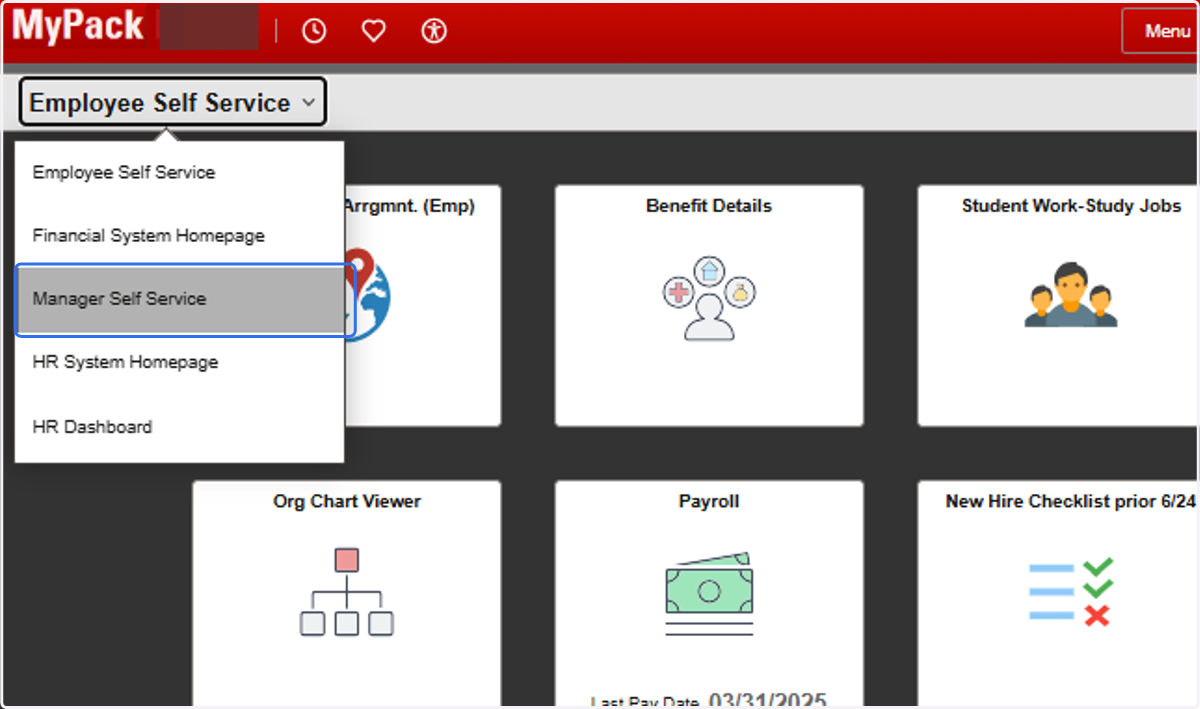
1. Navigate to the Manager Self-Service
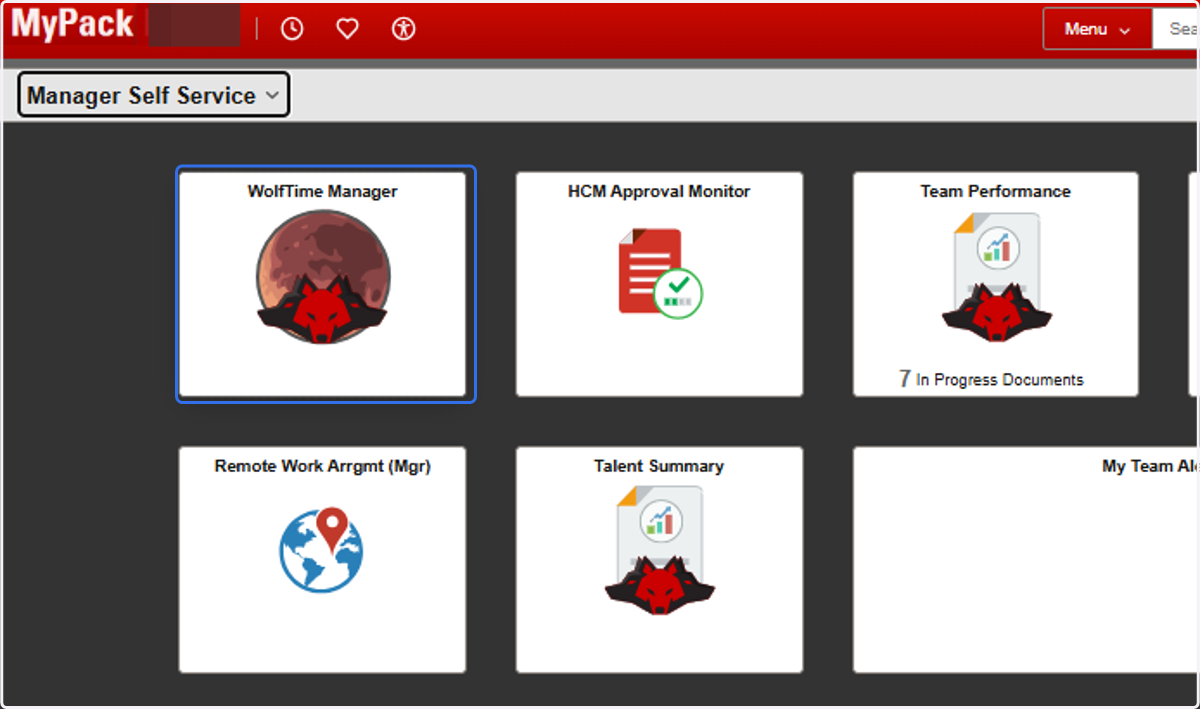
2. Click on the WolfTime Manager tile
3. Click on Manage Absences

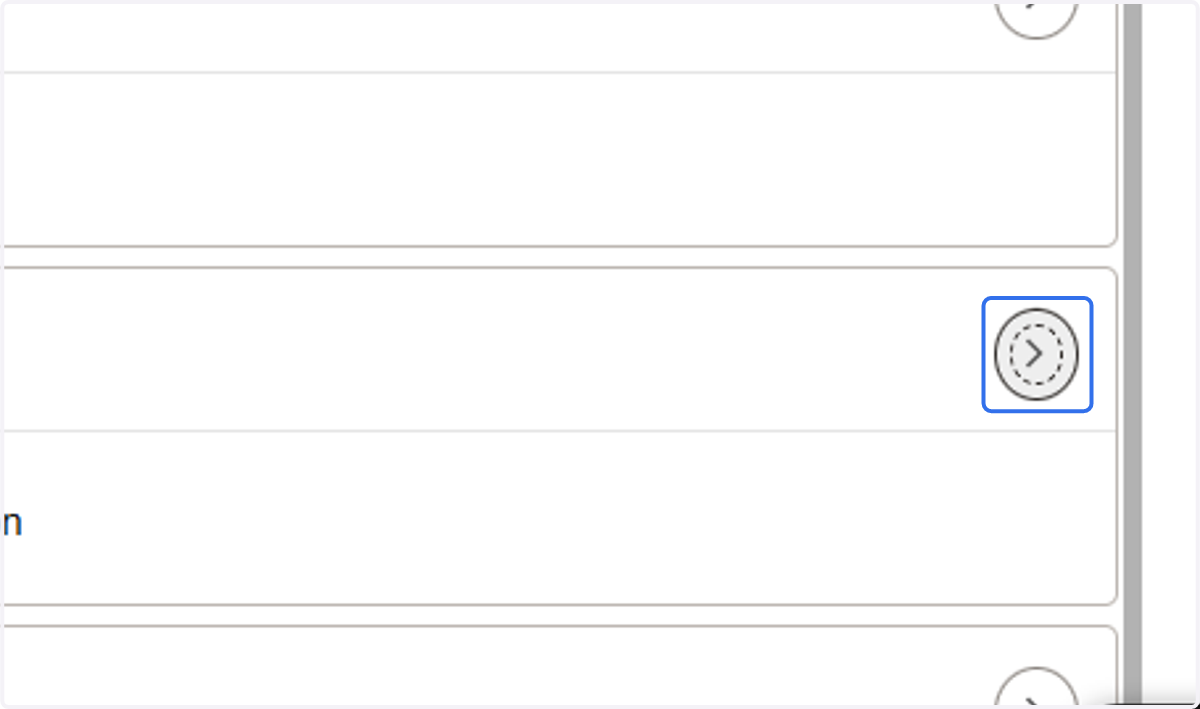
4. Click on the employee who you are submitting for by clicking the arrow on their record
5. Enter the absence Start Date
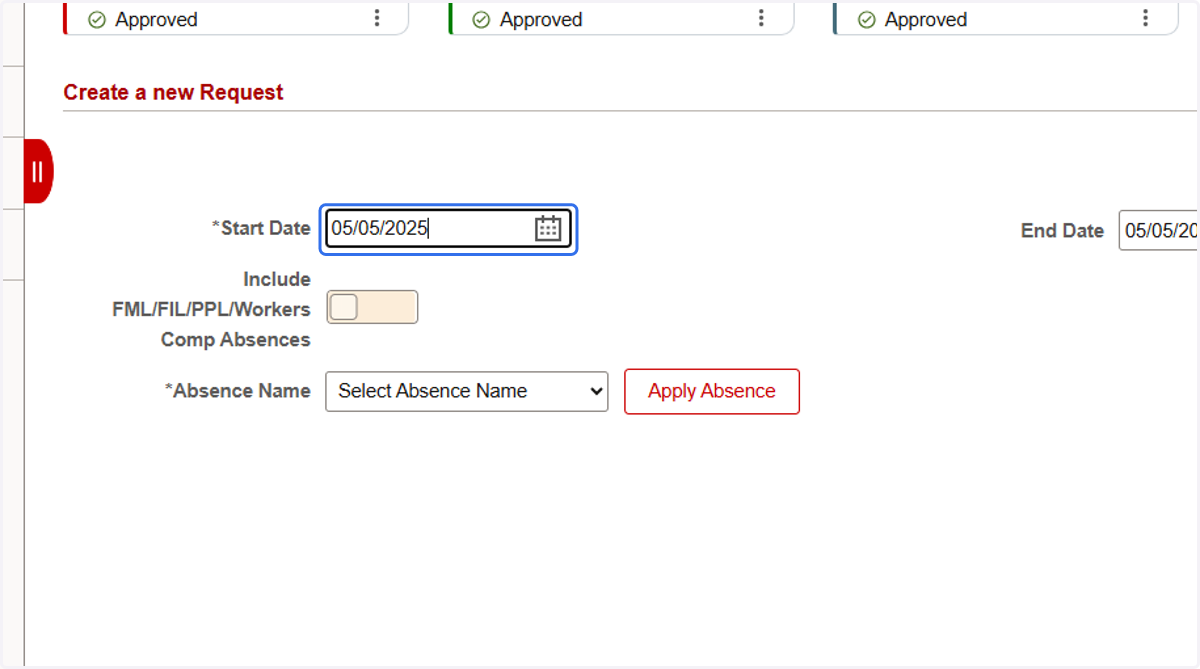
6. Enter the absence End Date
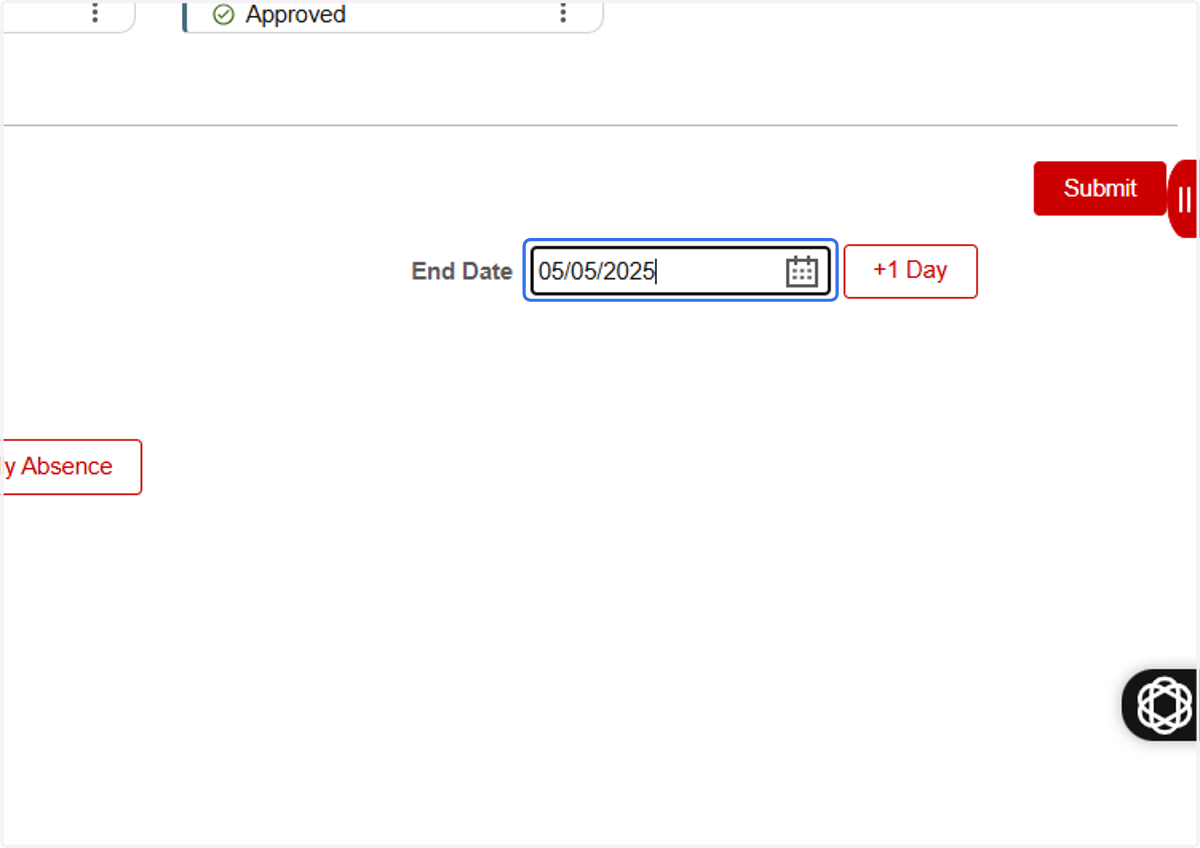
7. Select Absence Name: Bereavement Leave
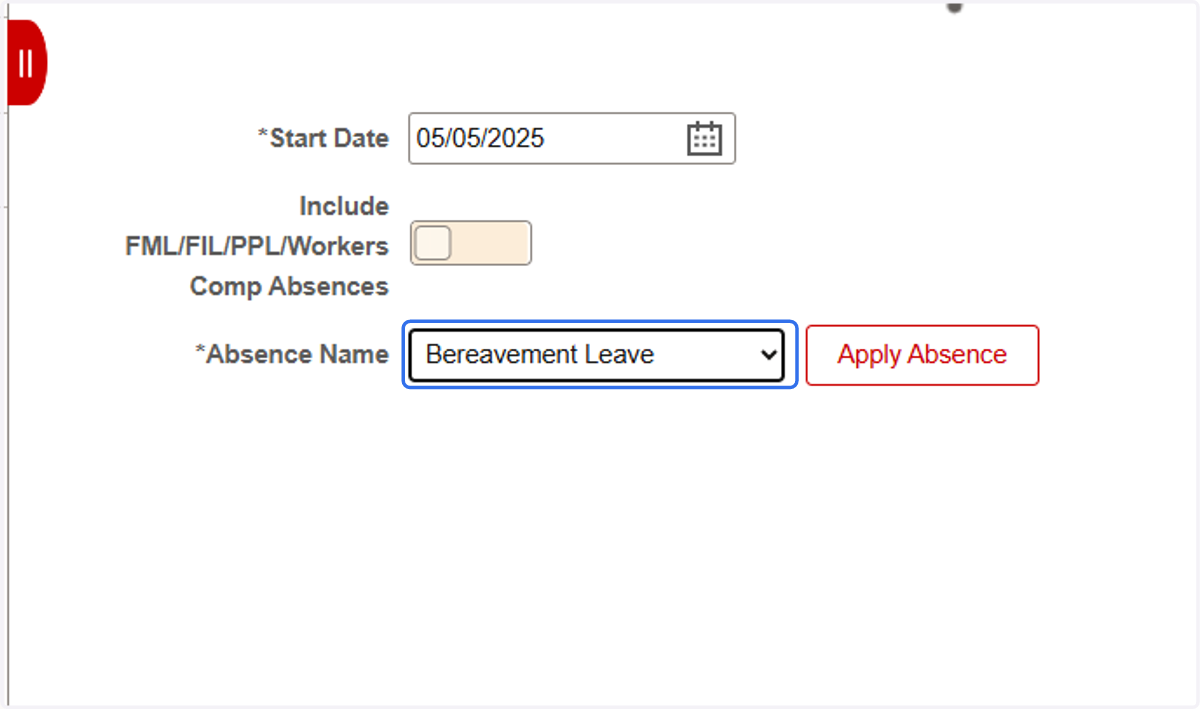
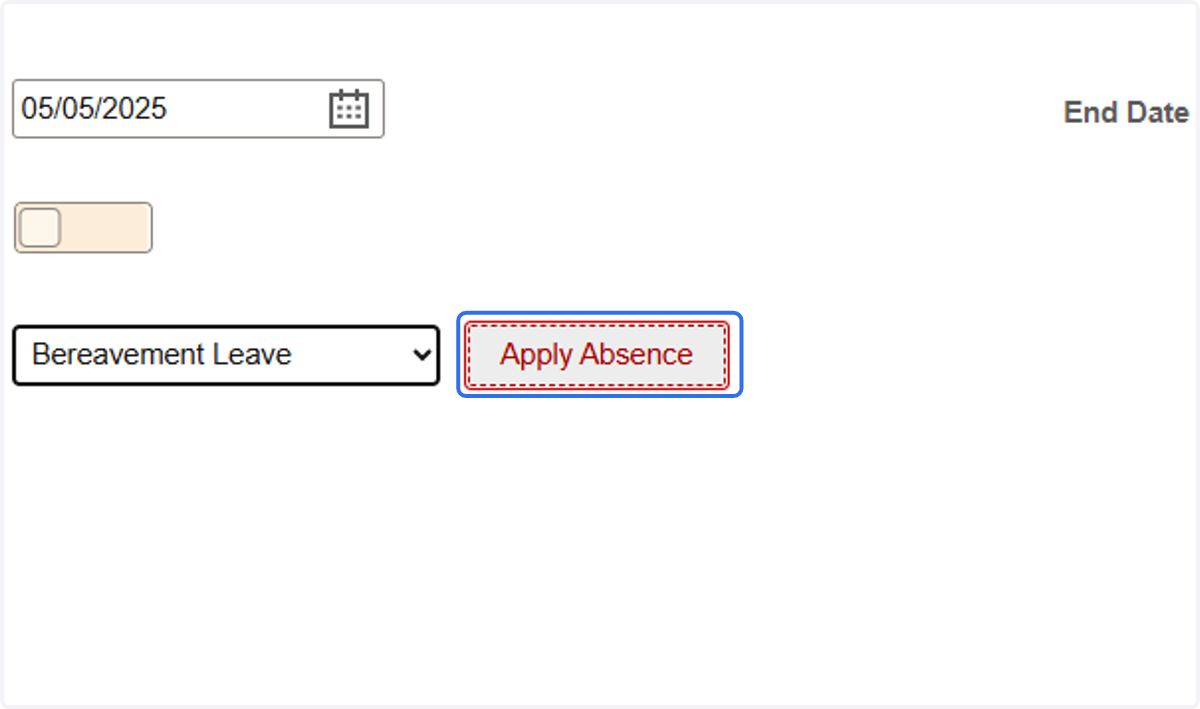
8. Click on Apply Absence
9. Select the Reason that most accurately describes the employee's relationship with the deceased.
If you are unsure what is considered an immediate family member or colleague under this program, please refer to the HR Now Bereavement Leave Knowledge Article, where this is outlined.

Non-Exempt Employee Request Process
Skip to step 15 if the employee you are submitting for does not have partial days on the request page.
10. Click on Partial Days if any of the days between the Start and End date were less than your standard full work day; if partial days do not apply skip to step 14 here.
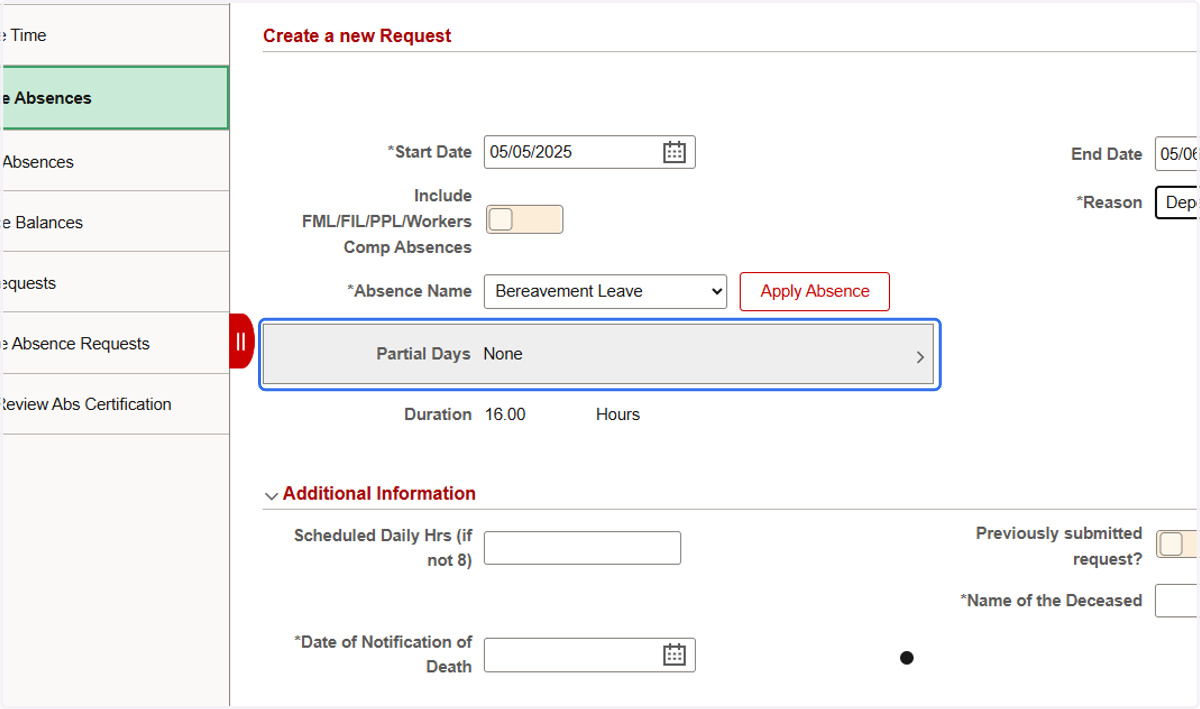
11. Select what applies to the partial days in your request
Drop-Down Options:
None = Full Work Day off for all dates in absence request
All Days = Apply Partial Hours input for all dates in absence request
End Day Only = Apply partial hours input for end date of absence request only
Start Day Only = Apply partial hours input for start date of absence request only
Start and End Days = Apply partial hours input for start and end date of absence request only
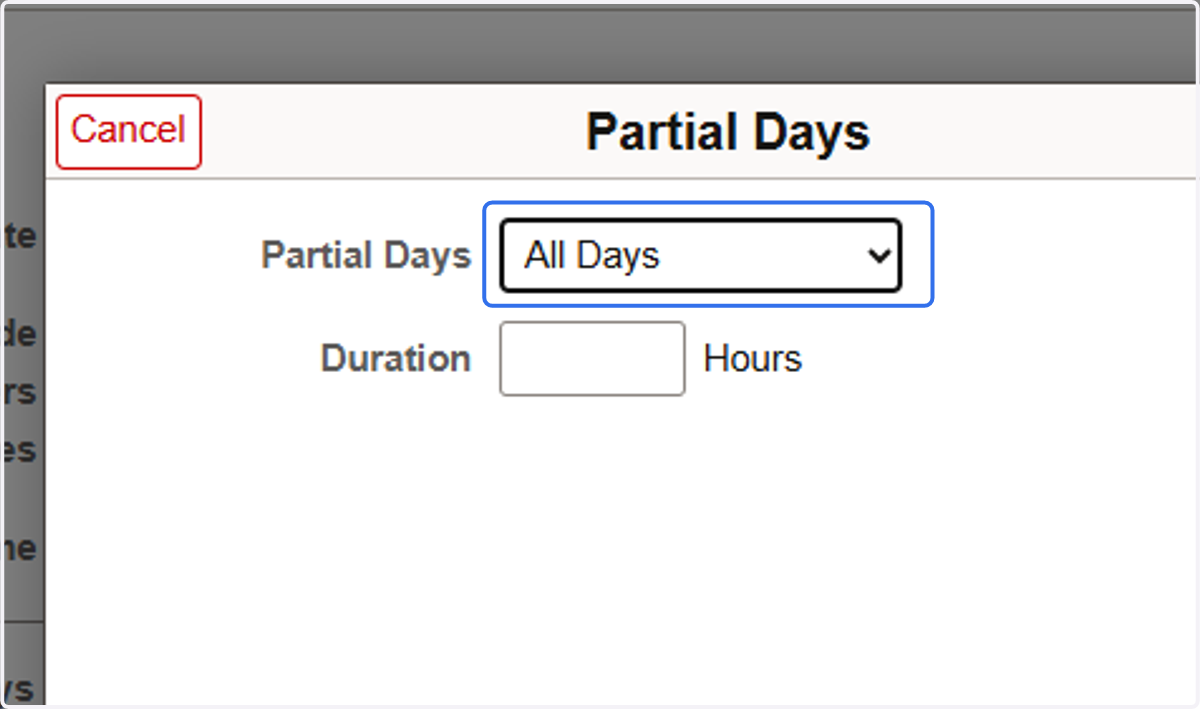
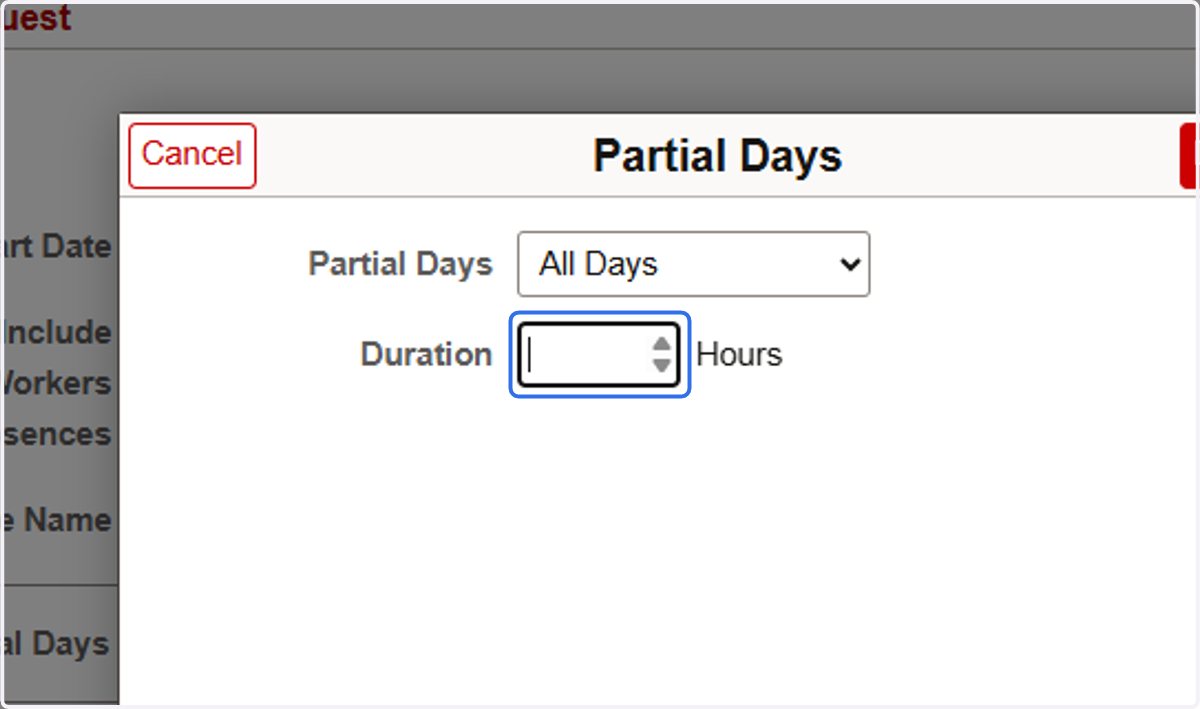
12. Input the Duration of the Partial Days in the Absence Request
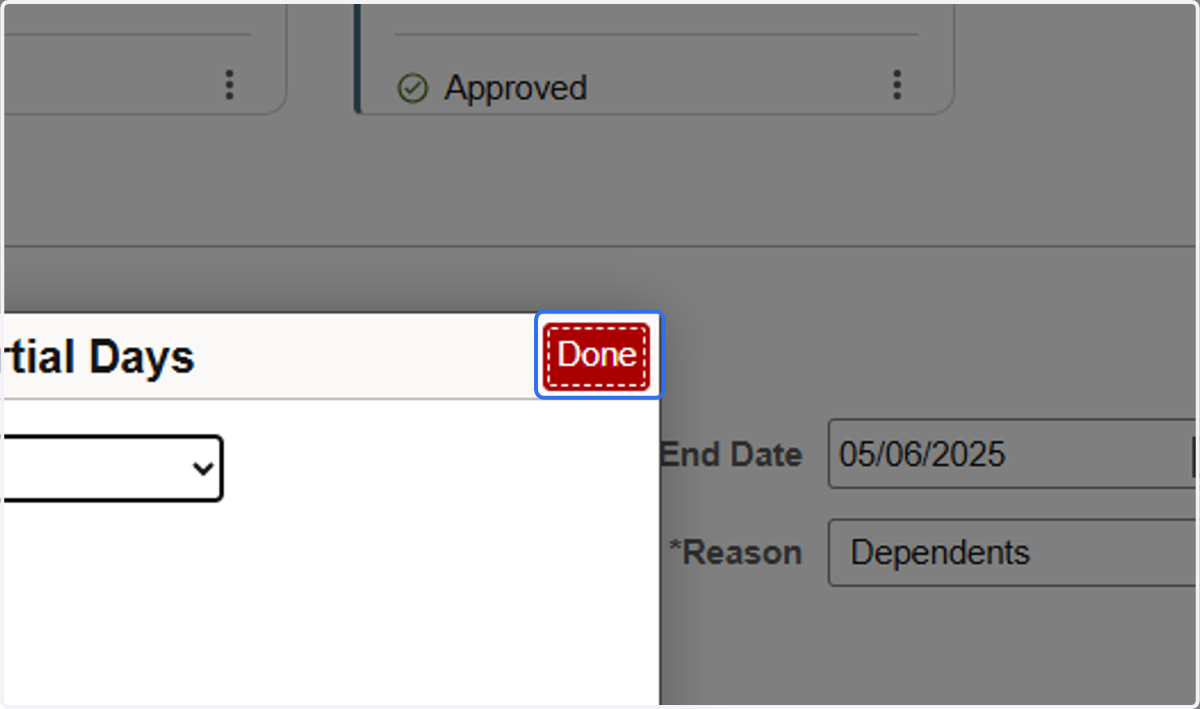
13. Click Done
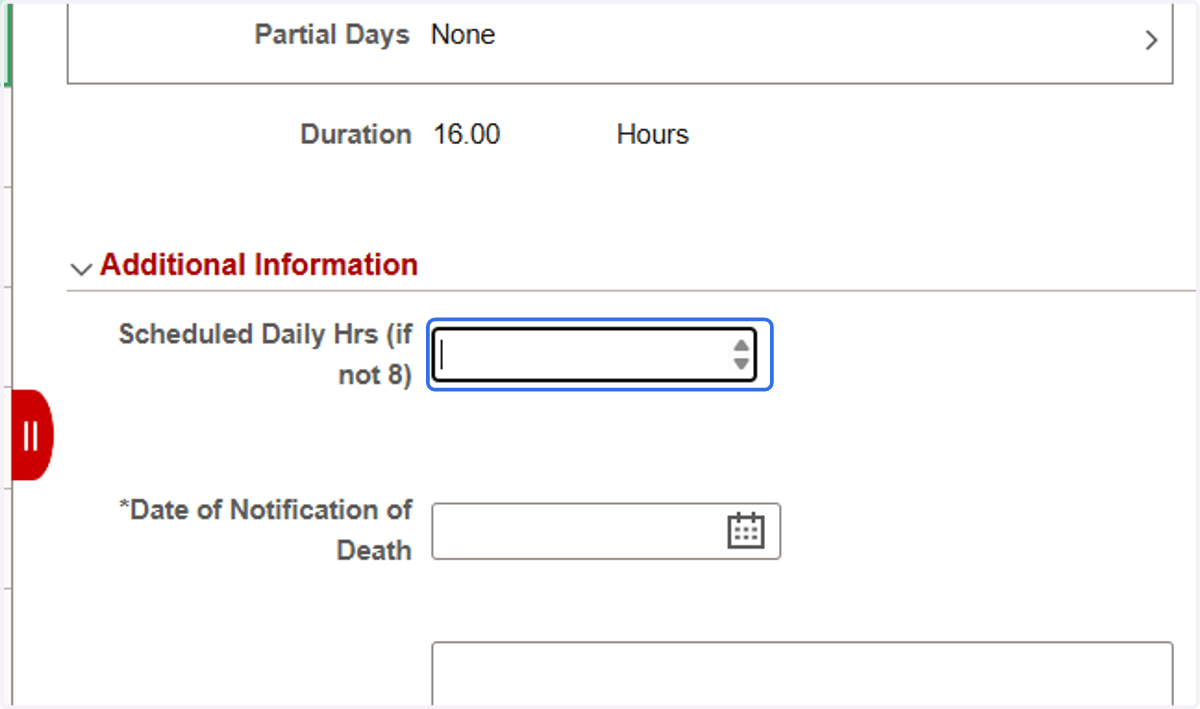
14. Leave this field blank if you schedule daily hours is 8. If your scheduled daily hours is < 8 hours please input that standard daily hour here. Skip to step 16 once this step is complete
Examples:
FTE = 1; Your standard work day is 8 hours; leave this field blank
FTE = 0.75; Your standard work day is 6 hours; Input 6 hours
Exempt Employee Request Process
15. You will now be prompted to fill out the additional Bereavement information. Input the total number of hours taken during the start and end date of the request.
NOTE: If your employee is exempt you may see partial day fields. Refer to step 10 for those employees.
Employees may receive up to 40 hours of paid leave following the death of an immediate family member. The amount of the 40 hours you receive will be prorated to your FTE
Ex: FTE of 0.75, your standard work week is 30 hours, and you would be eligible to receive 30 hours of bereavement leave for an immediate family member.
The amount of total hours you are eligible to take for a Bereavement Leave - Colleague request is prorated by your Full Time Equivalent (FTE).
Examples
FTE = 1; Your standard work day is 8 hours; Up to 8 hours of Bereavement Leave for a Colleague request
FTE = 0.75; Your standard work day is 6 hours; Up to 6 hours of Bereavement Leave for a Colleague request
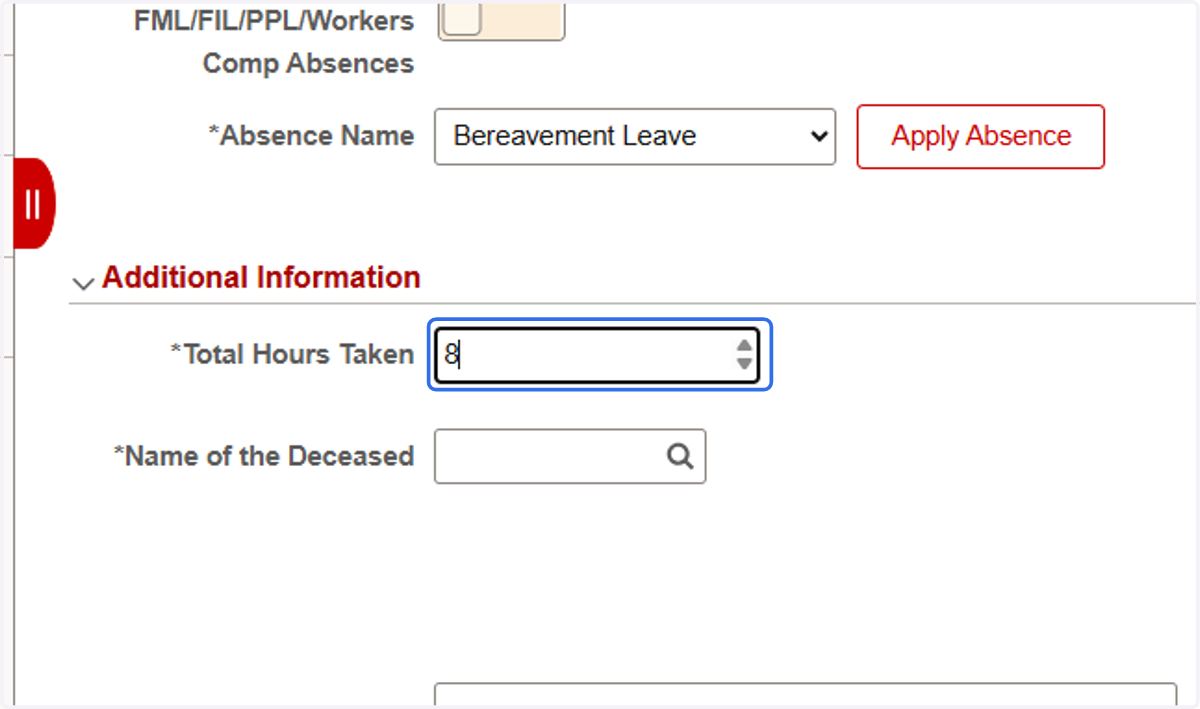
Bereavement Submission
16. If the employee has submitted a request for this family member change "Previously Submitted Request" to yes by switching the checkbox to green. If this is the first request; do not change this.
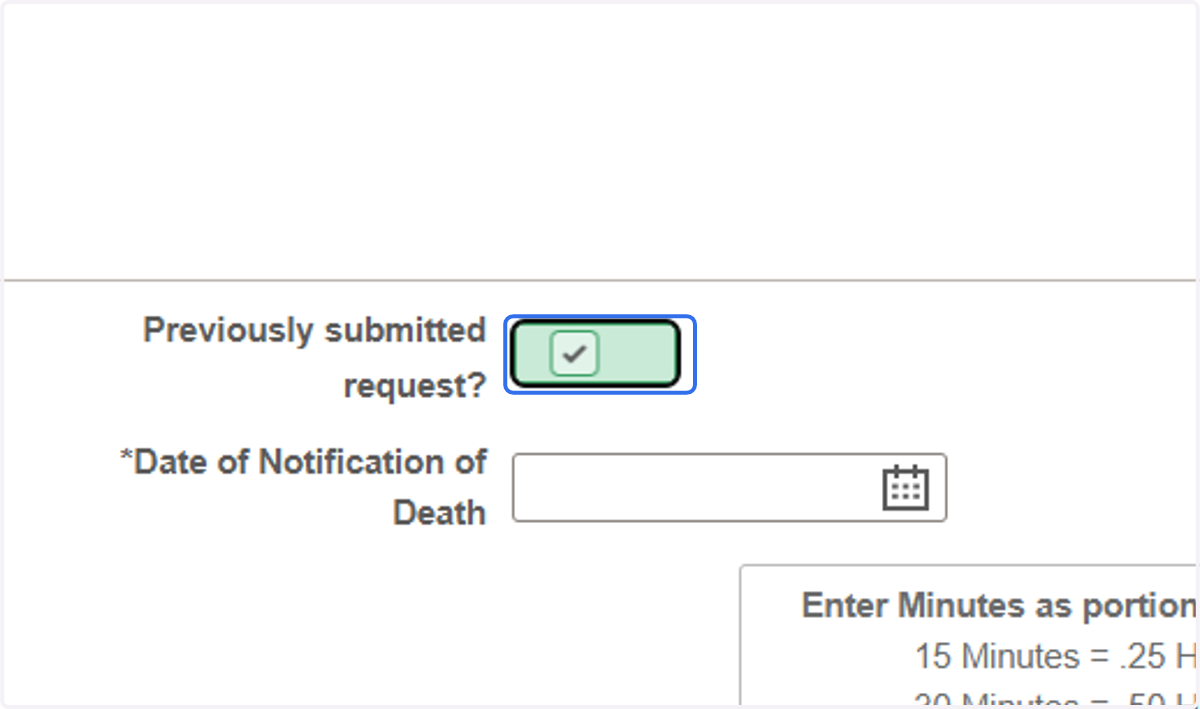
17. When you enable "Previously submitted request?" to yes, the Date of Notification of death will become ineditable.
NOTE: The name of the deceased will become ineditable unless there are more than one name of the deceased that has been submitted for the "Reason" category selected. Use the magnifying glass to search for any other names.
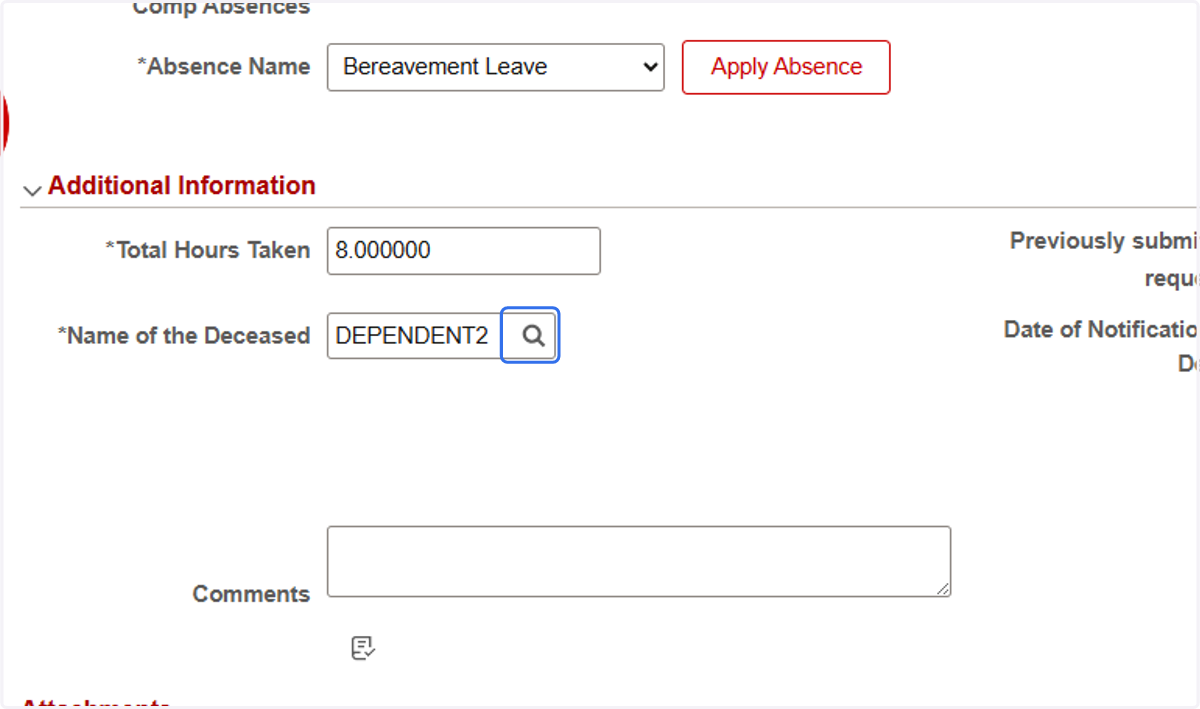
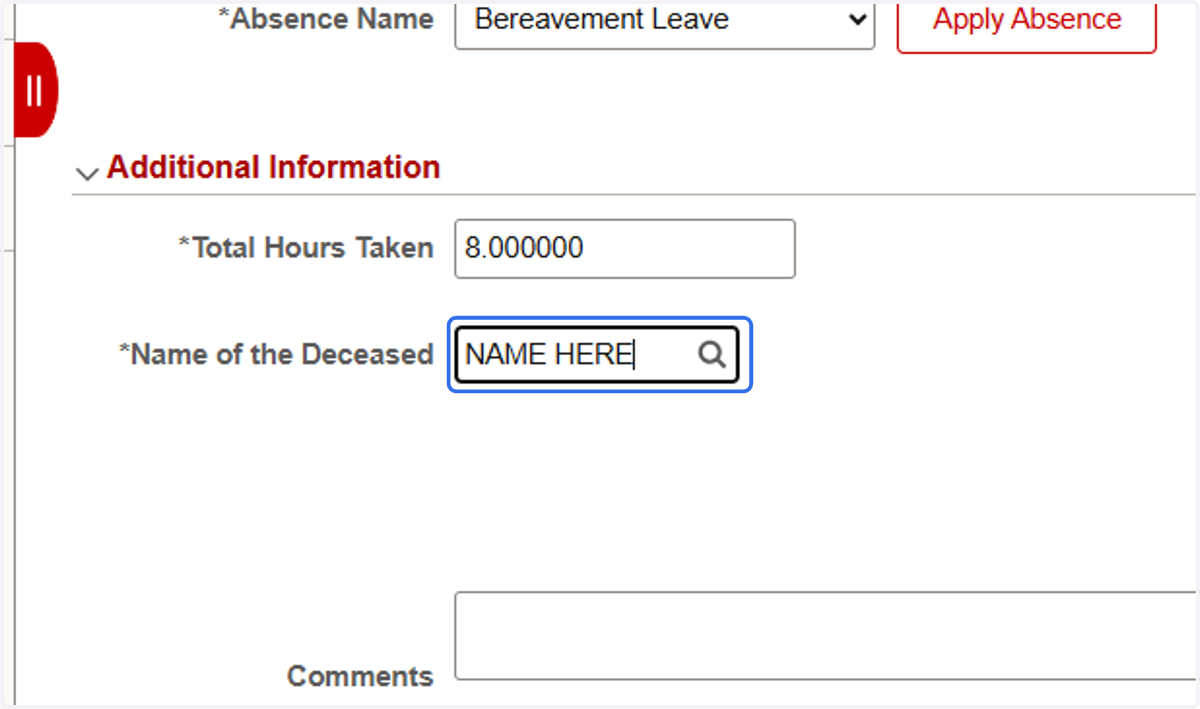
18. If this is the first request of bereavement, you will need to input the Name of the Deceased.
NOTE: This can be a name or a unique identifier that the employee or yourself would be able to reference for any future requests.
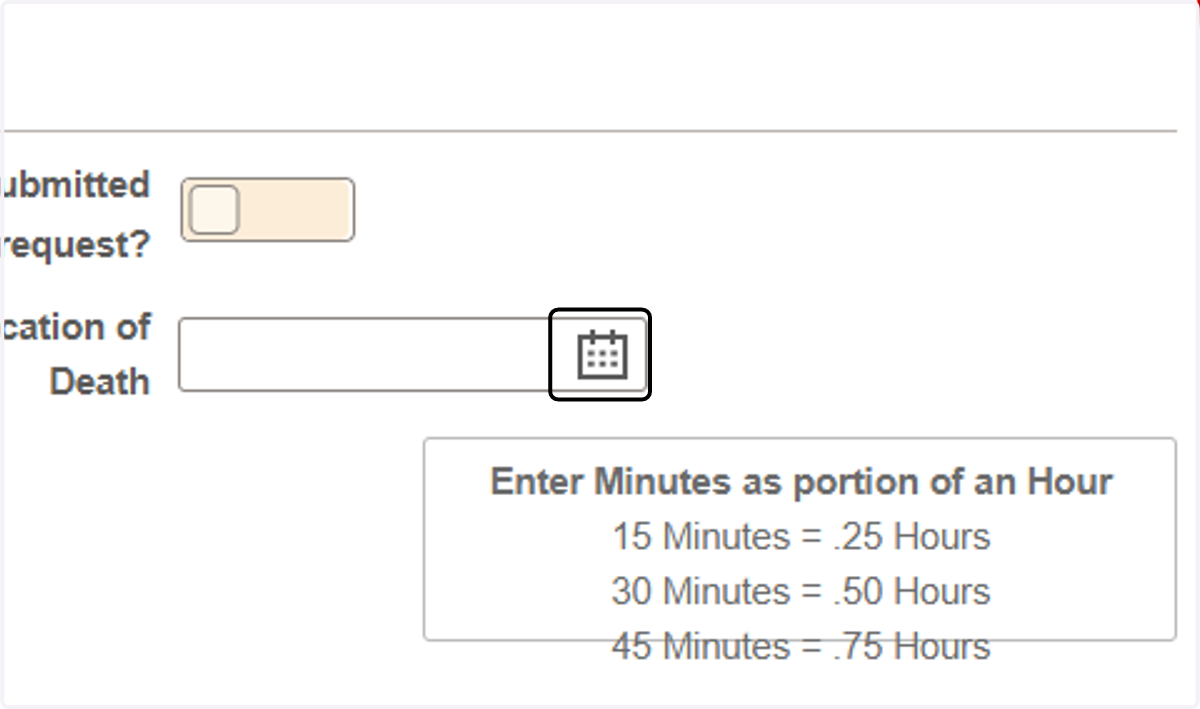
19. Input the Date of Notification of Death
This leave is available for request up to 180 days after the Date of Notification of Death.
NOTE: This date can't be in the future. If unknown, use today's date or the date you were made aware of the bereavement from the employee.
20. Add a comment that is relevant to the request.
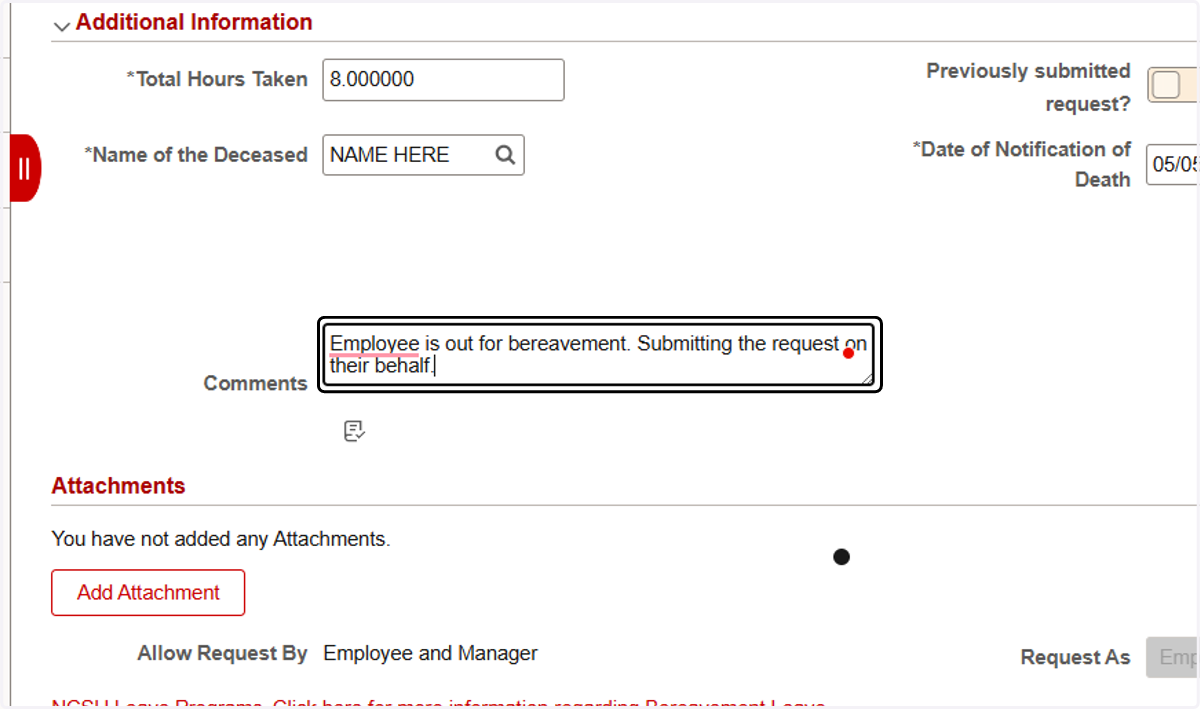
21. Click on Add Attachment if you have a supporting document
NOTE: This is not a required step. You can attach supporting documentation after you submit the request as well. Skip to step 25 if you are not adding an attachment.

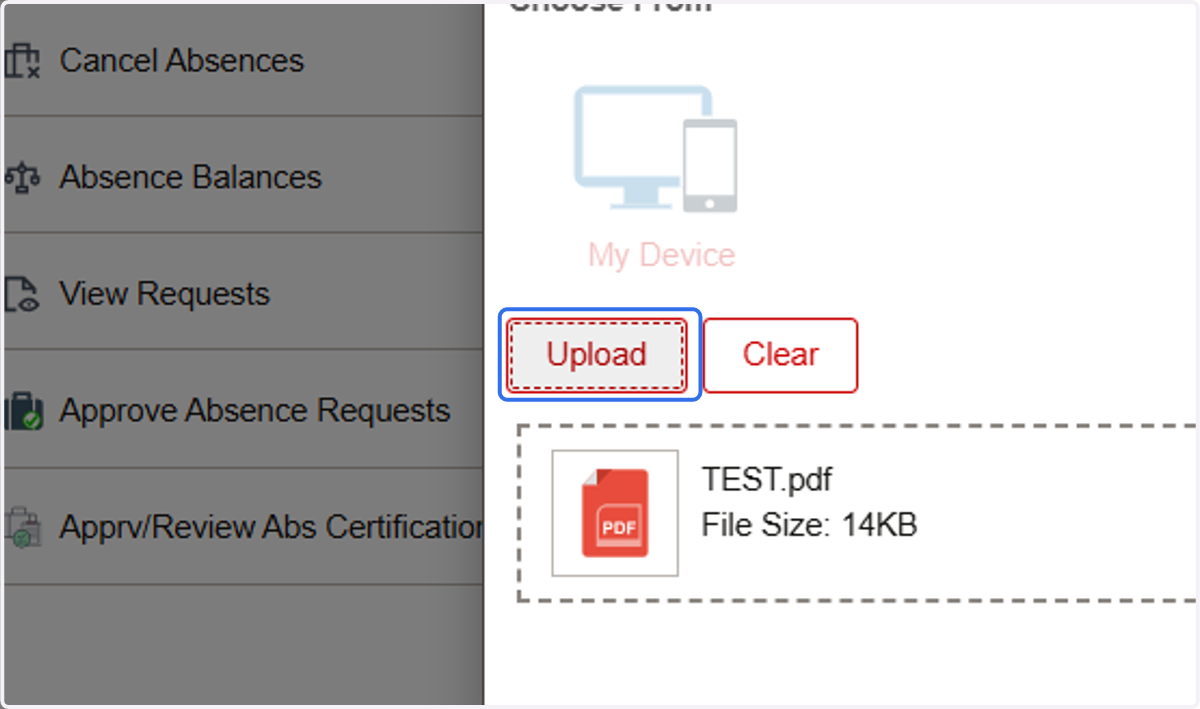
22. Click on My Device to access your device's file locator and select a file to upload.

23. Click on Upload once you have added your attachment.
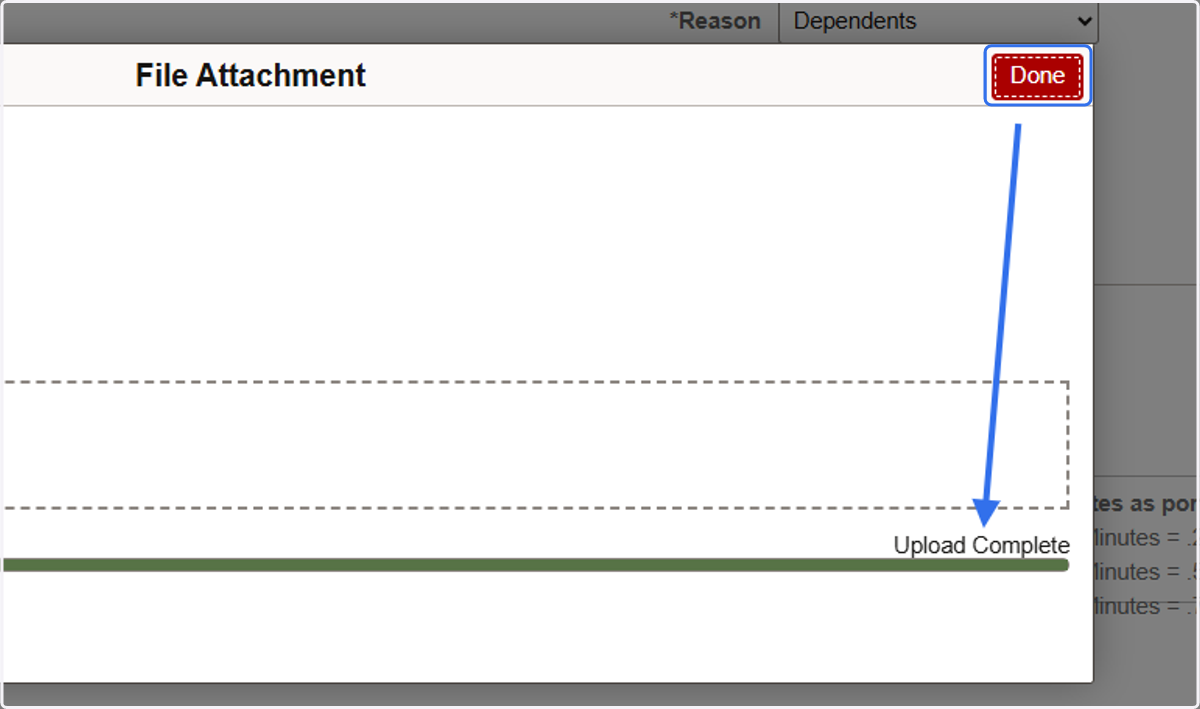
24. Wait for the pop-up to say "Upload Complete" and click Done
25. Click Submit

26. Click on Yes

27. You have submitted a bereavement leave request on your employee's behalf.