Students: Accessing Microsoft Education in Canvas
Canvas
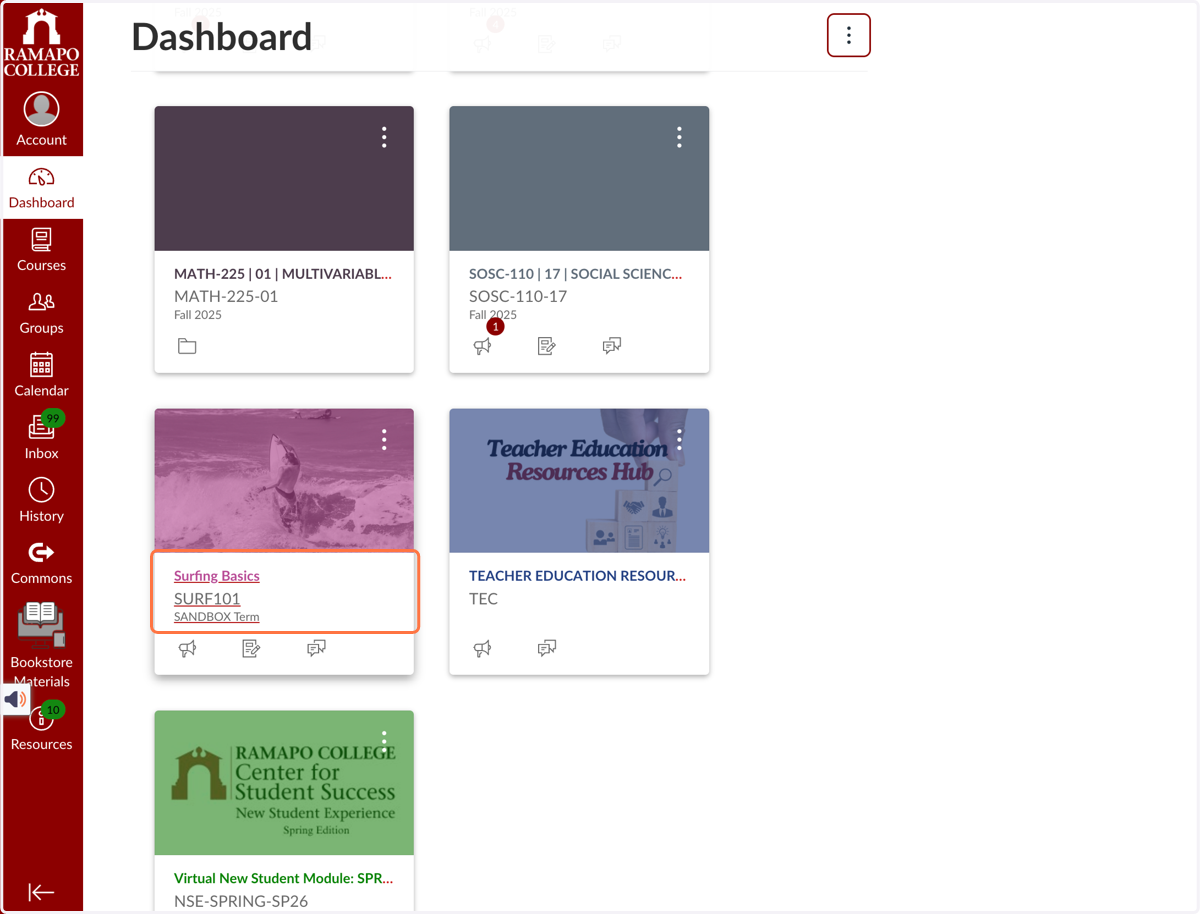
1. Click on your course....
Access the specific Canvas course by clicking on the course title.
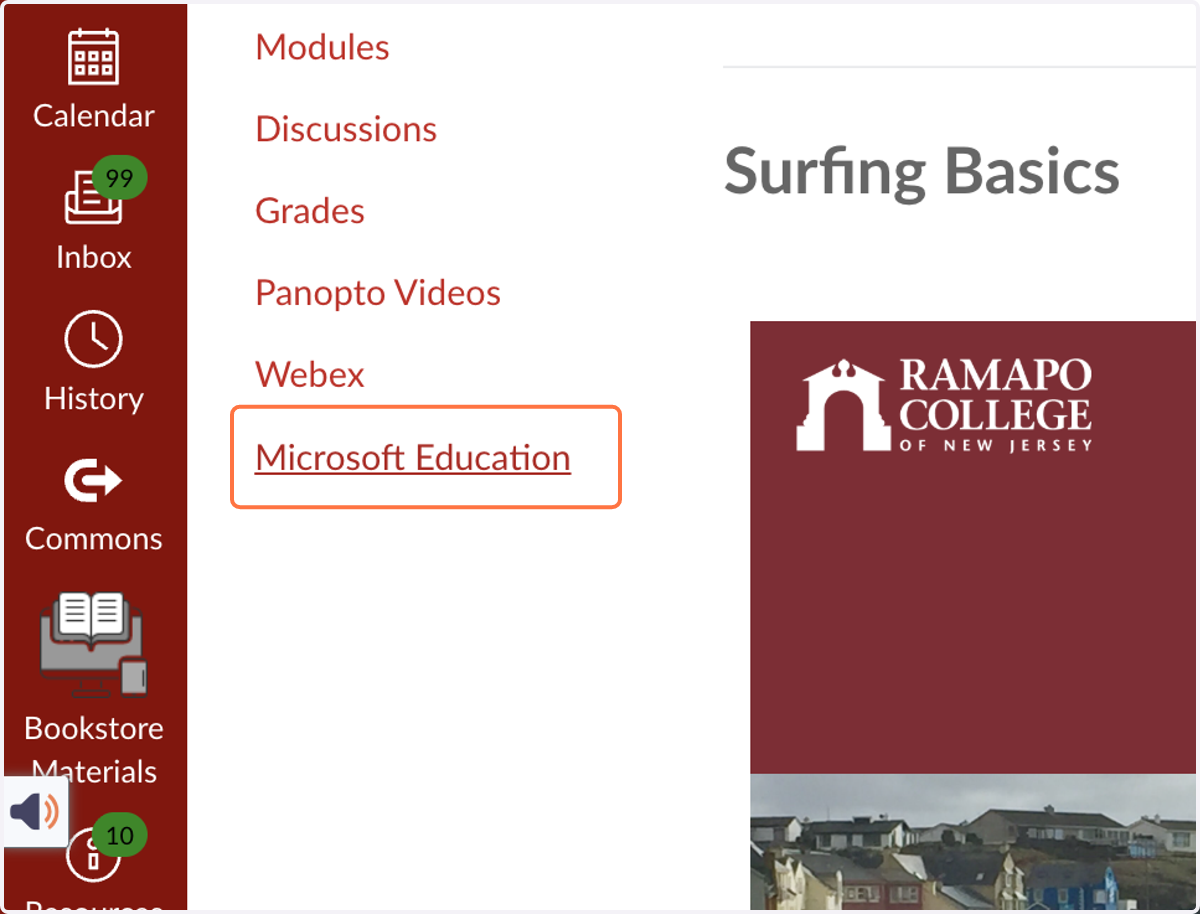
2. Navigate to the Microsoft Education tool by clicking its link in the course navigation bar
3. Click on Sign in
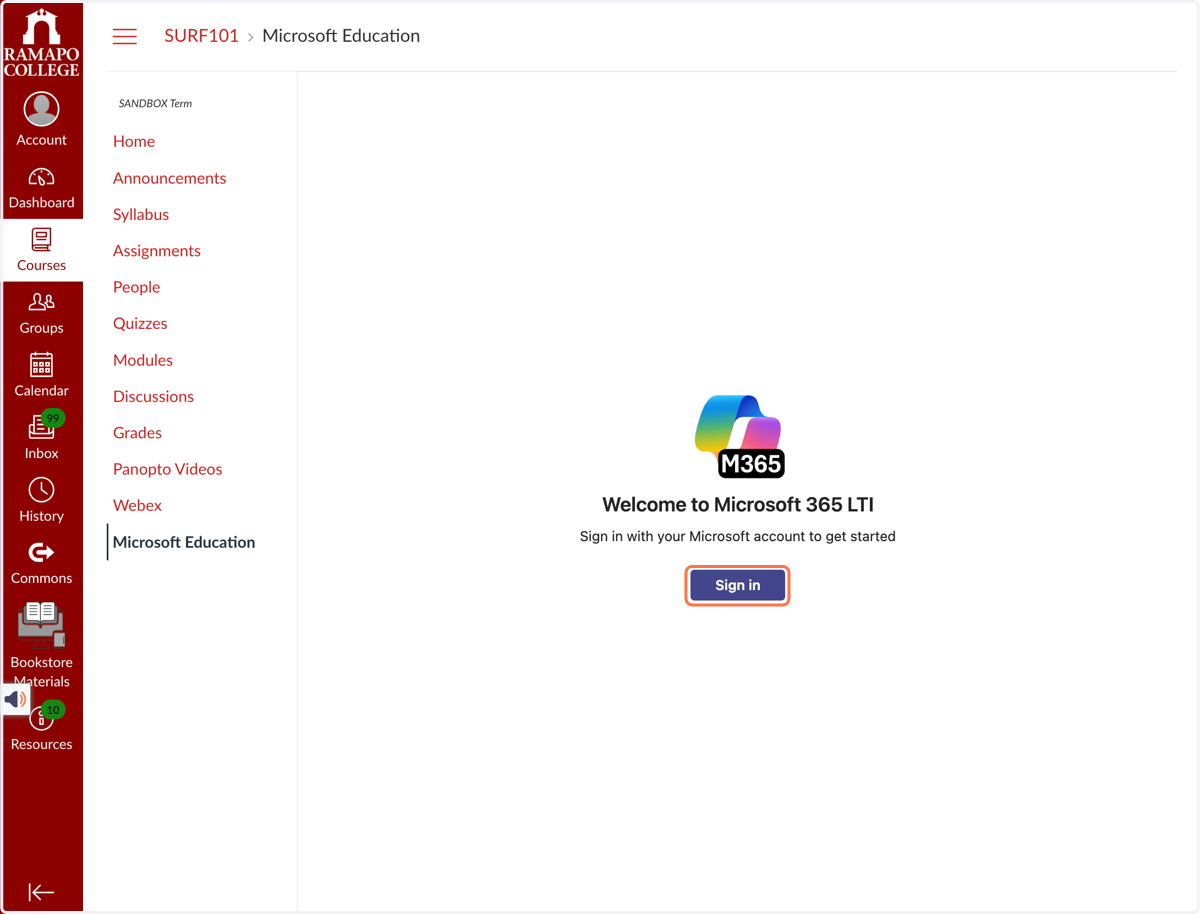
Sign in to your account
4. Complete the login process using your authorized Ramapo account credentials
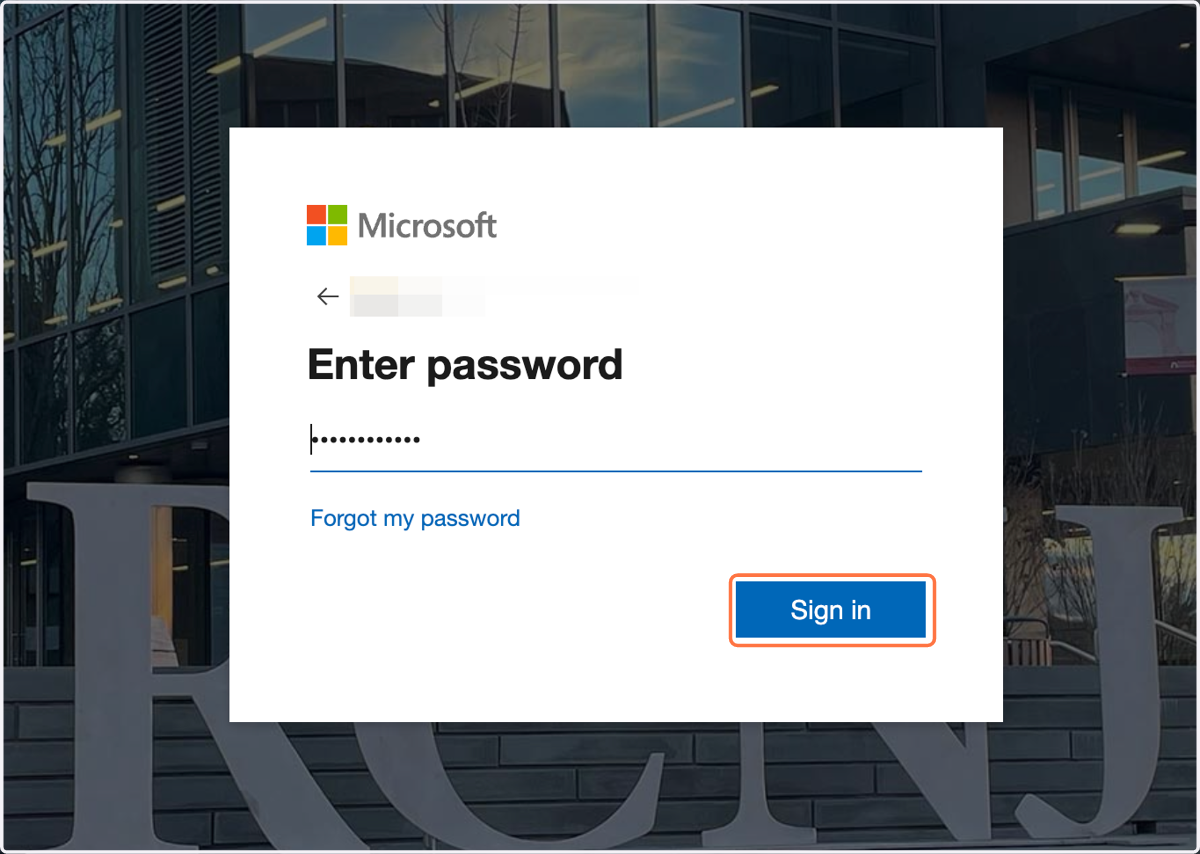
Canvas
5. Click on Meetings…
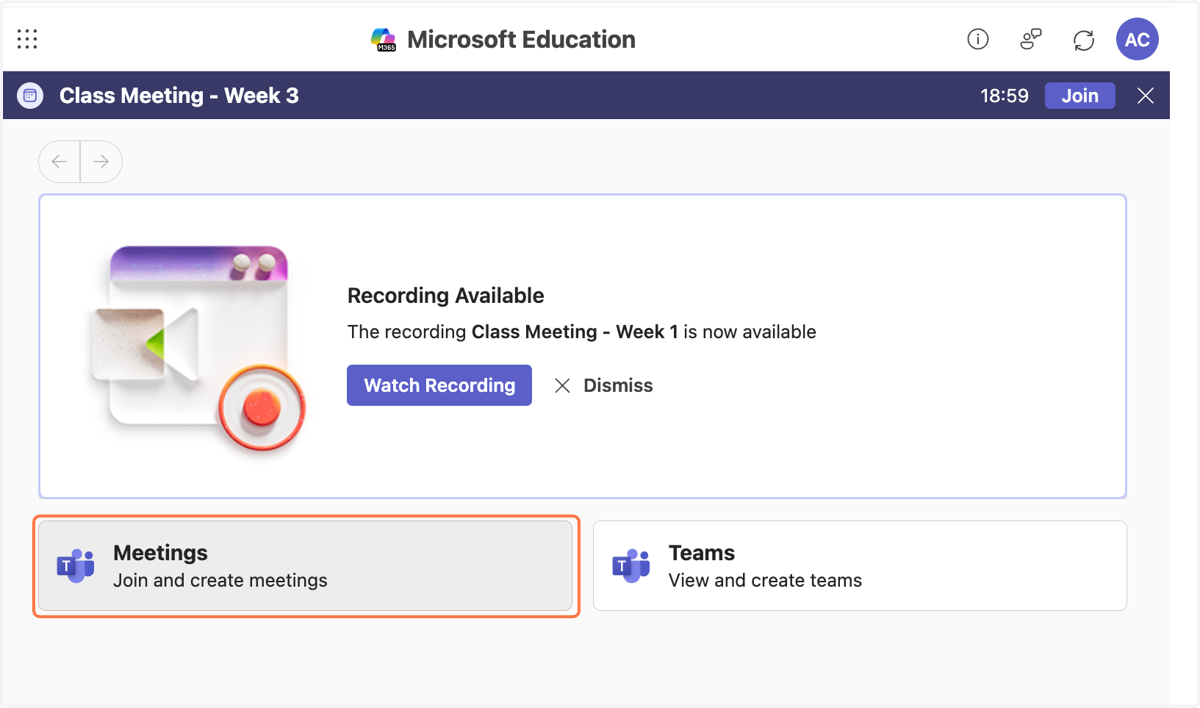
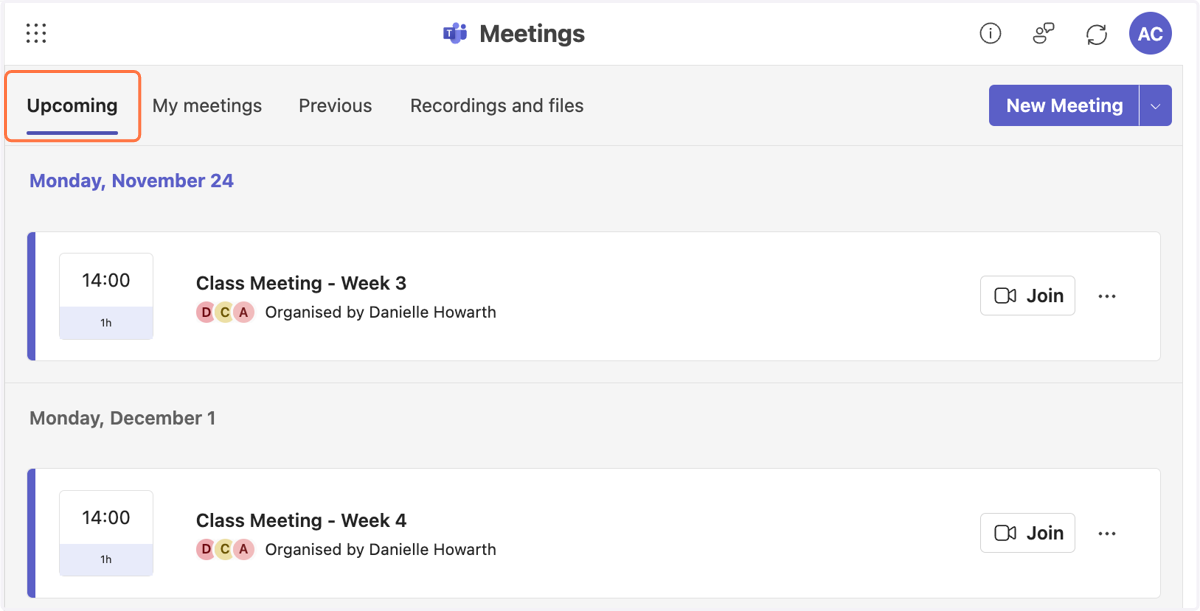
6. Click on Upcoming
Click on Upcoming to view all upcoming scheduled meetings.
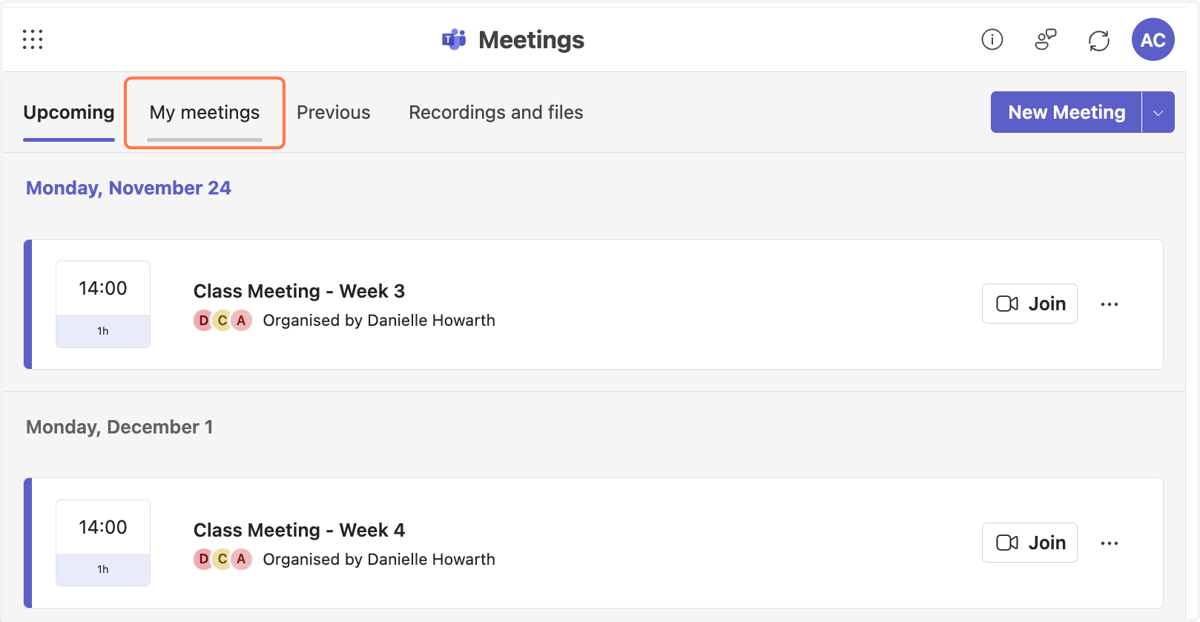
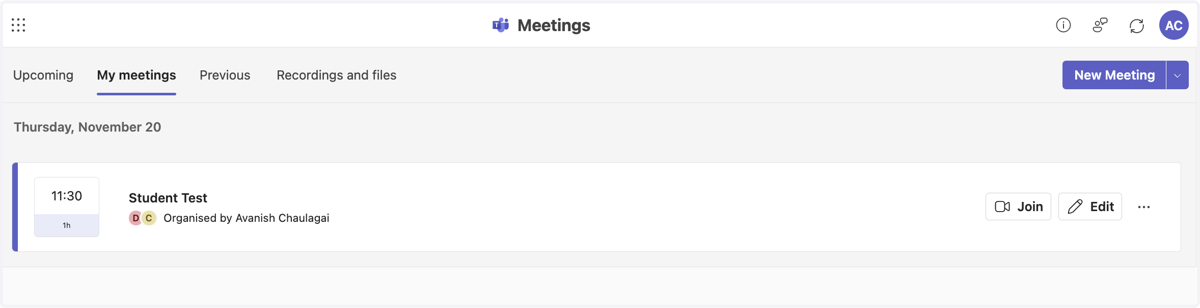
7. Click on My meetings
Select 'My meetings' to view a comprehensive list of meetings you have personally scheduled.
8. What's in 'My meetings'?
This tab allows you to view all meetings you have scheduled, encompassing both past and future events.
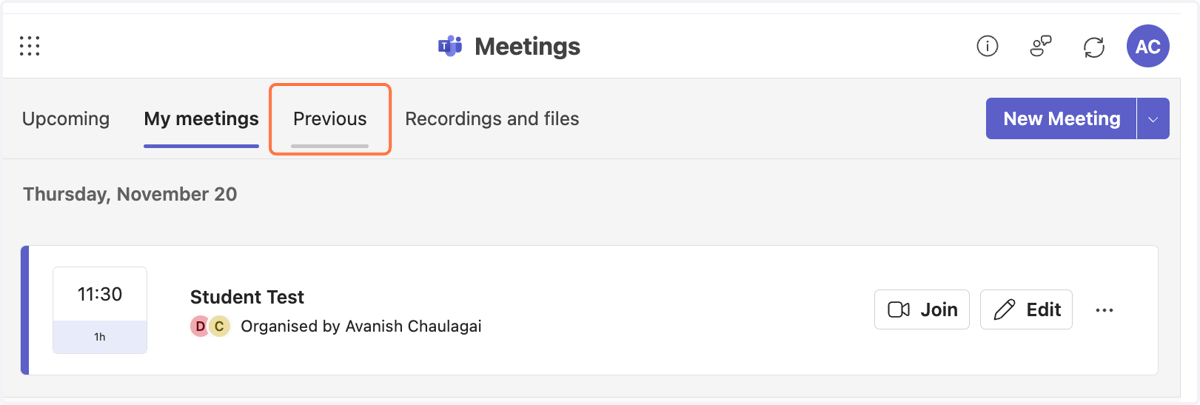
9. Click on Previous
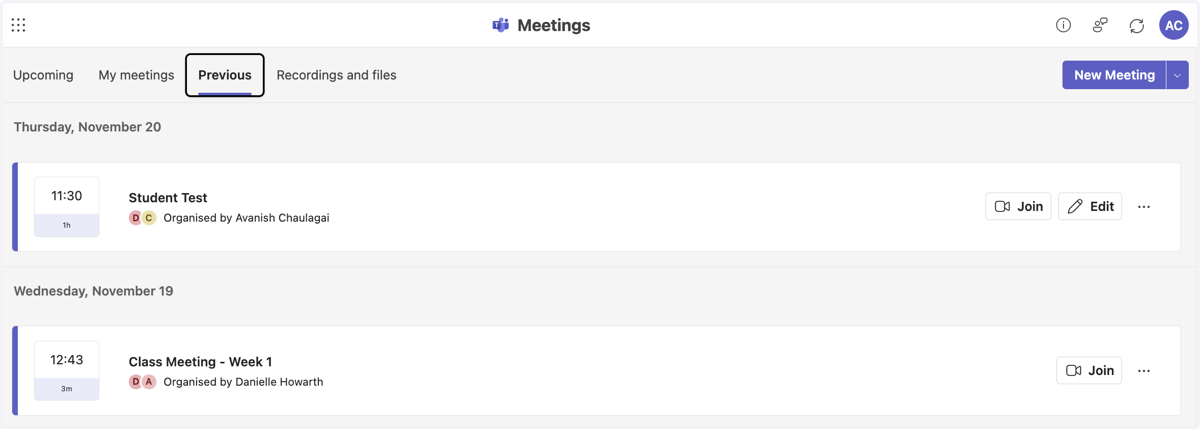
10. What's in 'Previous'?
This tab is used to find all meetings that have occurred in the past.
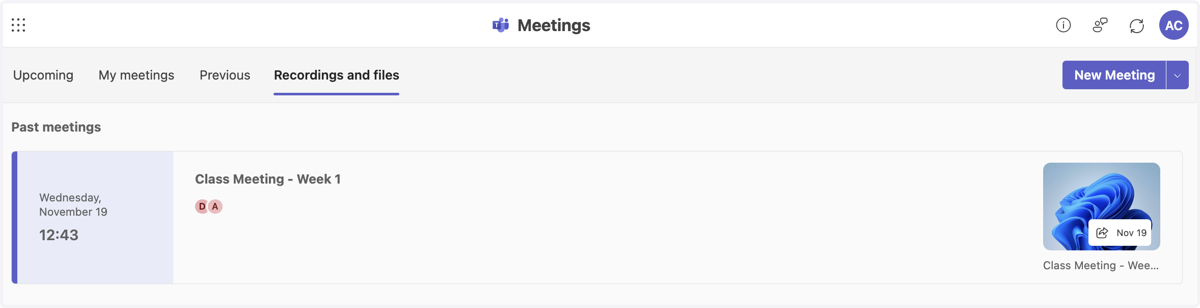
11. Click on Recordings and files
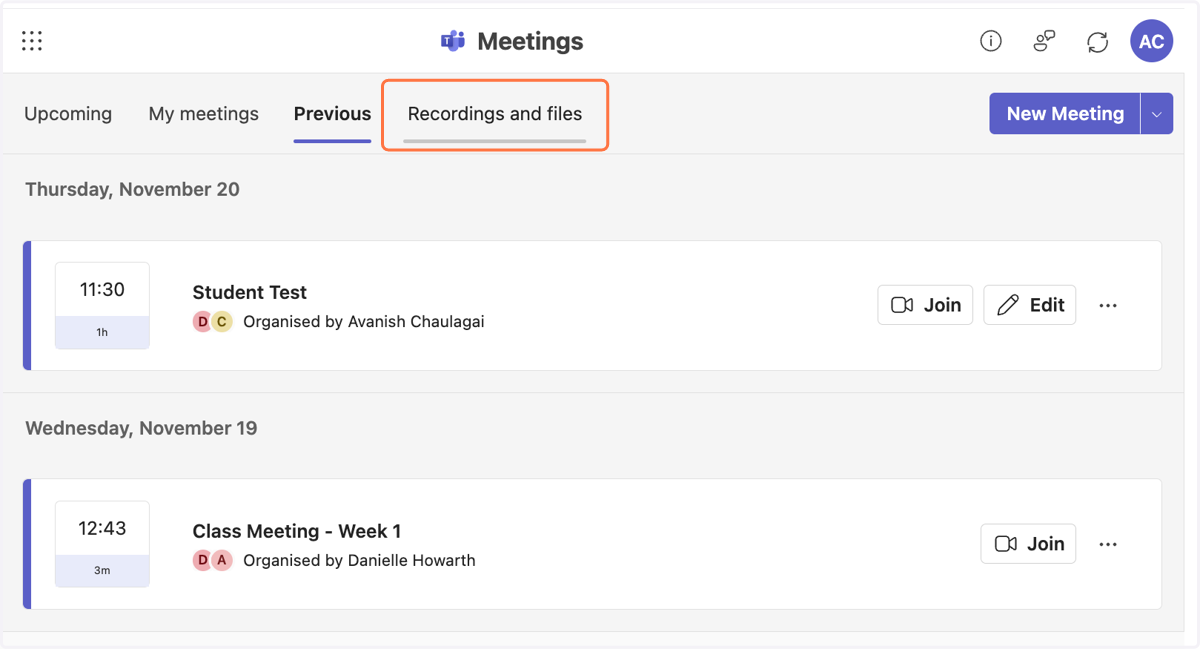
12. What's in 'Recordings and files'?
Here, you can locate and access the recordings of the current class