Student Profile and Academic Records System
MAAUN
Visit the Maryam Abacha American University of Nigeria, Kano from www.ap.maaun.edu.ng
1. MAAUN ACADEMIC PORTFOLIO
This document elaborates on how to use the MAAUN student academic portfolio.
Visit www.ap.maaun.edu.ng
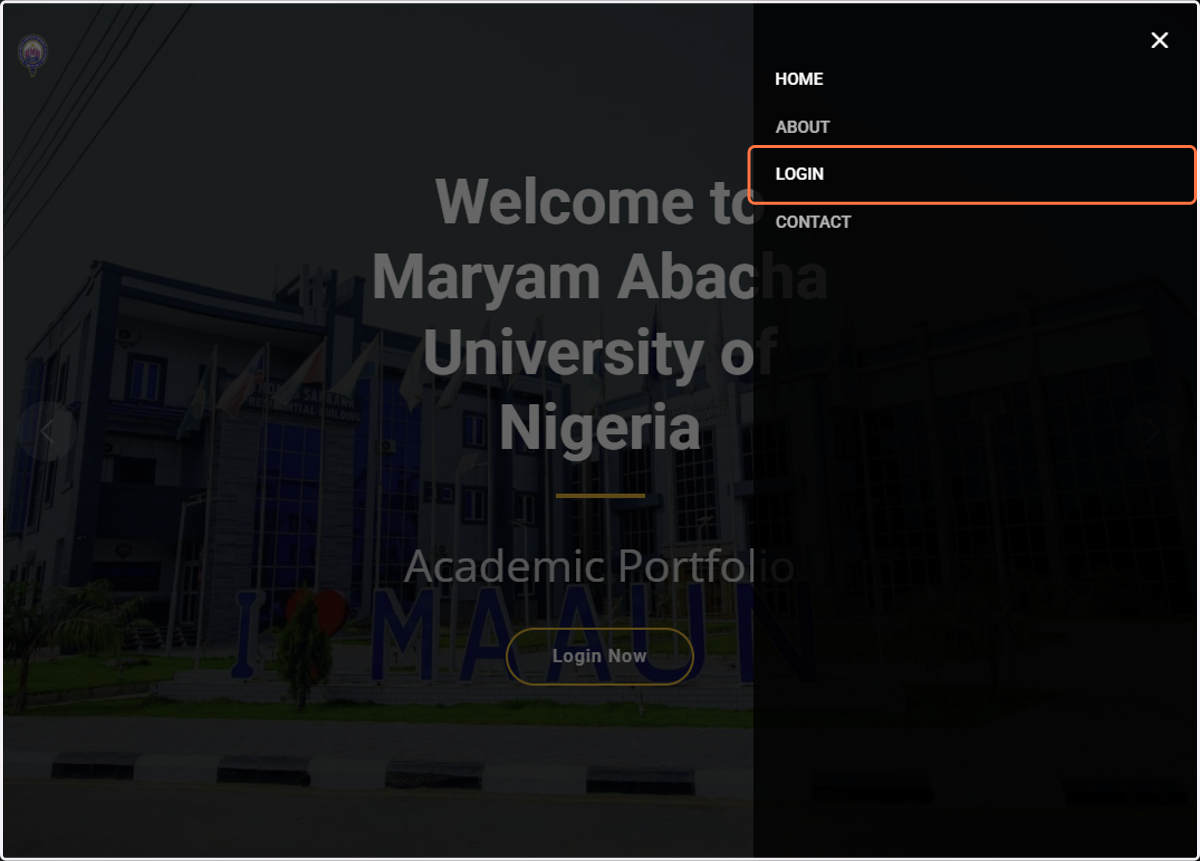
Go to the menu and click on Login
2. Click on LOGIN
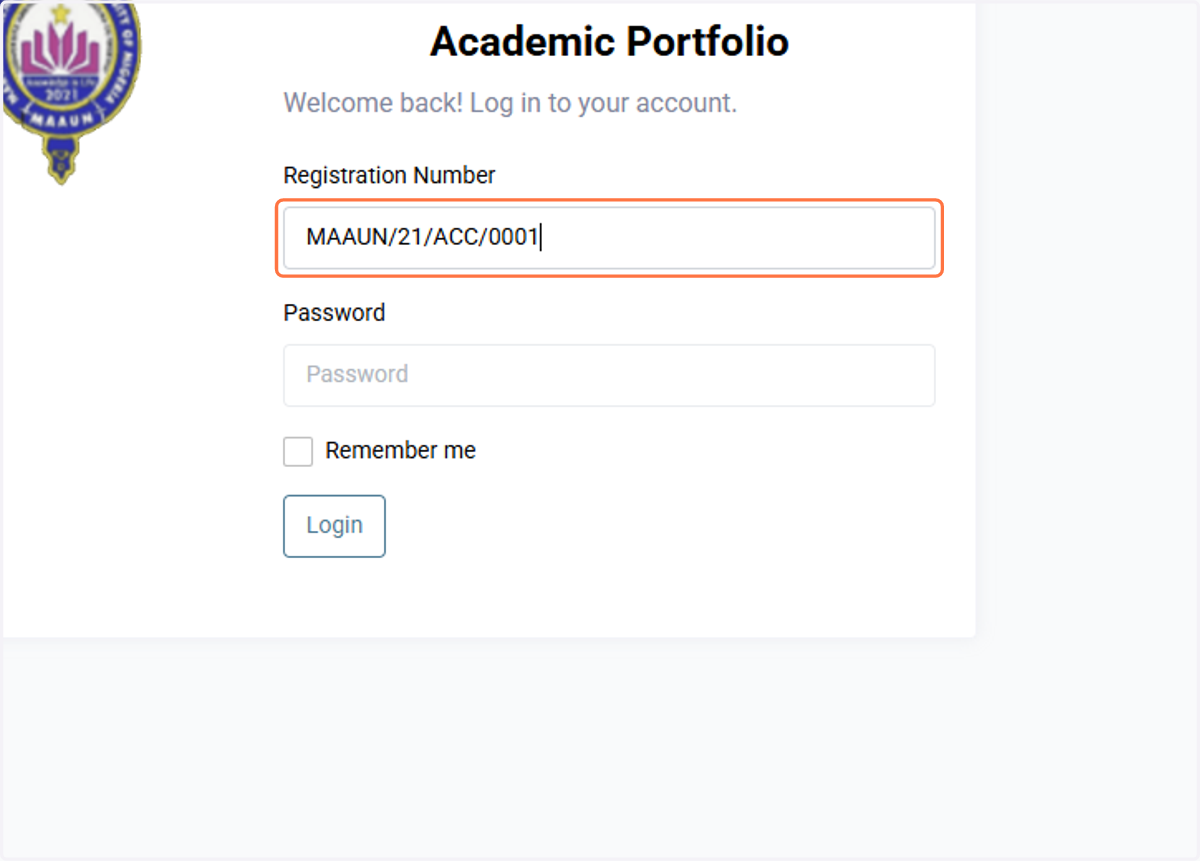
3. Type your username (Registration Number) and password. Example: MAAUN/21/ACC/0001. The password is same as your registration number
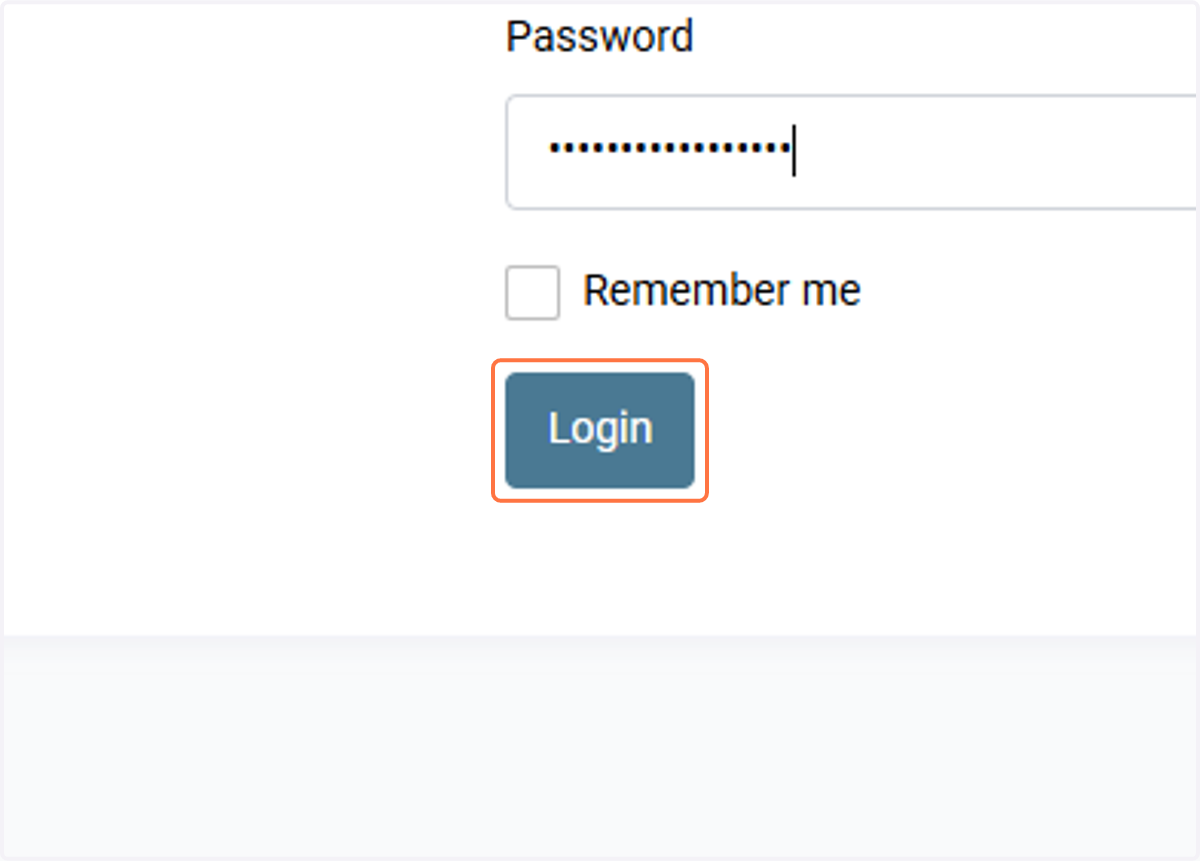
4. Click on Login
5. Menus
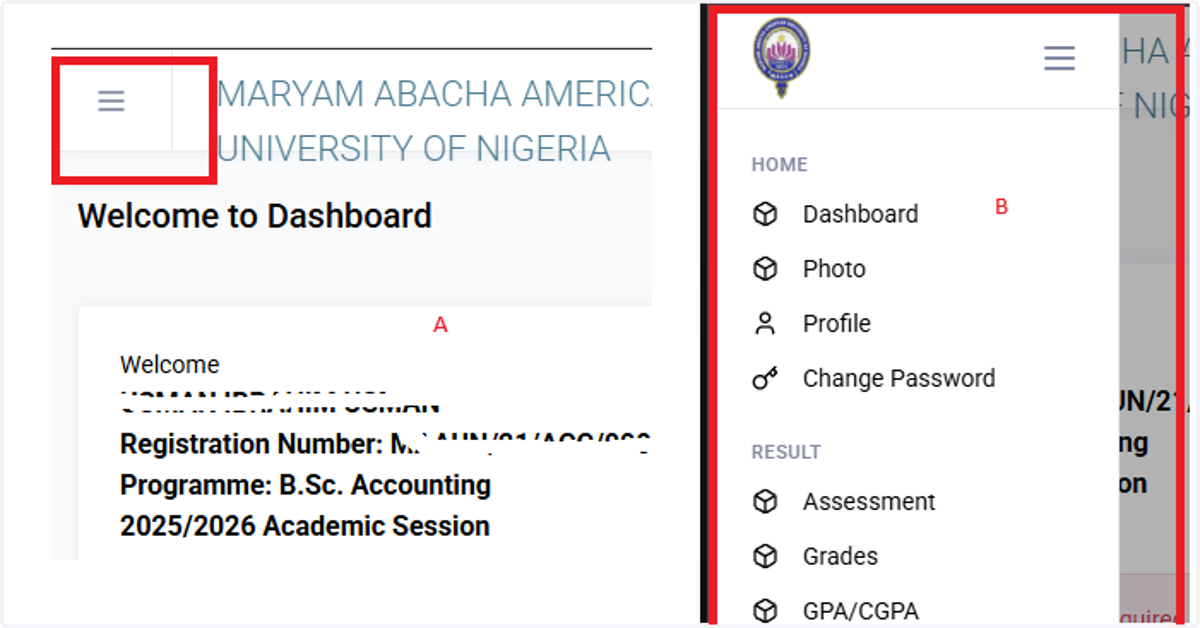
After a successful login using your phone, to view your menus, click on the three bars in the upper left part of the page, as shown below. The menu will appear similar to the one shown in the image below.
6. Dashboard
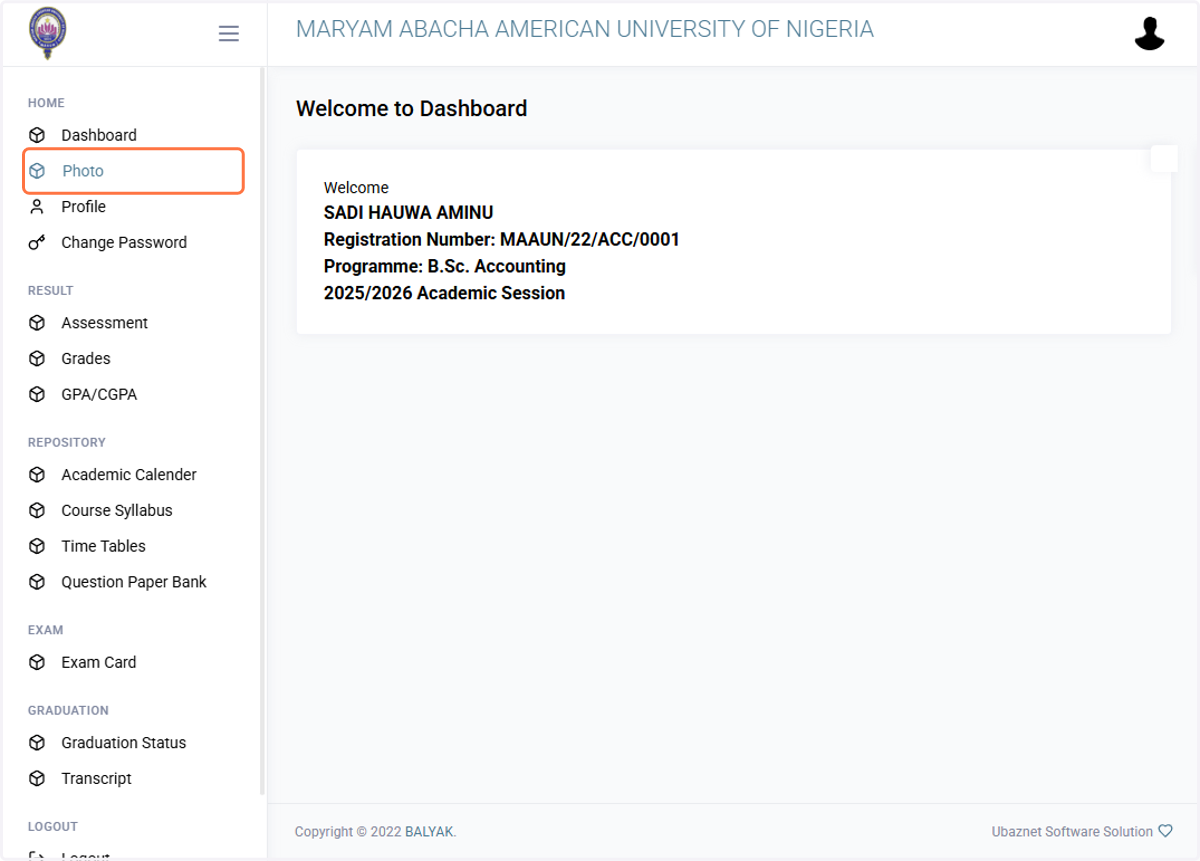
After a successful login, the system would take you to the system dashboard.
Click on Photo to upload your passport photograph
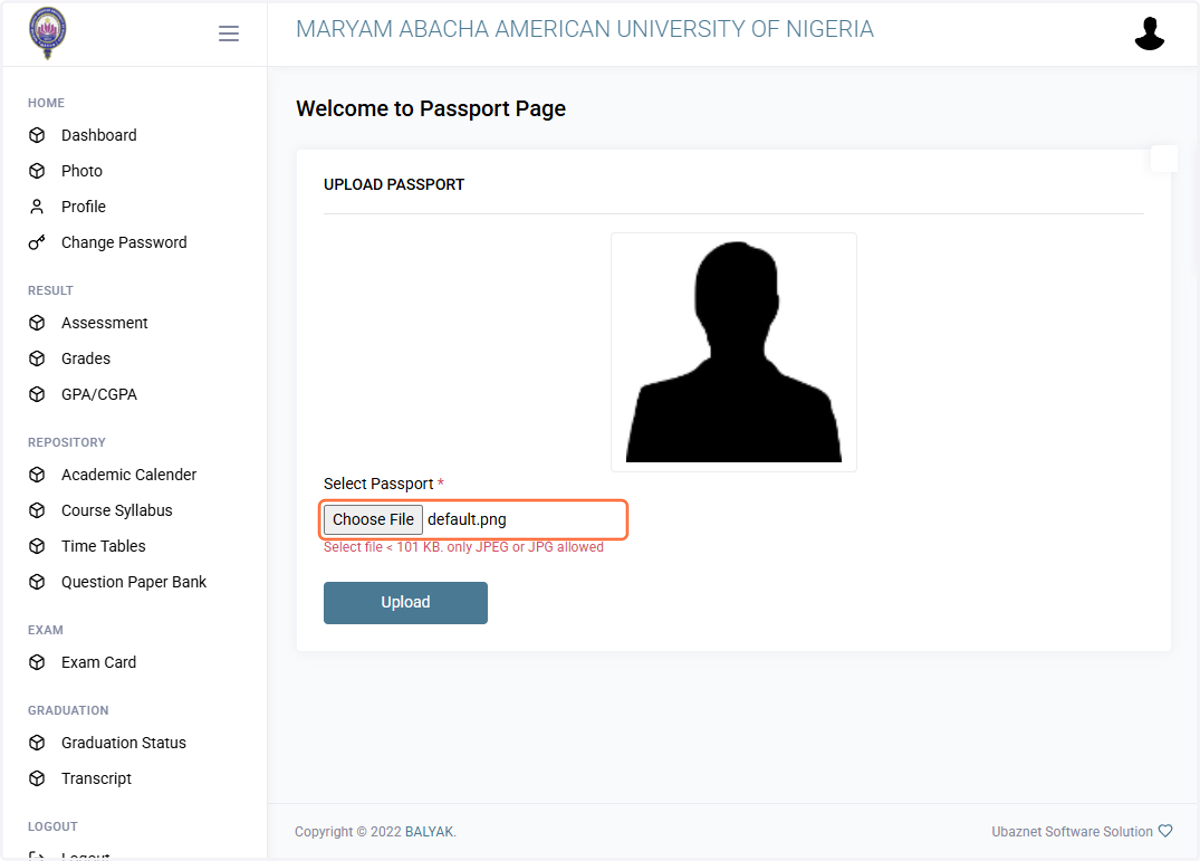
7. Select the "Choose File"
Use the Choose File button from the file upload page to upload your passport photograph. The size must be less than 101 KB of type jped or jpg format.
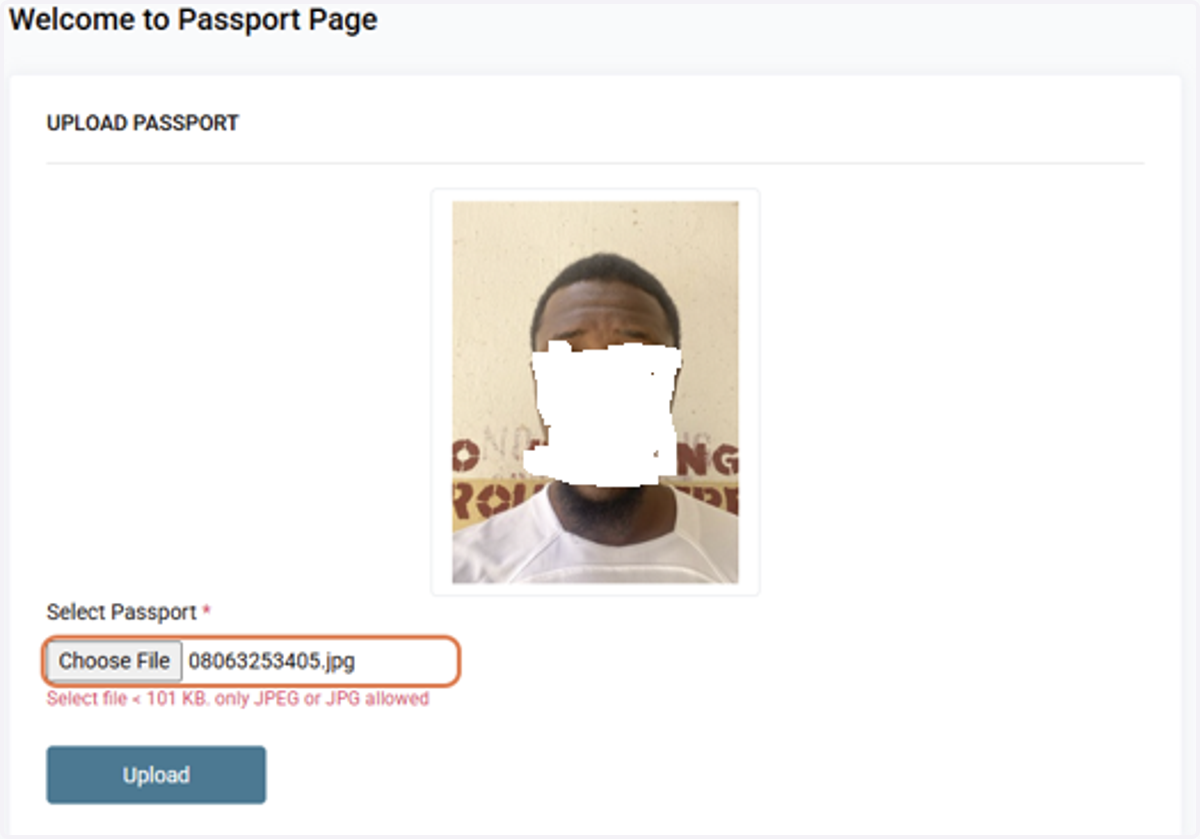
8. Upload
After careful selection of the passport photograph, click on upload button to upload the image
9. Click on Profile
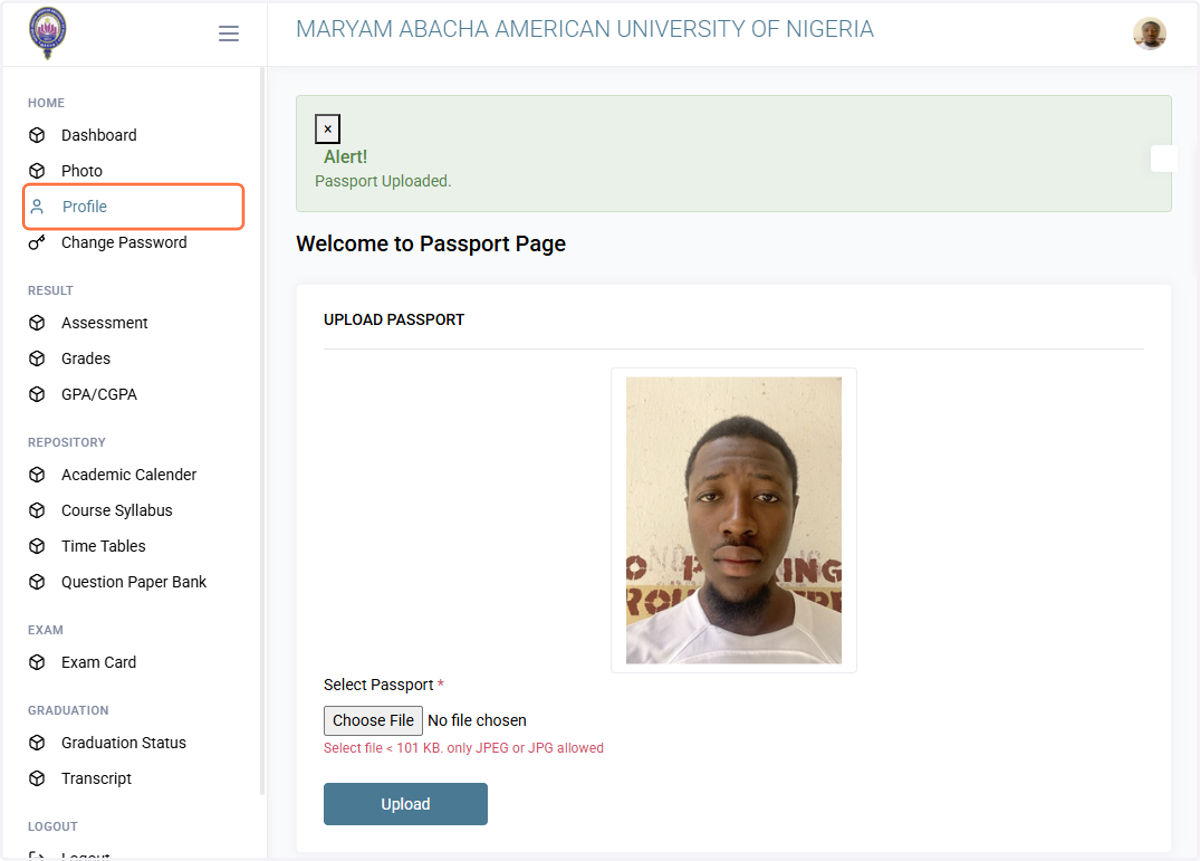
10. Profile
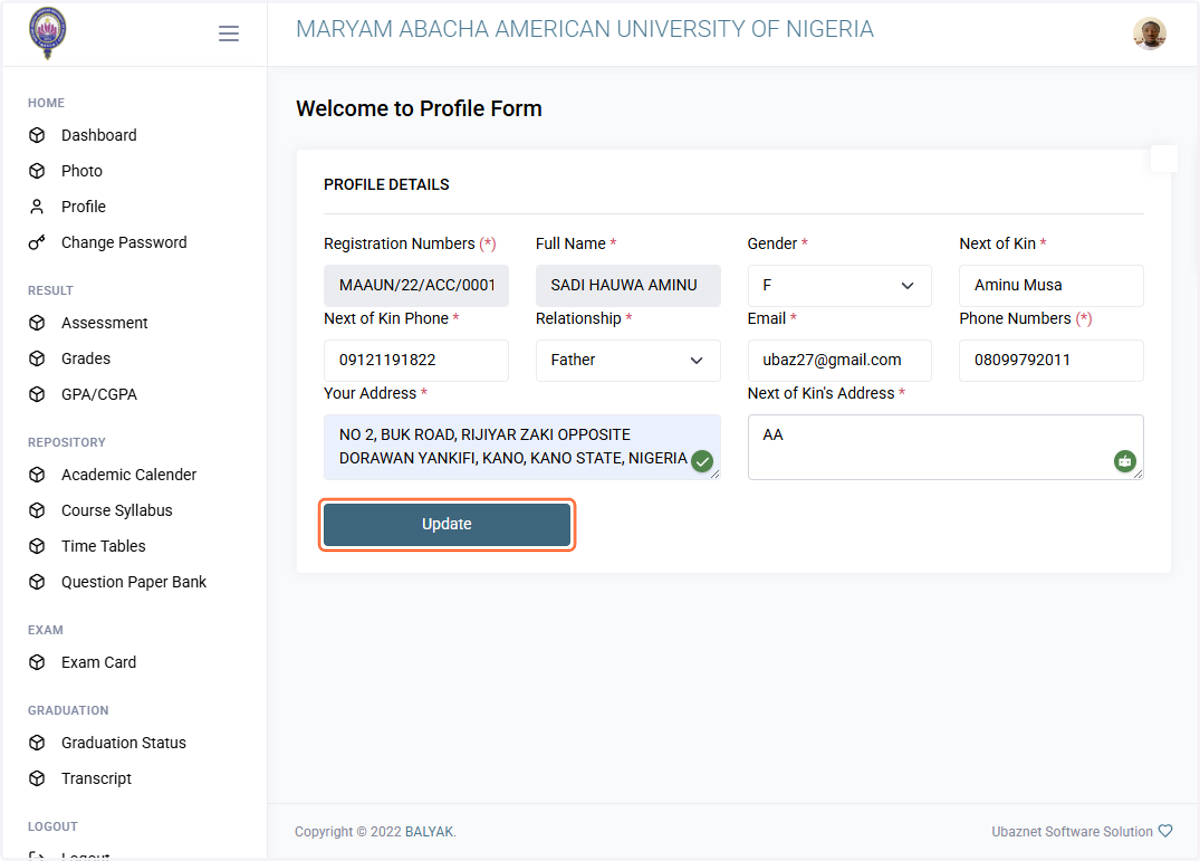
Update your data and click Update button
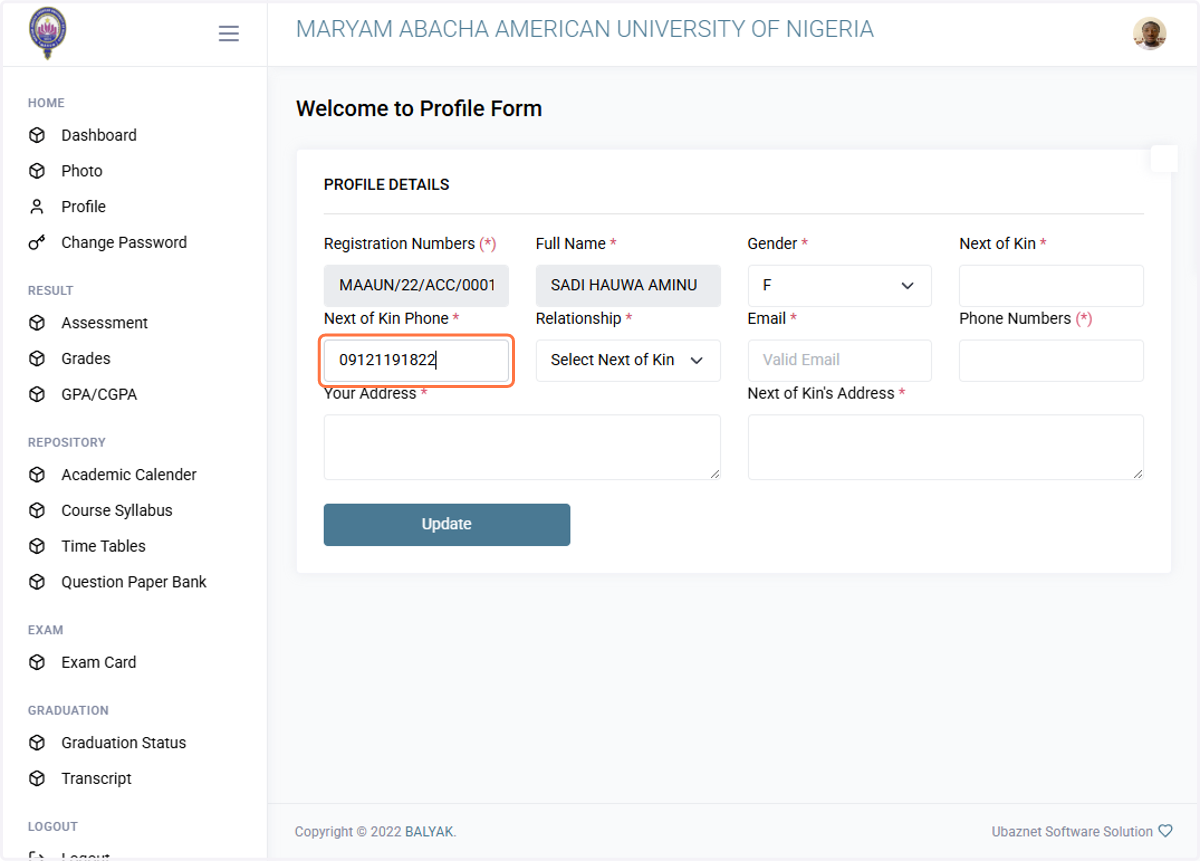
11. Click on Update
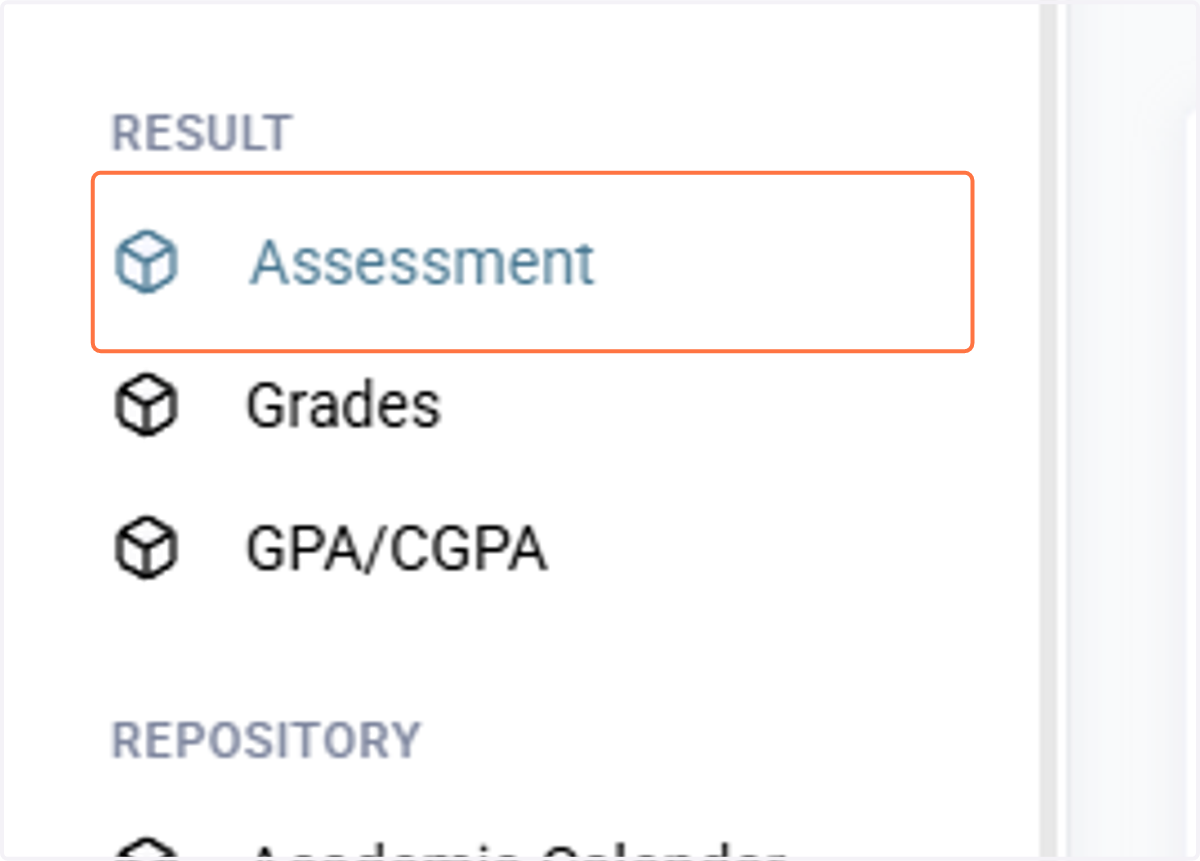
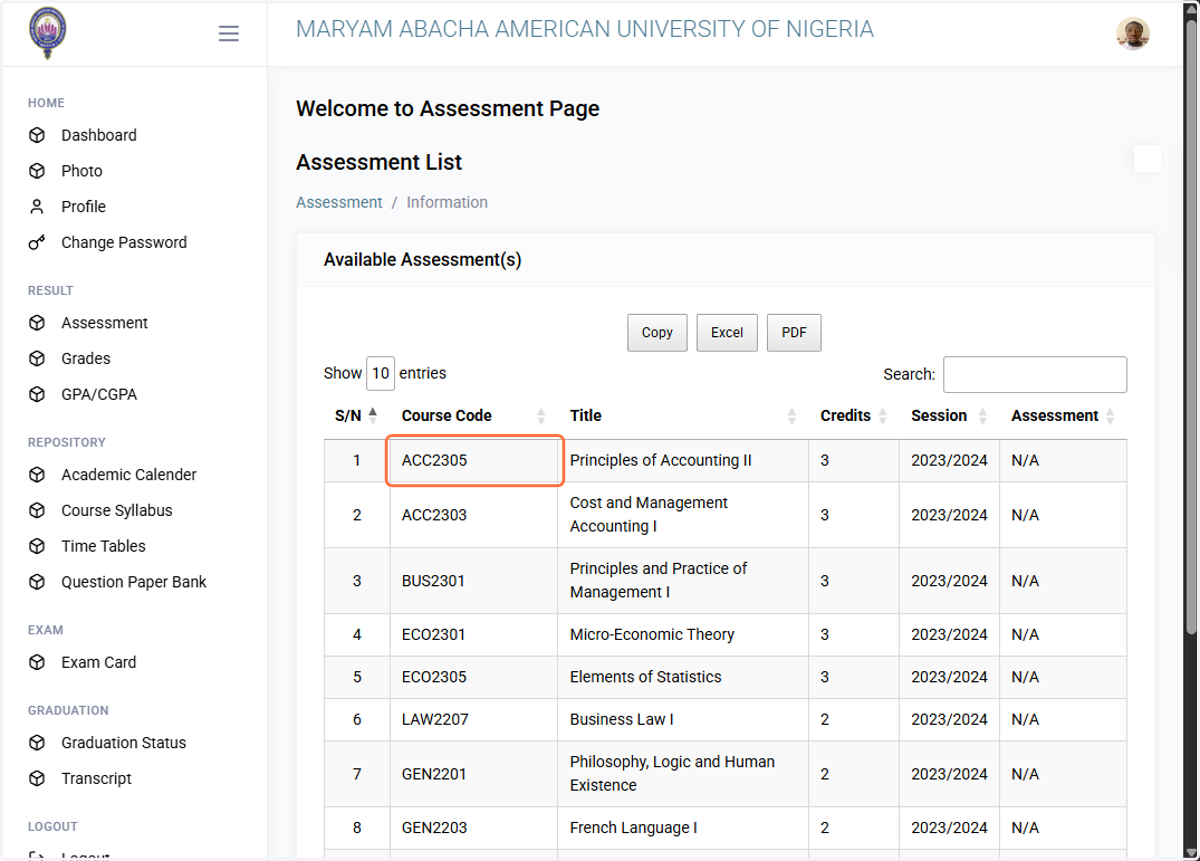
12. Click on Assessment
By clicking on the assessment menu, the system will display all your results. If CA is already uploaded, the score will be provided; otherwise, N/A will be displayed.
13. Searching
The system allows you to search for a course, title or grades to narrow the view of the result.
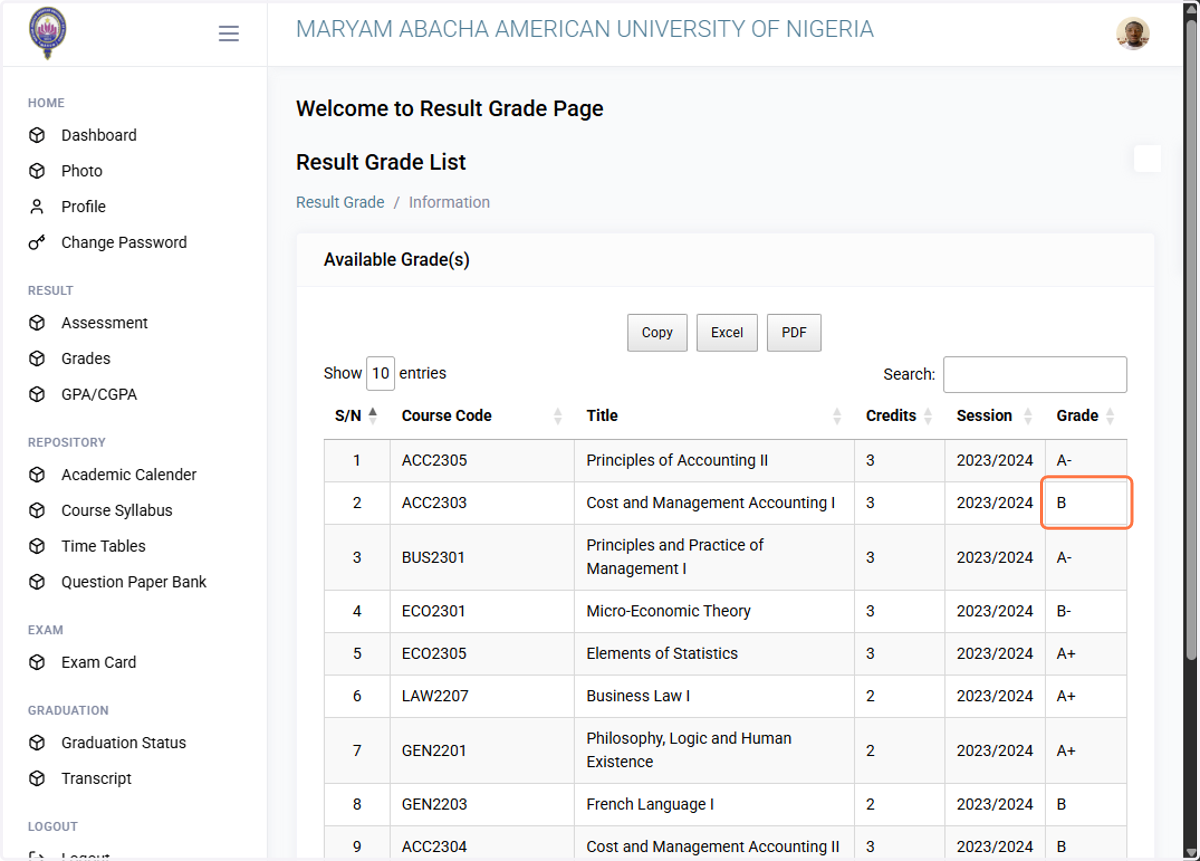
14. Grades
Grade Page displays the available grades for the result
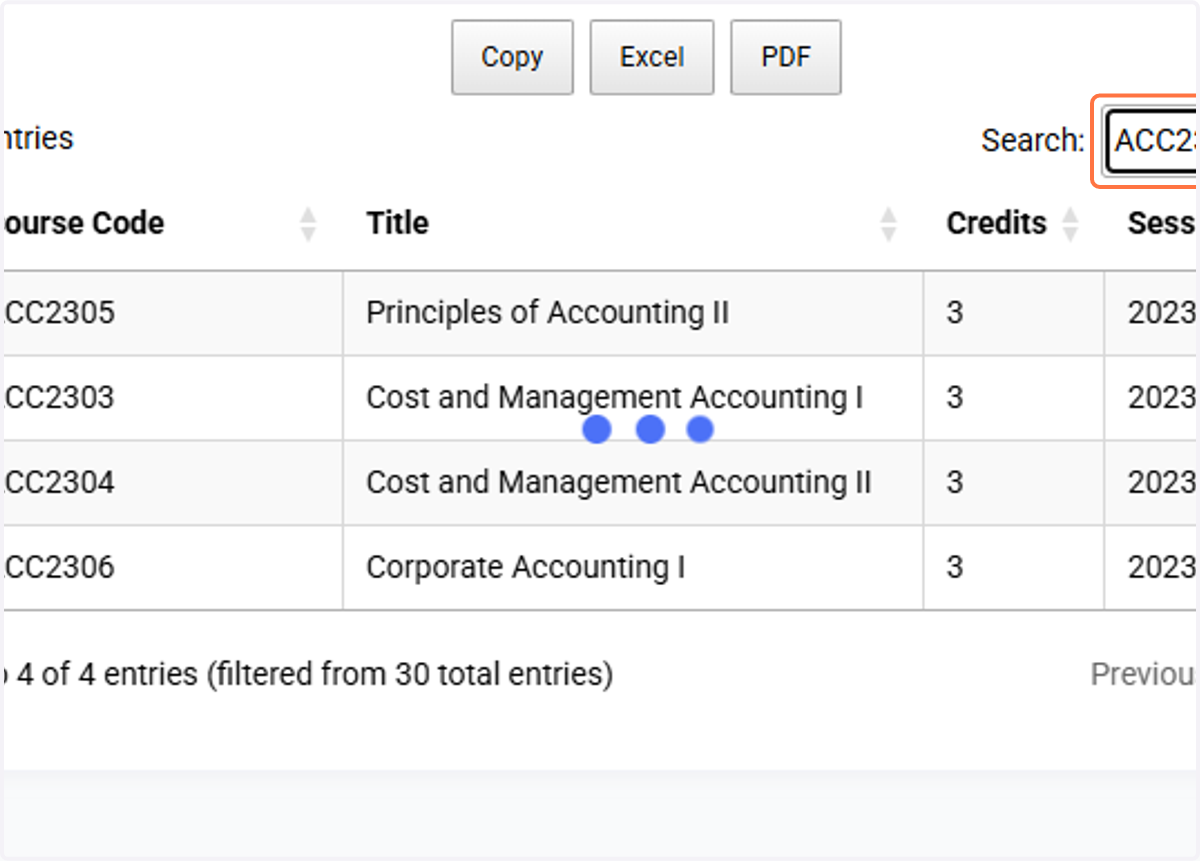
15. Searching for a course
Example: Type "ACC2305" to search ACC2305 result
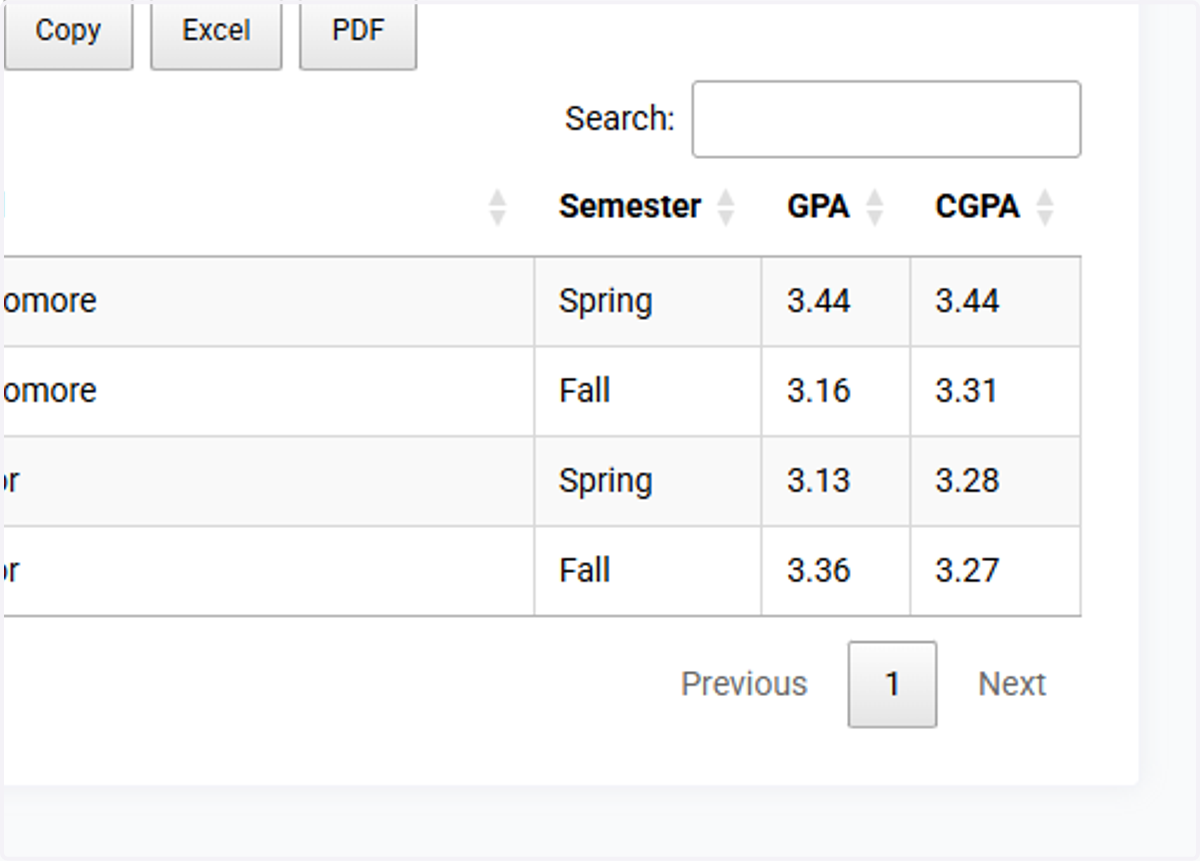
16. GPA/CGPA
Clicking on the GPA/CGPA menu displays the CGPA for each semester
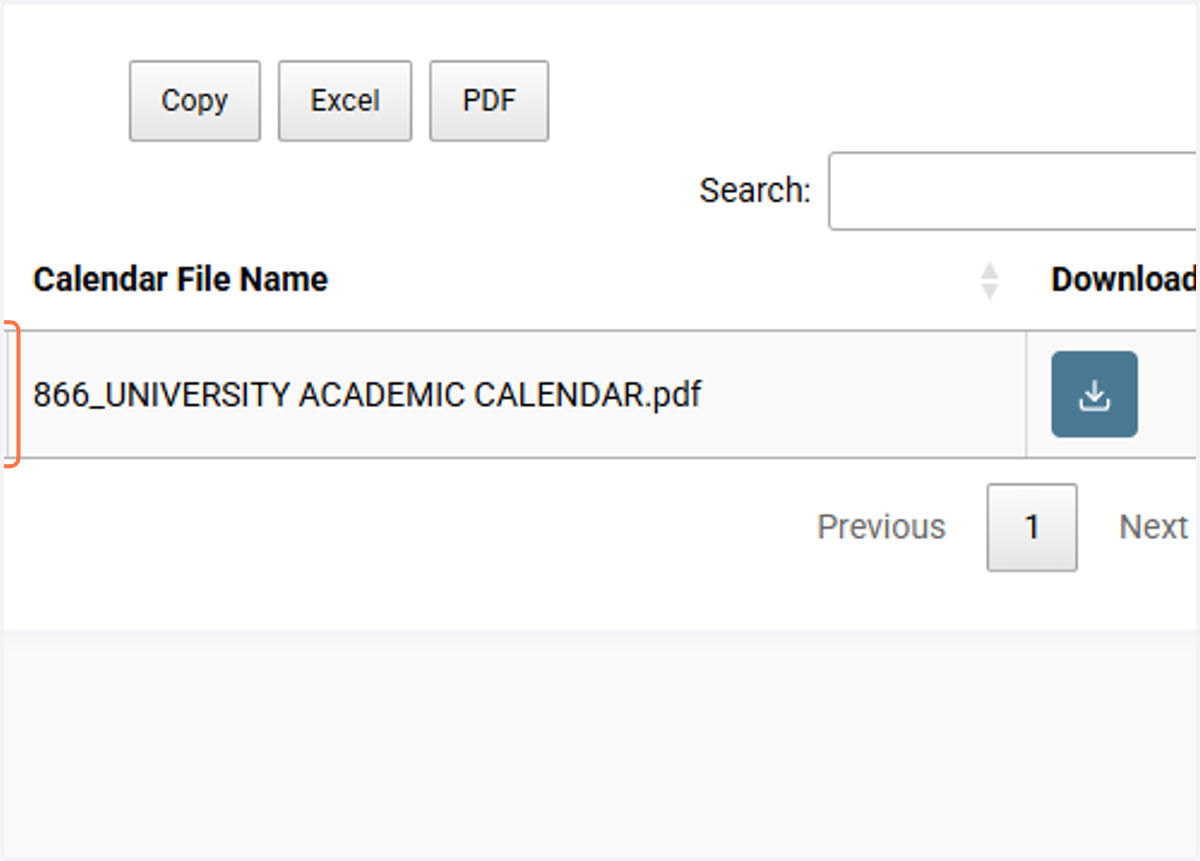
17. Academic Calendar
The Academic Calendar displays the university's academic calendar. A button is provided for download.
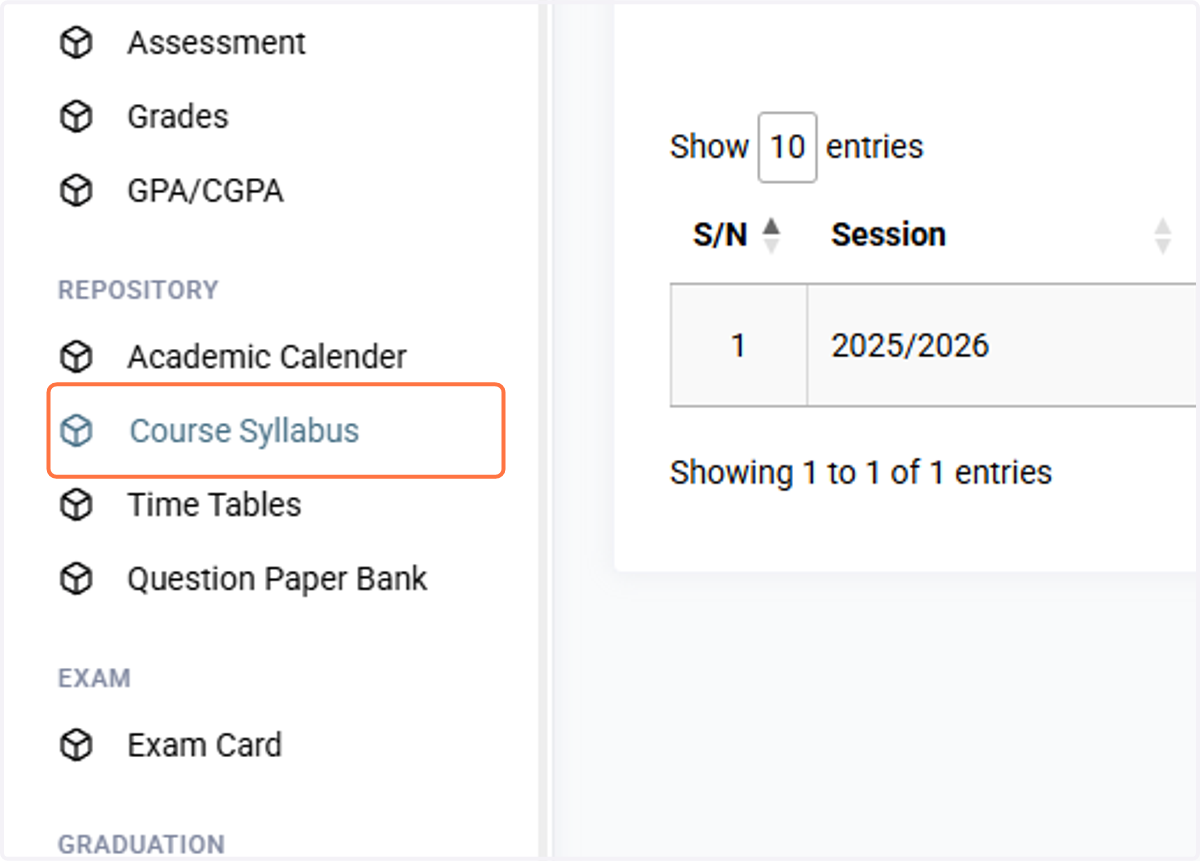
18. Course Syllabus
The course syllabus displays the university's syllabus. A button is provided for download.
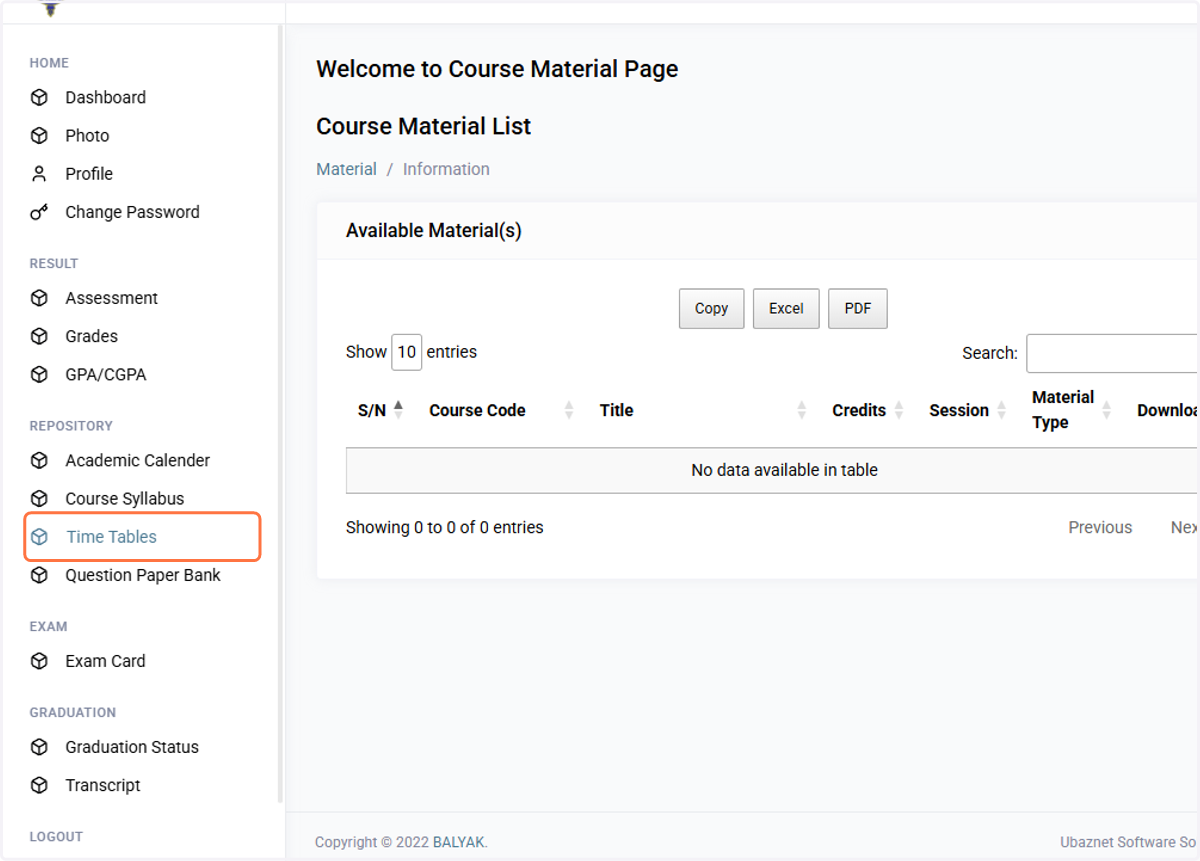
19. Time Table
Click on the Time Table menu for the exam or lecturer timetable.
20. Timetable
The examination or lecture timetable can be downloaded by clicking on the download button
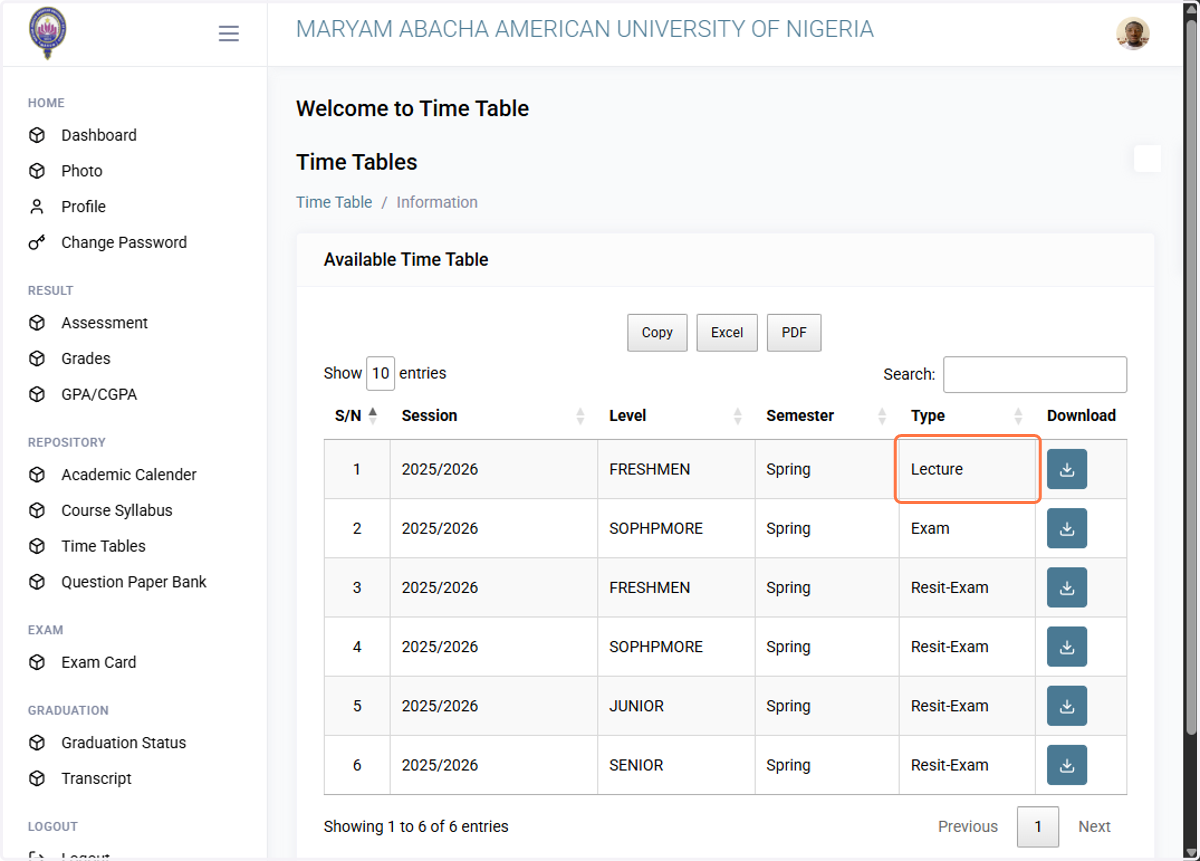
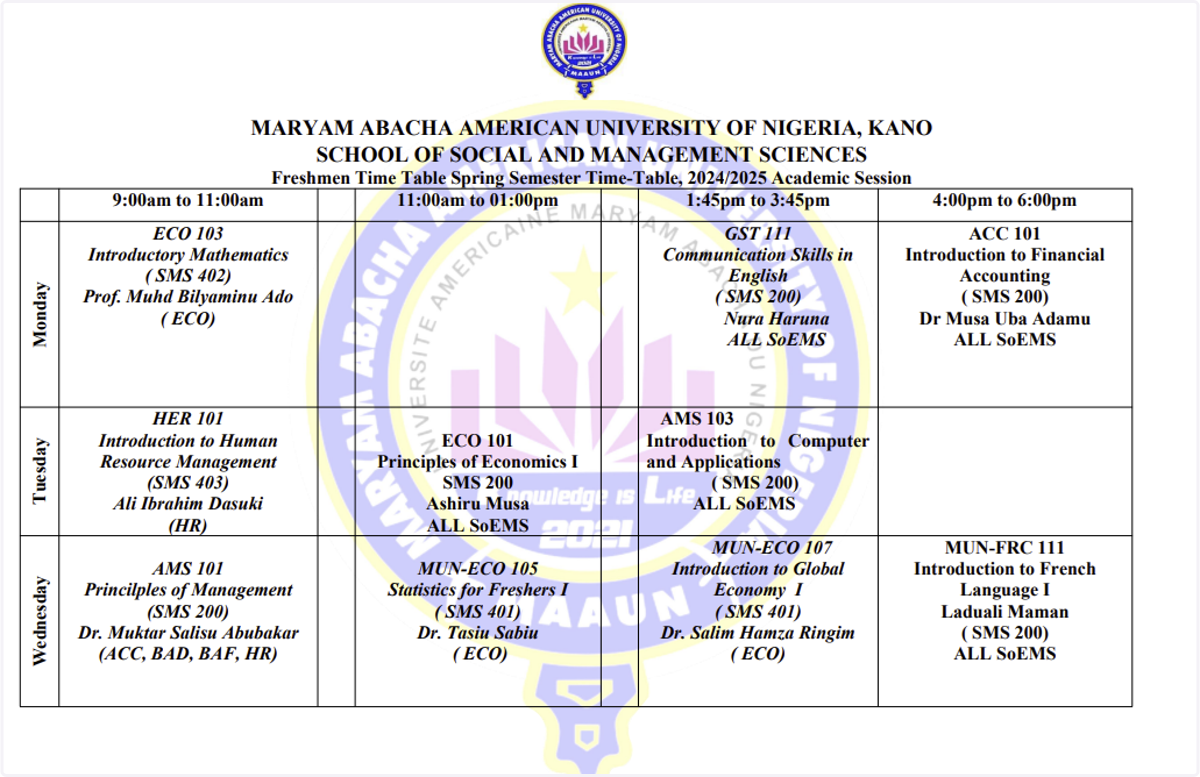
21. Sample Timetable
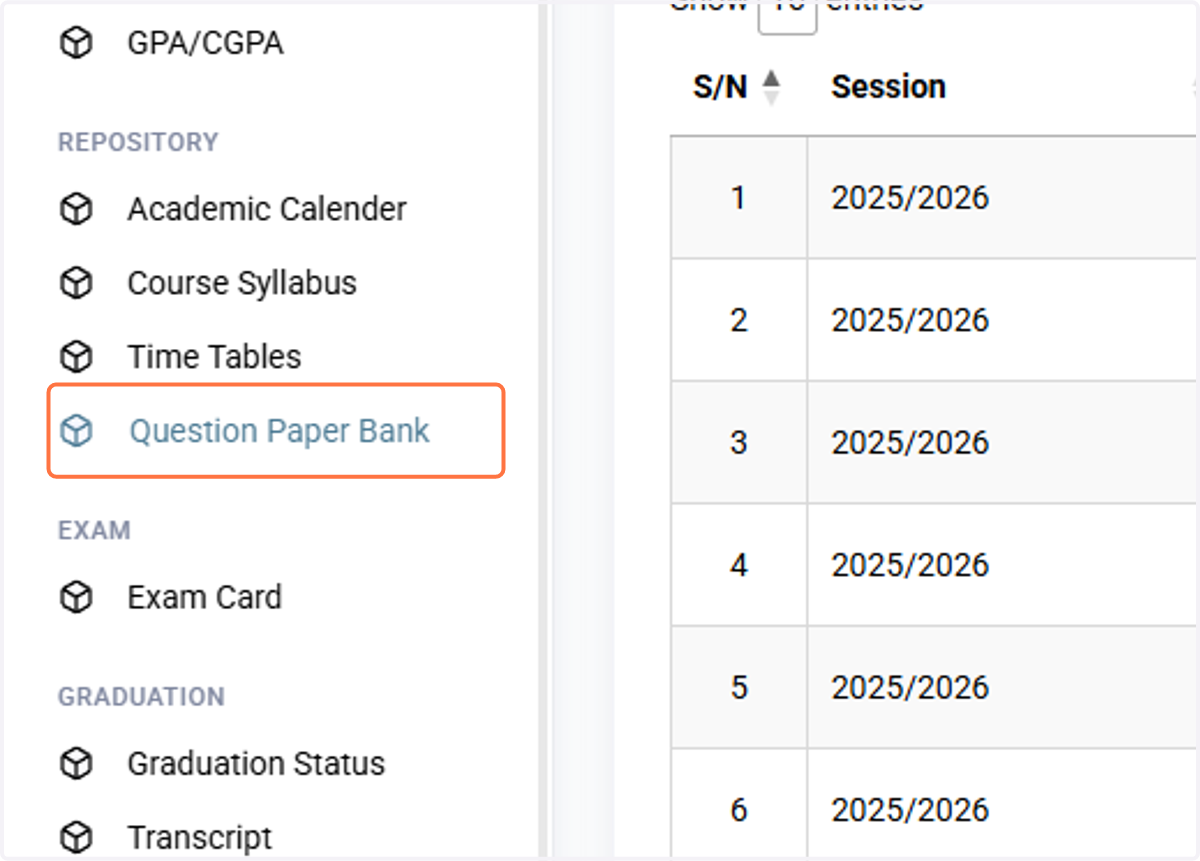
22. Question Paper Bank
Click on the "Question Paper Bank" menu to view past question papers
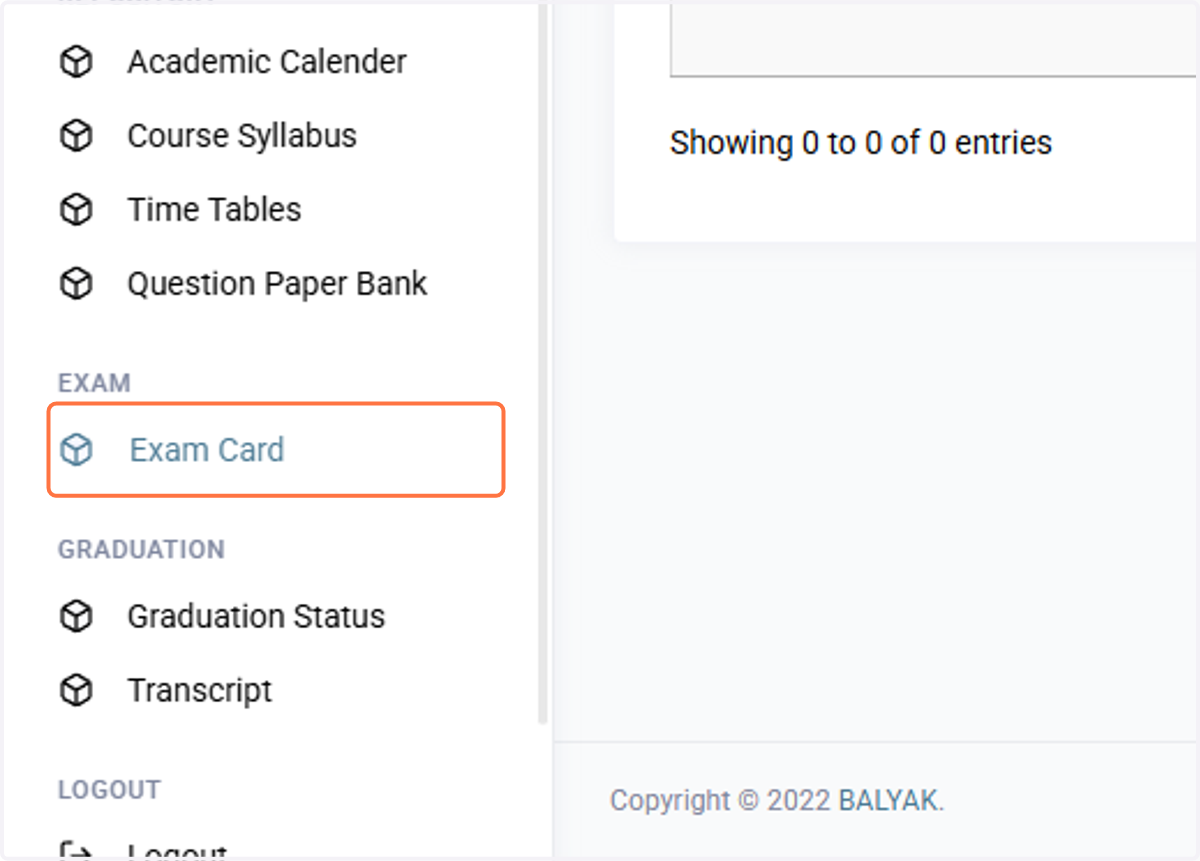
23. Exam Card
Click on the Exam Card Menu to view exam cards
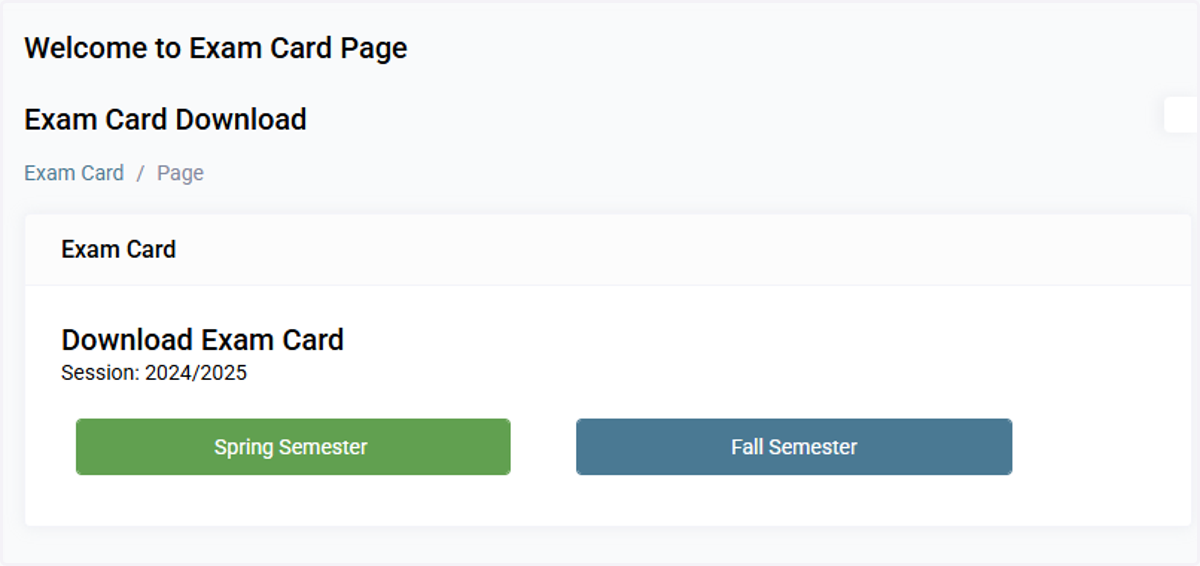
24. Download Exam Card…
Click on the semester name to download exam card for that semester
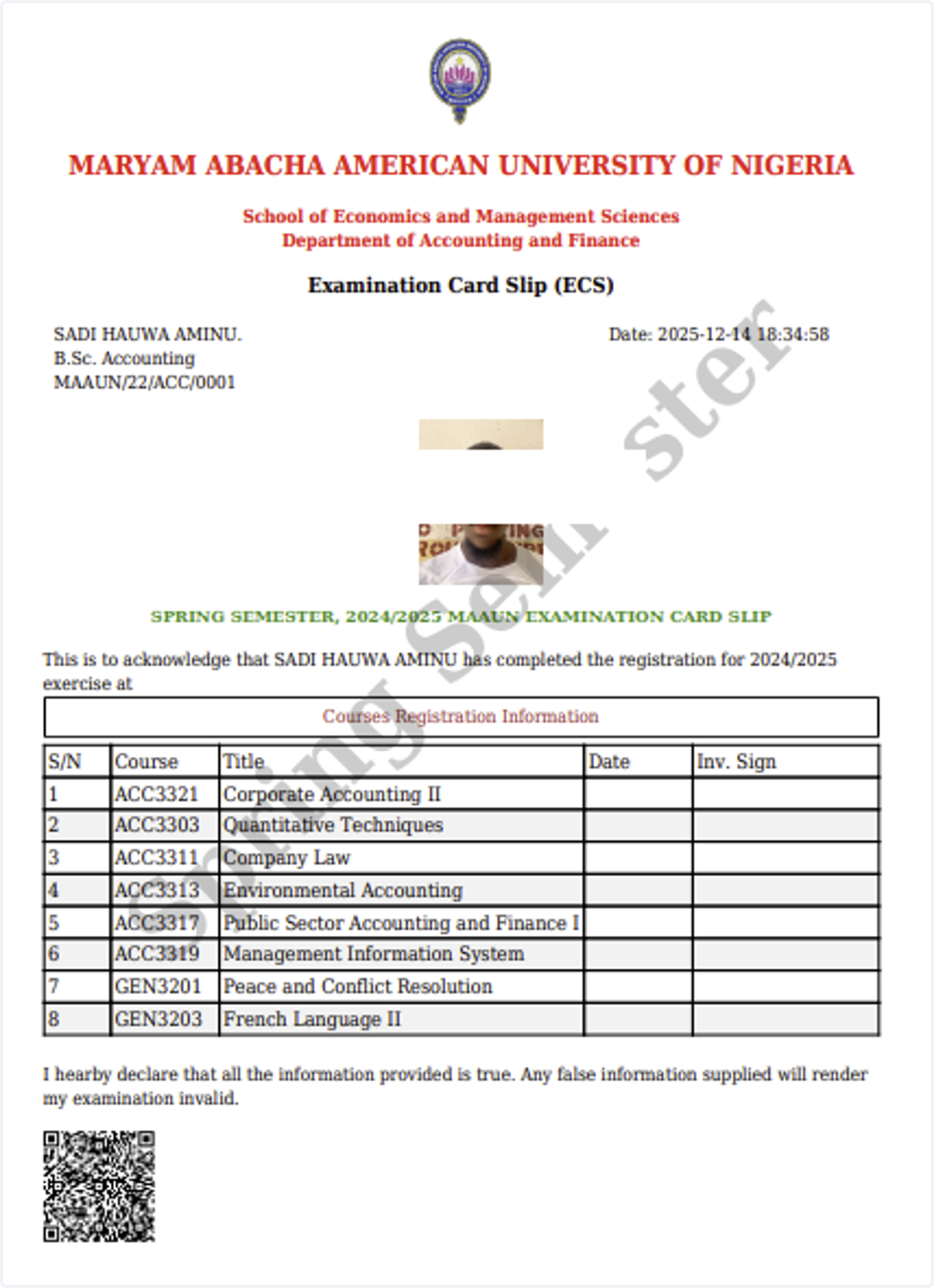
25. Sample Exam Card
Below shows the sample exam card
26. Graduation Status
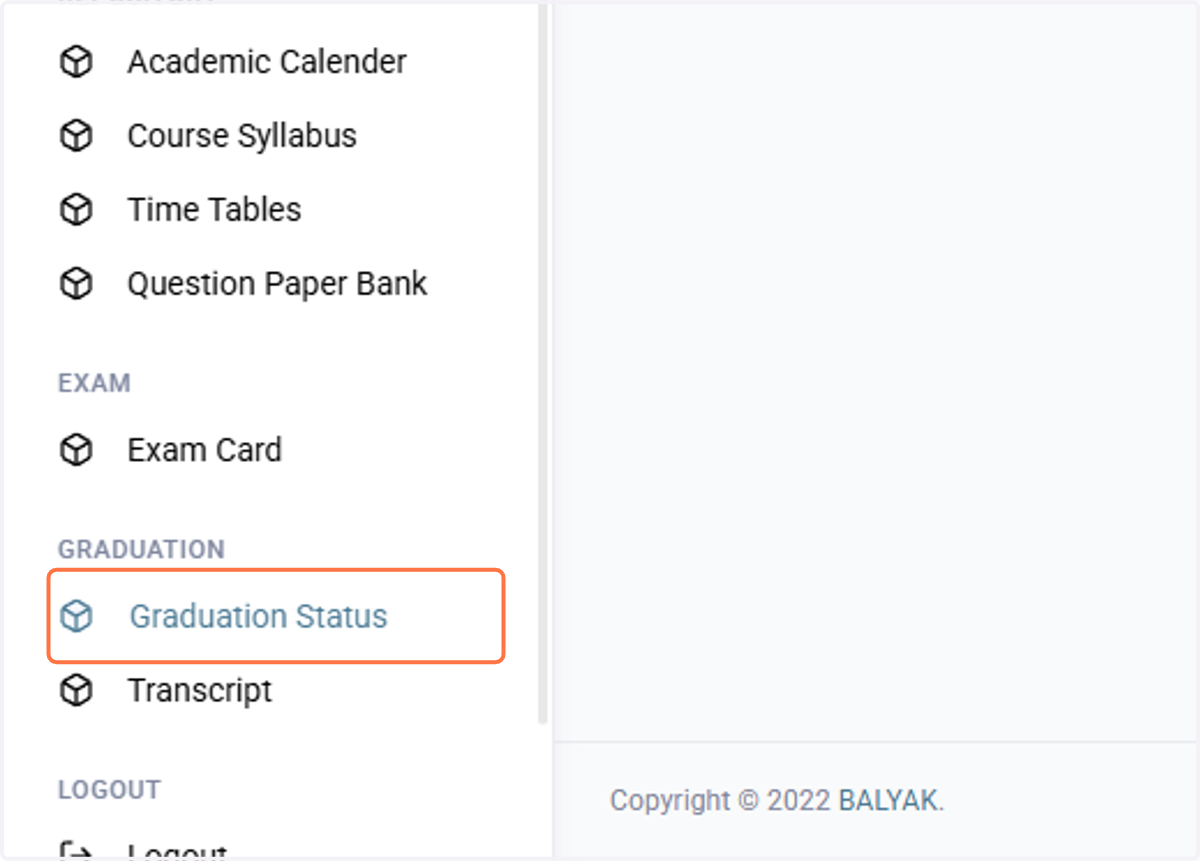
The Graduation Status page displays the status of the student's senate's approval.
27. Graduation Status
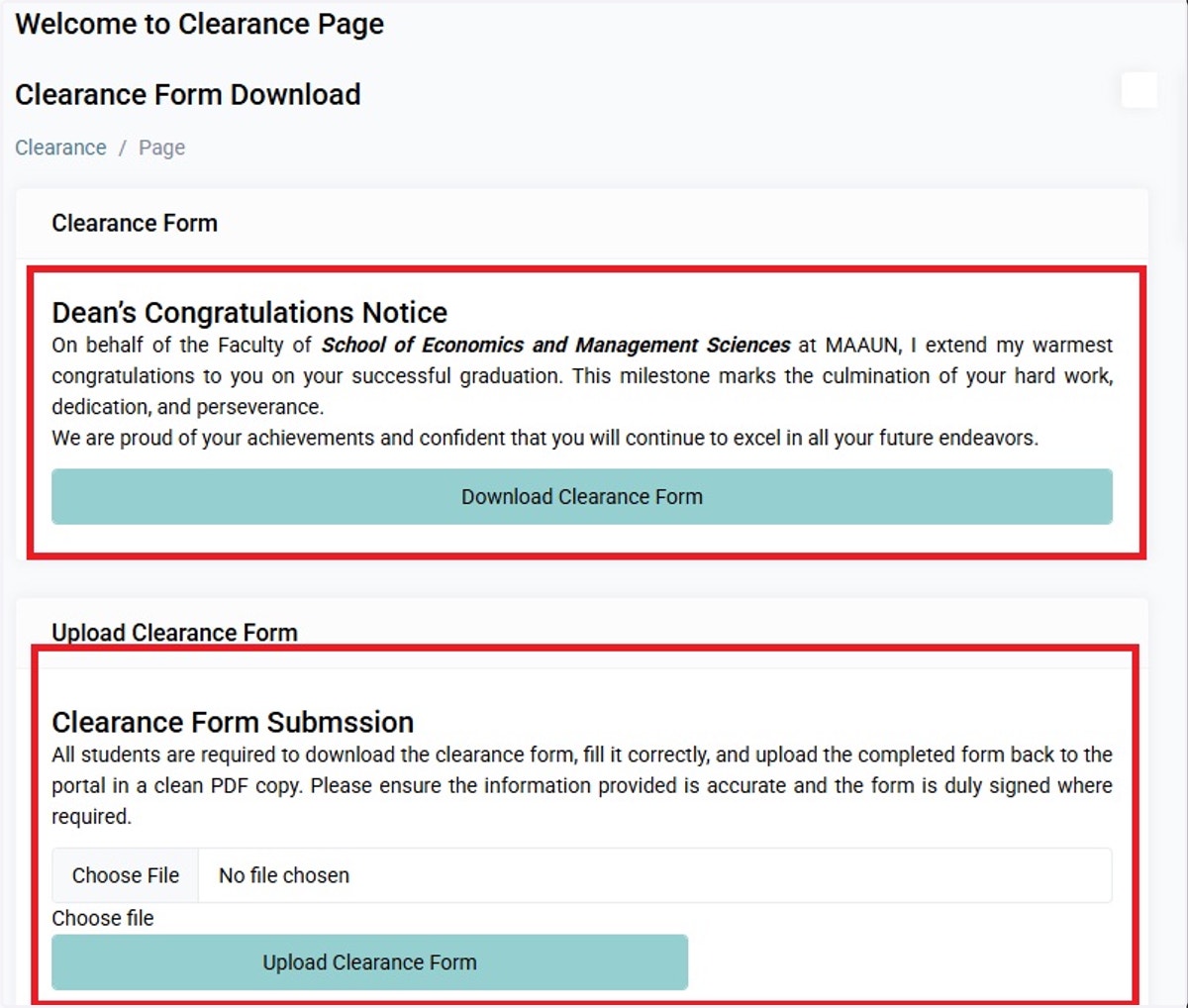
Click on the "Download Clearance Form" to download the graduation clearance form
Use the upload section after successful filling of the form to submit for processing.
28. Transcript
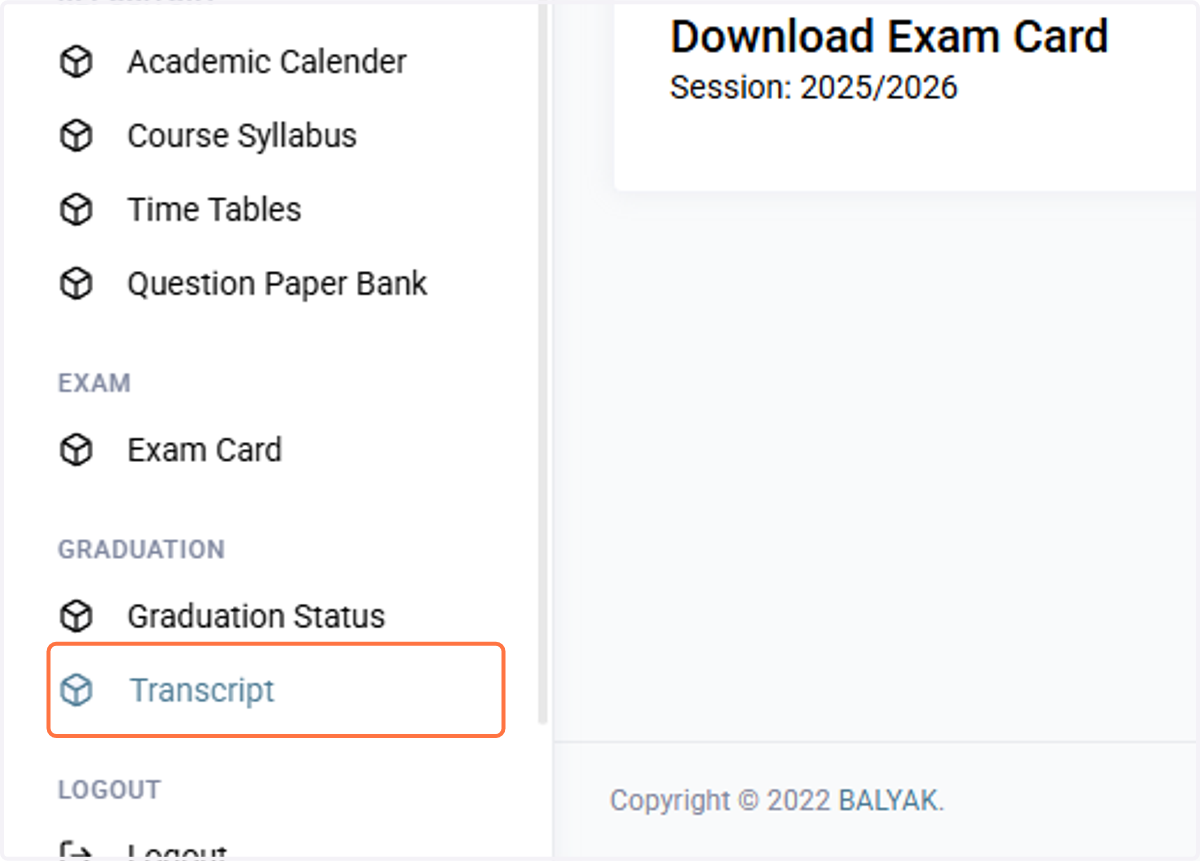
Click on the "Transcript" menu to download a student transcript copy.
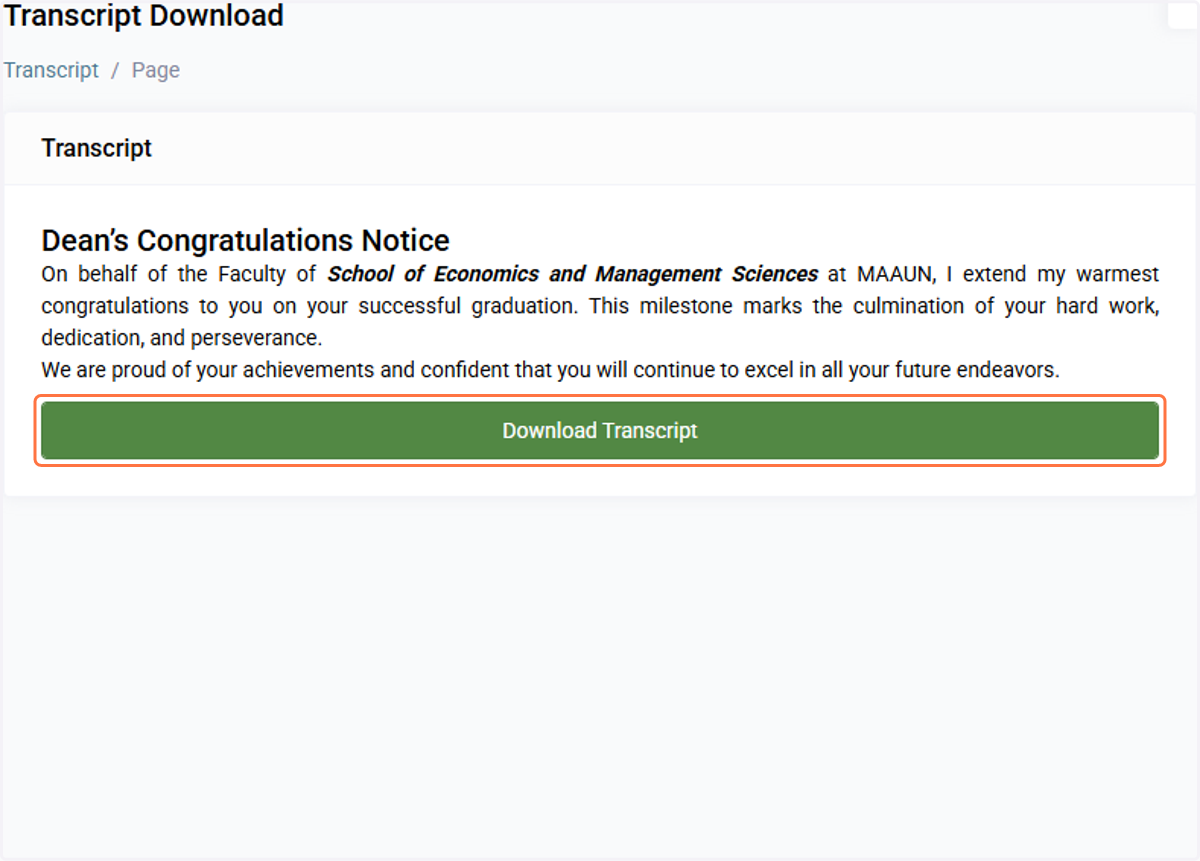
29. Download Transcript
Click the download button for your transcript.