Student: Uploading Lesson Plans/Video for Field Experience
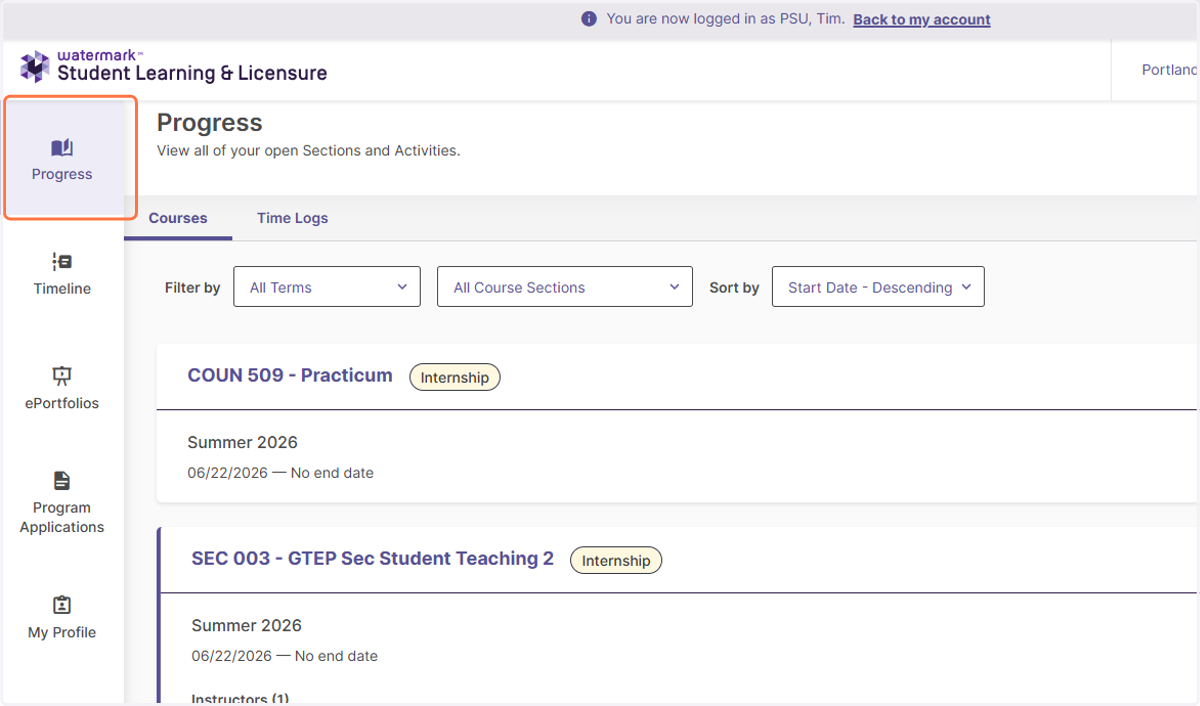
1. To log into Student Learning and Licensure (SL&L), go to sll.pdx.edu
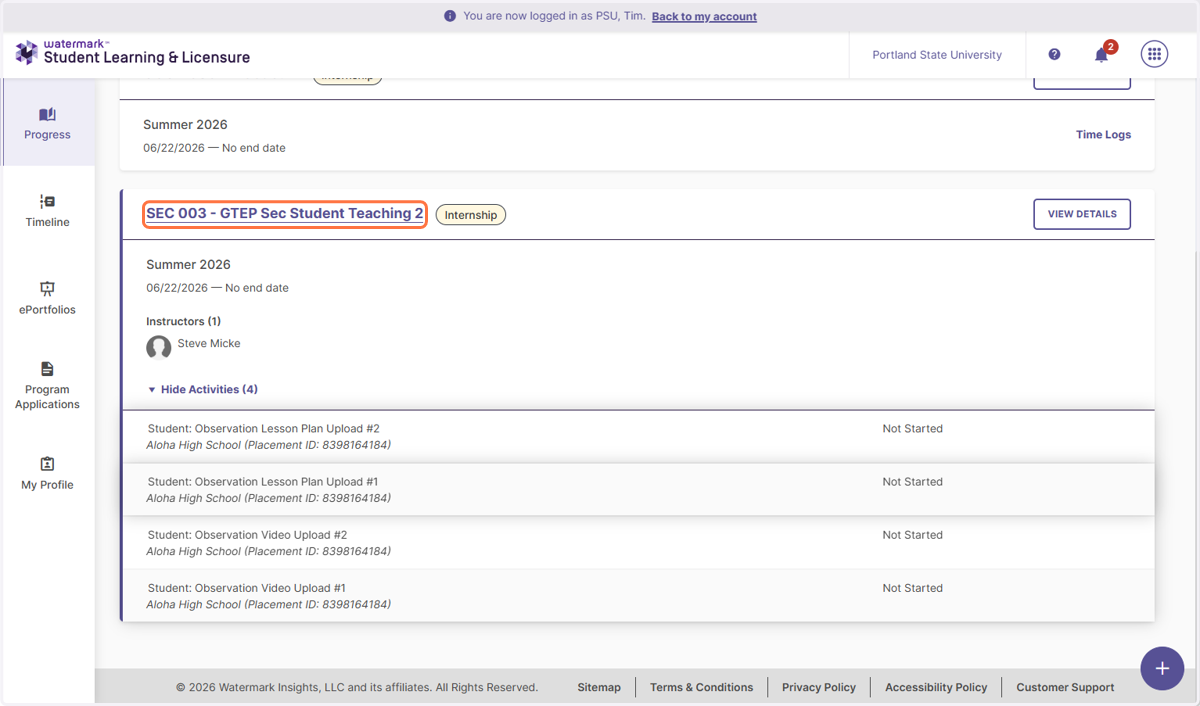
When you first log in, you will be directed to the Progress tab. You can see any courses or field placements that you have activities in. In this example, you are going to upload a lesson plan and video for your first observation in SEC 003- GTEP Sec Student Teaching 2
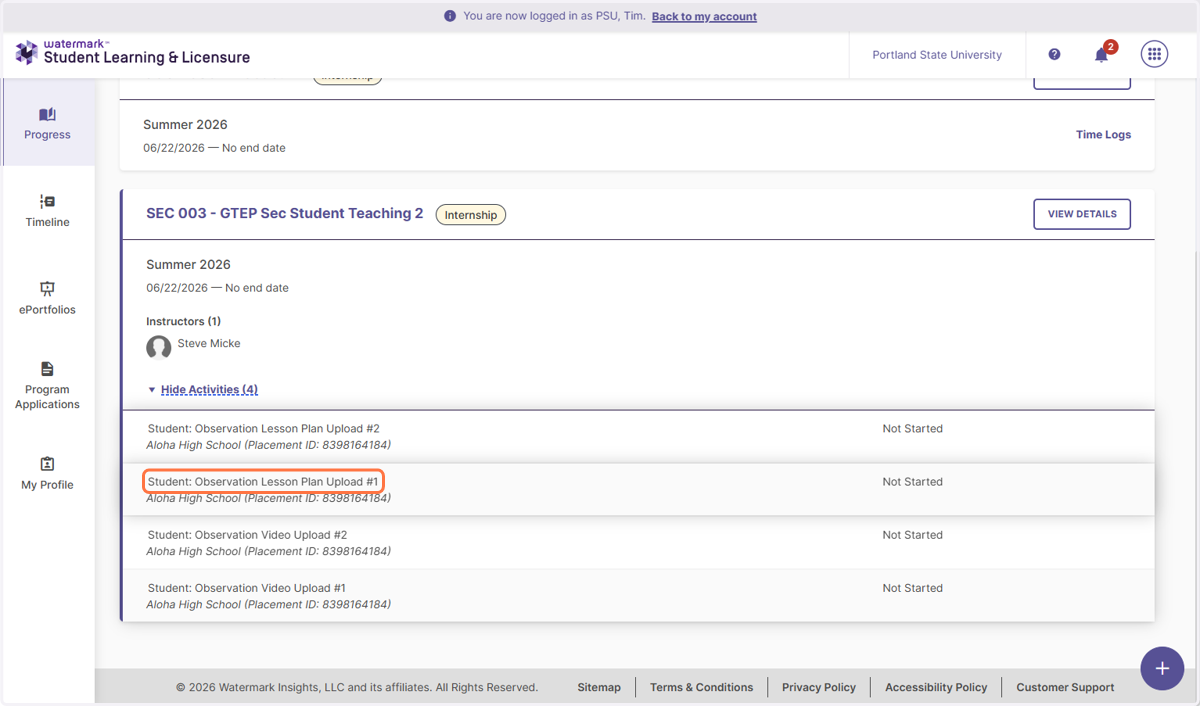
2. To quickly see all activities and assessments for a placement click on the Show Activities You will see that you have two Lesson Plan upload activities and two Video Upload activities. Click on the Student: Observation Lesson Plan Upload #1
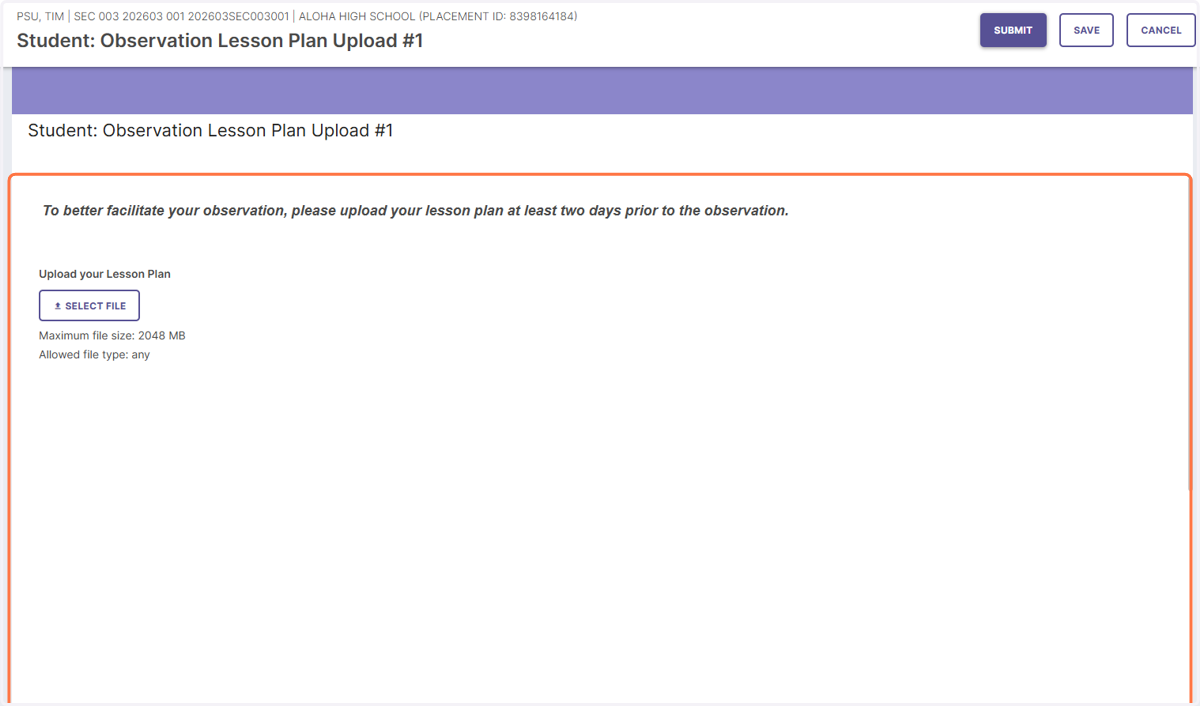
3. To upload your Lesson Plan, click on "Select File"
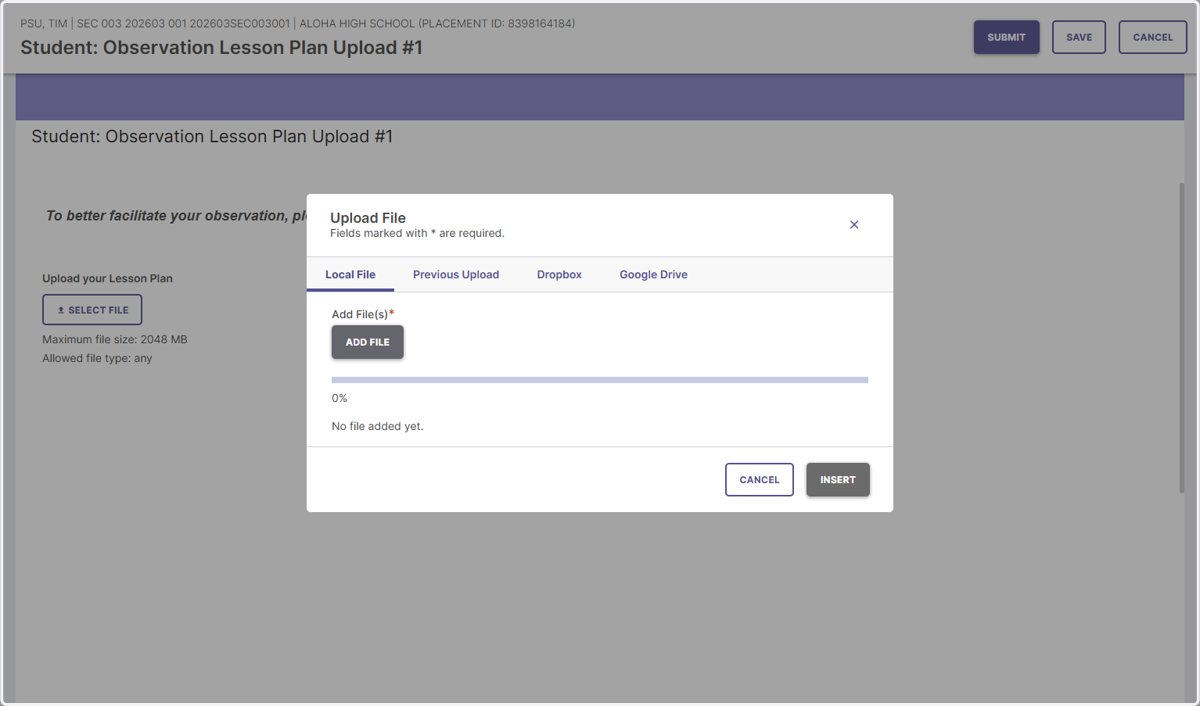
4. Click on "Add File" and then select it from your computer.
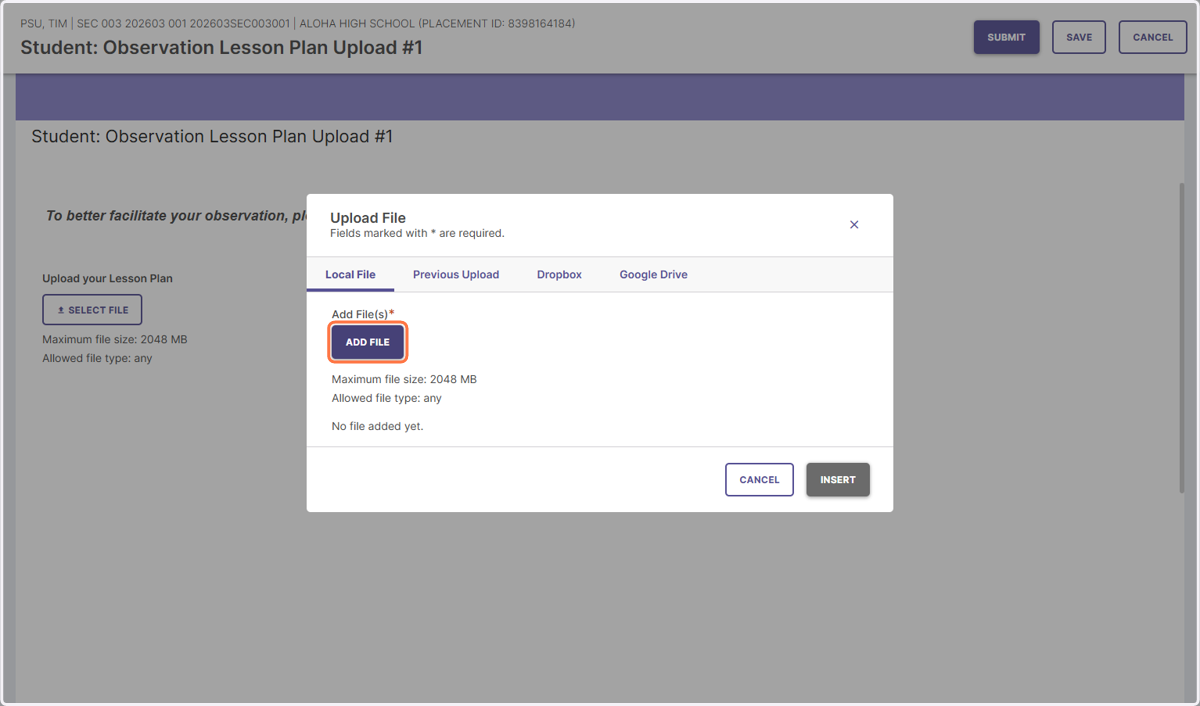
5. After selecting the file, click on "Insert"
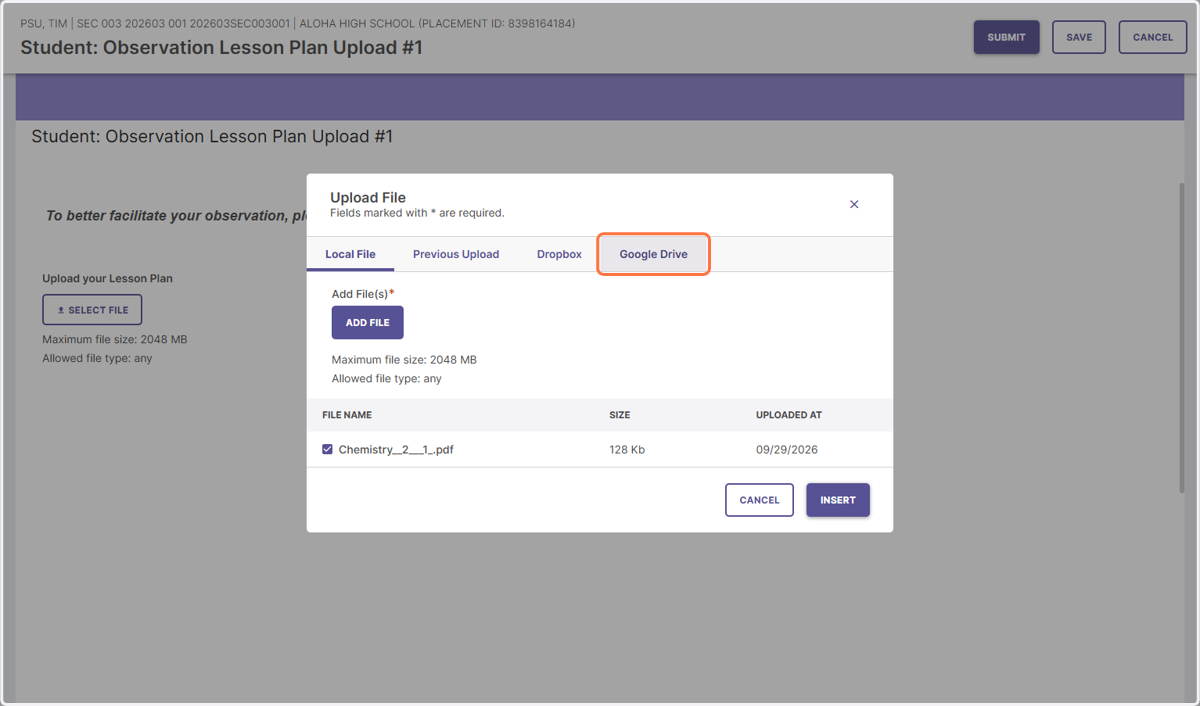
6. You can also give permission to view a file on your google drive by selecting "Google Drive"
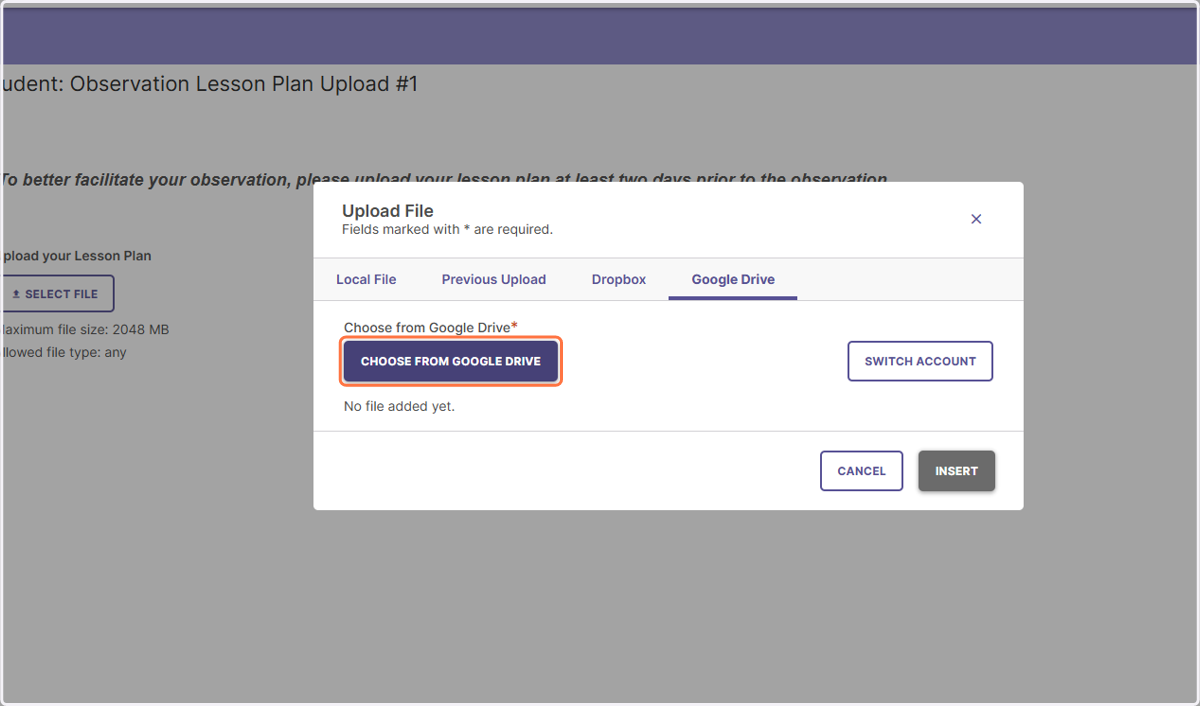
7. Click on "CHOOSE FROM GOOGLE DRIVE"
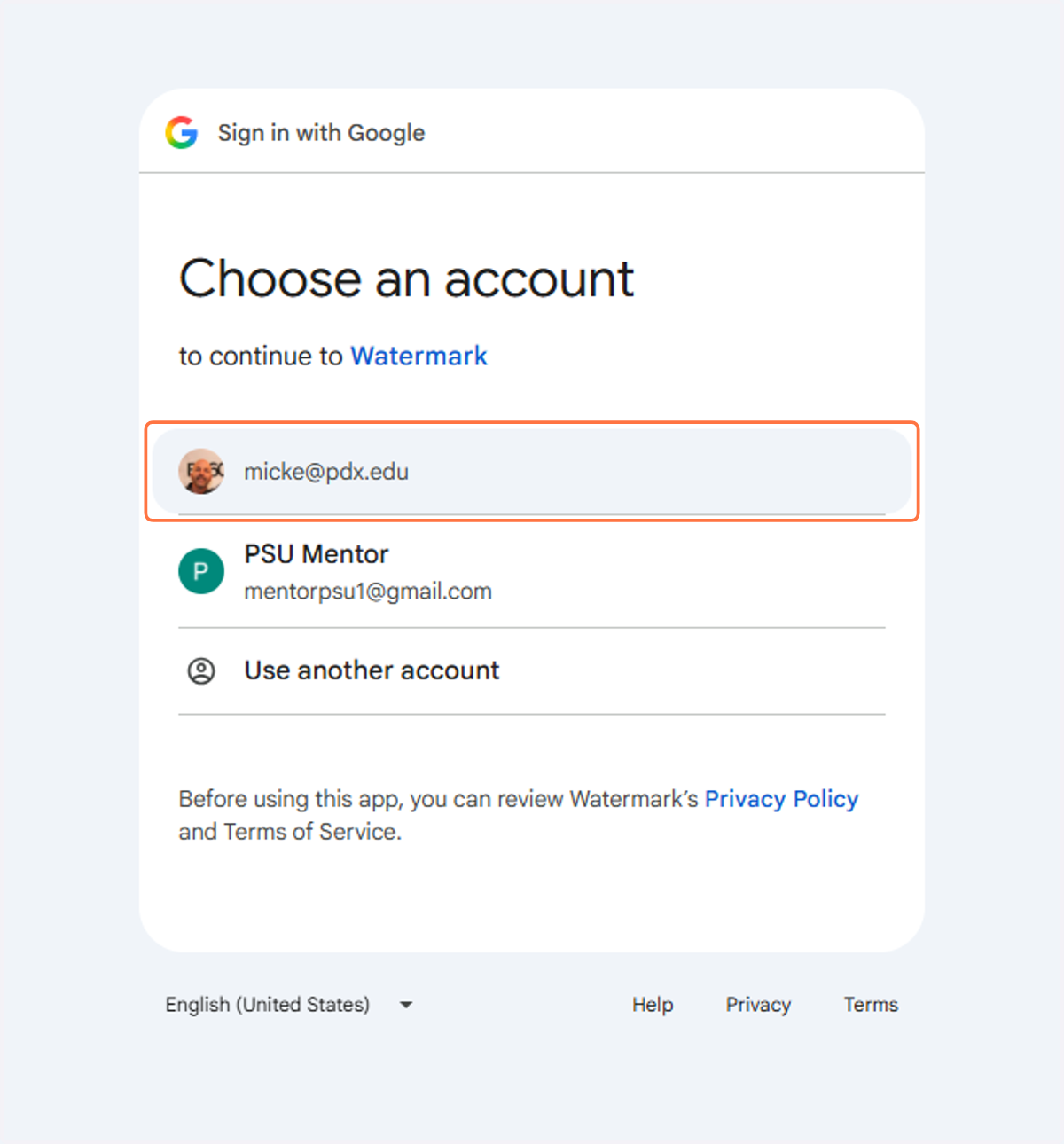
8. You will be prompted to select your google account and agree to share files.
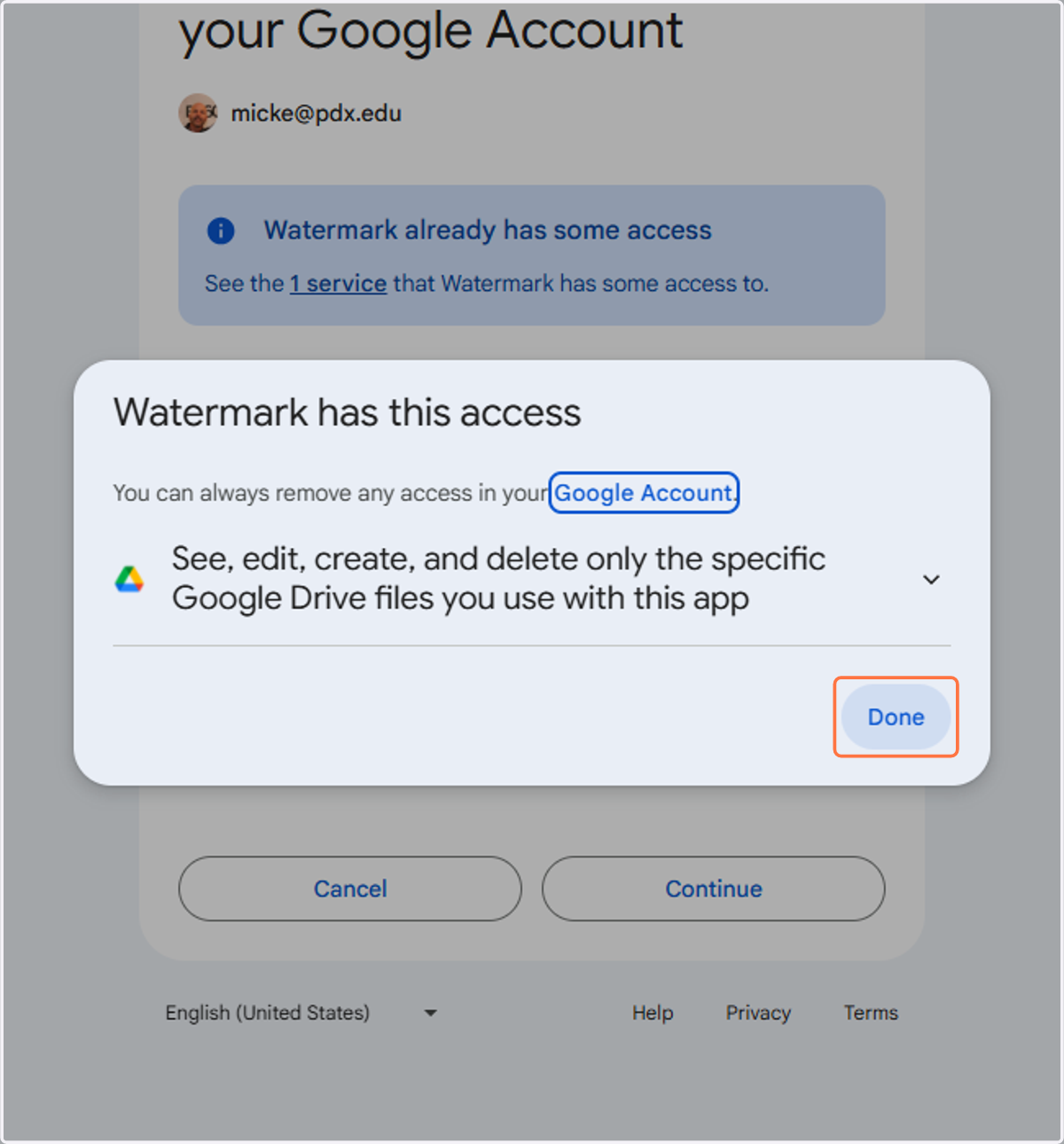
9. Click on Done to give access
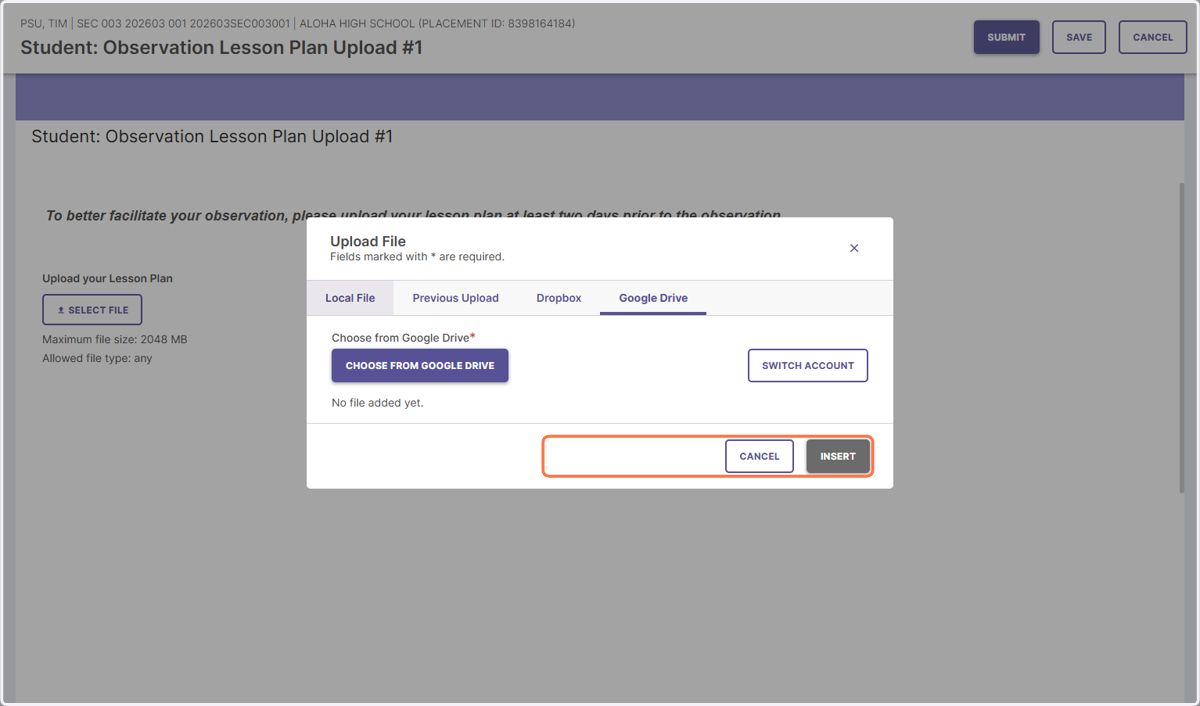
10. Once you have selected the file, click on "Insert"
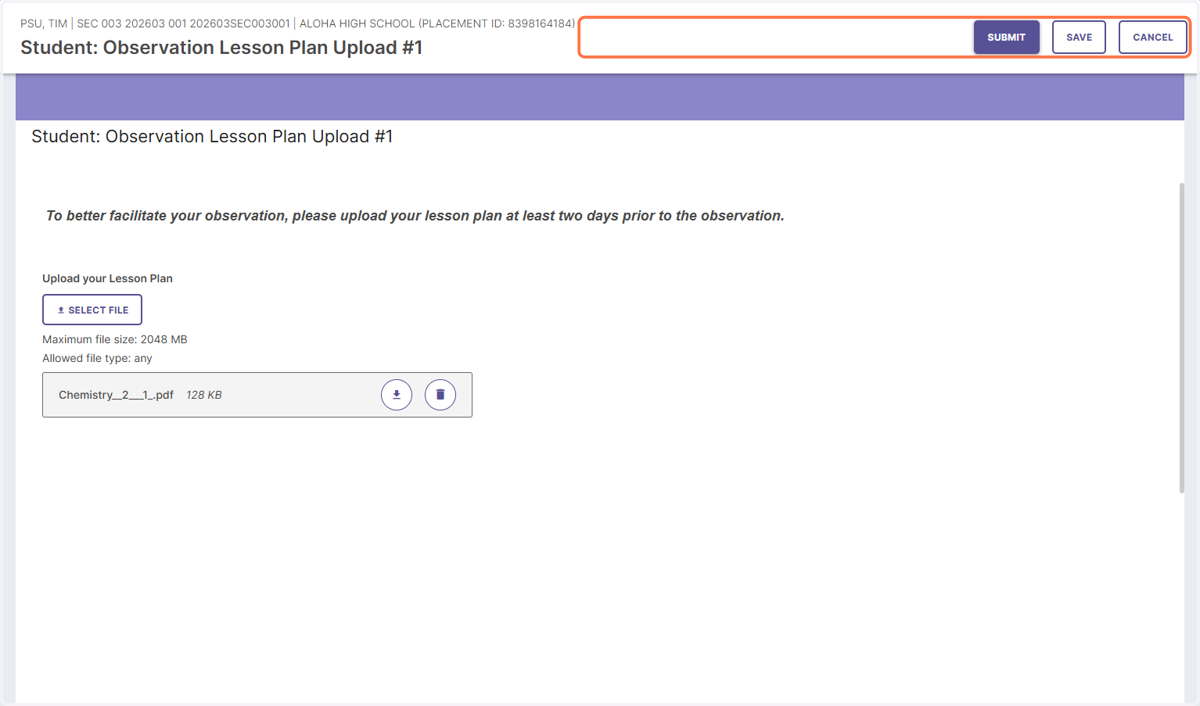
11. Once you are finished, you can hit "Submit". If you aren't ready to submit, you can click on "Save" and come back to it later. Once you submit, you can not recall it.
12. If you need to upload a video or an URL to a video, click on Student: Observation Video Upload #1…
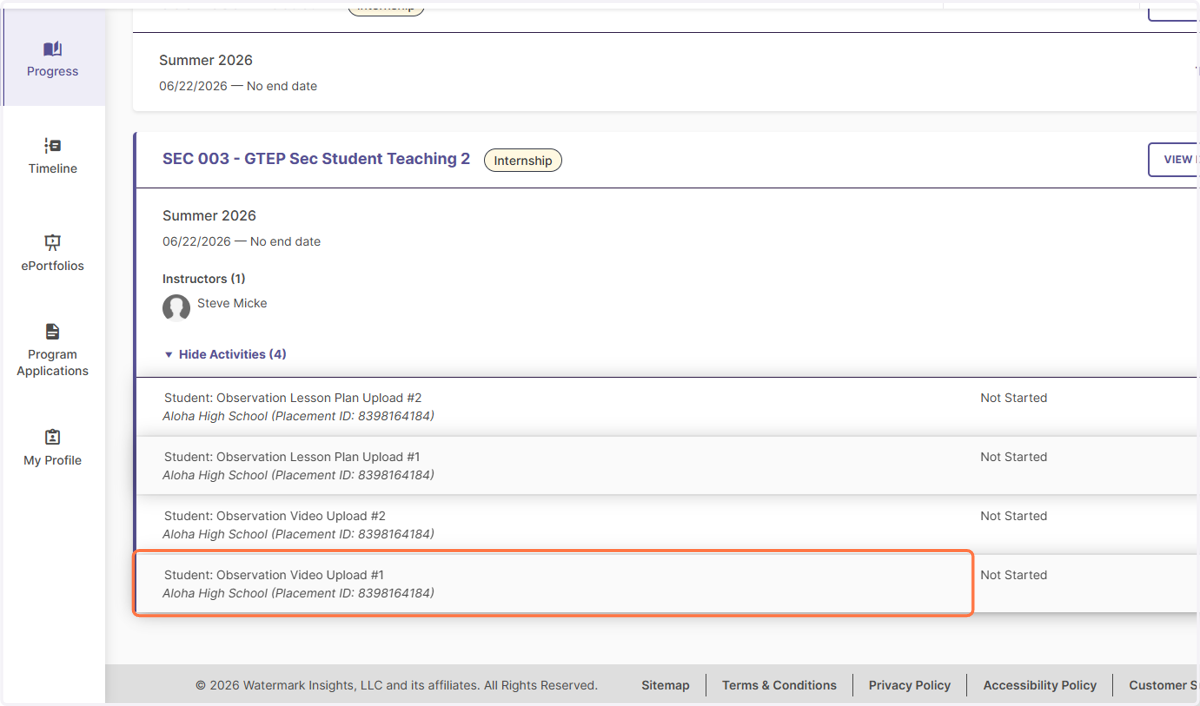
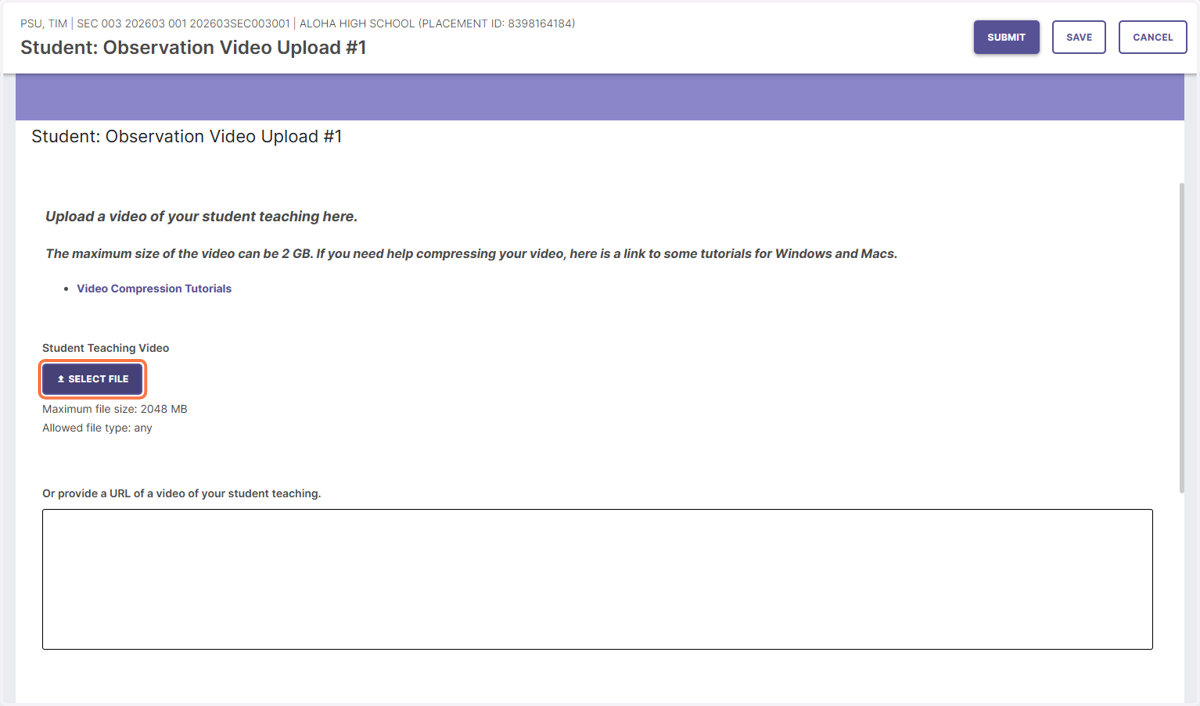
13. In the same manner that you uploaded the lesson plan in steps #3 to #11, you can select a file.
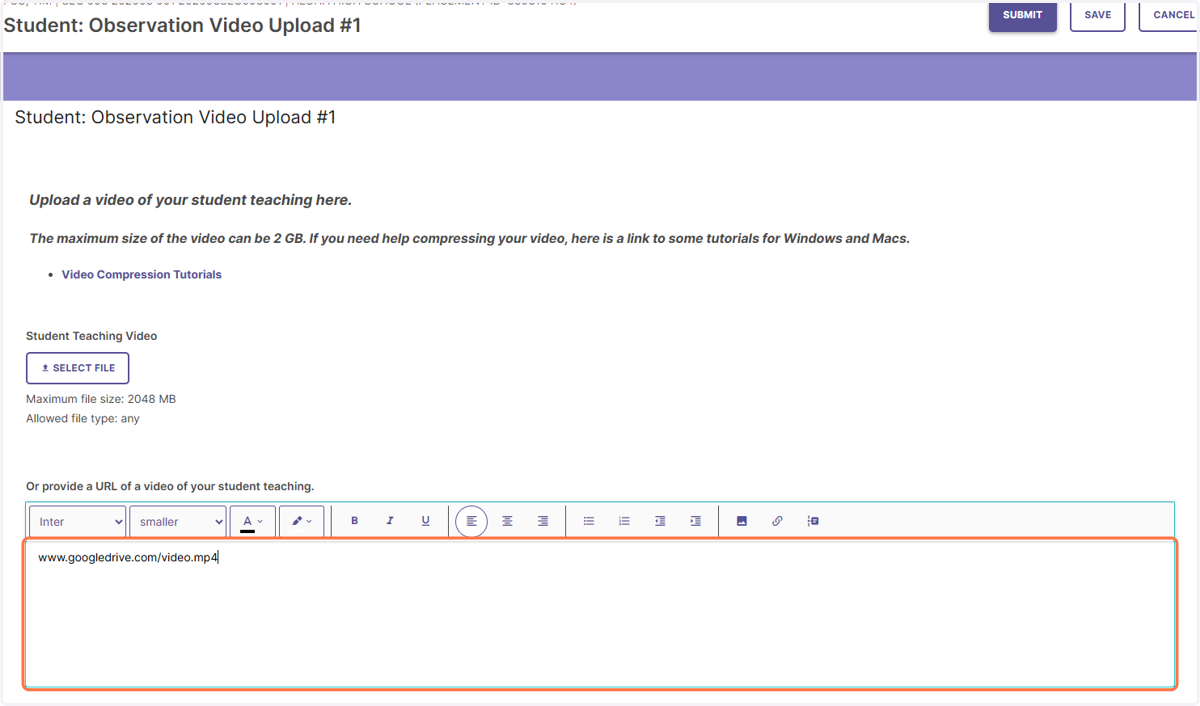
14. If you are providing a URL for the video, you can enter it in the field at the bottom.
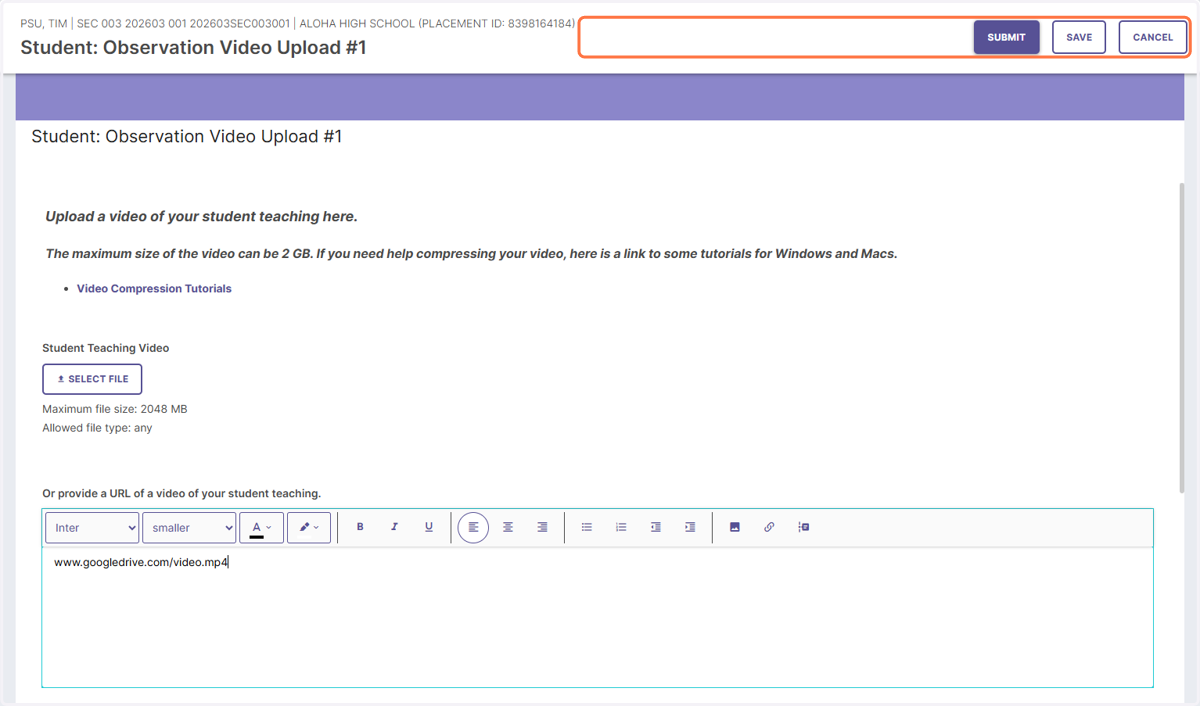
15. Once you are finished, you can hit "Submit". If you aren't ready to submit, you can click on "Save" and come back to it later. Once you submit, you can not recall it.
16. After your Mentor or Supervisor has completed an assessment, you will be able to view them by clicking on the Header of the field experience "SEC 003 - GTEP Sec Student Teaching 2"
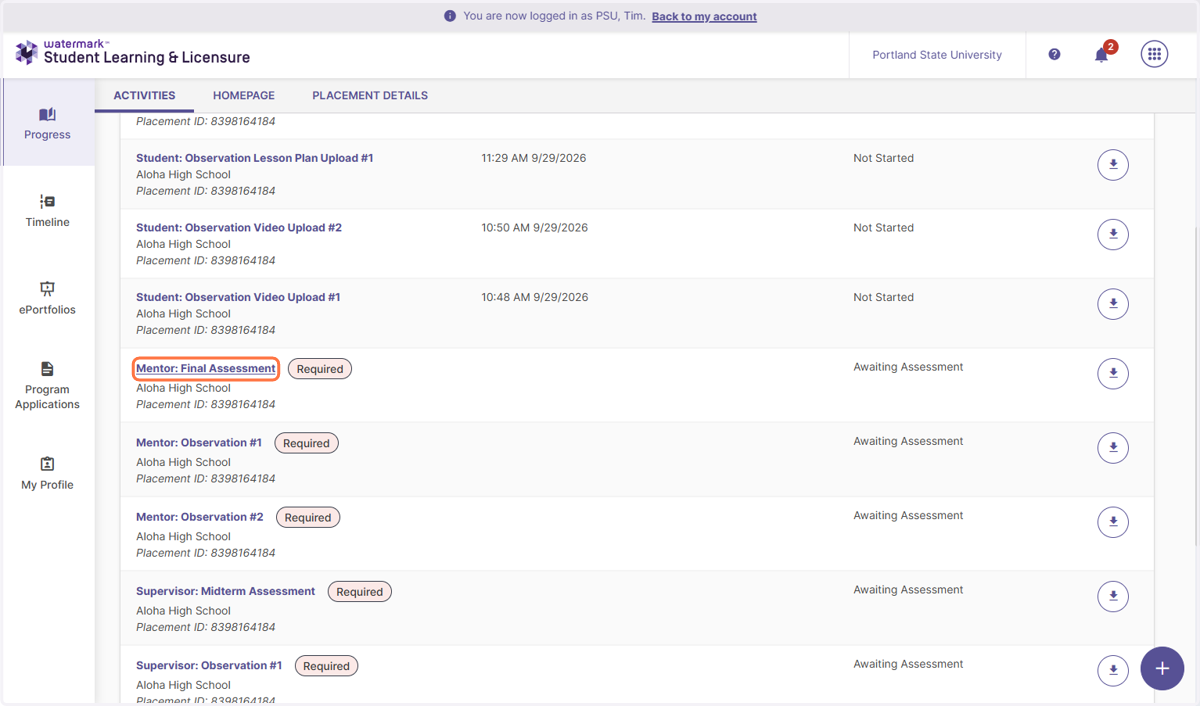
17. You will see all your activities plus Mentor and Supervisor activities. There is a status to indicate whether the assessment is done. You can click on the assessment to see the rubric and feedback once it is completed.
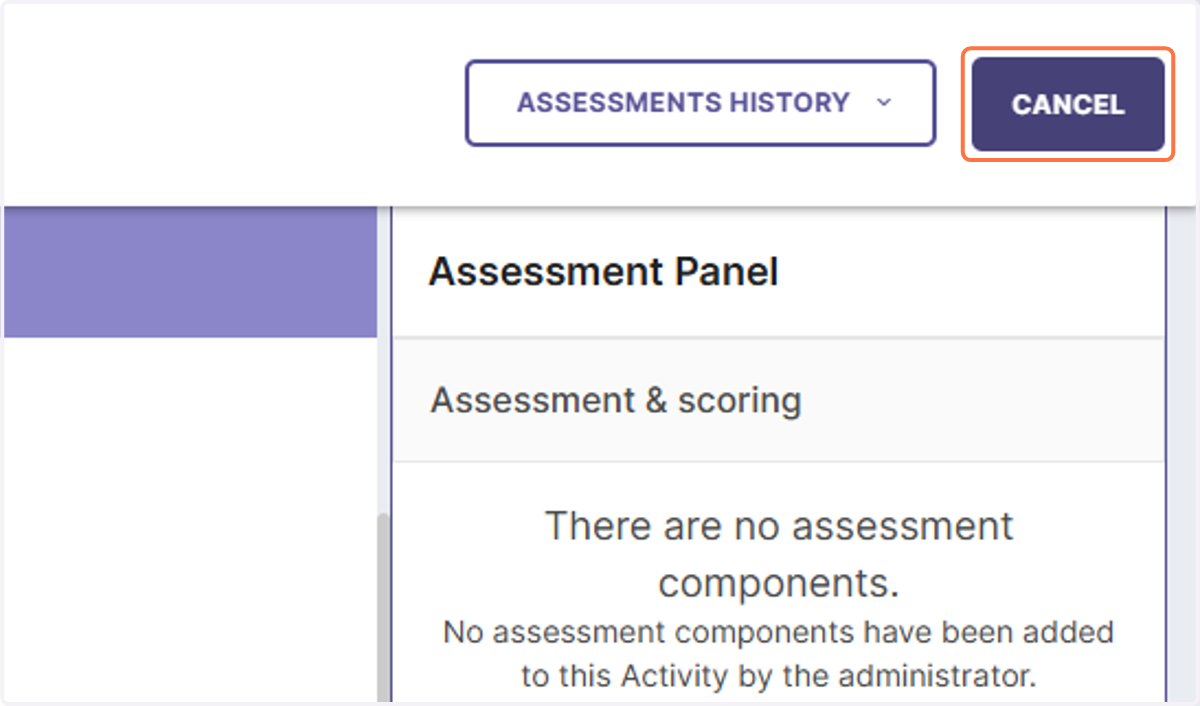
18. Click on CANCEL