(Student) Final Self-Evaluation
Start at the Dashboard
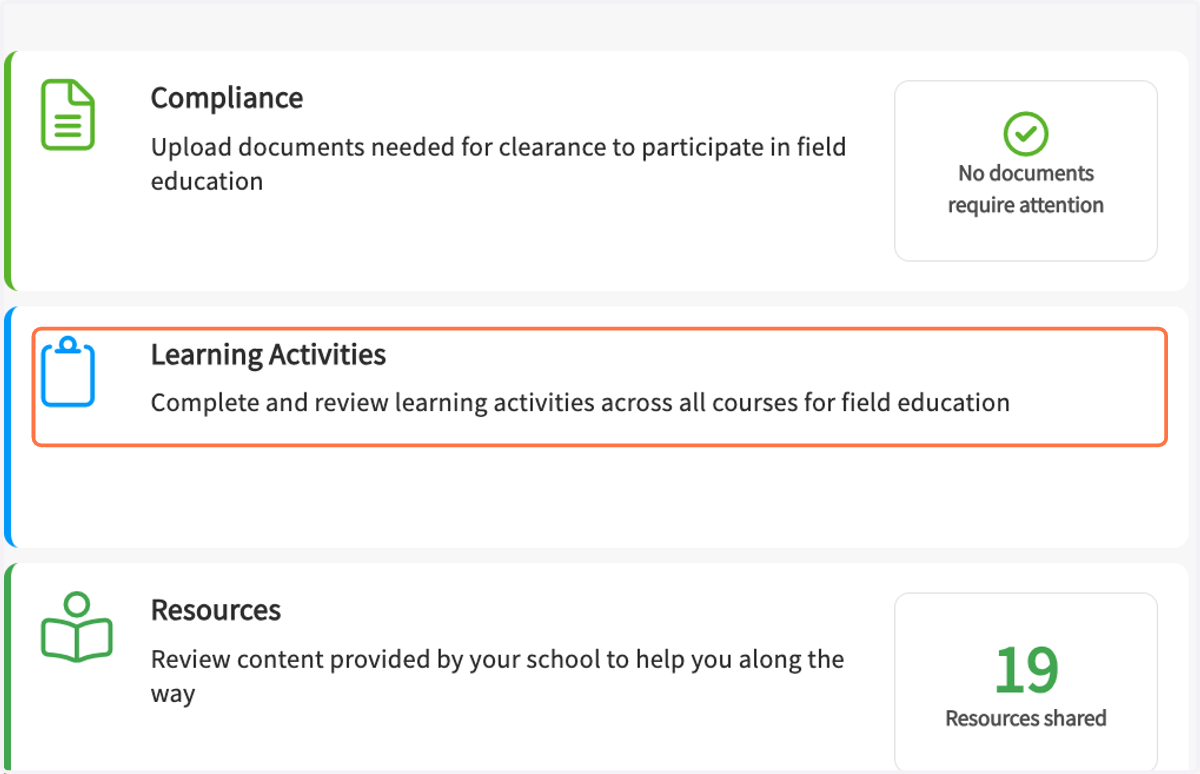
1. Click on Learning Activities…
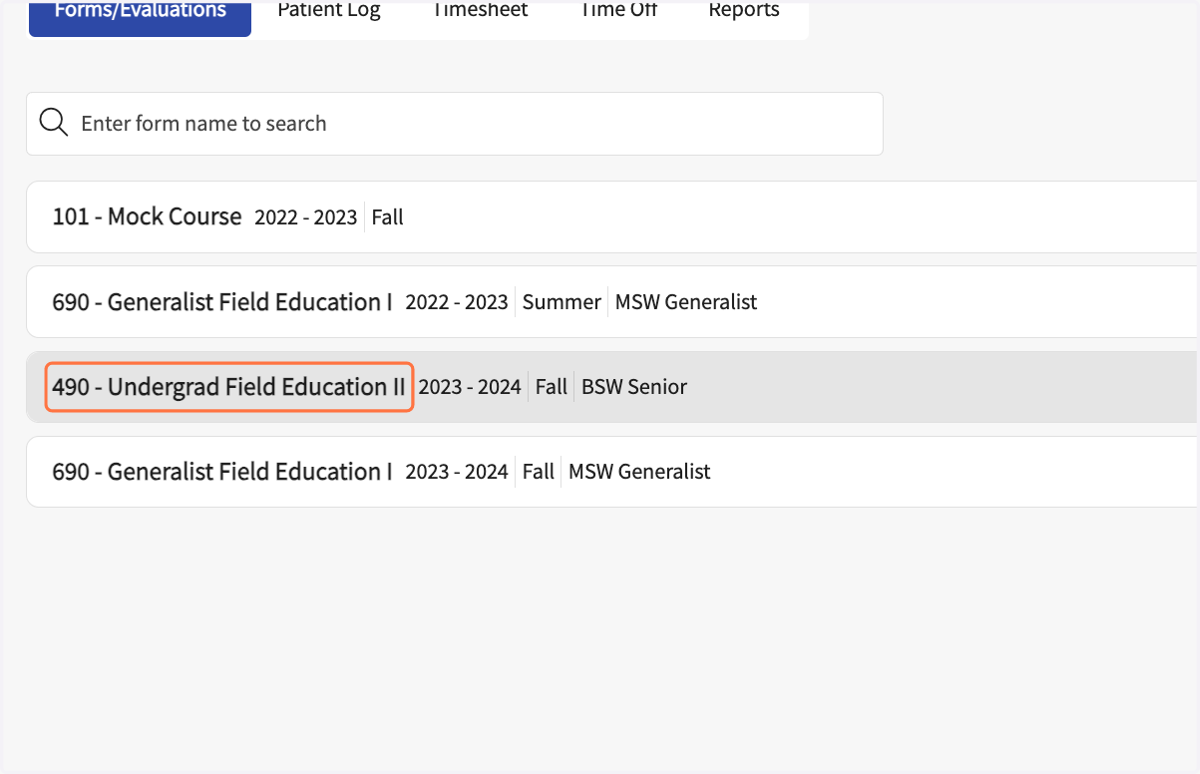
2. Click on the name of your Field course
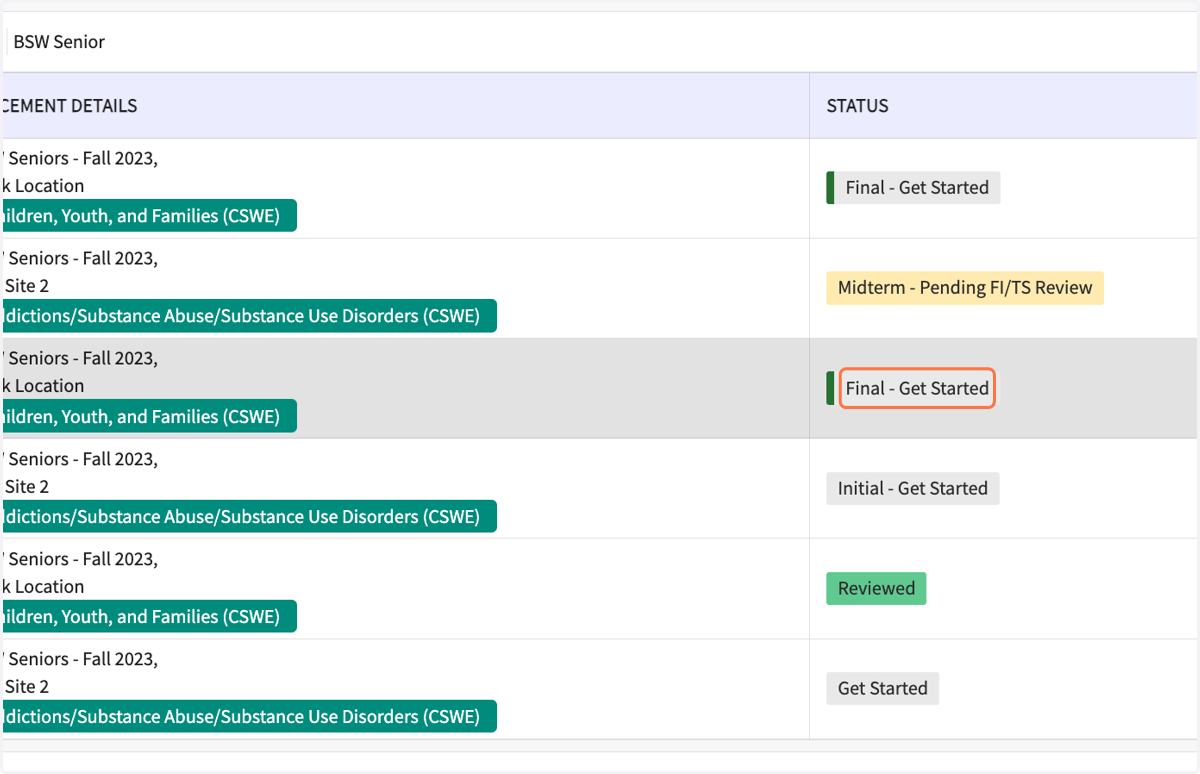
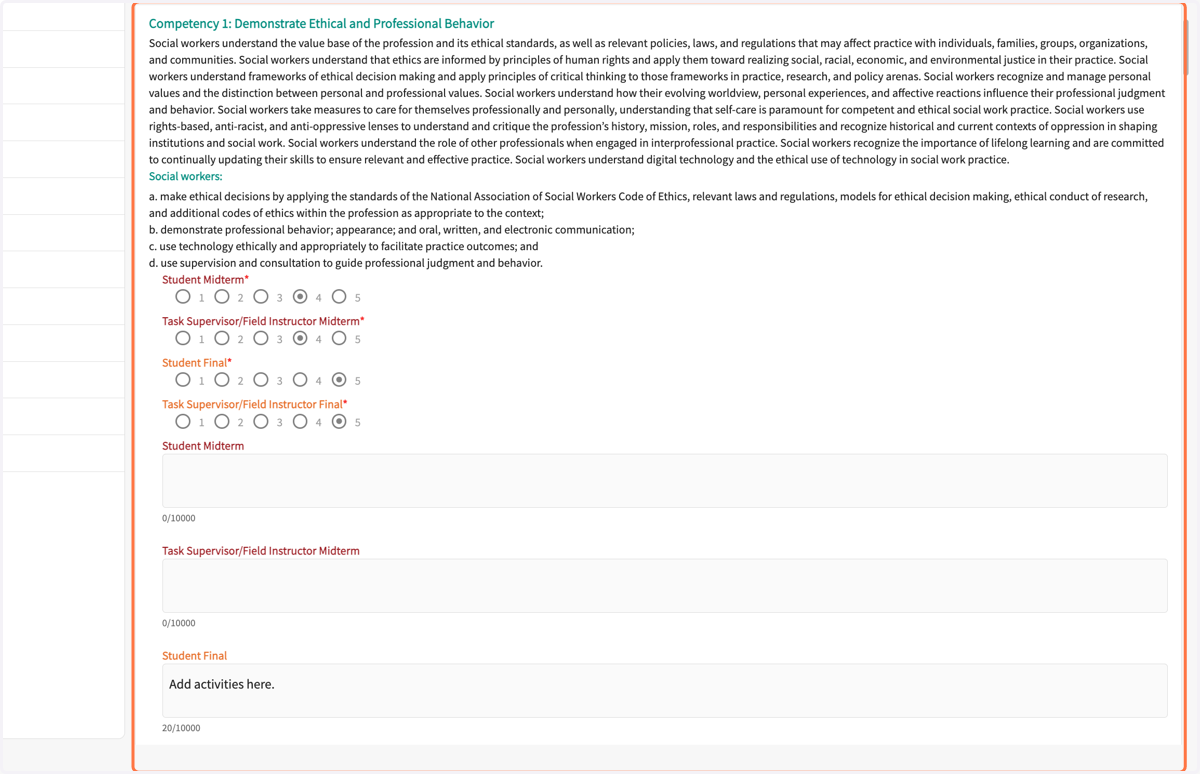
3. On the Learning Portfolio row, click on "Final - Get Started."
4. Rate yourself on all of the 10 Competencies.
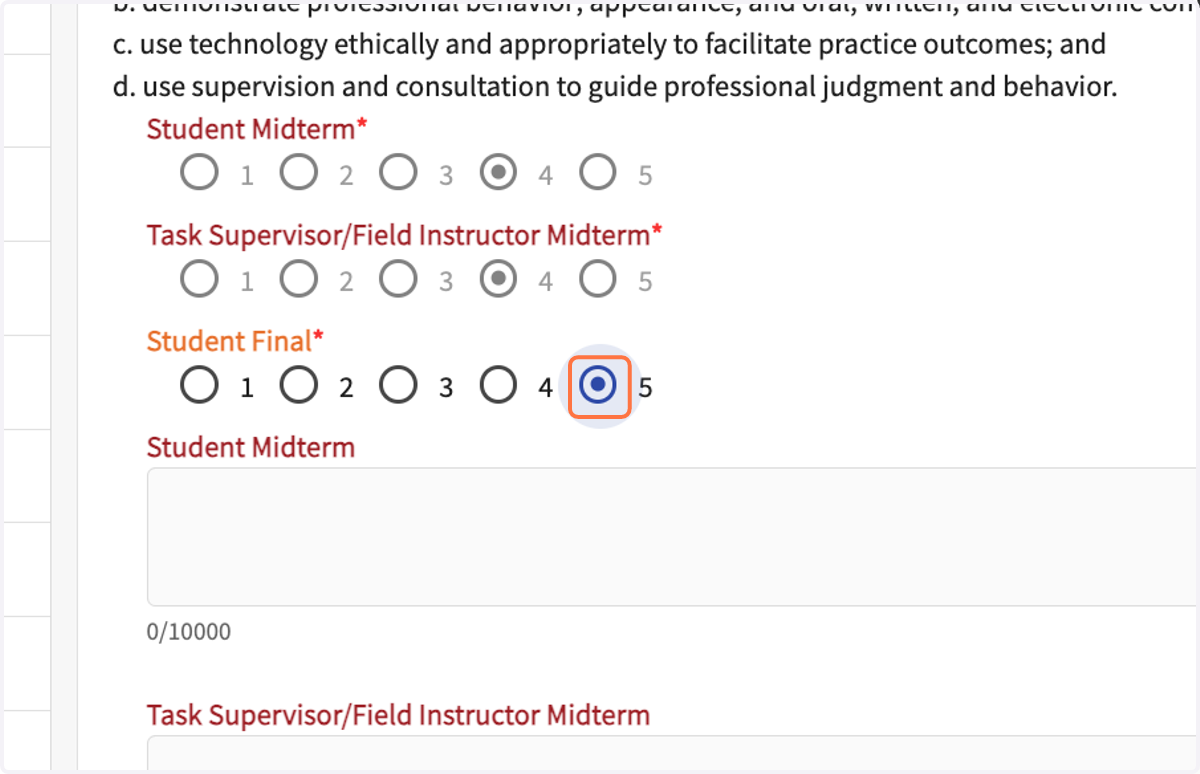
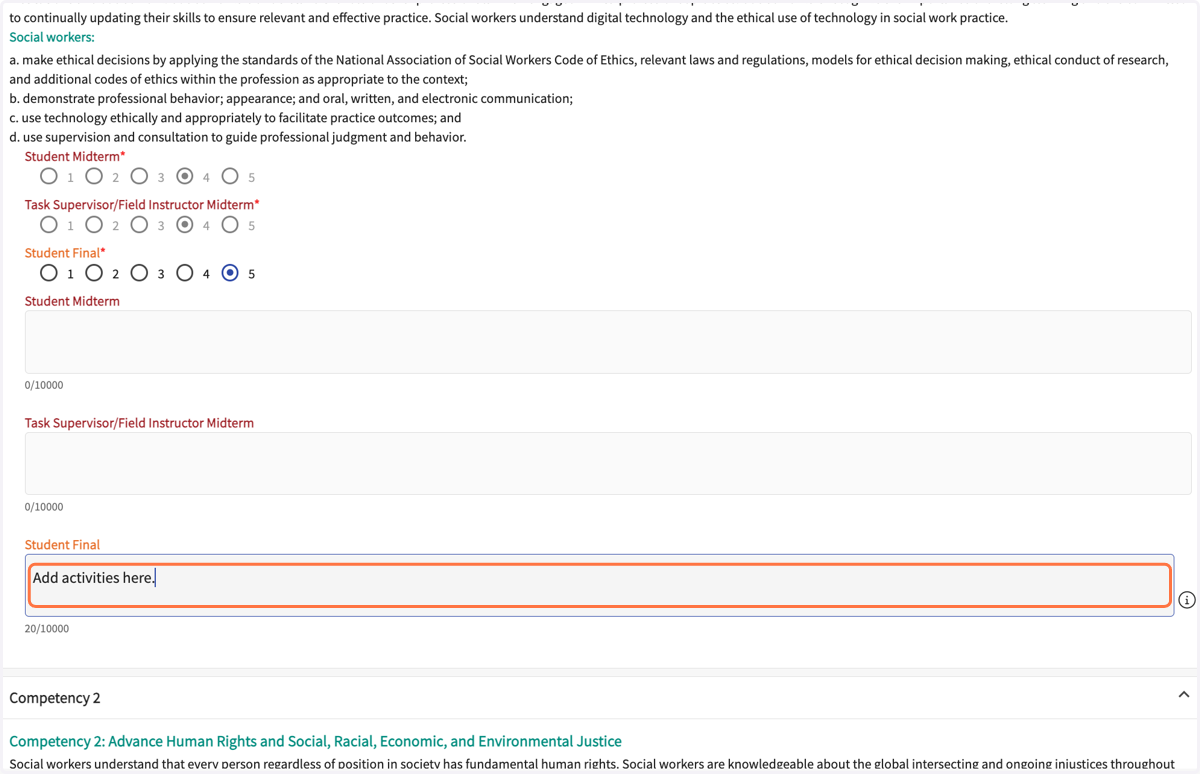
5. Enter the field activities you did to support your self-rating score for all 10 Competencies.
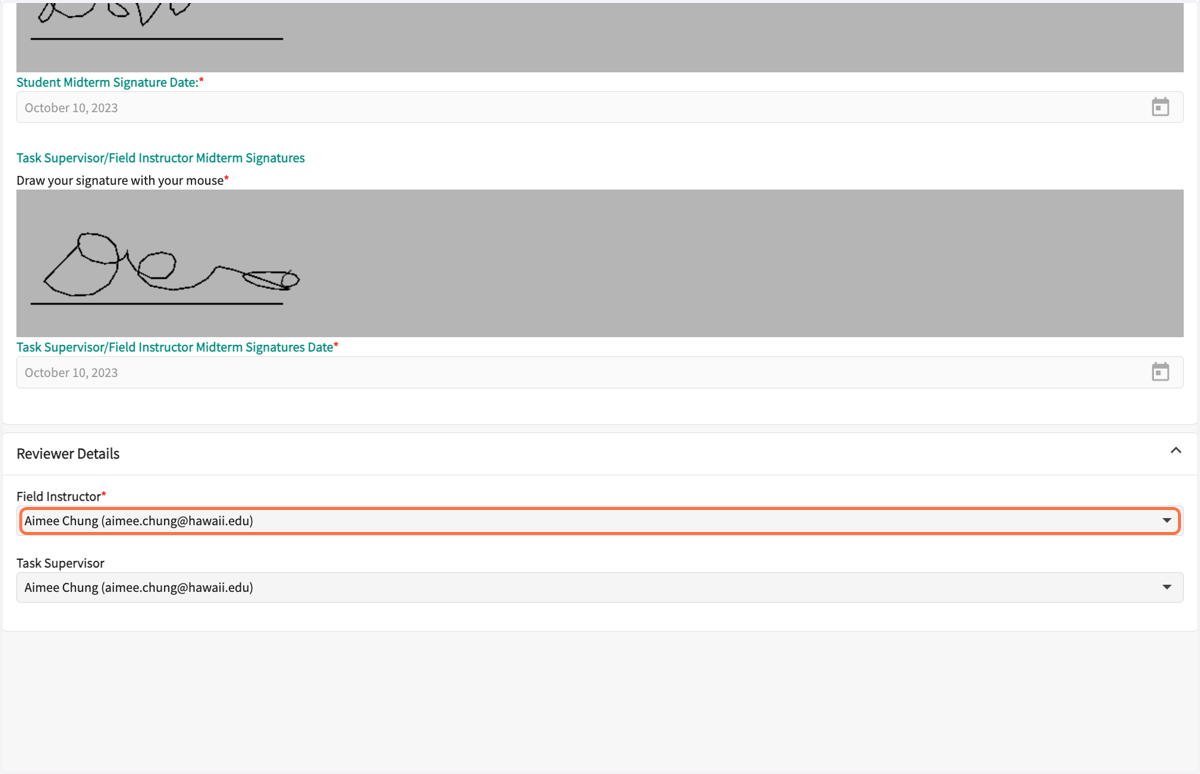
6. Select your Field Instructor's name.
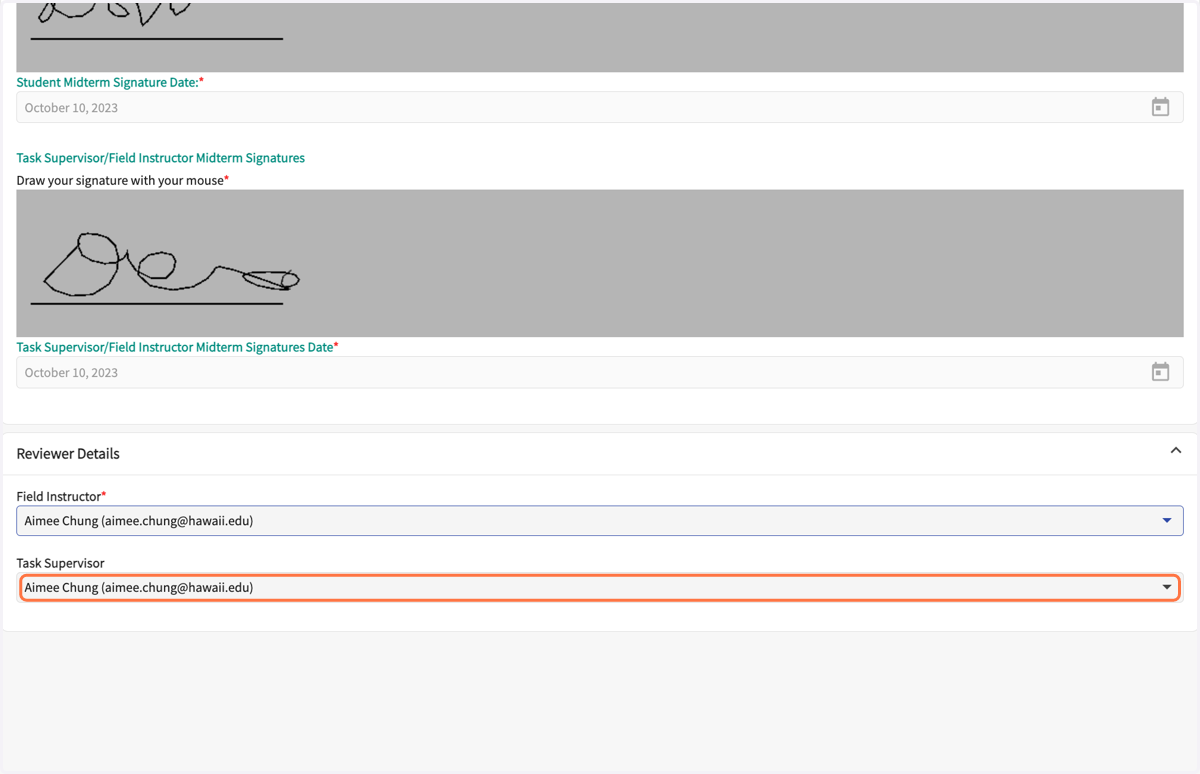
7. If applicable, select your Site Supervisor's name.
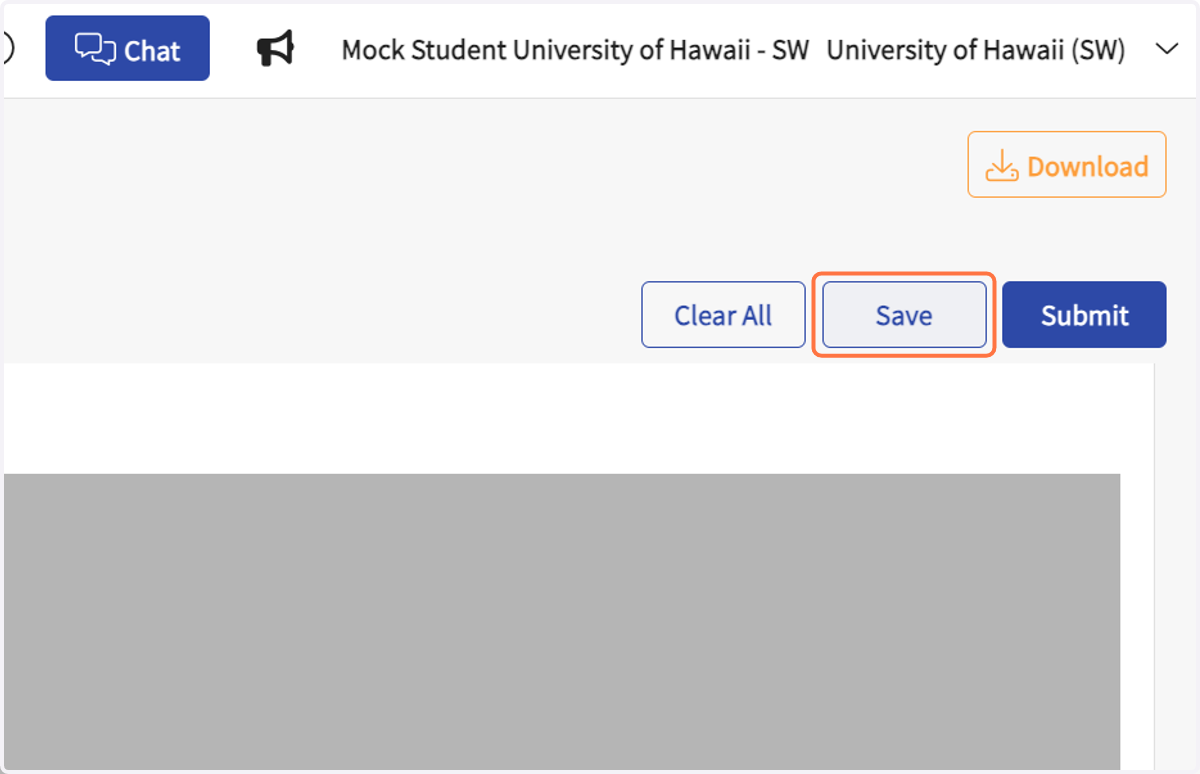
8. Click on Save at anytime to save your work.
Upper right corner.
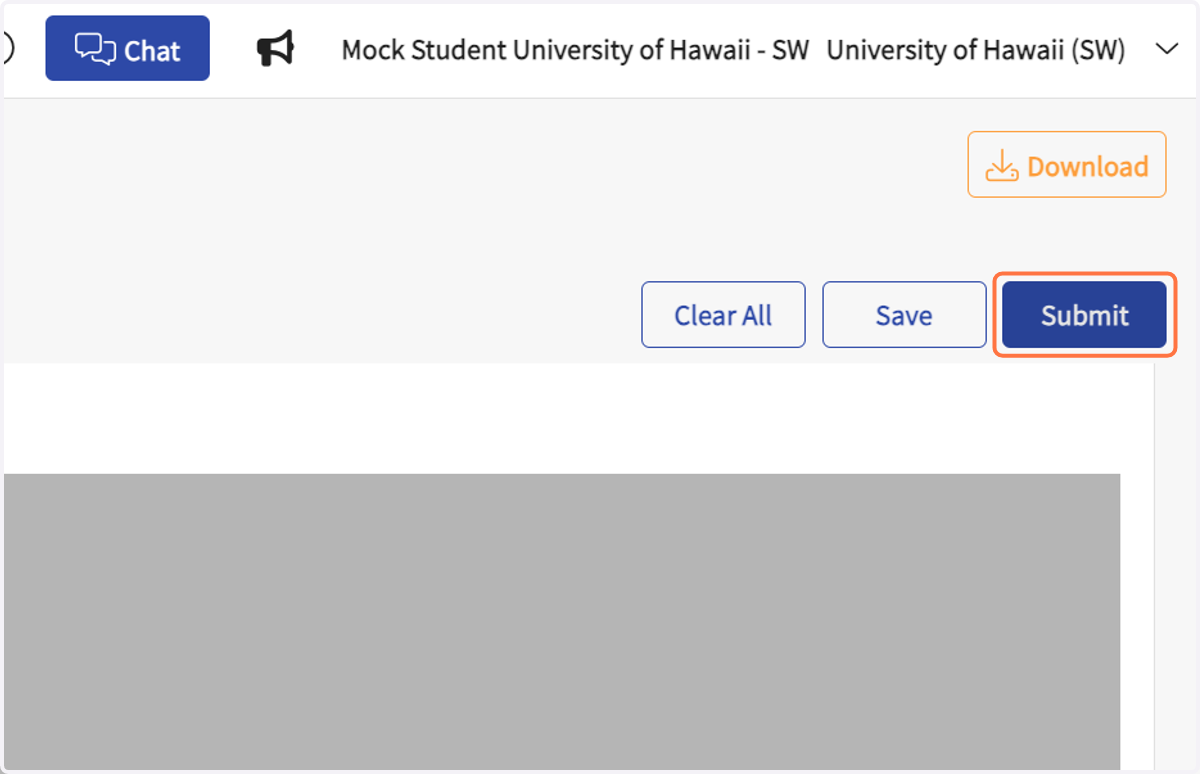
9. Click on Submit when complete.
Upper right corner.
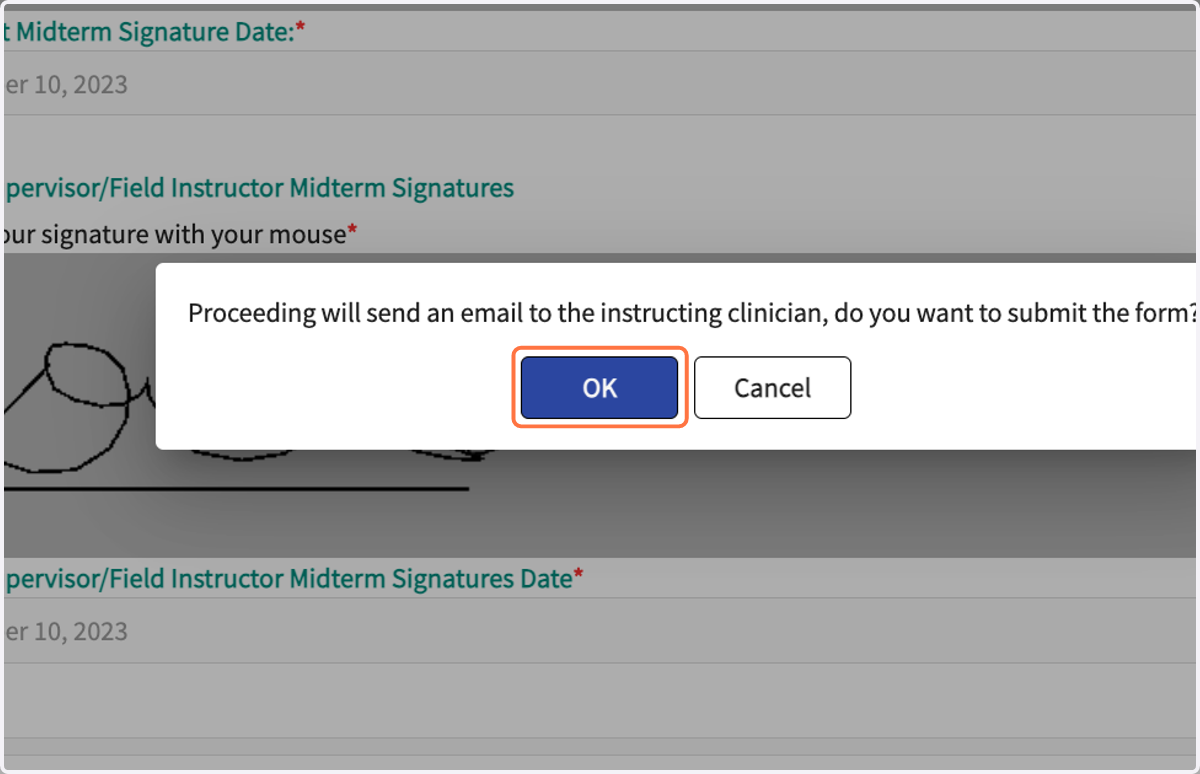
10. Click on OK in the pop-up.
Final review & signature
After your FieldInstructor reviews, you will need to review and add your signature.
11. On the Activities page, on the Learning Portfolio row, click on "Final - Pending Student Review."
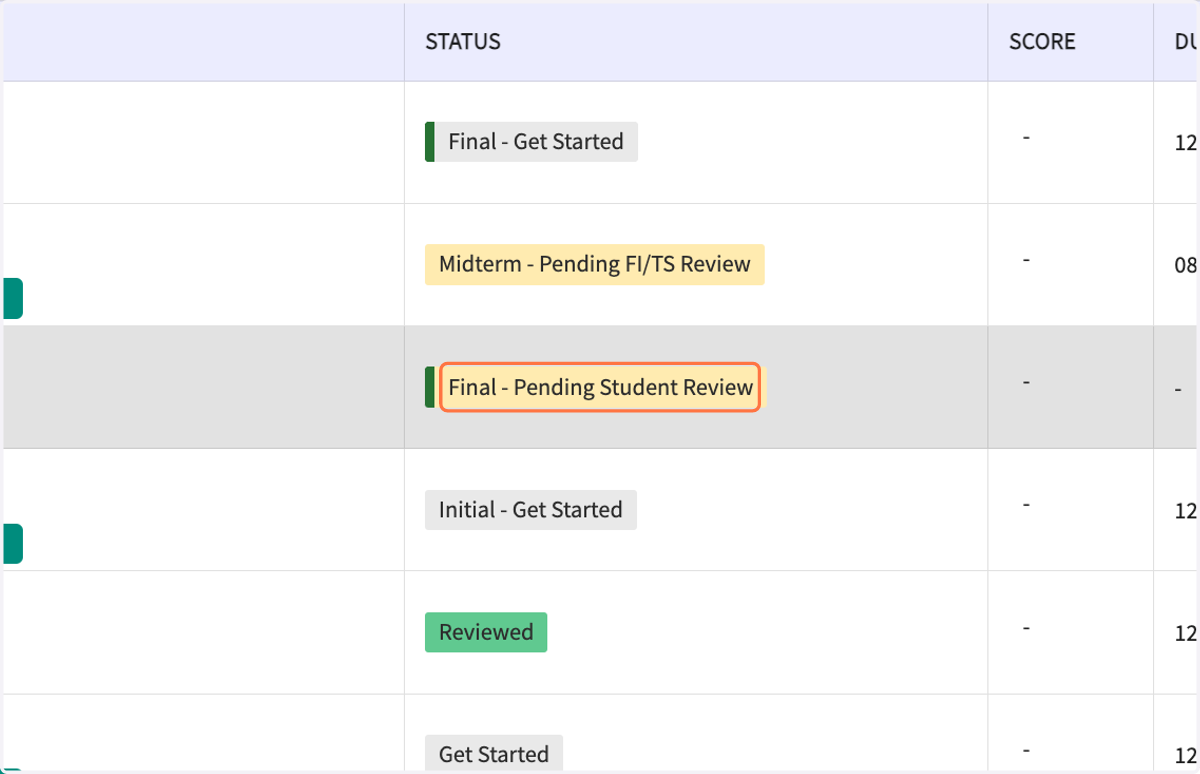
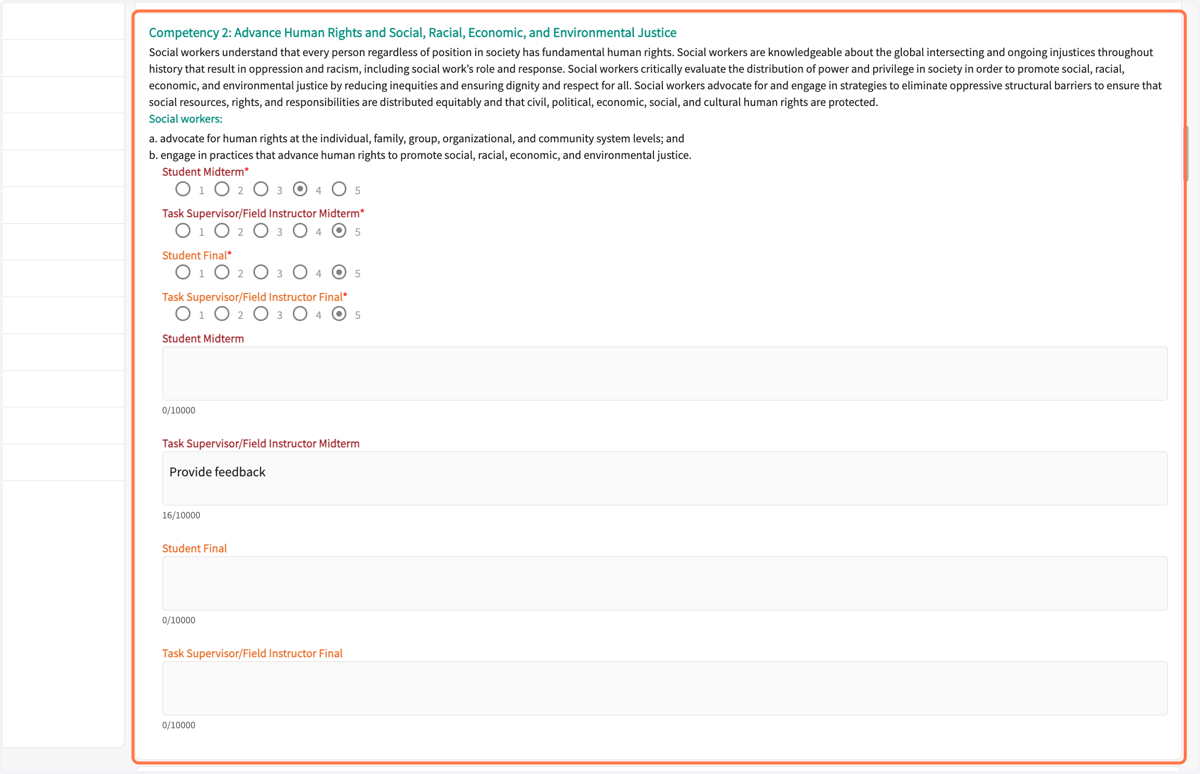
12. Review the FI's ratings and feecback.
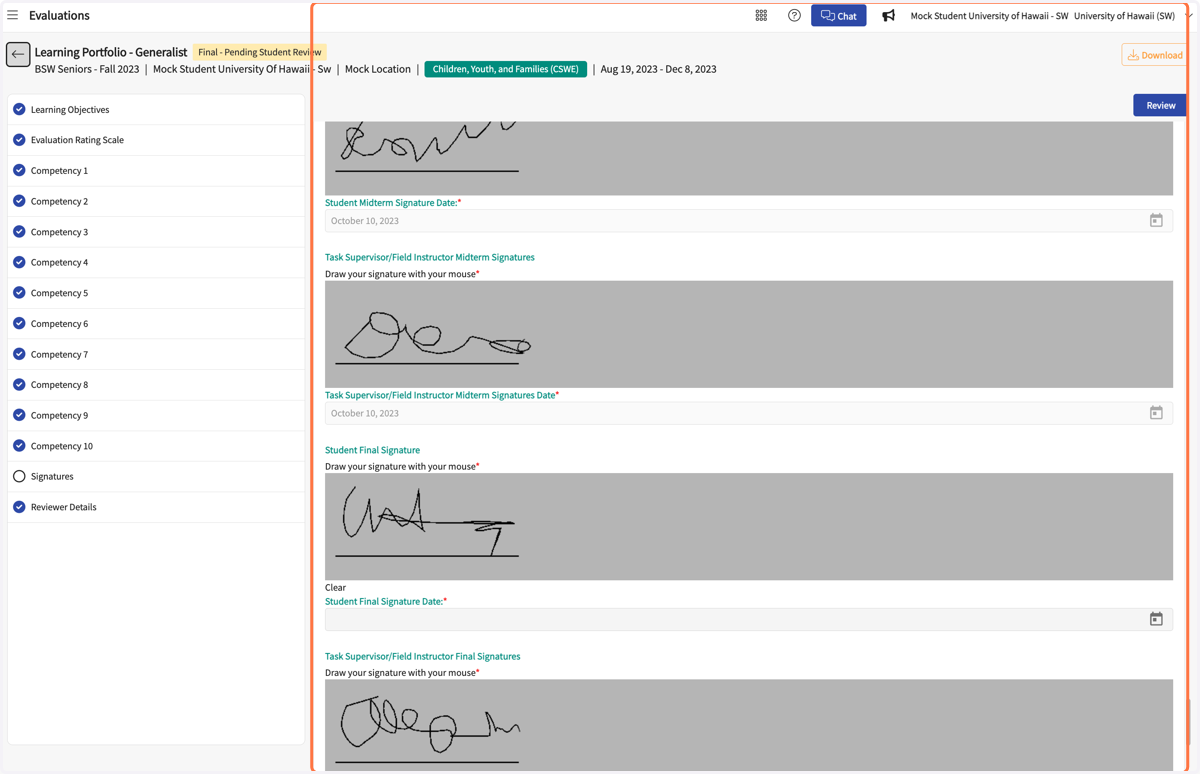
13. Draw your signature.
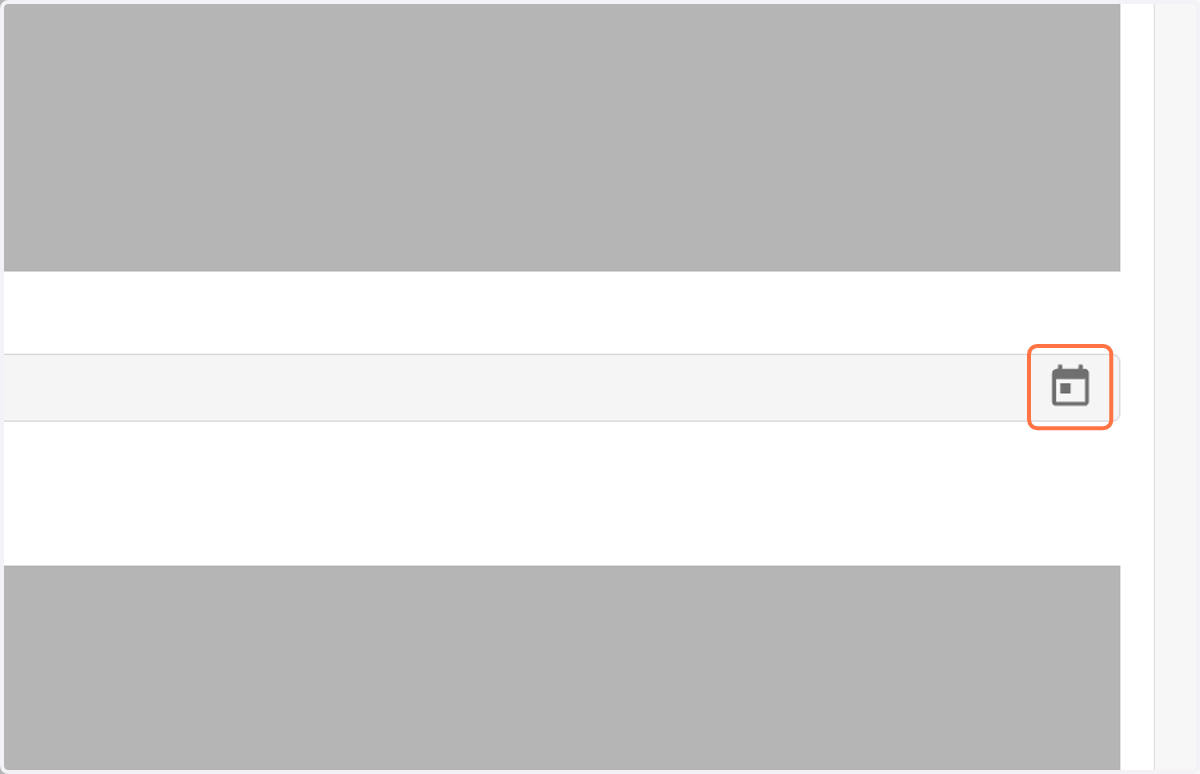
14. Click on the calendar icon.
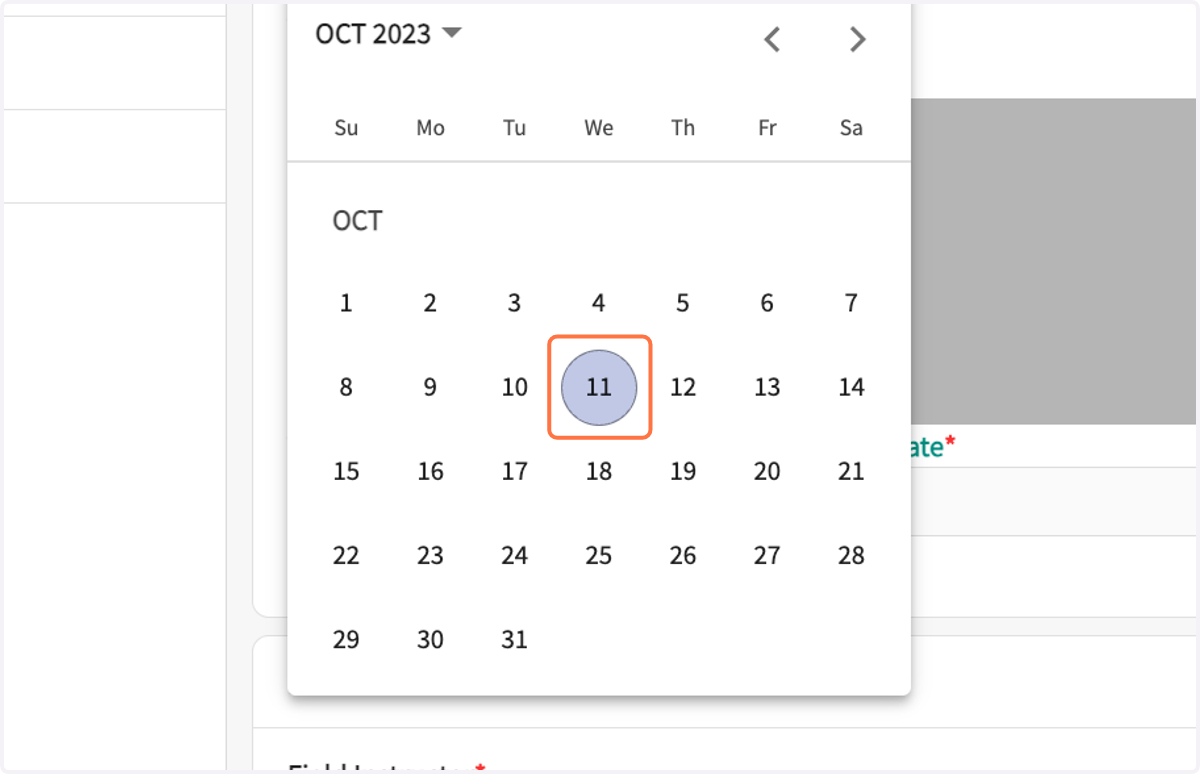
15. Select the date.
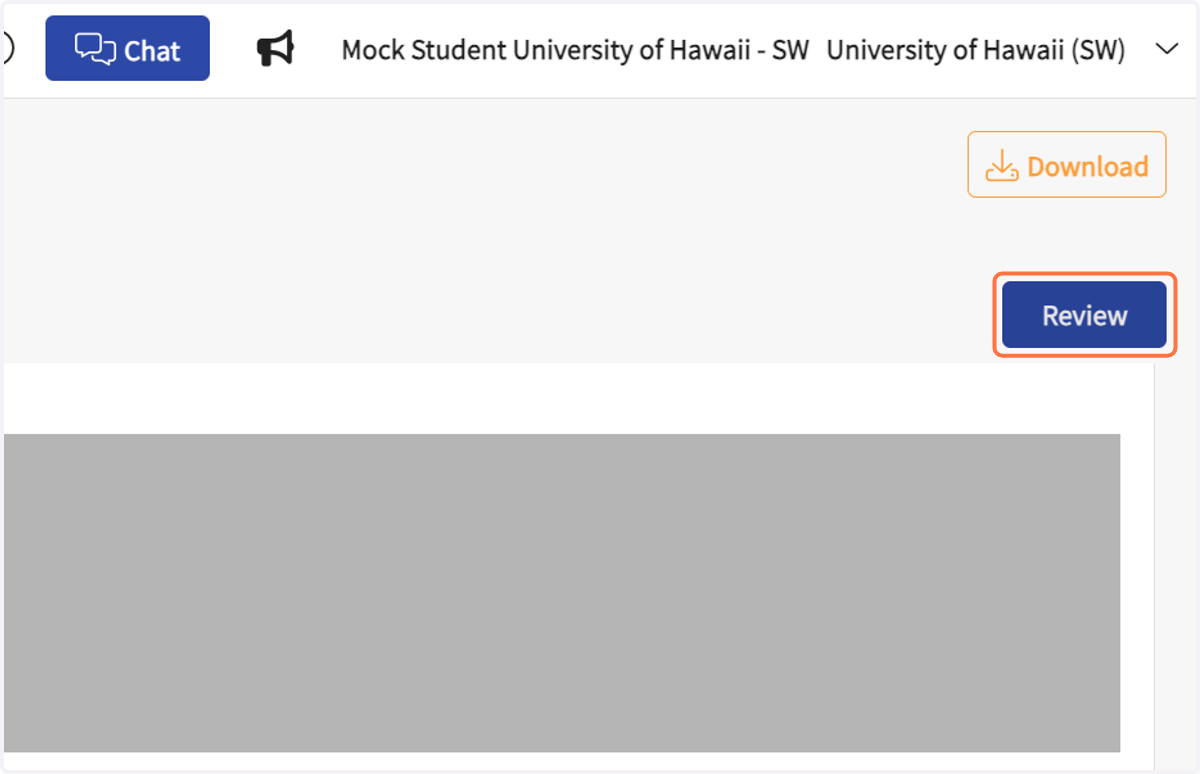
16. When complete, click on Review.
Upper right corner.
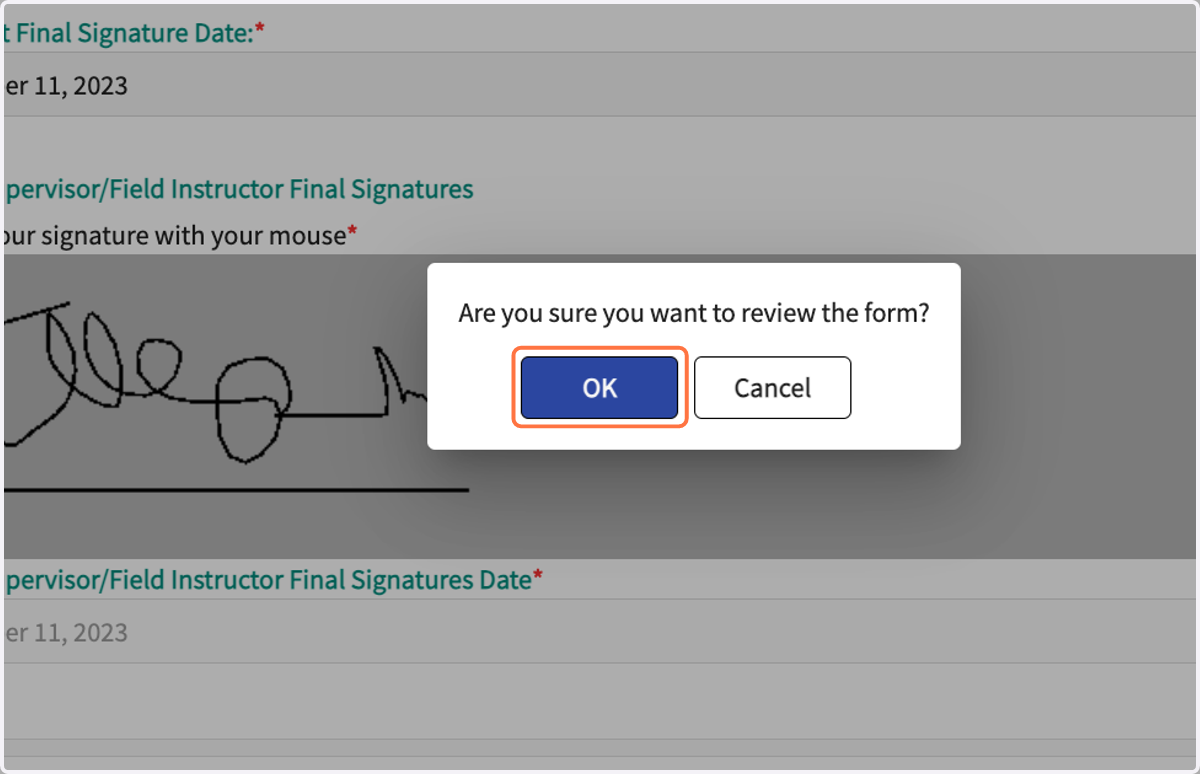
17. Click on OK in the pop-up.
View Final Learning Portfolio
After the Field Liaison/Coordinator reviews the Final Evaluation, you may view and download the final version.
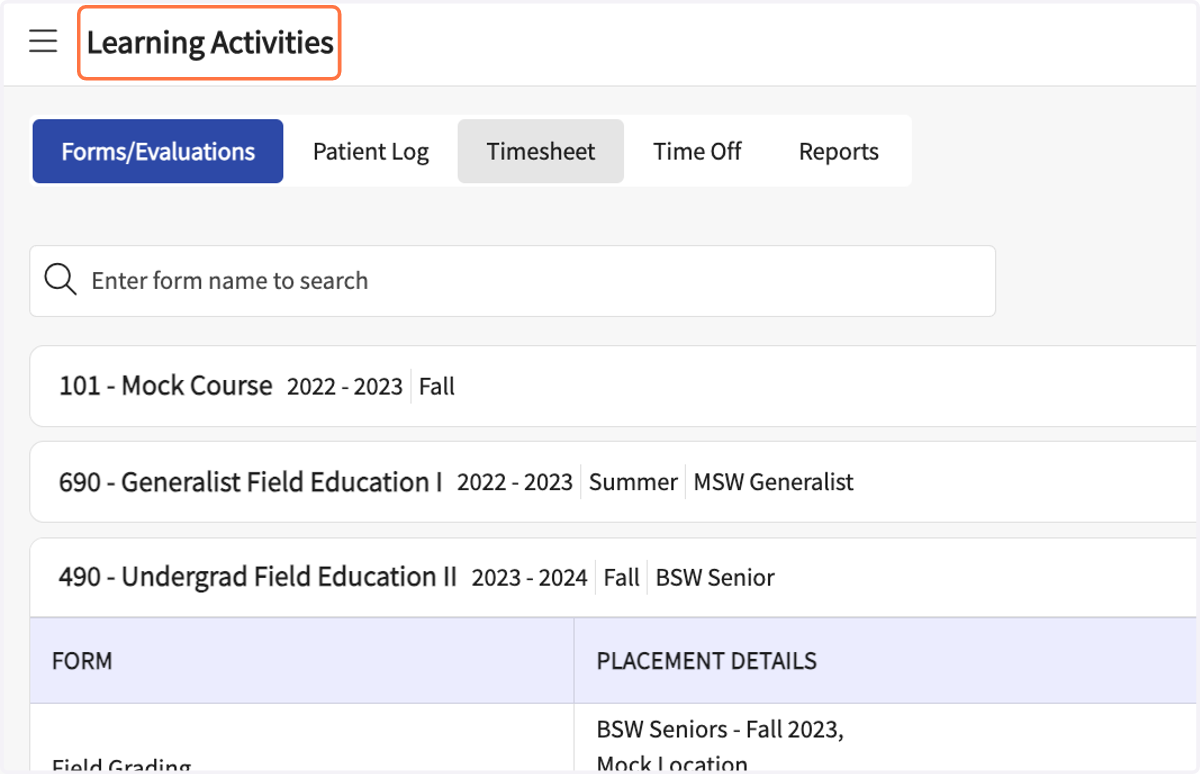
18. From the Dashboard, go to the Learning Activities page.
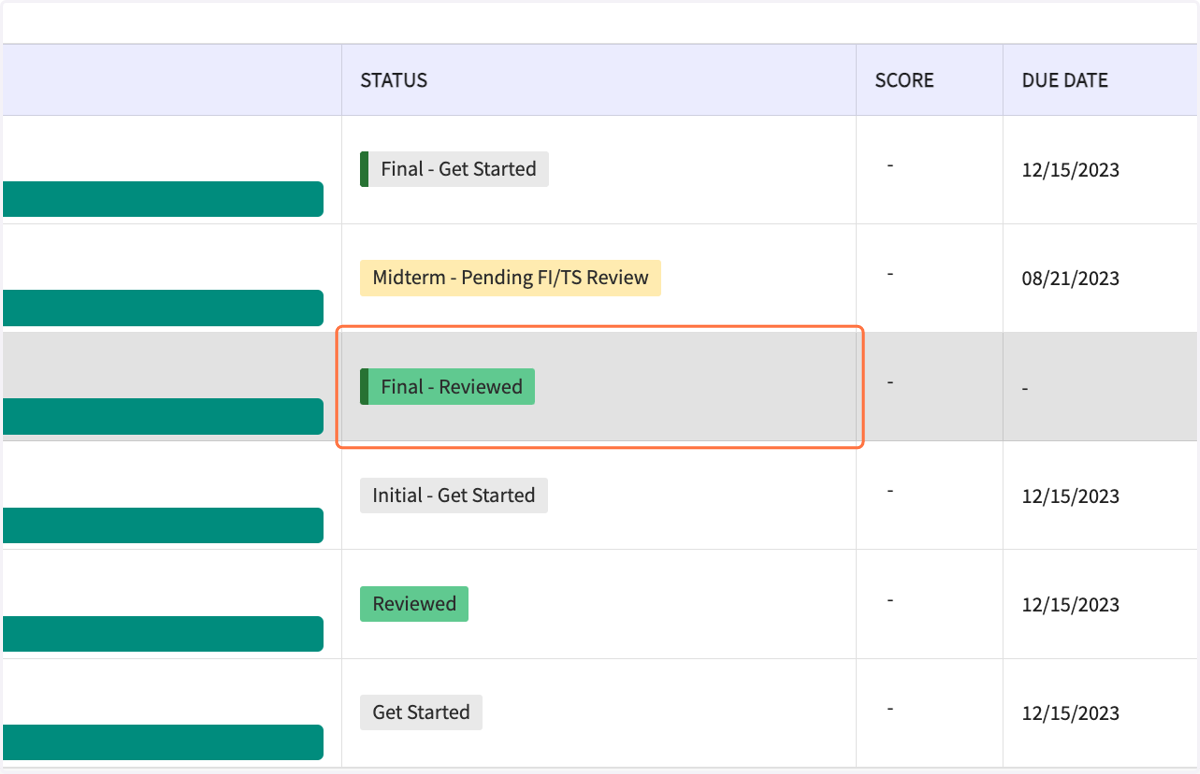
19. On the Learning Portfolio row, click on "Final - Reviewed."
20. Review all ratings and feedback.
21. Scroll down to see all Signatures.
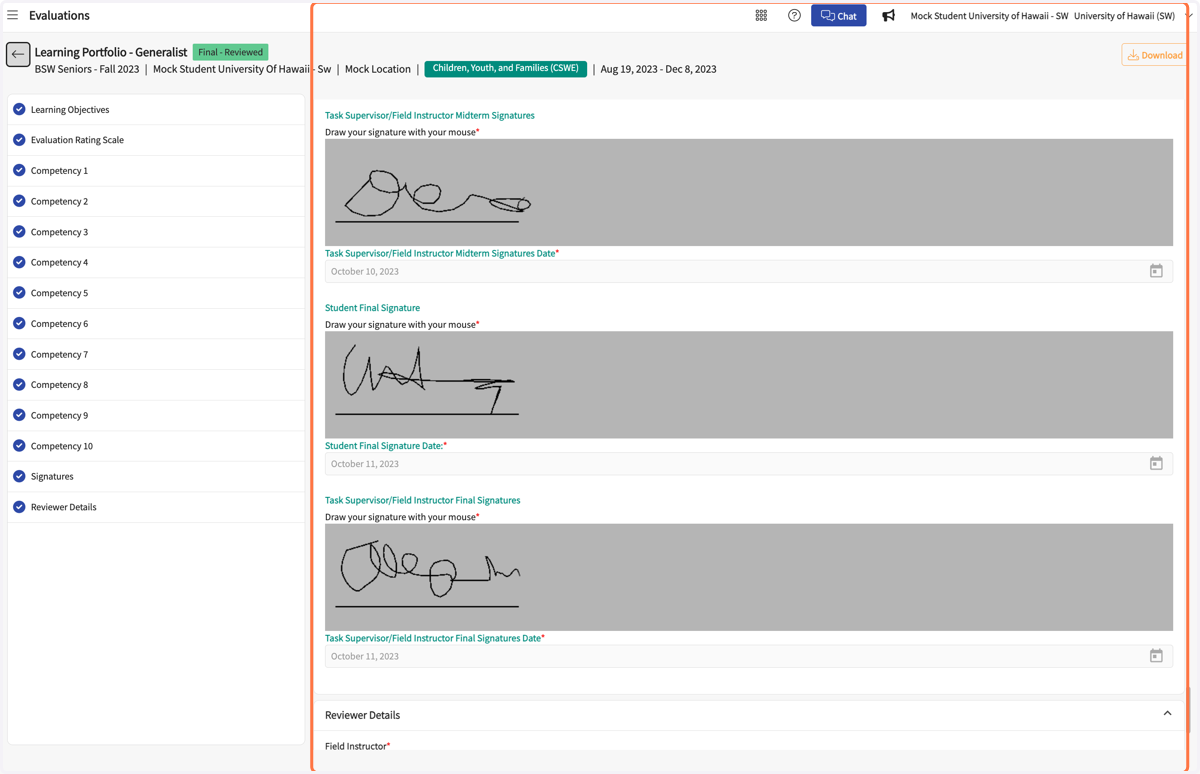
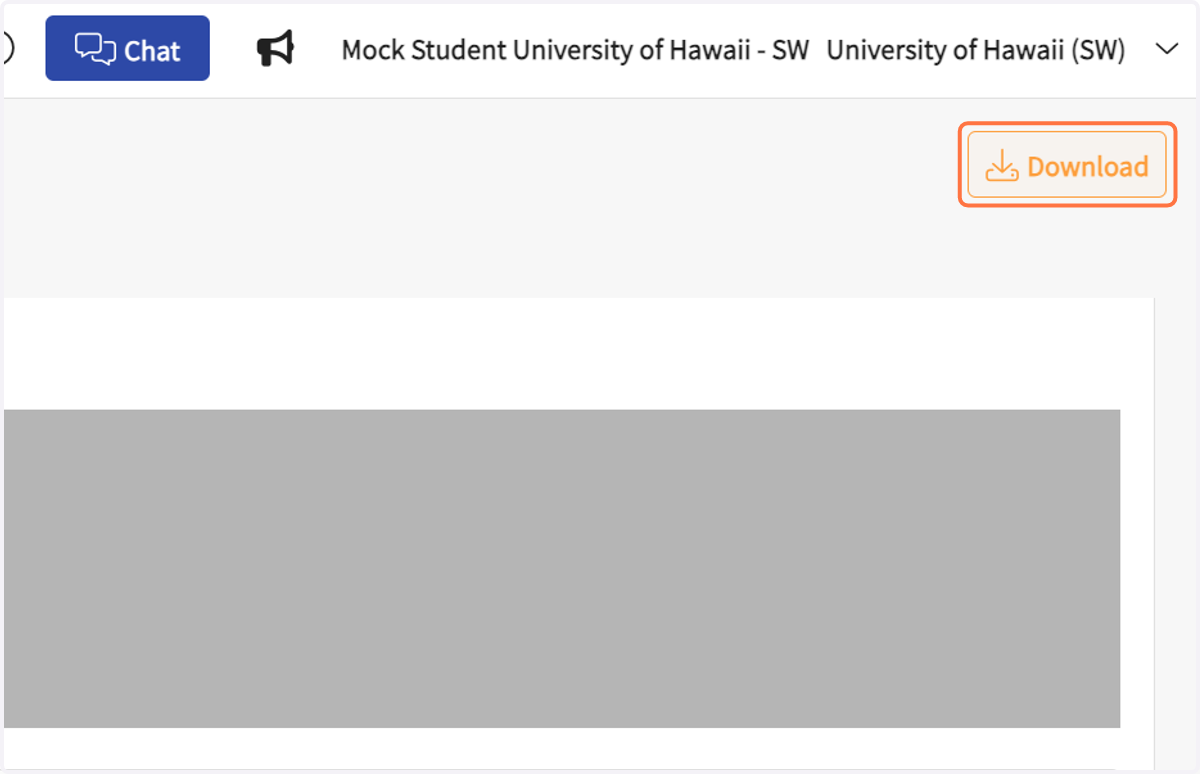
22. Click on Download to save the Learning Portfolio to your computer. (Note that the school does not save final evaluations. Students are expected to save their own evaluations and field forms.)
Upper right corner.