Student - Course Navigation
1. Login to your student account and scroll to the bottom of the dashboard to locate your course.
This will open a new tab to direct you to the Canvas Learning Management System.
If you click 'Launch Course' and nothing happens, that means you need to allow pop-ups on the browser you are using.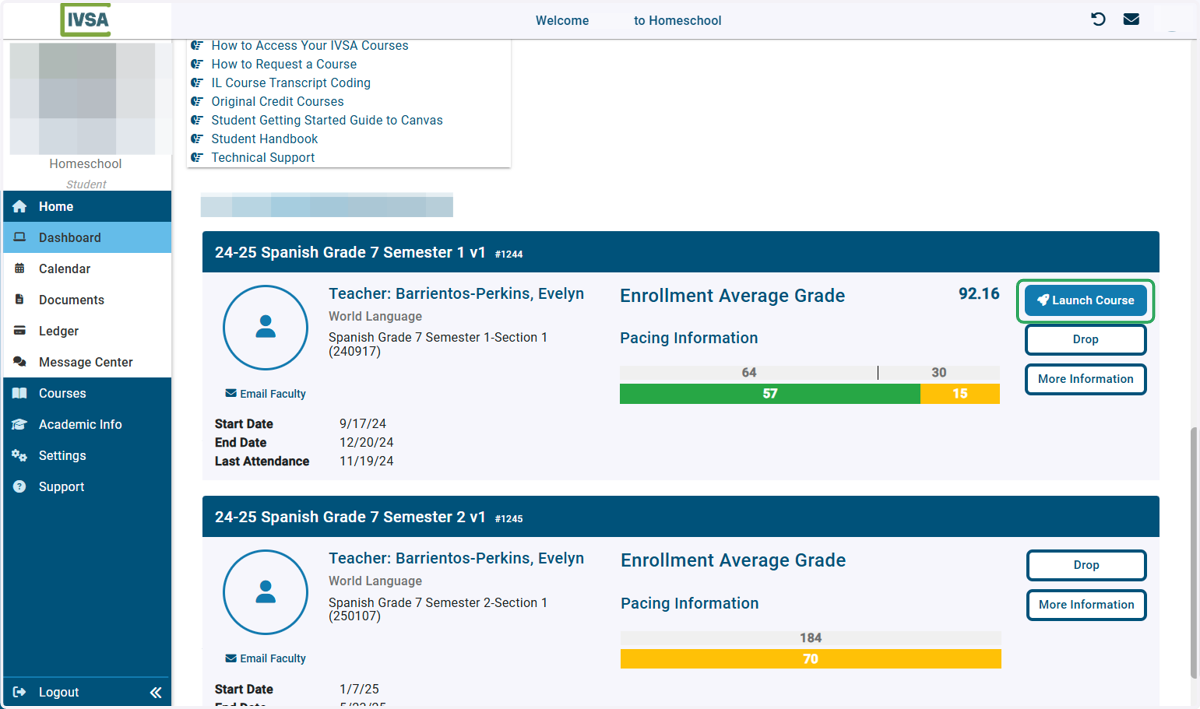
Canvas
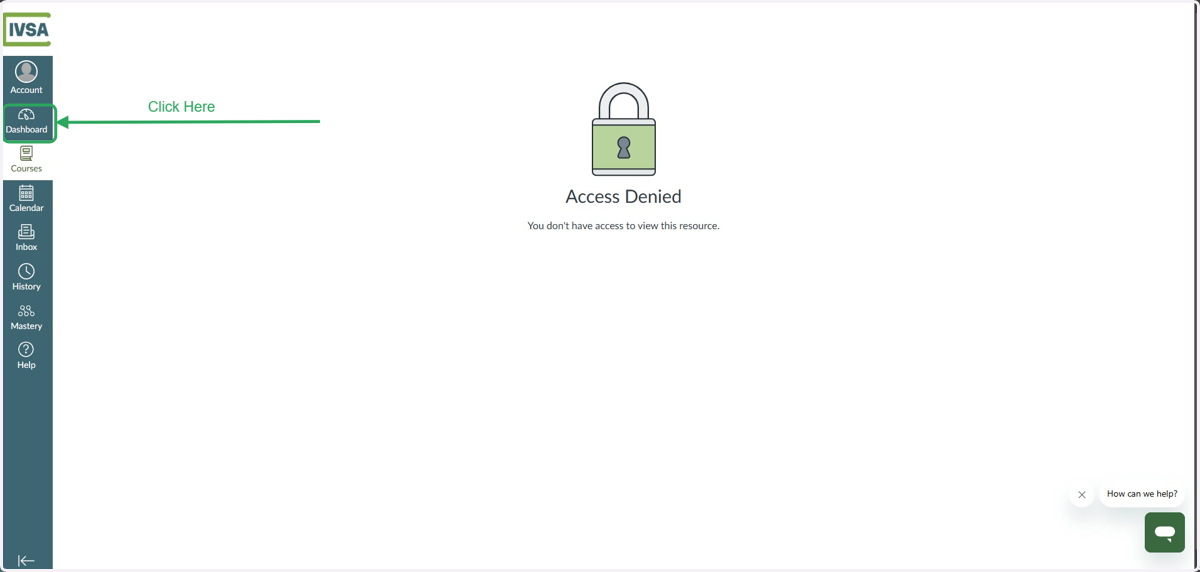
2. Did you get an Access Denied Error?
Click on 'Dashboard' on the left side of the screen and this will go away.
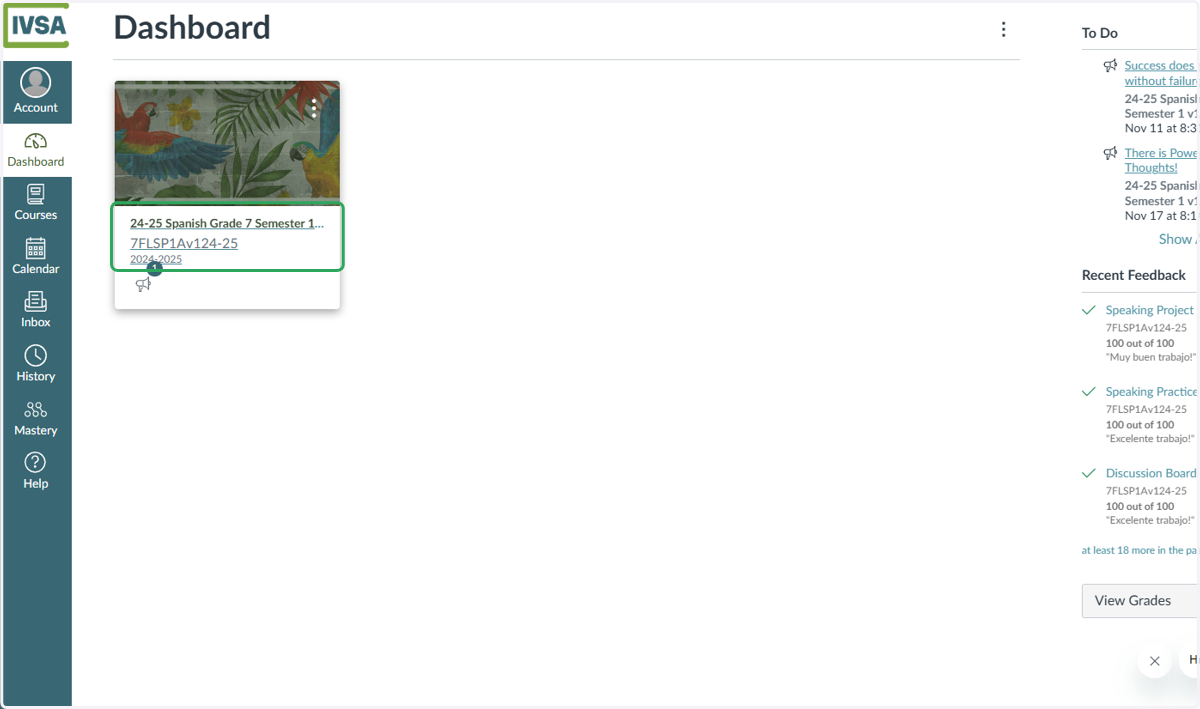
3. On your Canvas Dashboard, click on the course card to access your class.
If you're in more than one class, then you will have a course card for each enrollment.
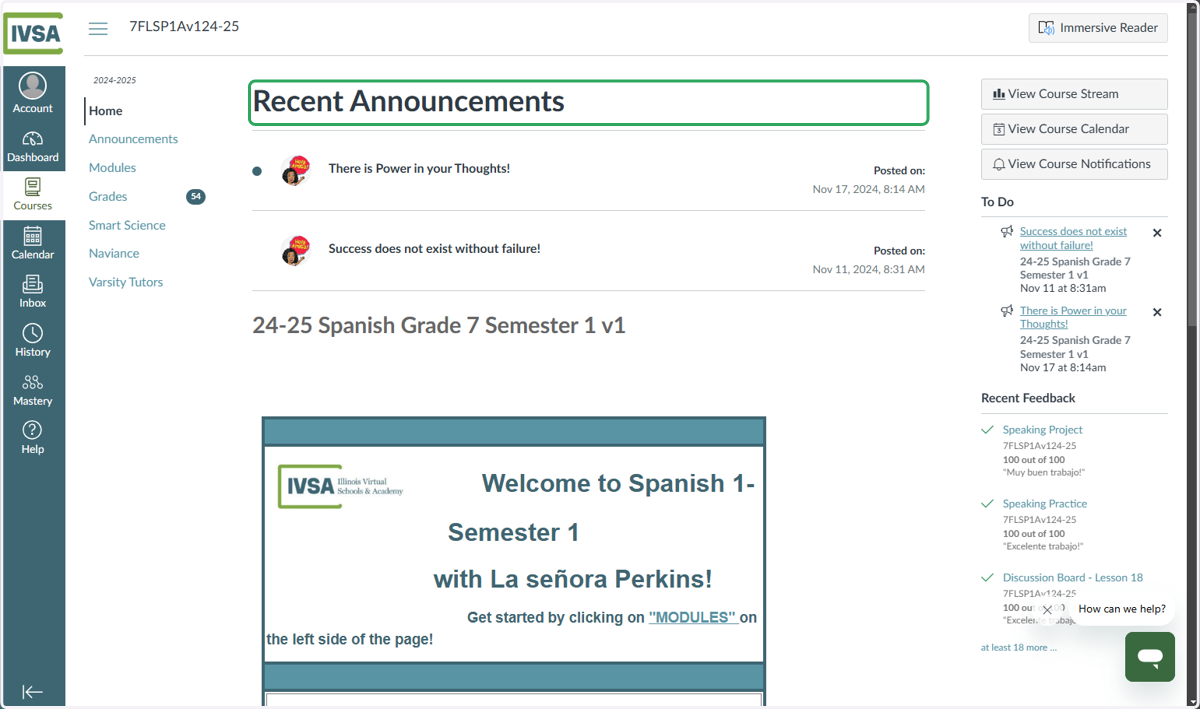
4. Recent Announcements
Make sure to check out your course home page. Your instructor may post announcements that are part of your learning.
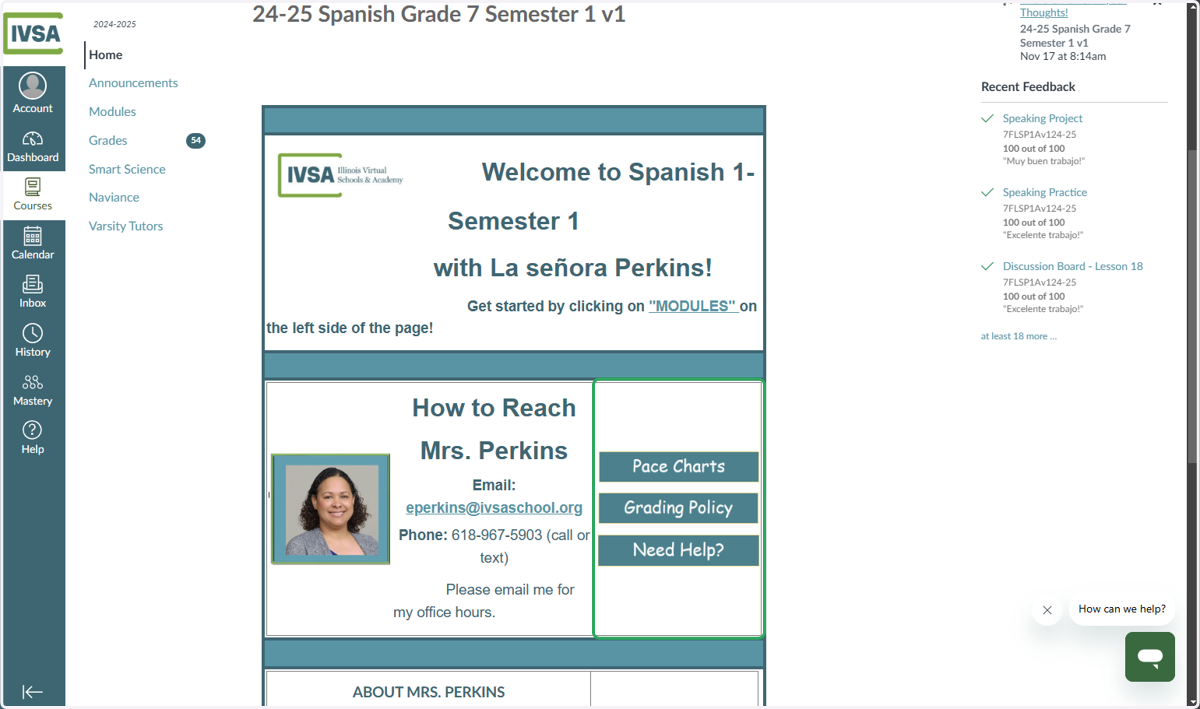
5. Teacher Info
Your course homepage also contains:
Teacher contact information
The pacing chart for your course
Your teacher's grading policy
And any other additional information your teacher provides
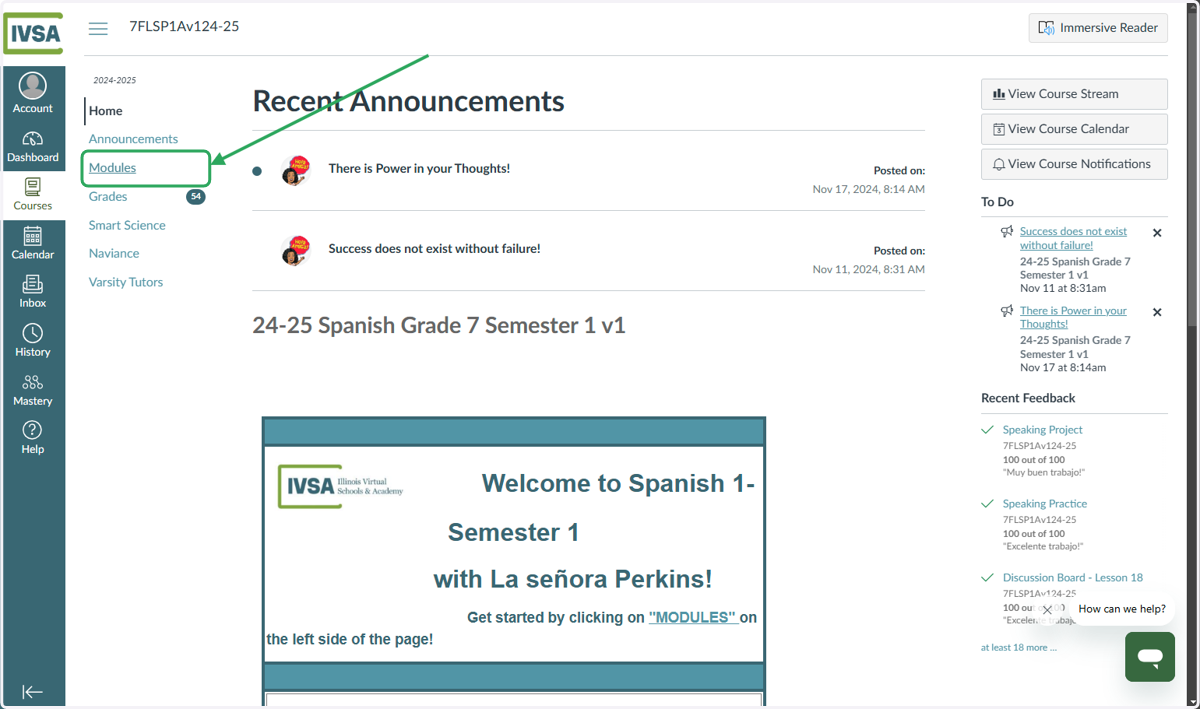
6. Click on MODULES to access your course content.
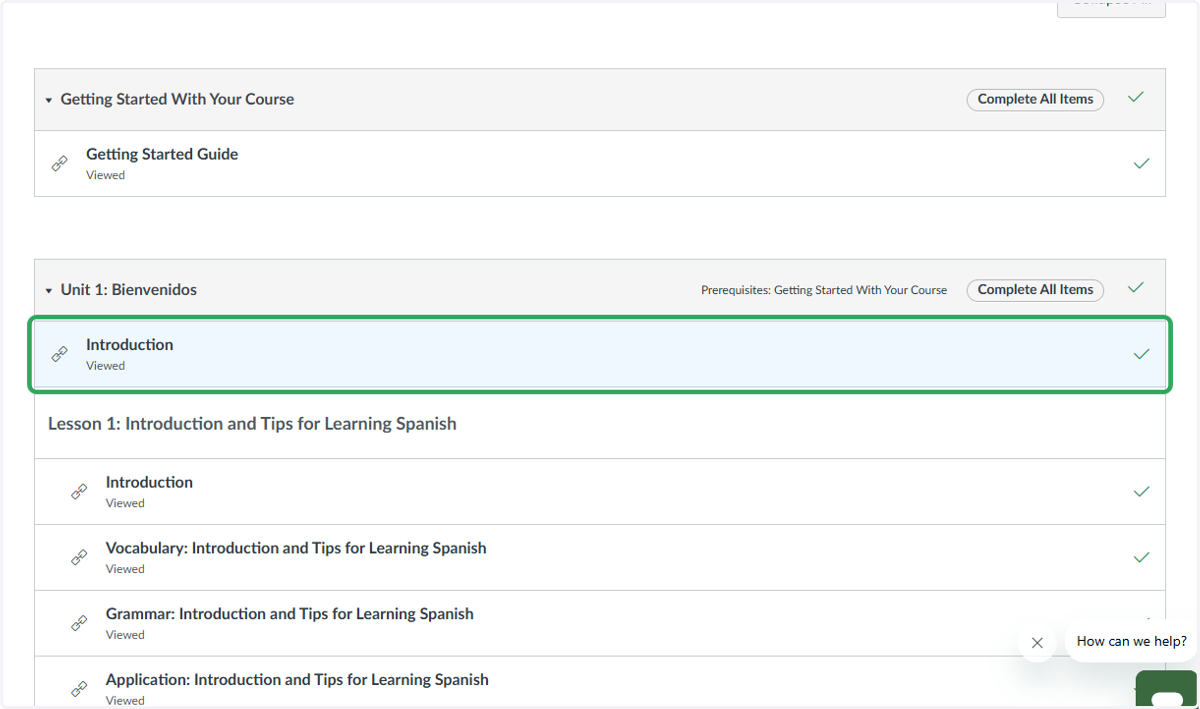
7. Activities
Activities in your IVSA course are listed in order. When you complete an activity, a check mark will appear to the right of the activity name.
You cannot jump around in your course. You must complete activities in the order they appear.
8. Next Activity
The next available activity will be displayed with an empty circle to the right. When you complete the activity, the check-mark will appear.
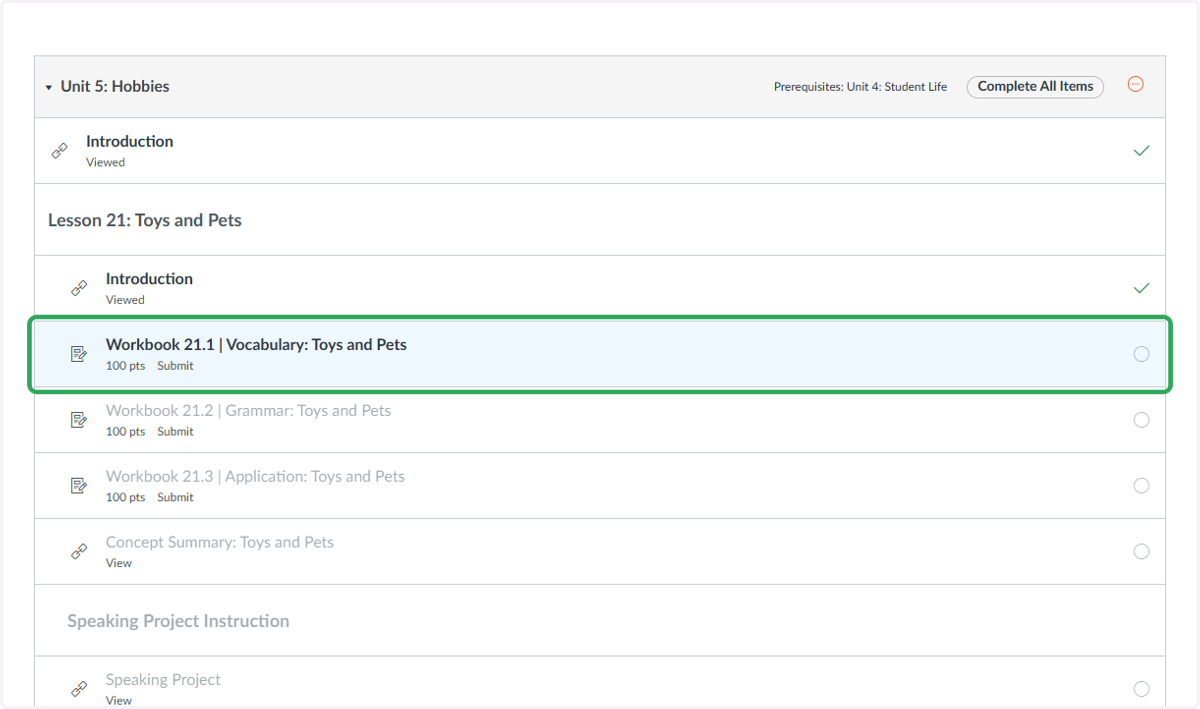
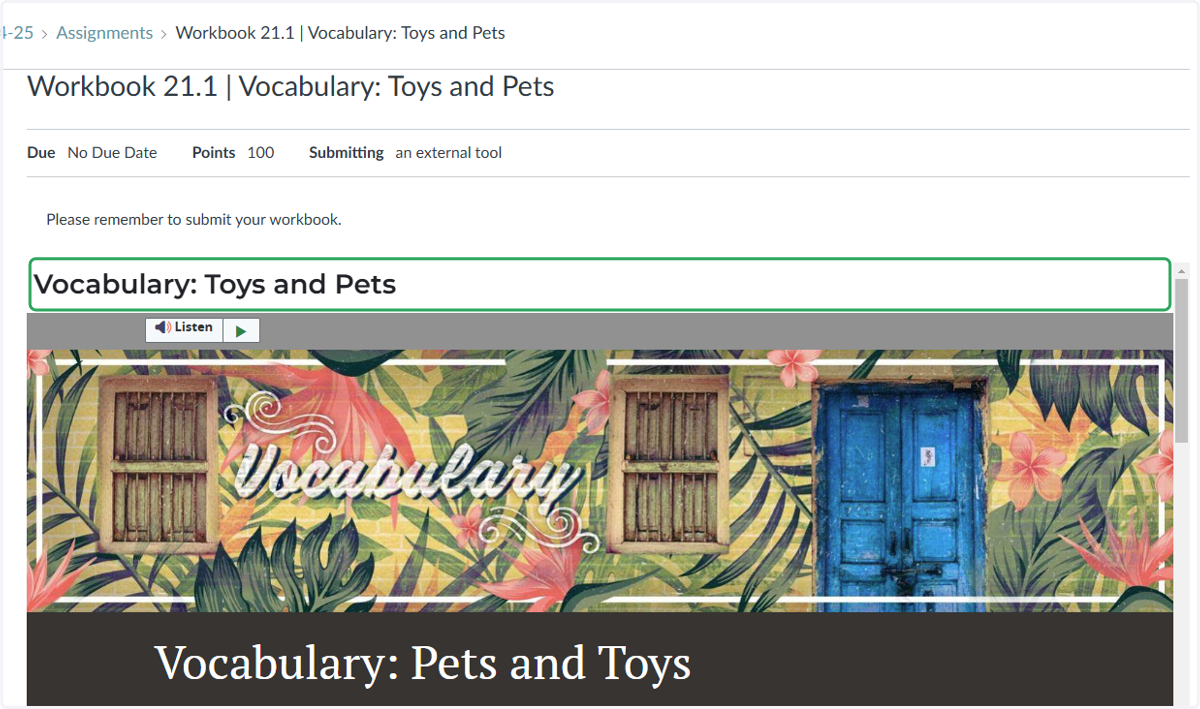
9. Click on the first unchecked activity to access your next lesson
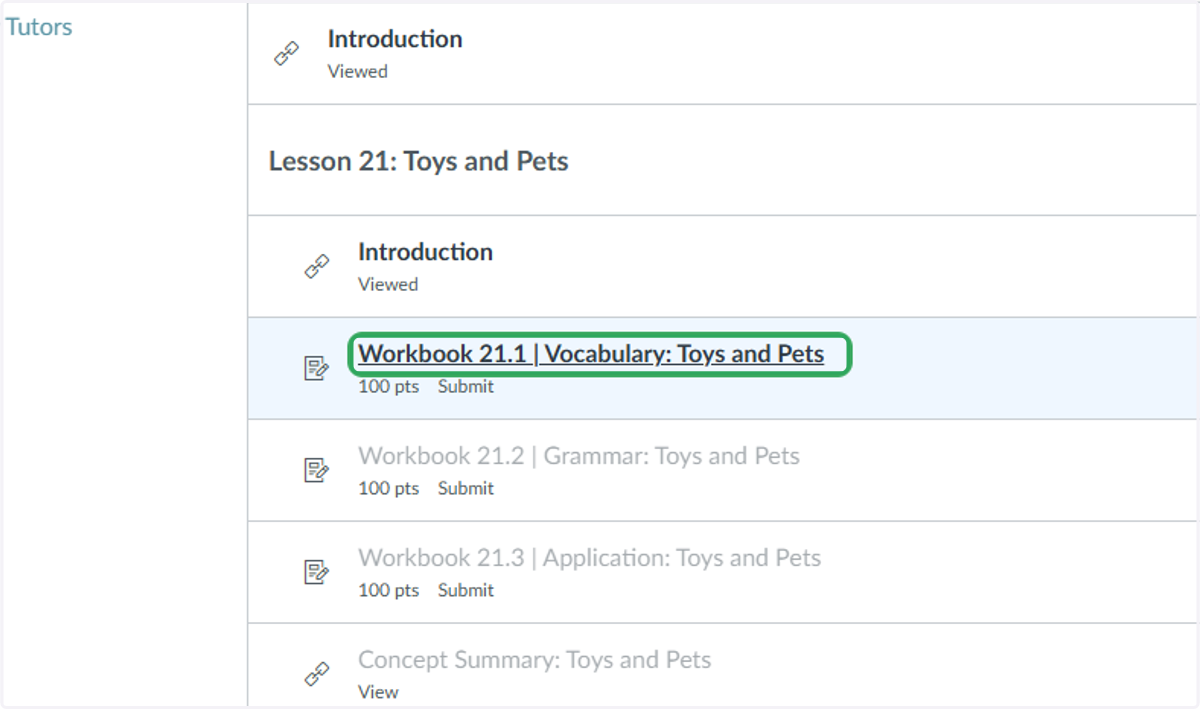
10. Now you have accessed your module
Scroll through the module expanding items and completing the practice activities as you move down the page.
The types of activities vary by course.
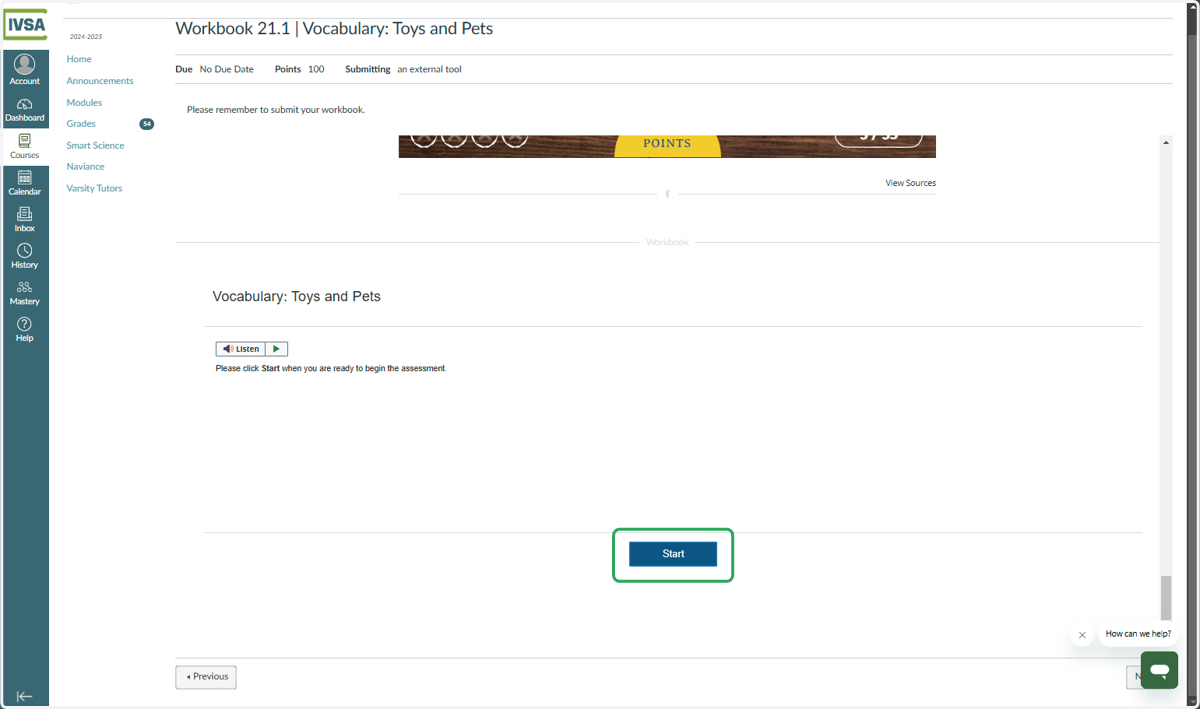
11. In this example, The student will click the 'Start' button at the bottom of the page to take the end of lesson assessment.
Not all lessons may contain this type of assessment.
12. After completing all the assessment questions, click 'Finish'.
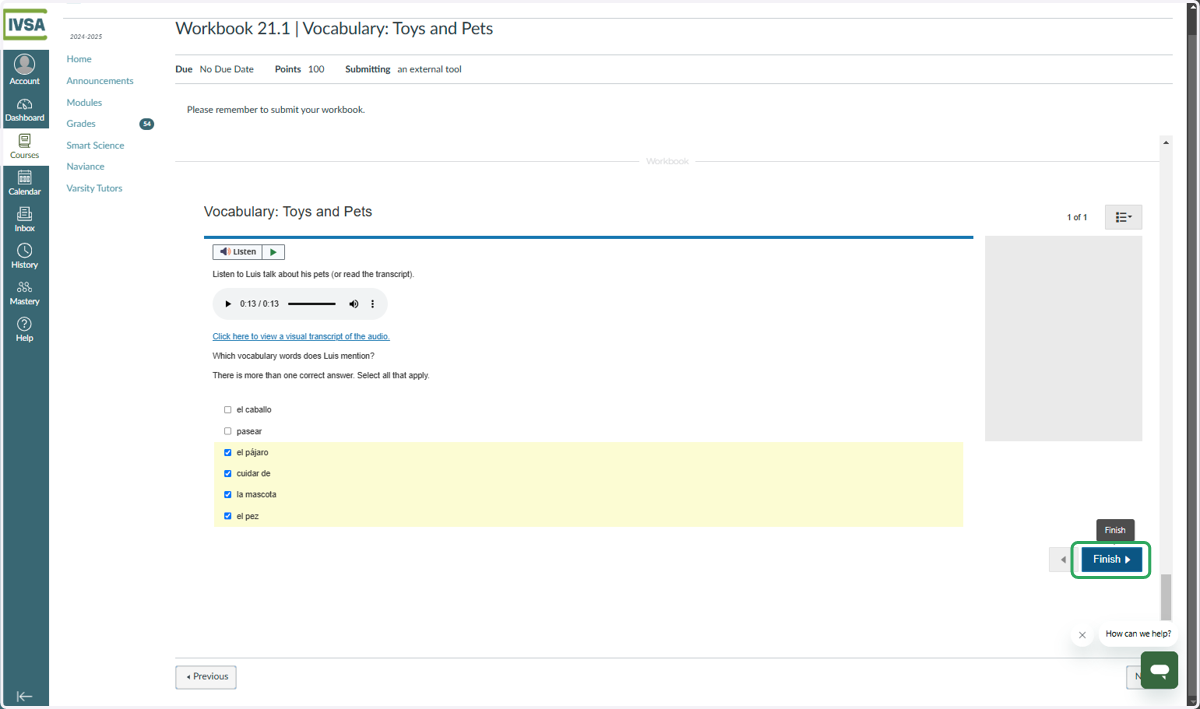
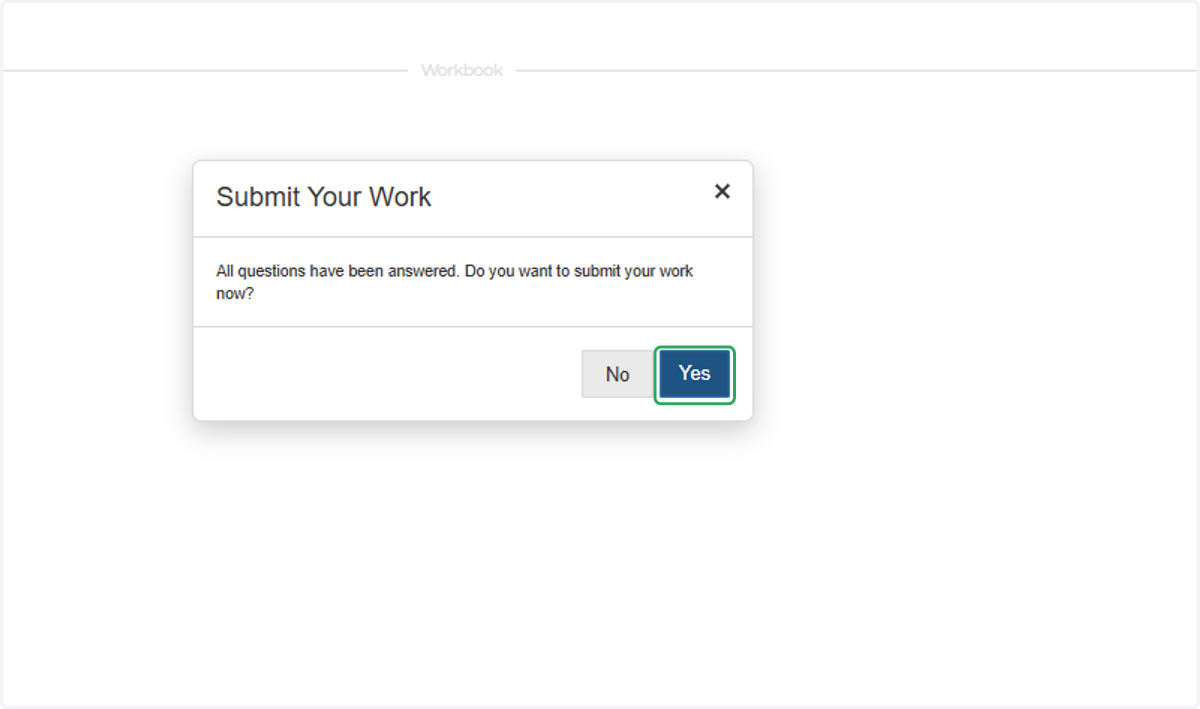
13. Click on Yes to confirm you want to submit your work.
14. In this example, the student sees the results of their assessment.
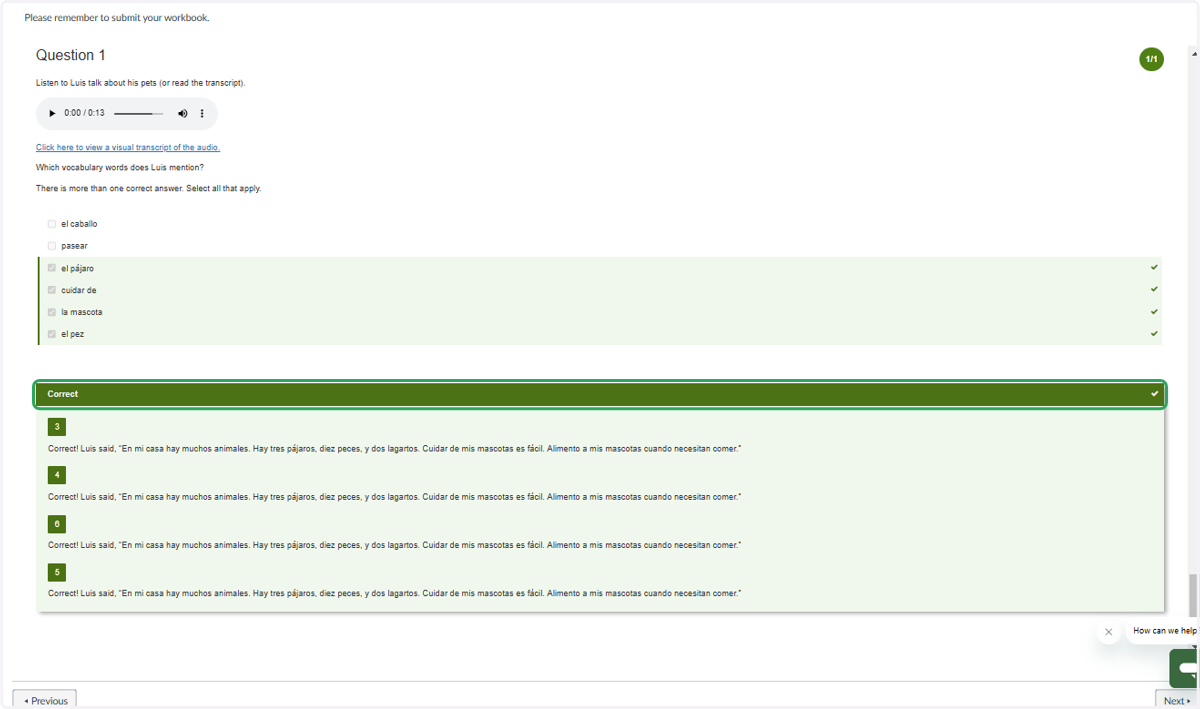
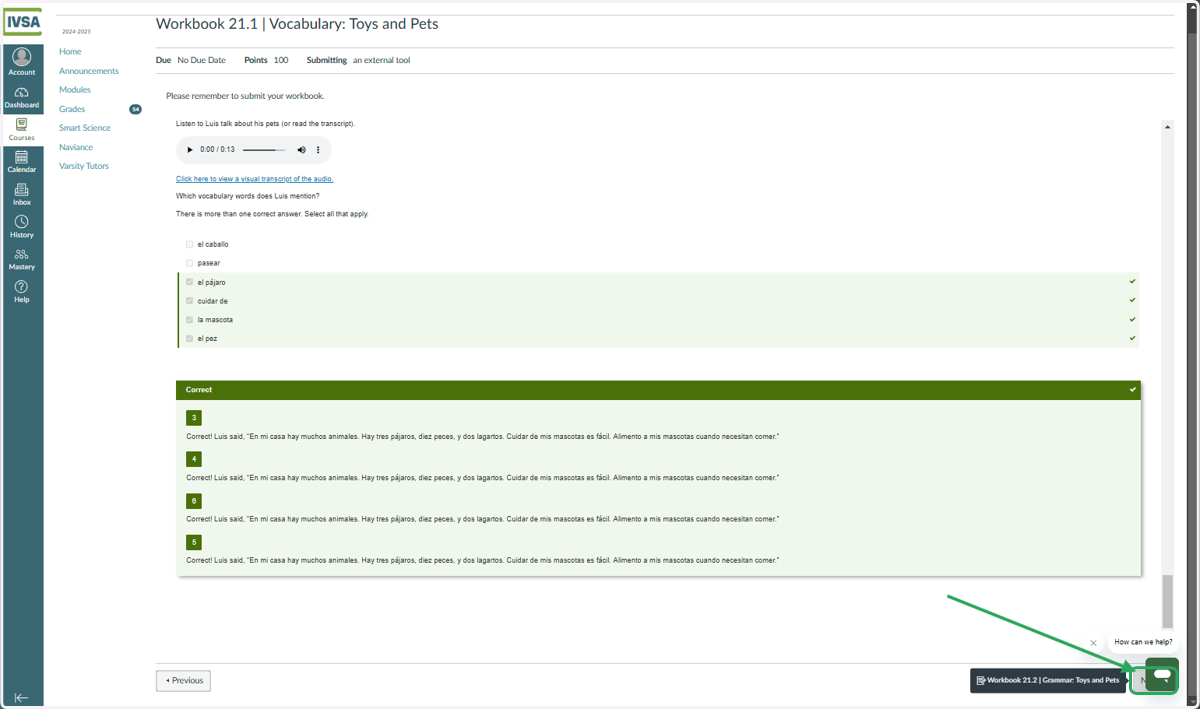
15. Click on the 'Next' button that hides behind the chat button to move on to the next activity.
Have trouble? Need Assistance? Email us at support@ivsaschool.org