Stripe Onboarding
🤝 Connect your FundEasy Account with Stripe
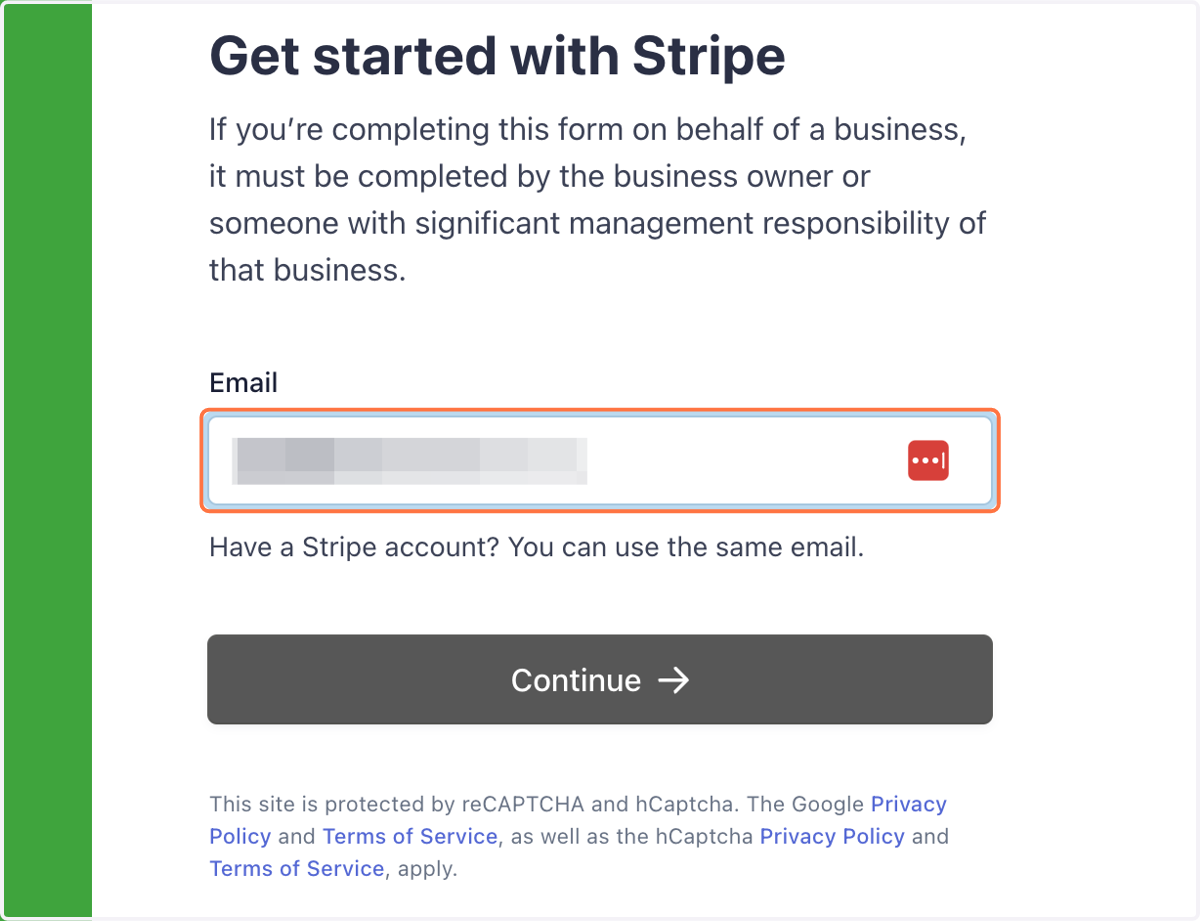
1. To get started, enter your email. If you already have a Stripe account, use that email. Click Continue.
After entering your email and password, you should receive an email from Stripe to verify your account.
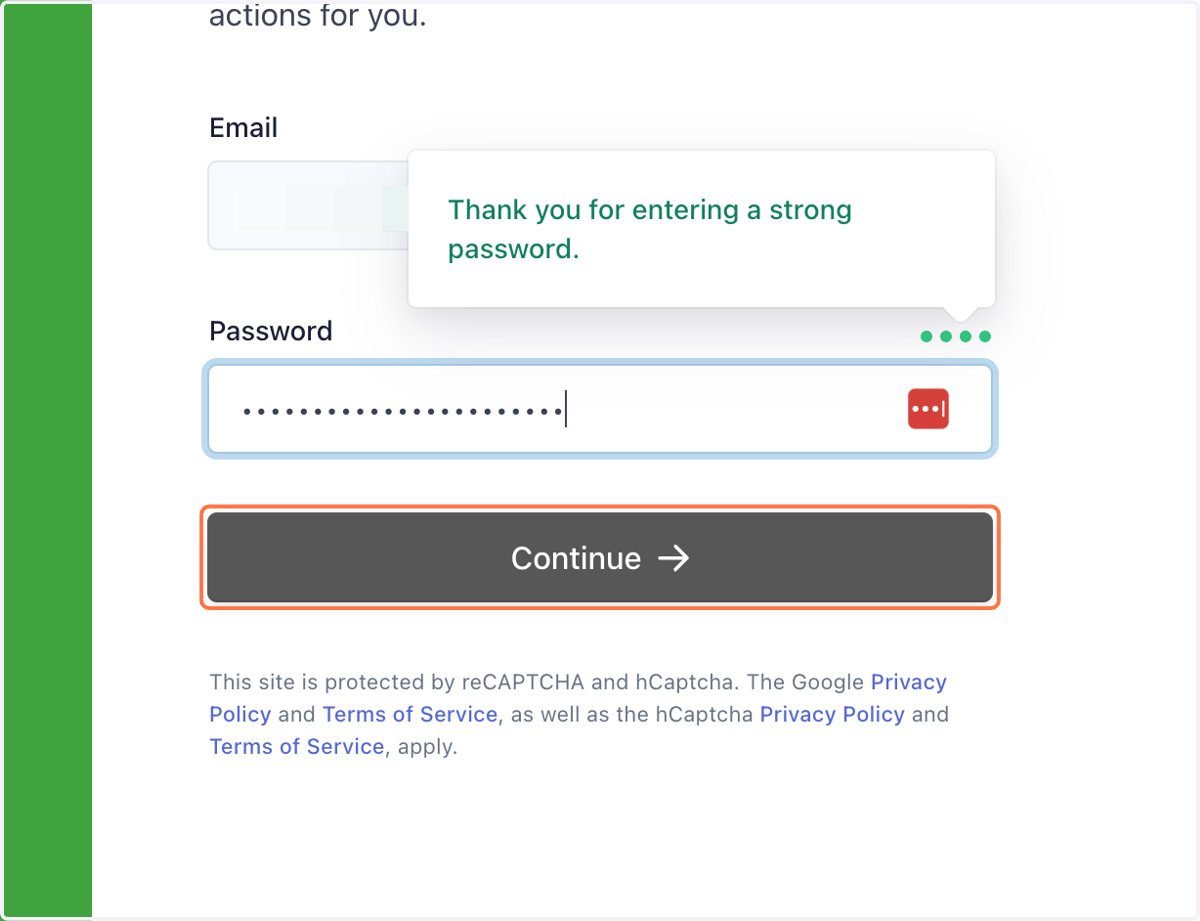
2. Enter a password and click Continue.
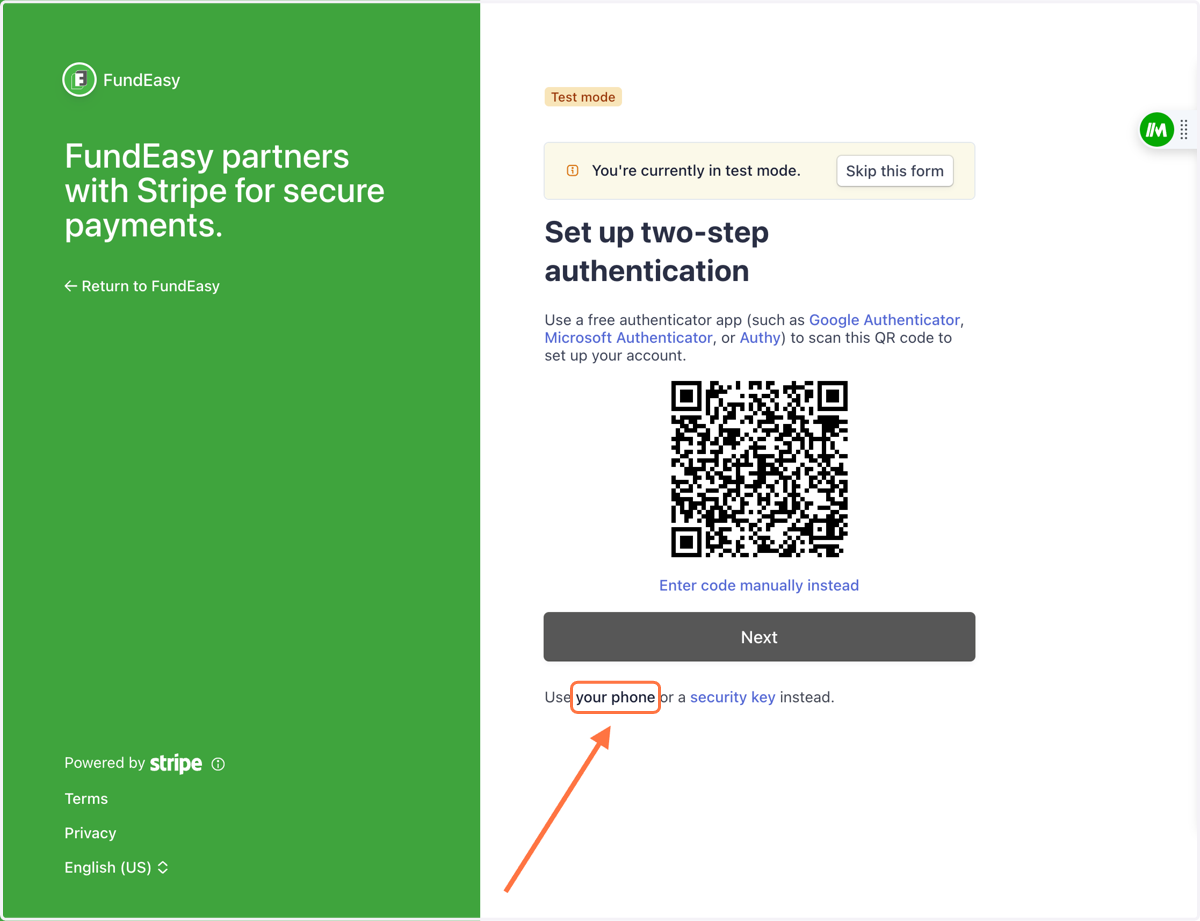
3. Choose a method for two-step authentication. To receive a code by text, click the link below the Next button to use your phone.
Whatever method you choose, you'll be asked to use this extra authentication every time you log in. Although they don't recommend it, you can disable this additional protection by turning off two-step authentication in Stripe Account Settings when you're done setting up your account.
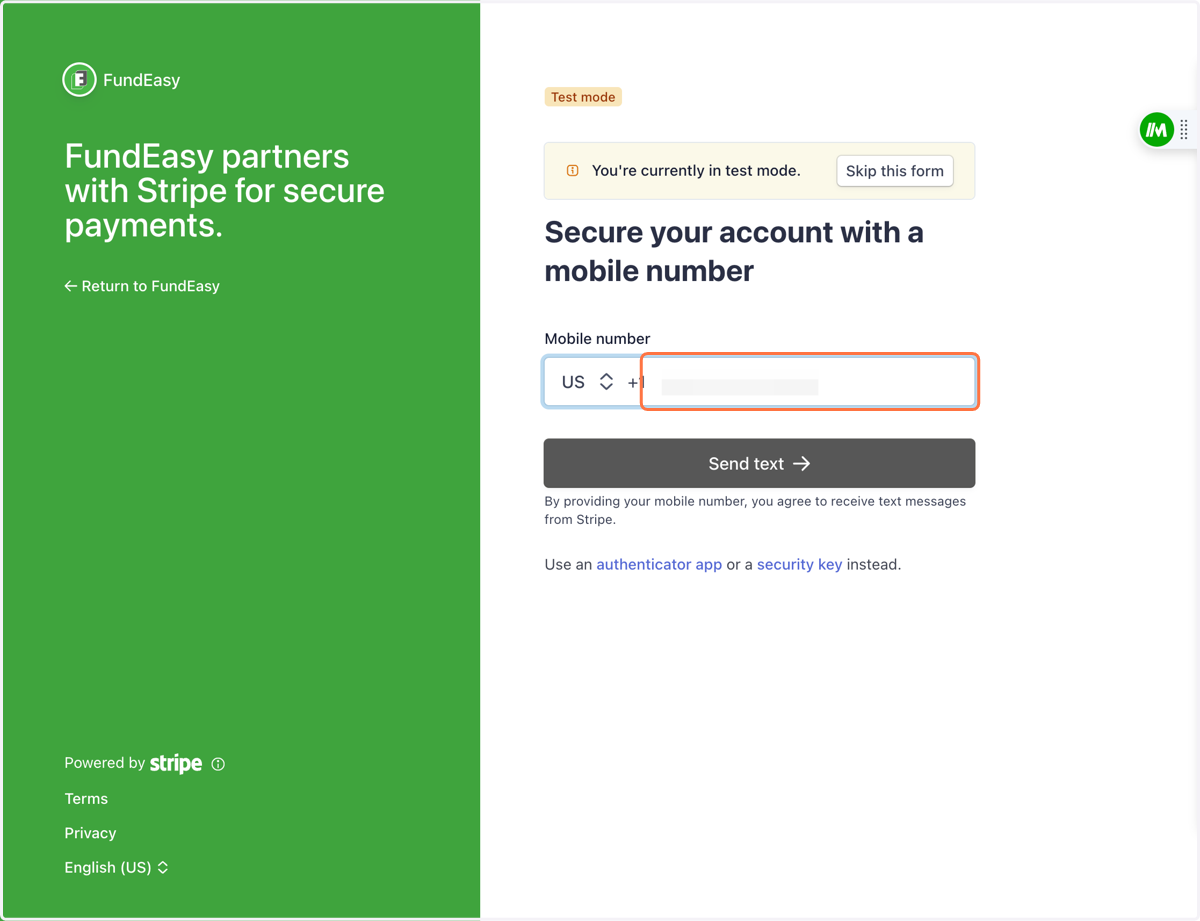
4. If you chose to use your phone, enter your phone number and click Send Text.
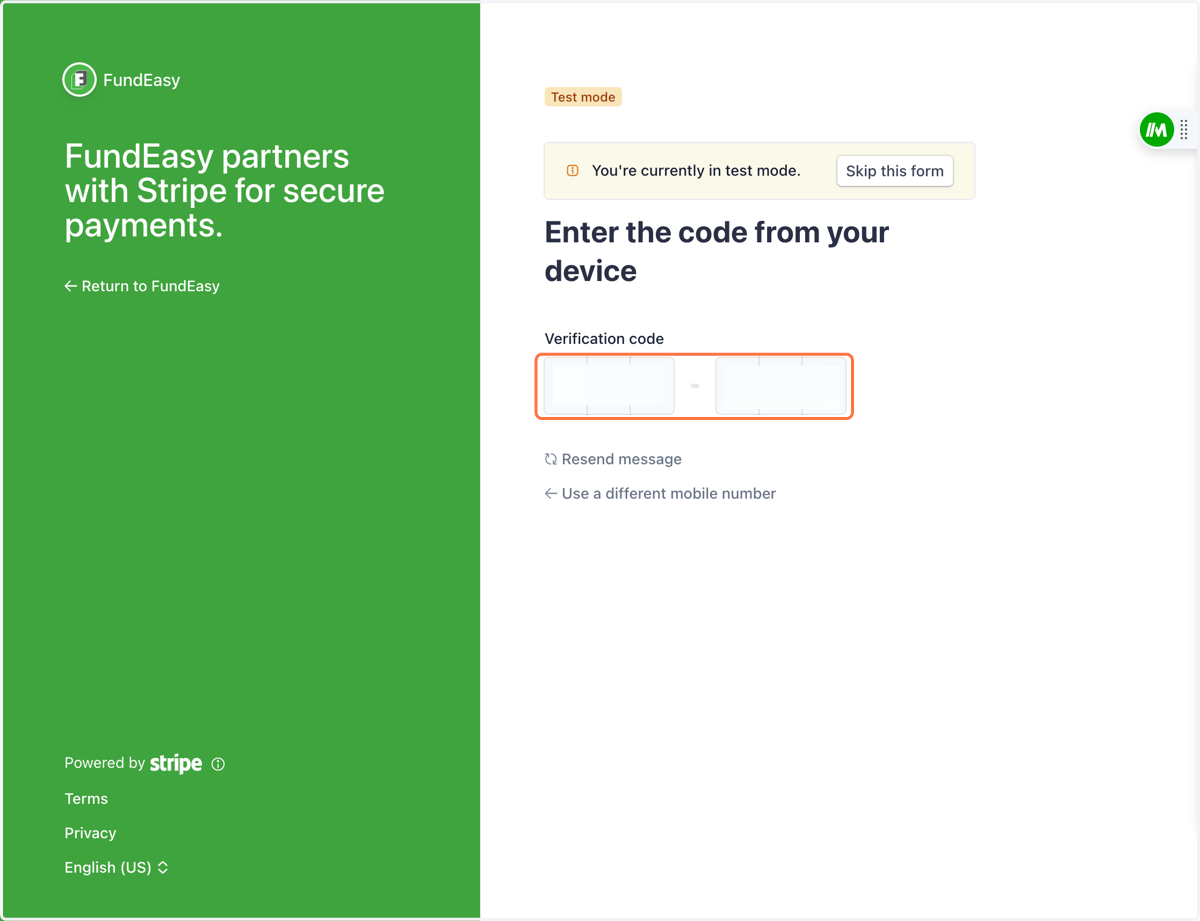
5. Enter the code you received via text (if that's the method you selected).
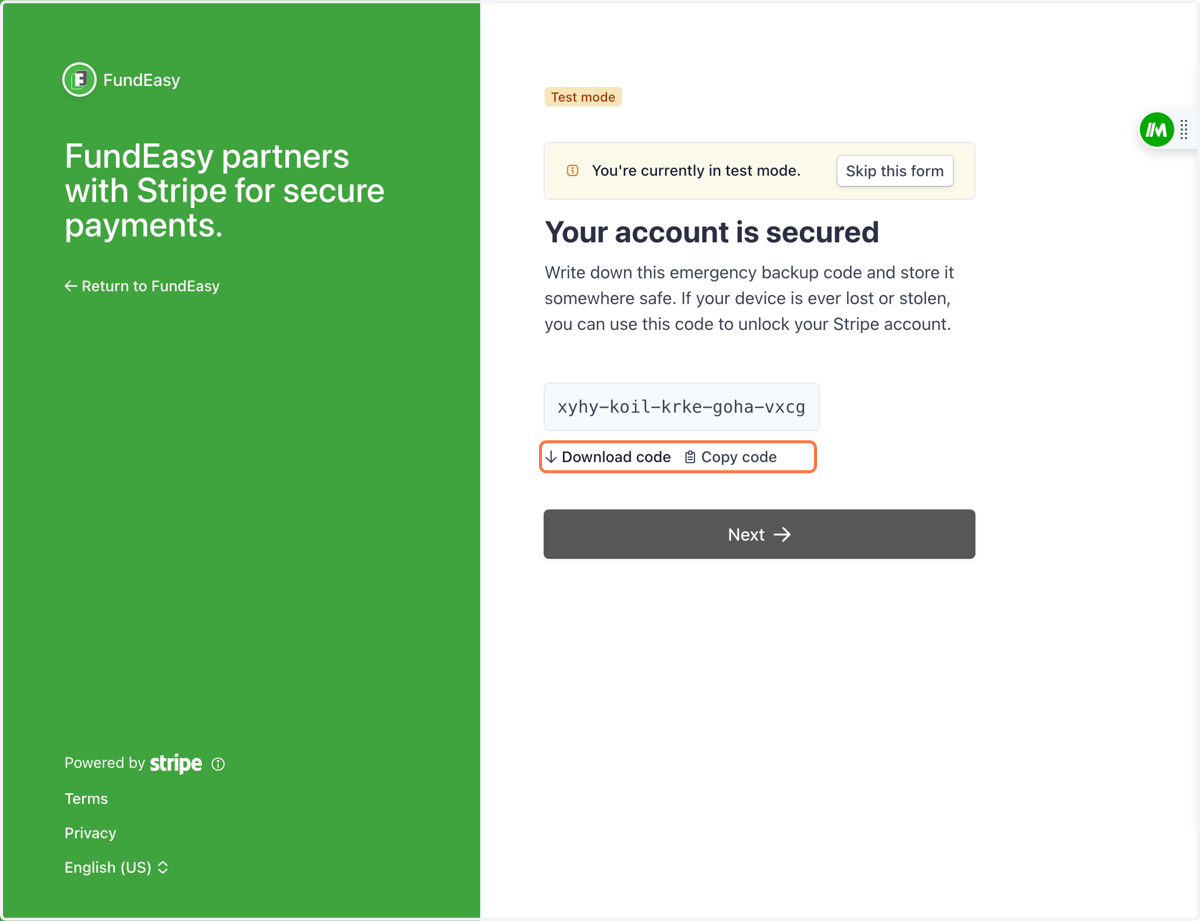
6. IMPORTANT: Save your emergency backup code! Then click Next.
Once your account has been authenticated, you'll receive a backup code. Be sure to download this code or copy/paste it somewhere you'll be able to access it later.
✏️ Enter Information about Your Nonprofit
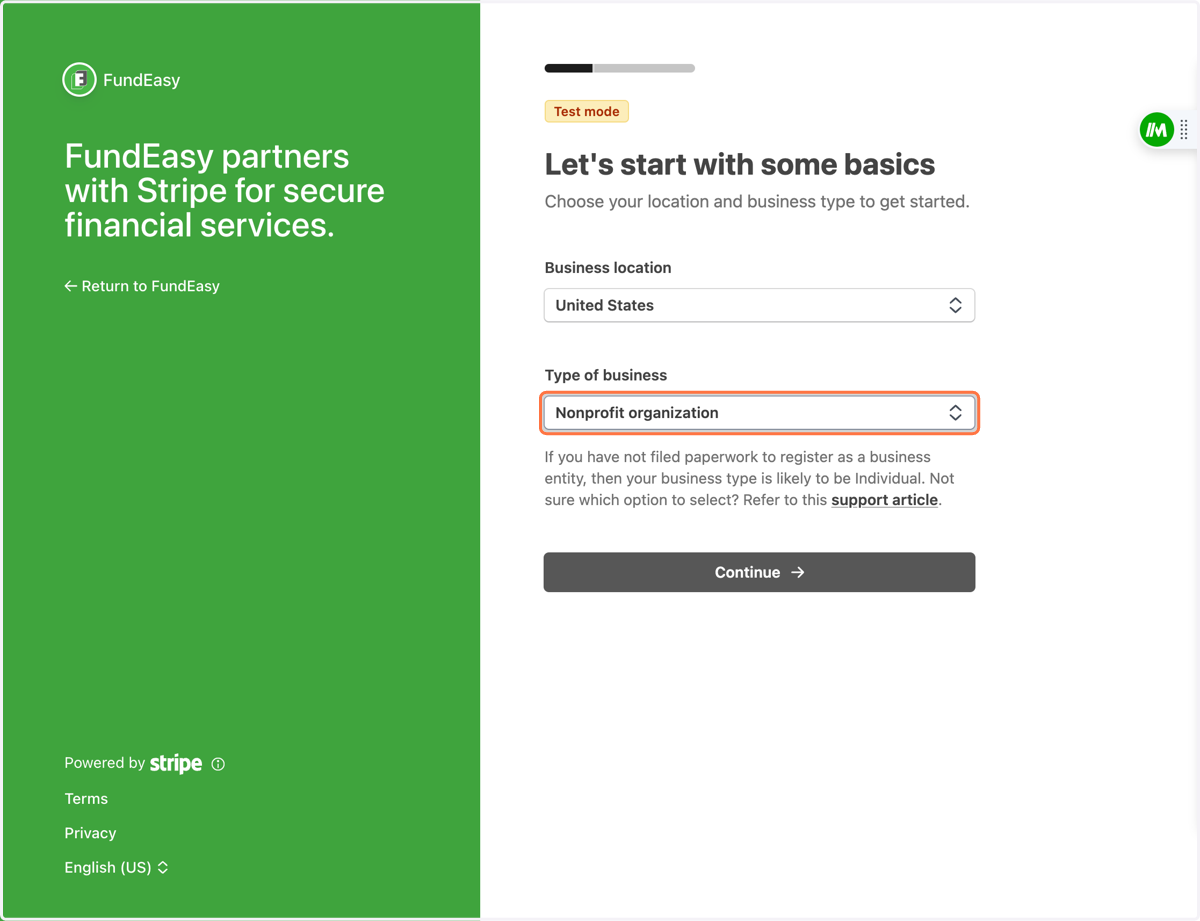
7. Choose your location and choose your type of business (nonprofit organization). Click Continue.
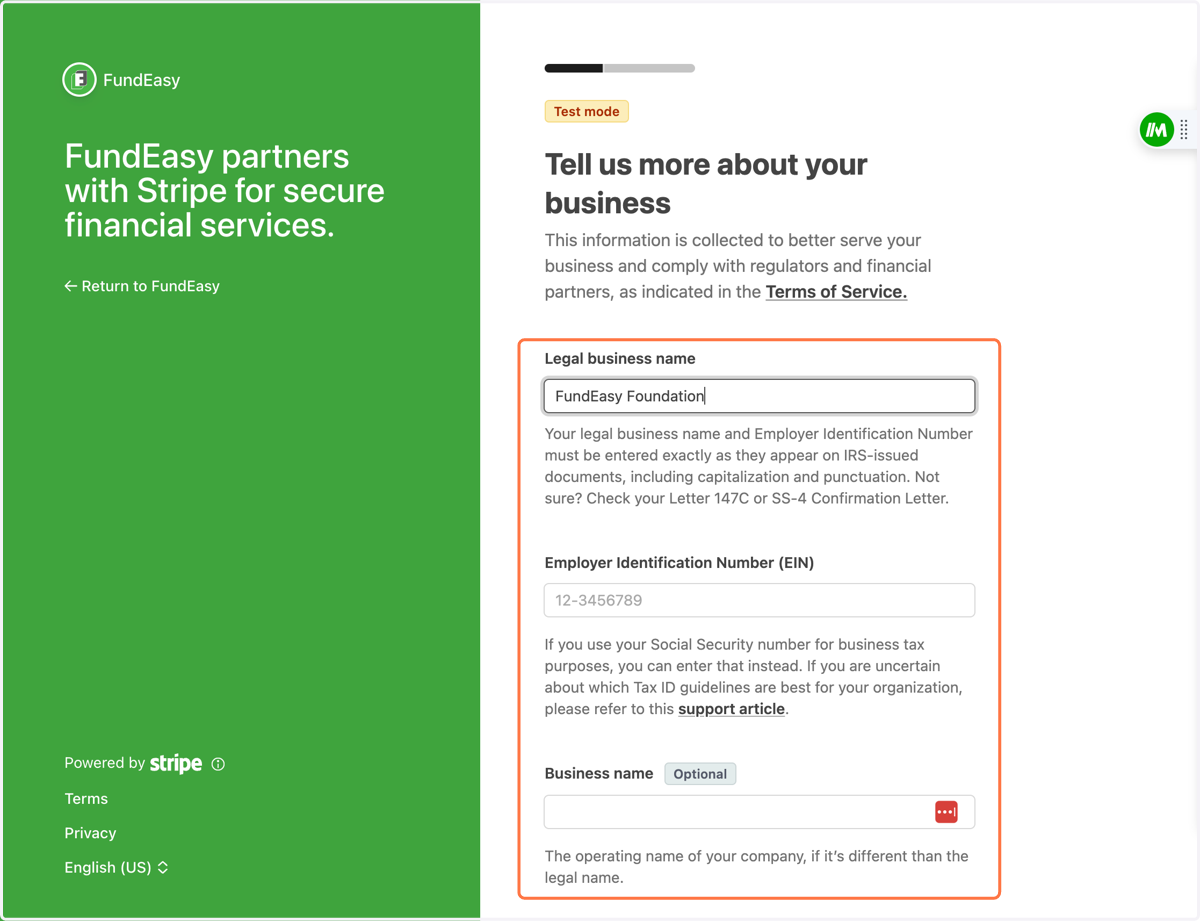
8. Enter your nonprofit's legal business name, EIN and business name (if different from the legal name).
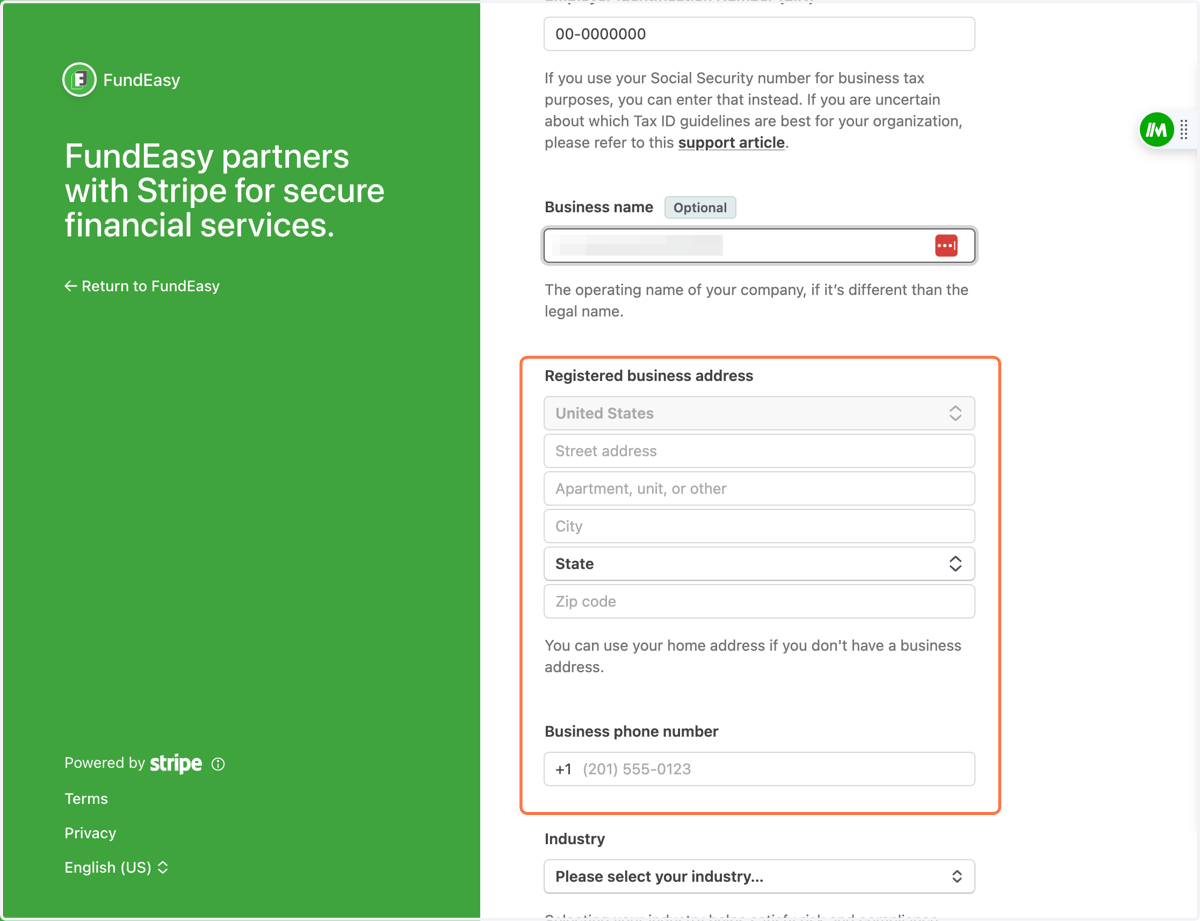
9. Enter your nonprofit's address and phone number.
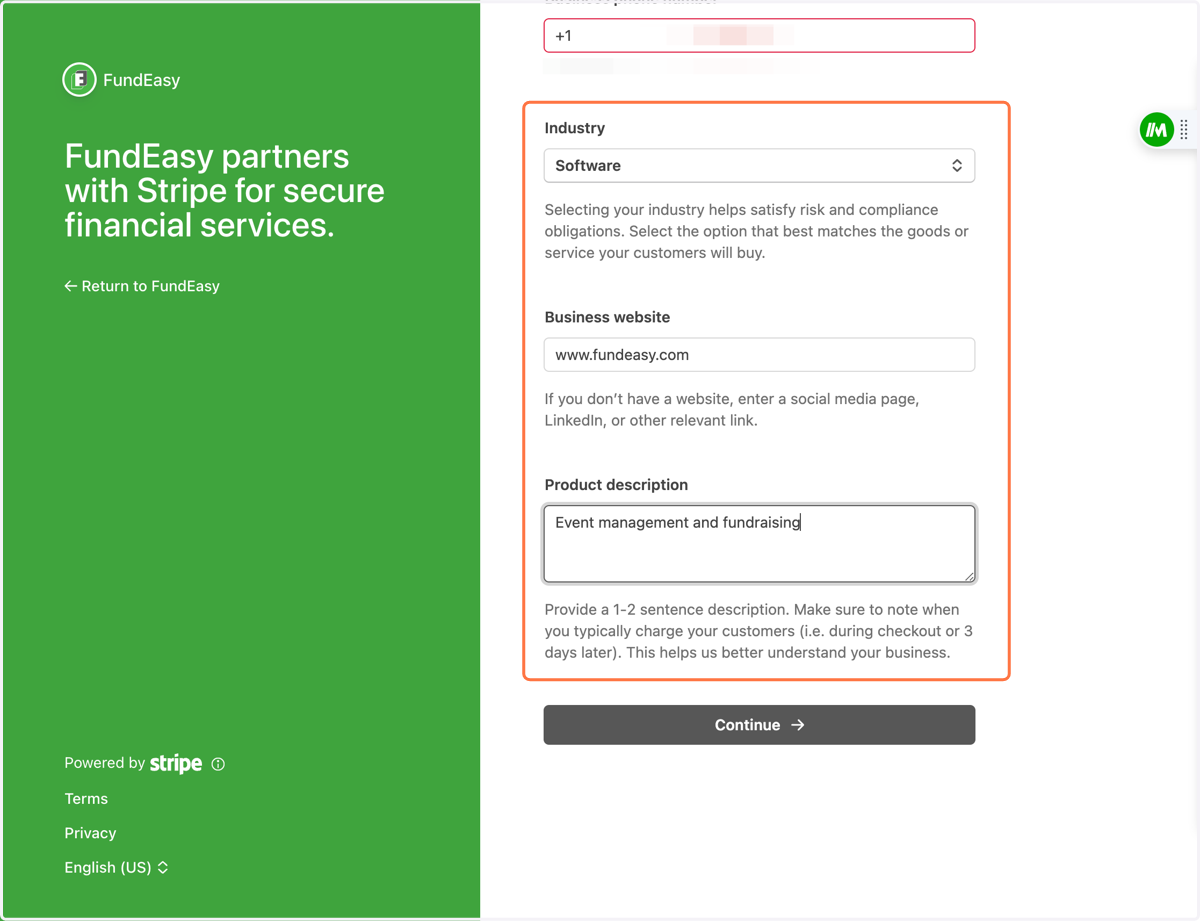
10. Select your industry, enter your nonprofit's website, and give brief description of how you plan to use Stripe with FundEasy. Click Continue.
✏️ Enter Information about the Business Representative for Your Nonprofit
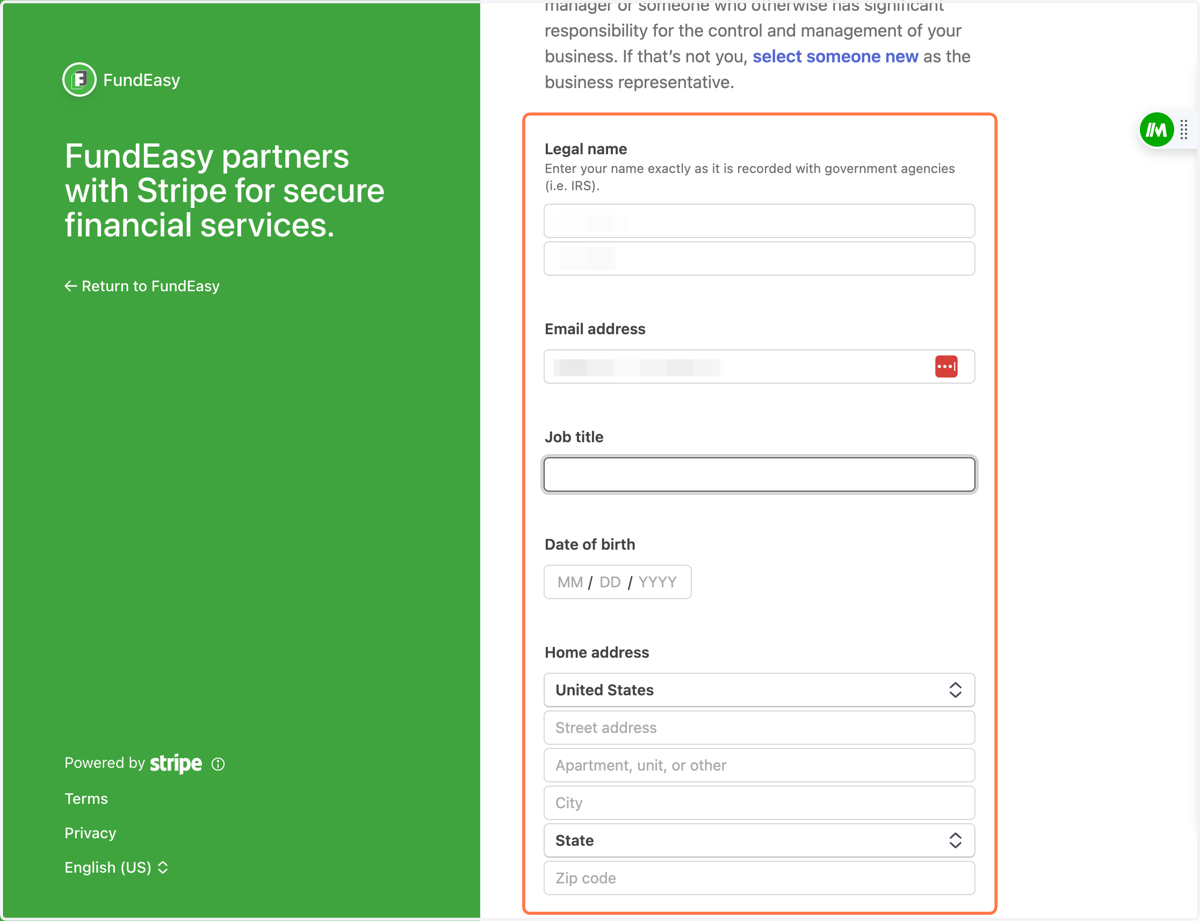
11. Enter the name, email, job title, date of birth and home address of the business representative for your nonprofit.
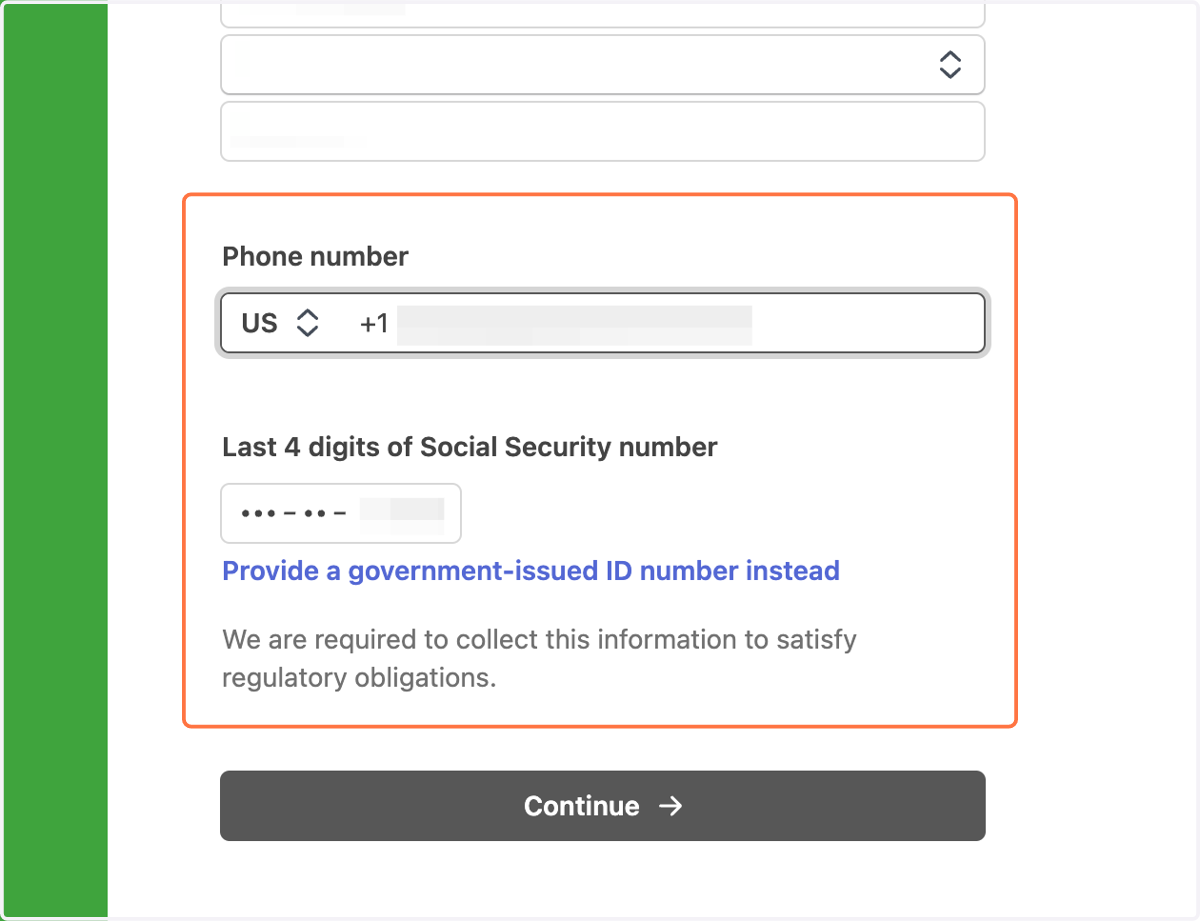
12. Enter the phone number and last 4 digits of Social Security number for the business representative of your nonprofit. Click Continue.
💵 Enter Financial Information
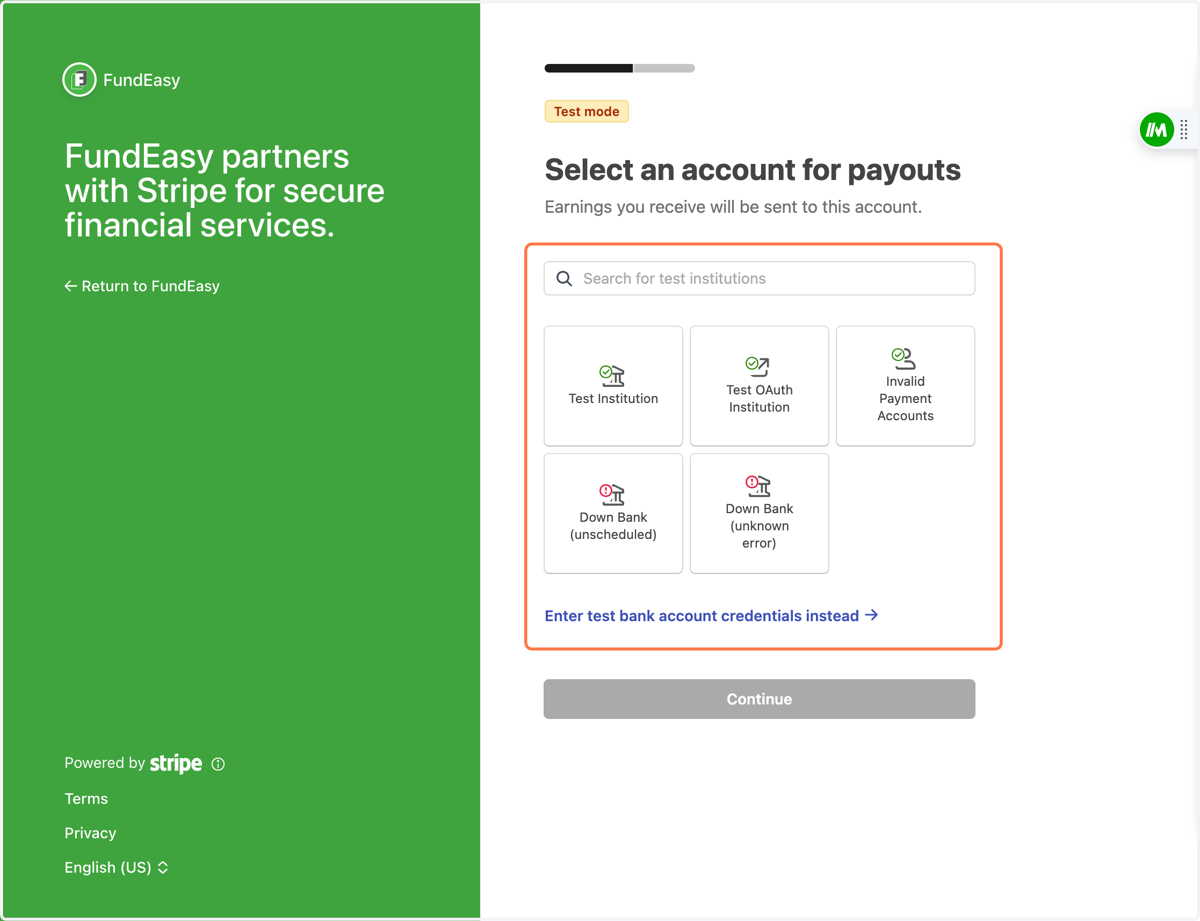
13. Choose where you'd like to receive your funds
You can search for your financial institution, select a saved account, or, to enter the information manually, click the link to enter credentials. Click Continue.
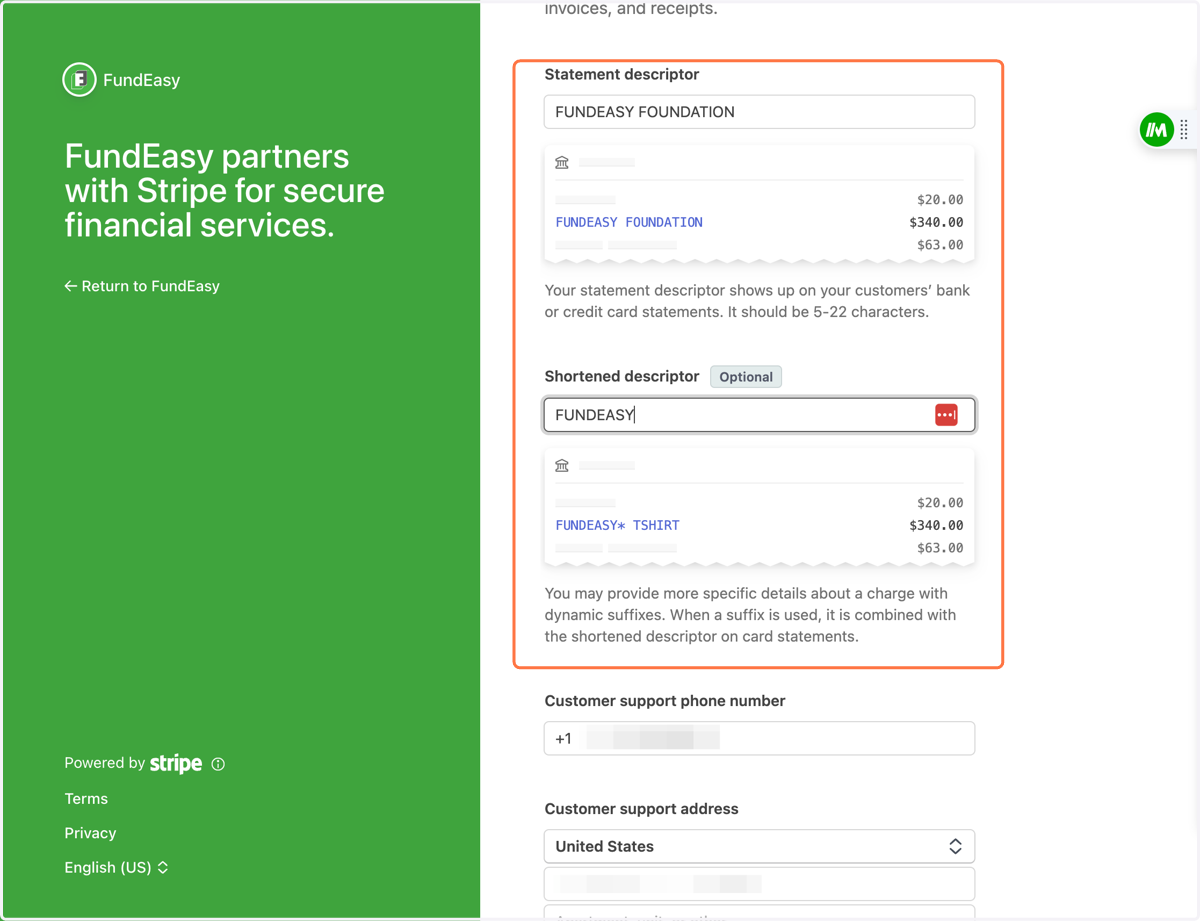
14. Enter the information your donors/payers will see about your nonprofit.
See the example images for how your nonprofit's name may appear on financial statements.
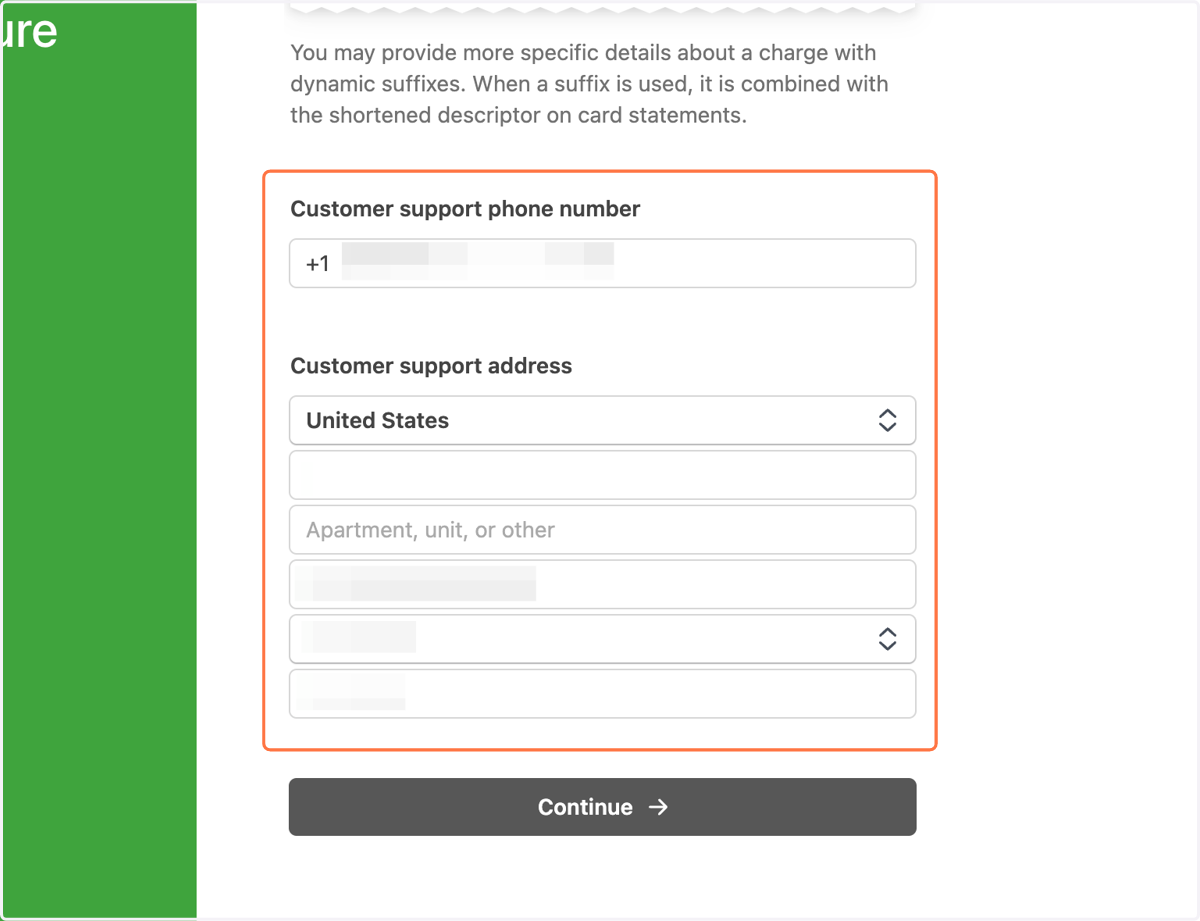
15. Enter contact information for your donors if they have questions about a charge on their account. Click Continue.
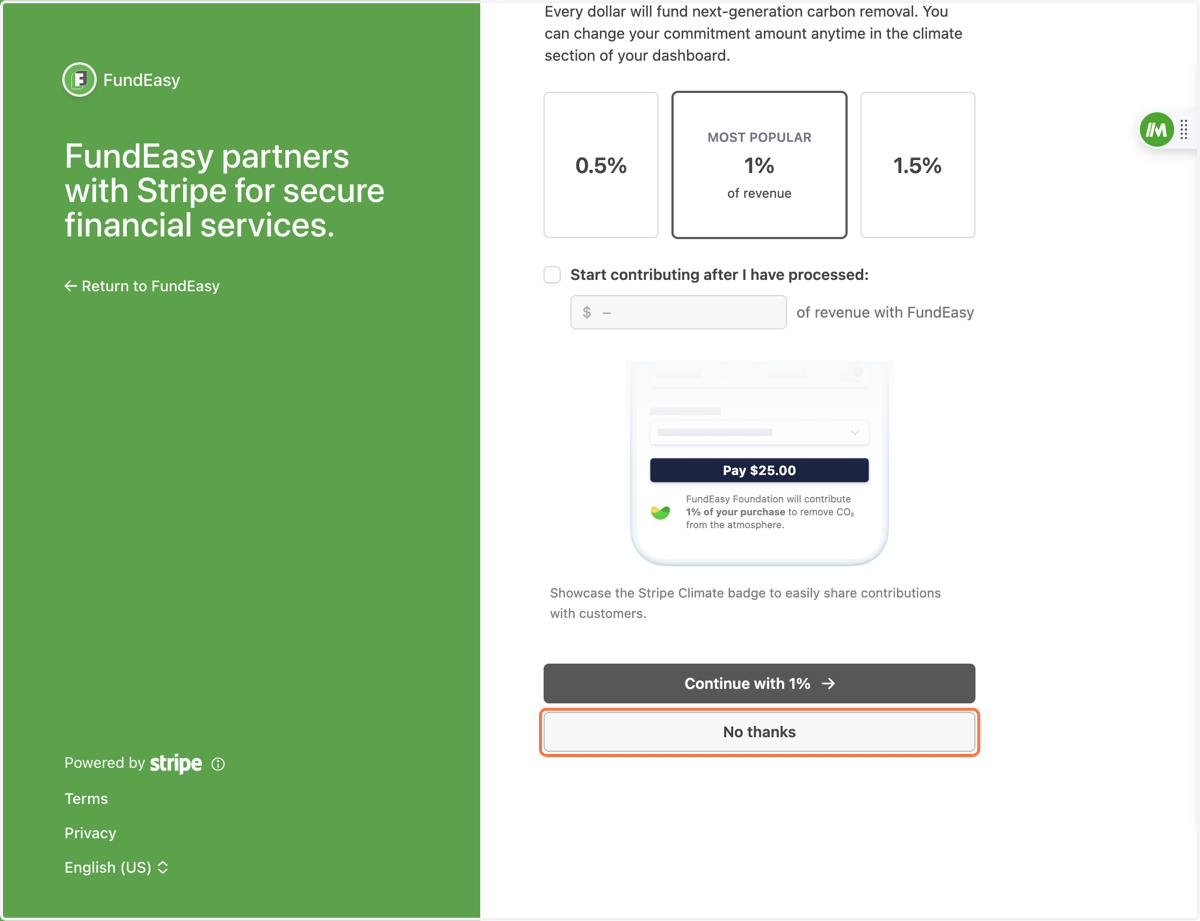
16. Choose a Stripe Climate Contribution or click No Thanks.
For more information about Stripe Climate, see their website: https://stripe.com/climate
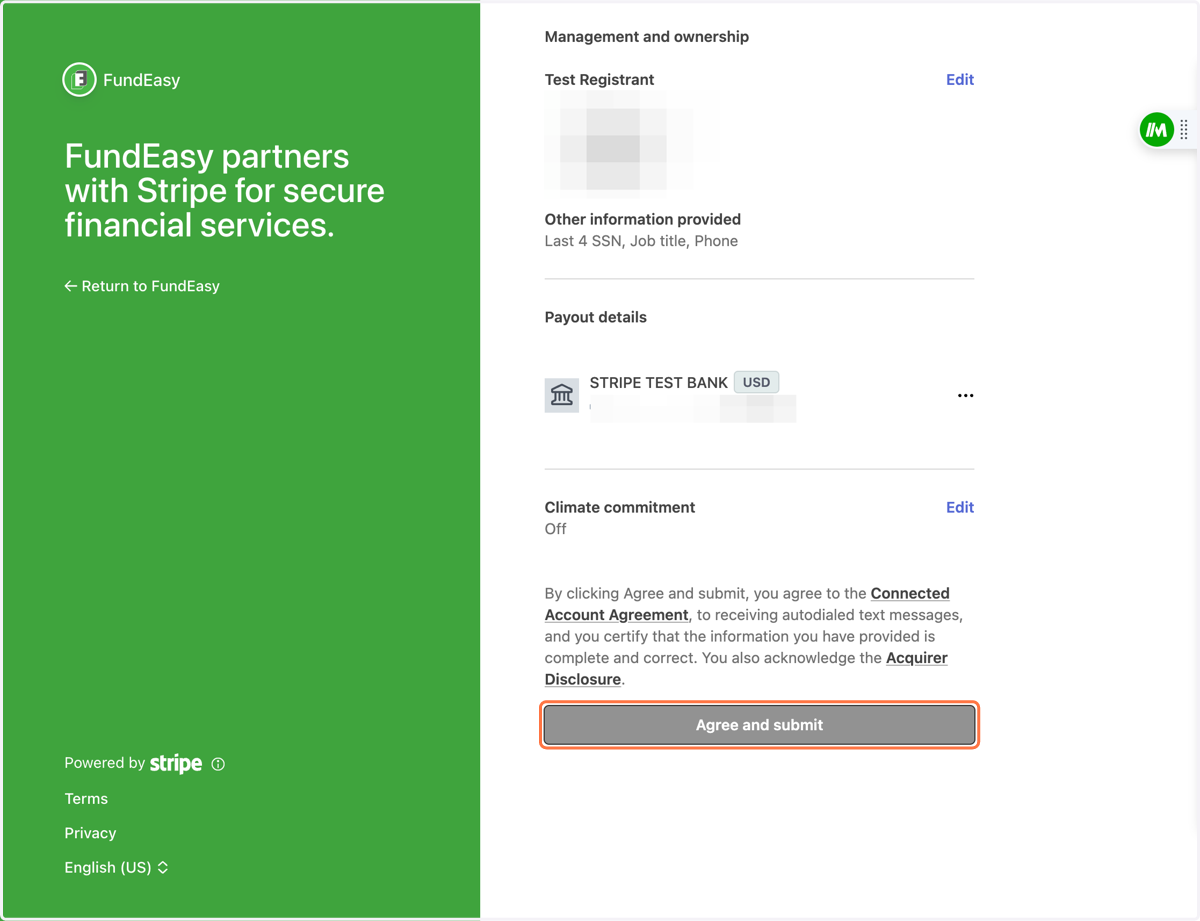
17. Review your information and click Agree and Submit.
18. Nice work! When you see this page, your onboarding process is complete!
Be sure to return to this article to complete the connection between Stripe and FundEasy.