Steps for Creating an EdLink User Profile - Early Childhood School Staff
Follow the steps below to create your Edlink User Profile after creating your MyLa account.
EdLinkOps.WebApp
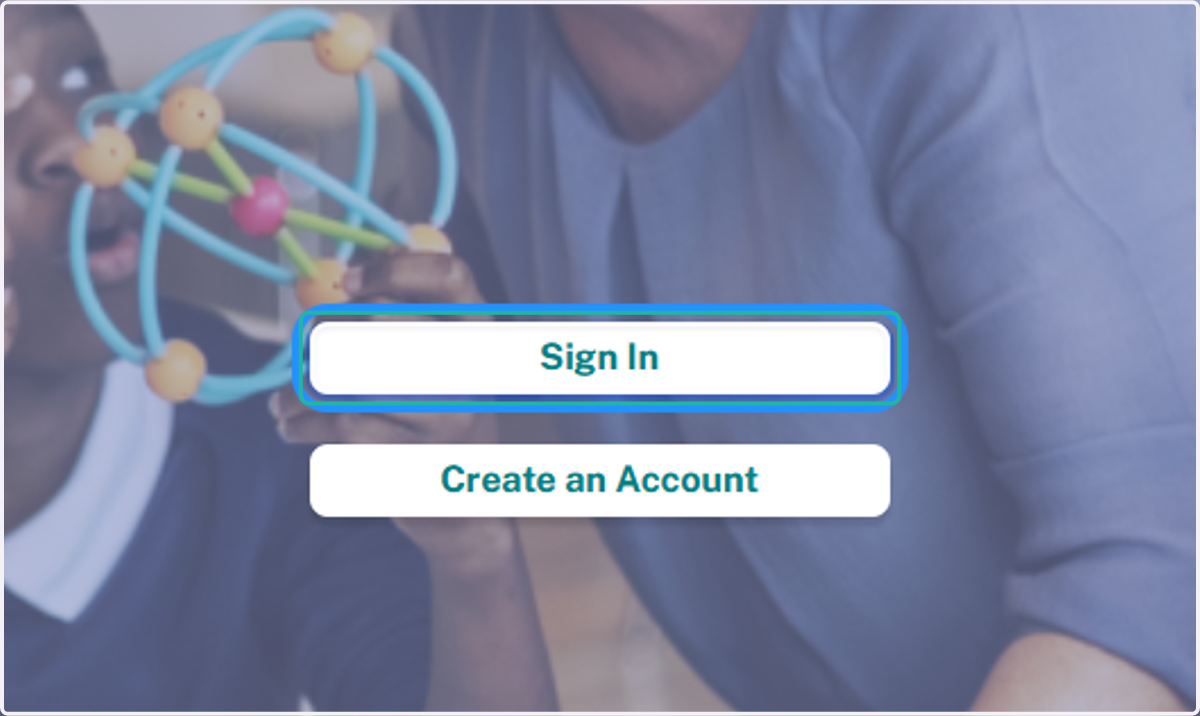
1. Click on Sign In
Sign in with your MyLa user credentials.
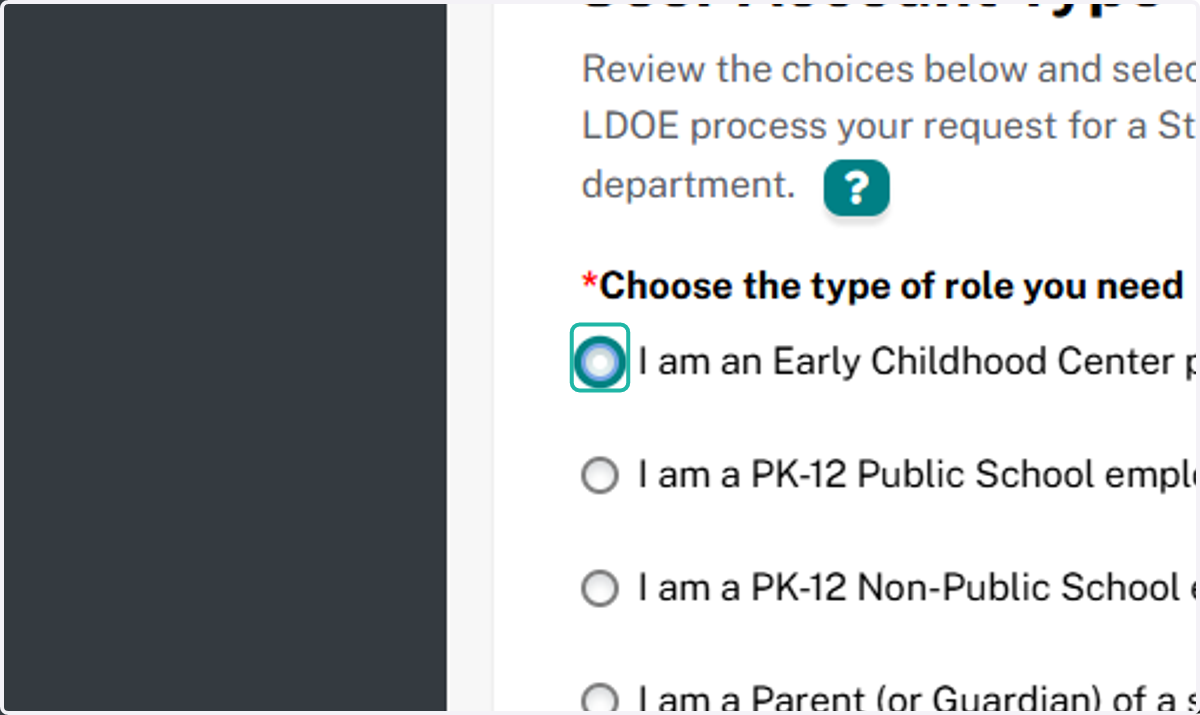
2. In the User Account Type, select "I am an Early Childhood Center provider or employee".
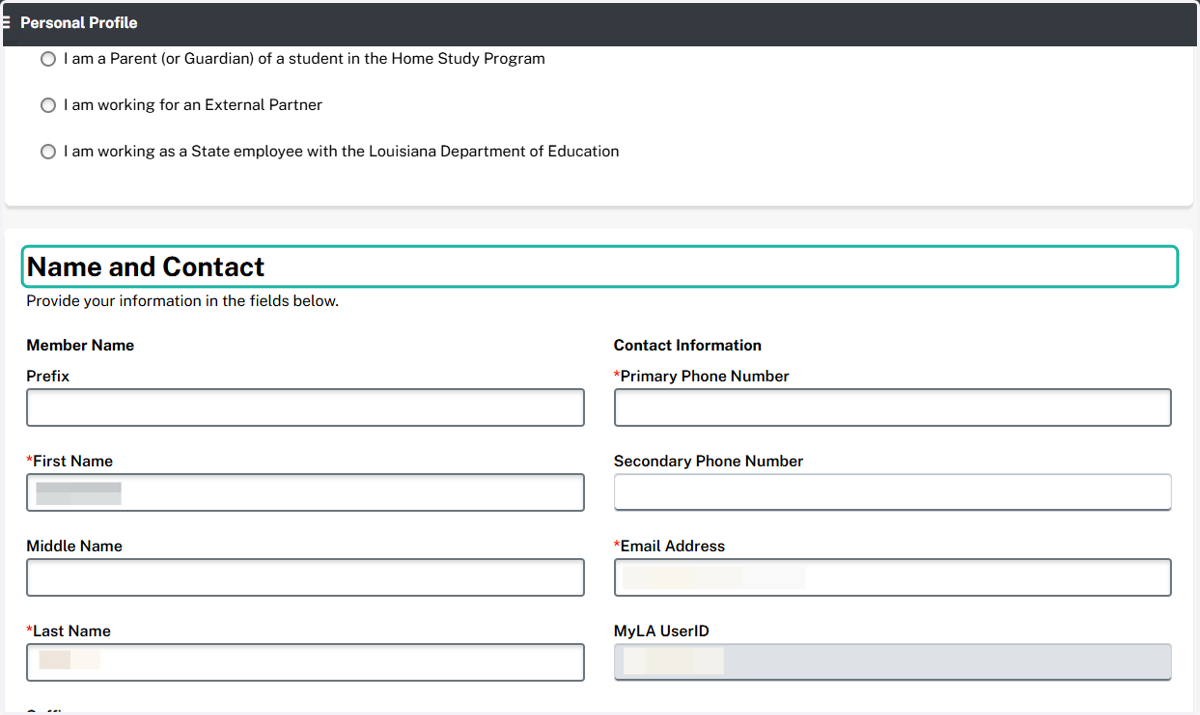
3. Complete the required information in the Name and Contact section.
Fields marked with an asterisk are required fields. Your name, email address, and User ID will automatically populate from MyLa.
4. Enter your center or site address in the Address Information section.
Please be aware that if you provide your home address, this information becomes part of the public record.
Click on Copy to Mailing to copy the physical address information to the mailing address section.
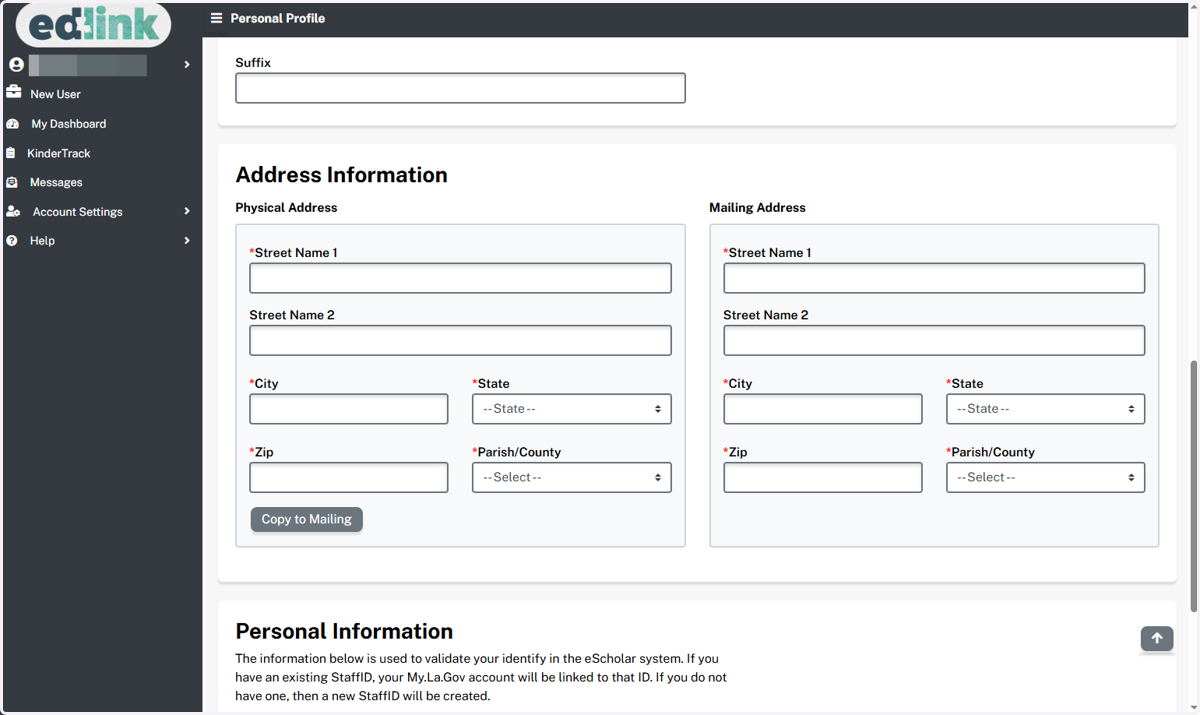
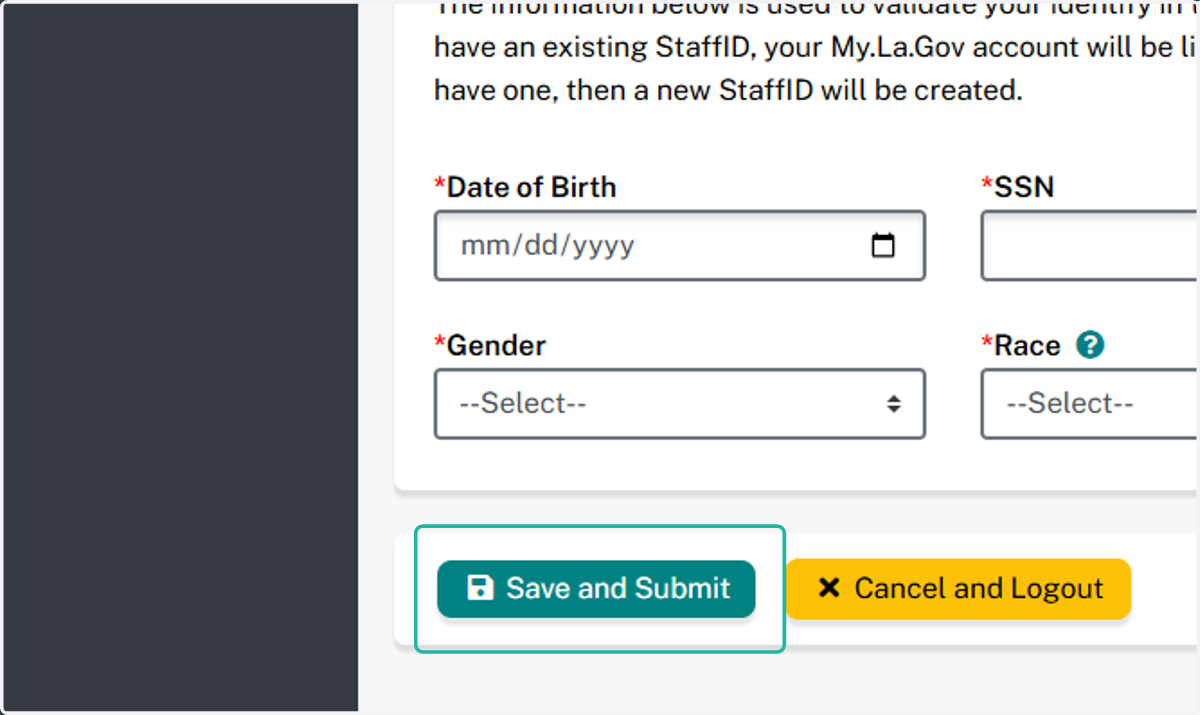
5. Complete all required information in the Personal Information section.
Users cannot create an EdLink User Profile through this form without entering an SSN. If you do not wish to provide your SSN in this form, select Cancel and Logout, and contact LDOE to create your EdLink User Profile through eScholar Staff ID.
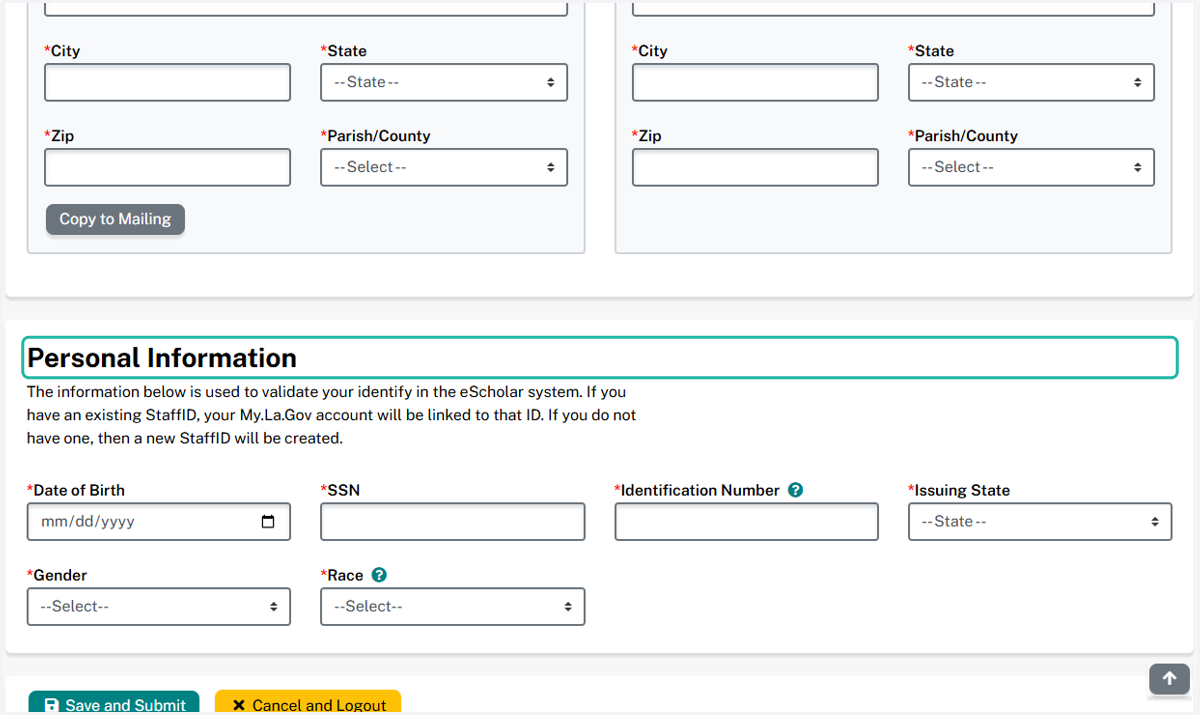
6. Review the entered information. Click Save and Submit.
Please note that once a User Profile has been created, it cannot be edited.