Step-by-Step Guide for Completing HMIS Project Form in Google Docs
Housing Inventory Count Form 2025
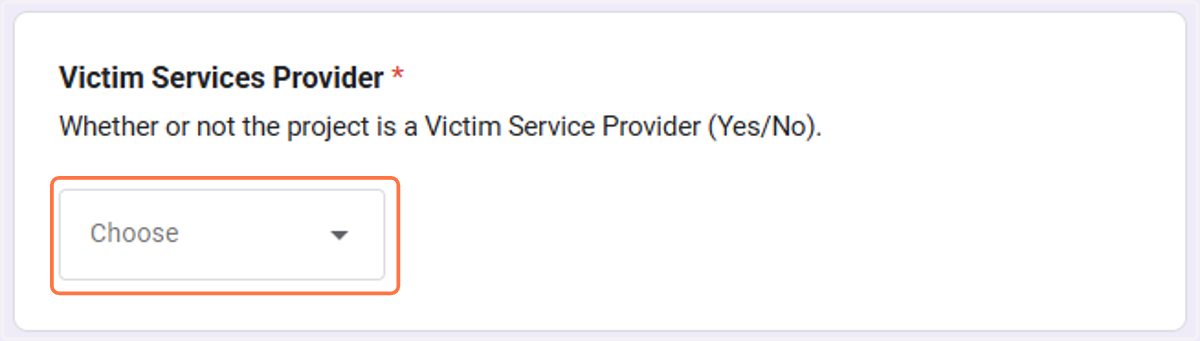
1. Use the dropdown menu to select if the program is a VSP.
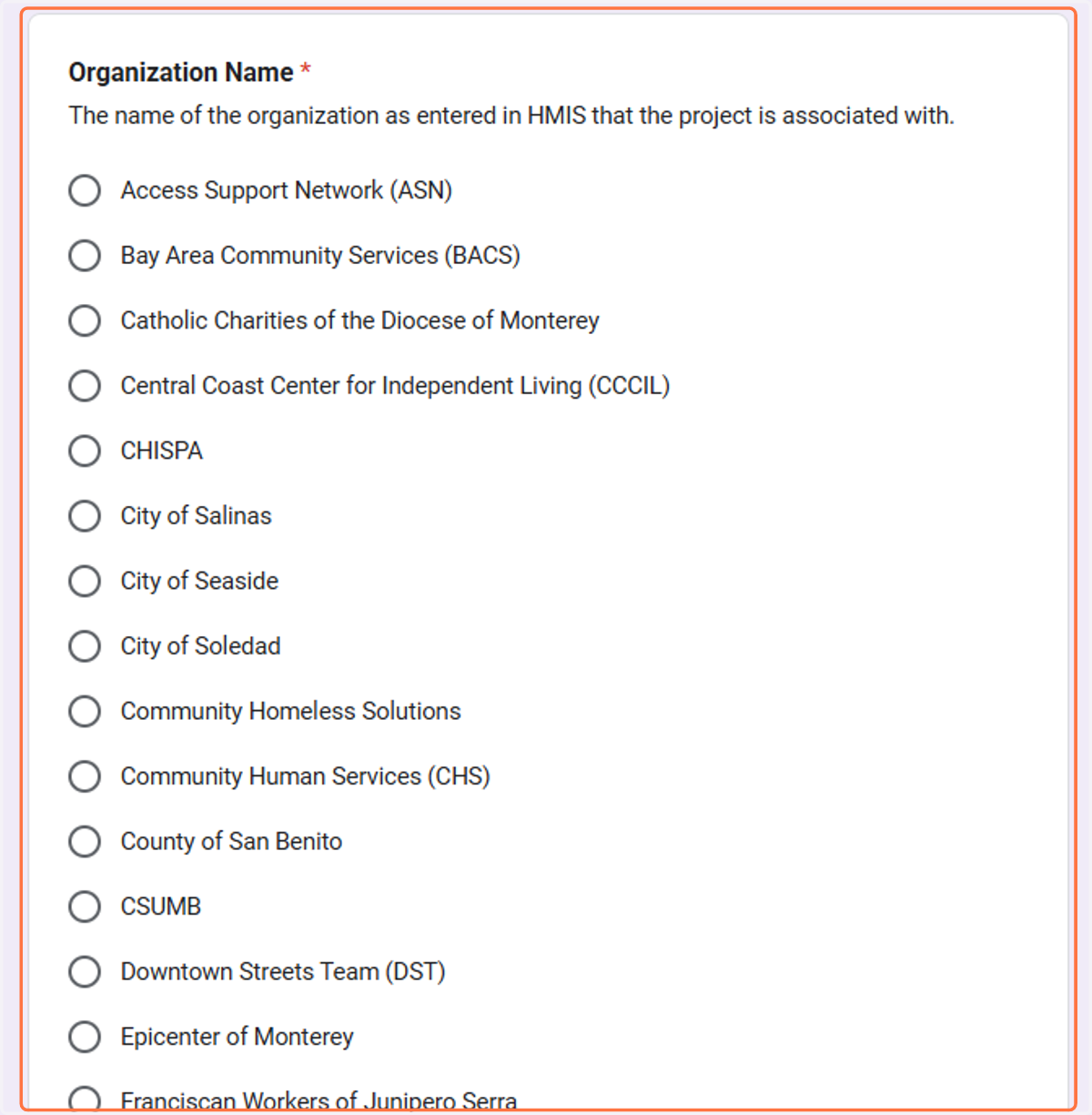
2. Select your organization.
If your organization is not listed, please select 'Other' and enter the organization name manually.
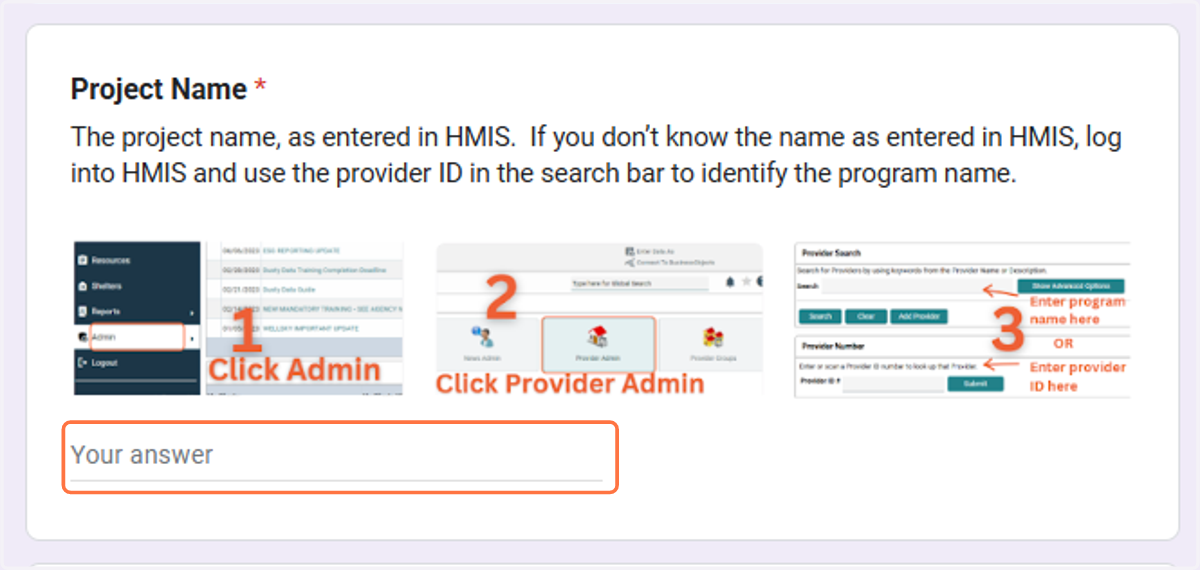
3. Enter the Project Name.
Use the instructions in the image to help you find the project name in HMIS.
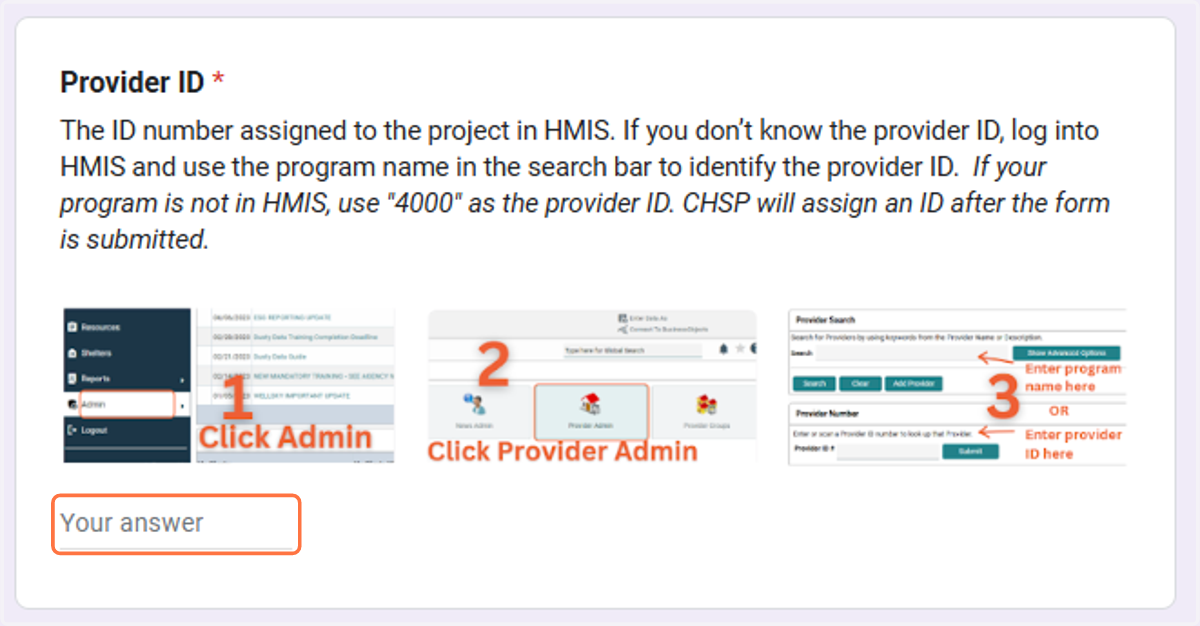
4. Enter the Provider ID.
Use the instructions in the image to help you find the project ID in HMIS.
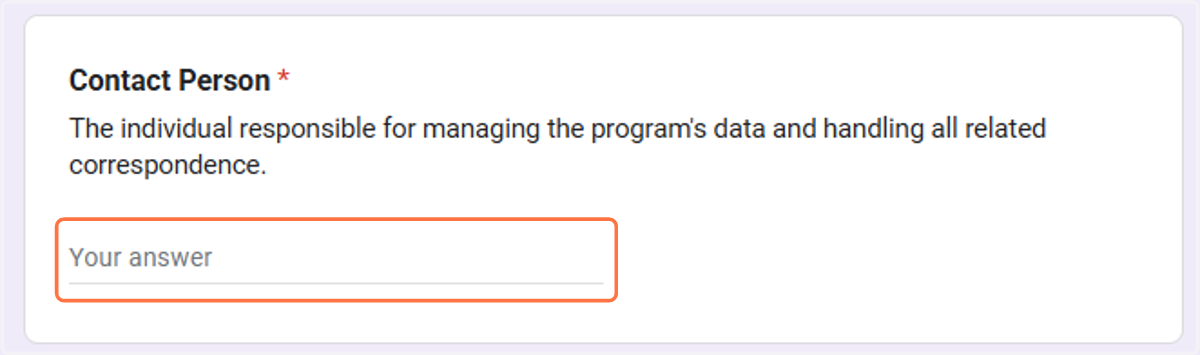
5. Enter the contact person's name.
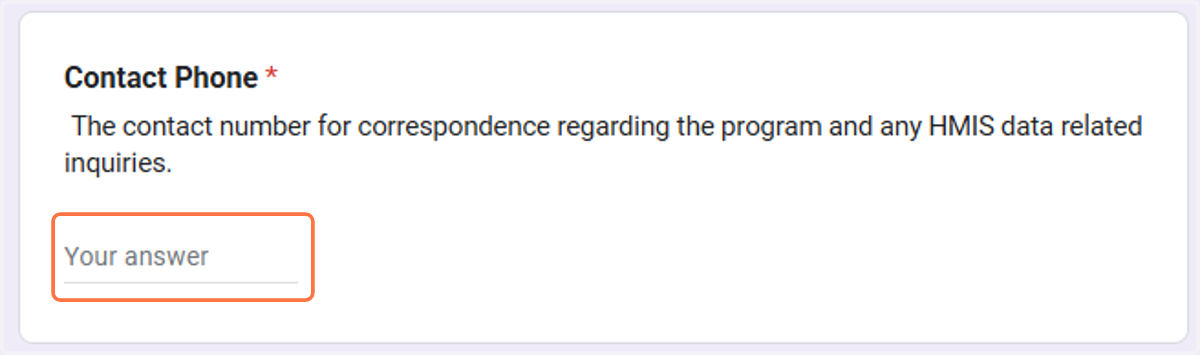
6. Enter the contact's phone number.
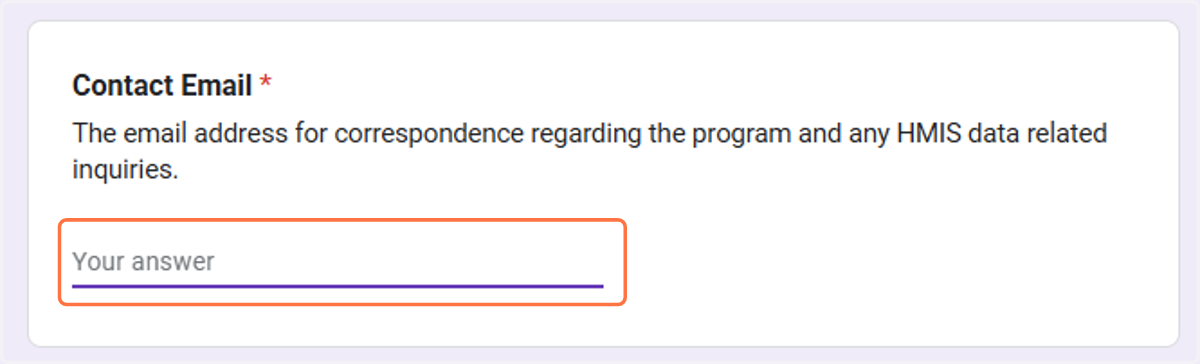
7. Enter the contact's email.
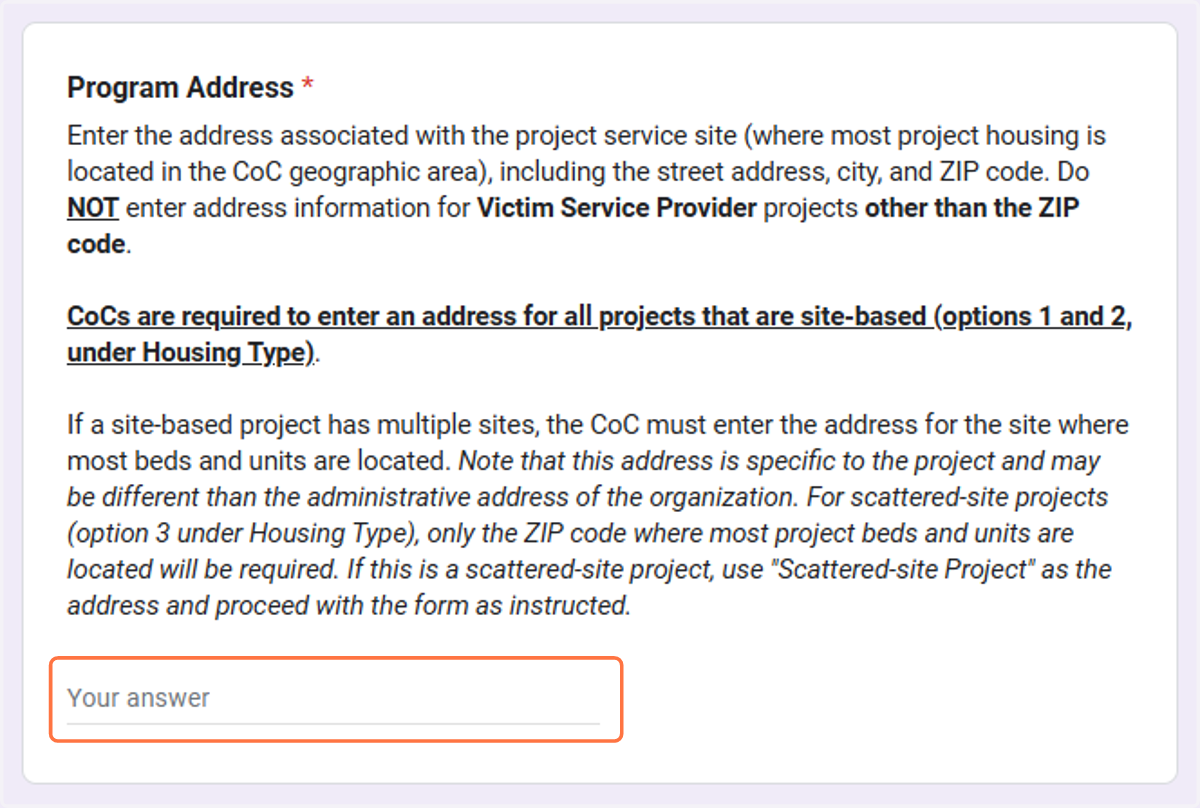
8. Enter program address.
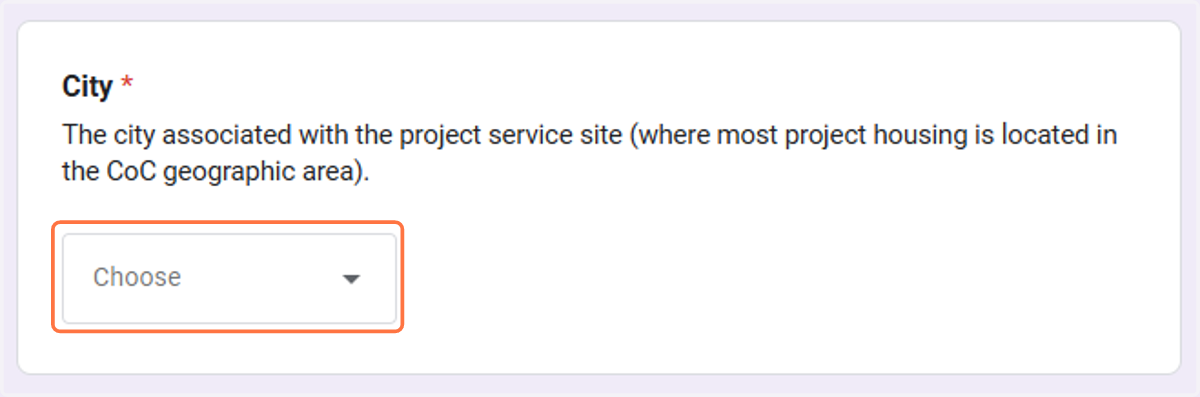
9. Use the dropdown menu to select the city.
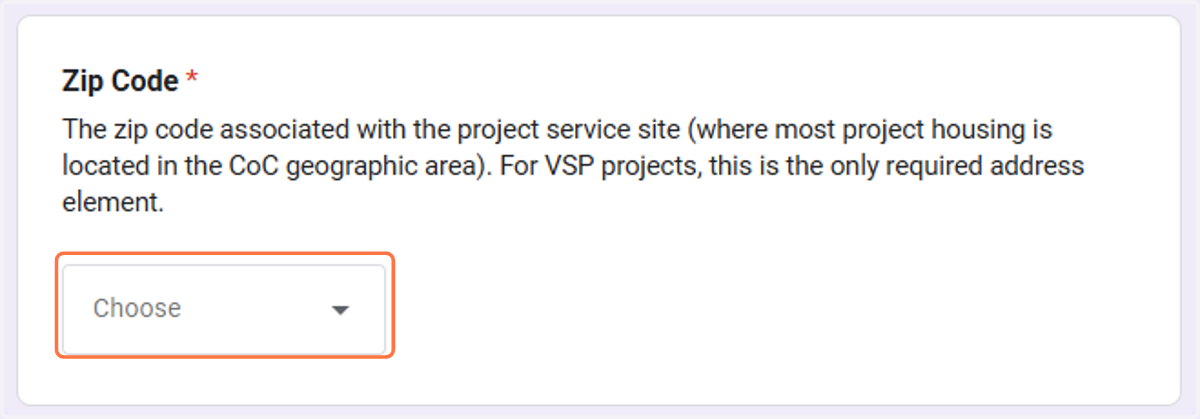
10. Use the dropdown menu to select the zip code.
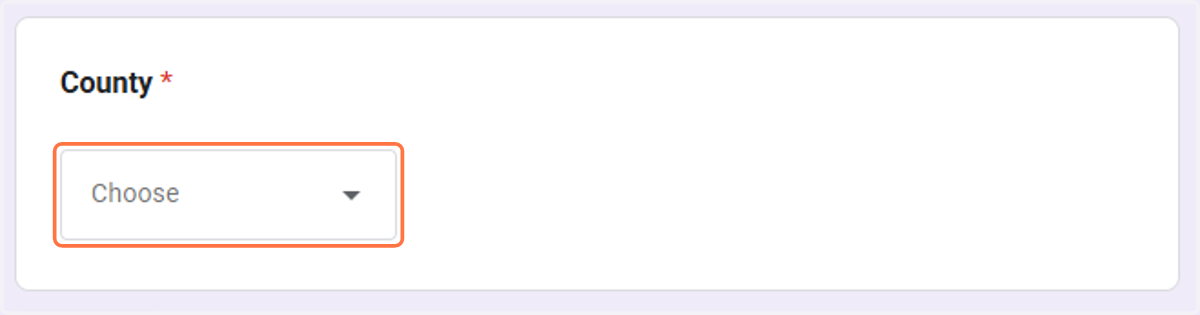
11. Use the dropdown menu to select the county.
12. Click Next.

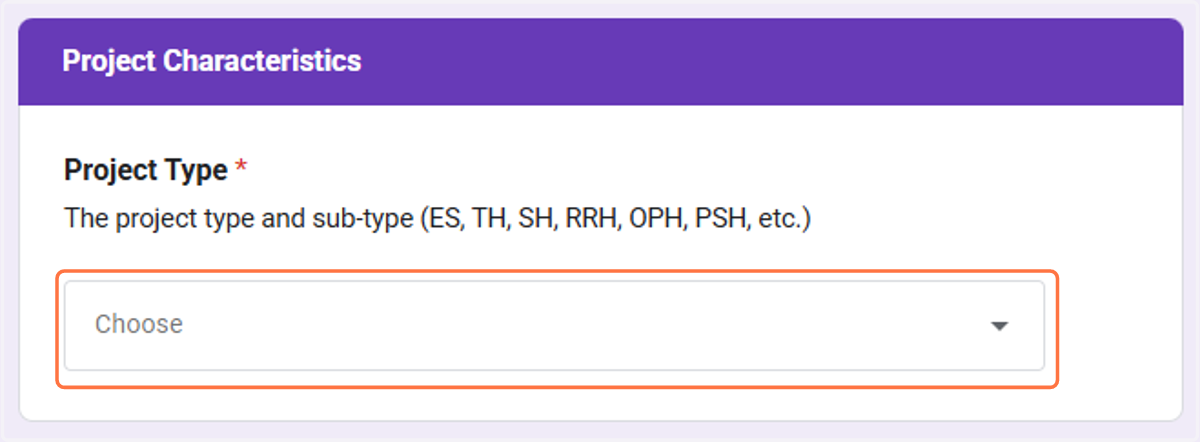
13. Select the Project Type.
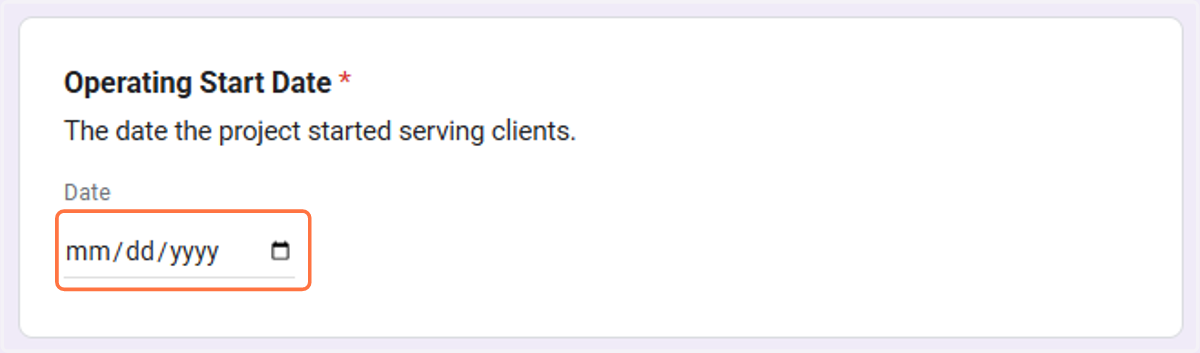
14. Enter the Operating Start Date.
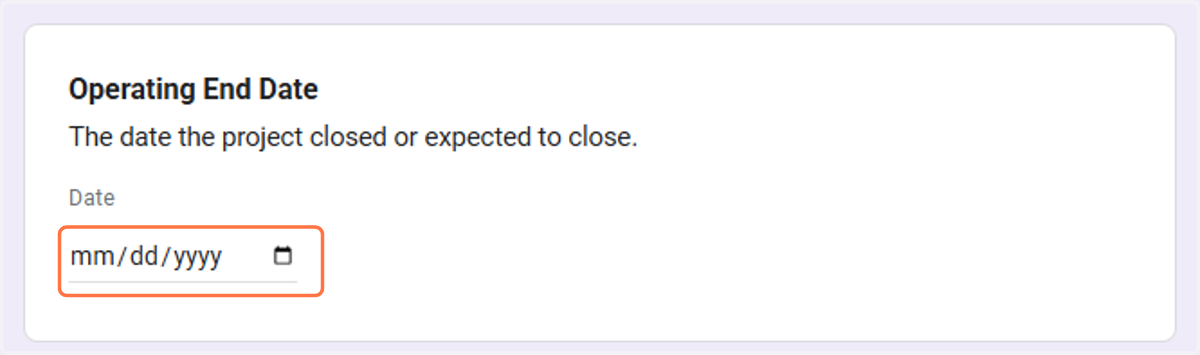
15. Enter the Operating End Date. If the program is still operating, skip this field.
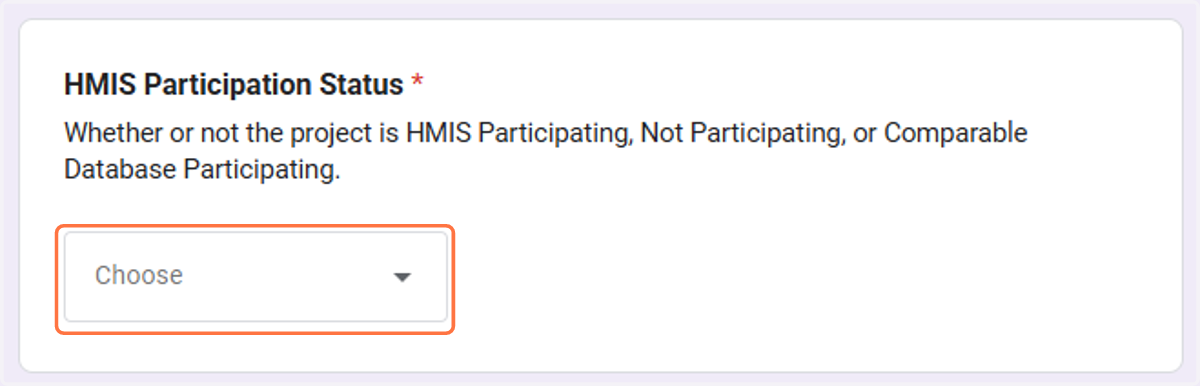
16. Use the dropdown menu to identify the HMIS Participation Status.
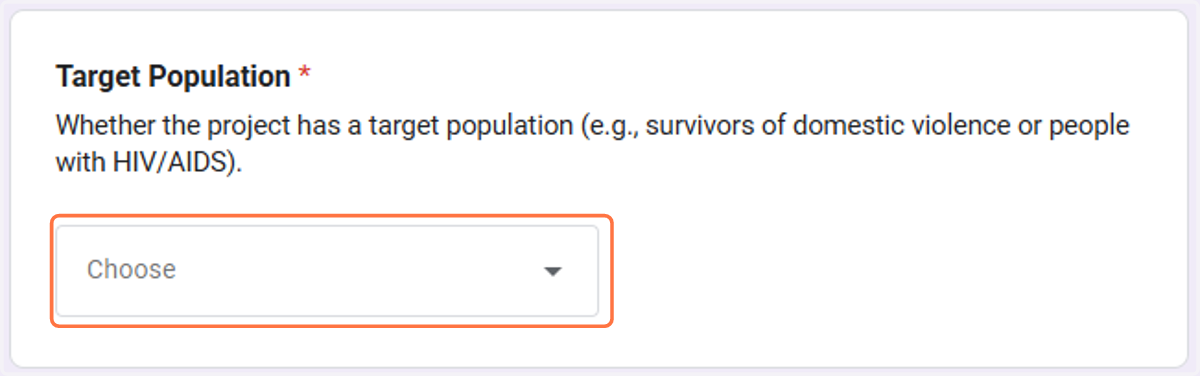
17. Use the dropdown menu to identify the Target Population.
18. Use the dropdown menu to identify the Housing Type.
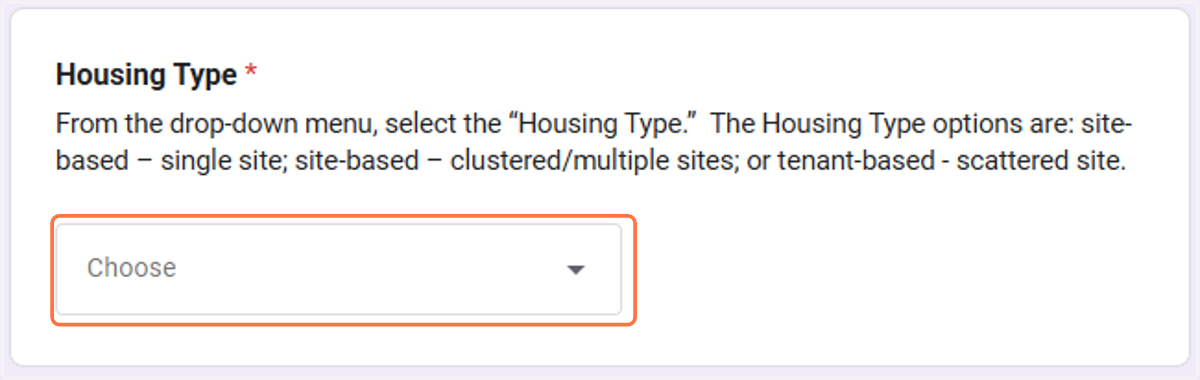
19. Click Next

20. Select the funding component.
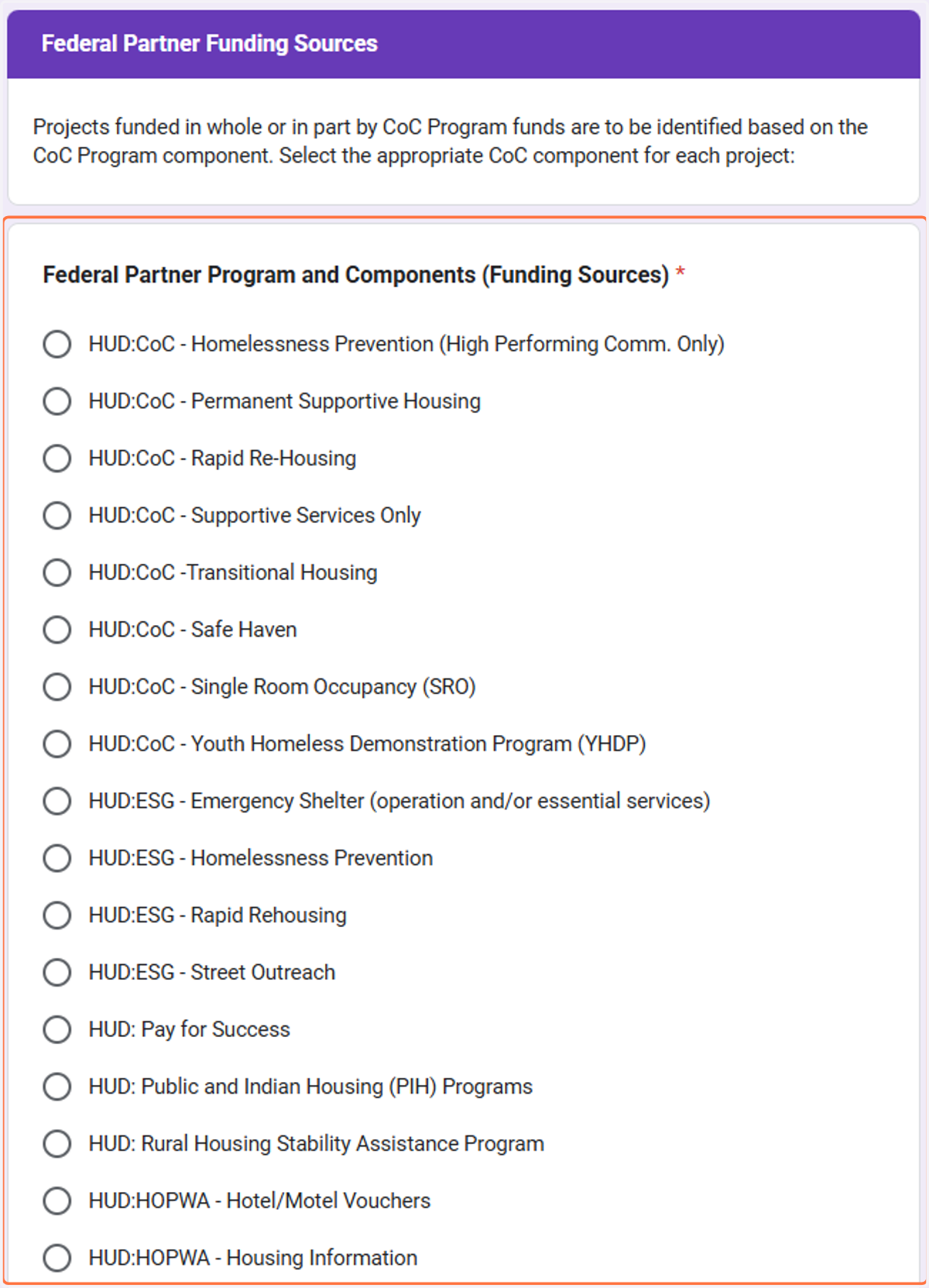
21. If your funding is not listed, please select 'Other' and enter the funding's Grant ID manually.
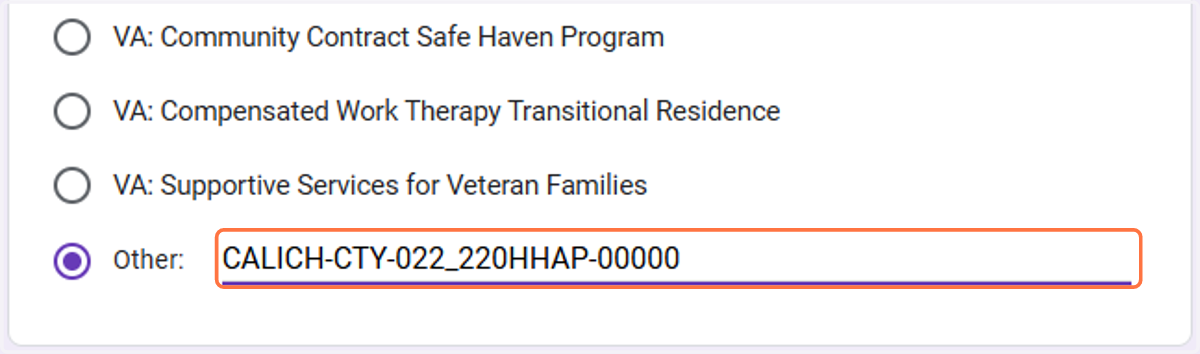
22. Click Next.

23. Enter the Inventory Start Date.
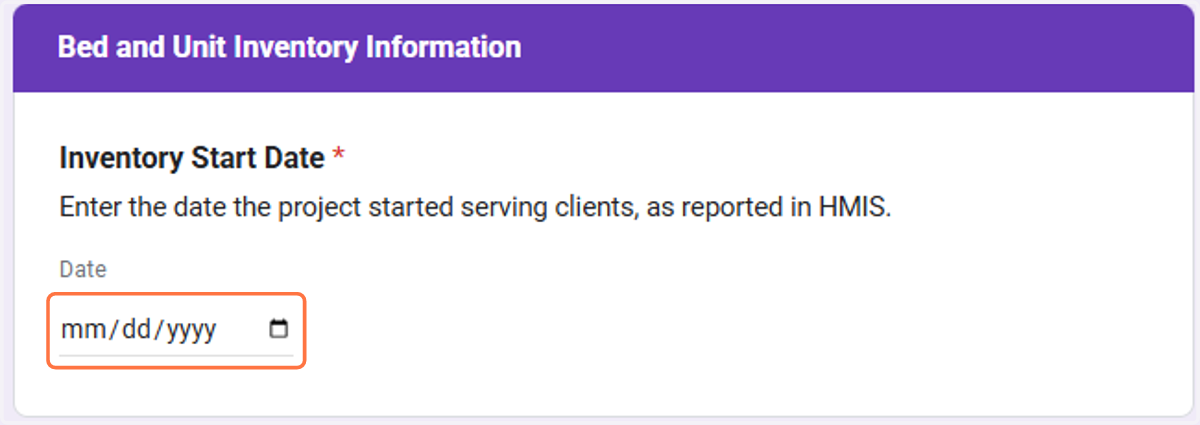
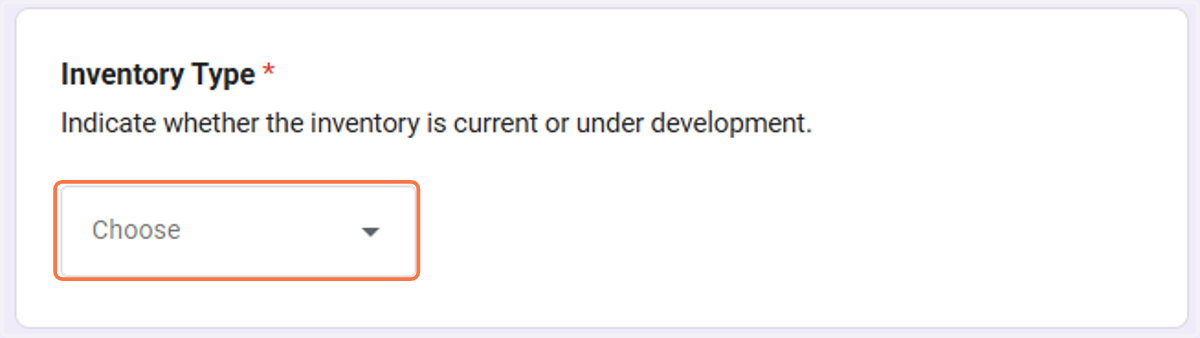
24. Use the dropdown menu to select the Inventory Type.
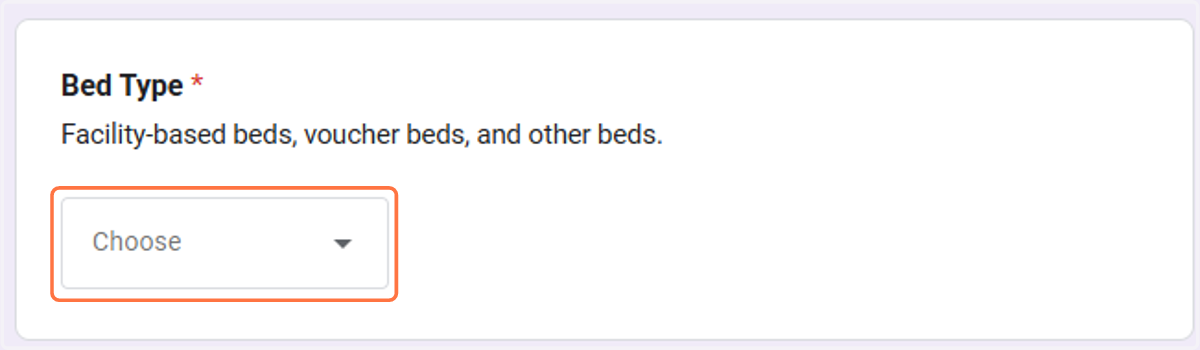
25. Use the dropdown menu to select the Bed Type.
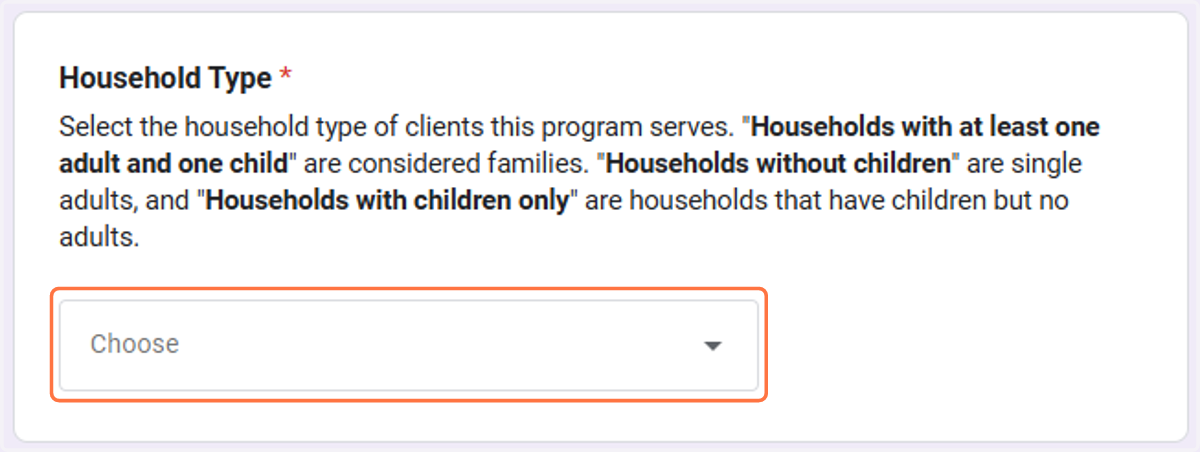
26. Use the dropdown menu to identify the Household Type.
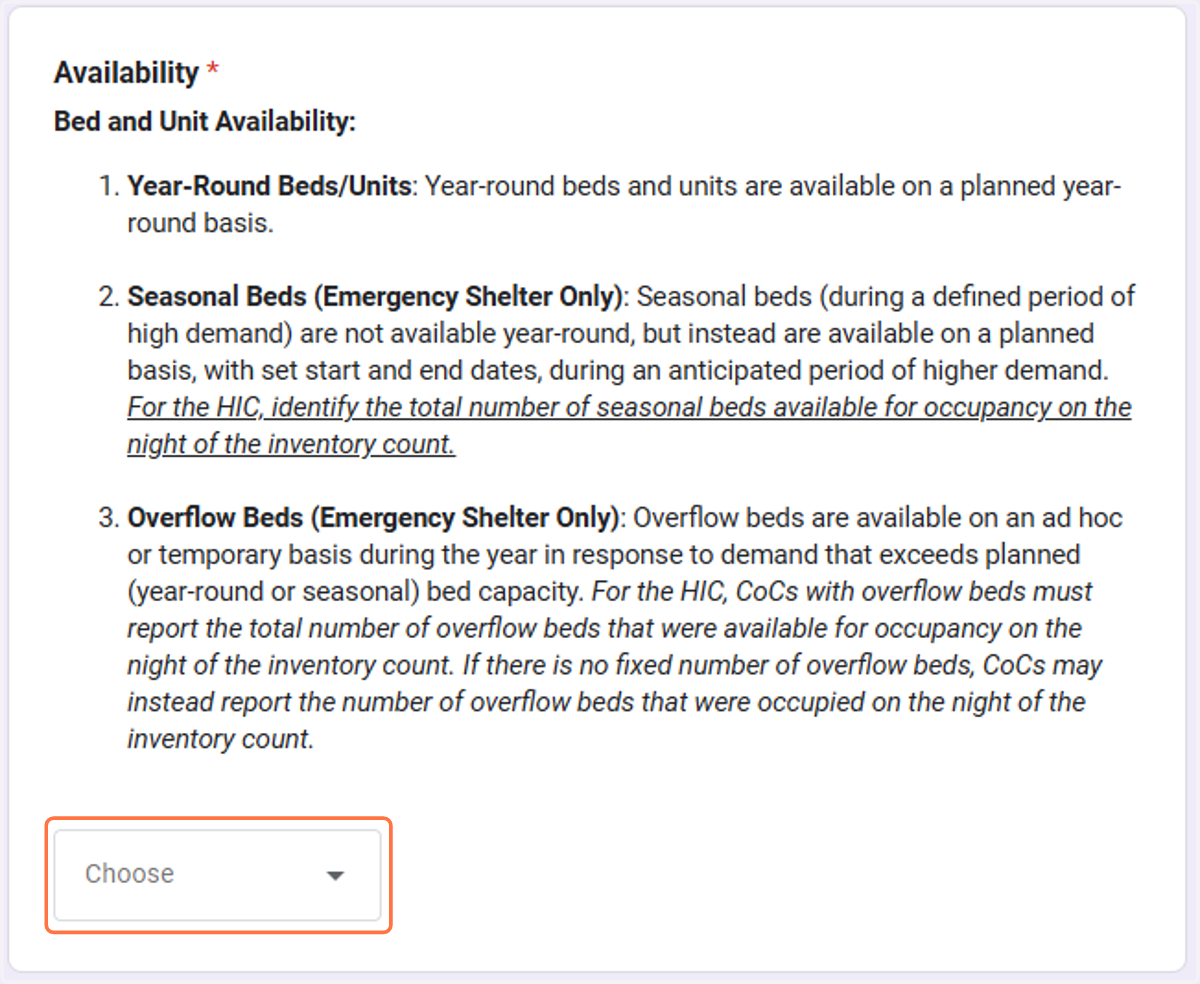
27. Use the dropdown menu to identify the Bed and Unit Availability.
28. Click Next.

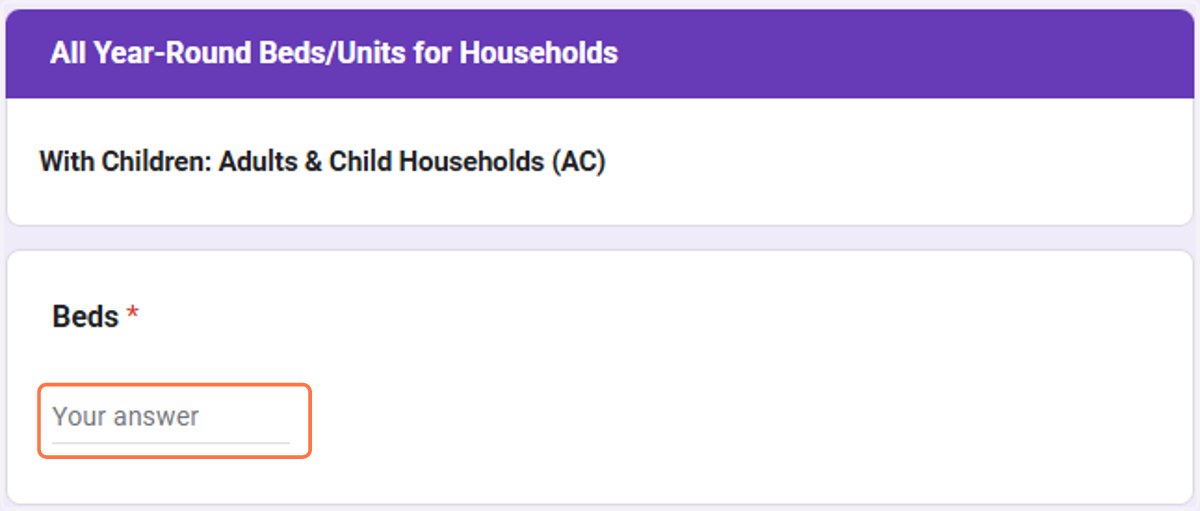
29. Enter the number of Beds for Adults & Child Households.
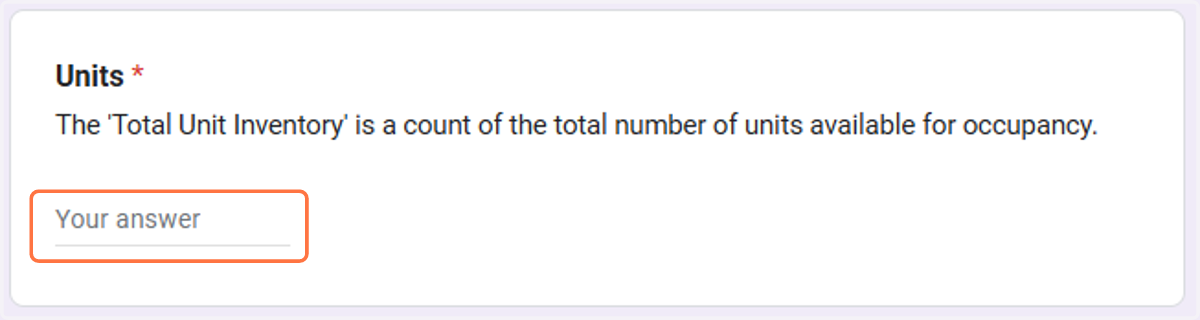
30. Enter the number of Units for Adults & Child Households.
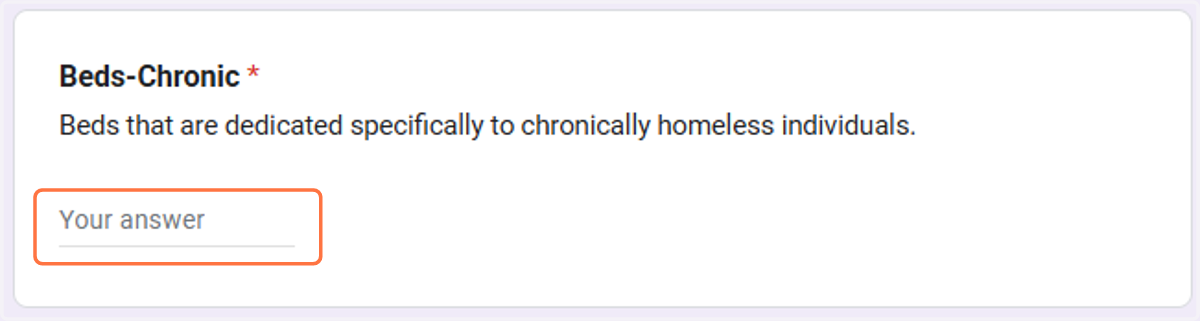
31. Enter the number of beds for chronic homeless Adults & Child Households.
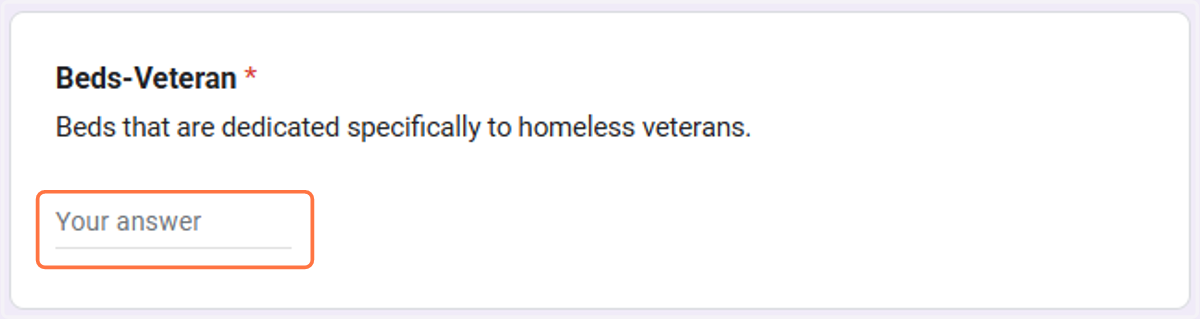
32. Enter the number of beds that are dedicated specifically to homeless veterans.
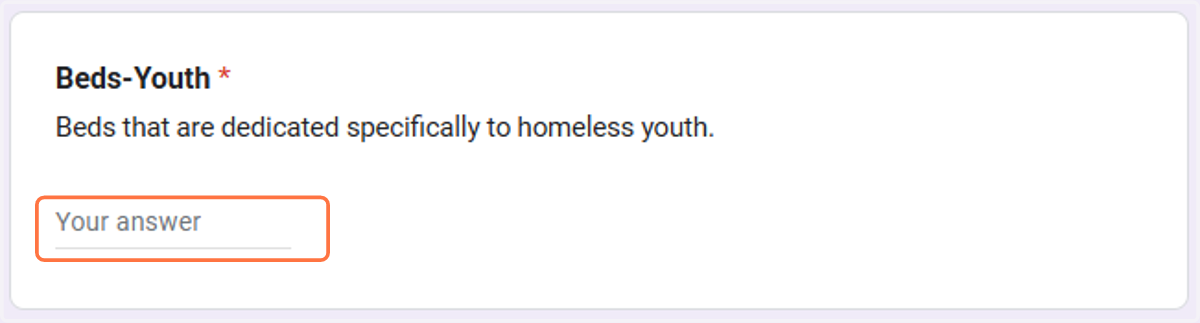
33. Enter the number of beds that are dedicated specifically to homeless youth.
34. Click on Next

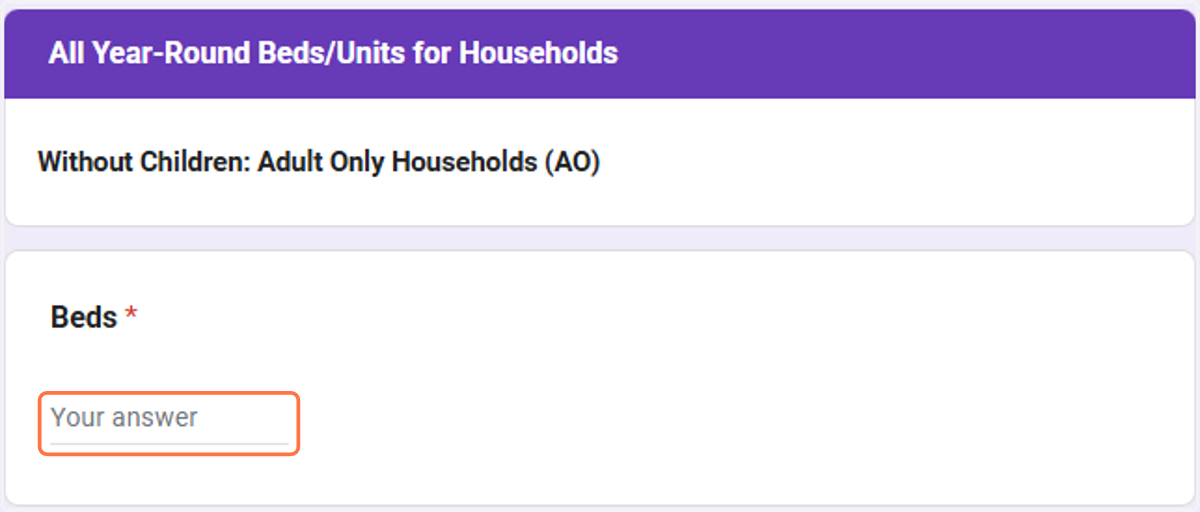
35. Enter the number of beds that are dedicated specifically to Adult Only Households.
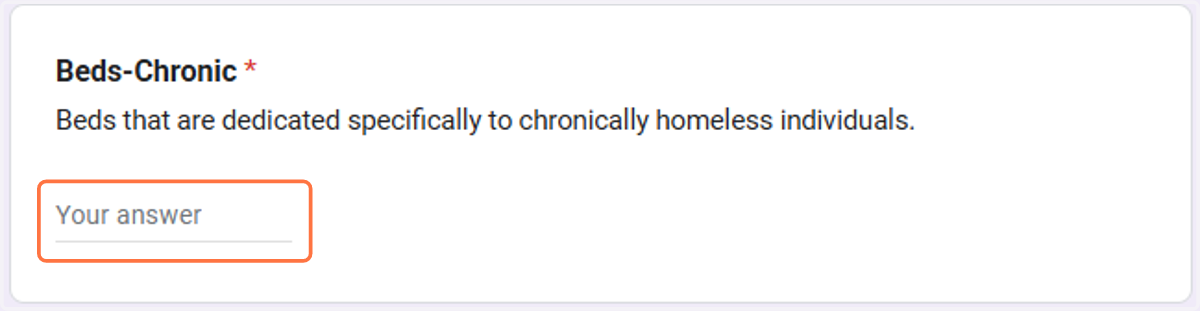
36. Enter the number of beds that are dedicated specifically to chronic homeless adults.
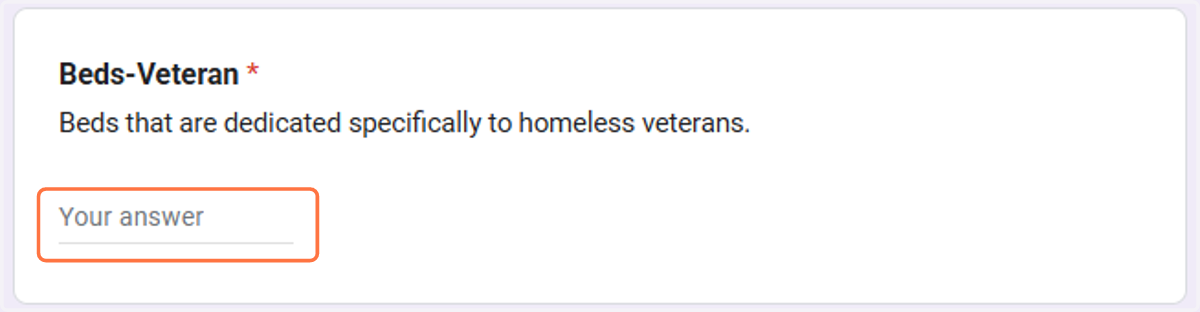
37. Enter the number of beds that are dedicated specifically to homeless veterans.
38. Click on Next

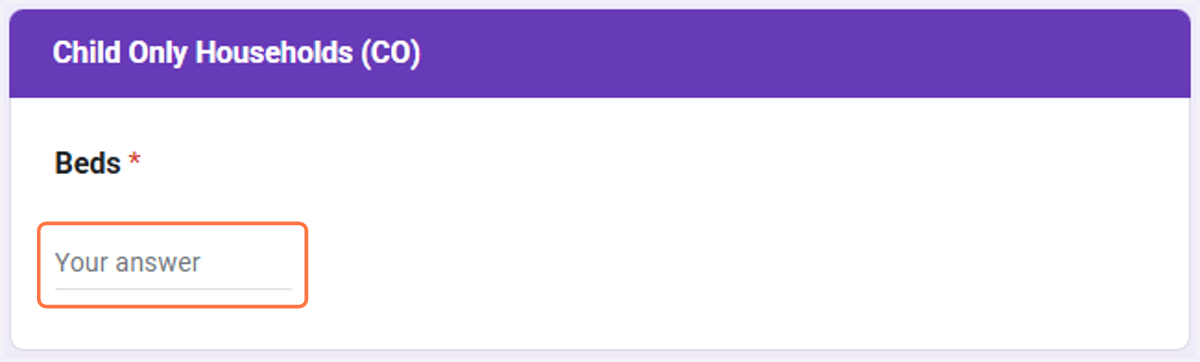
39. Enter the number of beds that are dedicated specifically to Children Only Households.
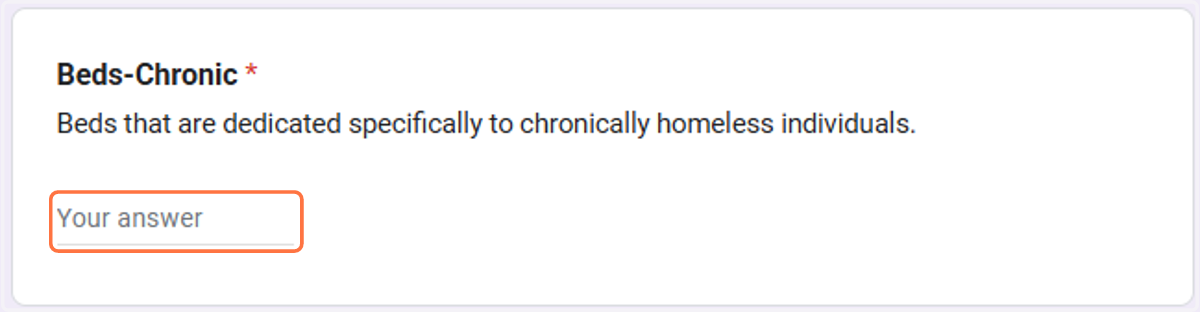
40. Enter the number of beds that are dedicated specifically to chronic homeless children.
41. Click on Next

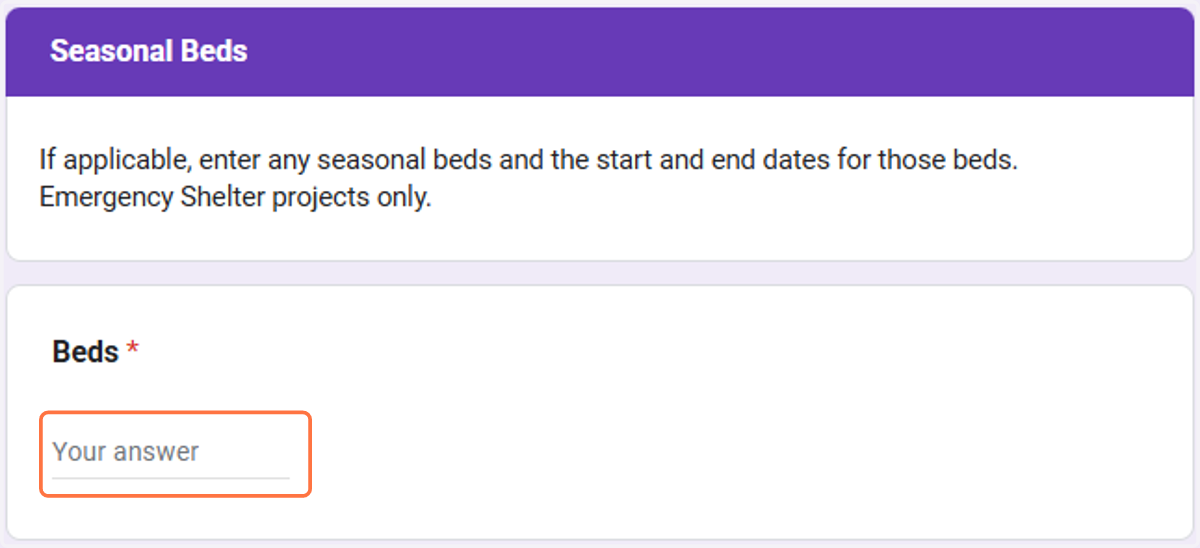
42. Enter the number of Seasonal Beds.
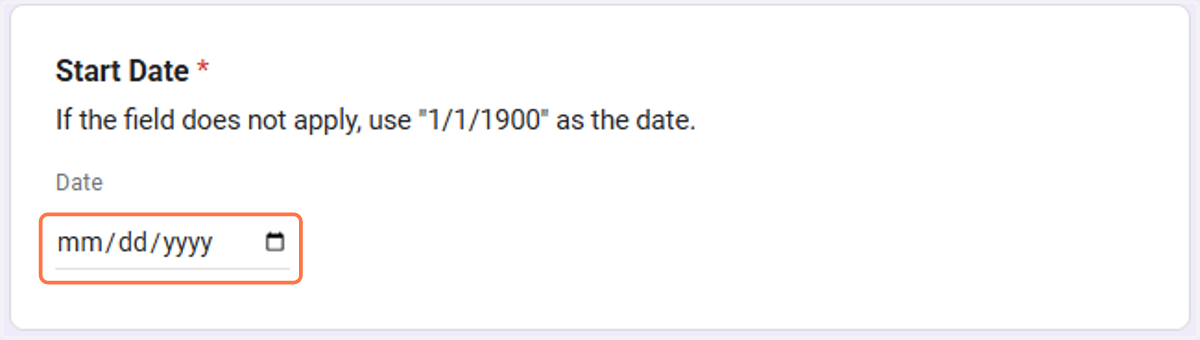
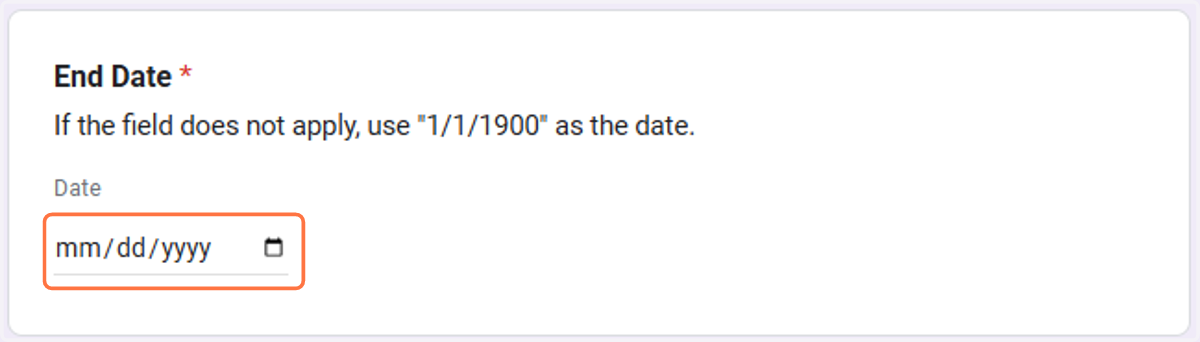
43. Enter Start Date.
44. Enter End Date.
45. Click on Next

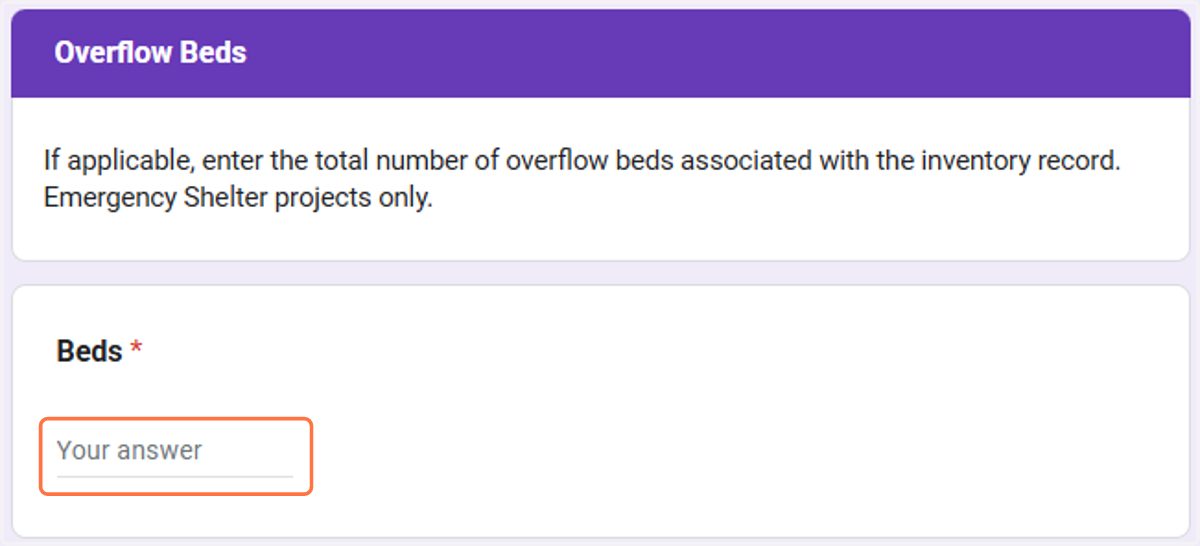
46. Enter the number of Overflow Beds.
47. Click Next.

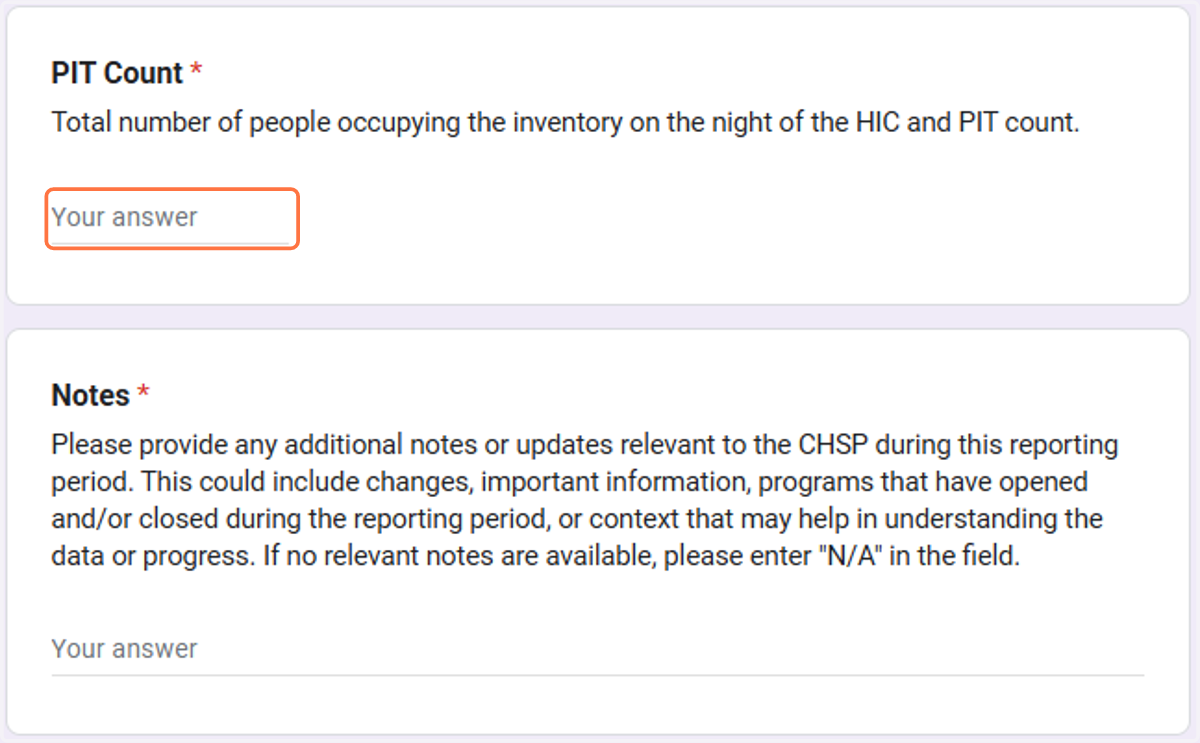
48. Enter the PIT count and any notes related to the program regarding data changes.
49. Click Next.

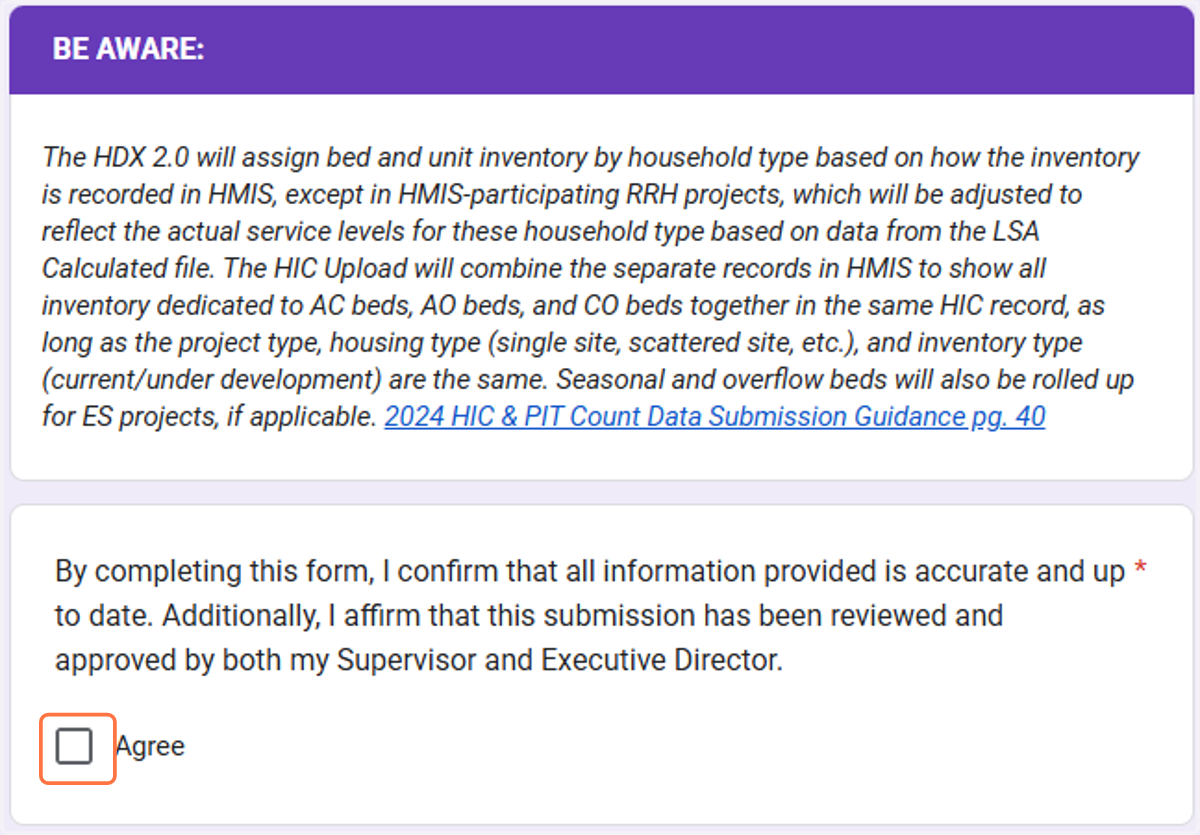
50. Review the pertinent information and click Agree.
51. Click Submit.
