Step by Step - Meta Ads HideDomain
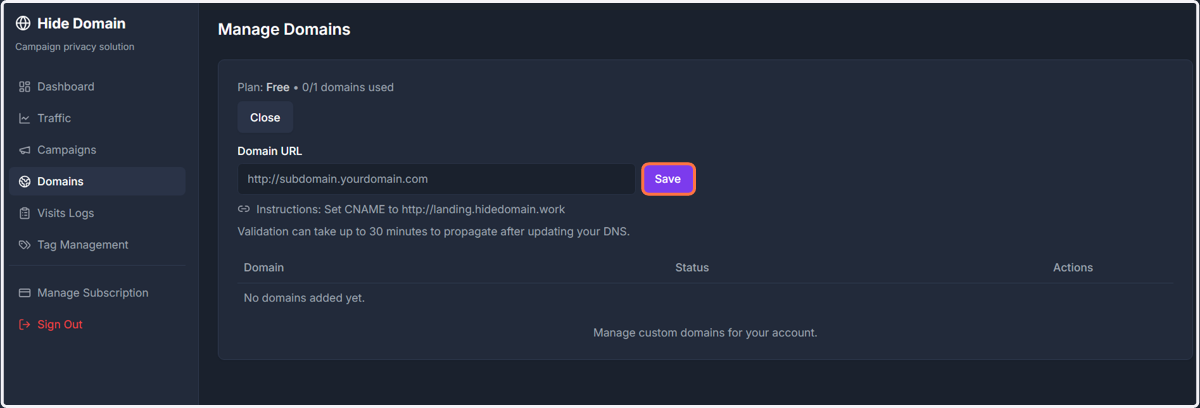
1. In the side menu, go to Domains.
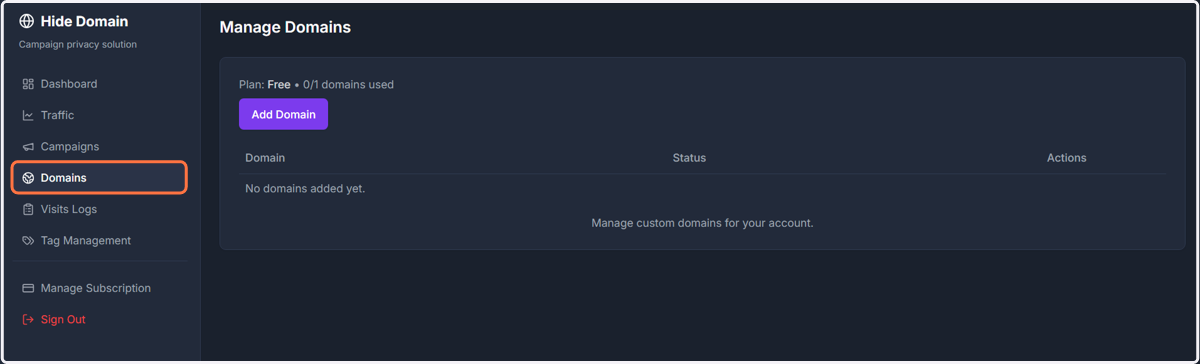
2. Click on Add Domain.
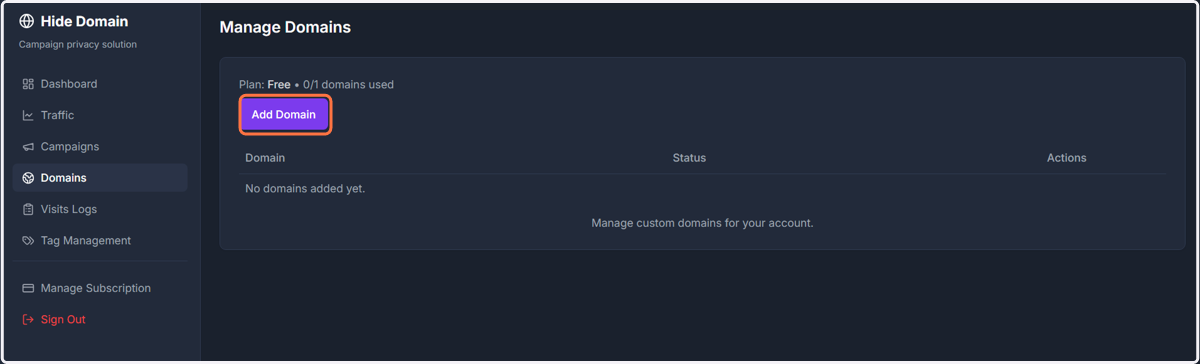
3. Define a Subdomain for Your Filter (Contingency Subdomain)
You need a security address, and that is what the subdomain is for.
In this step, you will create a subdomain (like lp. or offer.) to host our filtering mechanism.
By doing this, you are saying: 'All ad traffic coming to this address will be analyzed and protected by HideDomain.'
This is the best practice for isolating your campaign and protecting your main domain (yourdomain.com) from any blocks.
Example: If your domain is [yourdomain.com], choose a prefix such as:
lp.yourdomain.com
offer.yourdomain.com
blog.yourdomain.com
video.yourdomain.com
Any subdomain you have access to is valid.
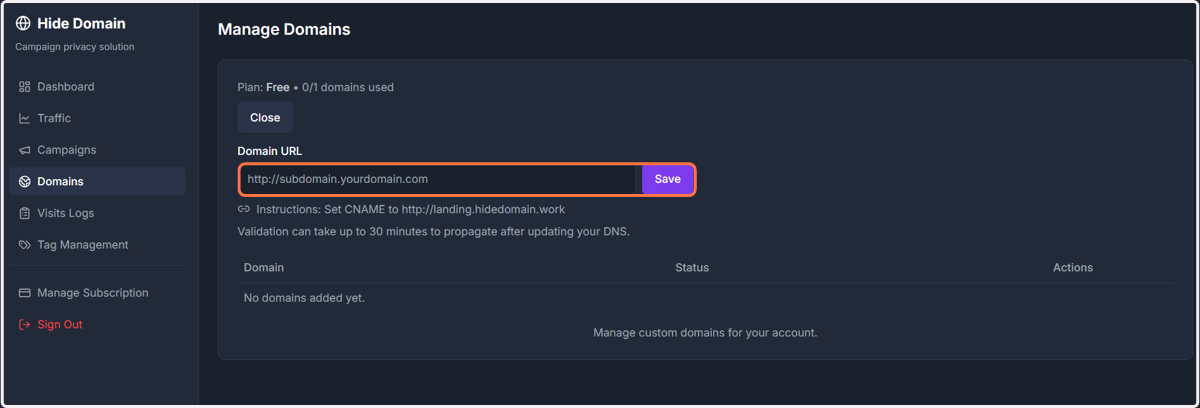
4. The system will display the CNAME you need to point to in your domain configuration.
By configuring the CNAME in the next step, you ensure that all traffic to "{lp.yourdomain.com]" will be pointed to the HideDomain server.
Don't know what CNAME is? Understand it in 3 simple steps!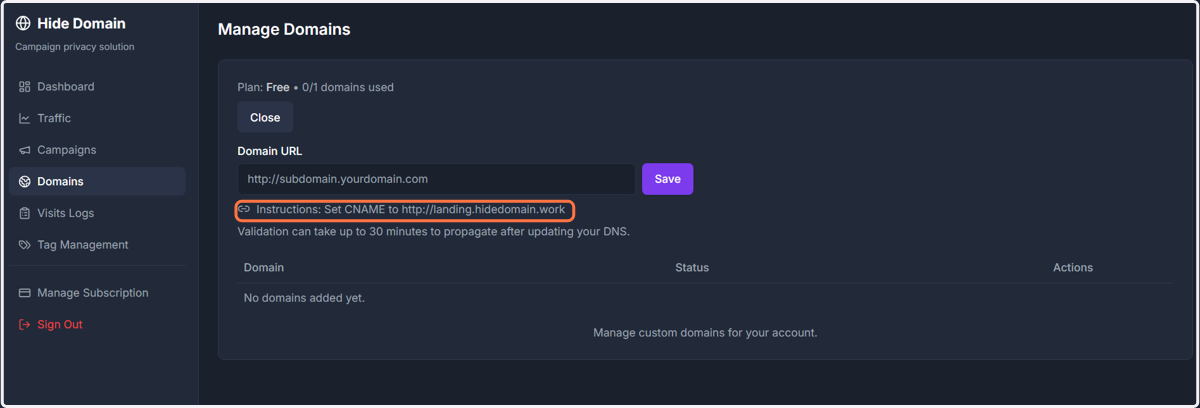
5. Click Save
Example: Cloudflare.
I will give an example of how to configure the domain CNAME using Cloudflare.
Even if you do not use Cloudflare to manage your domains, the step-by-step process will be very similar on any server.
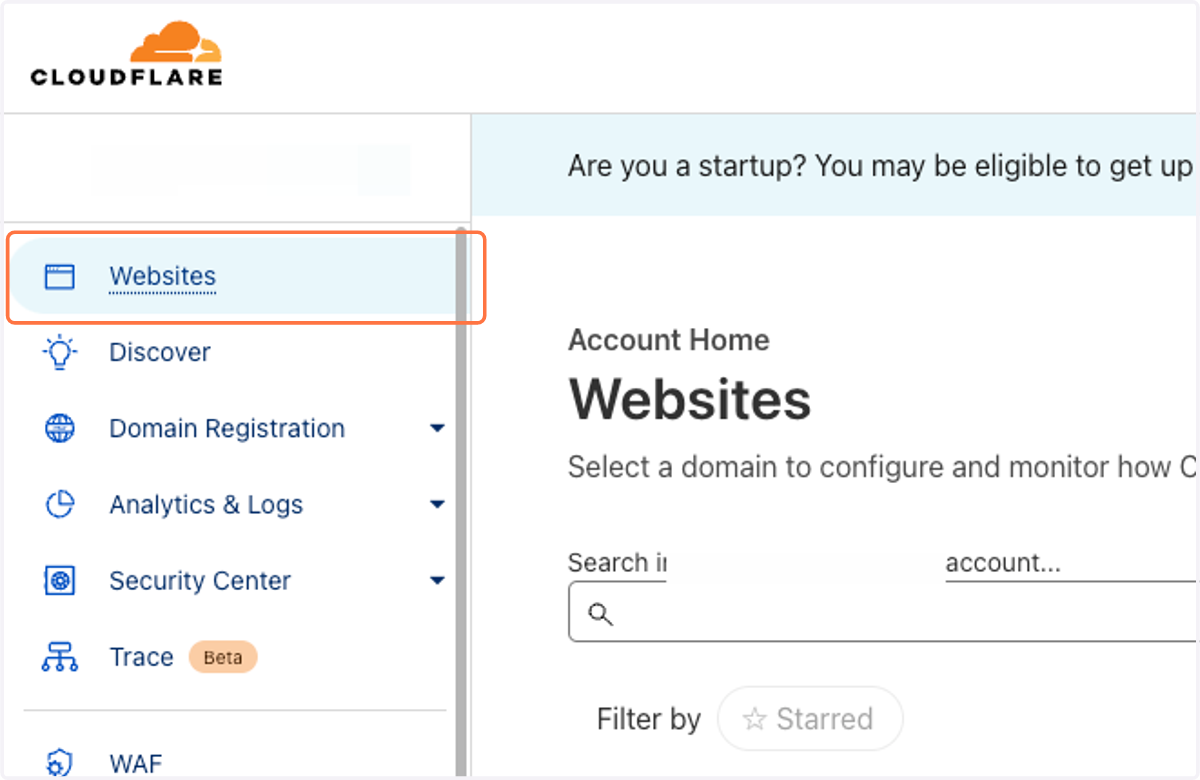
6. Click on Websites.
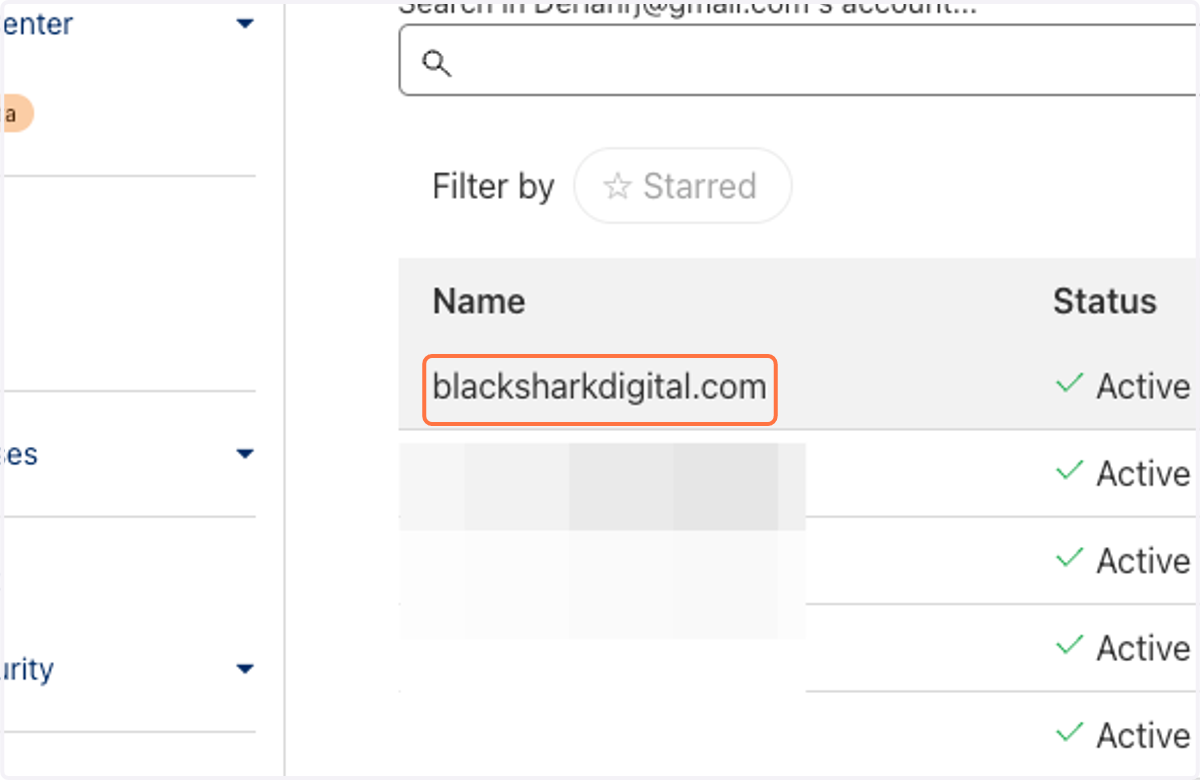
7. Select the Domain you configured in HideDomain to receive the subdomain.
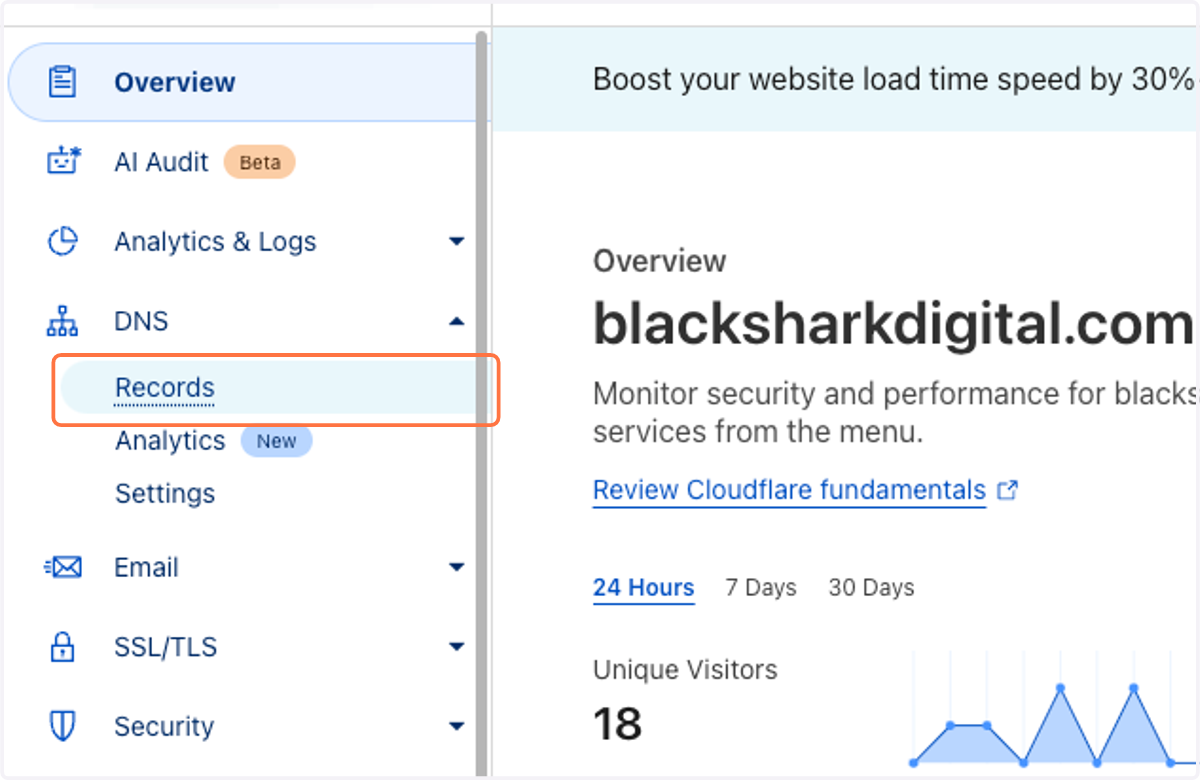
8. Click on DNS -> Records.
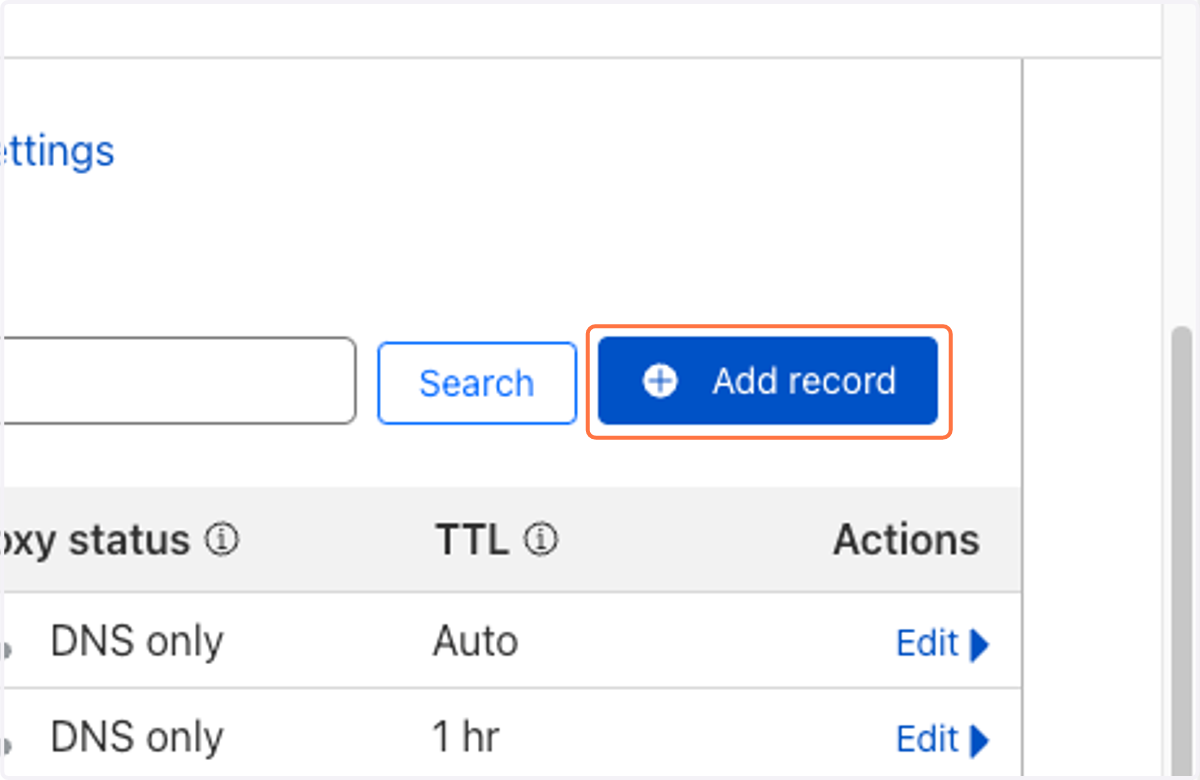
9. Click on Add Record.
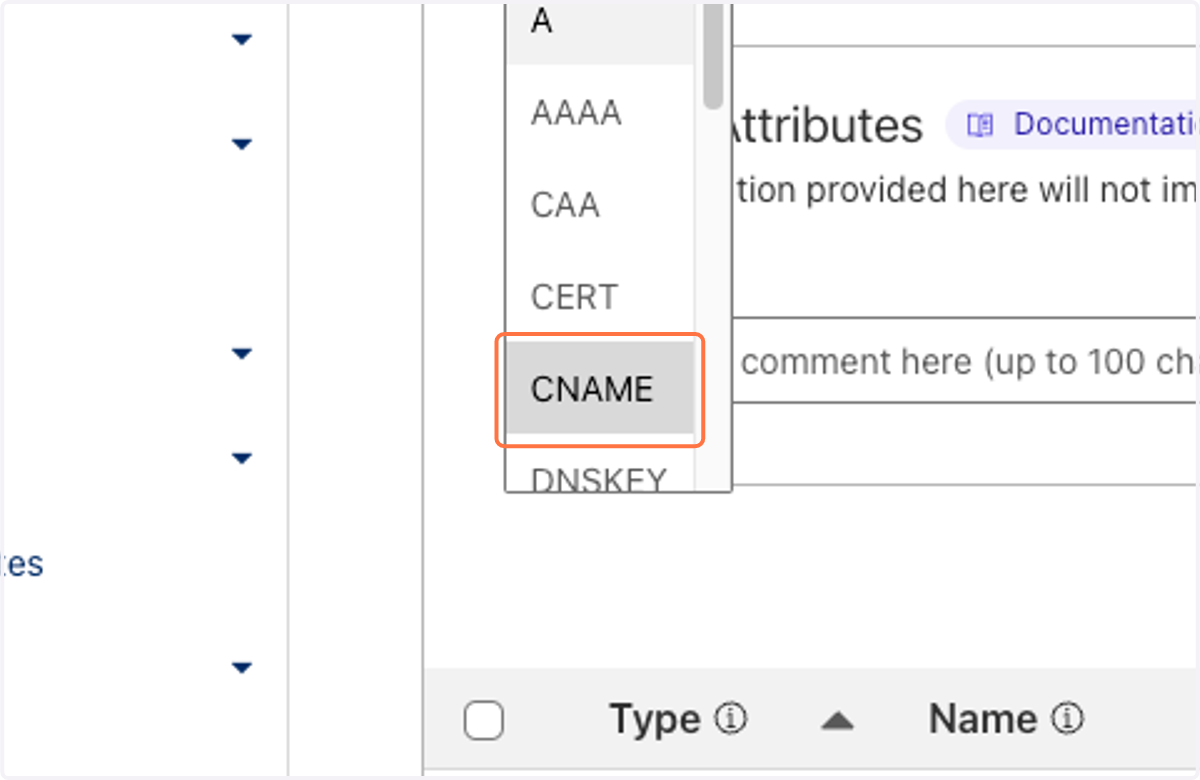
10. In the "Type" field, select "CNAME".
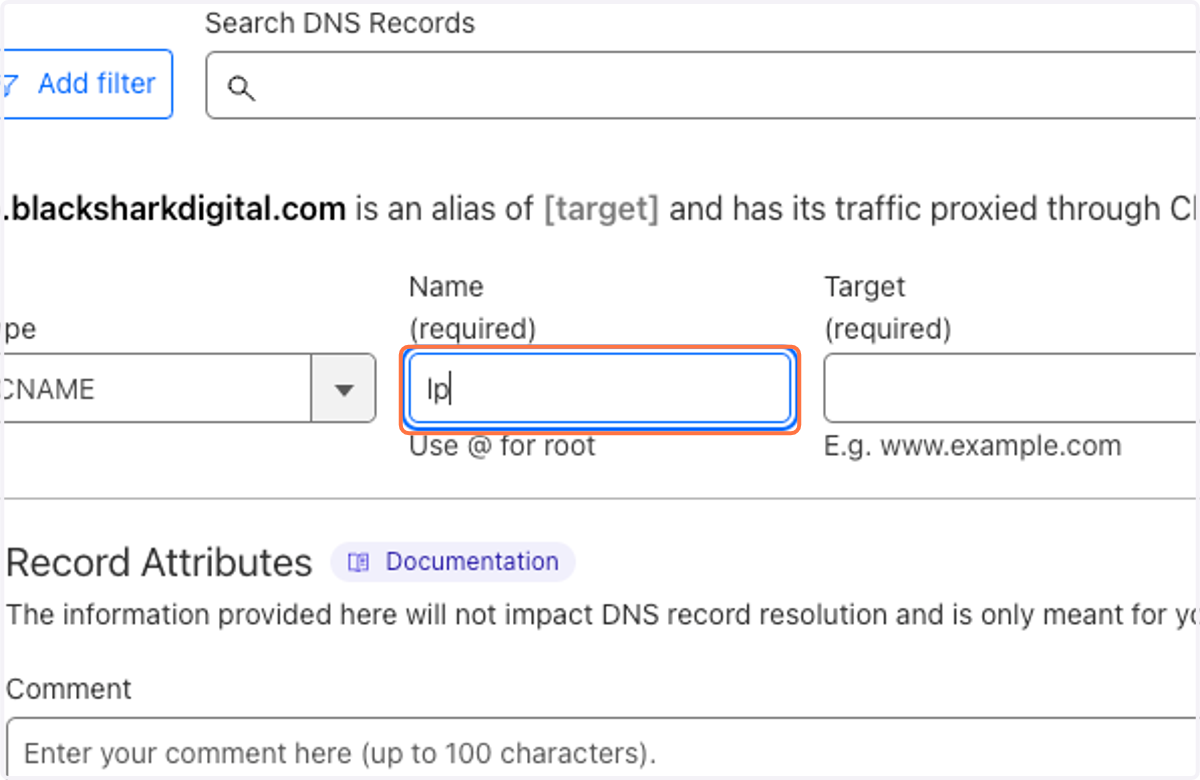
11. Enter the subdomain you configured in HideDomain.
In this tutorial's example, I registered "[lp.yourdomain.com]".
In this example, the "Name" of my subdomain will be "lp" (without quotes).
12. Configure the Target (or destination, depending on the platform and language).
Point this CNAME to landing.hidedomain.work.
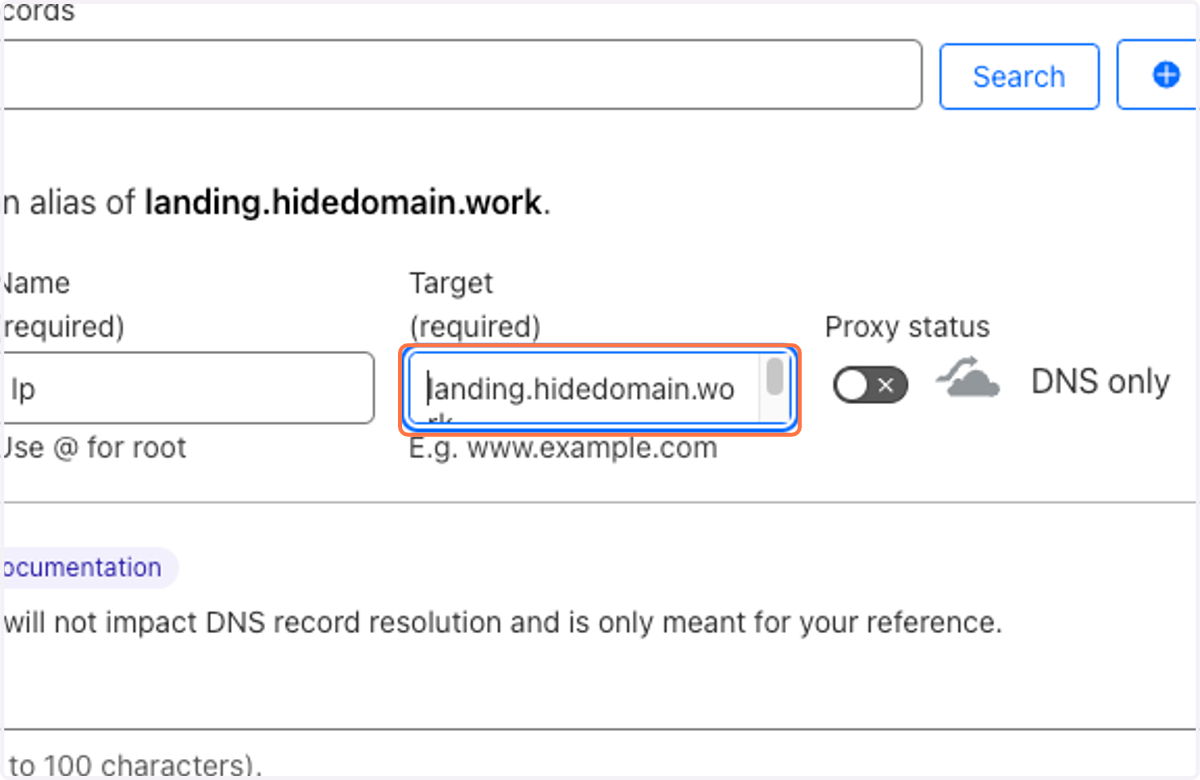
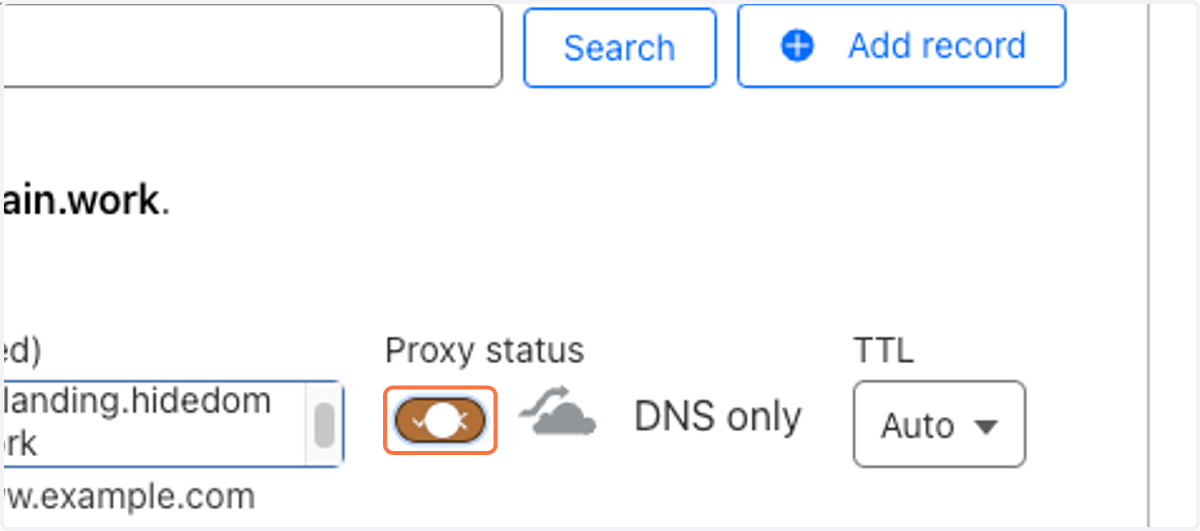
13. n the case of Cloudflare, we will need to disable the Proxy Status (turn the cloud gray).
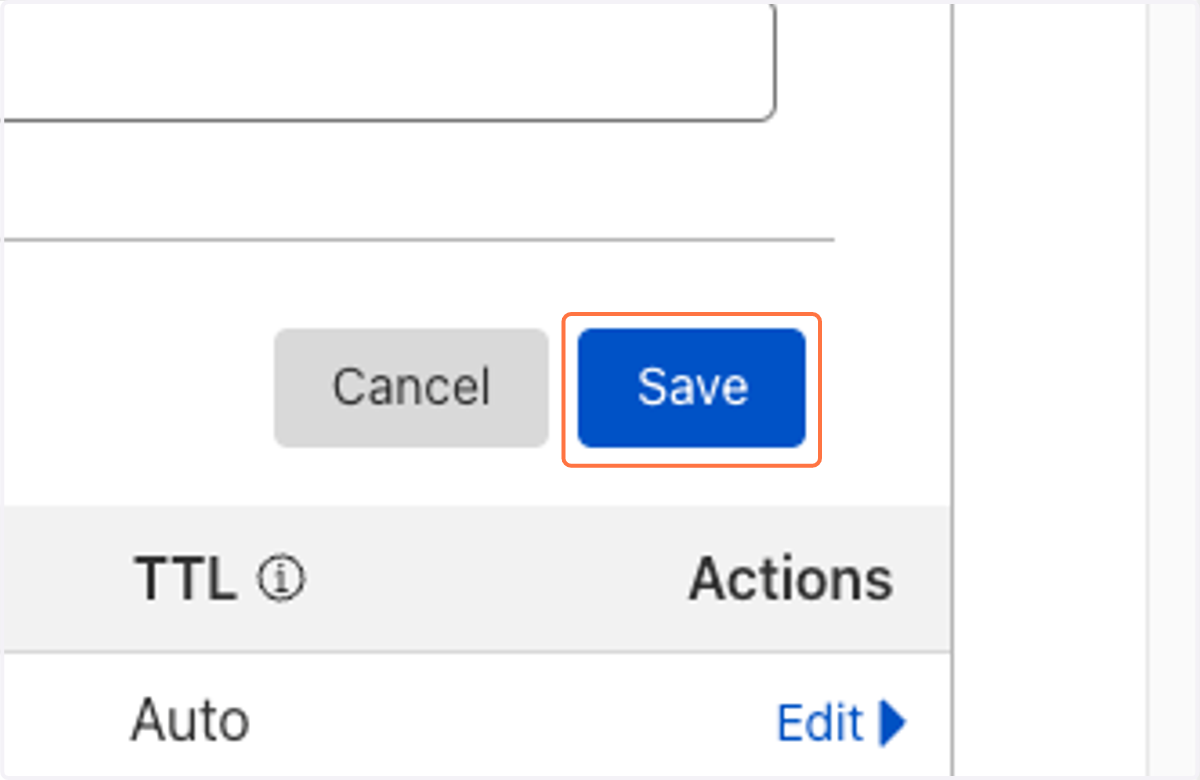
14. Confirm the settings and click Save.
Creating Your First Campaign with HideDomain.
15. Return to HideDomain, under the Domains tab.
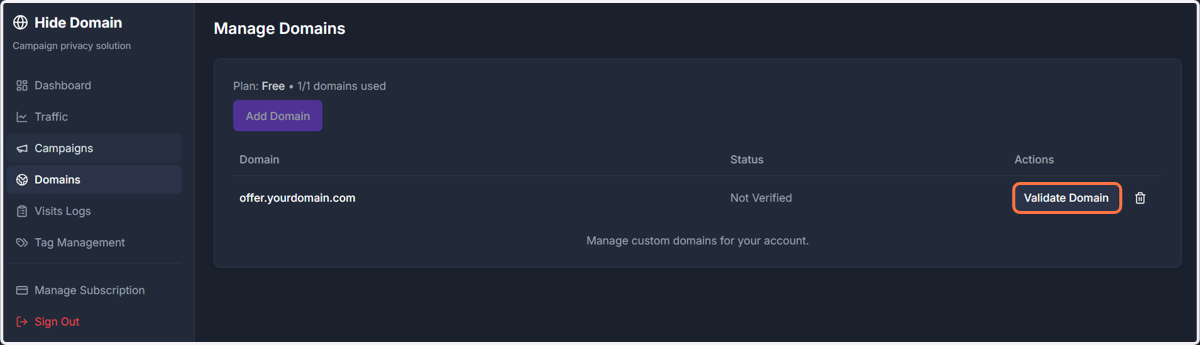
After configuring the subdomain with your domain provider, you will need to wait a few minutes (typically 30 minutes to 1 hour) until HideDomain validates the domain and you can successfully click Validate Domain and see it verified.
A success message will appear if the domain is confirmed. If no message is displayed, continue waiting and try again until successful.
While the domain is not verified, you cannot run traffic using the cloaker. However, you can start setting up your campaign immediately.
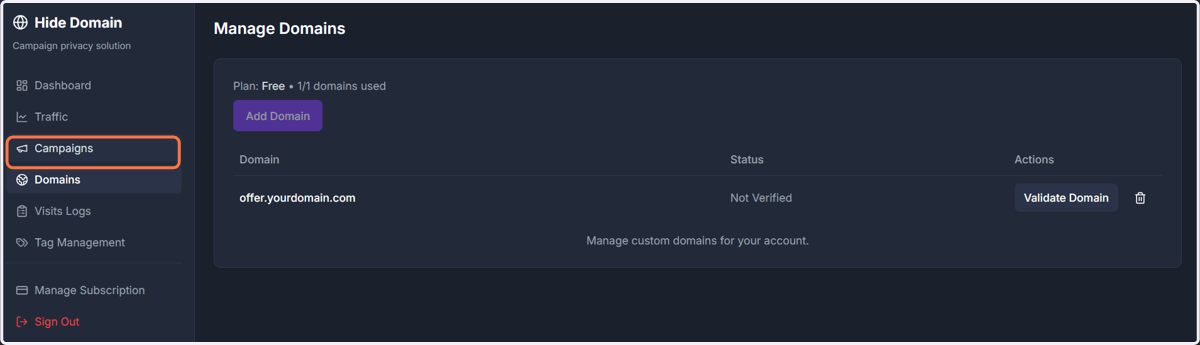
16. Click Campaigns.
17. Click Create Campaign.
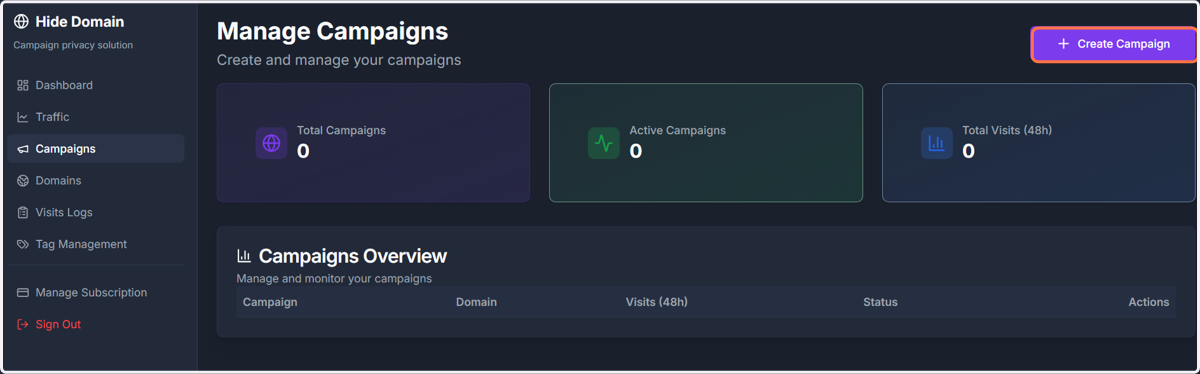
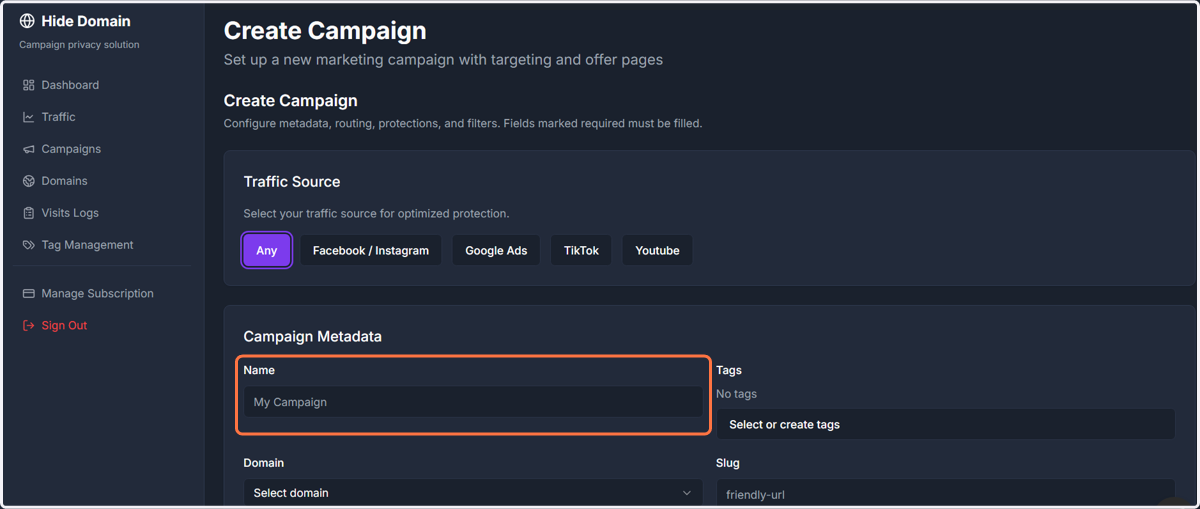
18. Enter the Campaign Name.
Each campaign will generate a link for you to advertise; choose a name that facilitates your organization.
It is not necessary to create 1 HideDomain campaign for every ad campaign; you can run multiple ads and campaigns using the same HideDomain campaign link created here.
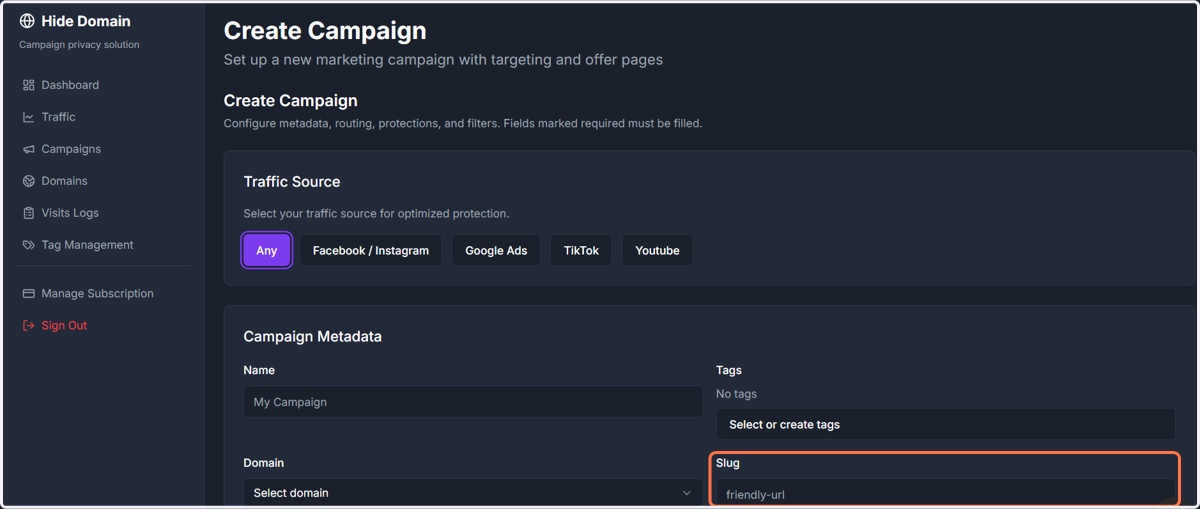
19. For the slug, enter what you want to appear in the address bar.
Since our domain is "[lp.yourdomain.com]" in this example, the slug will be used to generate a friendly URL for your ads, creating something like: lp.yourdomain.com/fg
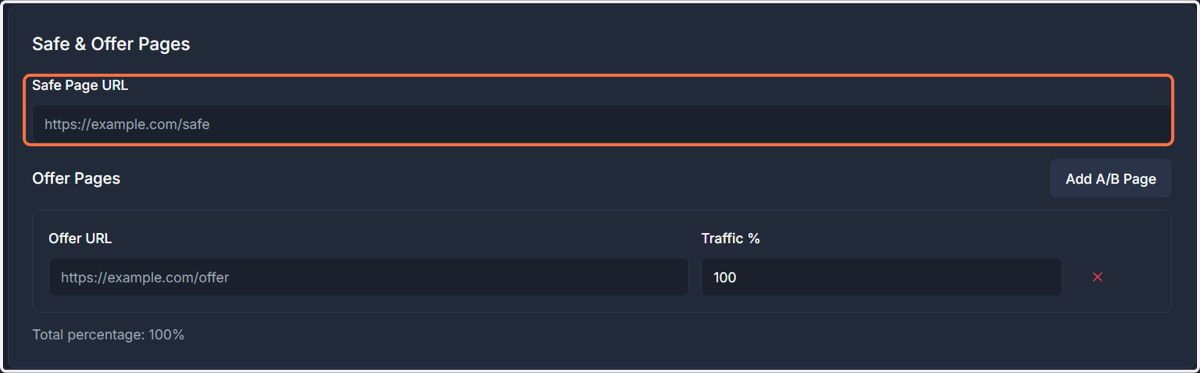
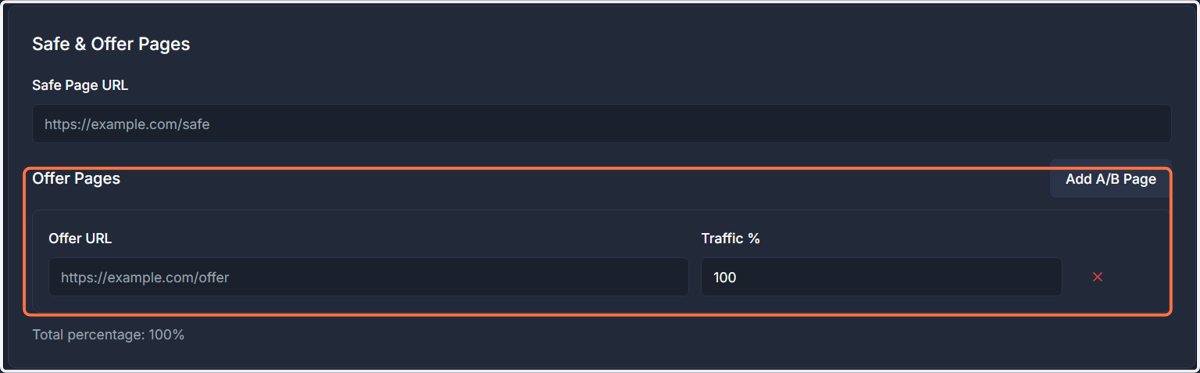
20. Enter the link to your Safe Page (White Page).
The Safe Page (White Page) is the page that Facebook, bots, and spies will see.
I usually create a pre-sell page that is congruent with the content I am advertising, and the links on the buttons direct to another offer or something similar.
21. Enter the link to your Offer Page.
The Offer Page is your real offer page—the one that users coming correctly from Facebook will see.
Here, you will place the link to your VSL (Video Sales Letter), your genuine pre-sell, or something similar.
It is possible to add more than one Offer Page to distribute traffic and test multiple offers.
22. Activate AdSpy.
Filters Bots = Prohibit robots, crawlers, and IPs from Facebook, YouTube, etc.
Filter AdSpy = Prohibit traffic coming from SpyHero, AdHeart, etc.
Filter Proxy = Prohibit people using Proxy/VPN.

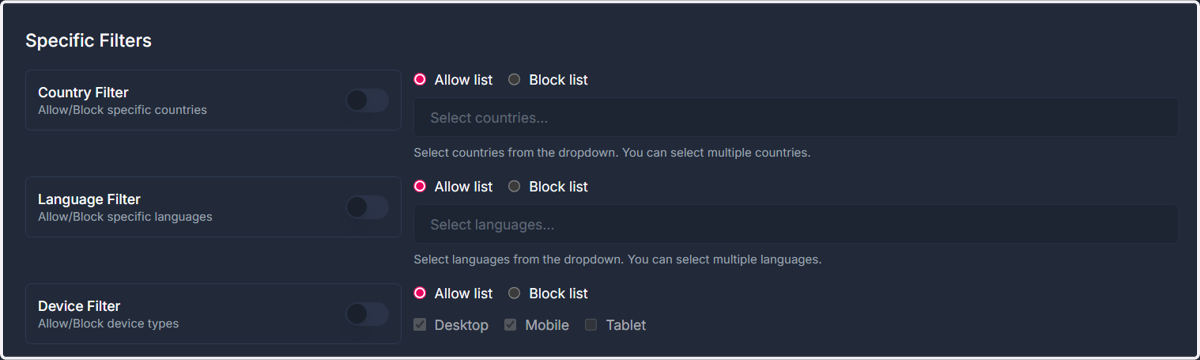
23. Implementing Specific Filters (Meta Ads)
Country Filter (Audience Validation)
In the Specific Filters section, toggle on the Country Filter.
Select "Allow list" and add only the country where your ads are running (e.g., Brazil or United States).
Rationale: Meta uses a global network of reviewers, but your real customers are localized. Blocking any country outside your target market is your first line of defense against remote manual audits.
Language Filter (Secondary Signal)
Toggle on the Language Filter.
Select "Allow list" and add the language used in your ad creative and landing page.
Expert Tip: While optional, this helps filter out bots or researchers using browser environments set to languages that don't match your target audience.
Device Filter (The Auditor Shield)
Toggle on the Device Filter.
Ensure Mobile and Tablet are checked.
Strategic Recommendation: Consider unchecking Desktop if your offer is mobile-optimized.
Why? A large portion of Meta's compliance and manual review teams perform audits using desktop environments. Since the vast majority of social media traffic is mobile, restricting desktop access can significantly reduce the risk of being flagged without losing real customers.
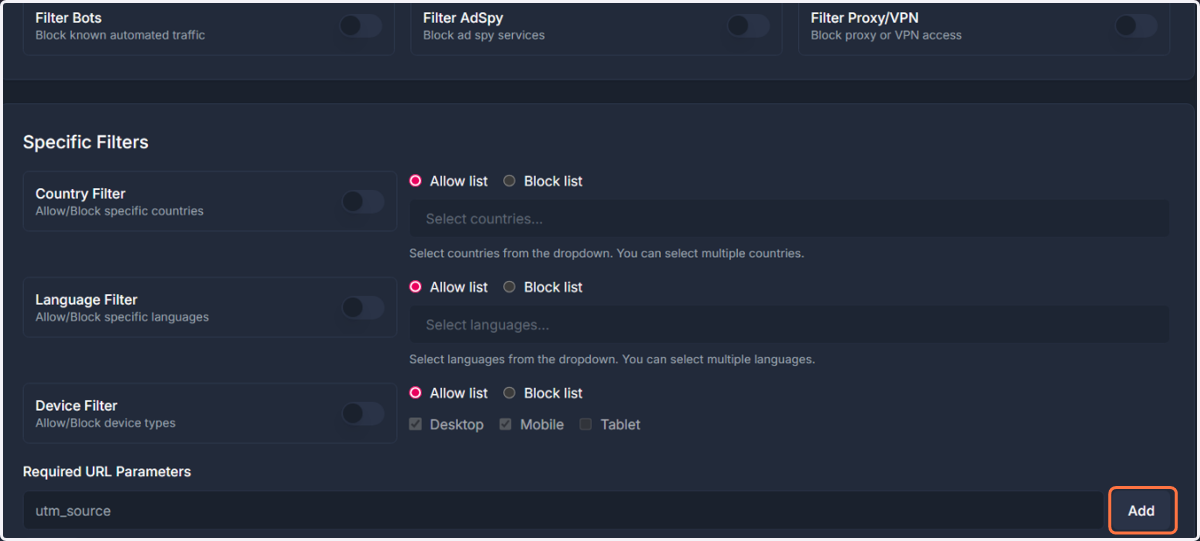
24. Required URL Parameters (Meta Tracking)
Scroll to the Required URL Parameters section at the bottom.
Add the parameter
fbclidand click the Add button.Similar to the
gclidfor Google, thefbclidis the unique identifier Meta attaches to every click. By requiring it, HideDomain will automatically show the Safe Page to anyone (auditors/bots) who clicks your link without coming from a real Facebook/Instagram ad.
25. When you enter your parameter, don't forget to click ADD to finish.
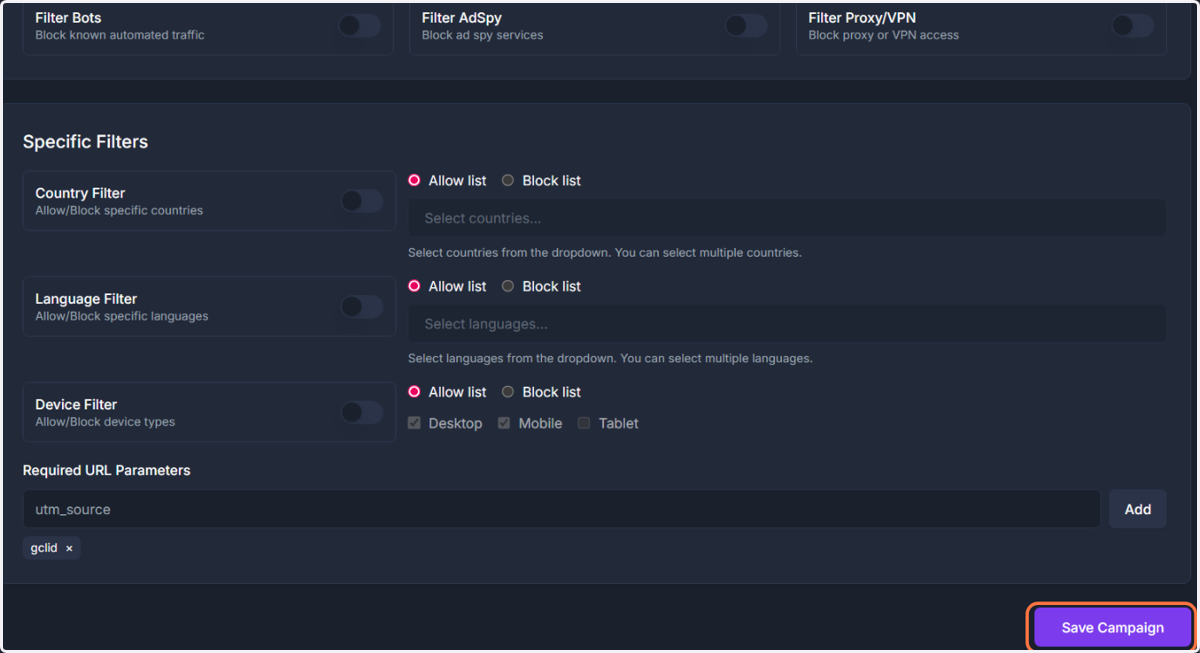
26. Everything is configured. Review the campaign and click Save Campaign.
27. Copy the HideDomain Campaign URL.
Upon completion, you will see this URL next to the created campaign.
Copy the top URL, and let's go to the next step: creating our ad campaign.
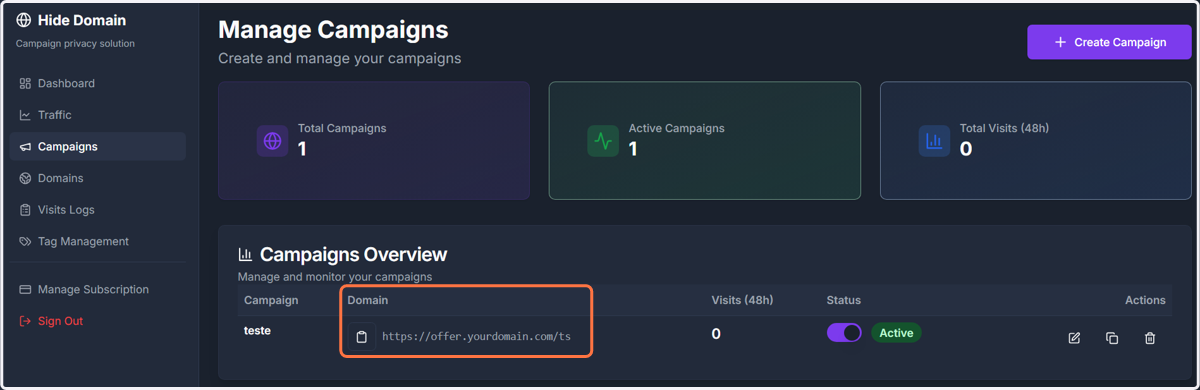
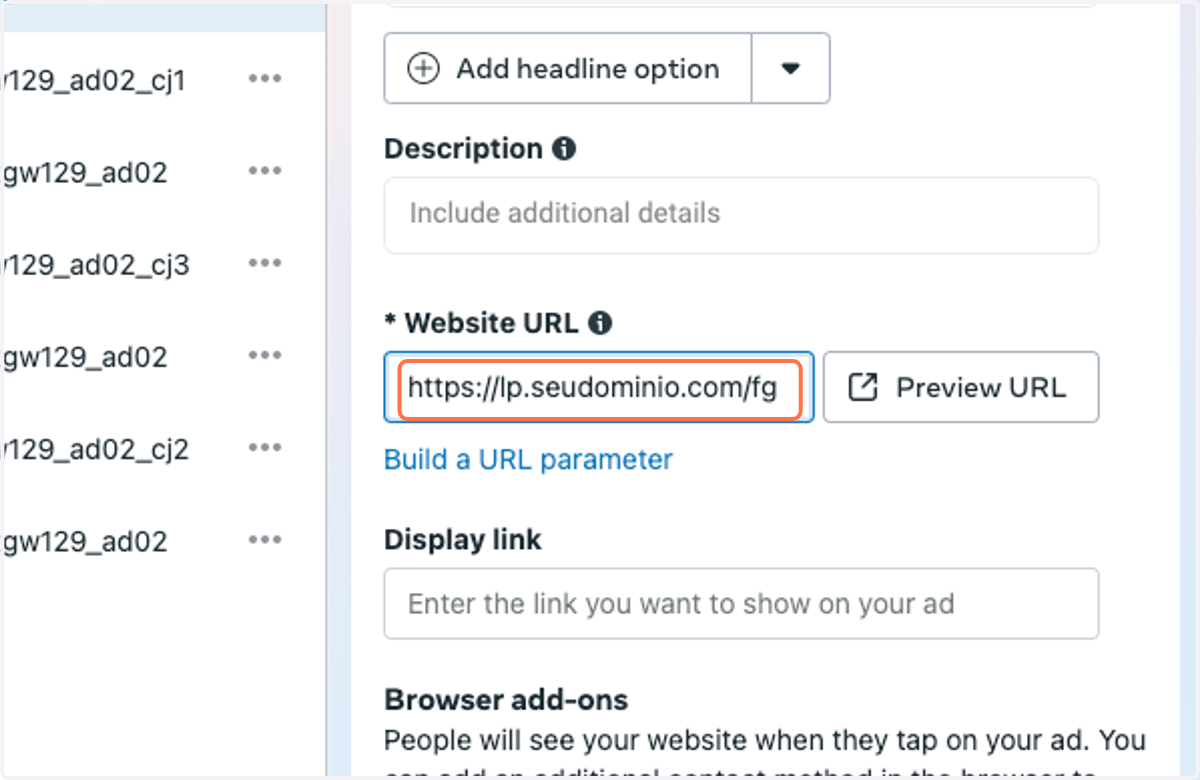
28. Configure the Destination URL for your HideDomain campaign.
In the Destination URL field, place the URL you copied from HideDomain.
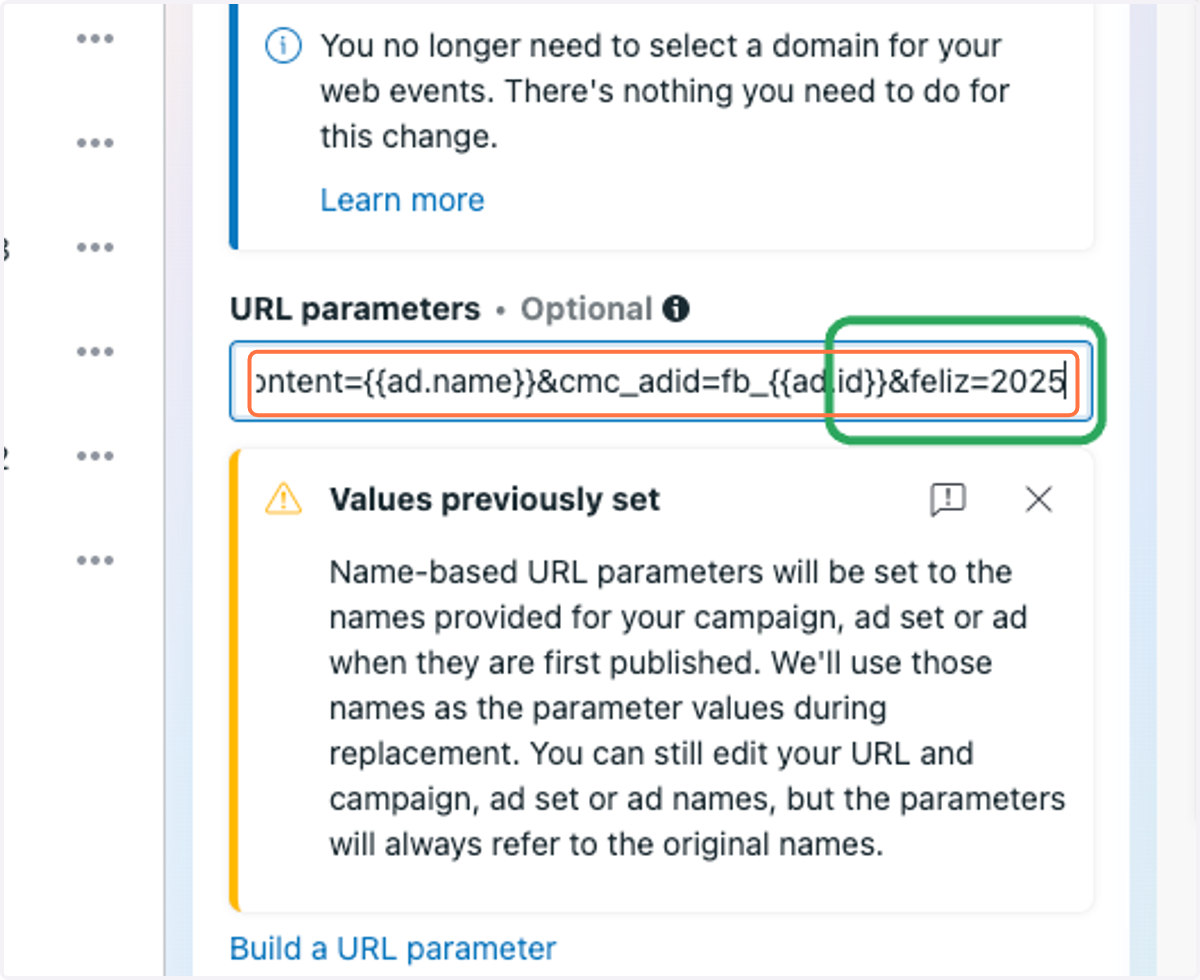
29. Configure the URL parameters.
If you used the advanced URL Param filter, you must pass the same parameter here in your Facebook configuration.
This way, even if someone finds your ad in the ad library and is in the United States, they will not be able to access the real offer, as this parameter only appears for legitimate devices.
Since I already had parameters in my ClickMagick URL, I added &feliz=2025 at the end, and now all you have to do is publish and stay away from bots, spies, and everything bad.
Well done!
30. Best Practices Guide: Configuration for Facebook Ads
If you want to know the best practices for setting up your campaign on Facebook, the PDF linked below can help you:
https://drive.google.com/file/d/1qB9RjZ1LRhmF3uyDRzTOM6SAhJXs79rA/view?usp=sharing
Need Assistance? We're Here to Help!
Do not hesitate to contact our team if you need any support or guidance. You can reach us via:
Native Chat on the website
Email: danielle@hidedomain.com
We look forward to helping you achieve maximum security and scale!