Step 3: Booking hotel rooms using the Custom URL
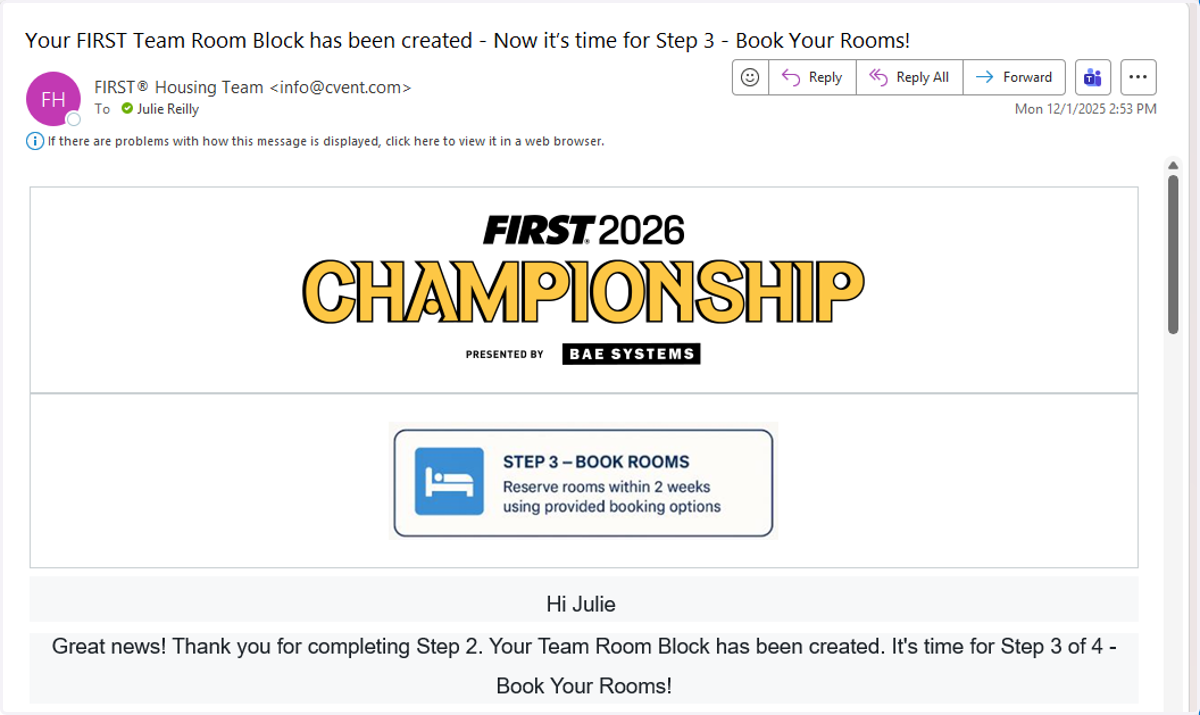
1. This is what your Step 3 confirmation email looks like.
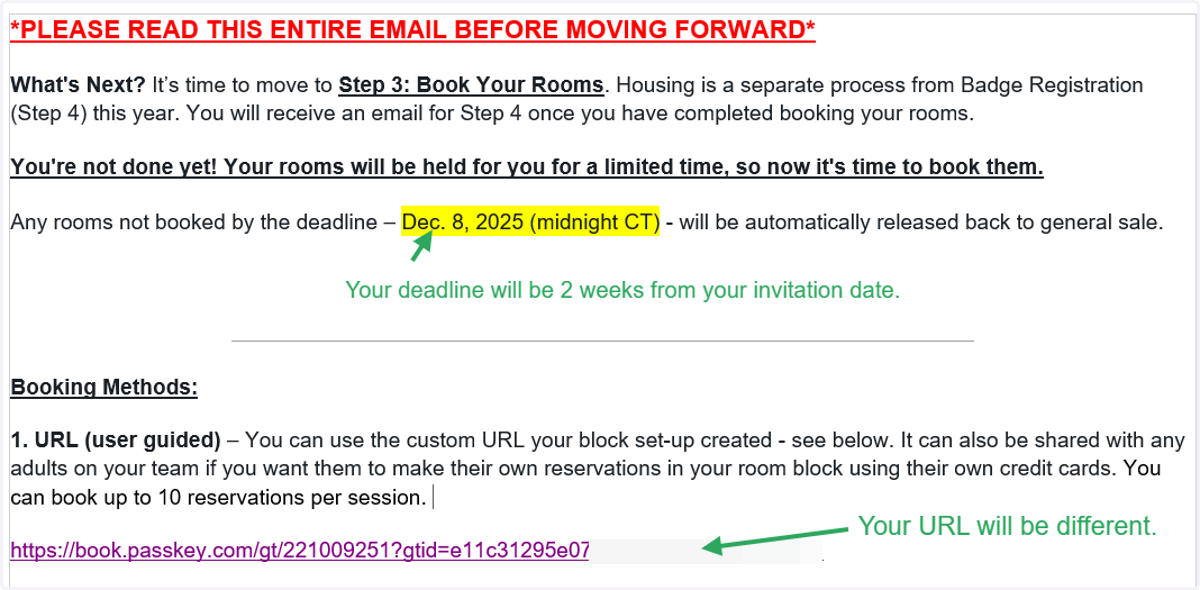
2. Click in the URL in the Step 3 email to begin booking process.
You are able to book up to 10 reservations per session. You can use the link again if your block has more than 10 rooms to book.
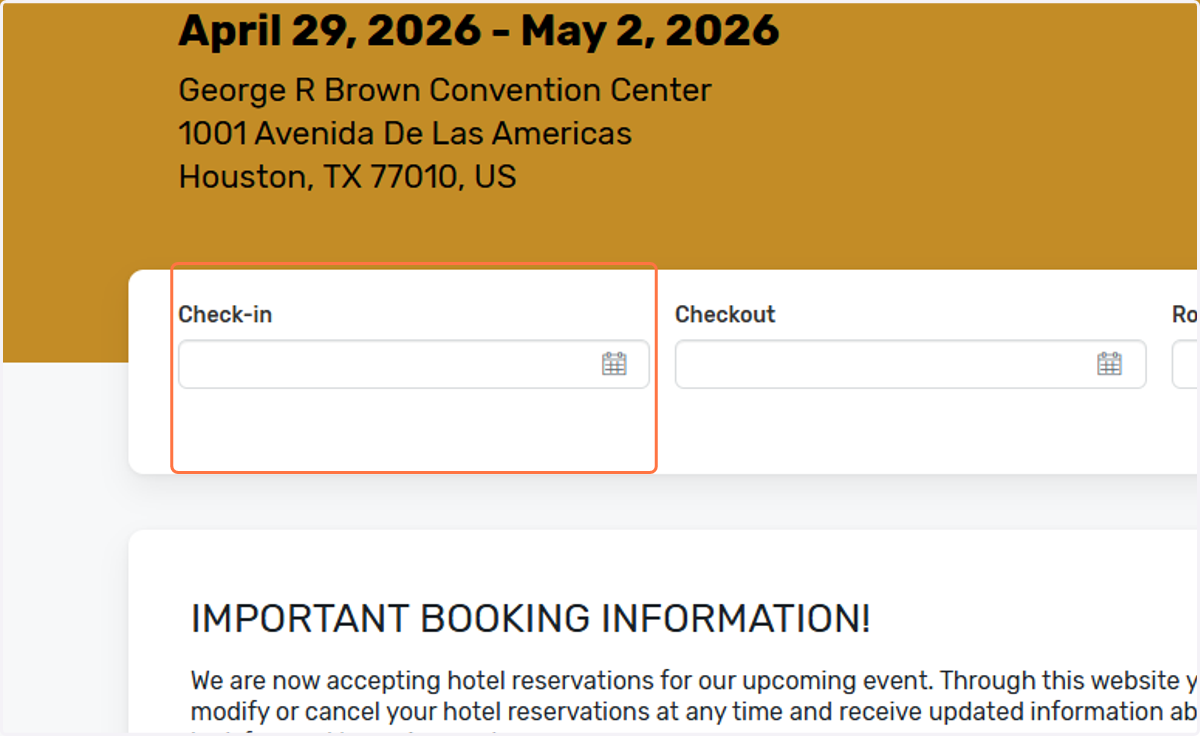
3. Enter your check -in date.
4. Enter your check-out date.
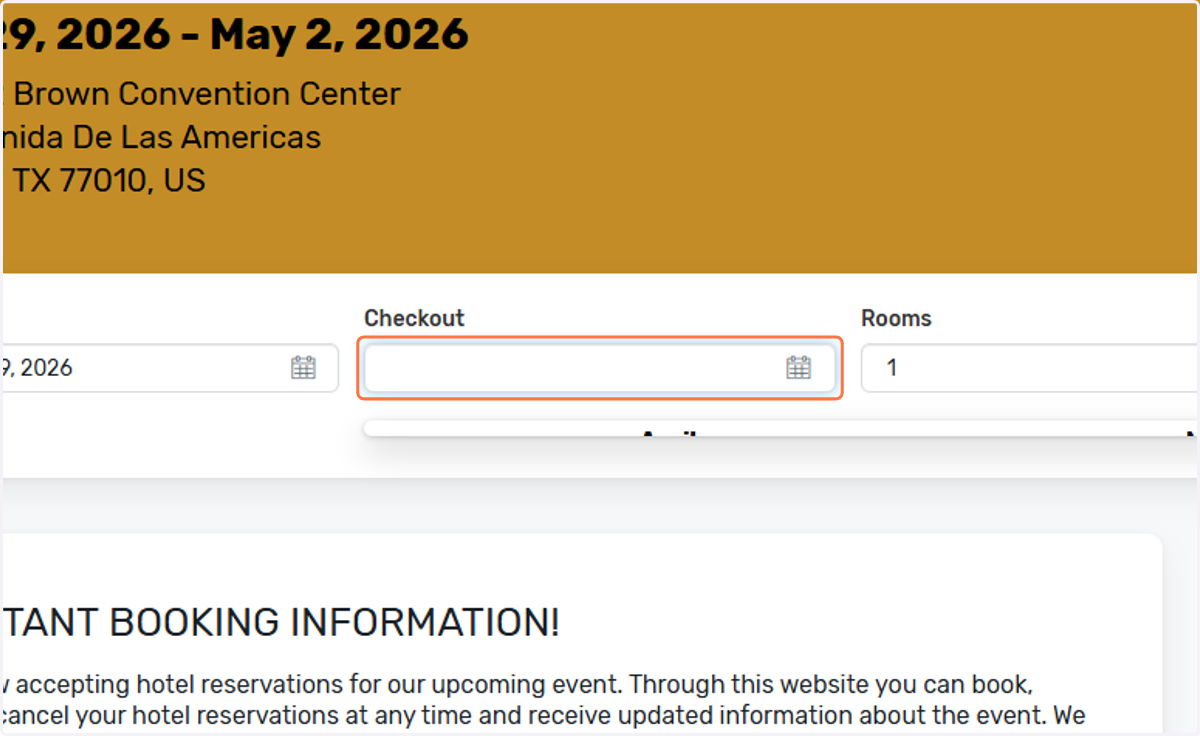
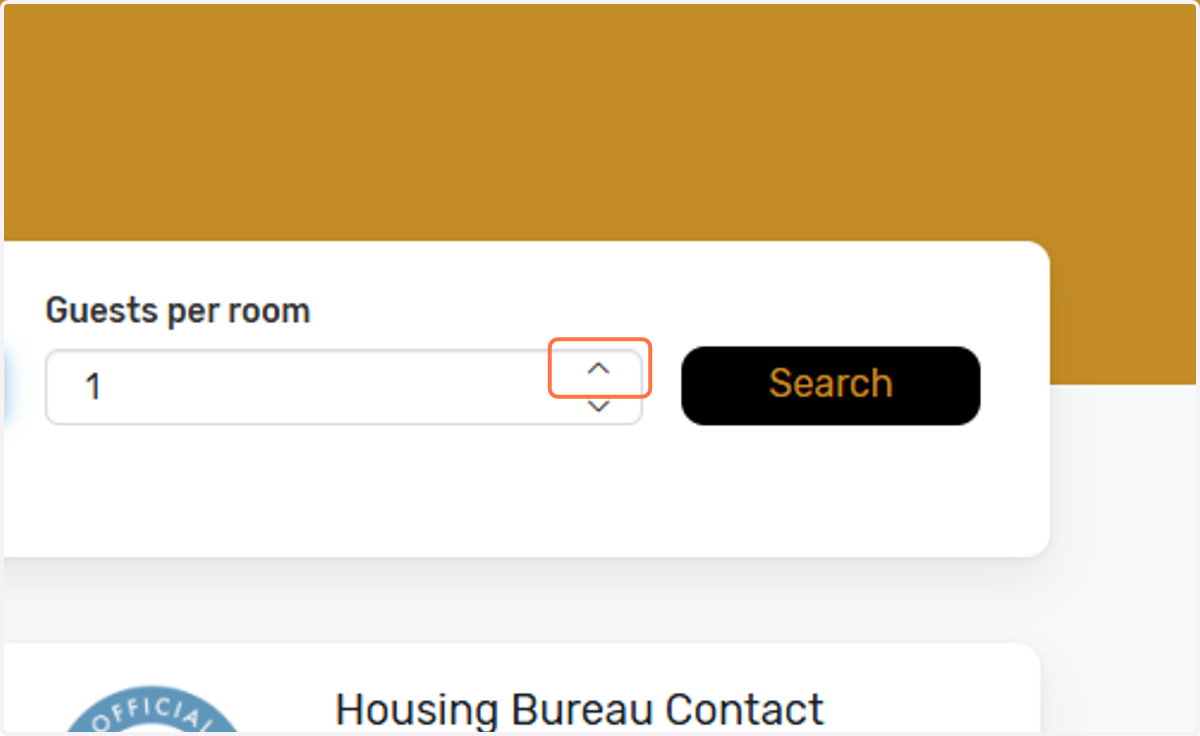
5. Tab through the page and enter the necessary information - number of rooms you're booking this session and number of people per room.
You can set the number of people up to 4 per room at this stage (if it is room with 2 beds) and then adjust it per room as you move through the next section.
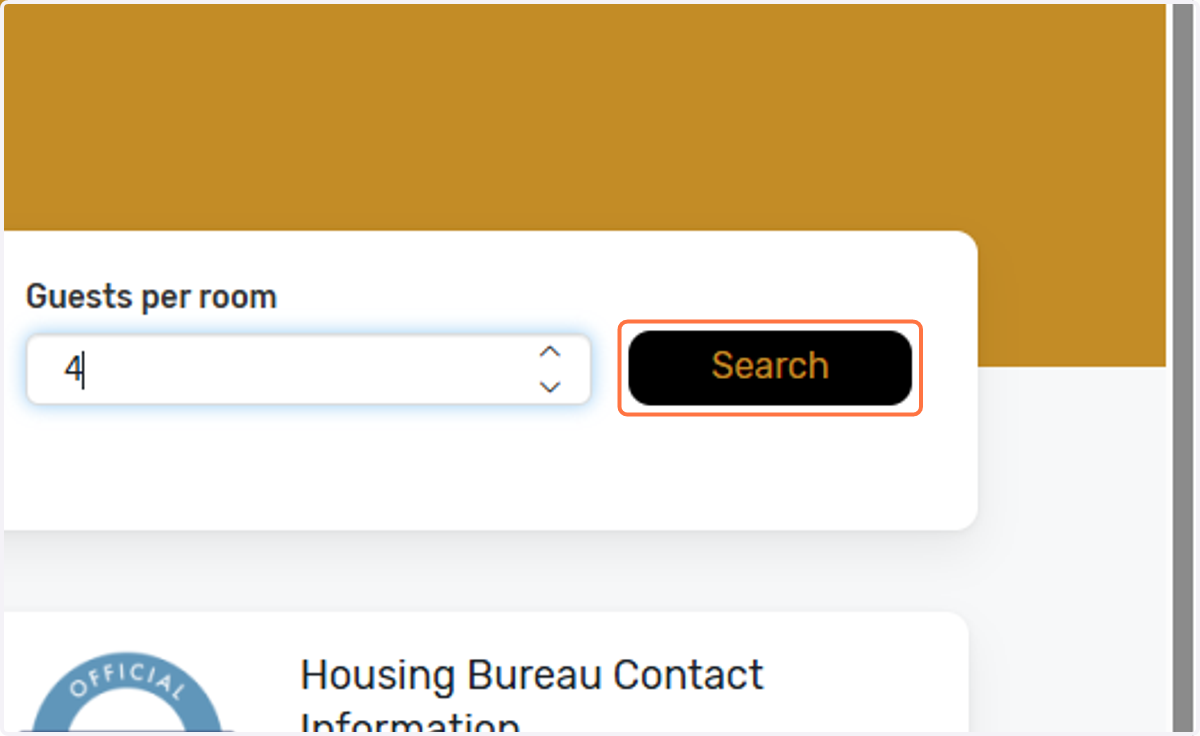
6. Click on Search
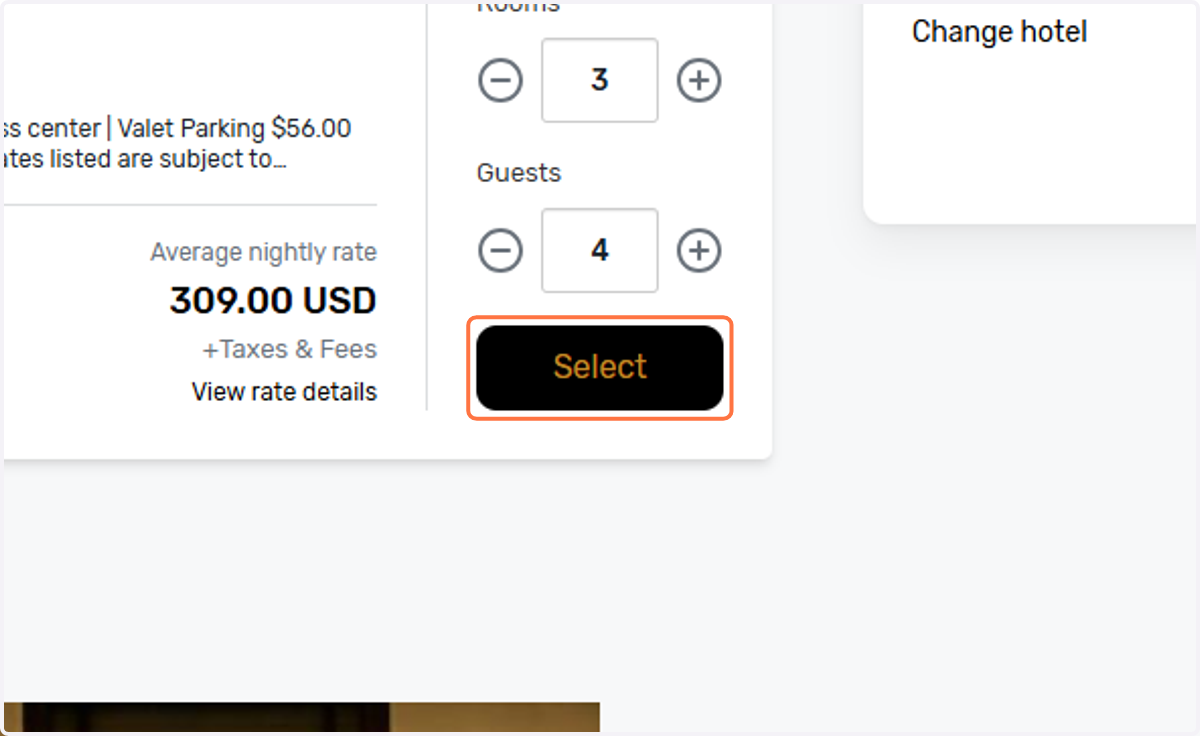
7. Click on Select
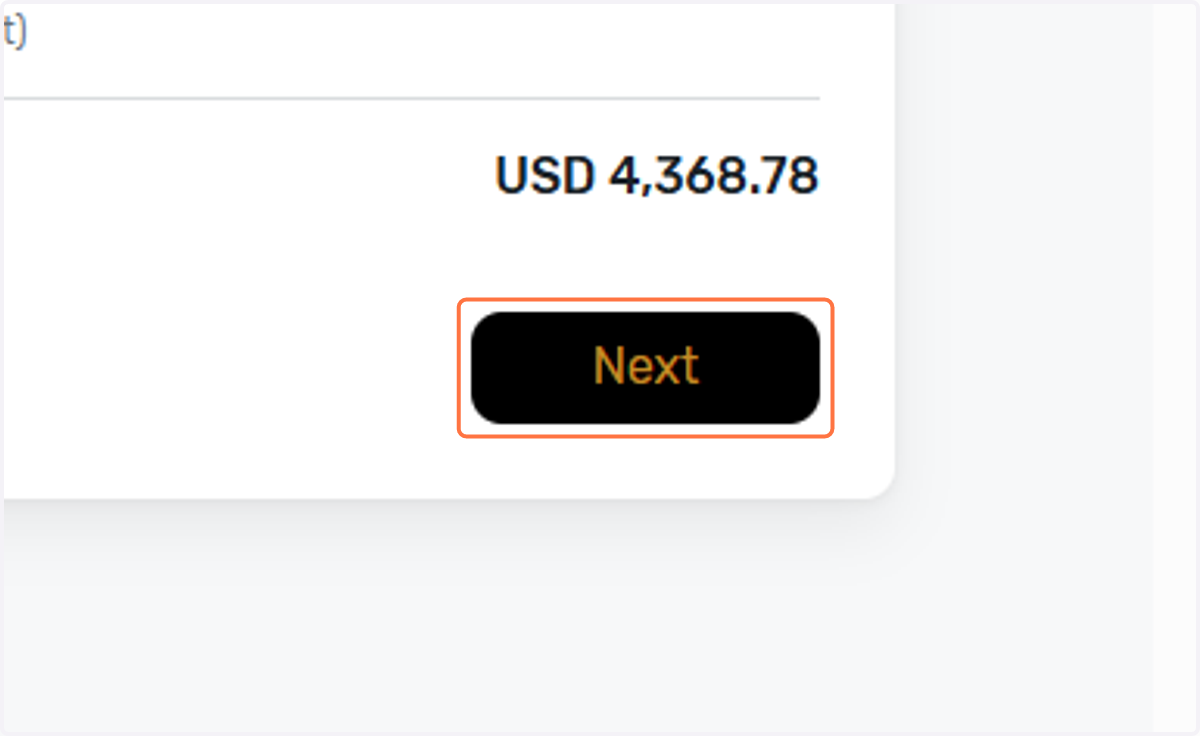
8. Click on Next
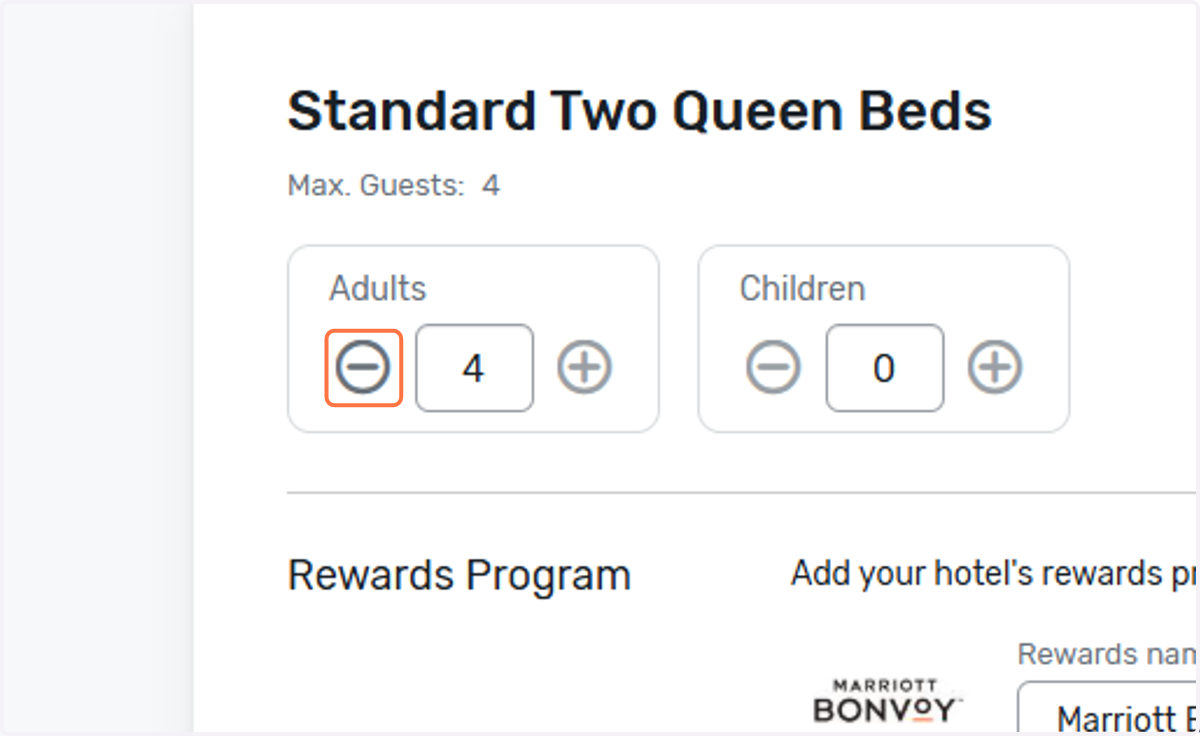
9. Here is where you begin adding the room occupant information. You can change the number of people per room now.
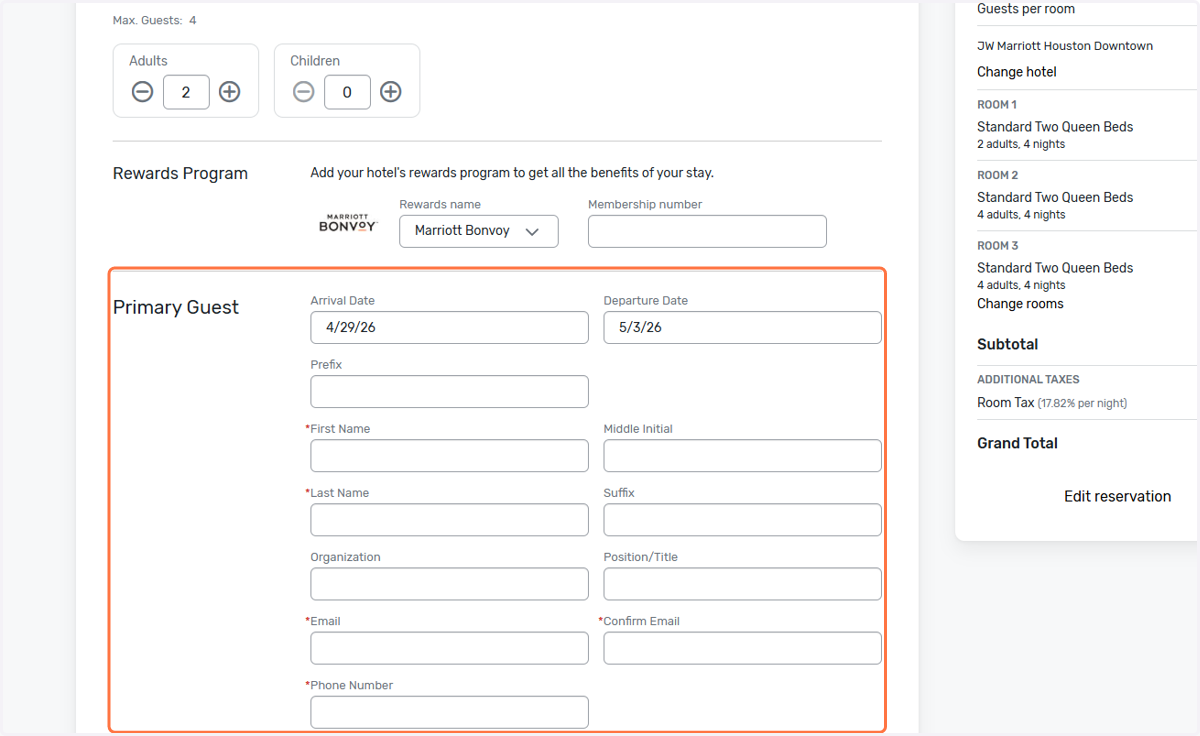
10. Click on Primary Guest…
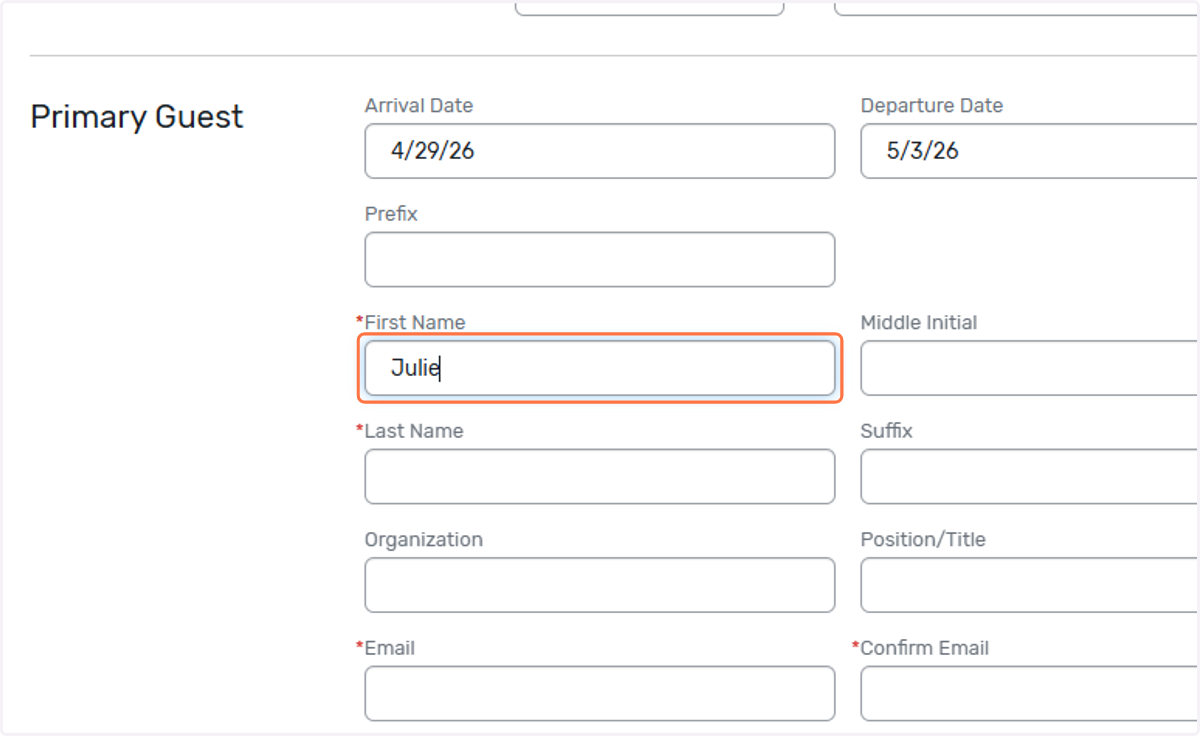
11. Enter first name.
12. Enter last name.
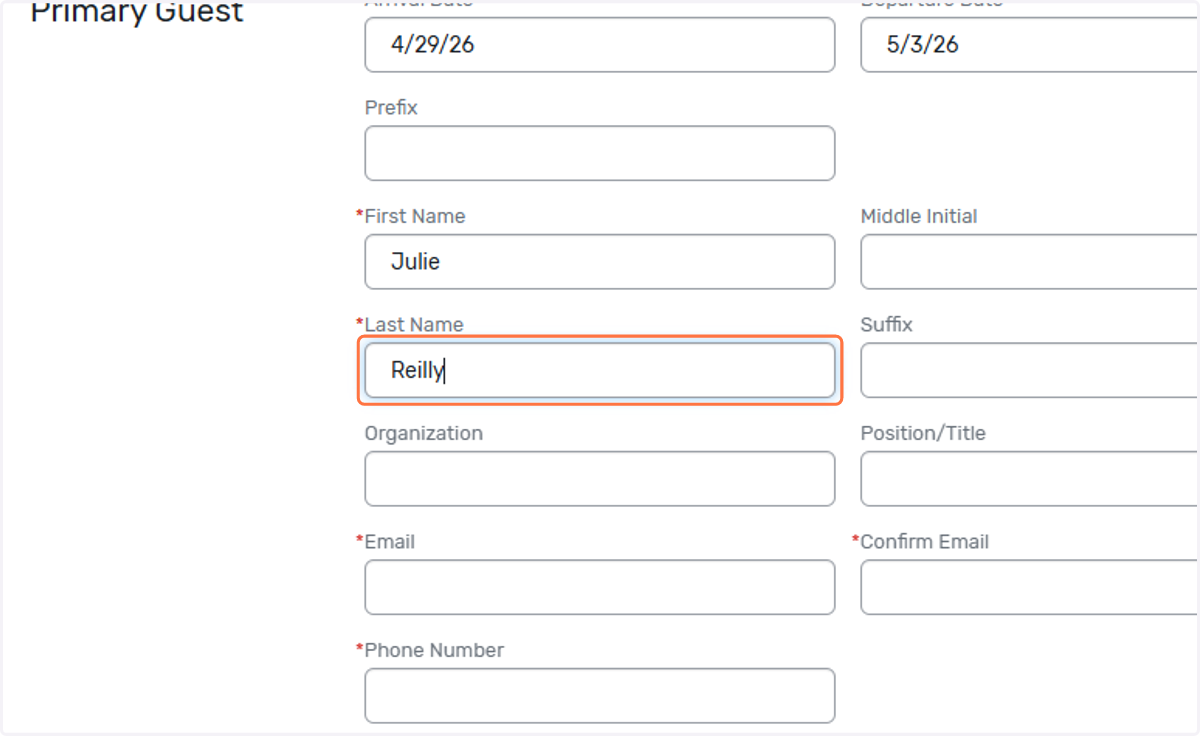
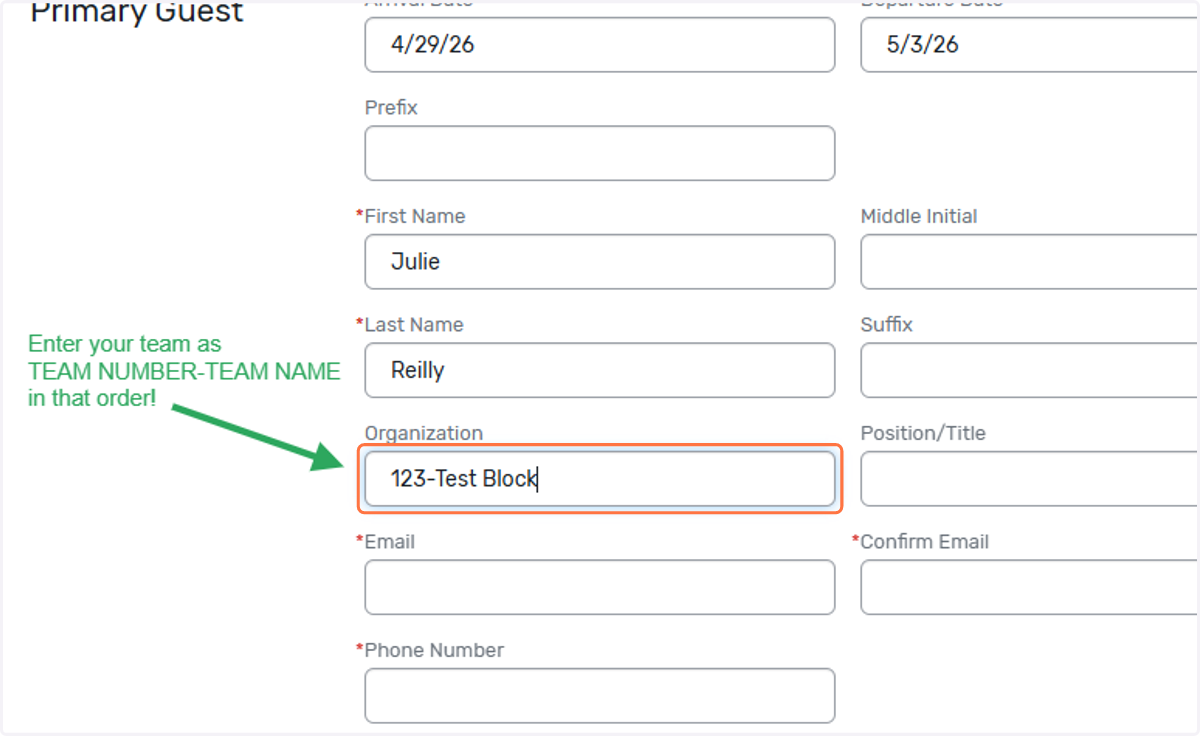
13. Enter Team Number-Team Name (in that order with a dash in between). * Do NOT enter your school name or your district name. This will only cause delays.
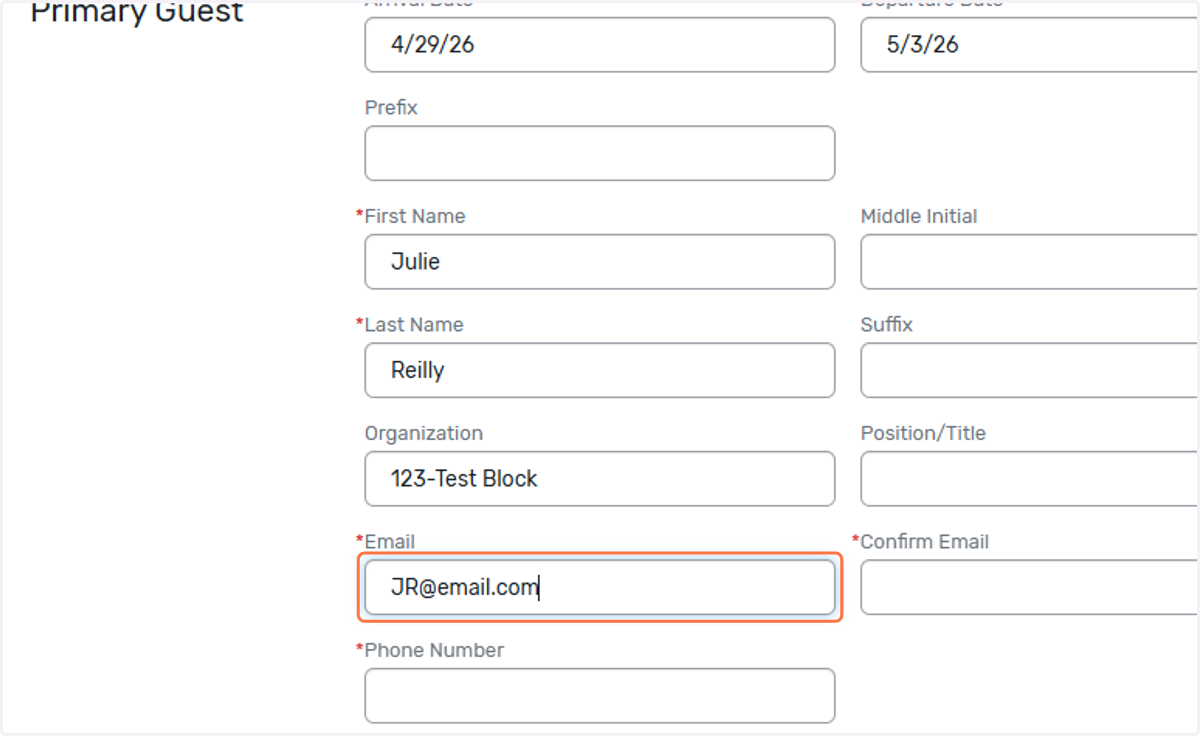
14. Enter email.
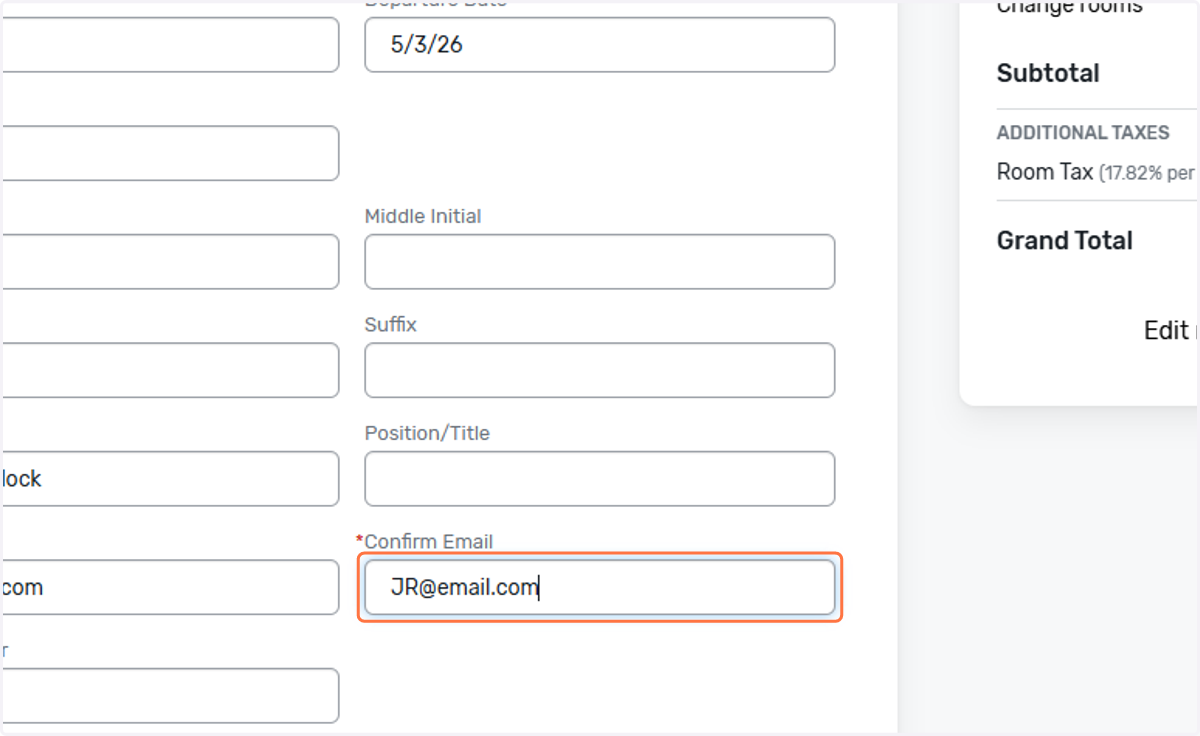
15. Confirm email.
16. Enter phone number.
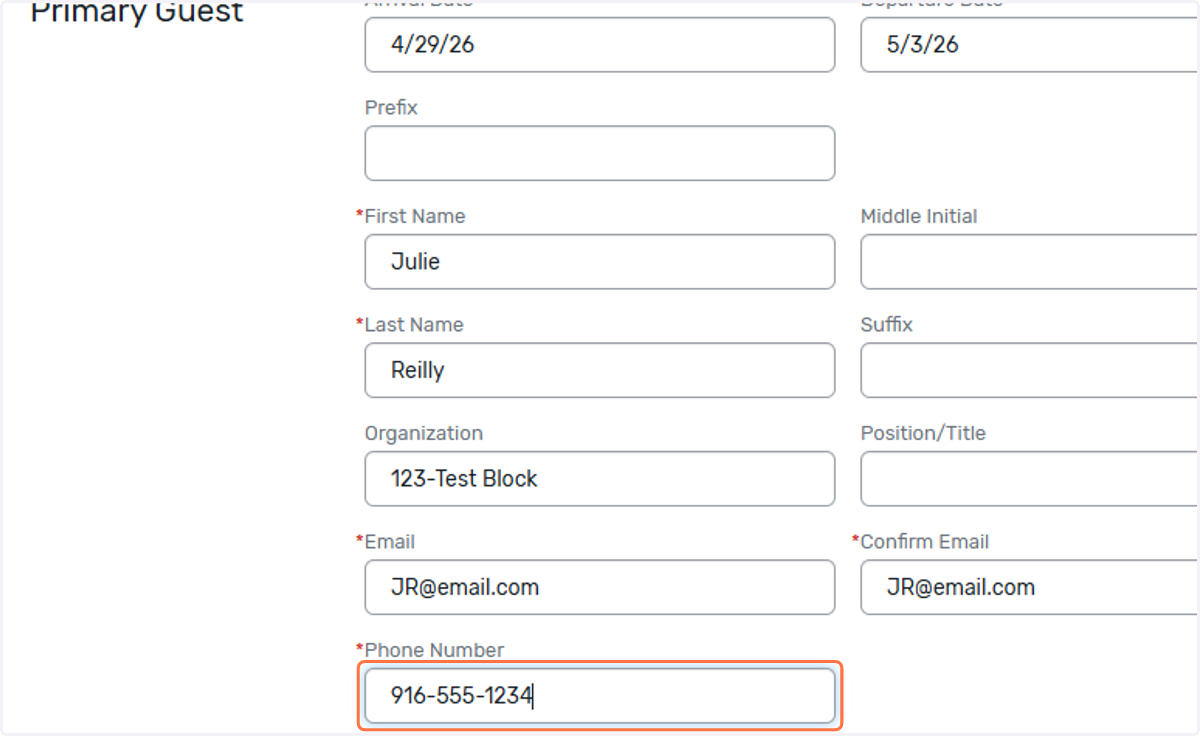
17. Continue through the page entering the requested information beginning with Country.
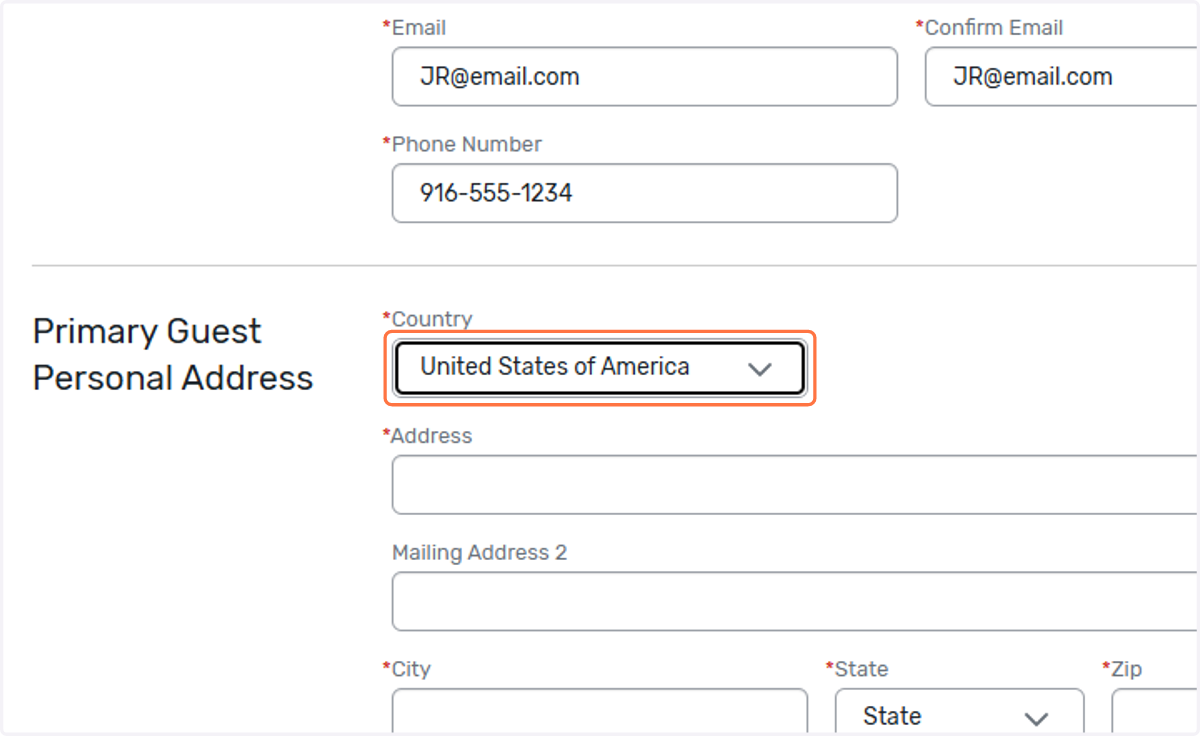
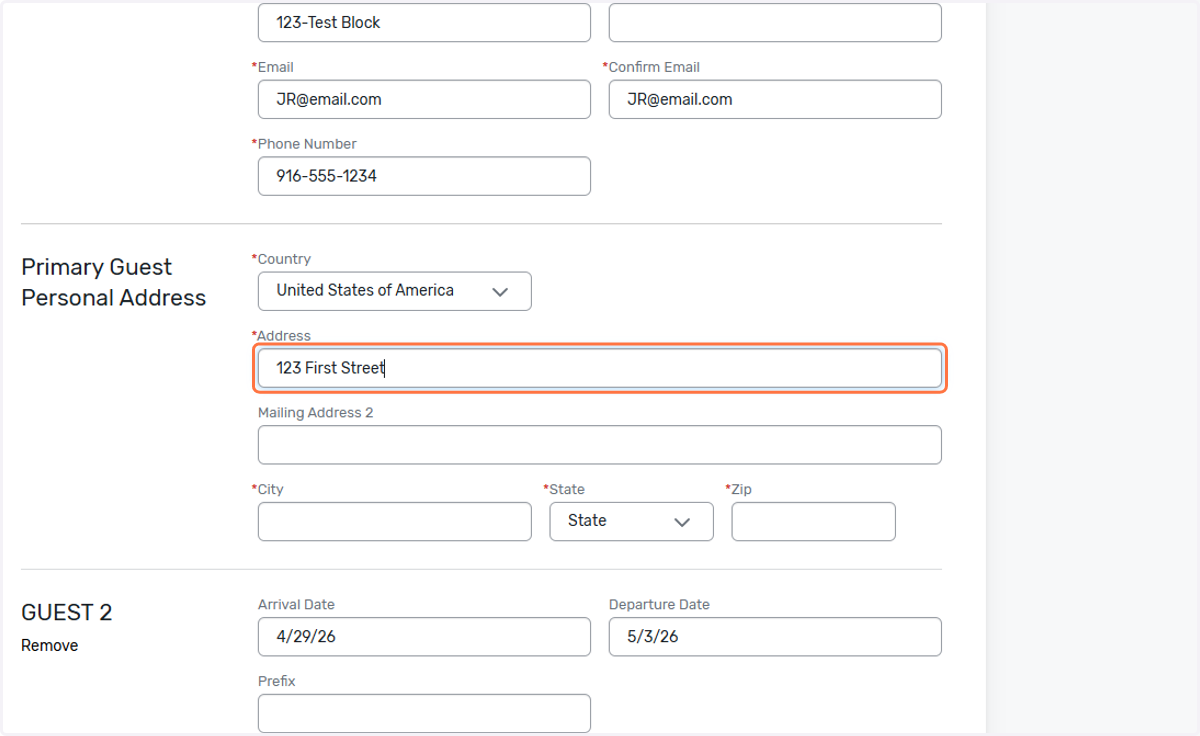
18. Address
19. City
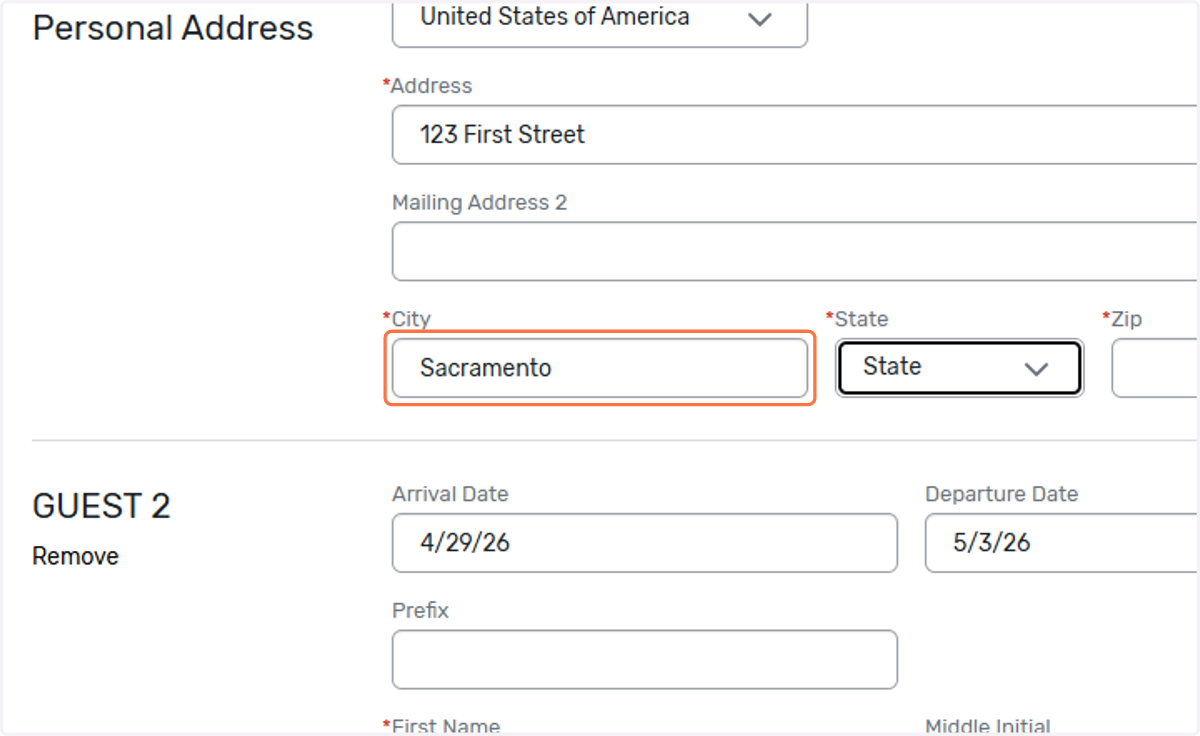
20. State
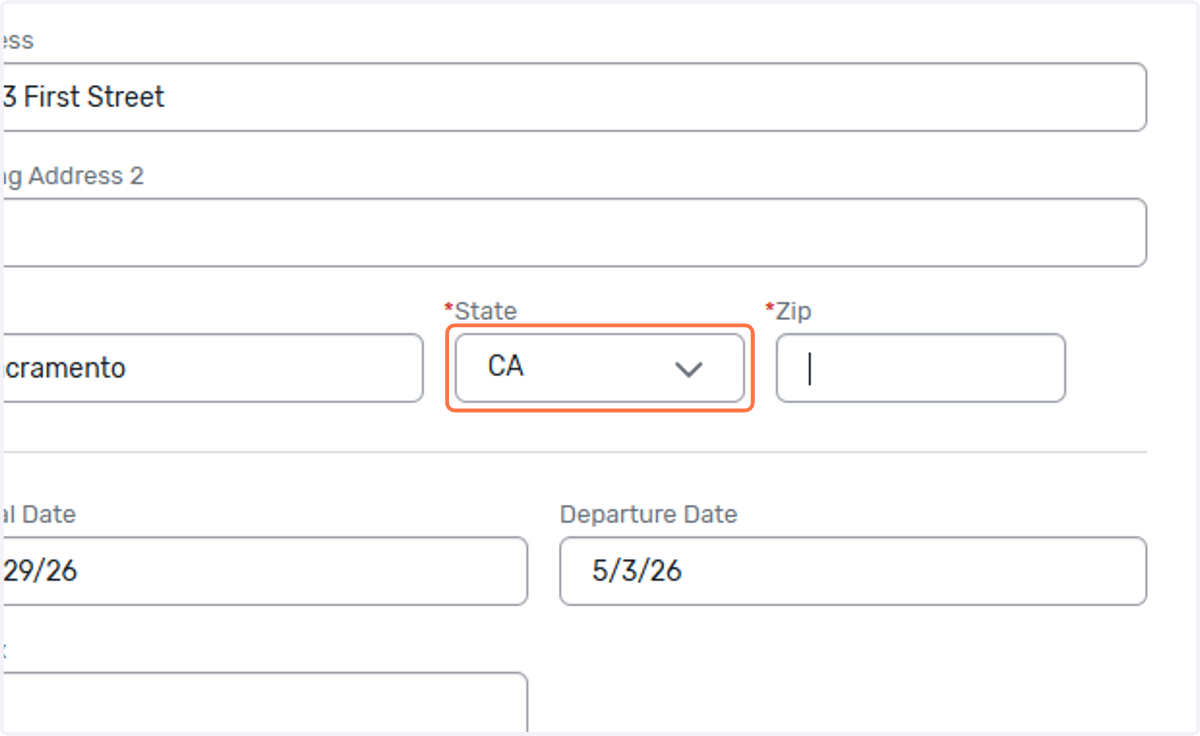
21. Postal code
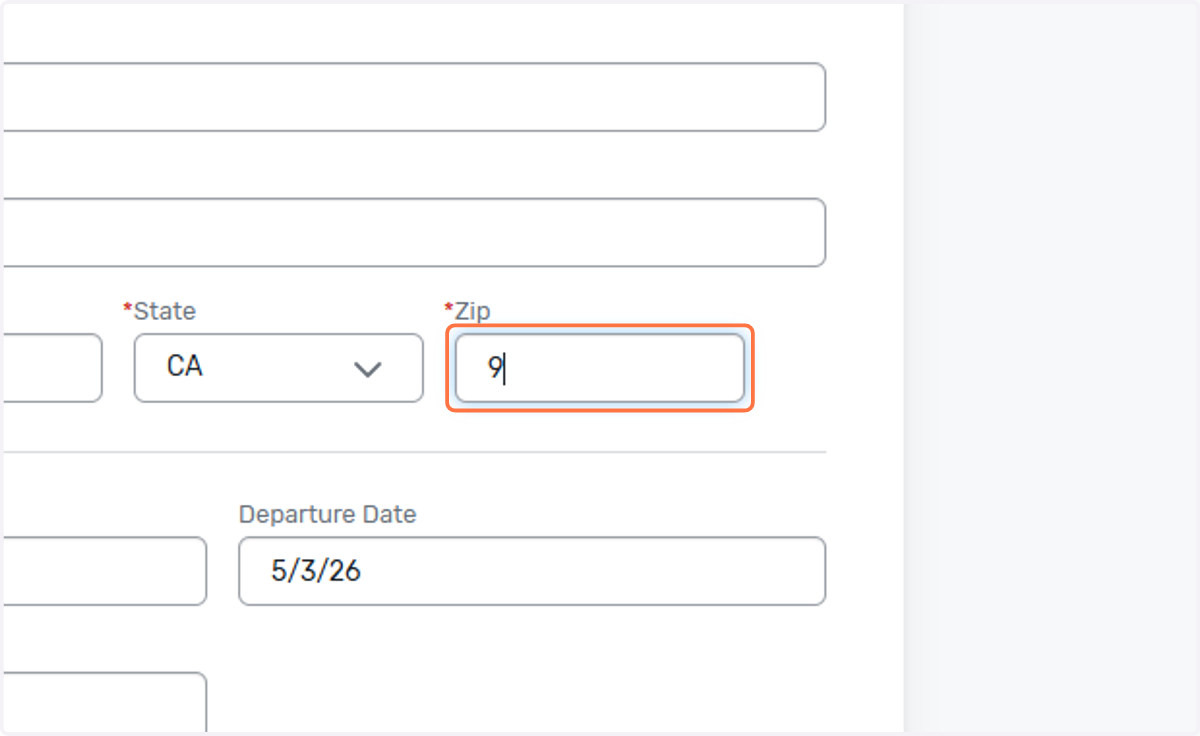
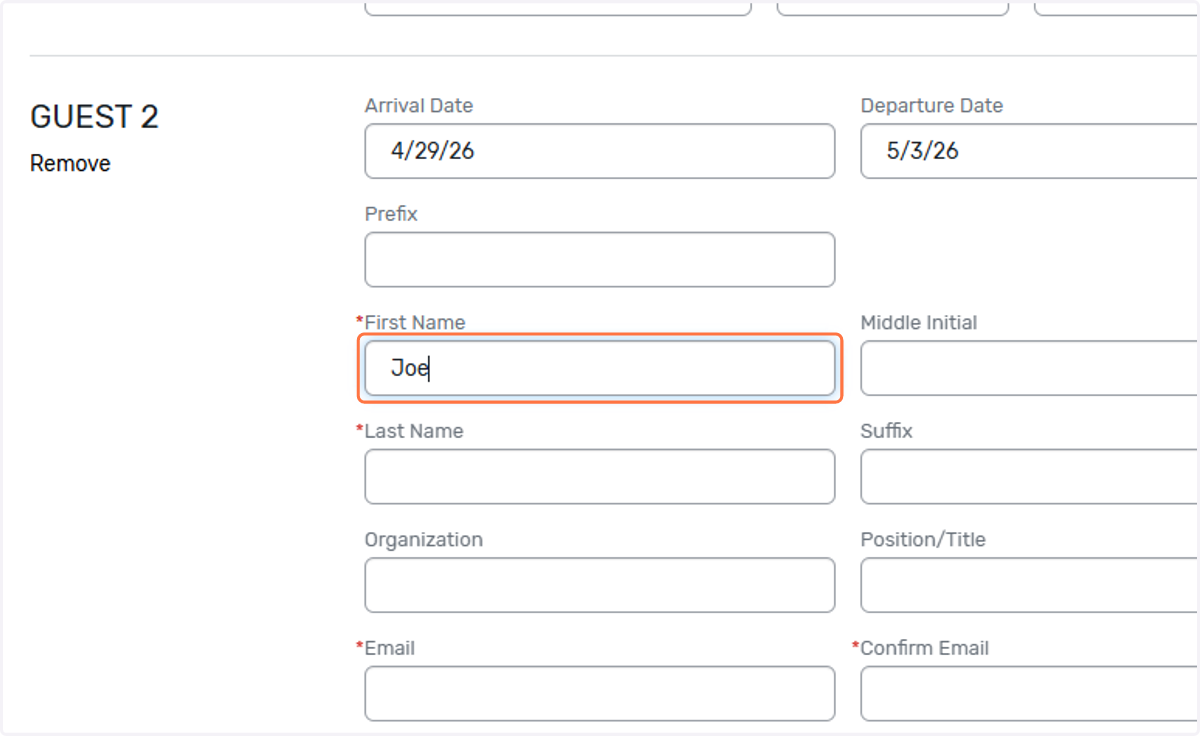
22. This is for the second room occupant. Enter first name.
23. Last name
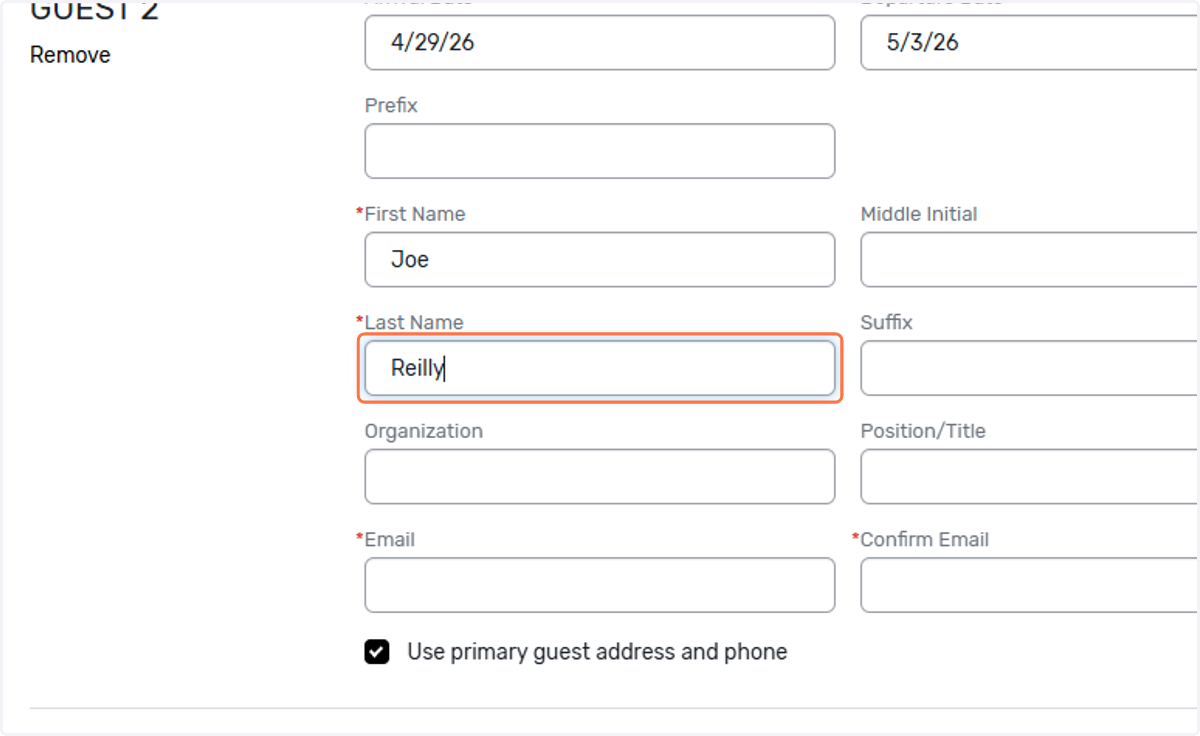
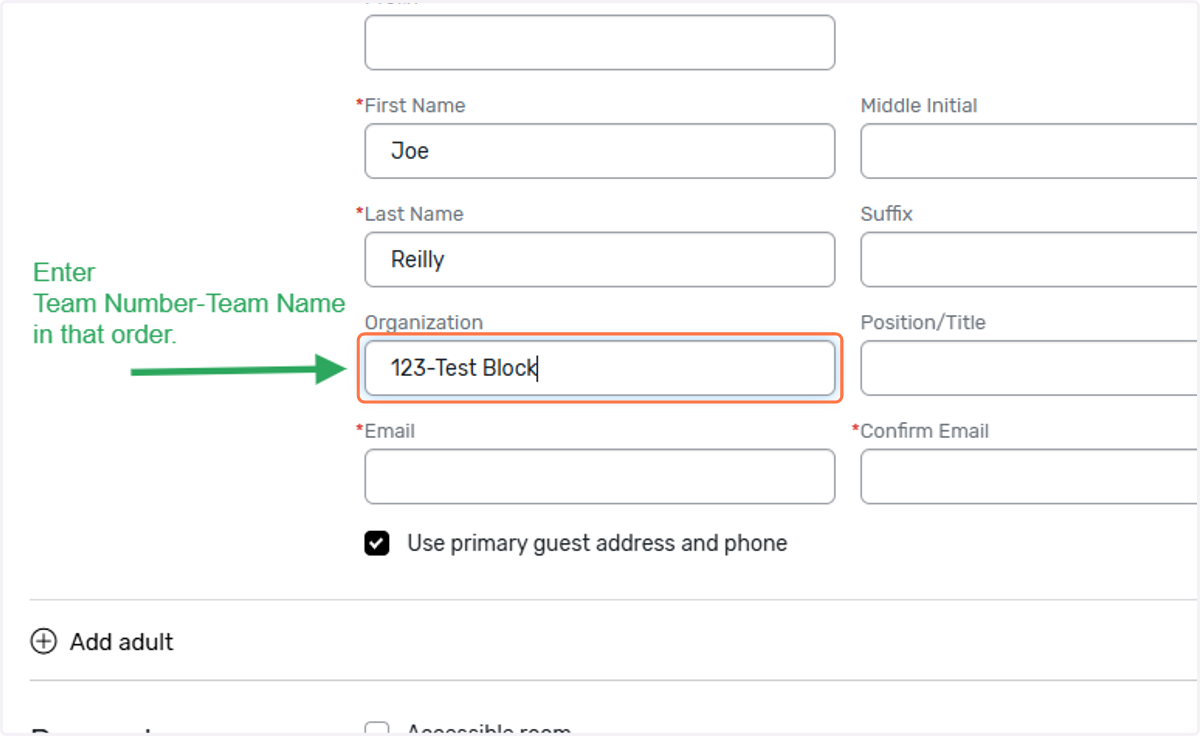
24. Enter your Team Number-Team Name, in this order with the dash in between.
Do NOT enter your school name or district name, This will only cause delays.
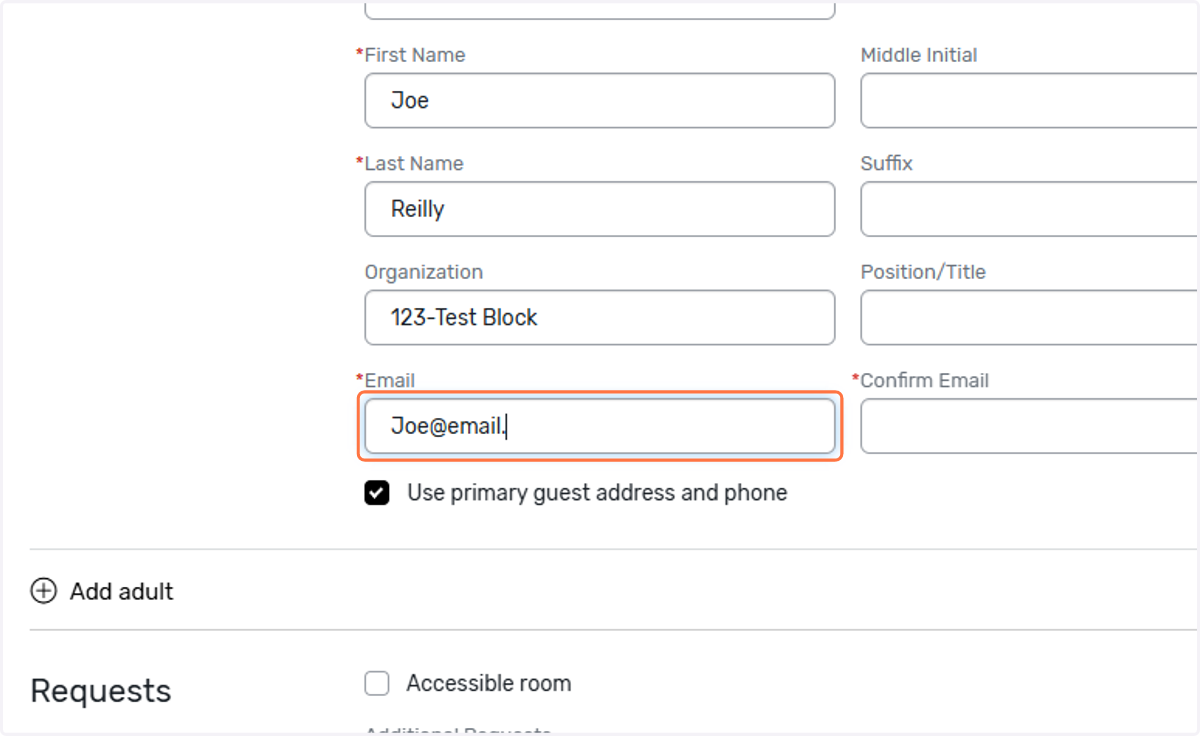
25. Email - Each email address you enter when booking will receive an email acknowledgement once the reservations are booked.
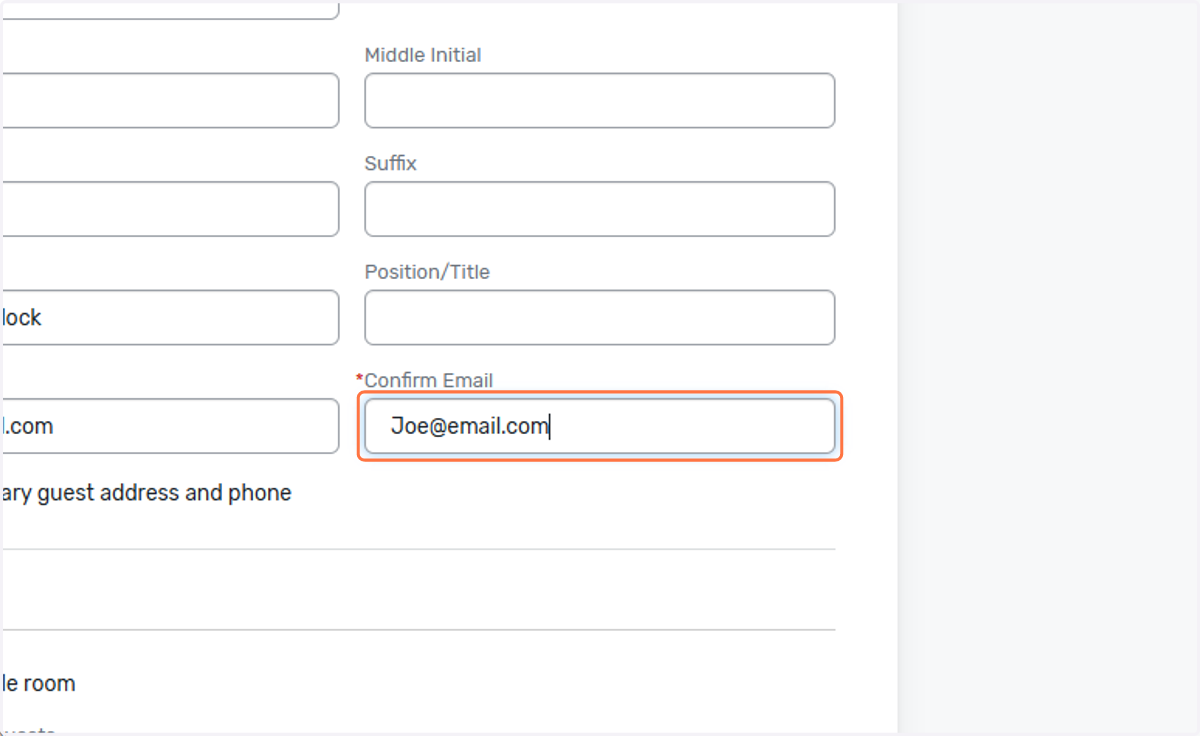
26. Confirm email
27. Enter information for the next room and its occupants. Entries shown are for example only! Please enter actual names.
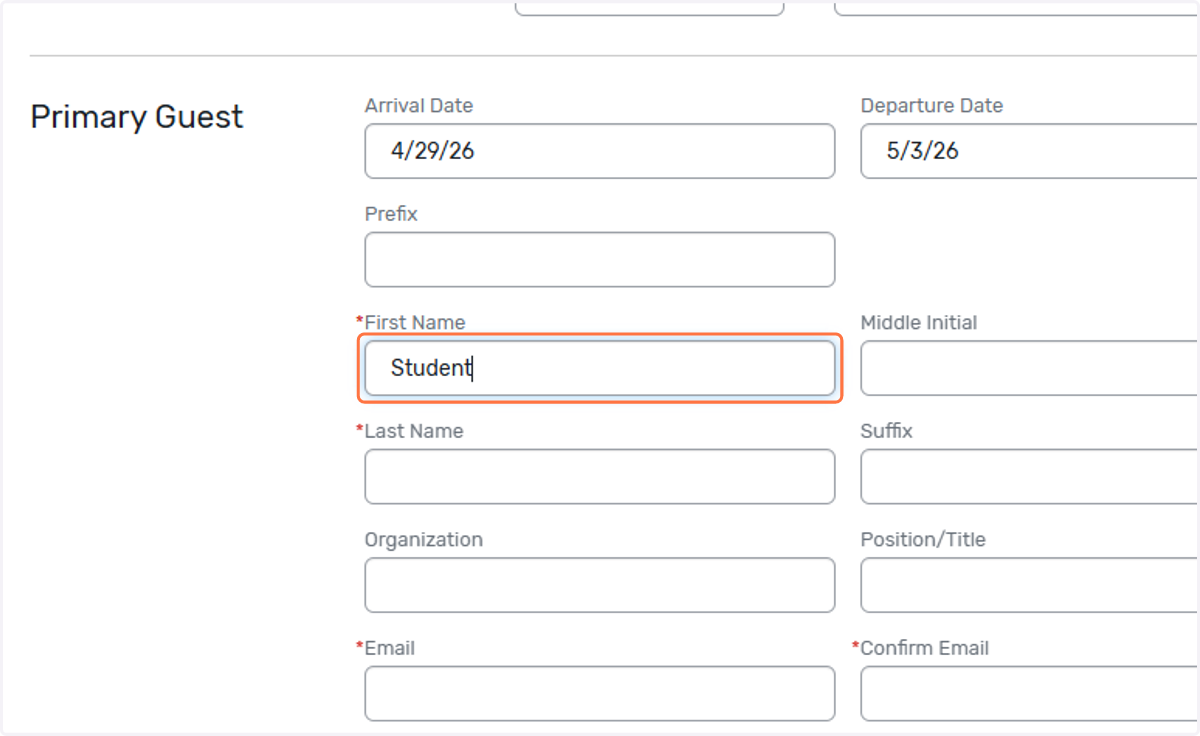
28. Last name
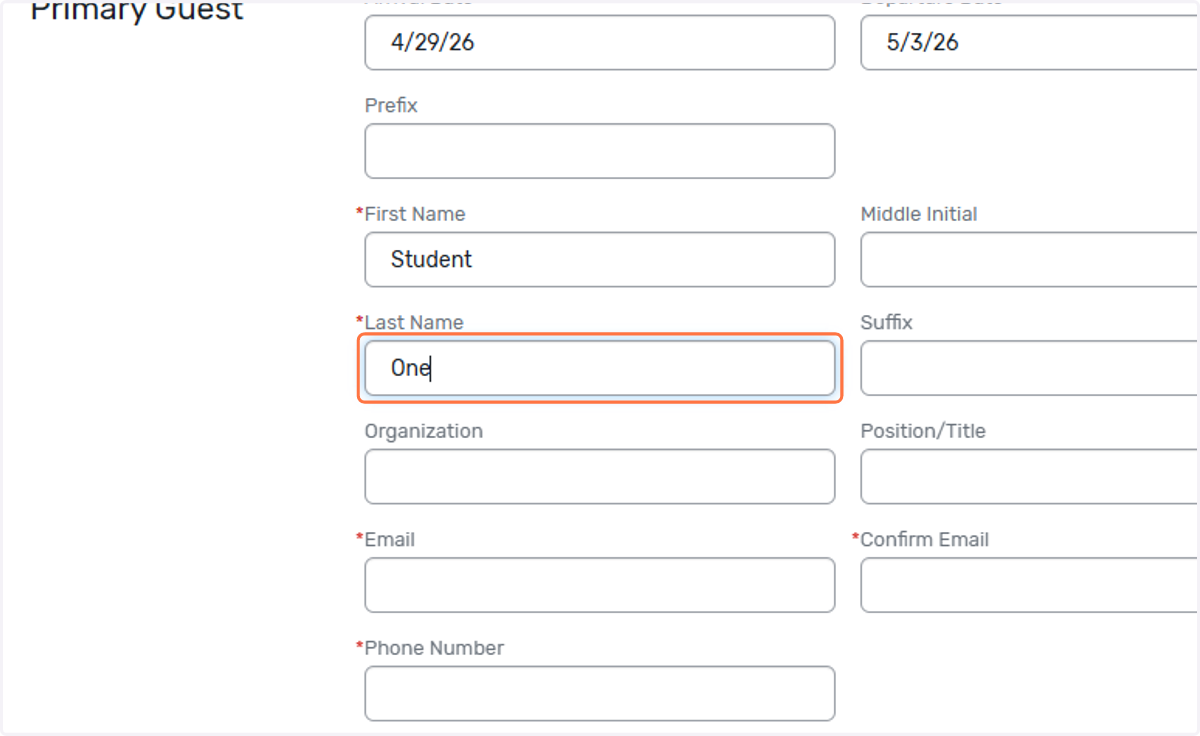
29. Team Number-Team Name
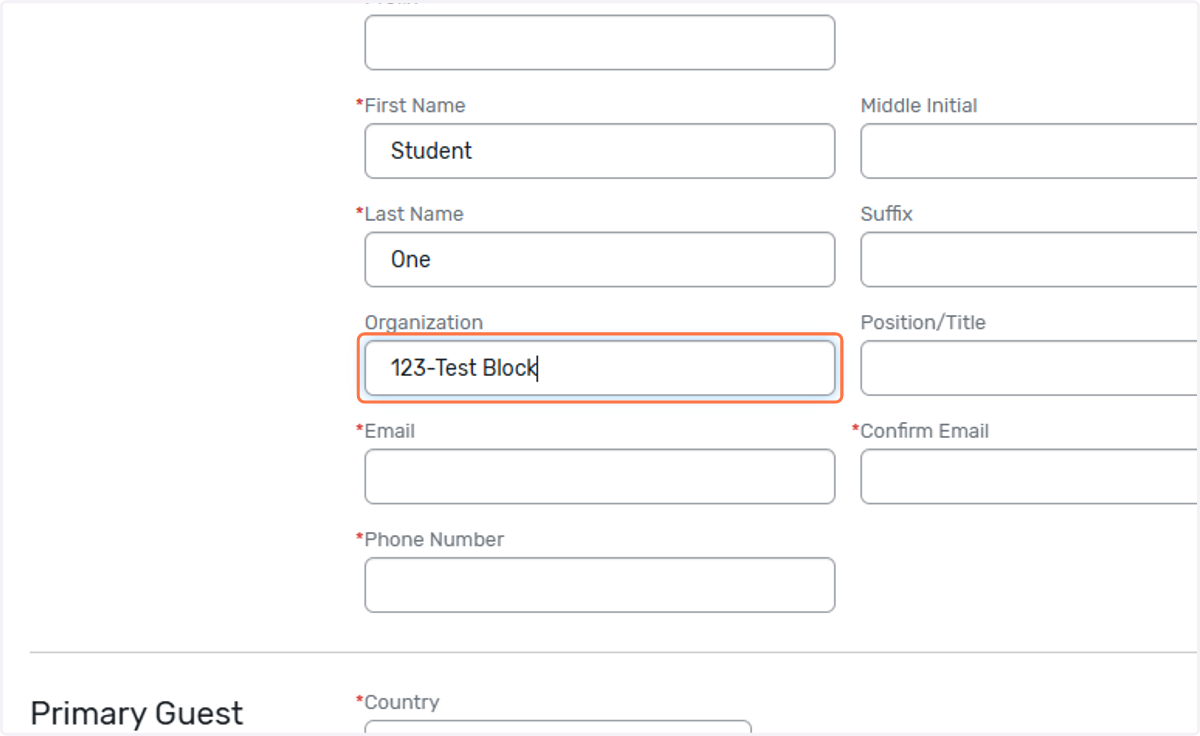
30. Enter and then confirm email
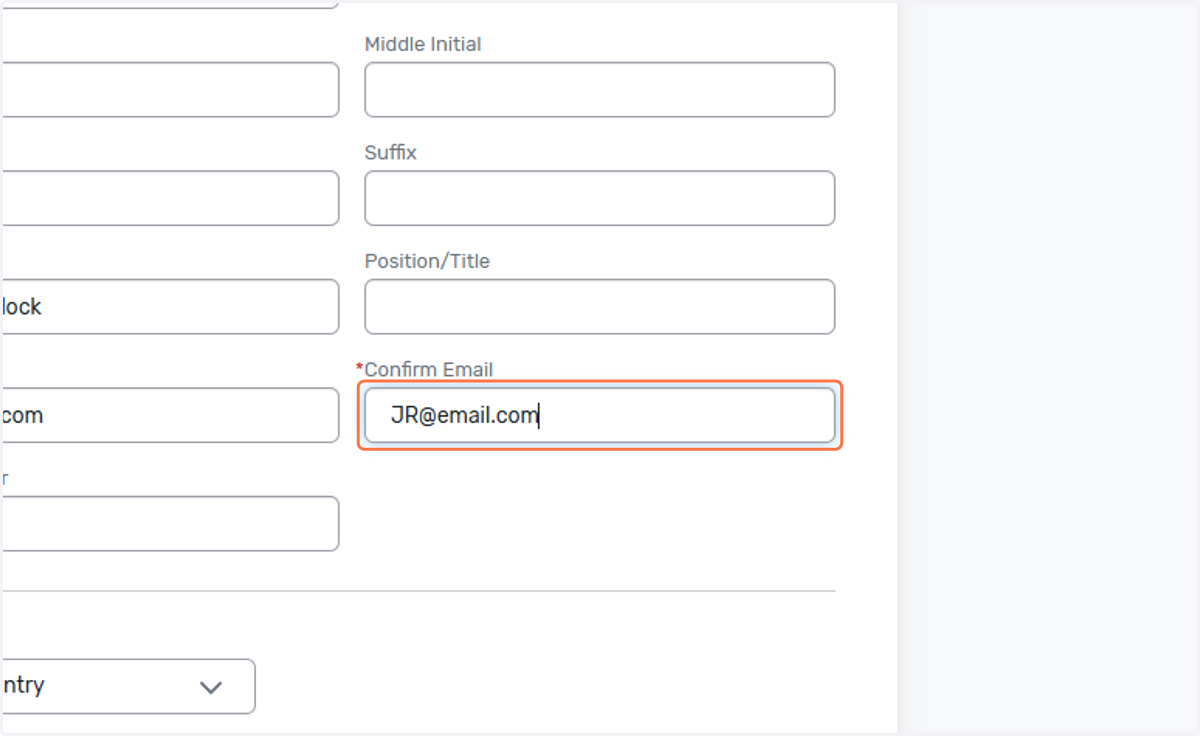
31. Phone number
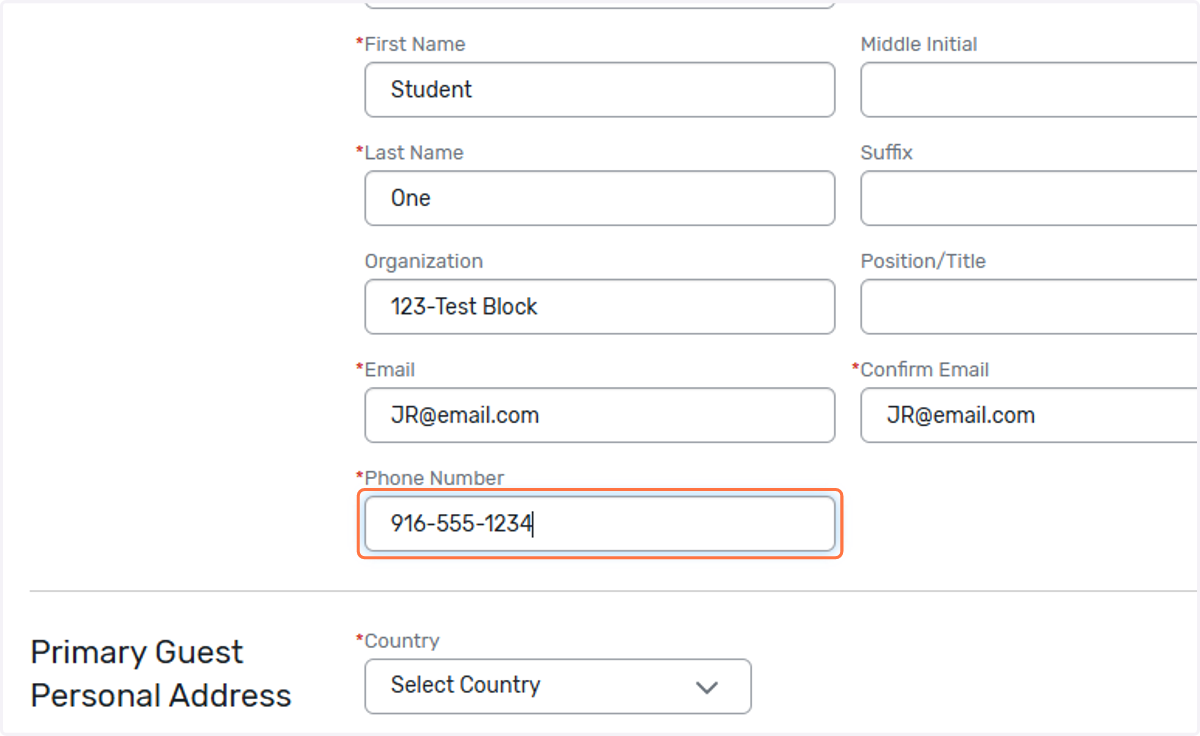
32. Country
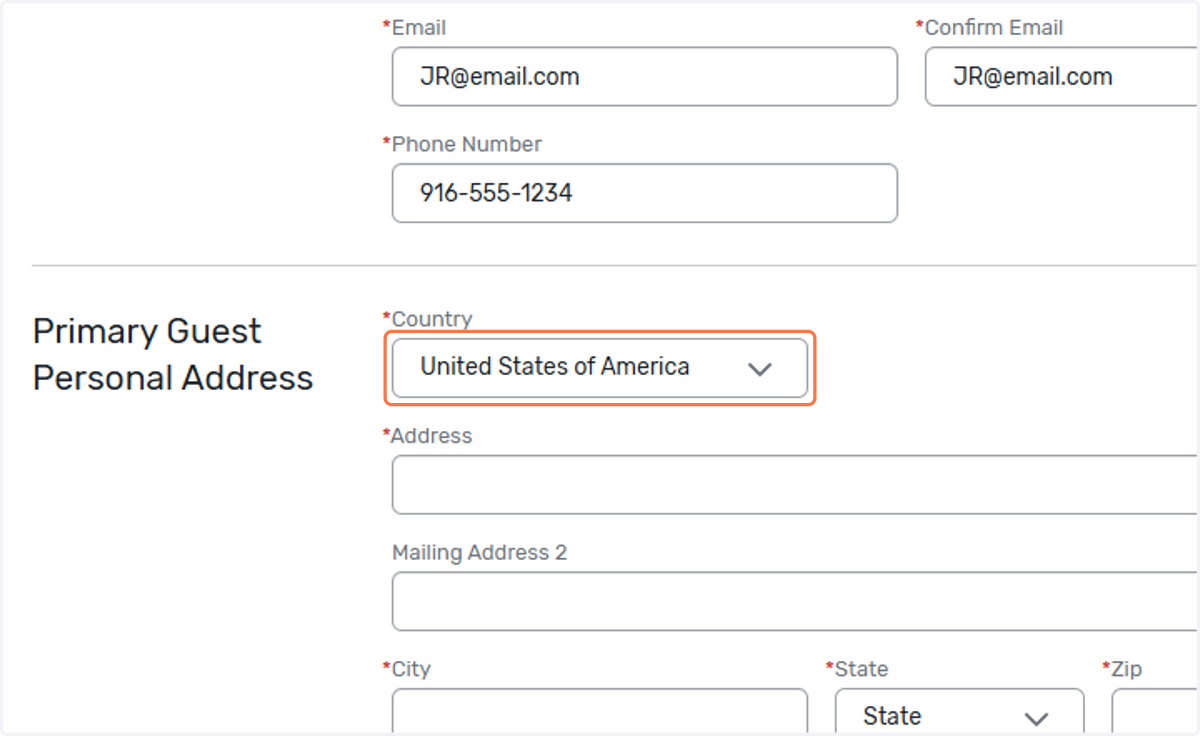
33. Address
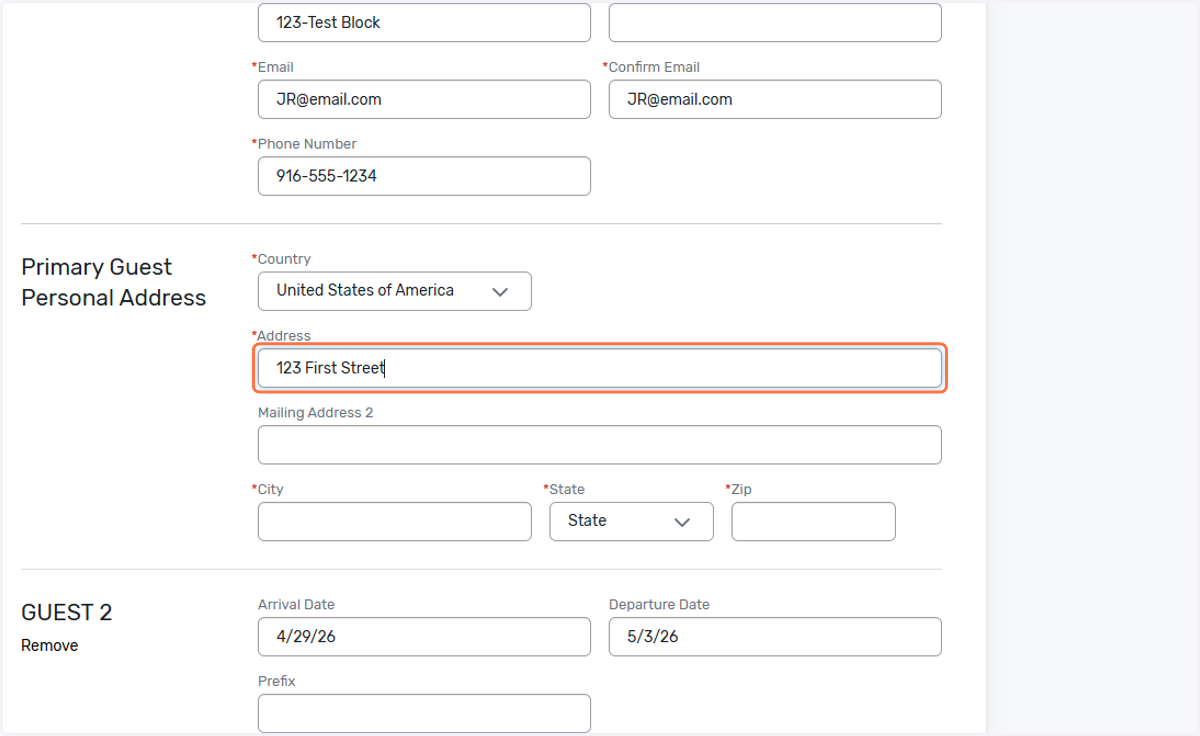
34. City
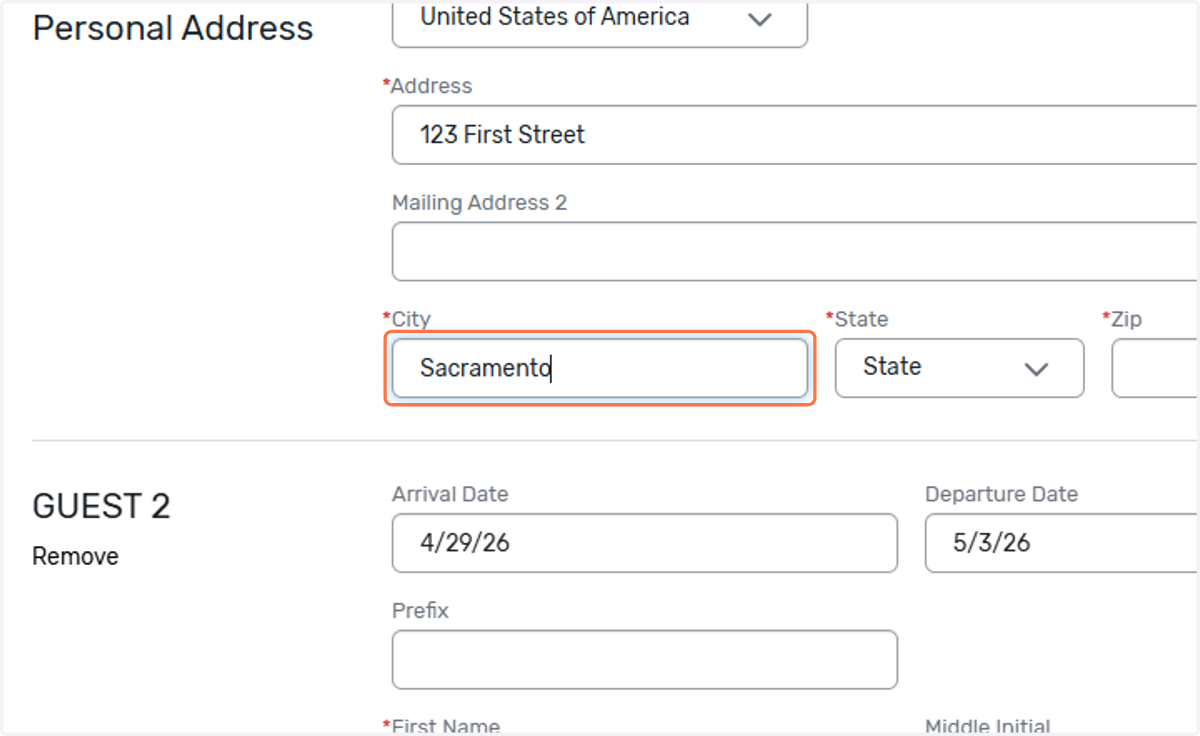
35. State
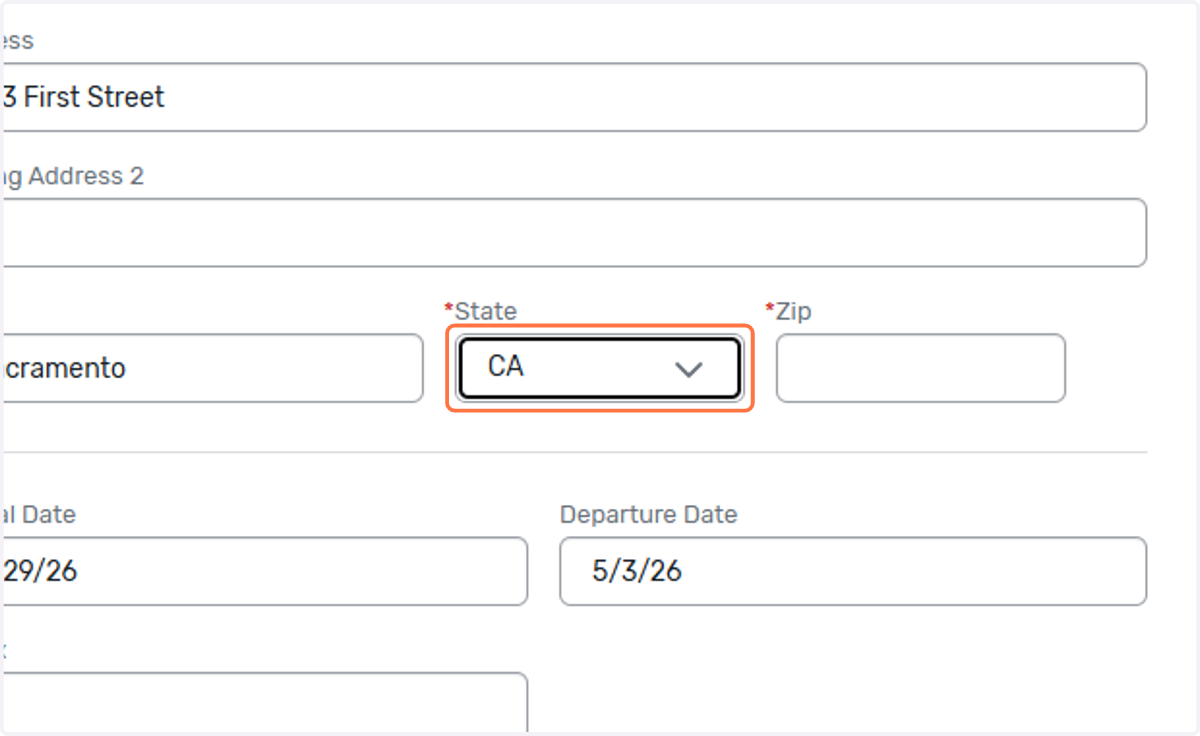
36. Postal Code
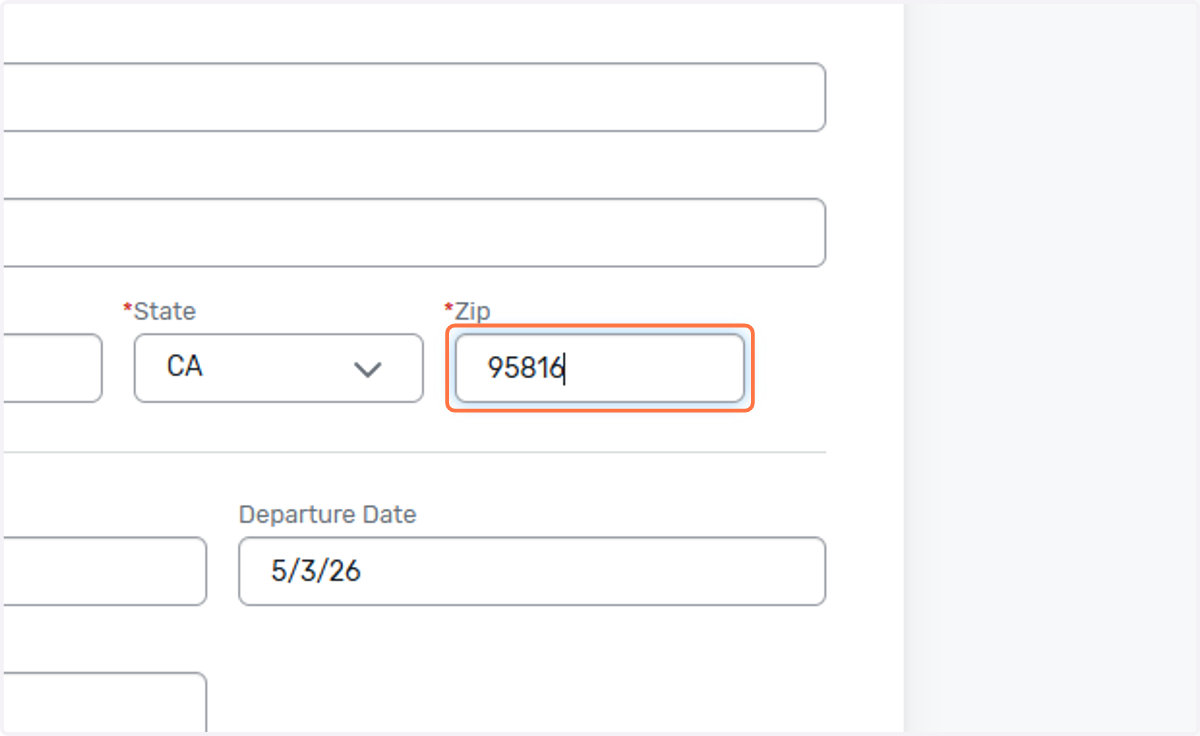
37. Enter first name for the second room occupant.
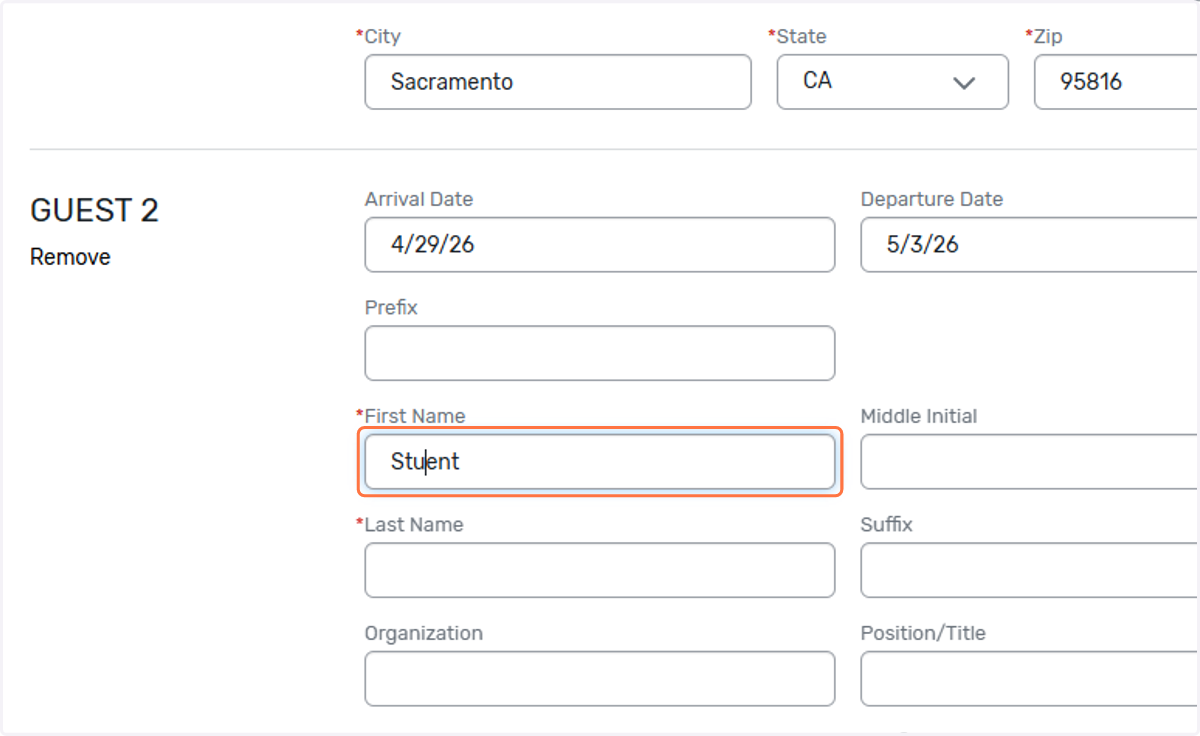
38. Last name
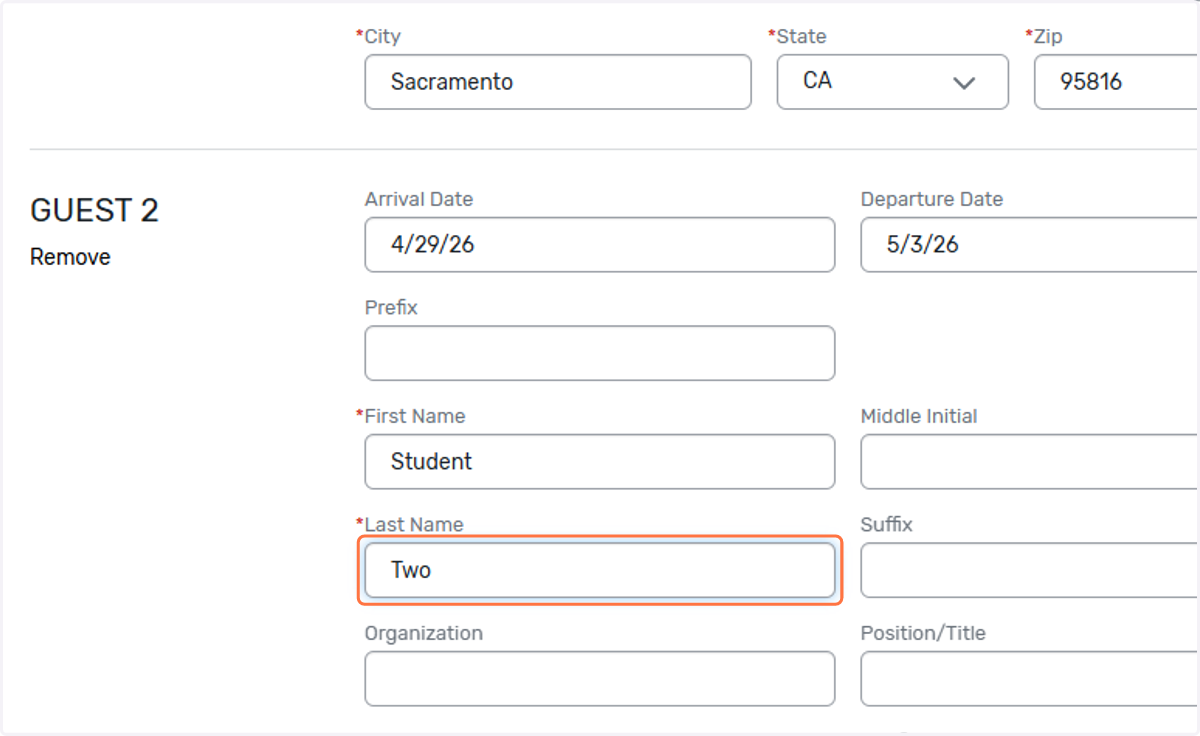
39. Team Number-Team Name
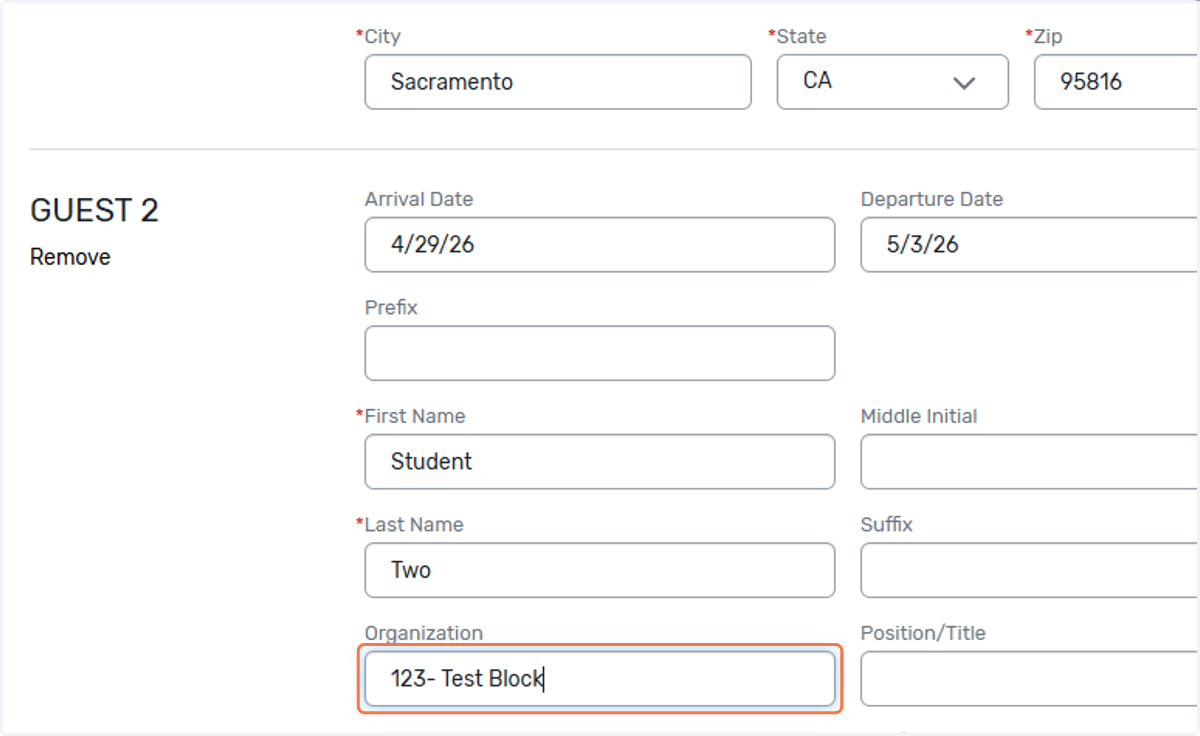
40. Email
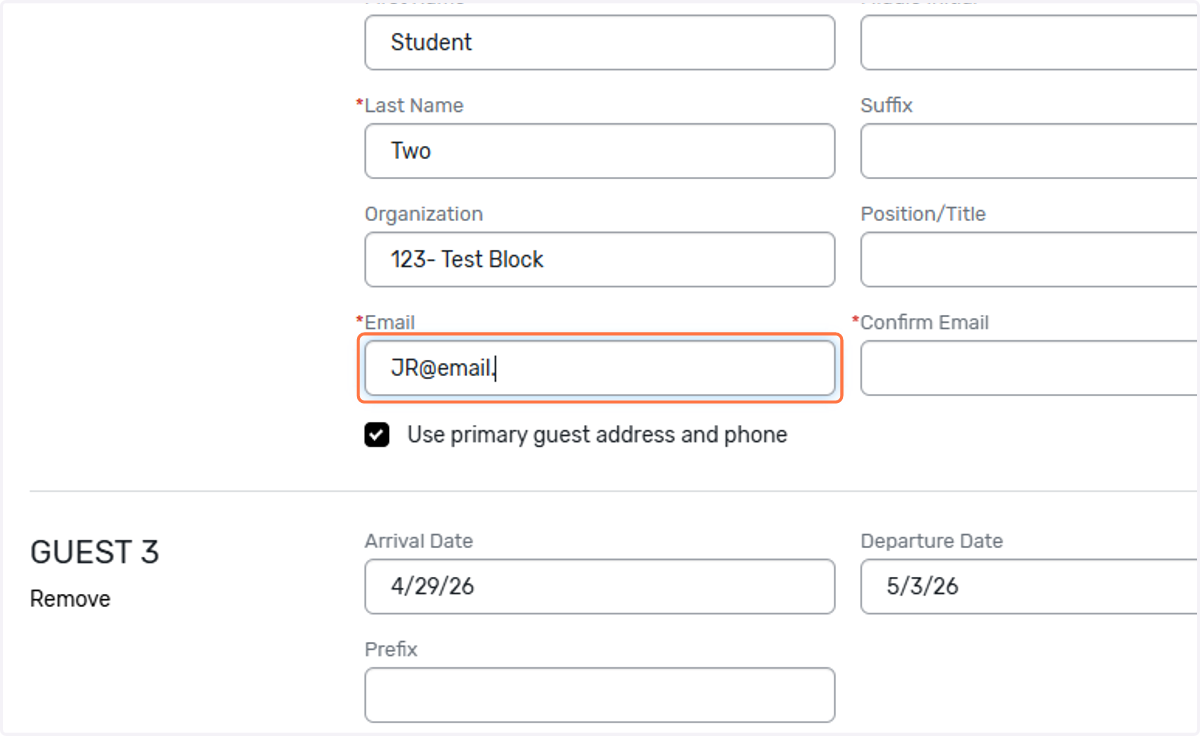
41. Confirm email
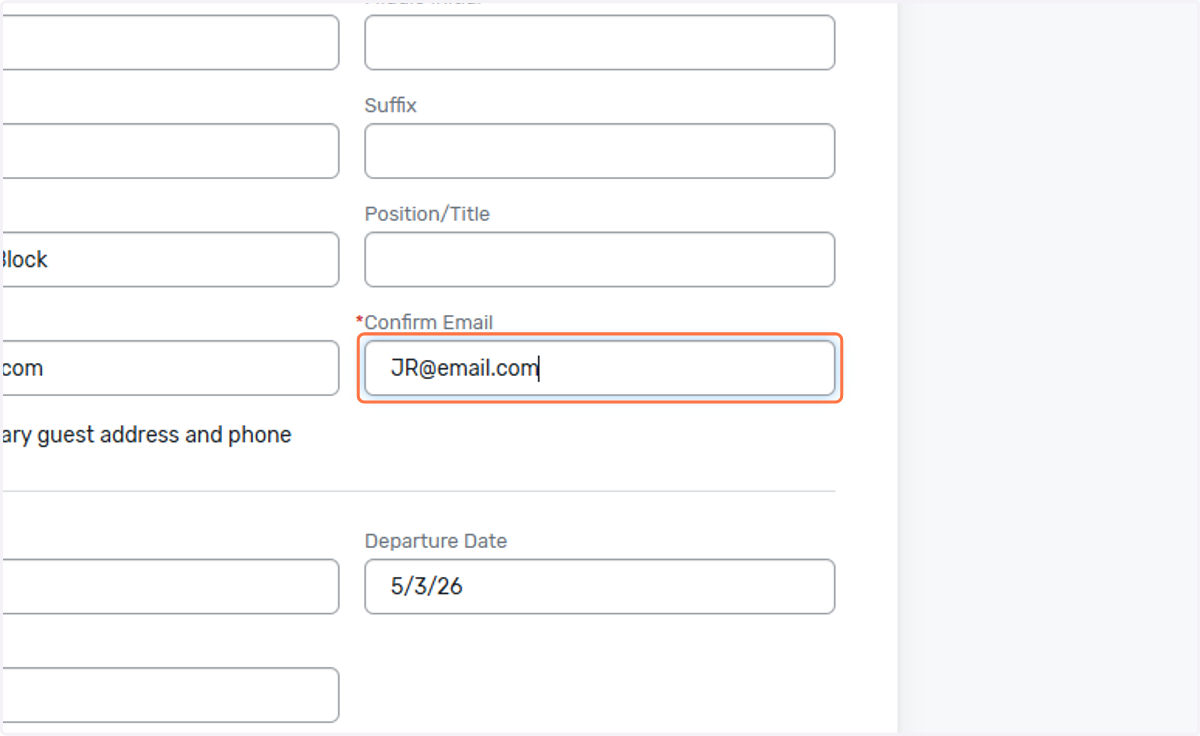
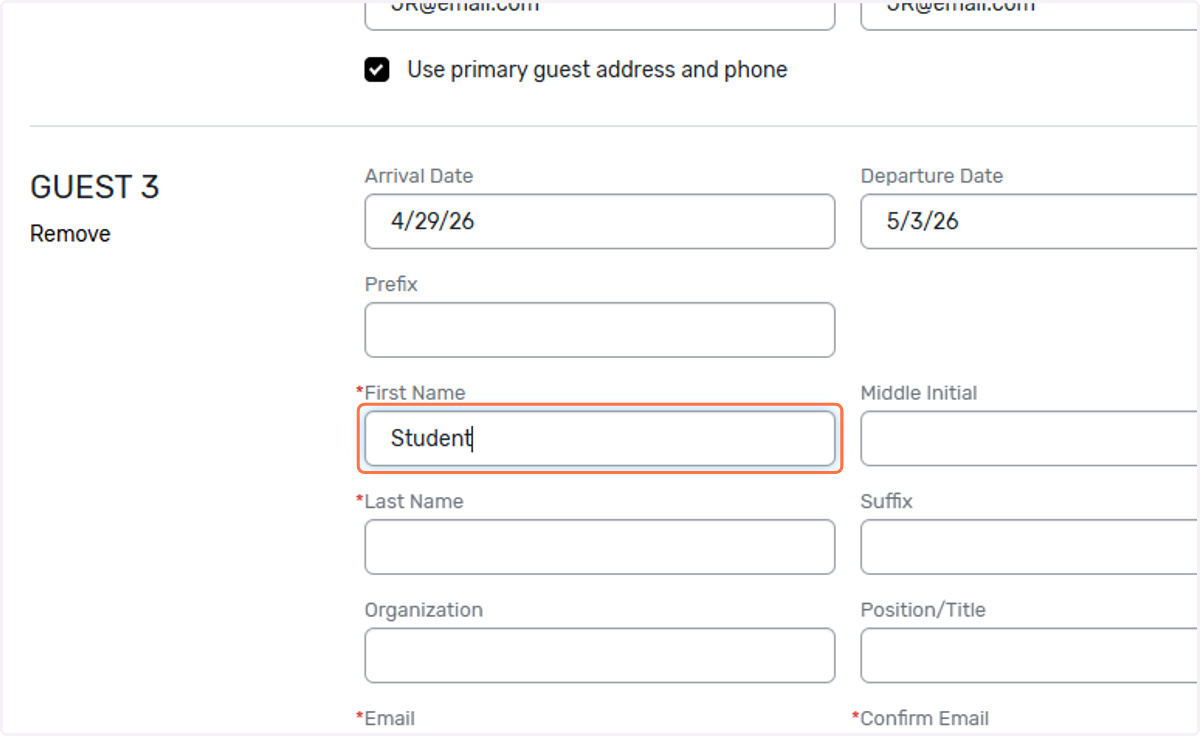
42. Enter info for next room occupant.
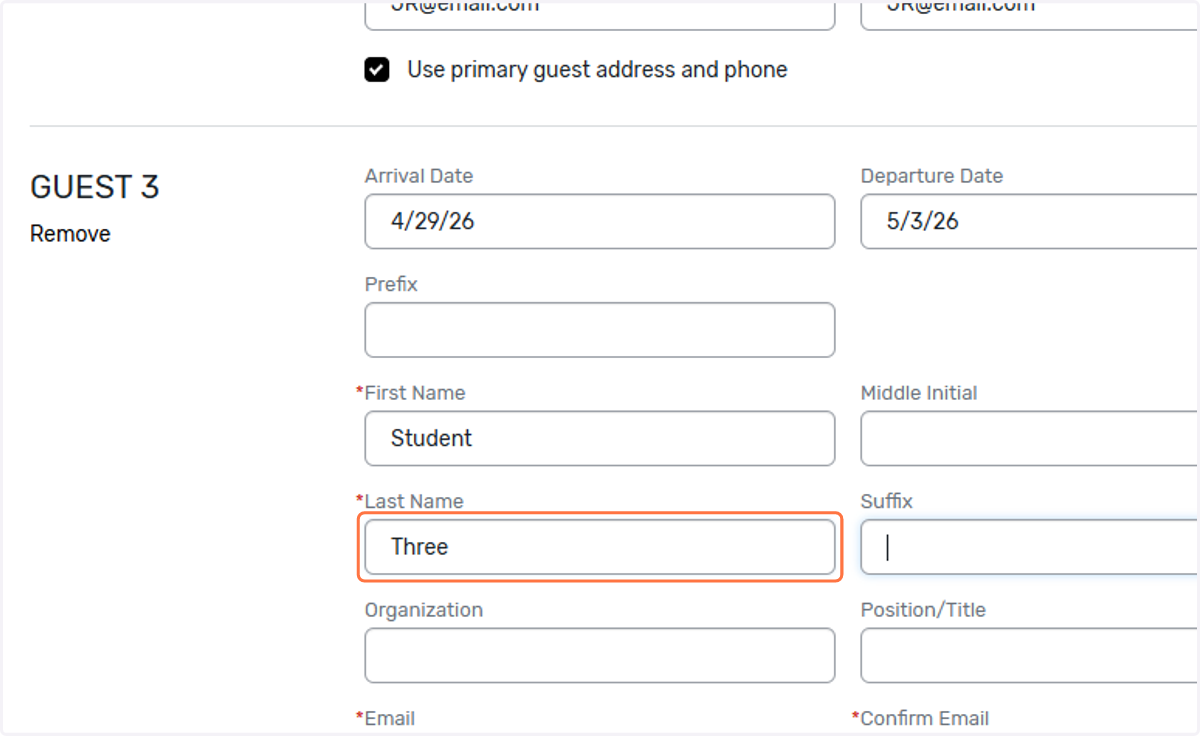
43. Last name
44. Team Number-Team name
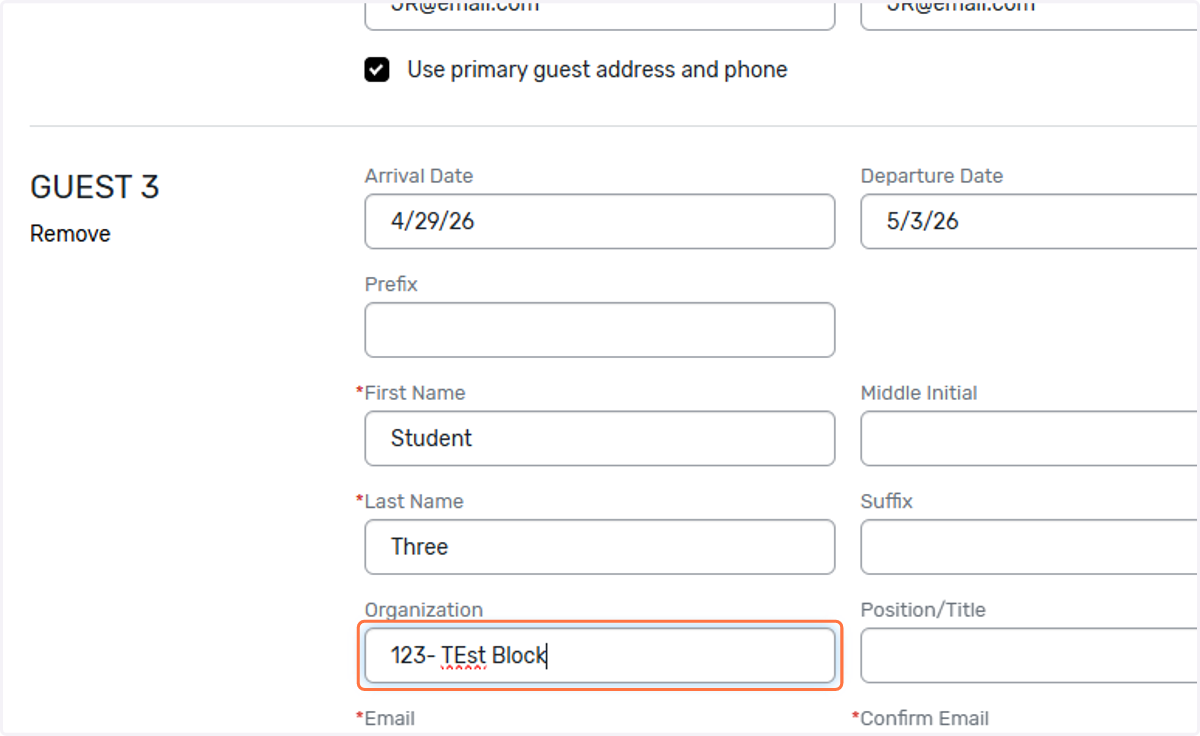
45. Email
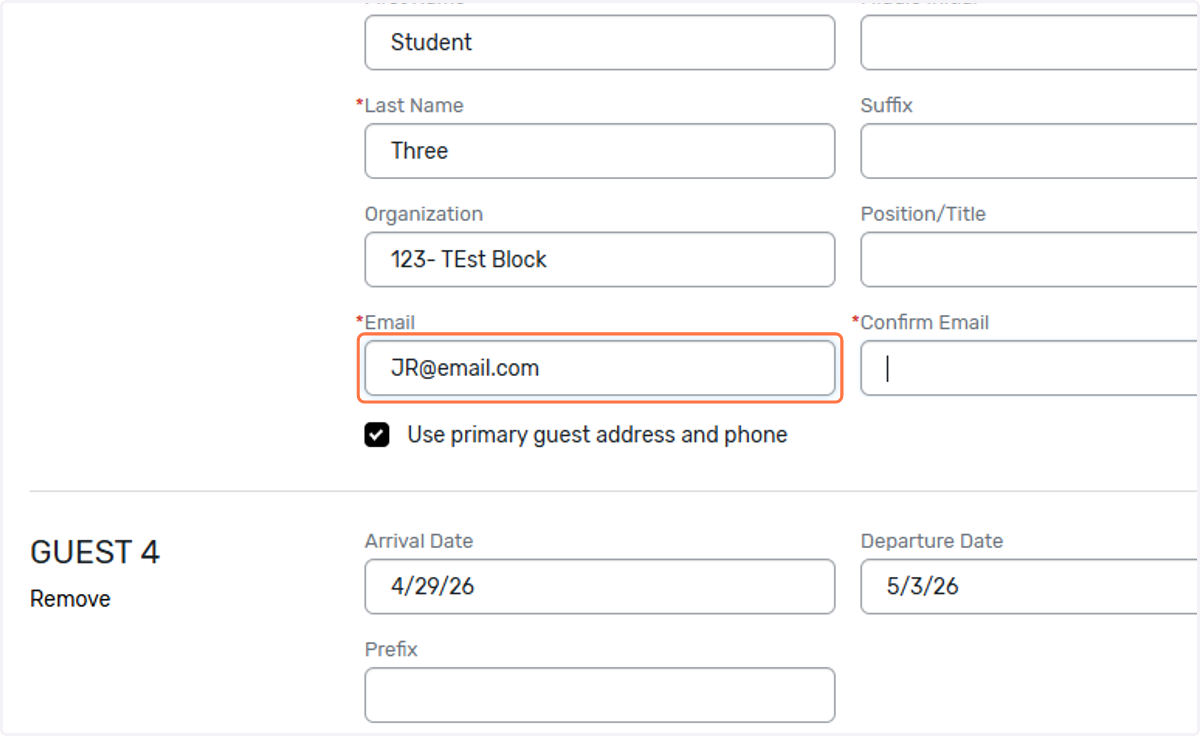
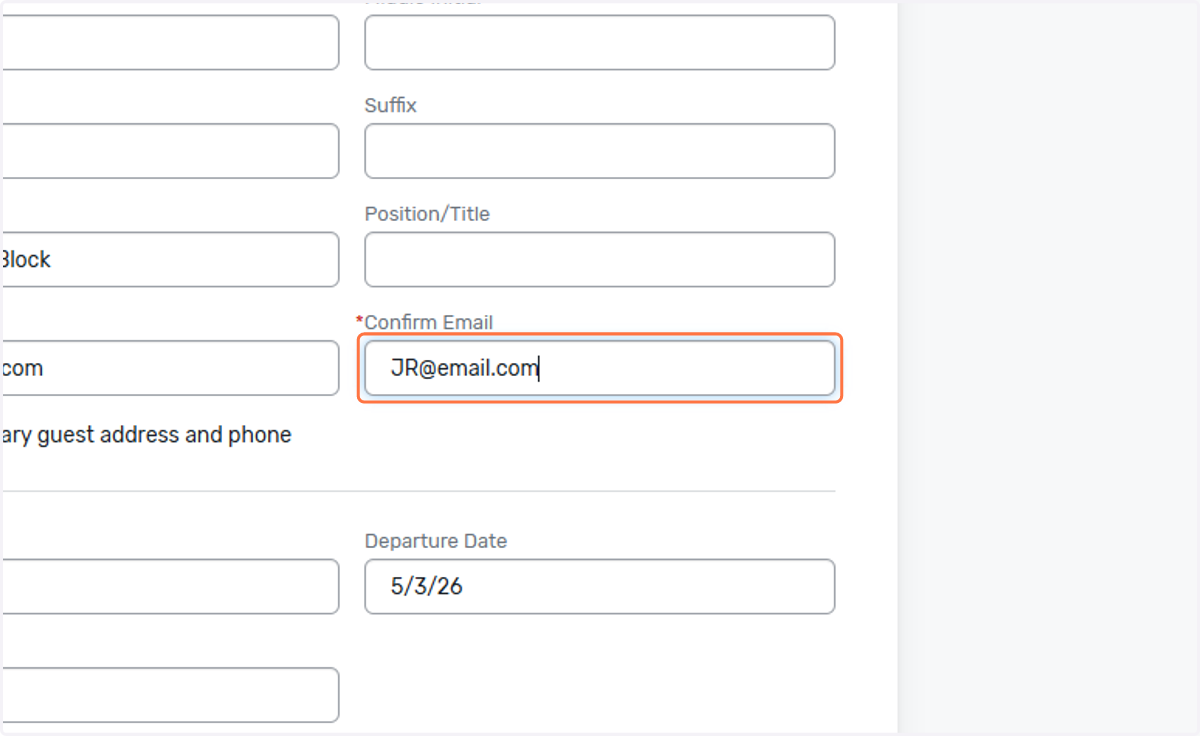
46. Confirm email
47. Enter info for additional room occupant.
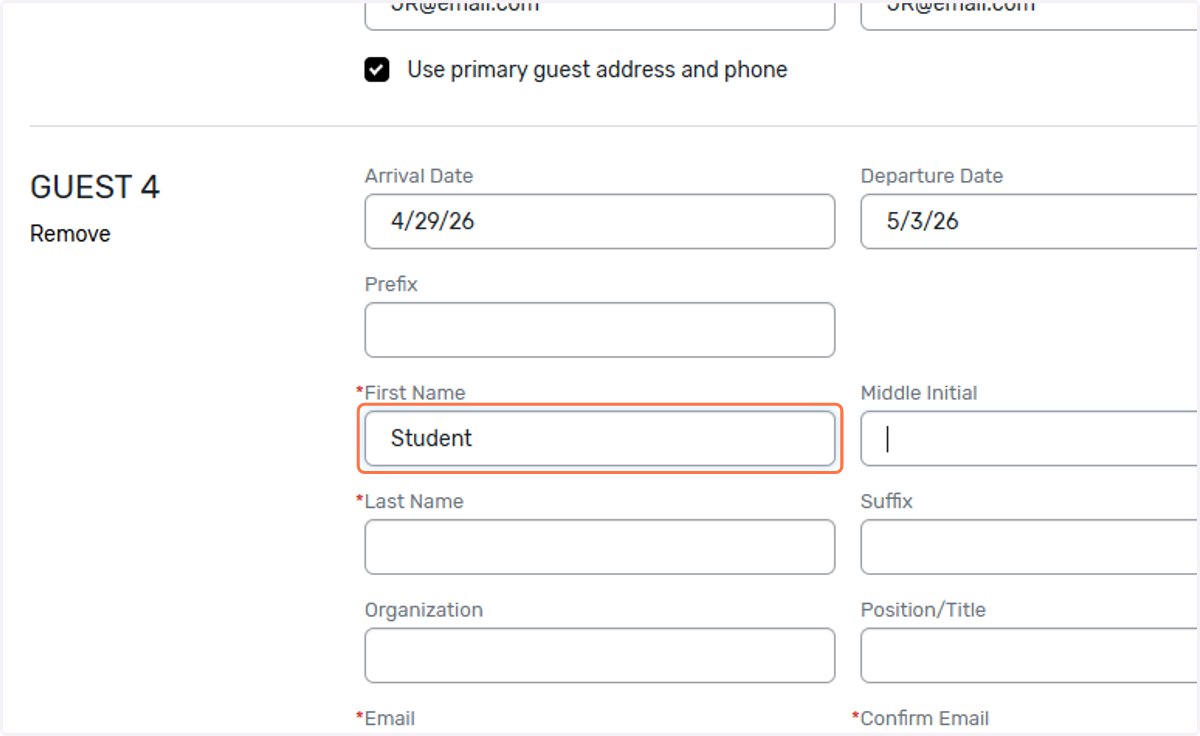
48. Last name
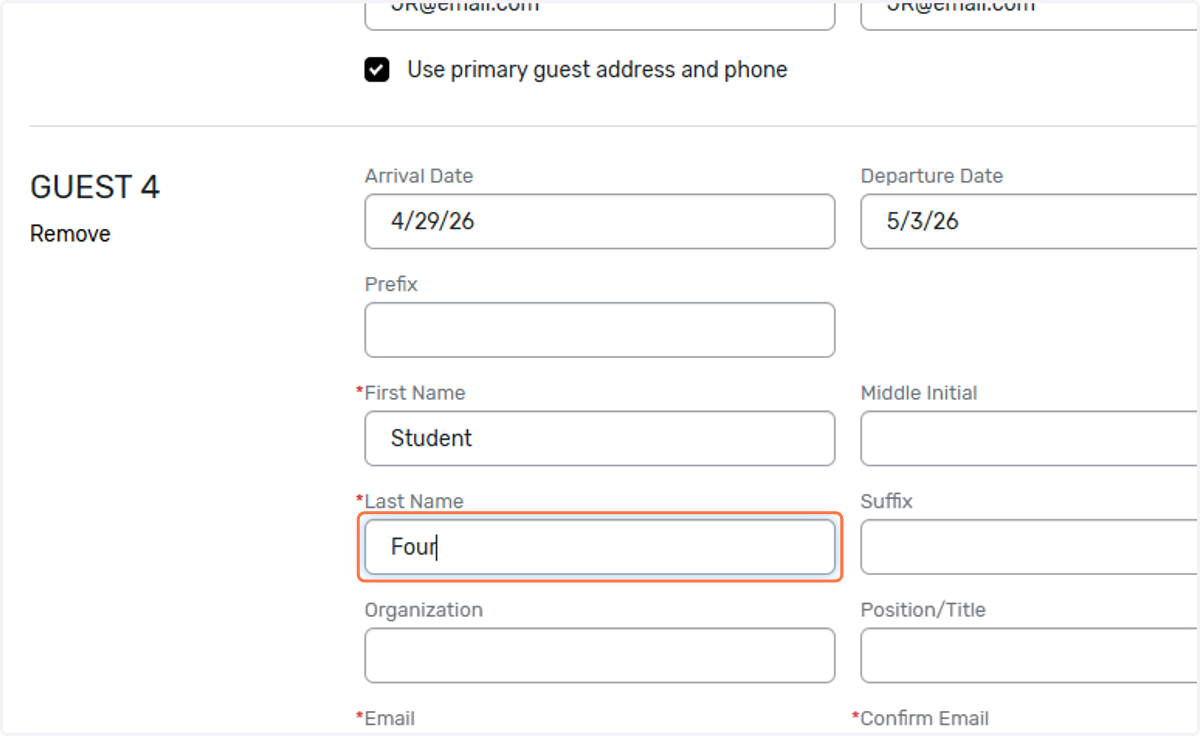
49. Team Number-Team Name
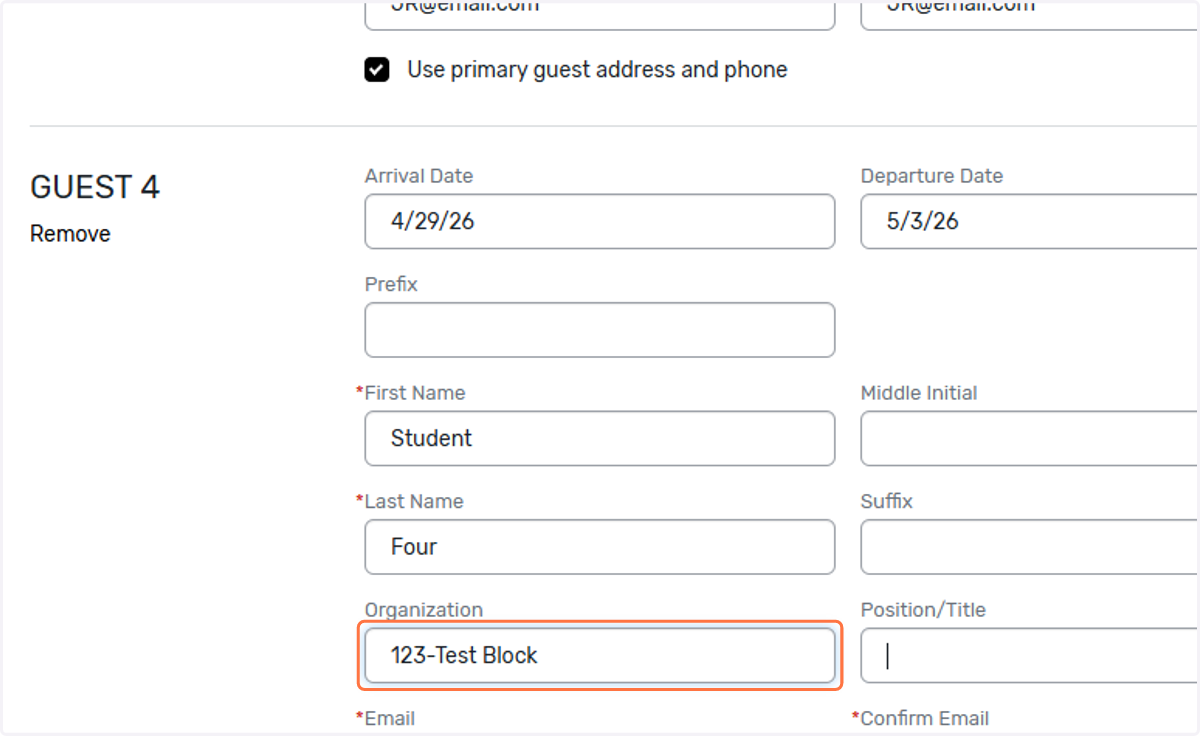
50. Email
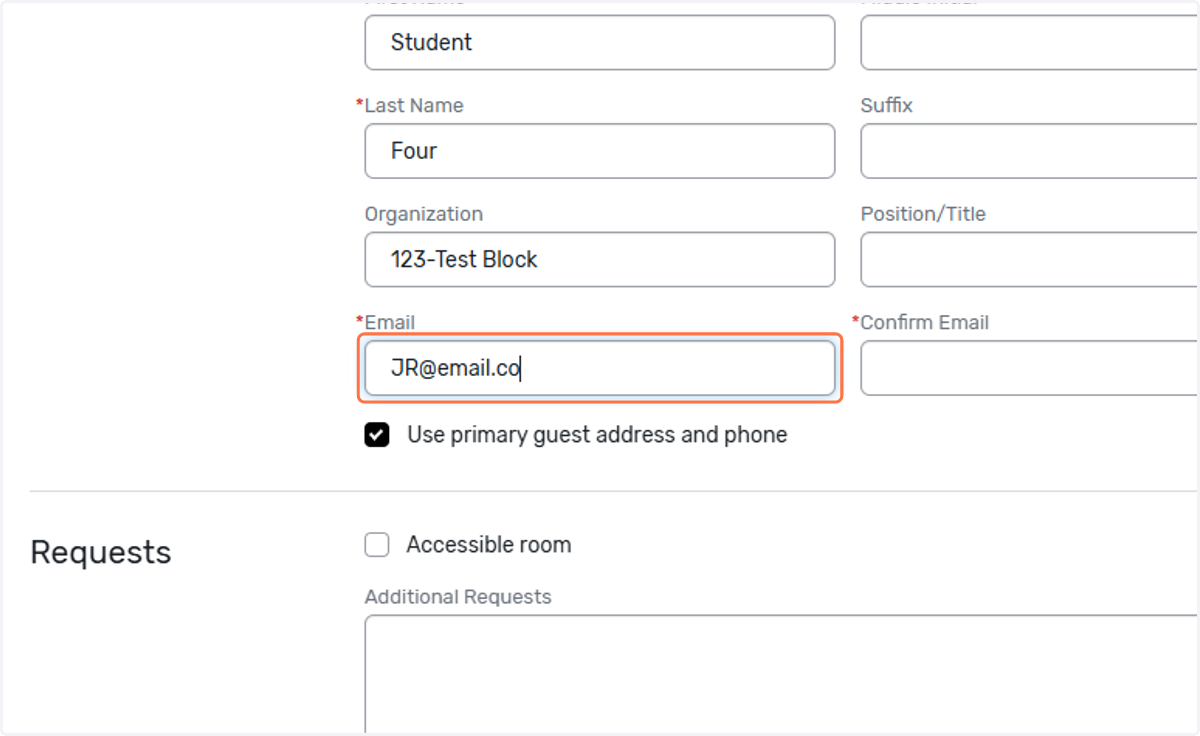
51. Confirm Email
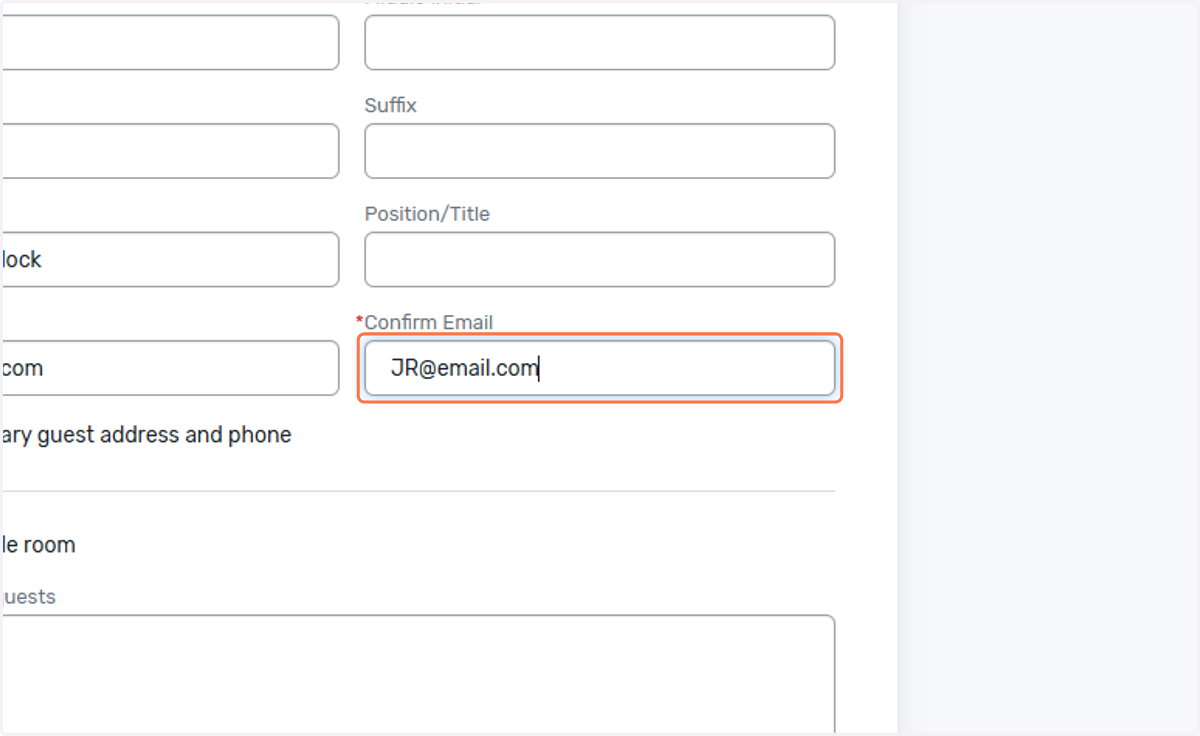
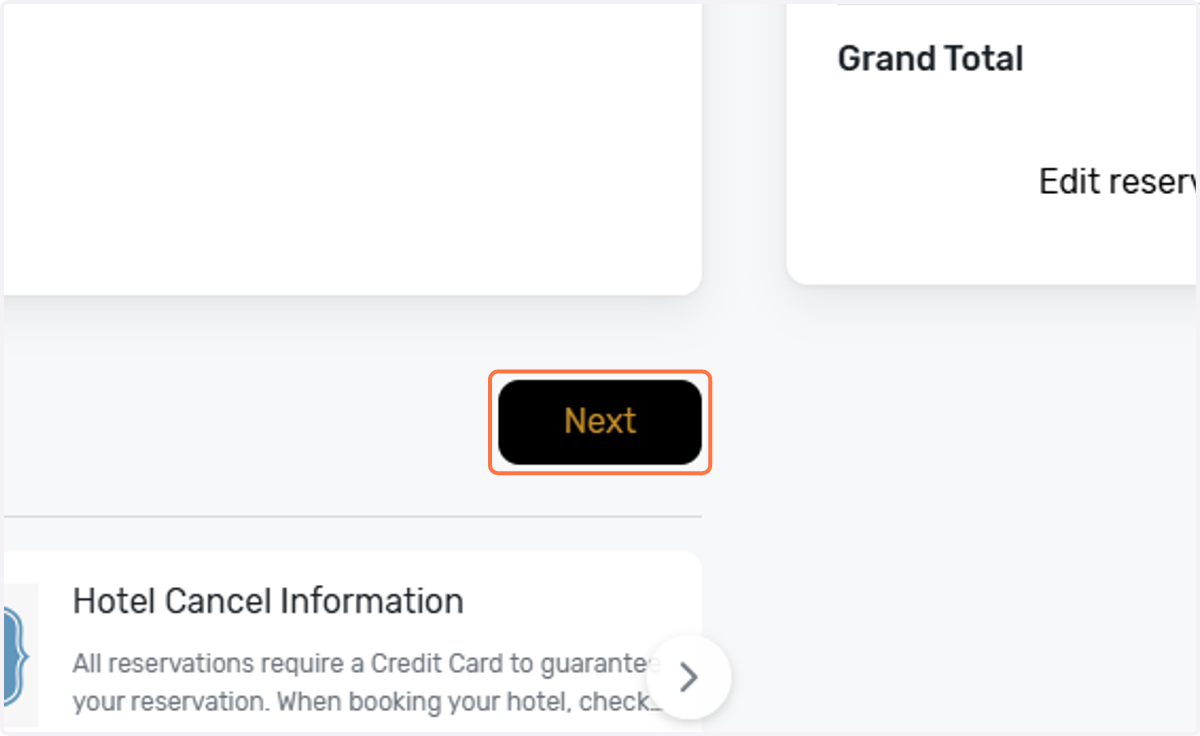
52. Click on Next once you're done entering the information to book the rooms.
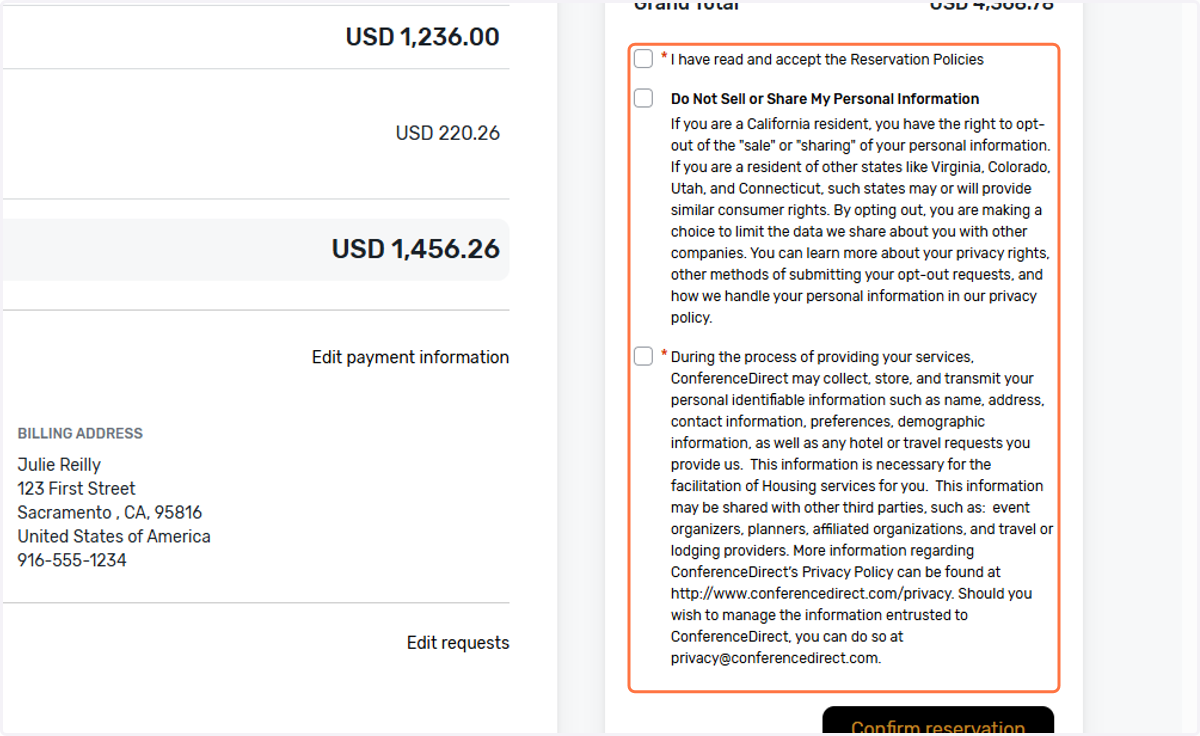
53. Click these boxes to indicate you have read and accept the policies.
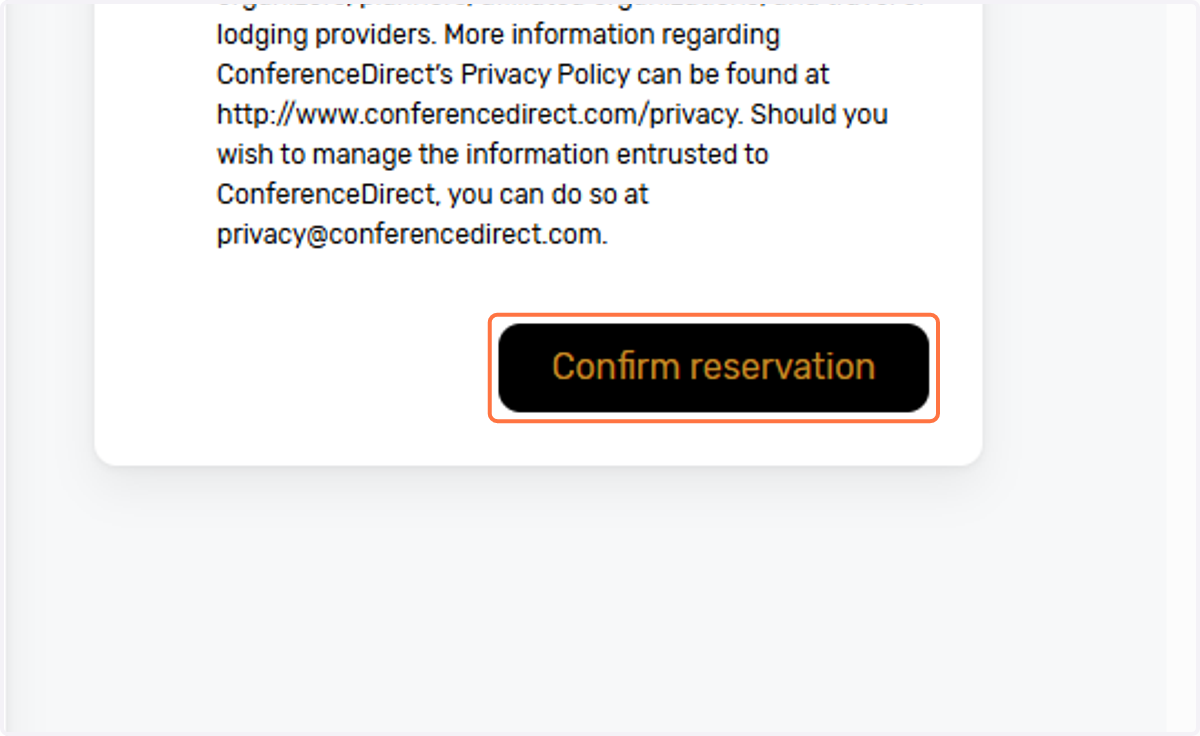
54. Click on Confirm reservation
55. You can review the cancellation policies if needed. Check your inbox for your reservation acknowledgement(s).