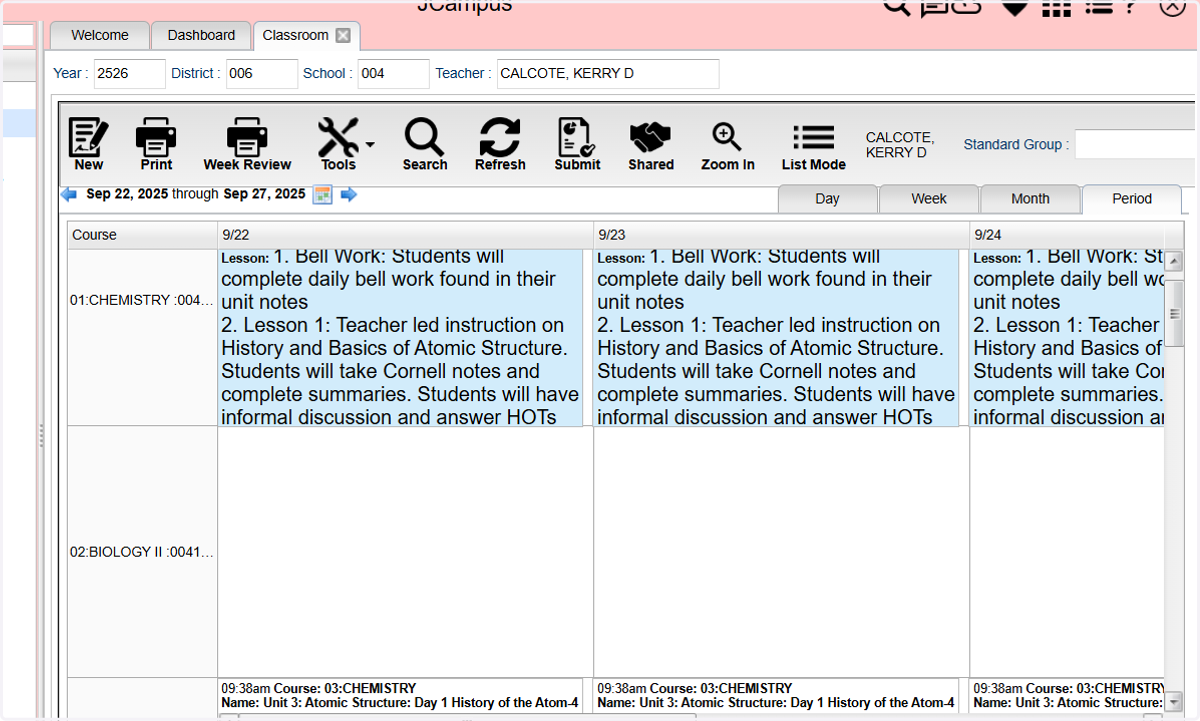
Creating a Lesson Plan "Template"
**NOTE: Accommodations do not copy when "template" is applied.
Login to JCampus
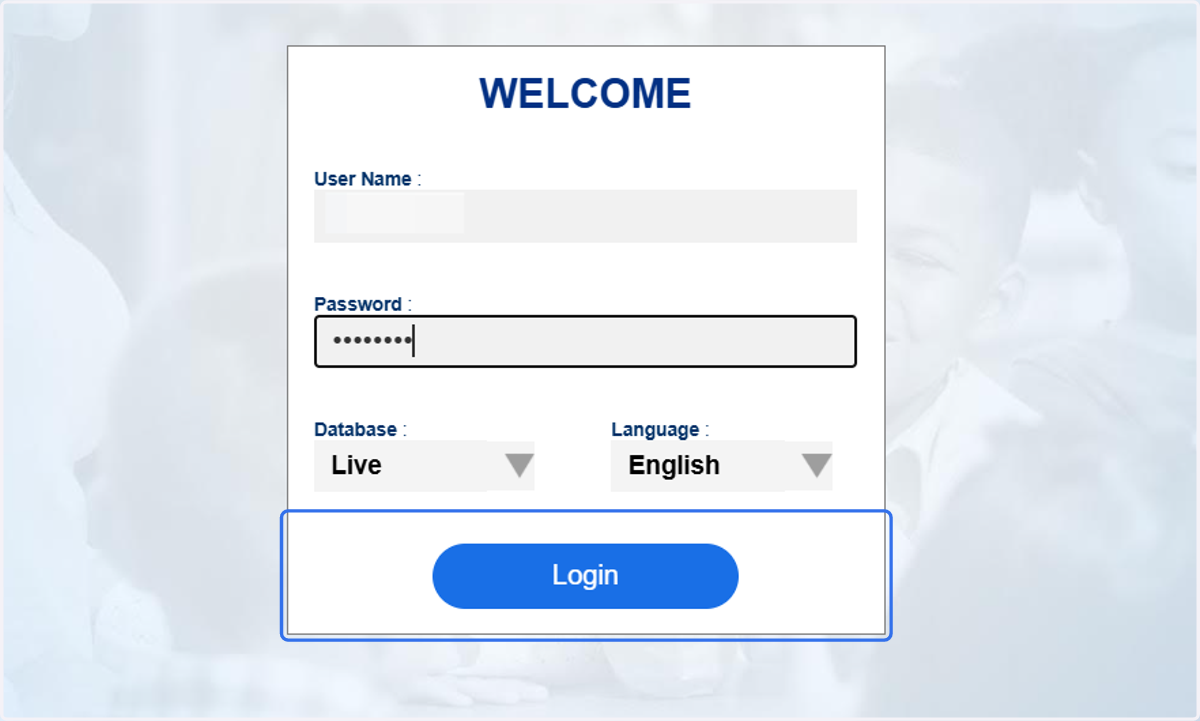
1. Click on Login
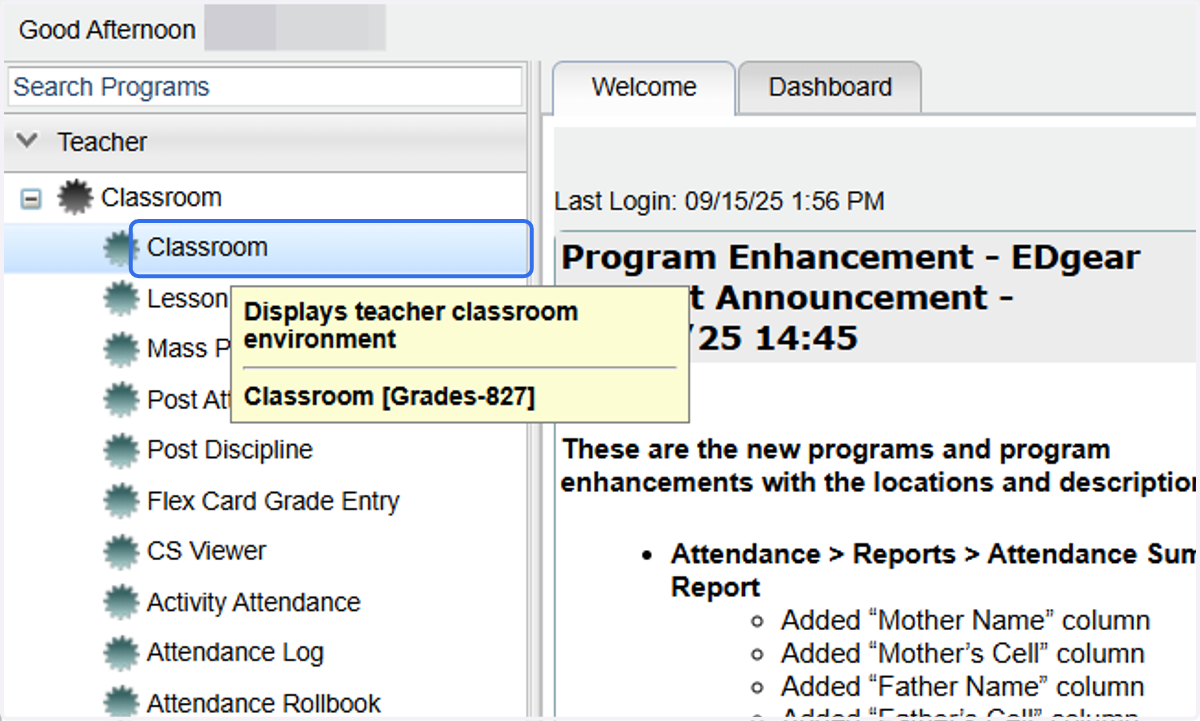
2. Click on Classroom
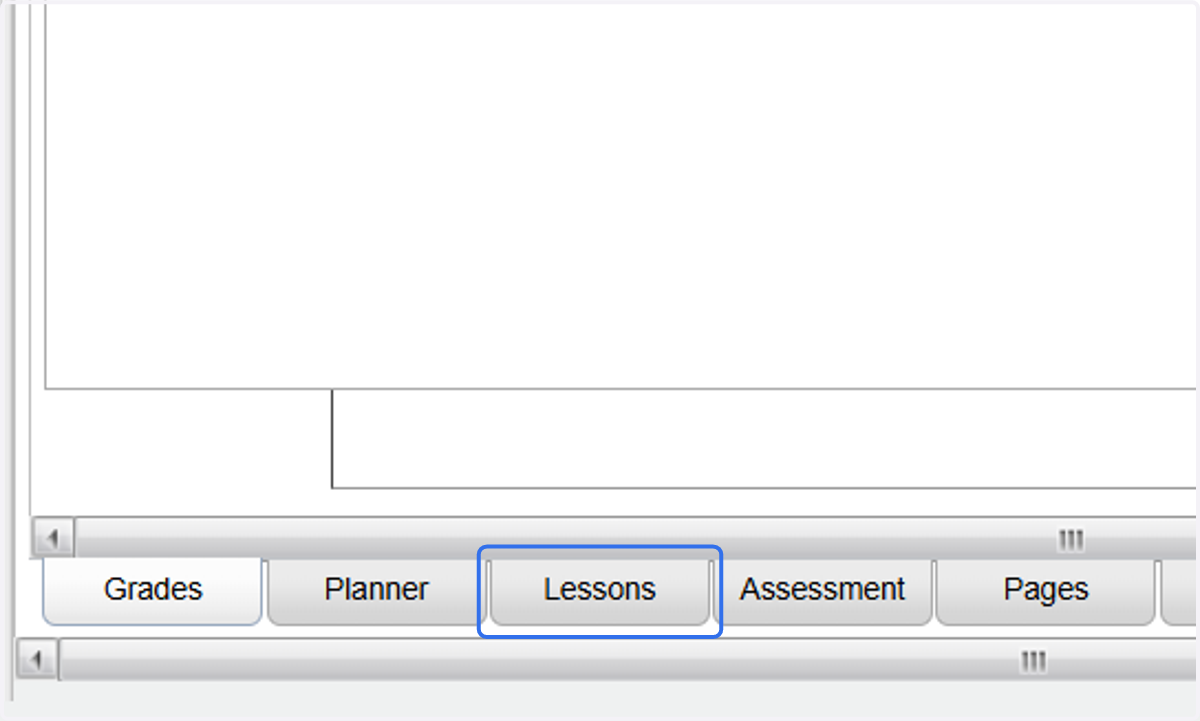
3. Click on Lessons
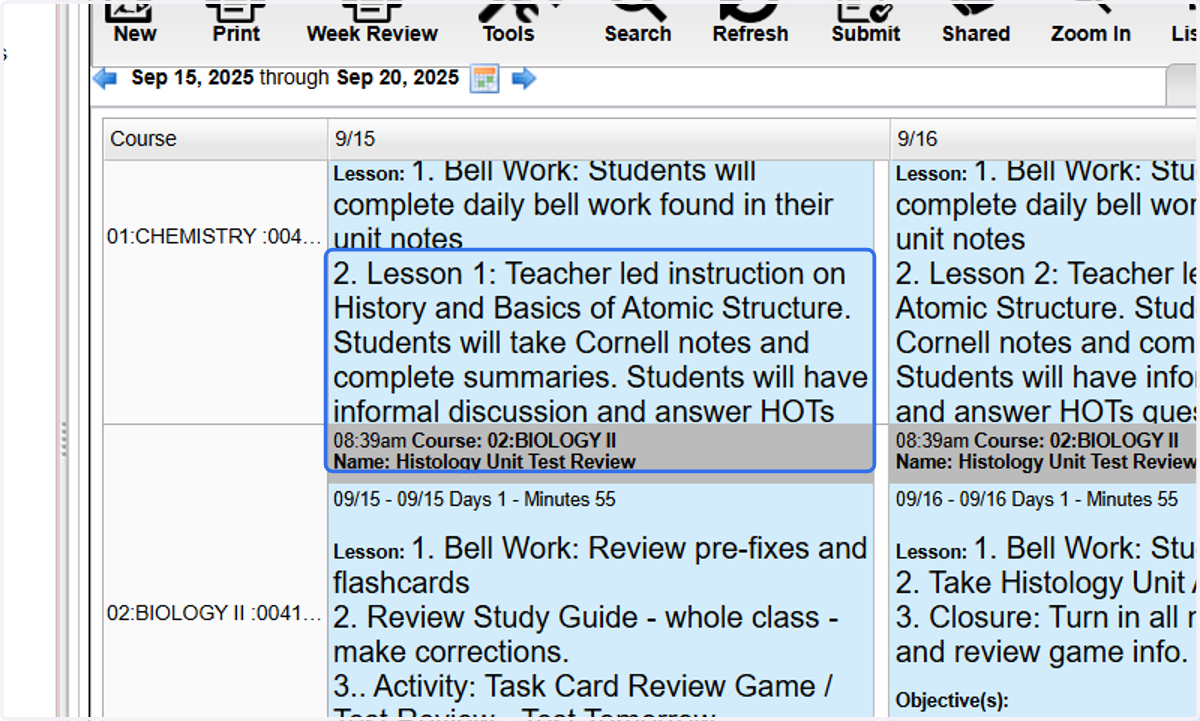
4. Select the lesson you want to use as your "template." *Note the date for which this plan is posted. You will need this information later.
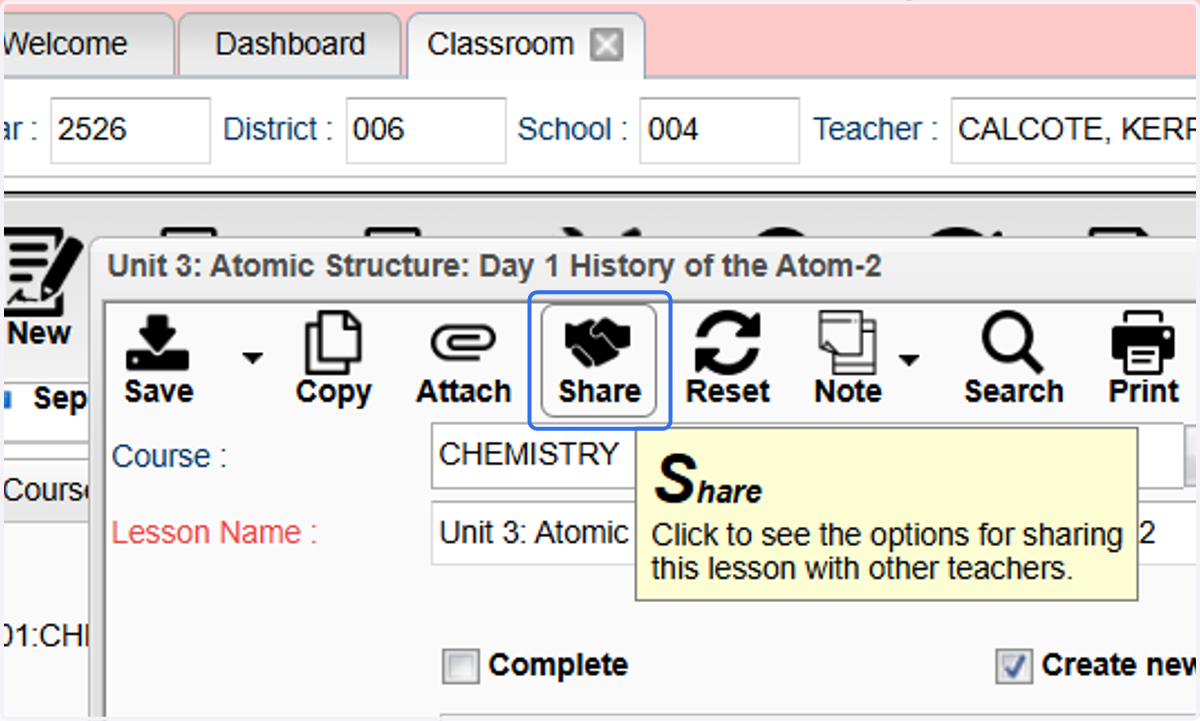
5. Click on Share
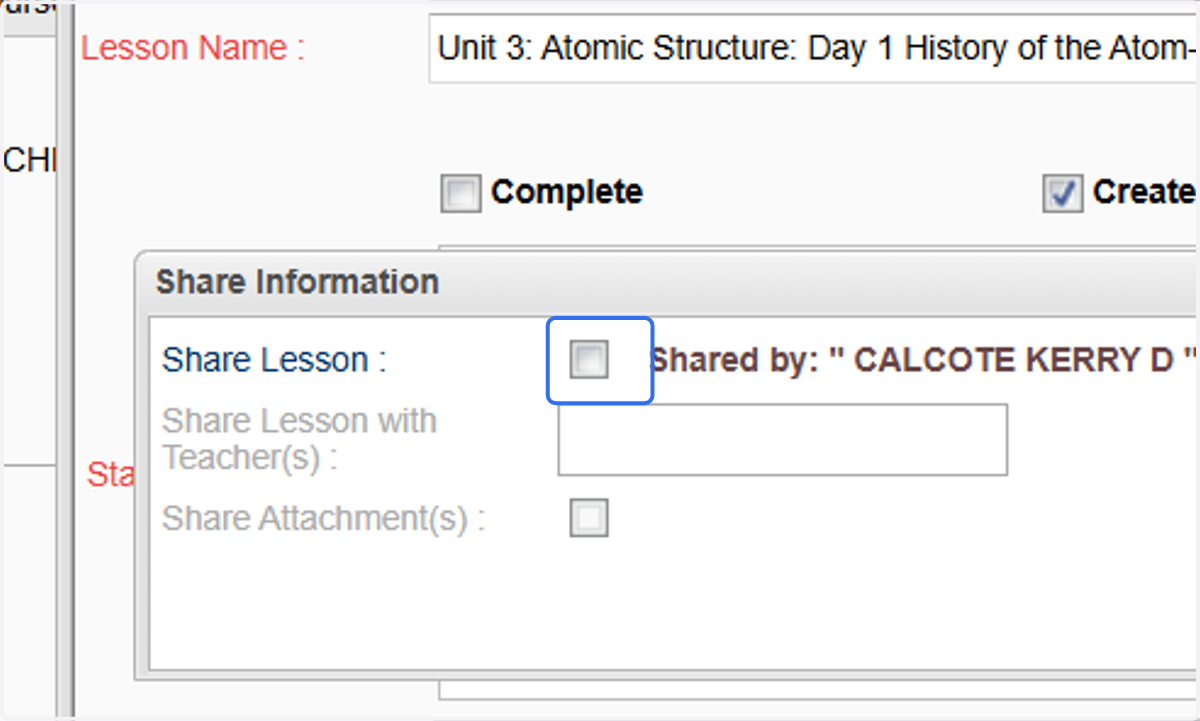
6. Click on the "Share Lesson" check box.
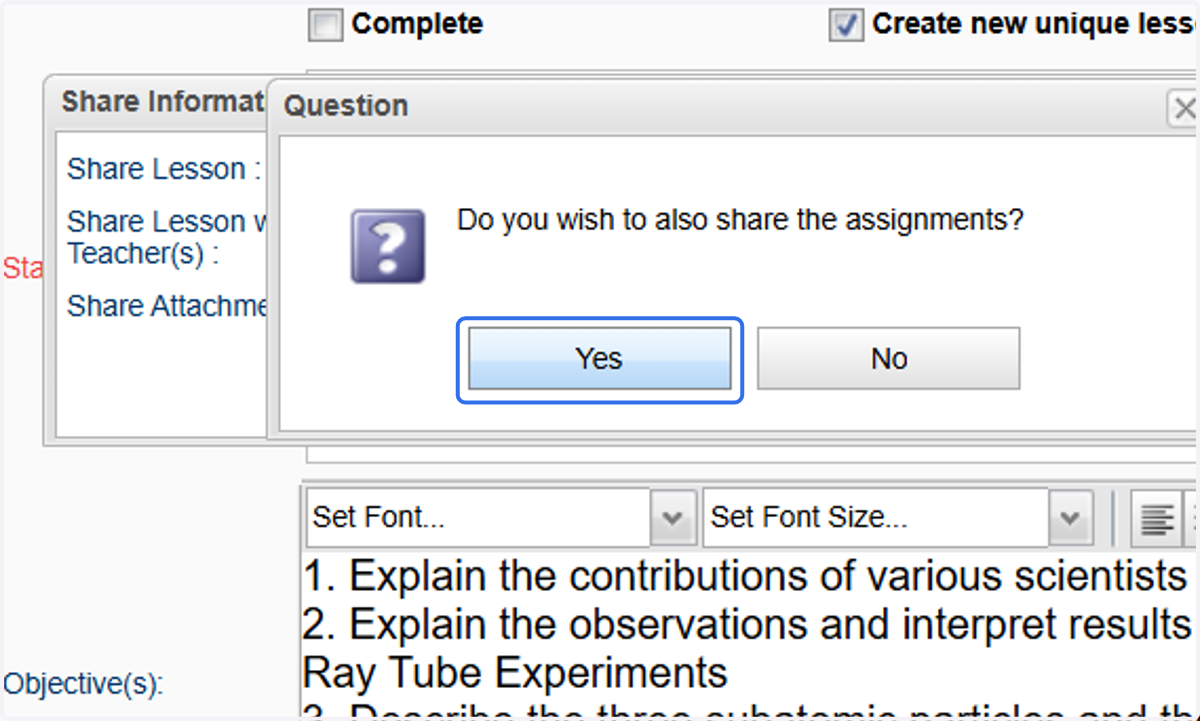
7. If you want to include any assignments connected to this lesson, select "Yes." If you are using this as a "Template" you probably do not want to attach any assignments.
8. Select the check box next to YOUR NAME.
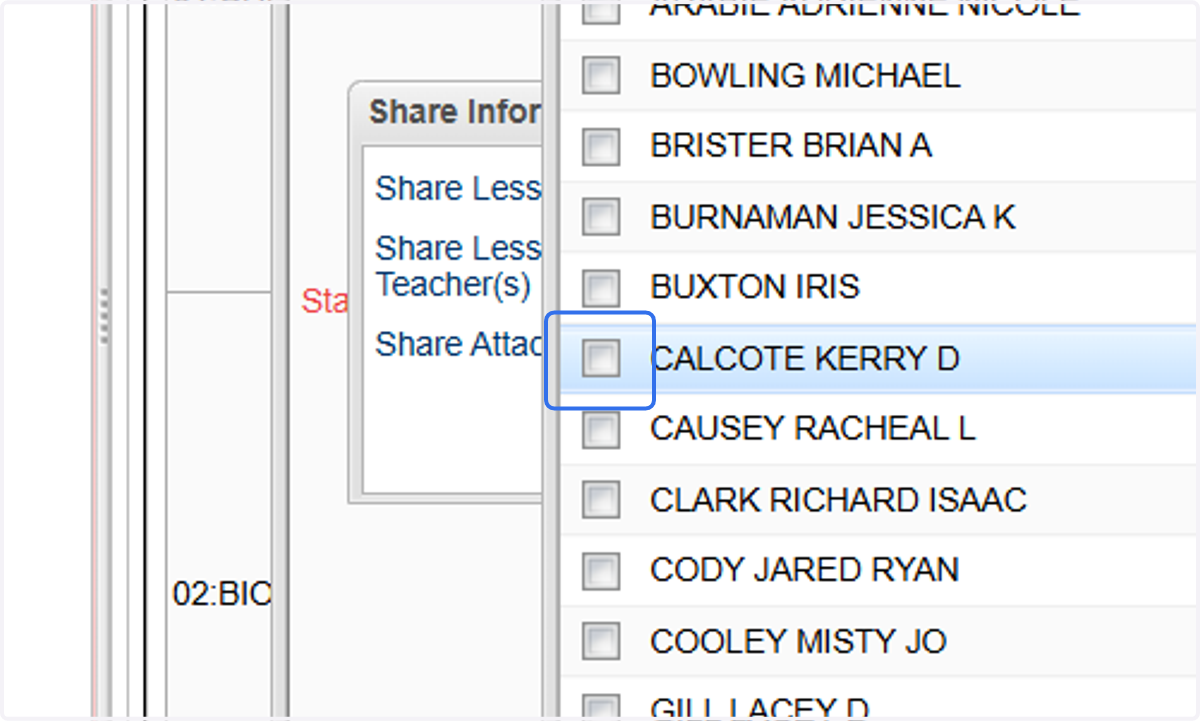
9. Click on OK and close the pop-up window.
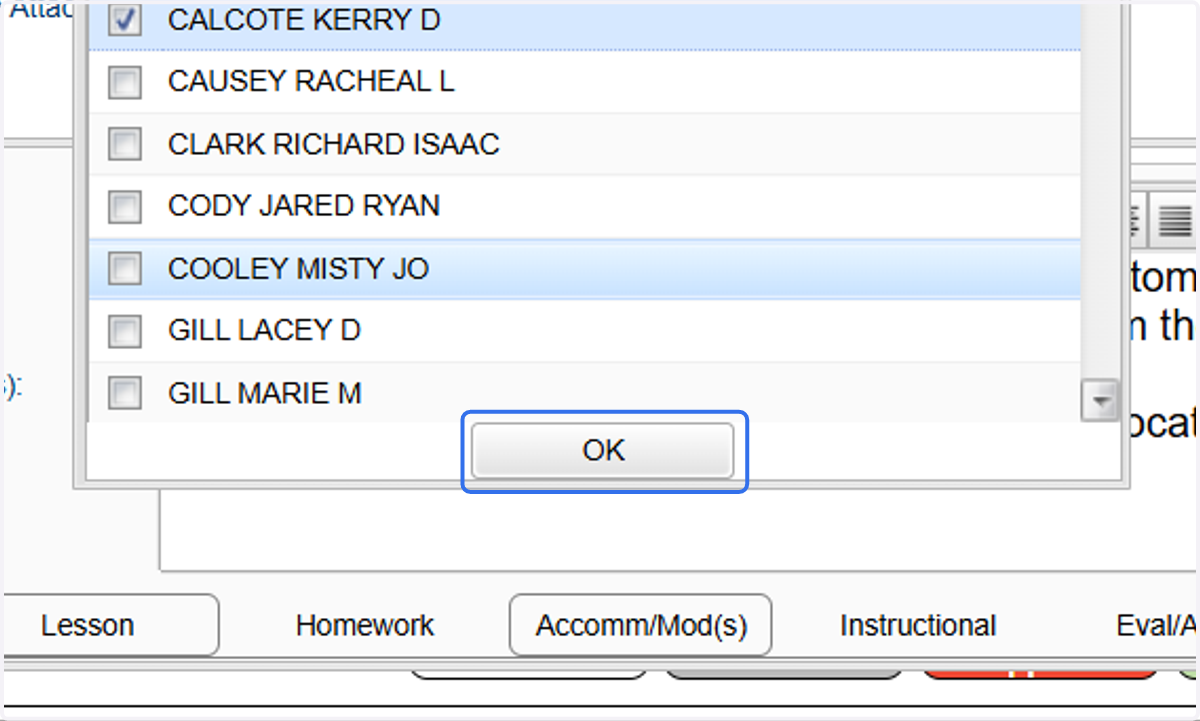
10. Click on Save on the lesson plan.
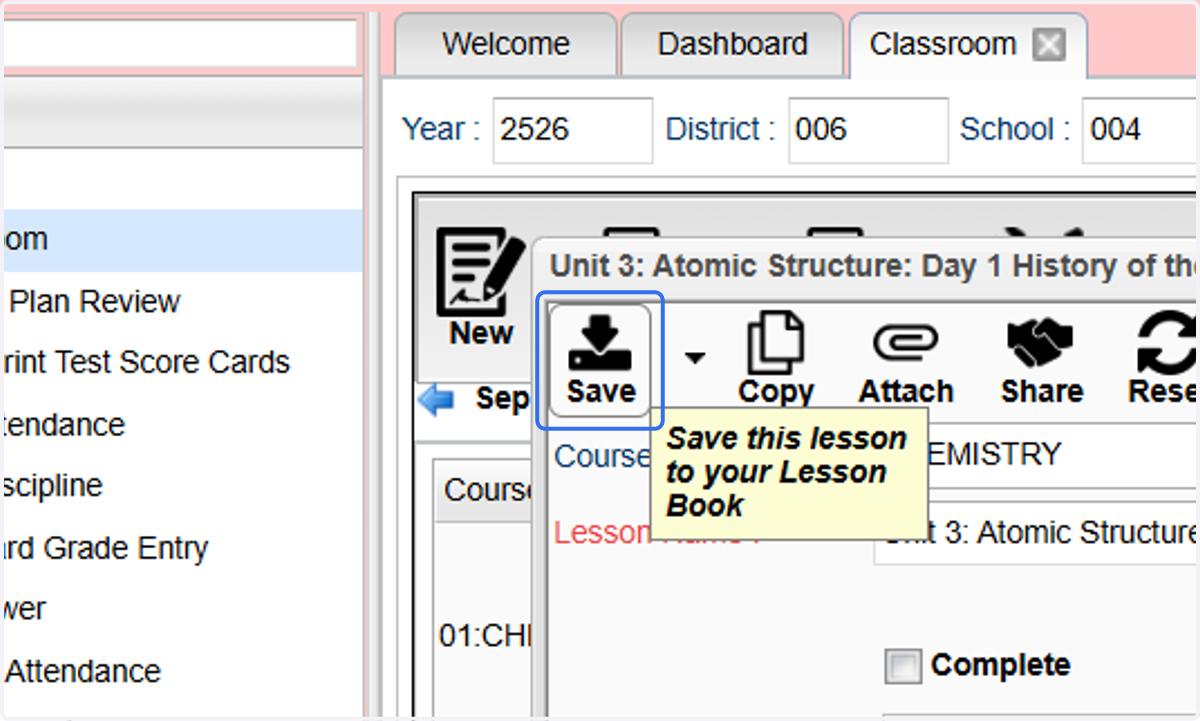
11. Navigate to the week for which you want to apply the template.
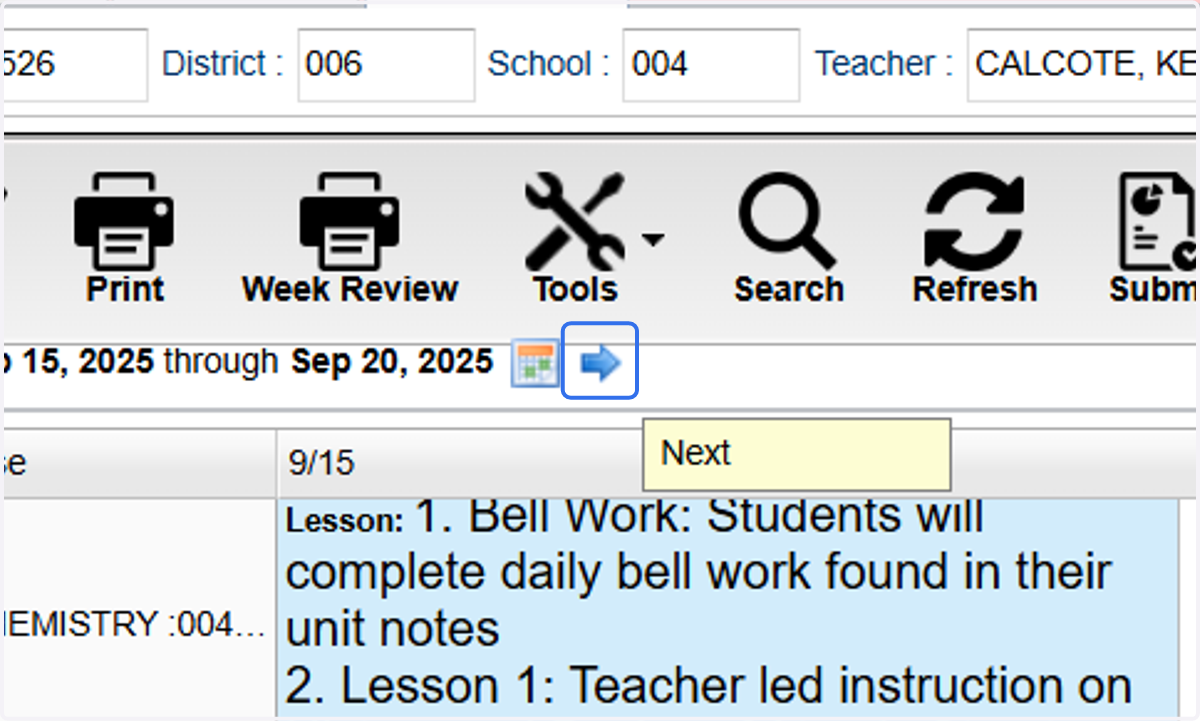
12. Click on Shared
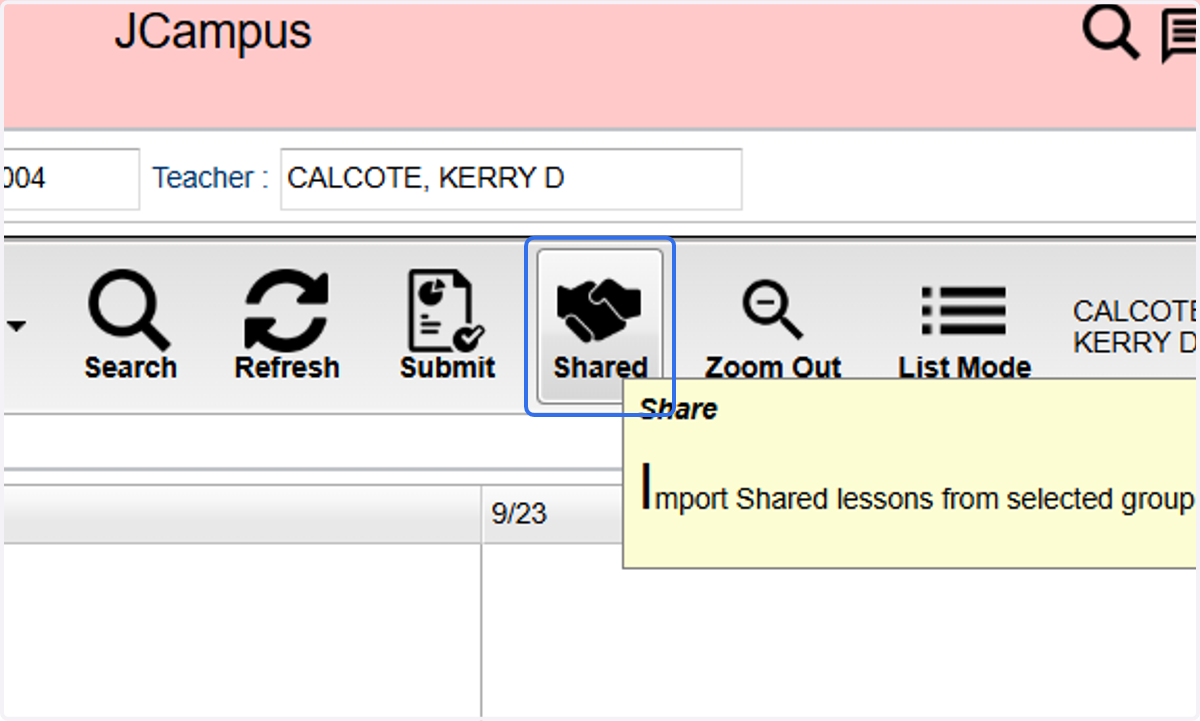
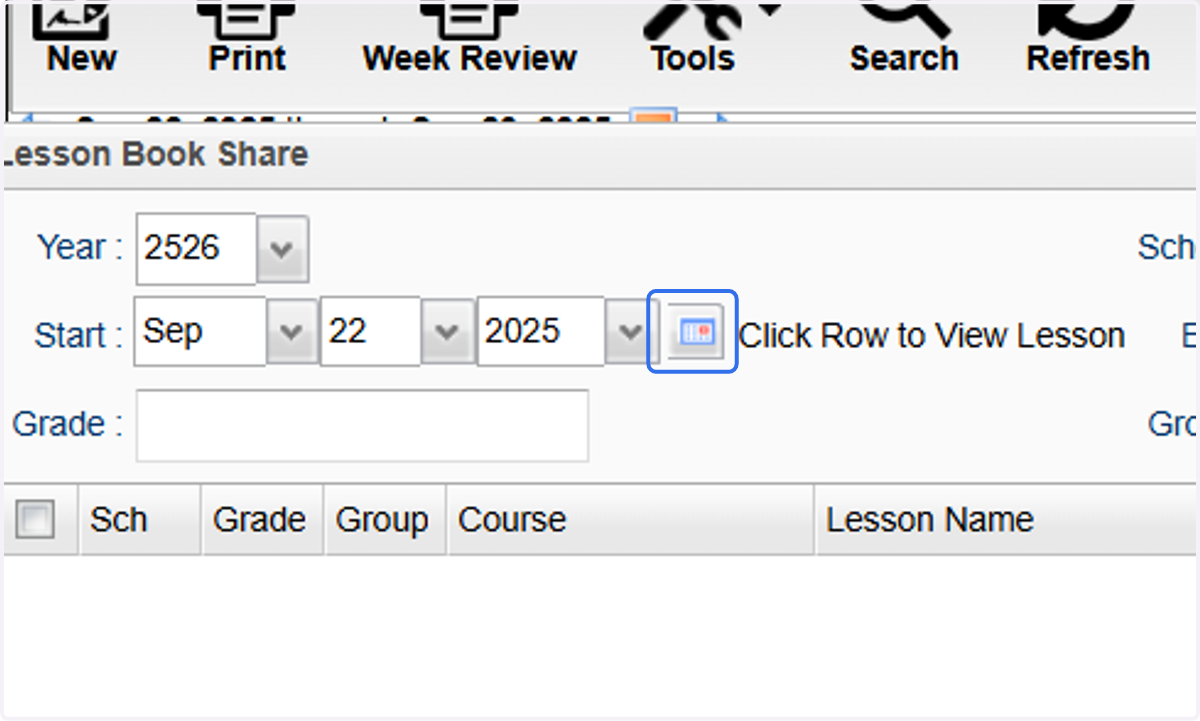
13. Select the start date of the template plan.
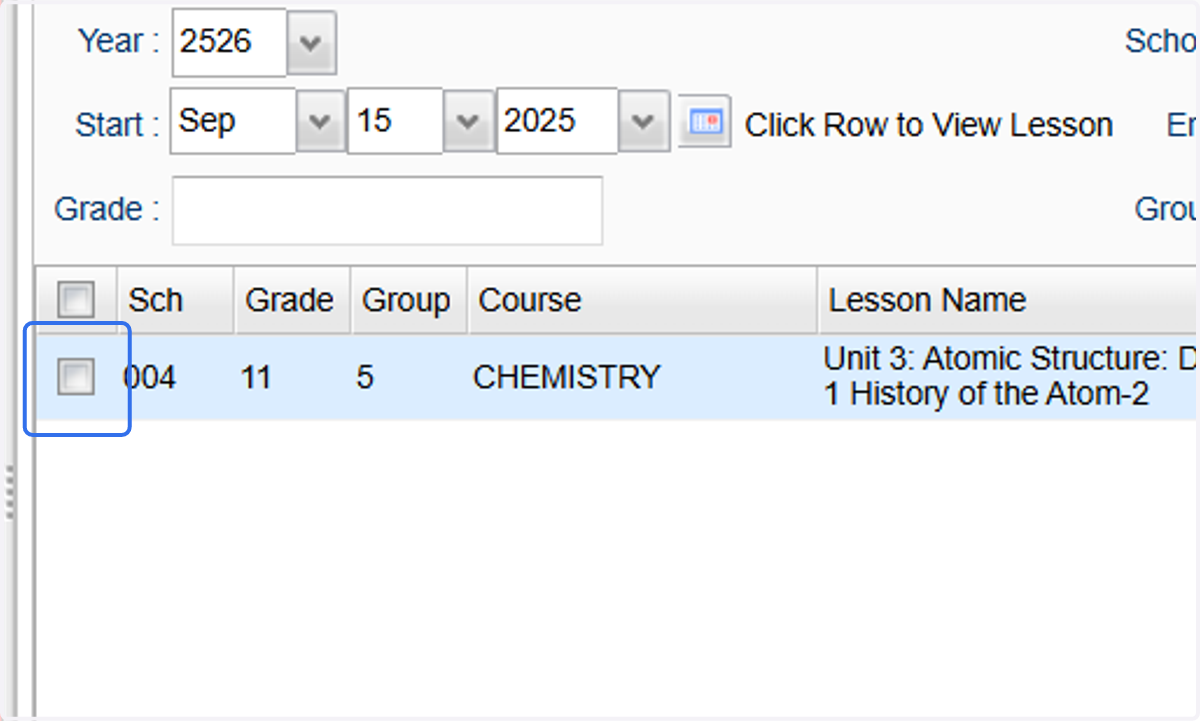
14. Click the check box for the lesson you want to copy.
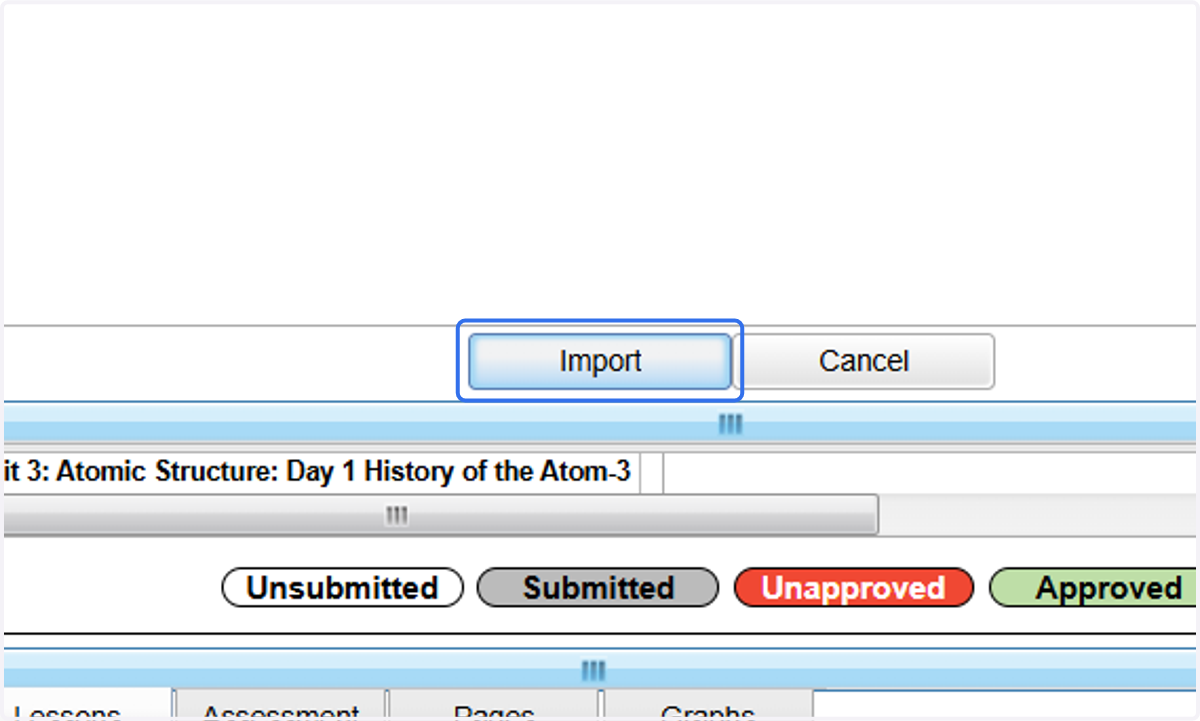
15. Click on Import
16. Click on Selection Required to select the section(s) to apply the template.
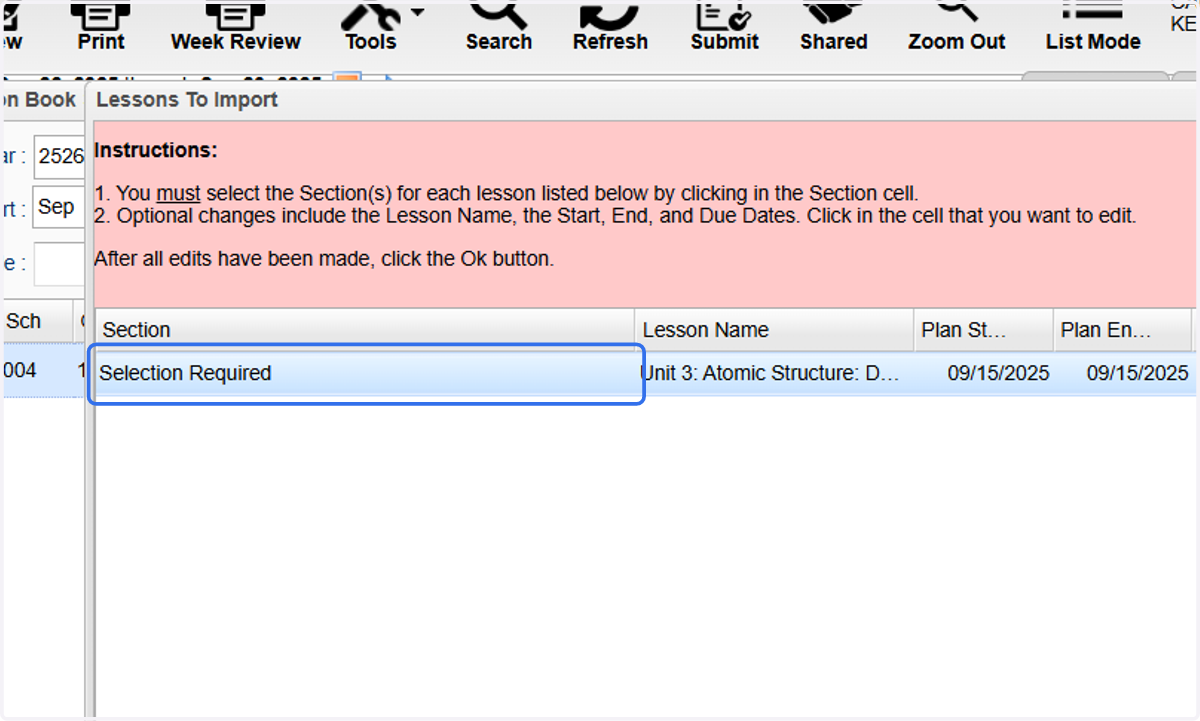
17. Select all the courses necessary.
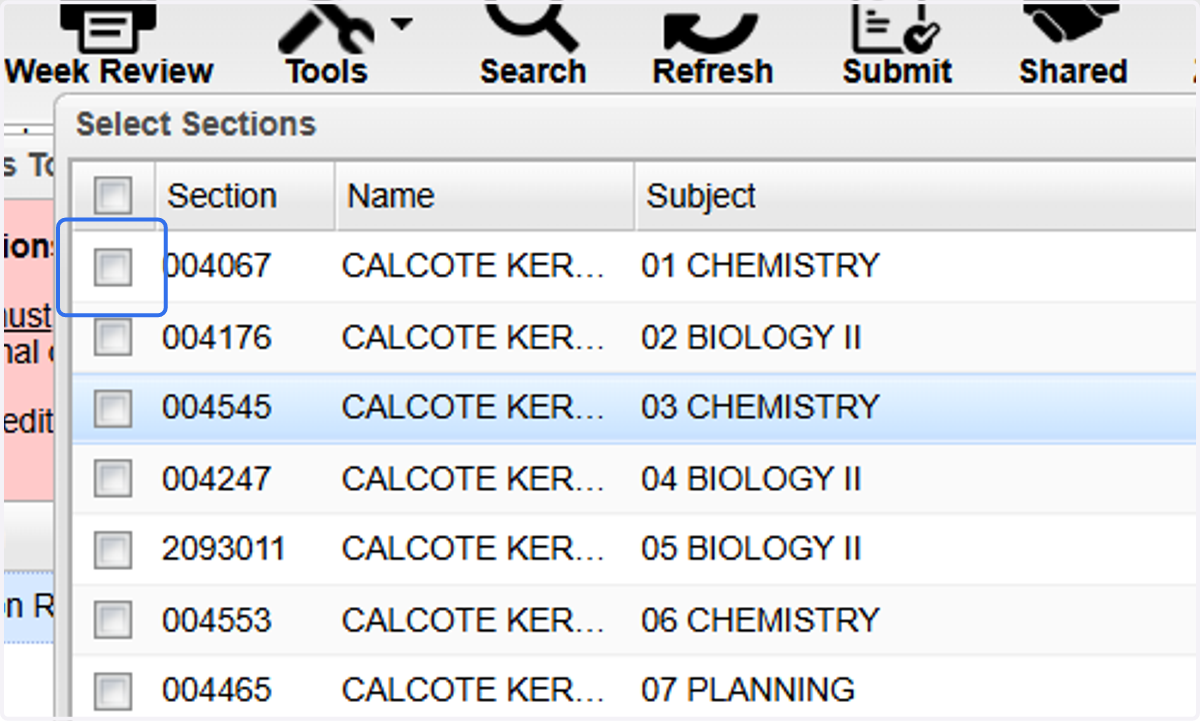
18. Click on OK
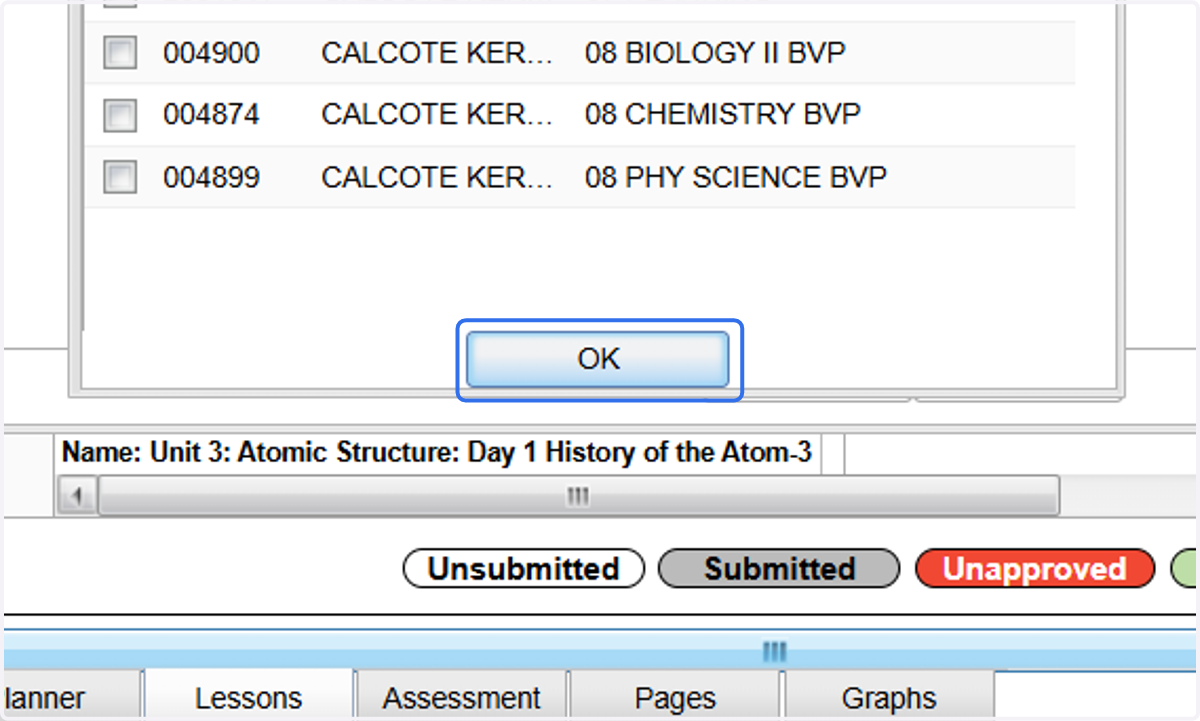
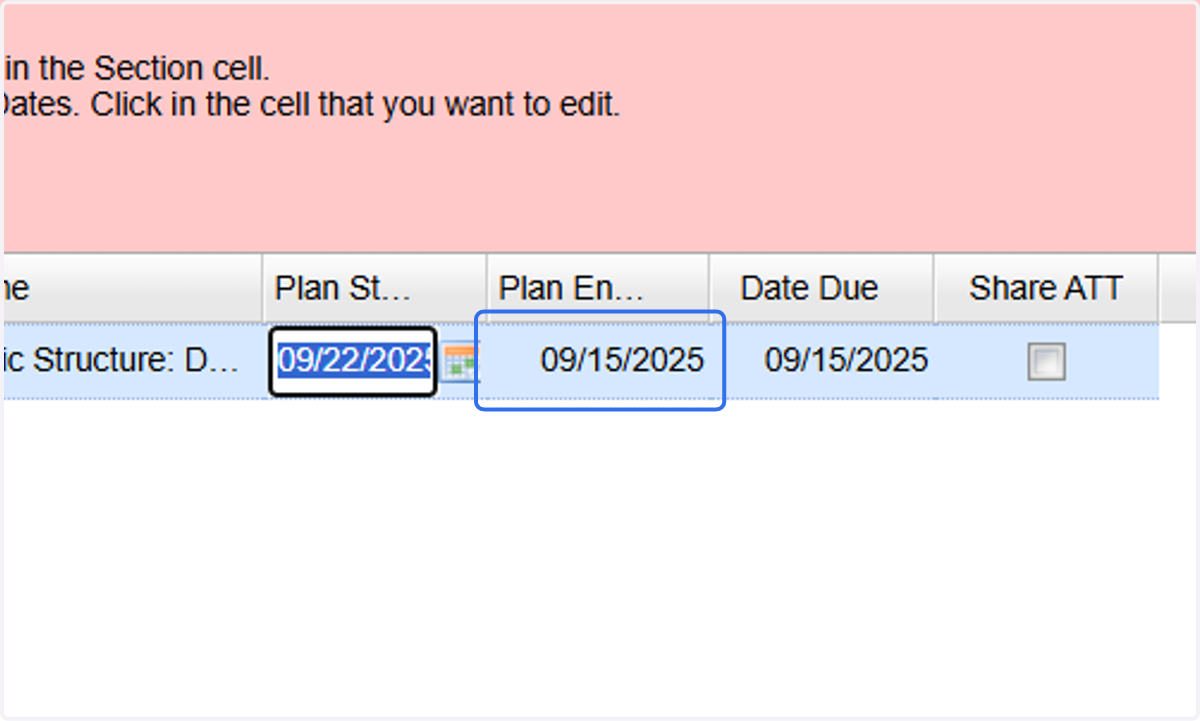
19. Change the "Plan Start Date" to the beginning of this week.
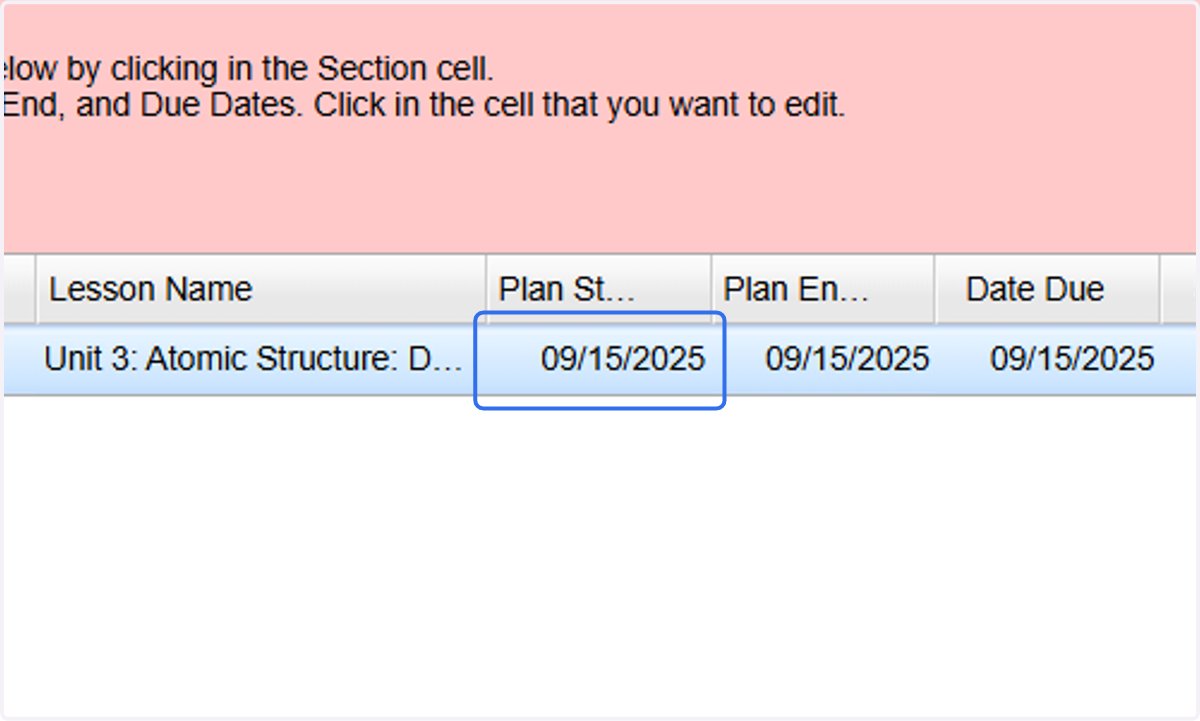
20. If you wish to apply the template to multiple days, change the "Plan End Date" to the end of the week (or the last date that you want to apply the template).
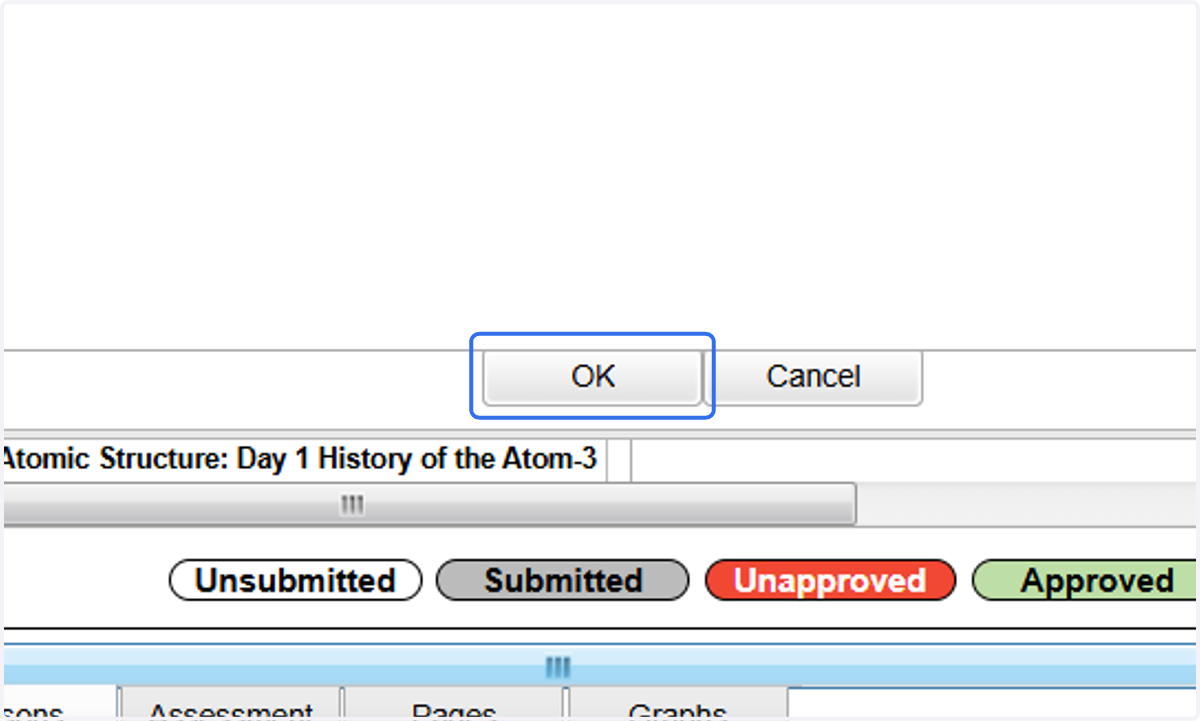
21. Click on OK
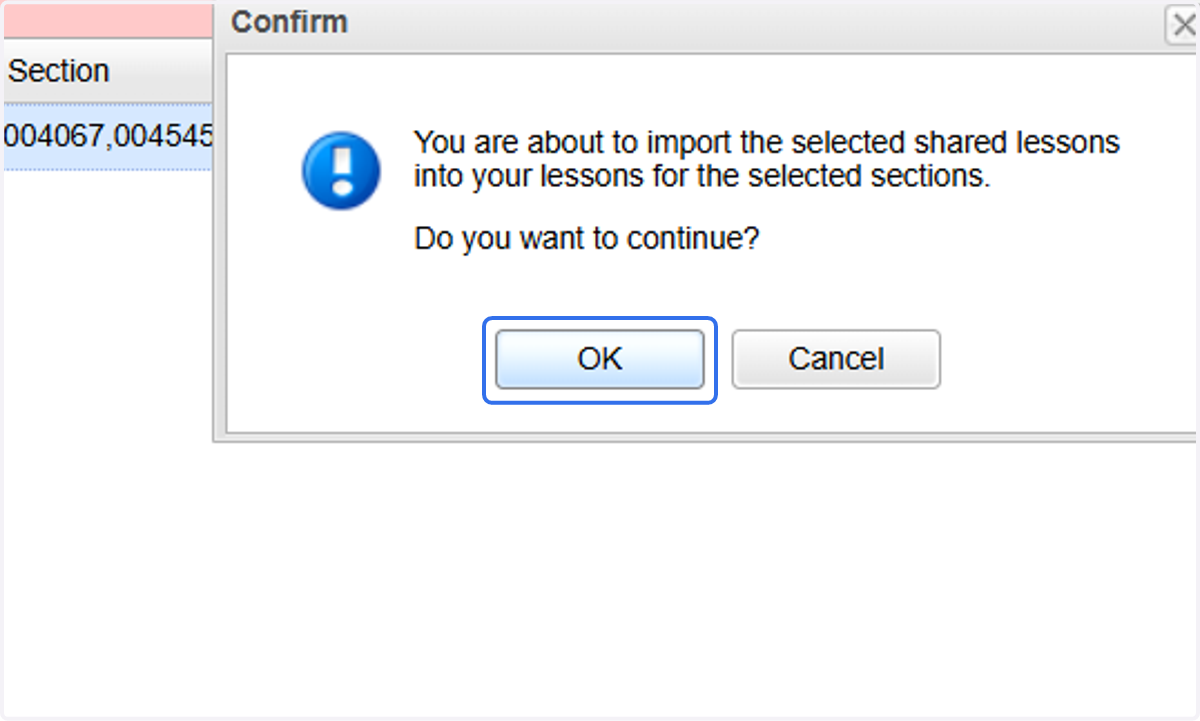
22. Click on OK
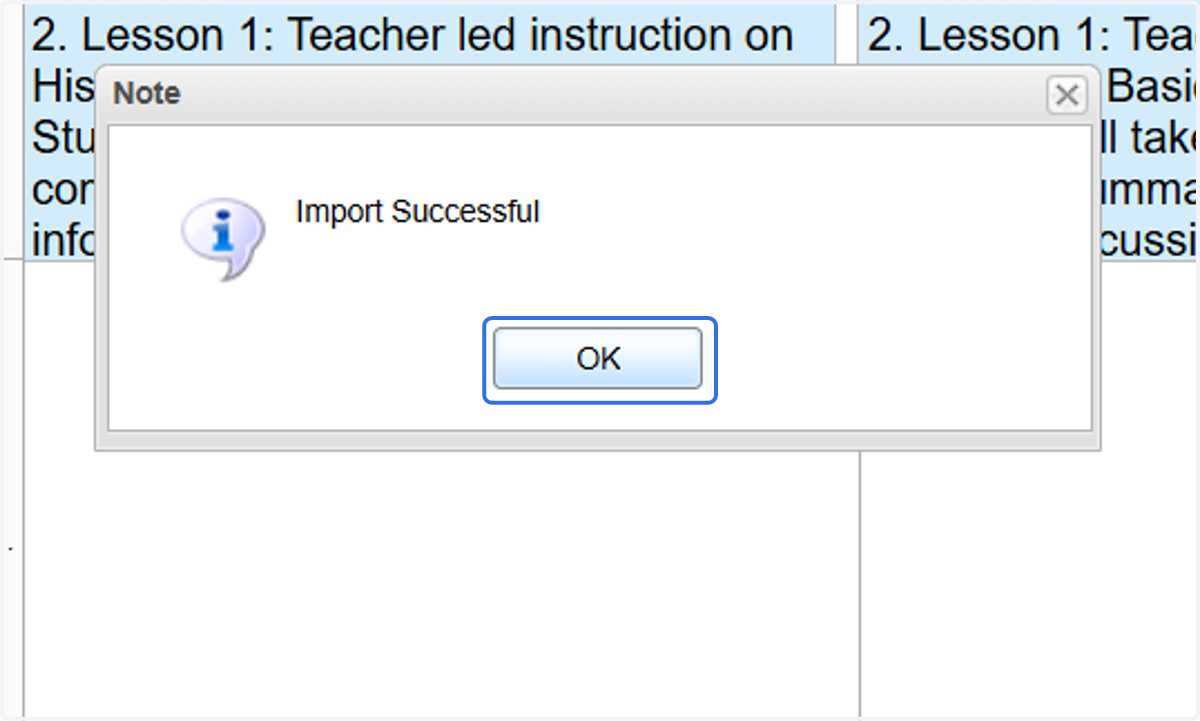
23. Click on OK
24. Confirm that the template is applied to all the dates and classes intended.