Share Canva Template via Google Classroom
Canva
1. Go to www.canva.com
If you are not signed in, click on Continue with Google and sign in with your District Google account.
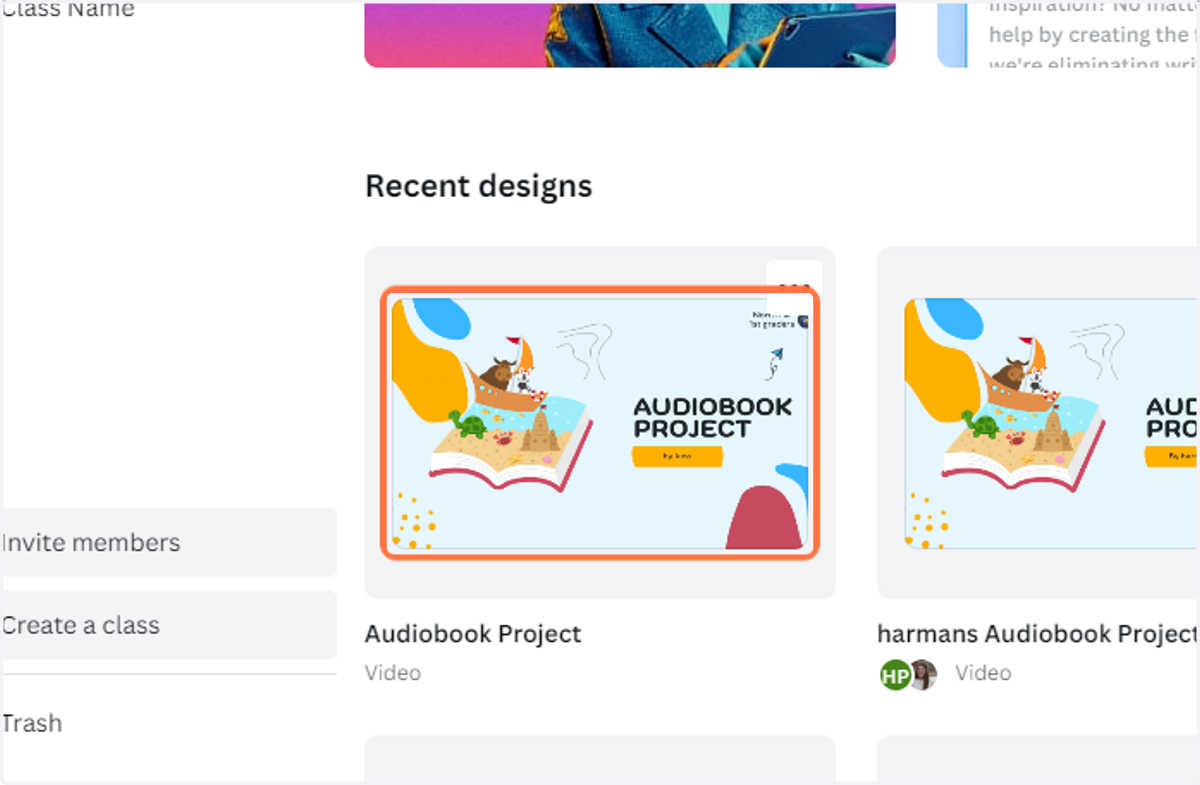
2. Click on the design you want to assign to students
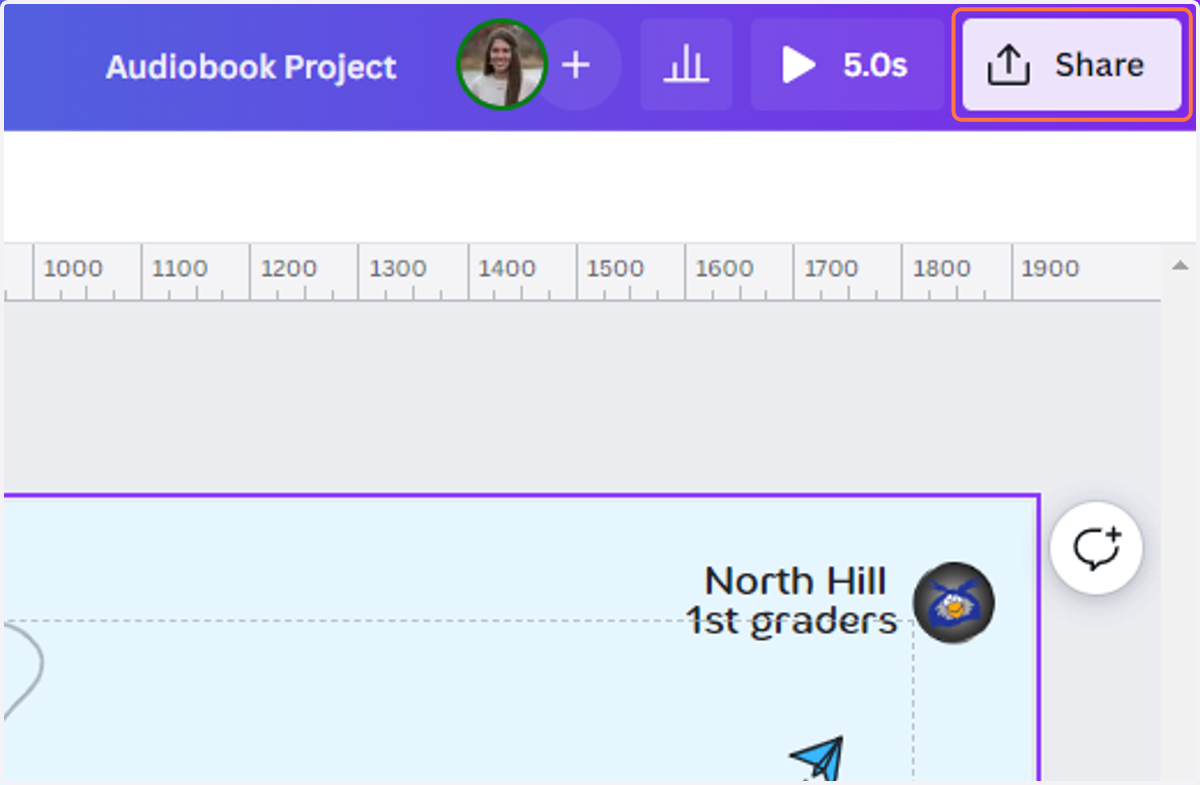
3. Click on Share
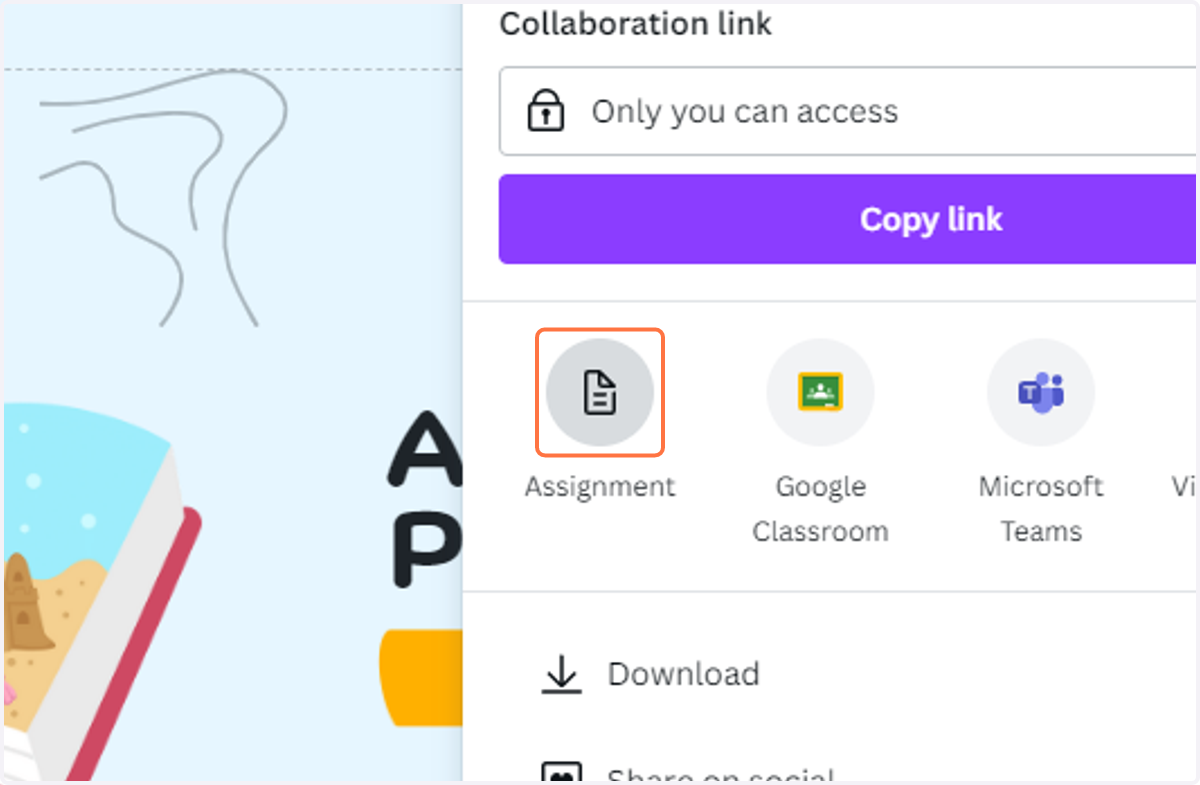
4. Click on Assignment
5. Click on Please select an option and choose Google Classroom
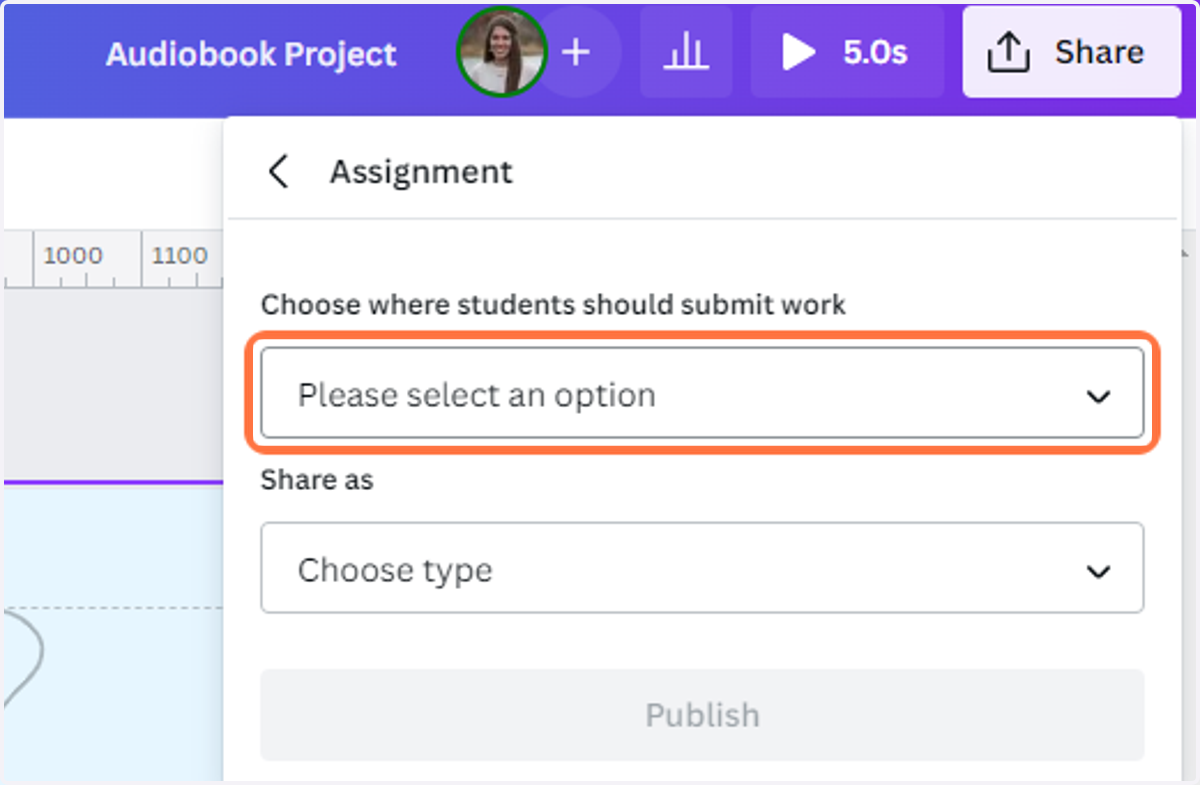
6. Click on Choose type
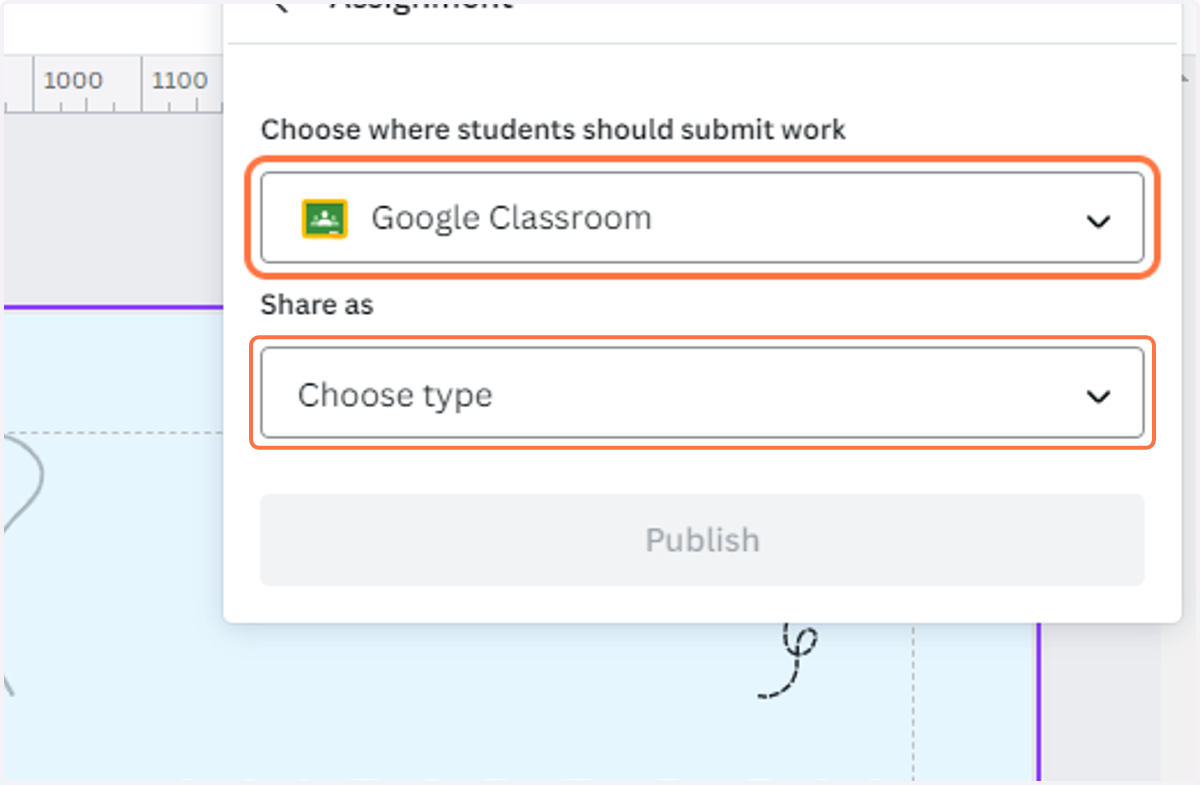
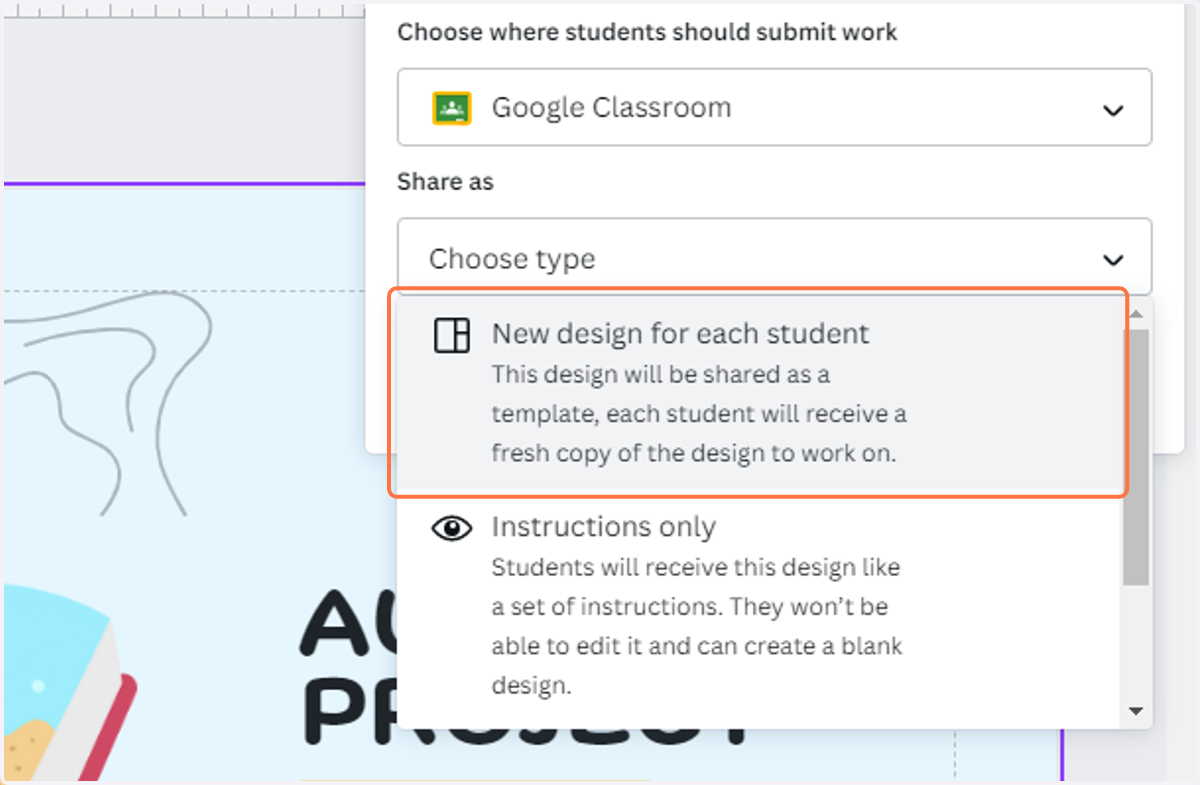
7. Click on New design for each student…
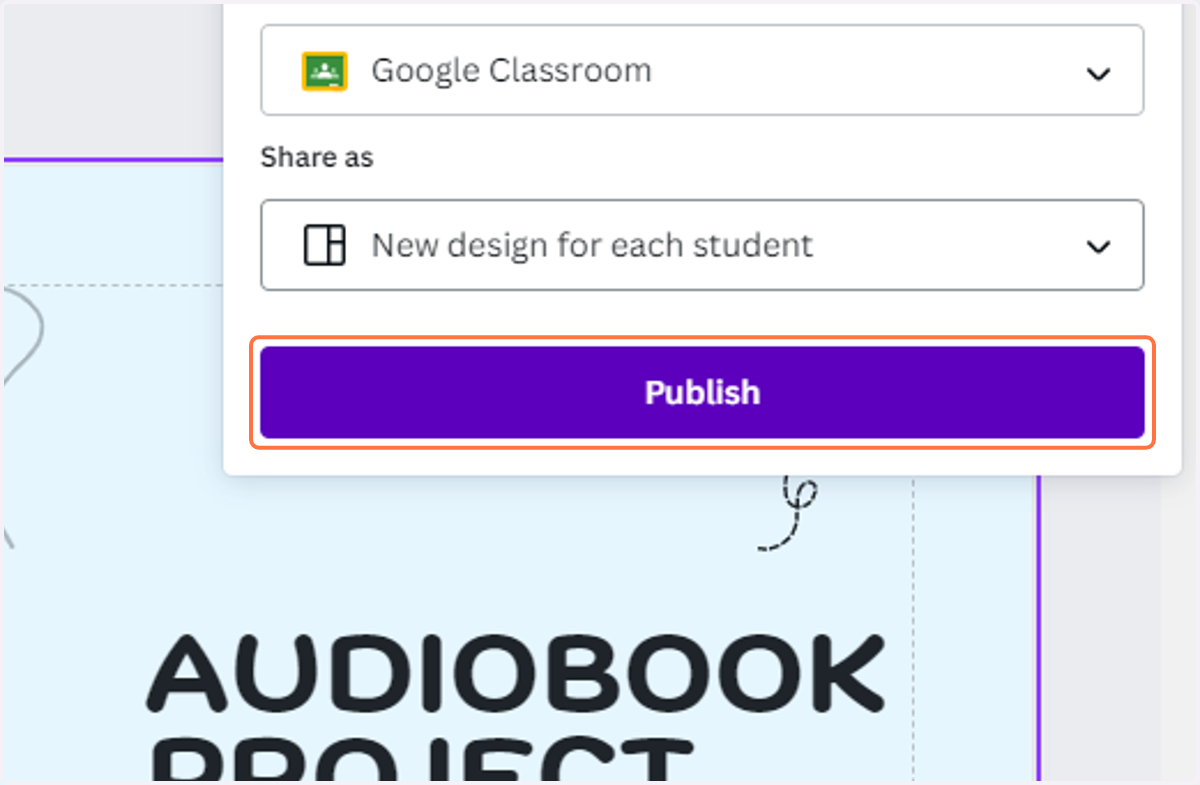
8. Click on Publish
9. Click on Choose class…
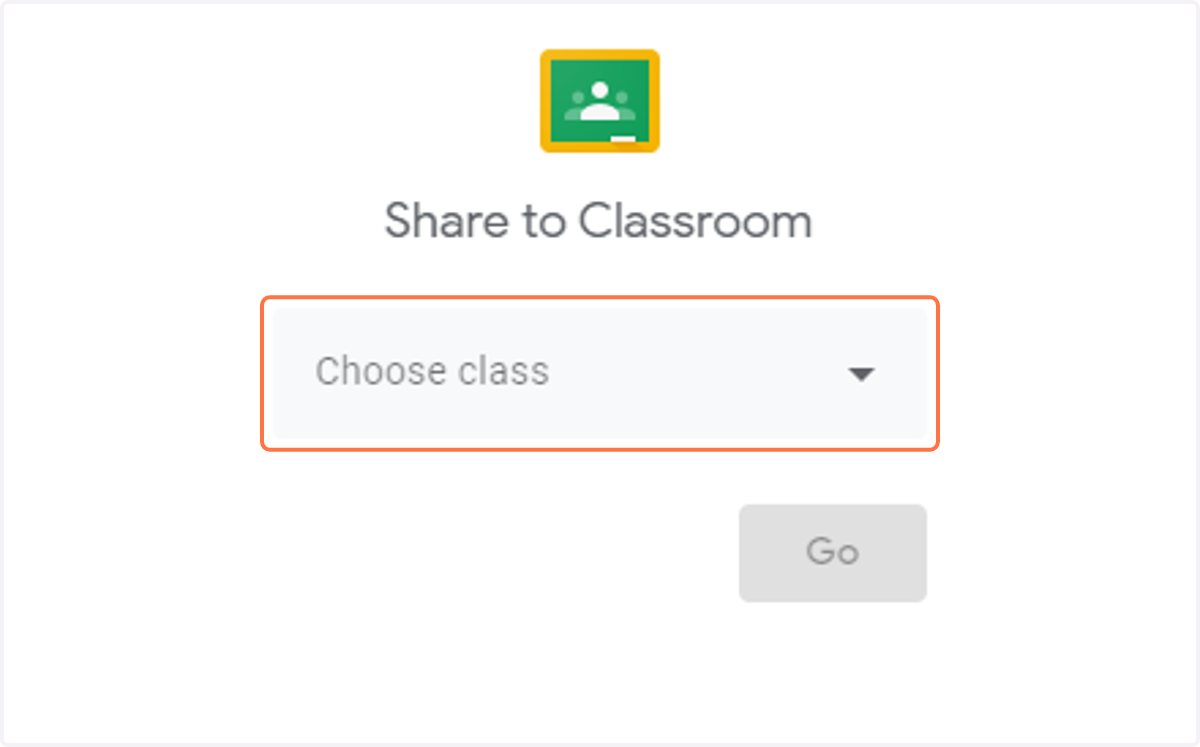
10. Select the class you want to share to
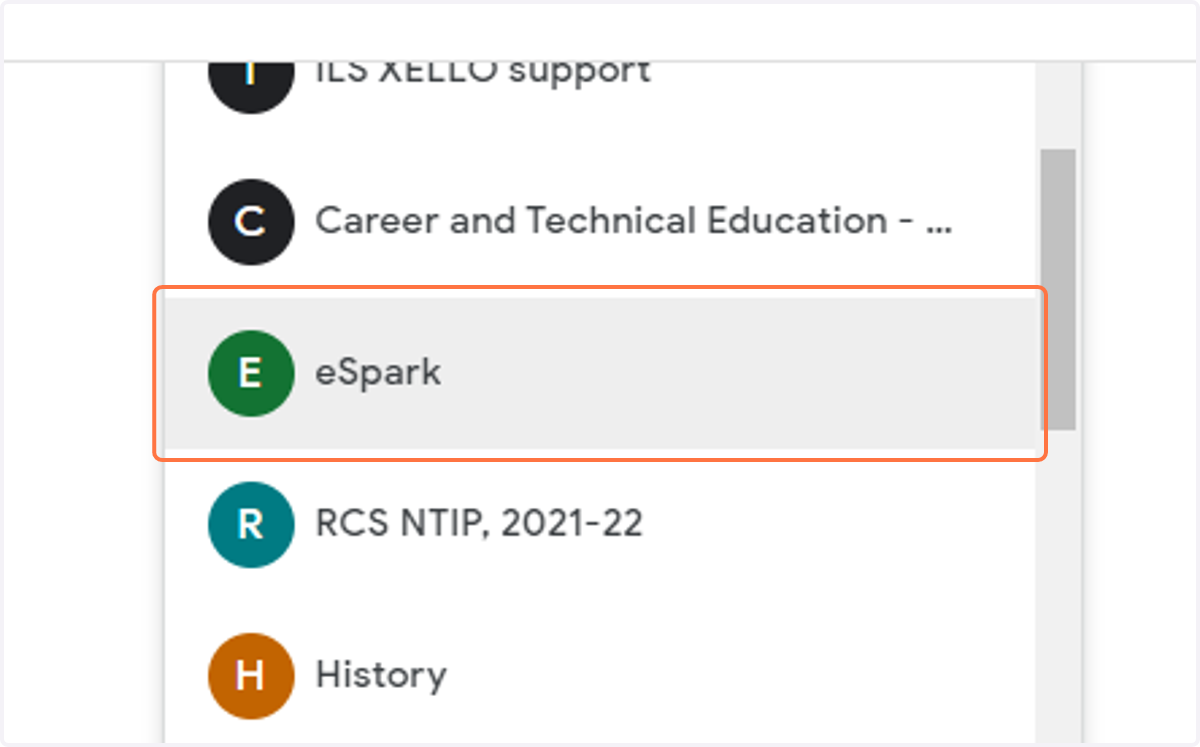
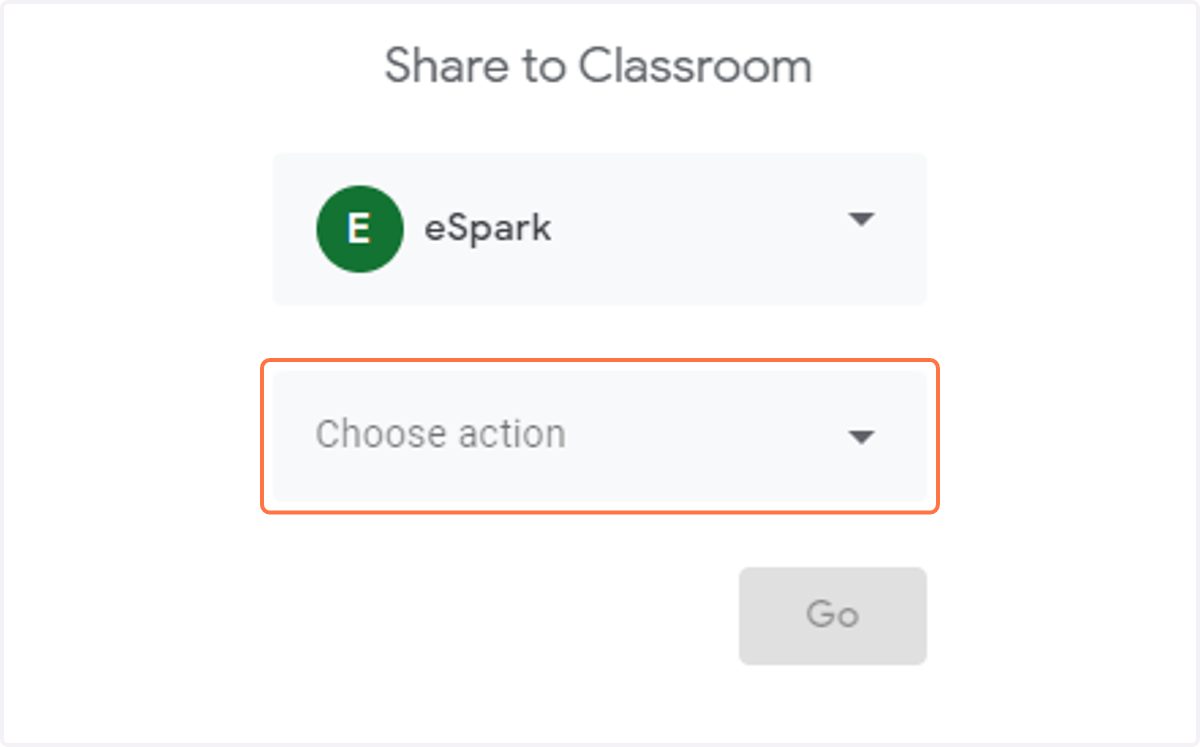
11. Click on Choose action…
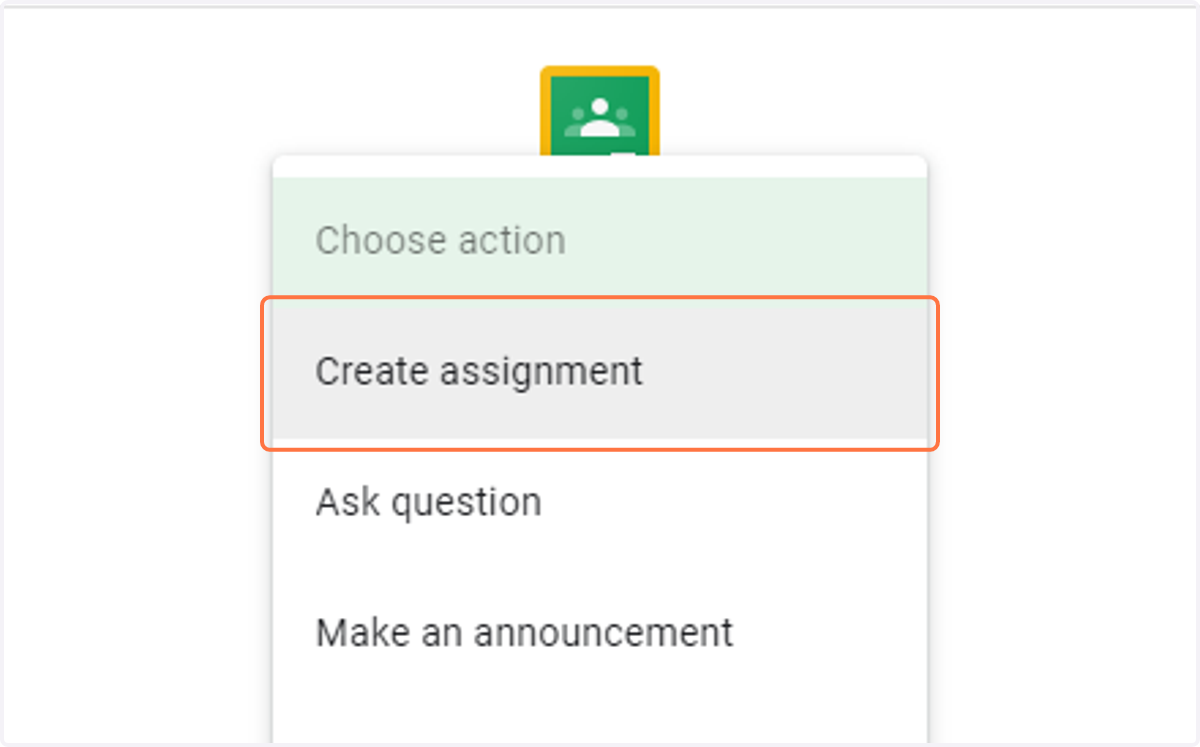
12. Click on Create assignment
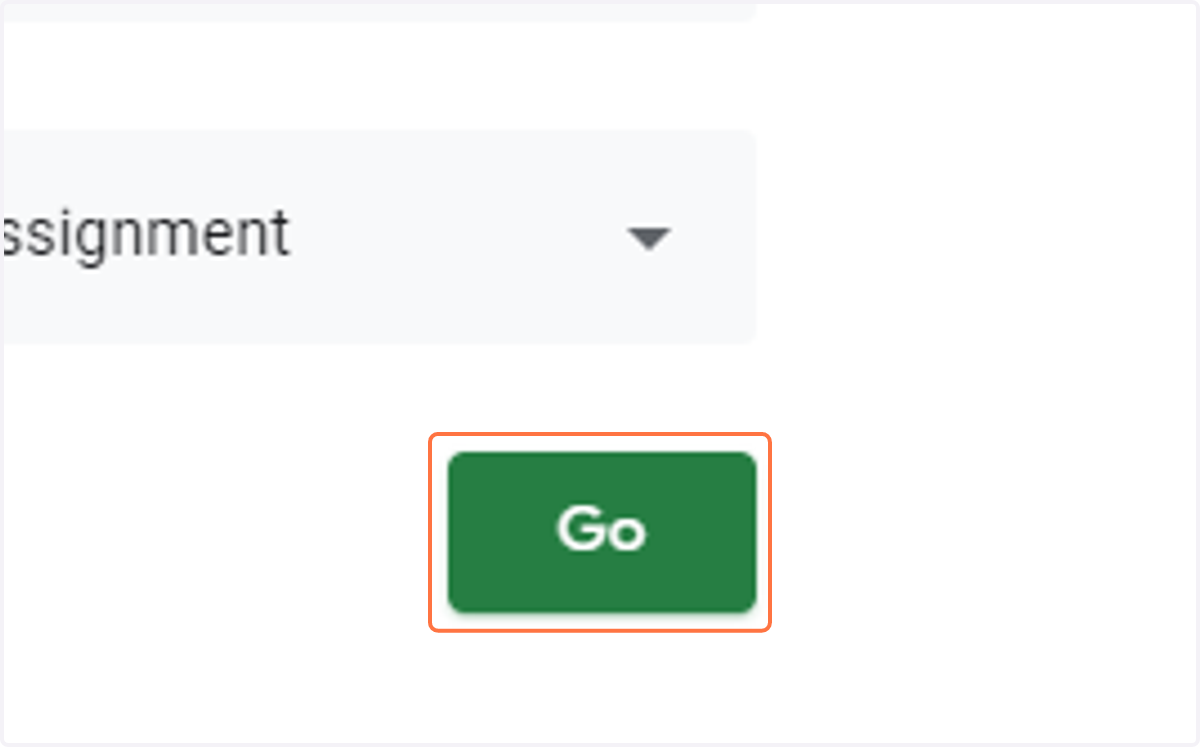
13. Click on Go to next step
14. Type in a title of the assignment
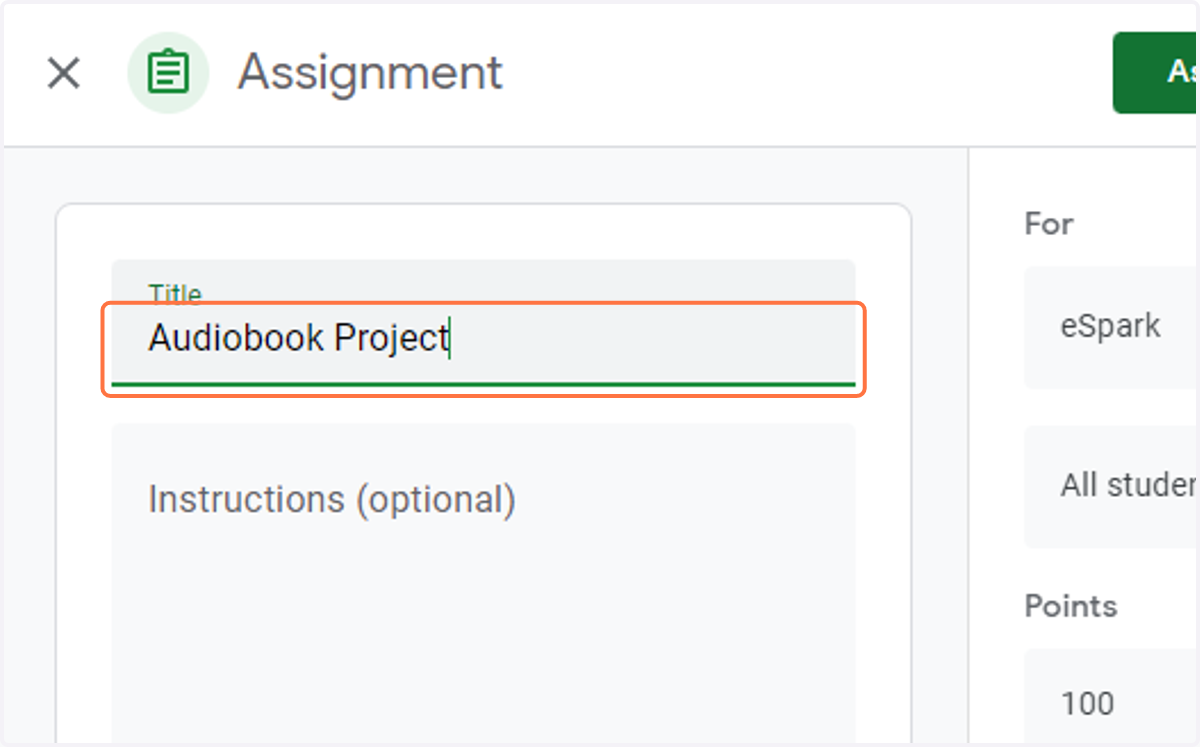
15. Add in instructions for the students to follow
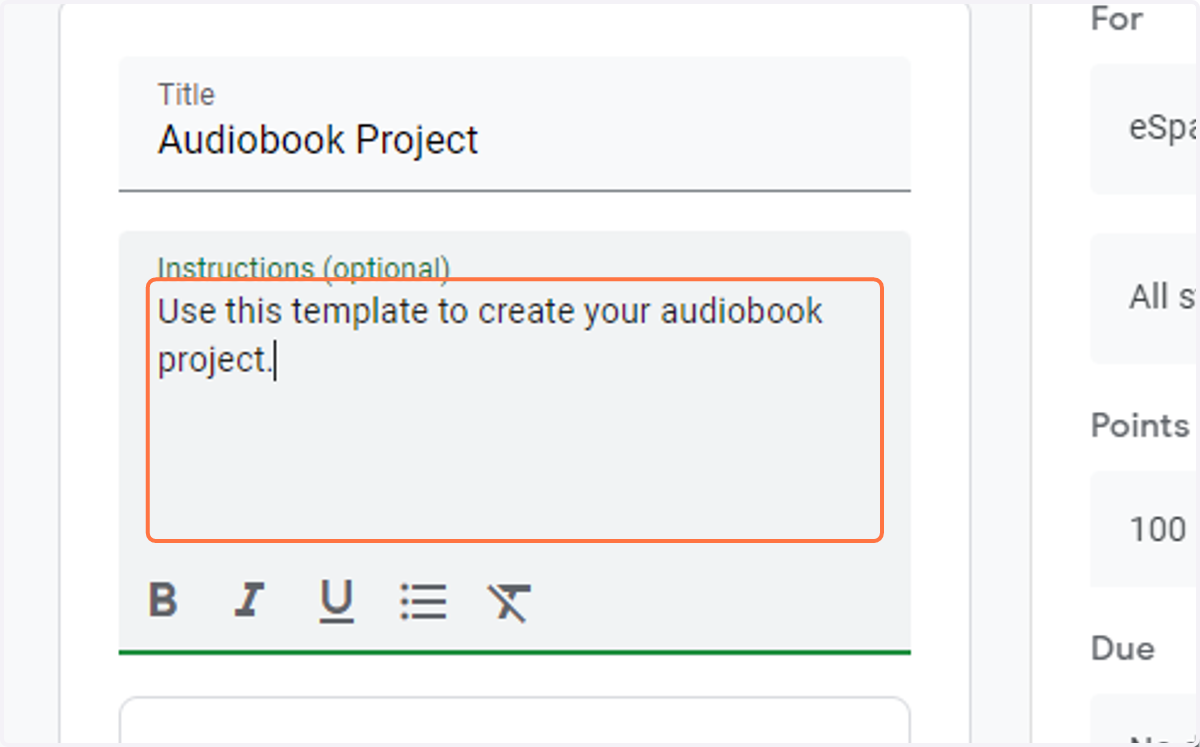
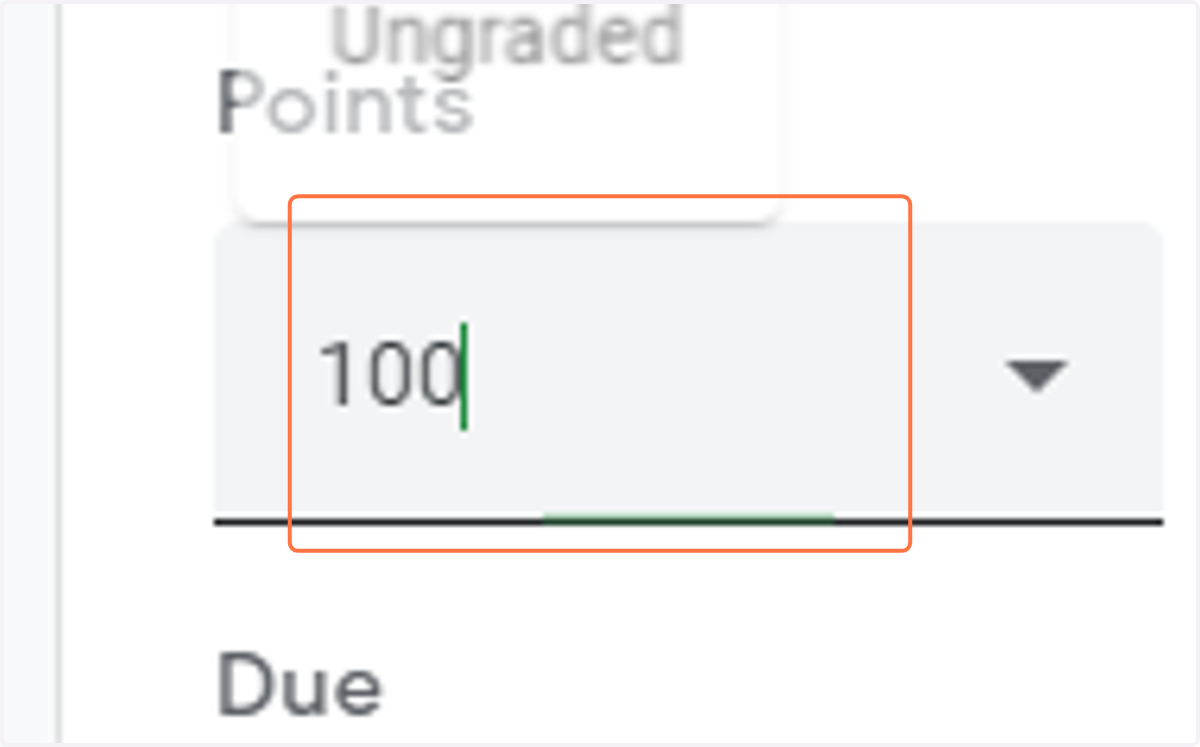
16. Optional: type in the number of points or select ungraded
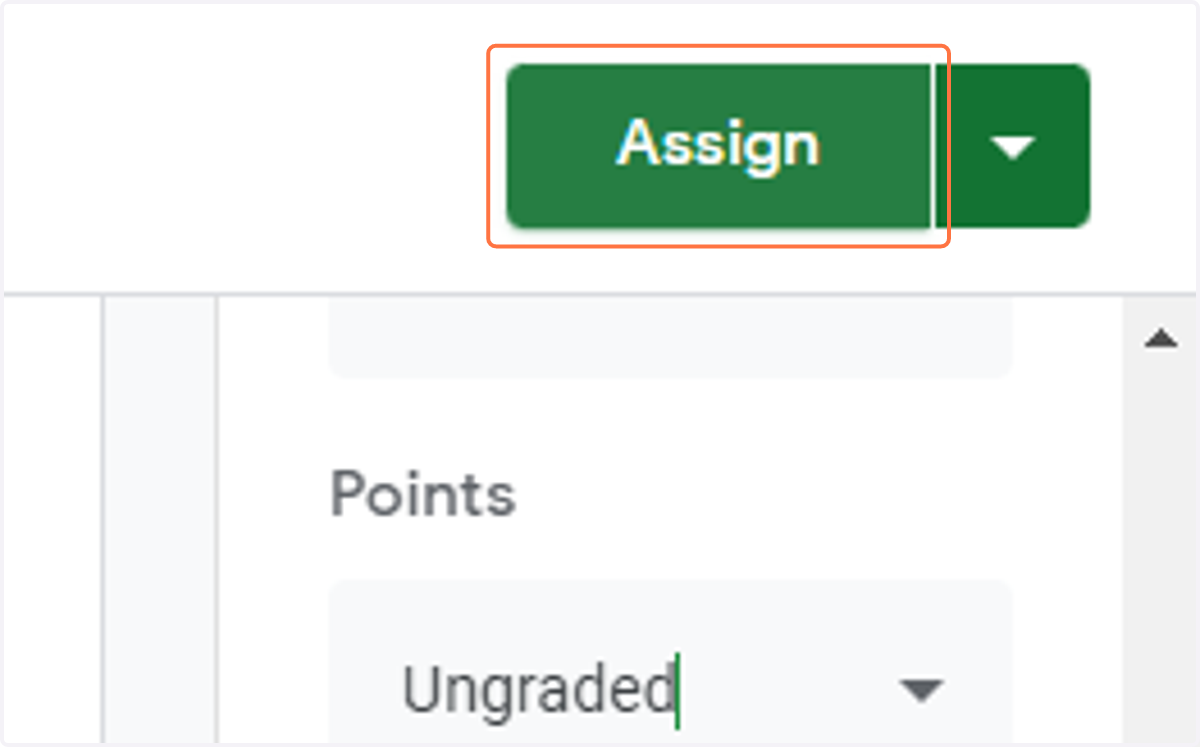
17. Click on Assign
18. Students can now sign in to their Google Classroom, access the template, and start creating!