Setting up Force Install for Edge using Intune
Microsoft Azure portal (PWA)
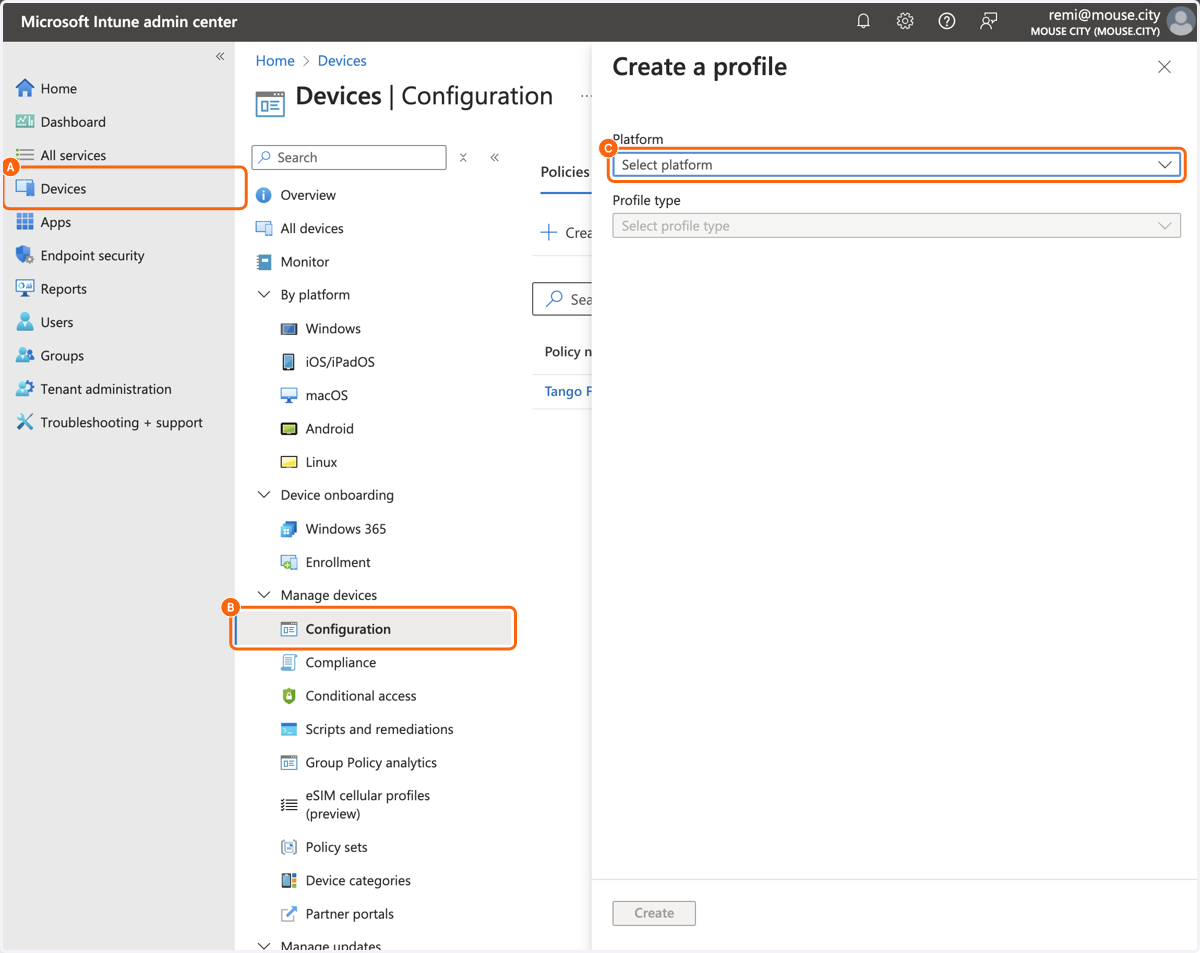
1. A. Click on Devices
1. B. Click on Configuration
1. C. Click on Platform
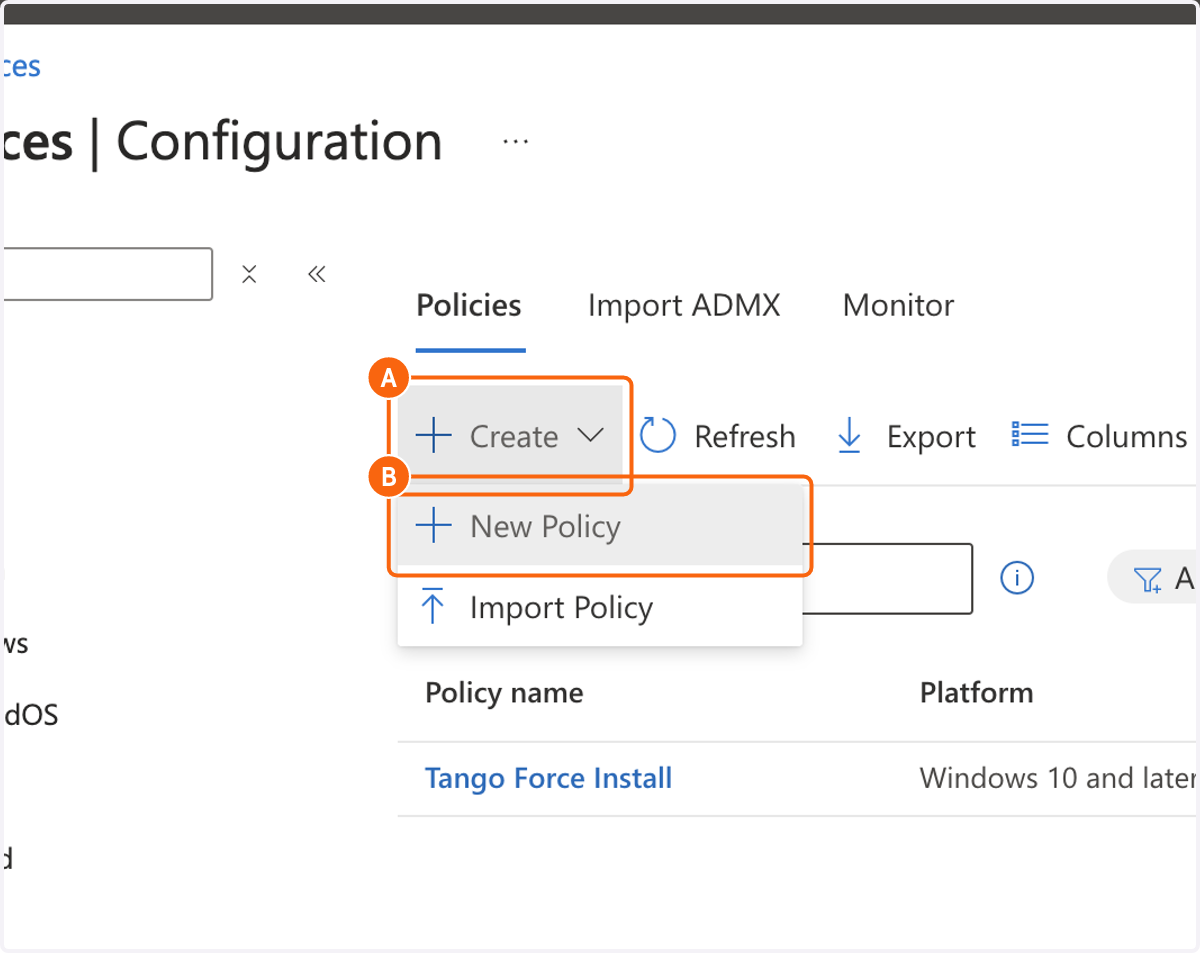
2. A. Click on Create
2. B. Click on New Policy
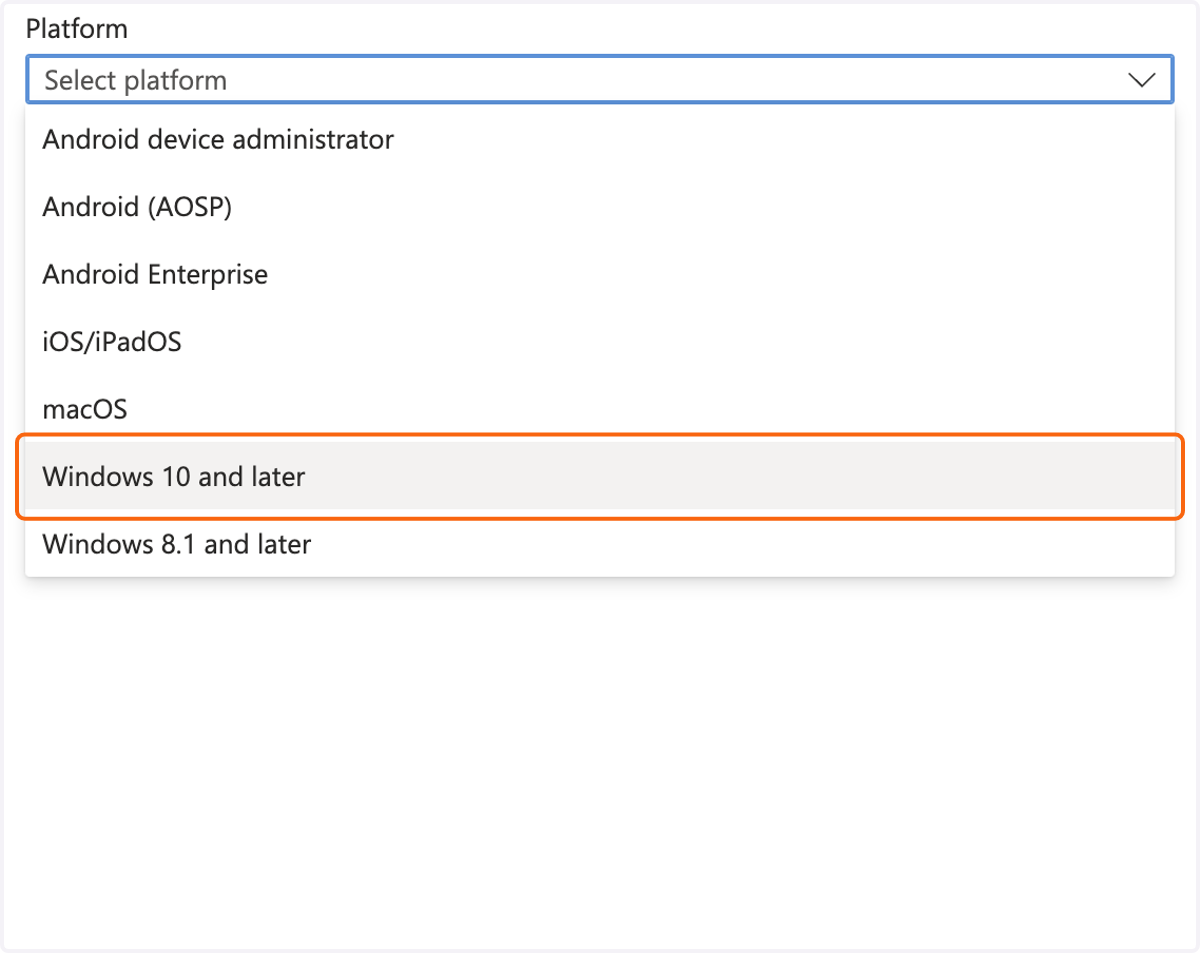
3. Click on Windows 10 and later
4. Click on Profile type
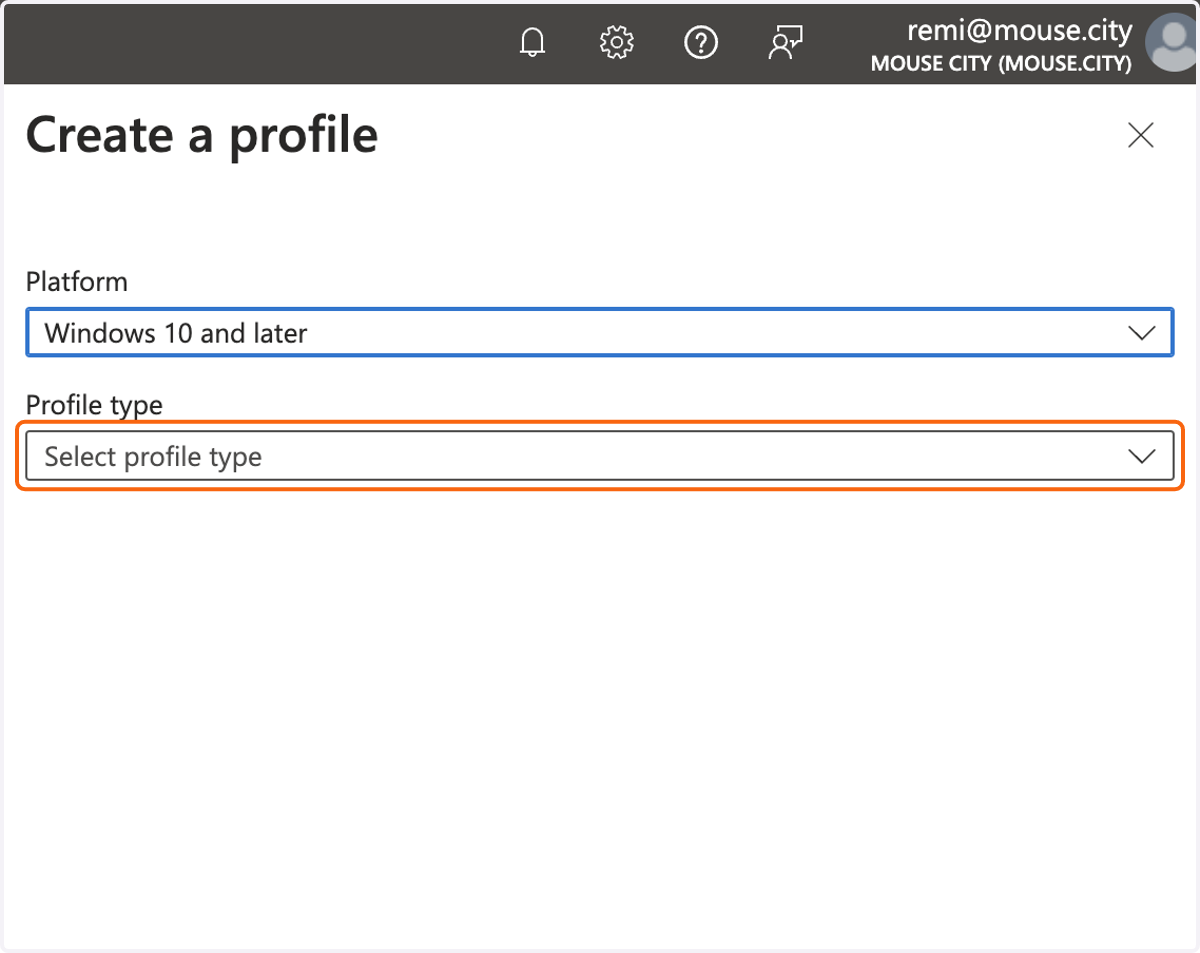
5. Click on Settings catalog
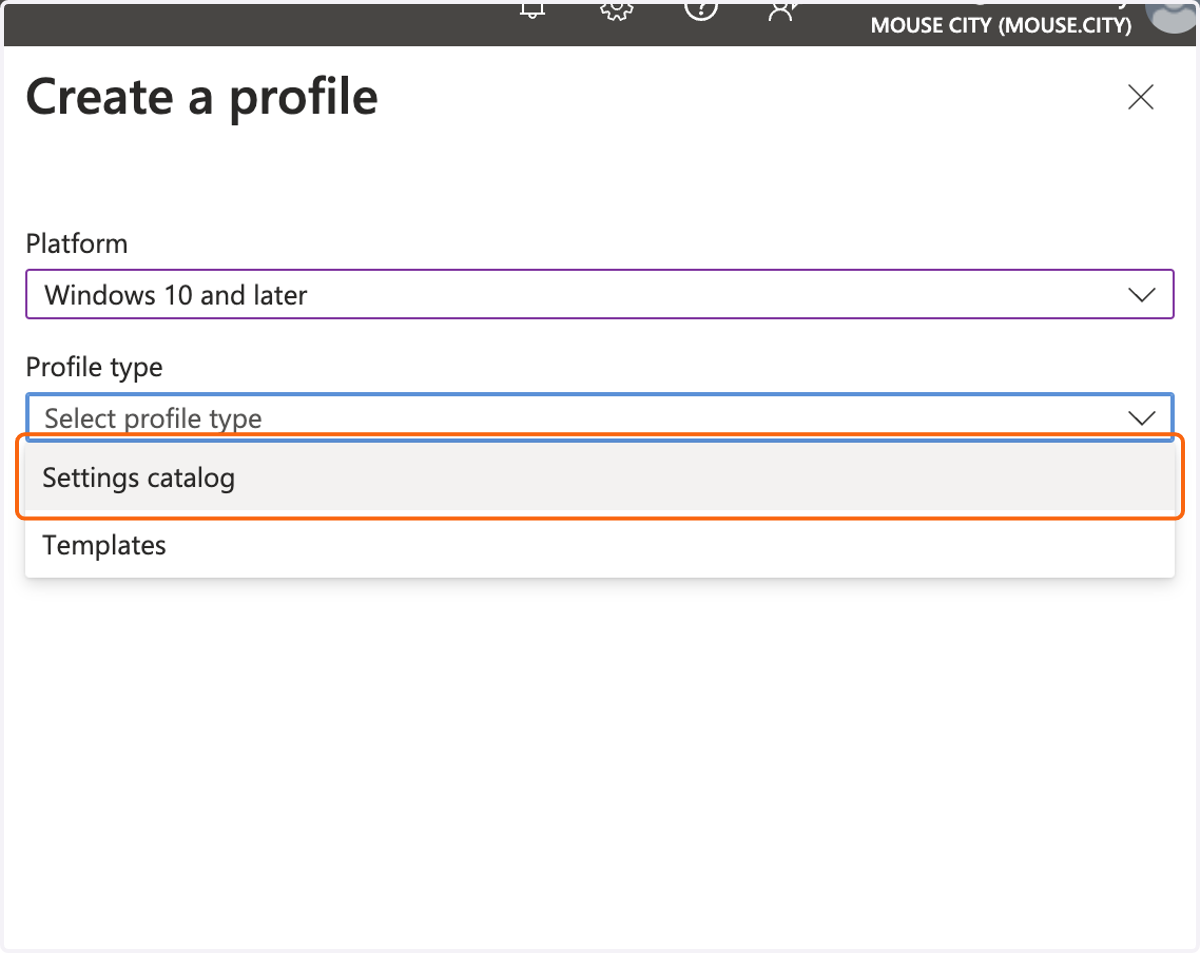
6. Click on Create
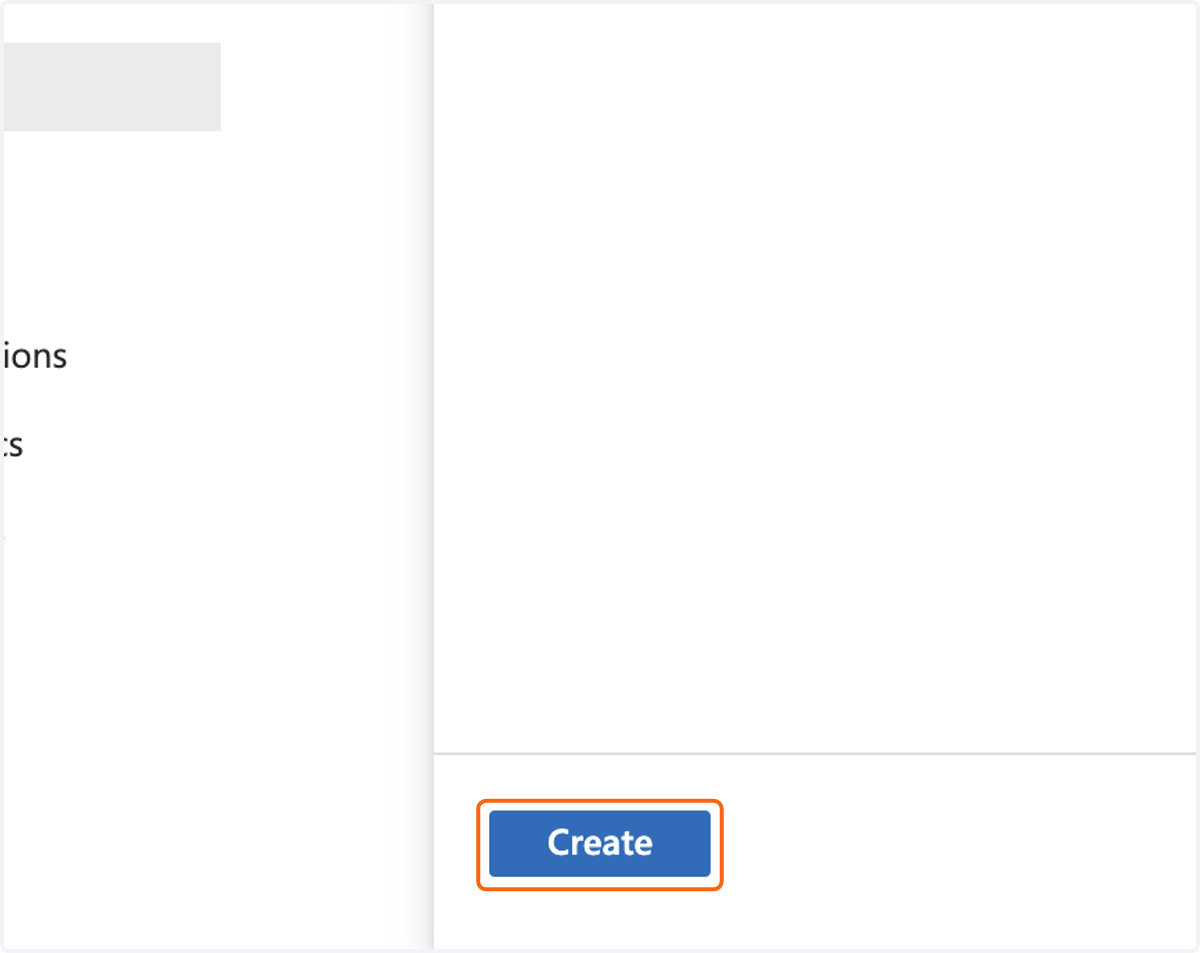
7. Type the name you want for the configuration.
We suggest something similar to "Tango Force Install - Edge"
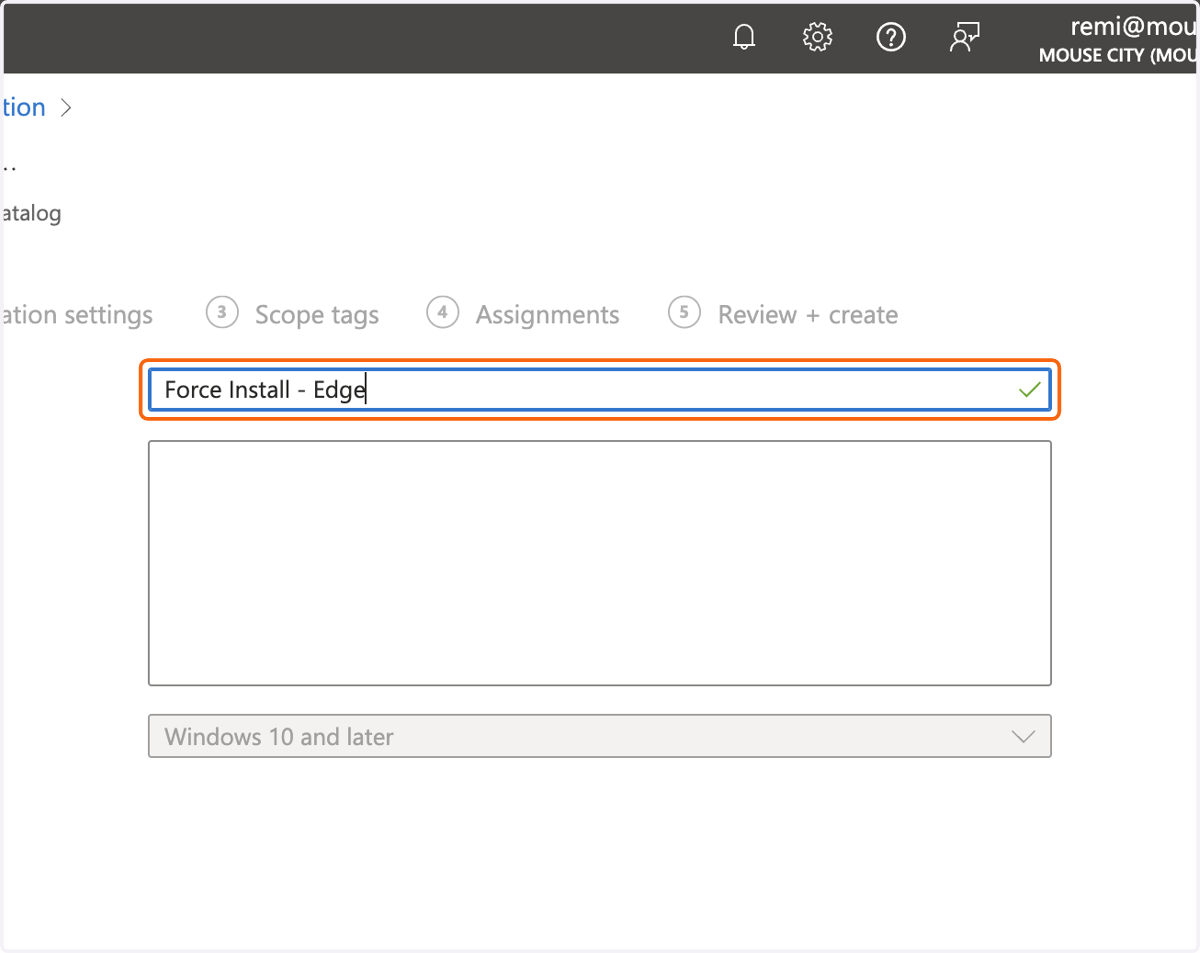
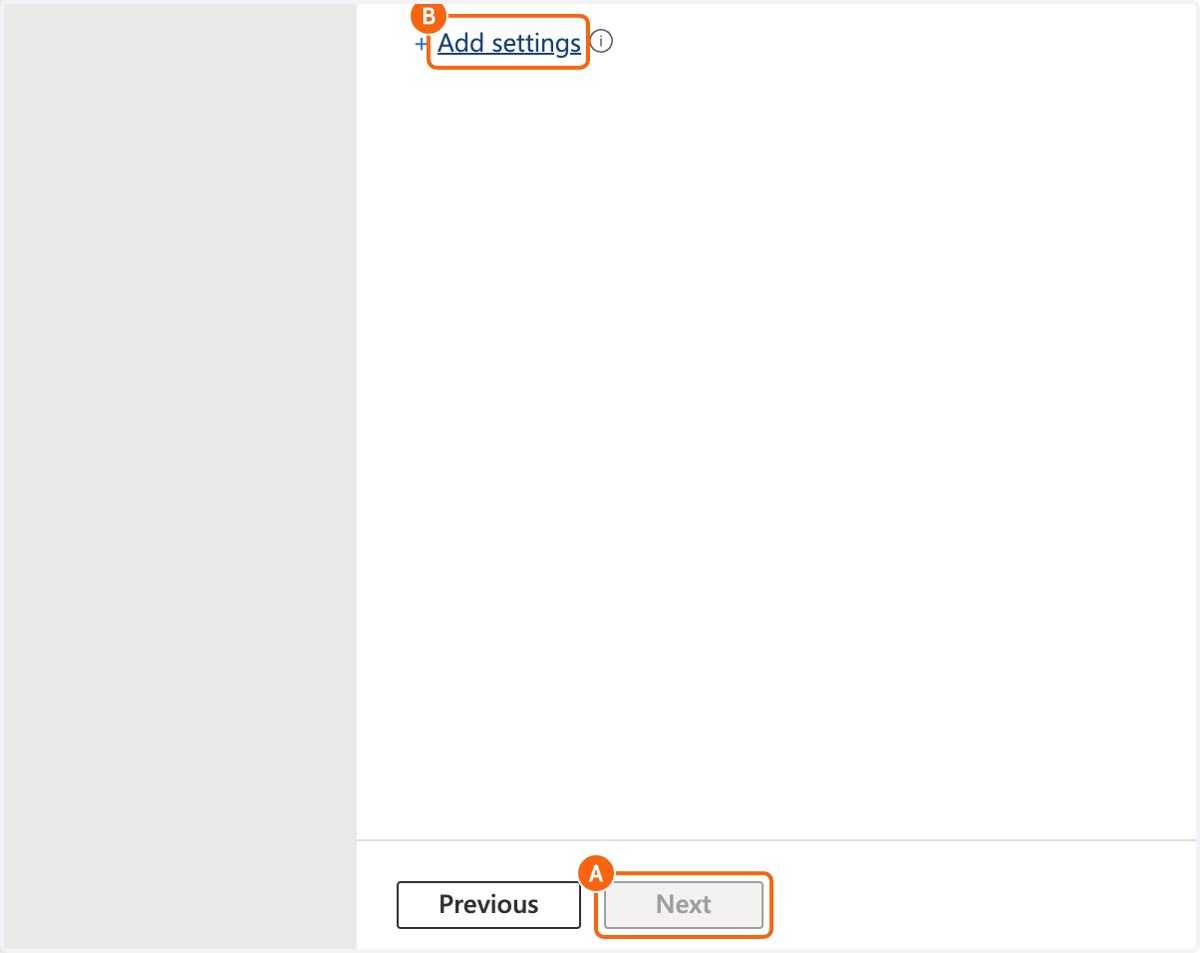
8. A. Click on Next
8. B. Click on Add settings
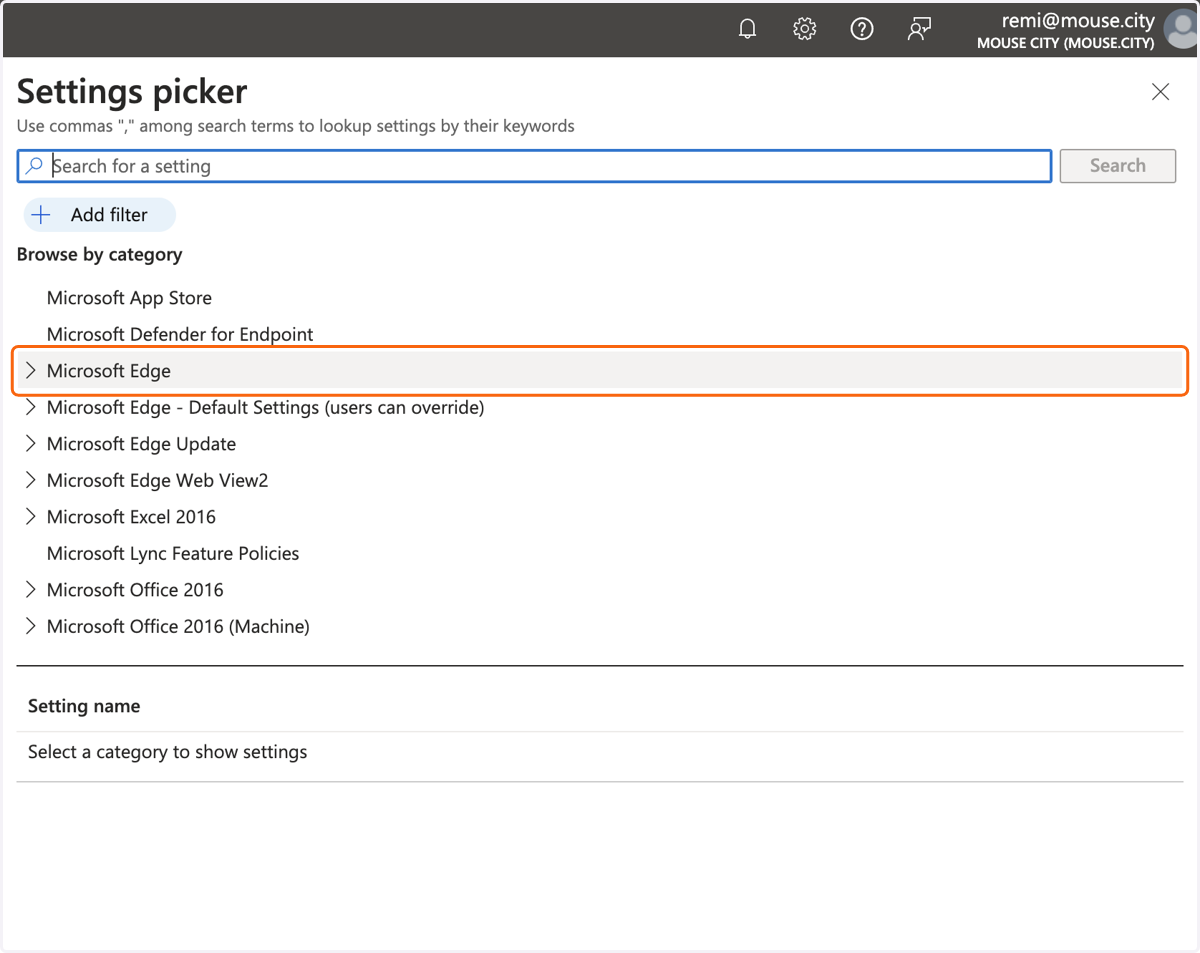
9. Click on Microsoft Edge
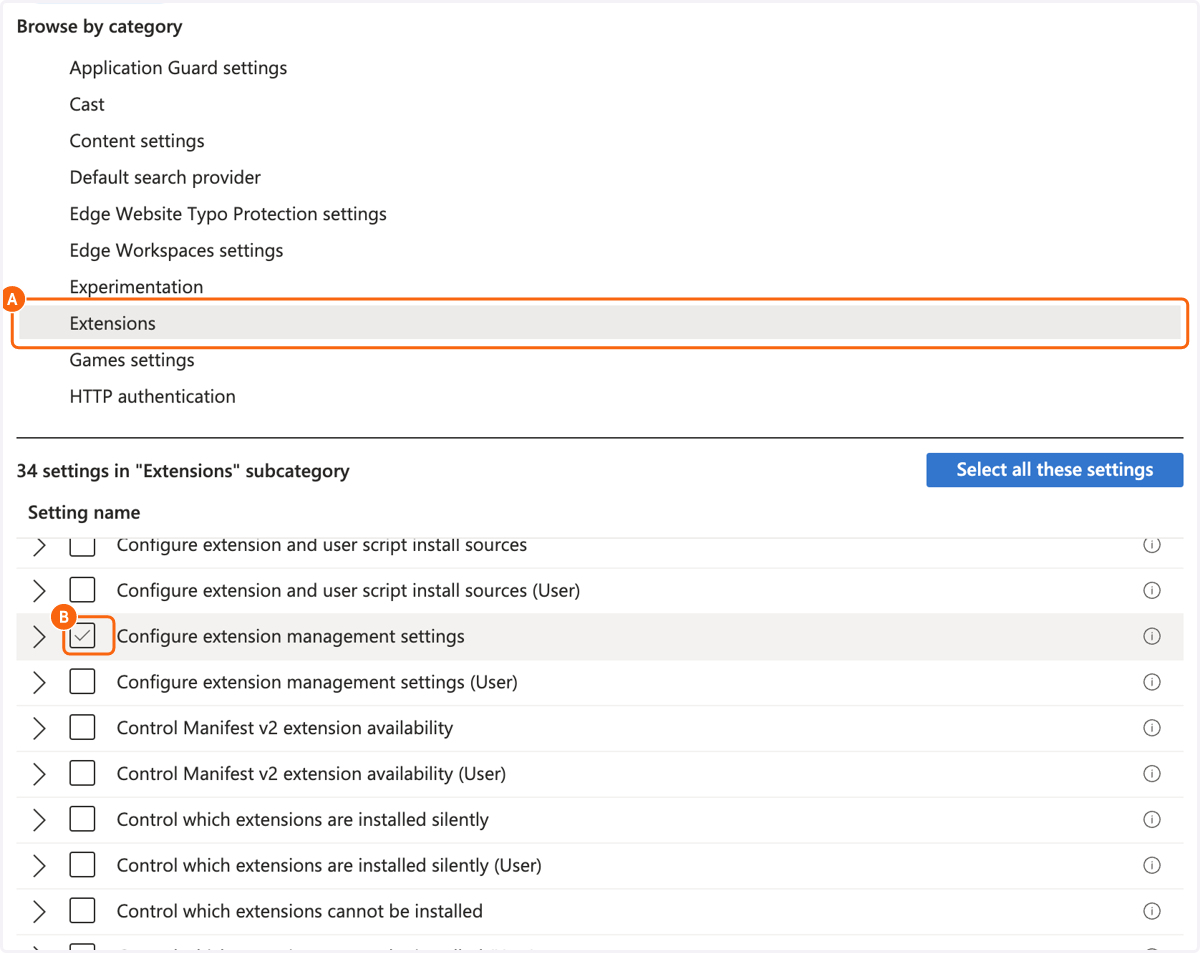
10. A. Click on Extensions
10. B. Click on Configure extension management settings
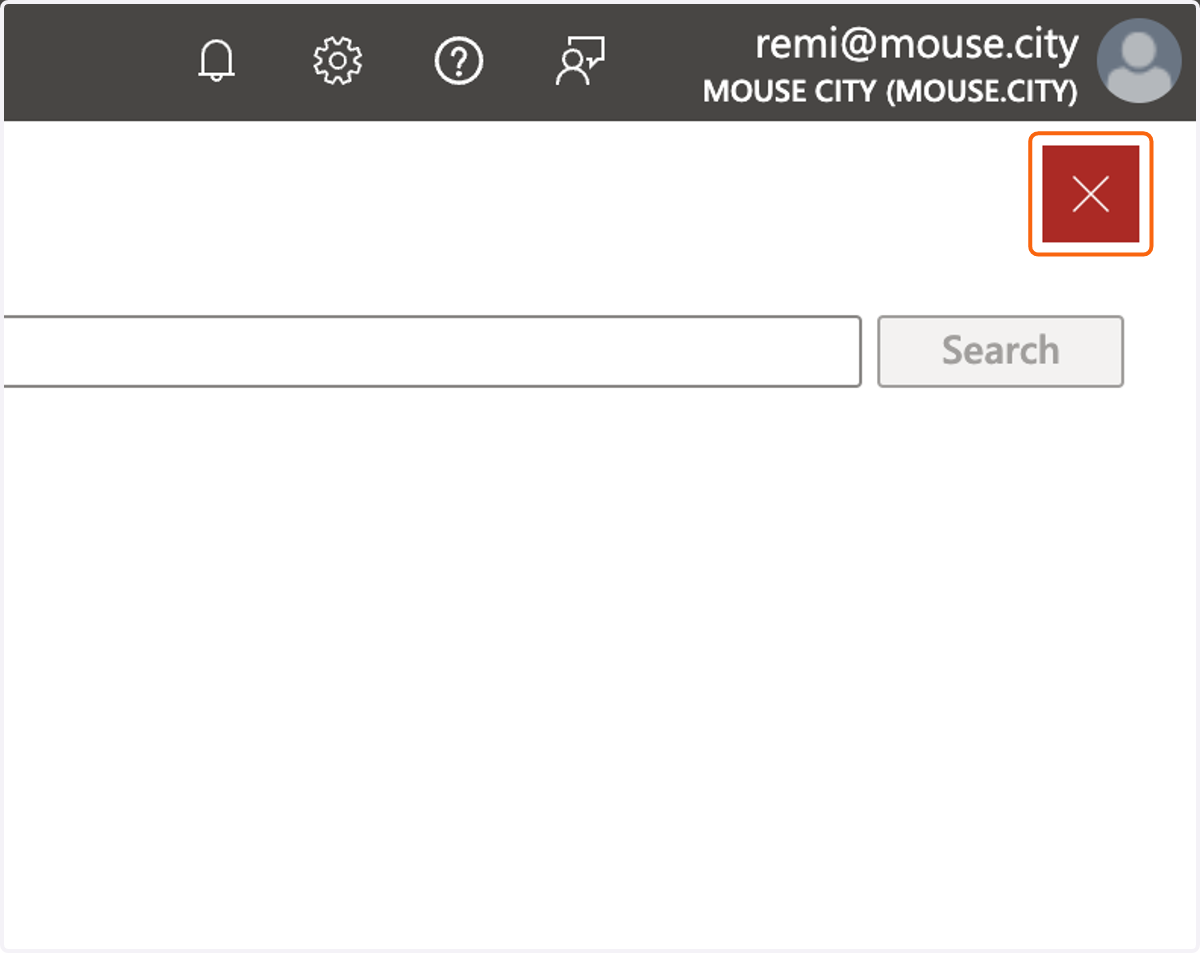
11. Click on Close
12. Click on Configure extension management settings
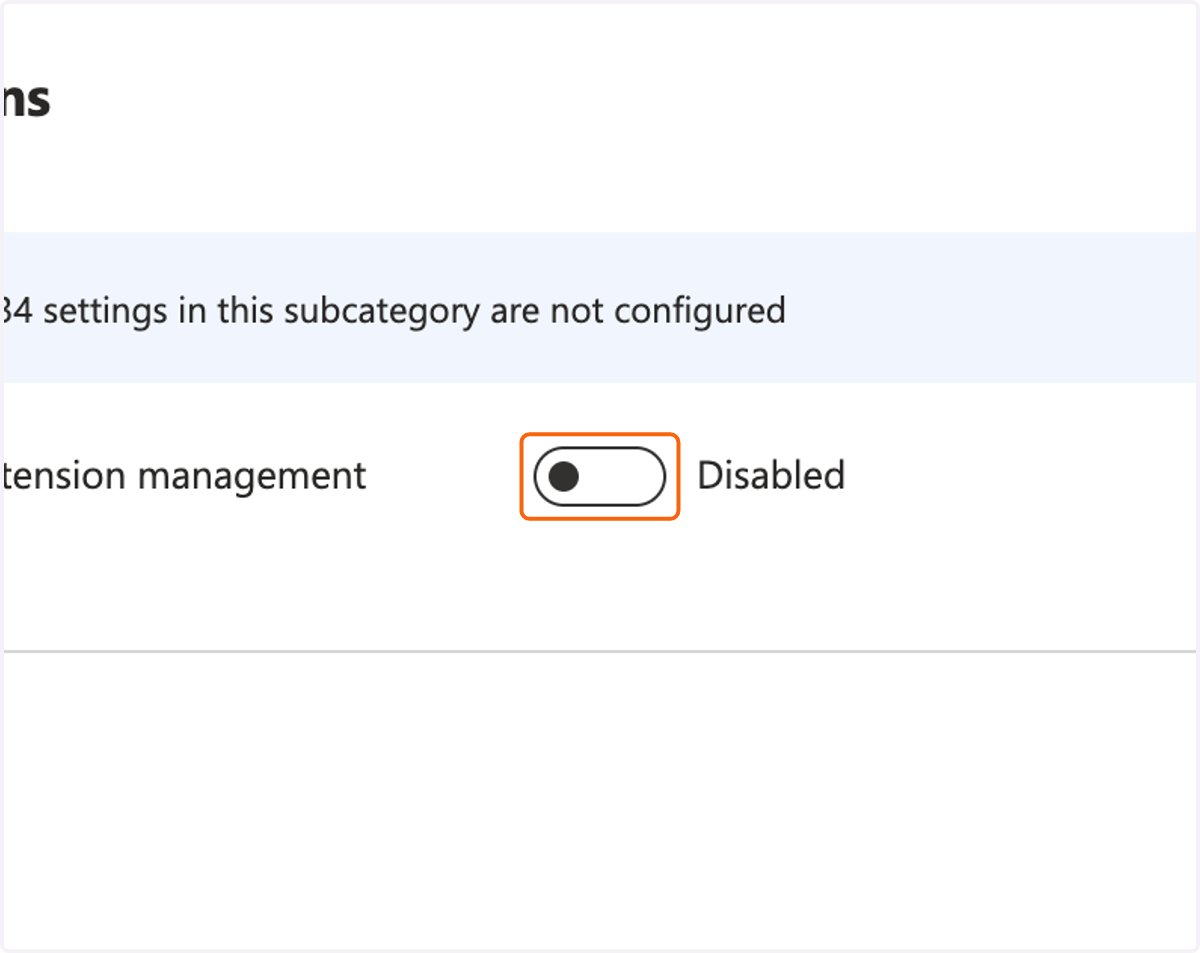
13. Paste "{ "lggdbpblkekjjbobadliahffoaobaknh": { "installation_mode": "force_installed", "toolbar_state": "force_shown", "update_url": "http://clients2.google.com/service/update2/crx" } }" into the text field.
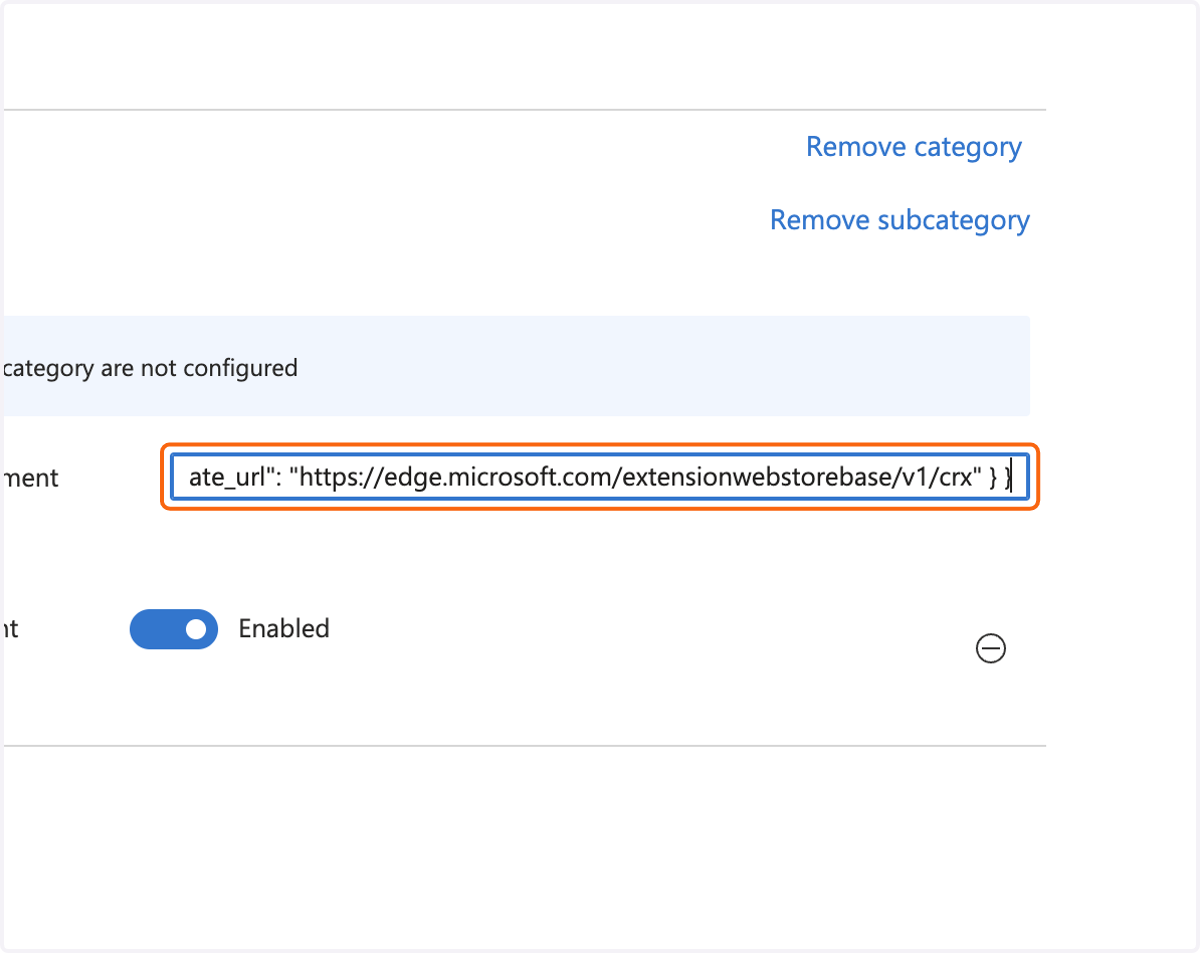
14. Click on to continue through the setup and set the proper Scope + device assignment for the configuration.