Session Request
Tutorial on how to add sessions and submit session request. You do not need to select your techincal sessions we do that for you.
American Society for Engineering Education
1. Type in https://nemo.asee.org/
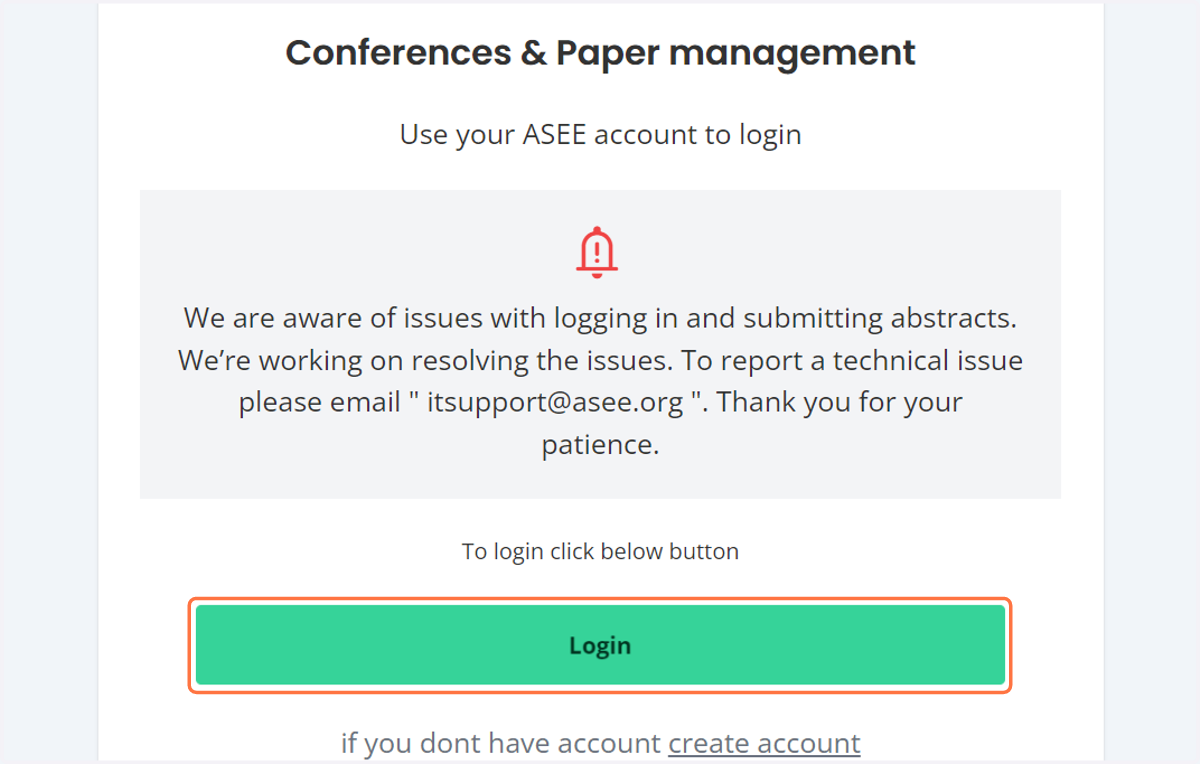
Login to your account
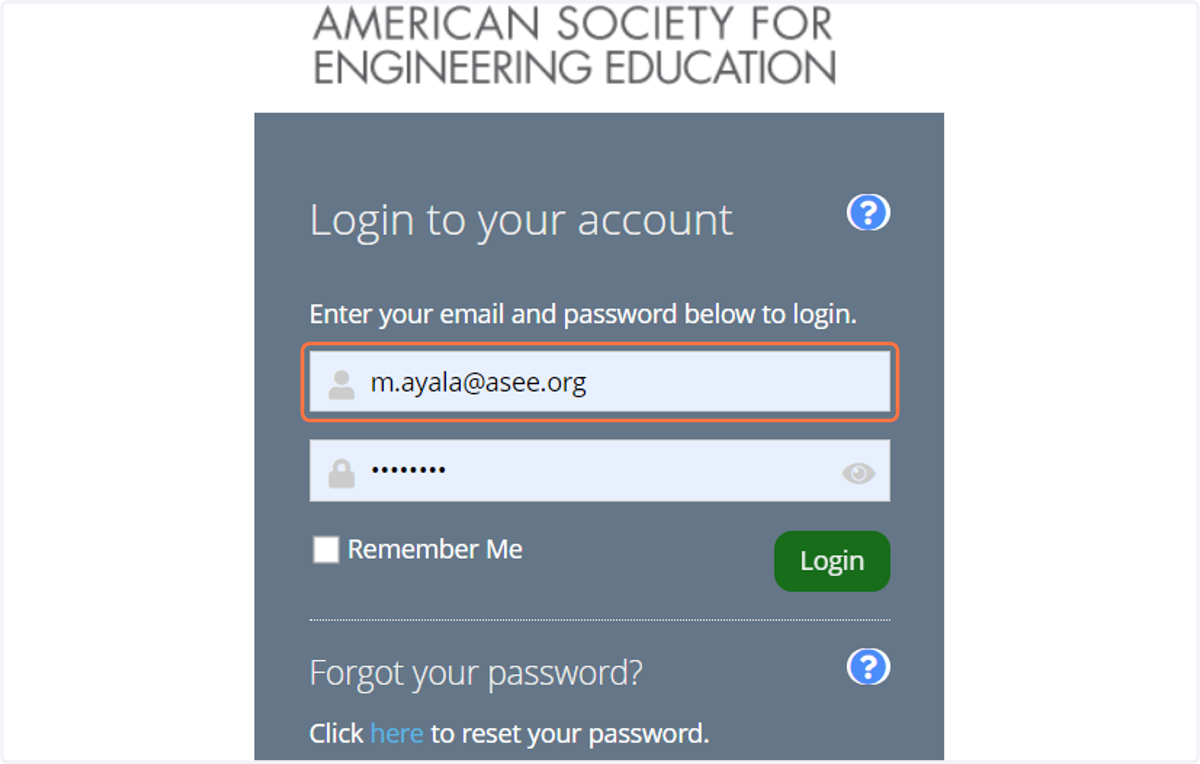
2. Enter your username and password
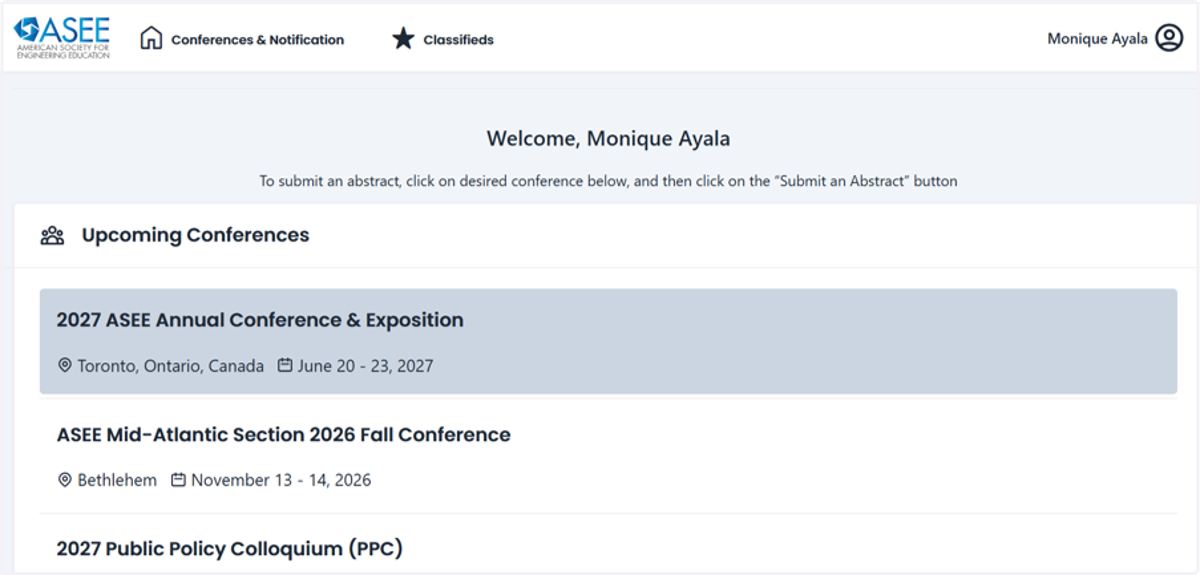
3. Select 2027 ASEE Annual Conference
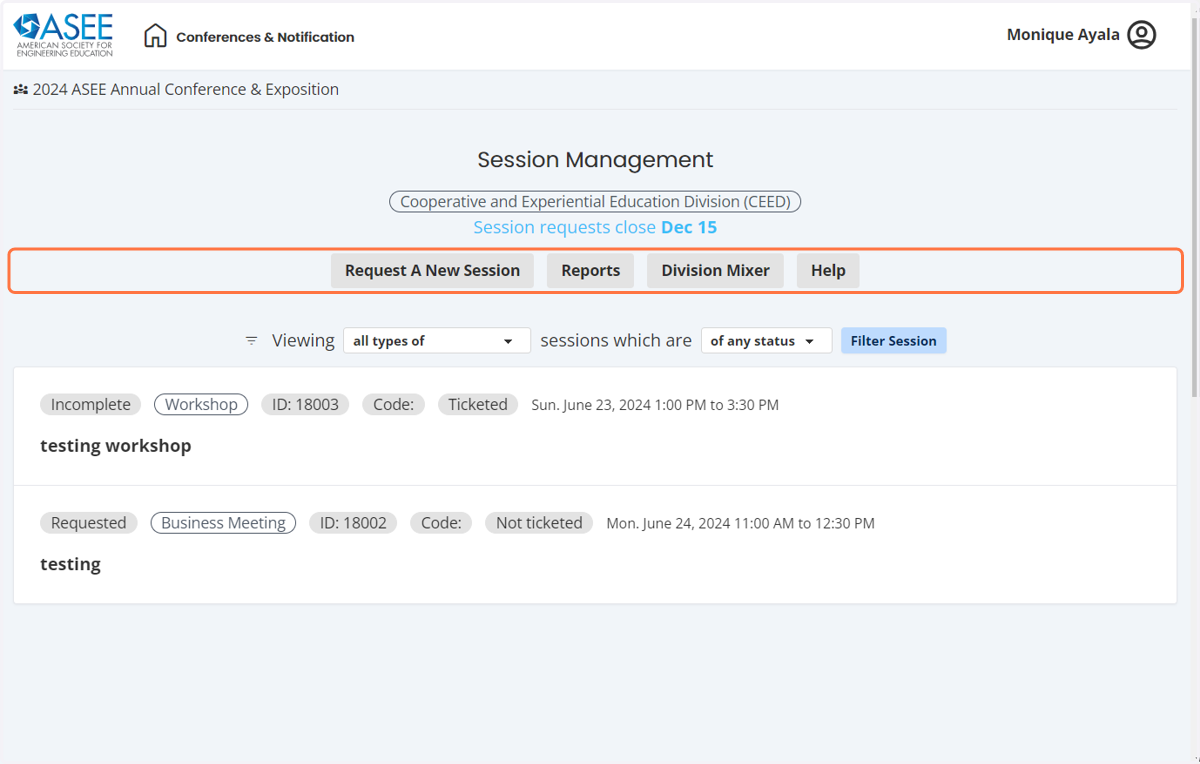
4. Under Division Management click on manage sessions/review session requests
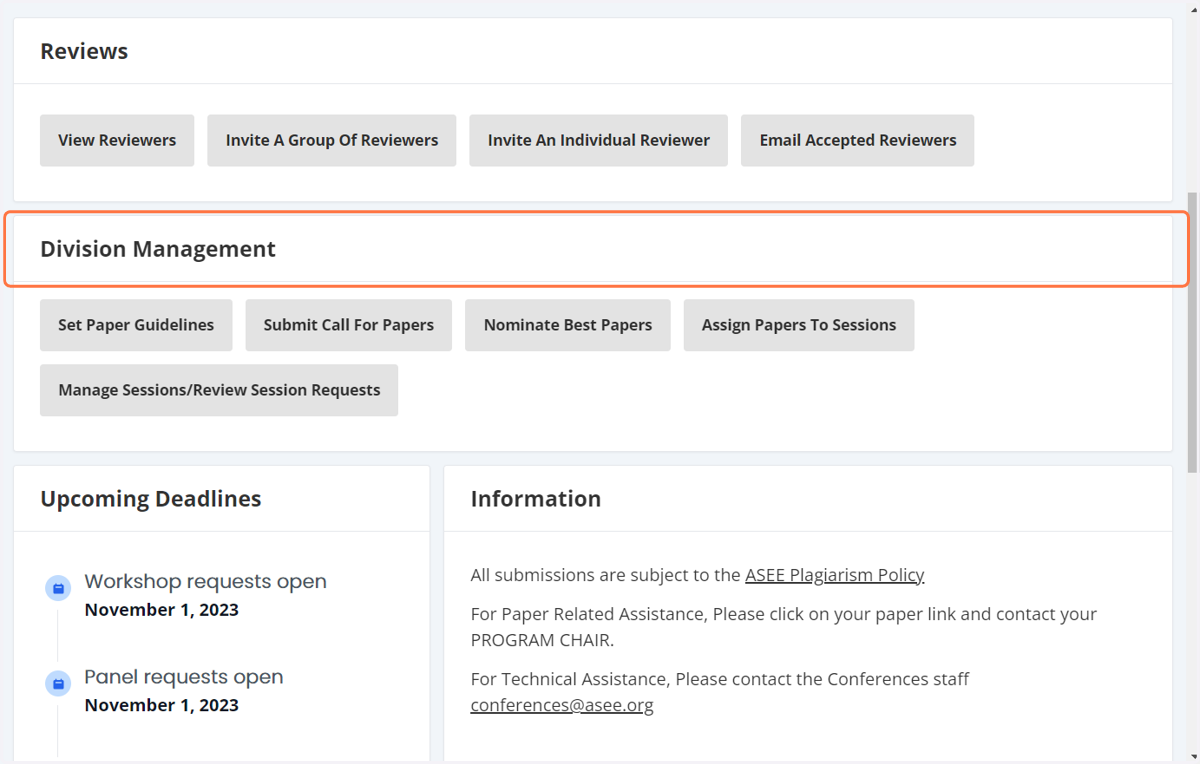
5. Click on Manage Sessions/Review Session Requests
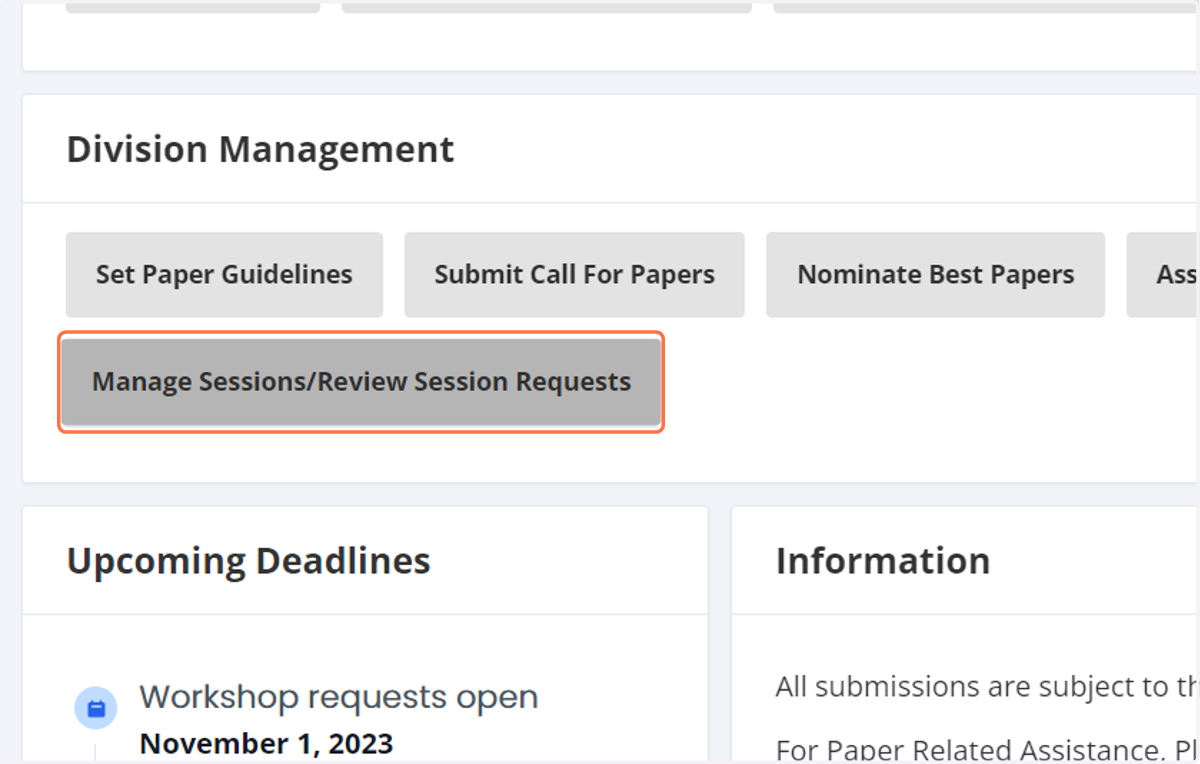
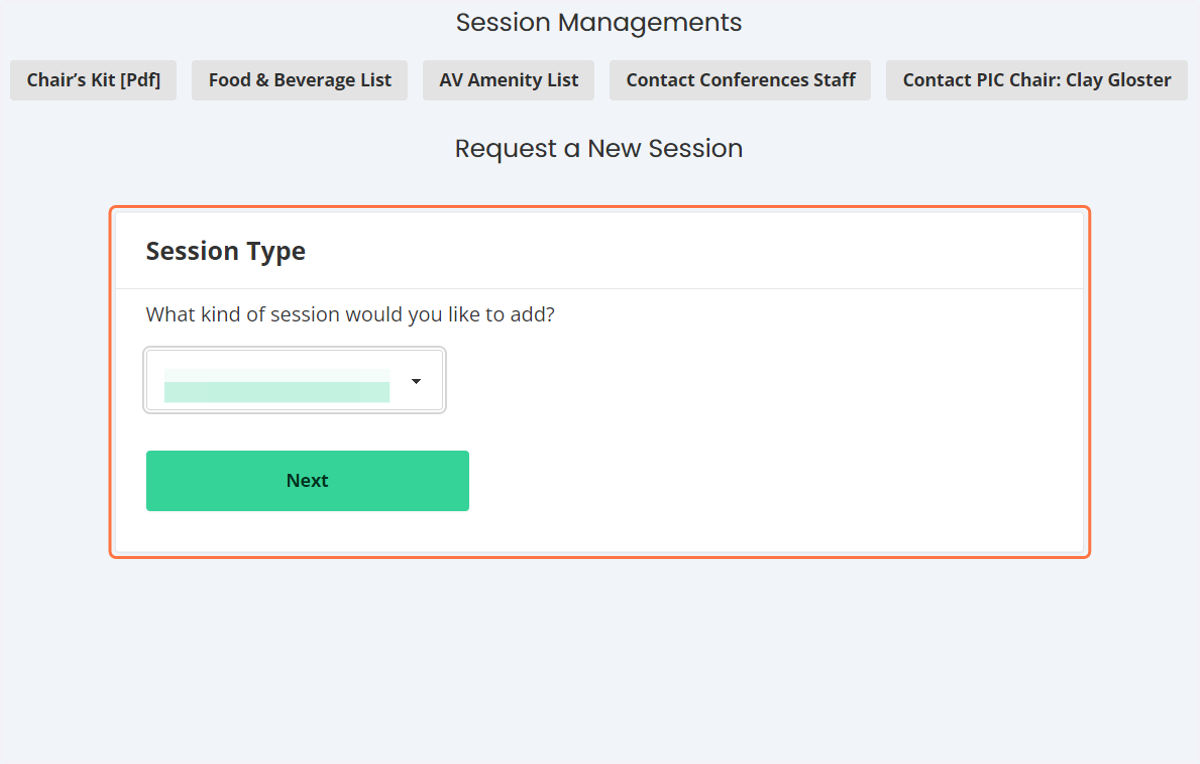
6. Click on Request A New Session
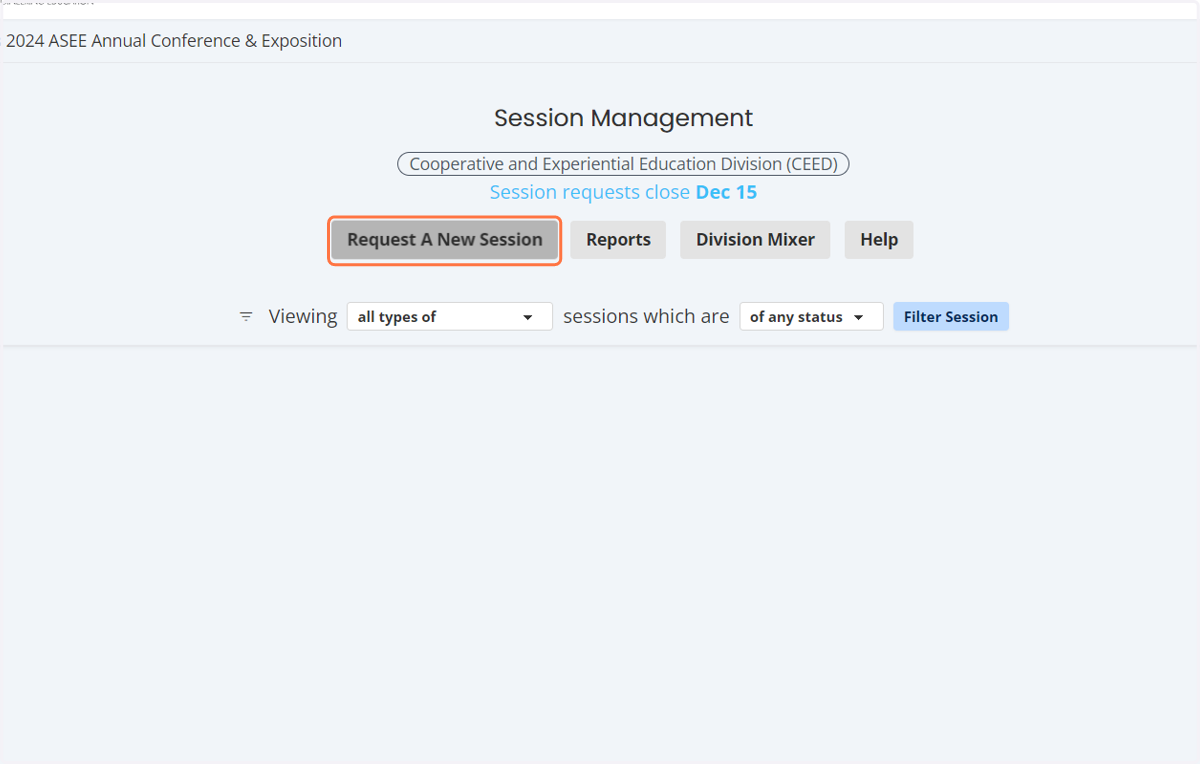
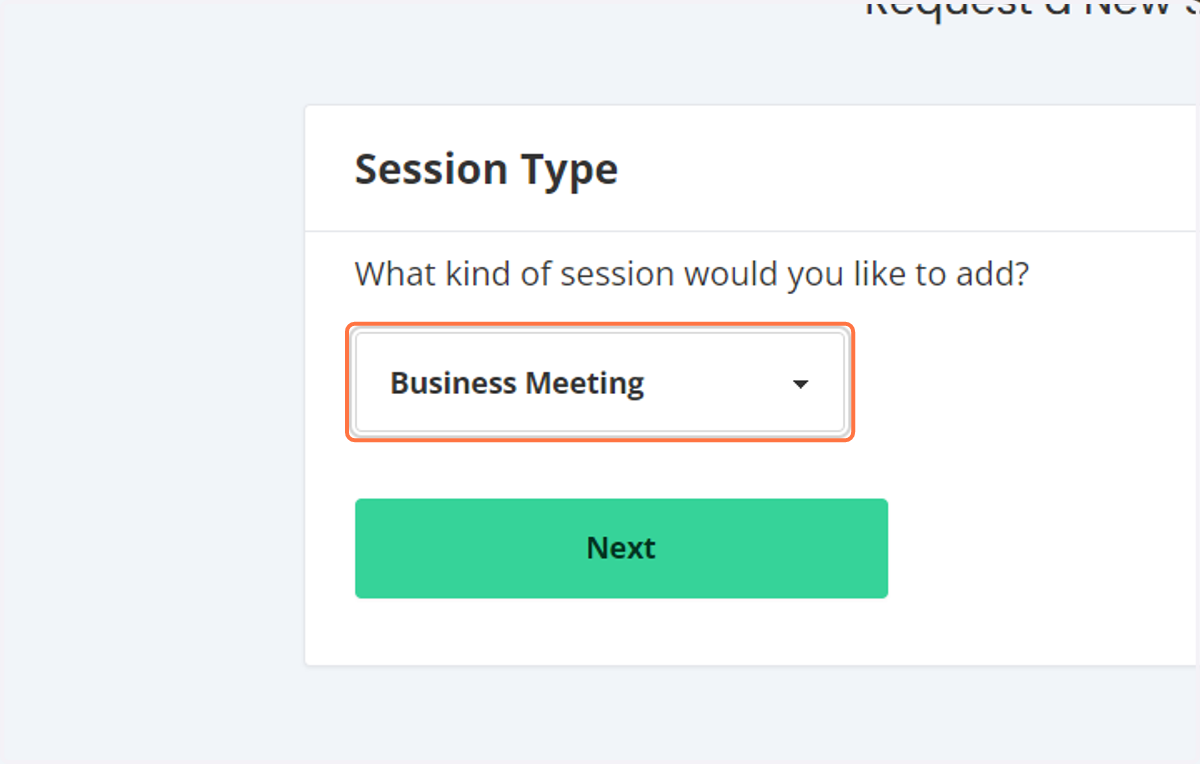
7. Click on the drop down menu and select the type of session you would like.
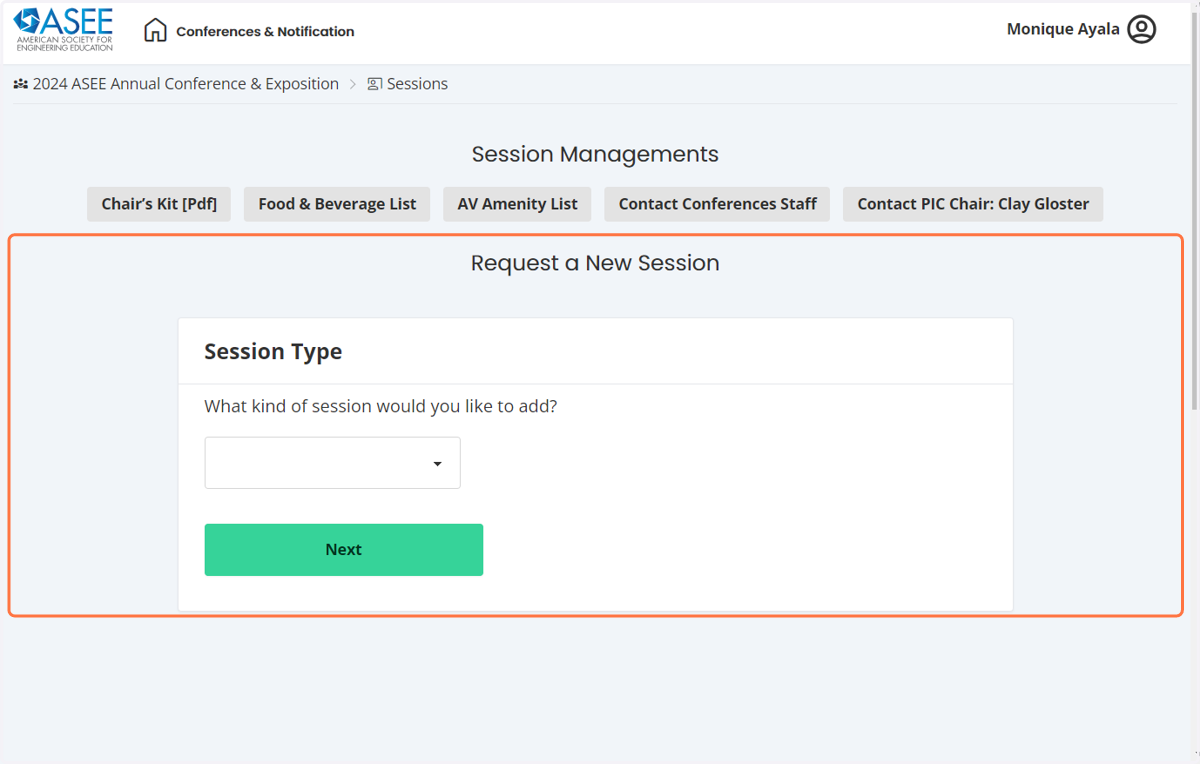
8. You can select
Business meeting, Panel of invited speakers, Special Session, Social Function, and Workshops here.
9. Please enter all of the basic information
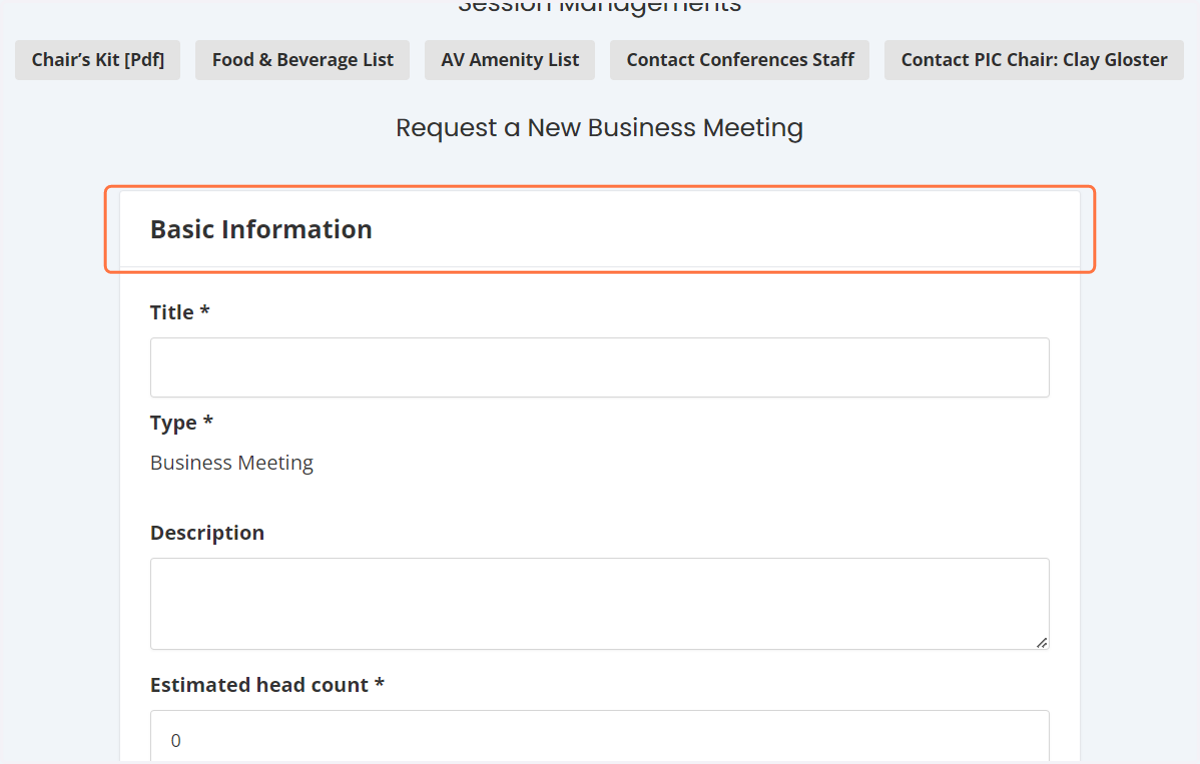
10. Basic information continued...
Which will include the title of the session, a description, an estimated head count, the location and time slot. Please note depending on the type of session will determine the time slot available. You can view the schedule at a glance to help you with scheduling. Which can be found here: https://aseecmsprod.azureedge.net/aseecmsprod/asee/media/content/annual%20conference/2027/2027-ac-schedule-at-a-glance.pdf
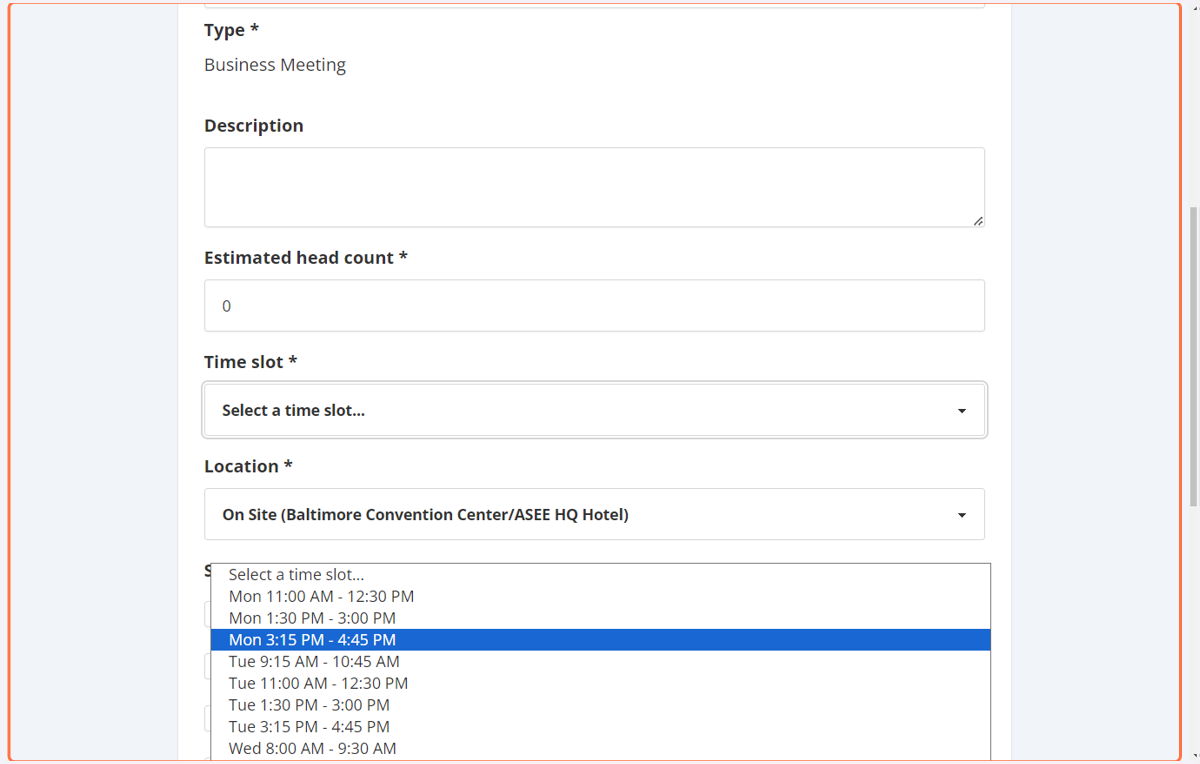
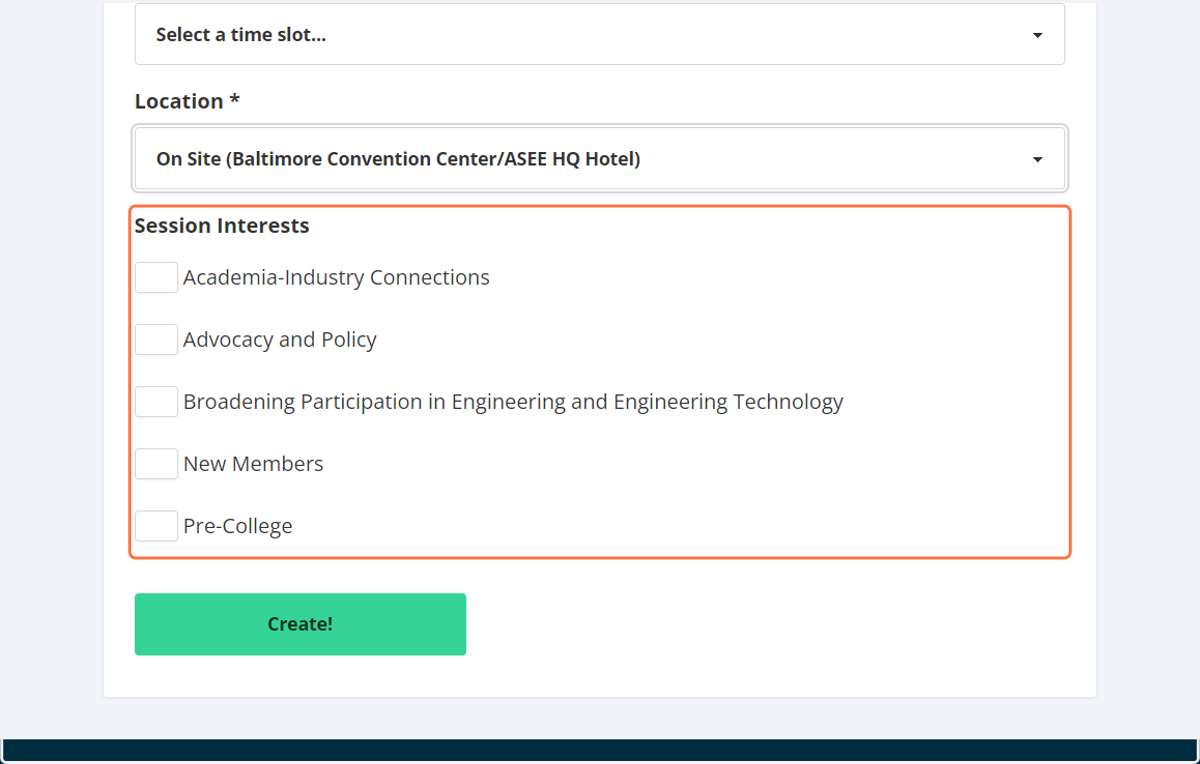
11. Please add a location complete with address for any offsite events
You can also include any session interests. Once completed click on create!
12. Review your basic information
You can click on edit to make an changes.
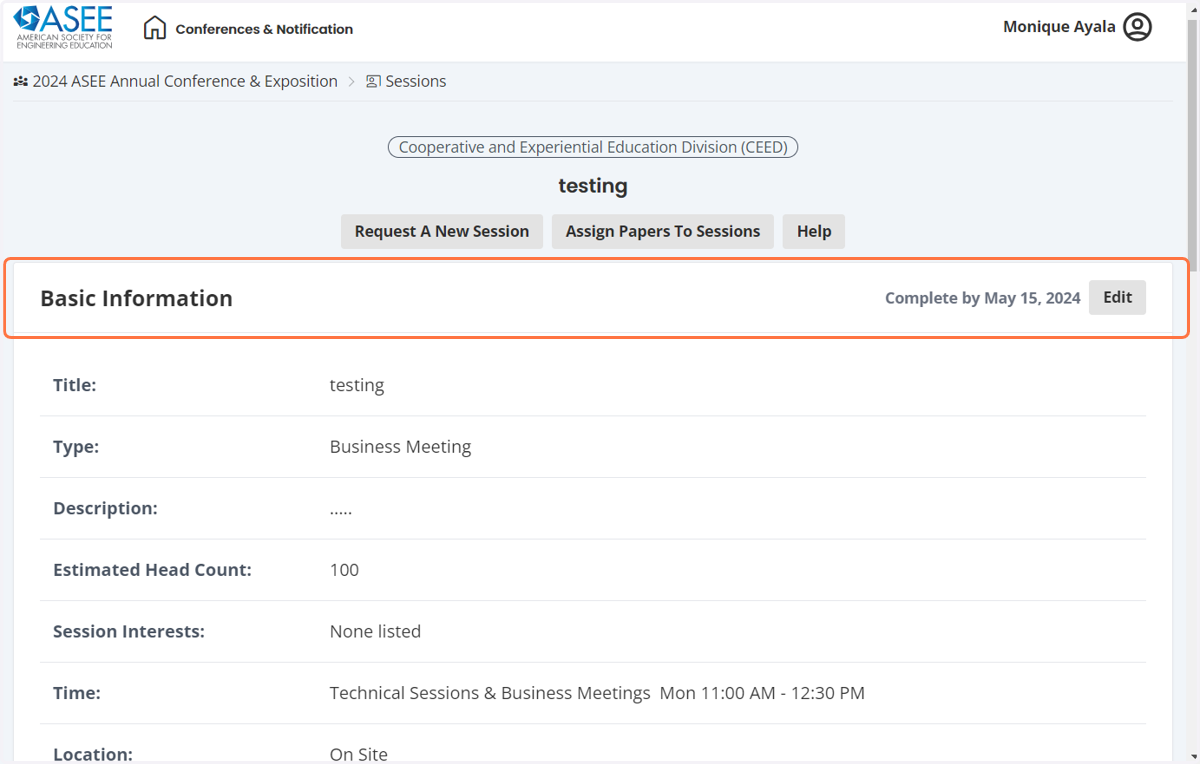
13. If more than one division is sponsoring the session please enter that information here.
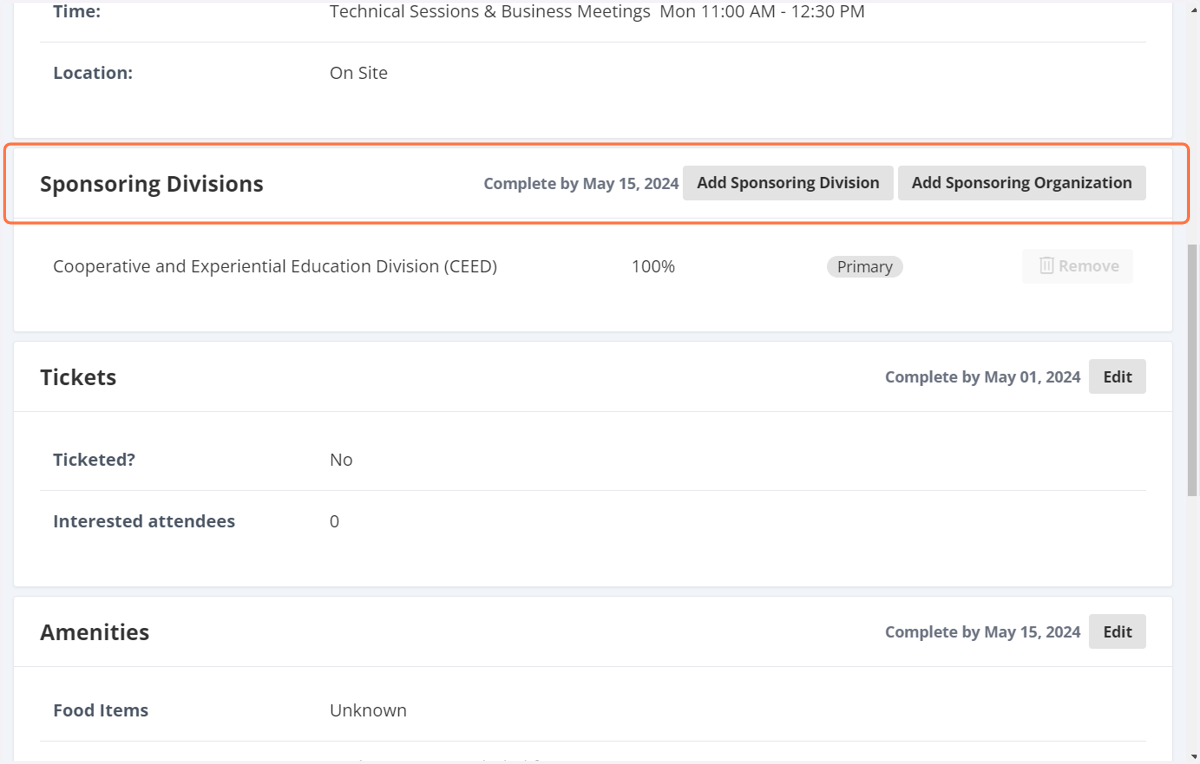
14. Click on edit if your session is ticketed.
The ticket can be zero.
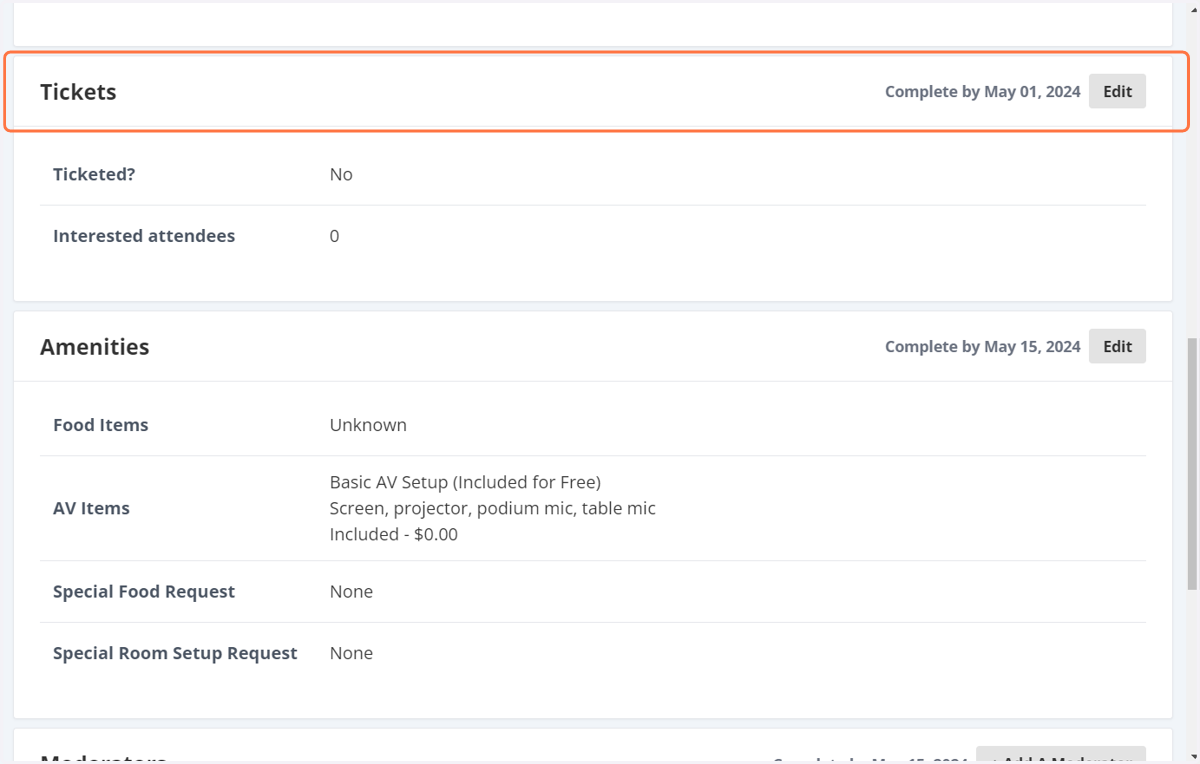
15. Select any amenities you may want or need for your session
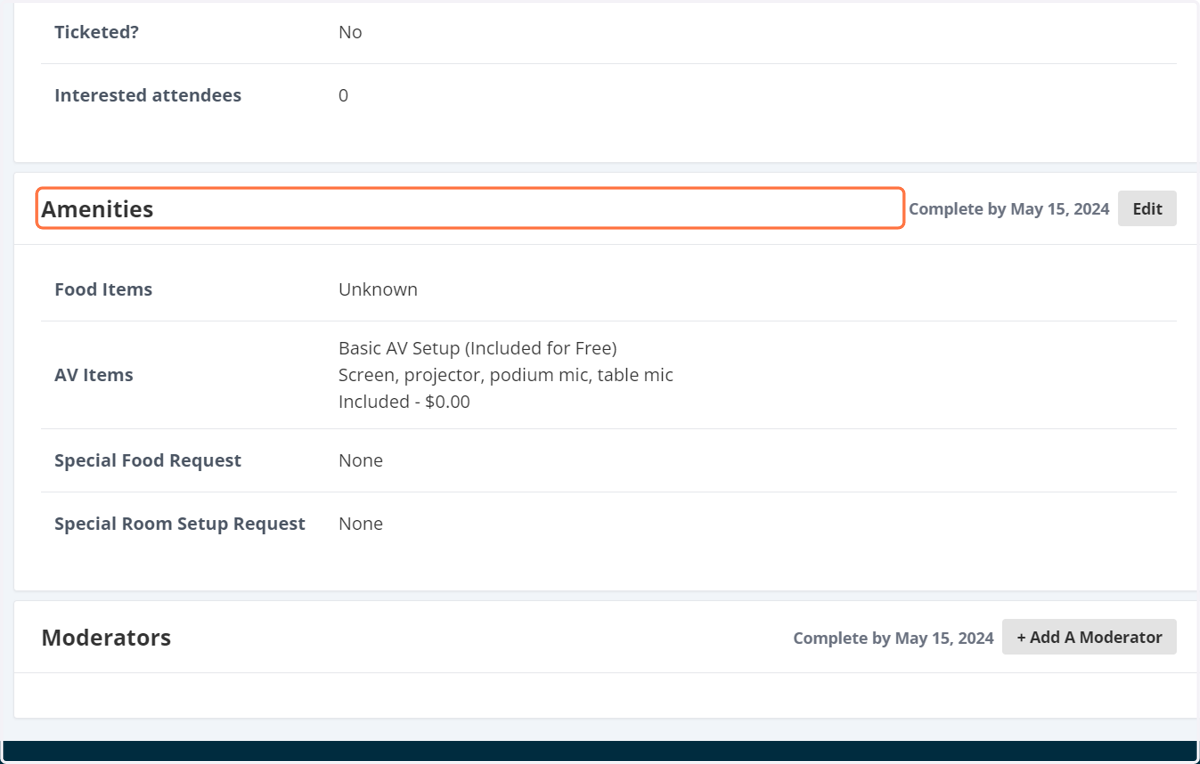
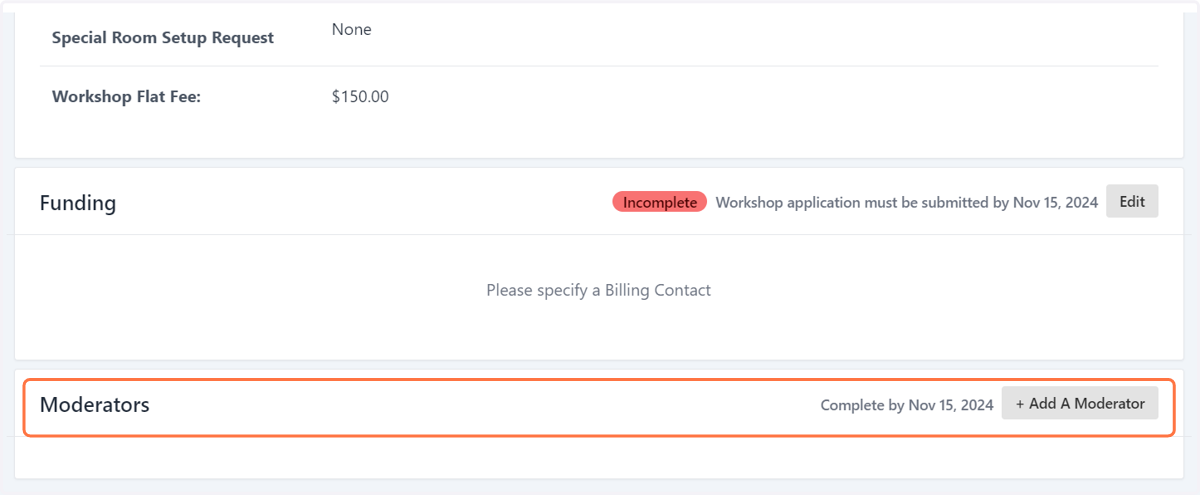
16. You can add moderators now or come back and add them
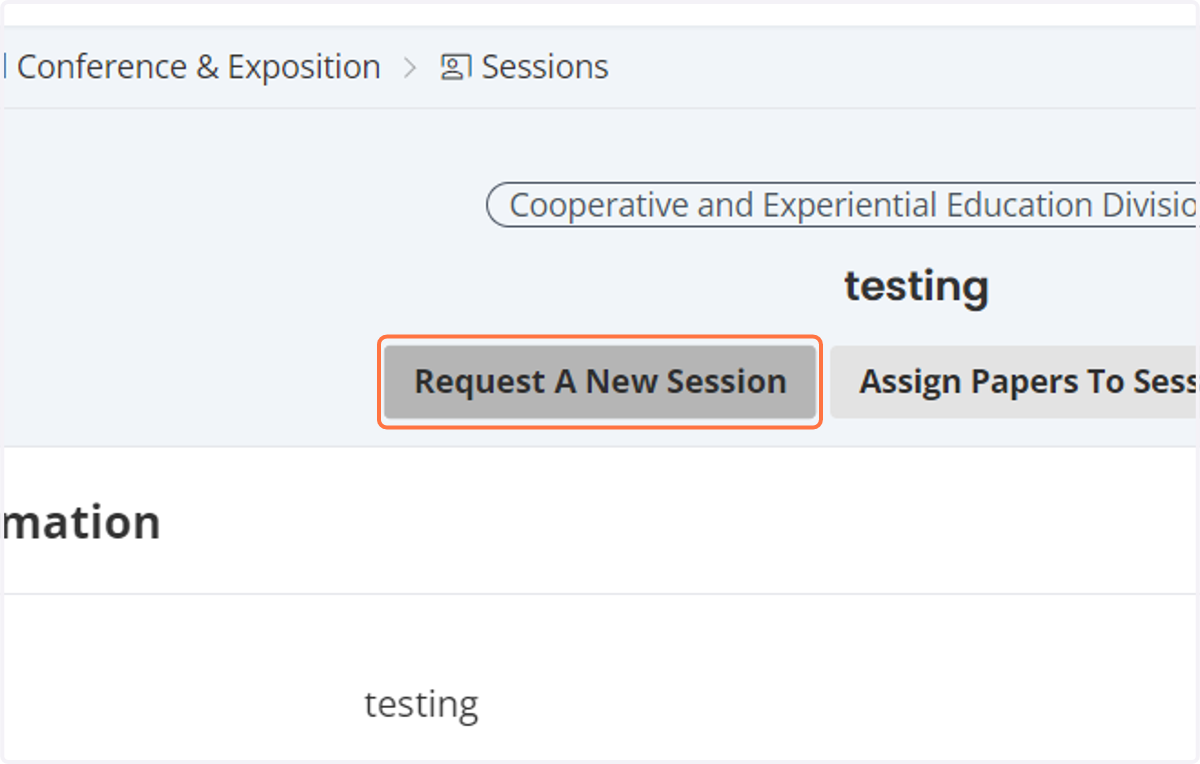
17. Click on Request A New Session to start the process again
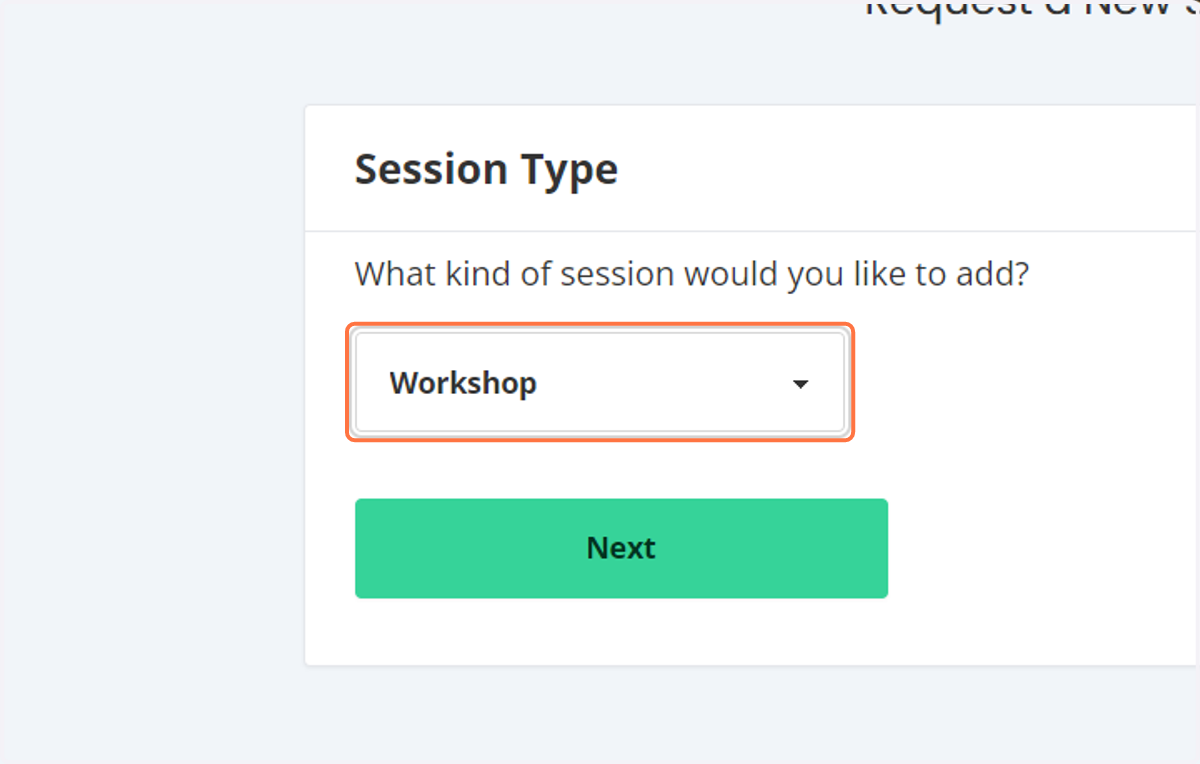
18. Select Workshop
19. Enter basic information needed for workshop
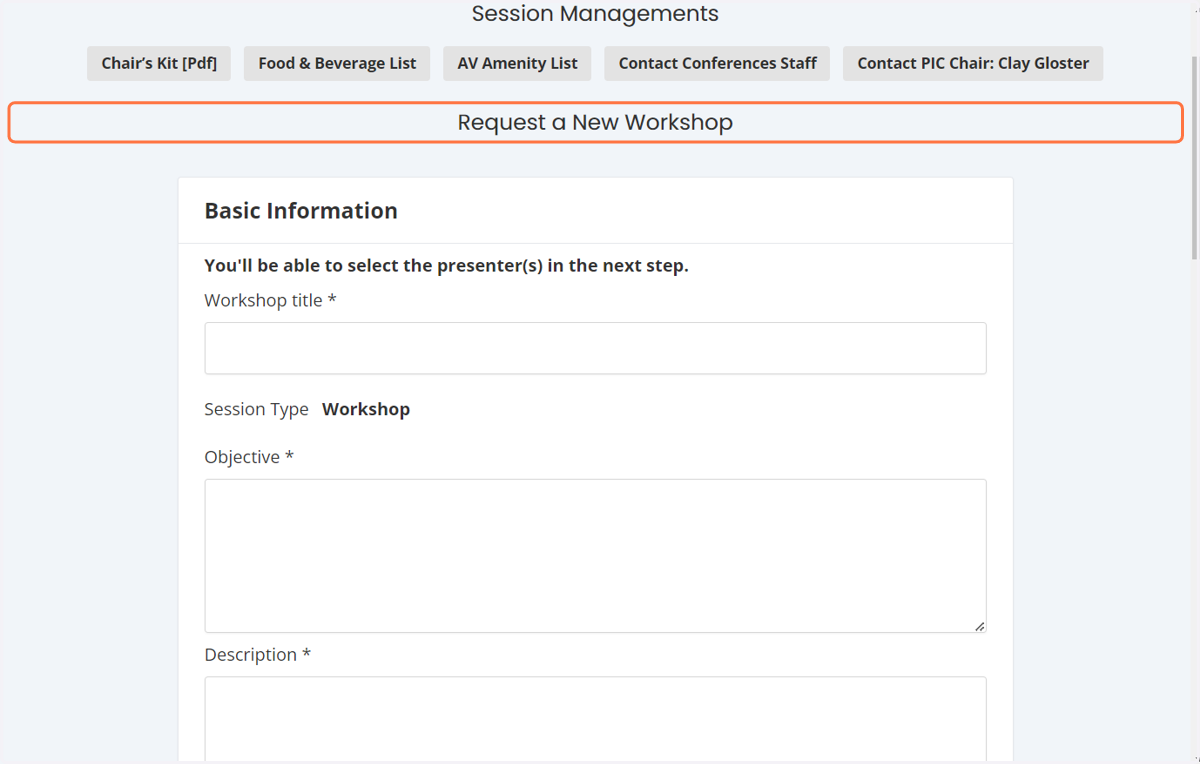
20. You will want to include as much information as possible
which includes an objective and description.
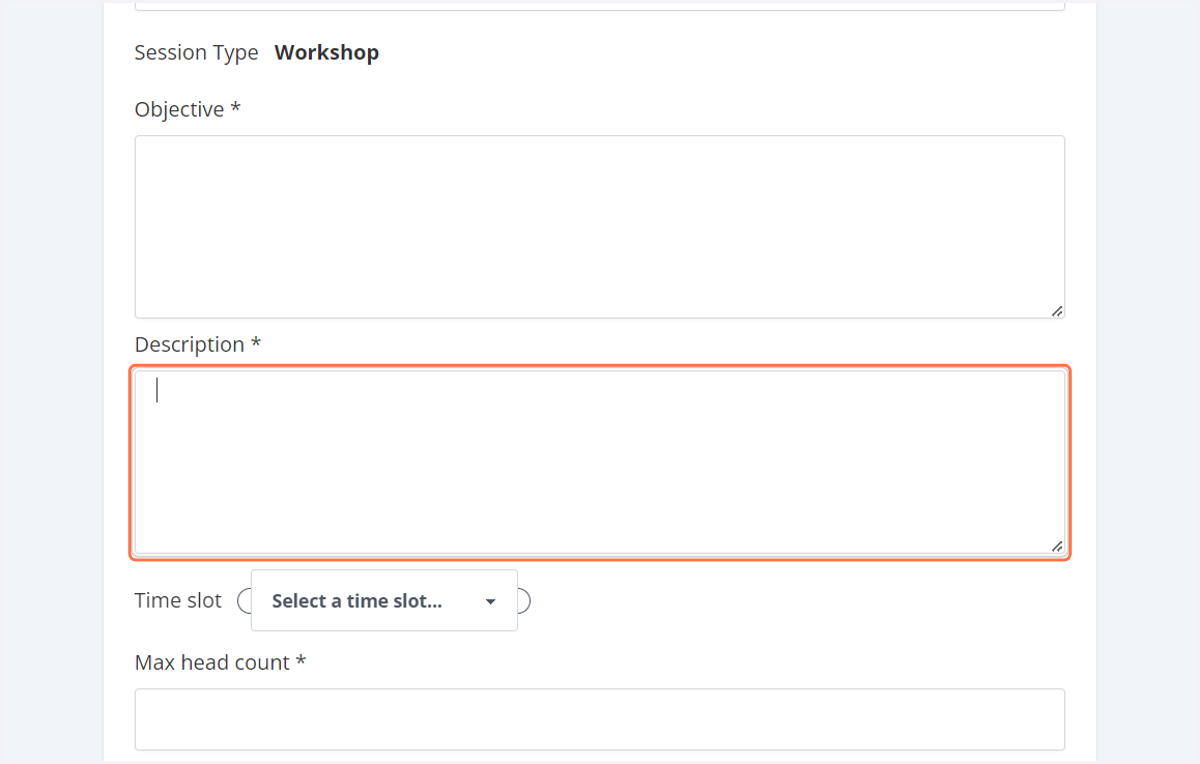
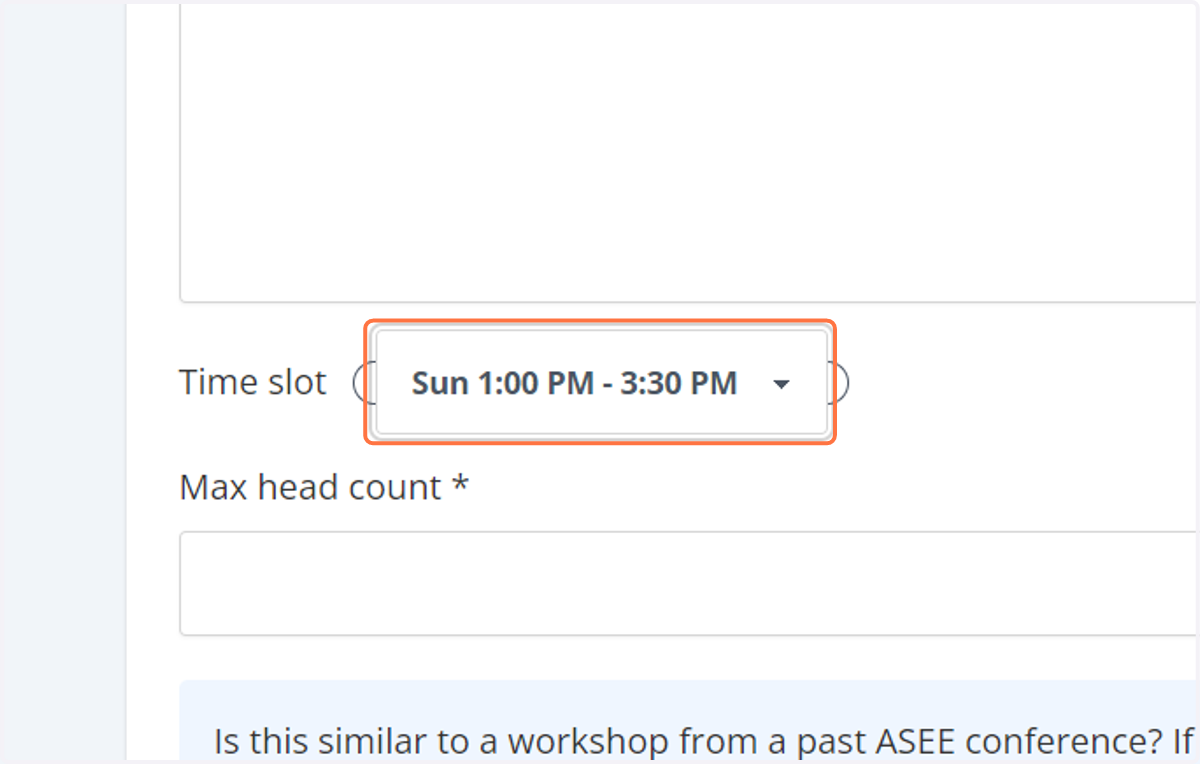
21. All Sunday workshops are held between 1PM - 3:30PM
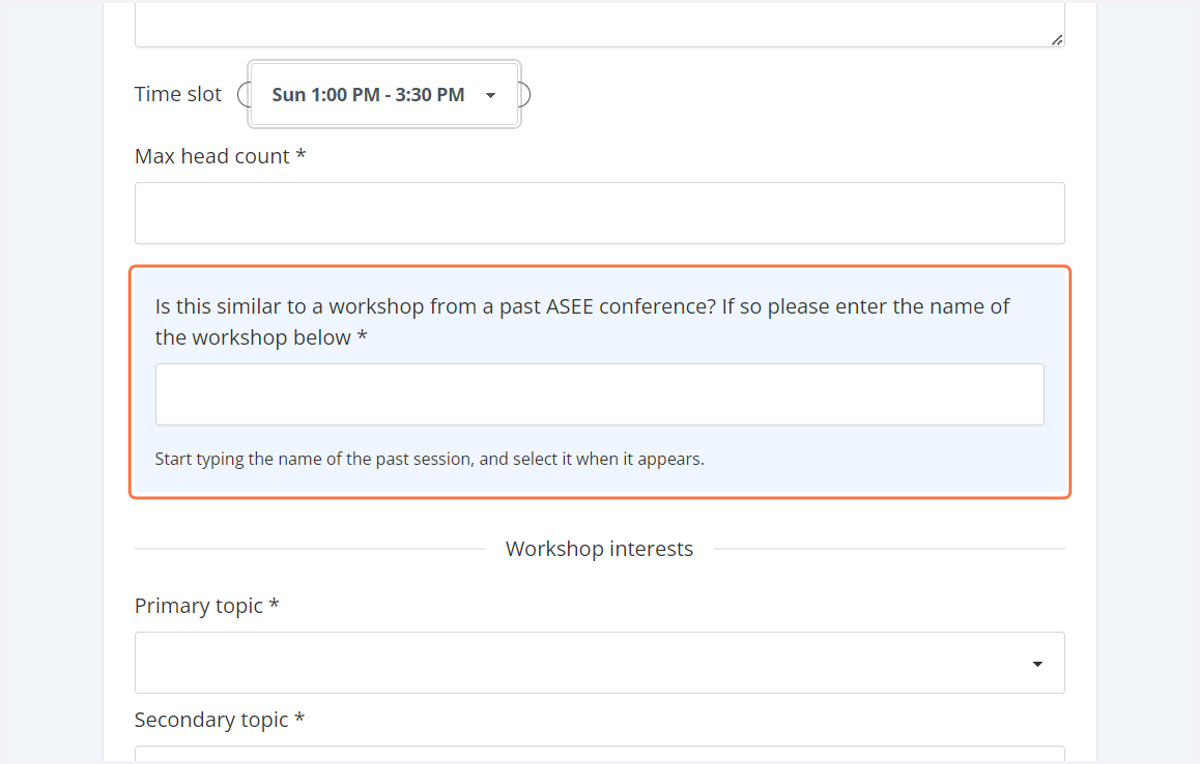
22. If you know of a similar to a workshop from a past ASEE conference please enter the name of the workshop here.
You can also select a primary and secondary topic
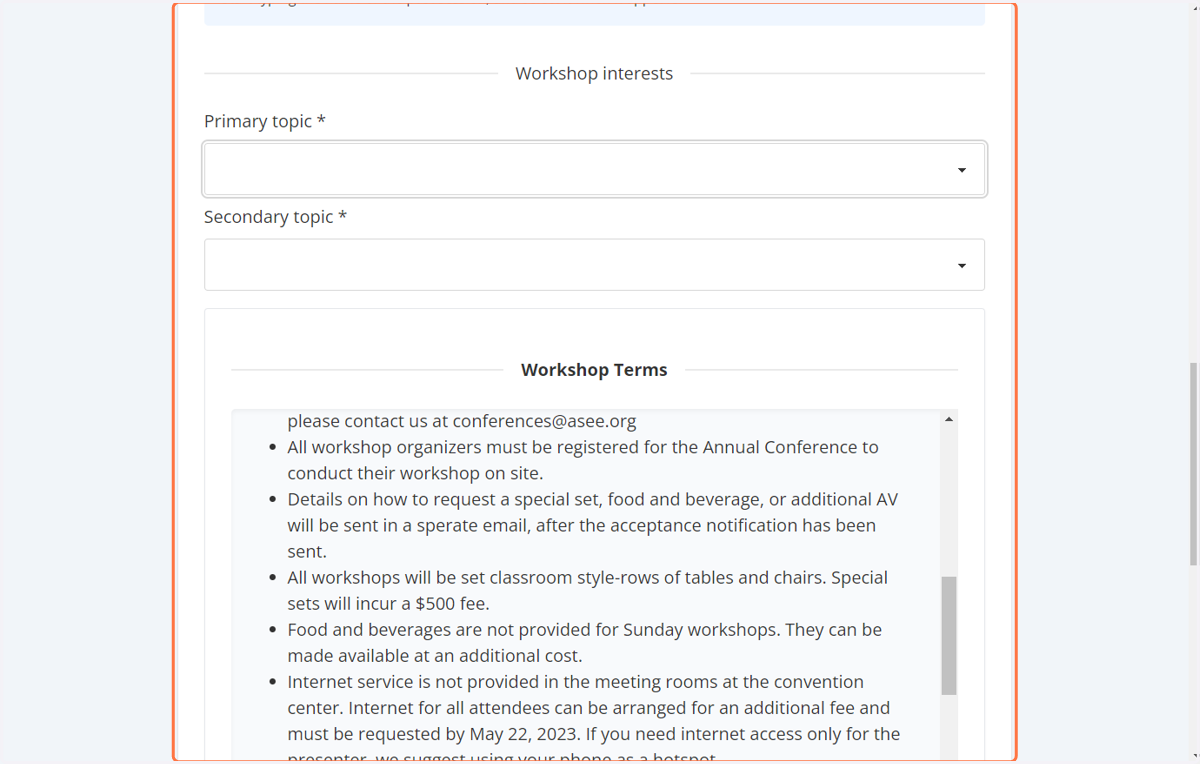
23. Please read over the workshop terms.
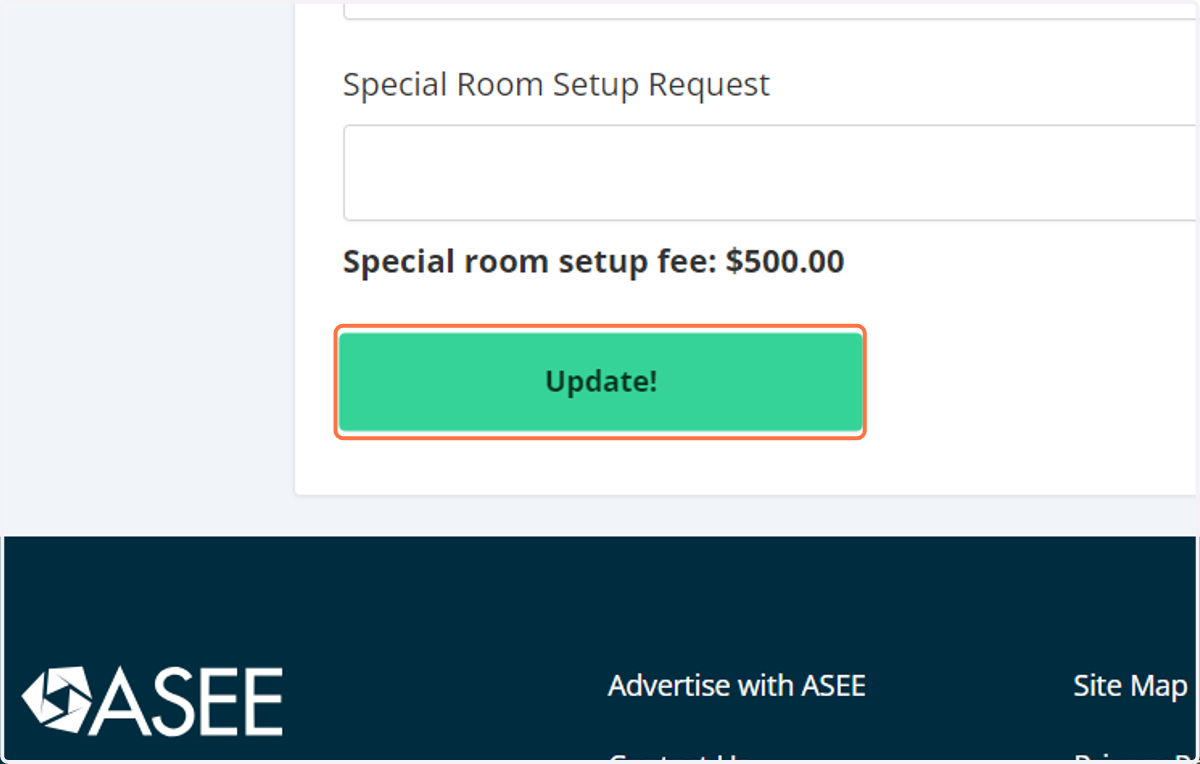
There is a non-refundable $150 workshop applications fee and a $500 fee for any special set ups requested. Once you have read through the terms please click on create.
24. Review your workshop information.
You can edit any of the sections by selecting edit.
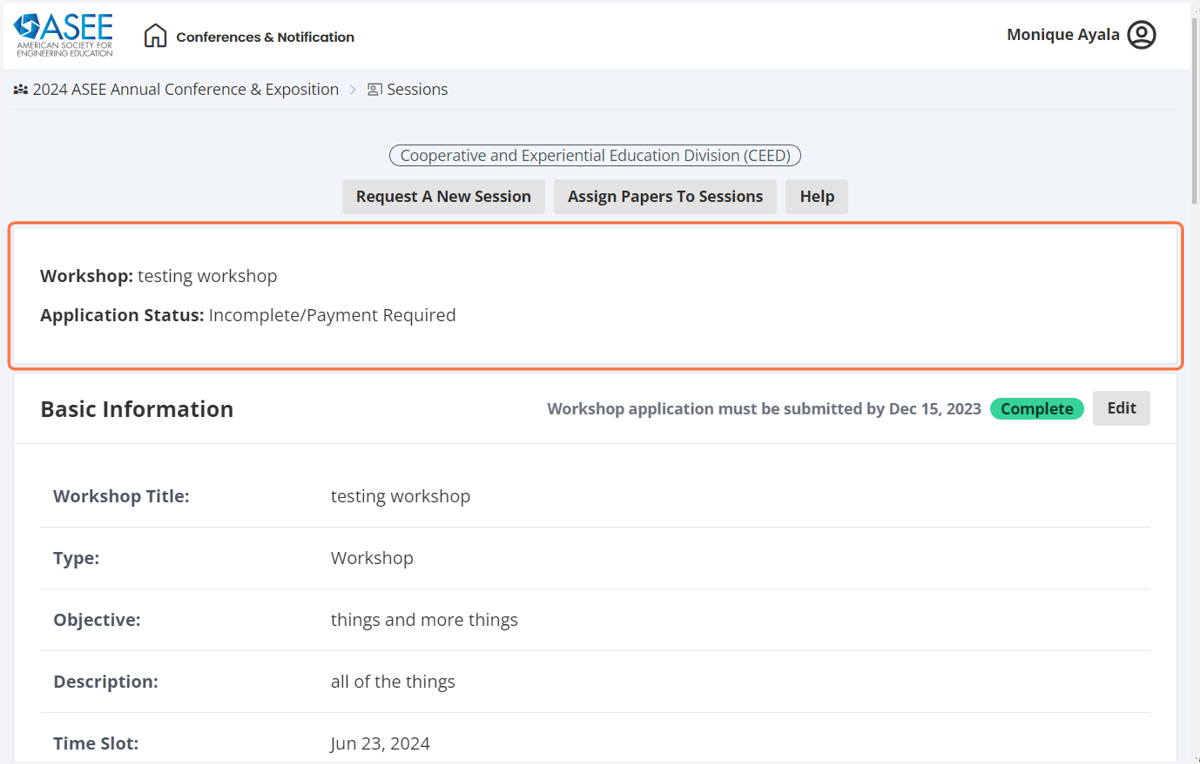
25. To add seakers click on add a speaker
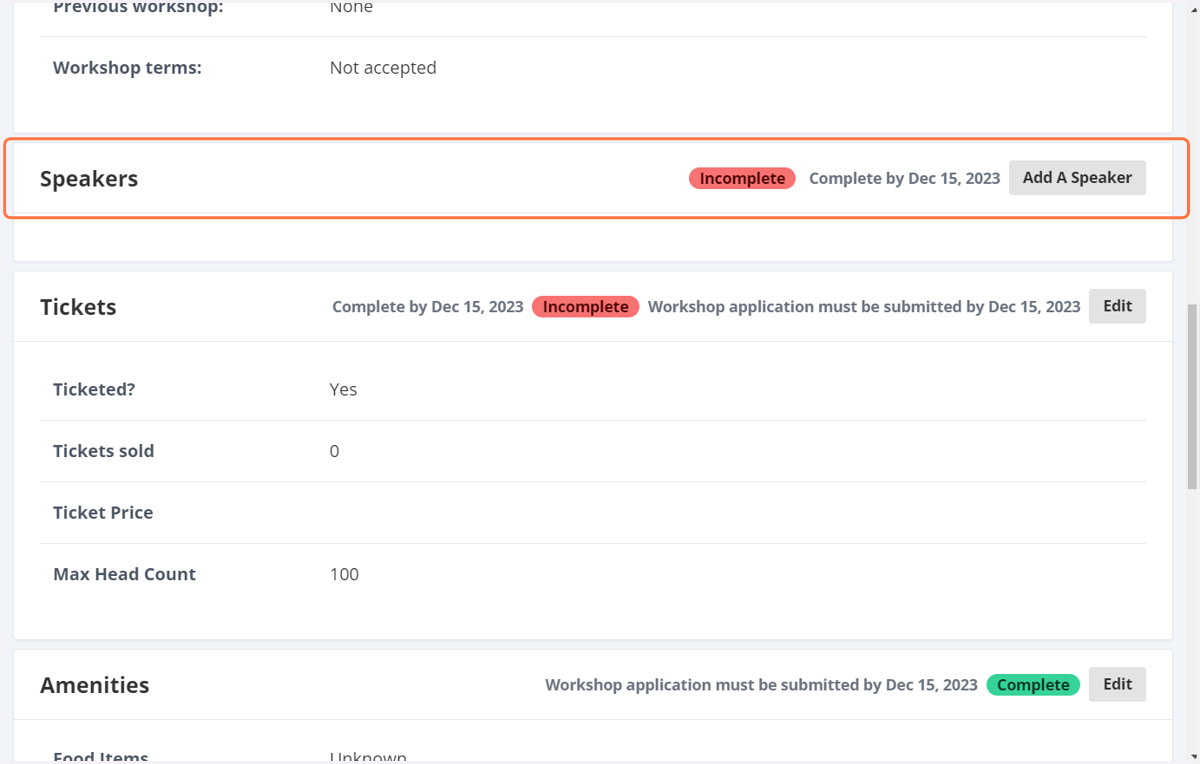
26. Enter the person's name, email address, organization to locate them.
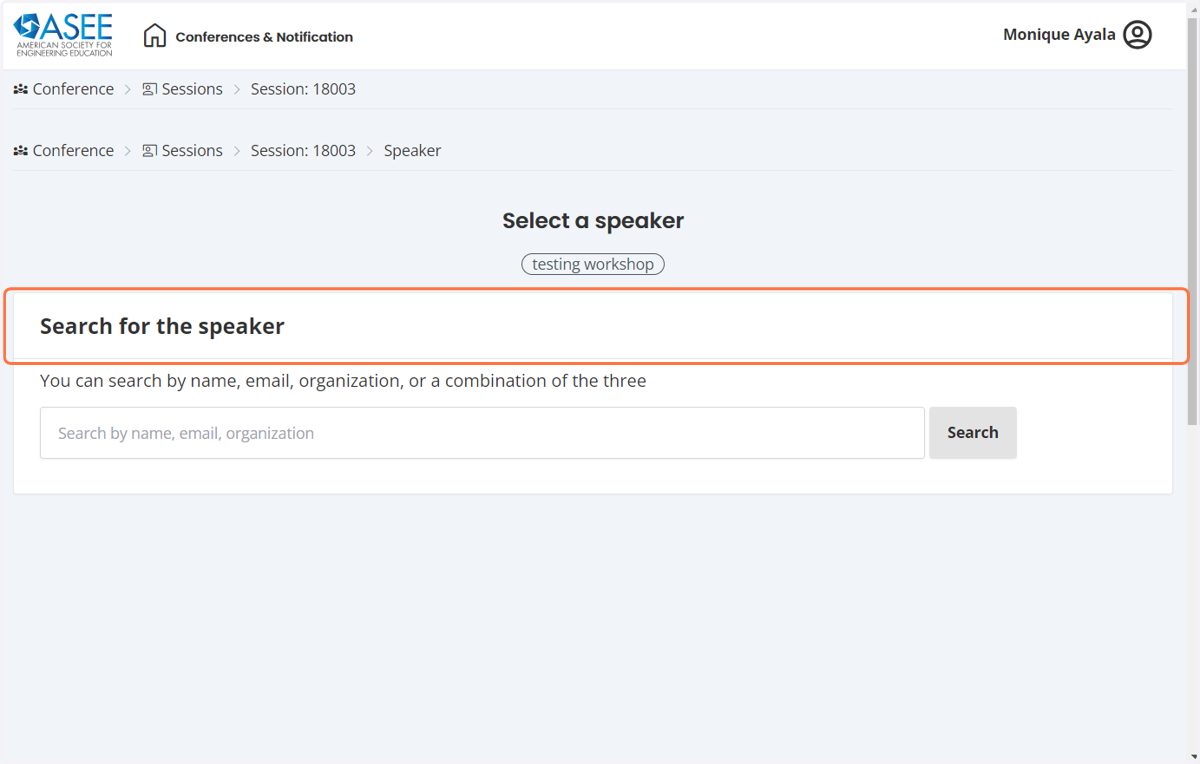
27. Search results will show the person's name, then you want to select the correct person and the green button that says "that's the person!"
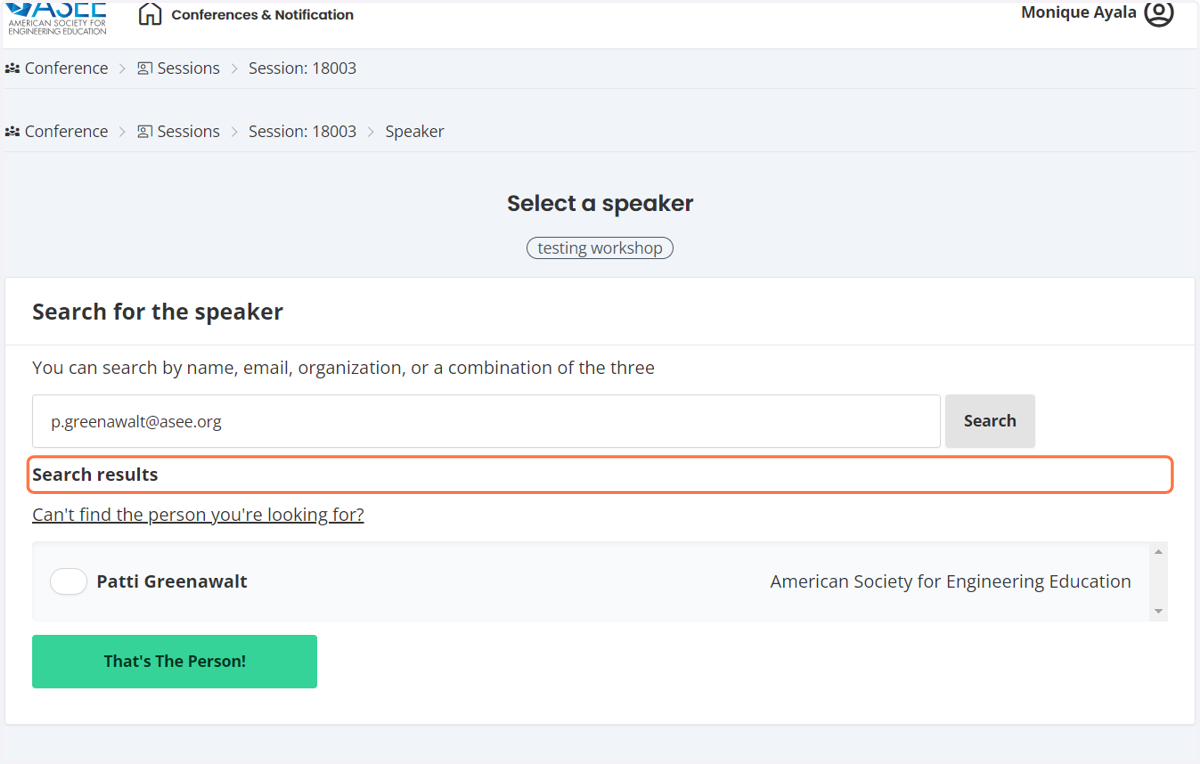
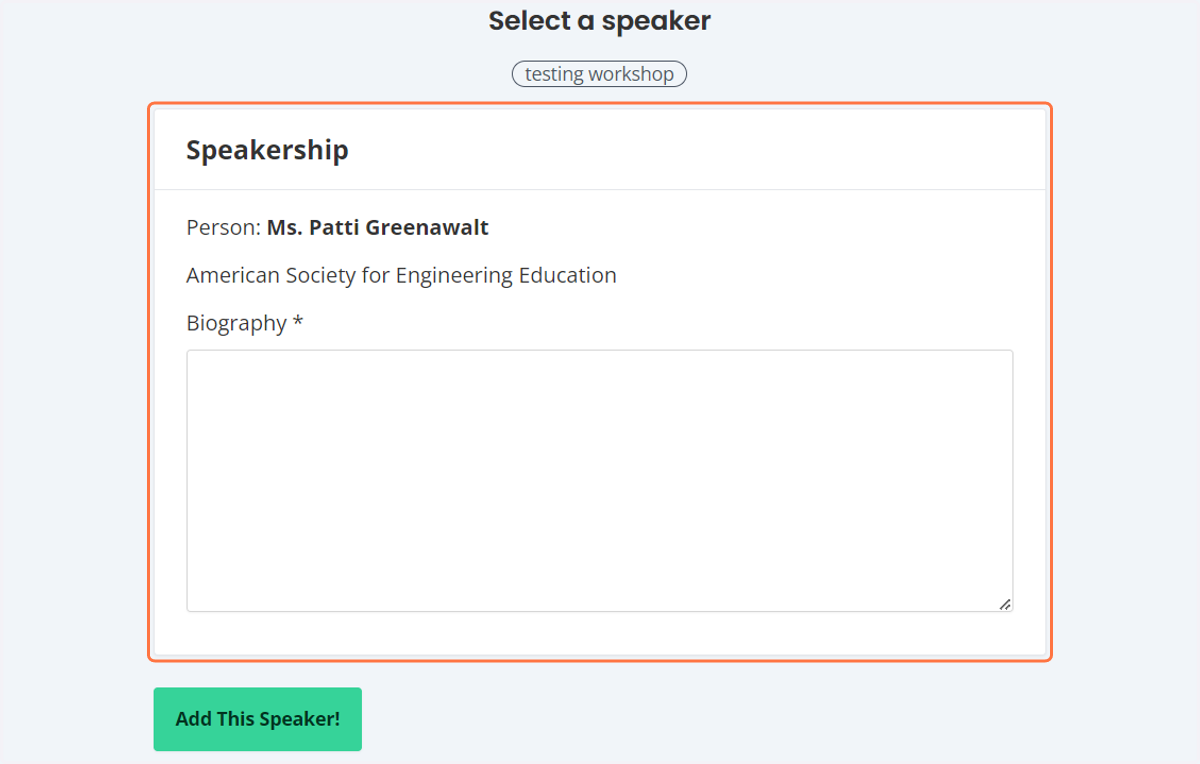
28. The person's name and organization will show.
You will need to add their bio, if you do not have it yet just enter TBD or coming soon. Then select add this speaker!
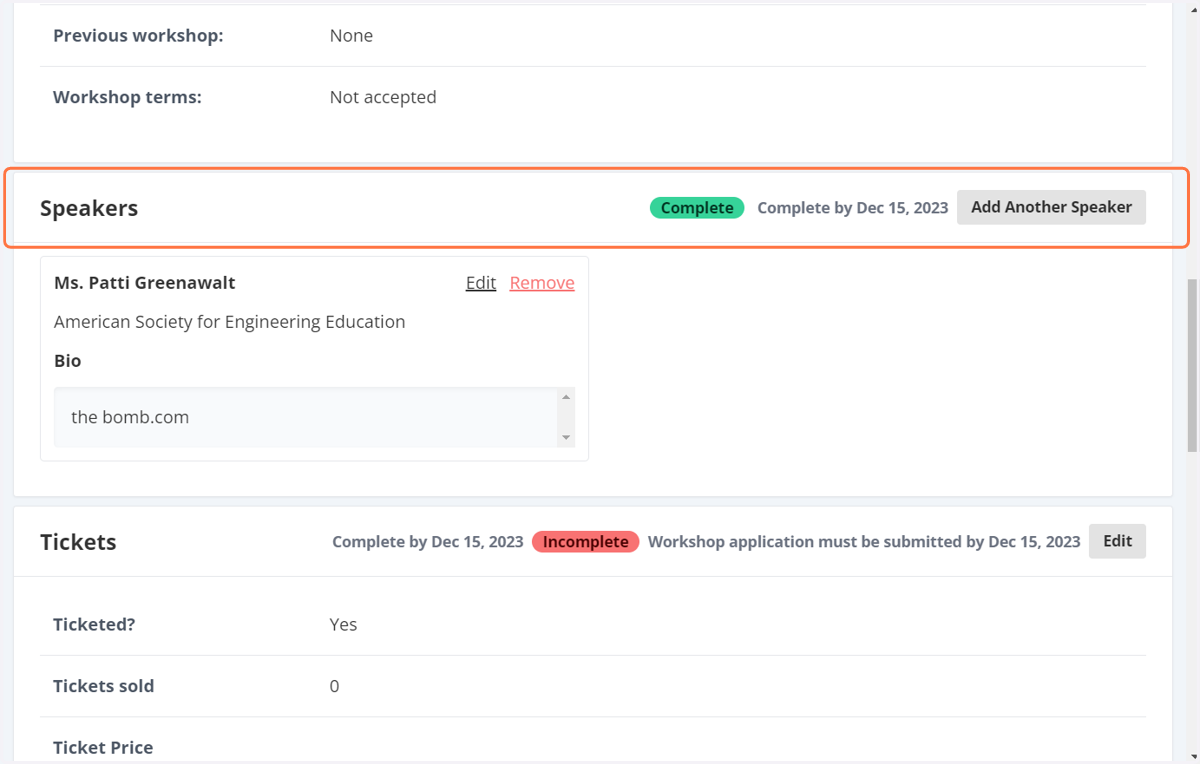
29. The speaker will now show on the review screen. If you have multiple speakers you can click on add another speaker and repeat the previous steps.
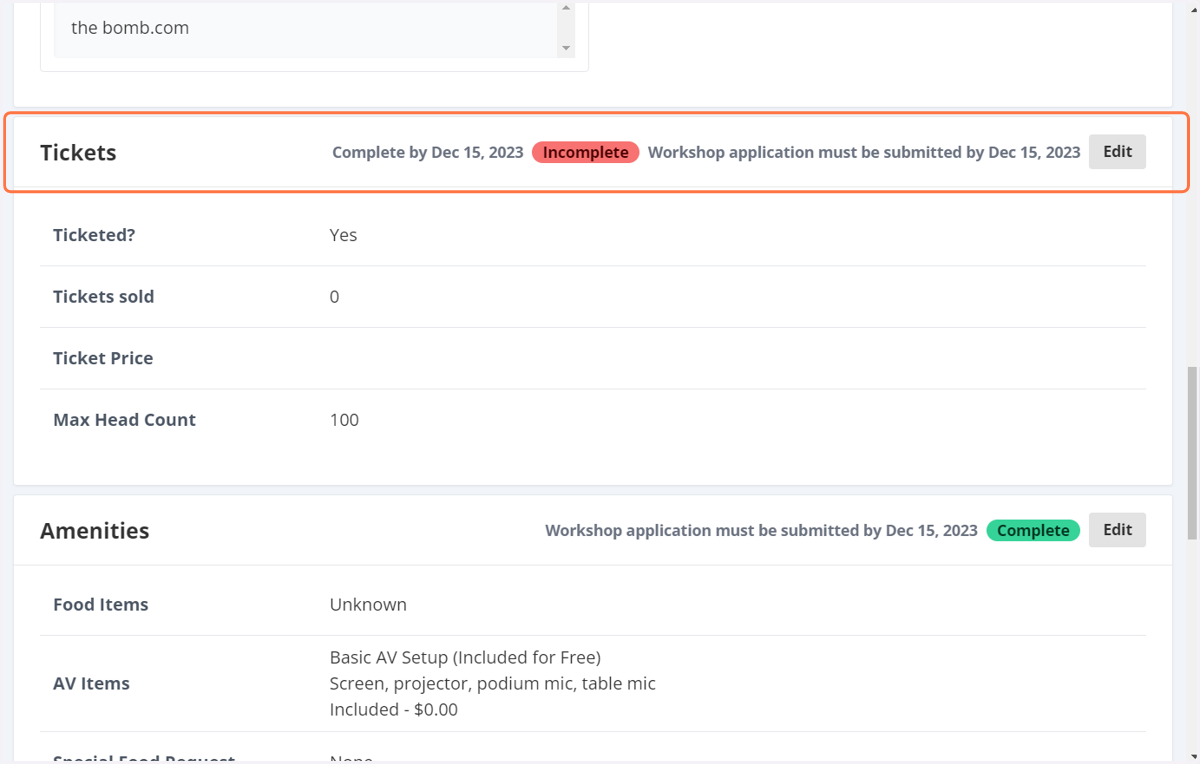
30. Next click on edit next to tickets and enter any ticketed information you would like.
31. You can also add amenities
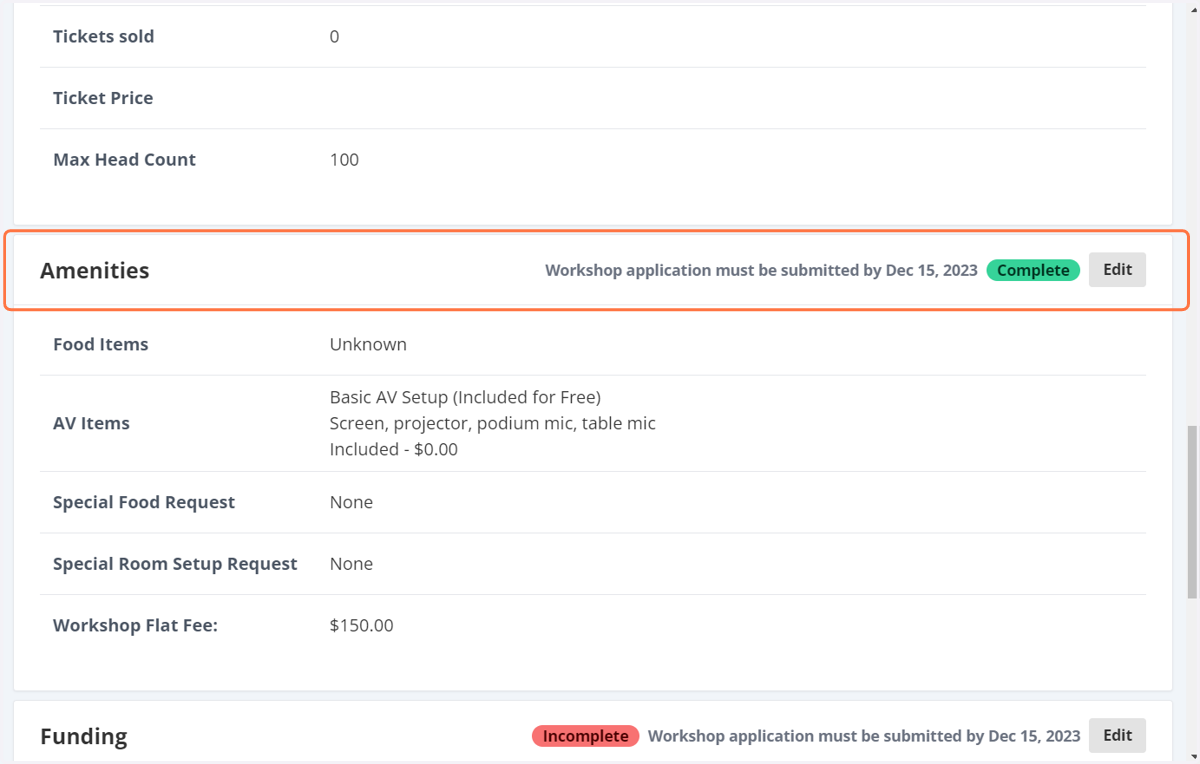
32. When you select edit for amenities you will see a list of things available for that timeslot. Food and beverages as well as the AV options.
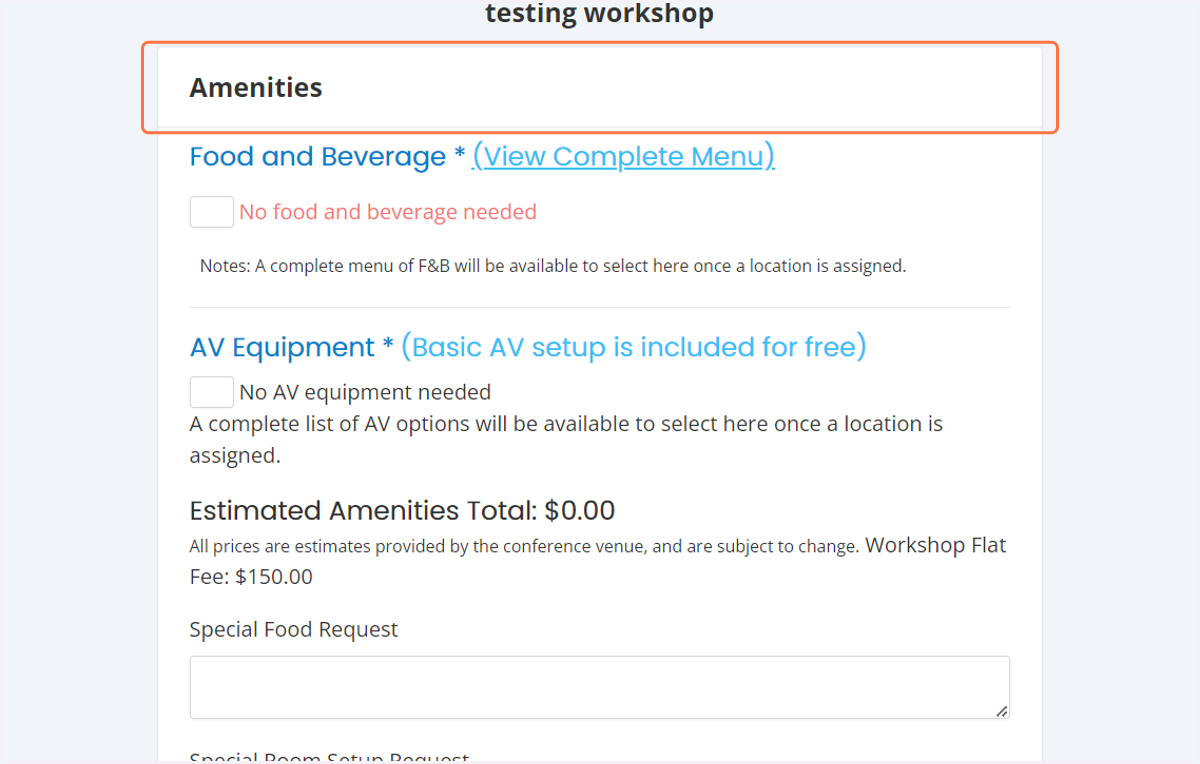
33. Once your amenities have been added click on update!
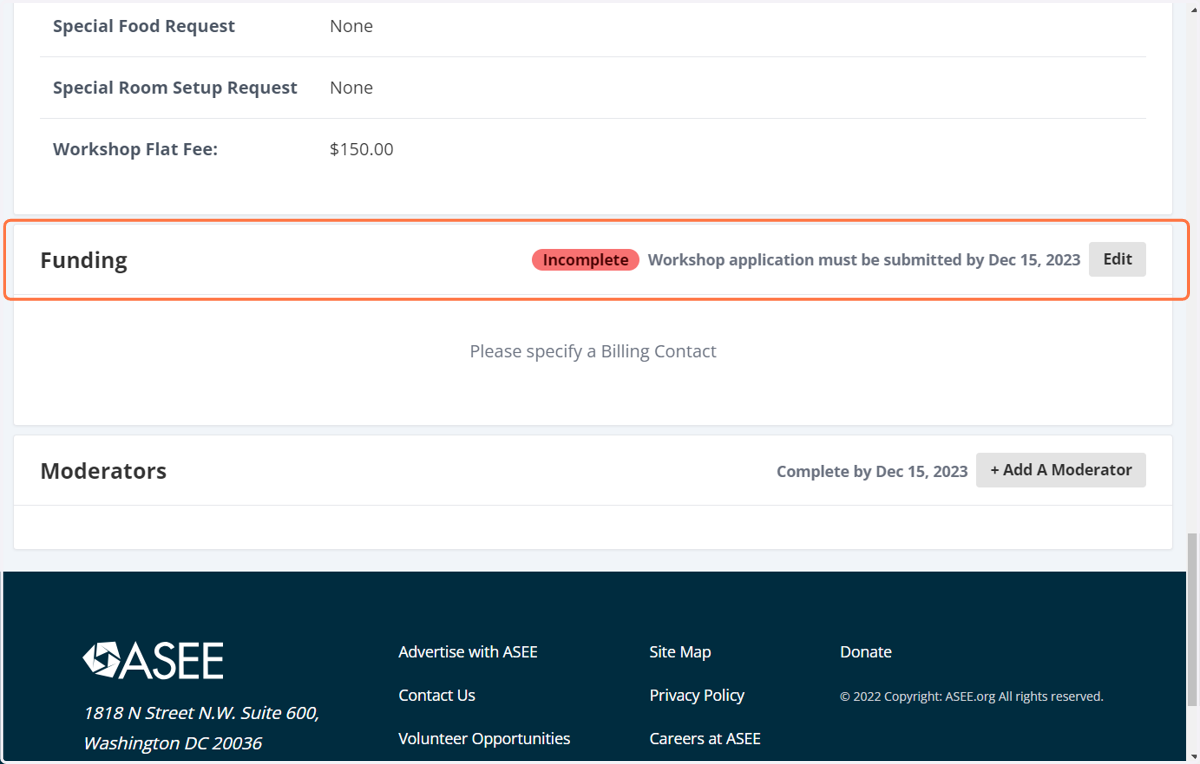
34. Next complete the funding information by clicking on edit
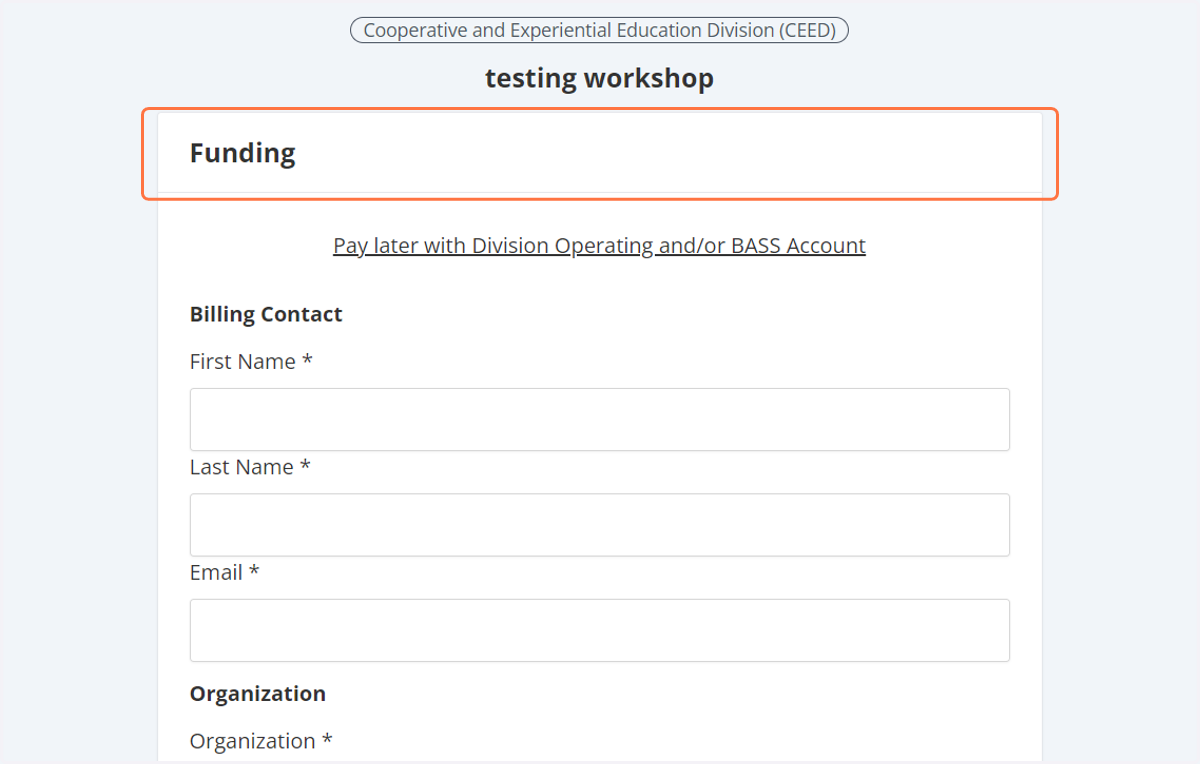
35. If the workshop application fee should be charged to the BASS account please click on the link
If you have outside funding please enter the information so we can bill the correct person. Once entered please click on Update!
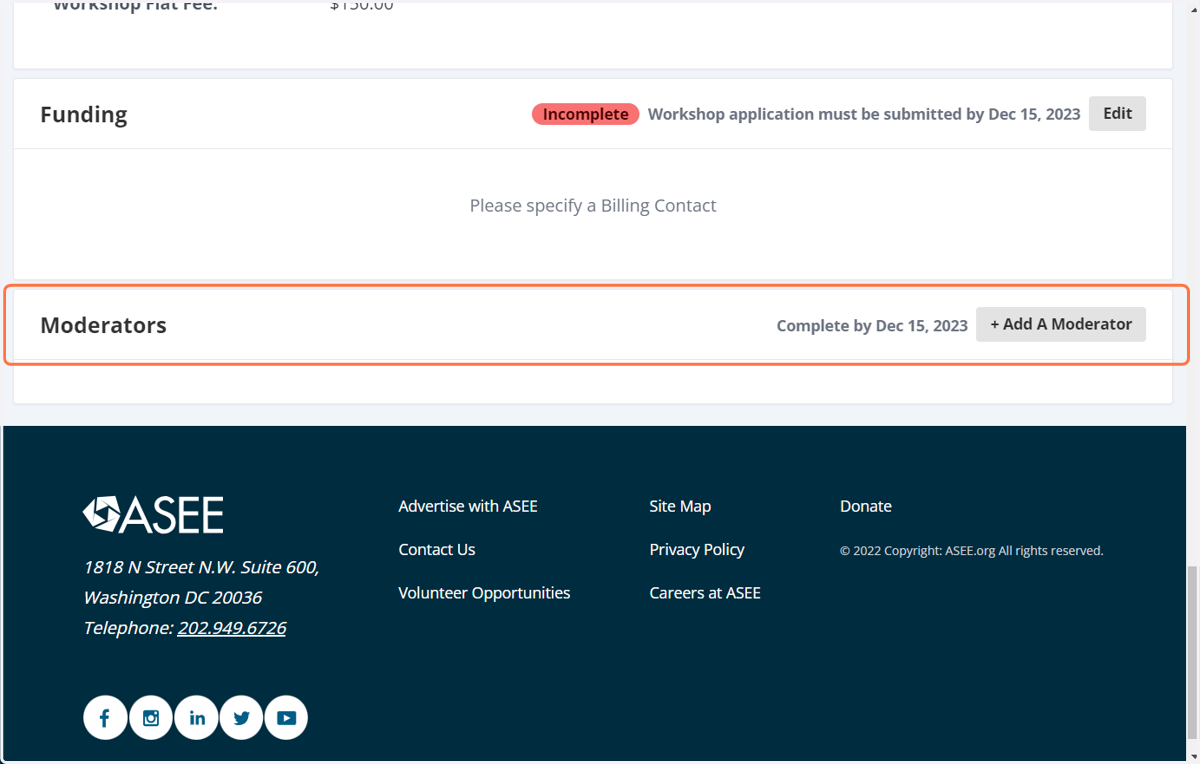
36. Finally you can add your session moderators by selecting add a moderator.
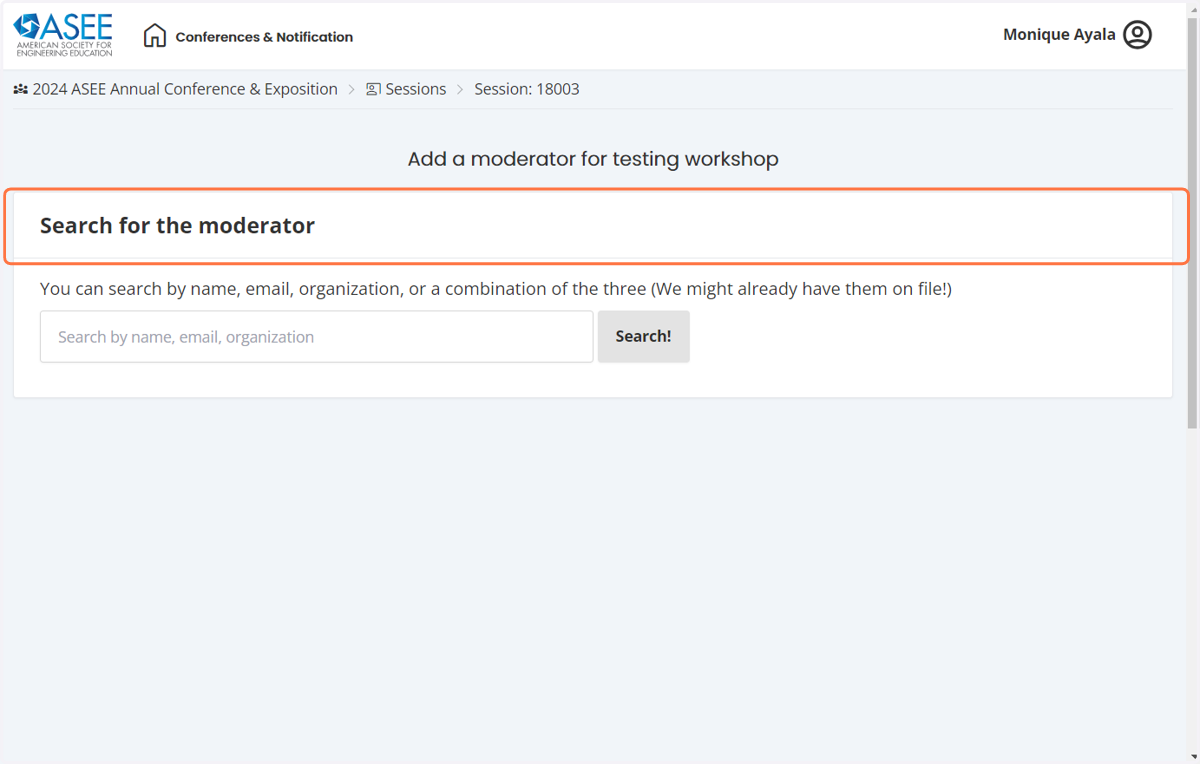
37. Enter the person's name, email address or organization
This is the same process as selecting your speakers
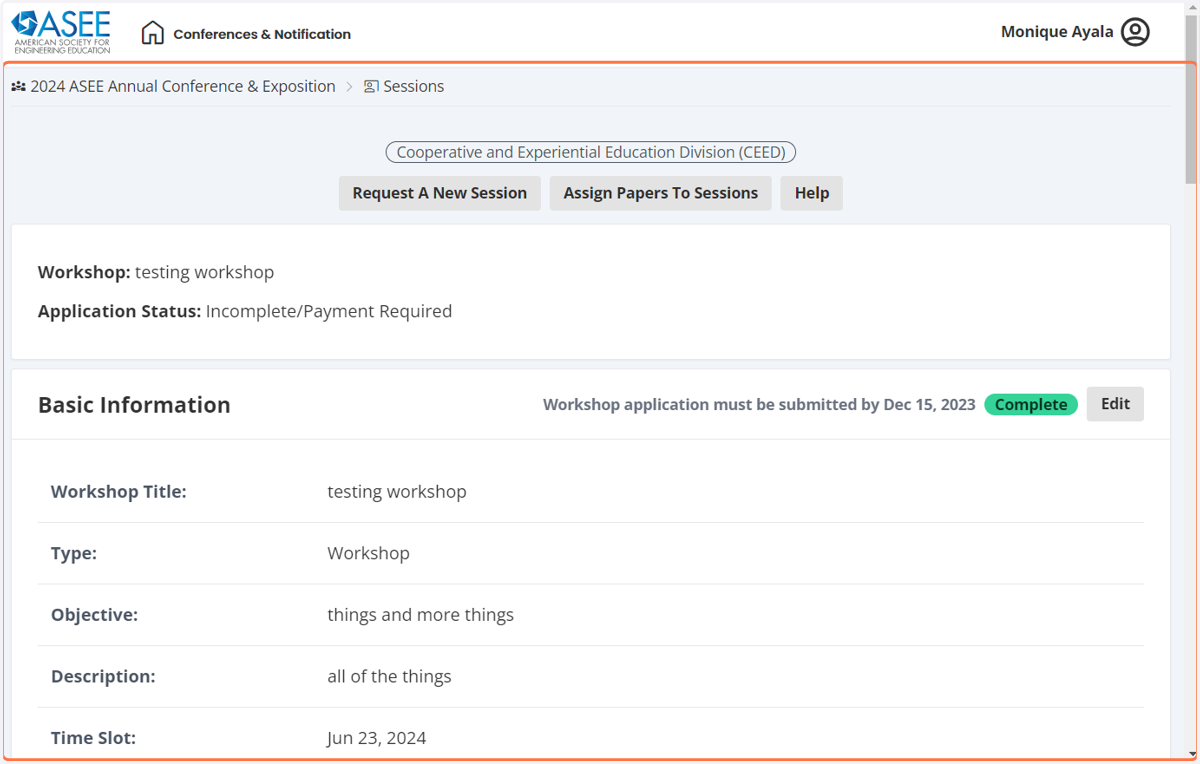
38. Review your workshop information
39. Distinguished lectures are no longer being decided by the PICS.
Program chairs, who want to submit a distinguished lecture, please use the "special session" request form, and put distinguished lecture at the beginning of the title.
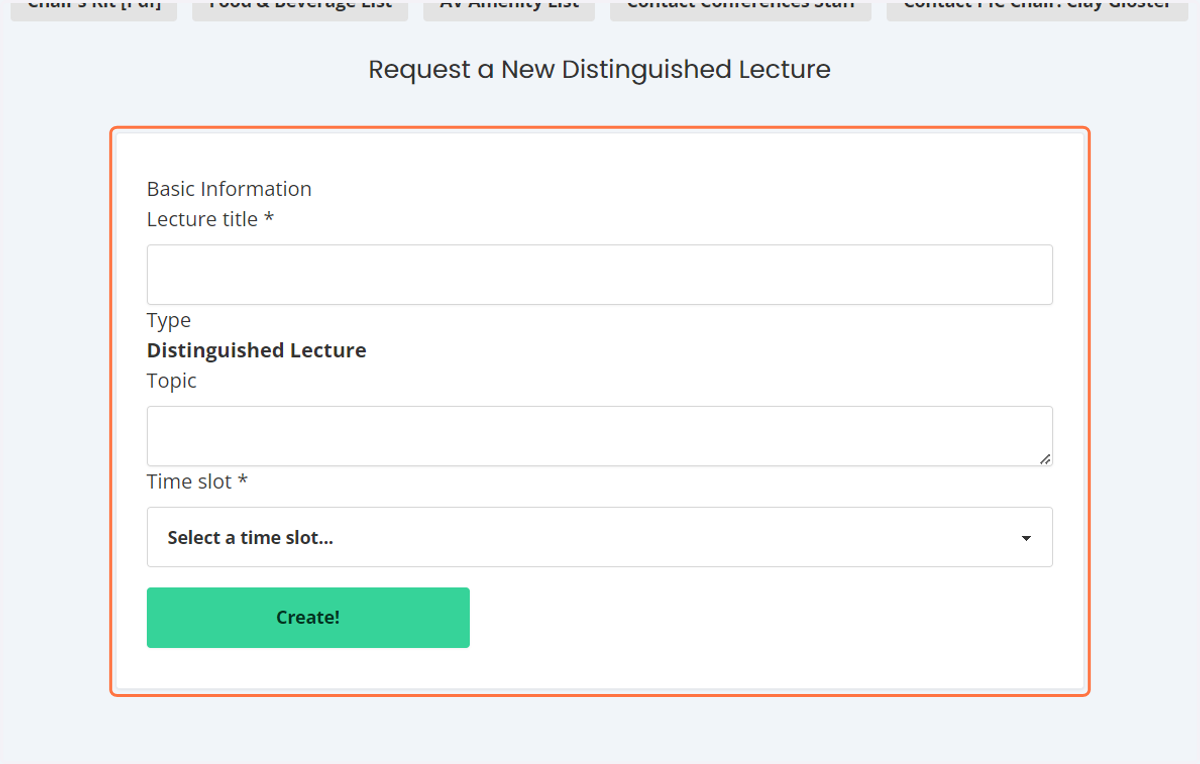
40. Enter the basic information and select the time slot
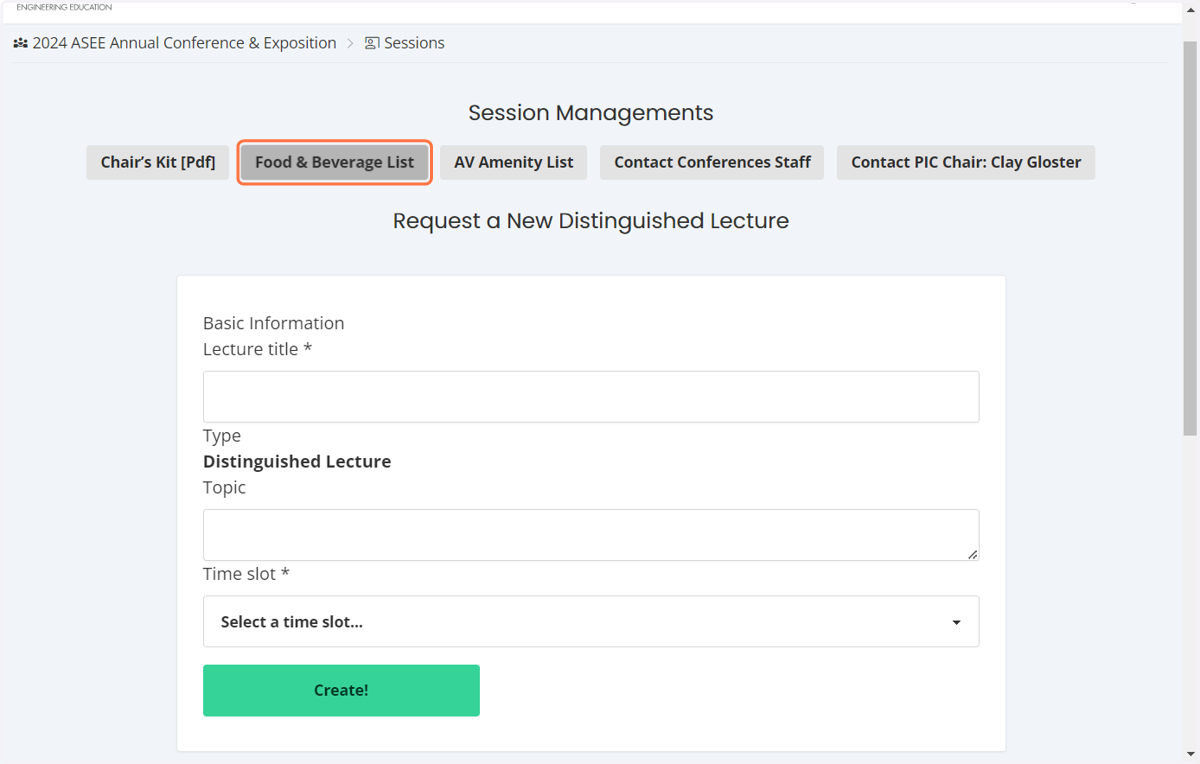
41. At the top of the page you can select food and beverage to see a complete list of offerings
This can help you with your budget
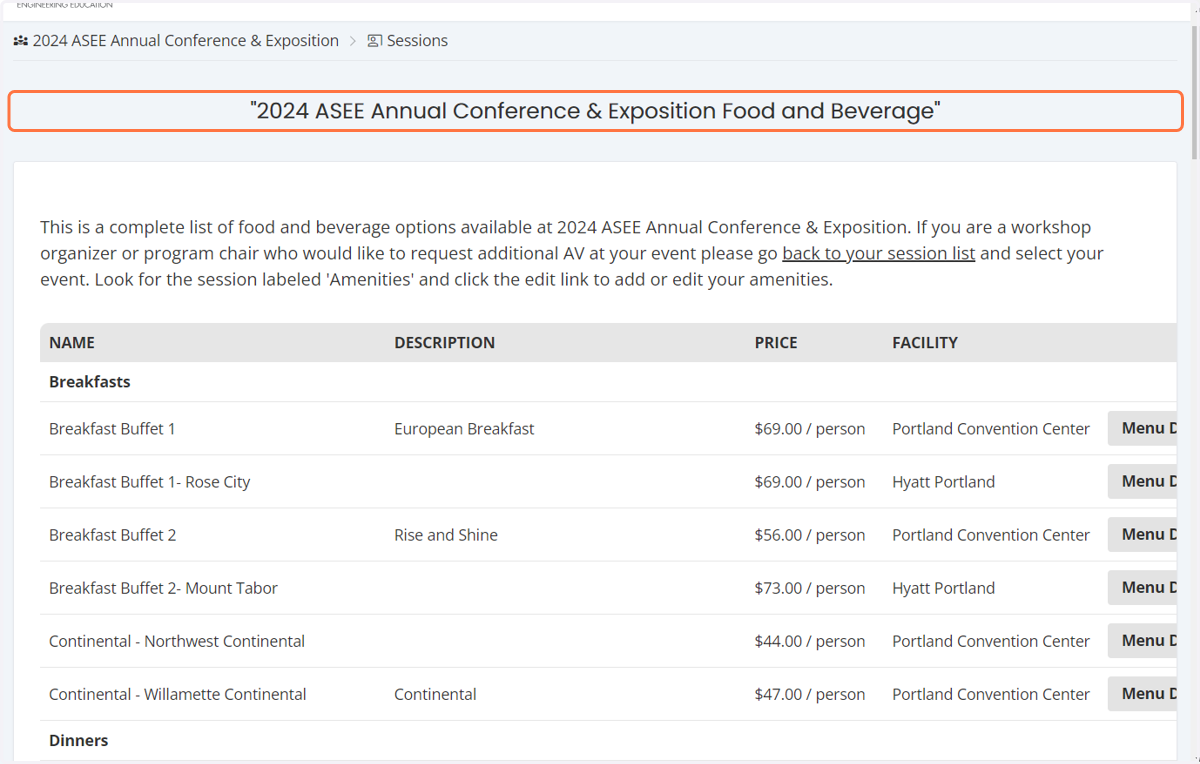
42. Food and Beverage List
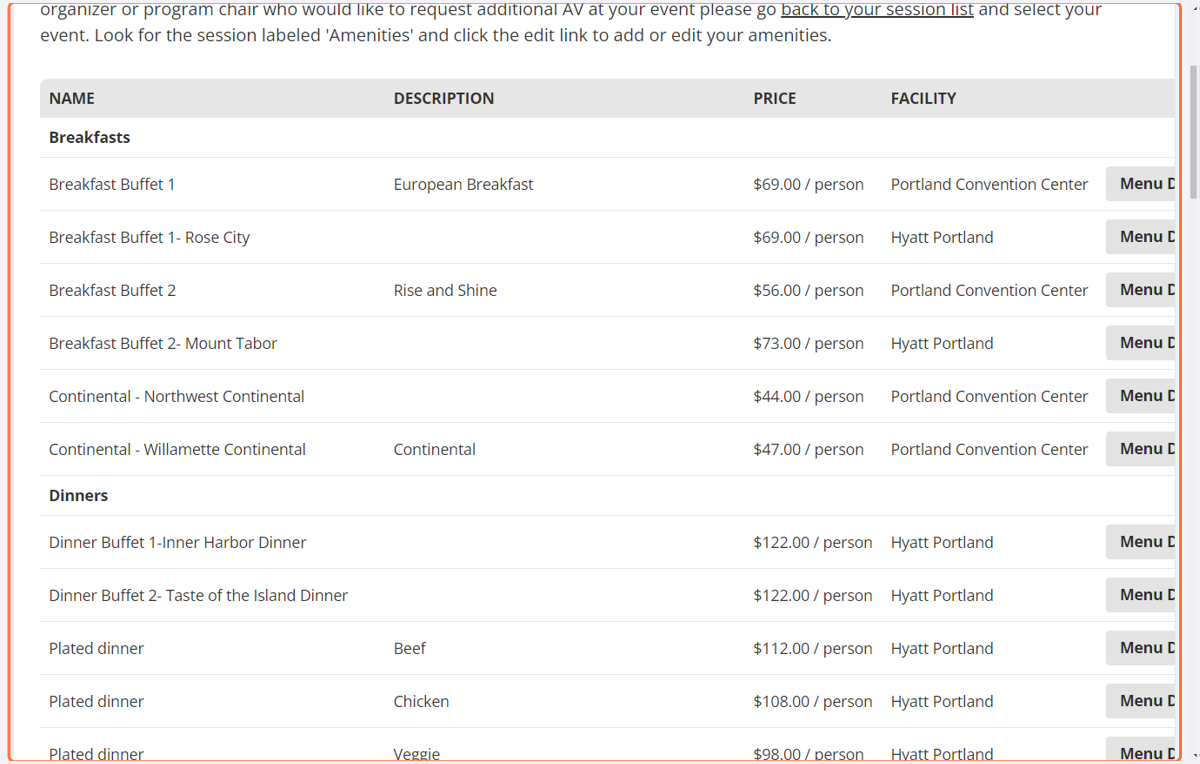
43. The list shows you the price breakdown per person and the location of the offering
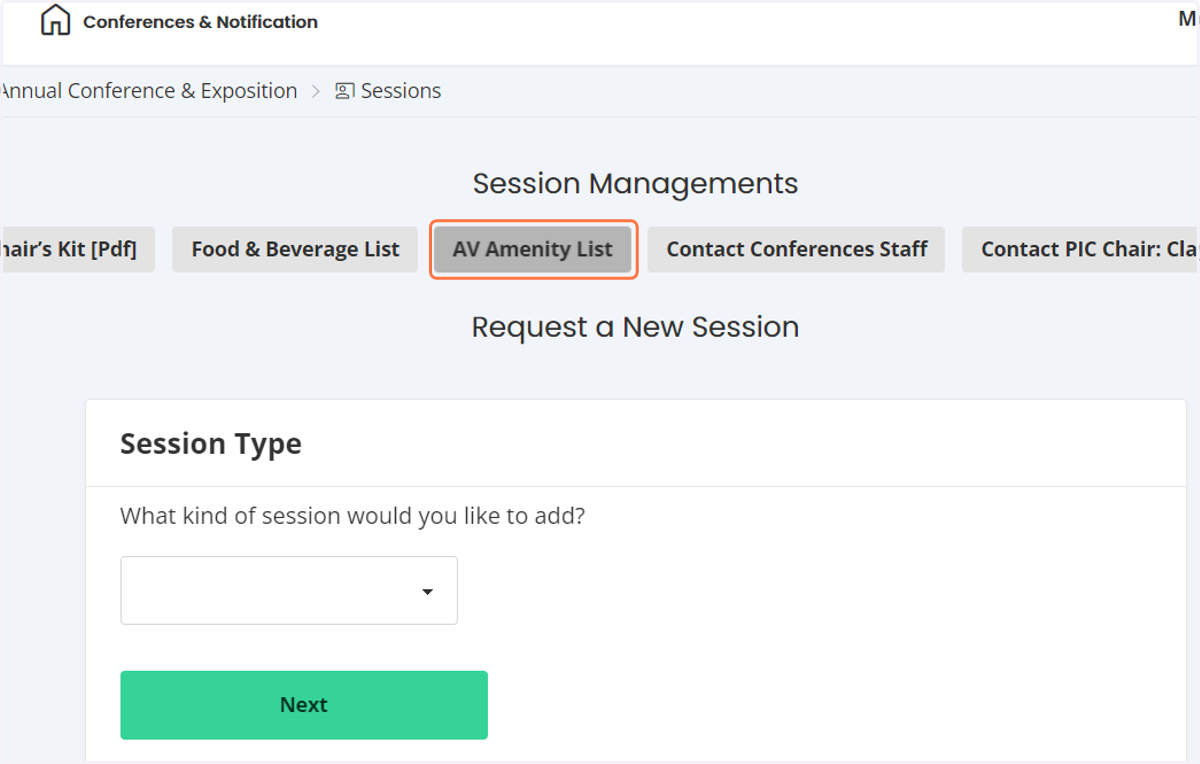
44. Click on AV Amenity List to see the complete list of AV options
This will help you with budgeting
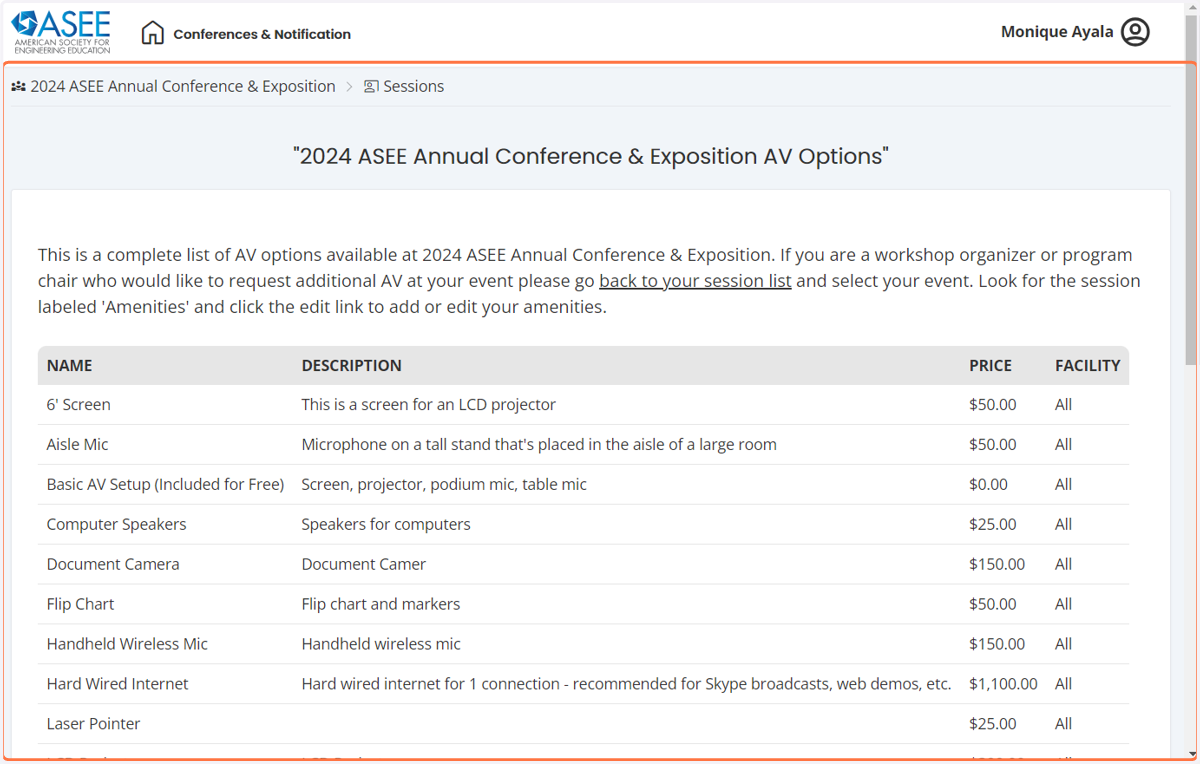
45. The list shows you the price breakdown
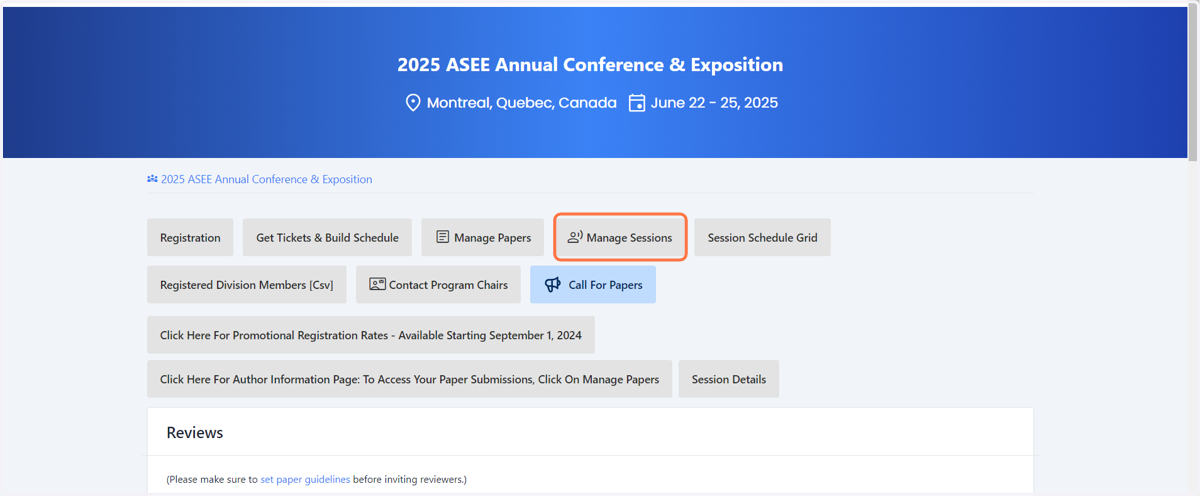
46. To see a complete list of all of your division sessions
click on manage sessions
47. This will show all of your division sessions
You can complete and information you need to add for a session as well as add any new sessions you would like on this page
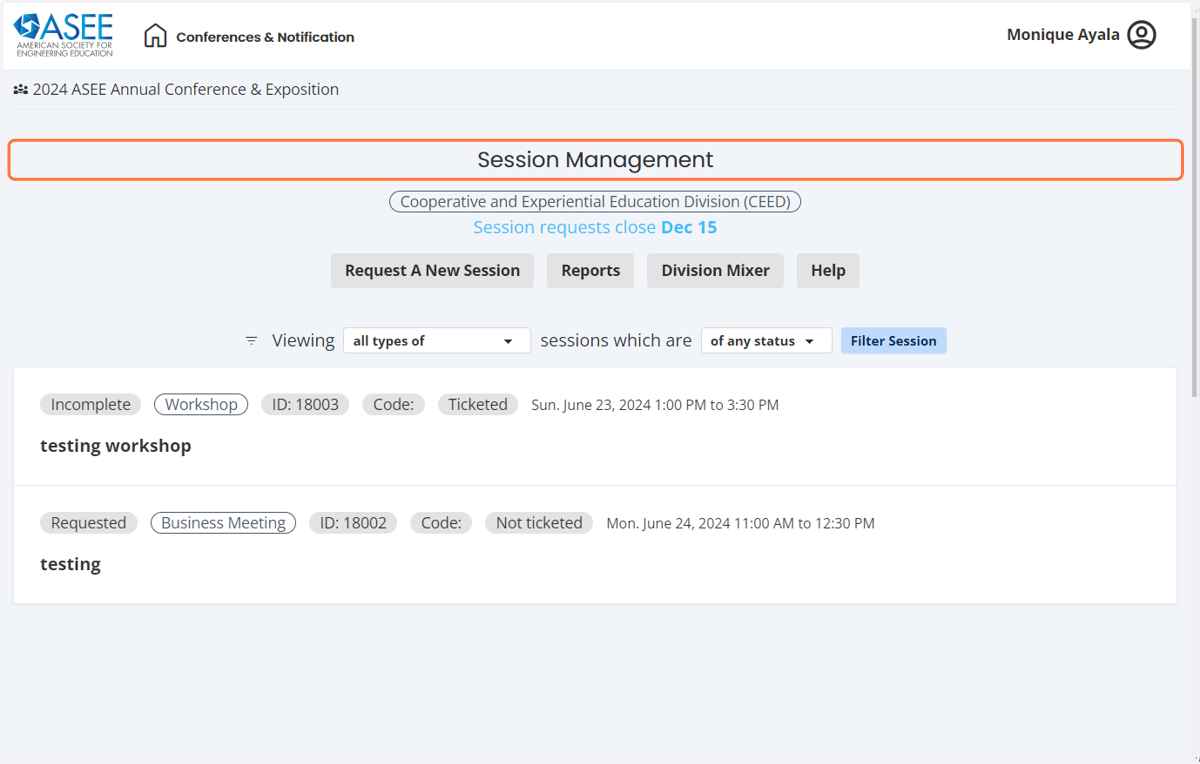
48. You also want to let us know if your division plans to participate in the Community mixer
You can do that by selecting division mixer.