Send Annual Trust Statements in NebuLAW
Salesforce
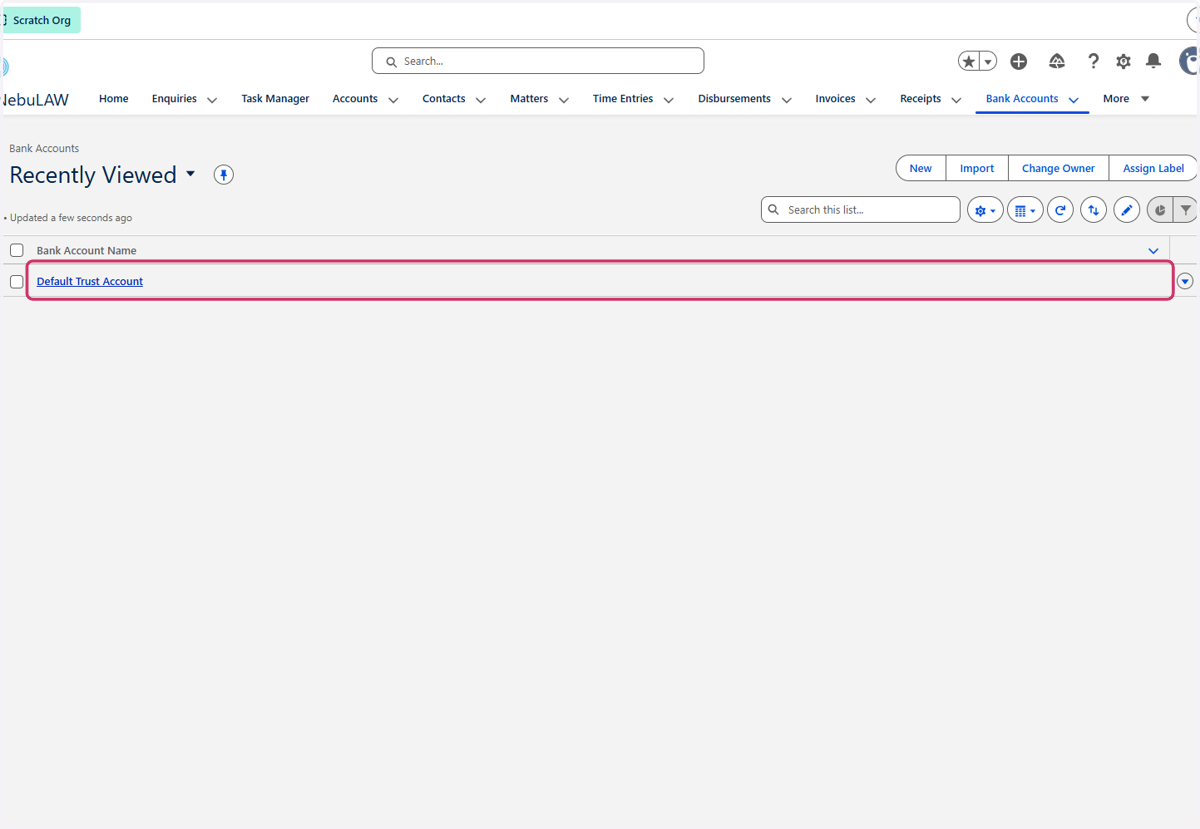
1. Click on Bank Account Name
Please note, the below process will need to be completed for each Trust Bank Account operated by your firm.
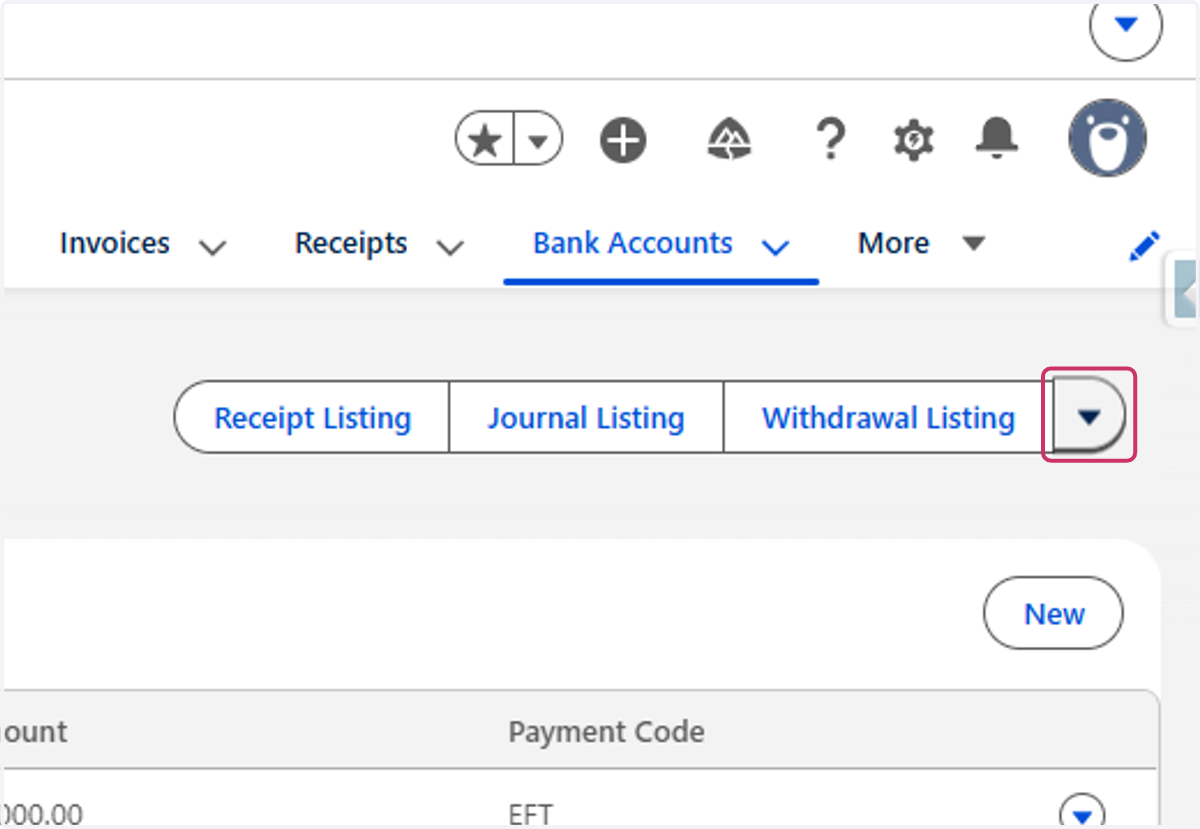
2. Click on Show more actions
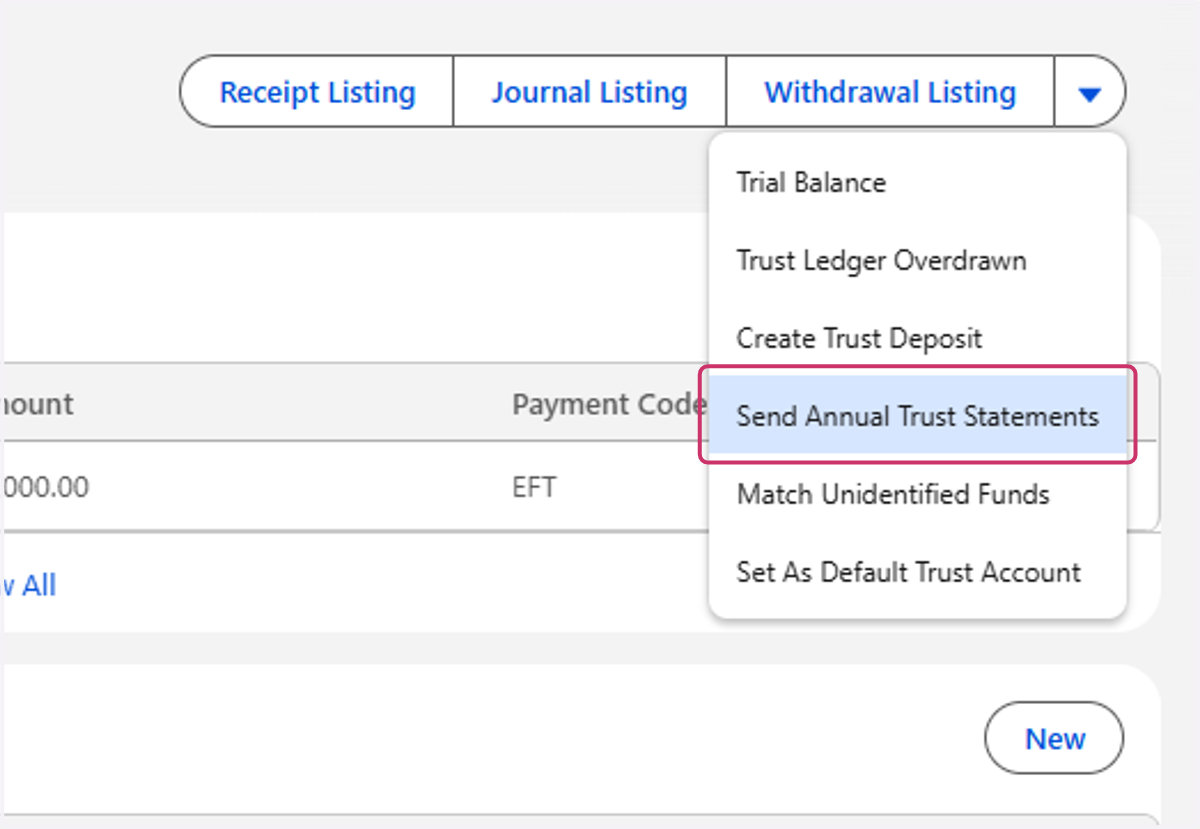
3. Click on Send Annual Trust Statements
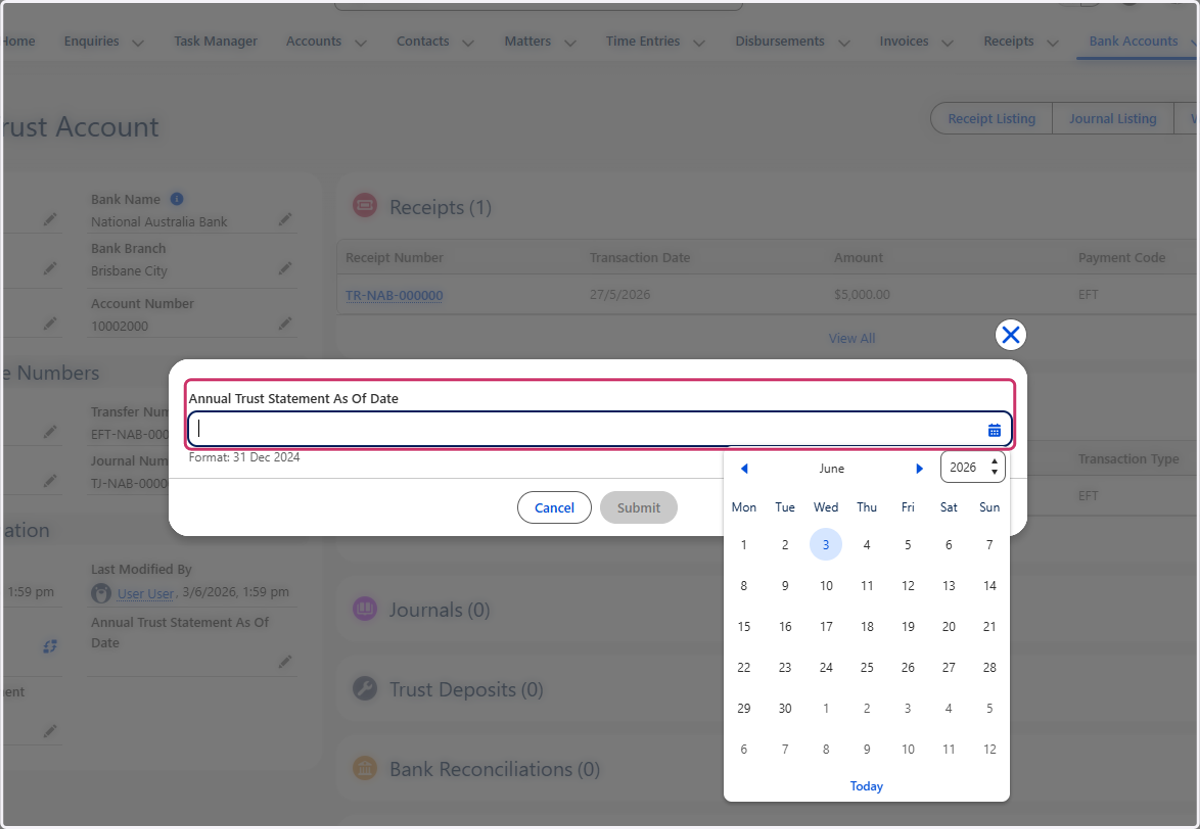
4. Select the date as 30th of June 2026
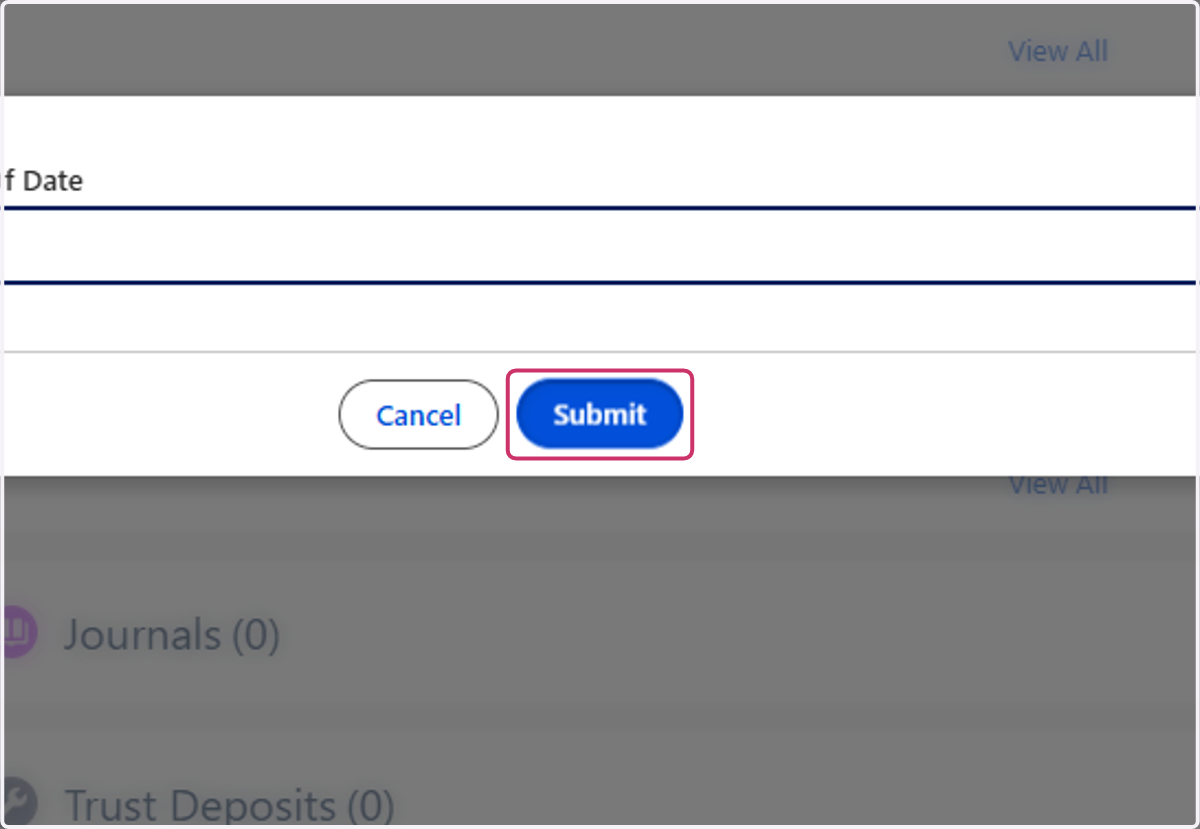
5. Click on Submit
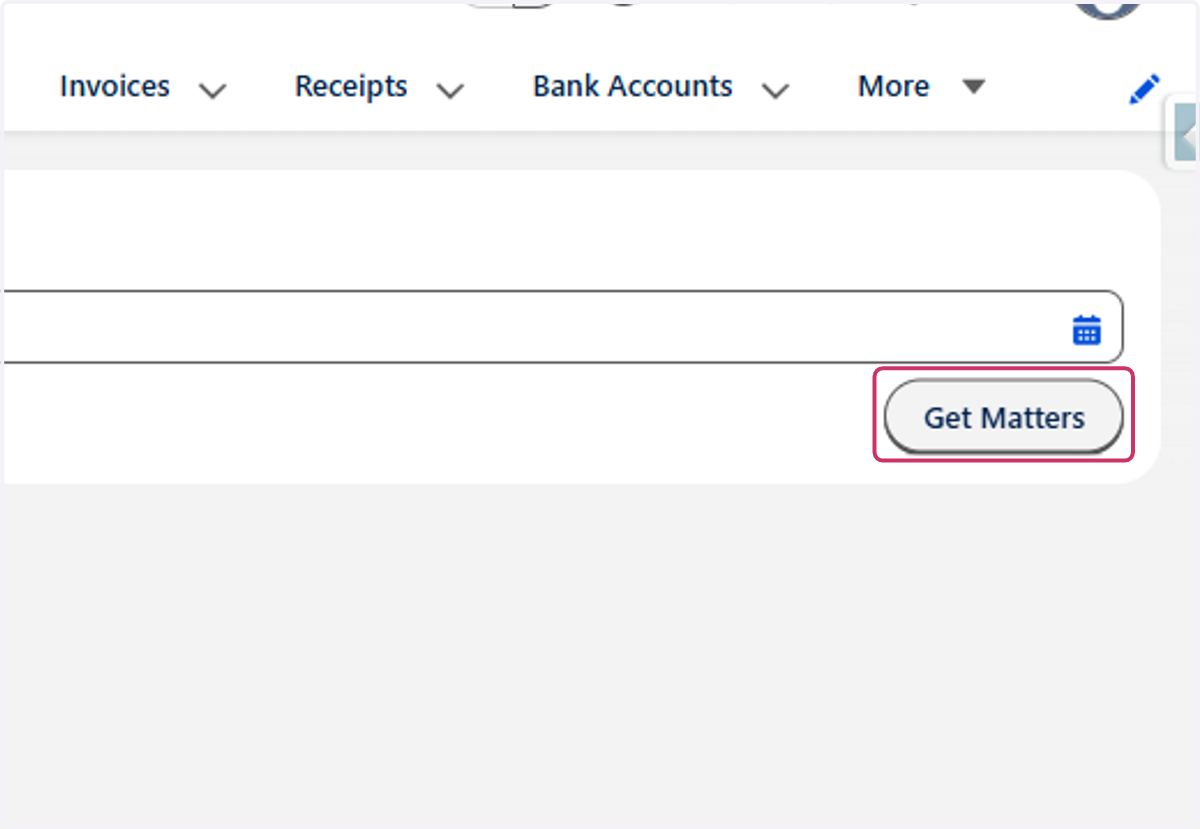
6. Click on Get Matters.
This will provide a list of all eligible Matter requiring Annual Trust statements. This include Matters with a Trust Balance, and Matters that have had Trust transactions processed in the last financial year.
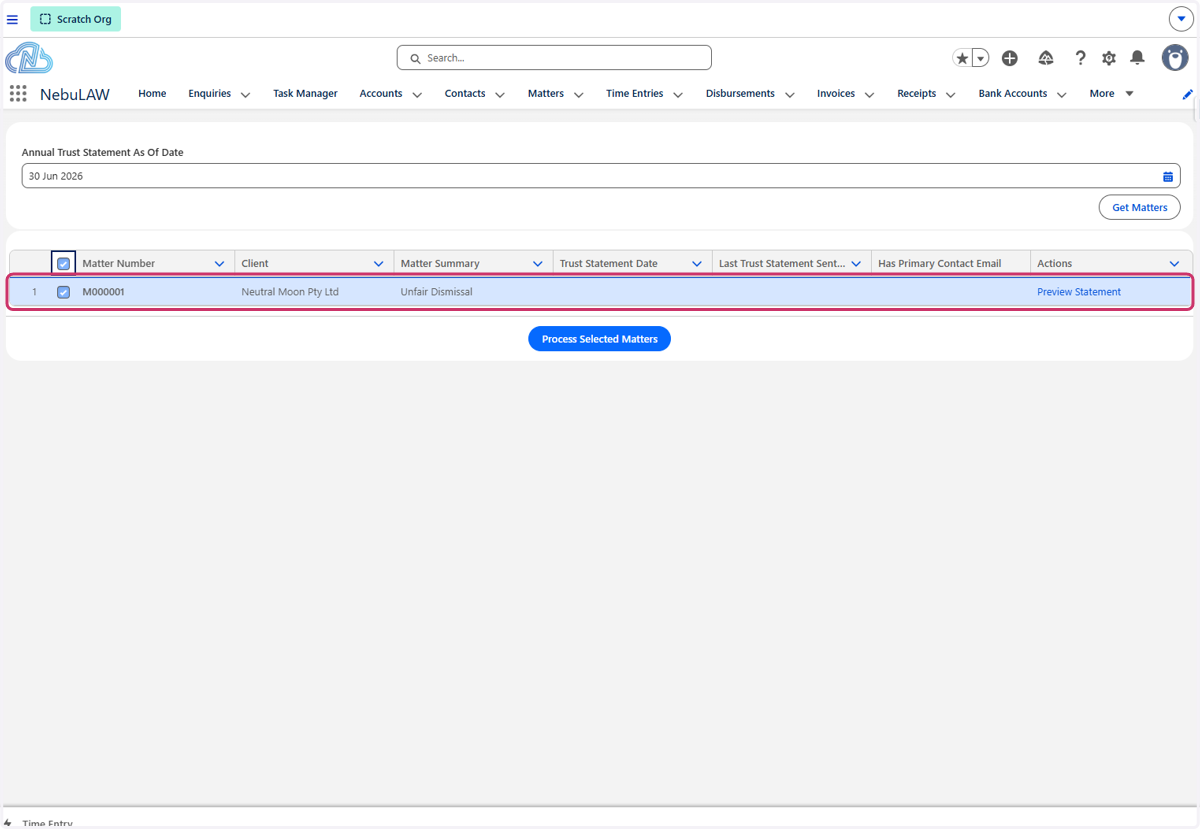
7. Select the tick box next to "Matter Number" in the grey header to bulk select all matters in the list. Alternatively you can individually nominate the tick box for each matter.
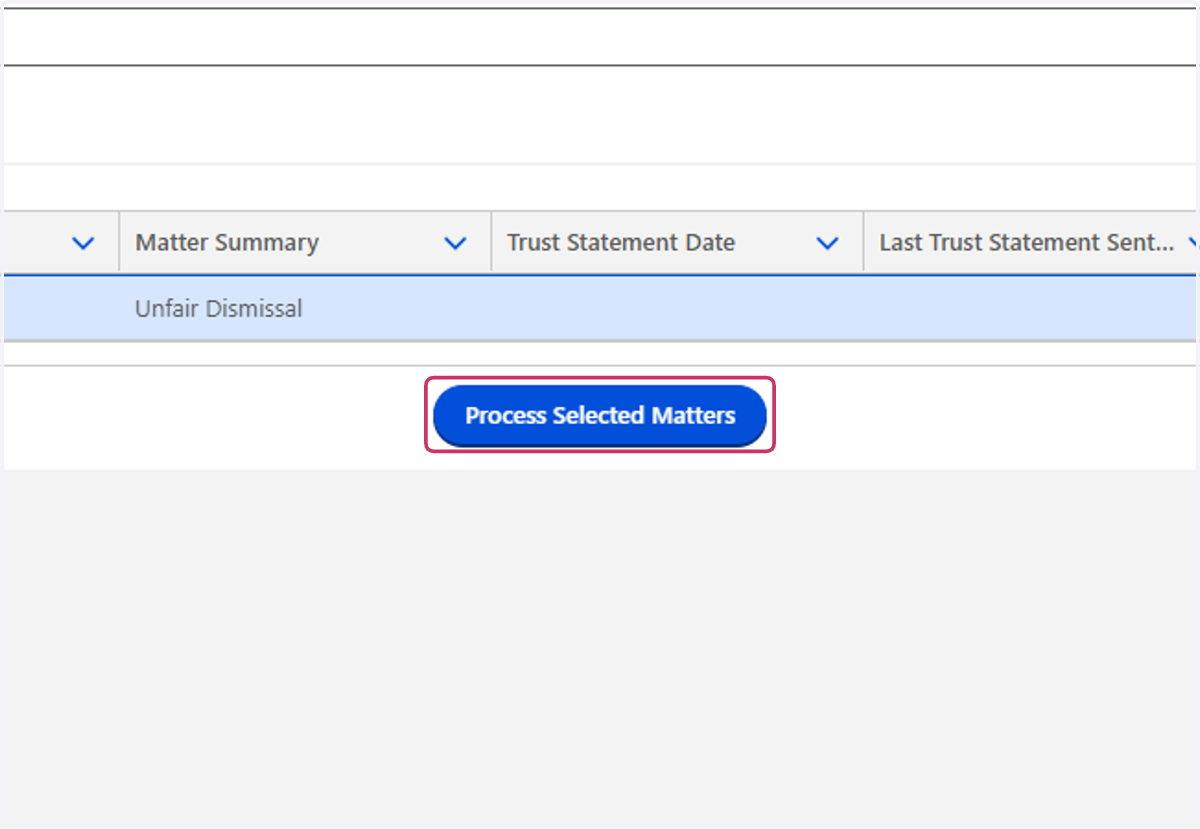
8. Click on Process Selected Matters
Once all eligible matters have been ticked, and you are ready to initiate the bulk creation and sending of the annual trust statements, select "Process Selected Matters"
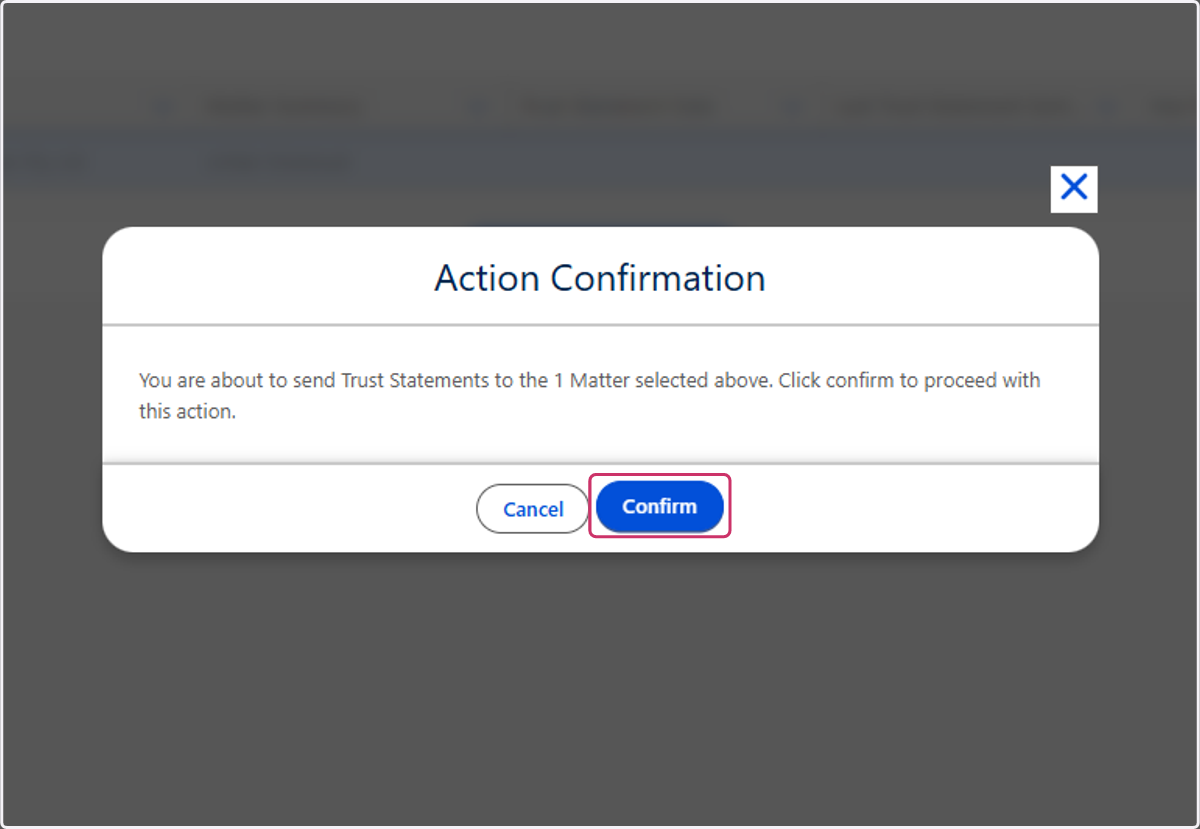
9. Click on Confirm
This is the final checkpoint for the bulk annual trust statements to be created and sent. Once you are ready to complete the bulk creation and sending of the annual trust statements, select "Confirm"