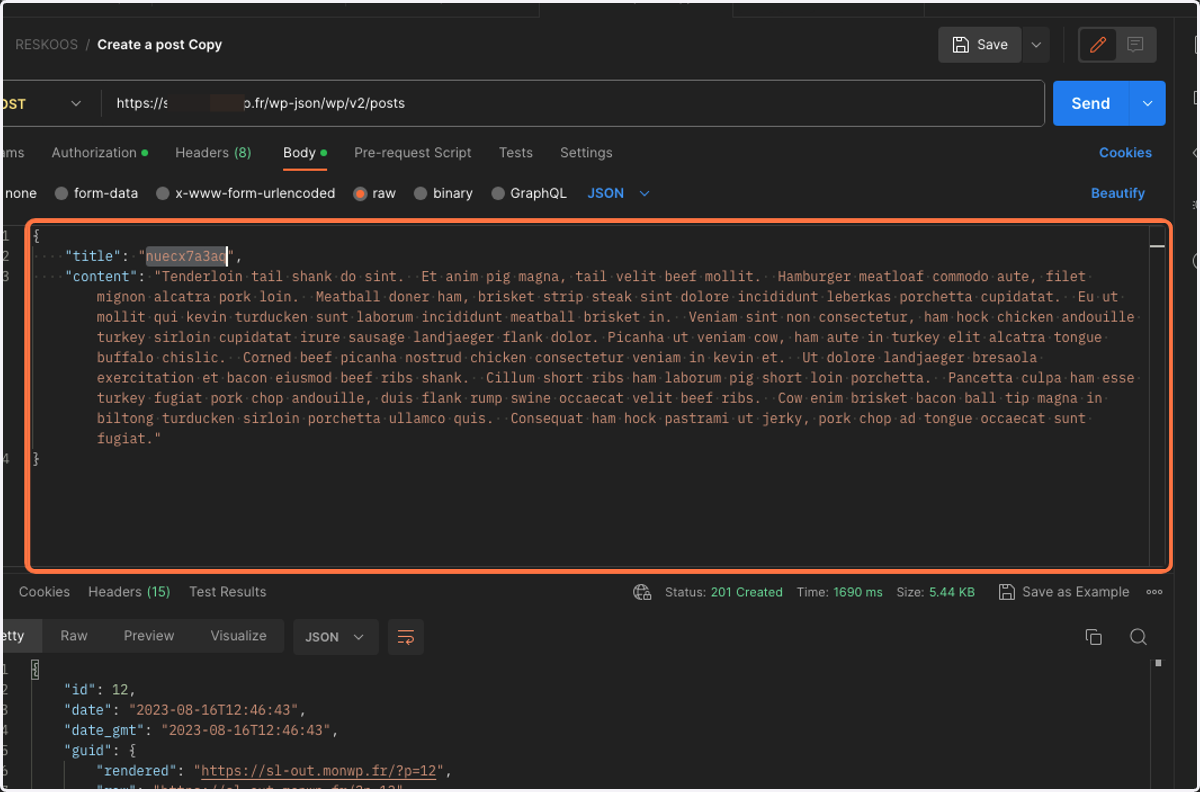
Secure WordPress REST API with the "WP REST API Auth0" plugin
GitHub - joshcanhelp/wp-rest-api-auth0: Authorize WP REST API calls with access tokens from Auth0
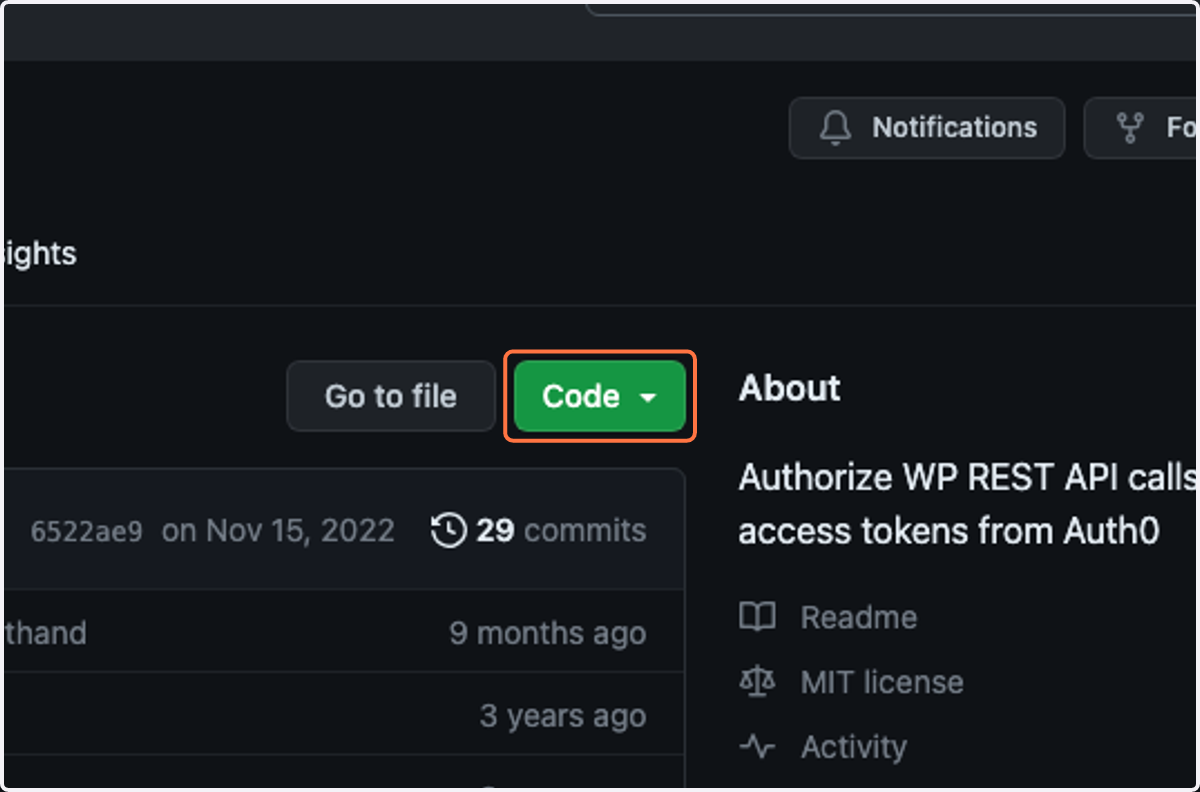
1. Click on Code
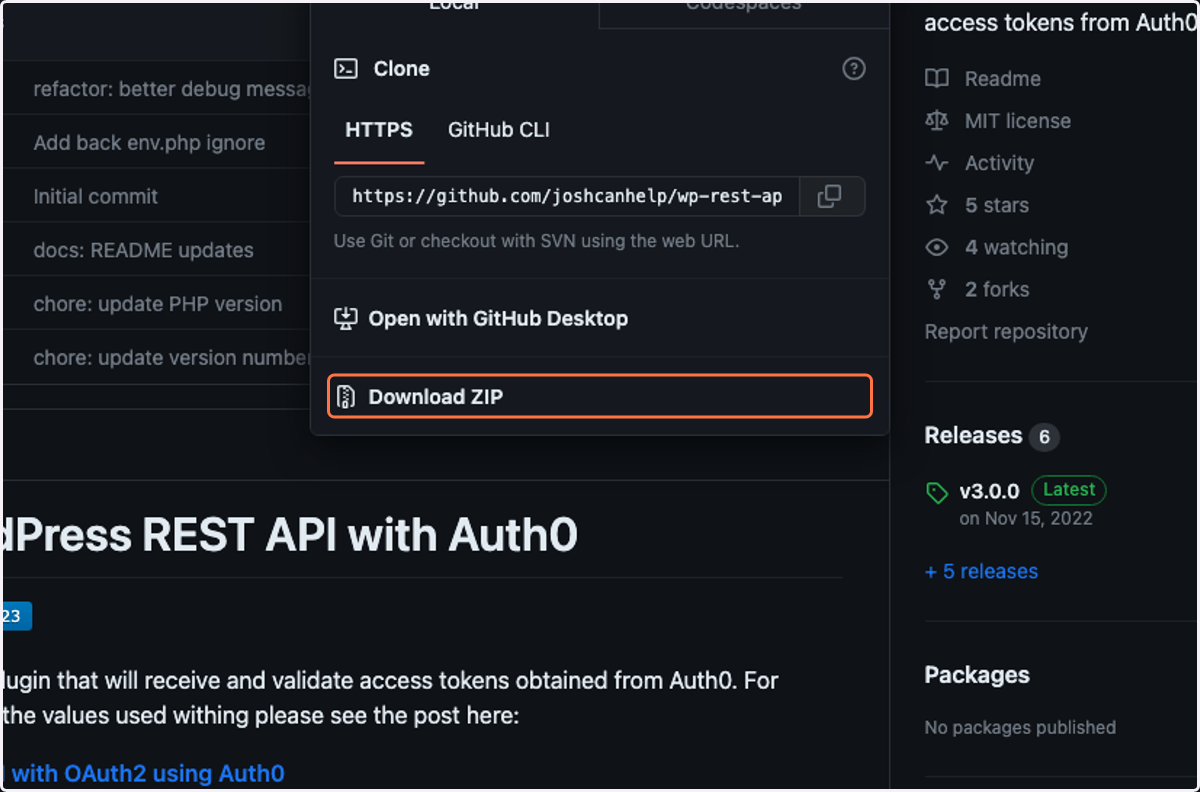
2. Click on Download ZIP
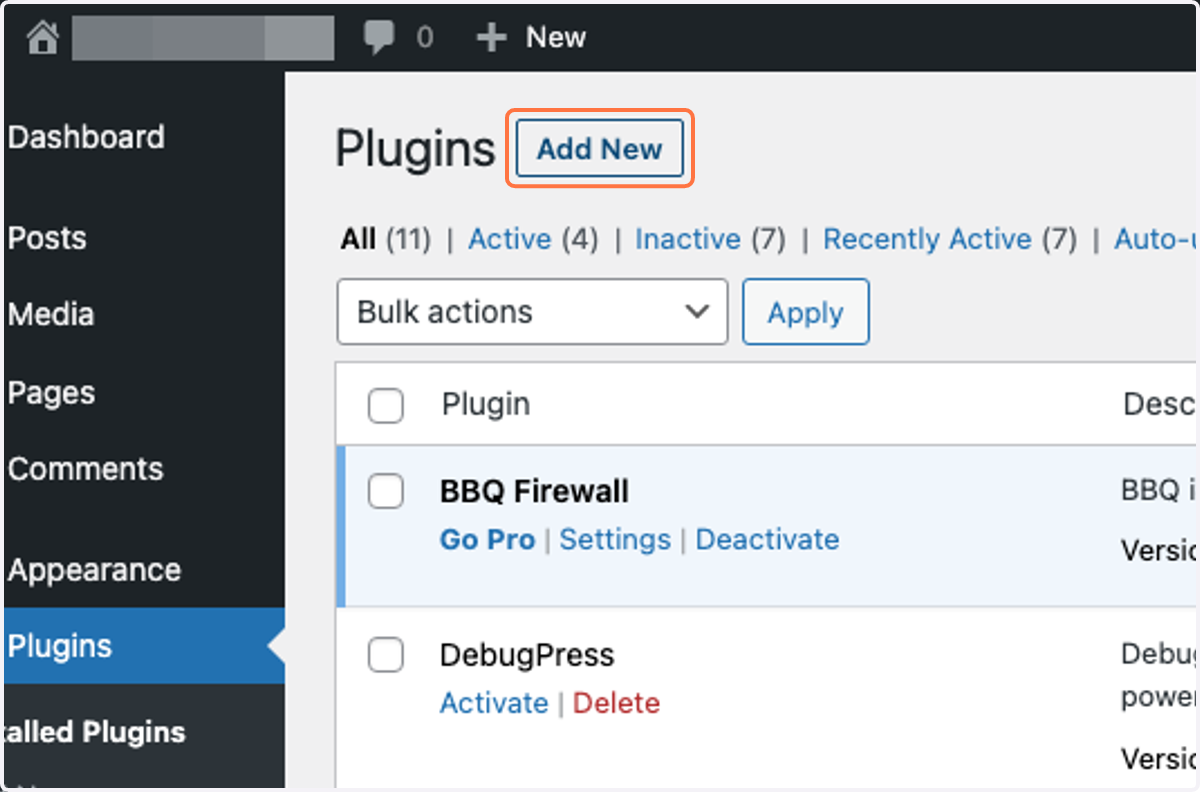
WordPress > Plugins
3. Click on Add New
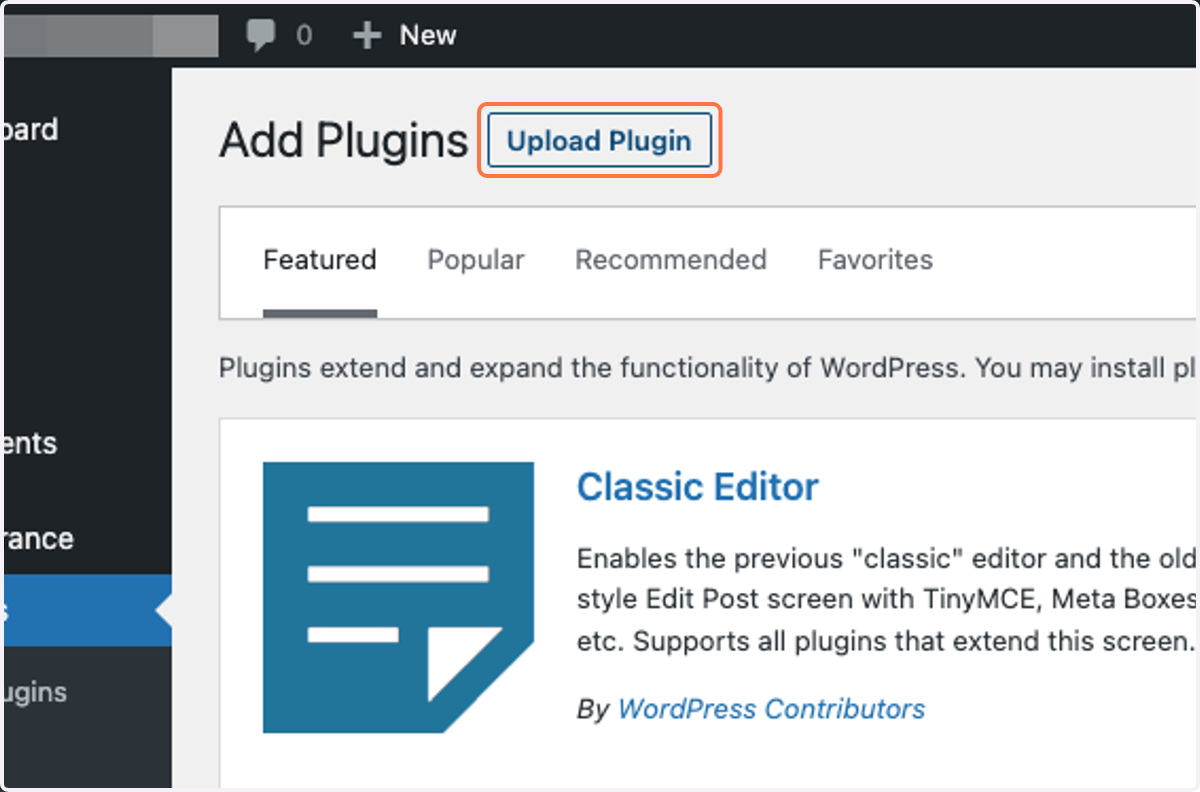
4. Click on Upload Plugin
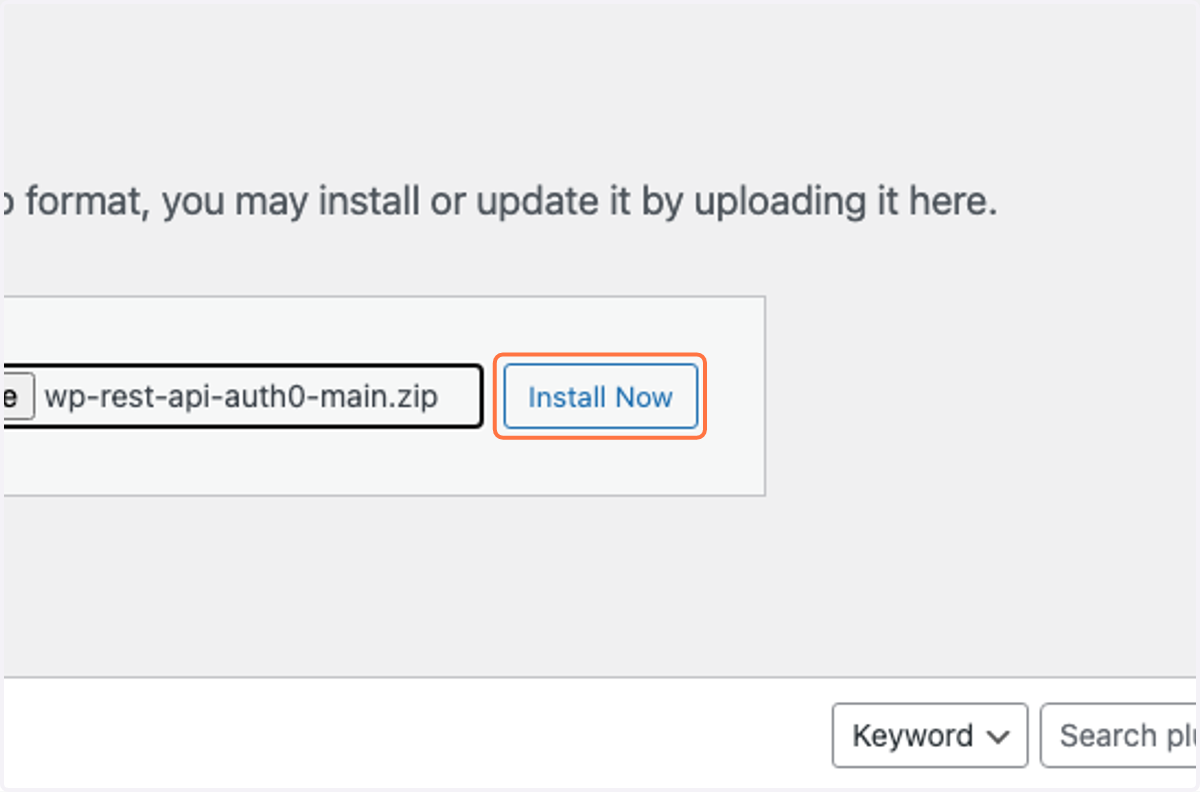
5. Click on install-plugin-submit
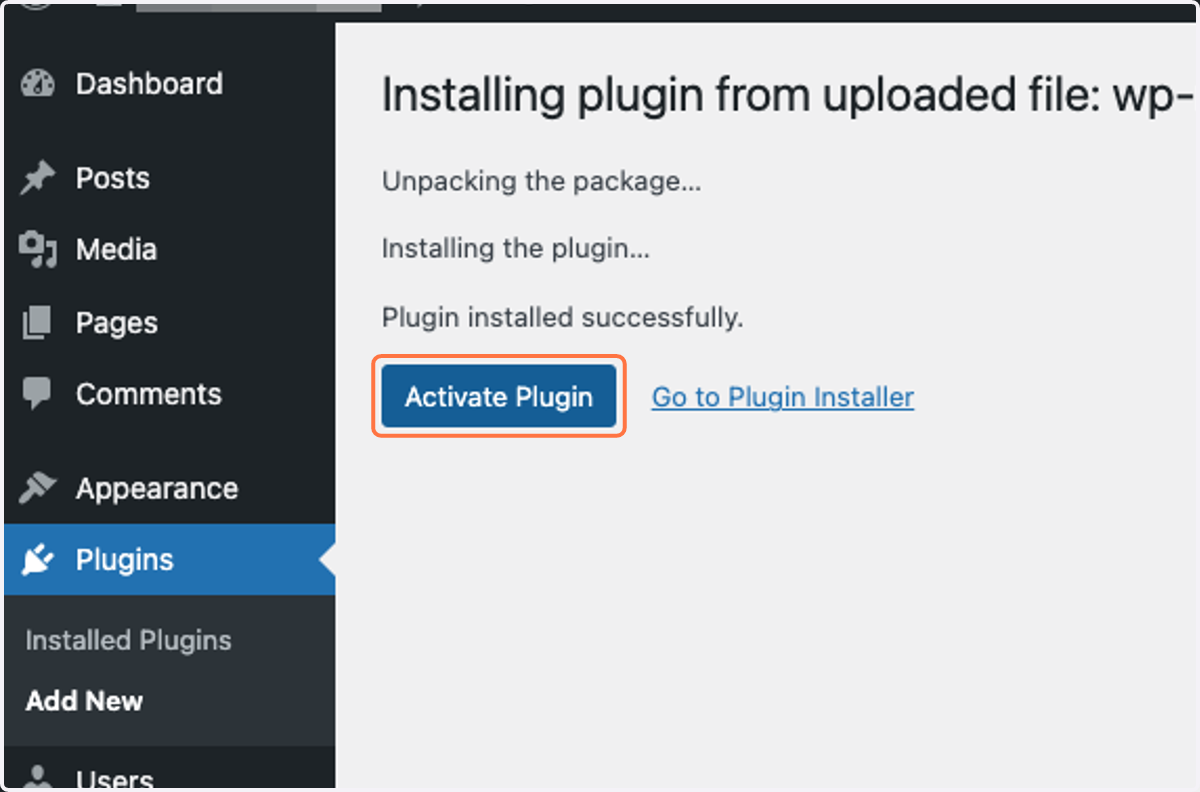
6. Click on Activate Plugin
Auth0
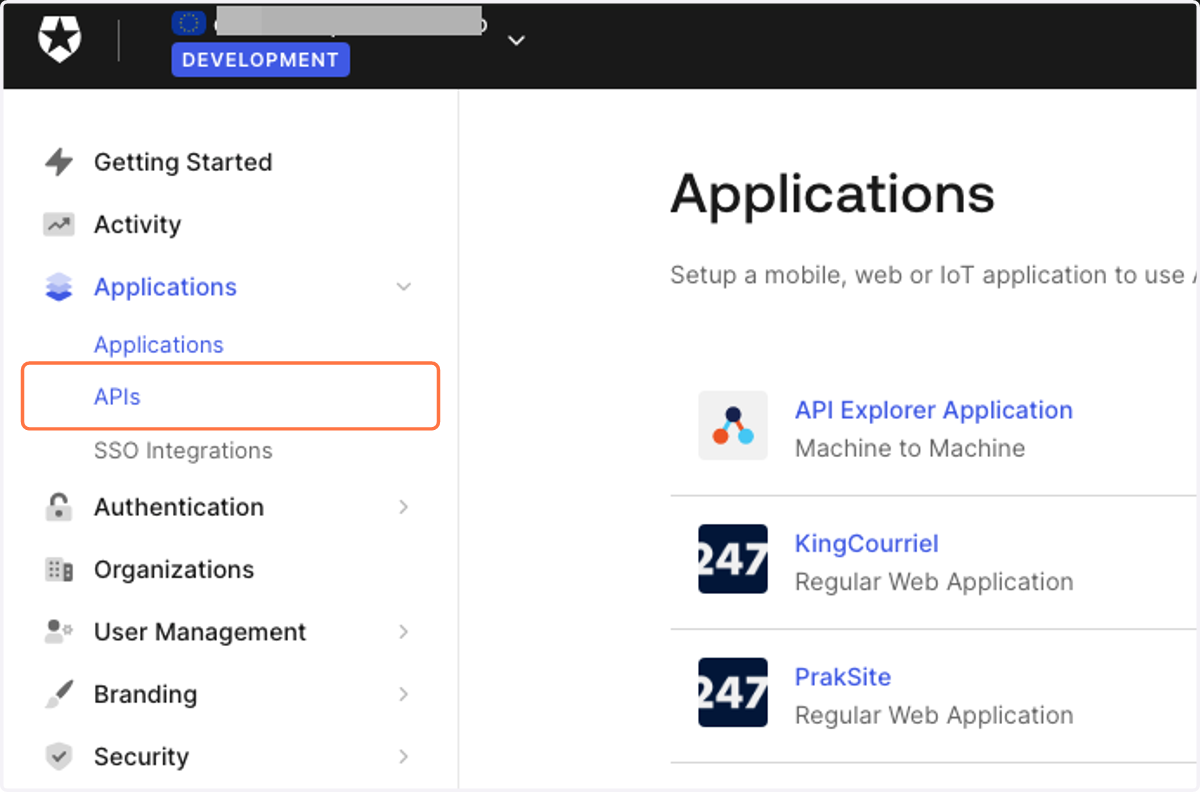
7. Click on APIs
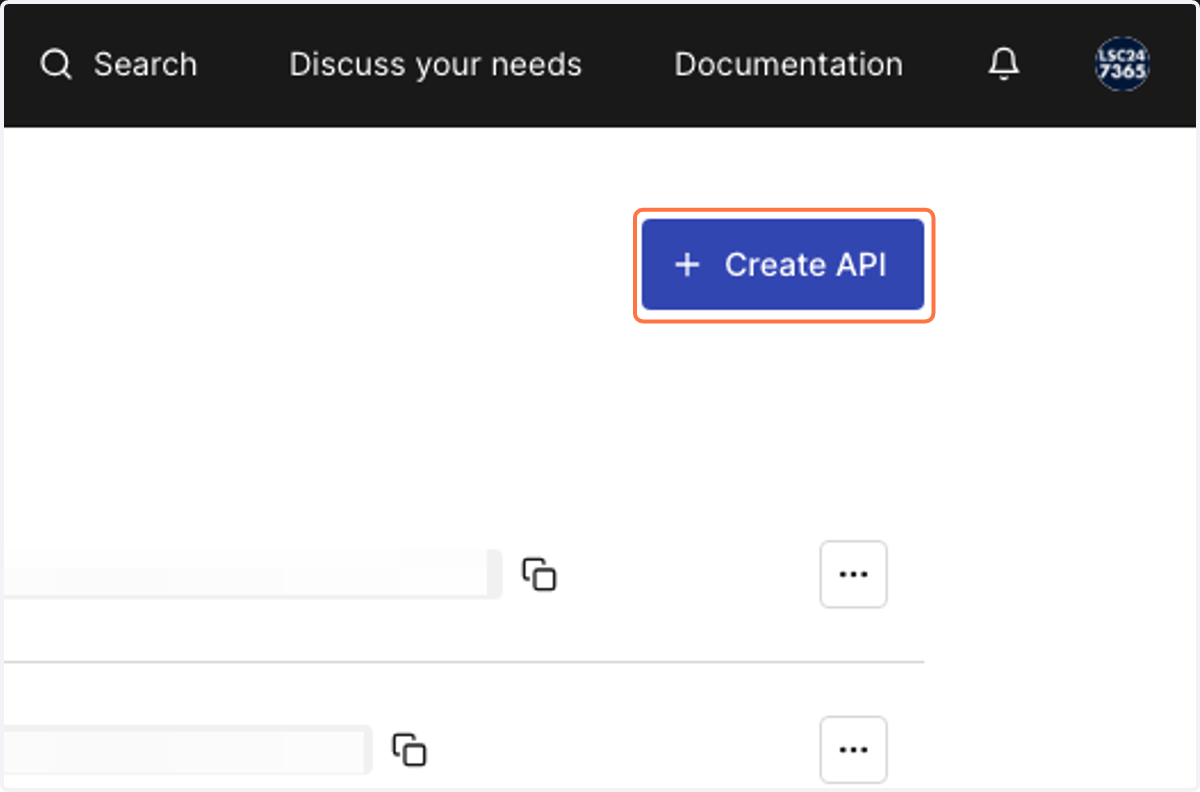
8. Click on Create API
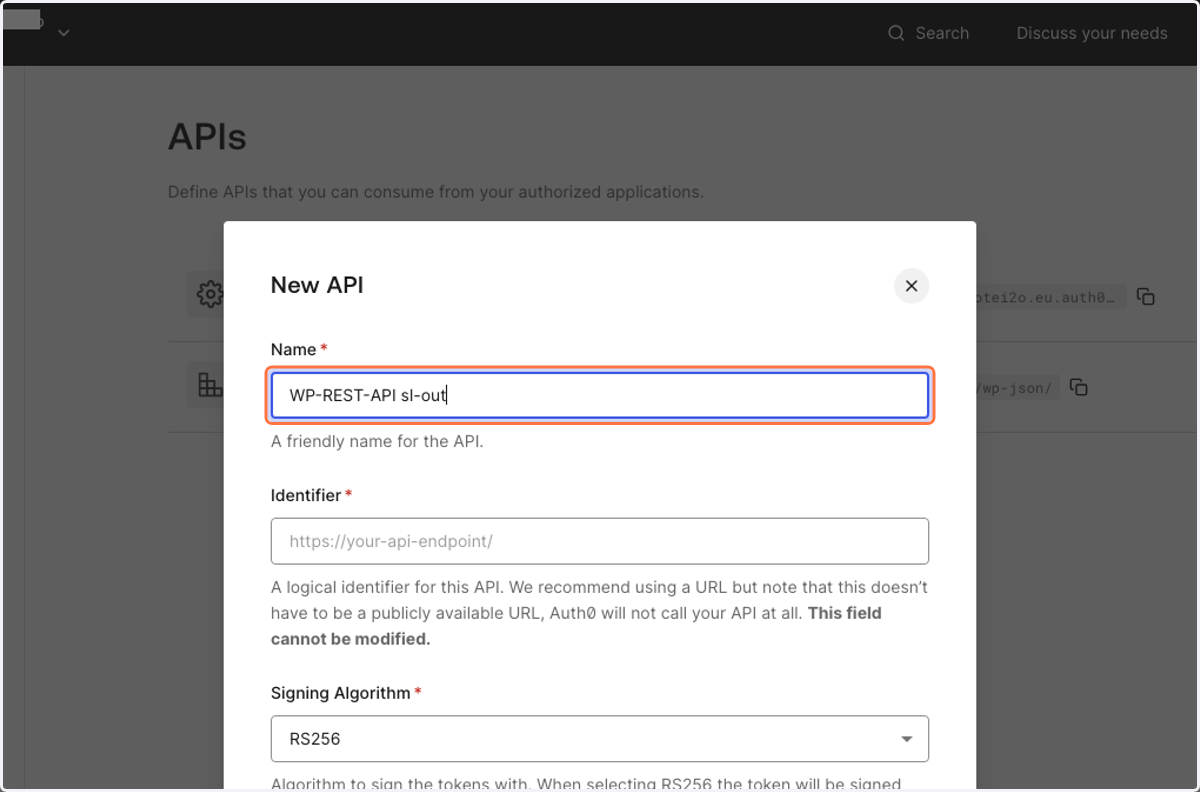
9. Type "WP-REST-API sl-out"
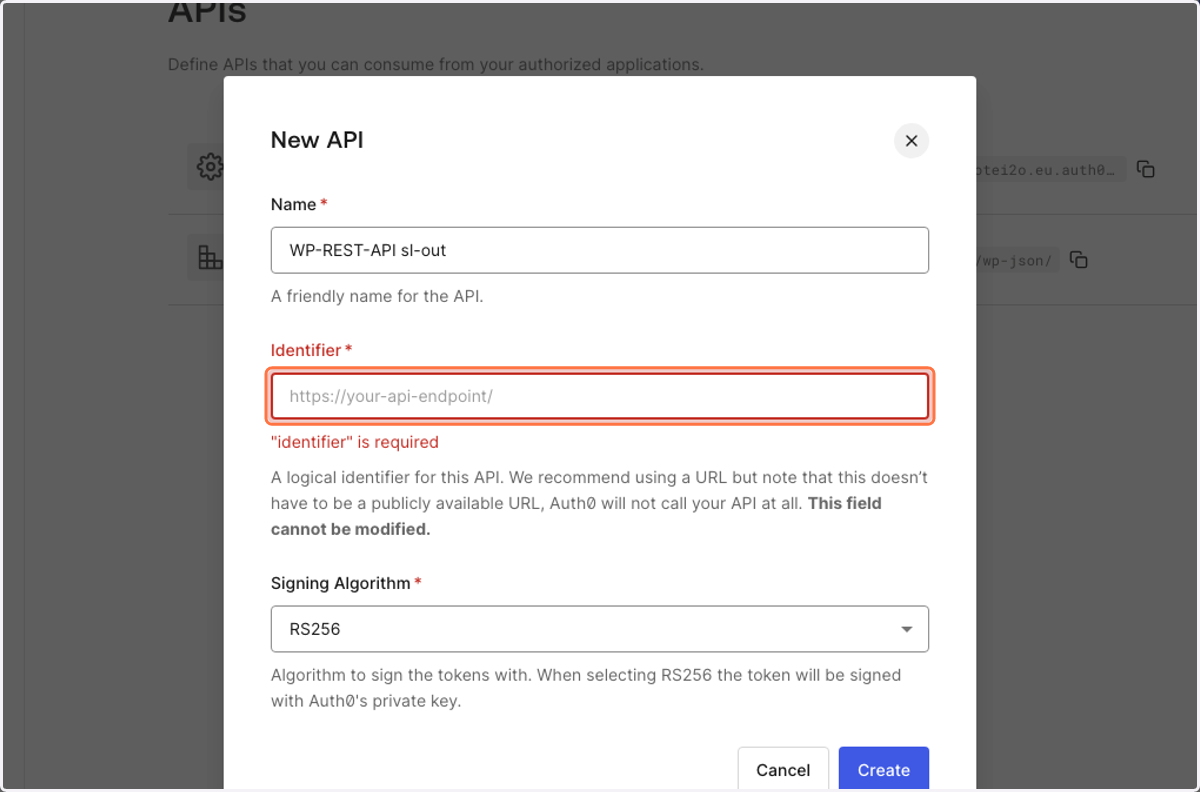
10. Click on Identifier *
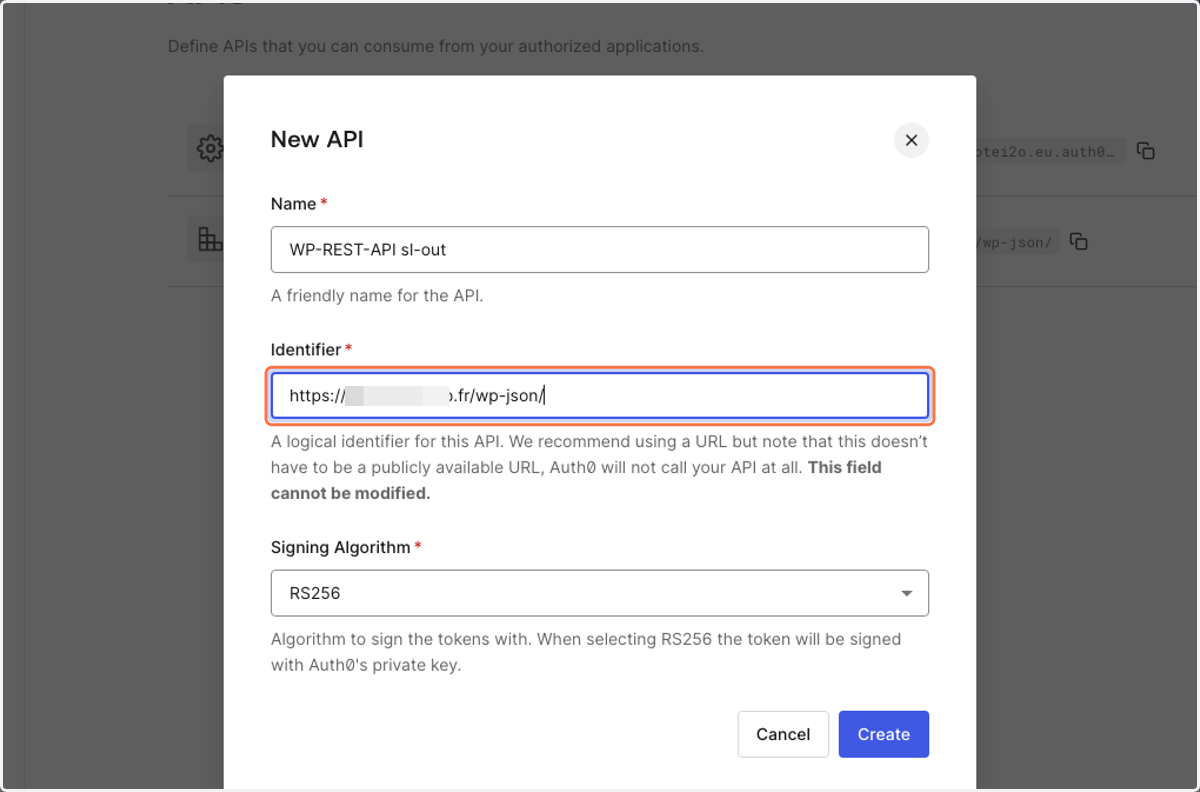
11. Paste input
12. Select HS256 from Signing Algorithm *
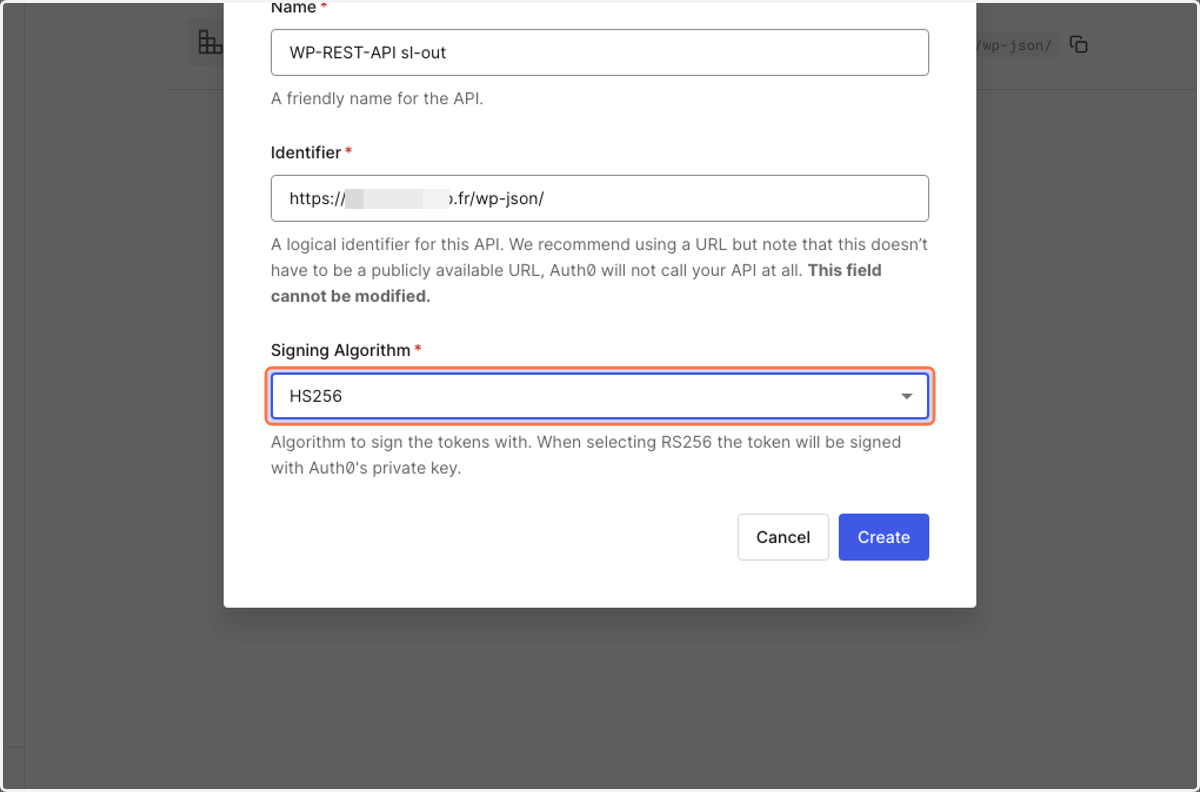
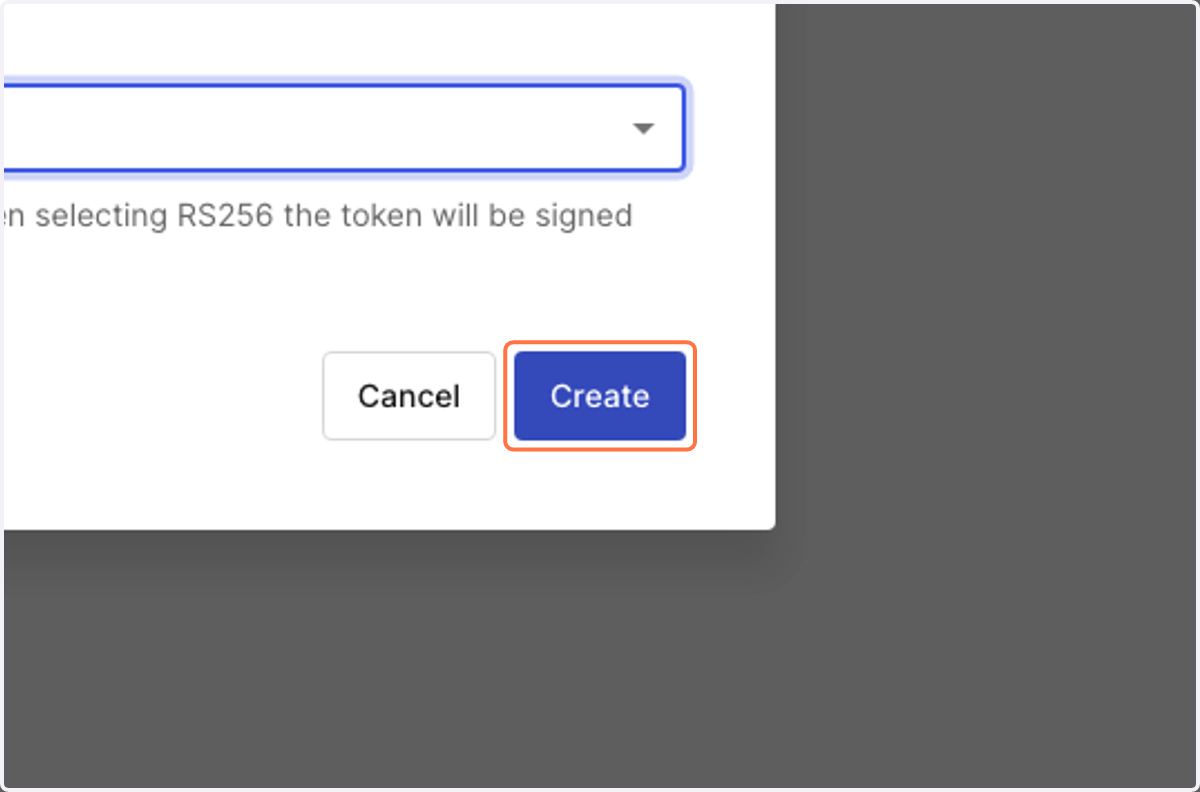
13. Click on Create
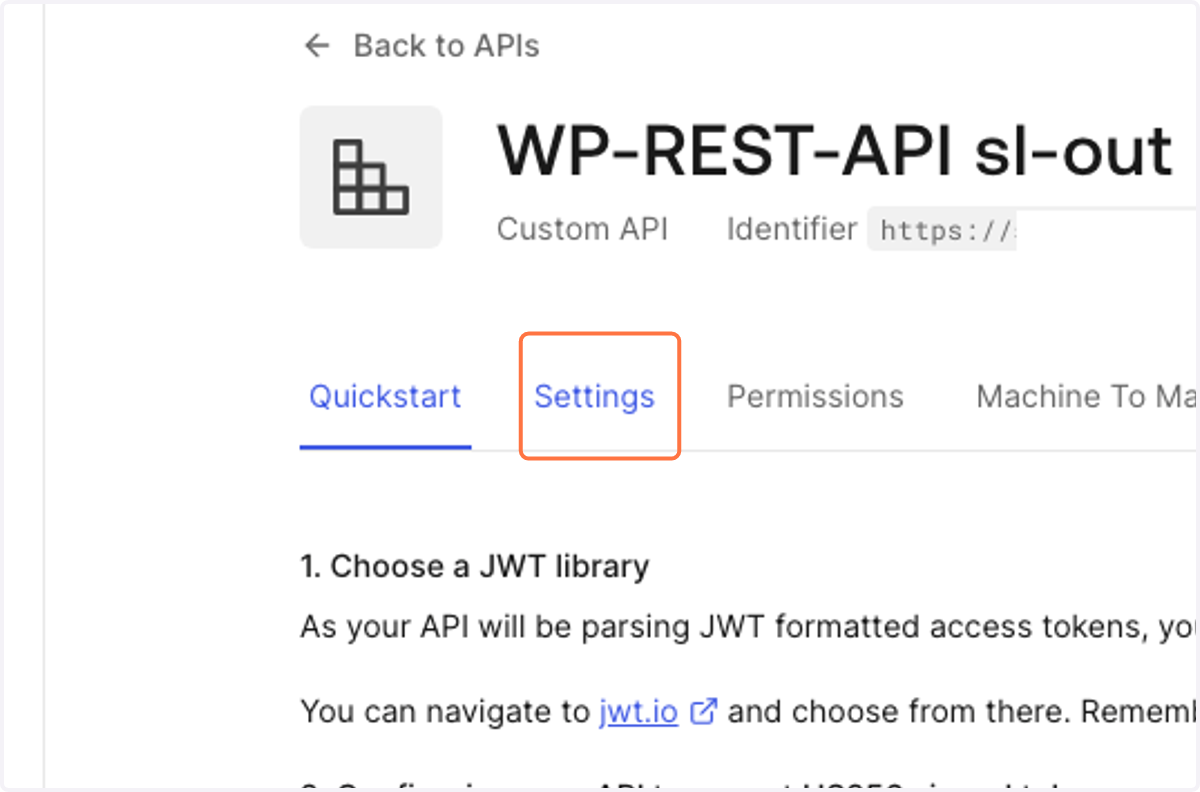
14. Click on Settings
15. Click on Copy
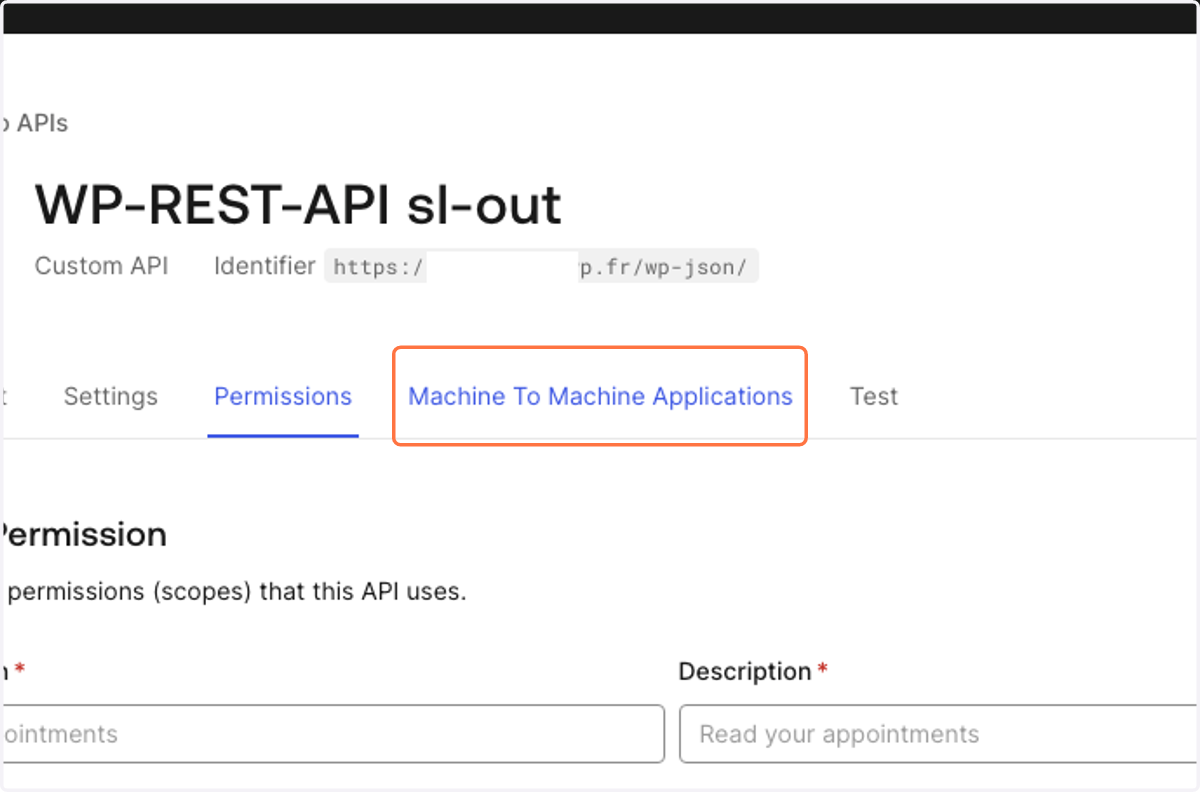
16. Click on Machine To Machine Applications
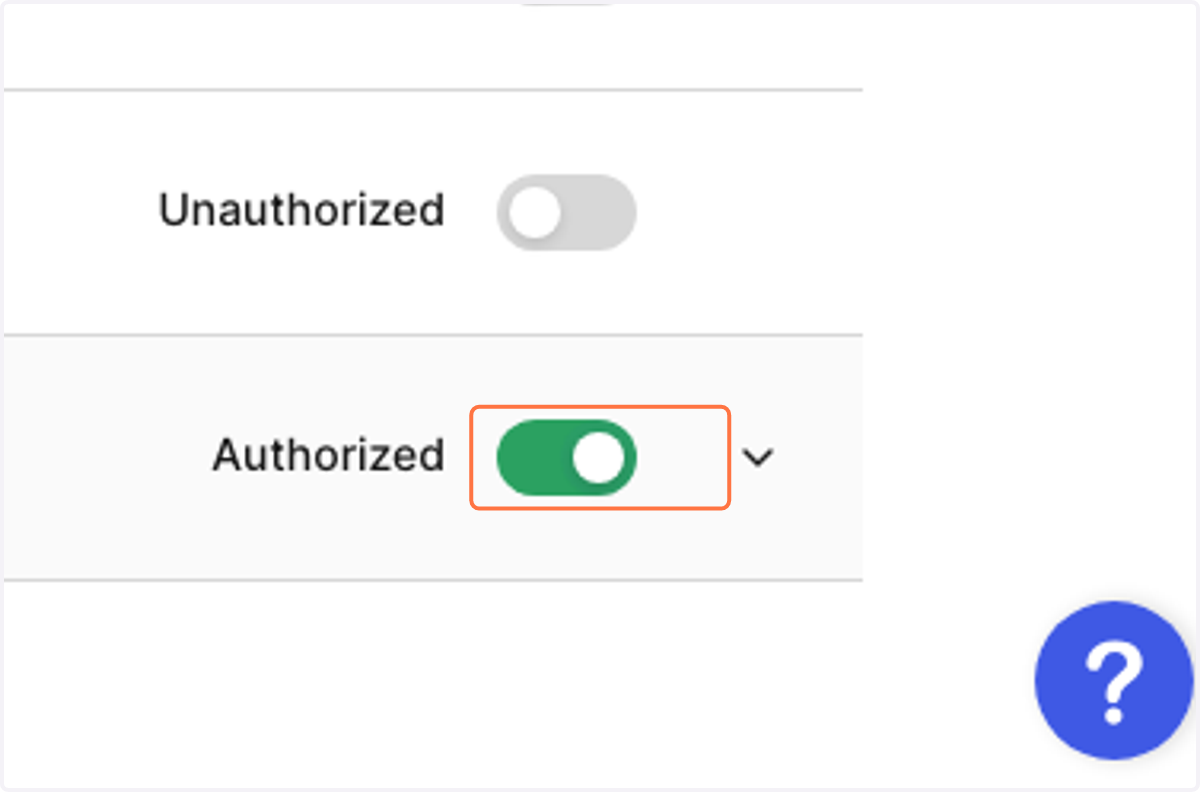
17. Check Authorized
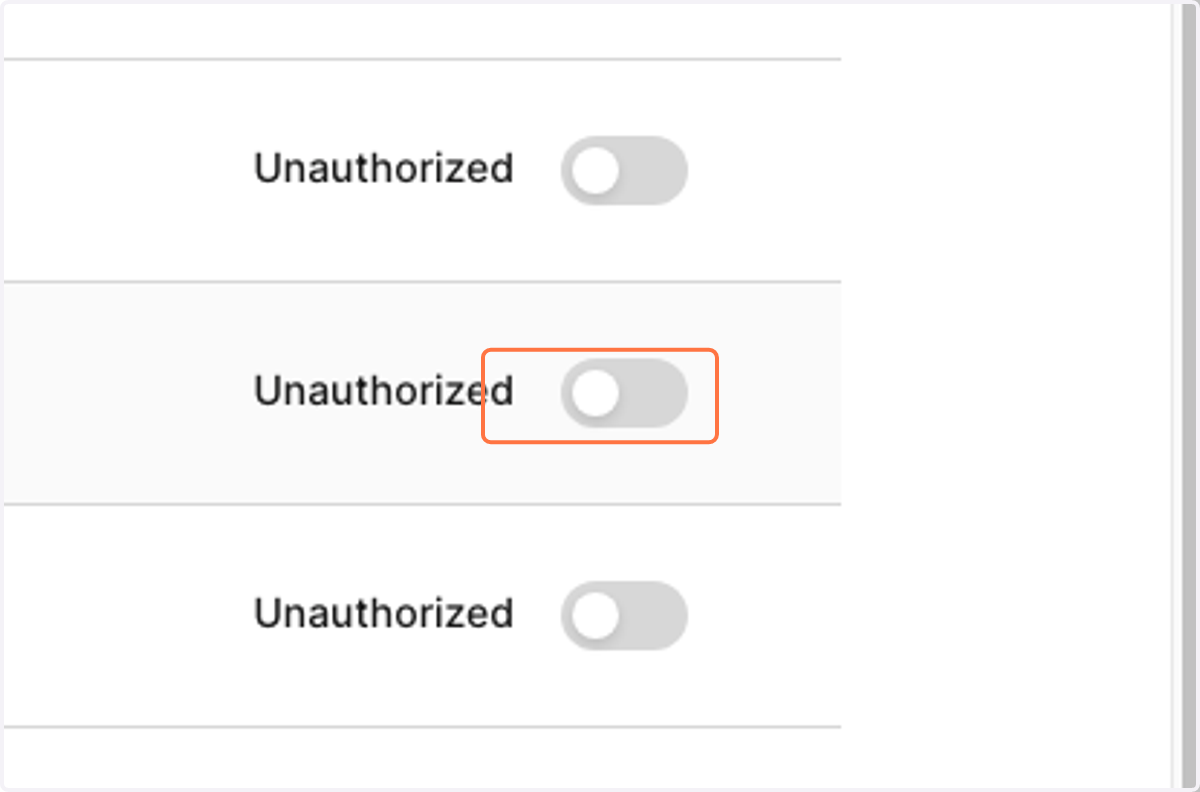
18. Uncheck Unauthorized
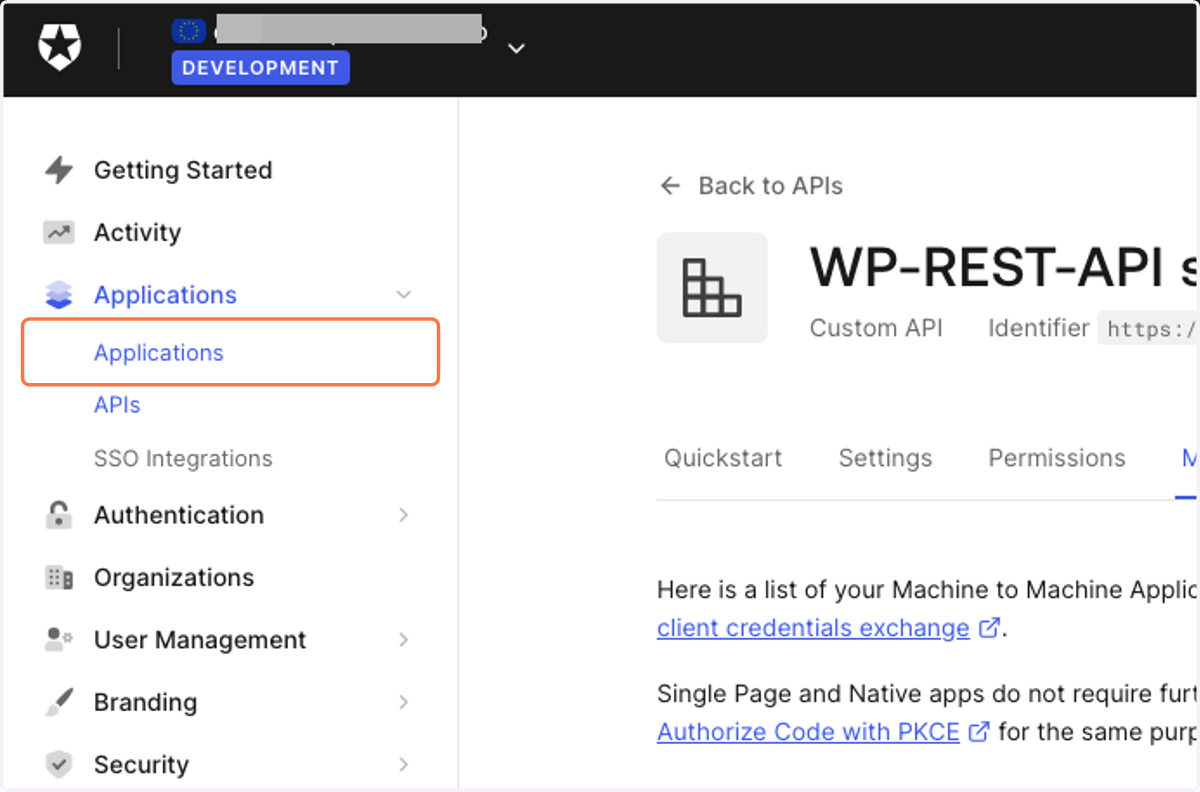
19. Click on Applications
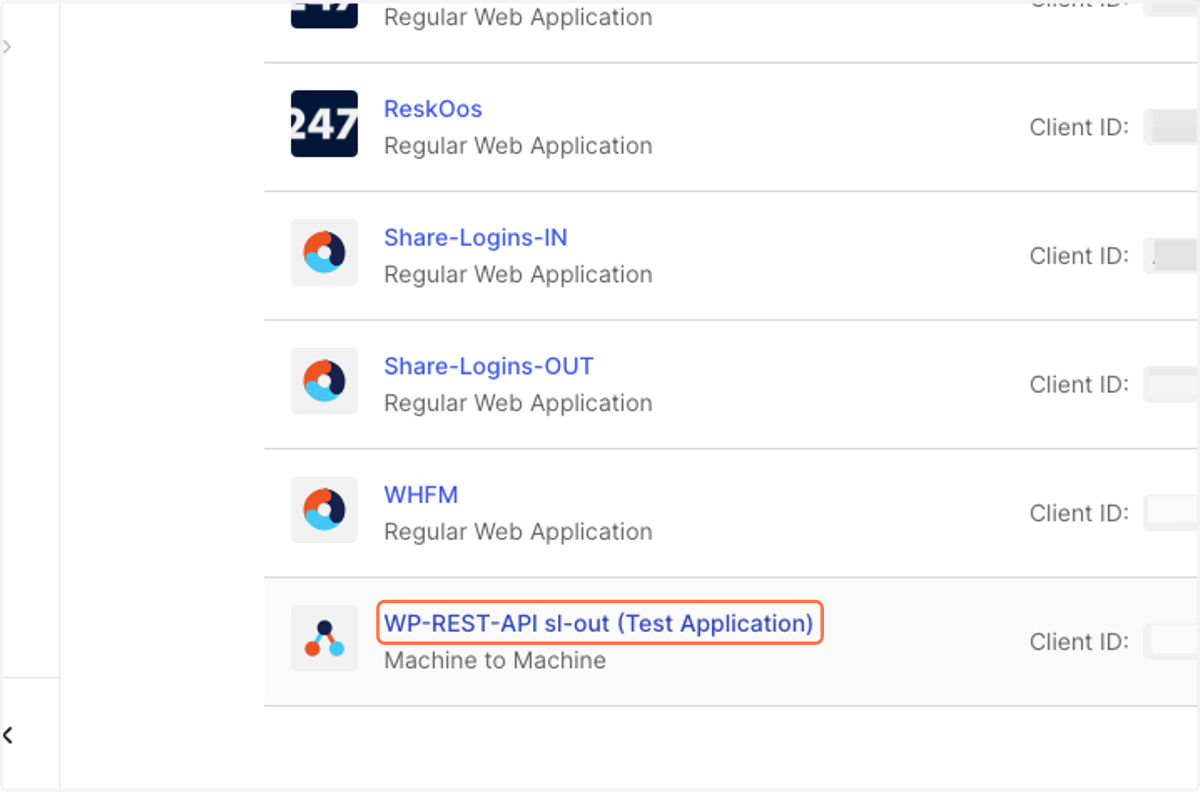
20. Click on WP-REST-API sl-out (Test Application)
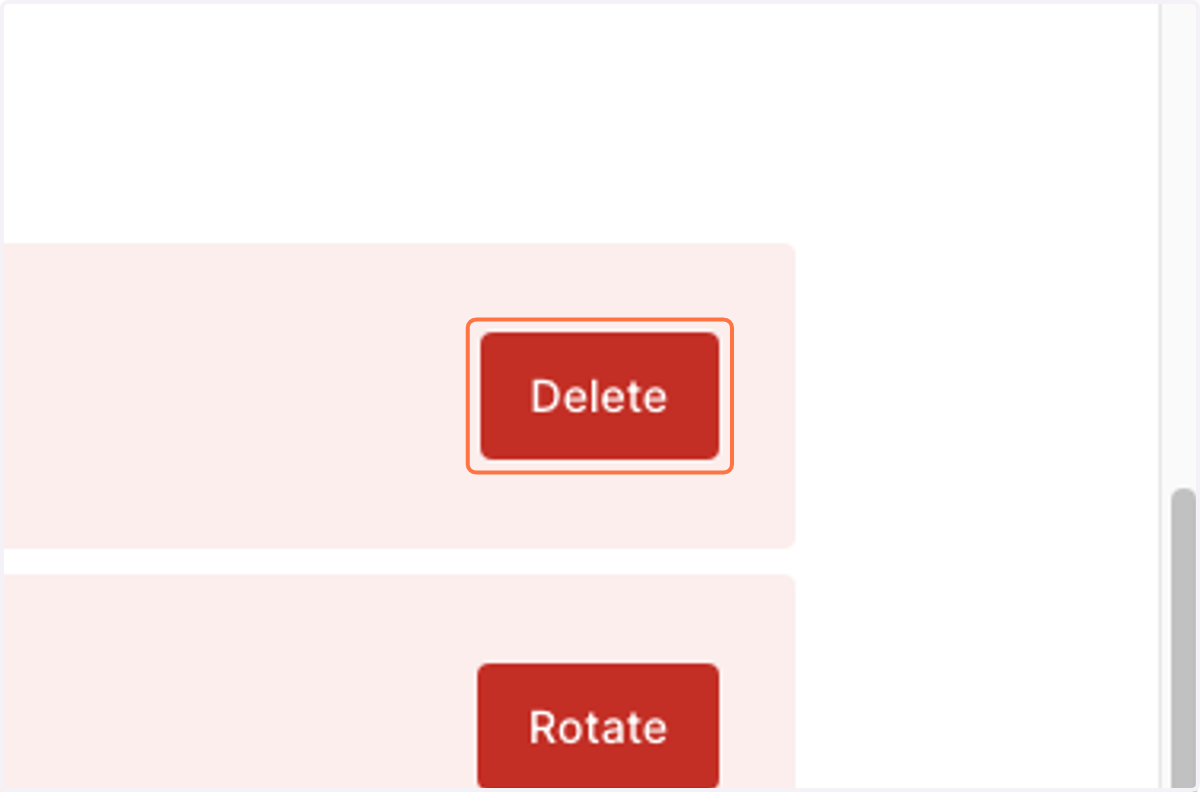
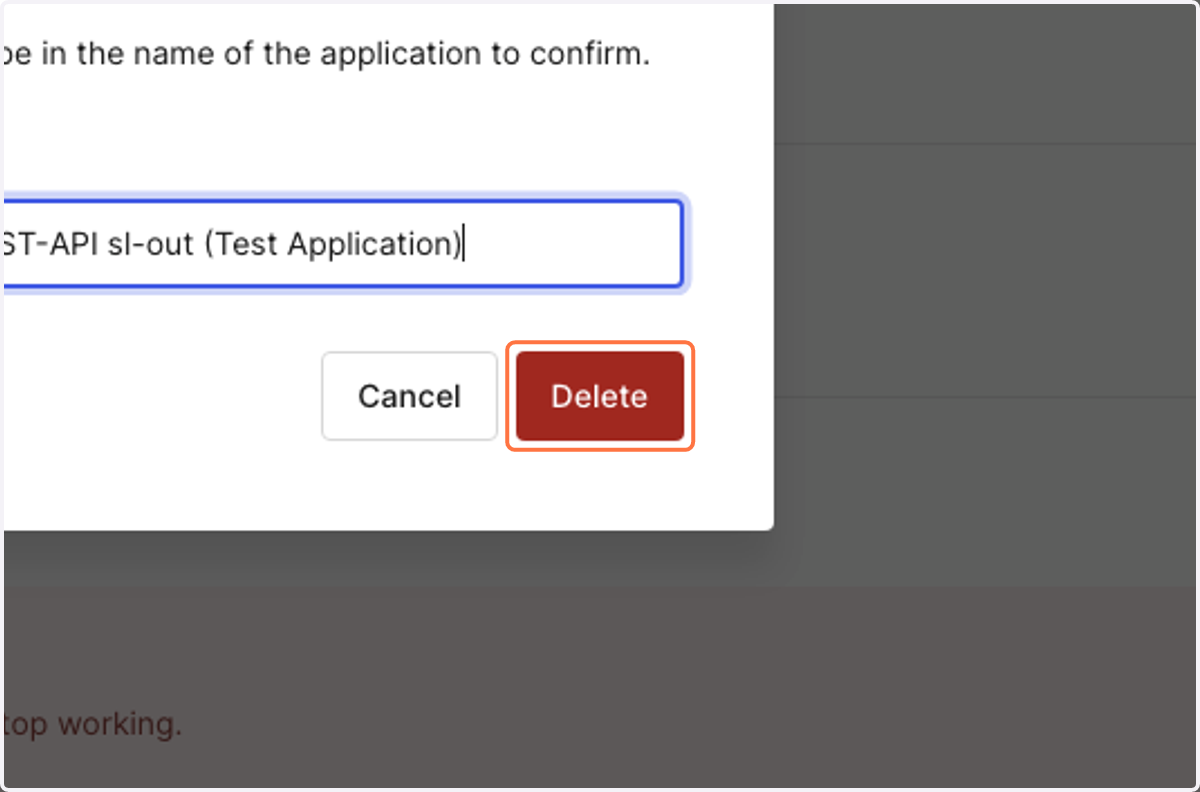
21. Click on Delete
22. Click on dialog
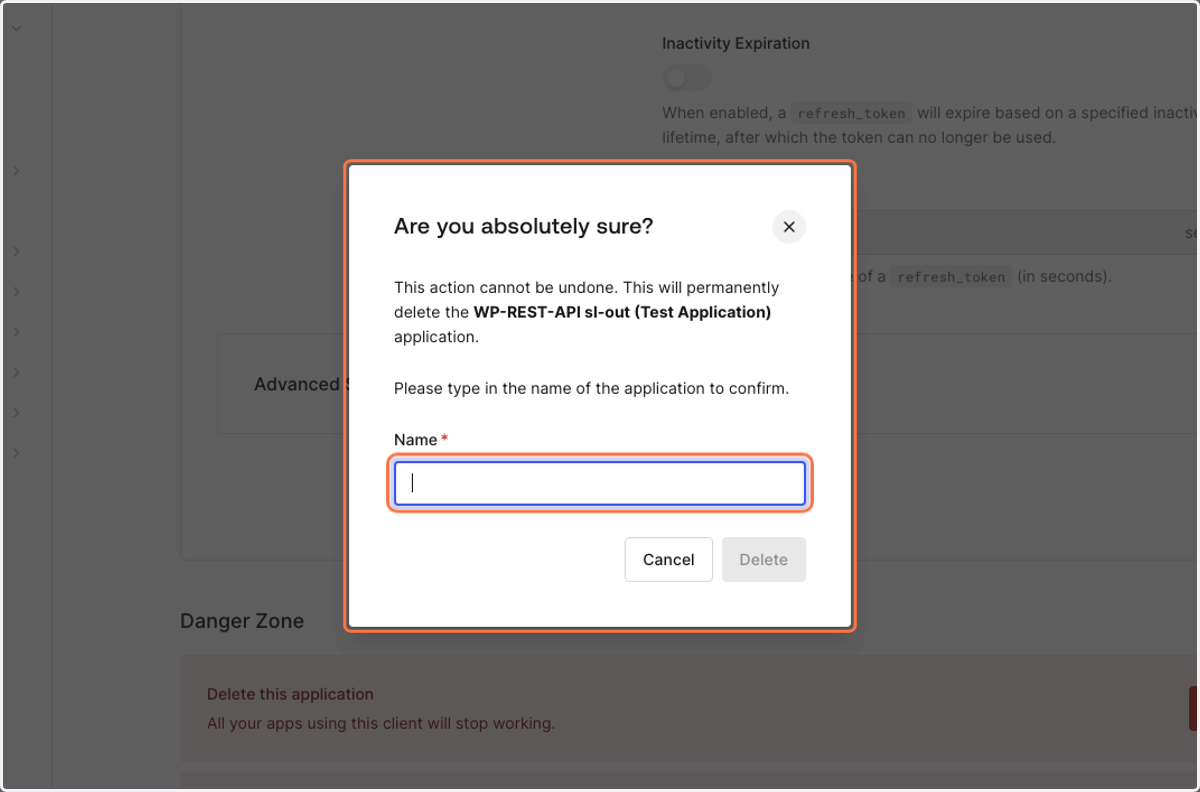
23. Type the application name
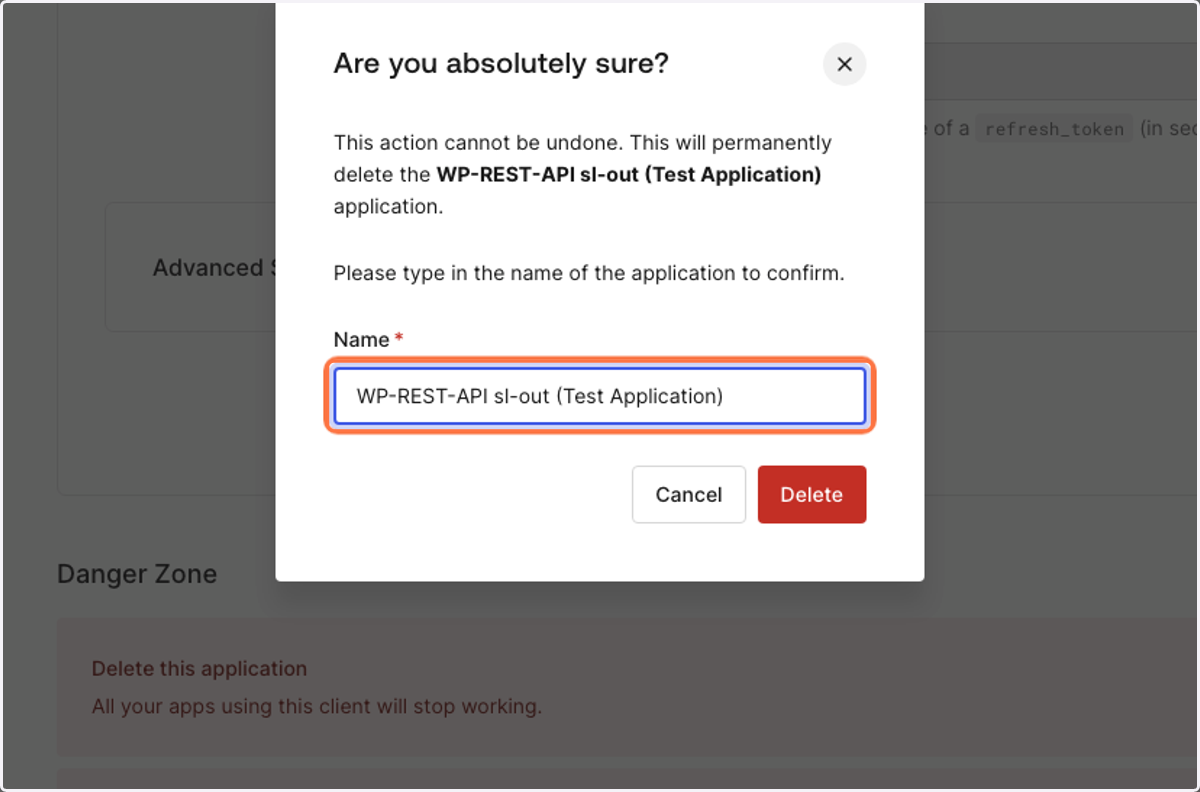
24. Click on Delete
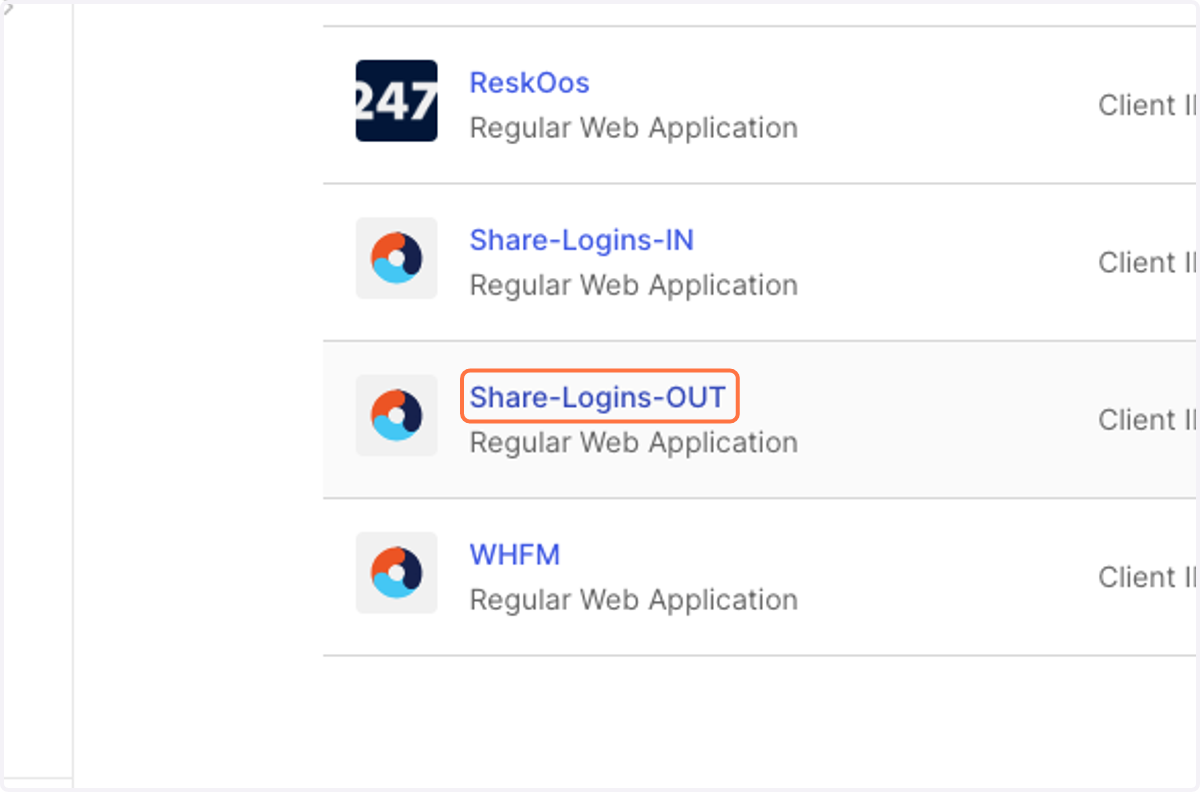
25. Click on Share-Logins-OUT
26. Click on Copy
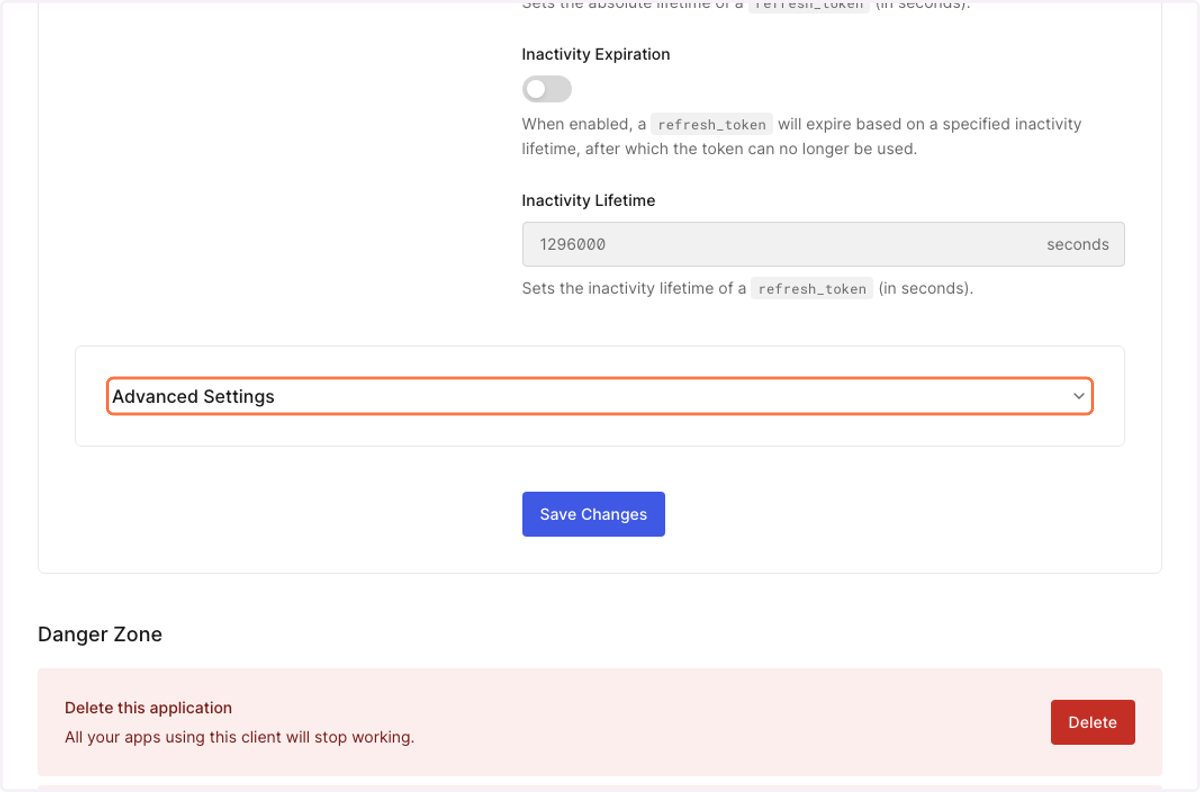
27. Click on Advanced Settings
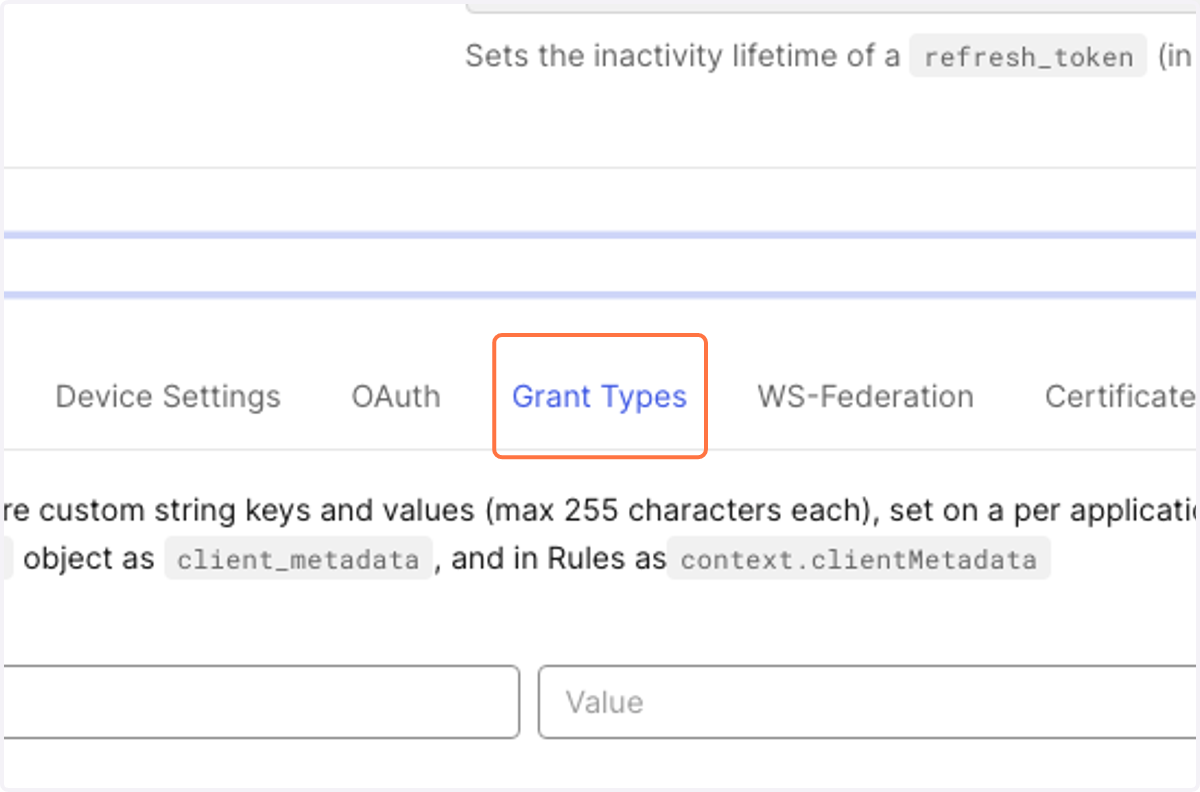
28. Click on Grant Types
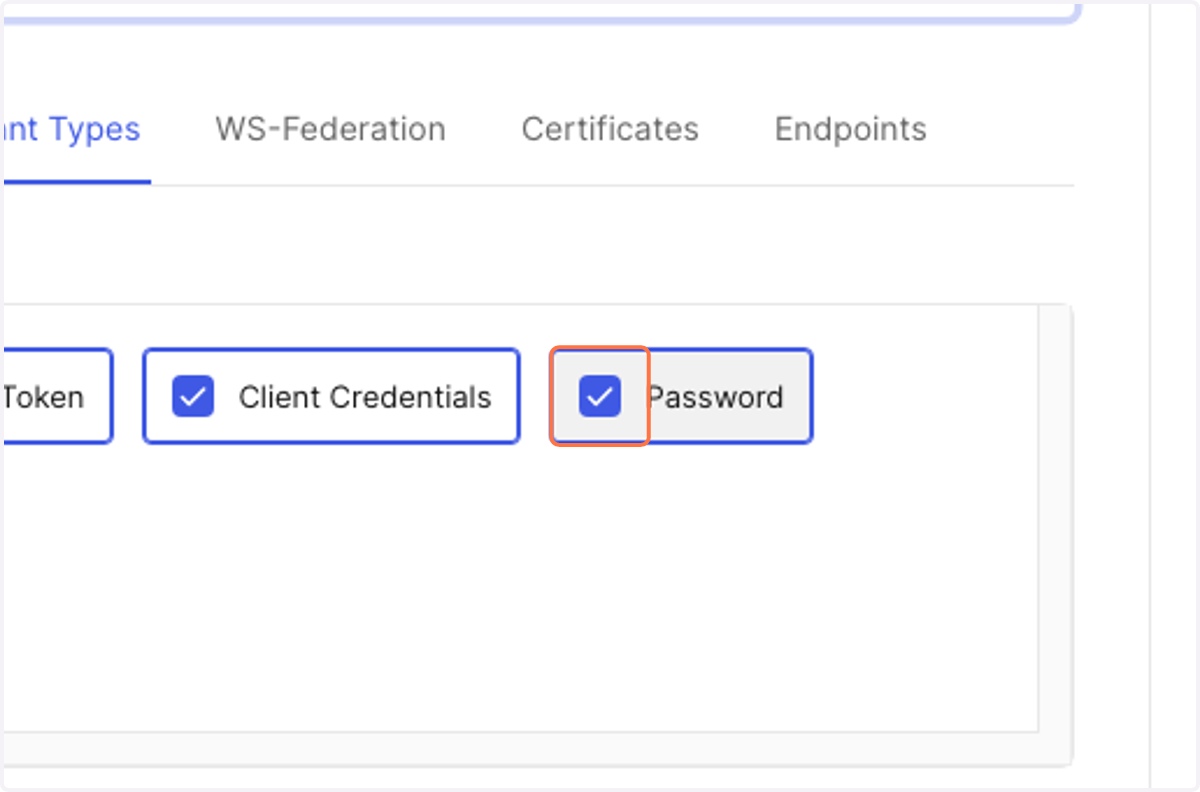
29. Check Password
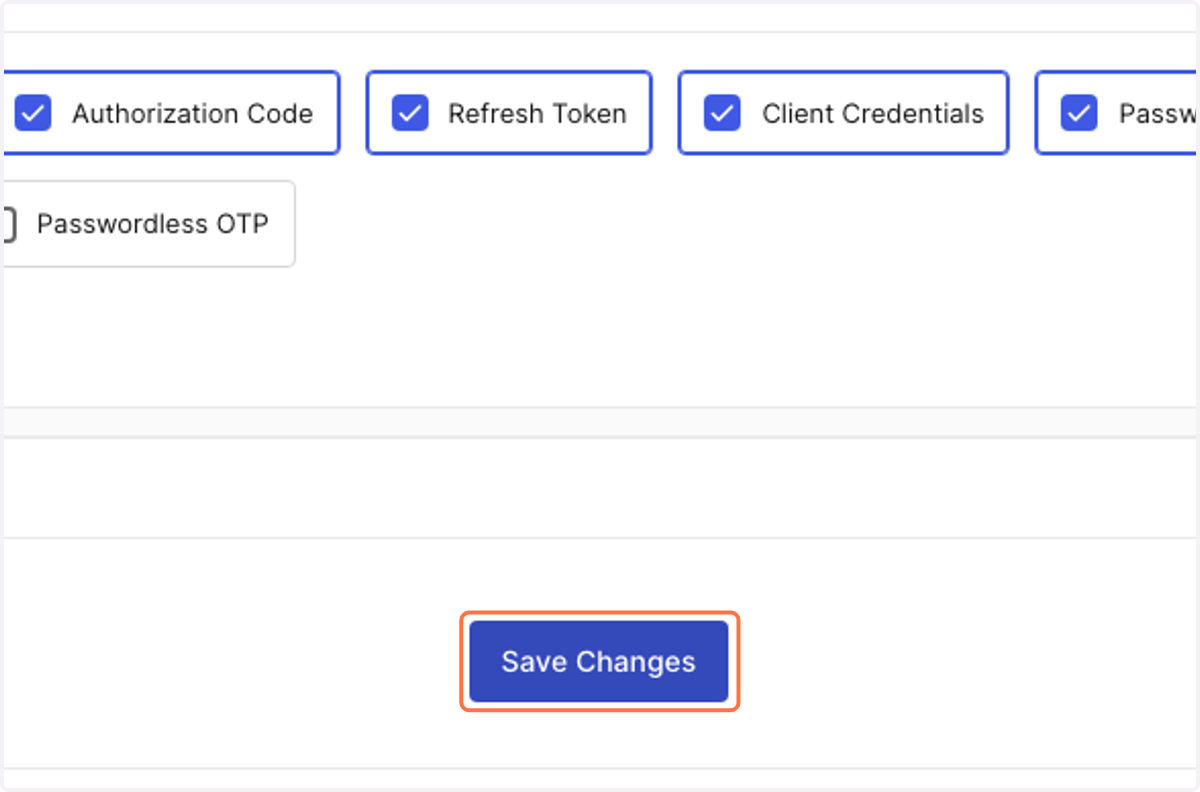
30. Click on Save Changes
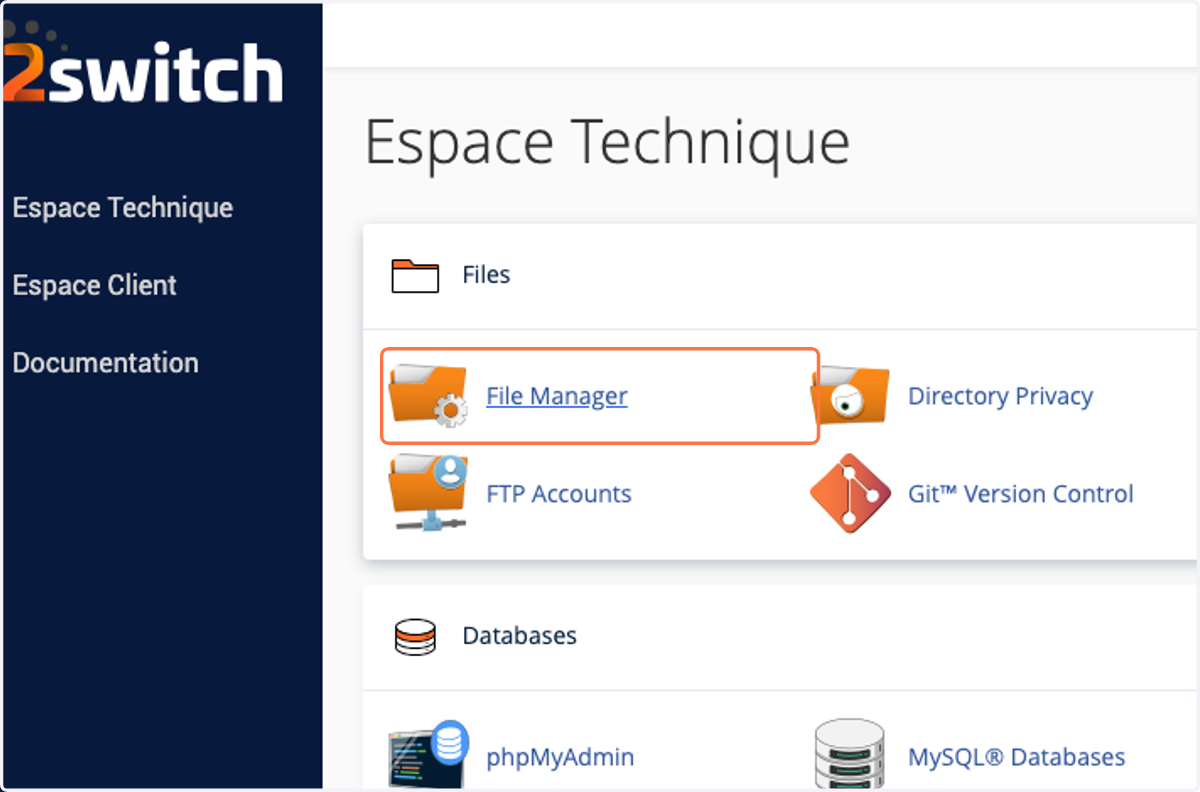
cPanel - Espace Technique
31. Click on File Manager
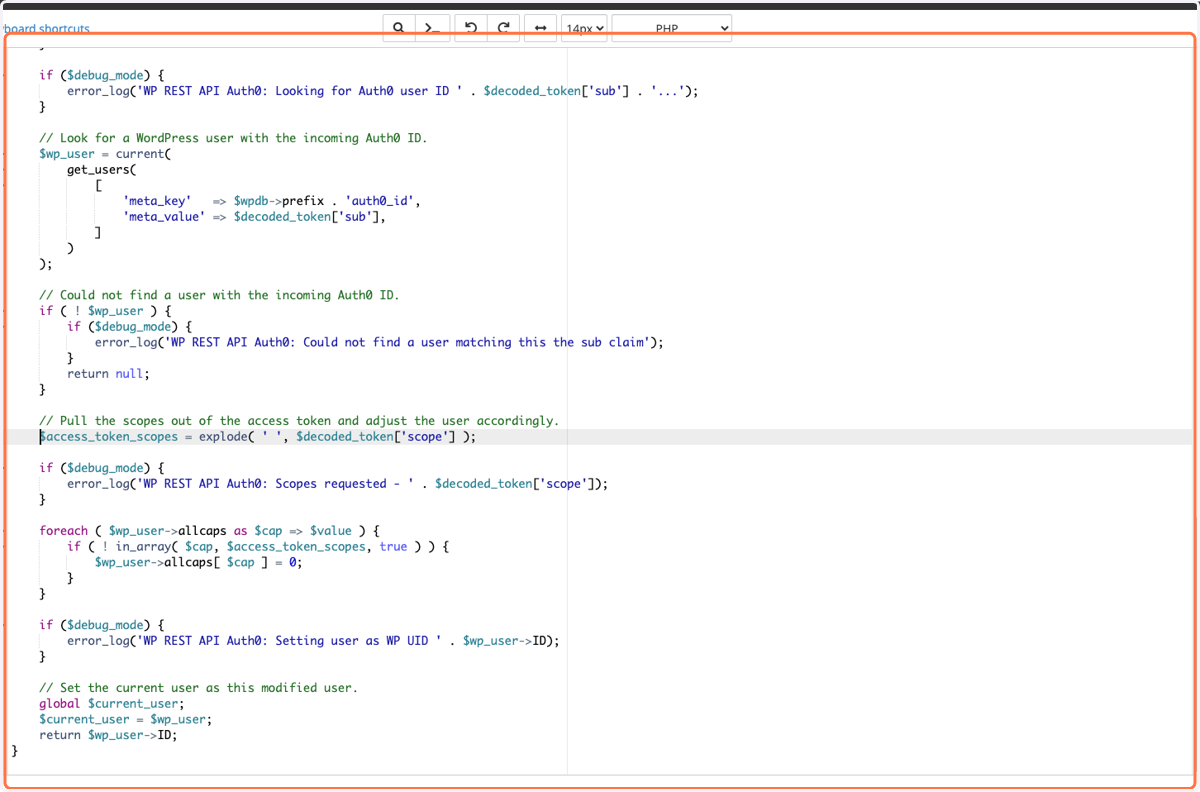
32. Go to ~/wp-content/plugins/wp-rest-api-auth0-main/src and comment lines 108 to 118 of the "wp-rest-api-auth0.php" file
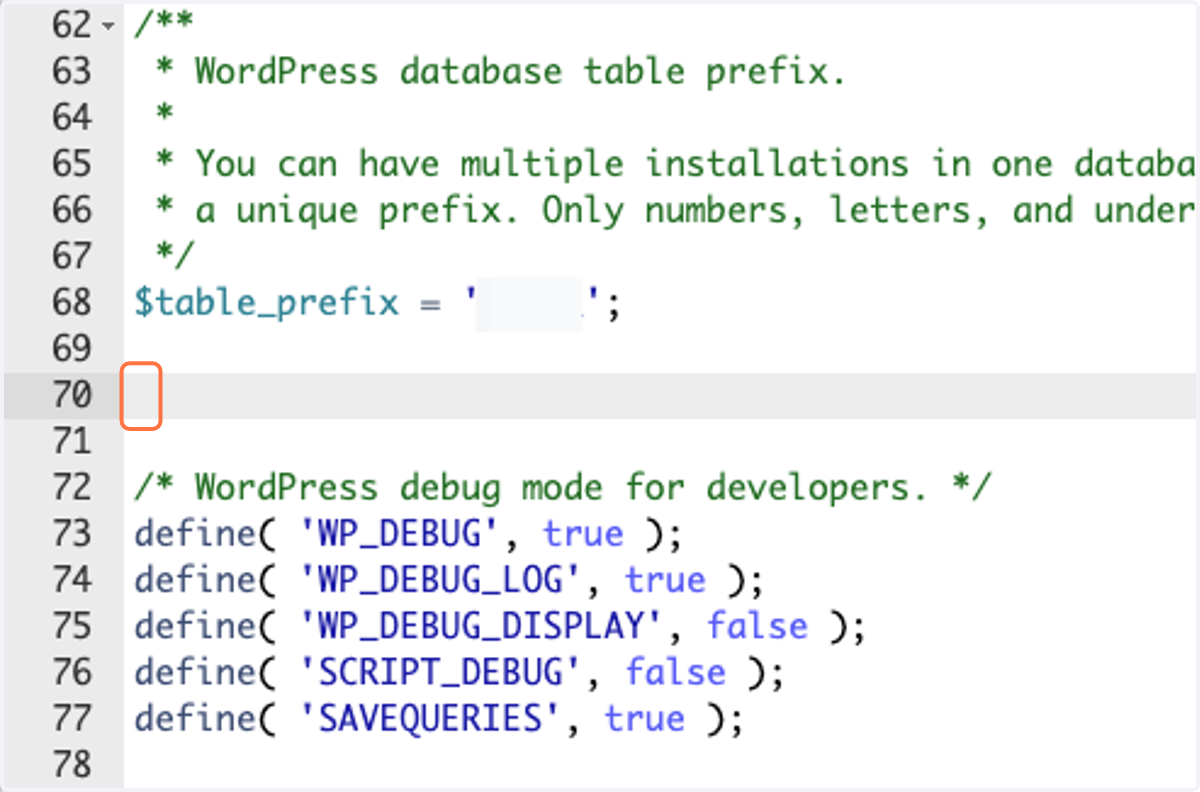
33. Paste text area
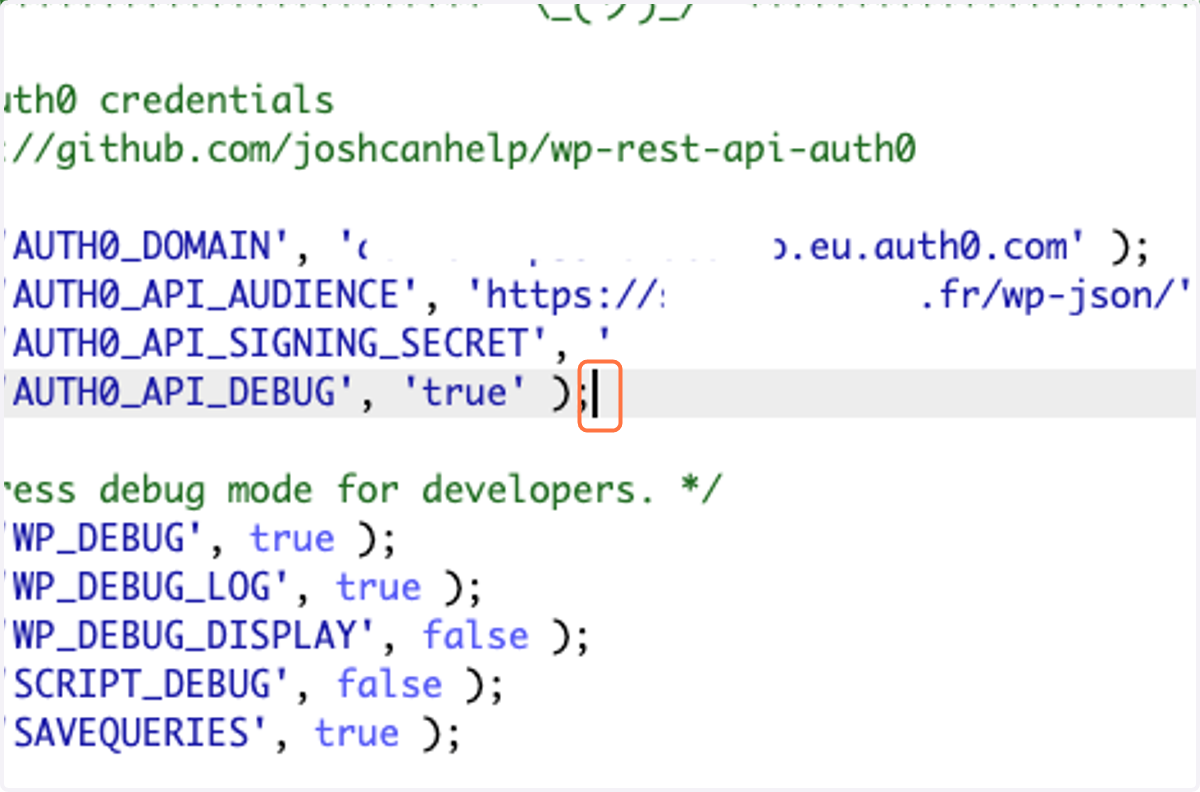
34. Click on Save Changes
35. Go to ~/wp-content/plugins/wp-rest-api-auth0-main/src and comment lines 108 to 118 of the "wp-rest-api-auth0.php" file
36. Click on Save Changes
Postman
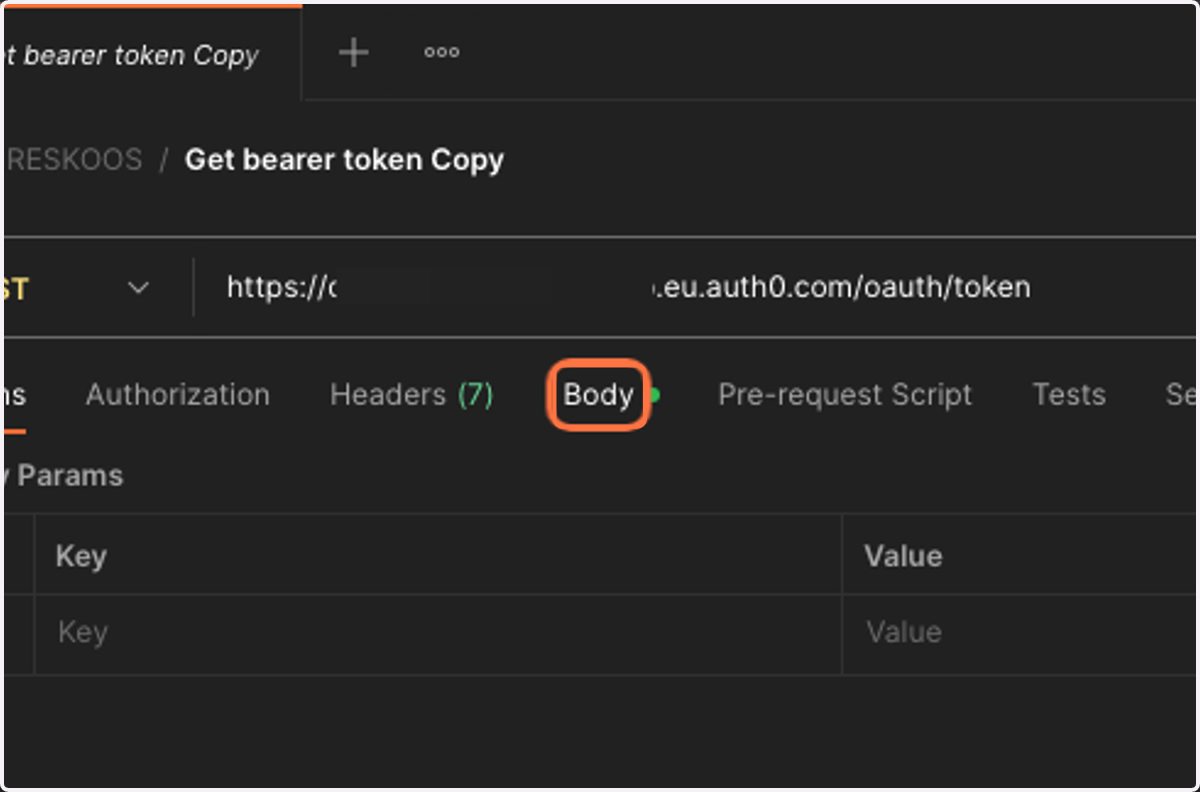
37. Click on Body
38. In the "Body" menu, choose RAW > JSON
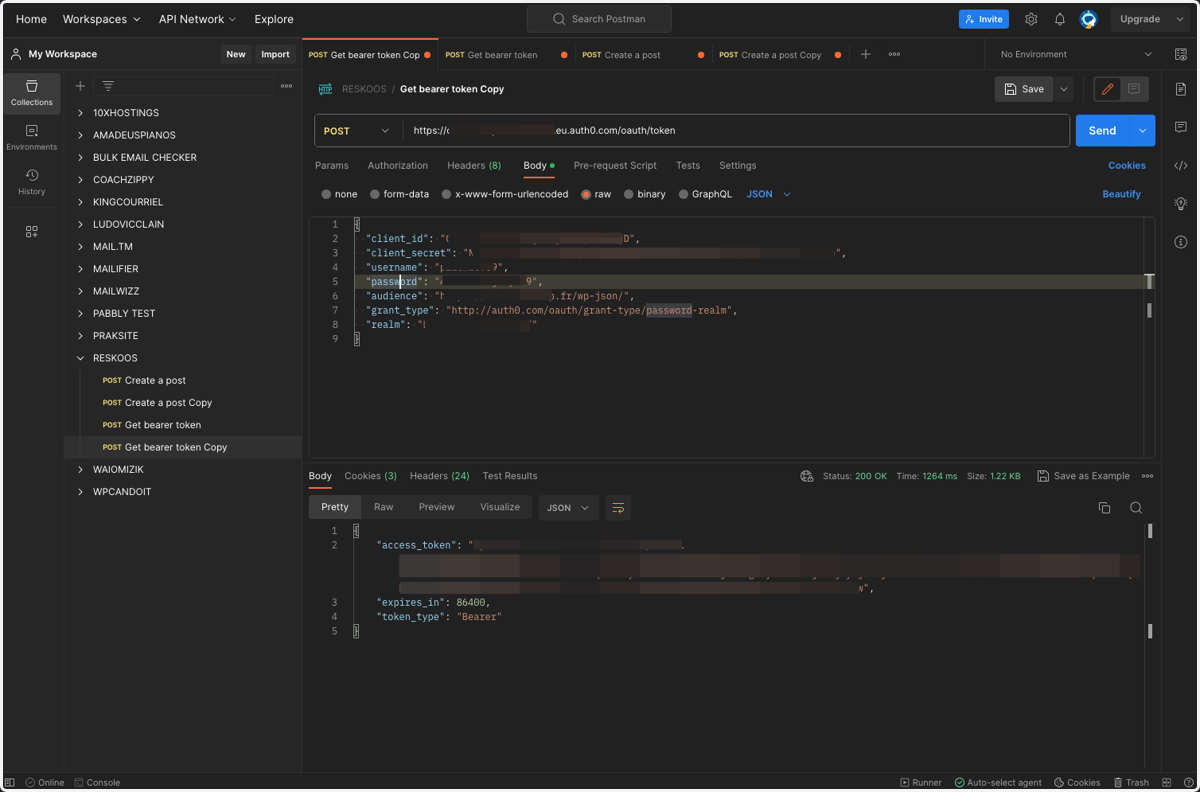
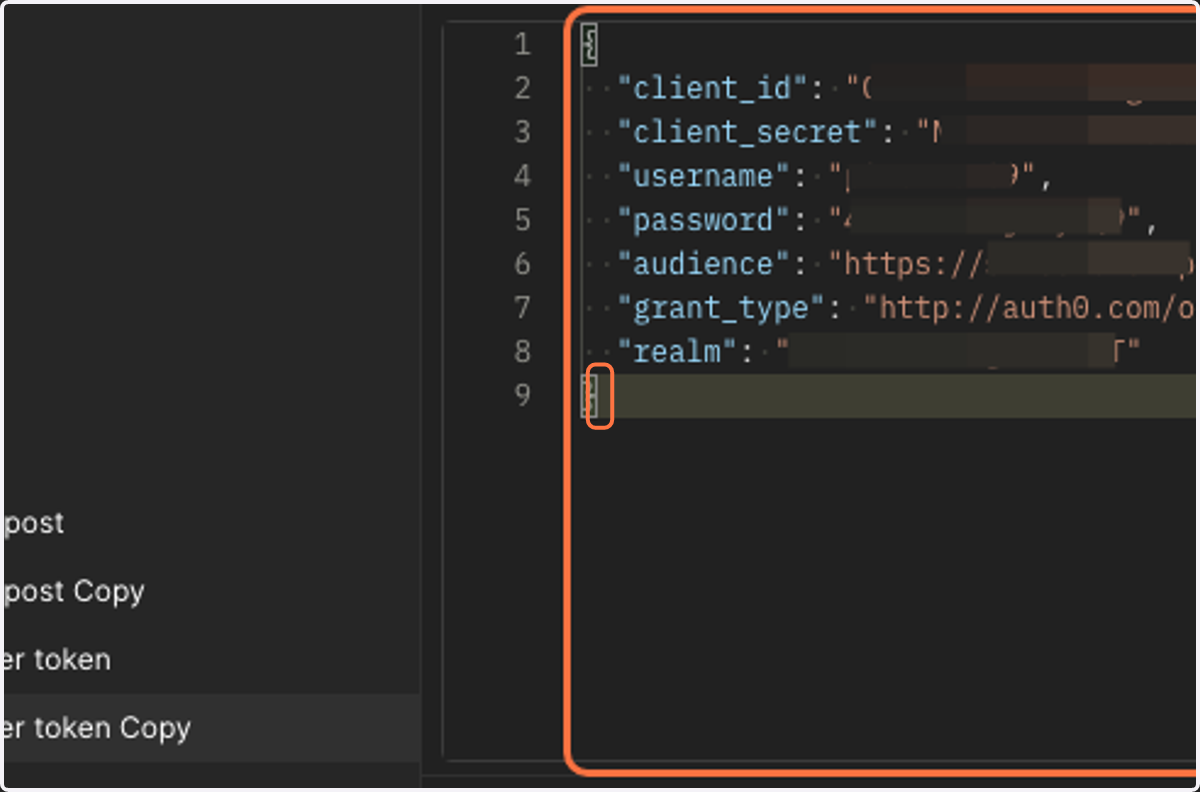
39. Customize and paste the JSON
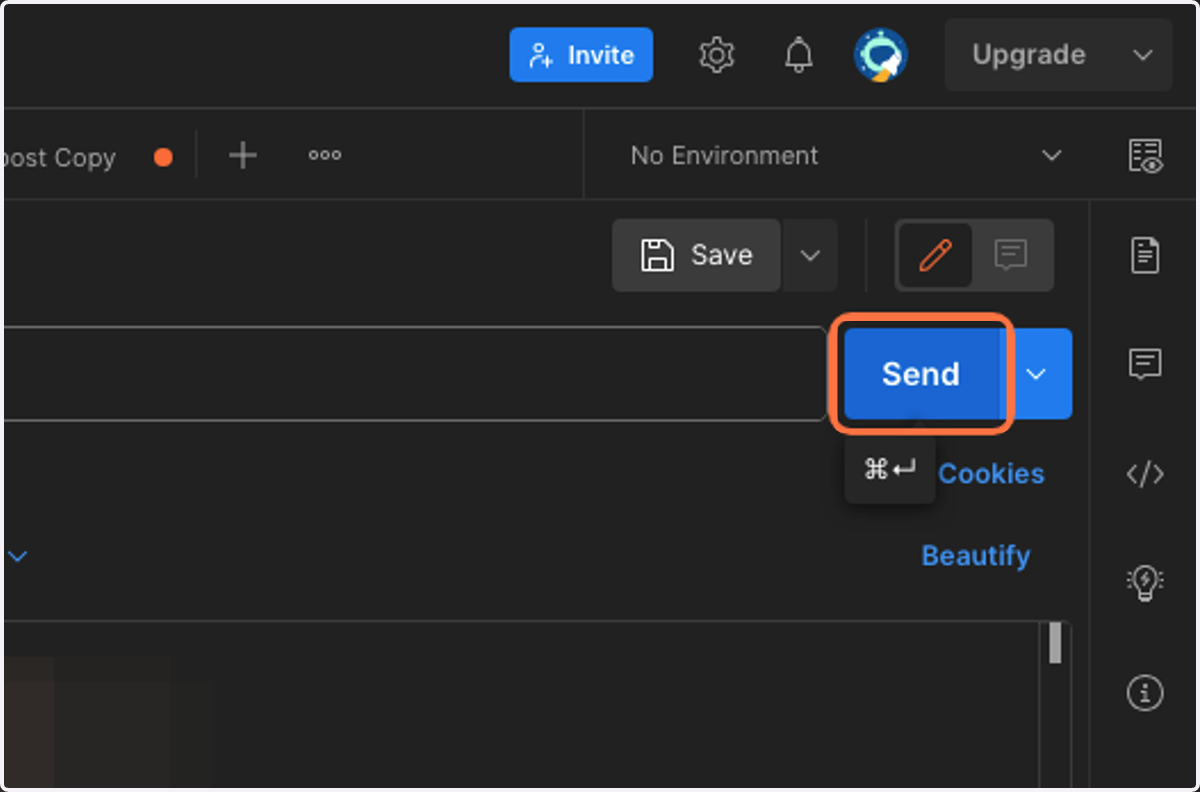
40. Click on base-button
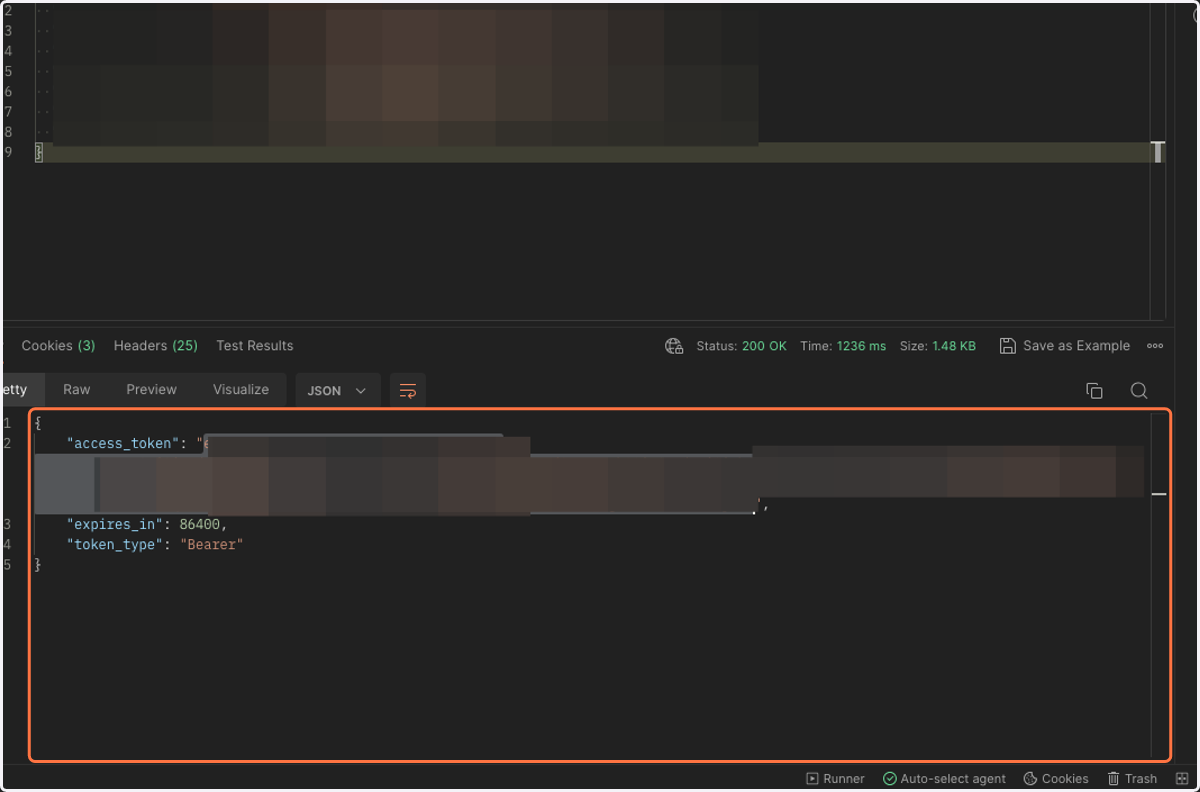
41. Copy the "access_token"
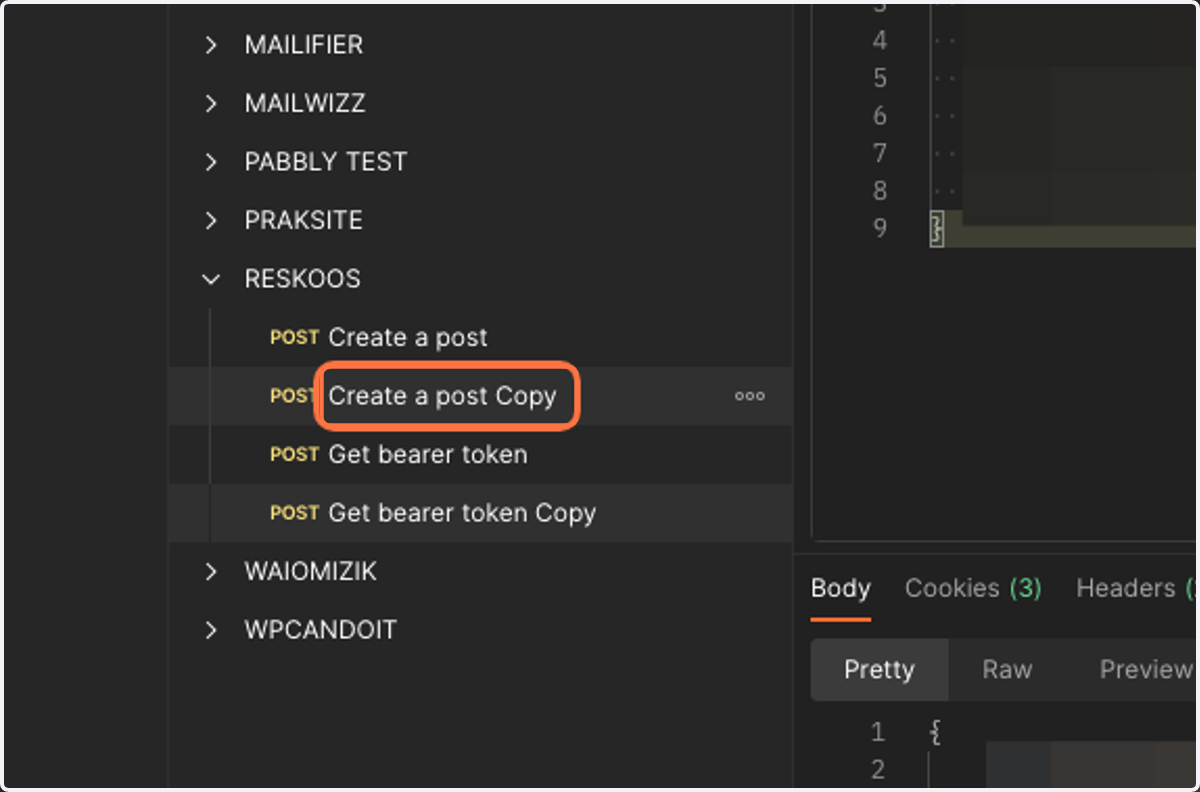
42. Create a new request
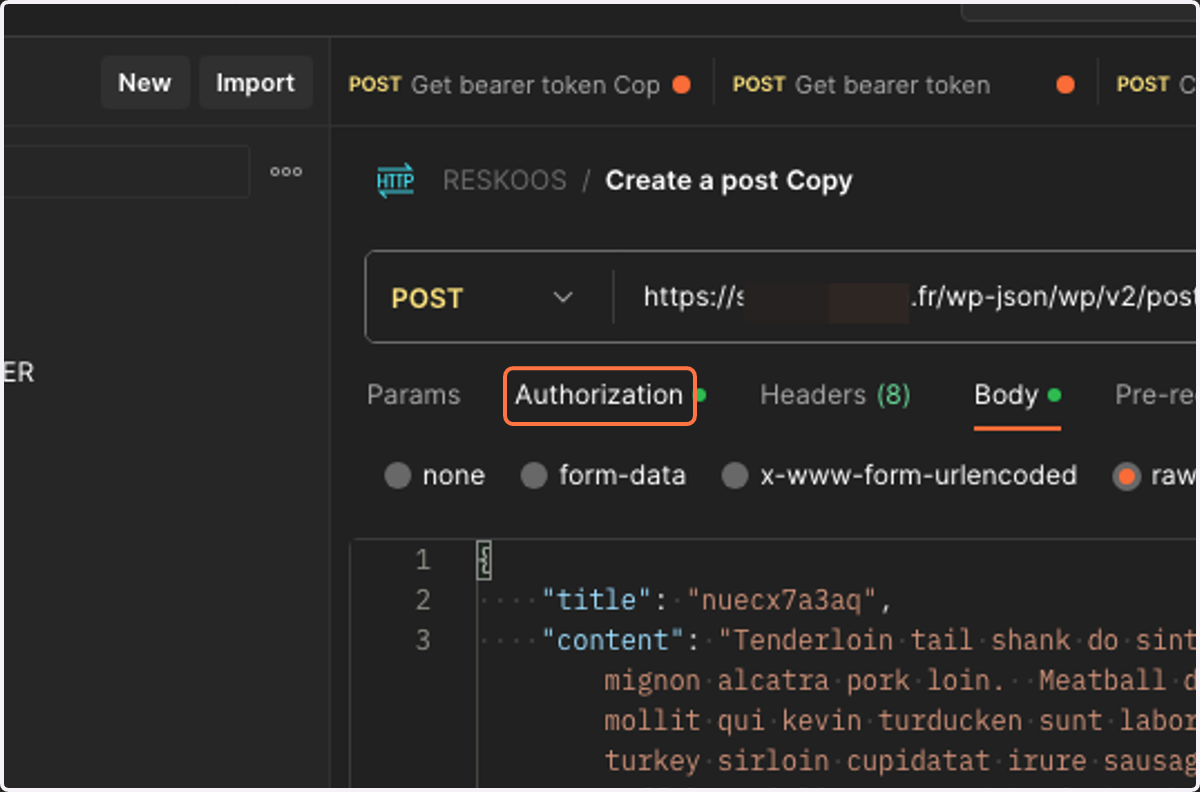
43. Click on Authorization, Fill in the Bearer token
44. Attempting to post an article via WP REST API