Search for policy using Overton's semantic search (trials)
From the Start page
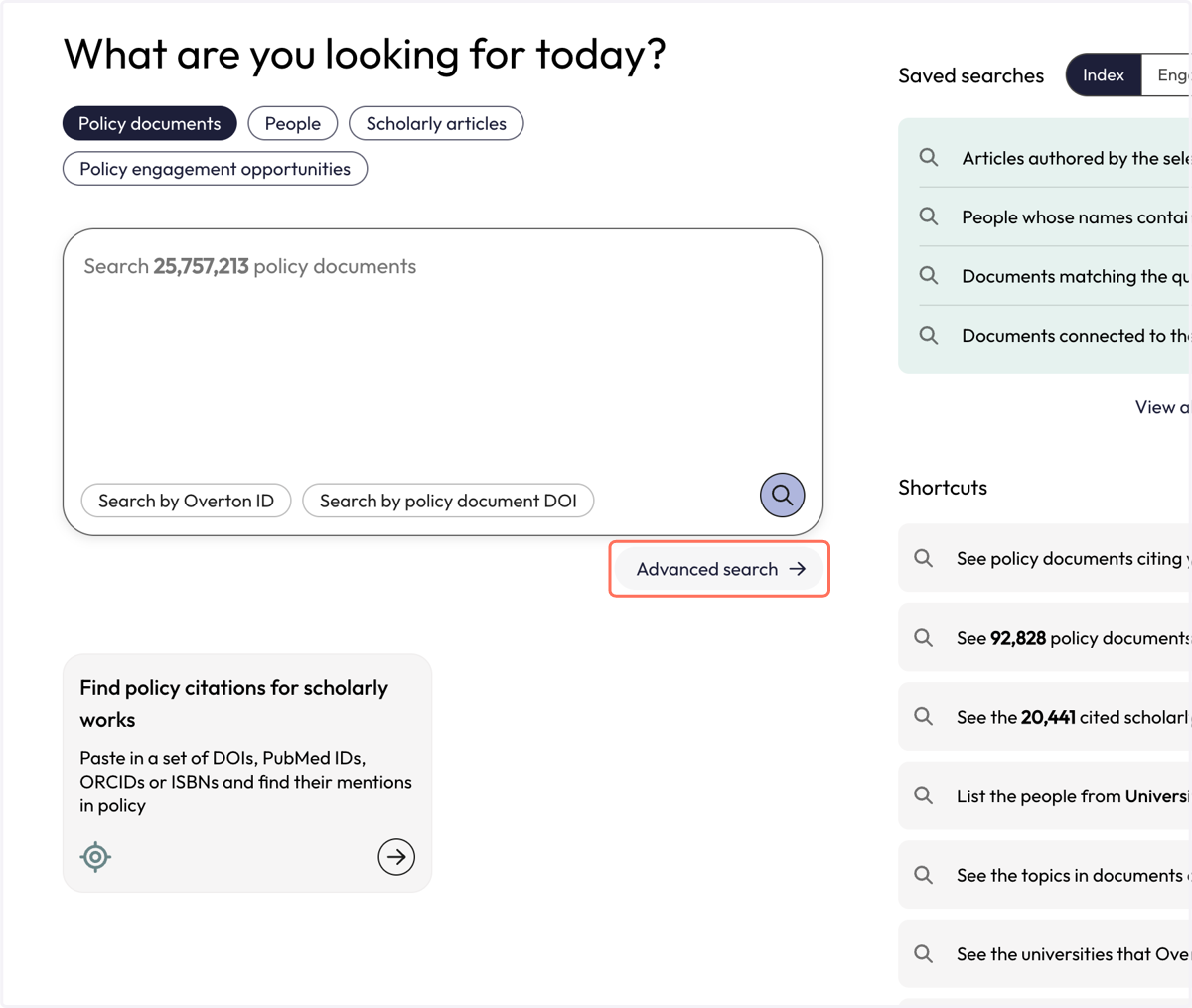
1. Click on 'Advanced search'
Overton offers many different ways to search for policy documents. Use the Advanced search to learn more about them.
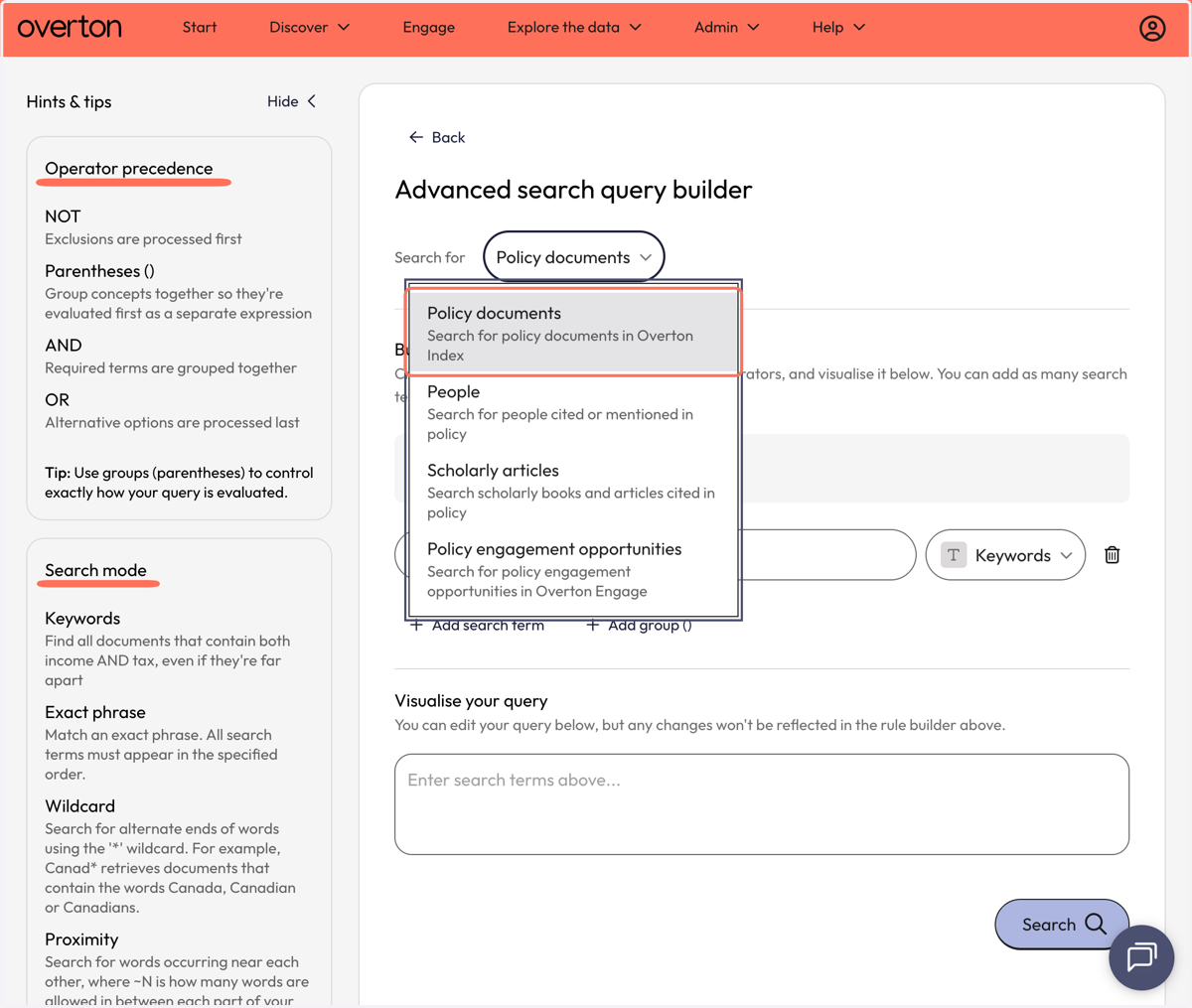
2. Choose where you want to search in Overton. In this case, click on Policy documents.
The left-hand side of the Advanced search page explains how to use operators and what the different search modes are.
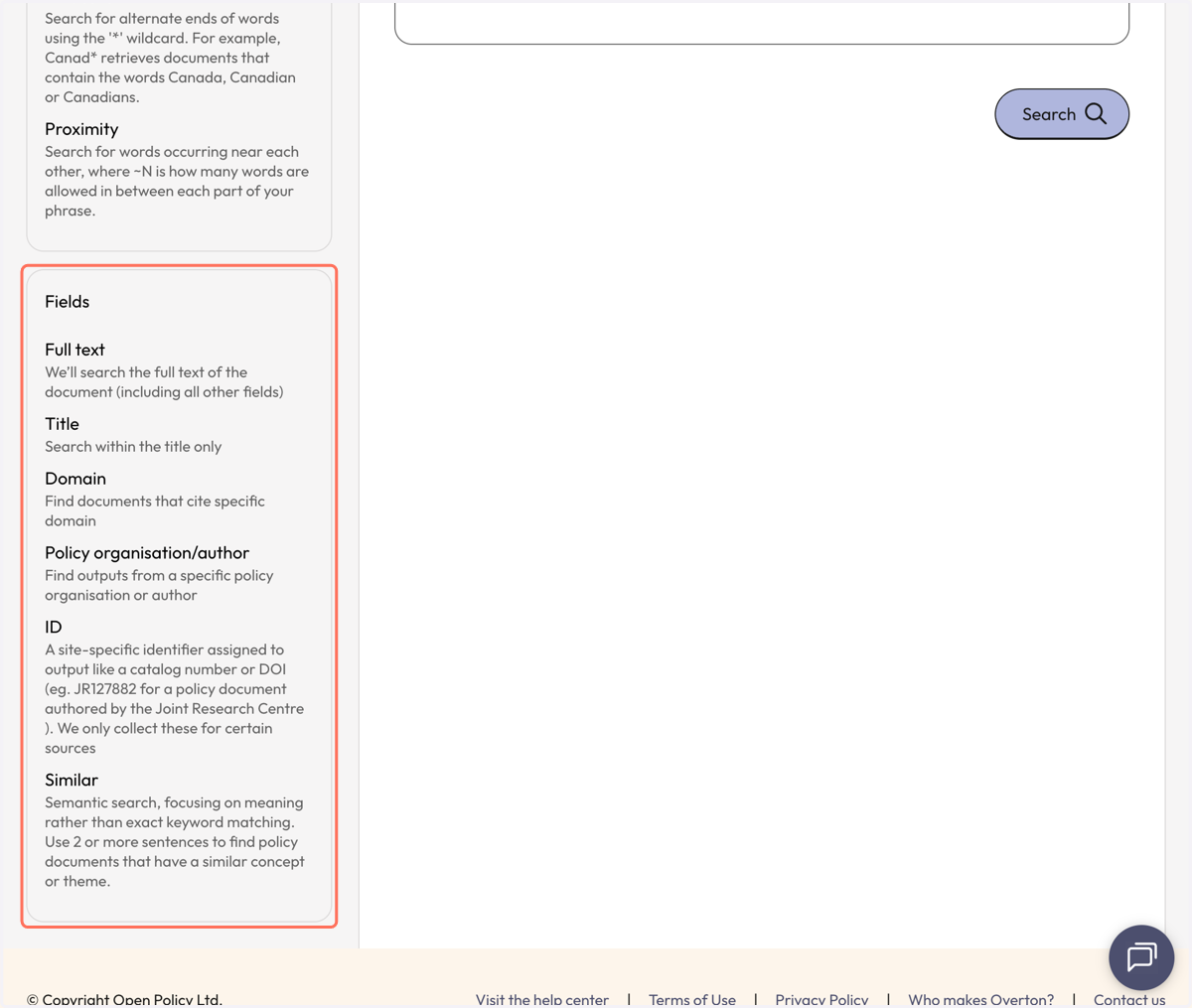
3. Review the notes on the left-hand side of the page.
'Fields' explains how to do a Similar or semantic search.
4. From the 'Search within' dropdown, select 'Similar' to perform a semantic search.
Use 2 or more sentences to find policy documents that have a similar concept or theme. You can also copy and paste an abstract from a paper, a description of your research, or any other text that captures the concepts you are searching for.
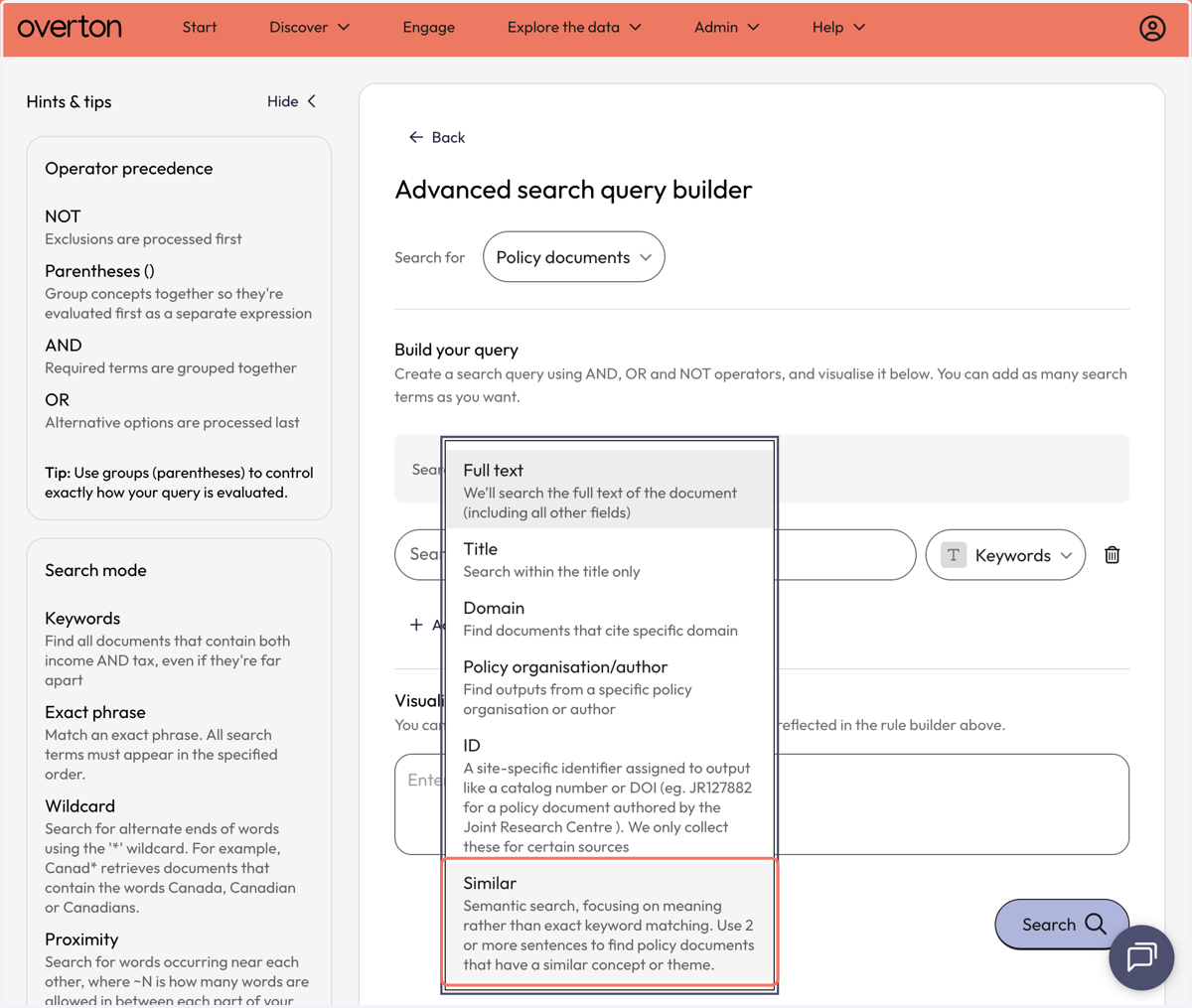
5. Add your text to the search box.
The example uses a document description from a policy document in Overton to find similar documents.
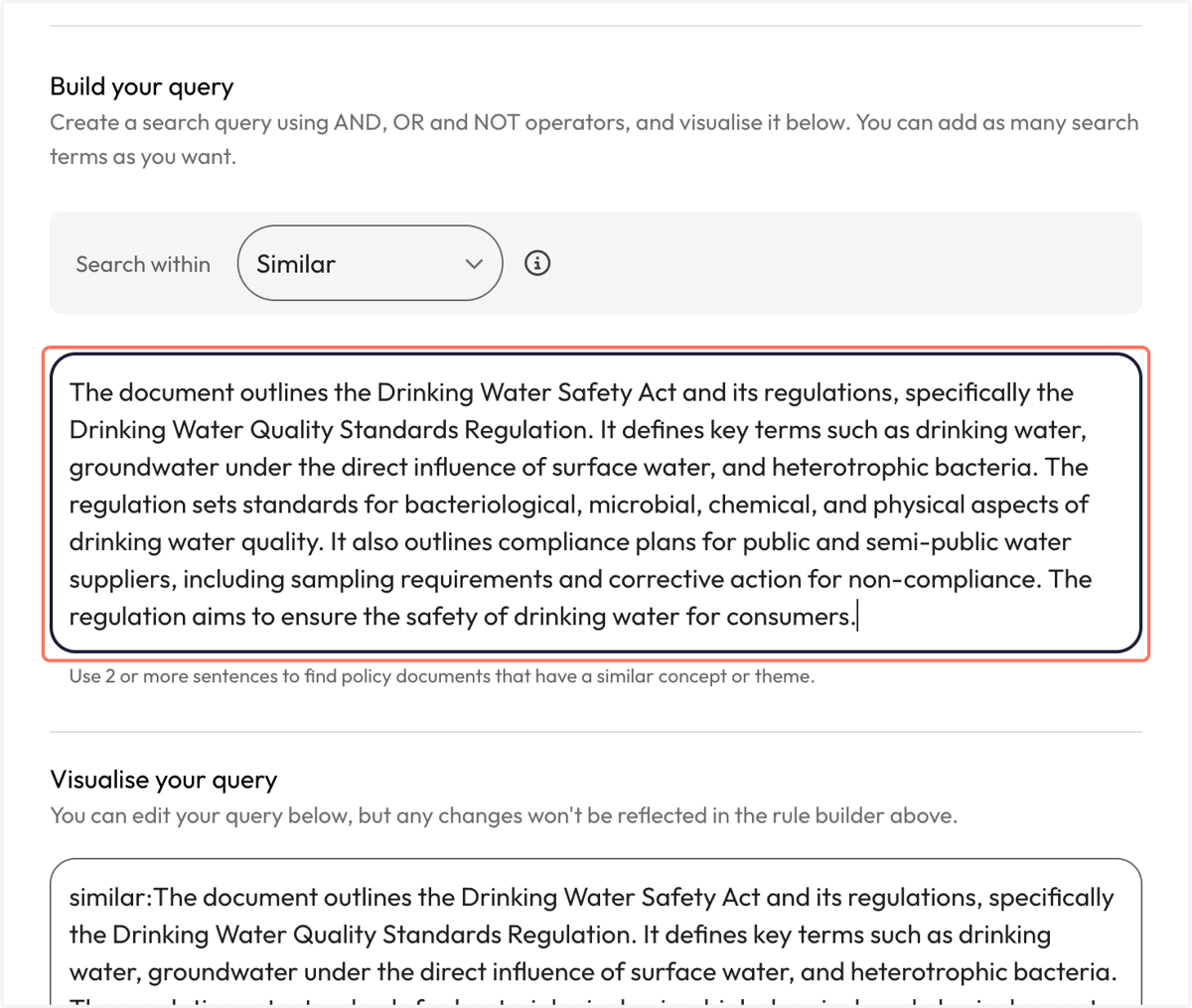
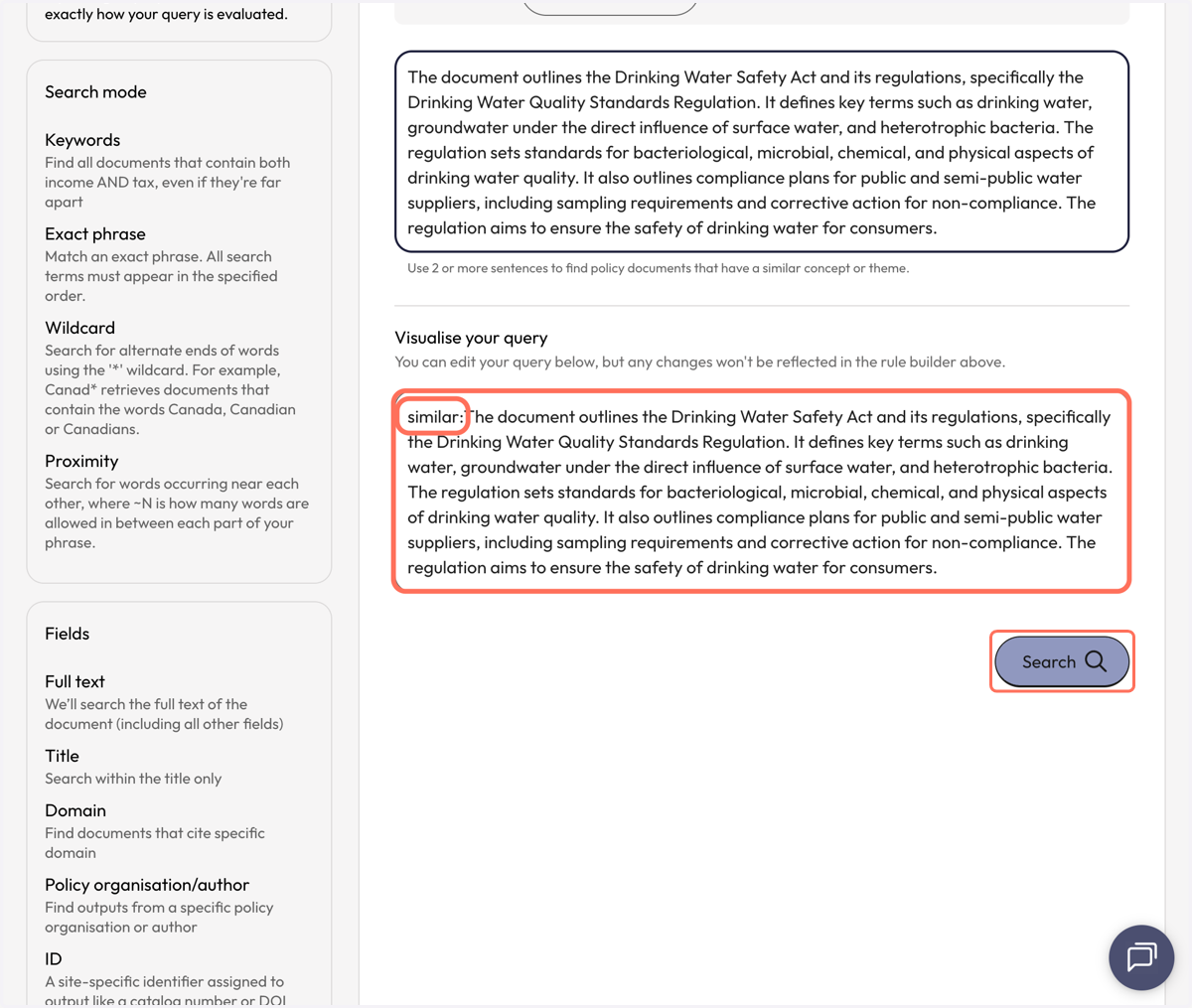
6. Your query is now built using the "similar:". Click on Search to see your results.
7. Review the HINTS & TIPS and DATA NOTES before reviewing your results.
You're using a semantic similarity query
This will return results whose AI document descriptions have similar concepts to your query. These descriptions are an overview of the themes and content of each document - you can see examples by hovering over "What's this about?" box next to each document below.
Shorter queries will return more false positives, for best results use at least a sentence length query (and ideally two or three sentences).
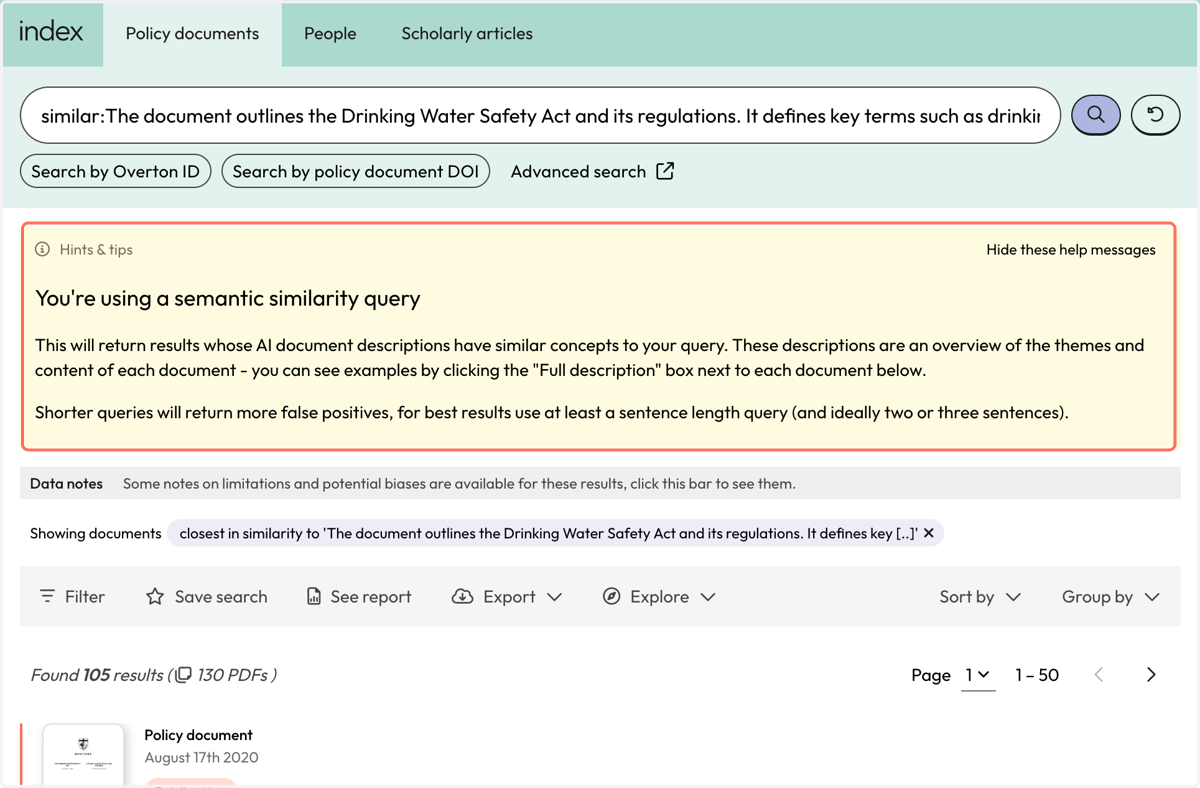
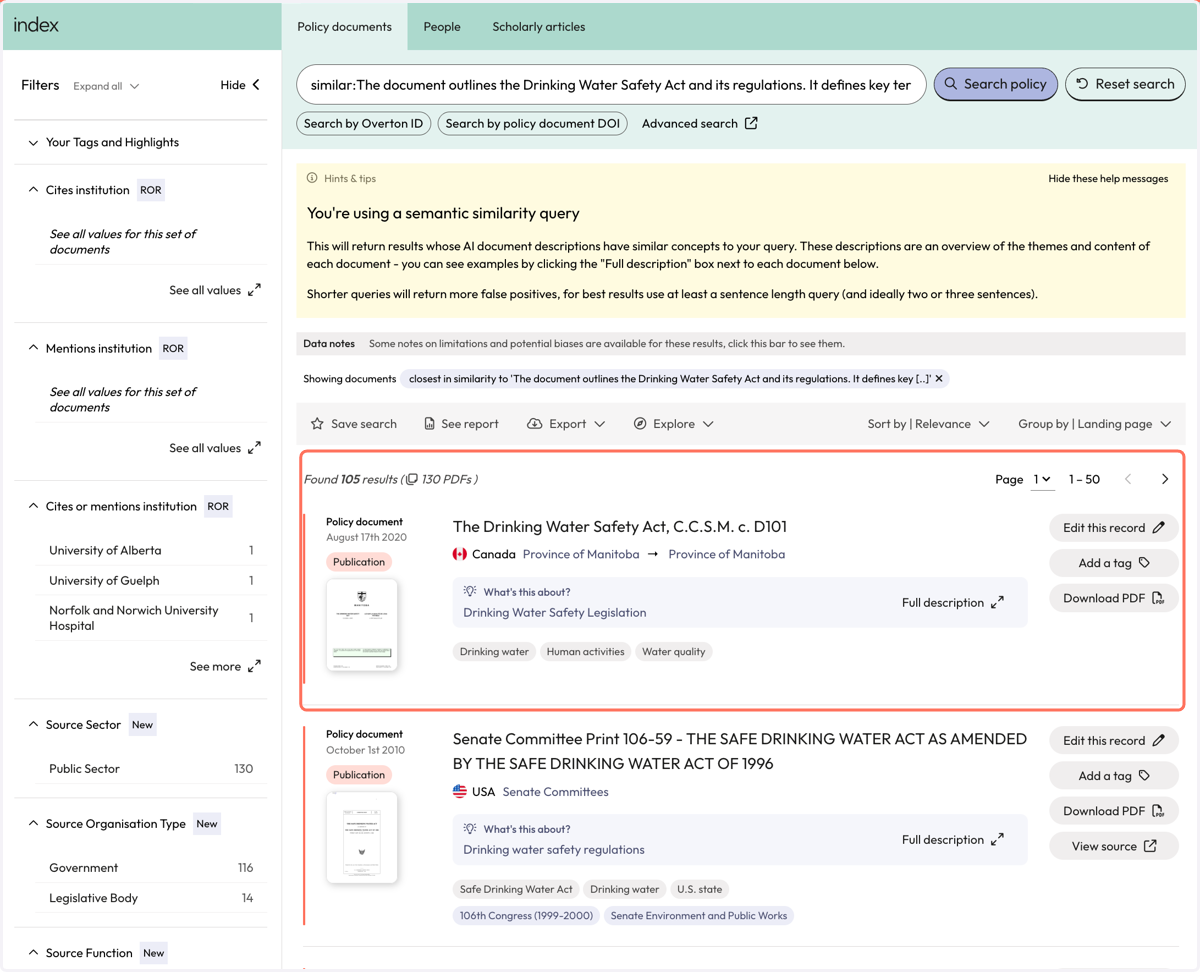
8. Review your results.
Each of the policy documents in your results set should be similar in meaning to the meaning in your search query.
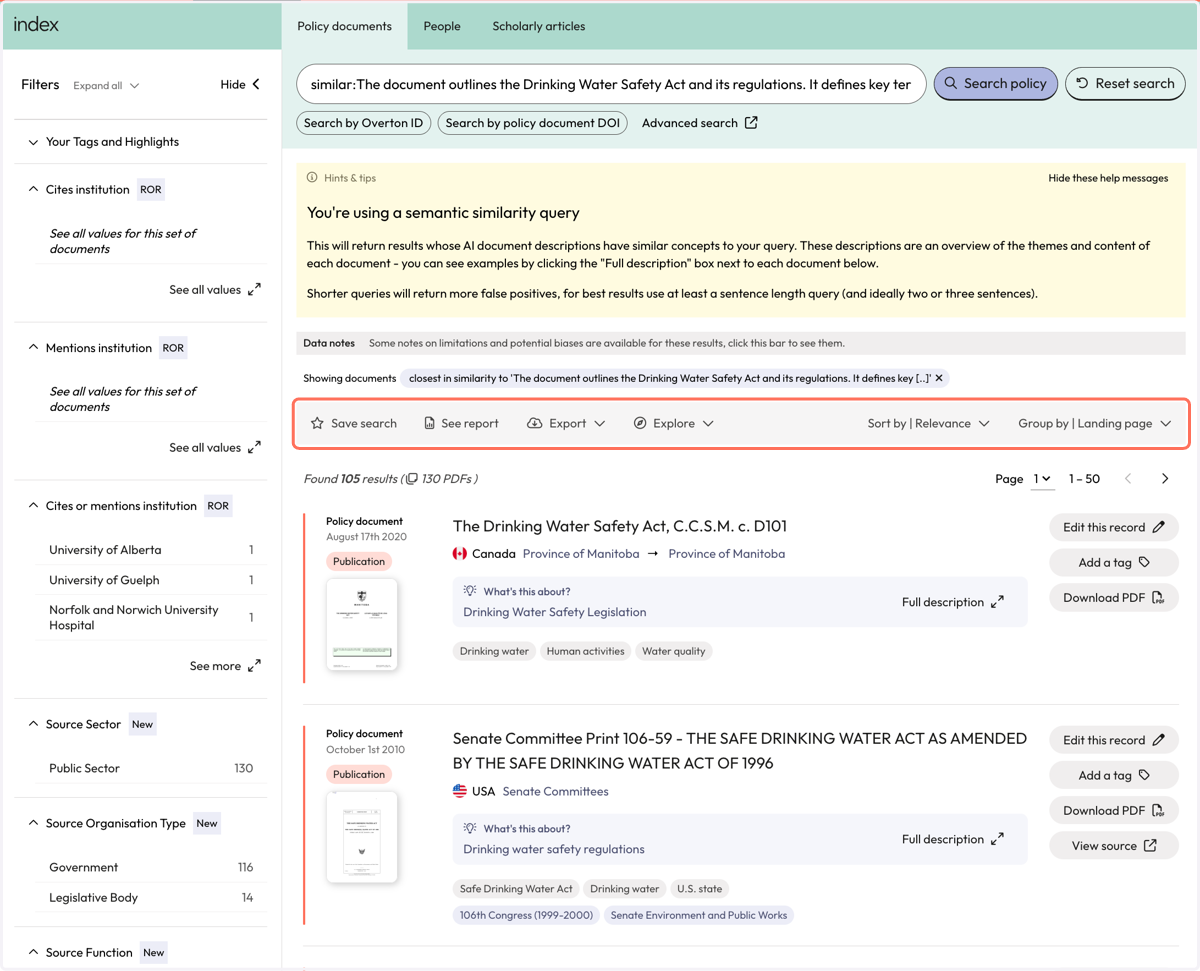
9. Use the action bar to save a search, see summary report, export* your results, or explore further.
*exports are not available for limited, 14-day trials
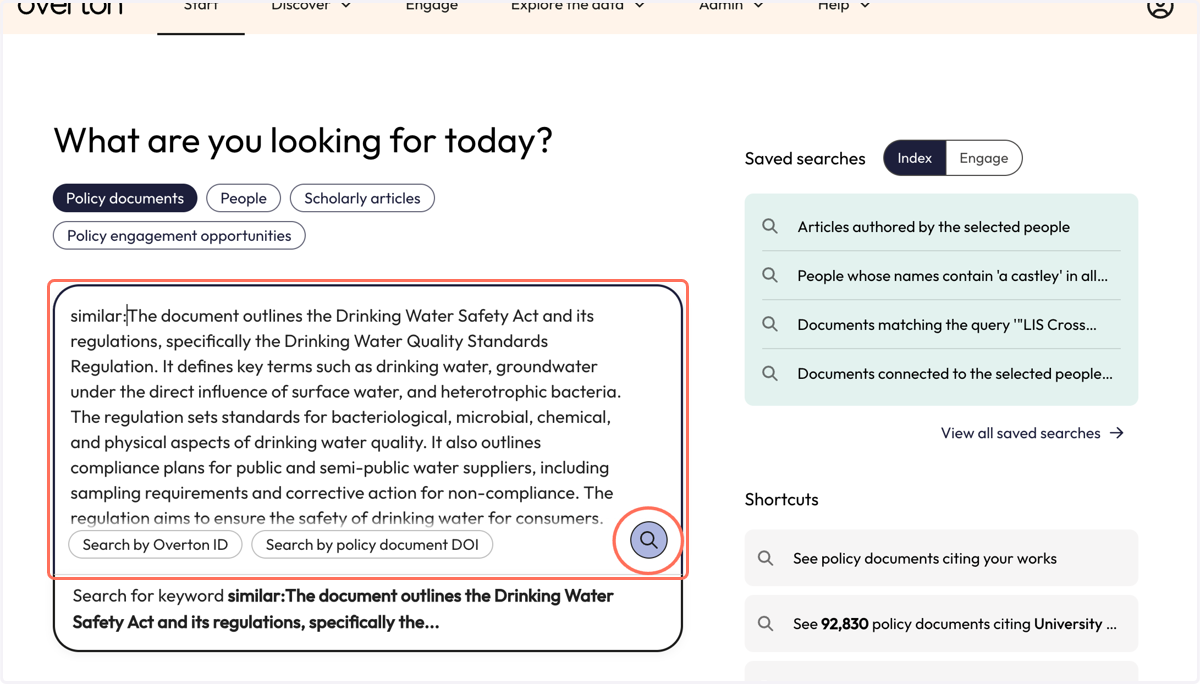
10. You can also perform a semantic search from the Start page with "similar:".
Select 'Policy documents' and then type "similar:" followed by your text into the search box.
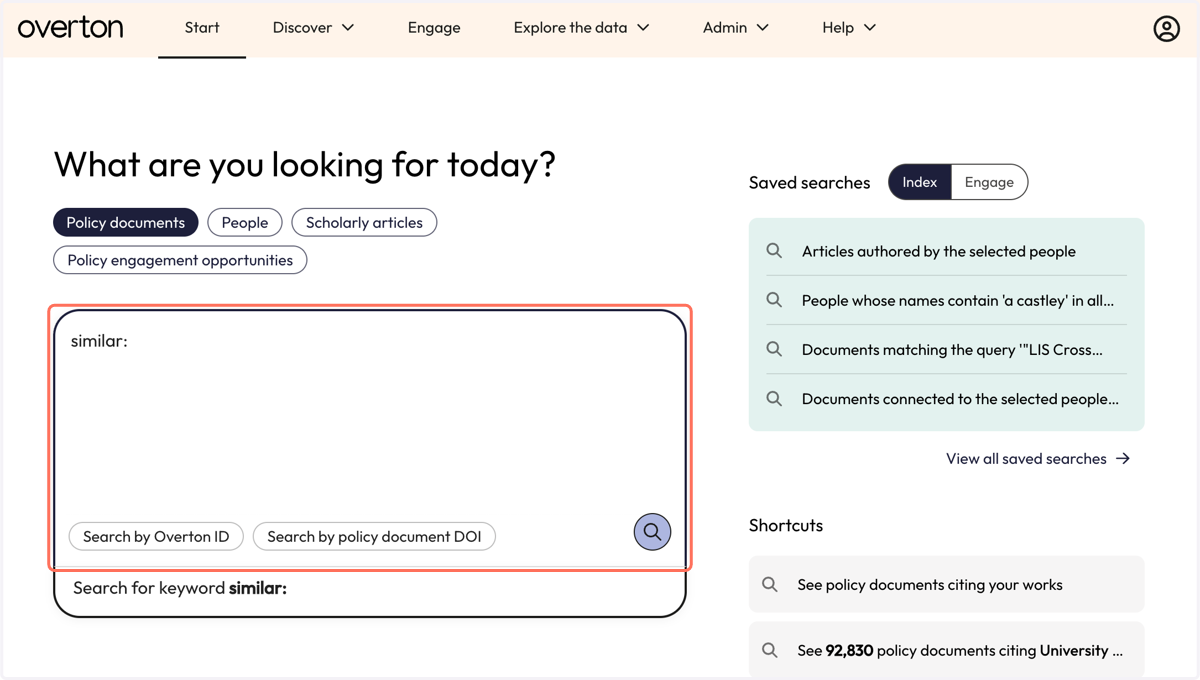
11. Once your query is complete, click the magnifying glass to search and view your results.