Schoology: Save Course to Resources
📌 Most material types save to Resources with the exclusion of Google Drive Assignment files, course image, and calendar events.
1. Go to novi.schoology.com
Log in using your @novik12.org Google account
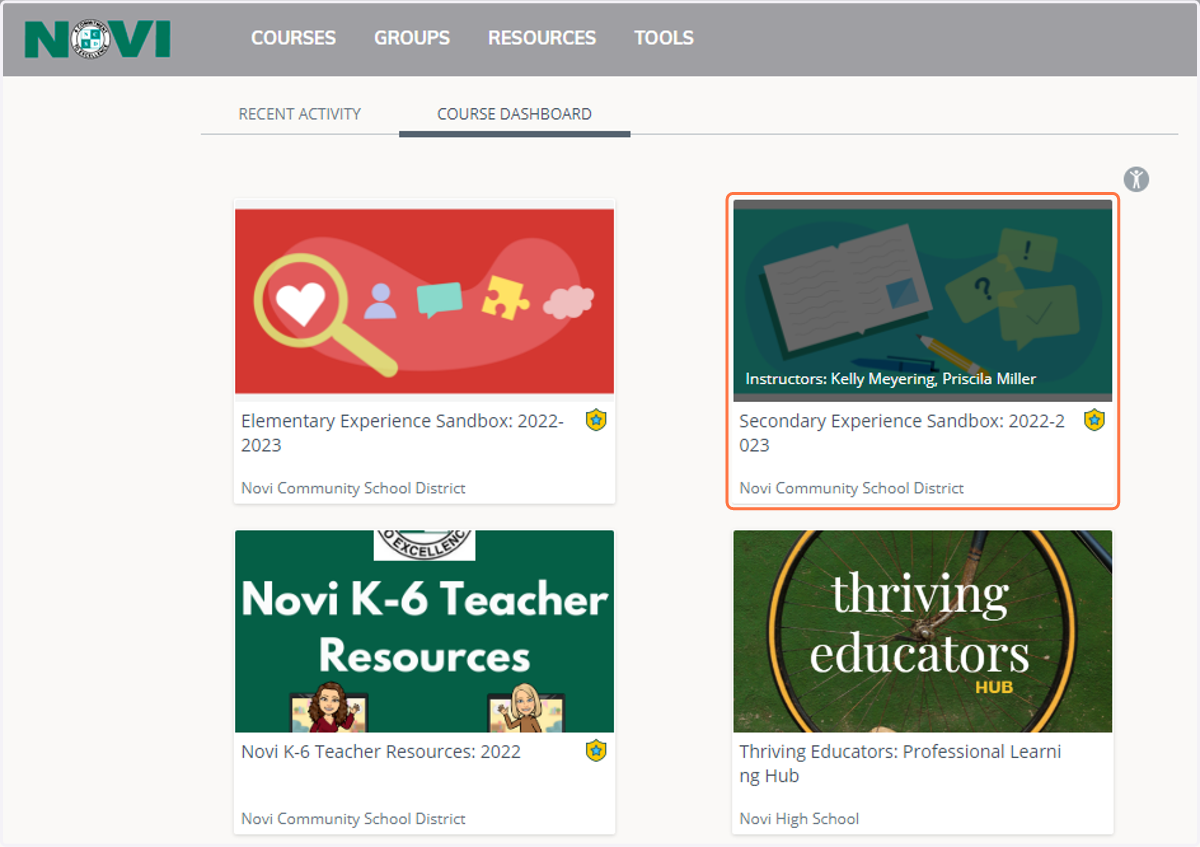
2. Select a Course
Note: You need to be an admin of the course
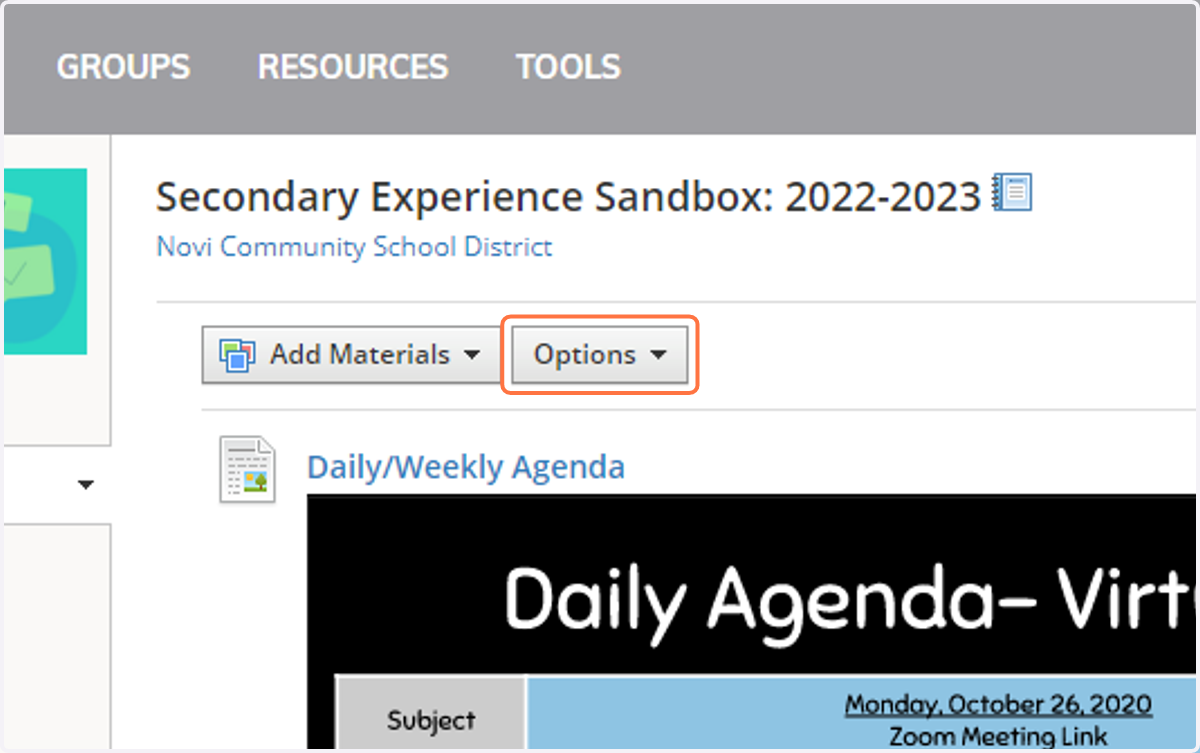
3. Click on Options
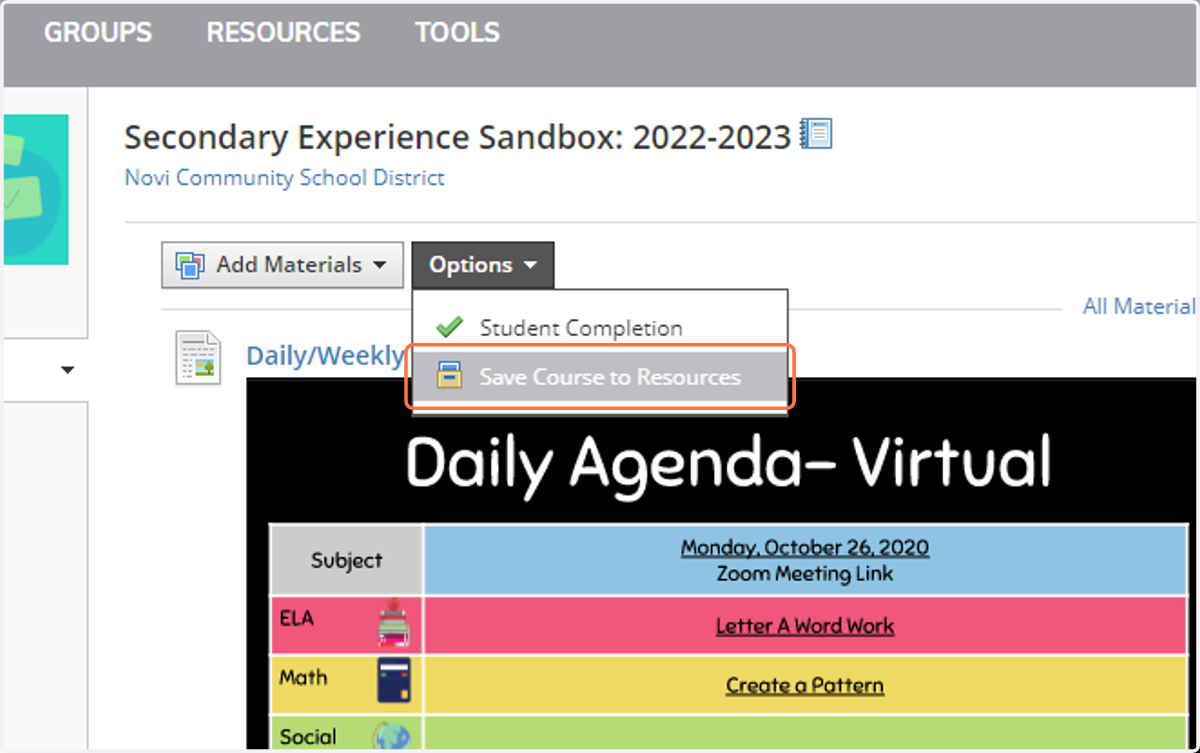
4. Click on Save Course to Resources
5. Select a Resource Collection to save the course.
It is recommended that you create a Collection to store courses. This makes it easier to share the course with others. Note: This will create a folder to store your whole course in.
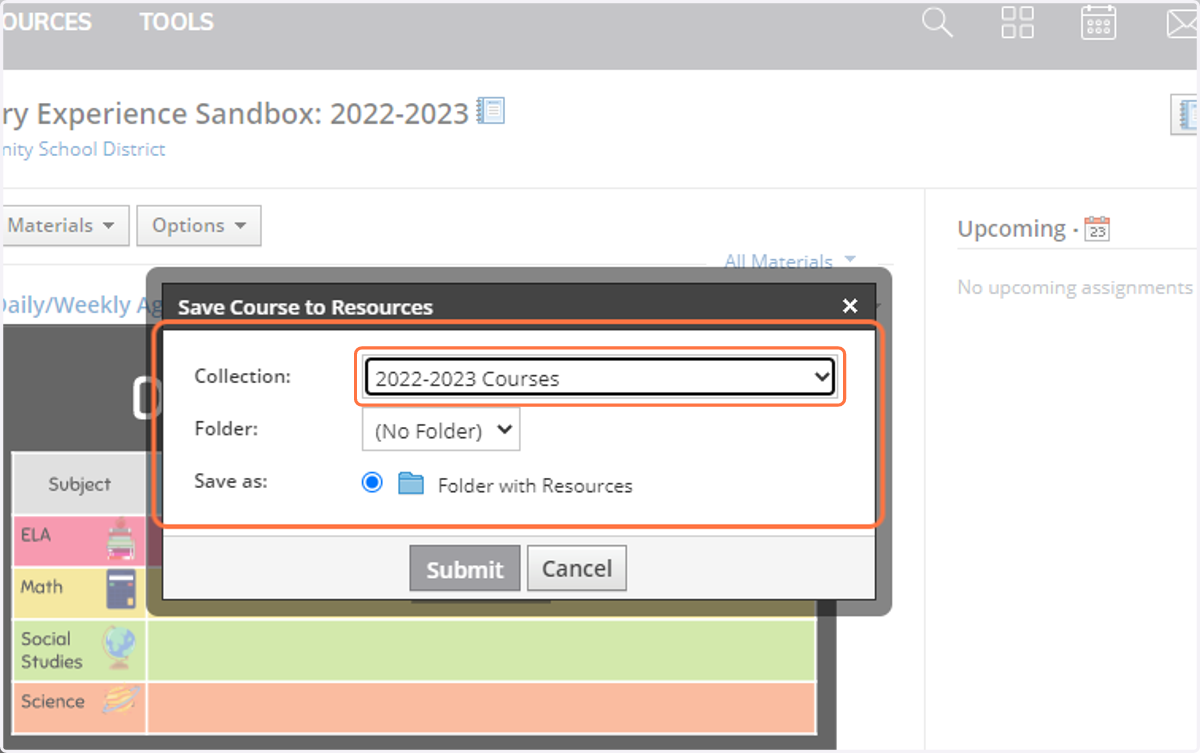
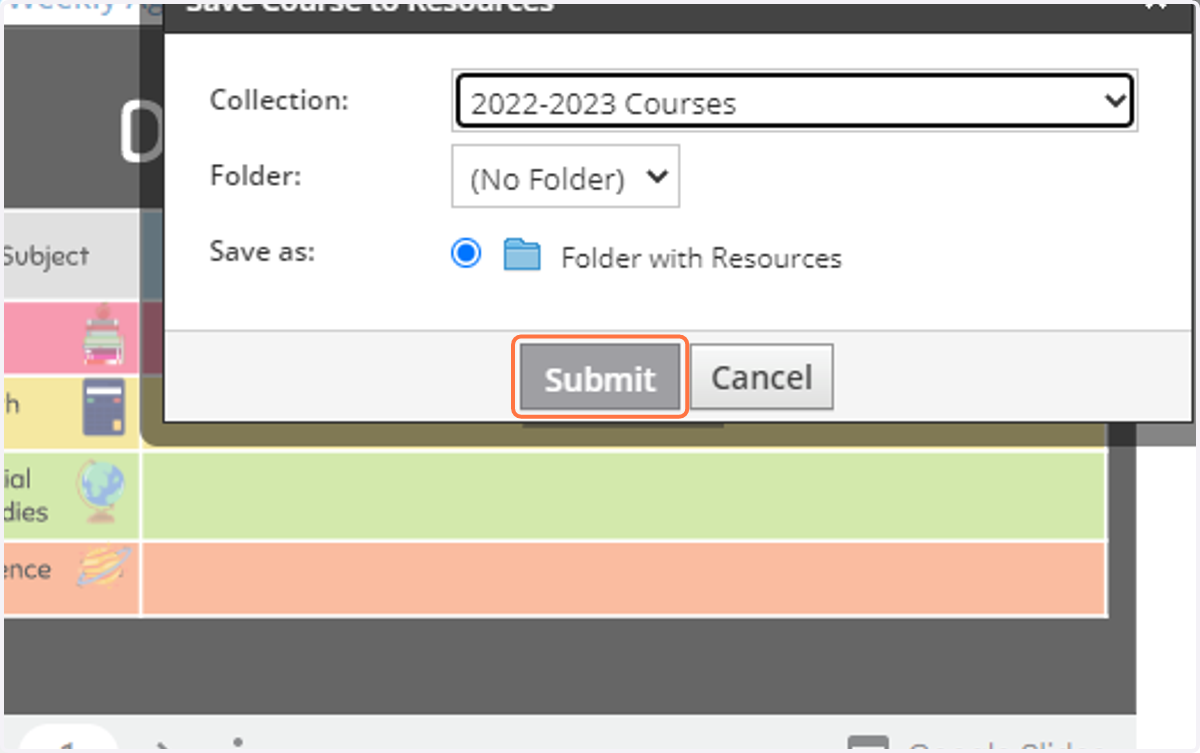
6. Click Submit
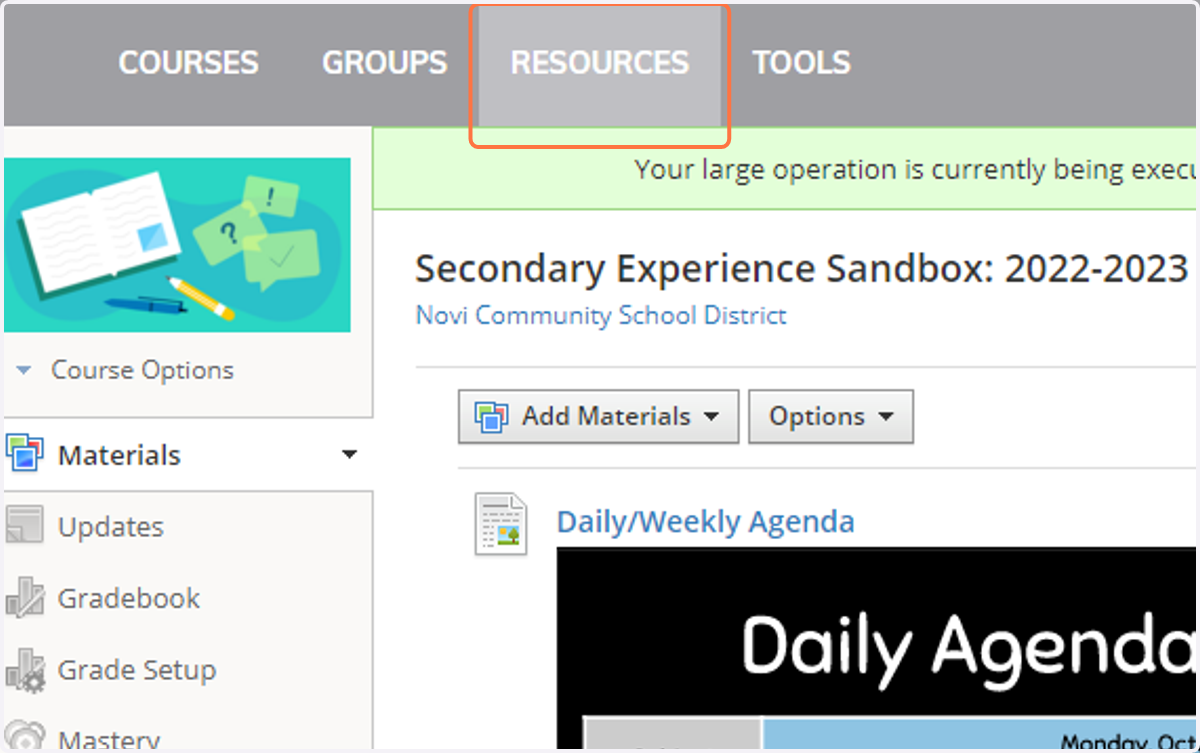
7. To locate your saved course, click on RESOURCES
Note: The time needed to process saving your course varies on the size
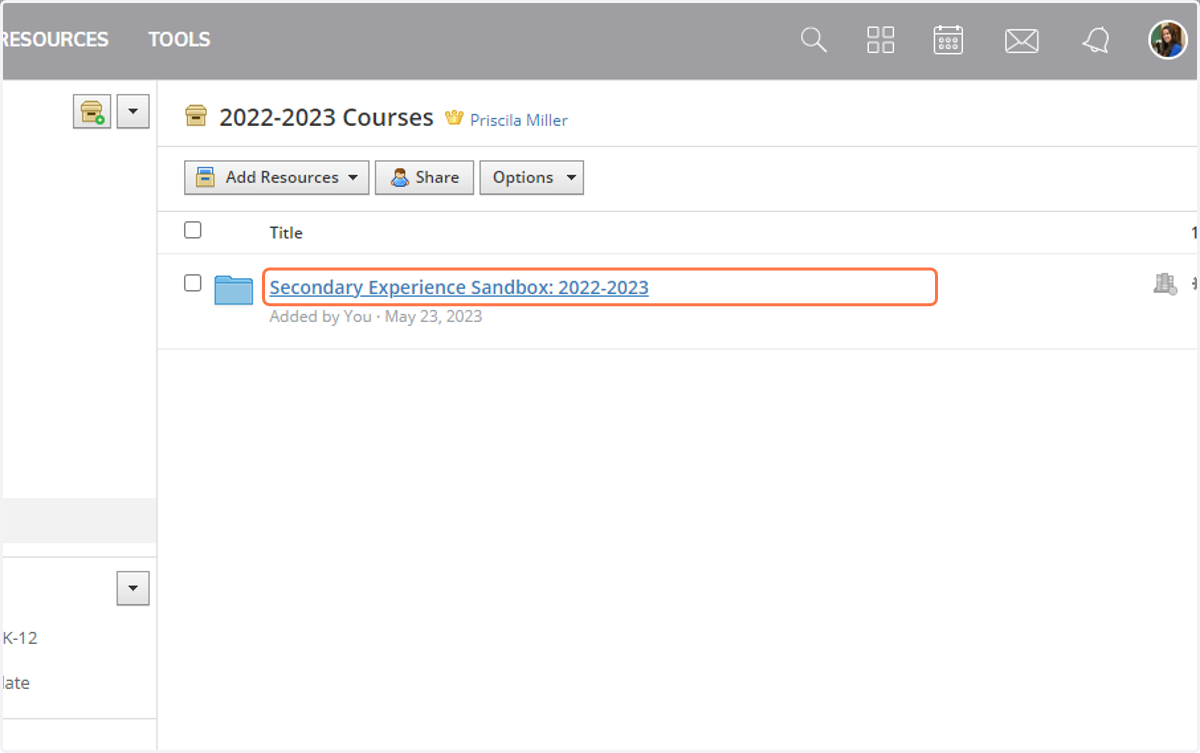
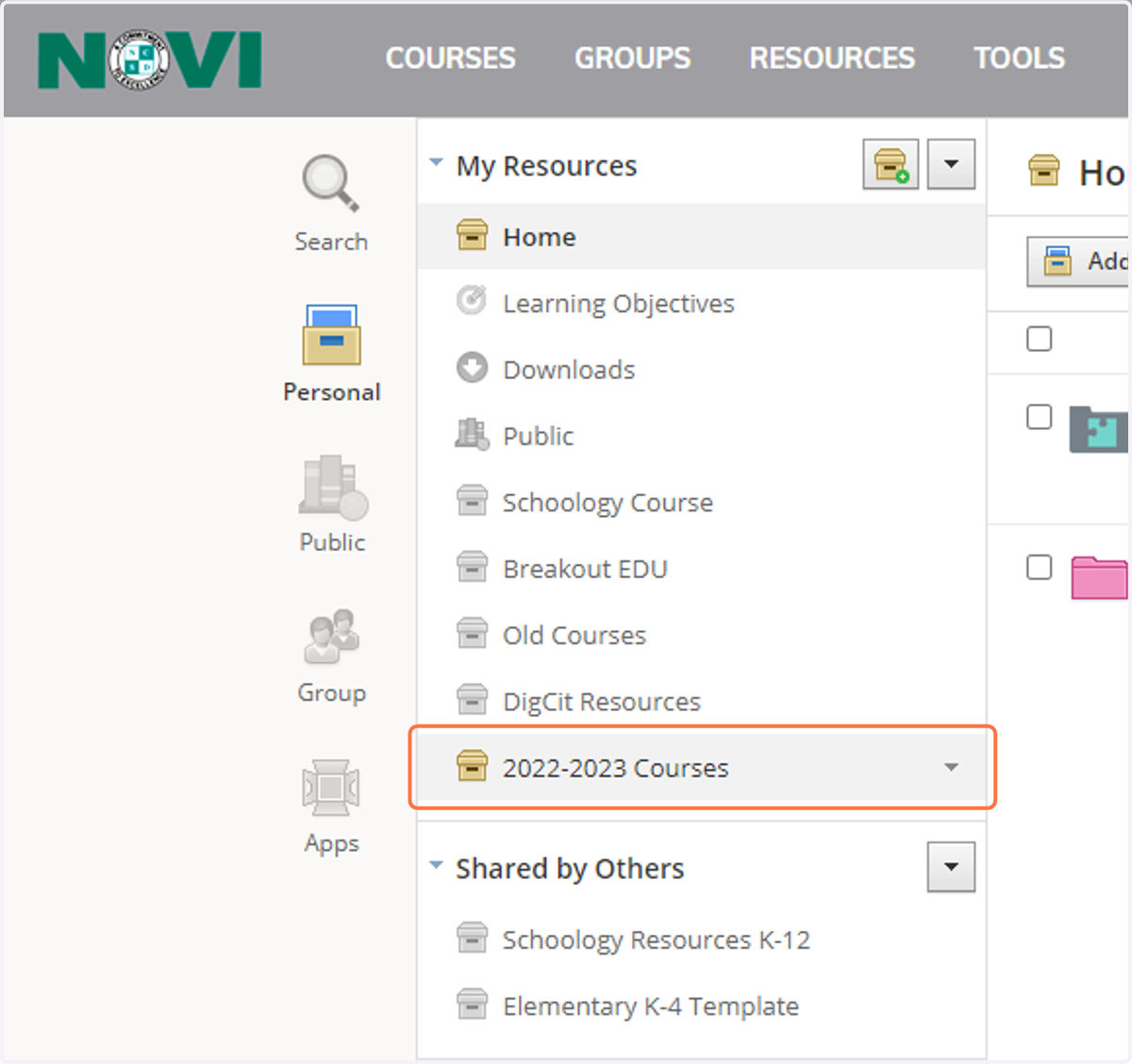
8. Click on the Collection you selected in Step 5
9. Click on Course folder to access your saved materials