Salesfloor Chat

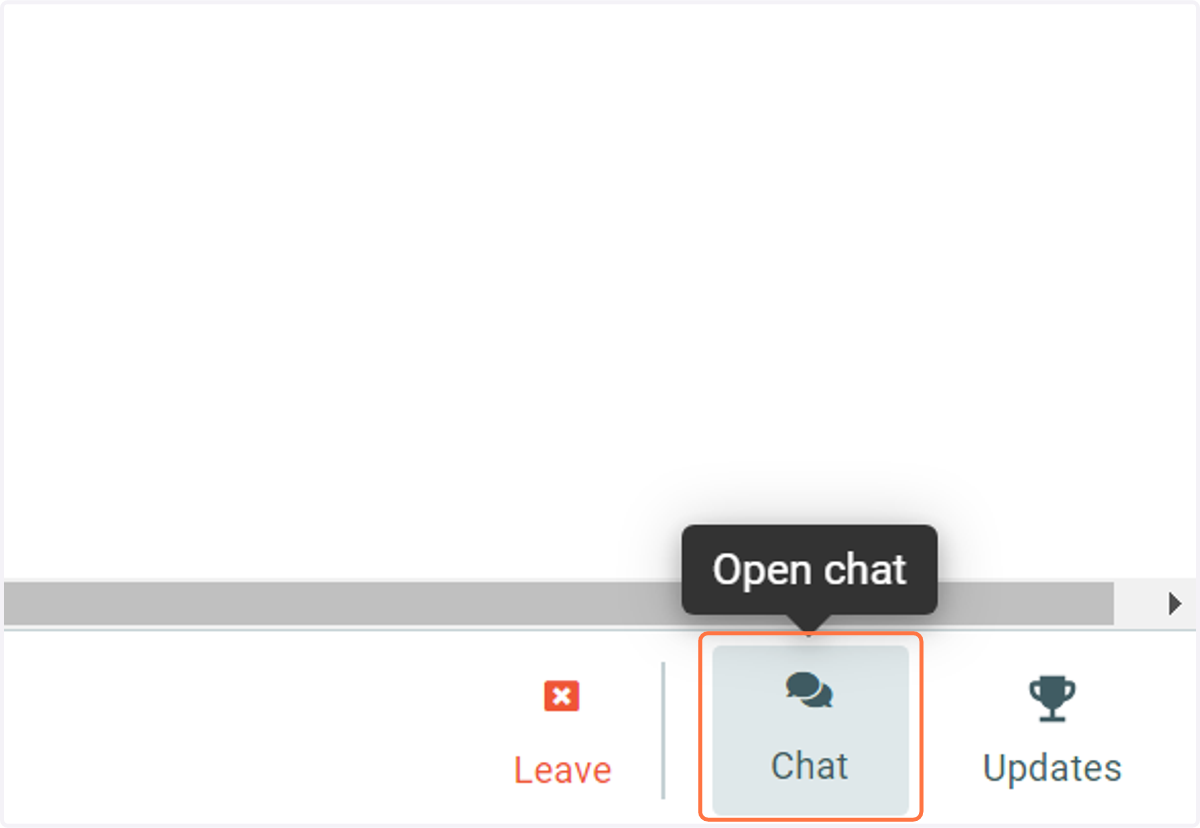
  1. 1. Click on Open chat

    Click on Open chat
  2. 2. This will take you to a the chat panel
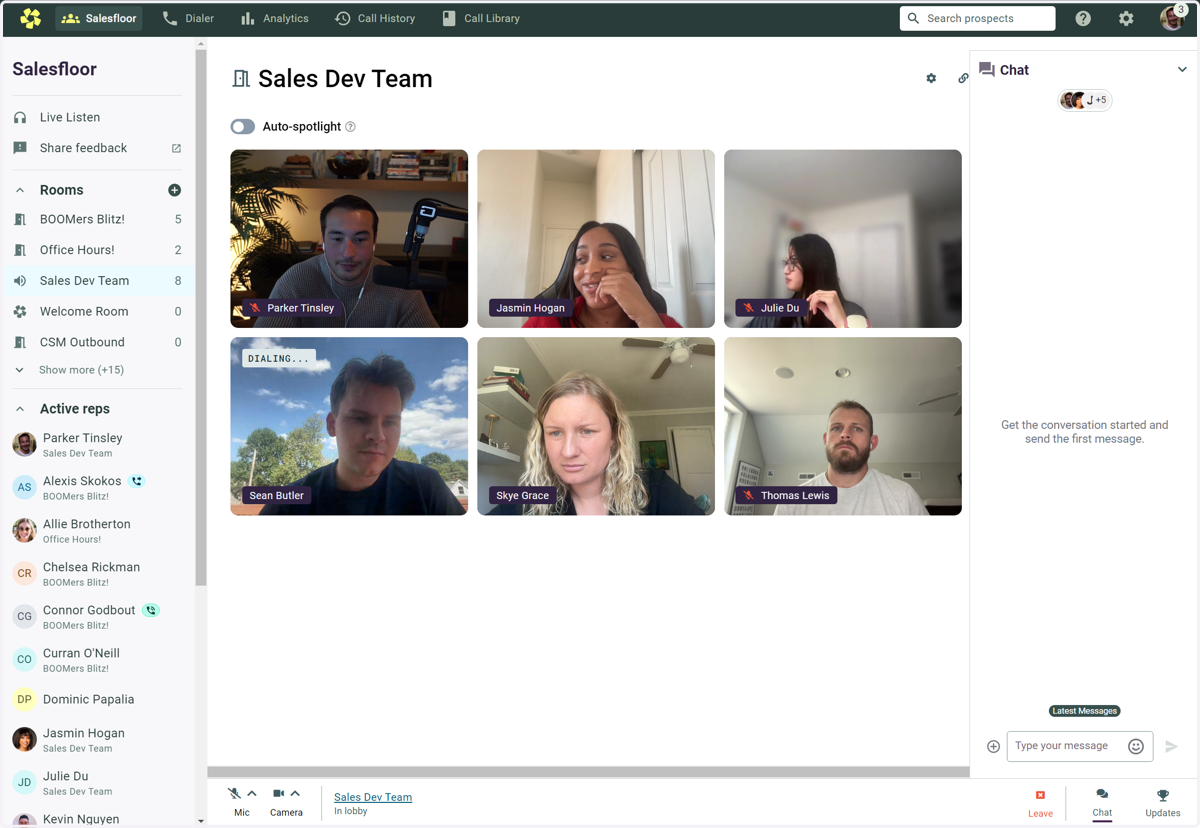
    This will take you to a the chat panel
  3. 3. From here, you can send a message, upload a file, or add an emoji
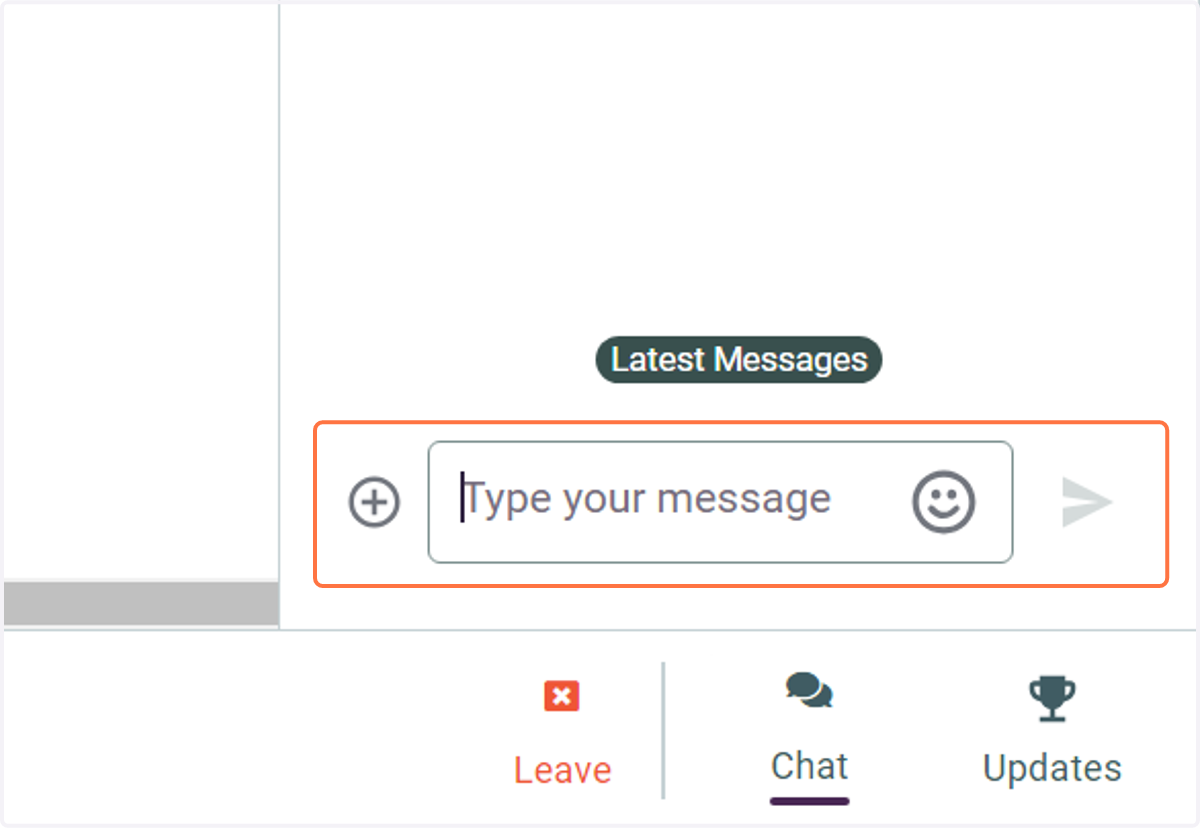
    From here, you can send a message, upload a file, or add an emoji
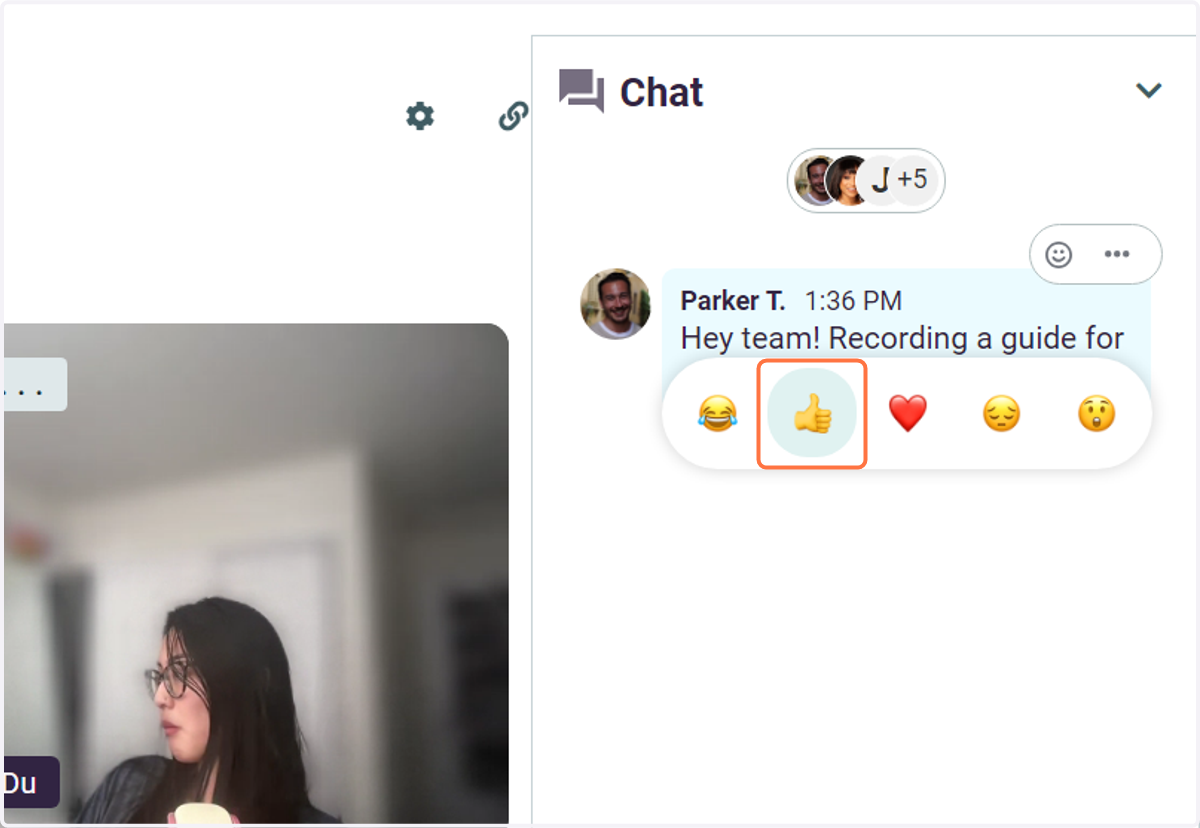
  4. 4. You can react to chats by clicking the emoji button here
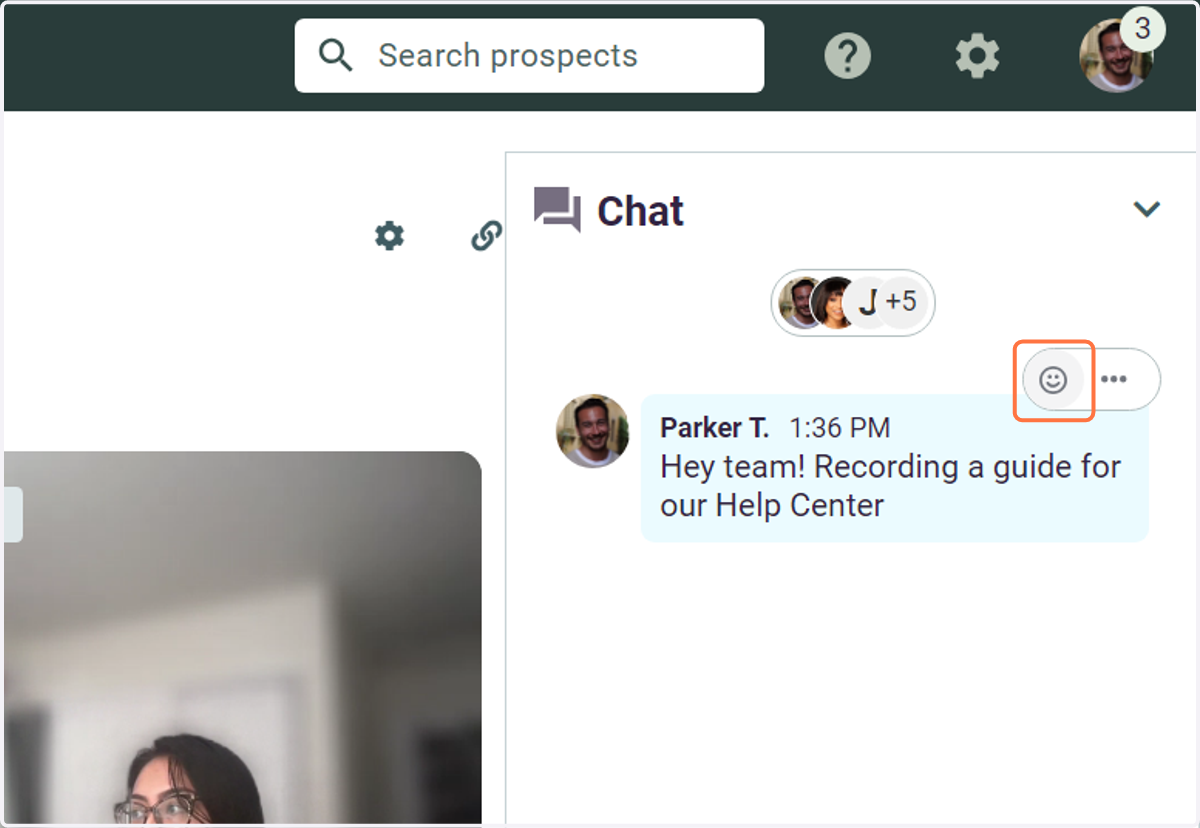
    You can react to chats by clicking the emoji button here
  5. 5. And add an emoji

    And add an emoji
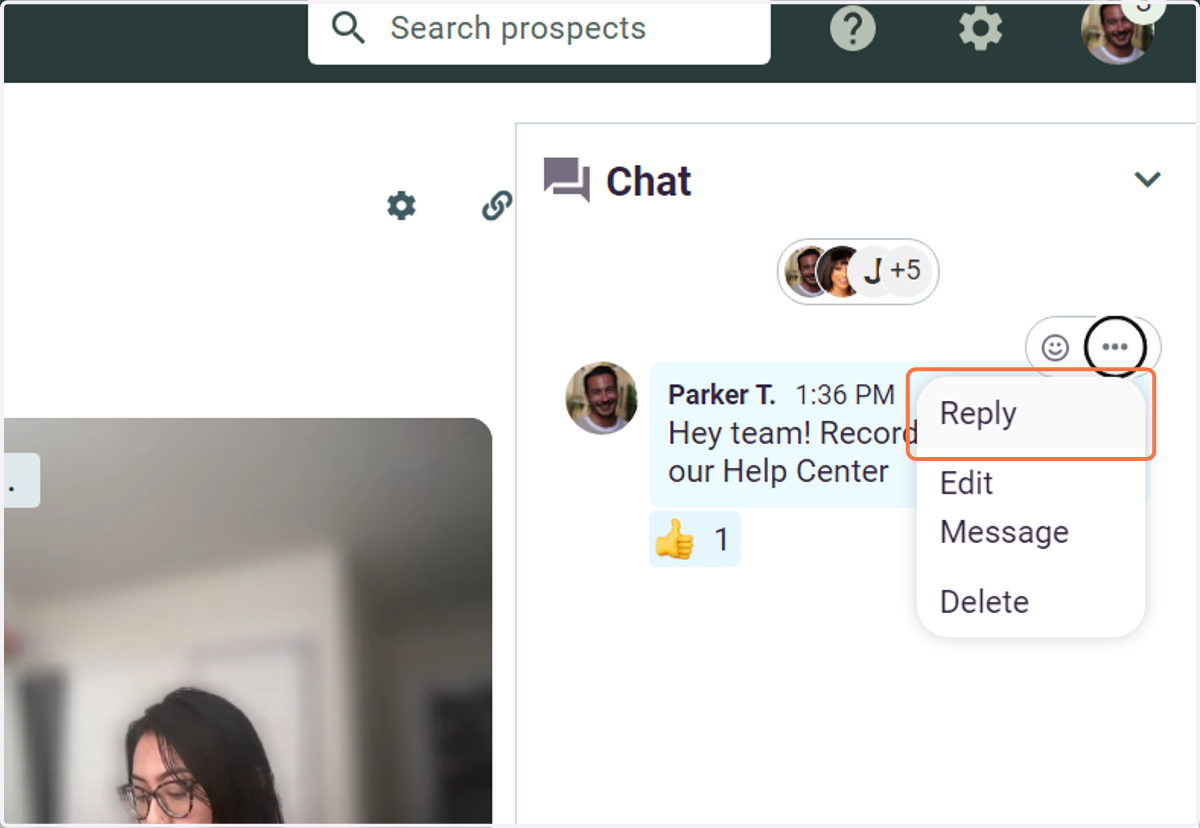
  6. 6. You can do more actions by clicking here
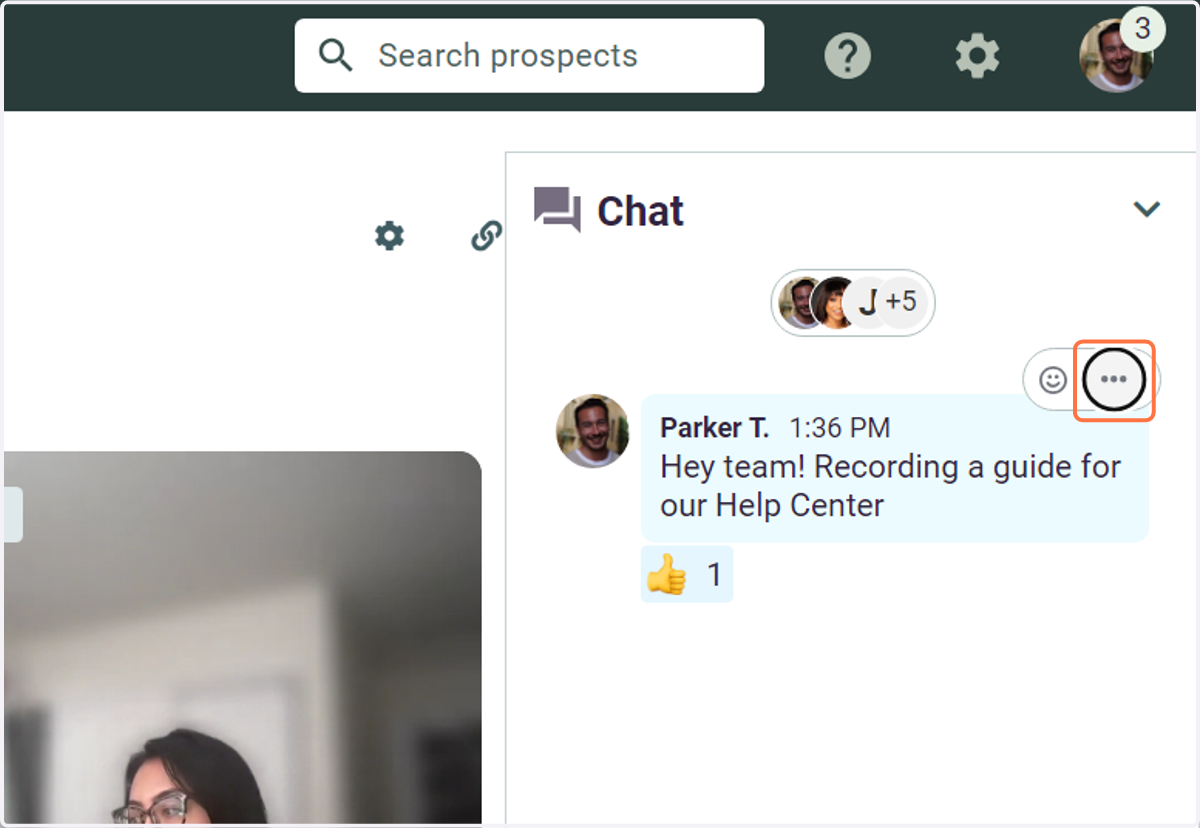
    You can do more actions by clicking here
  7. 7. From here, you can reply, edit your message, or even delete
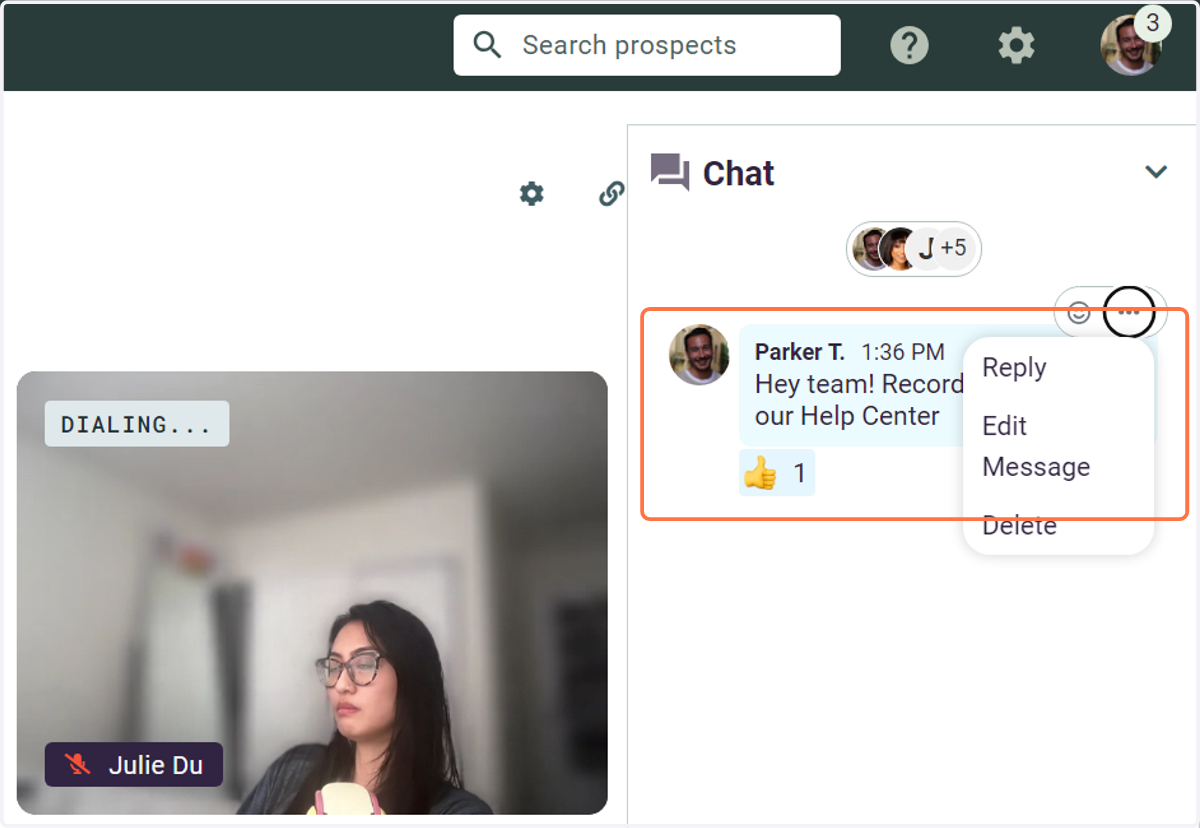
    From here, you can reply, edit your message, or even delete
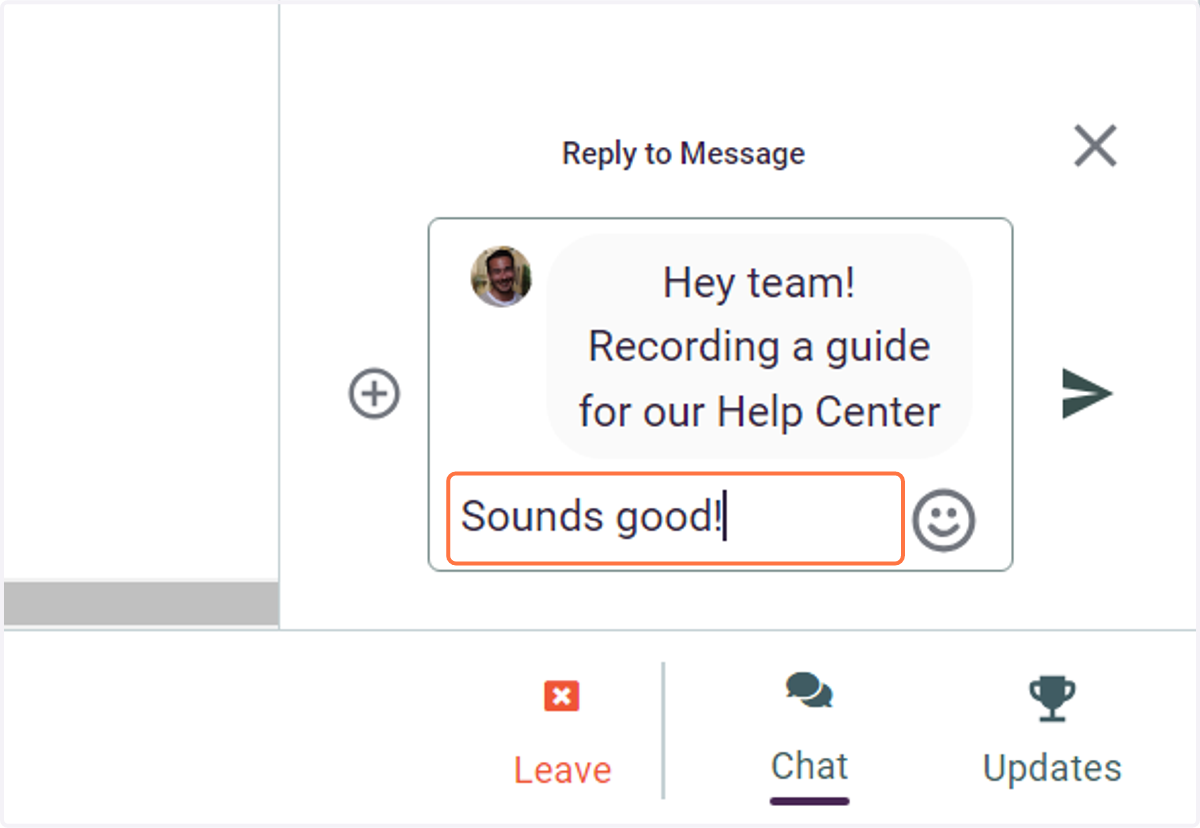
  8. 8. Let's say we want to reply...

    Let's say we want to reply...
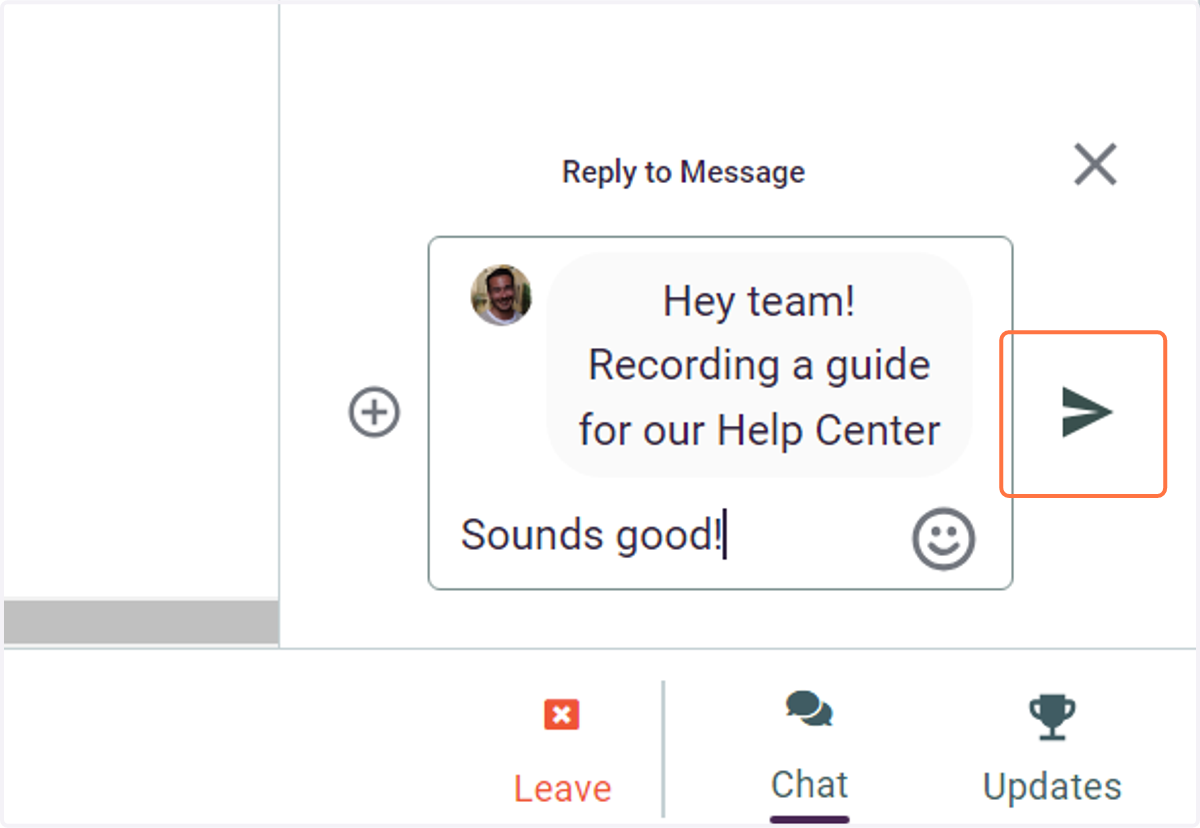
  9. 9. Type your message

    Type your message
  10. 10. Click send

    Click send
  11. 11. And you'll see the original message has been posted along with your response
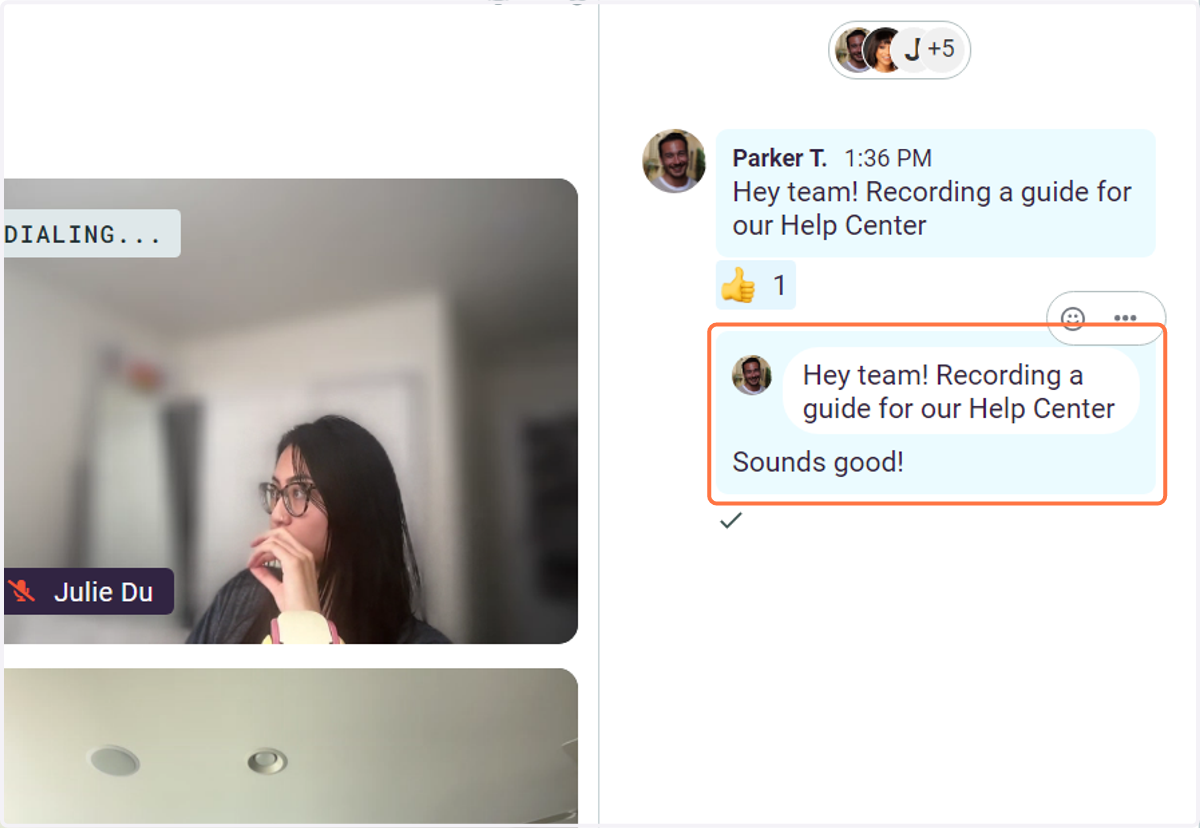
    And you'll see the original message has been posted along with your response
  12. 12. Click on the person you are trying to tag
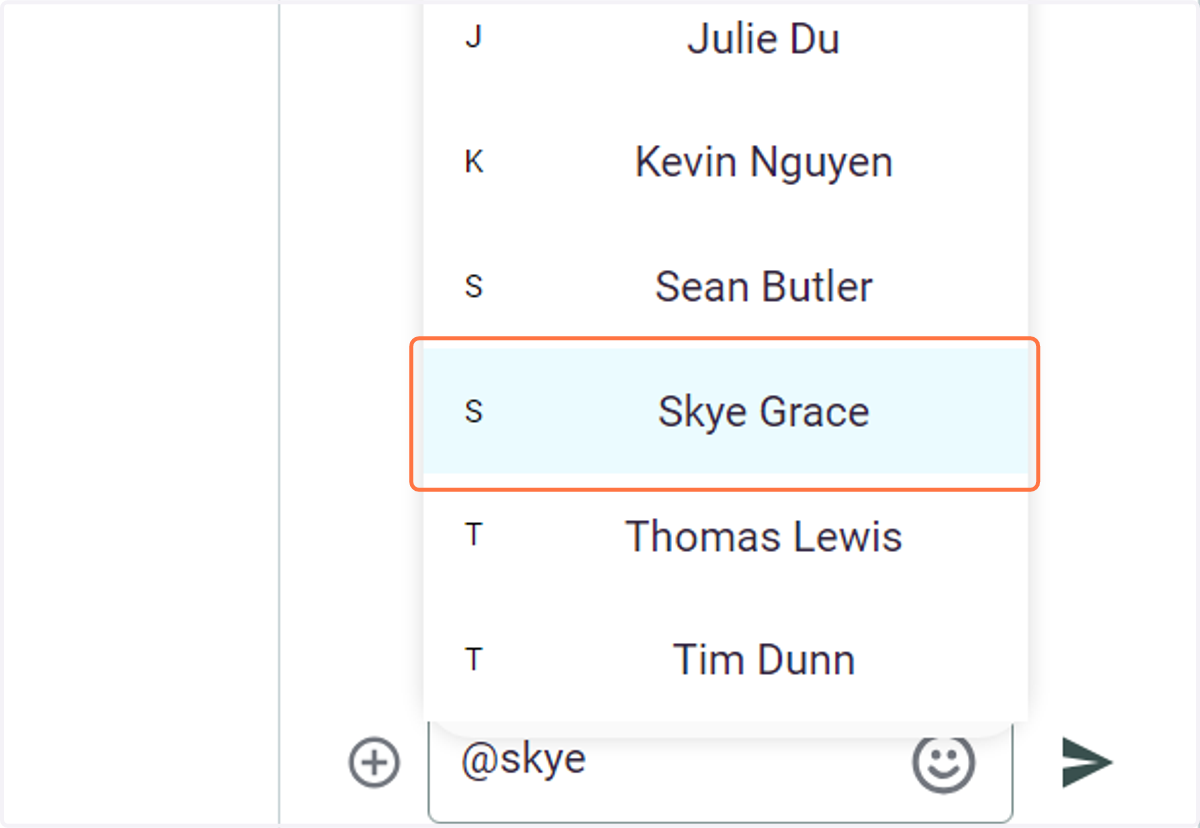
    Click on the person you are trying to tag
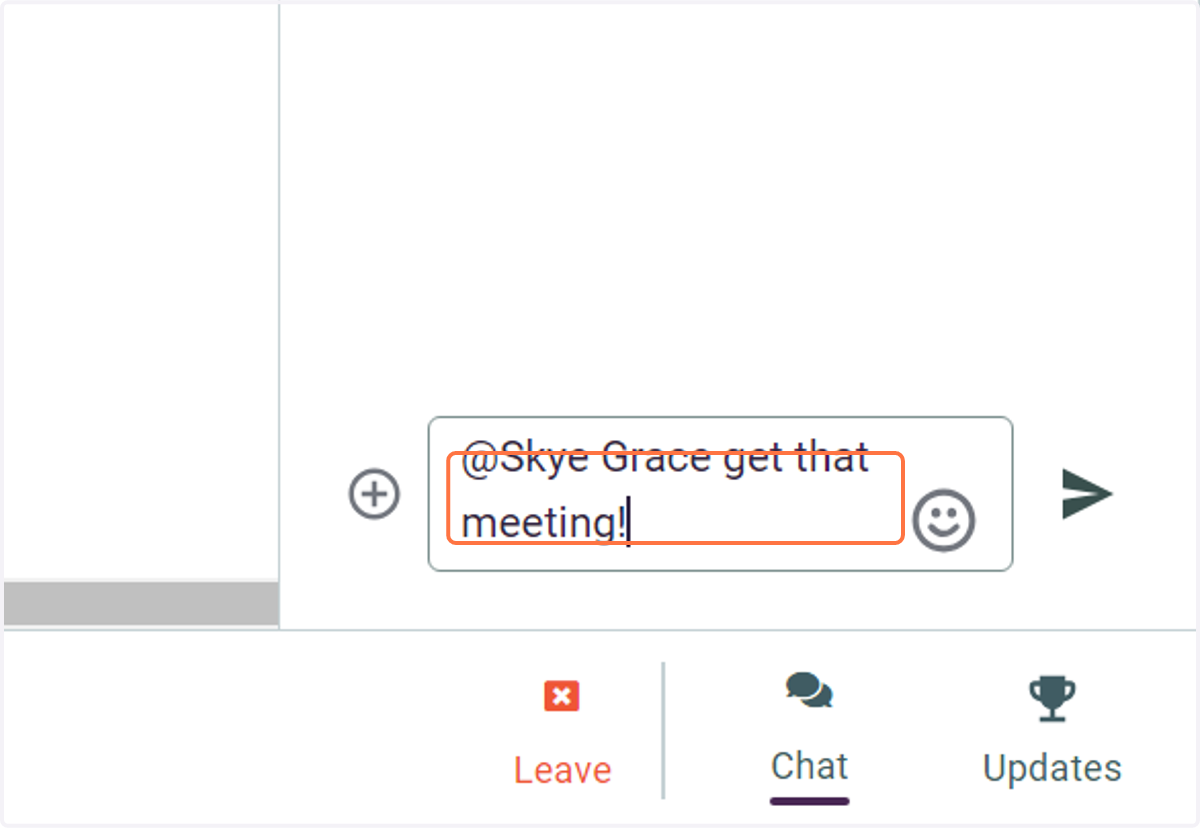
  13. 13. Add a personalized chat

    Add a personalized chat
  14. 14. You can also tag specific people in chat
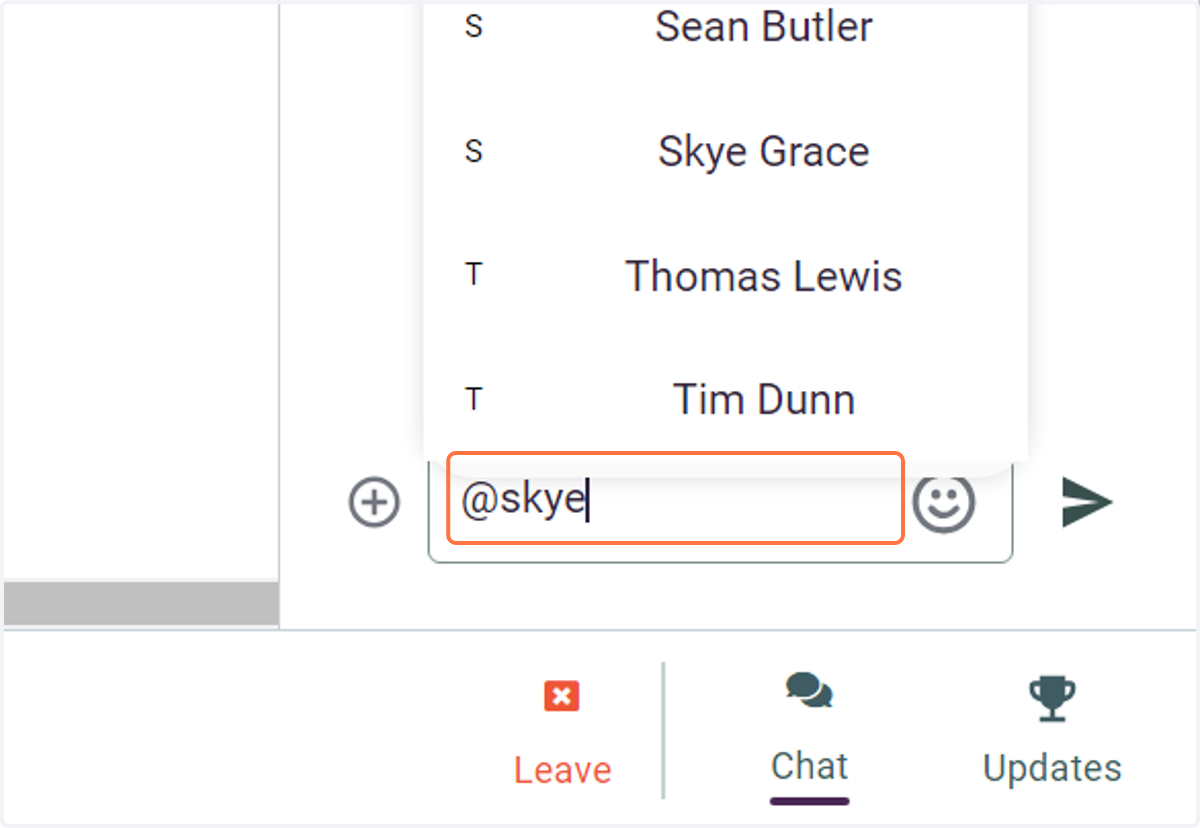
    You can also tag specific people in chat
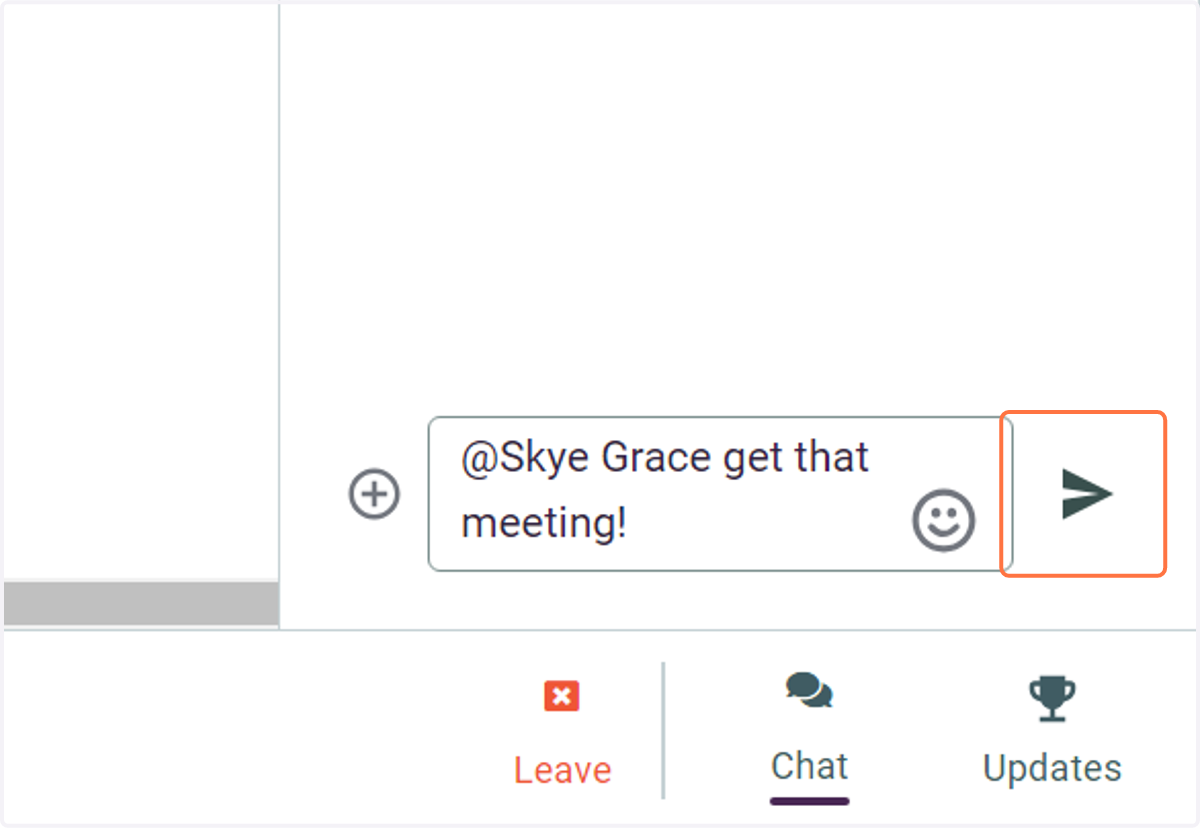
  15. 15. Click on Send

    Click on Send
  16. 16. You can also use the file upload and send GIFs
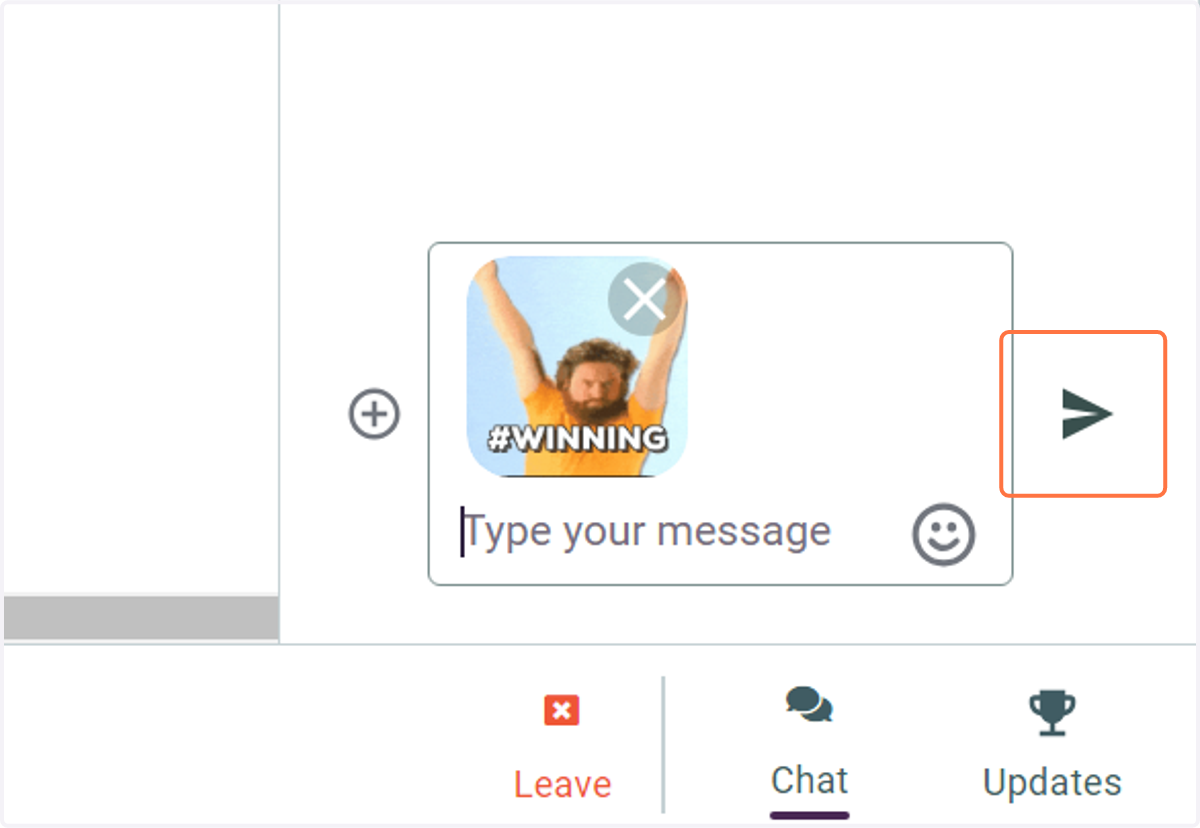
    You can also use the file upload and send GIFs
  17. 17. If someone has tagged you in a message, you'll receive this notification
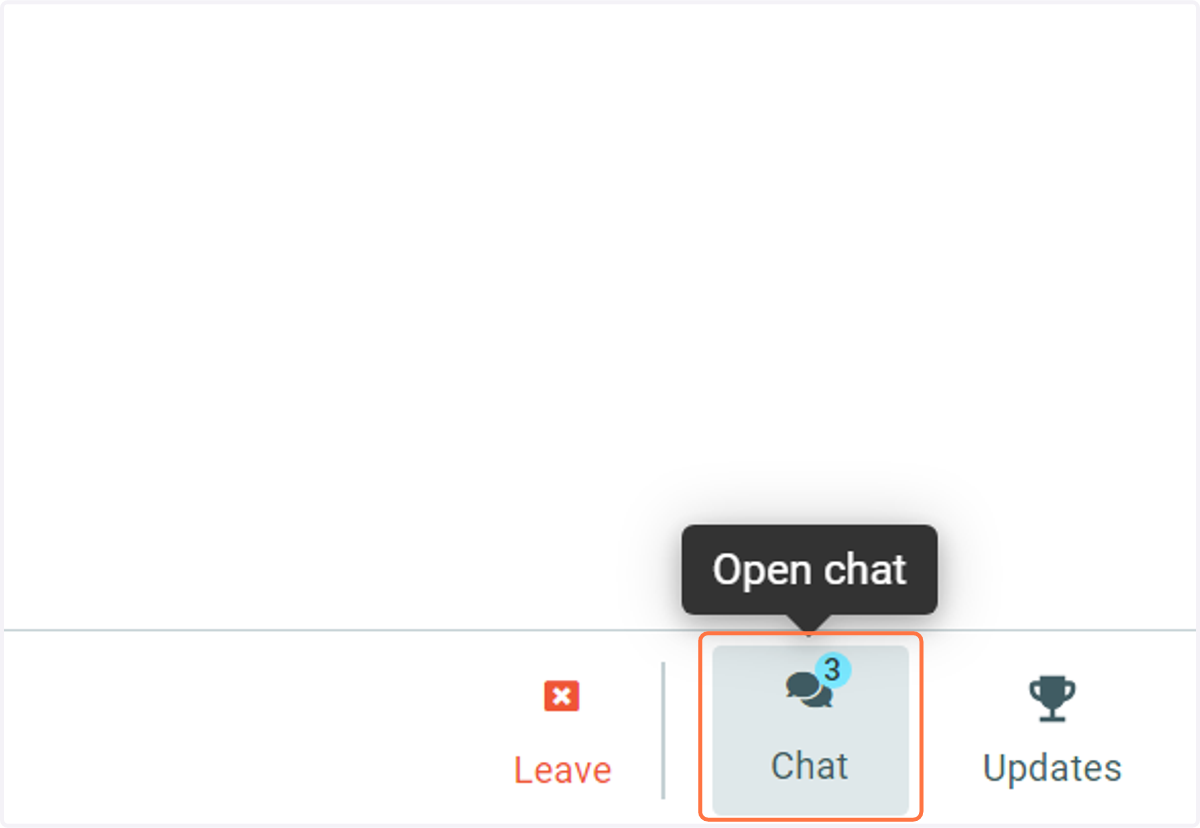
    If someone has tagged you in a message, you'll receive this notification
  18. 18. And be able to see the messages that you were tagged in
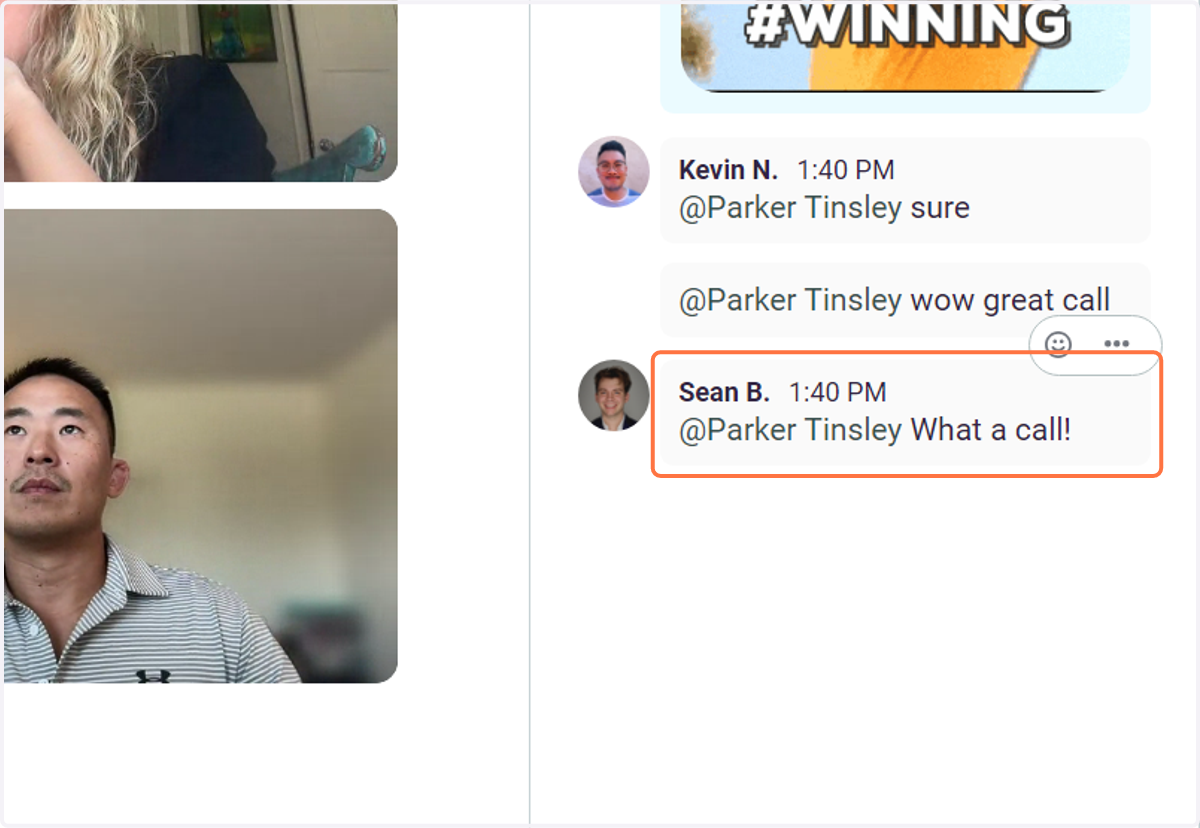
    And be able to see the messages that you were tagged in