SHiNE Application Tutorial
Log in to your Qmlativ Employee Access
1. Click My Tasks and Processes

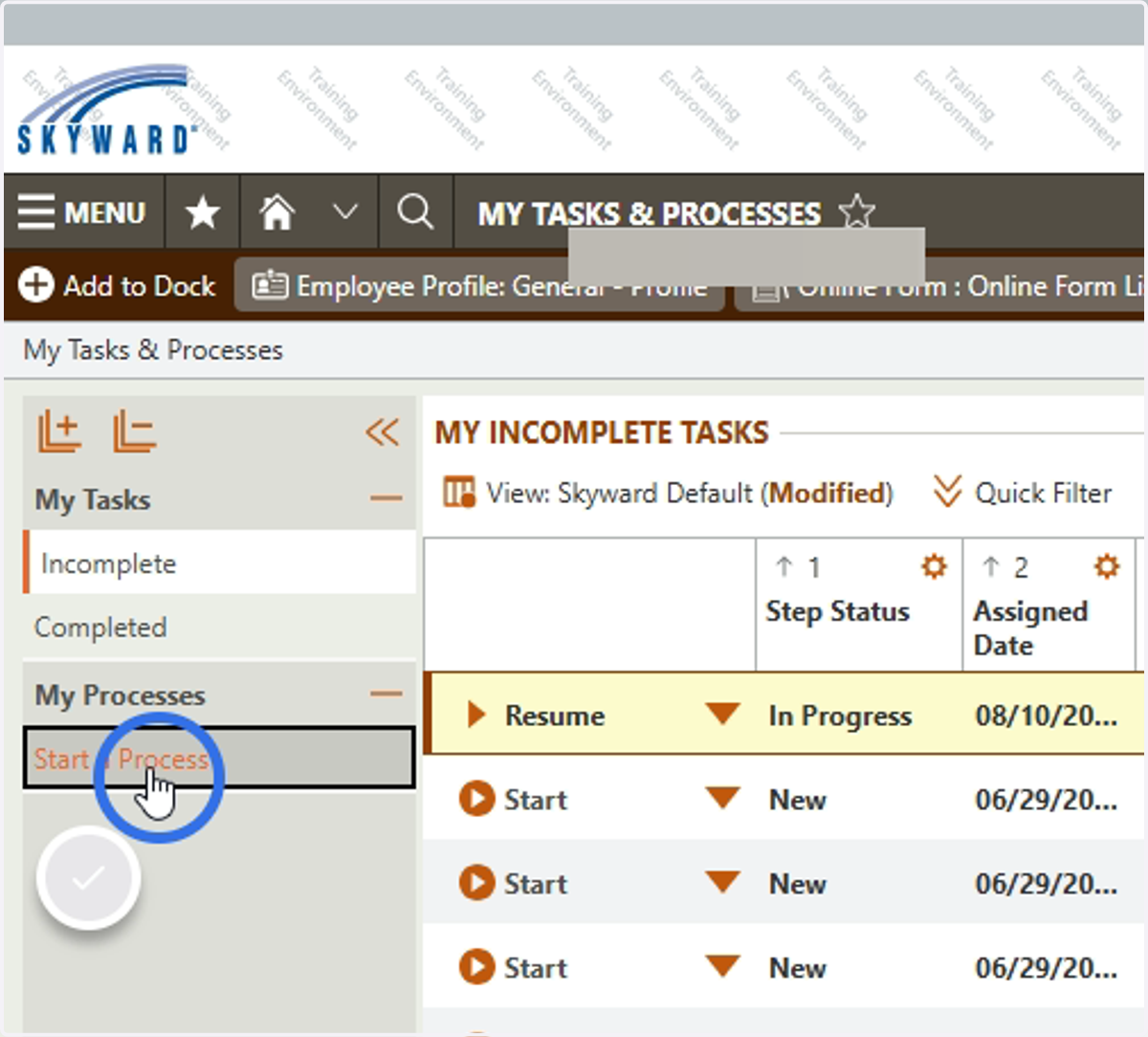
2. Click Start a Process
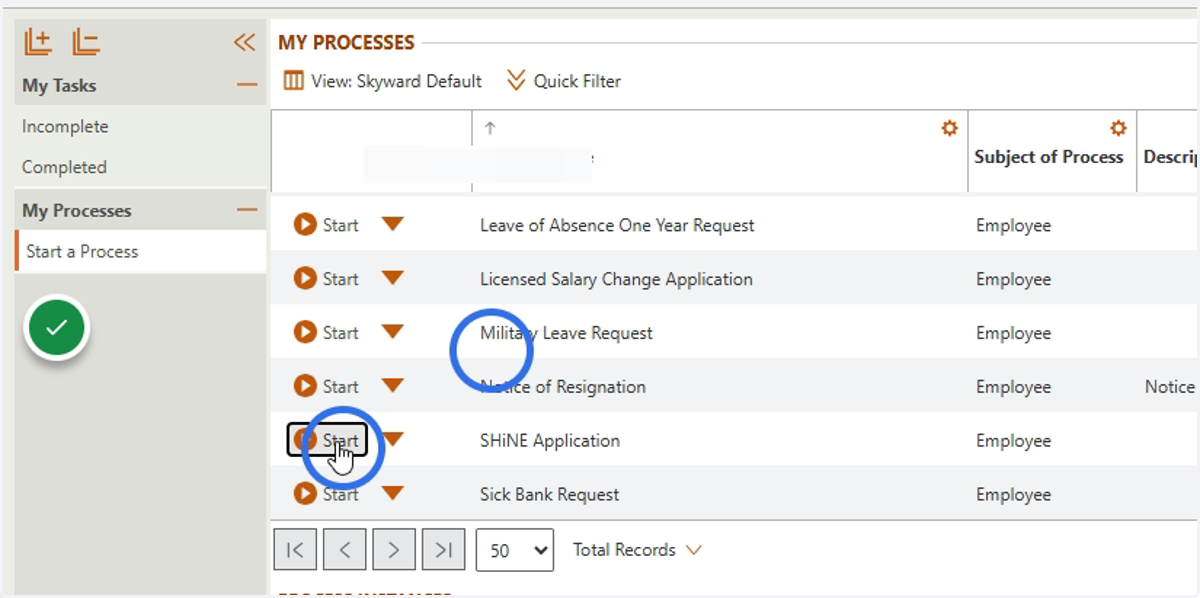
3. Find the SHiNE Application and click Start
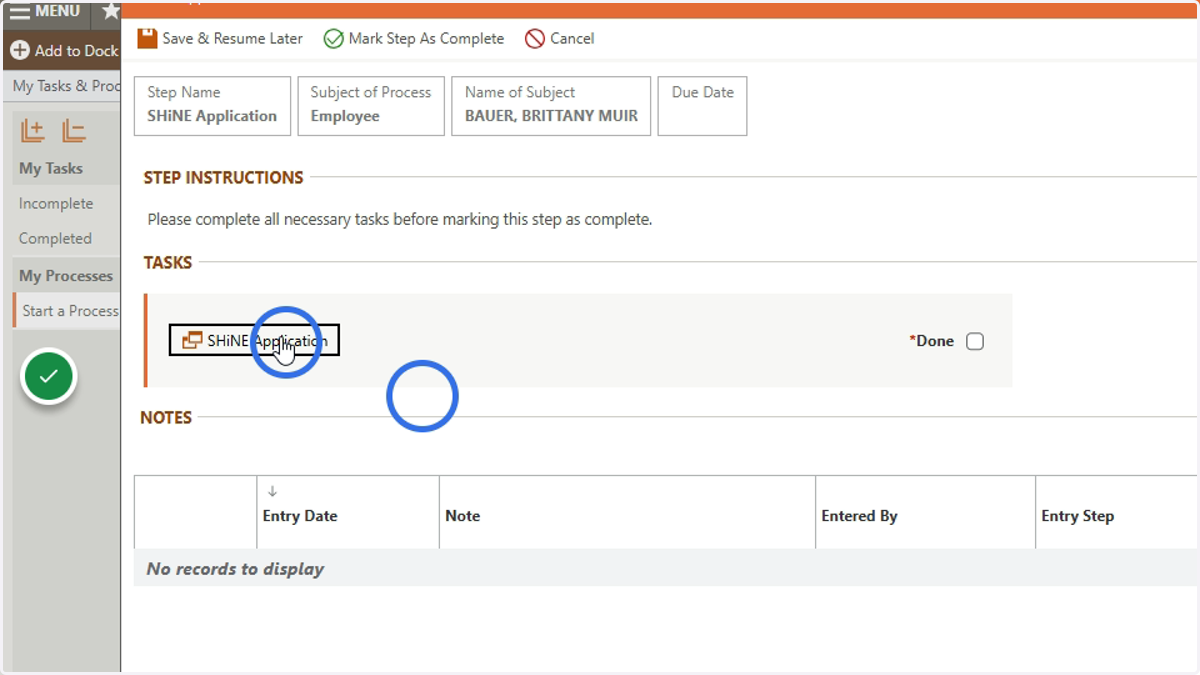
4. Click the SHiNE Application Form
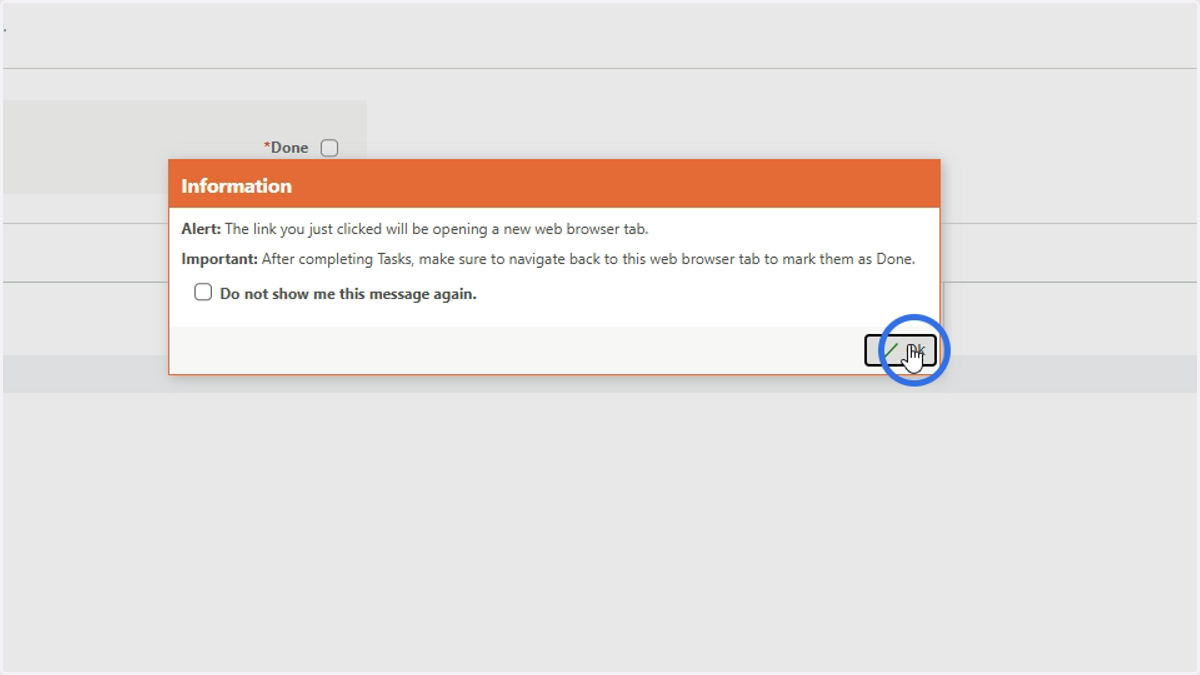
5. Clicking this link opens the form in a new tab - click OK
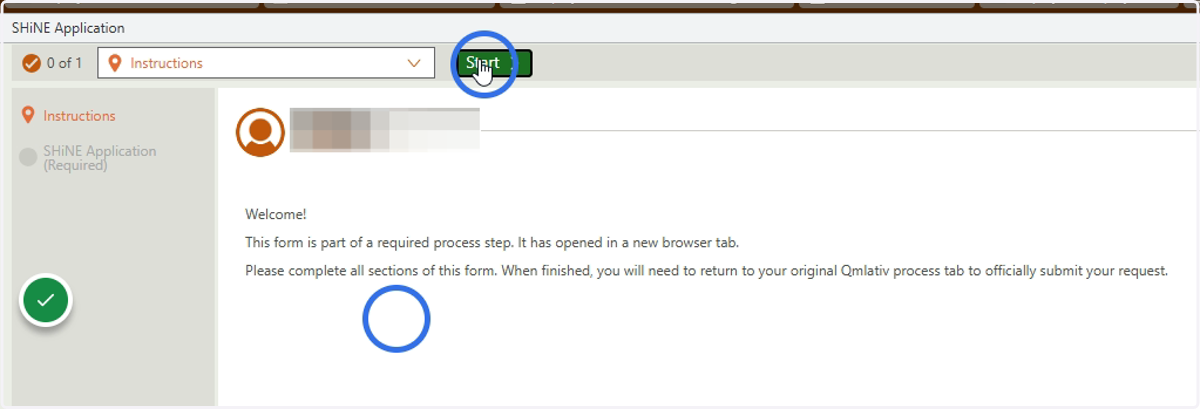
6. Click Start
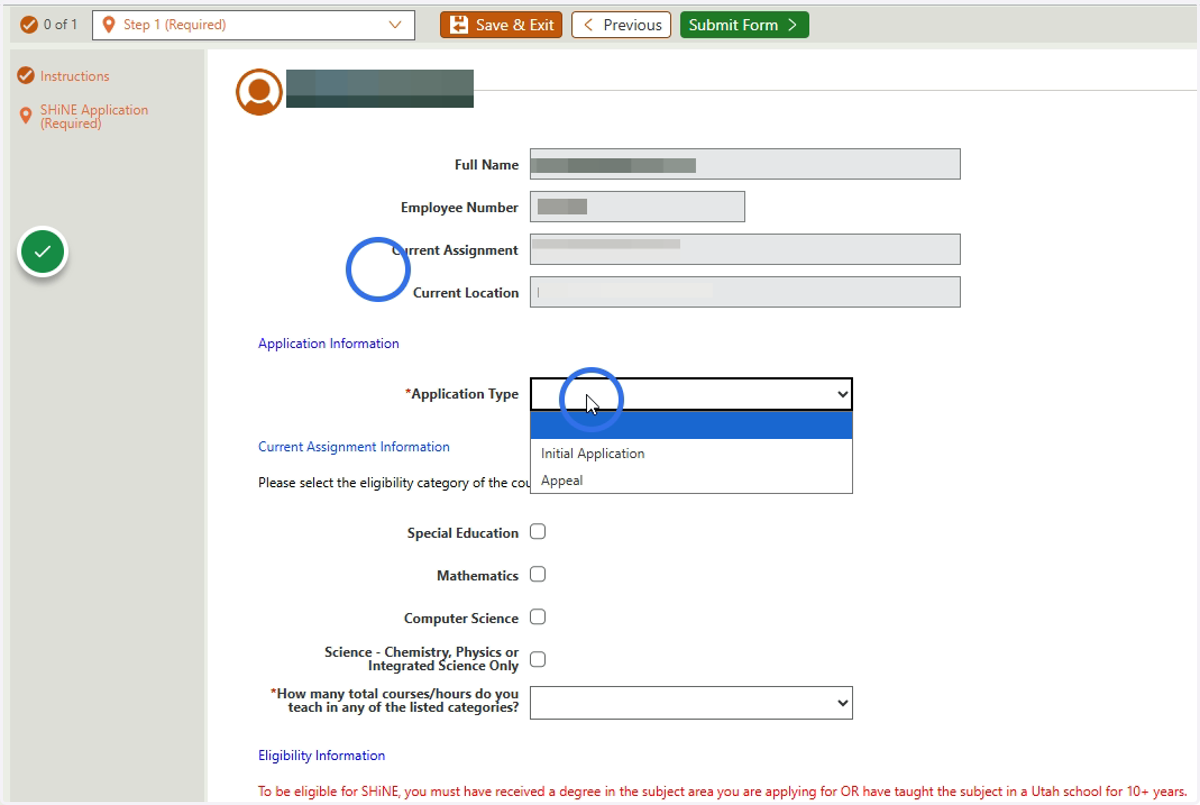
7. Complete each of the form fields
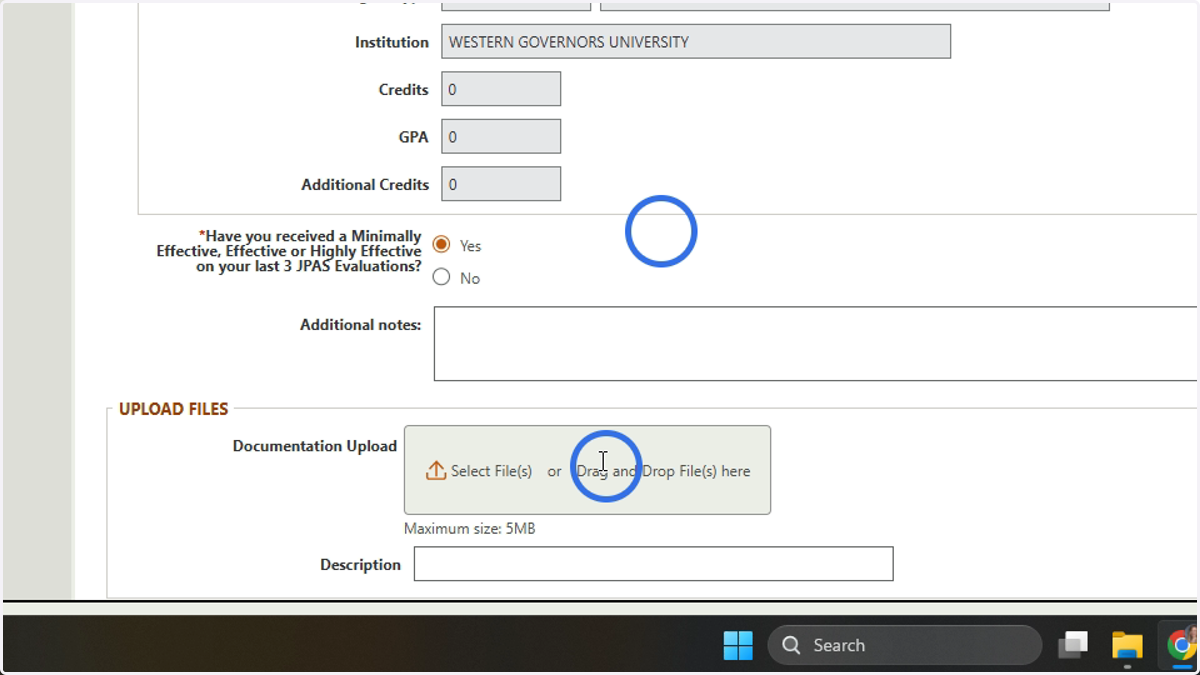
8. Upload any documentation that HR does not have on file.
Examples: Transcripts of related degree, JPAS evaluations, verification of experience, course schedule.
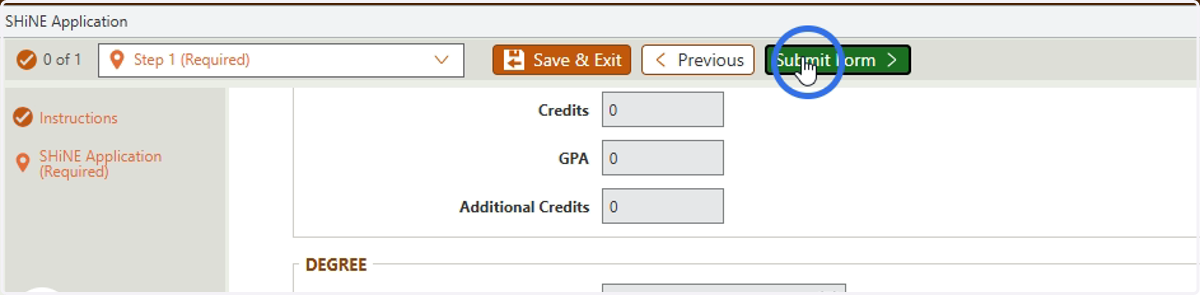
9. Click Submit Form once all areas are complete
10. Close the form tab - NOT WINDOW
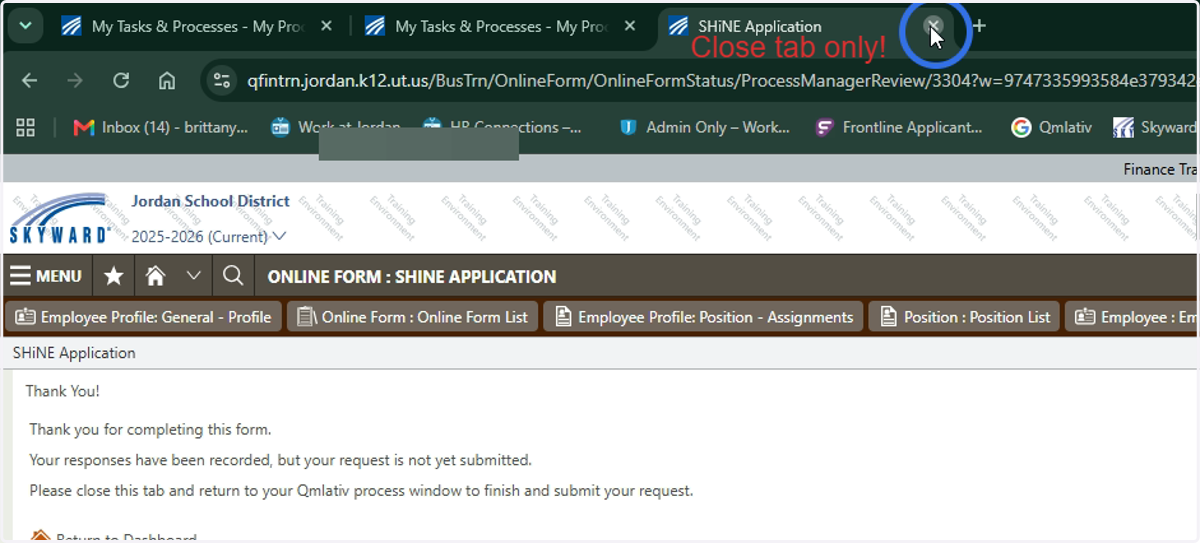
11. On previous tab, click done next to application.
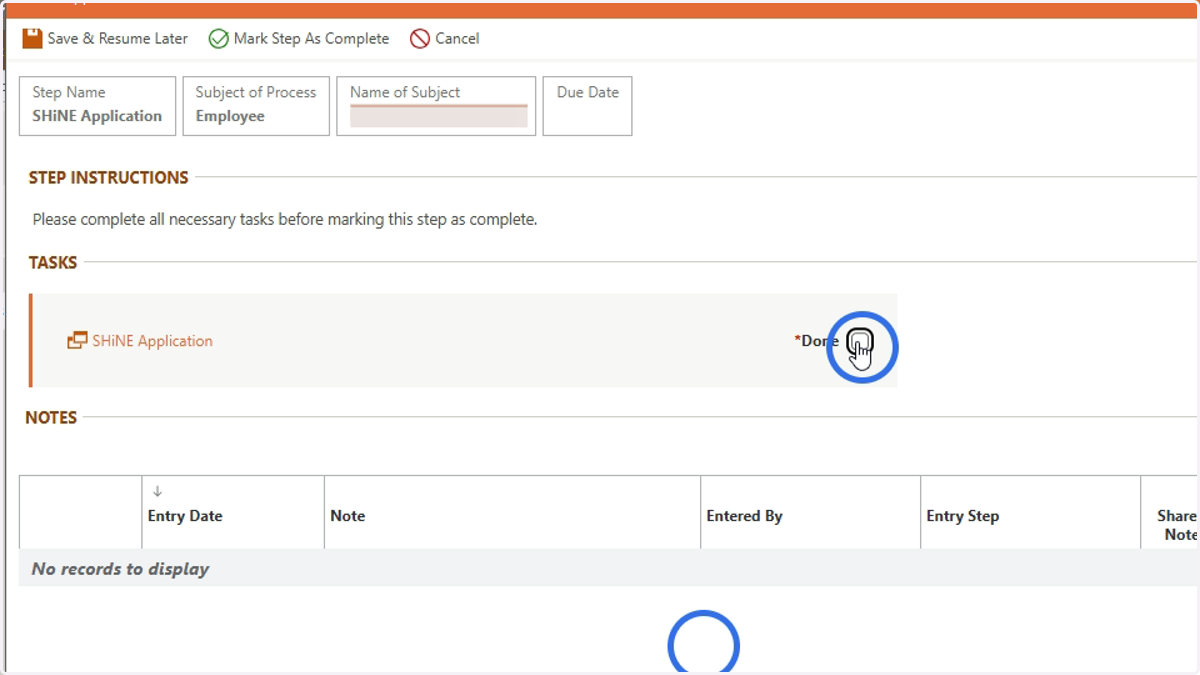
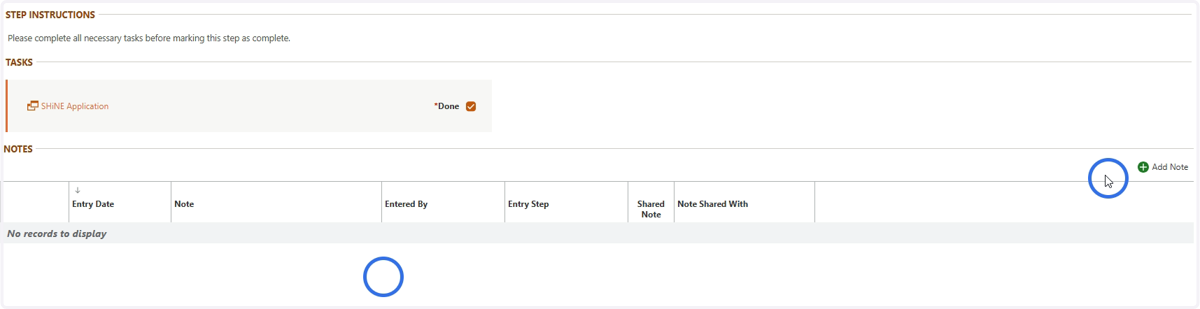
12. Click to add any notes
13. Click Mark Step as Complete
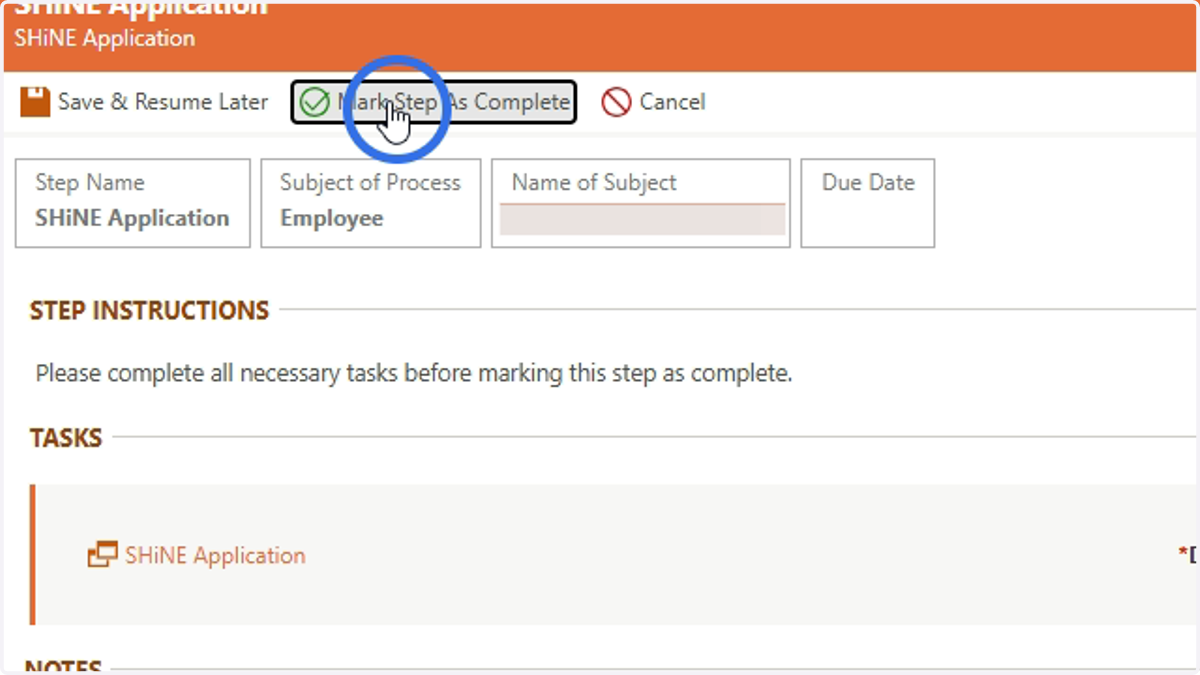
14. You have now submitted your application. You will receive an email with your application approval/denial from HR.