Reupload SwiftAxis Processing File
SwiftAxis
1. Click on Sign In

2. Authenticate with Google or your email provider
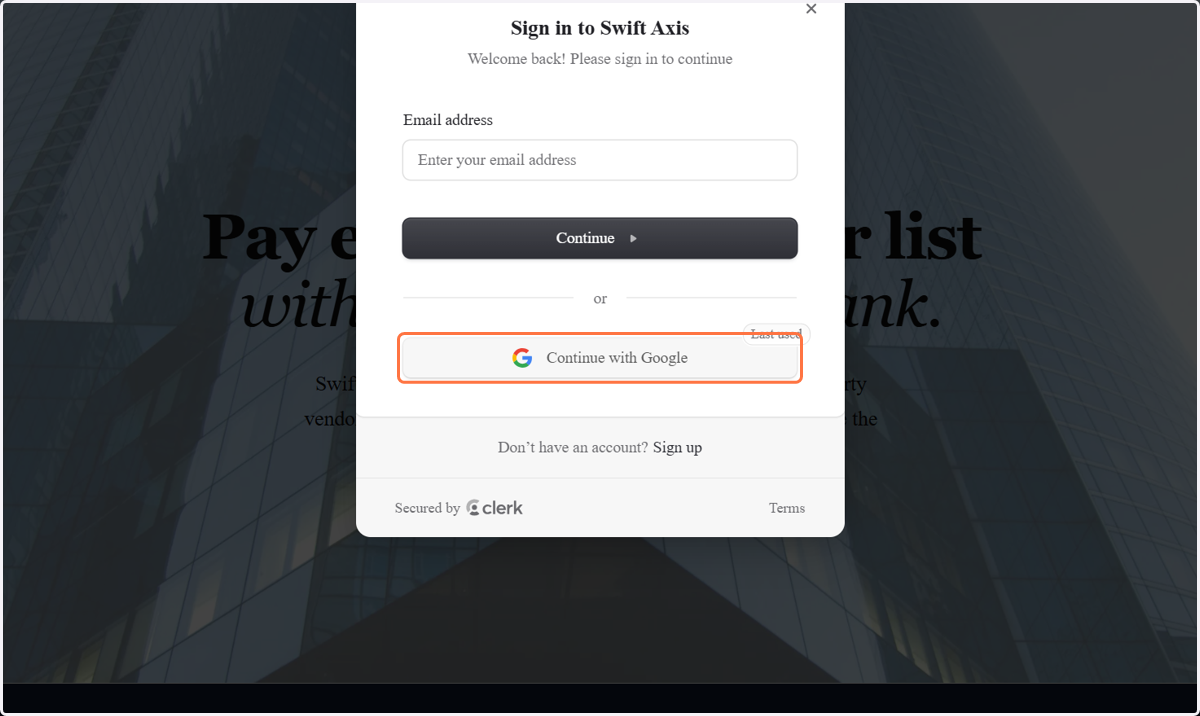
Sign in - Google Accounts
SwiftAxis
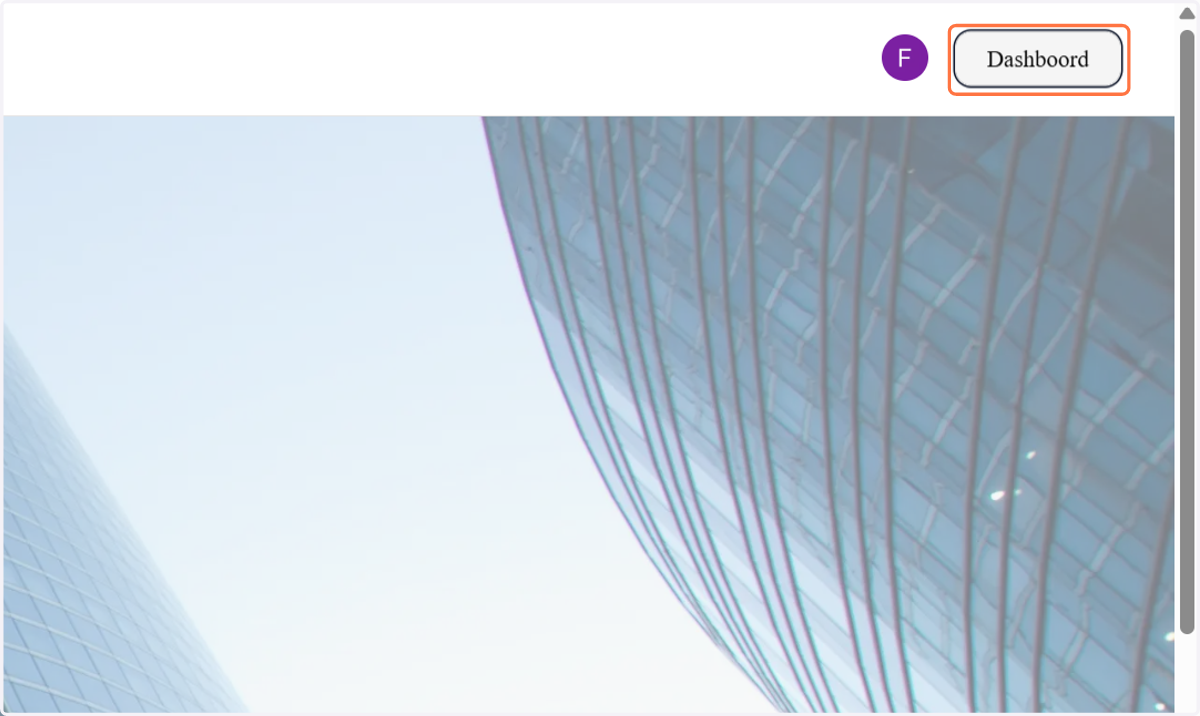
3. Navigate Dashboord
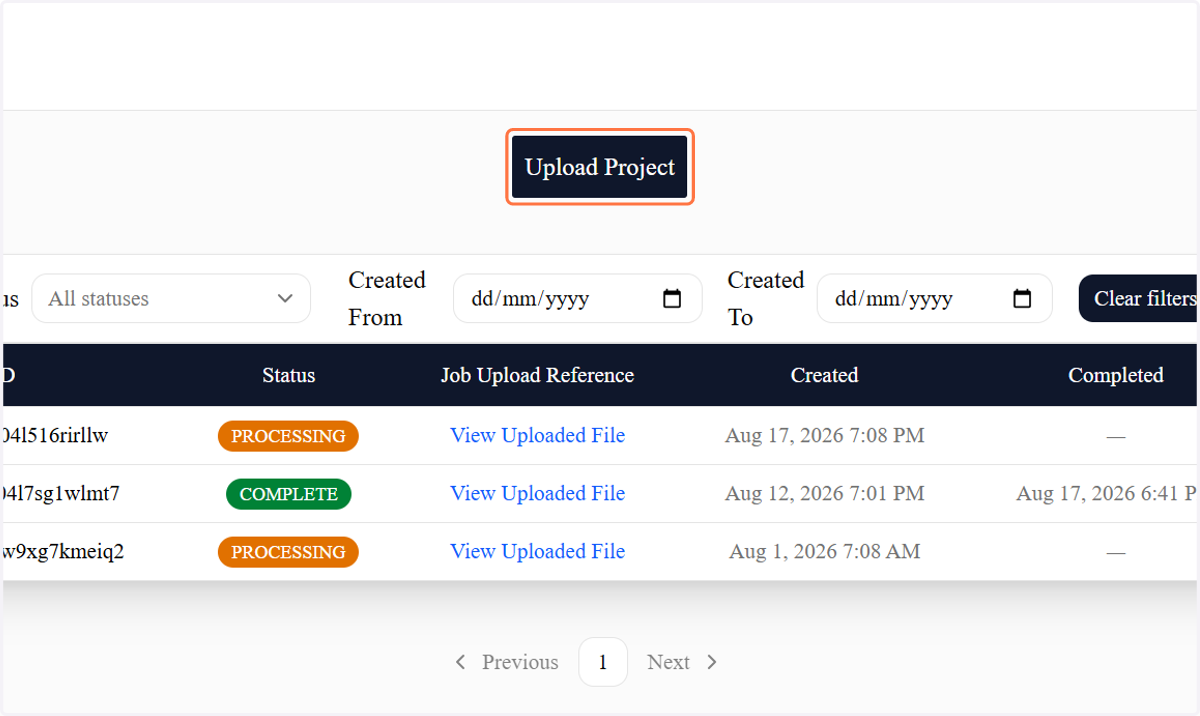
4. Upload Project
5. Click on Upload files…
To hel[ us process payments to beneficiaries as efficiently as possible, we encourage you to carefully review and verify all beneficiary details and payments data, including those of training participants and vendors, before submission.
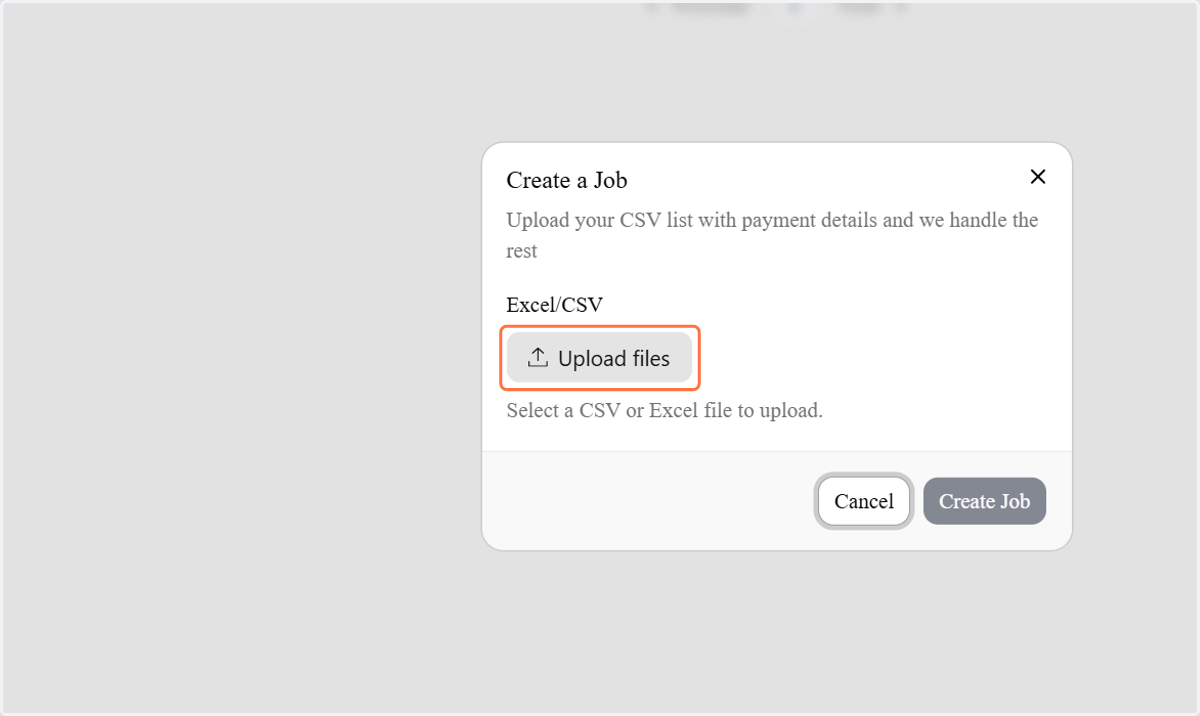
6. Select .csv or excel file
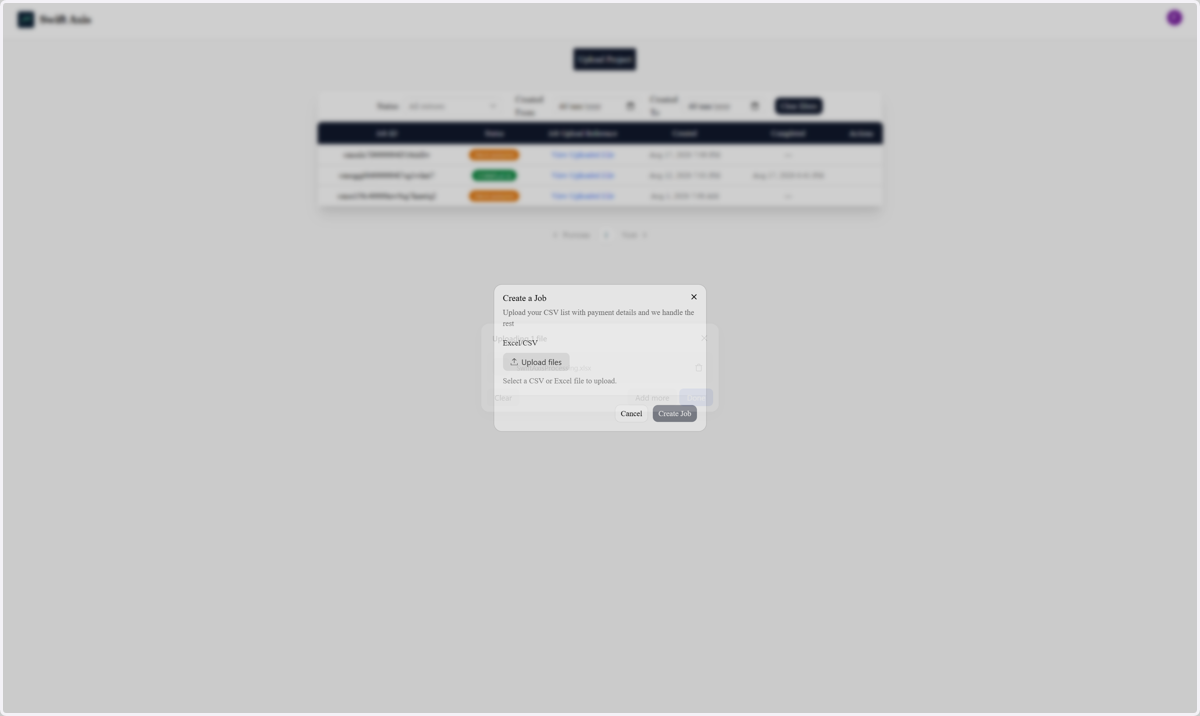
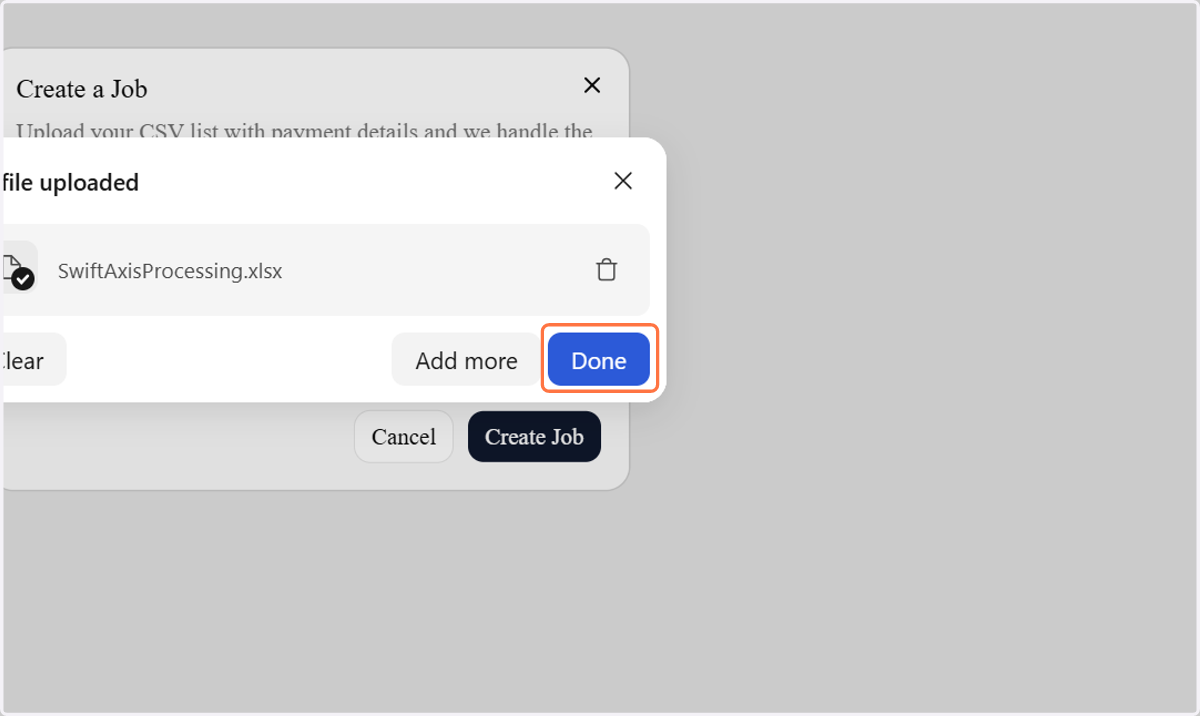
7. Click on Done
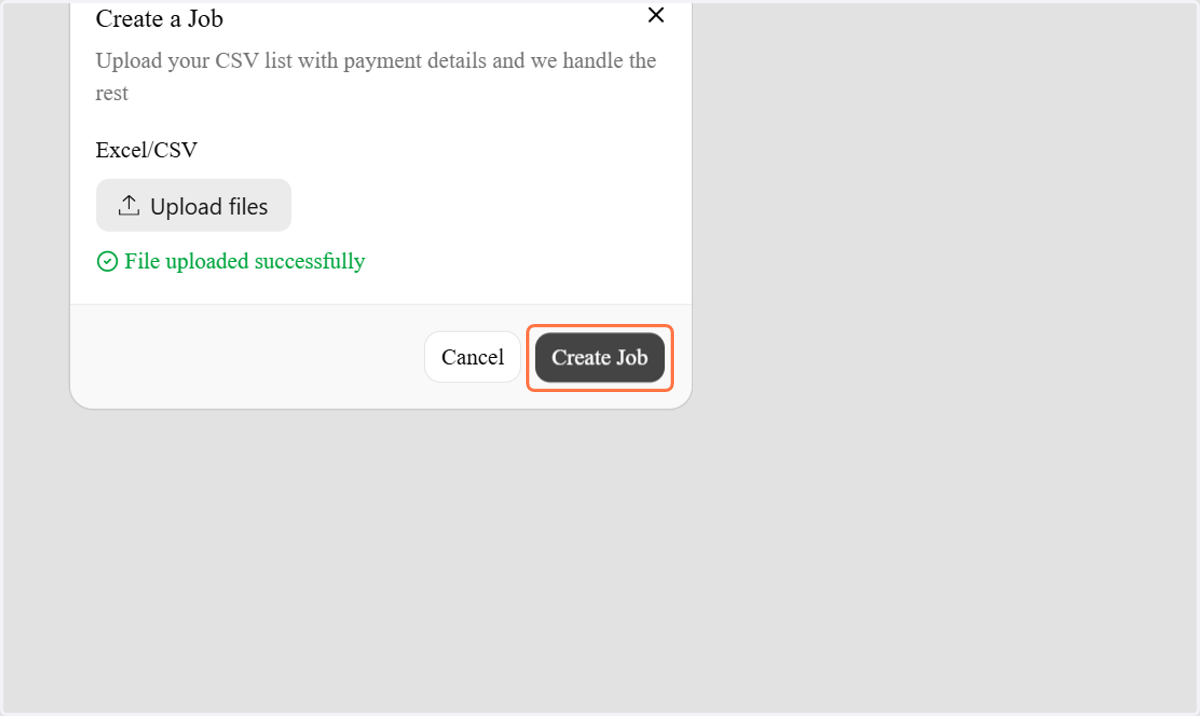
8. Click on Create Job
9. Recently created jons appear first on the table
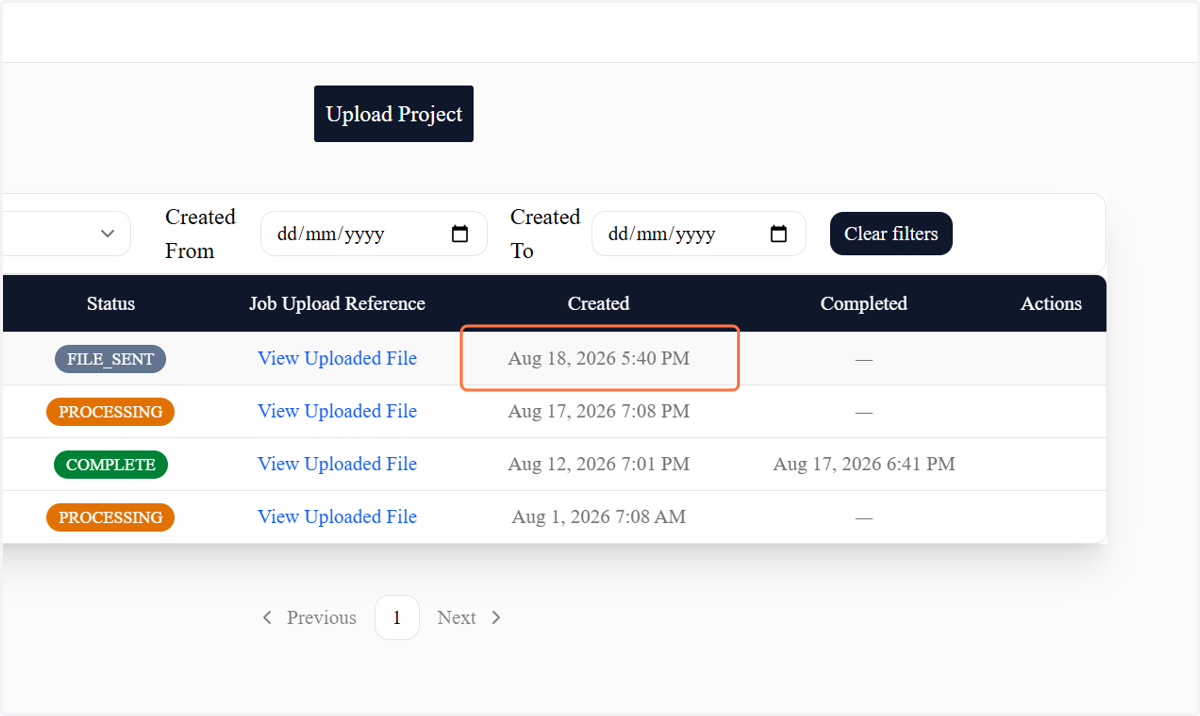
10. However you can make use of the filters to sort the table
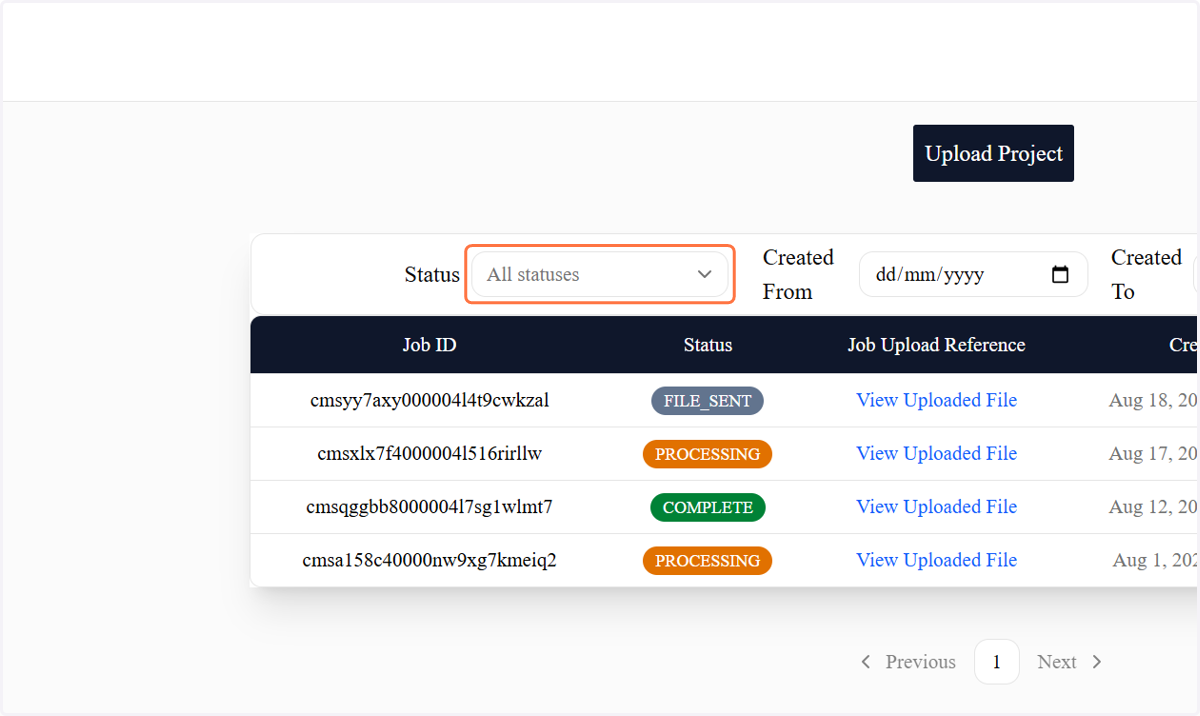
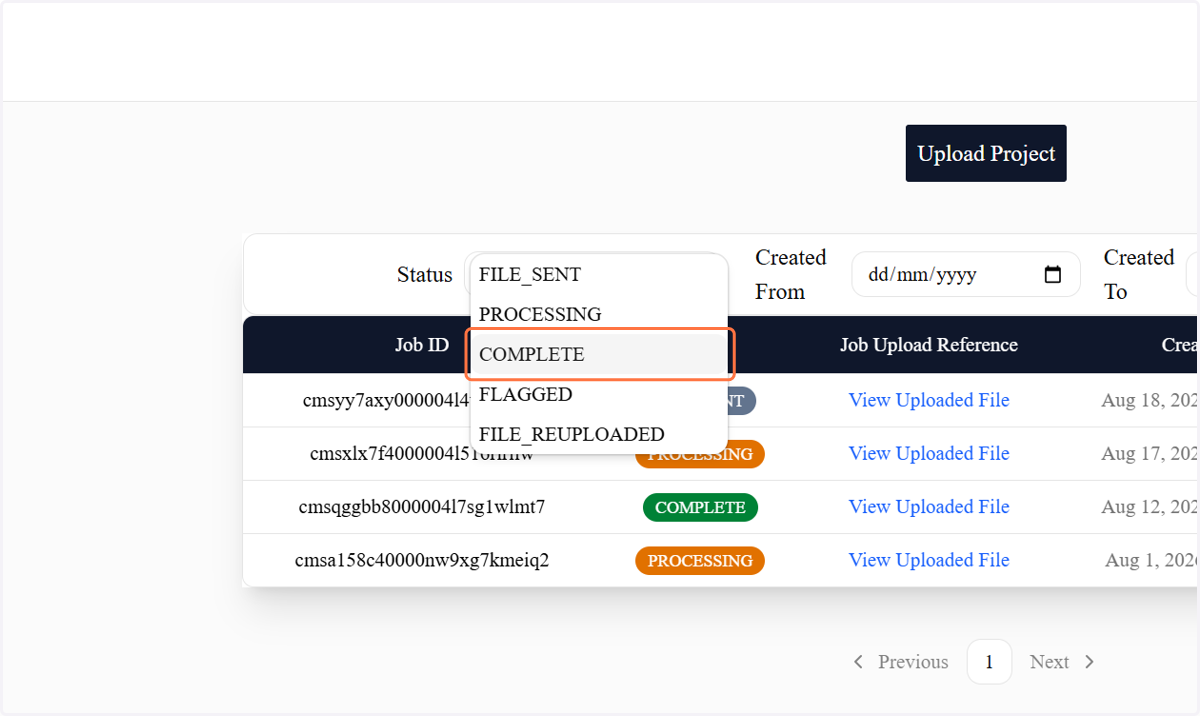
11. Filter by the following
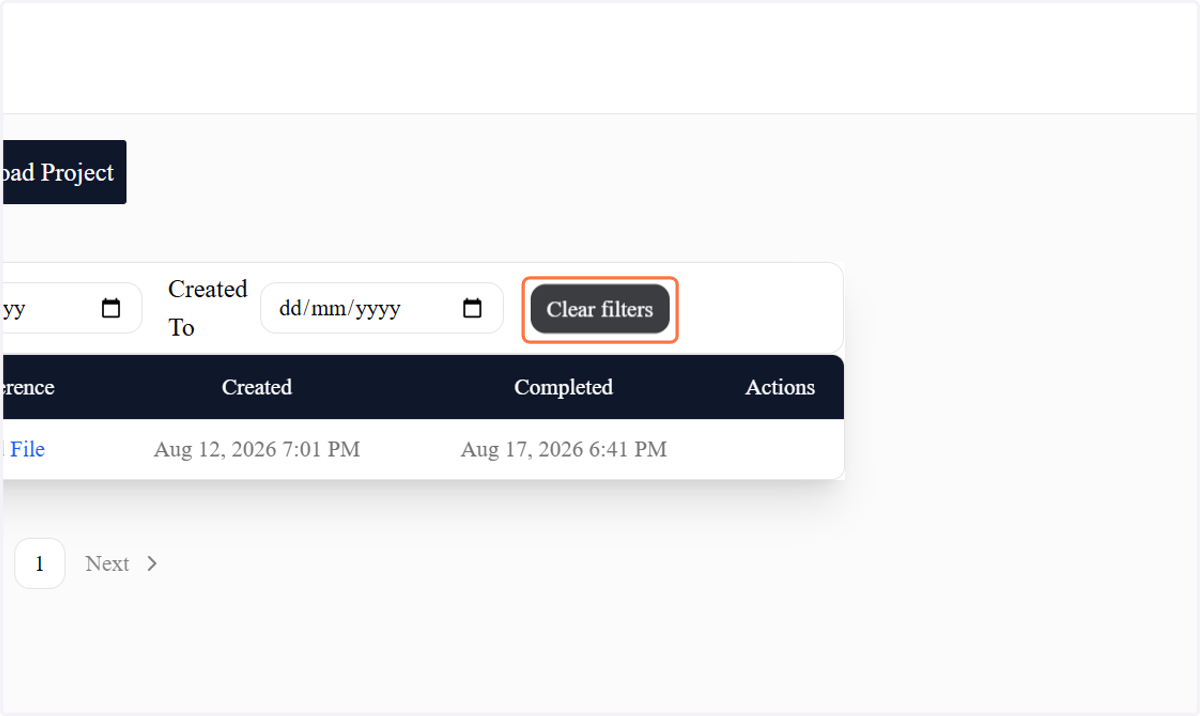
12. Clear filters to reset table
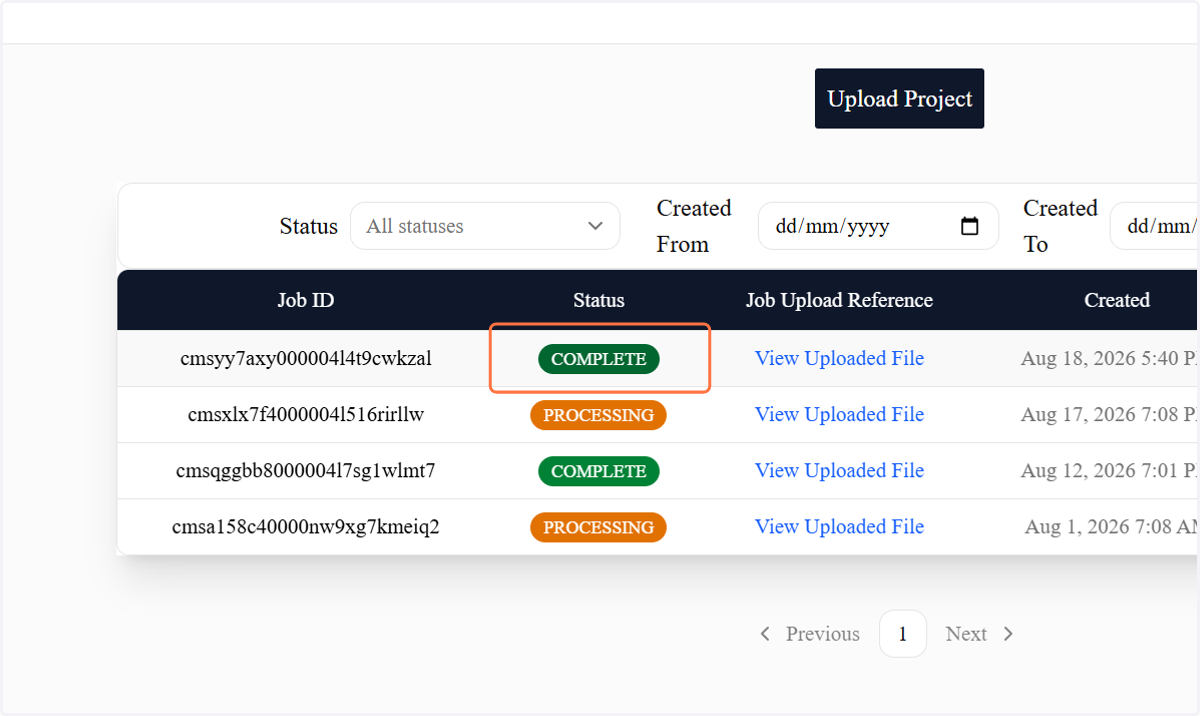
13. Check Status of upload

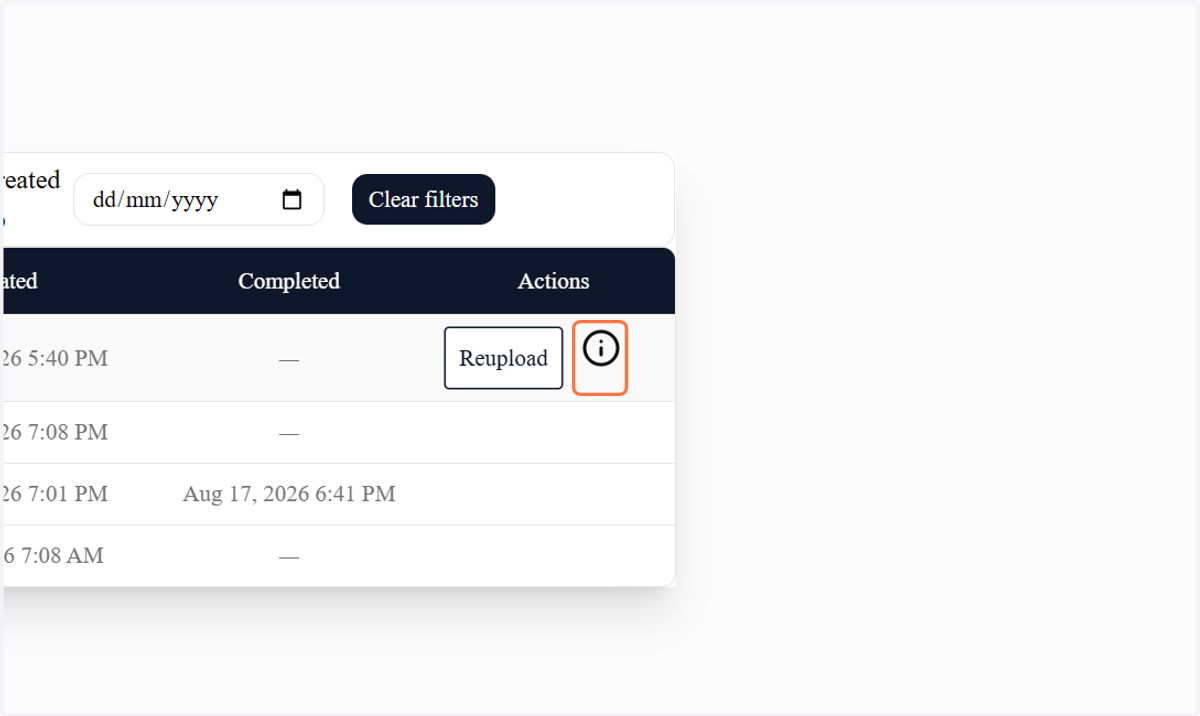
14. If flagged, please check the uploaded file(Use comment from admin as a guide and reupload)
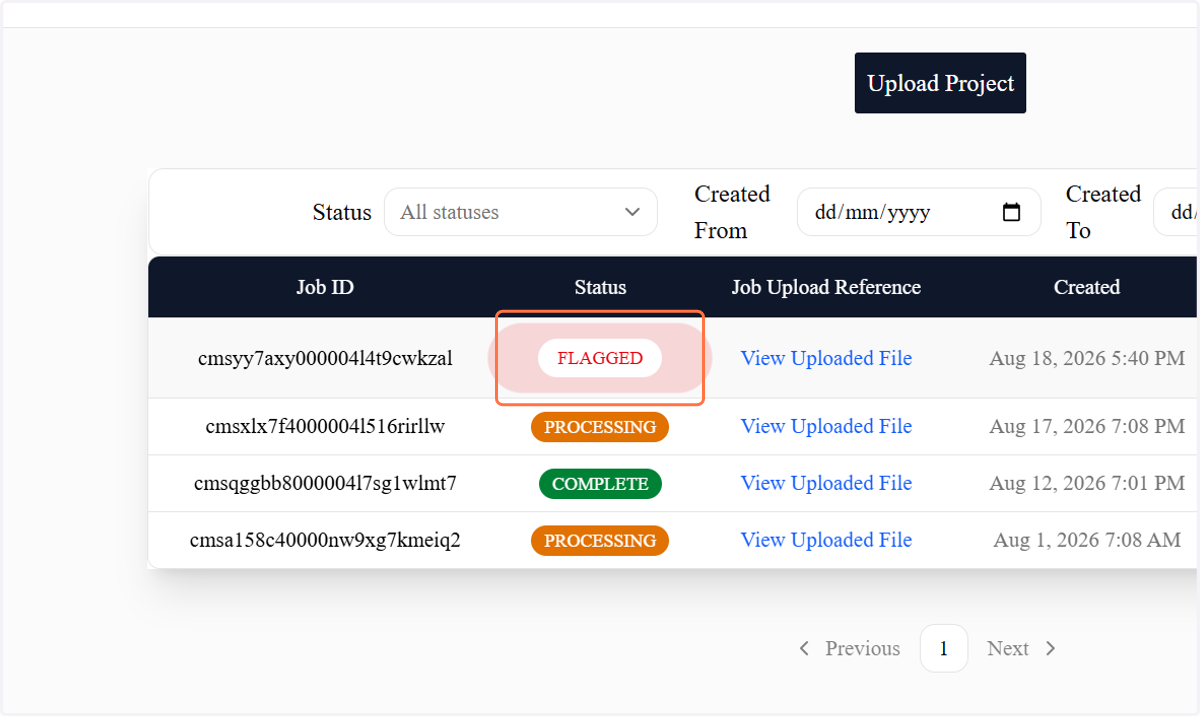
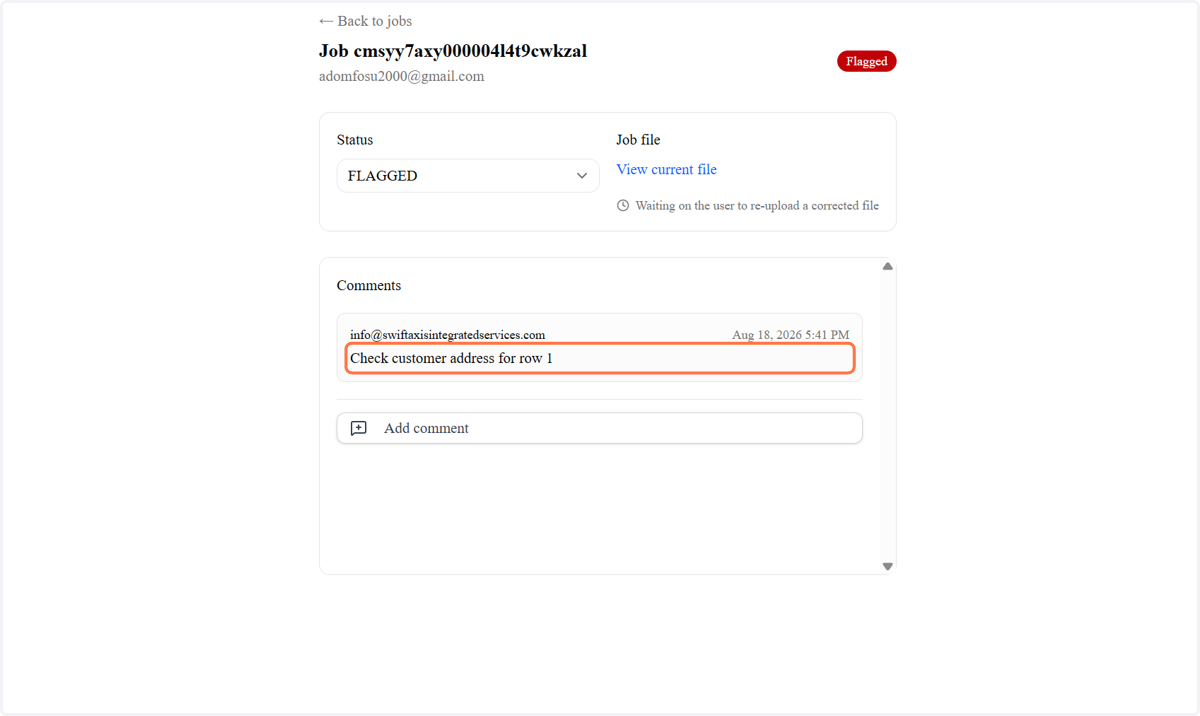
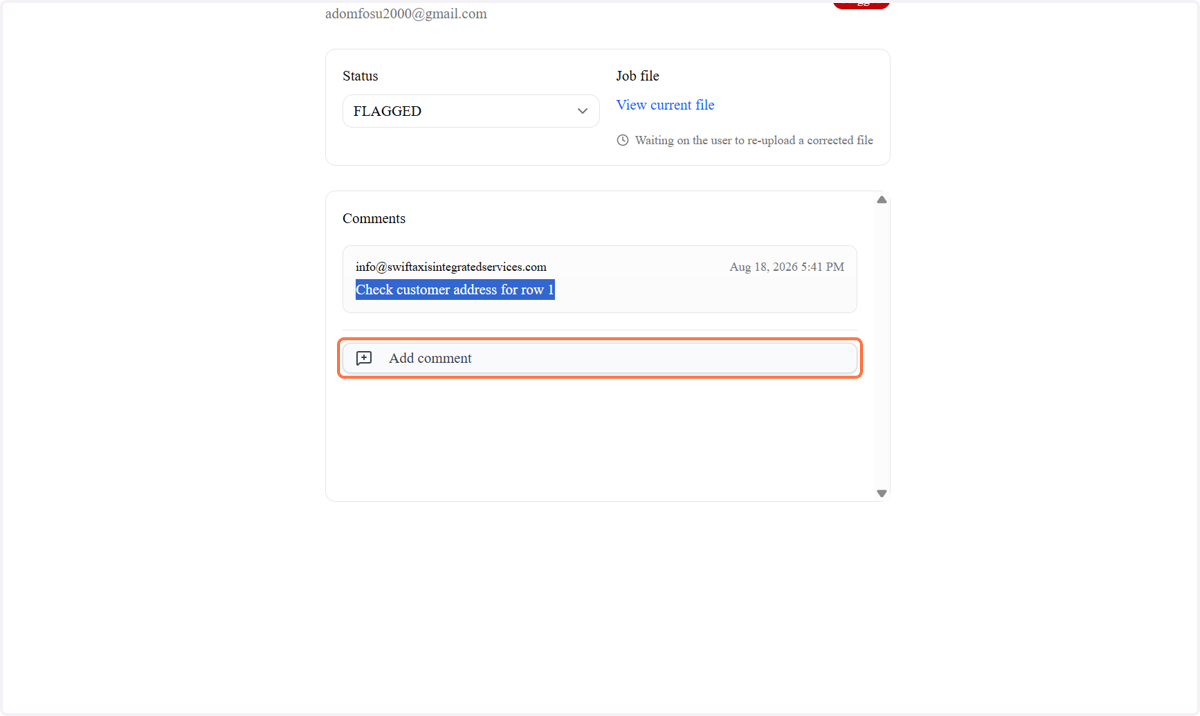
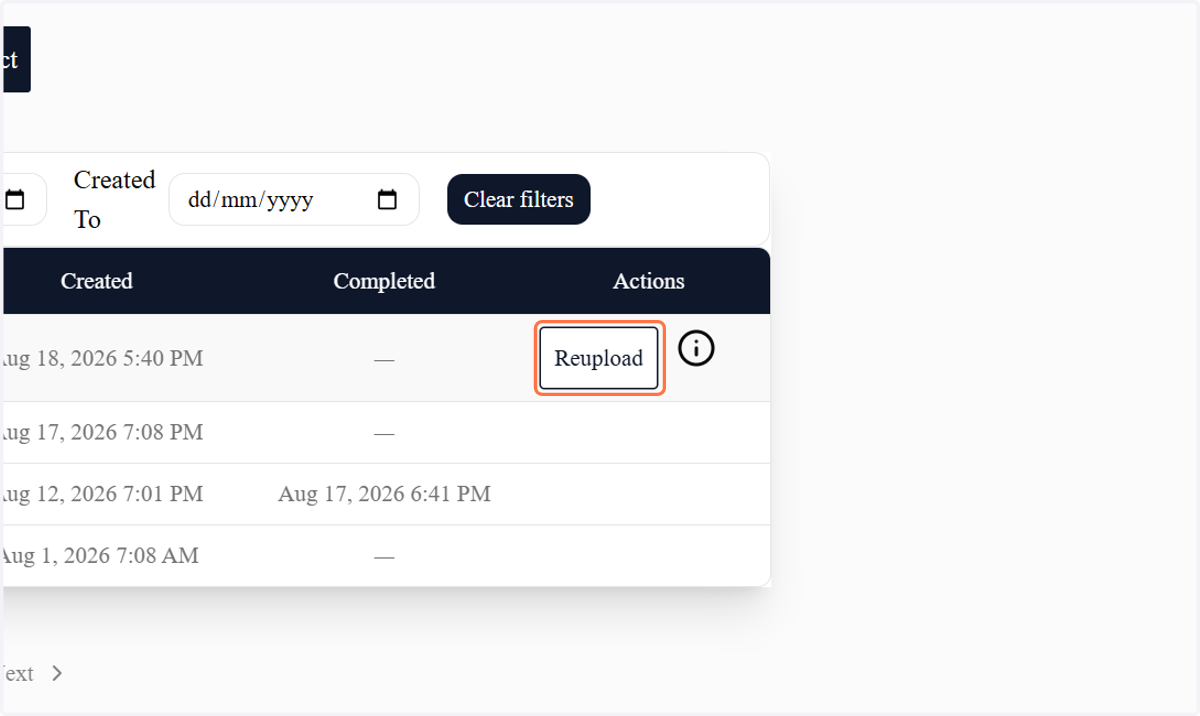
15. This shows the message from the admin. Use the reupload button to attach the new file for processing.
16. You can add a comment back for the admin
17. Click on info@swiftaxisintegratedservices.com…
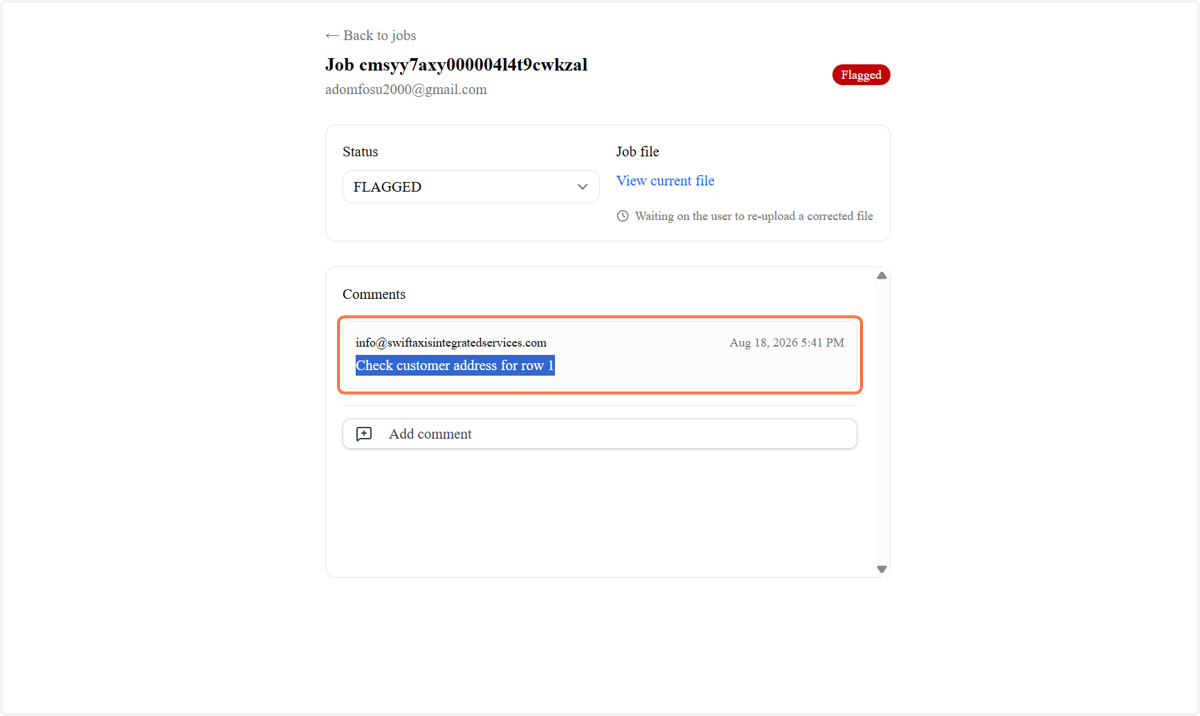
18. Click on Add comment
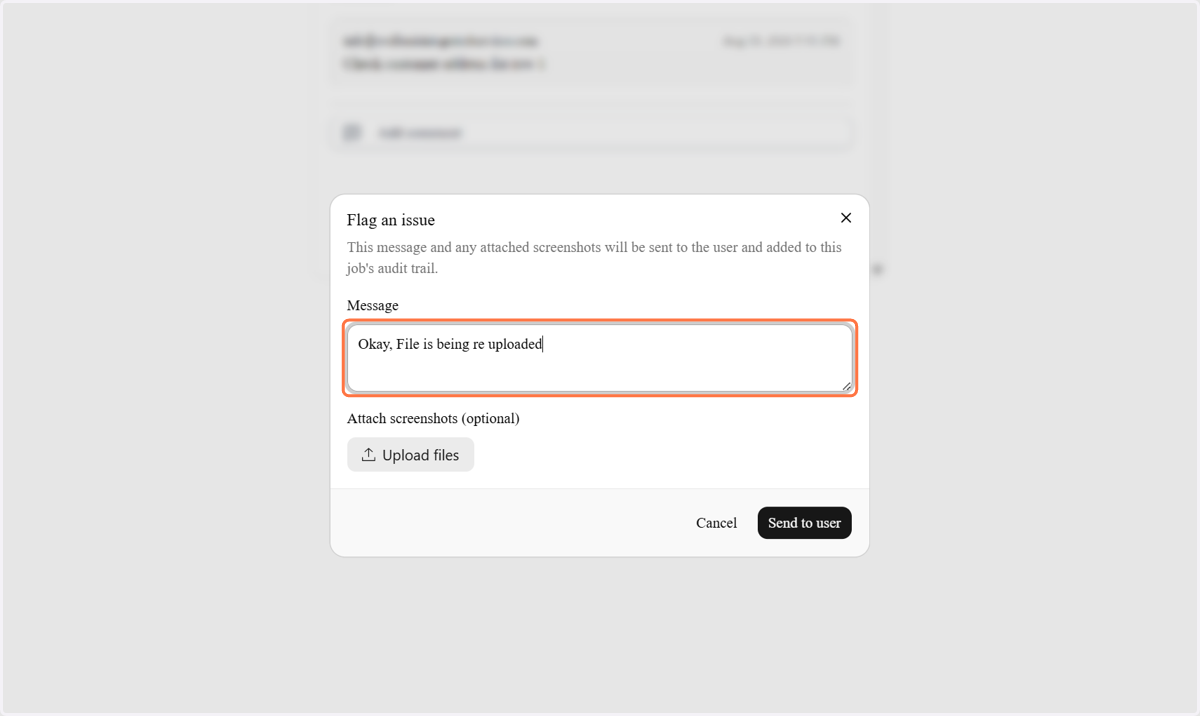
19. Type "Okay, File is being re uploaded"
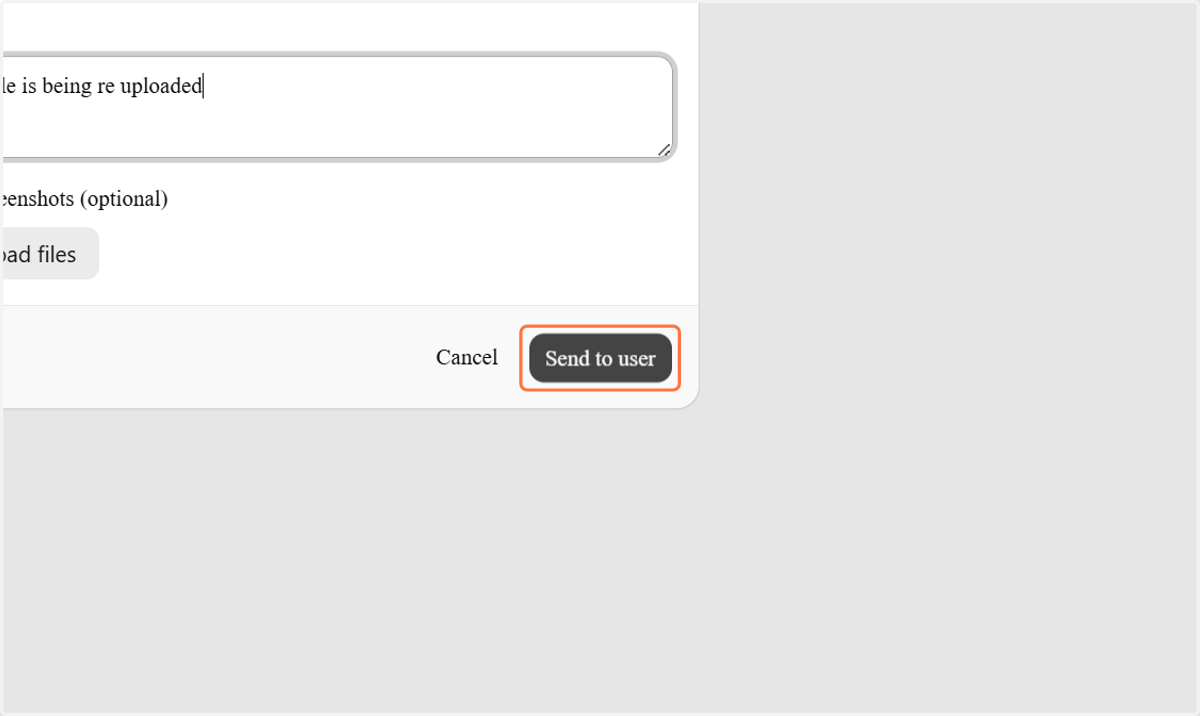
20. Click on Send to user
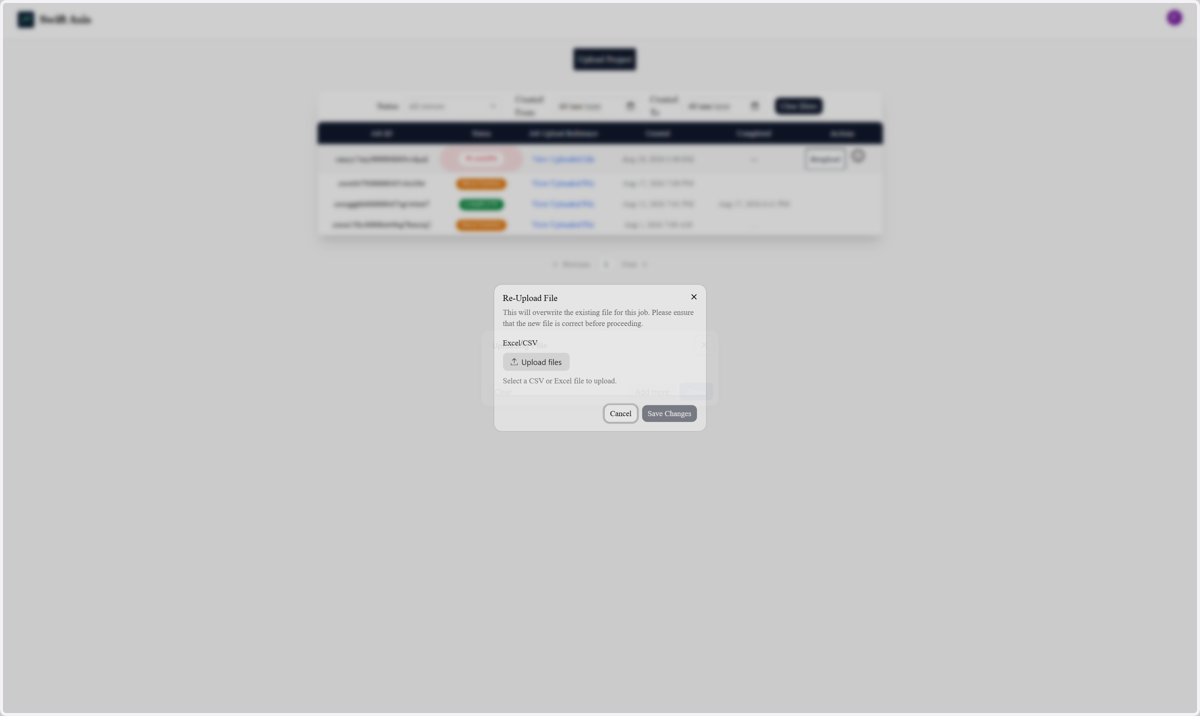
21. Click on Reupload
22. Select "SwiftAxisProcessing.xlsx" from file upload menu
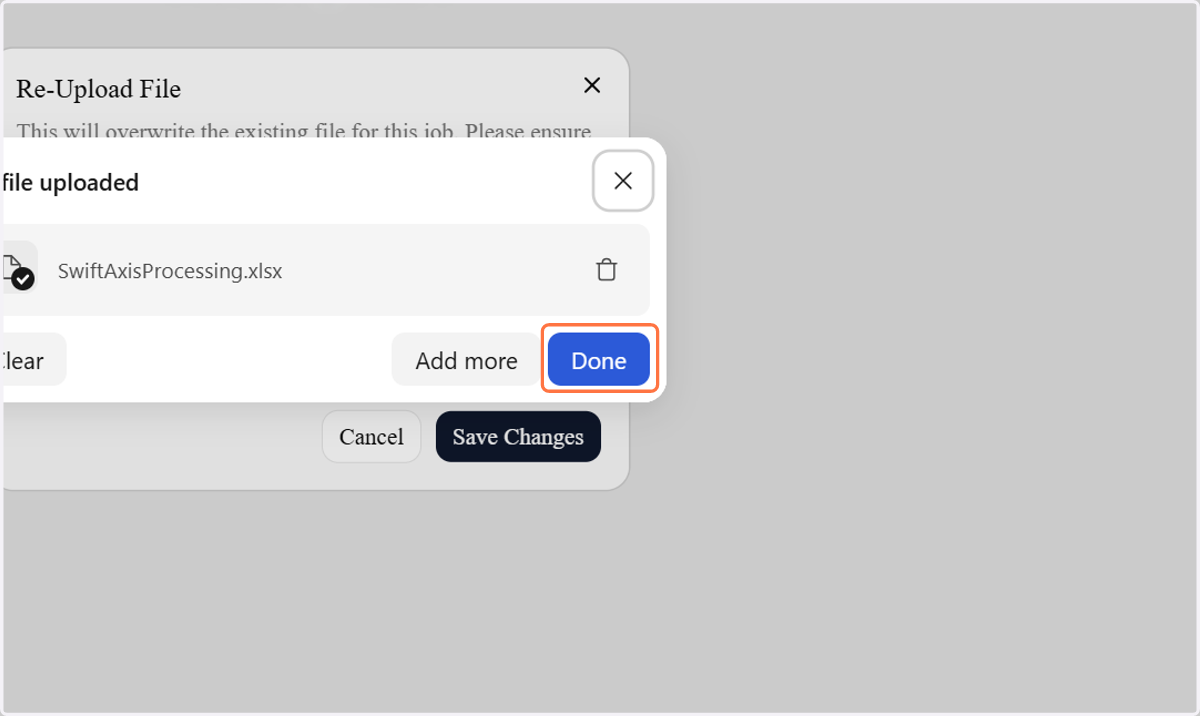
23. Click on Done
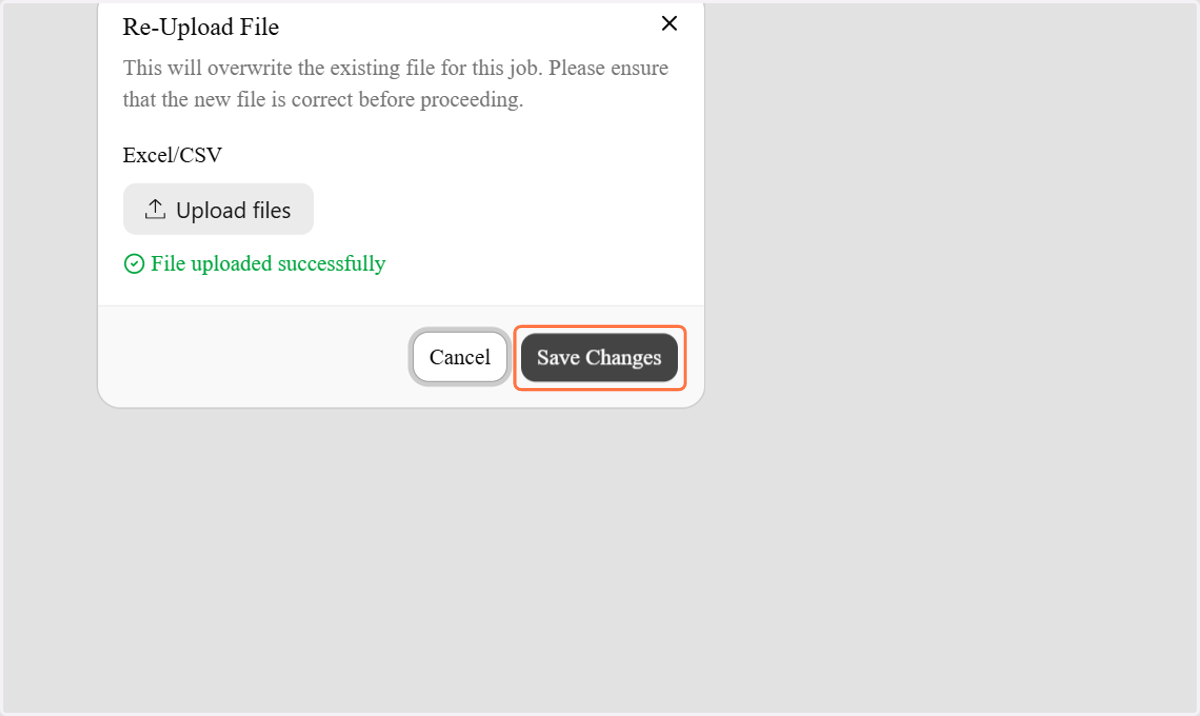
24. Click on Save Changes
25. Click on Dashboord

26. Click on COMPLETE