Reset Your Okta Password
1. Reset Your Okta Password
Below are instructions to reset your Okta password. If you are unable to successfully complete this process, there are instructions to email our Service Desk team at the bottom of this page. If you have any issues with either method, please do not hesitate to reach out to extension@juilliard.edu and we will be able to assist.
Visit www.juilliard.okta.com
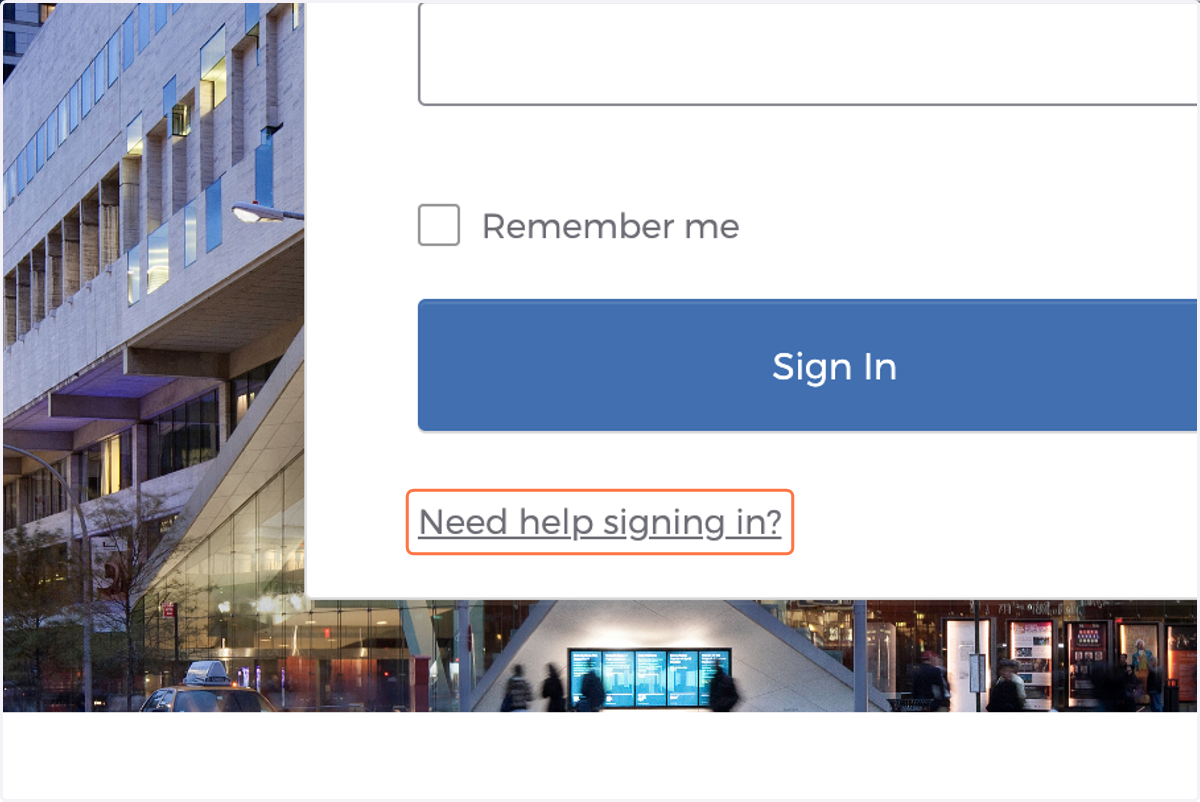
2. Click on Need help signing in?
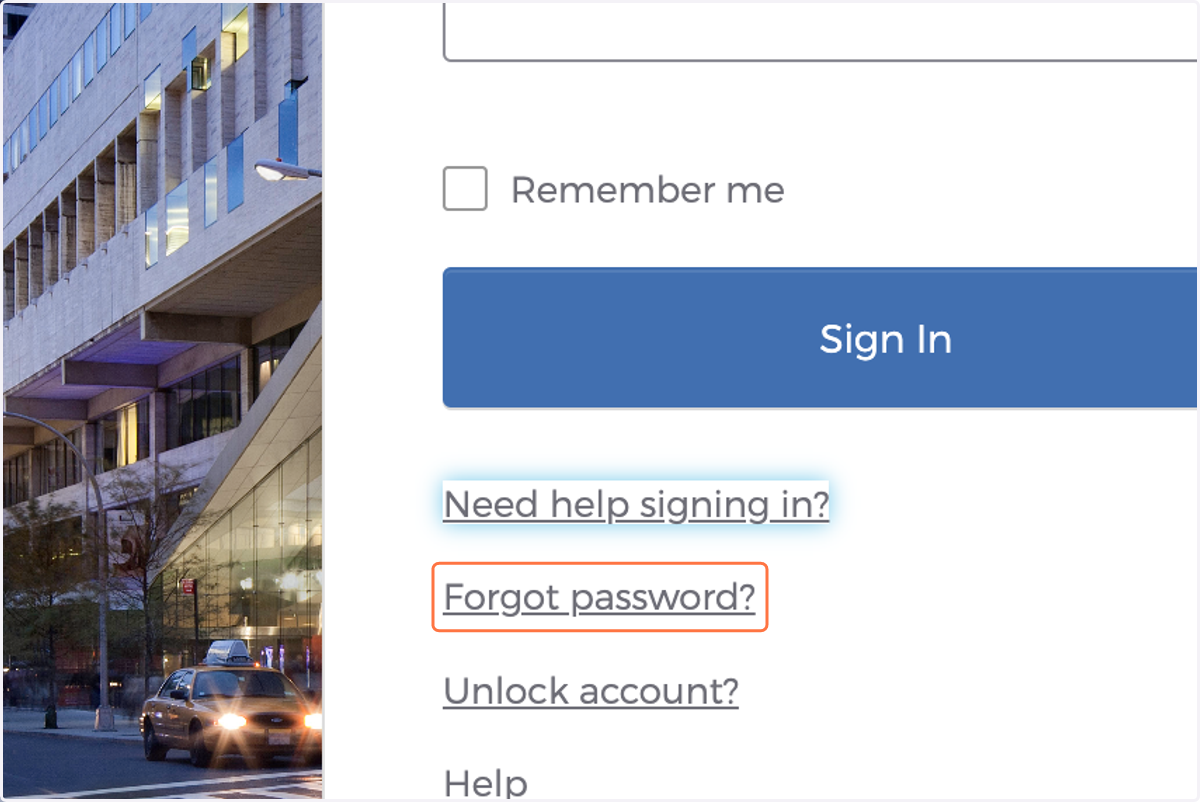
3. Click on Forgot password?
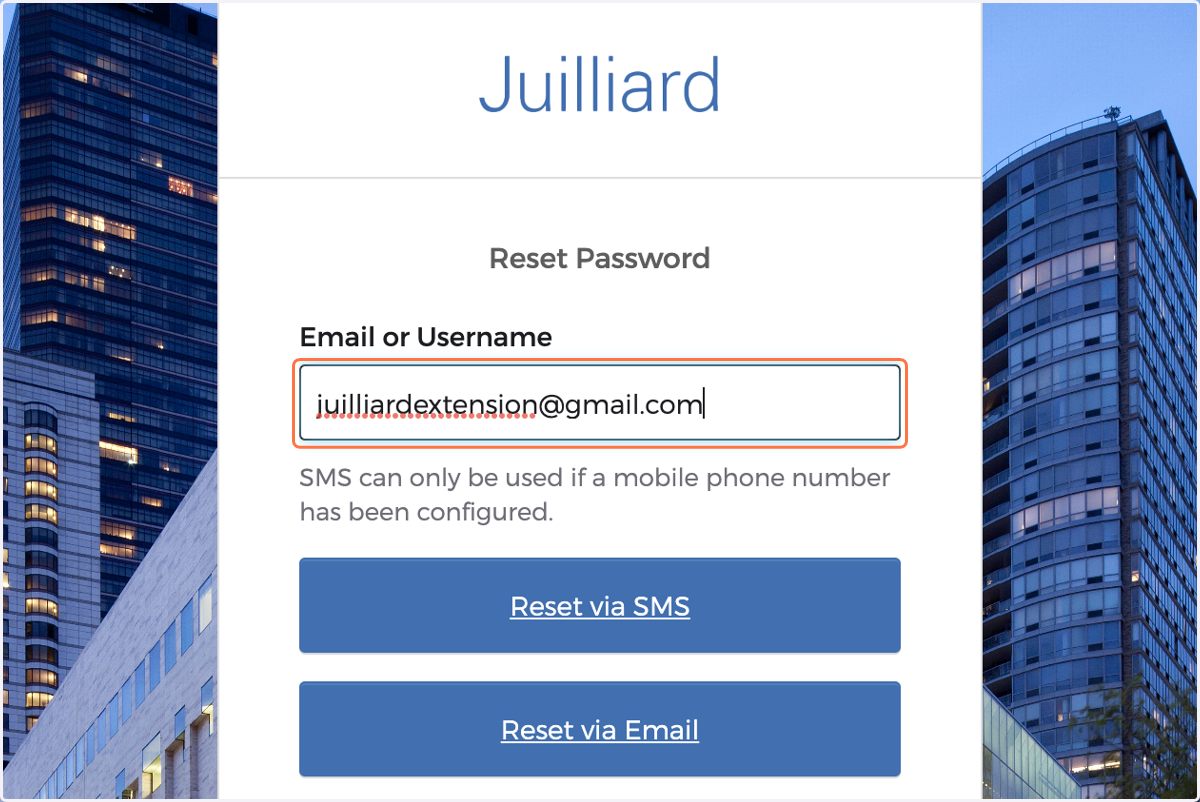
4. Type your email address associated to your Okta account.
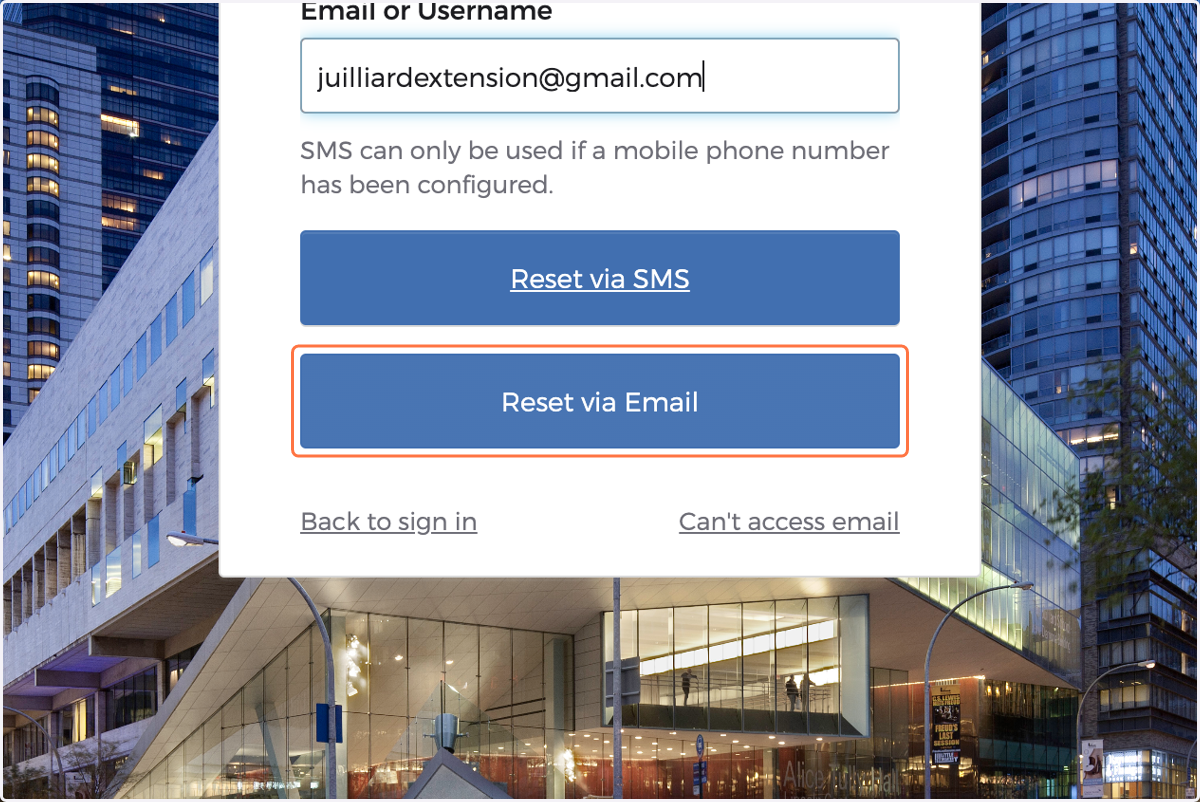
5. Click on Reset via Email
6. Open the email from Okta and select Reset Password
Note this link expires in 1 hour
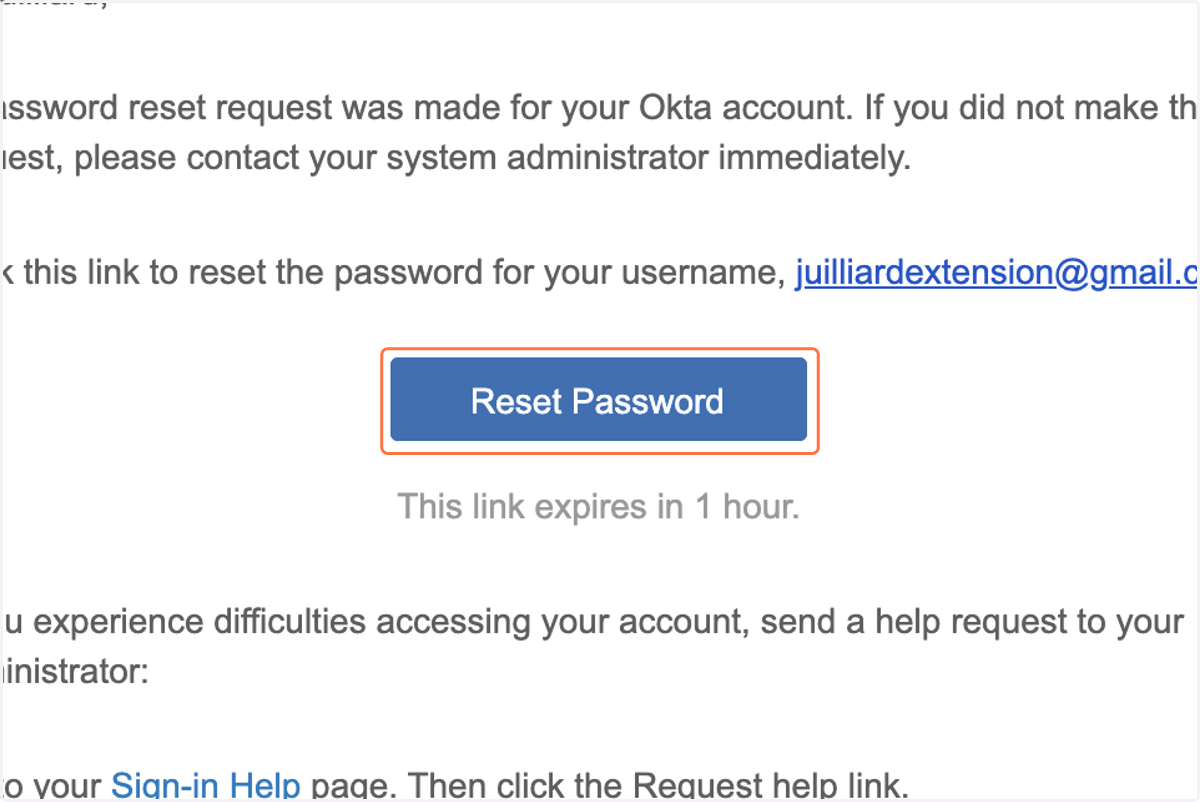
7. Answer security question
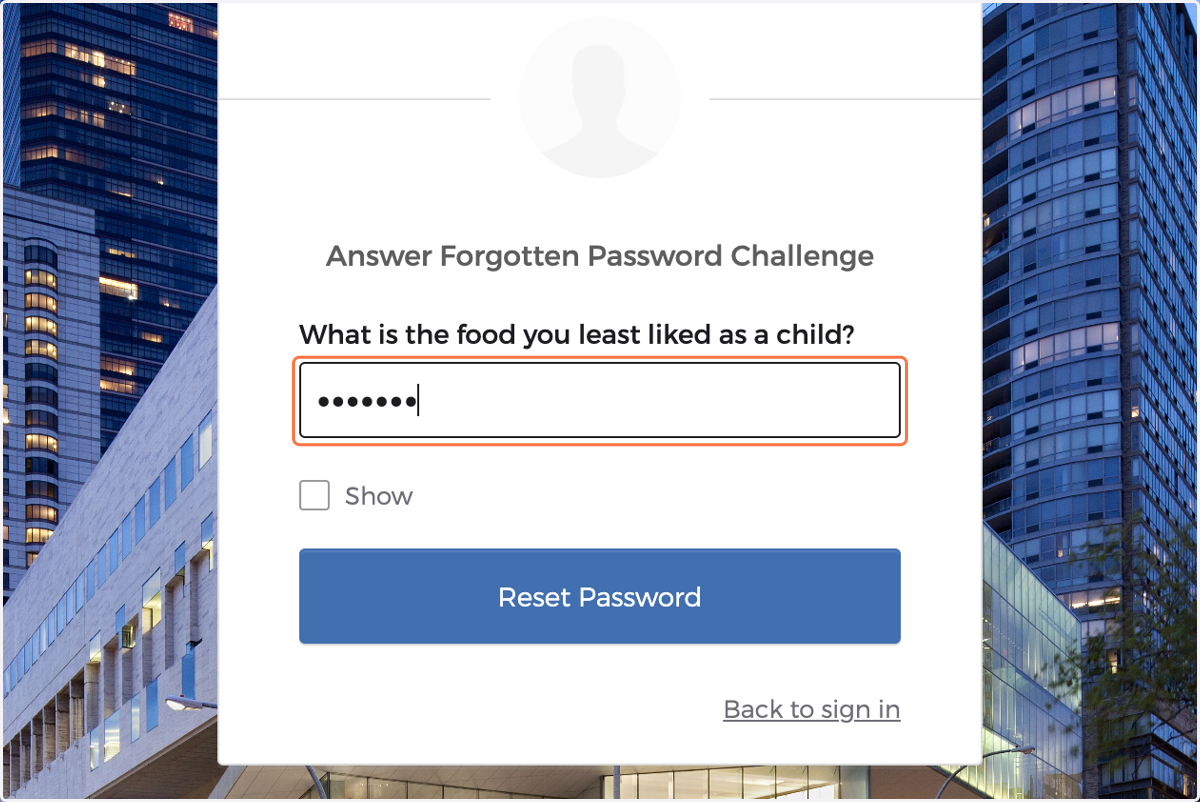
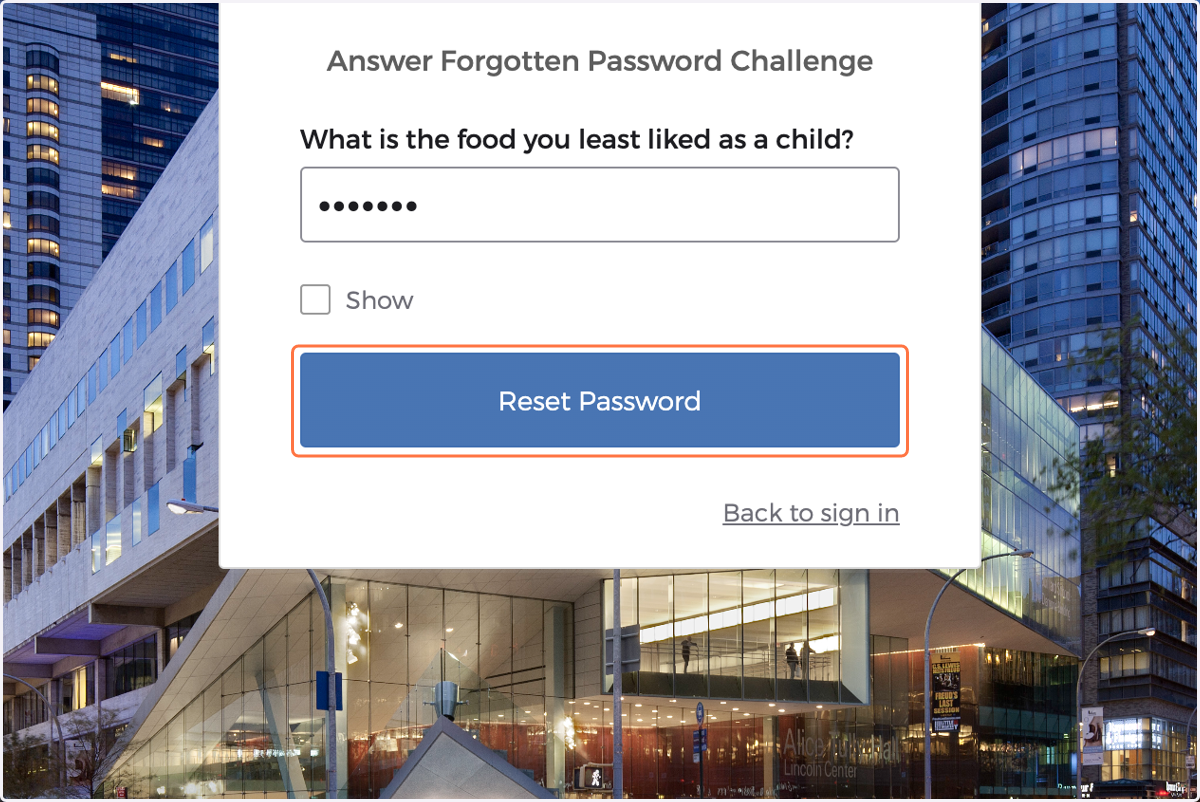
8. Click on Reset Password
9. Type new password
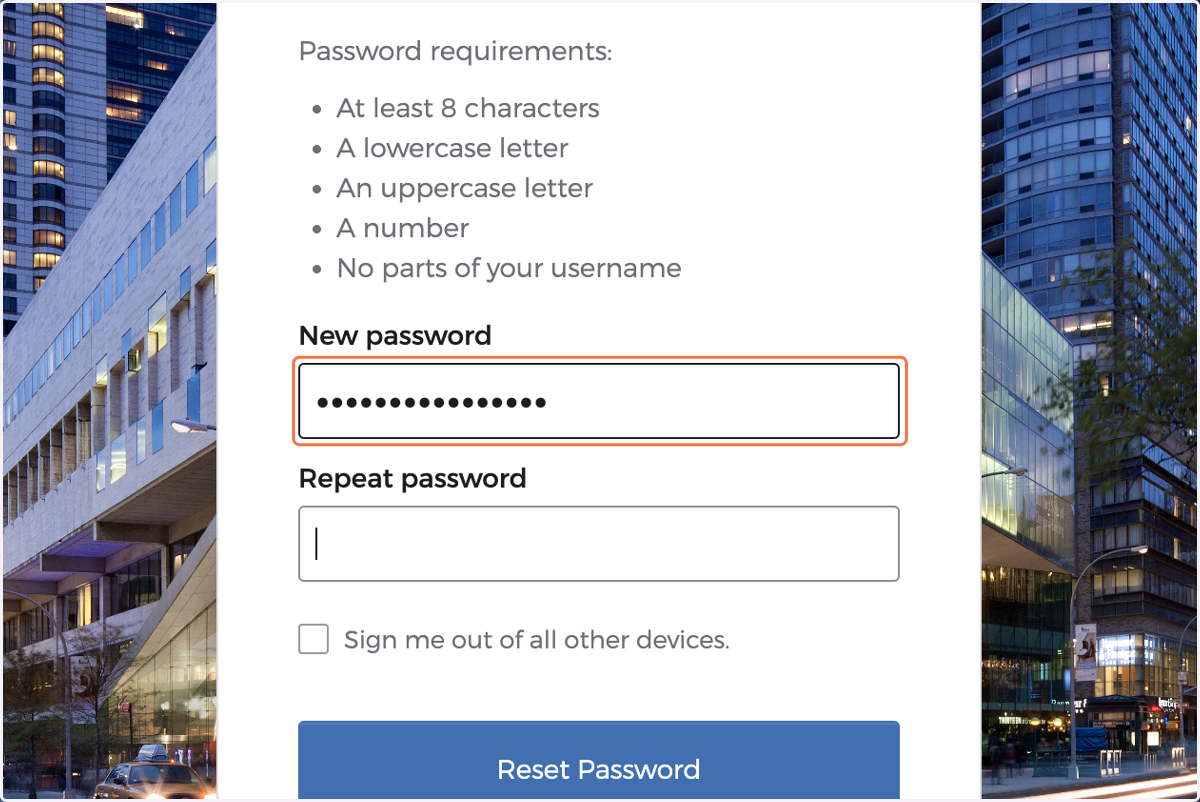
10. Retype new password
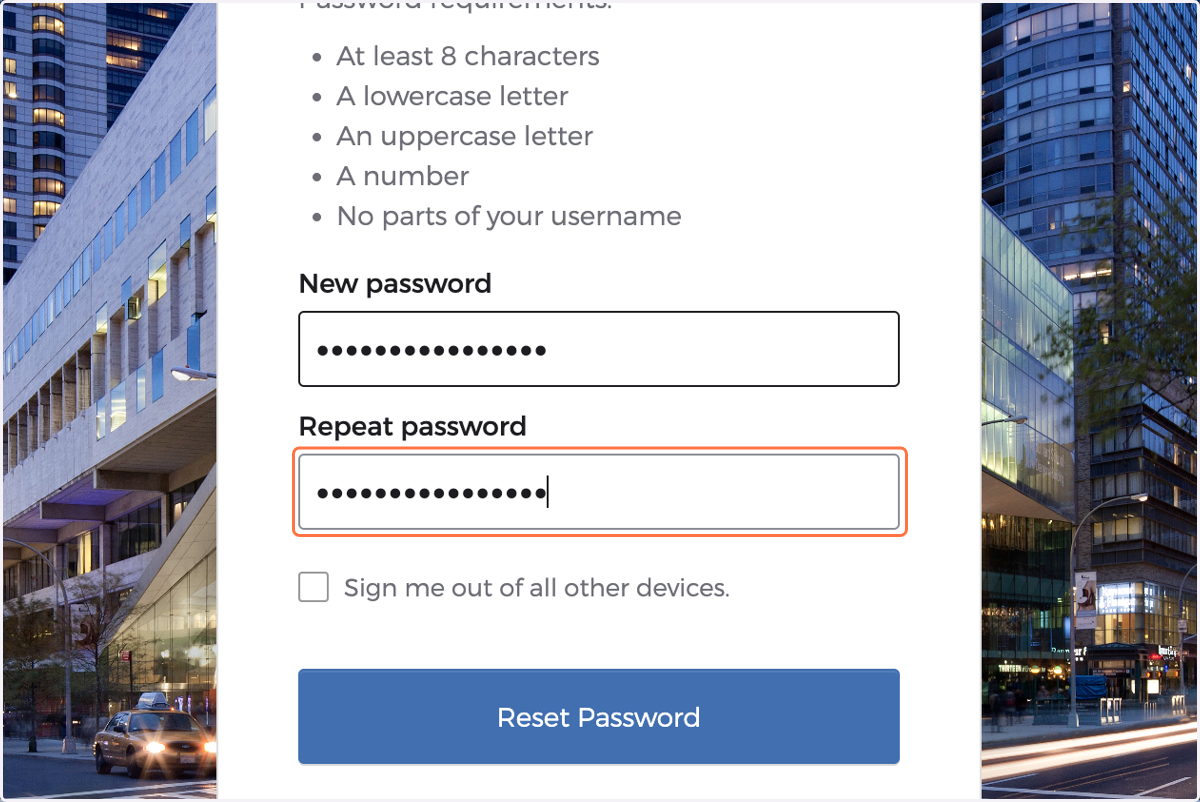
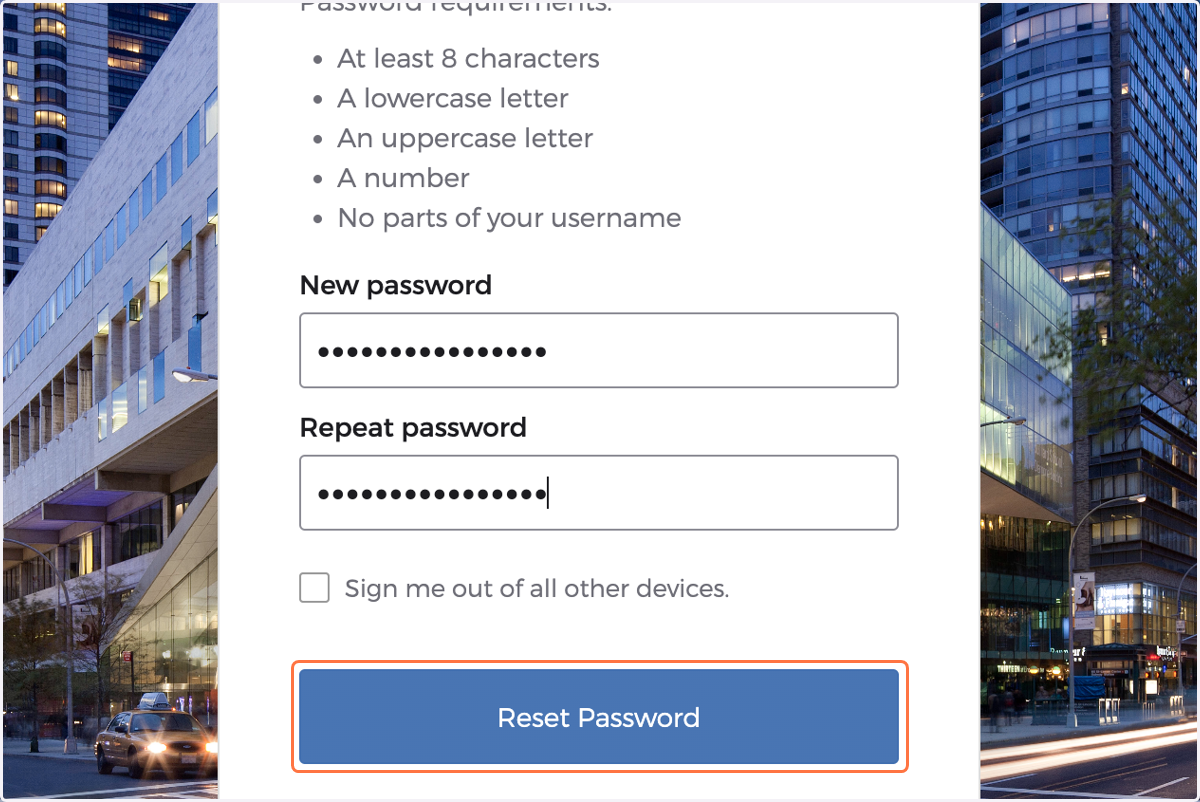
11. Click on Reset Password
12. If you're unable to successfully complete these steps, please email our Service Desk for assistance.
Email: servicedesk@juilliard.edu
Subject: Reset Okta Password
Body:
Dear Service Desk:
I am Juilliard Extension Division student [First Name, Last Name] and need assistance reseting my Okta password. The email address associated to my Okta account is [insert email address].