Reset Your MLSListings Password
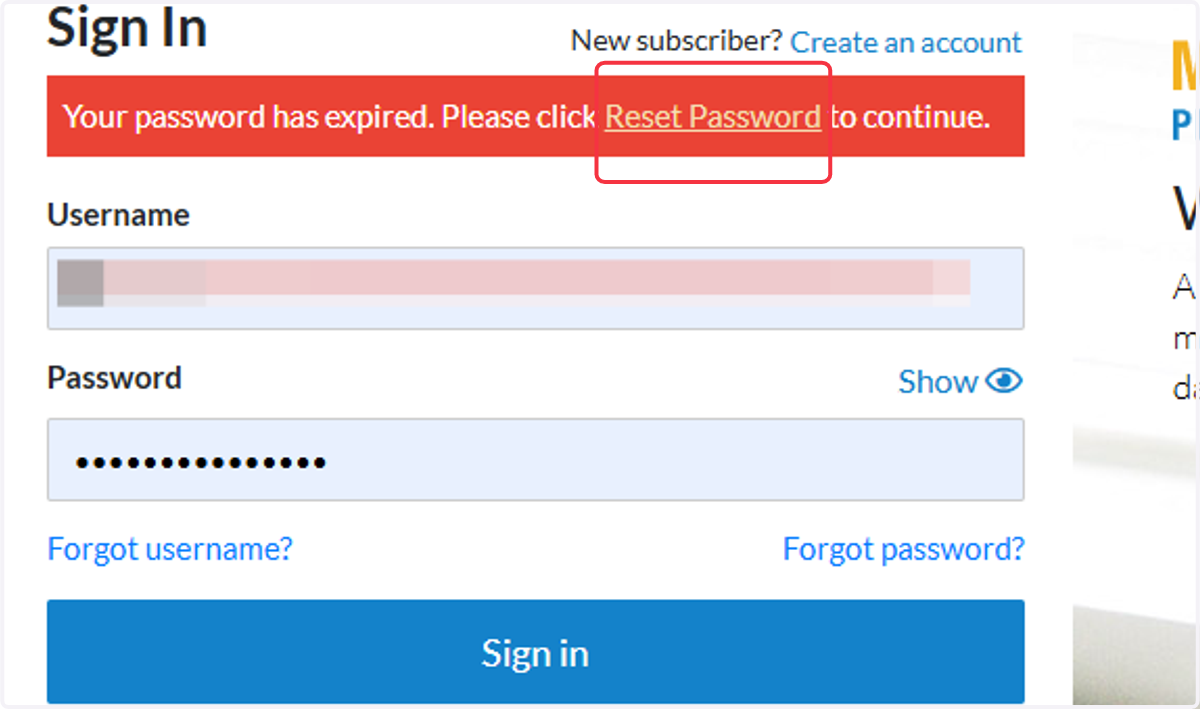
1. Click on Reset Password
Sign in with your current password, you will be presented with this message. You can either click on the "Reset Password" link or on "Forgot Password?"
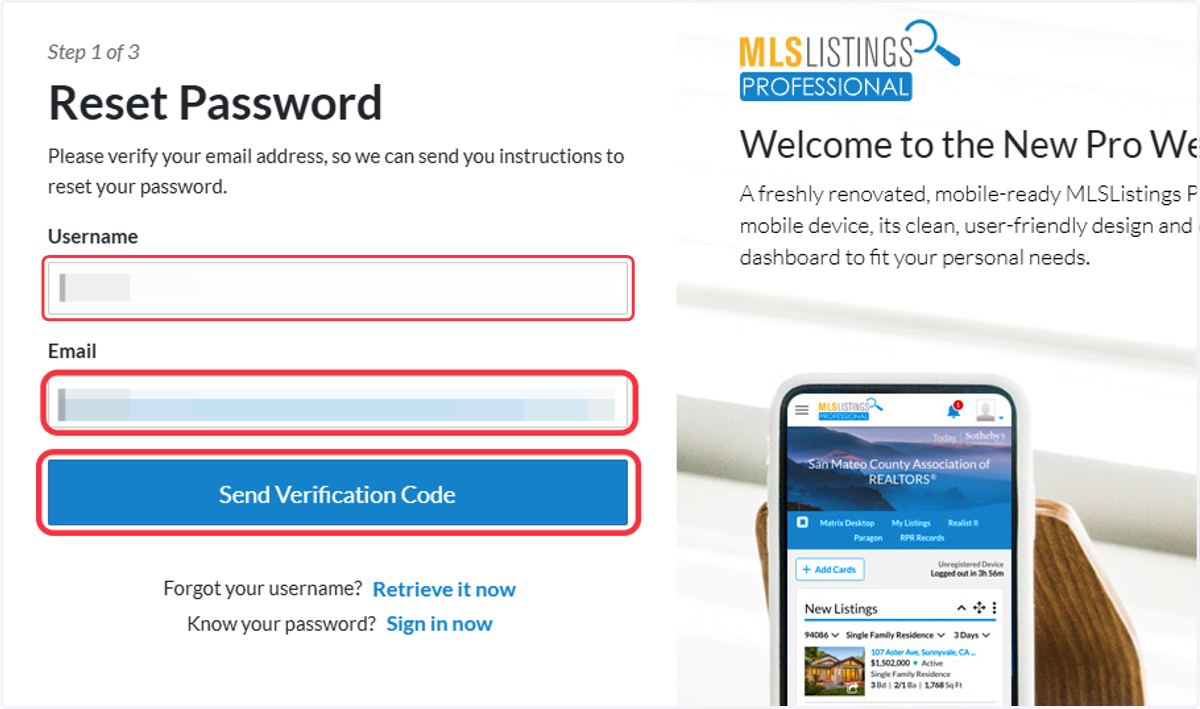
2. Input your Username & Email and click "Send Verification Code"
Follow the on-screen steps 1-3. Enter your email and click on Send Verification Code. There is an option labelled "retrieve it now" for your username if you are unsure of what your current Username is.
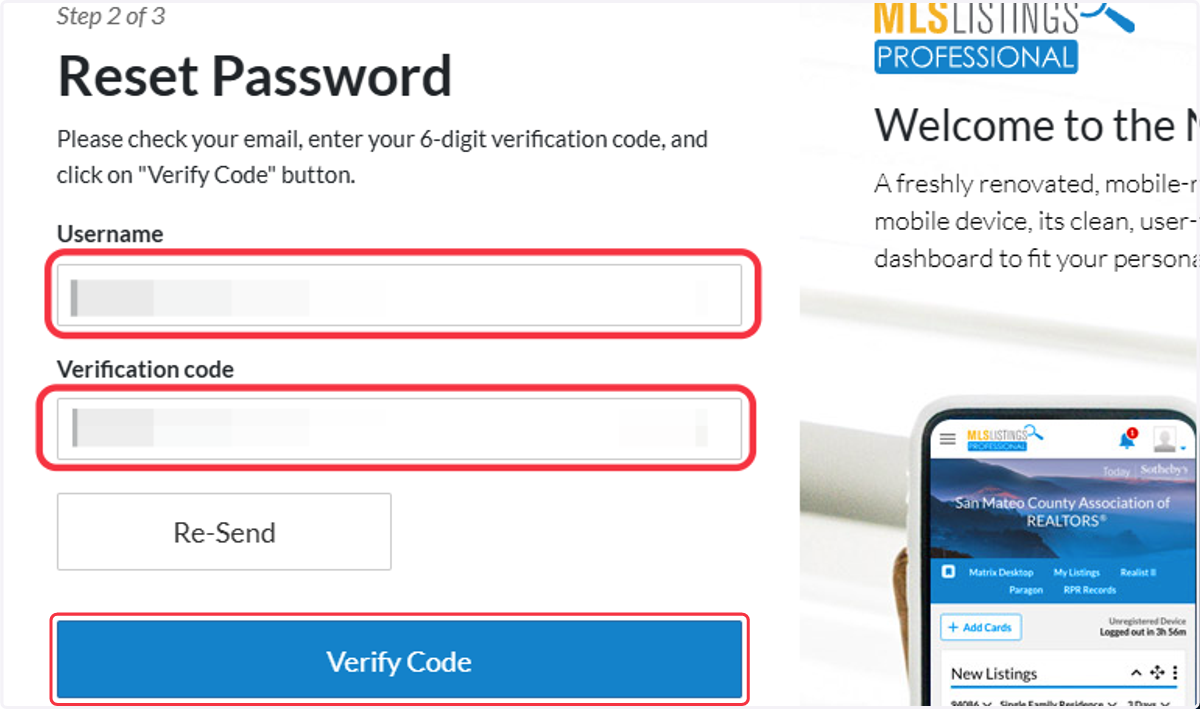
3. Keep This Window Open and retrieve the code from your email in a new window or on another device.
Keep your current web page open and in a separate window or on a separate device- Go to your email to retrieve/copy the code. The Email will come from msonlineservicesteam@microsoftonline.com
Enter your Username and the code into Verification Code box: *Sometimes, codes can take several minutes to reach your email inbox. Check your spam inbox and give the system a few minutes before using the "Resend" option.
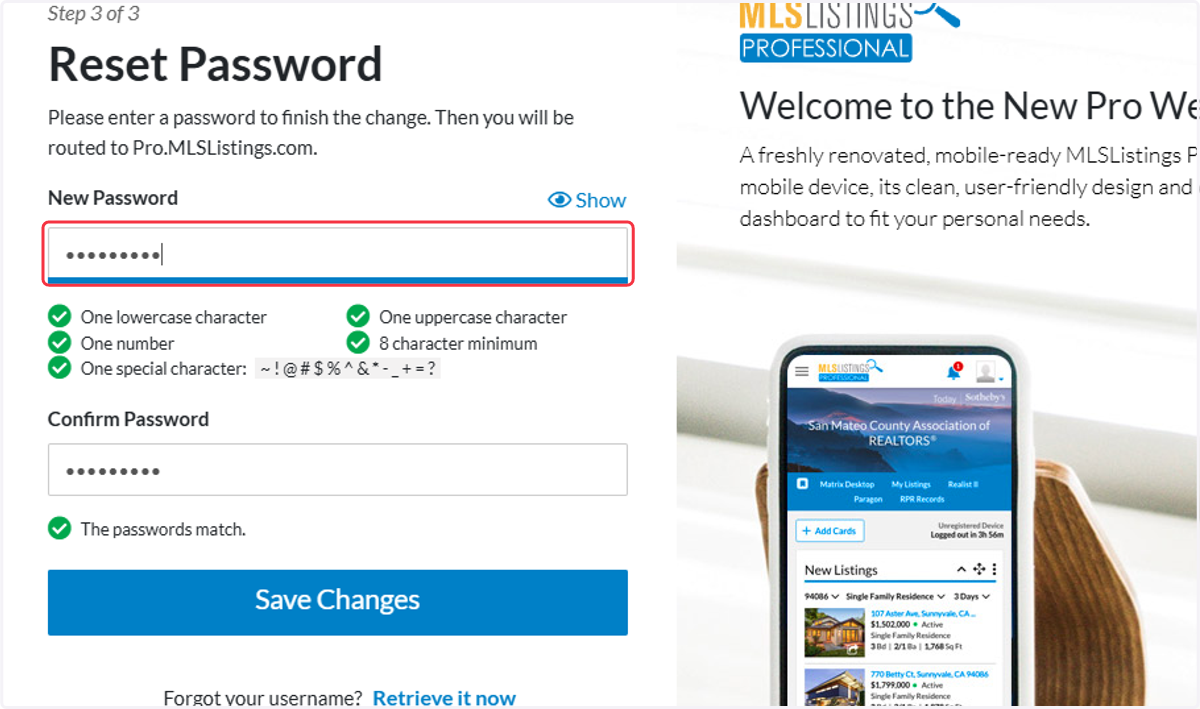
4. Input a New Password, follow the on-screen requirements.
Create a new password. *NOTE: While our system does not prevent you from reusing a previous password, we strongly recommend creating a new, unique password each time. Reusing old passwords especially after a security reset can increase the risk of unauthorized access if those credentials were part of a previous breach.
Finished! You will be logged into your account.
*NOTE: The Recovery/Verification Email Address associated with your account may be different than the contact email address found within your account.