Requests: Create New Course Section
Requests - Department Dashboard | Coursedog
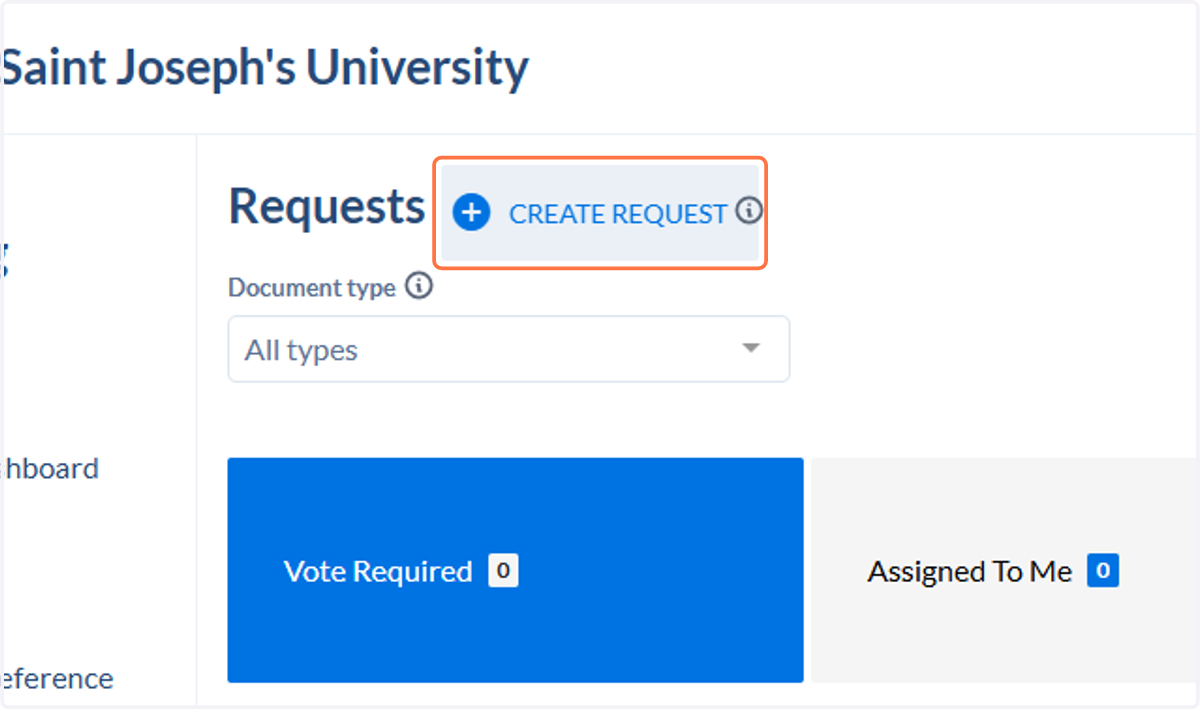
1. Click on Create Request
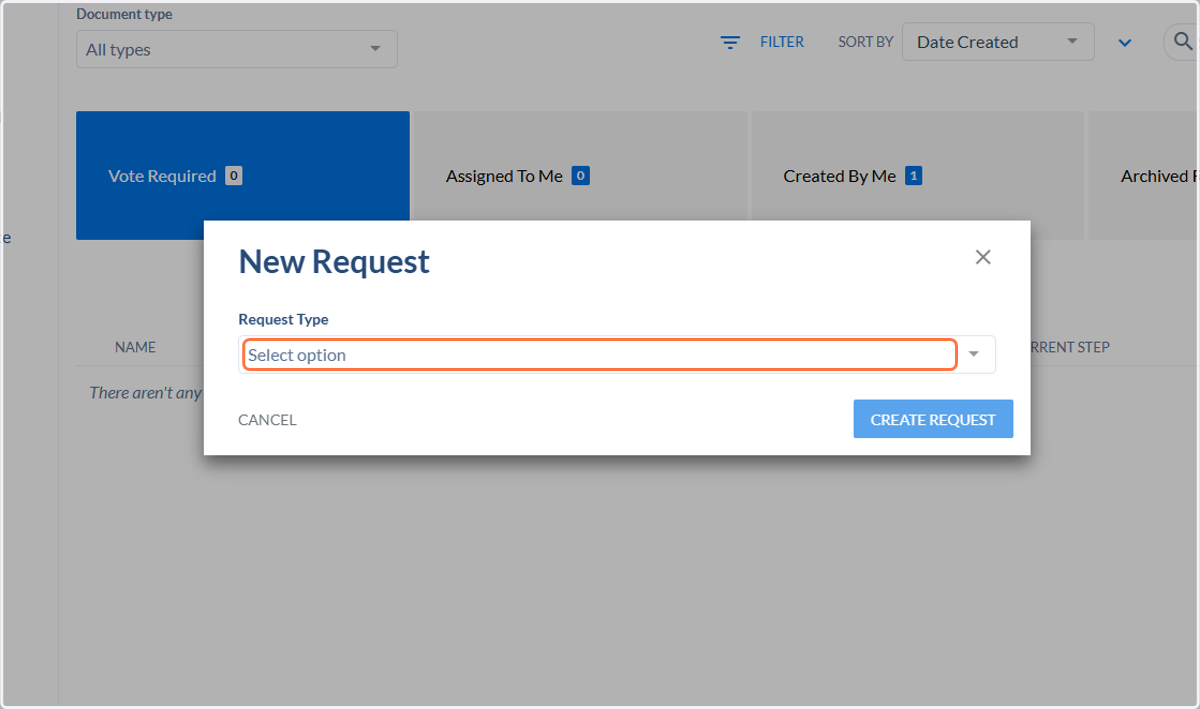
2. Click on Select option
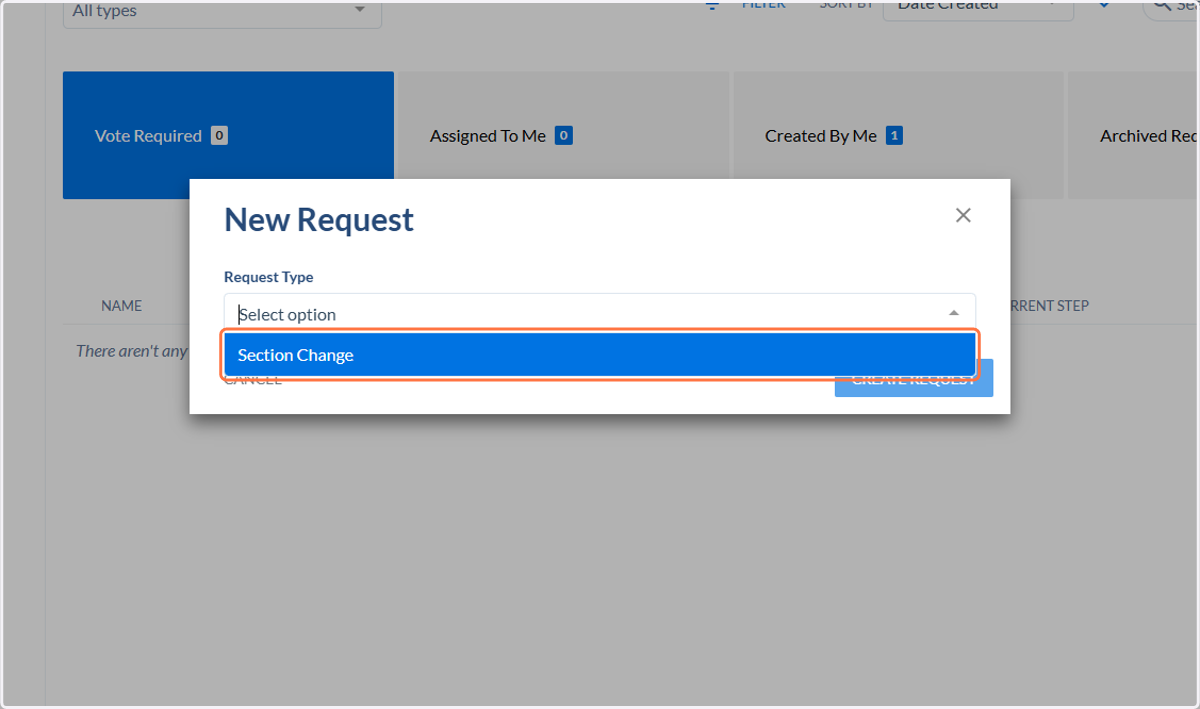
3. Click on Section Change
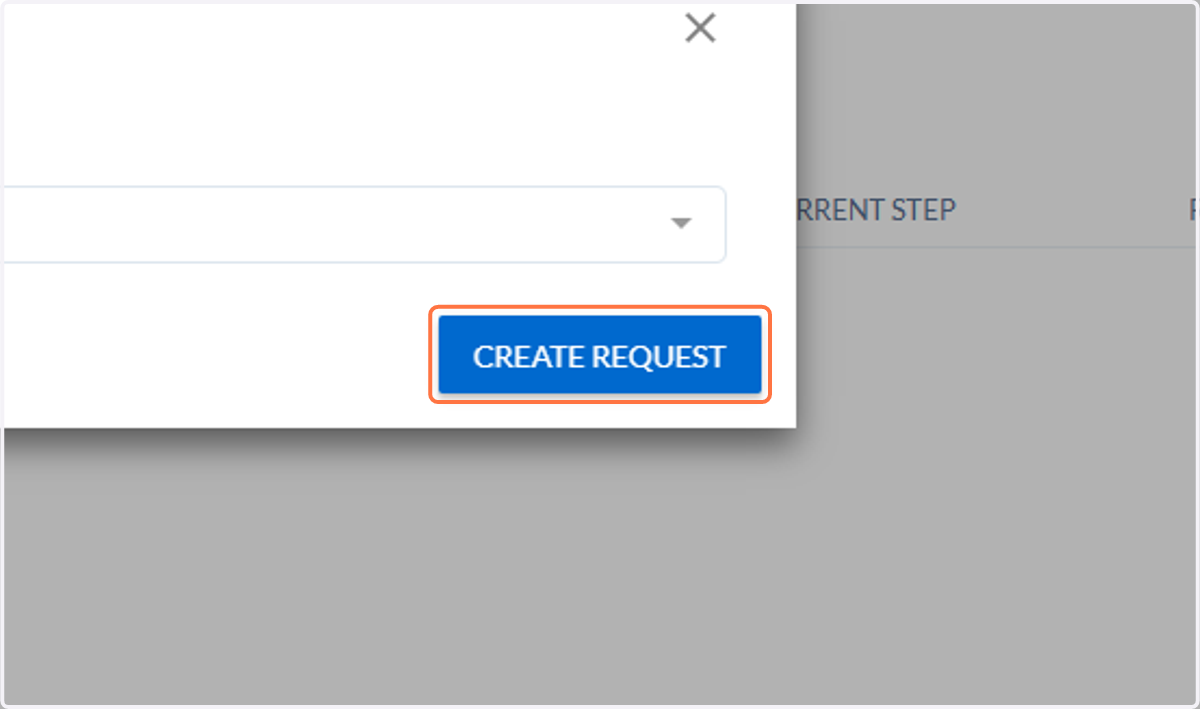
4. Click on Create Request
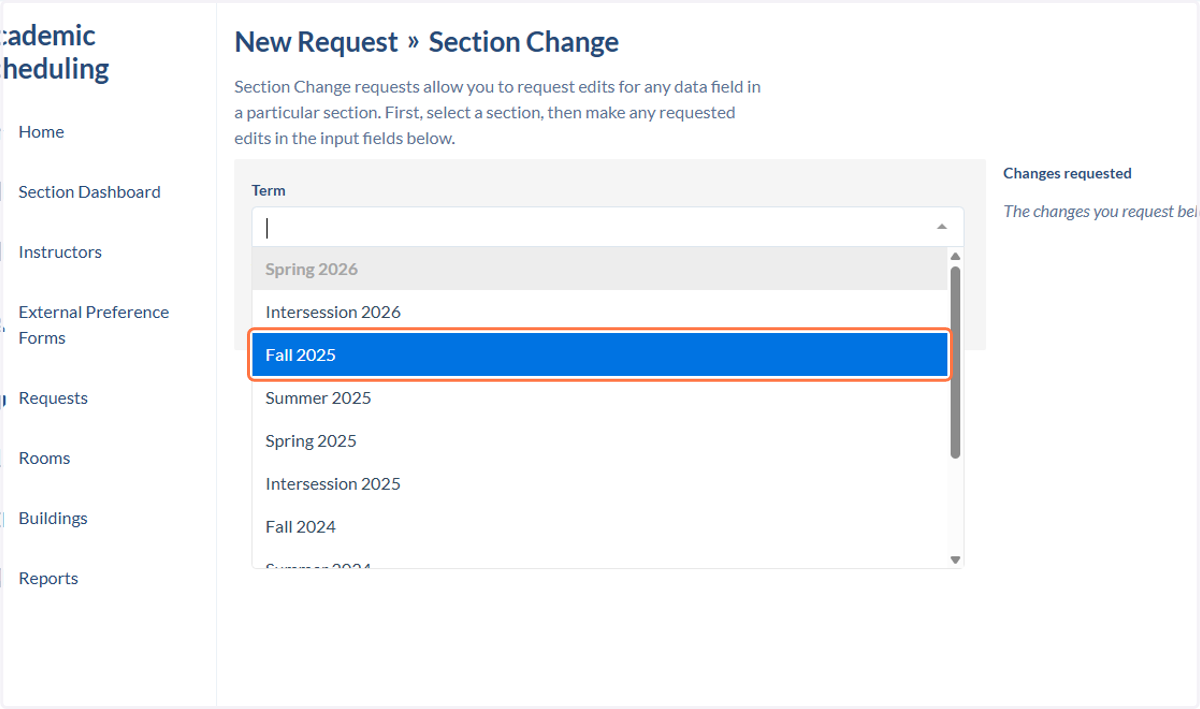
5. Select the term
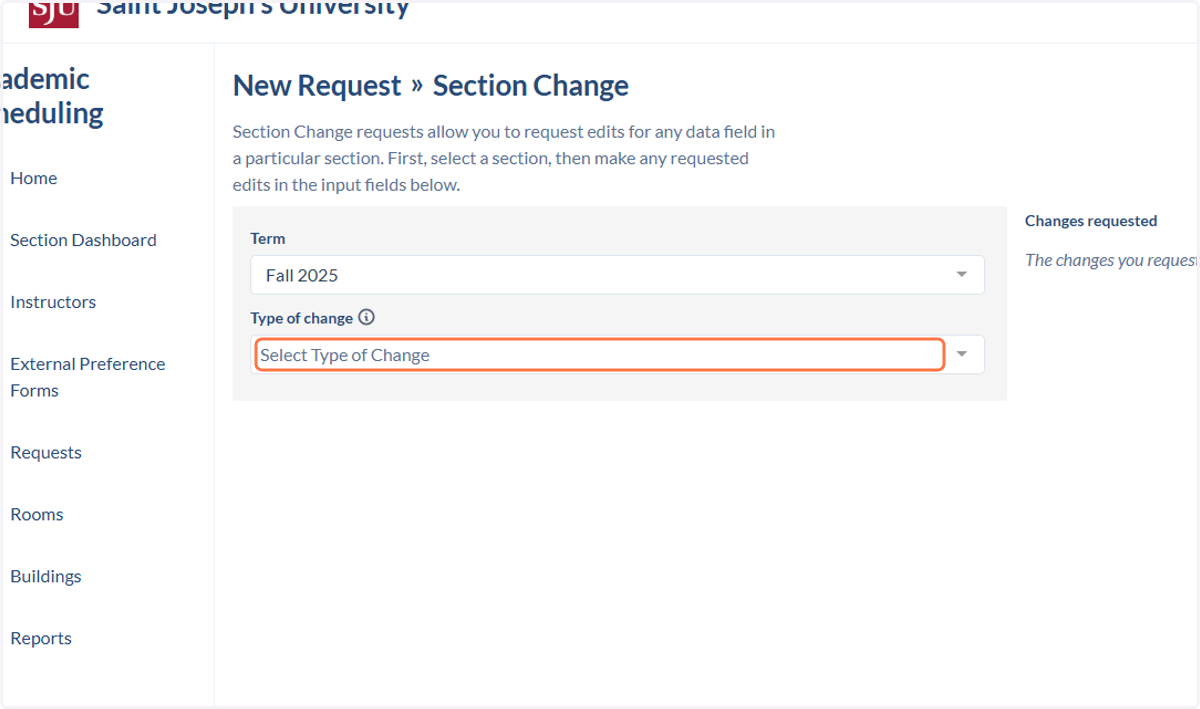
6. Click on Select Type of Change
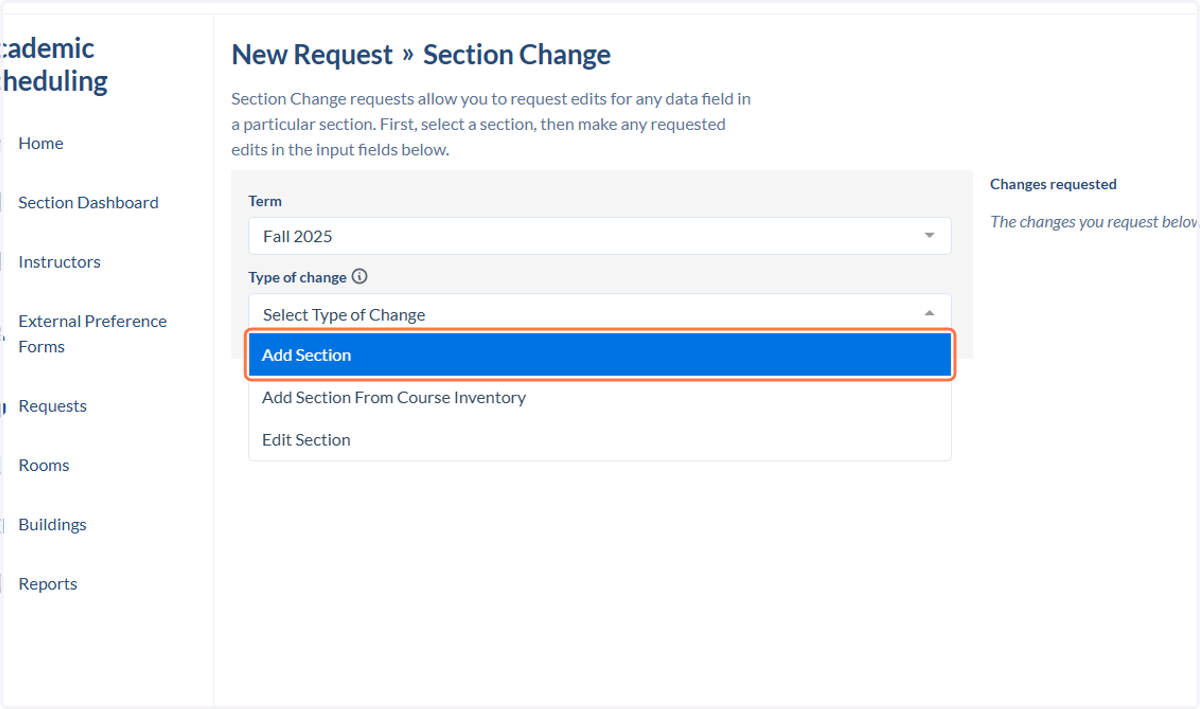
7. Click on Add Section
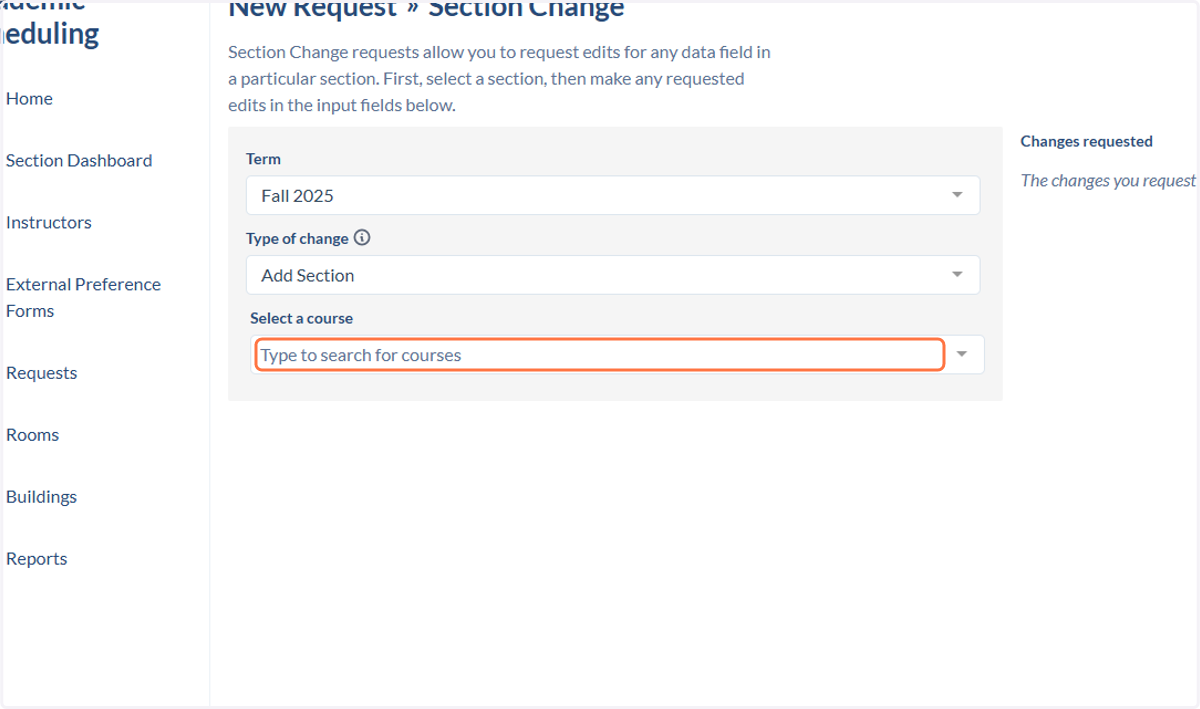
8. Click on Type to search for courses
9. Type in the course that you wish to add to the class schedule.
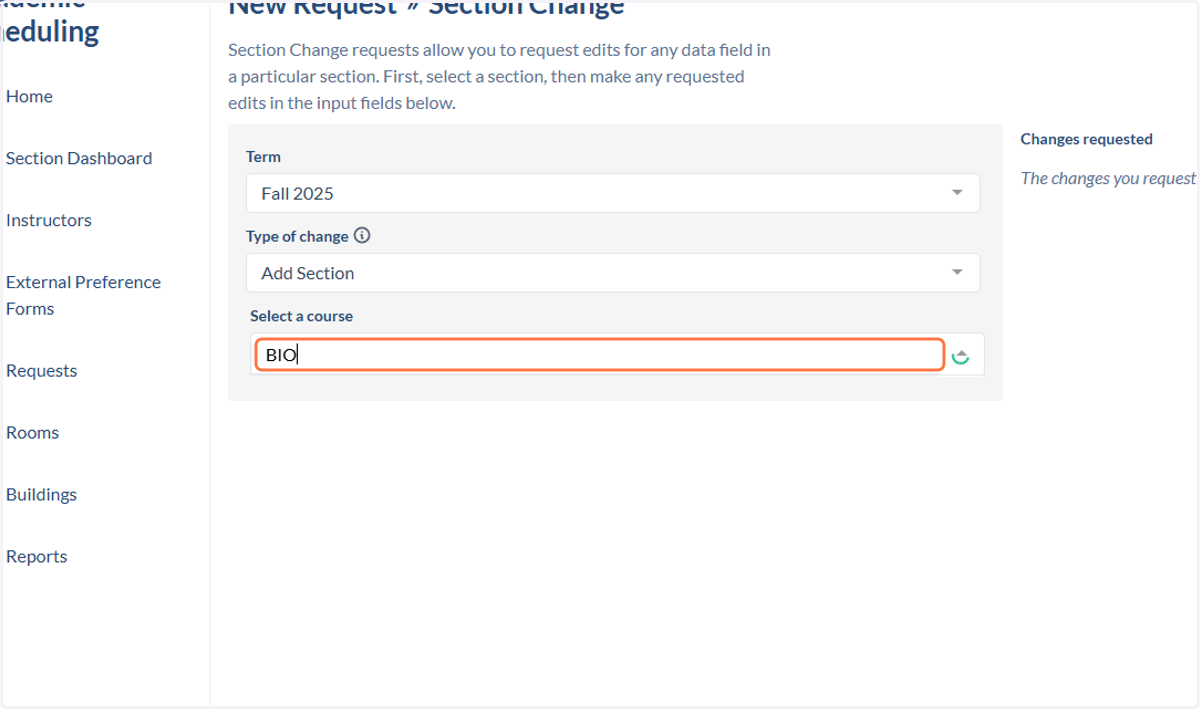
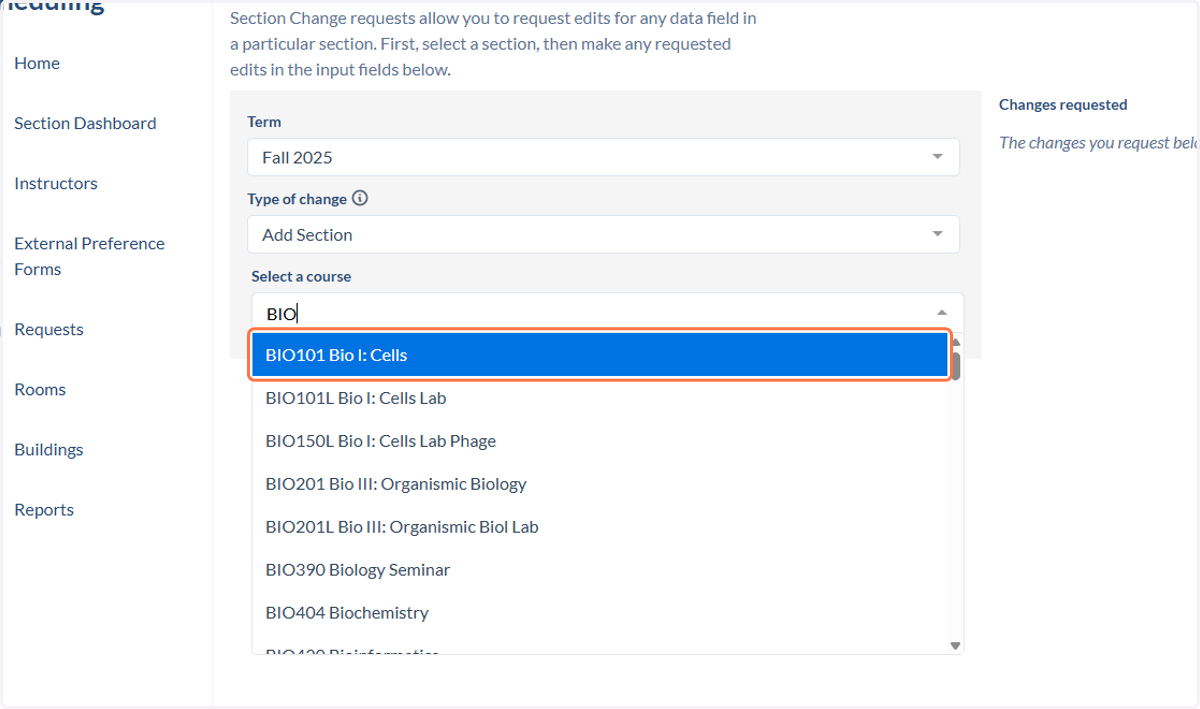
10. Click on the class you want to add
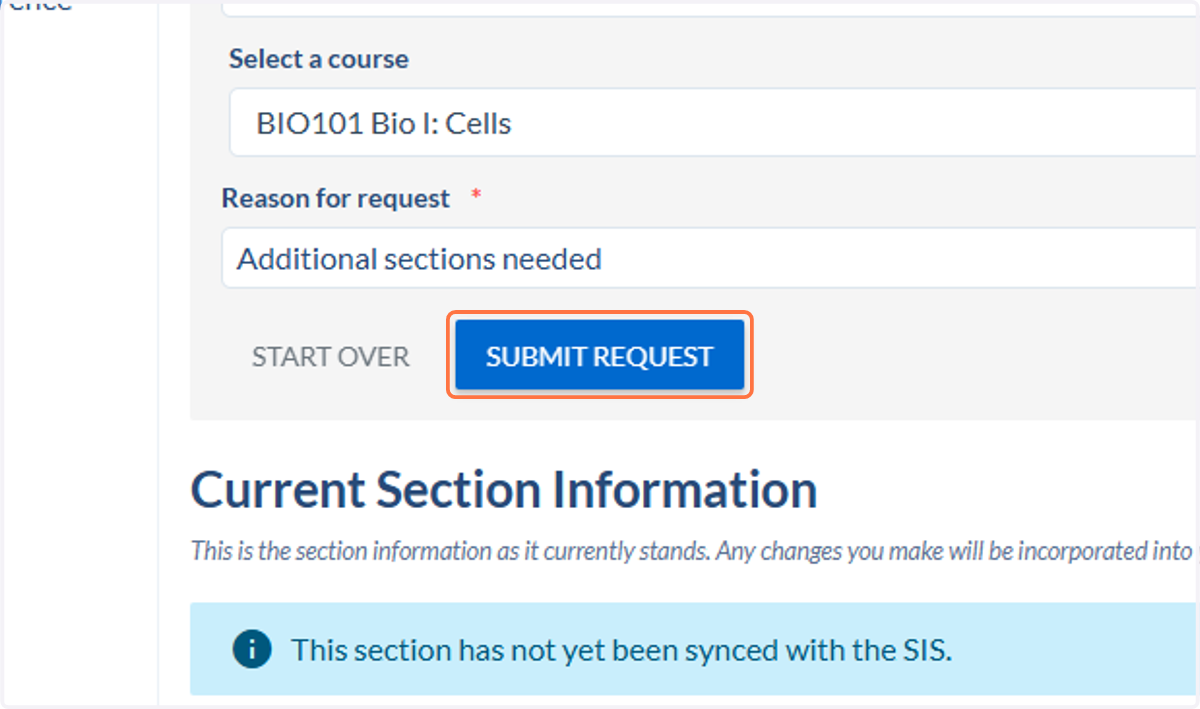
11. Enter the reason for the request.
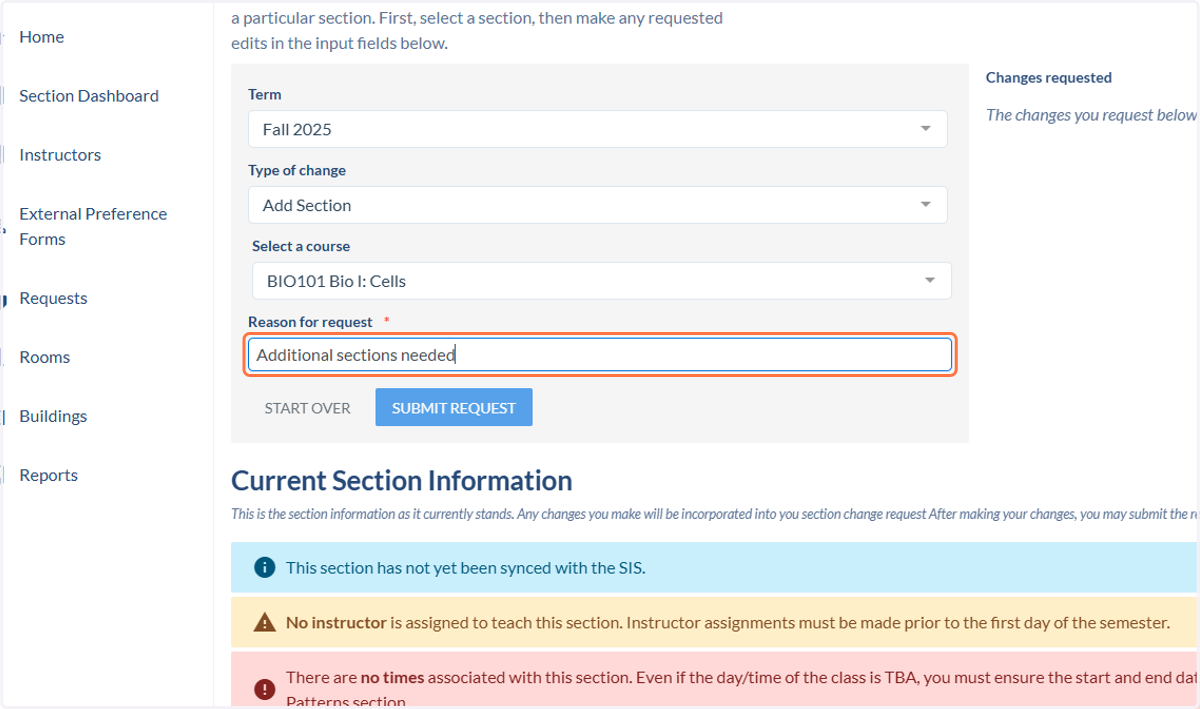
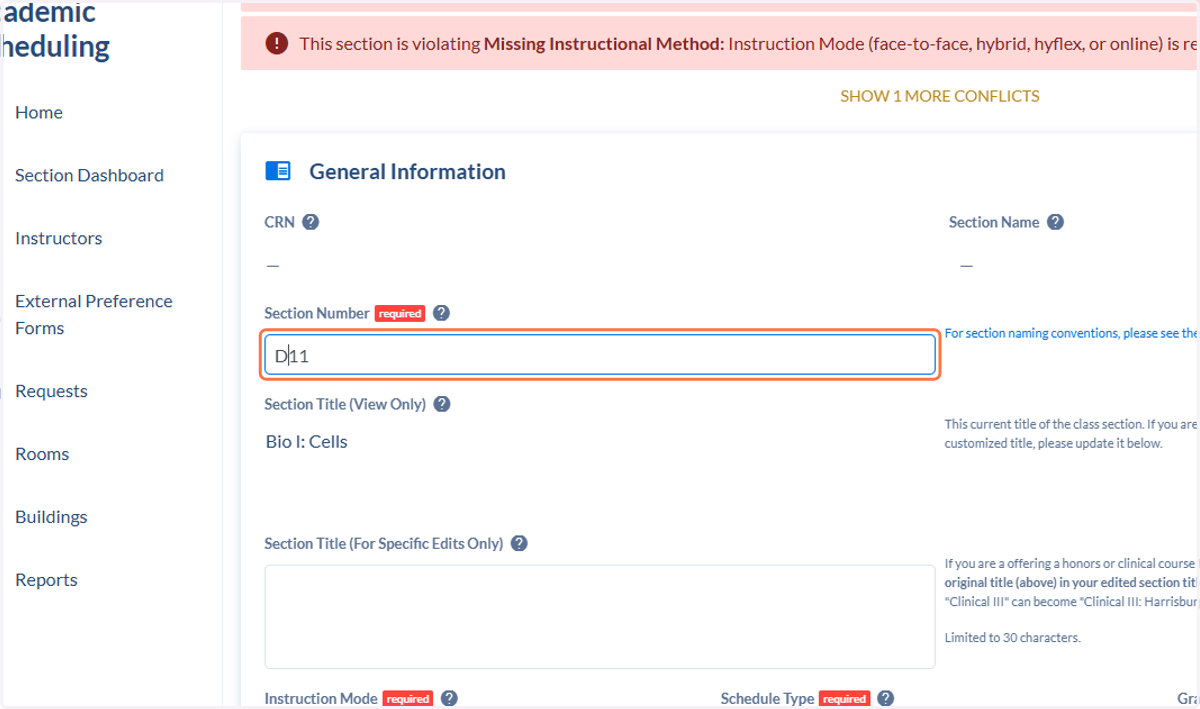
12. Update the Section Number
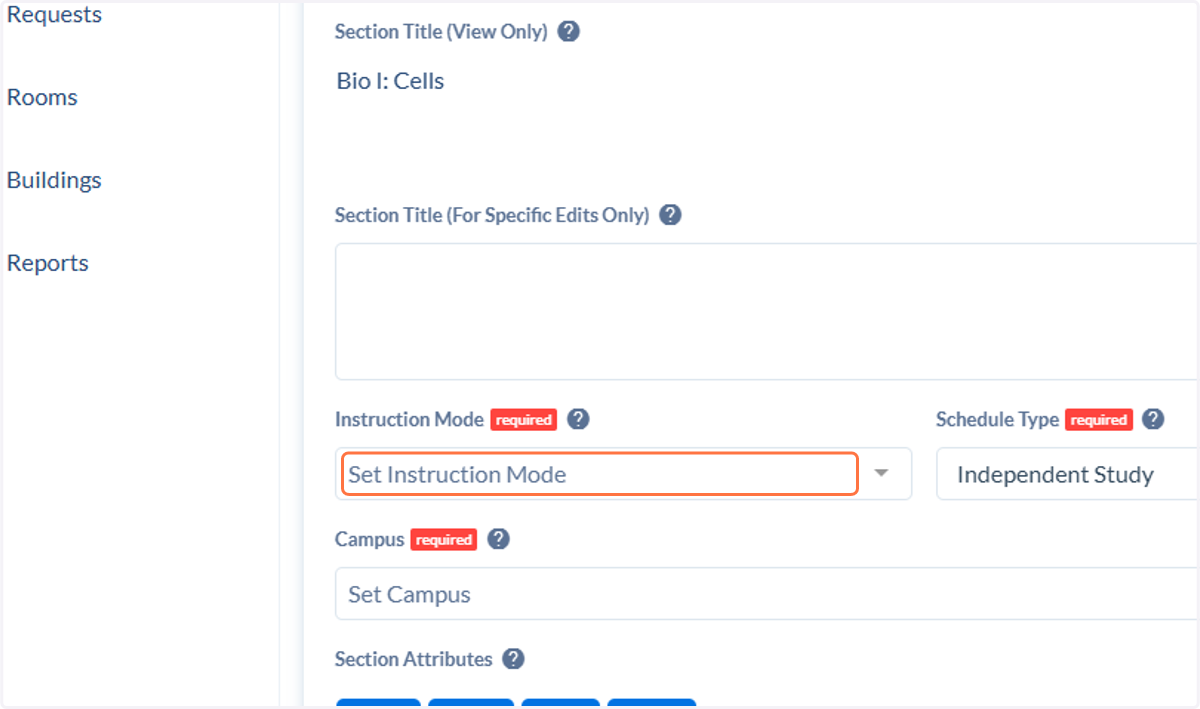
13. Update the Instruction Mode
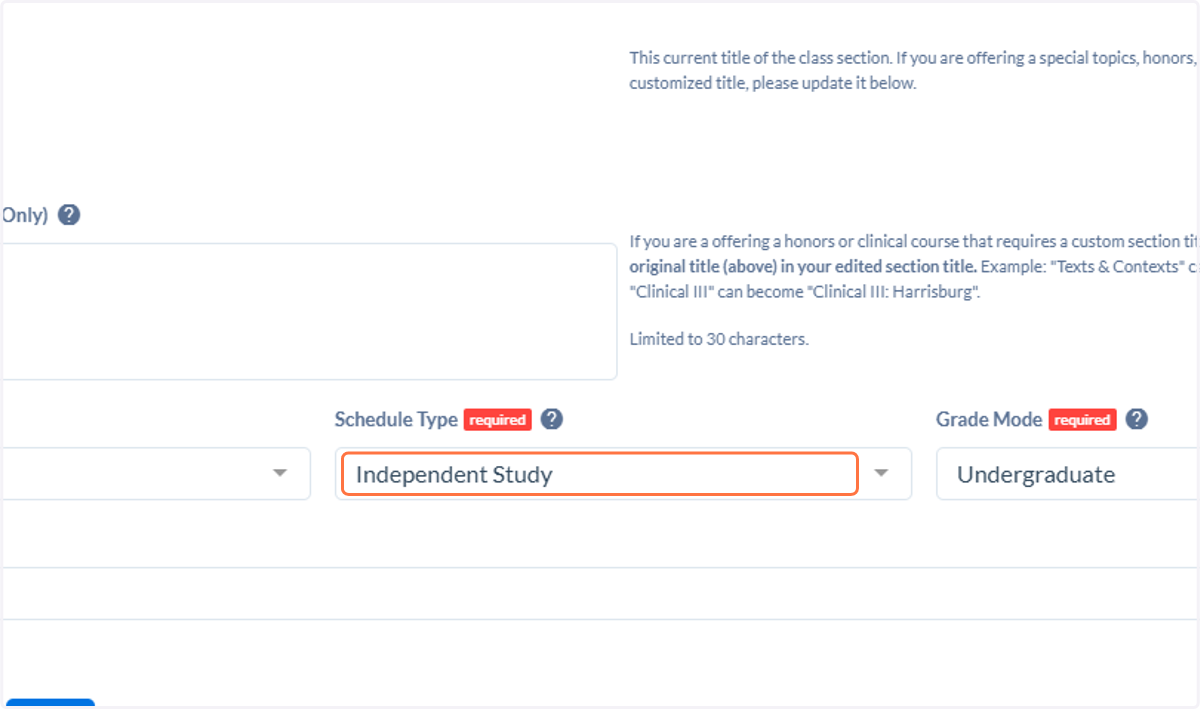
14. Update the Schedule Type
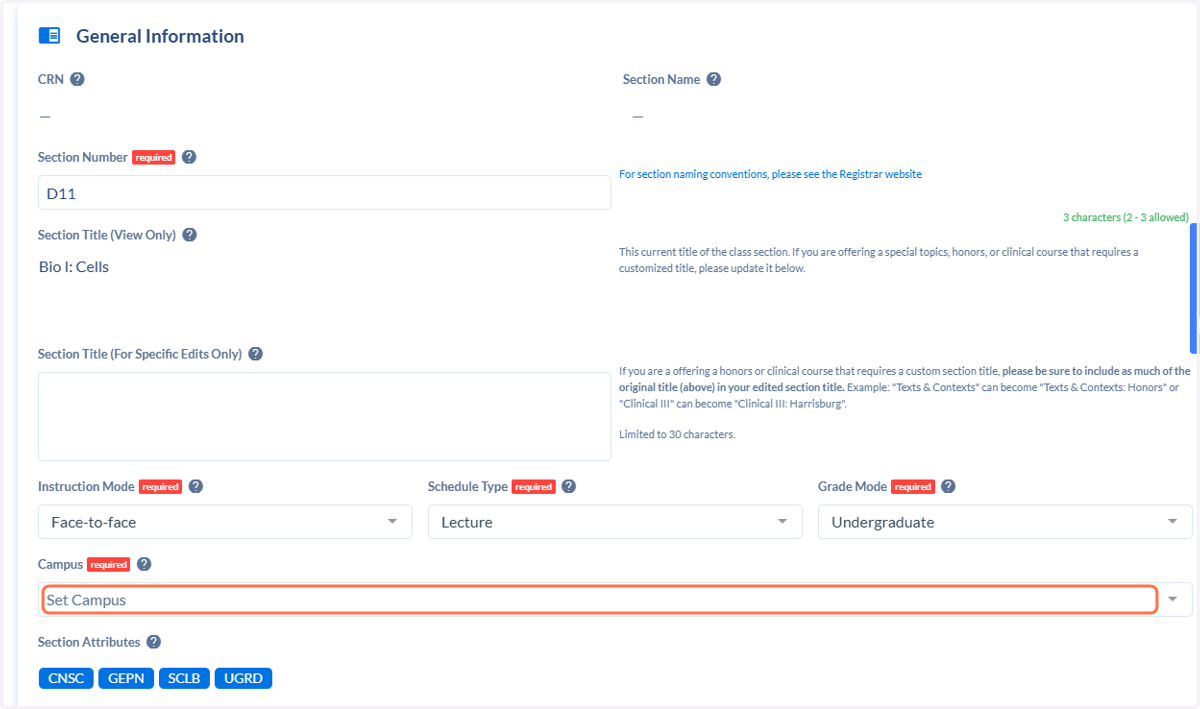
15. Update the Campus
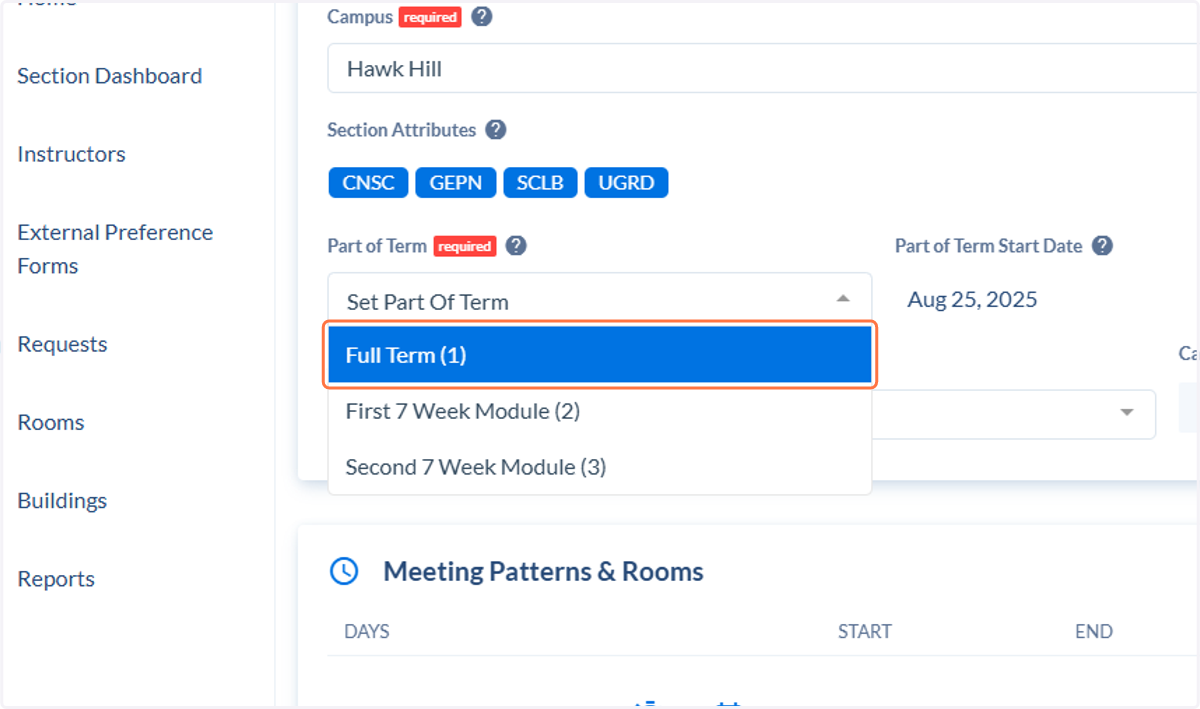
16. Set the Part of Term
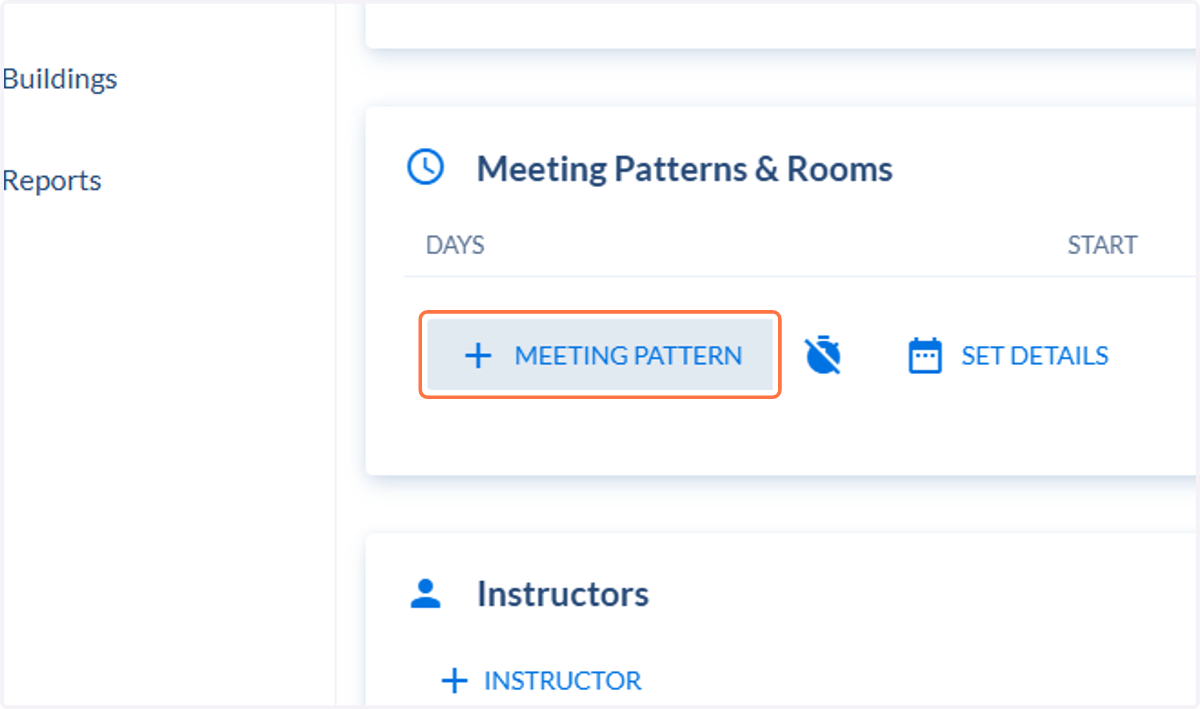
17. Click on Meeting Pattern to select a time block for the course
If you need to create a custom time, click on the Timer icon next to + Meeting Pattern to go into Custom mode.
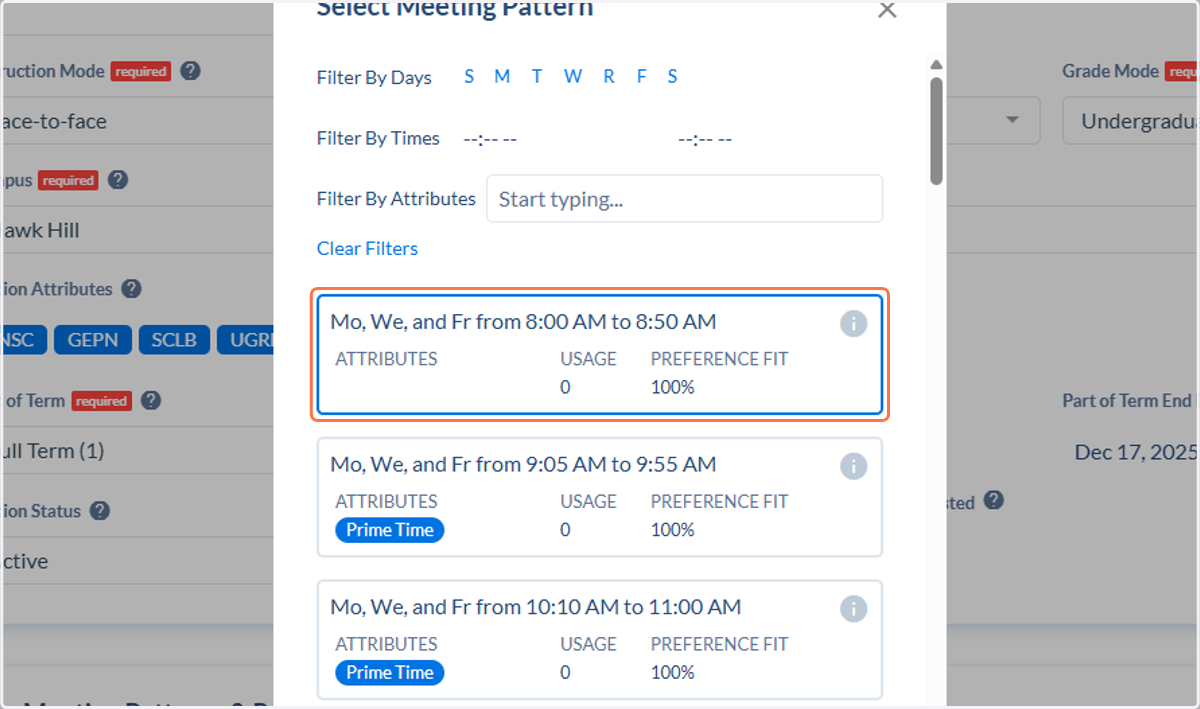
18. Click on Select Meeting Pattern…
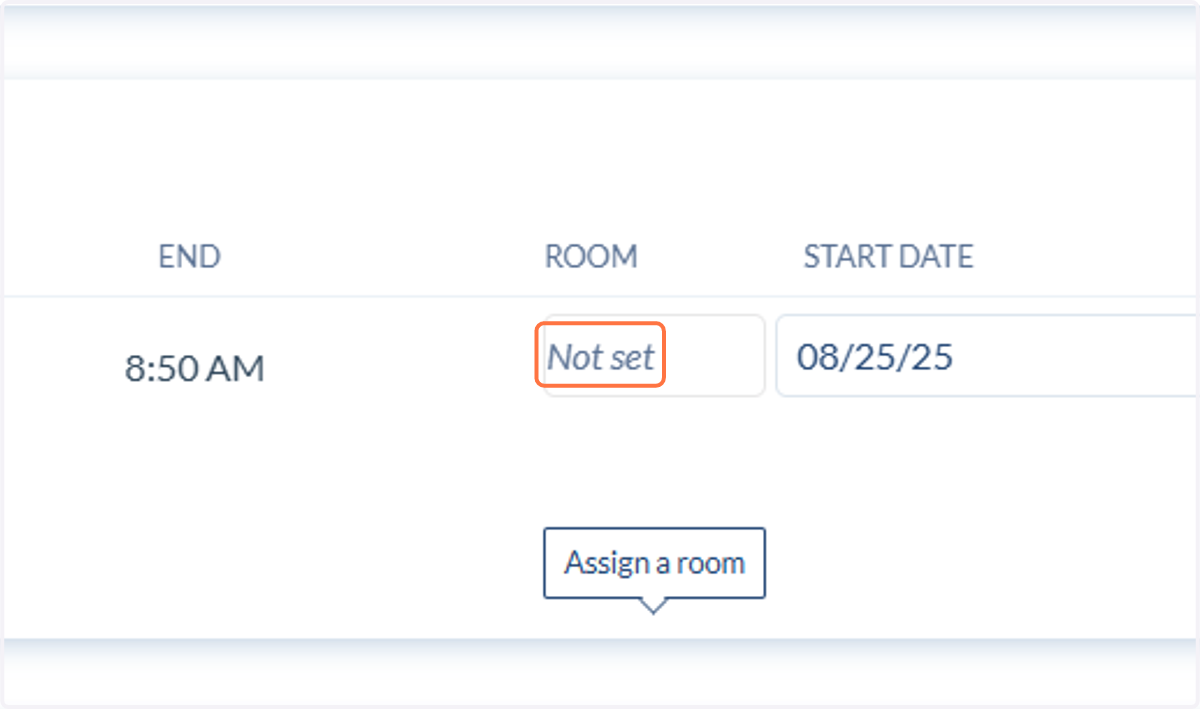
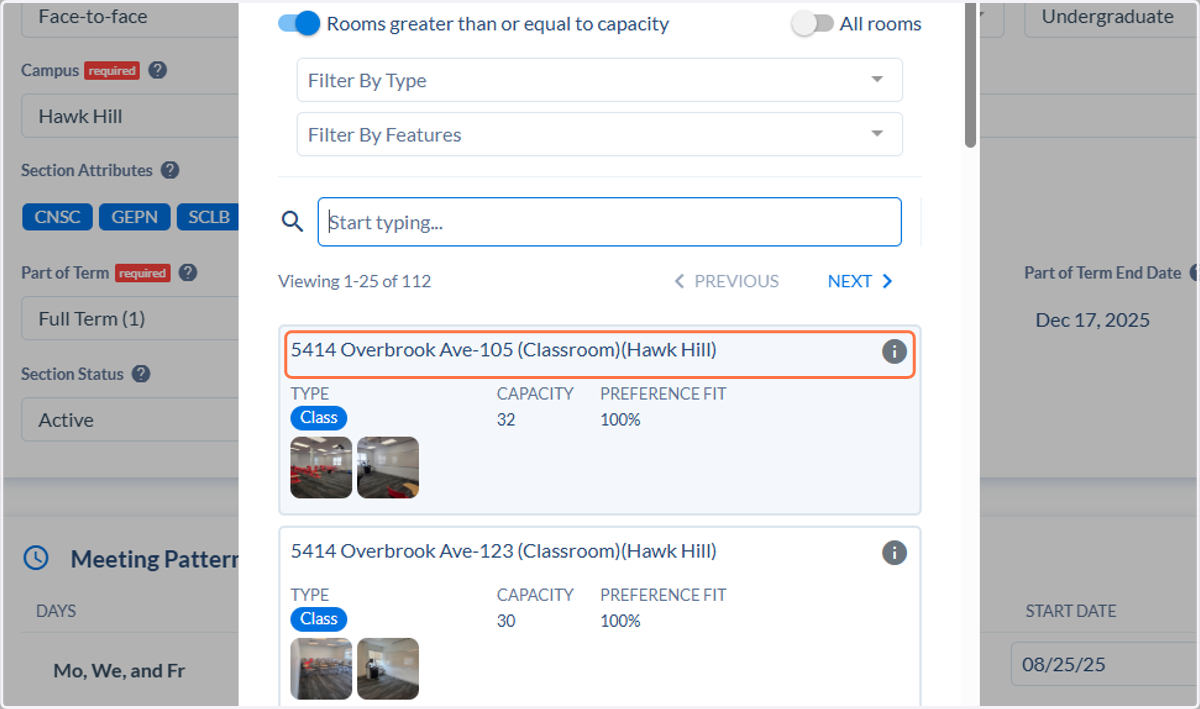
19. Click on Room to assign a classroom (if needed).
20. Click on an available room to assign it to the class.
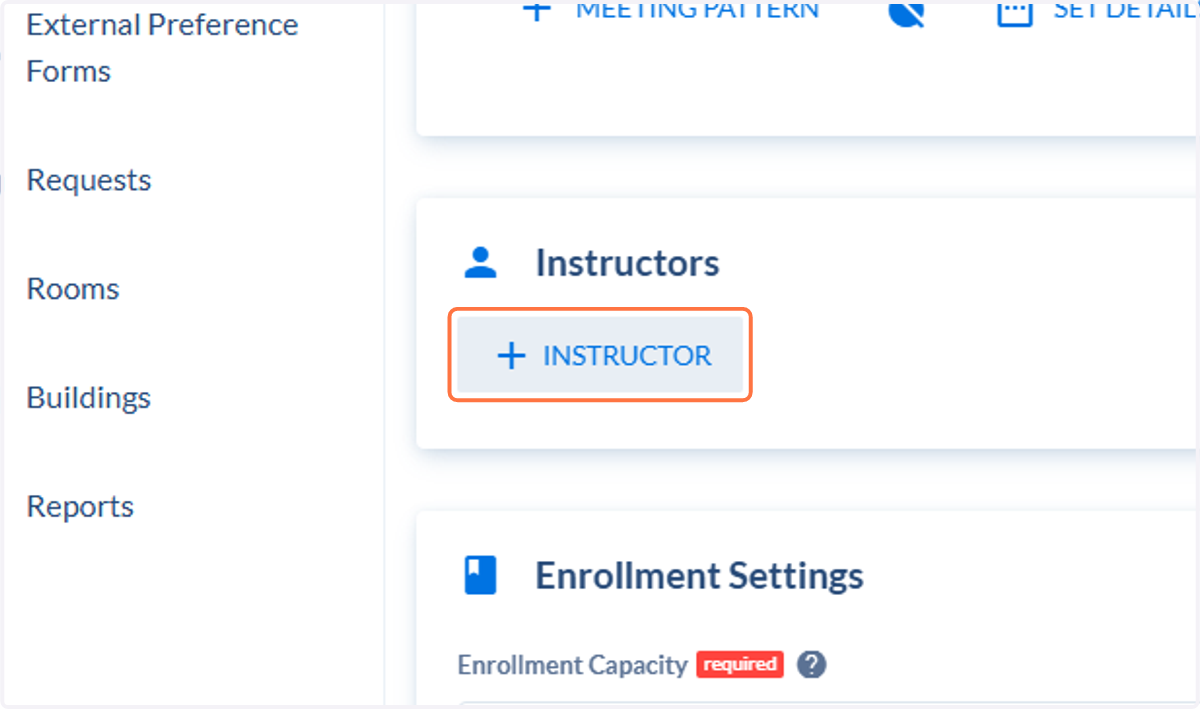
21. Click on + Instructor to assign an instructor to the class.
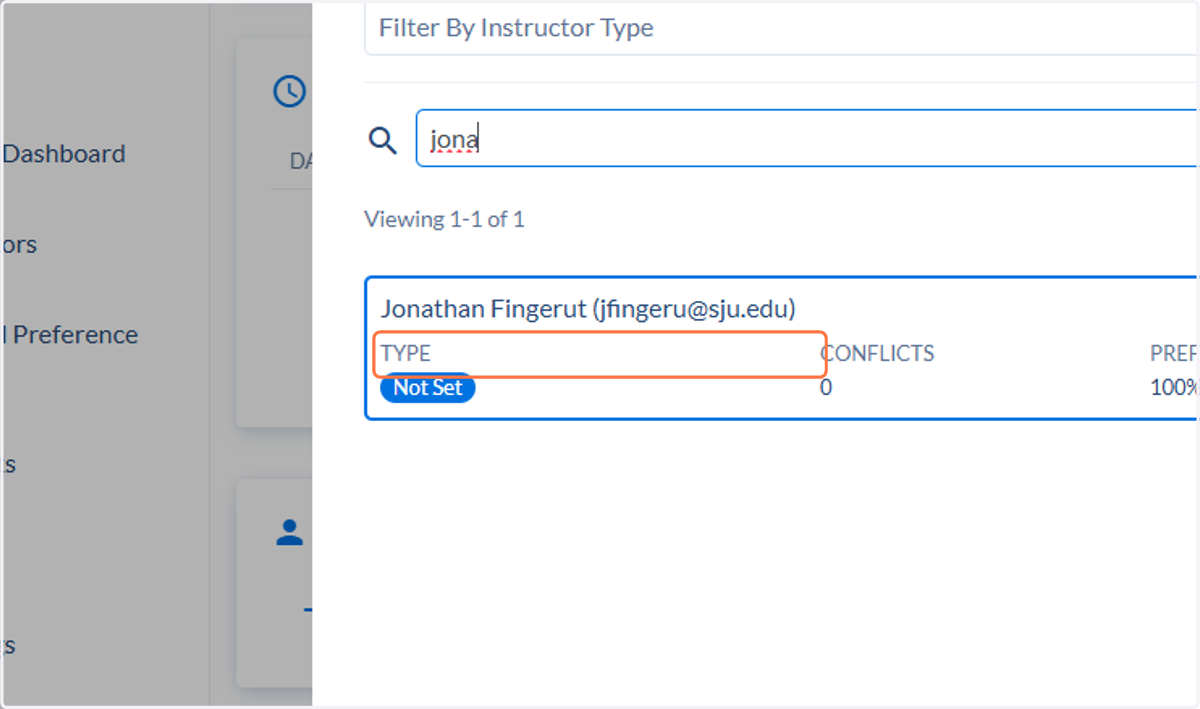
22. Search and click on the instructor (if you know who it will be)
Instructors must be assigned by the end of add/drop for the semester. You will be able to add the class to the scheduler without an instructor.
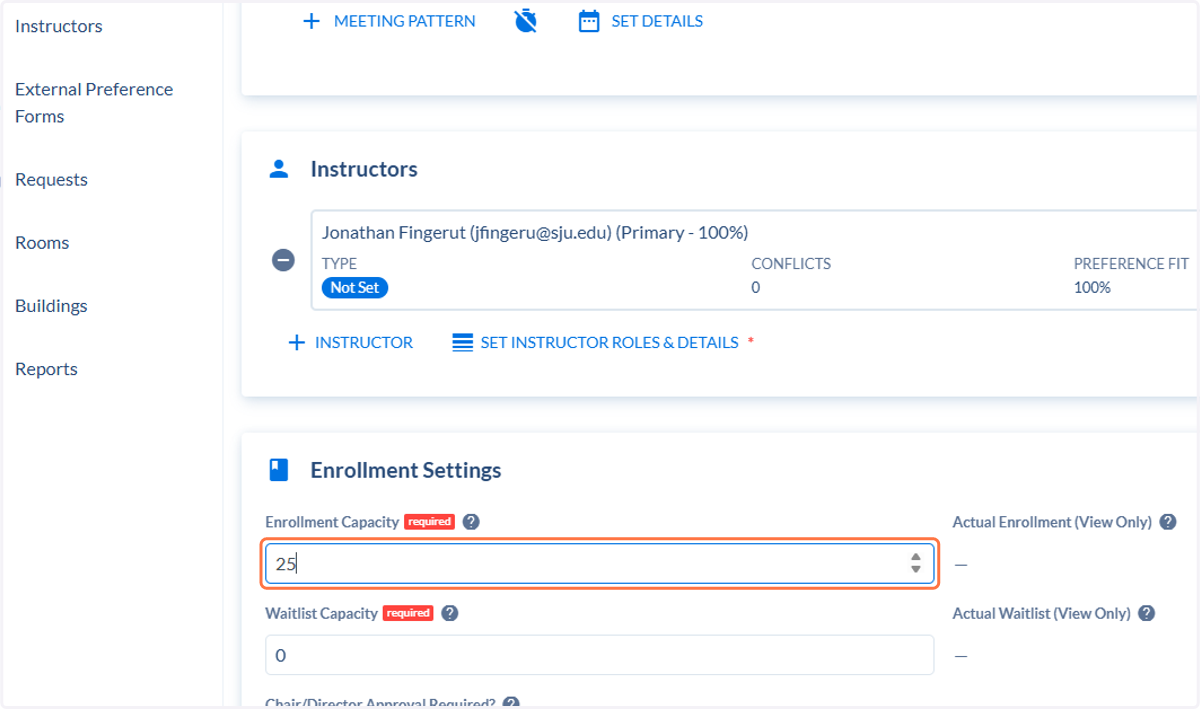
23. Set the enrollment capacity for the class.
24. Scroll to the top and review your Request.
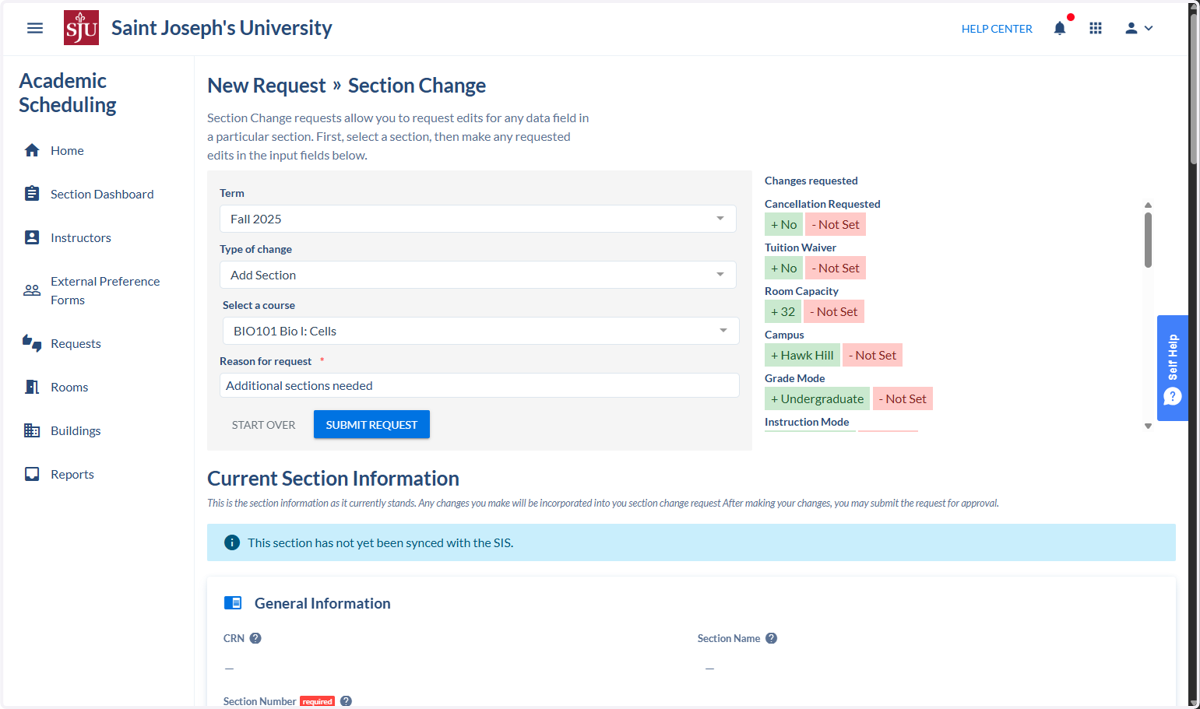
25. Click on Submit Request. You request will be reviewed by the Registrar's Office. You will be notified once it is approved.