Requesting Time Off in Teams
Microsoft Teams
To Request Time Off (on Mobile)
1. In the Teams app, select Shifts

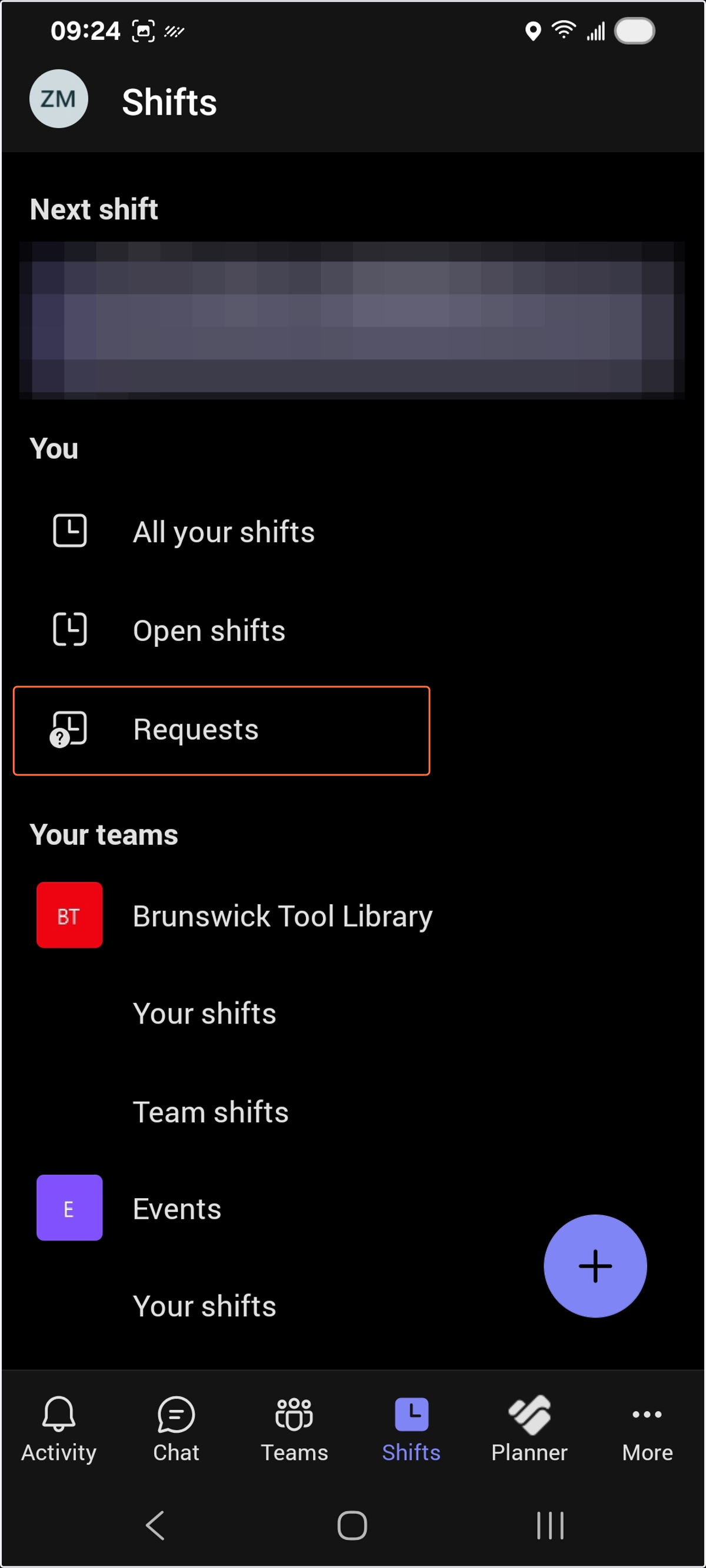
2. Select Requests
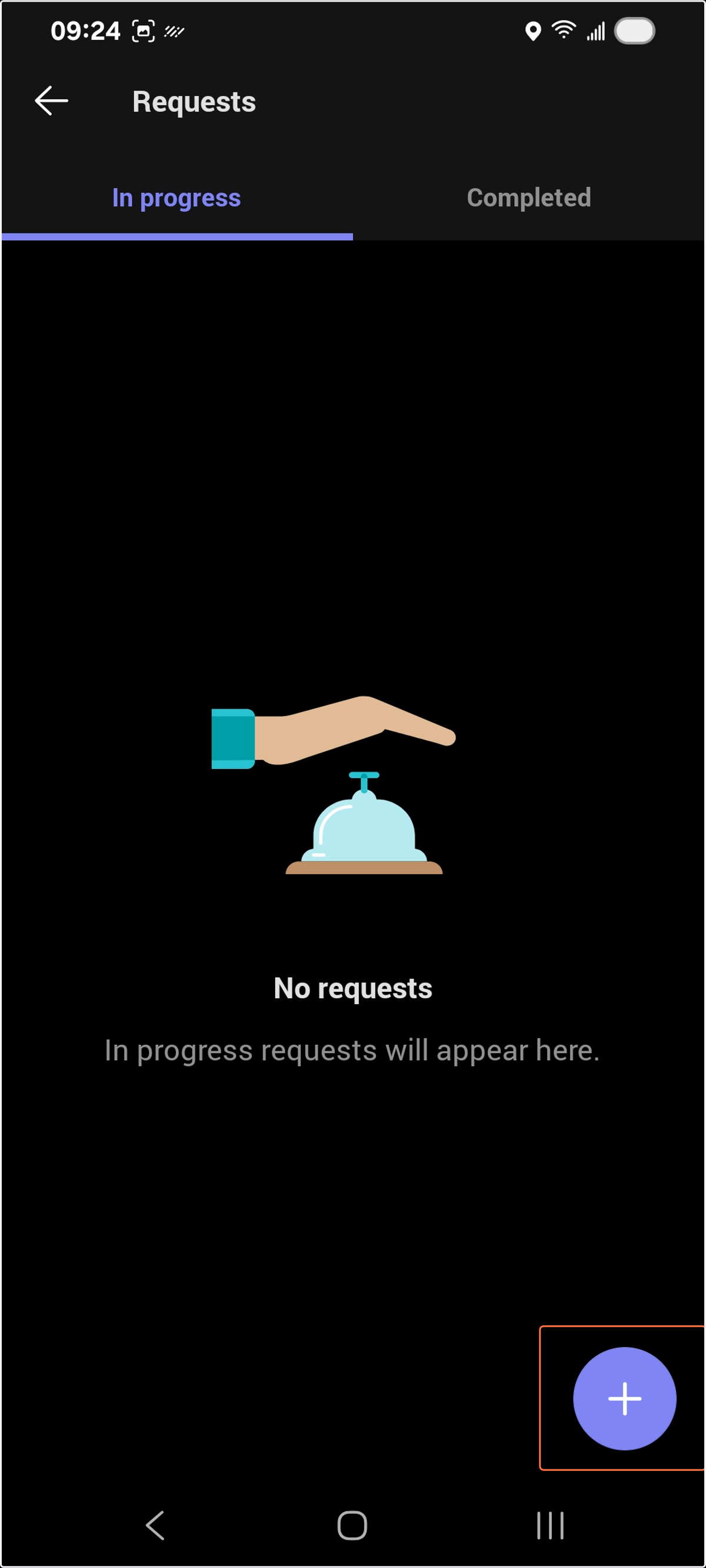
3. Select + (New Request)
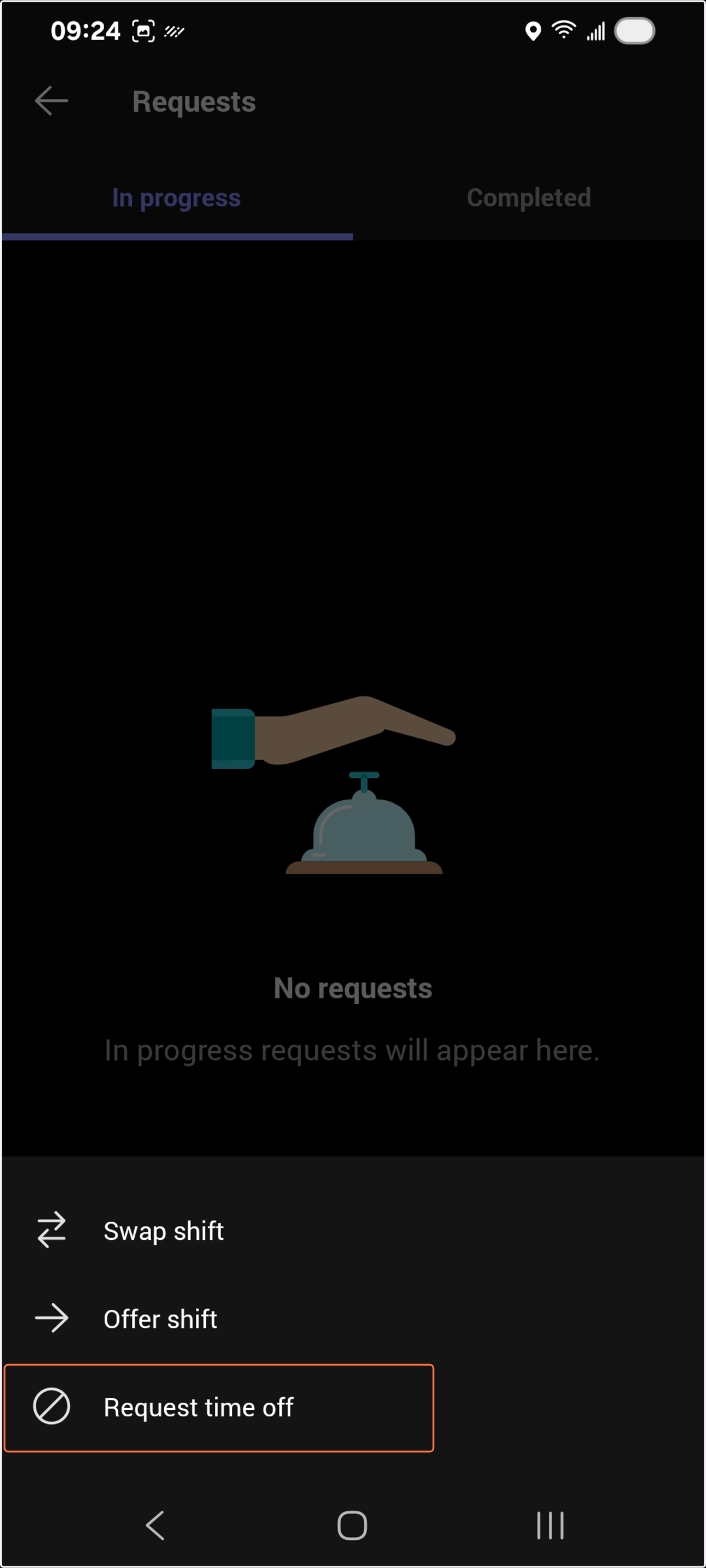
4. Select Request Time Off
"Swap Shift" and "Offer Shift" are for swapping or offering to particular volunteer. You can only use these if you've already spoken to the other volunteer. To cancel your shift, use Request Time Off.
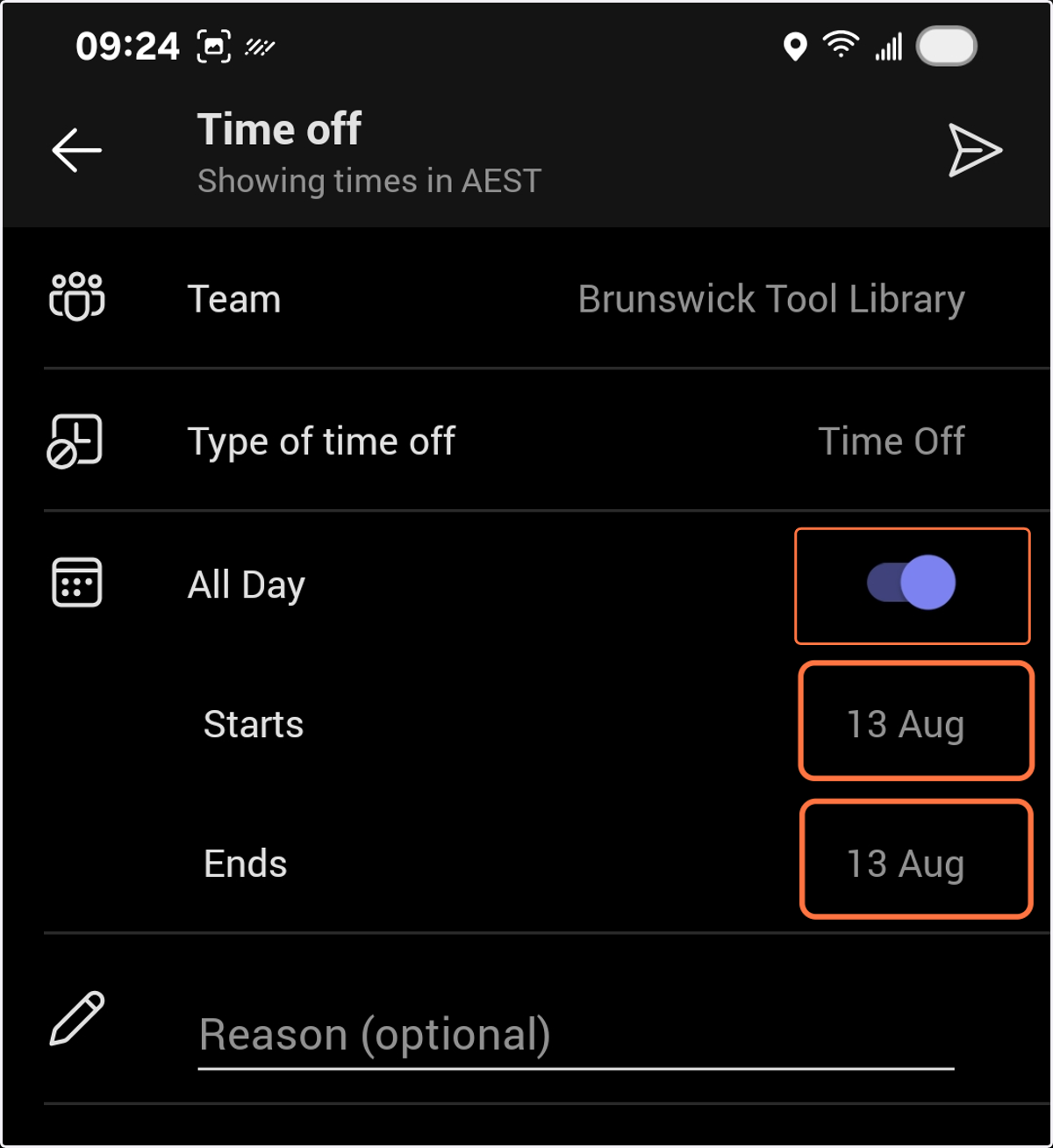
5. Select All Day, Start and End Date, and submit.
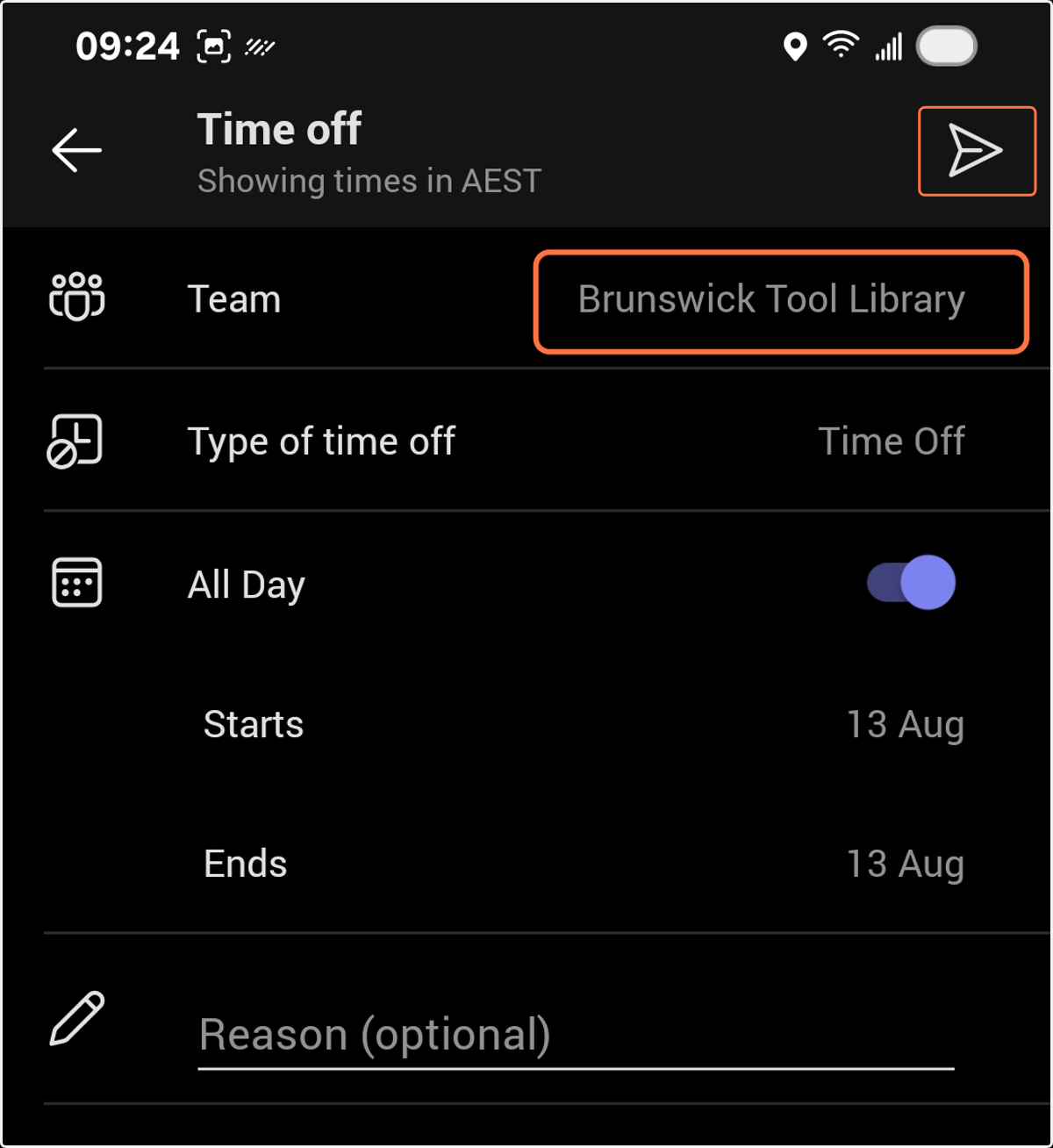
6. Make sure Team matches where your shift is (typically Brunswick Tool Library) and select Submit
To Request Time Off (on Desktop)
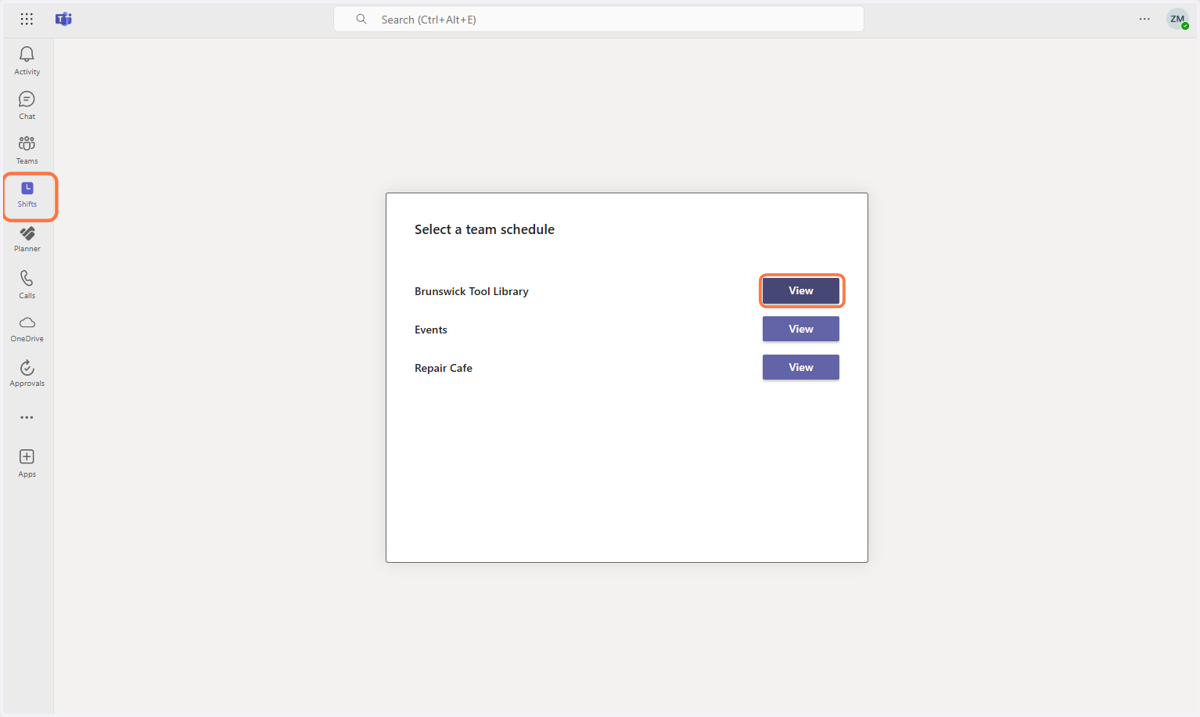
7. Starting in Teams Shifts, Select the Brunswick Tool Library Schedule
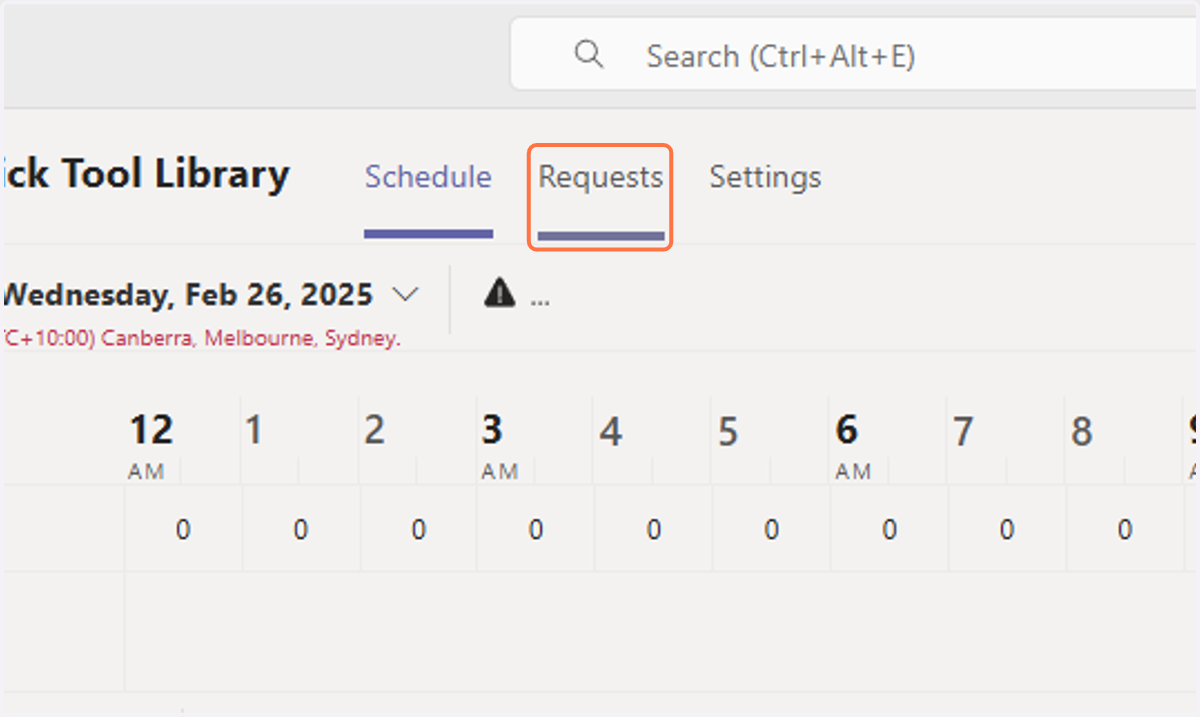
8. To Request Time Off, click on Requests
9. Click on Create a new request
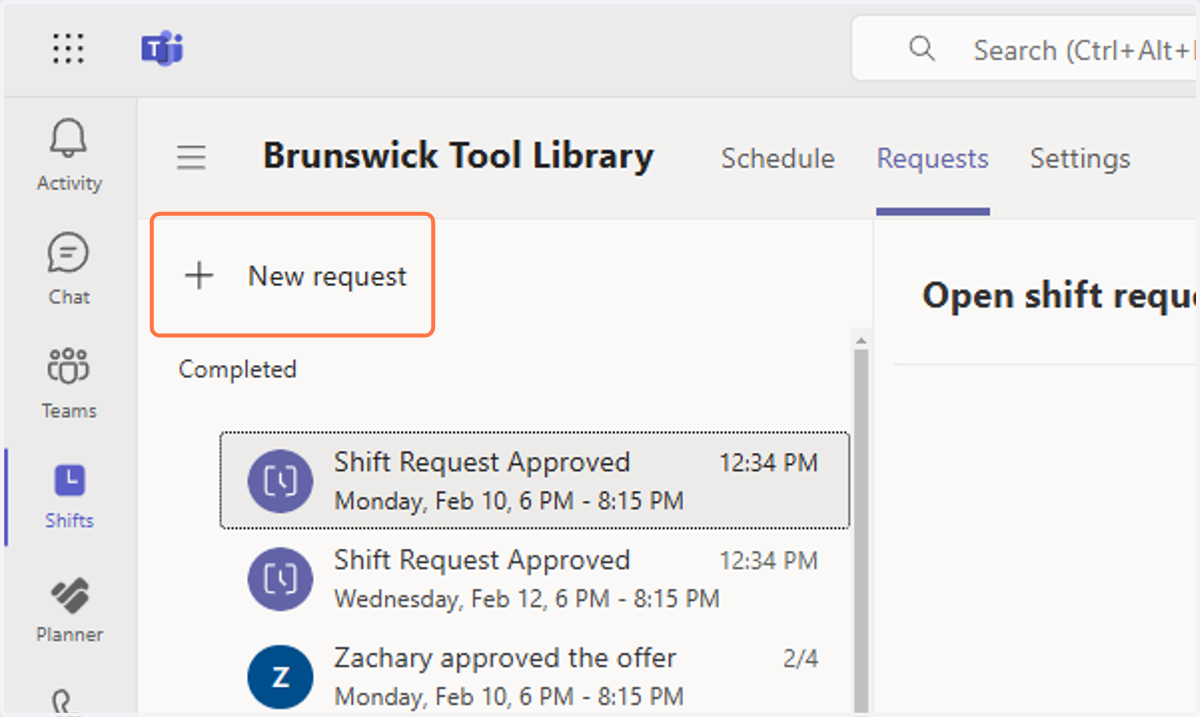
10. The request defaults to Time off. Click on Time off start date
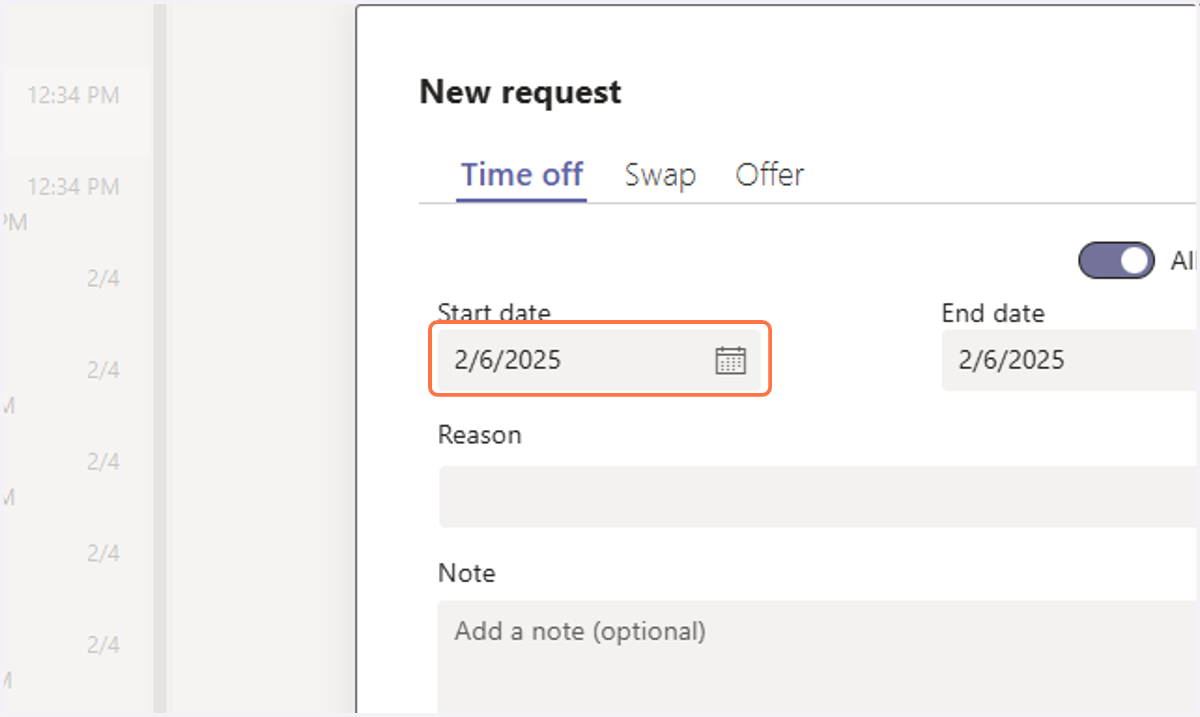
11. Select the desired time off start date
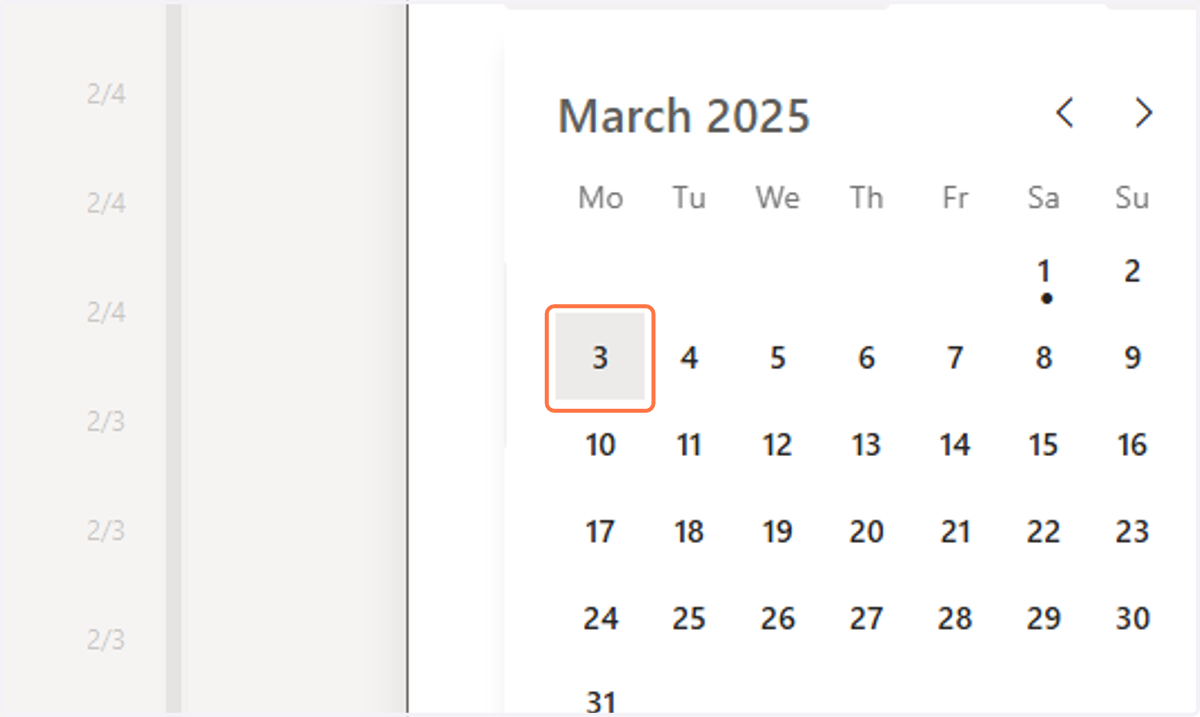
12. Click on Time off end date
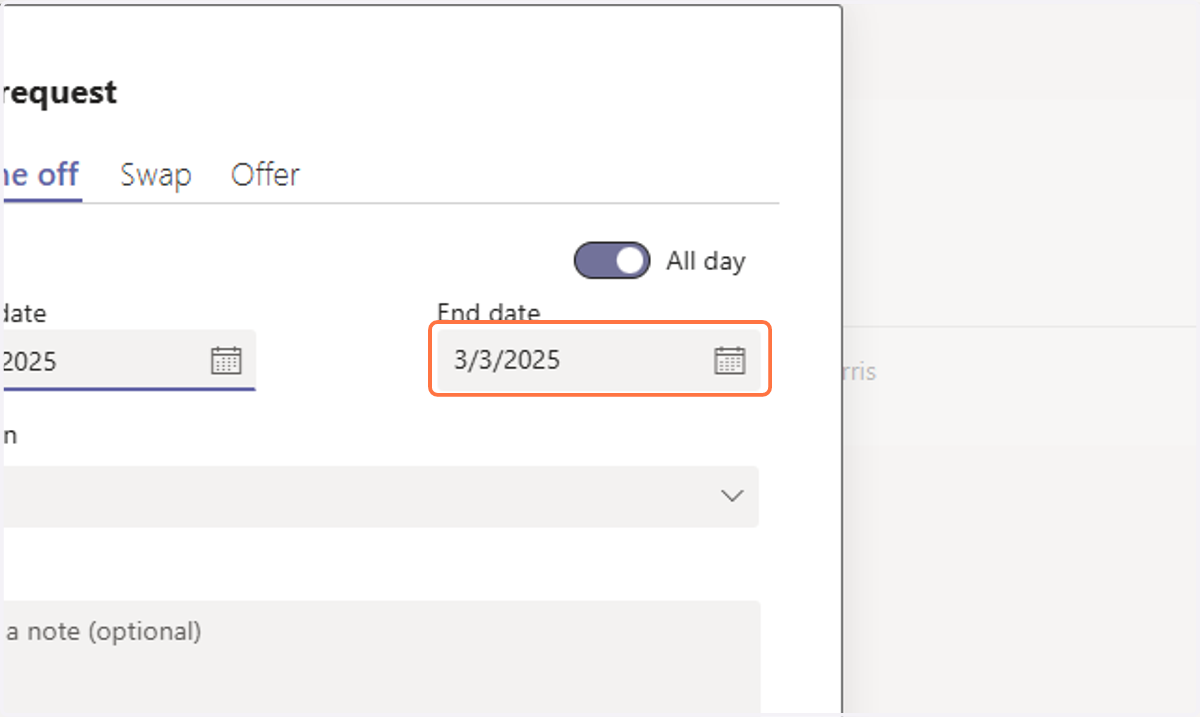
13. Select the desired time off end date
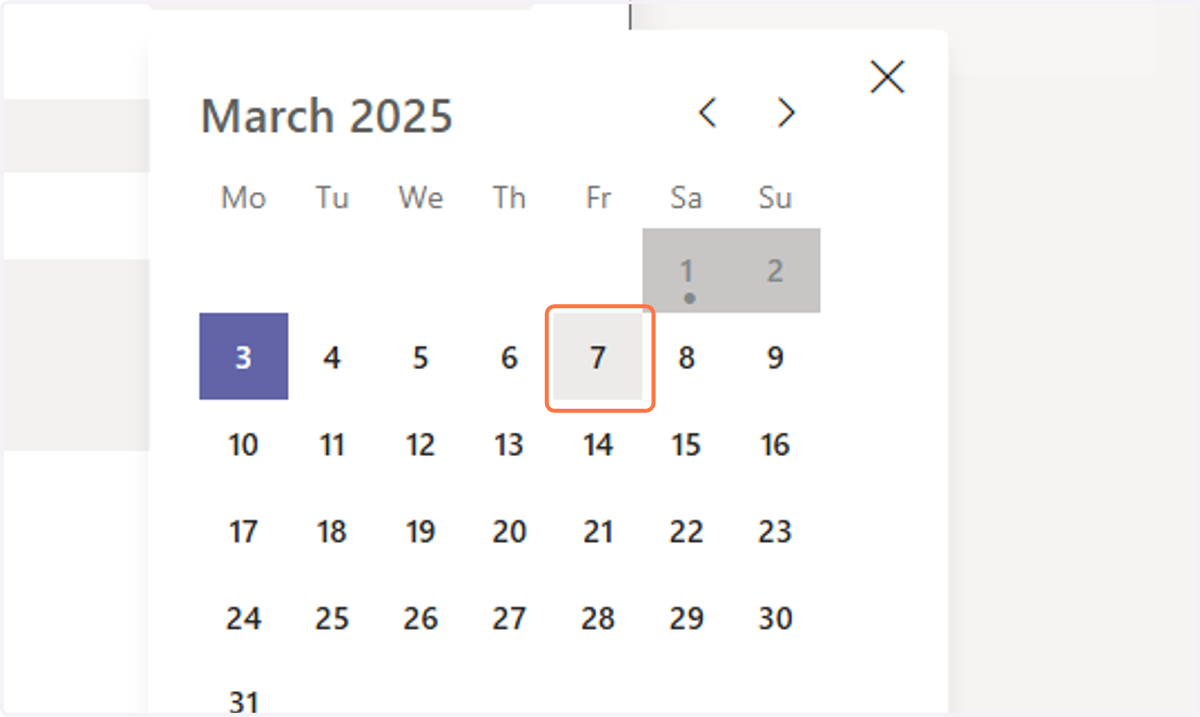
14. Click on Reason
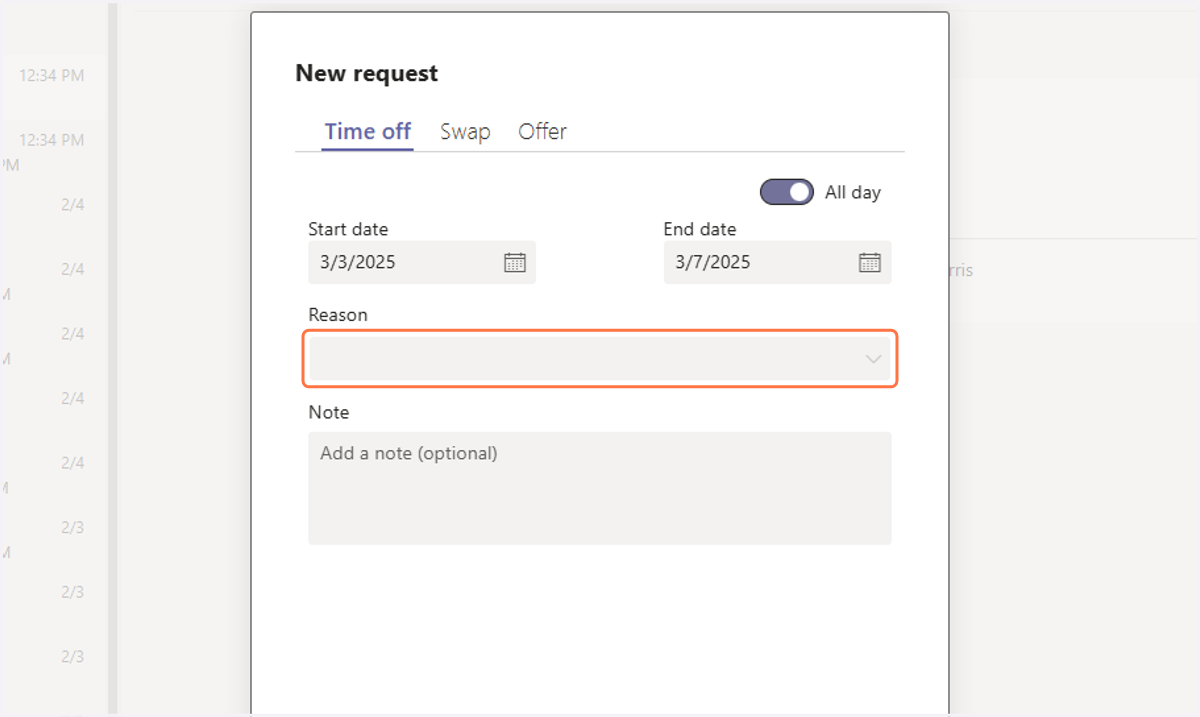
15. Select Time Off (only reason)
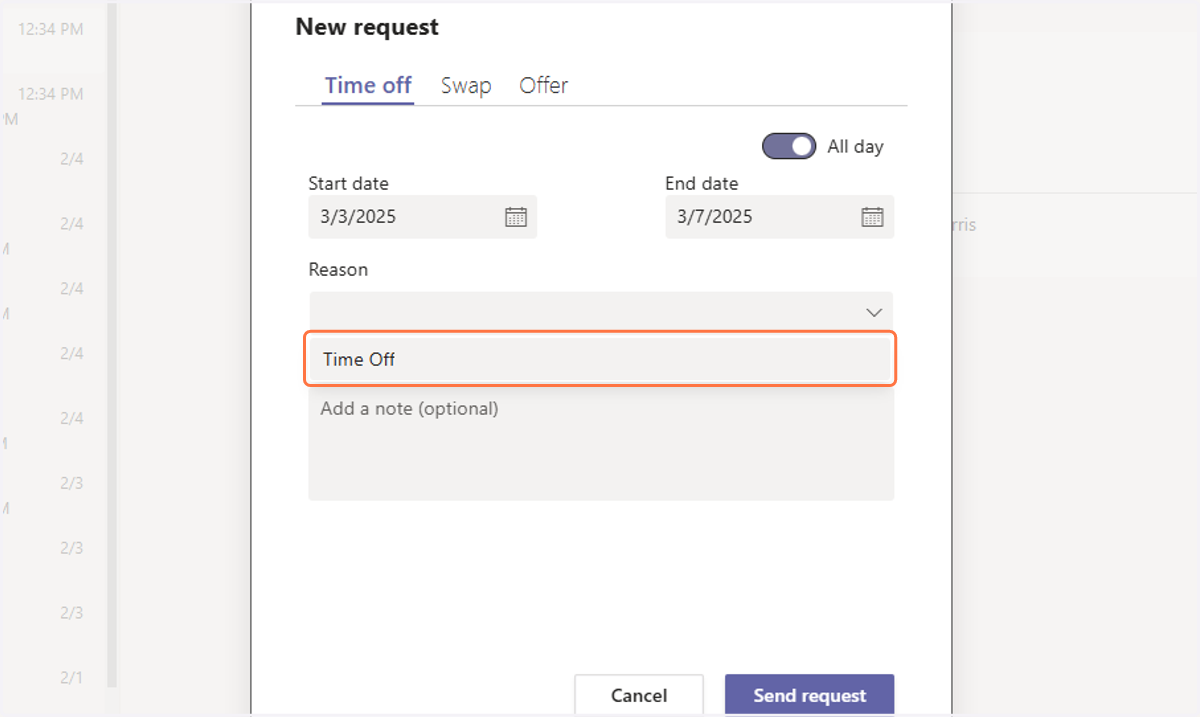
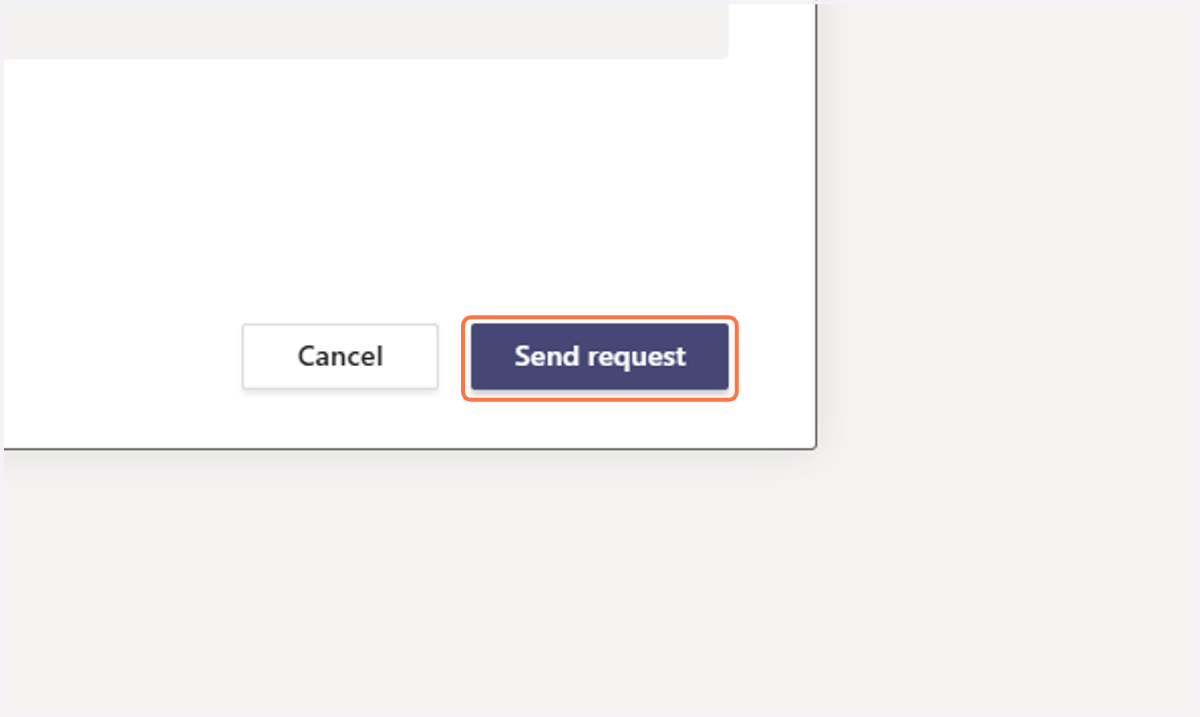
16. Click on Send request