Requesting Flexible Time Off in Workday
Please follow these instructions for any year-round salaried staff taking flex time off. This allows us to correctly identify time off for FMLA, worker's comp, etc. purposes even though Flex Time does not deduct from a bank. This also feeds through the Flex Time to the scheduling/time off calendars for your team.
Home - Workday
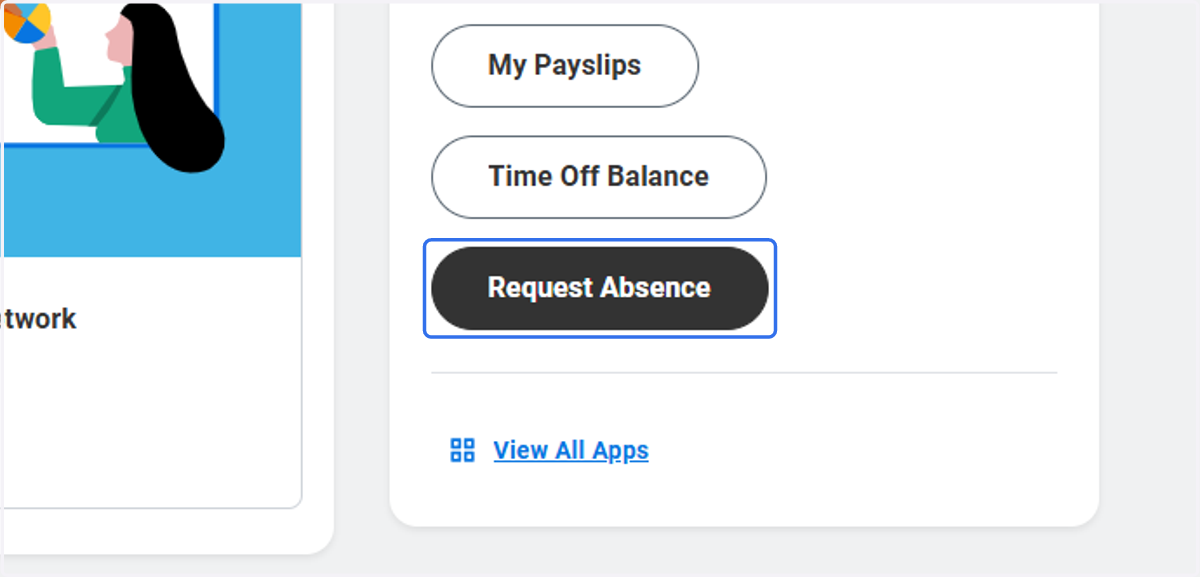
1. Click on Request Absence
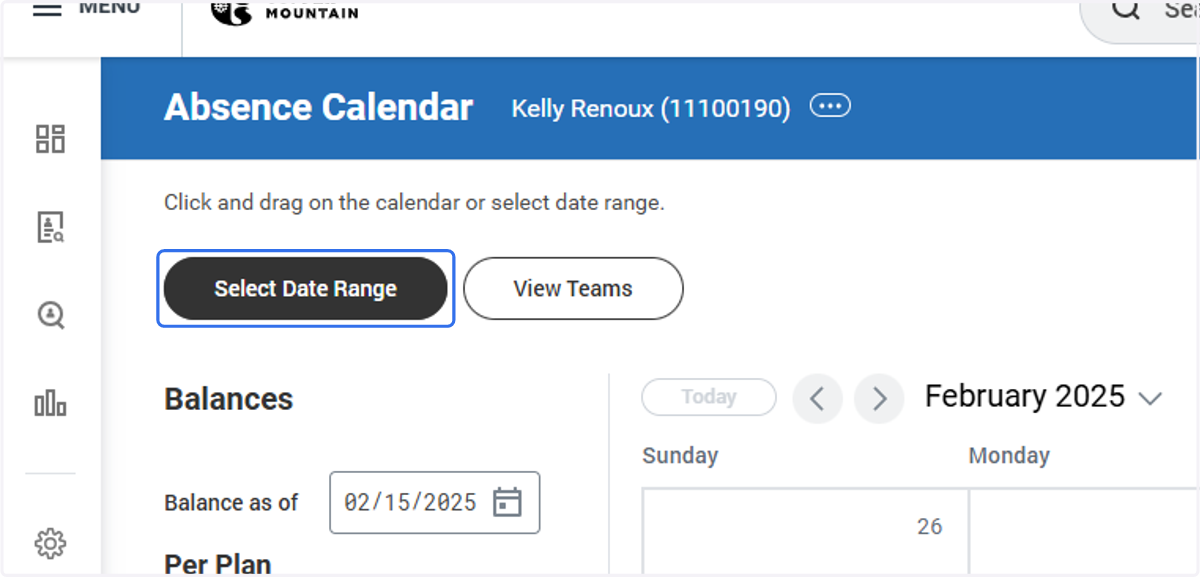
2. Click on Select Date Range
3. Choose the date range that you will be using Flex Time
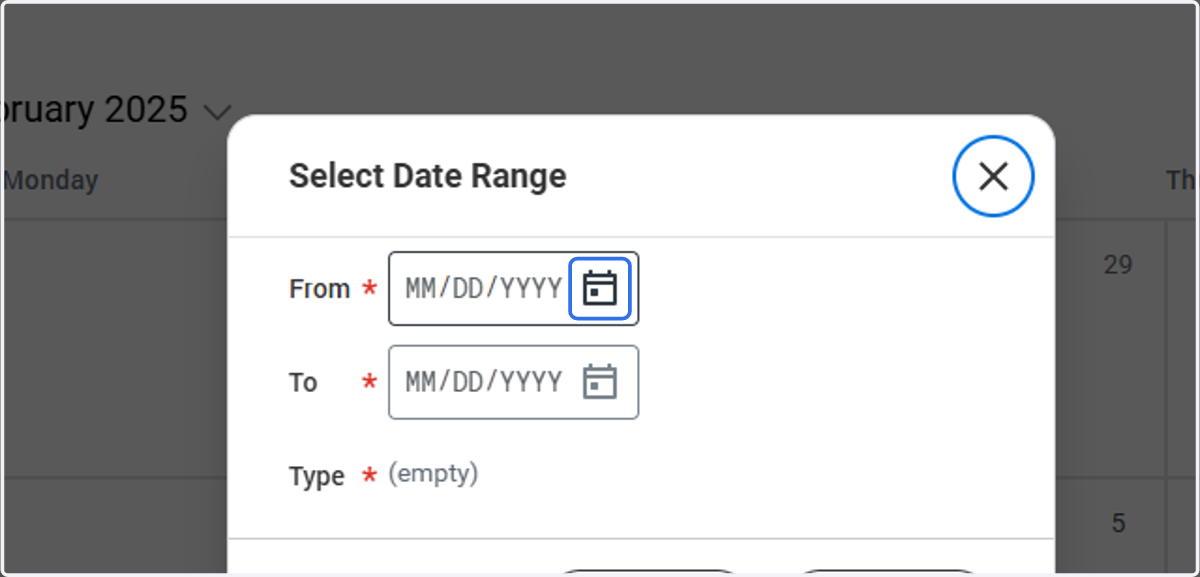
4. Choose the date range that you will be using Flex Time
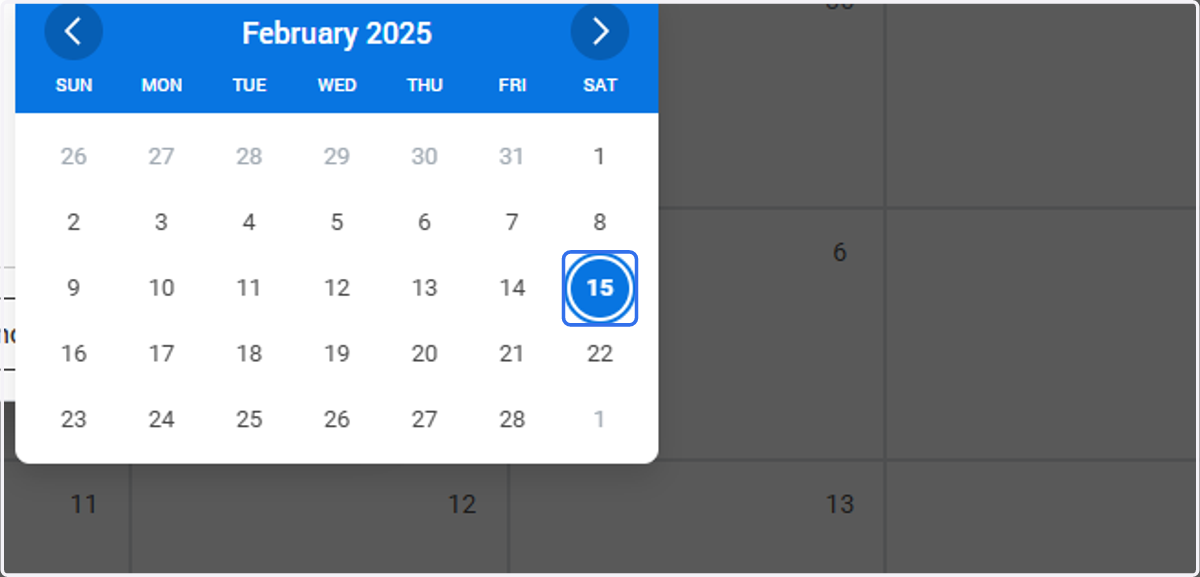
5. Choose the date range that you will be using Flex Time
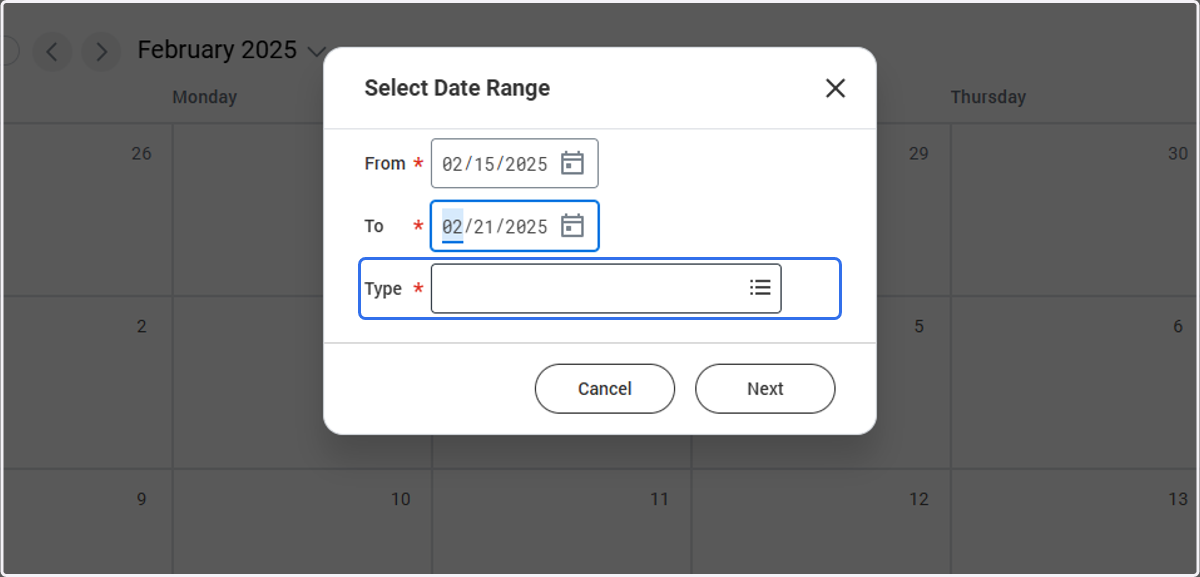
6. Click on 'Time Off' in Type menu
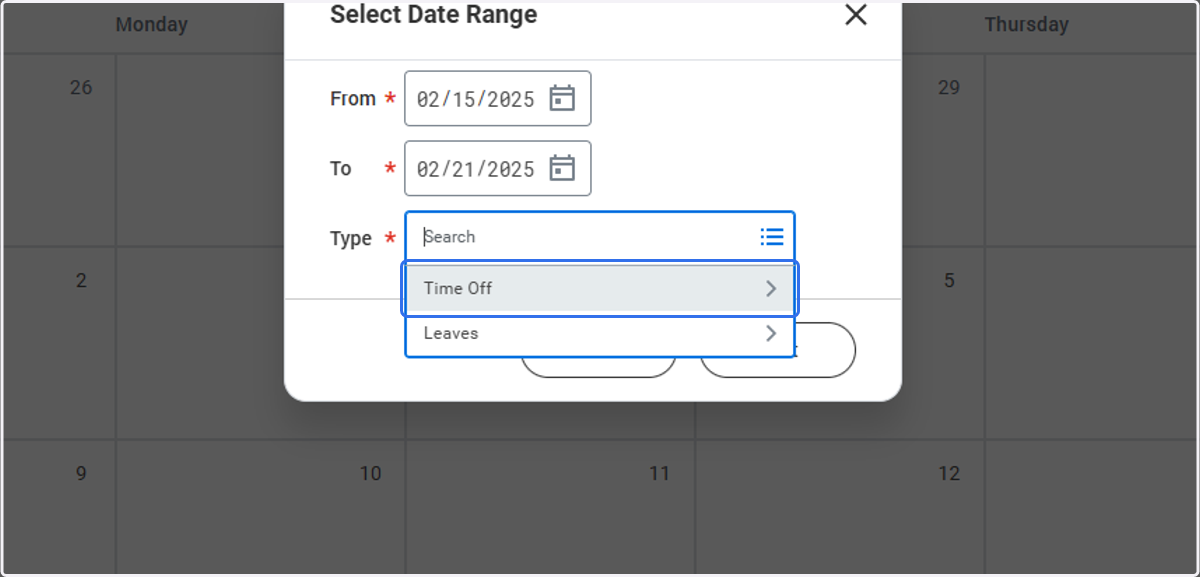
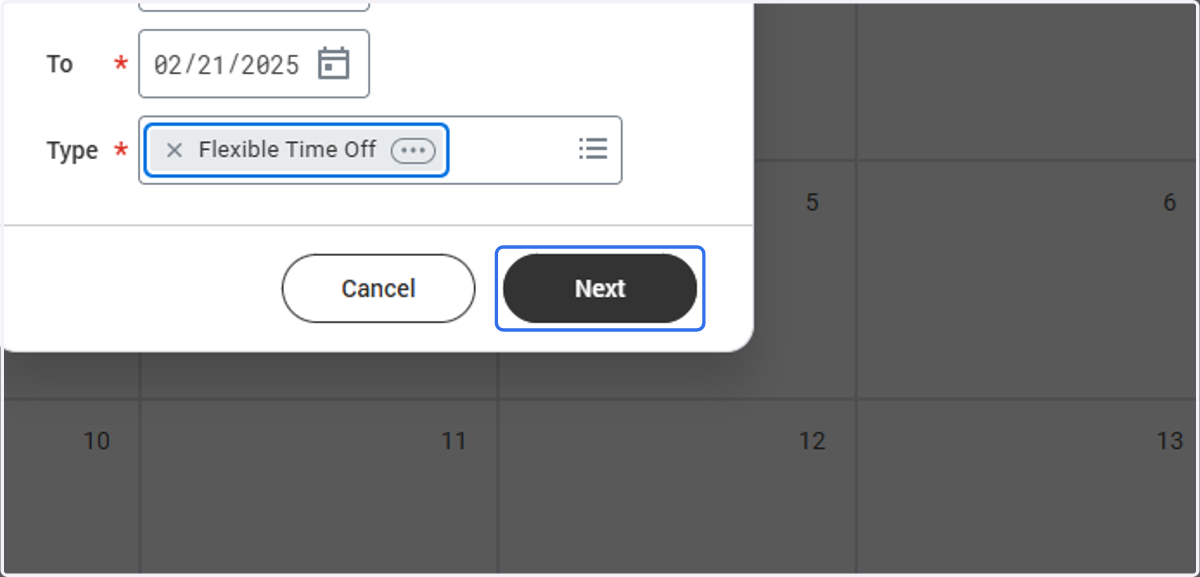
7. Click on Flexible Time Off'
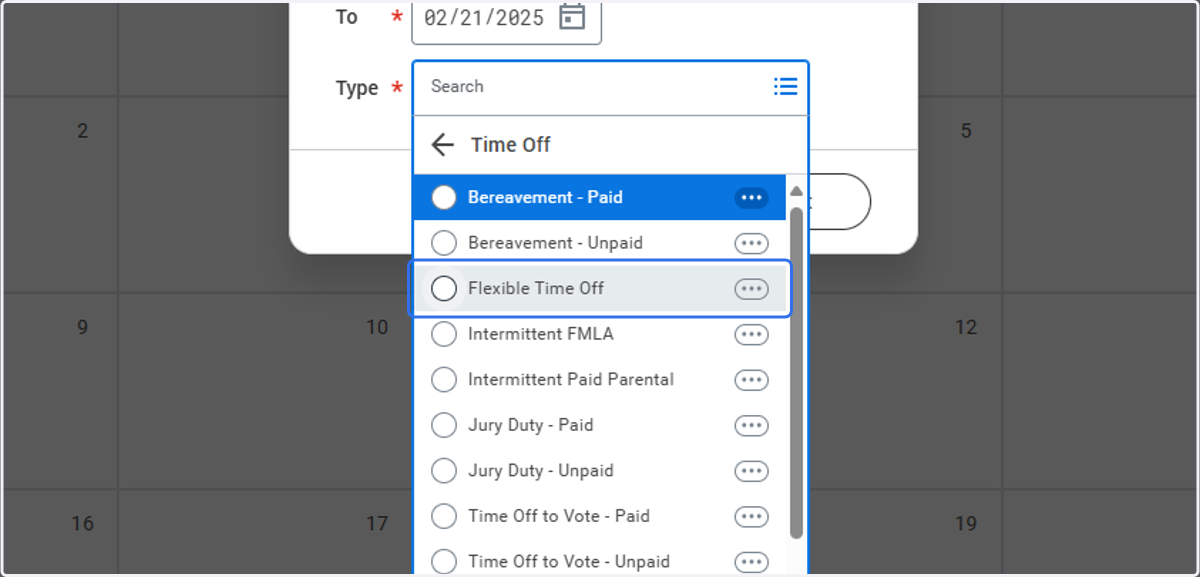
8. Click on Next
9. Type a comment with Flex Time explanation
**Be sure to update the Qty of Daily Hours if your request for Flex time is on Sat or Sun, if those are your typical work days. They default to 0 hours on weekends.
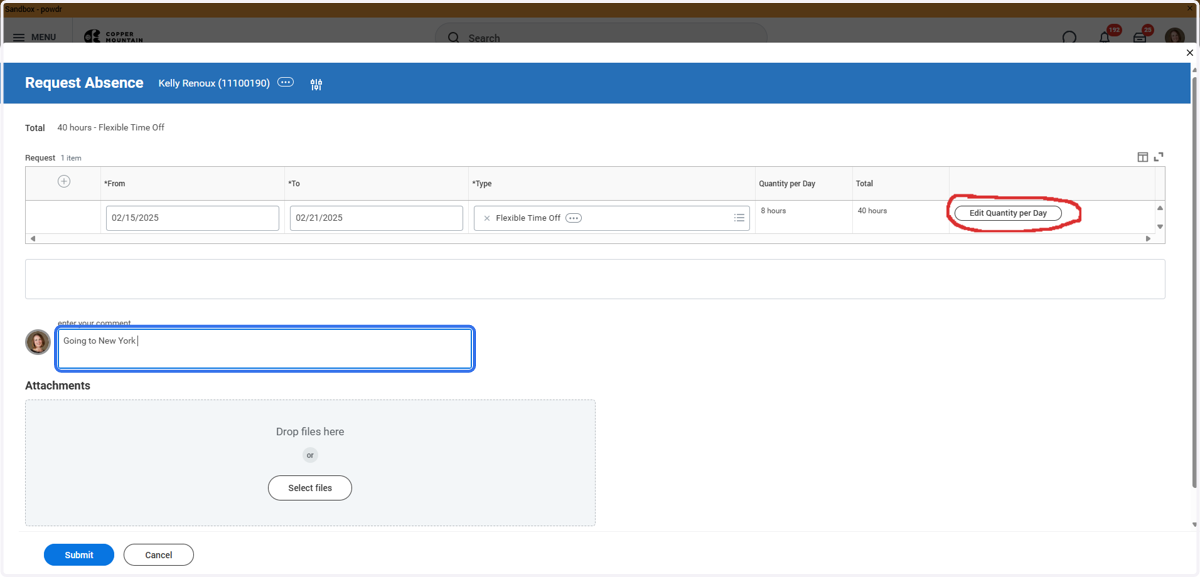
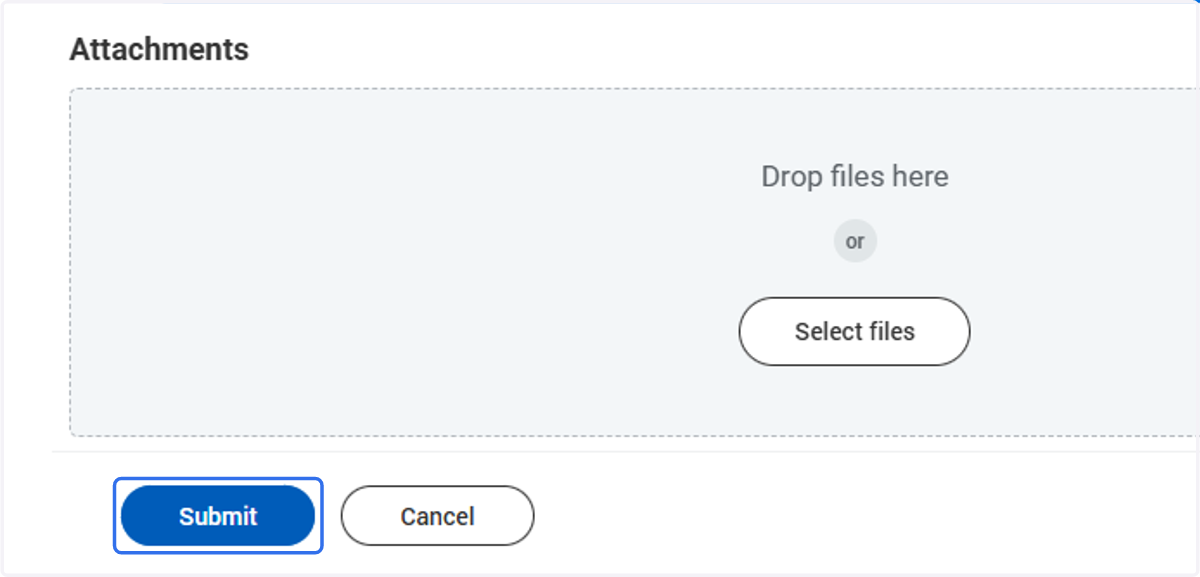
10. Click on Submit
This will then send the task to your leader to approve and will populate your schedule and time off calendar for your team!