Requesting Educational Services through Cabrillo Point Academy
The following steps can assist you with entering requests for educational services through Cabrillo Point Academy (CPA).
Before entering any requests, please keep the following things in mind:
Only up to $500/month/vendor is approvable
Services are approvable while school is in session (from August 15 - May 30). Services cannot be approved during school recesses, such as over the summer or during other school breaks
Only educational services that are listed on the vendor's Detailed List of Services are approvable
Services should be instructional / educational. Examples of unapproved requests might be uniforms, dangerous items or weapons, recital or other performance fees, competitive team sports, etc.
Please do not request services more than one month prior to the start of services
In general, services can be approved for up to one month at a time. Some vendors offer semester-long classes, such as chemistry or Spanish classes. If vendors only offer classes on a semester-long basis, those may be approved.
1. Log into Homeschool Hub
Once your student is fully enrolled with Cabrillo Point Academy (CPA), with an accepted Master Agreement and Proof of Residency (POR) documents on file, a Homeschool Hub account will be created for them.
Before requesting products through Homeschool Hub the first time each year, please read through CPA's Enrichment Guidelines, which will help you understand how the school's budgeted planning amounts work and what kinds of items the school can or cannot purchase.
The email for your account will be the parent/guardian email address that the school has on file for you.
2. Not Sure of Your Password?
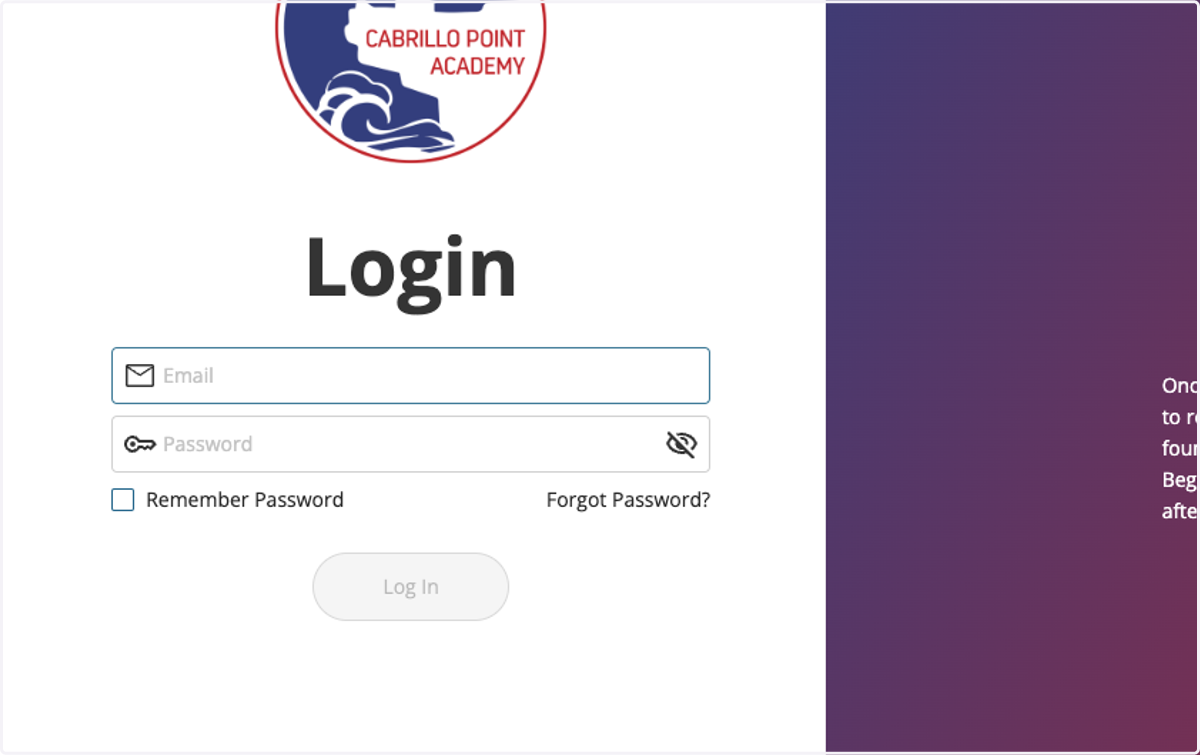
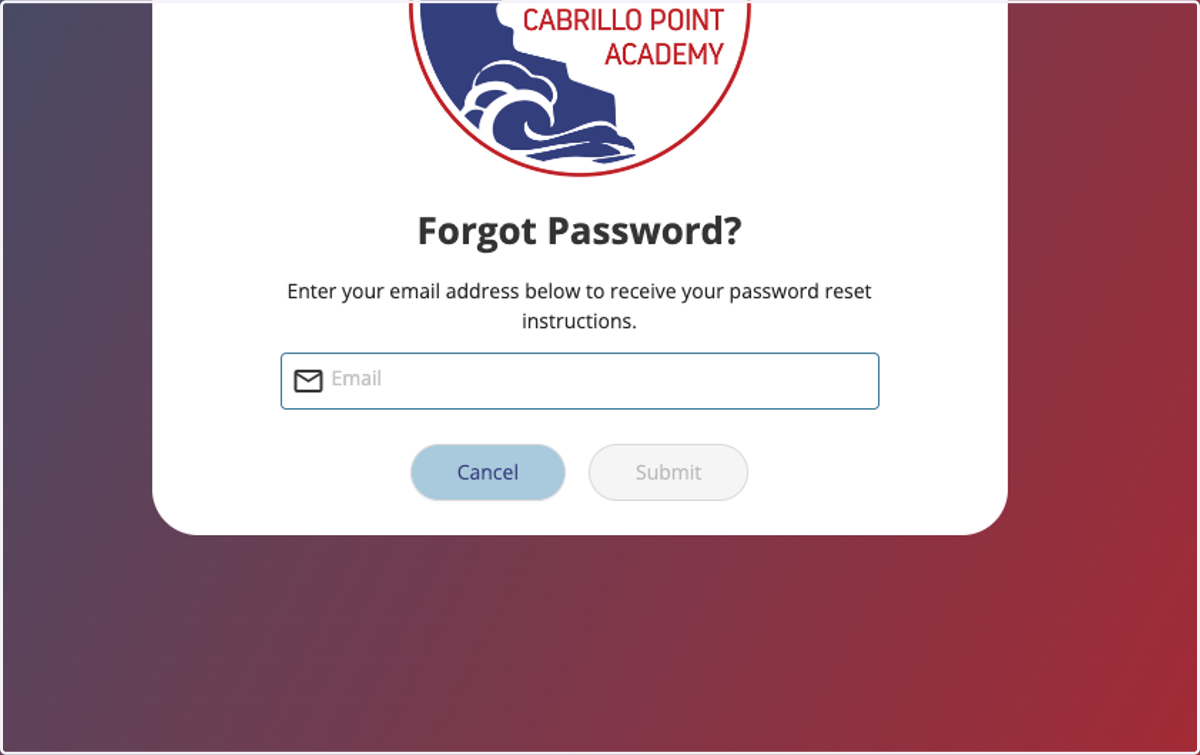
Click on the Forgot Password link; then, enter your email address.
The system will email a link that you can use to reset your password and gain access to your account.
3. Click on Order Request
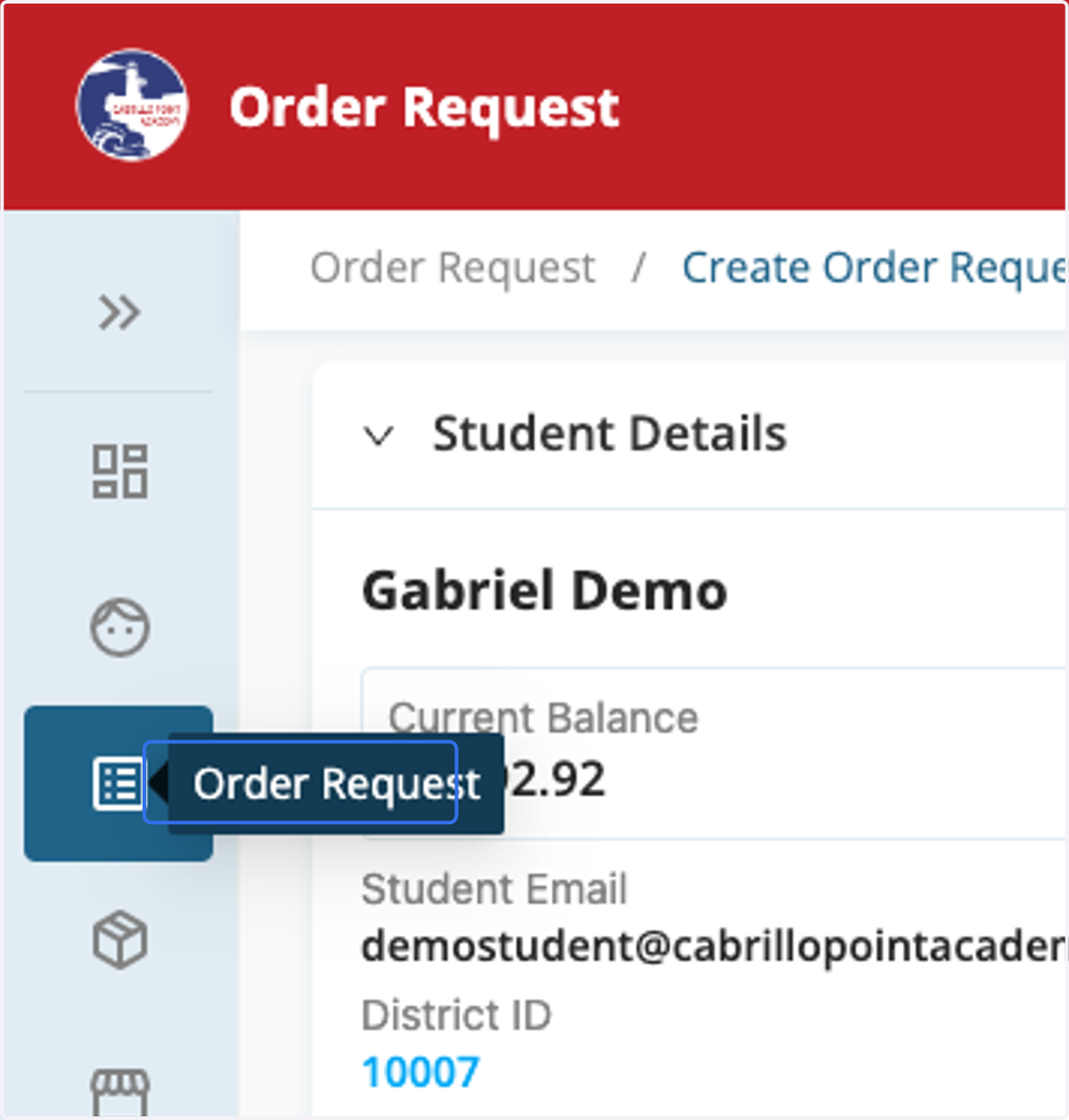
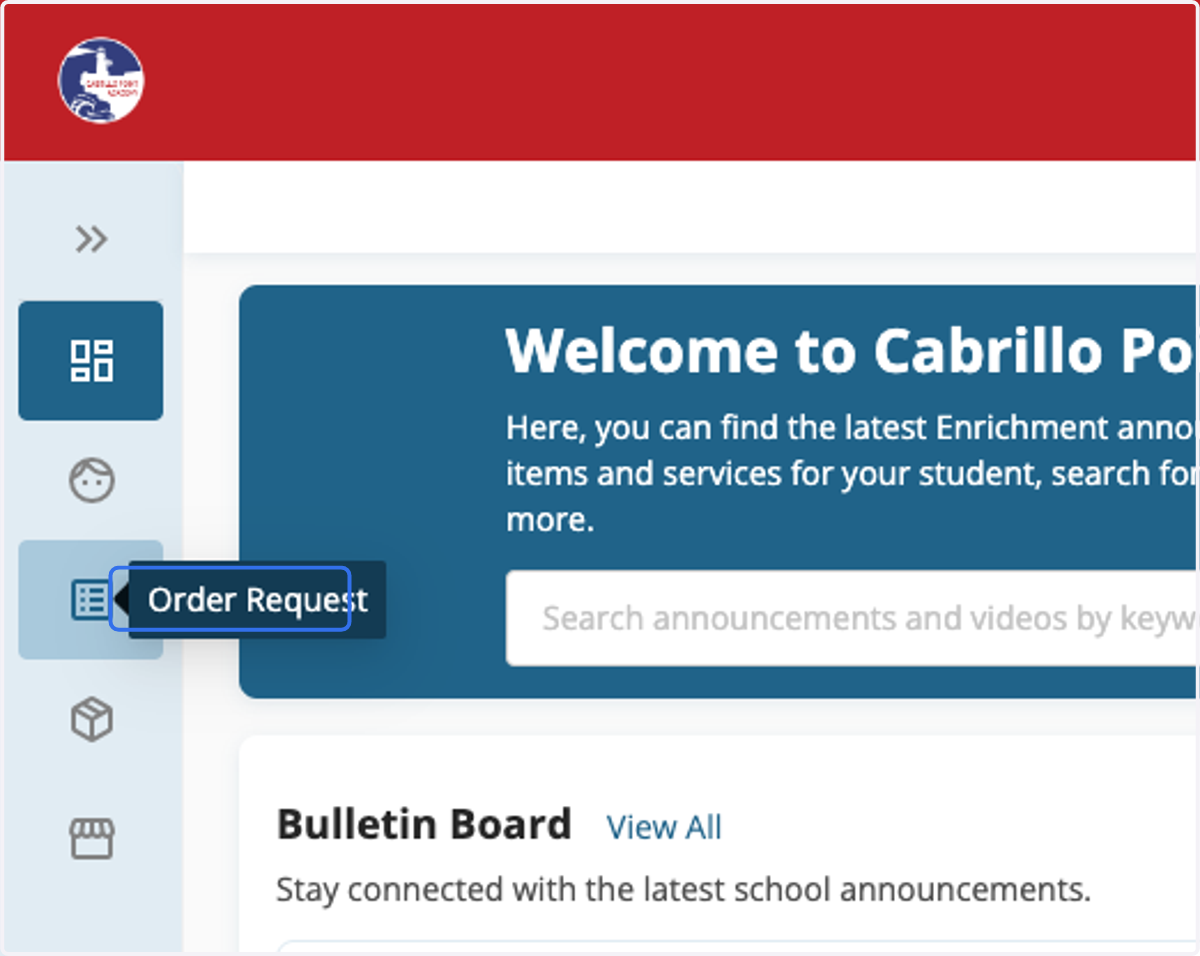
Once logged in, to request educational services, click on the Order Request icon from the left sidebar.
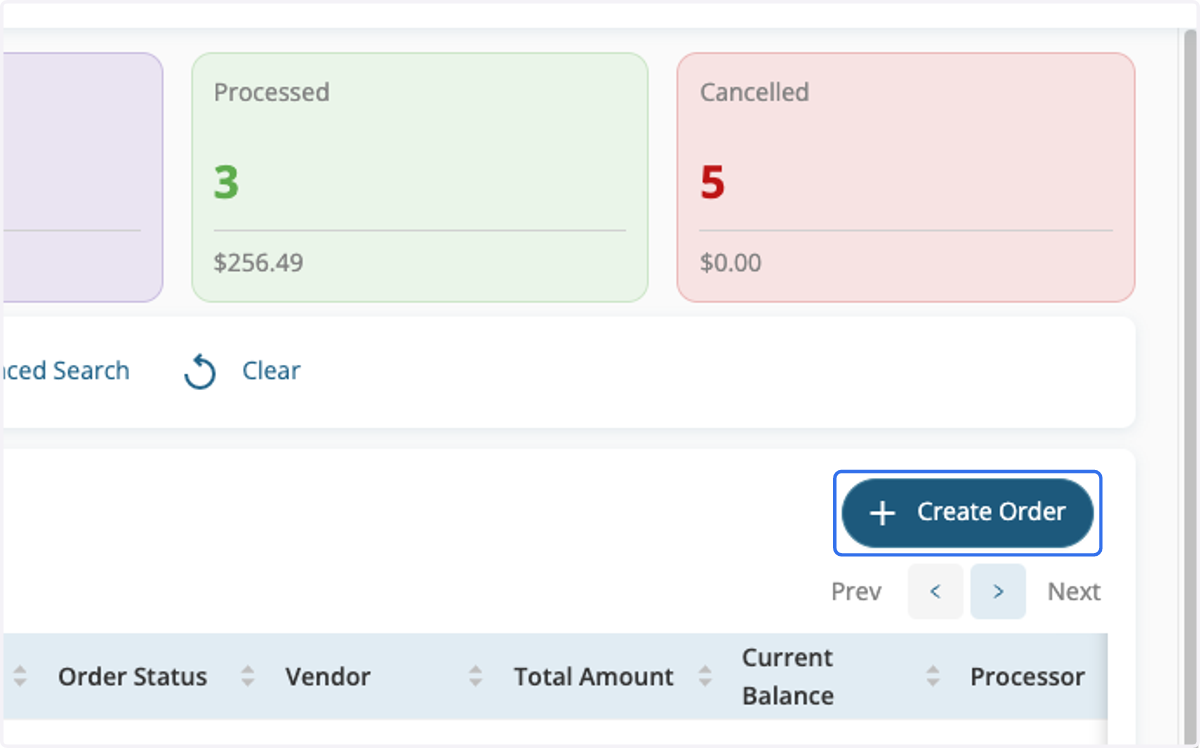
4. Click on Create Order
To request educational services, click on the Create Order button on the right side of the page.
5. Select Student
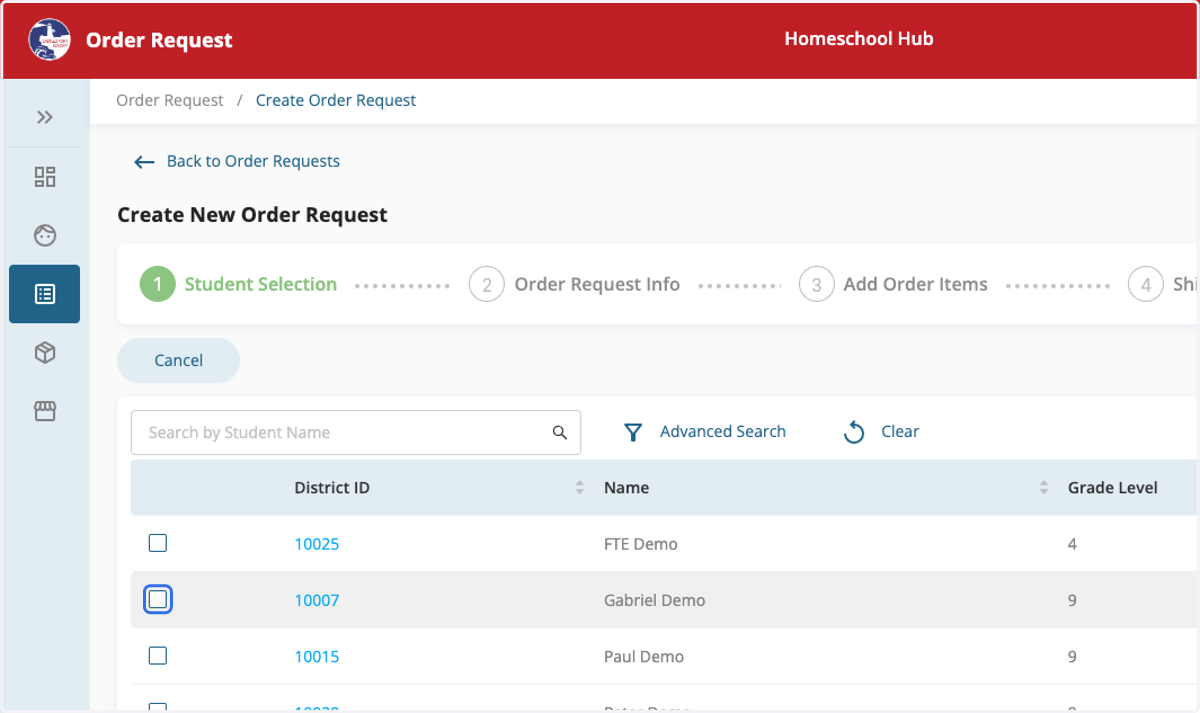
Mark the checkbox next to the student, for whom you wish to request educational services.
6. Sign Waiver or Affidavit
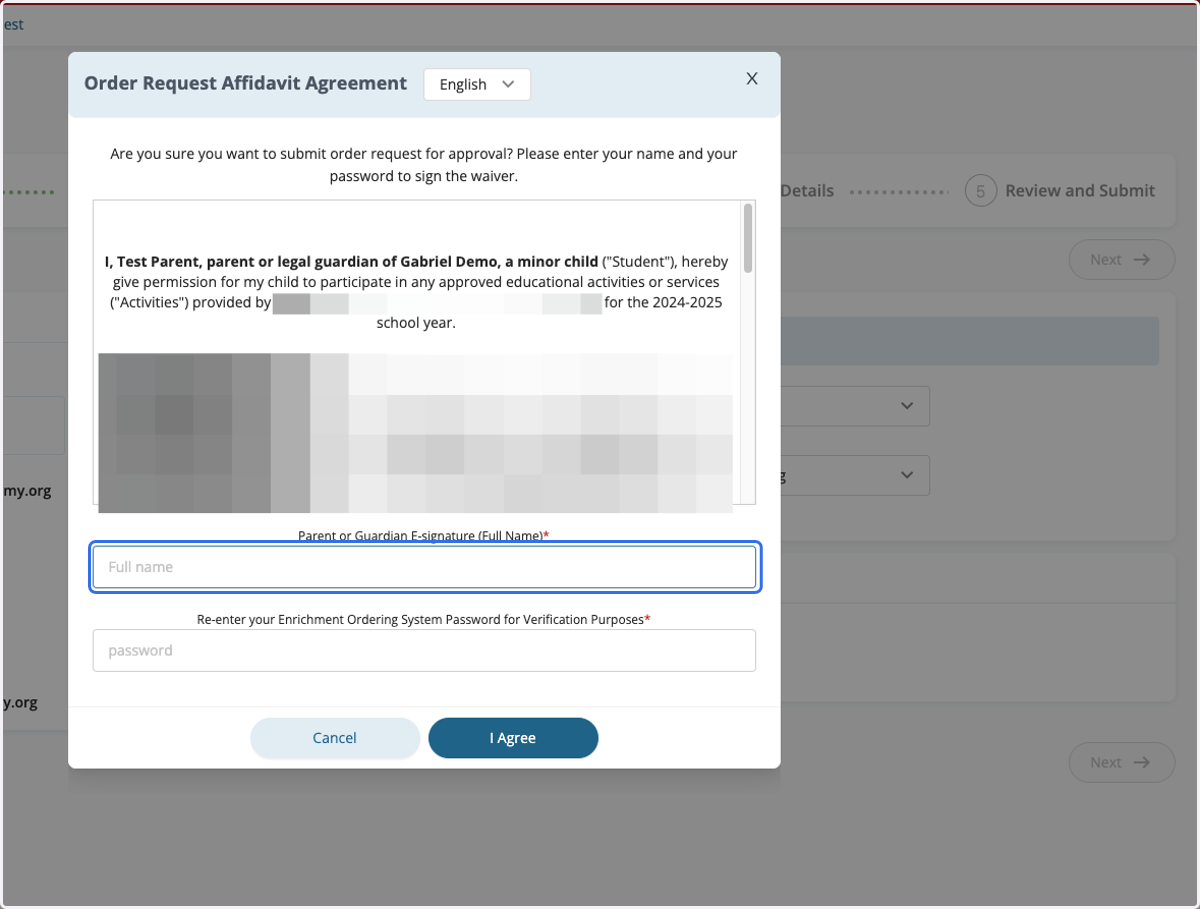
The first time educational services from each vendor are requested each school year, parents/guardians will need to fill out an online waiver or affidavit for their student to take services. The waiver is only required the first time services are requested each year.
To complete the waiver or affidavit, please read through the information in the waiver or affidavit.
To sign the waiver or affidavit, please type your name in the Parent or Guardian E-signature field as it appears in your Homeschool Hub account. Then, type your Homeschool Hub password in the password field.
If you forgot your Homeschool Hub password, please exit the screen, log out of Homeschool Hub, and click the Forgot Password link from the login page. Once you reset your password, please continue entering your order request.
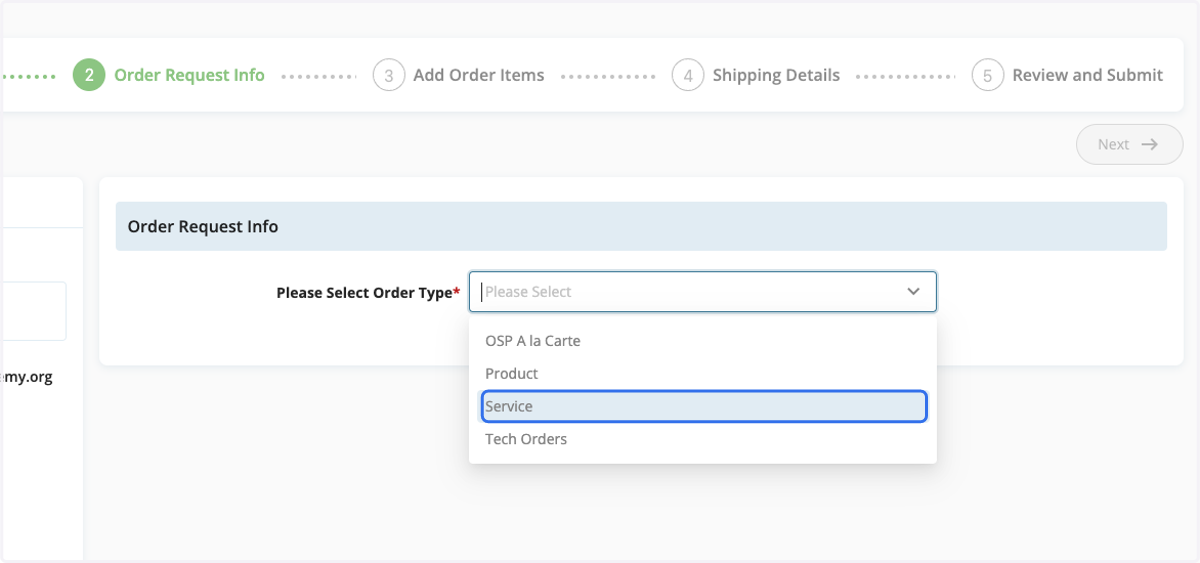
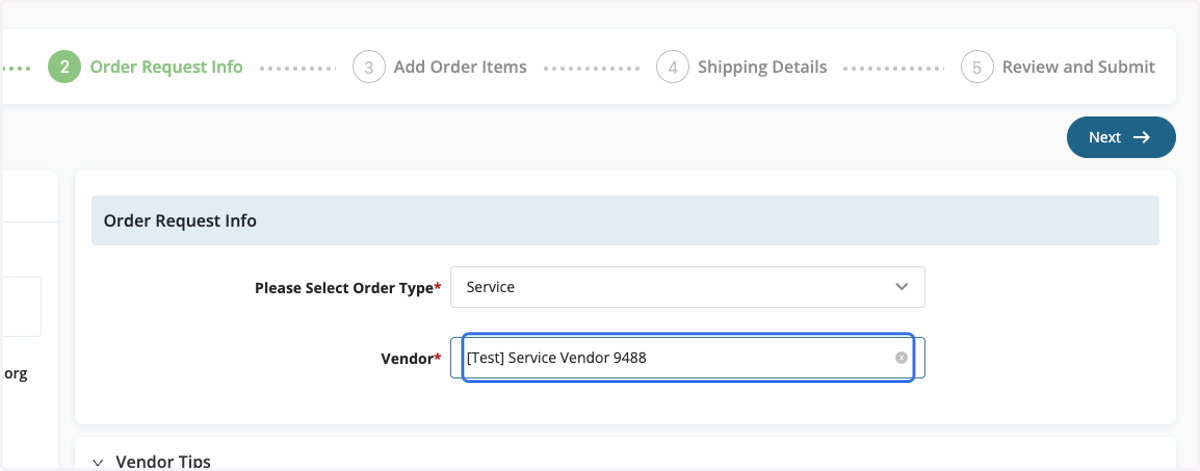
7. Select Service as the Order Type
8. Locate Vendor
Type the name of your requested vendor into the Vendor search bar.
Reminder: To ensure the safety of our students and our school, services can only be provided through approved service vendors.
9. Review the DLS
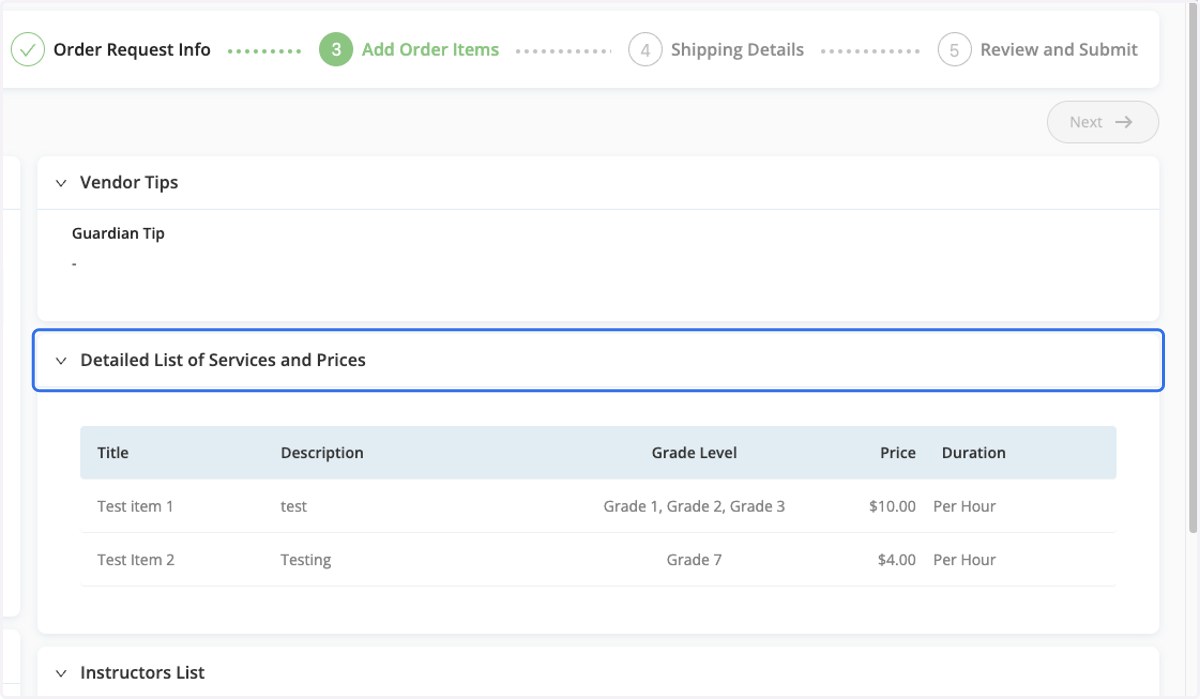
The Detailed List of Services (DLS) and Prices section of the Hub provides information about which services our school partners with vendors to offer to our students and the costs for those services.
Many vendors offer many different types of services, and only services listed in the DLS are able to be requested through the school.
If you are not seeing a requested service listed in the DLS, please feel free to let your Homeschool Teacher (HST) know, and they can contact the school's Vendor Support team to suggest that the service be added to the DLS. Once the Vendor Support team receives those types of suggestions, they can reach out to vendors to look into whether or not the requested services might be something that can be added to the DLS.
10. Need Additional Support?
Please reach out to your Homeschool Teacher for help with any questions you might have or for help with accessing Homeschool Hub.
Thank you!
11. Select Method for Entering Details
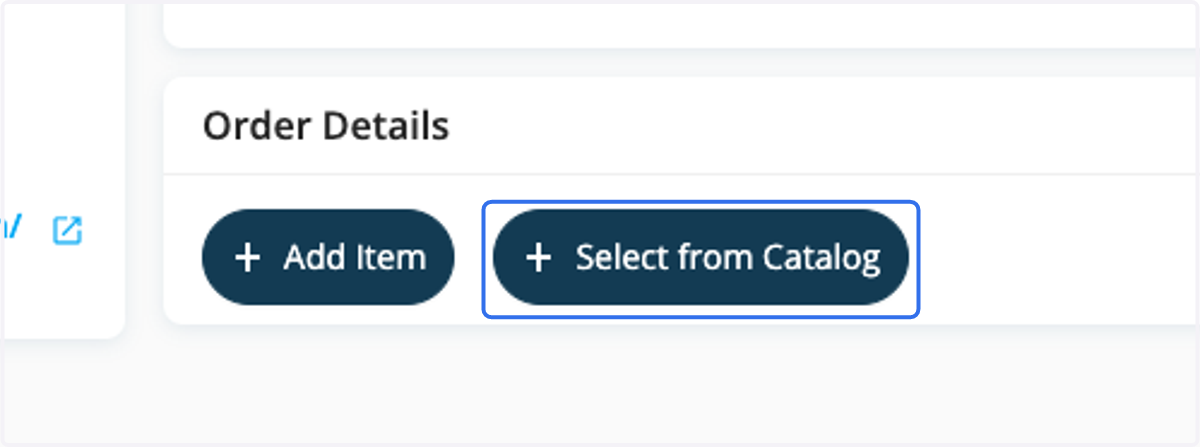
At the bottom of the page, select the Add Item button or the Select from Catalog button to add details for your requested services to the order.
Select from Catalog - This option can make it easy to enter service requests. Simply select an item from the DLS, and the system will enter most of the details for you.
Add Item - This option allows you to manually enter the details for your requested services. Use this option when certain information varies from what is listed in the DLS. For example, if the vendor is extending a discounted rate to your family that is different than the amount in the DLS, this option will allow you to customize the price listed in the order.
12. Add Order Details
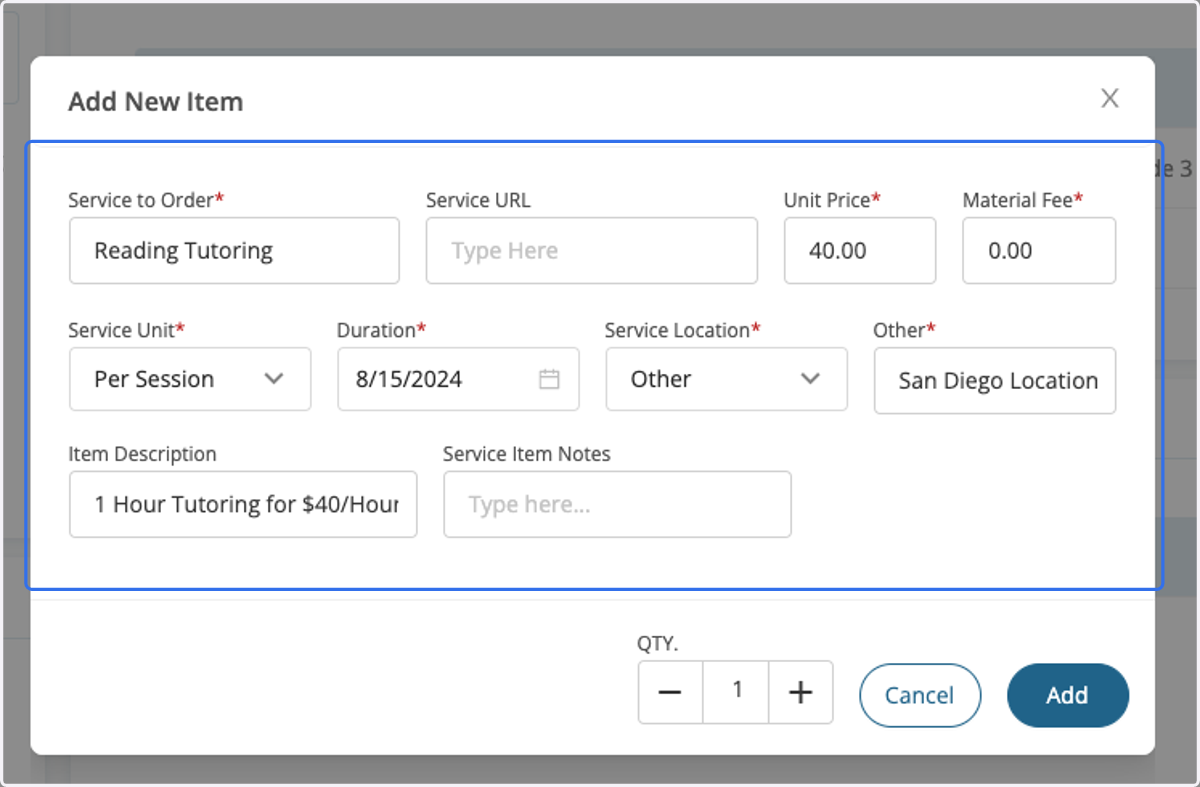
If you choose to manually enter the requested service details, fill out the item details as follows:
Service to Order - The information provided in this field will print on your student's enrichment certificate. Please enter specific, detailed information, so it is clear what is being requested (i.e. Reading Tutoring instead of Tutoring).
Service URL (optional) - If you think it might be helpful to provide a webpage for the requested services, please provide it in this field.
Unit Price - Enter the amount charged for the services by the vendor.
Material Fee - Some vendors provide materials for their classes or lessons, such as art supplies, music books, or textbooks. If your requested vendor charges a materials fee, list that cost in the Material Fee field.
Services Unit
Use the Per Hour, Per Day, or Per Session options for services that are billed by the hour, day, or for a single session
Use the Per Week option for services that are billed by the week
Use the Per Month option when vendors offer a monthly cost for services
Use the Per Semester or Per Duration option for semester-long classes that start and end on certain dates.
Service Location - Some vendors have multiple locations where they offer services. Please enter the specific location where you would like to request that your student take services.
Item Description (optional) - If there is additional information that you believe might help clarify exactly what services you are requesting, please enter it in this field (i.e. $40/month or $10/lesson for 4 lessons).
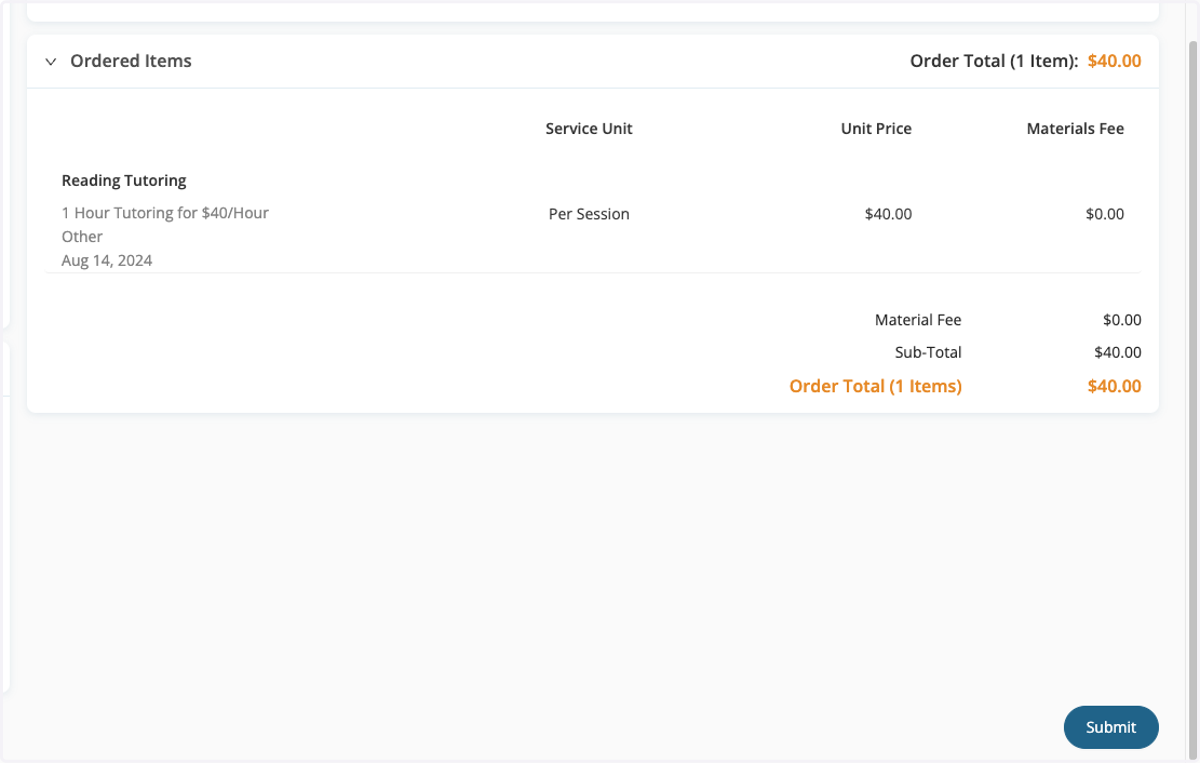
13. Review Order Request
Before submitting the order request, please review the information to ensure that everything looks accurate. If changes need to be made, click the Back button. If everything looks correct, click Submit.
14. Order Status
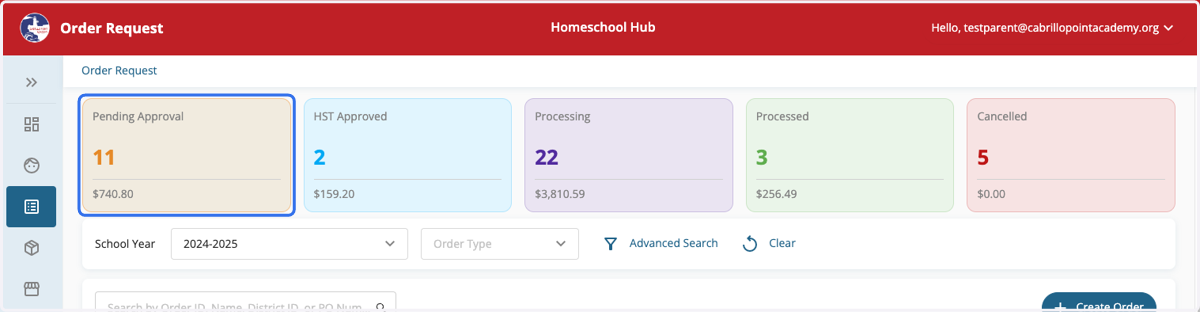
The requests you have entered into Homeschool Hub are housed in different folders across the top of the page, based on where they are at in the review and ordering process.
Pending Approval - Orders in this status are awaiting your HST's review. Parents/guardians are able to adjust and cancel orders when they are in this status.
HST Approved - Orders in this status have been approved by your teacher and are awaiting processing by our Enrichment Team. If you wish to make changes to orders in HST Approved status, please reach out to your HST for assistance.
Processing - Orders in this status are currently being processed by Enrichment staff. Should you wish to make changes to orders in this status, please reach out to the Enrichment Specialist assigned to the order. This information can be located from within the order.
Processed - Orders in this status have been processed by the school. Enrichment certificates will be automatically emailed to parents / guardians, HSTs, and vendors when orders are processed. If you are unable to locate an enrichment certificate in your email inbox, you can download enrichment certificates from within Homeschool Hub orders. If you have changed your mind or wish to cancel services once enrichment certificates have been issued, please reach out to your HST. Please note that there is no guarantee of refunds of planning amounts to students' accounts.
Canceled - Orders in this status have been canceled.
15. Click on Order Request
To view the status of your requests, click on the Order Request button.